> ## Documentation Index
> Fetch the complete documentation index at: https://documentation.onesignal.com/llms.txt
> Use this file to discover all available pages before exploring further.
# Getting started with OneSignal
> Set up your OneSignal account, configure push, in-app messages, email, and SMS/RCS, organize Users with tags and segments, and send your first message or Journey.
This guide walks through getting up and running with OneSignal. If you haven't already, [create your account](https://onesignal.com) to get started.
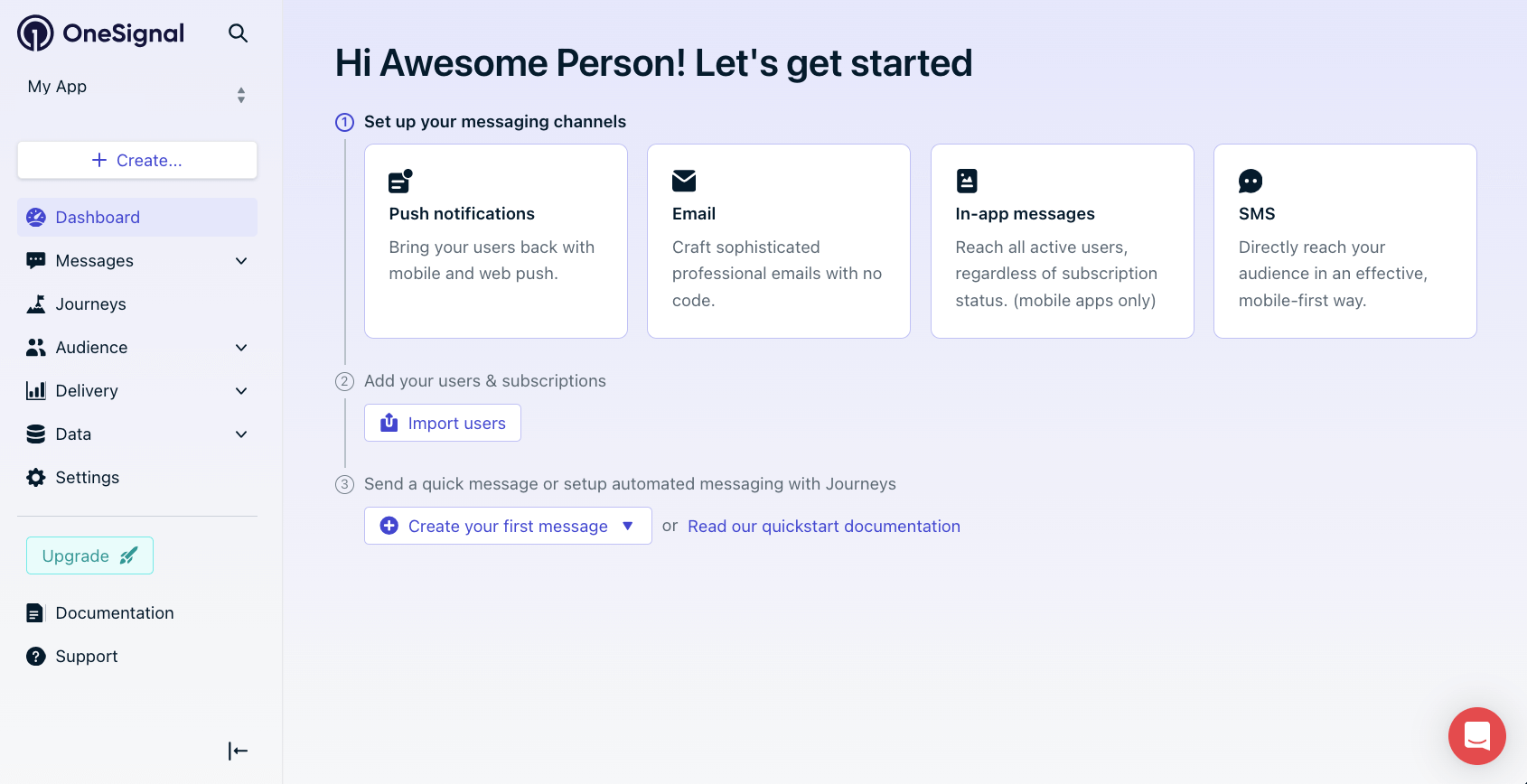
1. [**Set up your account and messaging channels**](#set-up-your-account-and-messaging-channels) — create your app and configure at least one channel.
2. [**Add and organize your Users**](#add-and-organize-your-users) — model Users, Subscriptions, tags, and segments.
3. [**Send messages**](#send-messages) — compose campaigns, personalize content, and build automated Journeys.
4. [**Measure impact with analytics**](#measure-impact-with-analytics) — track delivery, engagement, and conversions.
Prefer video? Watch the walkthrough below.
## Which channel should I start with?
Pick the channel that matches your immediate goal — you can add more to the same OneSignal App at any time.
| Your goal | Start with | Why |
| :------------------------------------------------- | :----------------------------------------------------------------------------- | :-------------------------------------------------------------------- |
| Send transactional or marketing email today | [Email](./email-setup) | No SDK required. Configure DNS and start sending the same day. |
| Reach a mobile app's existing user base | [Mobile push](./mobile-sdk-setup) + [in-app messages](./in-app-messages-setup) | Mobile SDKs cover both channels with one integration. |
| Engage website visitors | [Web push](./web-sdk-setup) | No app build needed; works in modern browsers. |
| Send time-sensitive alerts (OTPs, shipping) | [SMS](./sms-messaging) | Fastest channel for high-priority transactional messages. |
| Send rich, branded text messages | [RCS](./rcs-messaging) | Branded sender, read receipts, and rich media for Android recipients. |
| Stream live event data (sports, deliveries, rides) | [Live Activities](./live-activities) | Ongoing iOS Lock Screen and Dynamic Island updates. |
## Set up your account and messaging channels
Your OneSignal App is where user and messaging data is stored. You can have multiple Apps in a single Organization for different projects, environments, or billing needs.
### Account and workspace setup
Your OneSignal App, Organization structure, and account settings.
Invite collaborators and assign roles within your Organization.
Find your OneSignal App ID, Organization ID, and API keys.
Billing, invoices, and usage details.
### Messaging channels
OneSignal supports push notifications, in-app messages, email, SMS/MMS/RCS, and more! Choose your first channel and follow its setup guide — you can add more channels to the same app at any time.
Email and SMS can be configured without writing code. Push notifications and in-app messages require SDK integration — [invite a developer](./manage-team-members) to your team if needed.
Transactional and marketing email configuration.
iOS, Android, Huawei, and Amazon push setup.
Browser-based push notification setup.
Rich, interactive messages displayed within your app.
Text messaging for time-sensitive alerts.
Rich messaging with branded content and read receipts on Android.
Ongoing iOS Lock Screen and Dynamic Island updates for live events.
## Add and organize your users
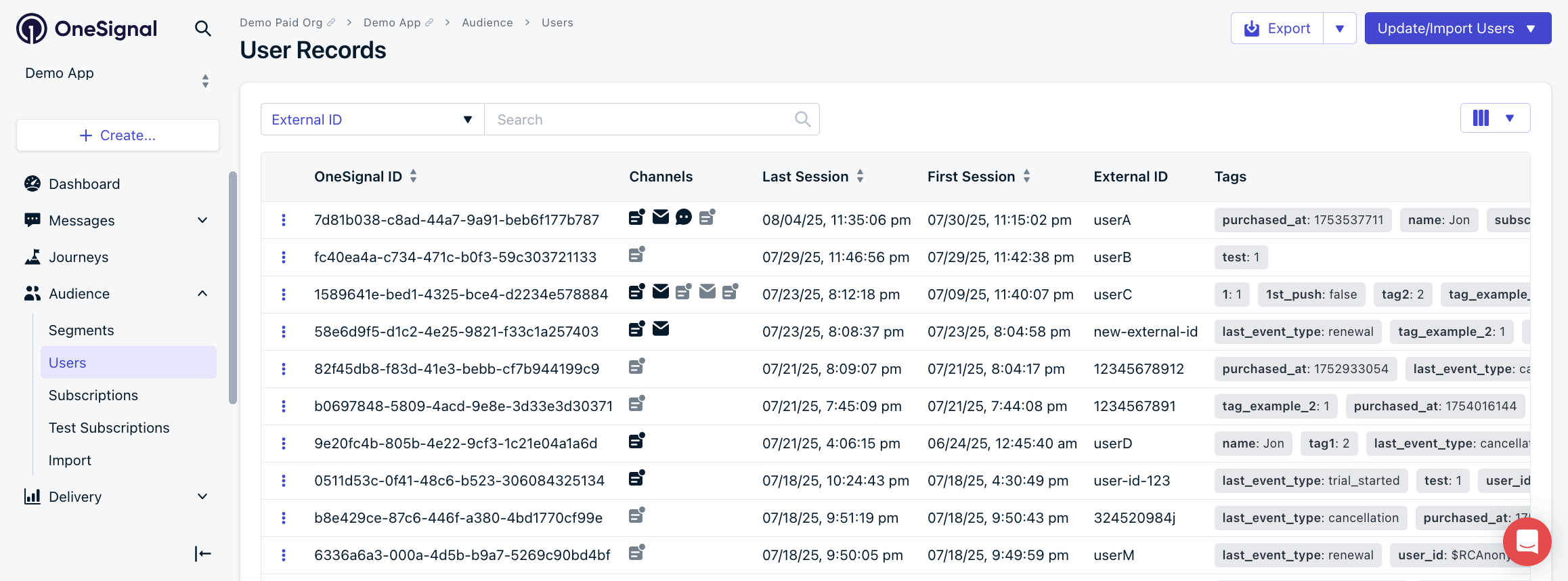
As users interact with your mobile app or website, OneSignal assigns each a **OneSignal ID** (the OneSignal User ID) and **Subscription IDs** for each device, email address, or phone number. A single User can have multiple Subscriptions across channels.
Users stay anonymous until you identify them with an [External ID](./users#external-id). This is a stable identifier from your system — typically your internal user ID — that lets OneSignal merge a User across devices, app reinstalls, and channels. Setting an External ID may change the User's OneSignal ID if that user already exists in the OneSignal app.
Identified by External ID. One User can have multiple Subscriptions across channels.
Email addresses, phone numbers, and devices that receive your messages.
### User properties
Store user data as **tags** (key-value pairs) and **custom events** (user actions). Both power message personalization and segmentation.
Add custom properties to users for personalization and segmentation.
Trigger Journeys or wait-until actions based on User behavior.
### Segments and integrations
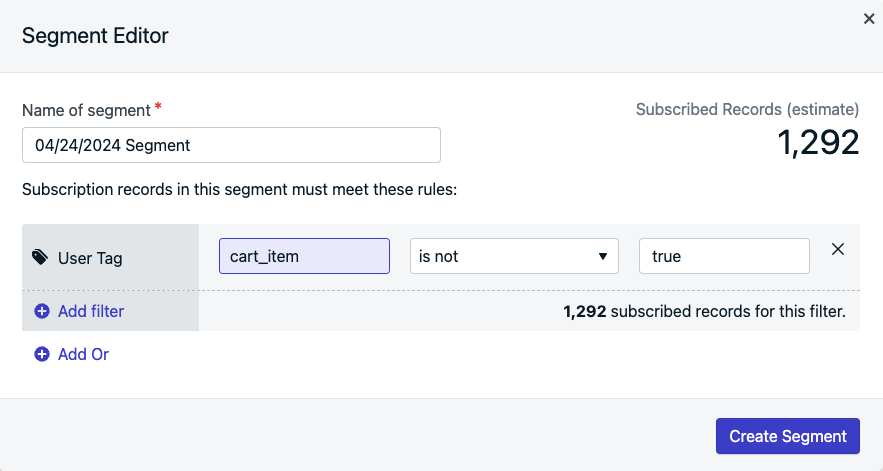
Segments are dynamic groups of users defined by tags, behavior data, or message interactions. They update automatically as data changes — for example, "Last session greater than a week" or "Added item to cart." Connect external platforms to enrich your data in real time.
Create dynamic audience groups using tags and behavior data.
Import User data from external platforms to power segments and Journeys.
## Send messages
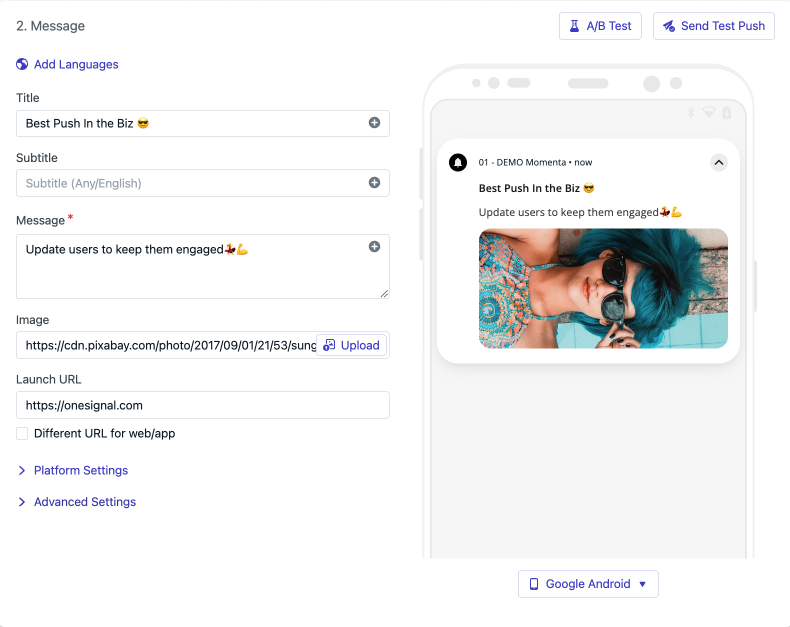
Design and send single-message campaigns or automated multi-step Journeys from the OneSignal dashboard. Each channel has its own composer with preview, targeting, and scheduling options.
Send to web, iOS, Android, Huawei, and Amazon devices.
Compose and send transactional or marketing emails.
Trigger rich, interactive messages based on User behavior within your app.
Send text messages for time-sensitive alerts and updates.
Ongoing iOS Lock Screen and Dynamic Island updates for live events.
Build automated, multi-step campaigns triggered by user behavior.
### Personalize your messages
Use tags, custom events, and dynamic data to tailor message content for each recipient. OneSignal uses **Liquid syntax** to inject tag values, custom event properties, and Data Feed content into message bodies and email subject lines (e.g., `Hi {{ first_name | default: 'there' }}`). Create reusable templates to maintain consistency across campaigns.
Personalize content with Liquid syntax, tags, Data Feeds, and custom data.
Create reusable message templates for push, email, and SMS.
### Journeys
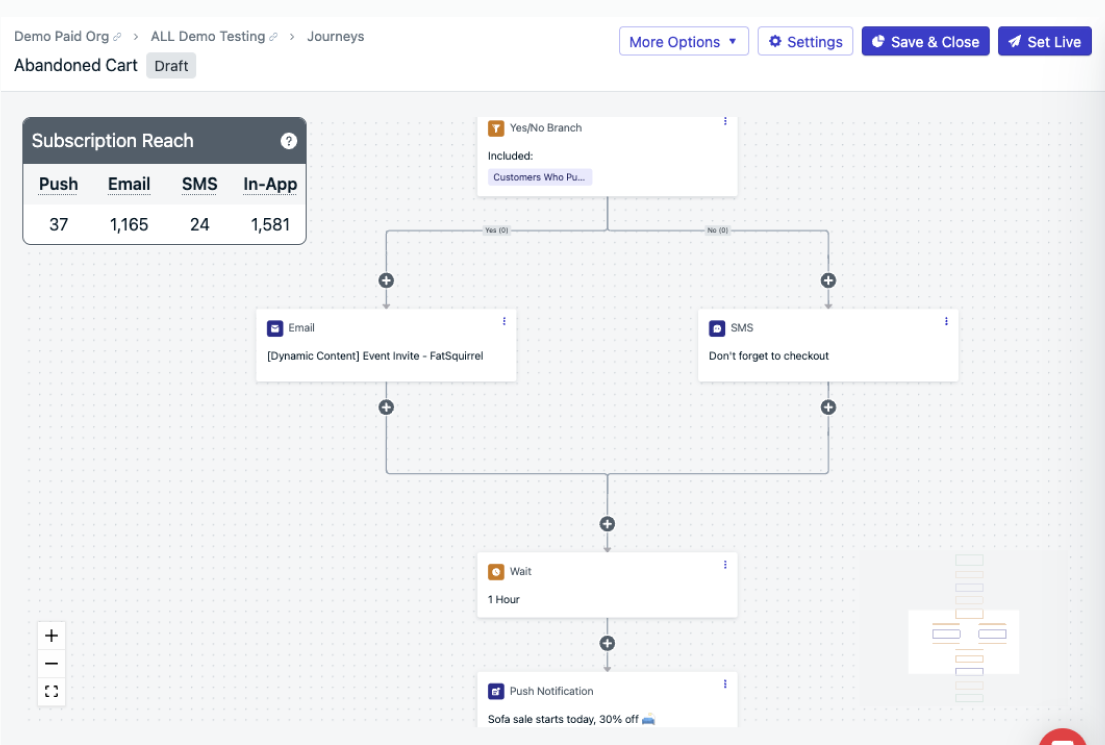
Journeys are automated, multi-step campaigns that respond to User behavior — such as onboarding sequences, abandoned cart reminders, and re-engagement flows.
Build automated, multi-step campaigns triggered by User behavior.
Common patterns like onboarding, abandoned carts, and re-engagement.
### Send via API
Send messages programmatically for transactional use cases like order confirmations, OTPs, and billing alerts.
SDK and REST API documentation for engineering teams.
Send time-sensitive messages like OTPs, receipts, and shipping updates via API.
## Measure impact with analytics
Track message performance — including delivery, opens, clicks, and conversions — to understand what drives engagement and refine your strategy.
Review all analytics options available in OneSignal.
Stream message events like clicks, opens, and receives to your data warehouse in real time.
Export User and message data in CSV or API format.
Connect analytics platforms like Amplitude, Mixpanel, Segment, and more to OneSignal.
Measure business impact like revenue and sign-ups with cross-channel last-touch attribution.
Set a target metric on a Journey and track progress on the Journey report.
## Next steps
Once you've sent your first message, deepen your setup with these guides.
Move from one-off campaigns to automated, multi-step lifecycle messaging.
Use Liquid, tags, custom events, and Data Feeds to personalize at scale.
Build dynamic audiences from tags, behavior, and message interactions.
Lifecycle data model, Journeys, and patterns built for mobile apps.
## FAQ
### Do I need a developer to get started?
Not necessarily. Email and SMS channels can be configured without code. Push notifications and in-app messages require SDK integration, which may need a developer or AI assistant. You can [invite team members](./manage-team-members) with different roles at any time.
### Can I add more messaging channels later?
Yes. Add any combination of channels to the same OneSignal App. Each channel has its own setup guide — return to the [messaging channels](#messaging-channels) section to add a new one.
### What is the difference between a User and a Subscription?
A **User** represents one person, identified by an [External ID](./users#external-id). A **Subscription** is a specific channel endpoint — such as a device, email address, or phone number. One User can have multiple Subscriptions across different channels and devices.
### How long does initial setup take?
Email setup typically takes under 30 minutes if you have access to your domain DNS settings. SMS requires carrier registration, which can take a few days. Push notification setup depends on your app's platform and build process — plan for a few hours of developer time.
### Where do I find my API key and App ID?
In the OneSignal dashboard, go to **Settings → Keys & IDs**. Each app has its own App ID and REST API Key — never expose the REST API Key in client-side code. See [Keys and IDs](./keys-and-ids) for the full breakdown of which key to use where.
### How do I test my setup before sending to real users?
Configure [Test Users](./test-users) — devices, email addresses, or phone numbers flagged as internal — then use the **Send to Test Users** option in any composer. Test sends bypass segments and exclusions so you can preview rendering, deep links, and personalization on your own devices first.
### Can I migrate from another messaging platform?
Yes. The fastest path is to (1) install the OneSignal SDK alongside your existing provider, (2) call the External ID and Tag setters with the user IDs and attributes from your current system so identities map cleanly, and (3) once Subscriptions are flowing in, sunset the old provider. For email and SMS lists, you can also import historical Subscriptions via CSV — see [Users](./users) and [Subscriptions](./subscriptions) for the import patterns.
Need help?
Chat with our Support team or email `support@onesignal.com`
Please include:
* Details of the issue you're experiencing and steps to reproduce if available
* Your OneSignal App ID
* The External ID or Subscription ID if applicable
* The URL to the message you tested in the OneSignal Dashboard if applicable
* Any relevant [logs or error messages](/docs/en/capturing-a-debug-log)
We're happy to help!