> ## Documentation Index
> Fetch the complete documentation index at: https://documentation.onesignal.com/llms.txt
> Use this file to discover all available pages before exploring further.
# Notification images & rich media
> Learn how to add images, gifs, and multimedia to mobile push notifications using OneSignal's Dashboard and API, including recommended formats, device-specific behavior, and rich media customization options.
This guide explains how to enhance mobile push notifications using **images and rich media**, including platform support, technical limitations, and customization options in OneSignal.
Image guides for other channels:
Add images to web push notifications.
Full reference for the in-app message editor, blocks, and Carousel.
Add images to emails.
Add images to make MMS messages.
***
## Mobile app images
You can add images to push notifications via the OneSignal Dashboard or API. There are two main types:
### Notification icons
* **iOS**: Automatically uses the app icon.
* **Android**: Allows custom large and small icons.
* See [Notification icons](./notification-icons) for setup instructions.
### Big Picture image (large format)
* **Android**: Shows expanded by default on most devices.
* **iOS**: Requires user to swipe down or long press.
To add images:
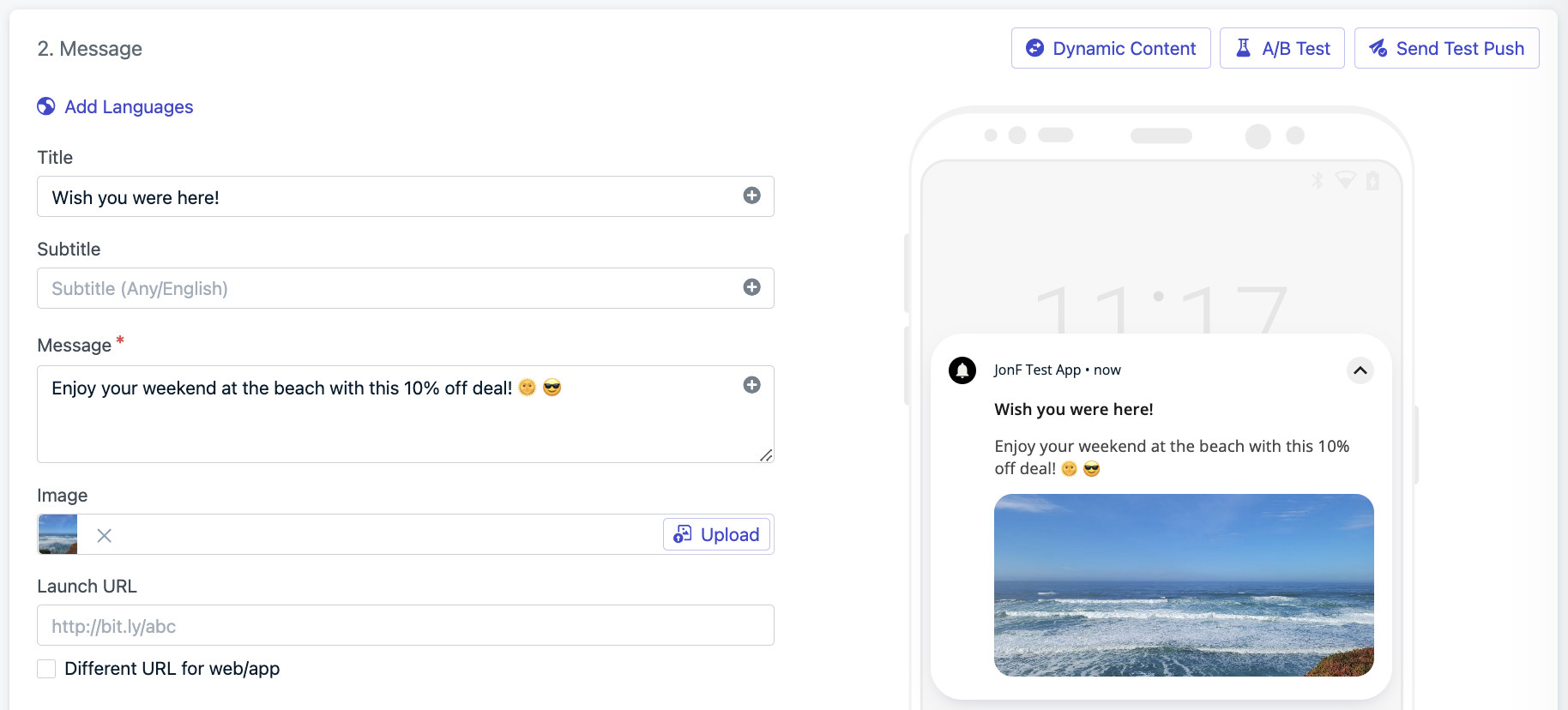
* In Dashboard: **Messages > New Push > "Upload" to image field**
* Or use API parameters: `big_picture` (Android) and `ios_attachments` (iOS)
 ***
## Image specifications
Use landscape-oriented images with a 2:1 aspect ratio.
| | iOS | Android |
| ----------------- | ------------------------------------------------------------------------------------------------------------------------------- | ------------------------------------------------------------------------------------------ |
| **Filetypes** | `jpg`, `jpeg`, `png`, `gif` | `jpg`, `jpeg`, `png`, `gif`\* |
| **Resolution** | 1:1 aspect ratio or 2:1 aspect ratio (e.g., `1038x1038px` or `1024×512px`)
***
## Image specifications
Use landscape-oriented images with a 2:1 aspect ratio.
| | iOS | Android |
| ----------------- | ------------------------------------------------------------------------------------------------------------------------------- | ------------------------------------------------------------------------------------------ |
| **Filetypes** | `jpg`, `jpeg`, `png`, `gif` | `jpg`, `jpeg`, `png`, `gif`\* |
| **Resolution** | 1:1 aspect ratio or 2:1 aspect ratio (e.g., `1038x1038px` or `1024×512px`)
**Max Width:** 2000px
**Min Width:** 300px | 2:1 aspect ratio (e.g., `1024×512px`)
**Max Width:** 2000px
**Min Width:** 300px |
| **API Parameter** | `ios_attachments` | `big_picture` |
* \*Android does **not** support animated GIFs.
* Adding [Action Buttons](./action-buttons) may reduce image display area.
* See [Notification Images Not Showing](./notification-images-not-showing) if images don't appear.
OneSignal enforces a 5MB upload limit and does not support audio or video uploads. Hosted images expire after 33 days. For long-term use, upload to your own static URL or use Templates.
***
## Rich notification customization
OneSignal supports deeper visual and interactive customization using native platform features.
### Android custom notification layout
Android 12+ enforces system templates for custom notifications. However, you can still customize your layout using Android’s standard notification styles. See [behavior changes](https://developer.android.com/about/versions/12/behavior-changes-12#custom-notifications) for details.
To customize your layout:
* Follow [Android's custom notification guide](https://developer.android.com/develop/ui/views/notifications/custom-notification)
* Apply changes via the [Notification Service Extension](./service-extensions)
* See [Notification.DecoratedCustomViewStyle](https://developer.android.com/reference/android/app/Notification.DecoratedCustomViewStyle) for available customizations.
### iOS content extensions
iOS uses [`UNNotificationContentExtension`](https://developer.apple.com/documentation/usernotificationsui/unnotificationcontentextension?language=objc) to enable rich media and interactivity in notifications.
Supported features:
* Image carousels
* Embedded video playback
* Custom views like calendars or chat previews
See our [iOS Carousel Guide](./ios-image-carousel-push-notifications) for setup instructions.
***
## Supported media attachments
Rich media can be added via URLs to externally hosted content. This works with `UNNotificationContentExtension` on iOS.
* Ensure your URLs are direct links to the file and end in the correct extension. If not, append a query (e.g., `?file=video.mp4`) so the SDK can detect the media type.
* OneSignal has a 5MB limit on uploaded images. Video and audio must be hosted externally. Link directly to the media file, not a webpage.
| Attachment | File Type | Max Size | Requirements |
| ---------- | -------------------------------------- | -------- | ---------------------------------------------------------------------------------------------------------------------------------------------- |
| **Audio** | `aif`, `aiff`, `wav`, `mp3` | 5MB | None |
| **Video** | `mp4`, `mpeg`, `mpeg2`, `mpeg4`, `avi` | 50MB | [`UNNotificationContentExtension`](https://developer.apple.com/documentation/usernotificationsui/unnotificationcontentextension?language=objc) |
| **Image** | `jpg`, `jpeg`, `png`, `gif` | 10MB | [OneSignalNotificationServiceExtension](./service-extensions) |
The [OneSignalNotificationServiceExtension](./service-extensions) is included in the OneSignal SDK and required for image support, delivery tracking, and badge updates.
***
## Testing tips
Make sure your media displays correctly across devices:
* Always test on real devices (not emulators).
* iOS requires long press or swipe-down to reveal rich media.
* Android rendering varies by device, OS version, and presence of action buttons.
* Use the **"Send Test"** button in OneSignal before launching a campaign.
### Example use cases
* Show a product photo in an abandoned cart reminder
* Promote a new movie trailer with a video preview (iOS only)
* Send an animated banner for a flash sale
***
## Troubleshooting
If your images aren’t appearing as expected, consult the [Notification Images Not Showing](./notification-images-not-showing) guide for common causes and fixes.
***