> ## Documentation Index
> Fetch the complete documentation index at: https://documentation.onesignal.com/llms.txt
> Use this file to discover all available pages before exploring further.
# Segment (Twilio)
> Integrate OneSignal with Twilio Segment for user data and messaging events.
 ## Overview
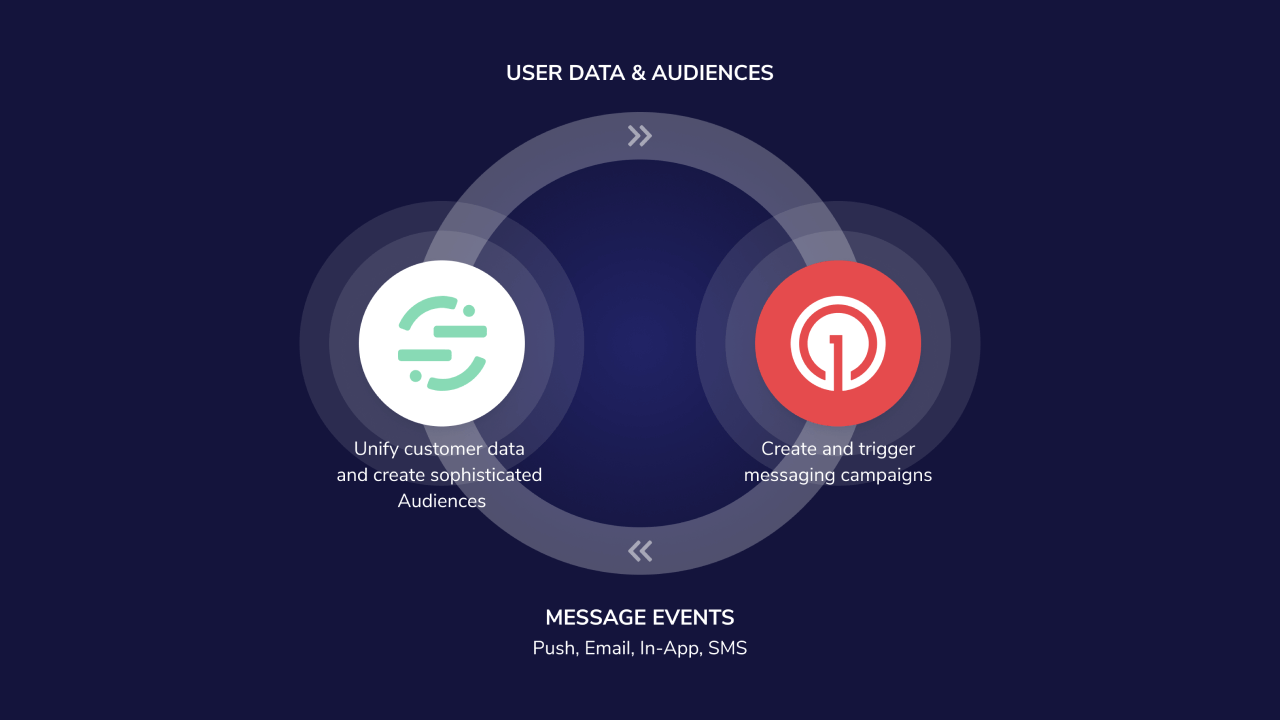
The OneSignal + Segment integration lets you:
* Send user traits and events from Segment to OneSignal to enrich user profiles, power segmentation, and trigger messaging.
* Send message delivery and engagement events from OneSignal to Segment for centralized analytics and data warehousing.
This bidirectional setup supports all major OneSignal channels: Push, In-App, Email, and SMS.
***
## Requirements
* A Growth, Professional or Enterprise [OneSignal Account](https://onesignal.com/pricing).
* Segment Admin Permissions
* The OneSignal [Mobile SDK](./mobile-sdk-setup) and/or [Web SDK](./web-push-setup) from which you want to send data. [Email](./email-setup) or [SMS](./sms-setup) only integrations do not require the SDK.
* The OneSignal Property: [External ID](./users) which maps to the Segment.com `userId`.
***
## Setup
### 1. Set up OneSignal
Use an existing app or create a new one in the OneSignal dashboard. Then set up your preferred channels:
* [Web Push Setup](./web-push-setup)
* [Mobile Push Setup](./mobile-sdk-setup)
* [SMS Setup](./sms-setup)
* [Email Setup](./email-setup)
### 2. Connect Segment to OneSignal
Within OneSignal Dashboard, navigate to **Data > Integrations** and click **Active** within Segment.com card. Then continue with the setup options.
#### Data in
"Data In" to OneSignal allows you to send [OneSignal segments](./segmentation), [tags](./add-user-data-tags), and [custom events](./custom-events) from your Segment.com account to OneSignal. Click **Authenticate** under the *Data In* section of the Segment.com setting page in the OneSignal Dashboard.
Once enabled to track custom events, the Segment.com integration will send both Tags and Events, so you will not need to update any existing templates that reference Tags.
## Overview
The OneSignal + Segment integration lets you:
* Send user traits and events from Segment to OneSignal to enrich user profiles, power segmentation, and trigger messaging.
* Send message delivery and engagement events from OneSignal to Segment for centralized analytics and data warehousing.
This bidirectional setup supports all major OneSignal channels: Push, In-App, Email, and SMS.
***
## Requirements
* A Growth, Professional or Enterprise [OneSignal Account](https://onesignal.com/pricing).
* Segment Admin Permissions
* The OneSignal [Mobile SDK](./mobile-sdk-setup) and/or [Web SDK](./web-push-setup) from which you want to send data. [Email](./email-setup) or [SMS](./sms-setup) only integrations do not require the SDK.
* The OneSignal Property: [External ID](./users) which maps to the Segment.com `userId`.
***
## Setup
### 1. Set up OneSignal
Use an existing app or create a new one in the OneSignal dashboard. Then set up your preferred channels:
* [Web Push Setup](./web-push-setup)
* [Mobile Push Setup](./mobile-sdk-setup)
* [SMS Setup](./sms-setup)
* [Email Setup](./email-setup)
### 2. Connect Segment to OneSignal
Within OneSignal Dashboard, navigate to **Data > Integrations** and click **Active** within Segment.com card. Then continue with the setup options.
#### Data in
"Data In" to OneSignal allows you to send [OneSignal segments](./segmentation), [tags](./add-user-data-tags), and [custom events](./custom-events) from your Segment.com account to OneSignal. Click **Authenticate** under the *Data In* section of the Segment.com setting page in the OneSignal Dashboard.
Once enabled to track custom events, the Segment.com integration will send both Tags and Events, so you will not need to update any existing templates that reference Tags.
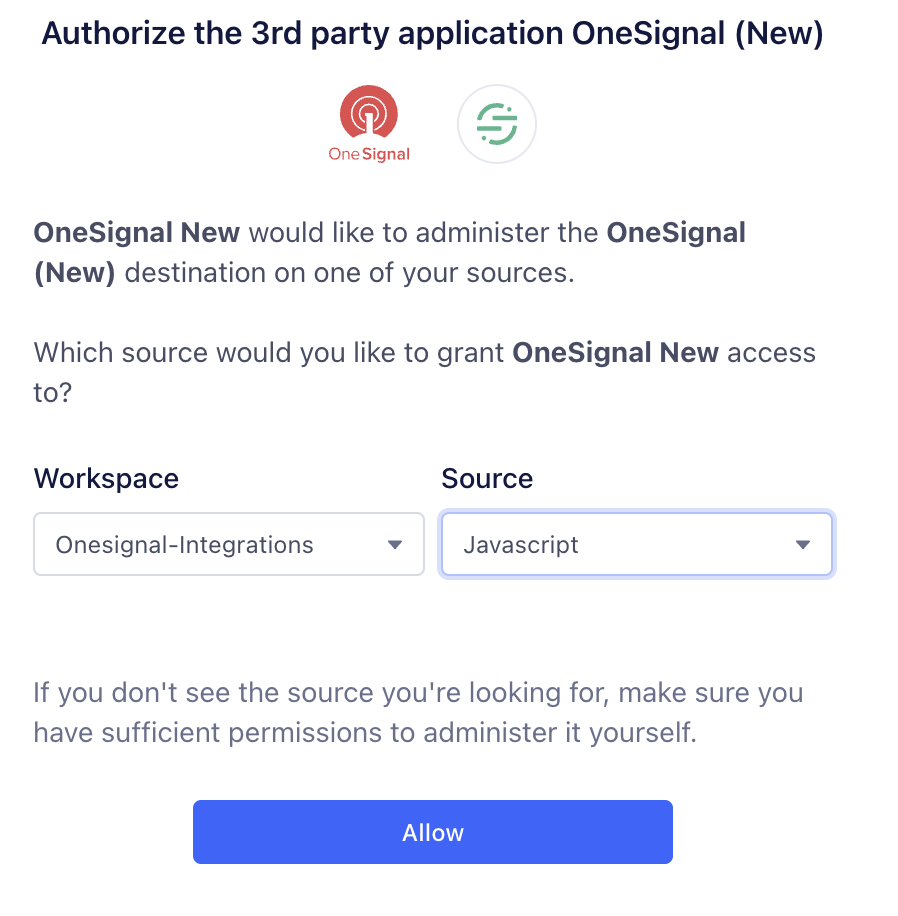
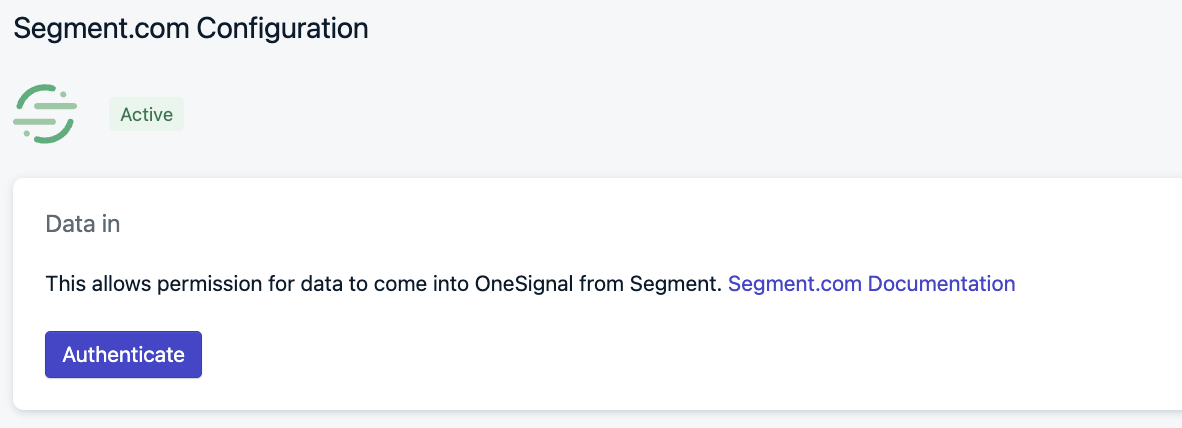 Once you click Authenticate, a Segment.com webpage will open and you'll be prompted to sign in to your Segment.com account. You'll then be prompted to configure a new data destination from your Segment.com account.
 #### Data out
Enabling "Data Out" to Segment.com syncs message events generated back to your Segment.com account. These message events are generated from sending messages to your users on the OneSignal platform. More details on what kind of events can be generated, and the properties they are sent with can be found [below](./segment-onesignal-integration#message-events).
First, you need to add OneSignal as a source from your Segment.com account. You can do that by navigating to the [OneSignal Source listing ](https://segment.com/docs/connections/sources/catalog/cloud-apps/onesignal/)in the Segment Connections Catalogue.
From there, you can add your Segment.com API token on the OneSignal Dashboard. Please navigate **Data > Integrations > Segment** in the OneSignal Dashboard to add the Segment API key.
#### Data out
Enabling "Data Out" to Segment.com syncs message events generated back to your Segment.com account. These message events are generated from sending messages to your users on the OneSignal platform. More details on what kind of events can be generated, and the properties they are sent with can be found [below](./segment-onesignal-integration#message-events).
First, you need to add OneSignal as a source from your Segment.com account. You can do that by navigating to the [OneSignal Source listing ](https://segment.com/docs/connections/sources/catalog/cloud-apps/onesignal/)in the Segment Connections Catalogue.
From there, you can add your Segment.com API token on the OneSignal Dashboard. Please navigate **Data > Integrations > Segment** in the OneSignal Dashboard to add the Segment API key.
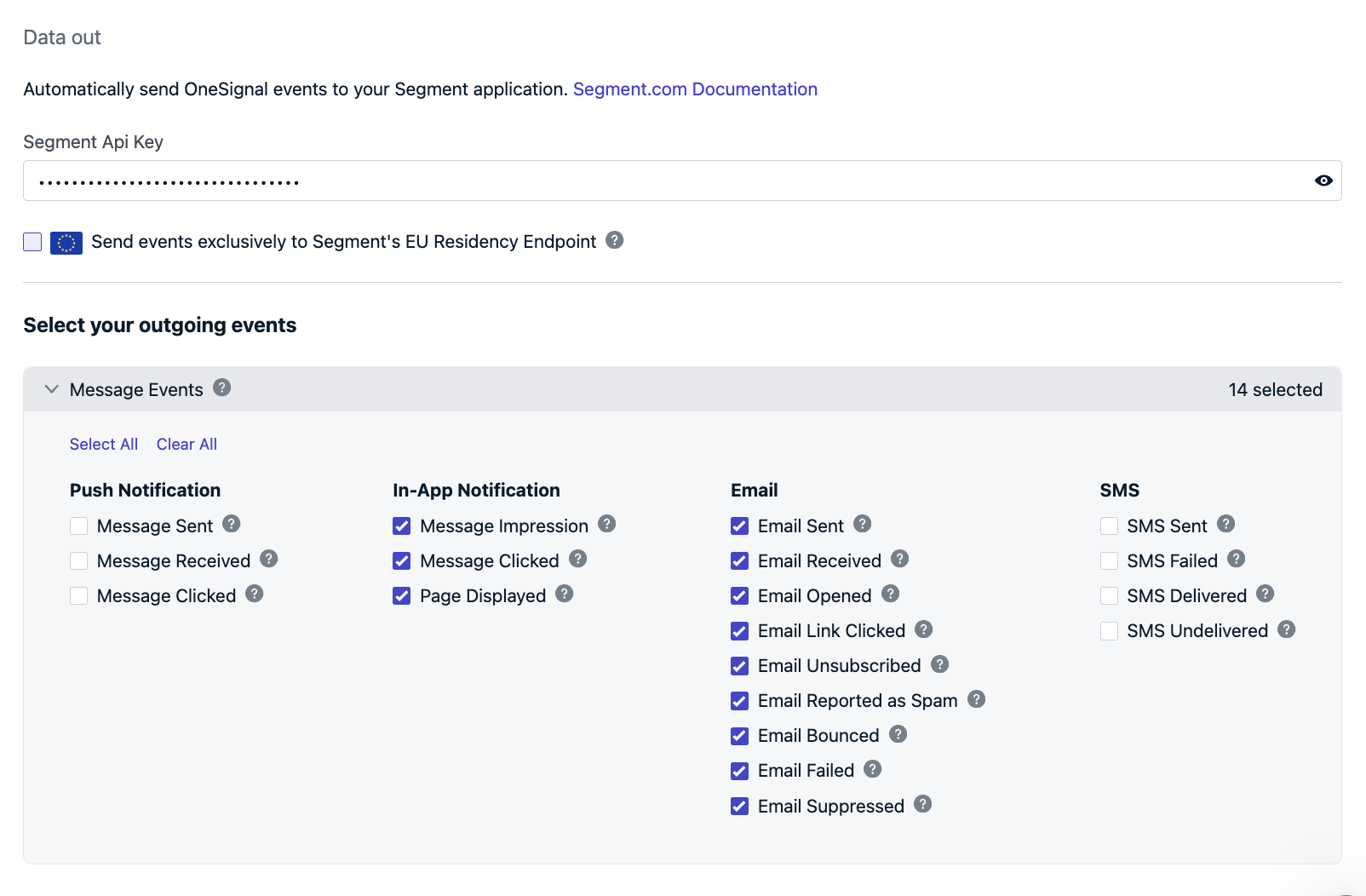 After you set up the API key, please make sure to check your Data Policy settings in Segment.com to determine if you need to send events to Segment's EU Residency Endpoint.
Once all of those settings are done, you can then select which events you want to sync over to your Segment Account depending on which channels you utilize with OneSigna..
### 3. Add OneSignal destination in Segment
Within **Segment.com Dashboard > Destinations** you should see **OneSignal**. If not, add OneSignal as a new destination.
Enable the OneSignal Destination, you should also see your OneSignal API Key and App ID already
After you set up the API key, please make sure to check your Data Policy settings in Segment.com to determine if you need to send events to Segment's EU Residency Endpoint.
Once all of those settings are done, you can then select which events you want to sync over to your Segment Account depending on which channels you utilize with OneSigna..
### 3. Add OneSignal destination in Segment
Within **Segment.com Dashboard > Destinations** you should see **OneSignal**. If not, add OneSignal as a new destination.
Enable the OneSignal Destination, you should also see your OneSignal API Key and App ID already
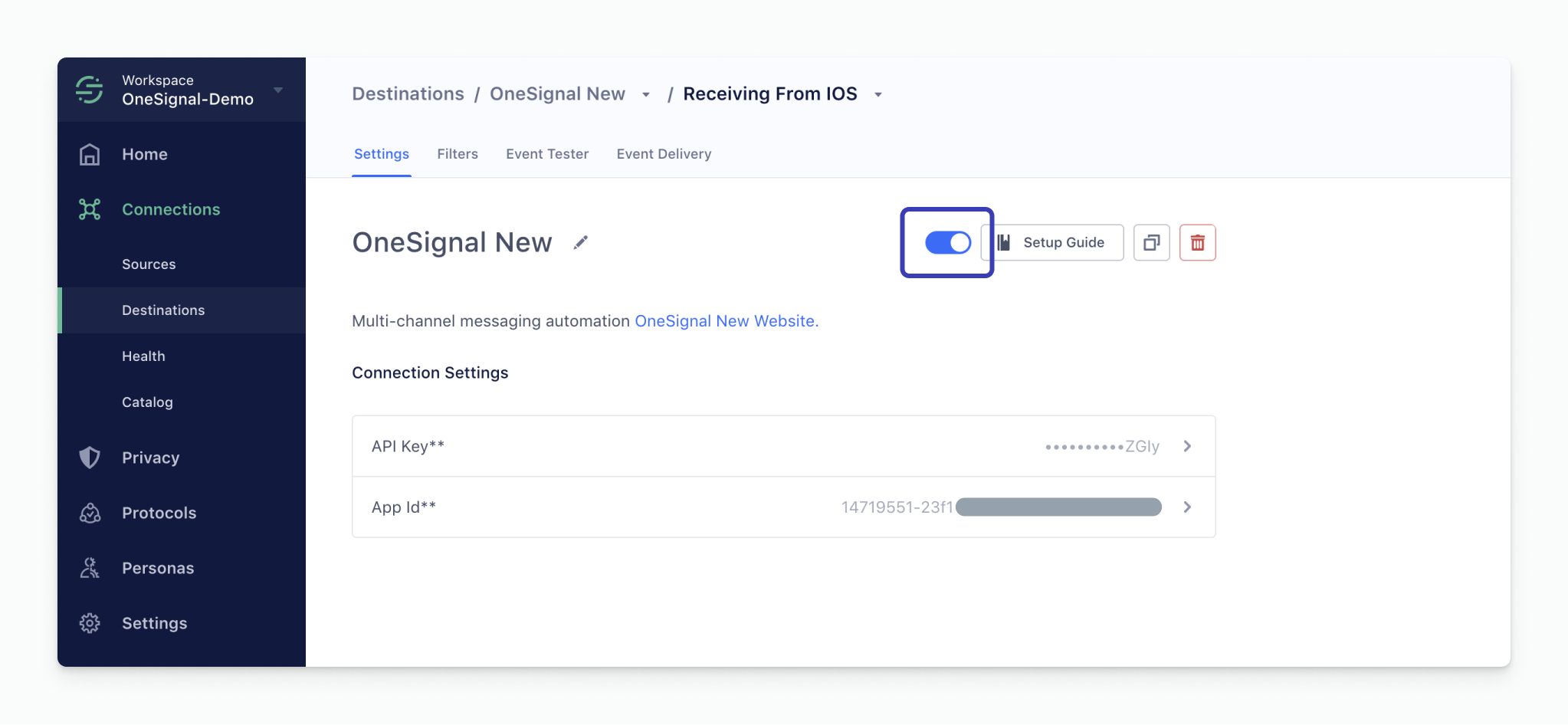 If the API key and App Id are not set, navigate to the [OneSignal dashboard](https://app.onesignal.com/apps/), select the App, and go to the **Settings > Keys & IDs**. Copy-Paste the "App ID" and the "API key" into Segment.com.
#### Multiple Segment.com Sources
If you have multiple sources, you can utilize [Segment's **Personas > Spaces** feature ](https://segment.com/docs/personas/#personas-spaces)to bind multiple sources to a destination.
### 4. Send data from Segment to OneSignal
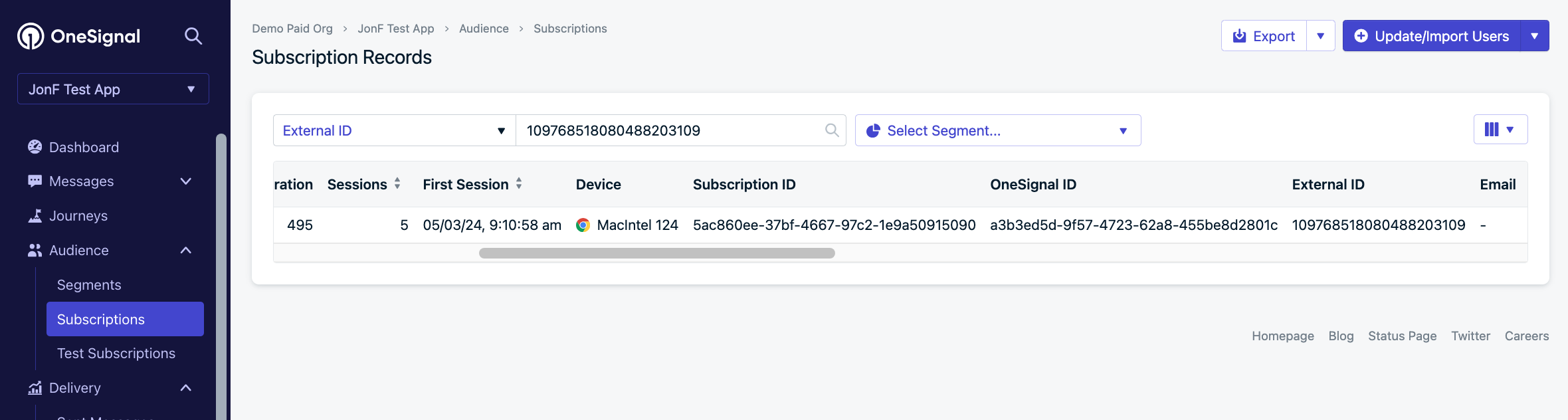
OneSignal stores channel-level records: Push/IAM, Email, and SMS. These records must already be created in OneSignal and you must also set the [External ID](./users) alias in OneSignal to match the `userID` field sent by Segment.com.
Records that don't have a **Segment User ID \<--> OneSignal External ID** mapping will be dropped.
## User traits or properties
You can aggregate data across every customer touchpoint in Segment and then send these user properties in real-time to OneSignal as [Tags](./add-user-data-tags).
**Note**: OneSignal can not accept nested objects or arrays as user properties.
[Identify](https://segment.com/docs/connections/spec/identify) - User traits or properties sent using *Segment's Identify call* are stored as Tags on OneSignal. For example:
If the API key and App Id are not set, navigate to the [OneSignal dashboard](https://app.onesignal.com/apps/), select the App, and go to the **Settings > Keys & IDs**. Copy-Paste the "App ID" and the "API key" into Segment.com.
#### Multiple Segment.com Sources
If you have multiple sources, you can utilize [Segment's **Personas > Spaces** feature ](https://segment.com/docs/personas/#personas-spaces)to bind multiple sources to a destination.
### 4. Send data from Segment to OneSignal
OneSignal stores channel-level records: Push/IAM, Email, and SMS. These records must already be created in OneSignal and you must also set the [External ID](./users) alias in OneSignal to match the `userID` field sent by Segment.com.
Records that don't have a **Segment User ID \<--> OneSignal External ID** mapping will be dropped.
## User traits or properties
You can aggregate data across every customer touchpoint in Segment and then send these user properties in real-time to OneSignal as [Tags](./add-user-data-tags).
**Note**: OneSignal can not accept nested objects or arrays as user properties.
[Identify](https://segment.com/docs/connections/spec/identify) - User traits or properties sent using *Segment's Identify call* are stored as Tags on OneSignal. For example:
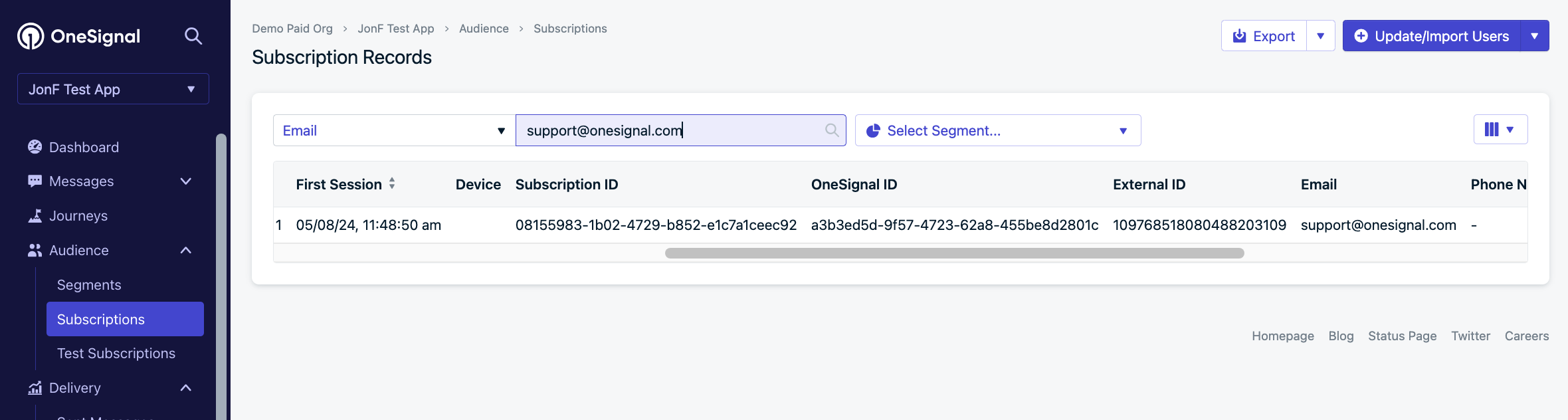
 [Track](https://segment.com/docs/connections/spec/track/) - For events and associated properties sent using *Segment's Track call*, OneSignal will store all the *event properties* as Tags, but *drop* the *event name* while storing the tags. If you want to keep the *event names* in the Tags, you can append the event name to the properties before sending them to OneSignal. For example:
```javascript track example theme={null}
let timestampInSeconds = Int(NSDate().timeIntervalSince1970).toString()//convert to string since Segment adds decimals to end
//name will be dropped and only properties will be sent to OneSignal as tag "last opened: timestampInSeconds"
analytics.track(
name: "iOS App Last Opened",
properties: ["last opened": timestampInSeconds]
)
```
[Track](https://segment.com/docs/connections/spec/track/) - For events and associated properties sent using *Segment's Track call*, OneSignal will store all the *event properties* as Tags, but *drop* the *event name* while storing the tags. If you want to keep the *event names* in the Tags, you can append the event name to the properties before sending them to OneSignal. For example:
```javascript track example theme={null}
let timestampInSeconds = Int(NSDate().timeIntervalSince1970).toString()//convert to string since Segment adds decimals to end
//name will be dropped and only properties will be sent to OneSignal as tag "last opened: timestampInSeconds"
analytics.track(
name: "iOS App Last Opened",
properties: ["last opened": timestampInSeconds]
)
```
 ## Personas Audience and Computed Traits
[Persona Audiences](https://segment.com/docs/personas/) automatically show up as a [segment in OneSignal](./segmentation).
Computed traits are updated as [Tags](./add-user-data-tags) on the OneSignal user records.
**Audience**
## Personas Audience and Computed Traits
[Persona Audiences](https://segment.com/docs/personas/) automatically show up as a [segment in OneSignal](./segmentation).
Computed traits are updated as [Tags](./add-user-data-tags) on the OneSignal user records.
**Audience**
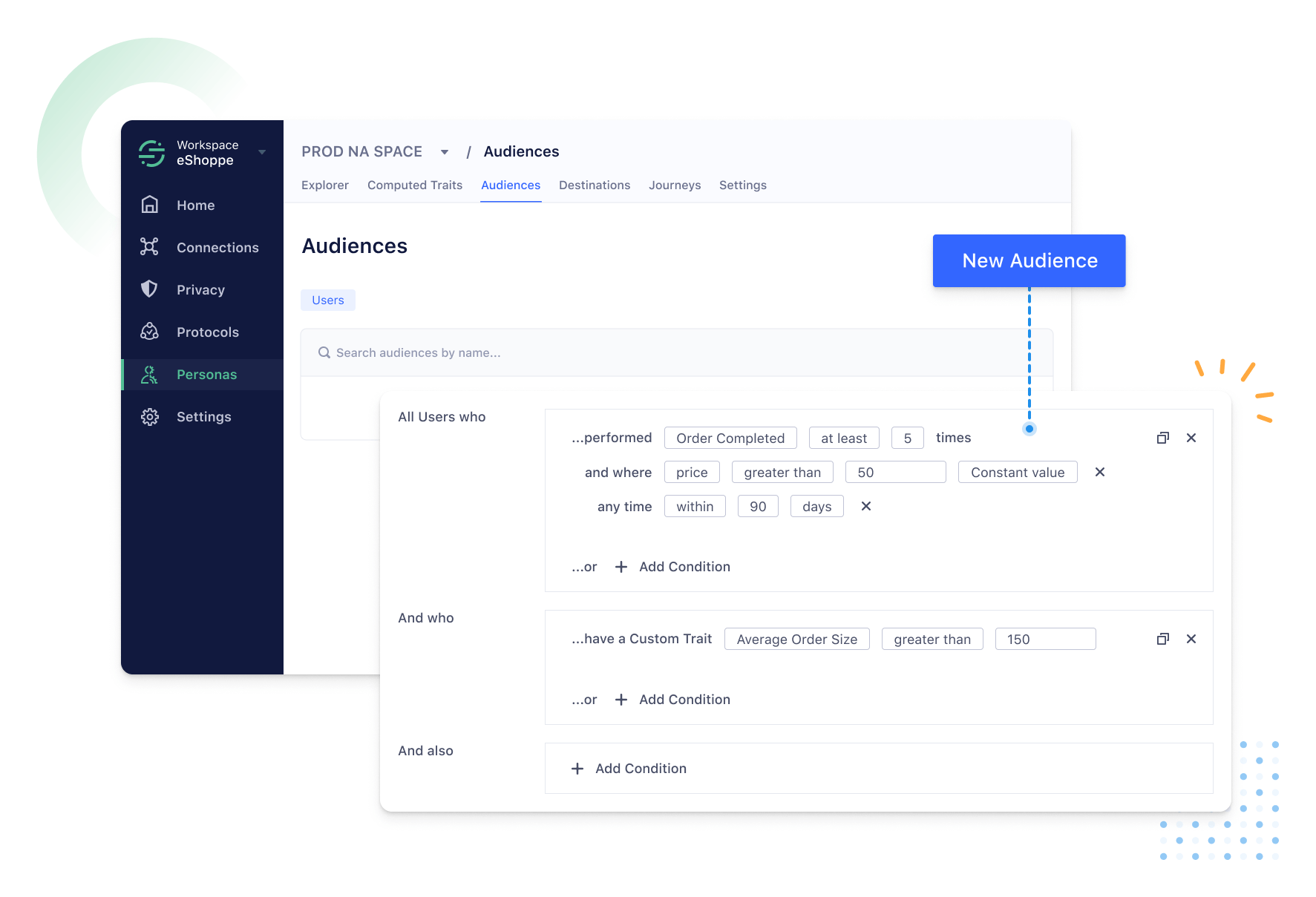 Audiences sent using Segment's [Track call](https://segment.com/docs/connections/spec/track/) will create a OneSignal segment with the *Audience Name*.
Audiences sent using Segment's [Identify call ](https://segment.com/docs/connections/spec/identify/)will
* create a OneSignal segment with the *Audience Name*
* add Tags (if there are additional properties in the Identify call) on all the matching user records.
Audiences sent using Segment's [Track call](https://segment.com/docs/connections/spec/track/) will create a OneSignal segment with the *Audience Name*.
Audiences sent using Segment's [Identify call ](https://segment.com/docs/connections/spec/identify/)will
* create a OneSignal segment with the *Audience Name*
* add Tags (if there are additional properties in the Identify call) on all the matching user records.
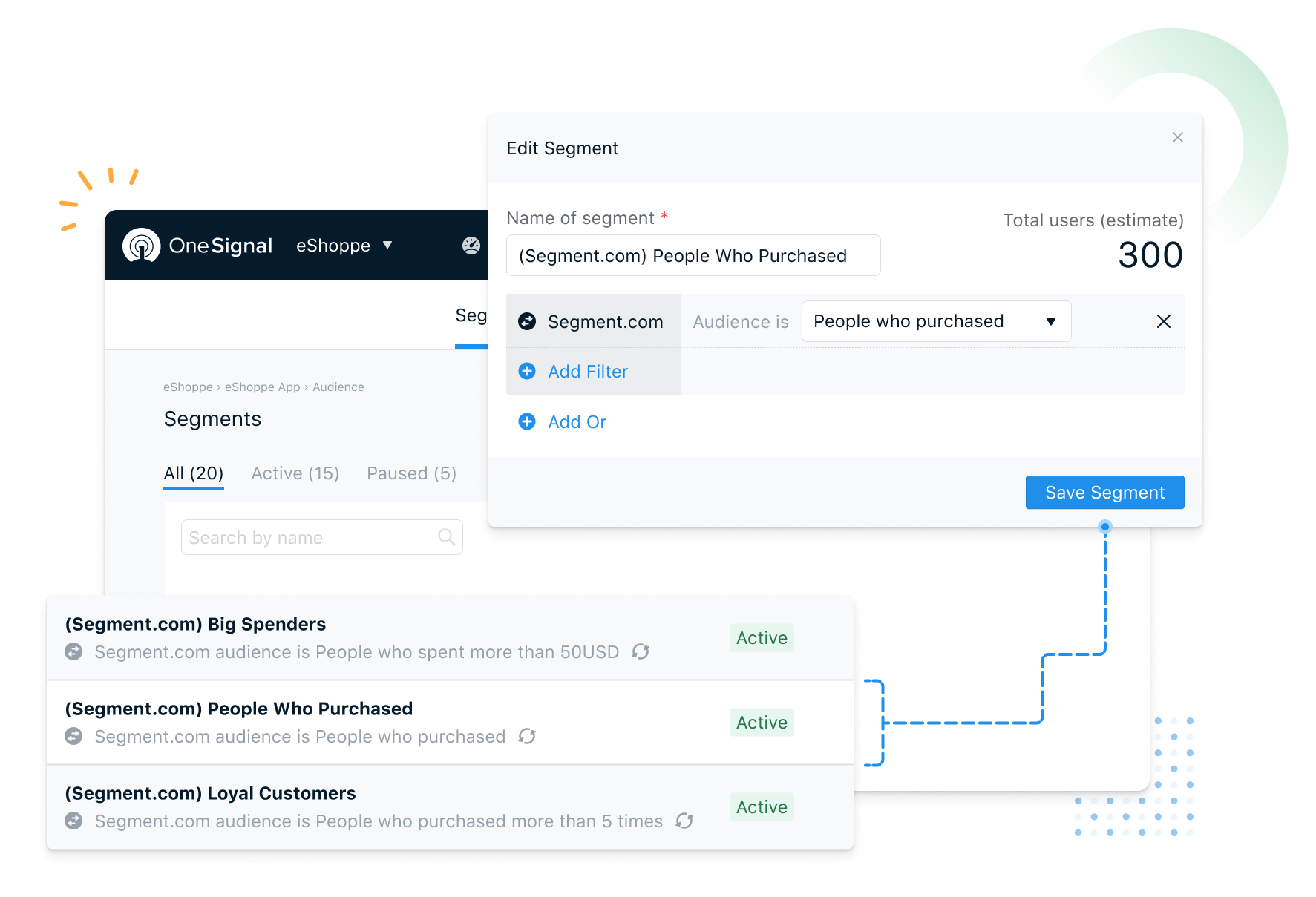 The Identify and Track calls are automatically sent to OneSignal whenever a user enters or exits the Audience.
**Computed Traits** Personas Computed Traits are stored as [Tags](./add-user-data-tags) on the OneSignal user records whether passed to OneSignal as an Identify call or a Track call. You can then use these Tags to manually create OneSignal segments and automate your messaging workflows.
***
## Message Events
## Event Kinds
These are the message event kinds that OneSignal sends to Segment
| MessageEvent Kind | Event Description |
| ----------------------------- | ---------------------------------------------------- |
| Push Sent | Push notification successfully sent |
| Push Received | Push notification successfully received |
| Push Clicked | Push notification touched on device |
| In-App Message Displayed | In-App Message successfully displayed on device |
| In-App Message Clicked | In-App Message clicked on device |
| In-App Message Page Displayed | In-App Message page is displayed |
| Email Sent | Email successfully sent |
| Email Opened | Email opened by recipient |
| Email Unsubscribed | Email unsubscribed by recipient |
| Email Received | Email received by recipient |
| Email Reported As Spam | Email reported as spam by recipient |
| Email Bounced | Email returned to sender due to permanent error |
| Email Failed | Could not deliver the email to the recipient's inbox |
| SMS Sent | SMS sent to recipient |
| SMS Delivered | SMS successfully delivered |
| SMS Failed | SMS failed to send |
### Event Properties
These are the properties that are present on events sent from OneSignal to Segment.com
| PROPERTY NAME | DESCRIPTION |
| ------------------- | -------------------------------------------------- |
| `userId` | The `external_id` associated with the message |
| `anonymousId` | The `subscription_id` |
| `messageId` | The identifier of the discrete message |
| `campaign_id` | The same value as `messageId` |
| `message_name` | The message name |
| `message_title` | The message title |
| `message_contents` | The message contents |
| | |
| `subscription_type` | The channel the message was sent through |
| `template_id` | The message template used |
| `subscription_id`. | The OneSignal set device/email/sms identifier |
| `device_type` | The device type that received the message |
| `language` | The two character language code of the device |
| `message_type` | The type of message sent, push, in-app, email, SMS |
## FAQ
### How can we pass Subscription events?
Subscription events are not currently being sent automatically. This can be done with the OneSignal SDK Subscription Observer Methods. See [Subscription Tracking](./analytics-overview#subscription-tracking) for more details.
### Managing Segment's Reserved and Custom User Properties in OneSignal
* All the Segment's user traits are sent to OneSignal as Tags. The number of Tags allowed on OneSignal depends on your OneSignal pricing plan. Tags over the entitled number will be dropped.
* OneSignal always updates the firstName and the lastName properties for matching users. All other traits are added/updated on a first-come basis. *firstName* and *lastName* tags are stored as "first\_name" and "last\_name".
* User properties sent to OneSignal with blank/null values are removed from the OneSignal user record. This is done to make sure you are within your data tag limits.
***
The Identify and Track calls are automatically sent to OneSignal whenever a user enters or exits the Audience.
**Computed Traits** Personas Computed Traits are stored as [Tags](./add-user-data-tags) on the OneSignal user records whether passed to OneSignal as an Identify call or a Track call. You can then use these Tags to manually create OneSignal segments and automate your messaging workflows.
***
## Message Events
## Event Kinds
These are the message event kinds that OneSignal sends to Segment
| MessageEvent Kind | Event Description |
| ----------------------------- | ---------------------------------------------------- |
| Push Sent | Push notification successfully sent |
| Push Received | Push notification successfully received |
| Push Clicked | Push notification touched on device |
| In-App Message Displayed | In-App Message successfully displayed on device |
| In-App Message Clicked | In-App Message clicked on device |
| In-App Message Page Displayed | In-App Message page is displayed |
| Email Sent | Email successfully sent |
| Email Opened | Email opened by recipient |
| Email Unsubscribed | Email unsubscribed by recipient |
| Email Received | Email received by recipient |
| Email Reported As Spam | Email reported as spam by recipient |
| Email Bounced | Email returned to sender due to permanent error |
| Email Failed | Could not deliver the email to the recipient's inbox |
| SMS Sent | SMS sent to recipient |
| SMS Delivered | SMS successfully delivered |
| SMS Failed | SMS failed to send |
### Event Properties
These are the properties that are present on events sent from OneSignal to Segment.com
| PROPERTY NAME | DESCRIPTION |
| ------------------- | -------------------------------------------------- |
| `userId` | The `external_id` associated with the message |
| `anonymousId` | The `subscription_id` |
| `messageId` | The identifier of the discrete message |
| `campaign_id` | The same value as `messageId` |
| `message_name` | The message name |
| `message_title` | The message title |
| `message_contents` | The message contents |
| | |
| `subscription_type` | The channel the message was sent through |
| `template_id` | The message template used |
| `subscription_id`. | The OneSignal set device/email/sms identifier |
| `device_type` | The device type that received the message |
| `language` | The two character language code of the device |
| `message_type` | The type of message sent, push, in-app, email, SMS |
## FAQ
### How can we pass Subscription events?
Subscription events are not currently being sent automatically. This can be done with the OneSignal SDK Subscription Observer Methods. See [Subscription Tracking](./analytics-overview#subscription-tracking) for more details.
### Managing Segment's Reserved and Custom User Properties in OneSignal
* All the Segment's user traits are sent to OneSignal as Tags. The number of Tags allowed on OneSignal depends on your OneSignal pricing plan. Tags over the entitled number will be dropped.
* OneSignal always updates the firstName and the lastName properties for matching users. All other traits are added/updated on a first-come basis. *firstName* and *lastName* tags are stored as "first\_name" and "last\_name".
* User properties sent to OneSignal with blank/null values are removed from the OneSignal user record. This is done to make sure you are within your data tag limits.
***