> ## Documentation Index
> Fetch the complete documentation index at: https://documentation.onesignal.com/llms.txt
> Use this file to discover all available pages before exploring further.
# Segments
> Create and manage dynamic user segments in OneSignal to target personalized messaging based on activity, location, tags, and more.
A **segment** is a dynamic group of users defined by filters on Subscription attributes, behavior, and custom data. OneSignal segments update automatically as users interact with your app or site — no extra tracking required. Use segments to target messages, exclude audiences, and trigger Journeys.
Push notifications, emails, and SMS messages are only sent to opted-in (subscribed) [Subscriptions](./subscriptions). The segment editor shows both subscribed and unsubscribed counts for transparency, but only subscribed Subscriptions receive messages when you target a segment. In-App Messages are displayed to all mobile Subscriptions, regardless of status.
When used in Journeys, all Subscriptions in a segment, regardless of status, are evaluated to their respective [users](./users) and those users are entered into the Journey.
## Segment types
The OneSignal platform supports two main categories of segments:
### Subscription-based segments
Subscription-based segments are built using filters on Subscription attributes, such as device type, language, or app version.
### User-based segments
User-based segments are built using filters on user-level attributes rather than individual Subscriptions. Currently, these segments support filters on [message events](./message-events) and [Custom Events](./custom-events). Examples include:
* When a user last opened an email, SMS, or push notification sent via OneSignal.
* Specific Custom Events tracked in your app or website.
A user-based segment includes all users who meet the criteria and automatically makes all of their Subscriptions eligible to be targeted, enabling richer audience definitions that can reach any of the user's devices.
## Creating segments
Segments can be created in the dashboard, via the API, or by uploading a CSV. Target your audience by including and excluding segments when sending messages or building Journeys.
Create and manage segments from **Audience > Segments**.
Create segments programmatically using the Create Segment API.
Bulk-import Subscriptions and Tags via CSV, then build segments that match them.
#### Create a segment in the dashboard
Navigate to the Segments page in the dashboard.
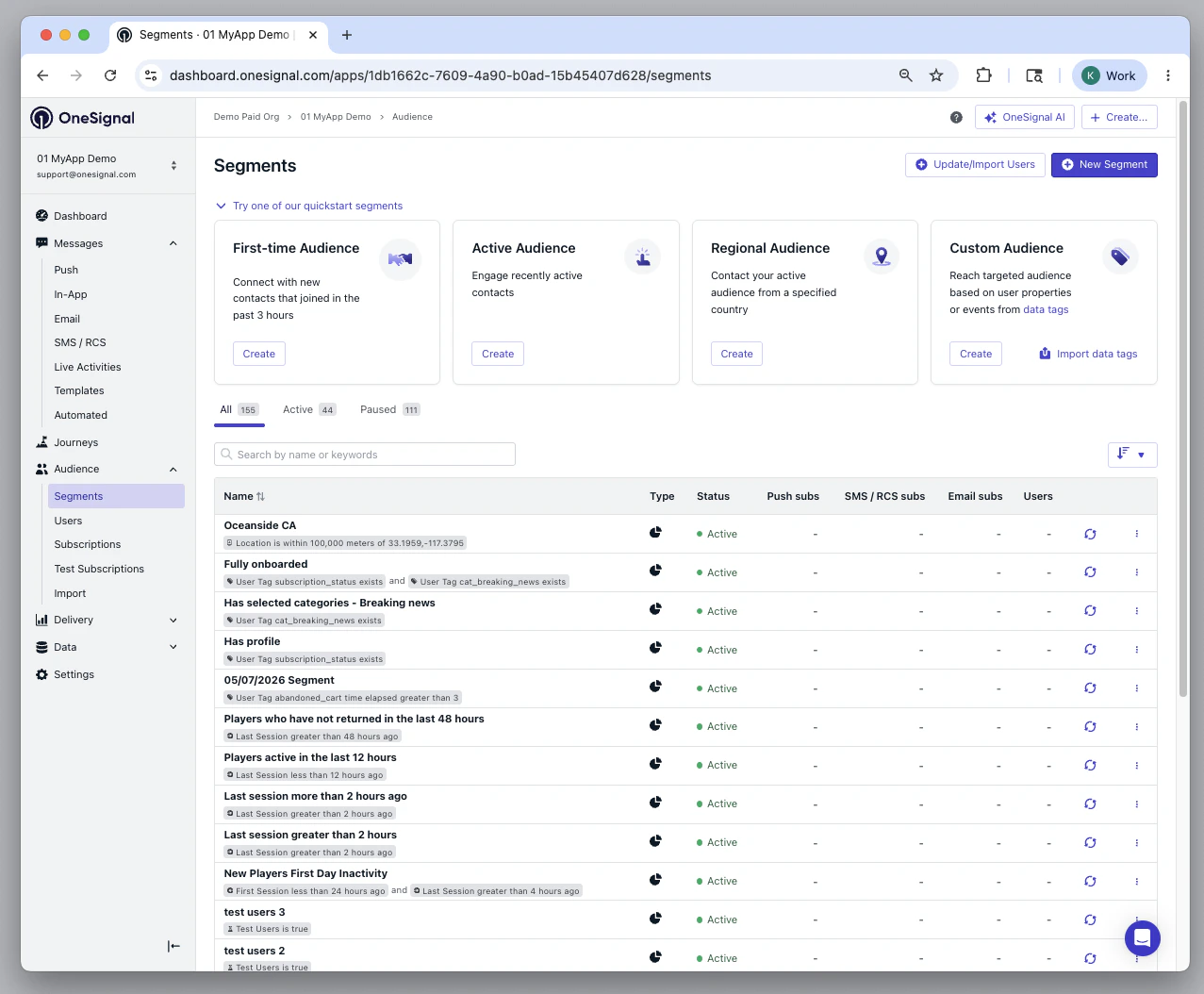 Opens the segment creation interface.
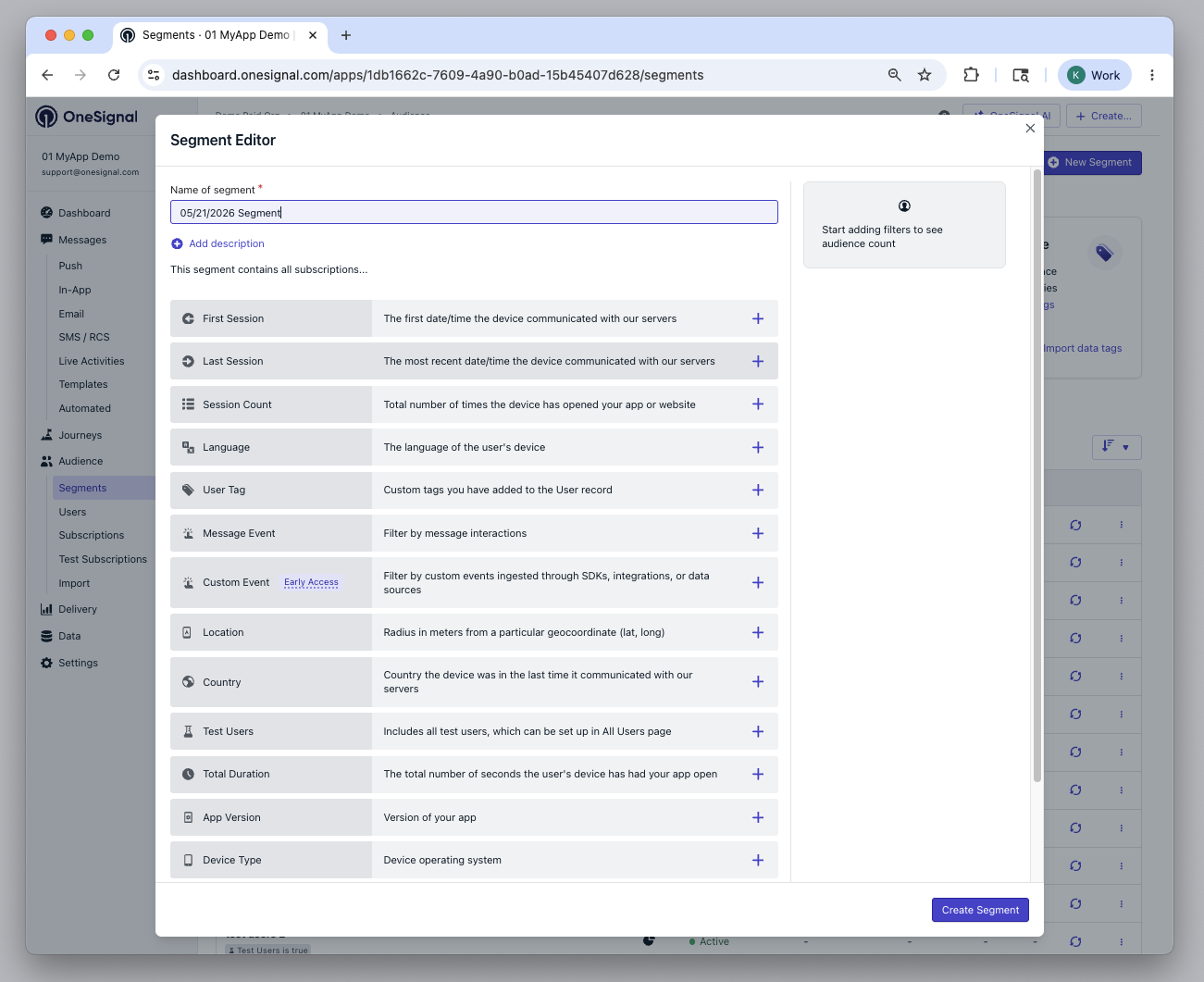 * Add filters to define your audience criteria.
* Name the segment.
* Enter a **Description** (optional). Click **Add description** below the segment name (up to 255 characters).
* Click **Create Segment**.
* Add filters to define your audience criteria.
* Name the segment.
* Enter a **Description** (optional). Click **Add description** below the segment name (up to 255 characters).
* Click **Create Segment**.
 ### Segment logic: AND vs OR
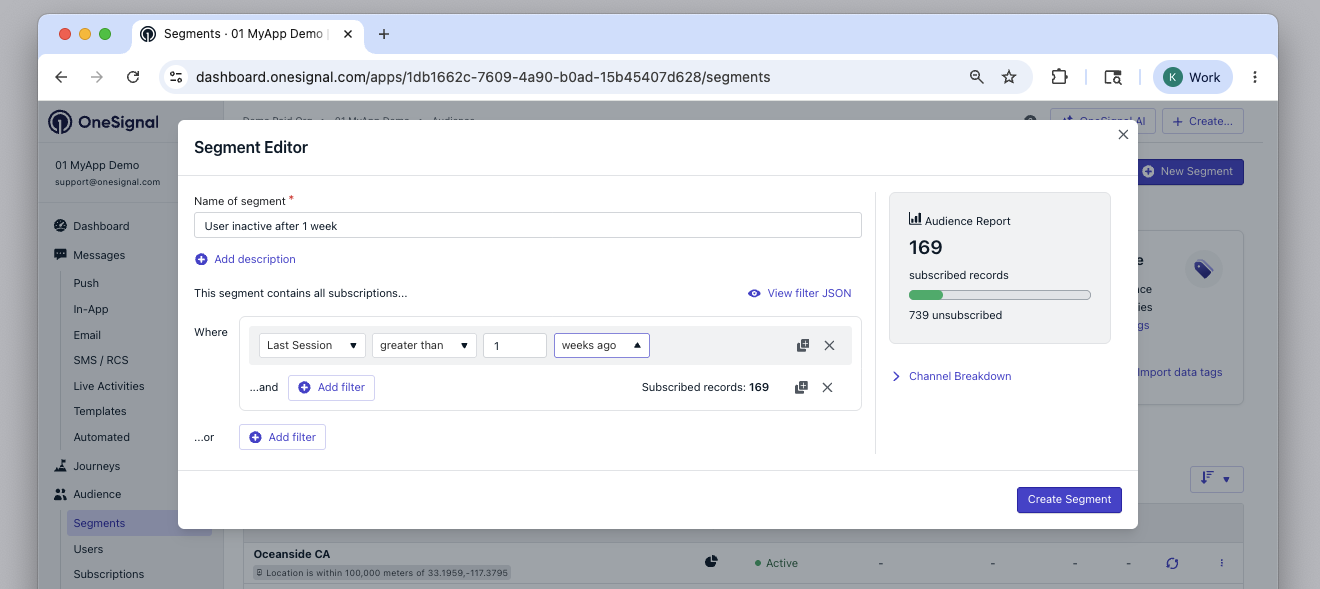
Use **AND** to combine filters that all must match. Use **OR** to match any of multiple conditions.
Create a segment of users who:
* Have been active within the last 30 days
* Have at least 3 total sessions
### Segment logic: AND vs OR
Use **AND** to combine filters that all must match. Use **OR** to match any of multiple conditions.
Create a segment of users who:
* Have been active within the last 30 days
* Have at least 3 total sessions
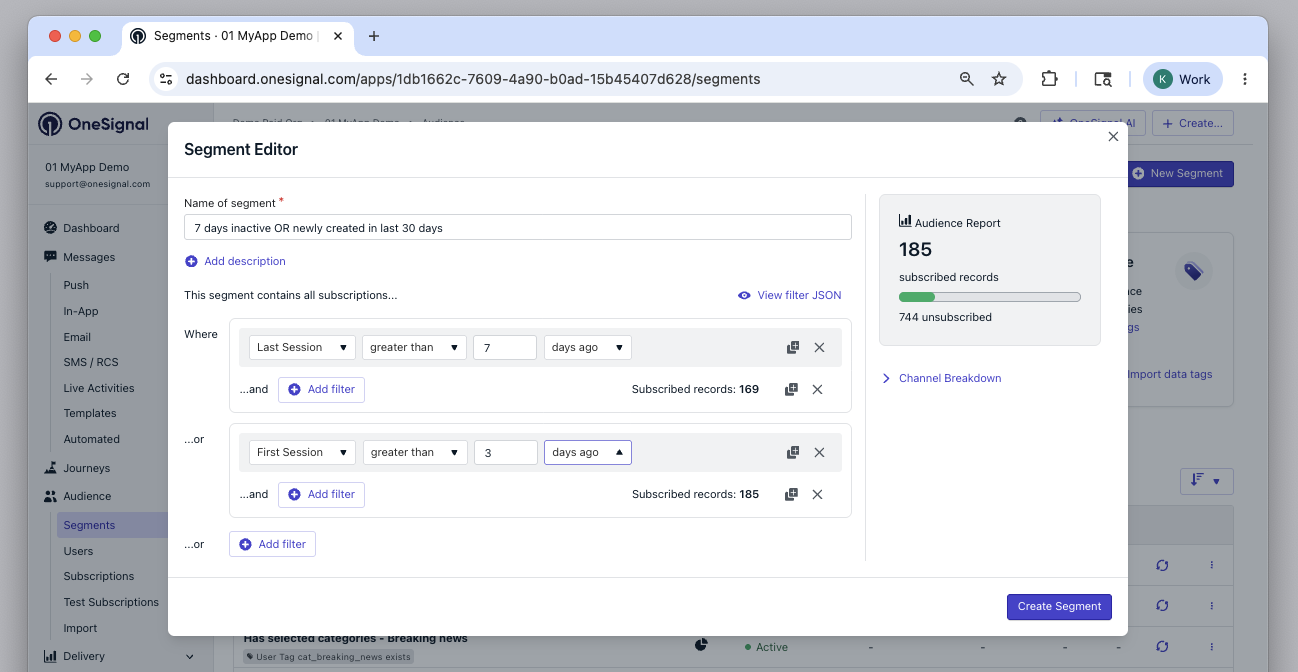
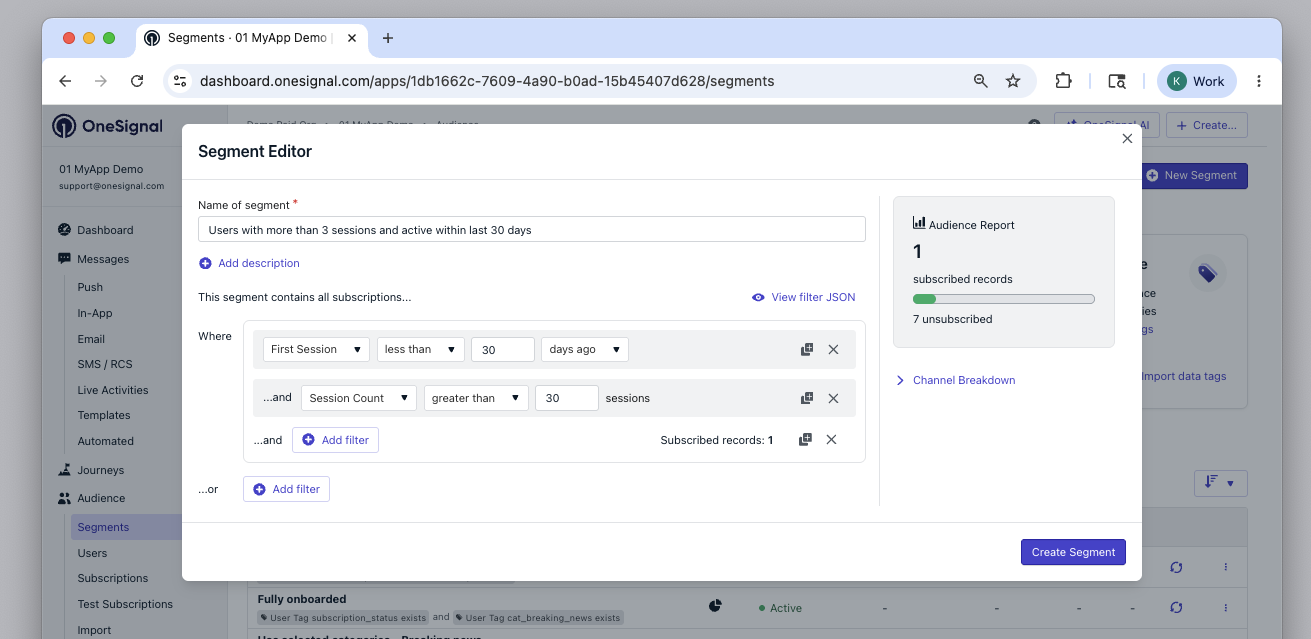 Create a segment of users who:
* Have not returned in more than 7 days
* Have new Subscriptions created in the last 3 days
Create a segment of users who:
* Have not returned in more than 7 days
* Have new Subscriptions created in the last 3 days
 ## Filters
Filters define which Subscriptions belong to a segment. You can combine multiple filters using **AND** or **OR** logic. If no filters are selected, the segment defaults to every user of your app.
| Filter | Description |
| ------------------ | --------------------------------------------------------------------------------------------------------------------------------------------------------------------------------------------------------------- |
| **First session** | Date/time of user creation. |
| **Last session** | Last time Subscription opened the app or site. |
| **Session count** | Number of times Subscription opened the app or visited the site. |
| **Usage duration** | Total seconds the Subscription had your app/site open. |
| **Language** | User's preferred language (based on device/browser). See [multi-language support](./multi-language-messaging). |
| **App version** | Pulled from Android `versionCode` or iOS `CFBundleShortVersionString`. Combine with **Device type** to filter by different app versions per platform. See [Target outdated app versions](./app-version-update). |
| **Device type** | iOS, Android, Web Push (browser), Email, etc. Select multiple device types in one filter with "is any of", or exclude them with "is not any of". |
| **User tag** | Custom Tags you set via the SDK or API. See [Add Tags](./add-user-data-tags). |
| **Location** | Filter by radius from coordinates (lat/long). Requires at least 1 meter and up to 2 decimal places of precision. See [location permission](./mobile-sdk-reference#location). |
| **Country** | Based on last IP geolocation (ISO 3166-2 code). |
| **Test users** | Users marked as [Test Users](./test-users). |
| **Message event** | Filter by [message event](./message-events) (e.g., "clicked", "delivered", "failed"). See [Message event filters](#message-event-filters). |
| **Custom event** | Filter by [custom event](./custom-events) (e.g., "purchase", "user login"). See [Custom event filters](#custom-event-filters). |
### Message event filters
Message event filters target users based on their interaction with one of your messaging channels within a certain window. See [Message events](./message-events) for the full event catalog and conceptual reference.
## Filters
Filters define which Subscriptions belong to a segment. You can combine multiple filters using **AND** or **OR** logic. If no filters are selected, the segment defaults to every user of your app.
| Filter | Description |
| ------------------ | --------------------------------------------------------------------------------------------------------------------------------------------------------------------------------------------------------------- |
| **First session** | Date/time of user creation. |
| **Last session** | Last time Subscription opened the app or site. |
| **Session count** | Number of times Subscription opened the app or visited the site. |
| **Usage duration** | Total seconds the Subscription had your app/site open. |
| **Language** | User's preferred language (based on device/browser). See [multi-language support](./multi-language-messaging). |
| **App version** | Pulled from Android `versionCode` or iOS `CFBundleShortVersionString`. Combine with **Device type** to filter by different app versions per platform. See [Target outdated app versions](./app-version-update). |
| **Device type** | iOS, Android, Web Push (browser), Email, etc. Select multiple device types in one filter with "is any of", or exclude them with "is not any of". |
| **User tag** | Custom Tags you set via the SDK or API. See [Add Tags](./add-user-data-tags). |
| **Location** | Filter by radius from coordinates (lat/long). Requires at least 1 meter and up to 2 decimal places of precision. See [location permission](./mobile-sdk-reference#location). |
| **Country** | Based on last IP geolocation (ISO 3166-2 code). |
| **Test users** | Users marked as [Test Users](./test-users). |
| **Message event** | Filter by [message event](./message-events) (e.g., "clicked", "delivered", "failed"). See [Message event filters](#message-event-filters). |
| **Custom event** | Filter by [custom event](./custom-events) (e.g., "purchase", "user login"). See [Custom event filters](#custom-event-filters). |
### Message event filters
Message event filters target users based on their interaction with one of your messaging channels within a certain window. See [Message events](./message-events) for the full event catalog and conceptual reference.
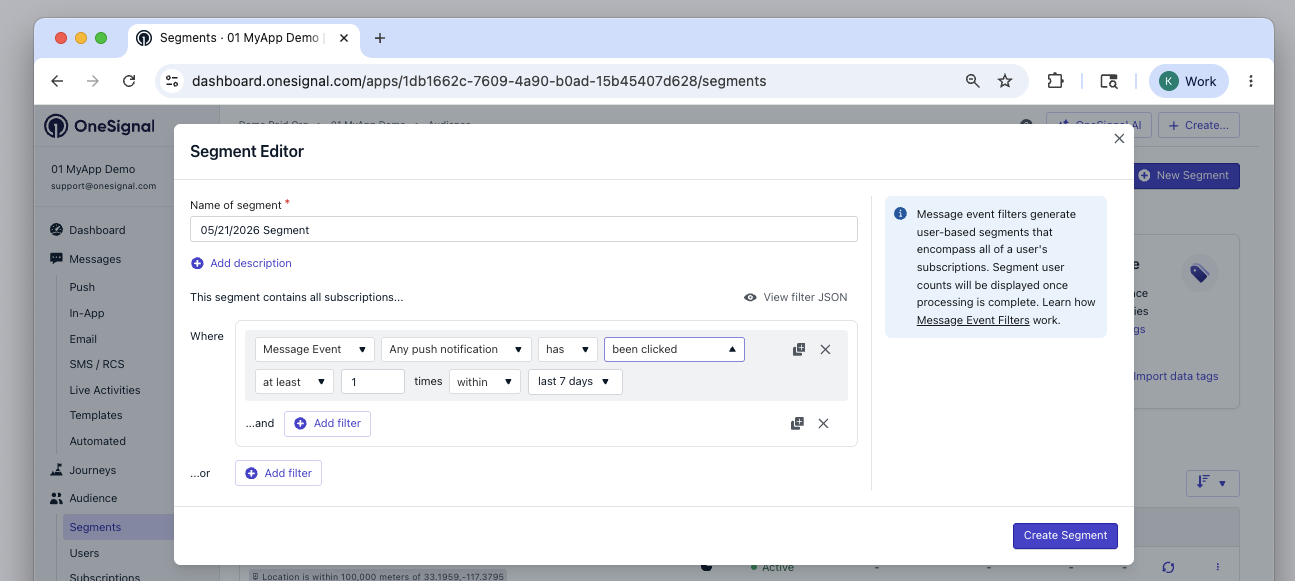 First select the messaging channel you want to filter on, then specify the action to track and whether the user has or has not performed that action.
You can specify a minimum, maximum, or exact number of times the user must have performed the action, as well as a time window ranging from the last 24 hours to the last 90 days. Use the `between` option to define a custom start and end range (in days ago).
#### Trackable interactions by channel
| Channel | Trackable interactions |
| ------- | ------------------------------------------------------------------------- |
| Push | Delivered, Confirmed Receipt, Clicked, Failed |
| SMS | Delivered, Read, Failed |
| Email | Delivered, Opened, Clicked, Bounced, Failed, Suppressed, Reported as spam |
| In-App | Impression, Clicked |
Segments created with message event filters are user-based.
They cannot be combined with subscription-based segments for inclusion or exclusion when sending messages outside of Journeys.
Within [Journeys](./journeys-overview), which is user-based, you can combine event-based and subscription-based segments for more flexible targeting.
#### Message event retention
The amount of time message event data is retained depends on your plan. The dashboard time window selector shows up to 90 days, but data beyond your plan's retention period will not return results.
Free, Growth, Pro, and Enterprise retention windows for message event data.
### Custom event filters
[Custom Event](./custom-events) filters let you target users based on meaningful actions they have taken in your app, website, or external systems.
Custom event filters are currently in **Early Access**.
To request access, contact `support@onesignal.com` with your company name, OneSignal Organization ID, and App ID(s).
First select the messaging channel you want to filter on, then specify the action to track and whether the user has or has not performed that action.
You can specify a minimum, maximum, or exact number of times the user must have performed the action, as well as a time window ranging from the last 24 hours to the last 90 days. Use the `between` option to define a custom start and end range (in days ago).
#### Trackable interactions by channel
| Channel | Trackable interactions |
| ------- | ------------------------------------------------------------------------- |
| Push | Delivered, Confirmed Receipt, Clicked, Failed |
| SMS | Delivered, Read, Failed |
| Email | Delivered, Opened, Clicked, Bounced, Failed, Suppressed, Reported as spam |
| In-App | Impression, Clicked |
Segments created with message event filters are user-based.
They cannot be combined with subscription-based segments for inclusion or exclusion when sending messages outside of Journeys.
Within [Journeys](./journeys-overview), which is user-based, you can combine event-based and subscription-based segments for more flexible targeting.
#### Message event retention
The amount of time message event data is retained depends on your plan. The dashboard time window selector shows up to 90 days, but data beyond your plan's retention period will not return results.
Free, Growth, Pro, and Enterprise retention windows for message event data.
### Custom event filters
[Custom Event](./custom-events) filters let you target users based on meaningful actions they have taken in your app, website, or external systems.
Custom event filters are currently in **Early Access**.
To request access, contact `support@onesignal.com` with your company name, OneSignal Organization ID, and App ID(s).
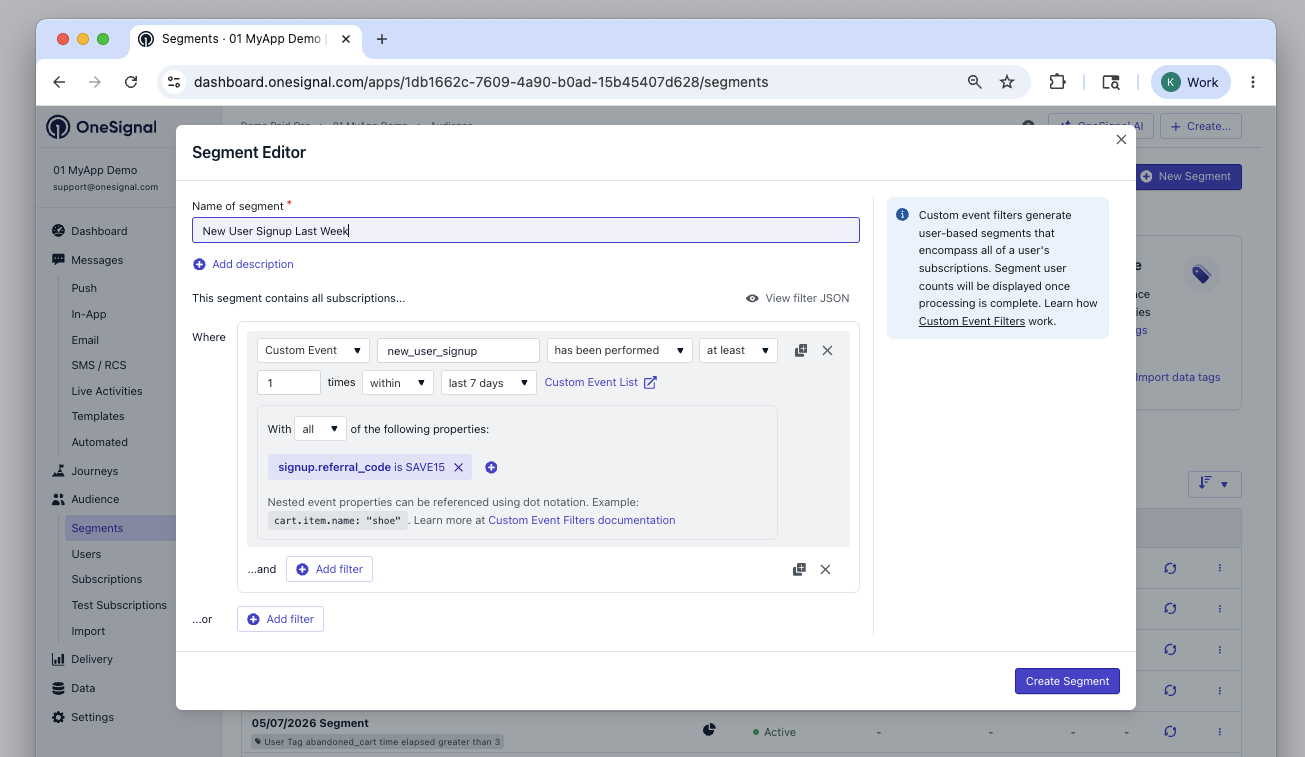 Start by selecting:
* The event name you want to filter on.
* Whether the user `has` or `has not` performed that action.
* The minimum, maximum, or exact number of times the action must be performed.
* A time window during which the action must (or must not) occur — choose a preset range or define a custom window using the `between` option (start and end in days ago).
After specifying the event, you can optionally filter on specific or multiple properties:
* `all` — applies an AND condition across properties.
* `at least one` — applies an OR condition.
Then set the properties you want to filter on using `dot notation`.
* Custom Events are represented as [JSON Objects](https://www.w3schools.com/js/js_json.asp).
* See [Custom Events](./custom-events#what-are-custom-events) for more details.
#### Example
Given the following Custom Event:
```json theme={null}
{
"events": [
{
"name": "cart_updated",
"properties": {
"product_name": "24 Pack of Acorns",
"product_price": "12.99",
"product_quantity": "2"
},
"external_id": "ID_OF_THE_USER"
}
]
}
```
You can filter by:
* `product_name` → to target users with product name `24 Pack of Acorns`.
* `product_price` → to target users with product price `12.99`.
* `product_quantity` → to target users with product quantity `2`.
Start by selecting:
* The event name you want to filter on.
* Whether the user `has` or `has not` performed that action.
* The minimum, maximum, or exact number of times the action must be performed.
* A time window during which the action must (or must not) occur — choose a preset range or define a custom window using the `between` option (start and end in days ago).
After specifying the event, you can optionally filter on specific or multiple properties:
* `all` — applies an AND condition across properties.
* `at least one` — applies an OR condition.
Then set the properties you want to filter on using `dot notation`.
* Custom Events are represented as [JSON Objects](https://www.w3schools.com/js/js_json.asp).
* See [Custom Events](./custom-events#what-are-custom-events) for more details.
#### Example
Given the following Custom Event:
```json theme={null}
{
"events": [
{
"name": "cart_updated",
"properties": {
"product_name": "24 Pack of Acorns",
"product_price": "12.99",
"product_quantity": "2"
},
"external_id": "ID_OF_THE_USER"
}
]
}
```
You can filter by:
* `product_name` → to target users with product name `24 Pack of Acorns`.
* `product_price` → to target users with product price `12.99`.
* `product_quantity` → to target users with product quantity `2`.
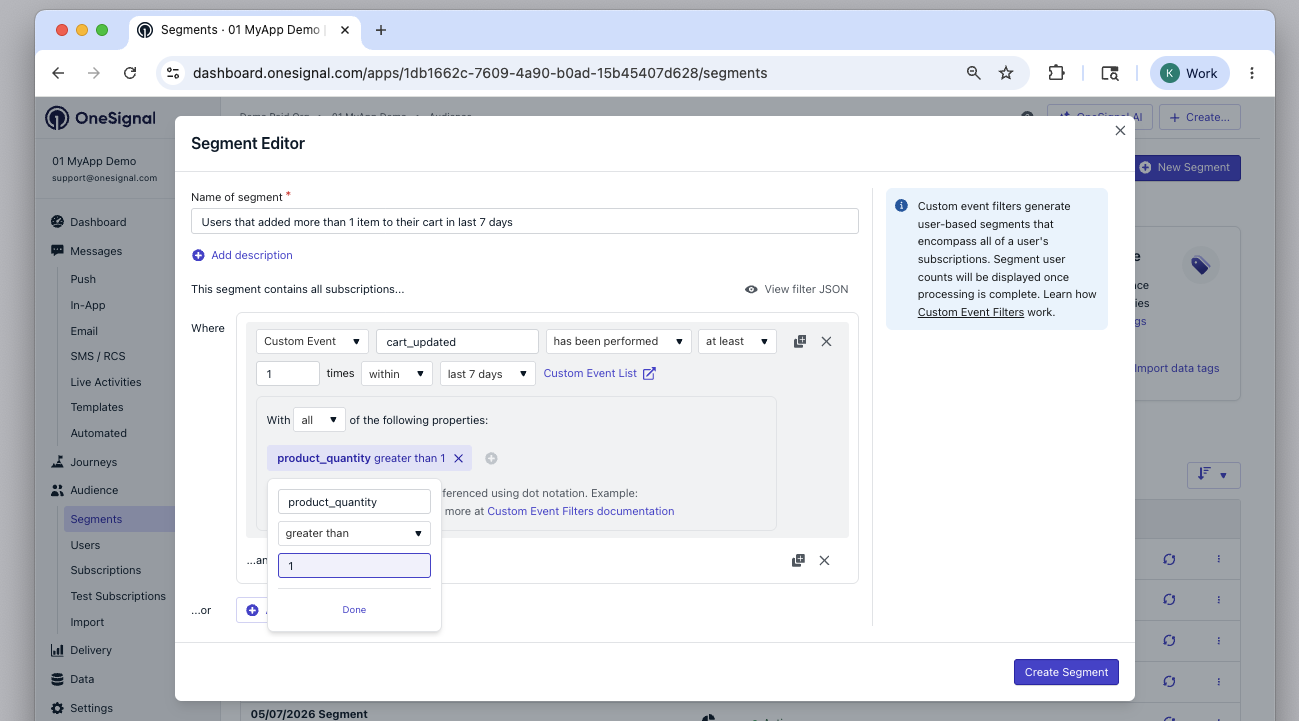 Segments created with custom event filters are in Early Access and are user-based. A custom event segment can only contain custom event filters, and cannot be combined with other segments for inclusion or exclusion when sending messages.
## Audience counts
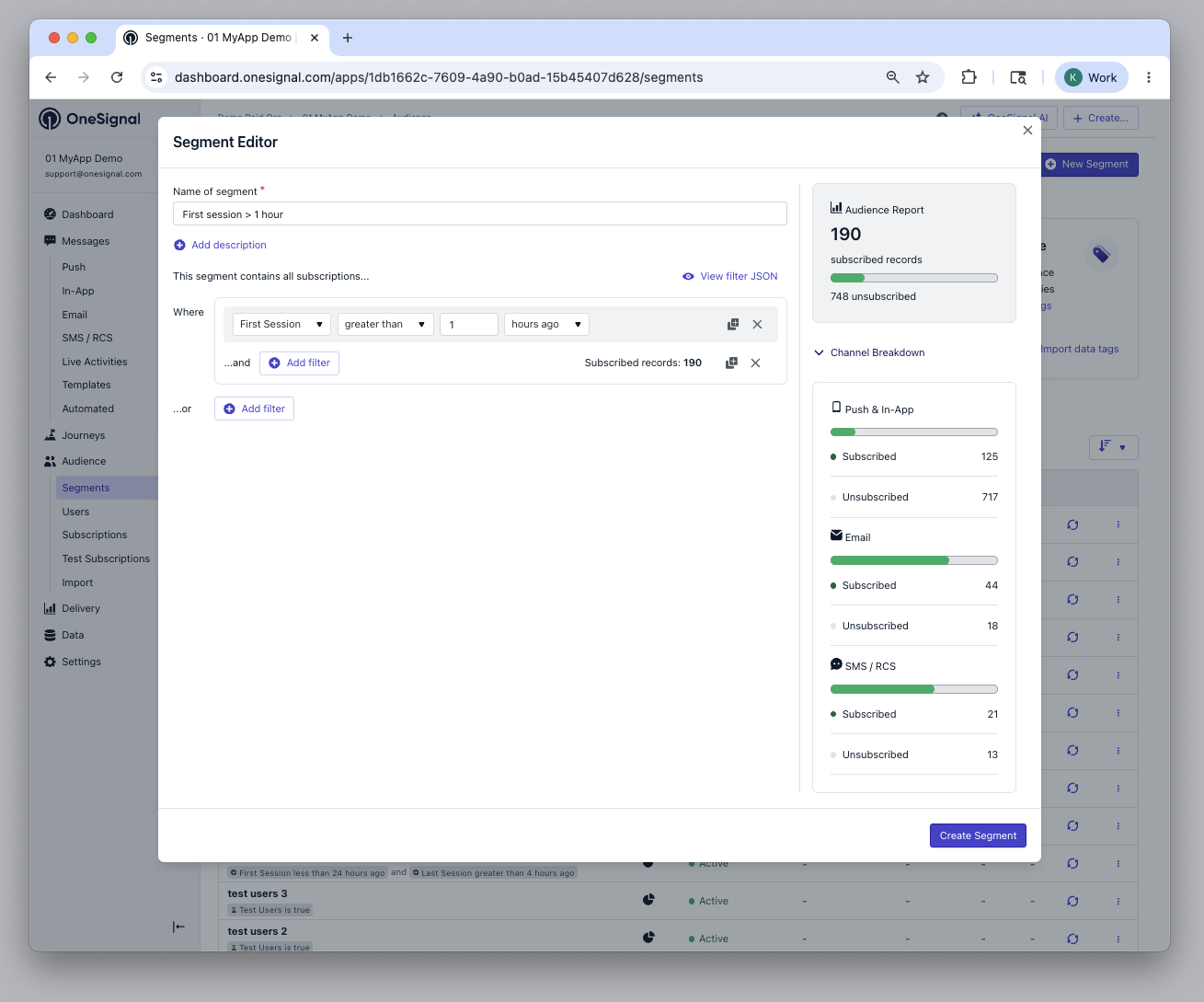
The segment editor shows how many subscribed and unsubscribed Subscriptions are in your segment, with a breakdown by channel (push, email, and SMS).
* **Subscribed** Subscriptions are opted in and will receive messages when you target this segment.
* **Unsubscribed** Subscriptions match your segment filters but are opted out and will not receive messages.
The channel breakdown lets you see reachable vs. unreachable Subscriptions per channel — useful for understanding which channels will be most effective before you build a message or Journey.
Segments created with custom event filters are in Early Access and are user-based. A custom event segment can only contain custom event filters, and cannot be combined with other segments for inclusion or exclusion when sending messages.
## Audience counts
The segment editor shows how many subscribed and unsubscribed Subscriptions are in your segment, with a breakdown by channel (push, email, and SMS).
* **Subscribed** Subscriptions are opted in and will receive messages when you target this segment.
* **Unsubscribed** Subscriptions match your segment filters but are opted out and will not receive messages.
The channel breakdown lets you see reachable vs. unreachable Subscriptions per channel — useful for understanding which channels will be most effective before you build a message or Journey.
 ### Exact counts and estimates
OneSignal always returns a count within approximately 15 seconds. Whenever possible within that time limit, you will see an exact count. For large or complex segments where exact counts can take a long time to compute, an estimate is shown instead.
Estimates are labeled to make clear they are not exact:
| Segment size | Format | Example |
| ------------ | -------------------------- | ------------------- |
| Above 10,000 | Count with margin of error | `140,000 +/- 5,000` |
| Below 10,000 | Less-than value | `<4,800` |
Both formats are rounded to signal the number is approximate. Estimates will never display as 0: if your segment has very few members, the estimate reflects a small non-zero estimate to avoid implying the segment is empty when records may exist.
Audience counts are available for subscription-based segments. User-based segment counts are not yet supported.
## Managing segments
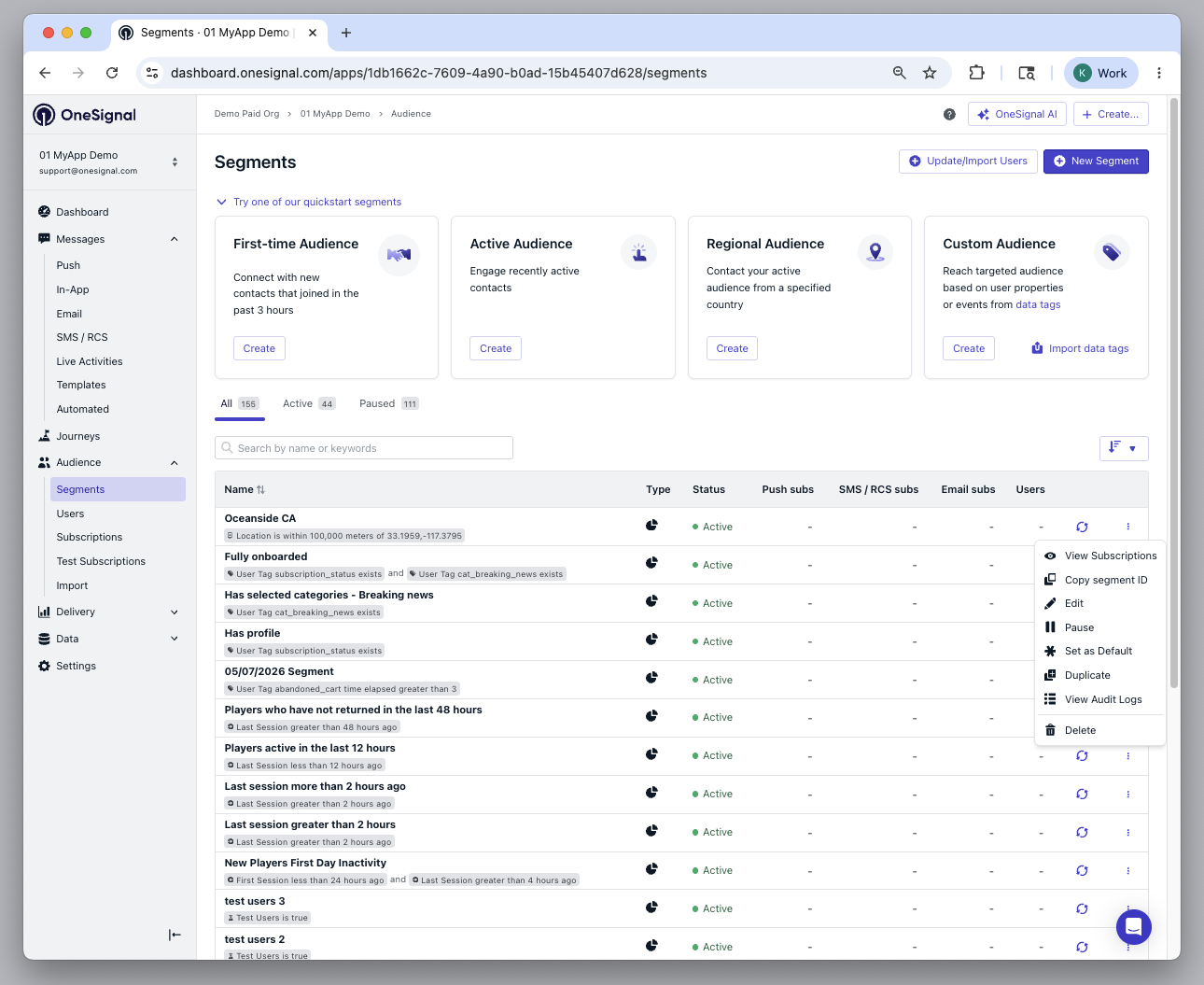
When viewing your Segments in the dashboard, you can:
* **View Subscriptions:** See which [Subscriptions](./subscriptions) are in the segment.
* **Copy segment ID:** Copy the segment ID to use in the API.
* **Edit:** Change filters or name.
* **Pause / Resume:** If you're near your [segment limit](https://onesignal.com/pricing), you can pause segments without deleting them. Targeting a paused segment will fail.
* **Set as default:** Set a default segment to be auto-selected when sending a new message. This helps reduce targeting mistakes and save time.
* **Duplicate:** Copy a segment's filters to create a new one.
* **View Audit Logs:** See the [audit logs](./audit-logs) for who may have changed a segment and when.
* **Delete:** Delete the segment.
### Deleting segments
Deleting a segment removes it from your list of segments. It does **not** delete the users inside it. To delete the users inside a segment, see [Delete Users](./delete-users).
1. Go to **Audience > Segments**
2. Click the three-dot menu next to a segment
3. Select **Delete**
### Exact counts and estimates
OneSignal always returns a count within approximately 15 seconds. Whenever possible within that time limit, you will see an exact count. For large or complex segments where exact counts can take a long time to compute, an estimate is shown instead.
Estimates are labeled to make clear they are not exact:
| Segment size | Format | Example |
| ------------ | -------------------------- | ------------------- |
| Above 10,000 | Count with margin of error | `140,000 +/- 5,000` |
| Below 10,000 | Less-than value | `<4,800` |
Both formats are rounded to signal the number is approximate. Estimates will never display as 0: if your segment has very few members, the estimate reflects a small non-zero estimate to avoid implying the segment is empty when records may exist.
Audience counts are available for subscription-based segments. User-based segment counts are not yet supported.
## Managing segments
When viewing your Segments in the dashboard, you can:
* **View Subscriptions:** See which [Subscriptions](./subscriptions) are in the segment.
* **Copy segment ID:** Copy the segment ID to use in the API.
* **Edit:** Change filters or name.
* **Pause / Resume:** If you're near your [segment limit](https://onesignal.com/pricing), you can pause segments without deleting them. Targeting a paused segment will fail.
* **Set as default:** Set a default segment to be auto-selected when sending a new message. This helps reduce targeting mistakes and save time.
* **Duplicate:** Copy a segment's filters to create a new one.
* **View Audit Logs:** See the [audit logs](./audit-logs) for who may have changed a segment and when.
* **Delete:** Delete the segment.
### Deleting segments
Deleting a segment removes it from your list of segments. It does **not** delete the users inside it. To delete the users inside a segment, see [Delete Users](./delete-users).
1. Go to **Audience > Segments**
2. Click the three-dot menu next to a segment
3. Select **Delete**
 Use the [Delete Segment API](/reference/delete-segments). This only removes the segment definition — it does not delete the users inside it.
## FAQ
### How do I add myself to a segment?
Set yourself as a Test User or add a custom Tag, then create a segment that targets it.
1. Find your Subscriptions using your [External ID](./users).
2. Either:
* Set yourself as a [Test User](./test-users)
* Add a custom [Tag](./add-user-data-tags)
3. Create a segment using the **Test Users** filter or the Tag.
### Do segment counts include opted-out users?
Yes. The segment editor shows counts for both subscribed and unsubscribed Subscriptions. Subscribed Subscriptions are opted in and will receive messages. Unsubscribed Subscriptions match your filters but are opted out and will not receive messages.
Only subscribed Subscriptions are targeted when you send a message.
When used in Journeys and in-app messages, segments include both subscribed and unsubscribed Subscriptions.
### Are segment counts always accurate?
OneSignal always returns a count within approximately 15 seconds. For smaller or simpler segments, this is an exact count. For larger or more complex segments, an estimate is shown instead.
Estimates are clearly labeled with their precision. See [Audience counts](#audience-counts) for details on how estimates are formatted and what they mean.
### Can I combine message event filters with subscription filters?
Outside of Journeys, no — segments built with message event or custom event filters are user-based and cannot be combined with subscription-based segments for inclusion or exclusion. Inside [Journeys](./journeys-overview), which are themselves user-based, you can combine both filter types for more flexible targeting.
## Related pages
The push, email, and SMS records segments target.
Tag users with custom data so segments can filter on it.
Send user actions to OneSignal for use in segments and Journeys.
Per-user record of message interactions — the basis of message event filters.
Trigger automated workflows from segment membership.
Bulk-import users and Tags via CSV.
Use the [Delete Segment API](/reference/delete-segments). This only removes the segment definition — it does not delete the users inside it.
## FAQ
### How do I add myself to a segment?
Set yourself as a Test User or add a custom Tag, then create a segment that targets it.
1. Find your Subscriptions using your [External ID](./users).
2. Either:
* Set yourself as a [Test User](./test-users)
* Add a custom [Tag](./add-user-data-tags)
3. Create a segment using the **Test Users** filter or the Tag.
### Do segment counts include opted-out users?
Yes. The segment editor shows counts for both subscribed and unsubscribed Subscriptions. Subscribed Subscriptions are opted in and will receive messages. Unsubscribed Subscriptions match your filters but are opted out and will not receive messages.
Only subscribed Subscriptions are targeted when you send a message.
When used in Journeys and in-app messages, segments include both subscribed and unsubscribed Subscriptions.
### Are segment counts always accurate?
OneSignal always returns a count within approximately 15 seconds. For smaller or simpler segments, this is an exact count. For larger or more complex segments, an estimate is shown instead.
Estimates are clearly labeled with their precision. See [Audience counts](#audience-counts) for details on how estimates are formatted and what they mean.
### Can I combine message event filters with subscription filters?
Outside of Journeys, no — segments built with message event or custom event filters are user-based and cannot be combined with subscription-based segments for inclusion or exclusion. Inside [Journeys](./journeys-overview), which are themselves user-based, you can combine both filter types for more flexible targeting.
## Related pages
The push, email, and SMS records segments target.
Tag users with custom data so segments can filter on it.
Send user actions to OneSignal for use in segments and Journeys.
Per-user record of message interactions — the basis of message event filters.
Trigger automated workflows from segment membership.
Bulk-import users and Tags via CSV.