> ## Documentation Index
> Fetch the complete documentation index at: https://documentation.onesignal.com/llms.txt
> Use this file to discover all available pages before exploring further.
# SendGrid Setup
> Integrate SendGrid with OneSignal for email delivery.
# Requirements
* [SendGrid Account](https://www.sendgrid.com)
* [OneSignal Account](https://onesignal.com)
# Setup
## 1. SendGrid Sender Authentication
It is recommended to use SendGrid's "Domain Authentication" so that SendGrid sends emails via your domain rather than `via sendgrid.net`, and the links your users click as coming from your domain.
**Recommended**: Follow SendGrid's guide on [How to set up domain authentication](https://docs.sendgrid.com/ui/account-and-settings/how-to-set-up-domain-authentication).
SendGrid also provides [Single Sender Verification](https://docs.sendgrid.com/ui/sending-email/sender-verification) if you do not have a domain.
## 2. Install DNS Records
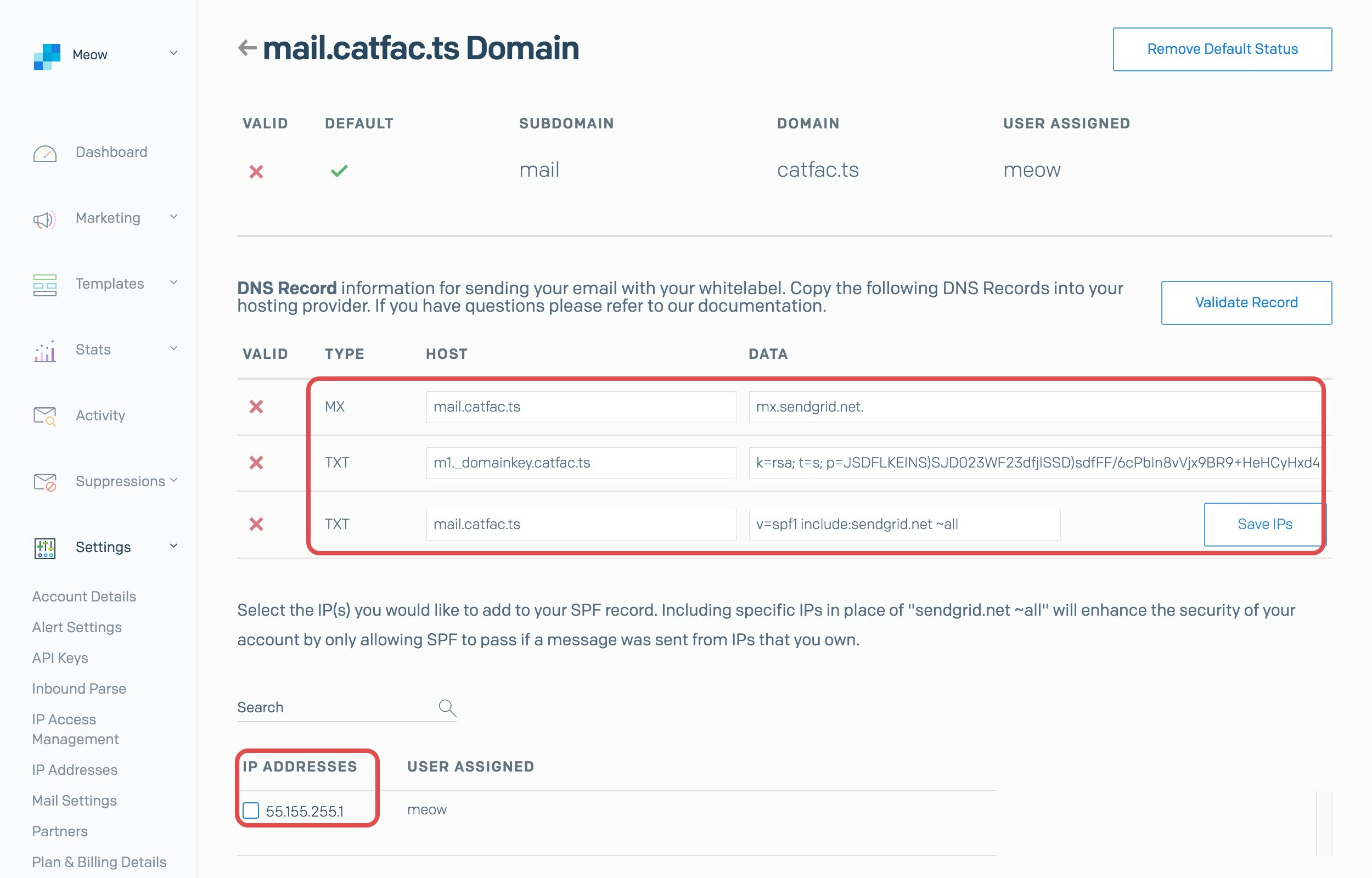
If you selected **Domain Authentication** make sure your DNS Records are verified.
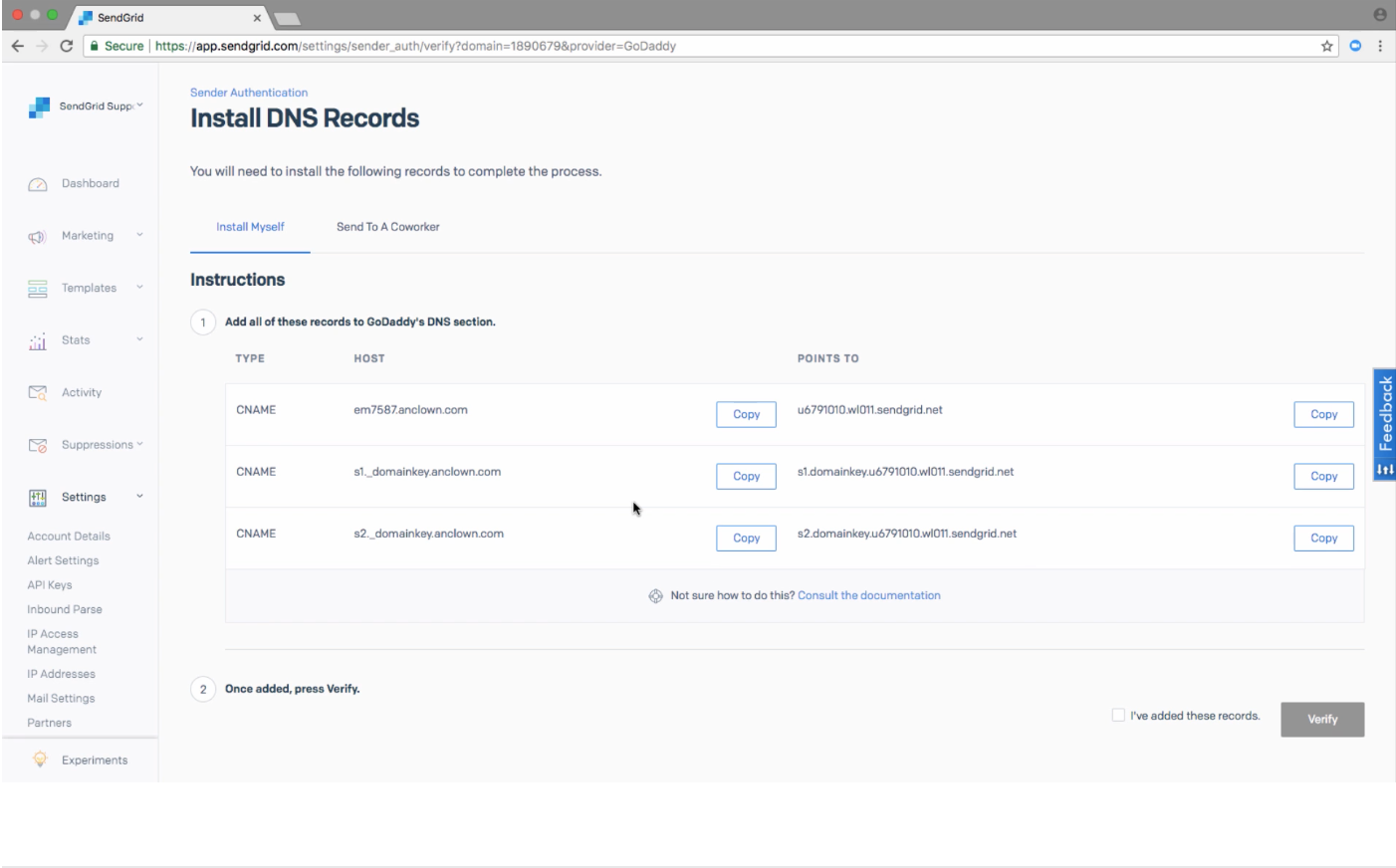 The SPF, DKIM and MX records should be configured automatically through SendGrid's setup wizard.
 ## 3. Create API Key
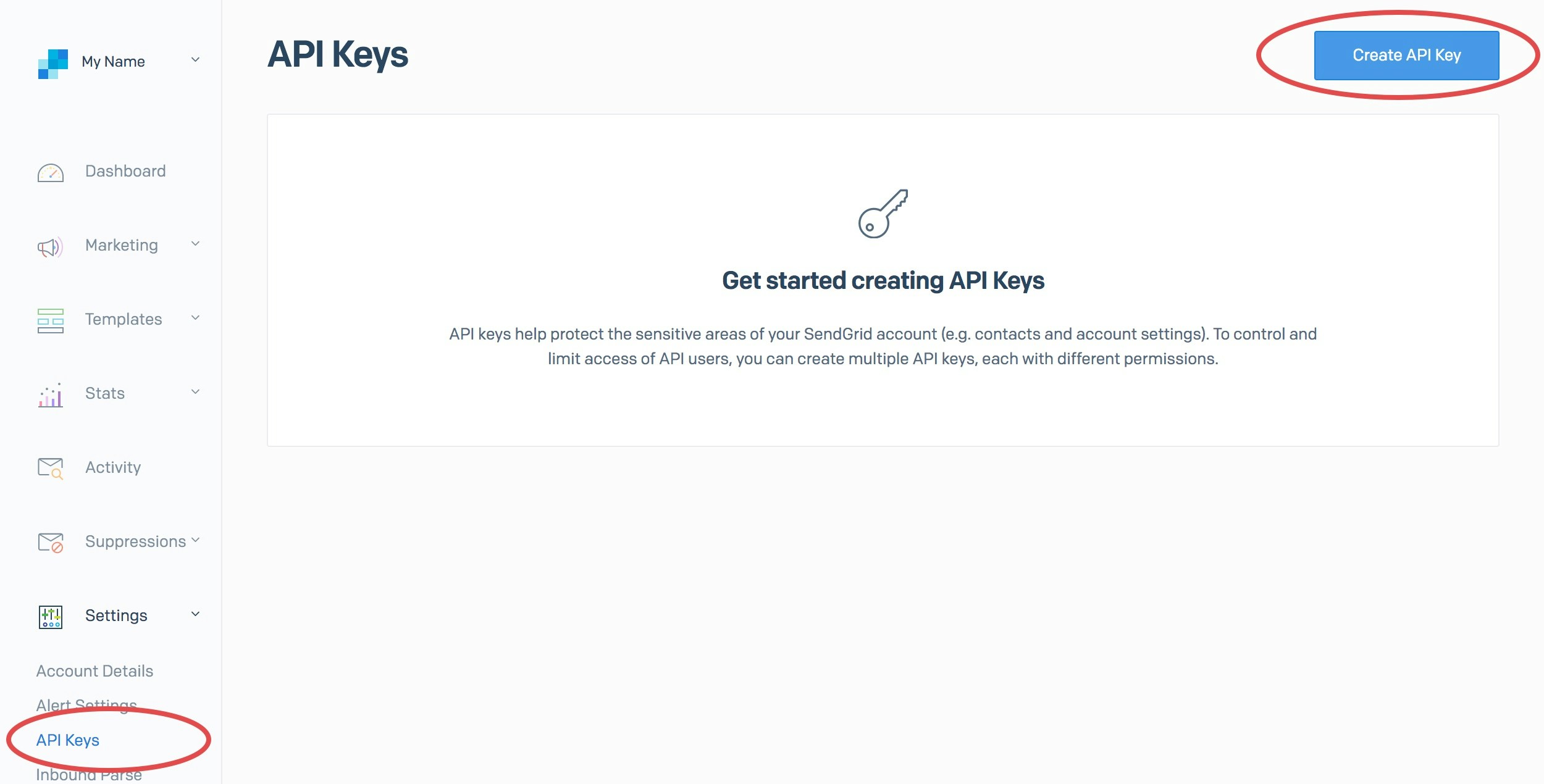
In the SendGrid dashboard, go to [Settings -> API Keys](https://app.sendgrid.com/settings/api_keys) and click 'Create API Key'.
## 3. Create API Key
In the SendGrid dashboard, go to [Settings -> API Keys](https://app.sendgrid.com/settings/api_keys) and click 'Create API Key'.
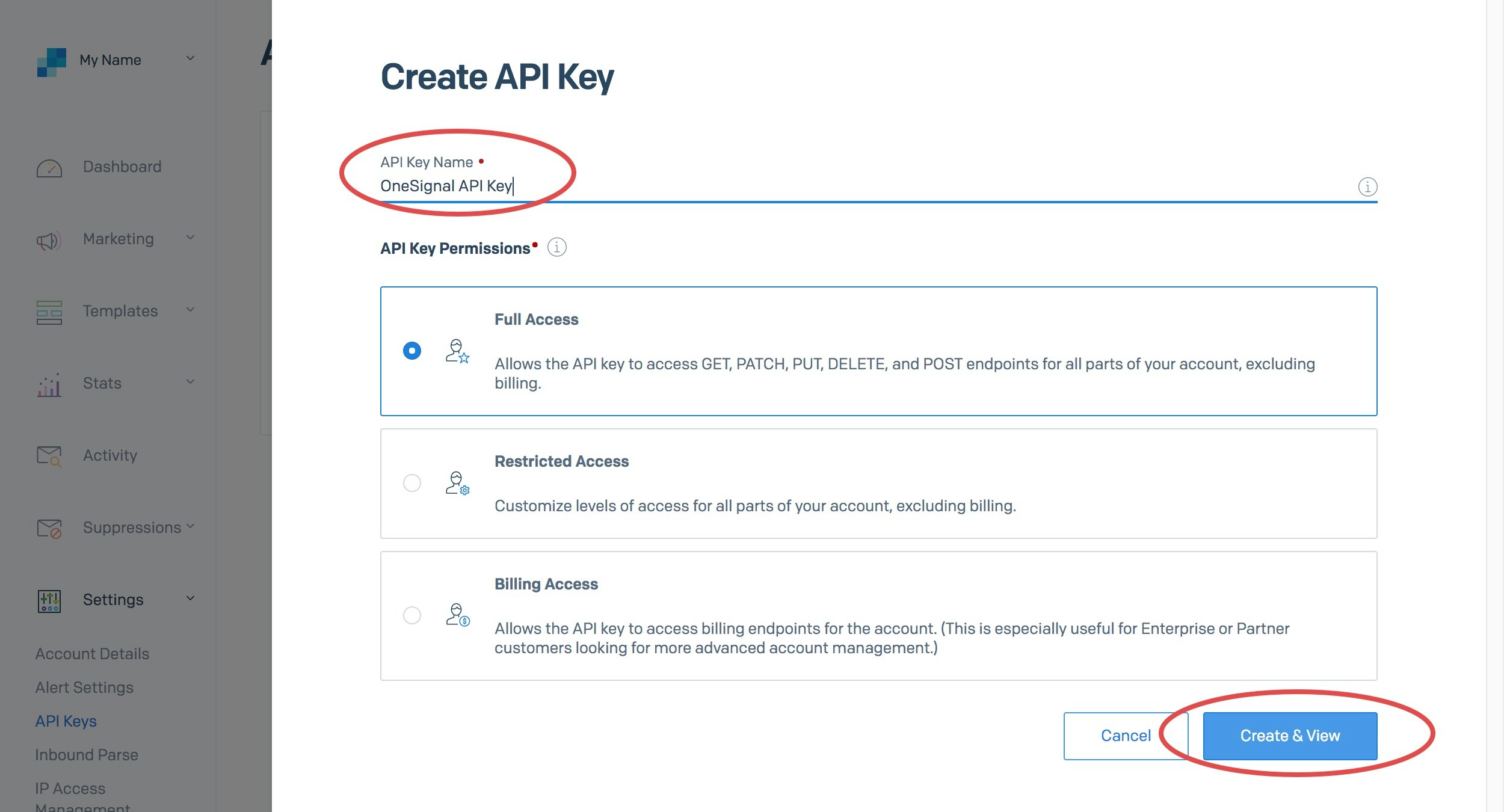
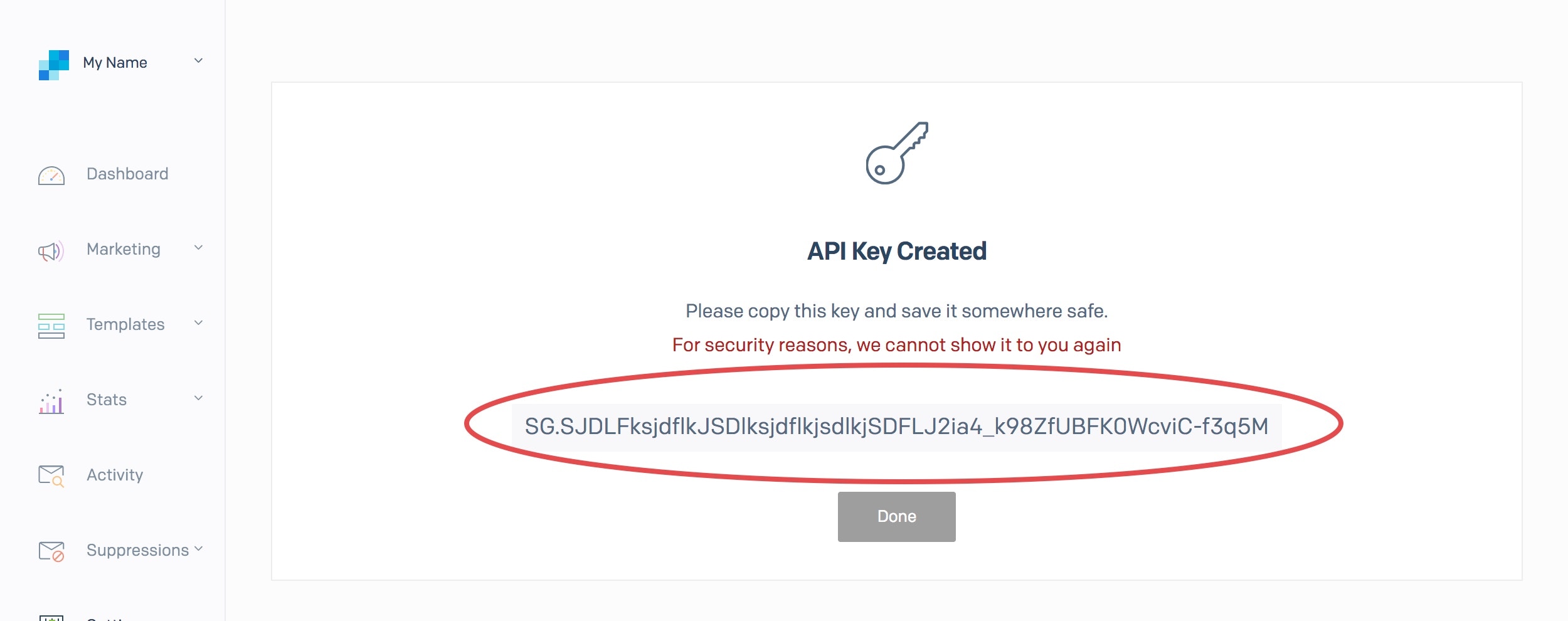
 Name your API key something like `OneSignal API Key` and be sure to set permissions to **Full Access**. Click 'Create & View' when you are ready.
 Next, click on the API key to copy it to your clipboard.
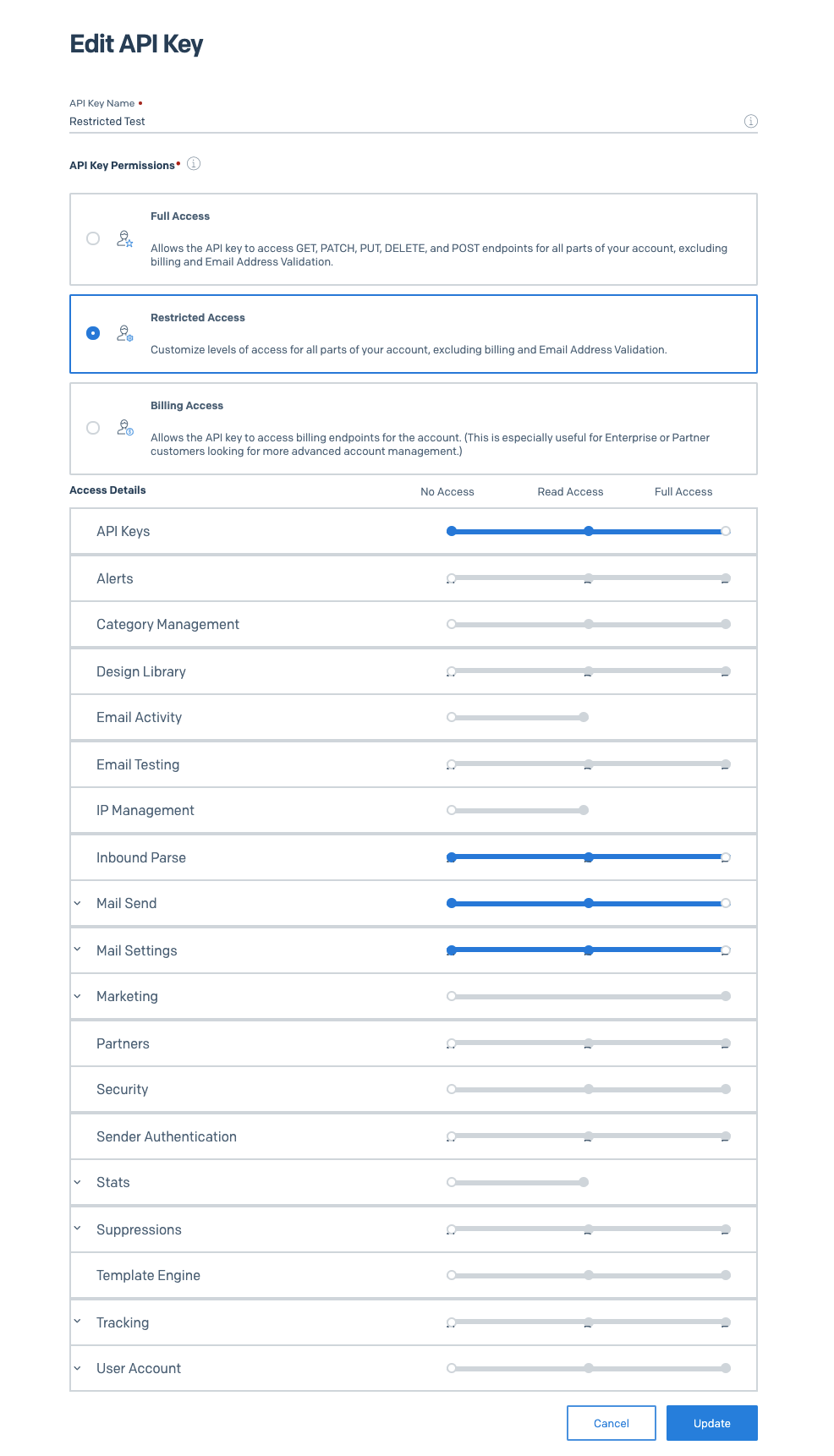
 ### What are the minimum API restrictions I can allow?
The minimum access you need to allow is as follows:
### What are the minimum API restrictions I can allow?
The minimum access you need to allow is as follows:
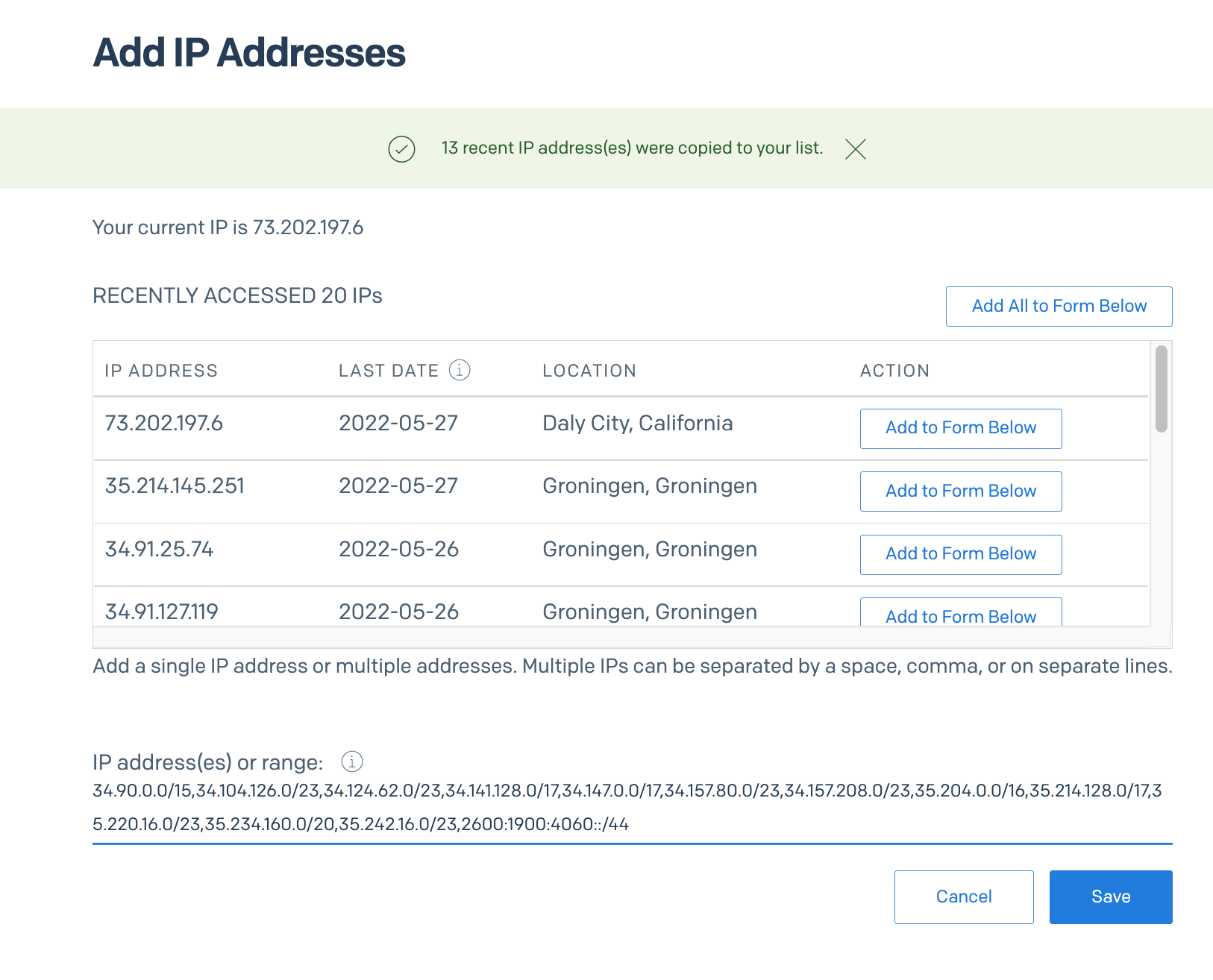
 If you are using SendGrid's allowlisting functionality, make sure to add OneSignal to this list.
See below FAQ [How do I allowlist OneSignal's IPs?](./sendgrid-setup#how-do-i-whitelist-onesignals-ips)
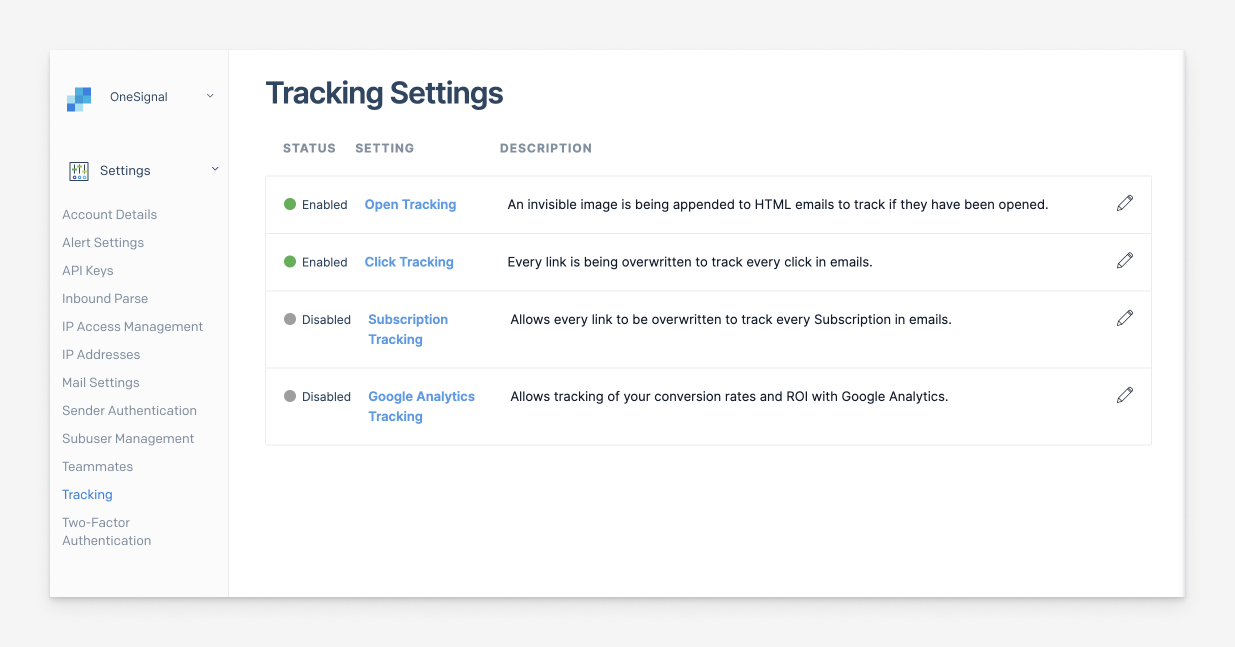
## 4. Disable Sendgrid Subscription Tracking
OneSignal automatically adds its own default unsubscribe links for every email sent.
Disable **Subscription Tracking** in sendgrid to prevent Sendgrid from automatically adding its own unsubscribe link to the bottom of text and HTML emails.
If you are using SendGrid's allowlisting functionality, make sure to add OneSignal to this list.
See below FAQ [How do I allowlist OneSignal's IPs?](./sendgrid-setup#how-do-i-whitelist-onesignals-ips)
## 4. Disable Sendgrid Subscription Tracking
OneSignal automatically adds its own default unsubscribe links for every email sent.
Disable **Subscription Tracking** in sendgrid to prevent Sendgrid from automatically adding its own unsubscribe link to the bottom of text and HTML emails.
 ## 5. Enable Email Messaging
In OneSignal, navigate to **Settings > Platforms > Email** and **Activate** Email to configure your email settings.
Select **SendGrid** as the provider.
## 5. Enable Email Messaging
In OneSignal, navigate to **Settings > Platforms > Email** and **Activate** Email to configure your email settings.
Select **SendGrid** as the provider.
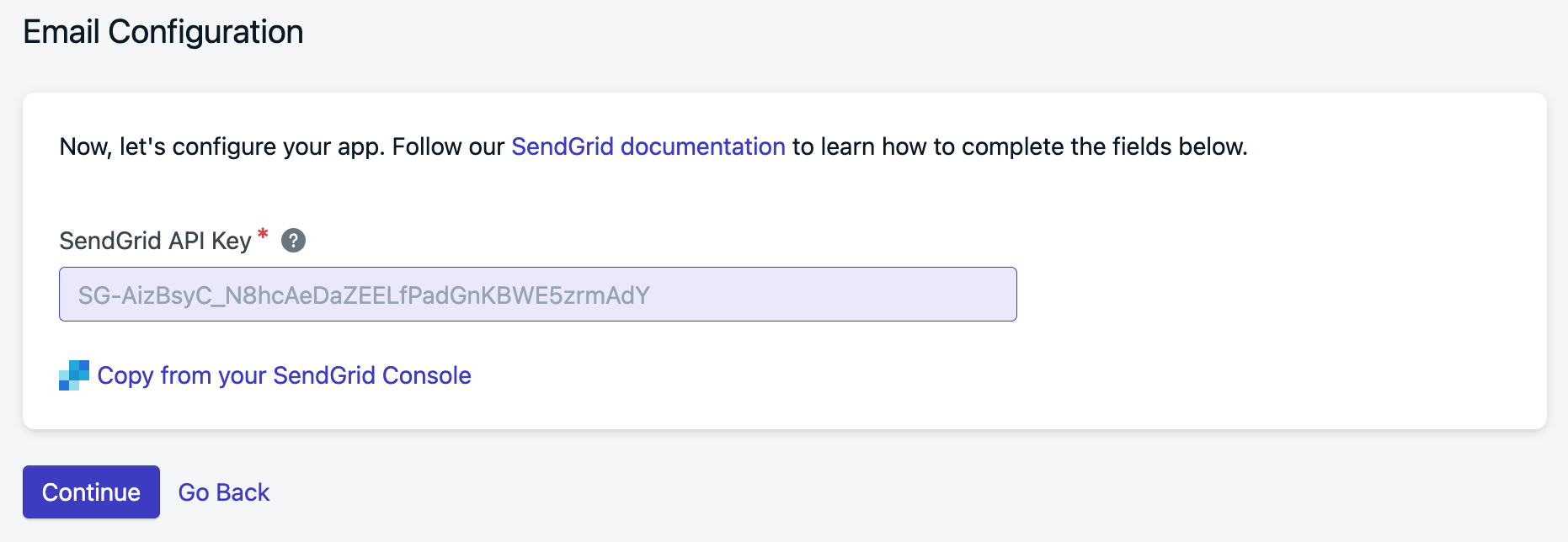
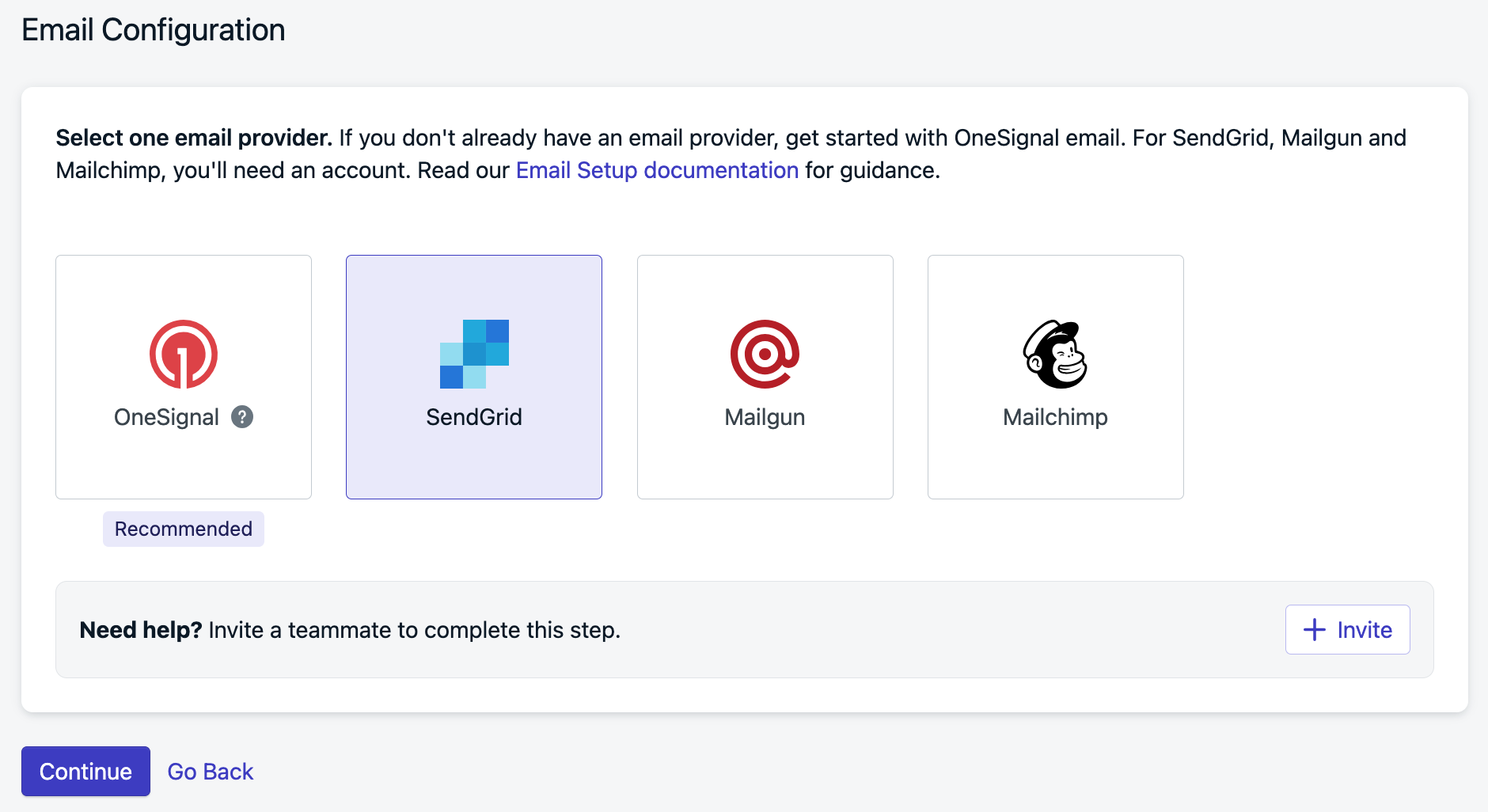 Paste your SendGrid API key into the provided field.
 ### Delivery Defaults
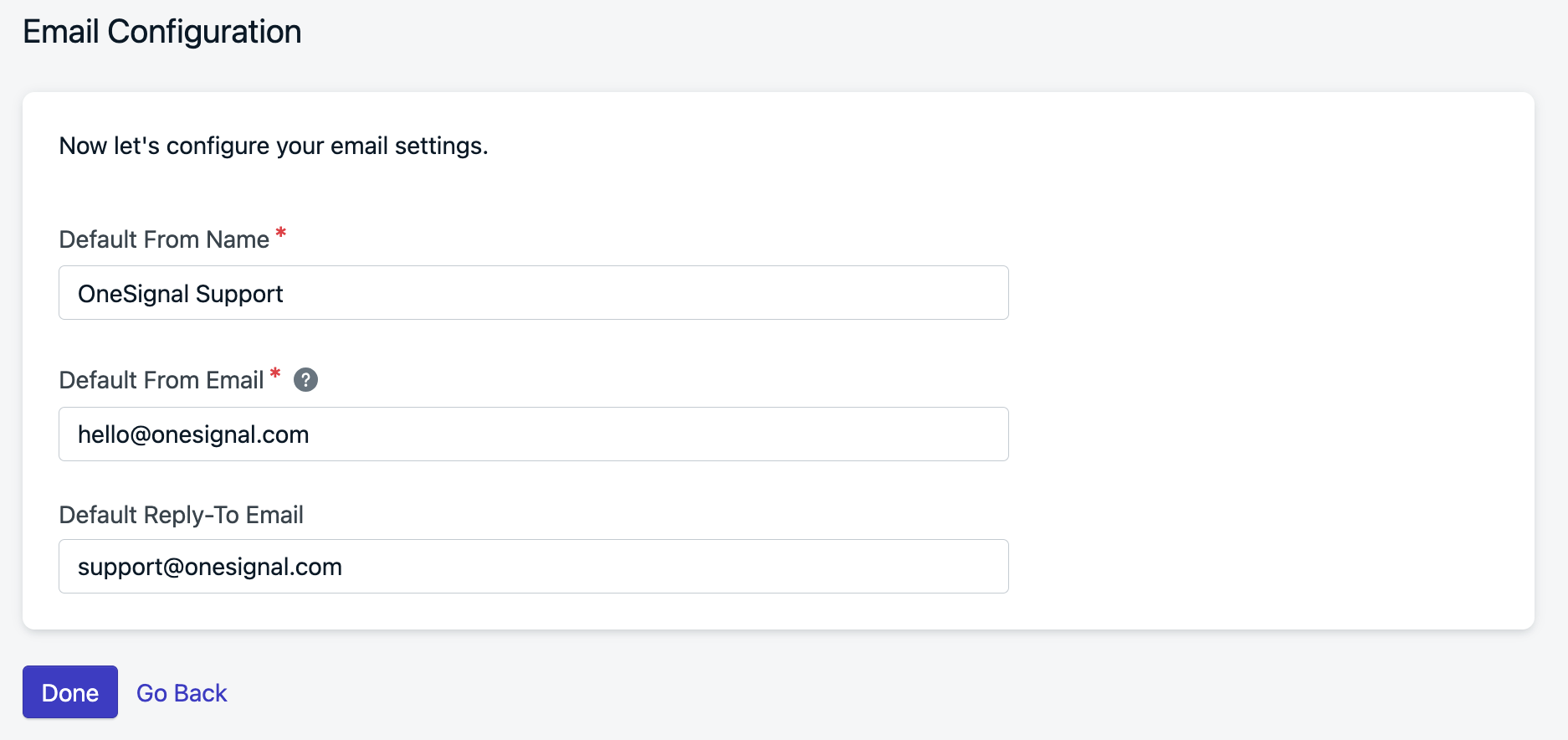
Add the default **name** and **email address** you want your emails to come from (these can be changed later).
Press Done when finished.
### Delivery Defaults
Add the default **name** and **email address** you want your emails to come from (these can be changed later).
Press Done when finished.
 ## 6. Add Subscribers
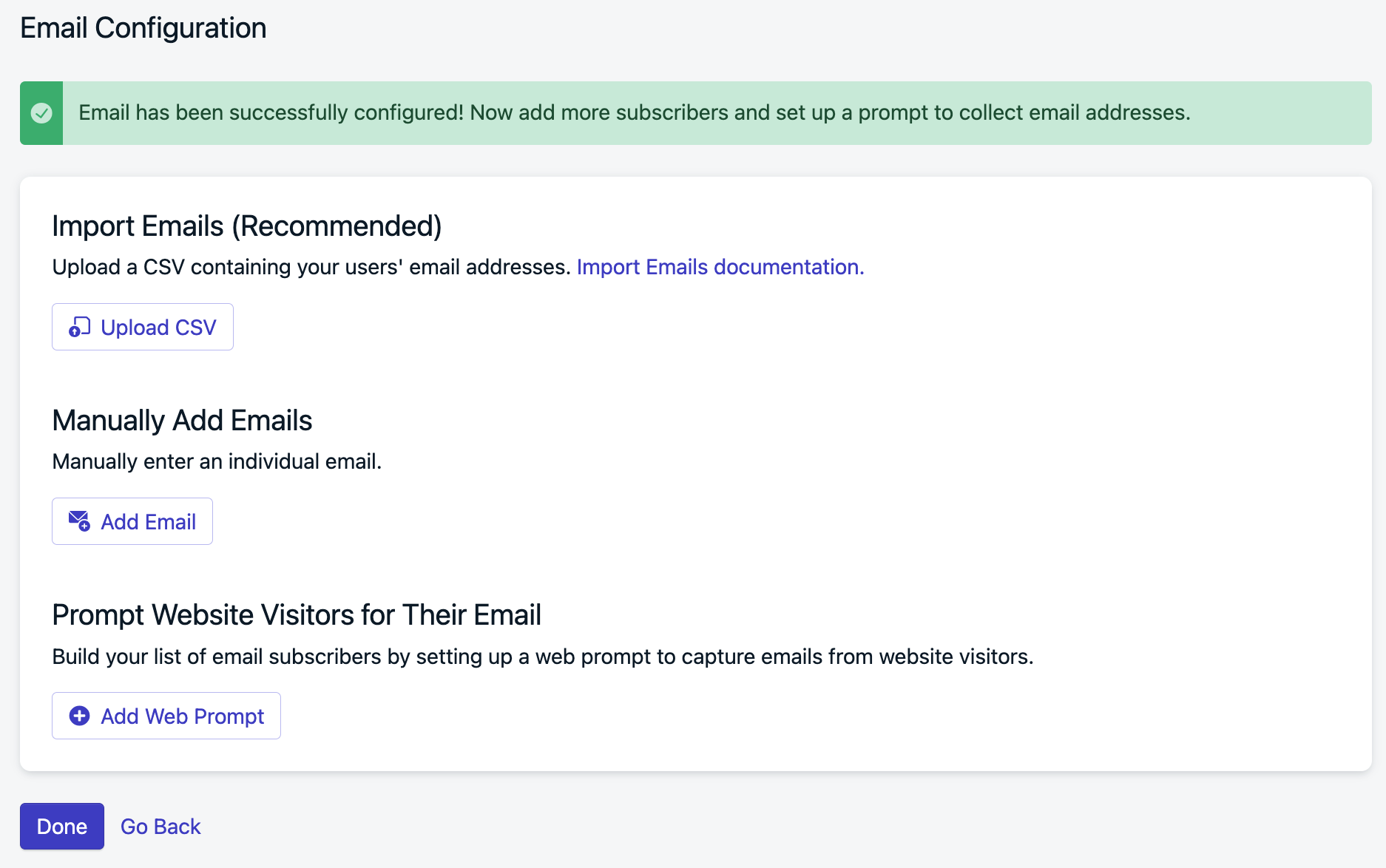
If you have a list of emails ready, select **Upload CSV** or you can always do this again later.
If you have a website and want to prompt users to provide their email. Select **Add Web Prompt** to use OneSignal's [Email Web Prompt](./permission-requests).
## 6. Add Subscribers
If you have a list of emails ready, select **Upload CSV** or you can always do this again later.
If you have a website and want to prompt users to provide their email. Select **Add Web Prompt** to use OneSignal's [Email Web Prompt](./permission-requests).
 ## 7. Testing
Navigate to **Messages > Email**, select **New Email**.
Add a `Subject`, select an Editing experience (Drag & Drop Editor is a good start) and click **Send Test Email**.
## 7. Testing
Navigate to **Messages > Email**, select **New Email**.
Add a `Subject`, select an Editing experience (Drag & Drop Editor is a good start) and click **Send Test Email**.
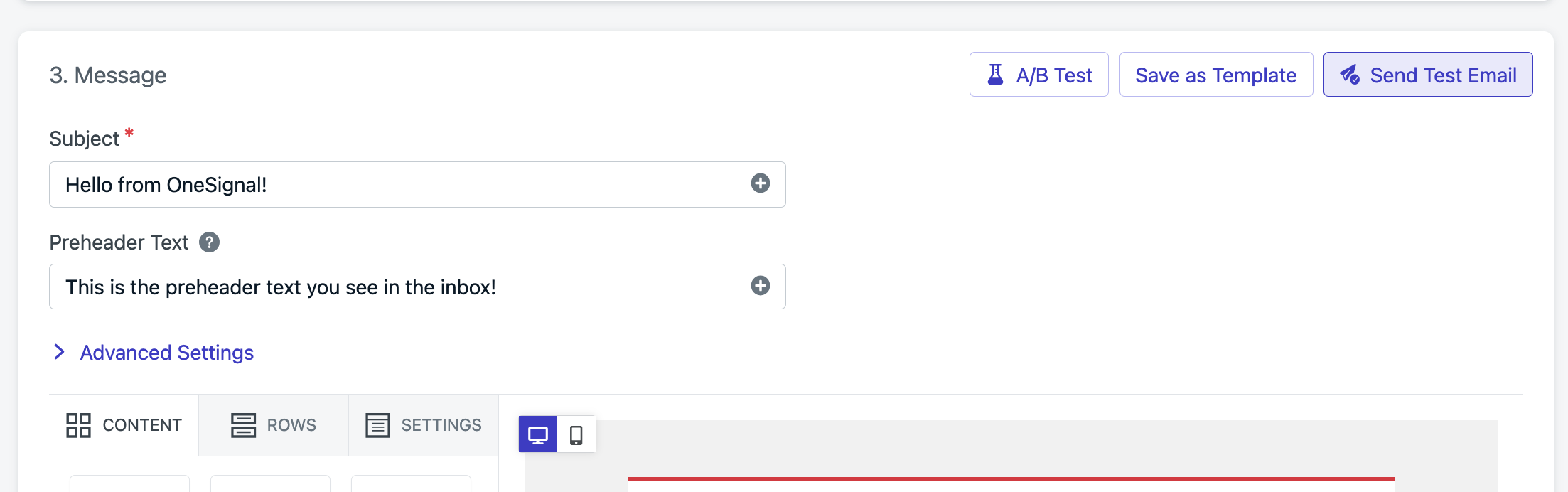 Input your email and press **Send Test Email**. An email should arrive to your inbox shortly!
If running into issues, see our [Email FAQ](./email-troubleshooting).
If stuck, contact `support@onesignal.com` for help.
For faster assistance, please provide:
* Your OneSignal App Id
* Details, logs, and/or screenshots of the issue.
* Steps to reproduce
# Recommended
## Identify Users
**Required if using integrations.** **Recommended for messaging across multiple channels (push, email, sms).**
OneSignal creates subscription-level records under a unique ID called the subscription\_id. A single user can have multiple subscription\_id records based on how many devices, email addresses, and phone numbers they use to interact with your app.
If your app has its own login system to track users, call `login` at any time to link all channels to a single user. For more details, see [Aliases & External ID](./users).
## Collect New Emails
**Recommended if using Email and SMS messaging.**
There are several ways to pass new email addresses into OneSignal:
* Use OneSignal's Frontend SDK to capture new emails. See [Email SDK Methods](./mobile-sdk-reference#email).
* Use the [Create user](/reference/create-user) or [Create subscription](/reference/create-subscription) APIs to add emails from your server.
* If you want to import emails via CSV, see [Import Email Addresses](./import).
## Add Tags
**Optional**
Tags are custom `key : value` pairs of String data used for tracking user events and properties. Setting tags is required for more complex [segmentation](./segmentation) and [message personalization](./message-personalization).
See [Tags](./add-user-data-tags) for more details.
Visit [Email Tutorials](./email-messaging) for next steps.
# Exporting Emails
1. **Contact Lists Navigation**: Go to `Marketing > Contacts`.
2.
Input your email and press **Send Test Email**. An email should arrive to your inbox shortly!
If running into issues, see our [Email FAQ](./email-troubleshooting).
If stuck, contact `support@onesignal.com` for help.
For faster assistance, please provide:
* Your OneSignal App Id
* Details, logs, and/or screenshots of the issue.
* Steps to reproduce
# Recommended
## Identify Users
**Required if using integrations.** **Recommended for messaging across multiple channels (push, email, sms).**
OneSignal creates subscription-level records under a unique ID called the subscription\_id. A single user can have multiple subscription\_id records based on how many devices, email addresses, and phone numbers they use to interact with your app.
If your app has its own login system to track users, call `login` at any time to link all channels to a single user. For more details, see [Aliases & External ID](./users).
## Collect New Emails
**Recommended if using Email and SMS messaging.**
There are several ways to pass new email addresses into OneSignal:
* Use OneSignal's Frontend SDK to capture new emails. See [Email SDK Methods](./mobile-sdk-reference#email).
* Use the [Create user](/reference/create-user) or [Create subscription](/reference/create-subscription) APIs to add emails from your server.
* If you want to import emails via CSV, see [Import Email Addresses](./import).
## Add Tags
**Optional**
Tags are custom `key : value` pairs of String data used for tracking user events and properties. Setting tags is required for more complex [segmentation](./segmentation) and [message personalization](./message-personalization).
See [Tags](./add-user-data-tags) for more details.
Visit [Email Tutorials](./email-messaging) for next steps.
# Exporting Emails
1. **Contact Lists Navigation**: Go to `Marketing > Contacts`.
2.
 3. **List Identification**: Locate the list you want to export.
4. **Export Selection**: Open the context menu under the **Action** list header.
3. **List Identification**: Locate the list you want to export.
4. **Export Selection**: Open the context menu under the **Action** list header.
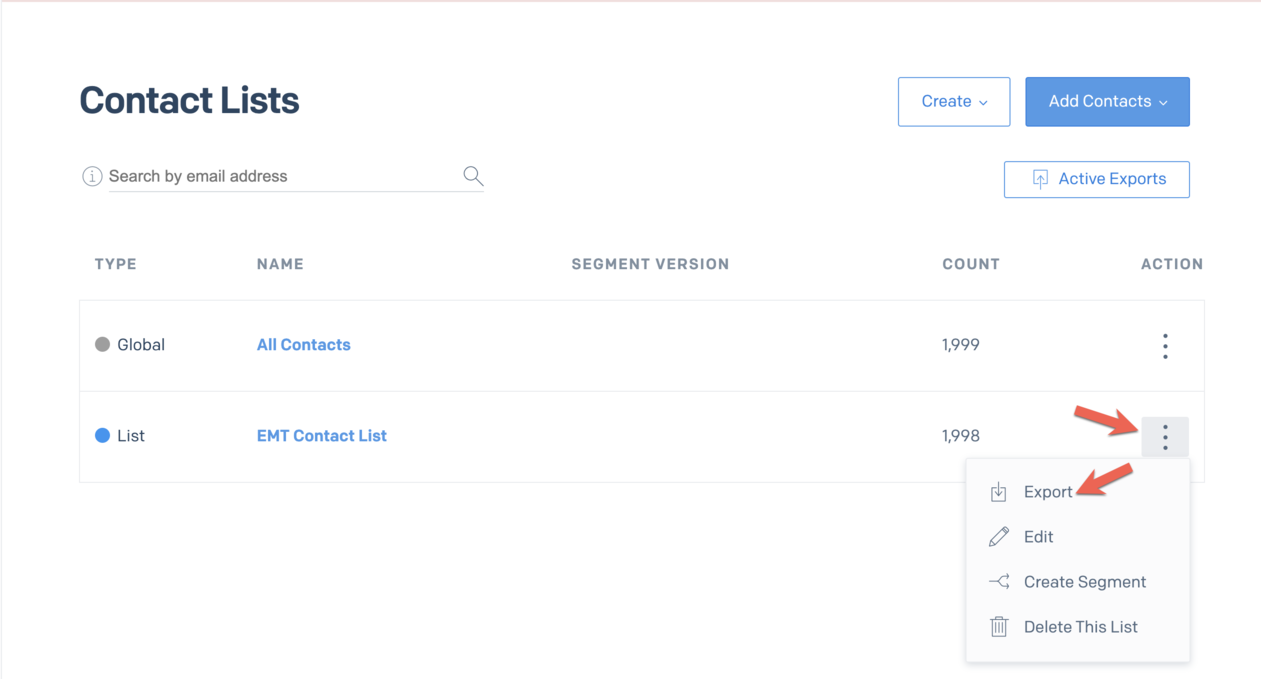 4. **Begin Export**: Click **Export**. This takes you to `Contact > Active Exports`.
5. **Download File**: Wait until the **Status** shows 'Ready for Download', then click **Download CSV**.
4. **Begin Export**: Click **Export**. This takes you to `Contact > Active Exports`.
5. **Download File**: Wait until the **Status** shows 'Ready for Download', then click **Download CSV**.
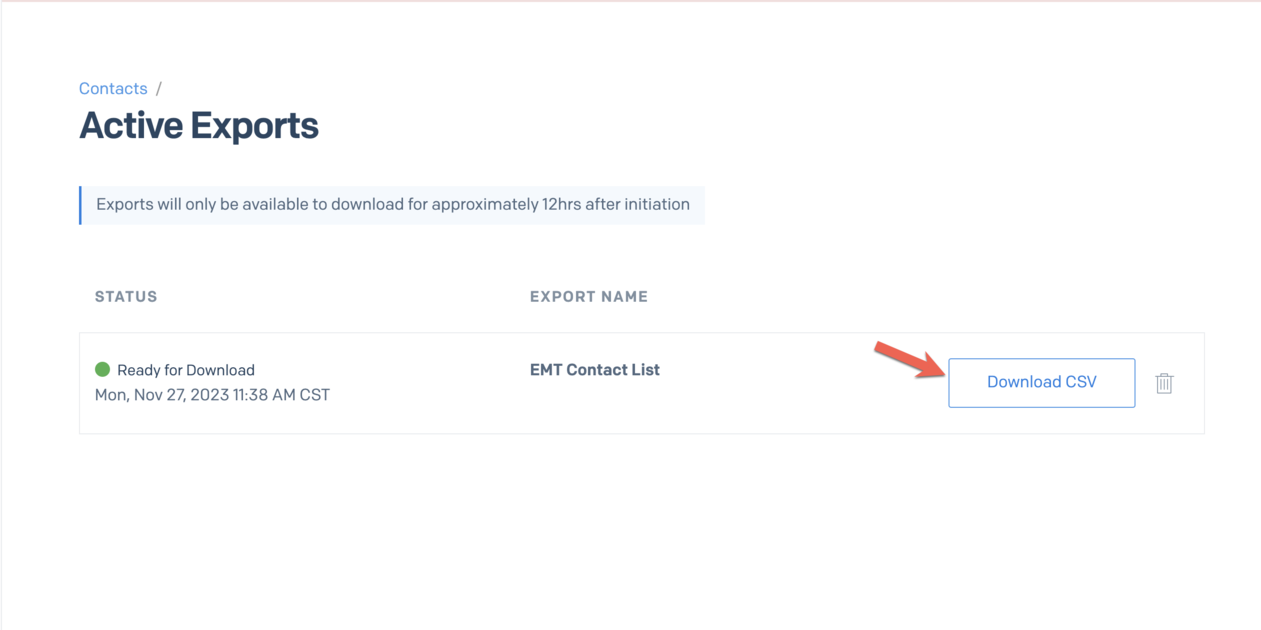 6. **File Retrieval**: The file will be saved in your downloads directory.
# Obtaining API Key
1. Navigate to your Sendgrid dashboard and open **Settings** from the left sidebar.
6. **File Retrieval**: The file will be saved in your downloads directory.
# Obtaining API Key
1. Navigate to your Sendgrid dashboard and open **Settings** from the left sidebar.
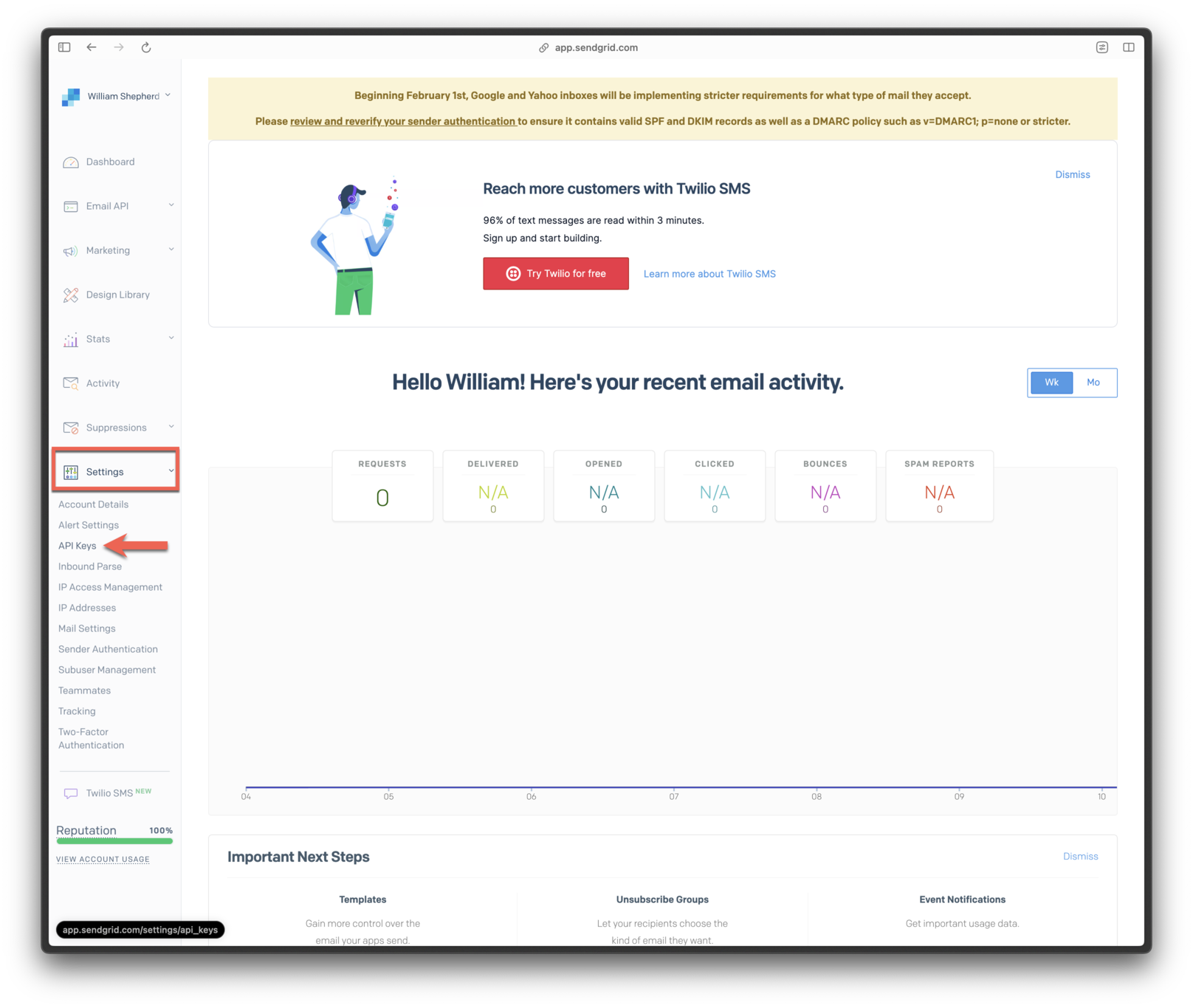 2. Select **API Keys**.
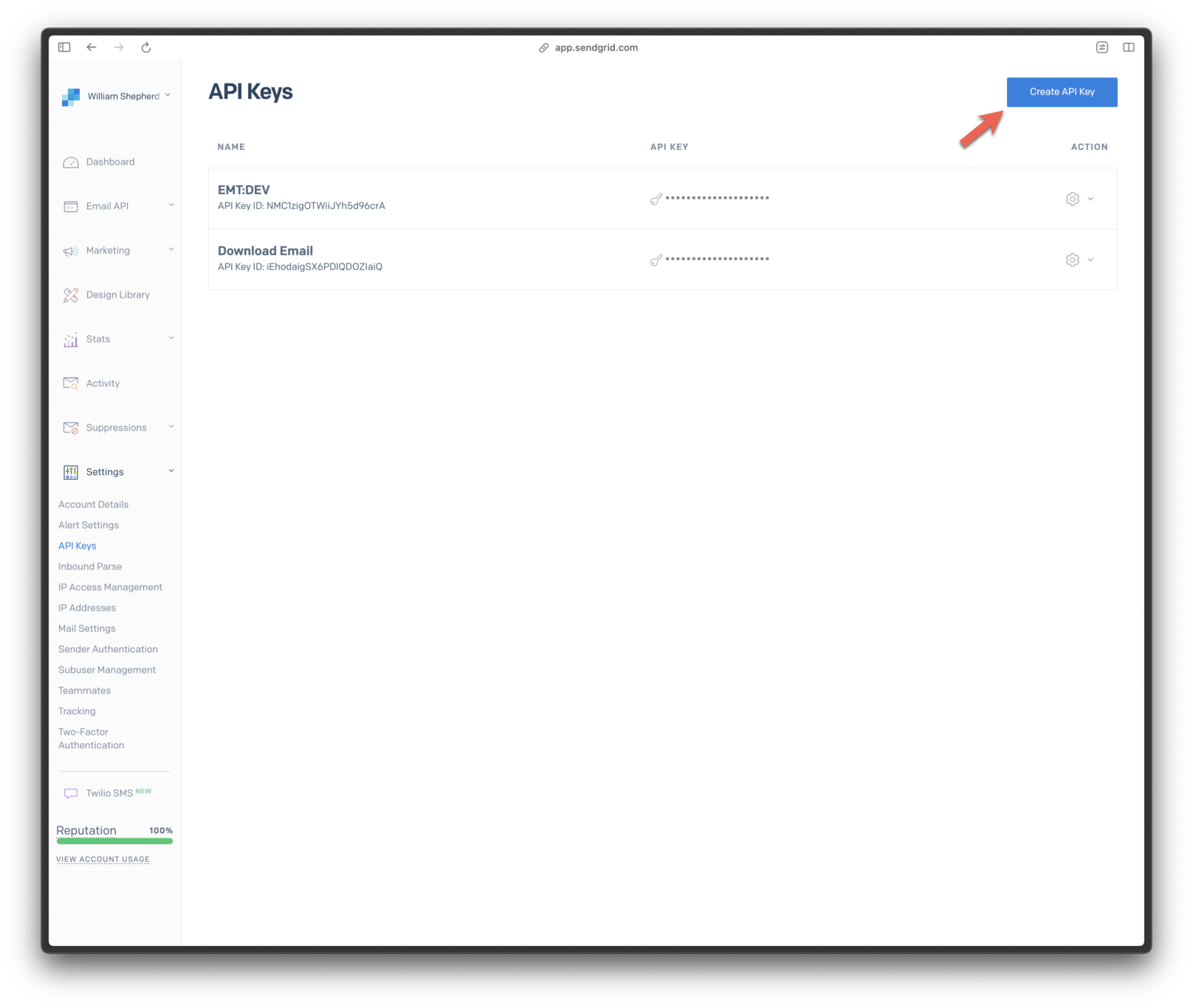 3. Name your key. Optionally, opt for *Restricted Access* for specific permissions.
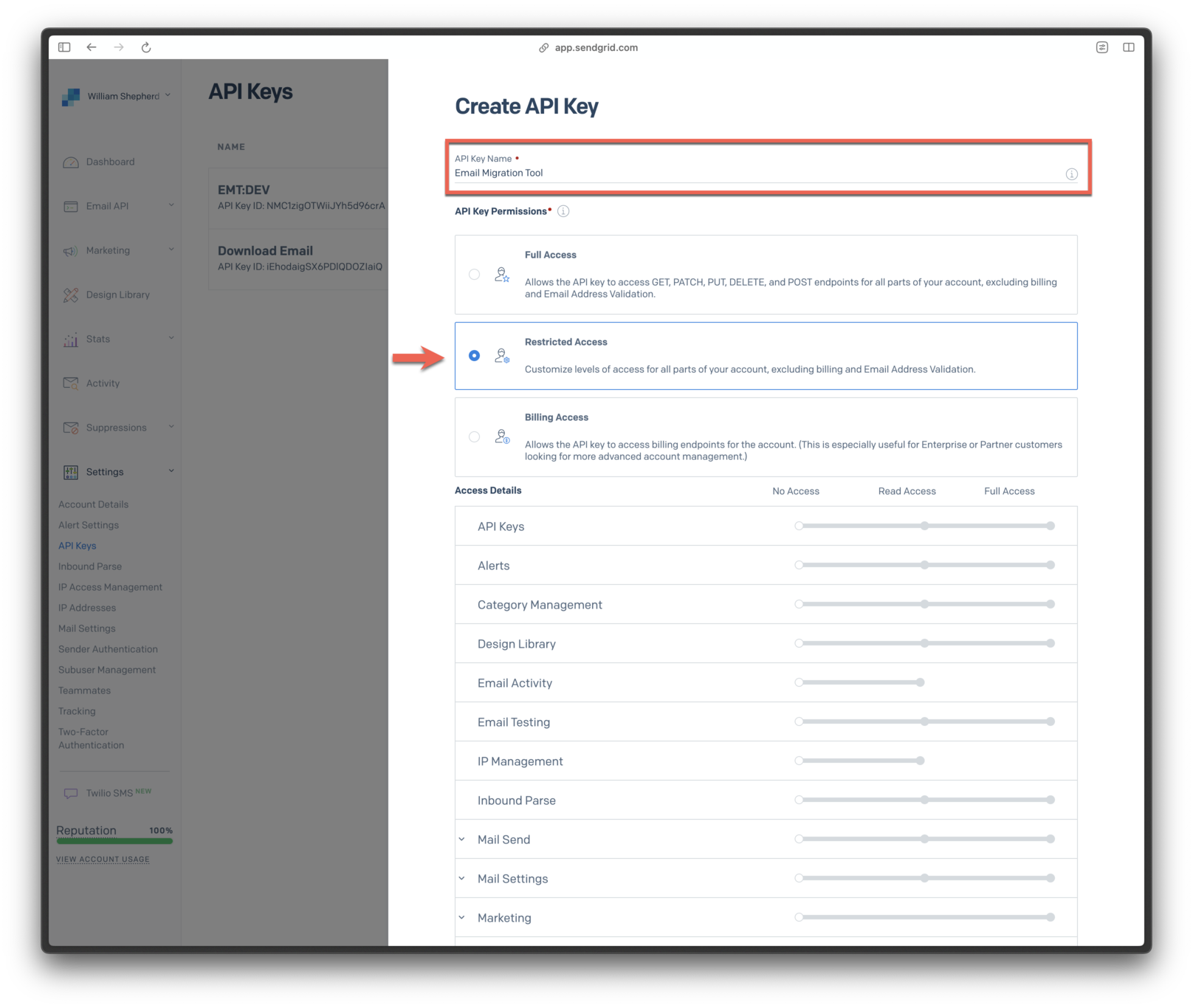 If using *Restricted Access*, ensure that you grant **Full Access** privileges for Marketing.
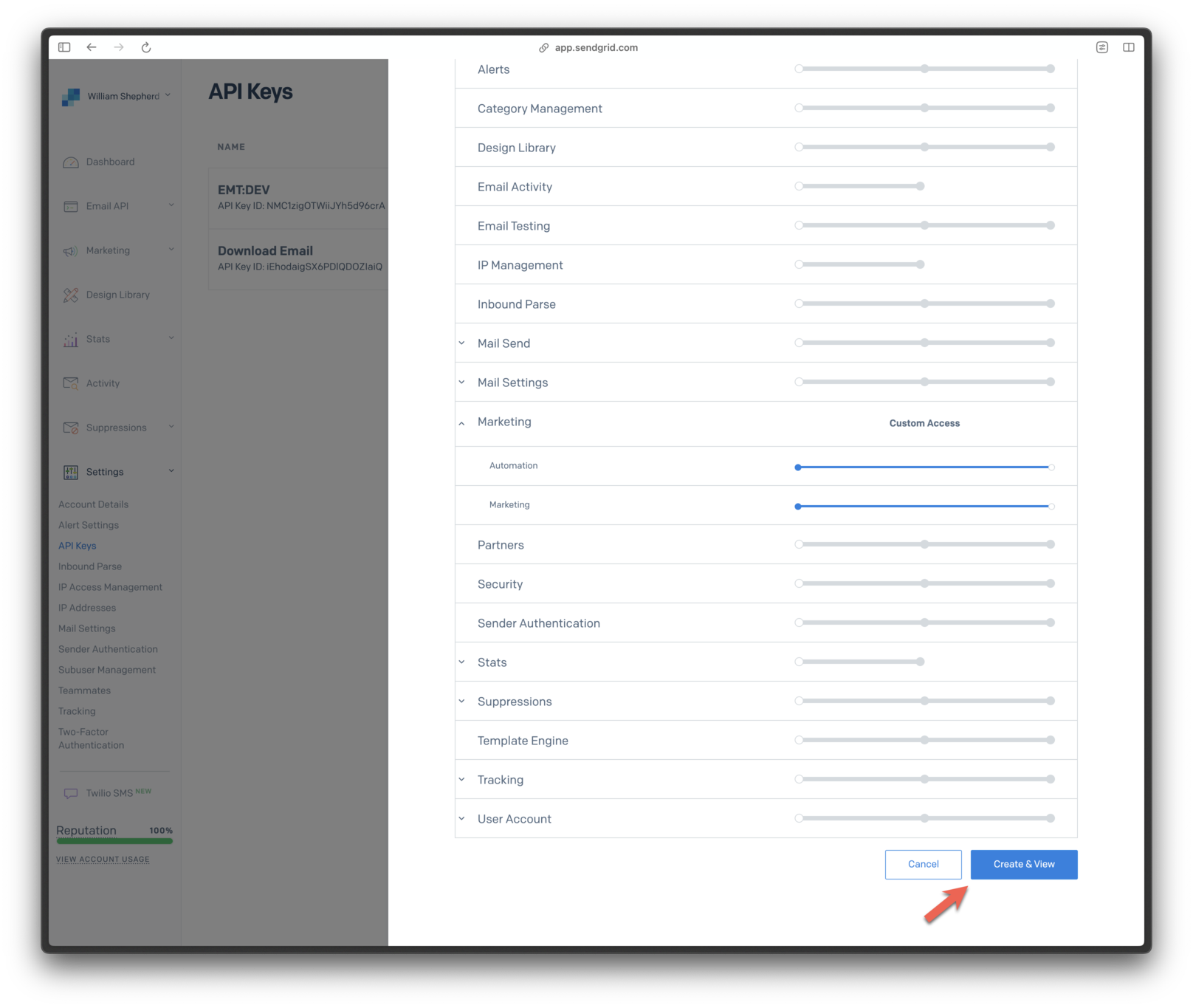
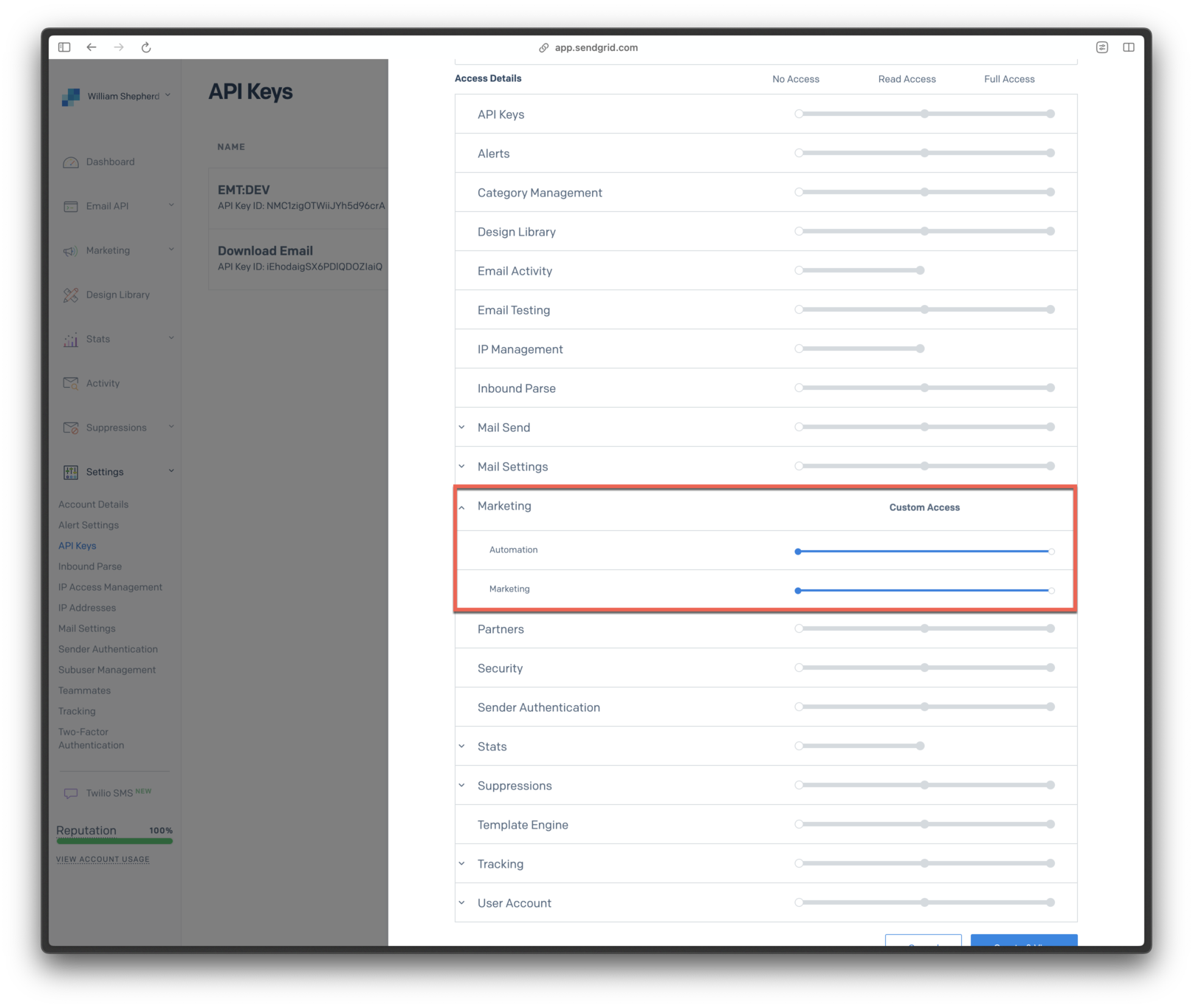 4. Click **Create & View**.
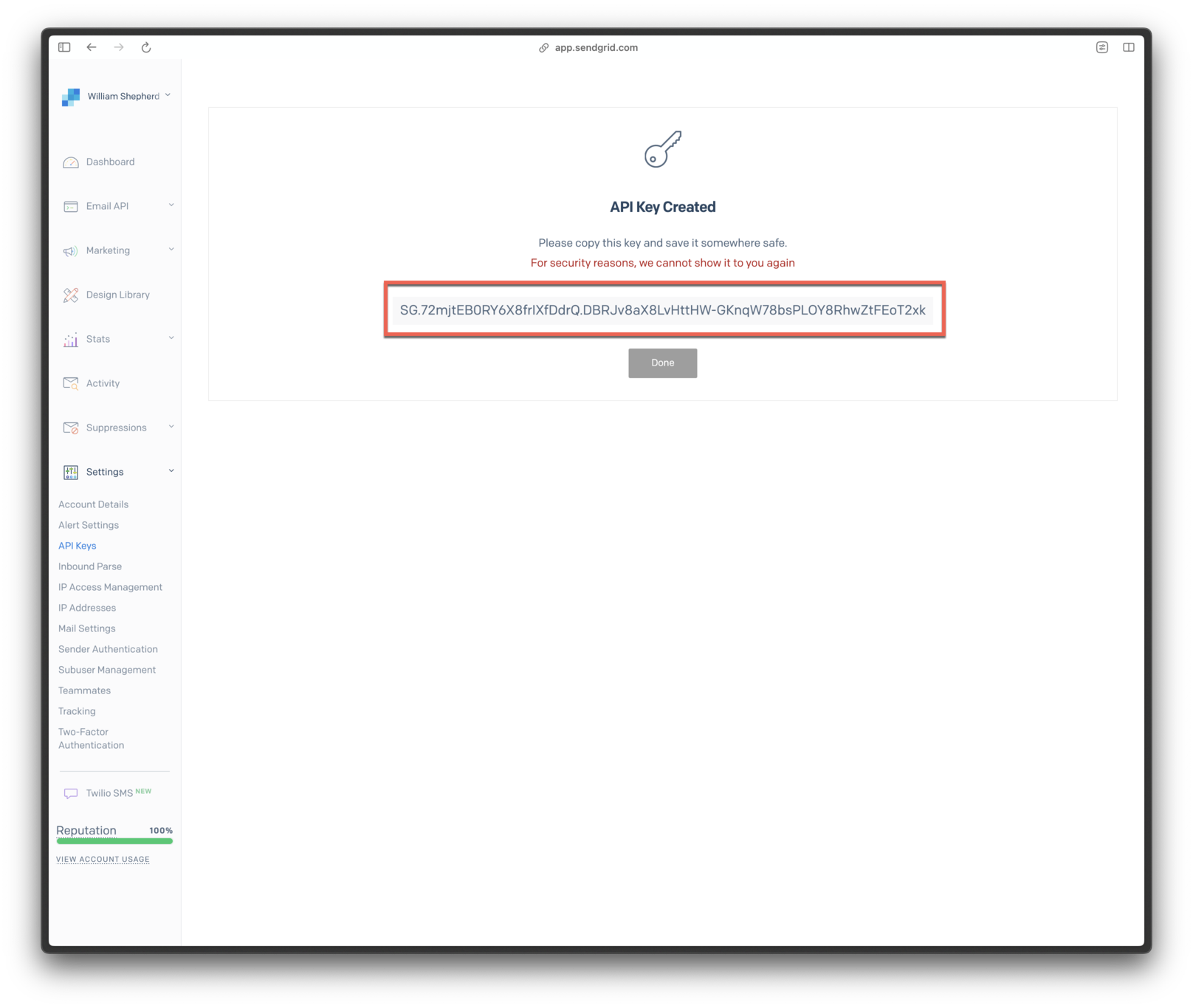
 5. Copy your API key.
 # FAQ
## How do I set up OneSignal if I already have an active Webhook in SendGrid?
To simplify setup and be able to access email delivery statistics, OneSignal will automatically configure Webhooks with SendGrid. Unfortunately, SendGrid only supports a single webhook for a given account. OneSignal requires webhooks for email analytics, which may conflict with webhooks previously set up (e.g. for an analytics integration).
If you need the webhook you have currently set up, you can forward the request to `https://onesignal.com/email/hooks/sendgrid`. Setup a timeout of 30 seconds for best results.
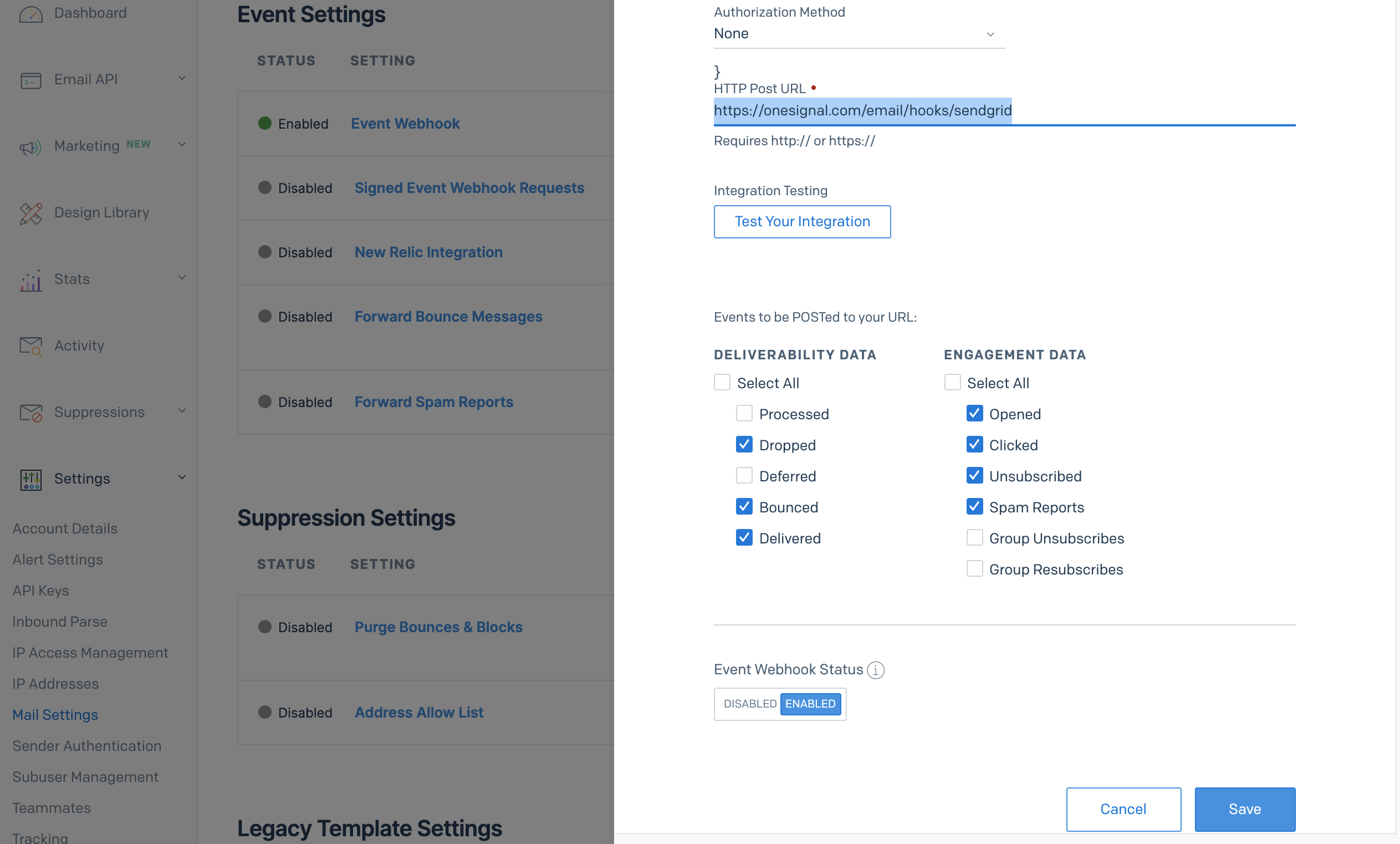
If you do not need the webhook you previously set up, you must change it. In SendGrid, go to **Settings > Mail Settings** and click 'Event Webhook'. The HTTP Post URL should be `https://onesignal.com/email/hooks/sendgrid` and have the minimum settings shown:
# FAQ
## How do I set up OneSignal if I already have an active Webhook in SendGrid?
To simplify setup and be able to access email delivery statistics, OneSignal will automatically configure Webhooks with SendGrid. Unfortunately, SendGrid only supports a single webhook for a given account. OneSignal requires webhooks for email analytics, which may conflict with webhooks previously set up (e.g. for an analytics integration).
If you need the webhook you have currently set up, you can forward the request to `https://onesignal.com/email/hooks/sendgrid`. Setup a timeout of 30 seconds for best results.
If you do not need the webhook you previously set up, you must change it. In SendGrid, go to **Settings > Mail Settings** and click 'Event Webhook'. The HTTP Post URL should be `https://onesignal.com/email/hooks/sendgrid` and have the minimum settings shown:
 ## How do I allowlist OneSignal's IPs?
See the requirements in our [REST API Overview](/reference/rest-api-overview) for details.
## How do I allowlist OneSignal's IPs?
See the requirements in our [REST API Overview](/reference/rest-api-overview) for details.
 ***
***