> ## Documentation Index
> Fetch the complete documentation index at: https://documentation.onesignal.com/llms.txt
> Use this file to discover all available pages before exploring further.
# Promotional messaging
> Send SMS and MMS promotional campaigns with OneSignal. Covers double opt-in setup, preference centers, sender strategy, and sending via Dashboard, Journeys, or API.
Promotional messages include sales and discounts, abandoned cart reminders, new product launches, seasonal promotions, loyalty and reward programs, limited-time offers, referral programs, and re-engagement campaigns.
Texting requires explicit consent and an easy way for users to opt out. The people receiving your promotional messages have actively chosen to hear from you, which means they are often your most engaged audience.
***
## Collecting opt-ins
Promotional opt-in collection methods, required disclosure language, and audience validation are covered on the dedicated opt-in and collection page.
Web sign-up forms, text-to-subscribe, QR codes, checkout opt-ins, disclosure language requirements, and phone number validation.
If you have multiple senders for different use cases (for example, promotional and transactional), collect which use case the subscriber is opting into as a data tag. This ensures you can route subscribers to the correct sender and keep opt-ins scoped to the right program.
### Double opt-in
Double opt-in adds a confirmation step after initial sign-up: the subscriber receives a text asking them to reply with a keyword (for example, `Y` or `SUBSCRIBE`) to confirm.
* **Required for cart abandonment programs in the US.**
* Strongly recommended for any high-volume promotional program, as it reduces spam complaints, improves list quality, and provides stronger consent documentation.
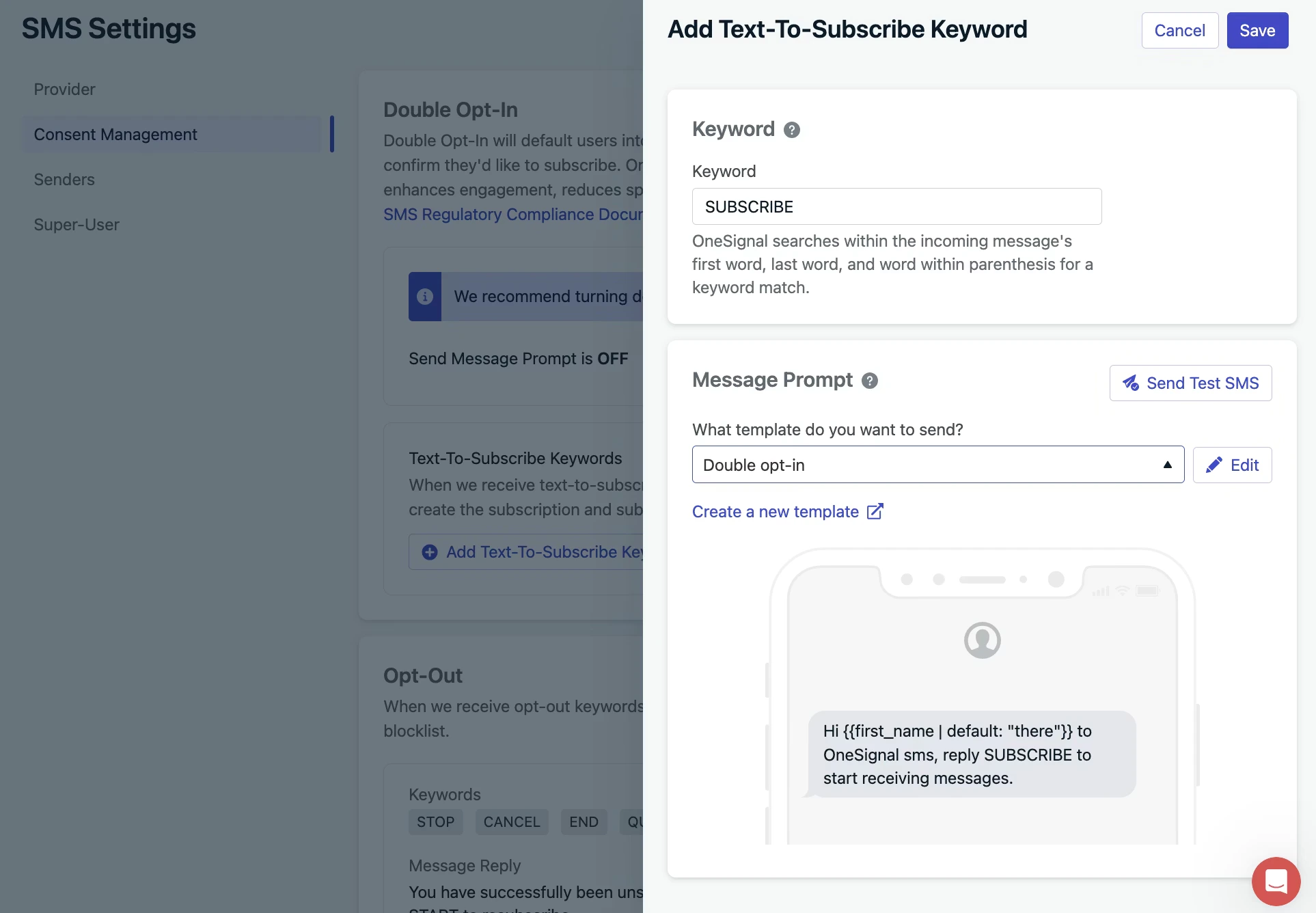 Navigate to **Settings > Platforms > SMS Settings > Consent Management**.
Click **Edit** next to Double Opt-In and toggle on **Send Message Prompt**. Select or create an SMS template for the confirmation message (for example, *"Reply SUBSCRIBE to start receiving exclusive offers. Msg & data rates may apply. Reply STOP to opt out."*).
Create a **Text to Subscribe keyword** (for example, `Y` or `SUBSCRIBE`) that marks the subscriber as active when they reply. Select a template for the reply message (for example, *"Brand Name: Thanks for subscribing! Reply STOP to opt out at any time."*).
Make sure reply syncing is enabled under **SMS Settings > Senders > Setup Replies**. Without this, OneSignal cannot receive the subscriber's confirmation and update their status.
### Importing existing subscribers
If you have an existing list of subscribers who have already provided consent, from a prior SMS provider, a physical sign-up form, or another system, see [Importing subscribers](./import) to transfer consent into OneSignal via CSV or API.
**Re-subscribe behavior:** By default, when a user texts START, UNSTOP, or YES, OneSignal re-subscribes the user and replies with: *"You have successfully been re-subscribed to messages from this number. Reply HELP for help. Reply STOP to unsubscribe. Msg\&Data Rates May Apply."* OneSignal SMS users can update this reply by contacting support.
***
## Preference centers
A preference center lets subscribers self-select the types of messages they want to receive. Rather than a single all-or-nothing opt-out, subscribers can opt in or out of specific lists by texting a keyword. Common preference lists include seasonal promotions, product categories, restock alerts, and VIP offers.
OneSignal tracks these preferences as data tags on each subscriber's profile, which you then use to target the right audience at send time.
This preferences approach is for managing preferences within a single use case (for example, Fall discounts vs. Spring promotions, all under a marketing program). It is not intended for separating promotional opt-outs from transactional opt-outs. See [Consent keyword management](./sms-consent-keyword-management) for that.
### How preference centers work
1. A subscriber texts a keyword to your sender (for example, `FALL`).
2. OneSignal applies a data tag to that subscriber's profile (for example, `fall = true`).
3. When you send a campaign, you filter your audience to subscribers who have that tag.
### Set up a preference center
Go to **Settings > Platforms > SMS Settings > Keywords** and create a keyword pair for each subscription list, one to subscribe and one to unsubscribe.
#### Subscribe keyword
For each list, create a subscribe keyword (for example, `FALL`):
1. Enter the keyword text (for example, `FALL`).
2. Set audience scope to **Anyone**.
3. Select or create a reply template (for example, *"You're subscribed to Fall promotions! Text NOFALL to unsubscribe anytime."*).
4. Assign a data tag: `fall = true`.
#### Unsubscribe keyword
Create the matching unsubscribe keyword (for example, `NOFALL`):
1. Enter the keyword text (for example, `NOFALL`).
2. Select or create a reply template (for example, *"You've been unsubscribed from Fall promotions. Text FALL to resubscribe anytime."*).
3. Assign a data tag: `fall = false`.
Repeat this pair for each list. For a Spring list, create `SPRING` (`spring = true`) and `NOSPRING` (`spring = false`).
### Requirements
* Reply syncing must be enabled. Go to **SMS Settings > Senders > Setup Replies**.
* Alphanumeric sender IDs cannot receive replies and do not support keywords.
### Target subscribers by preference
When building a campaign or Journey, use the **User Tag** filter in Segments:
* Send a Fall promotion to subscribers where `fall = true`.
* Exclude subscribers where `fall = false`.
### Promote your preference center
Tell subscribers which keywords are available in your welcome message (for example, *"Text FALL for Fall deals, SPRING for Spring deals, or STOP to unsubscribe from all."*).
For full keyword setup details, see [SMS keywords](./keywords).
***
## Sending
| Use case | Sending method | Why |
| -------------------------------- | ------------------- | ----------------------------------------------------------------------------------------------------- |
| **Promotional blast** | Dashboard: Messages | Best for one-time sends to a segment; schedule in advance or send immediately |
| **Cart abandonment** | Journeys | Trigger-based automation off a cart event; supports delays and conditional branching |
| **Upsell / re-engagement flows** | Journeys | Multi-step sequences with time delays and audience conditions |
| **API-triggered promotions** | API | Best when your backend controls the trigger (for example, a personalized offer generated server-side) |
### Before you send
* **Quiet hours:** Promotional messages must respect local quiet hours. Use Journey time windows to ensure messages send within permitted hours. See [Regulatory compliance](./sms-regulatory-compliance#quiet-hours) for quiet hours by country.
* **Sender name:** Include your brand name in the message body so recipients know who is texting them.
* **Opt-out instruction:** Every promotional message must include a STOP instruction (for example, "Reply STOP to opt out").
### Composing your message
For guidance on composing your message, including character limits, segments, MMS, and trackable links, see [Composing messages](./sms-composing-messages).
If you have an RCS sender, you can also send rich content: branded cards, carousels, and action buttons. See [Composing messages](./sms-composing-messages#rcs-content) for what's available.
### Two-way keyword campaigns
Promotional SMS doesn't have to be one-directional. You can run keyword-based engagement campaigns where subscribers reply to interact, including polls, surveys, preference collection, and content unlocks.
Include a CTA in your message asking subscribers to reply with a keyword (for example, "Reply EA for early access"). When OneSignal receives the keyword, it triggers an automated reply and optionally applies a data tag for future segmentation.
See [SMS keywords](./keywords) for full setup instructions.
***
## FAQ
### Do I need double opt-in for all promotional programs?
Double opt-in is required for cart abandonment programs in the US. For other promotional programs it is optional, but strongly recommended, as it reduces spam complaints, improves list quality, and provides stronger consent documentation.
### Can I use the same sender for promotional and transactional messages?
Technically yes, but it is not recommended. If a subscriber texts STOP to a shared sender, they are opted out of all messages from that sender, including order confirmations or account alerts they still want. Use separate senders per program to keep opt-outs cleanly scoped.
### What disclosure language is required at opt-in?
Every promotional opt-in must include: your brand name, that the subscriber will receive recurring automated marketing messages, approximate message frequency, "Msg & data rates may apply," how to opt out (STOP), and links to your Terms of Service and Privacy Policy.
### Can I import subscribers from another provider?
Yes, if they have already provided valid consent. See [Importing subscribers](./import) for how to transfer existing subscribers via CSV or API.
***
## Related pages
Collection methods, required disclosure language, and audience validation for all program types.
Manage STOP, HELP, START, and custom opt-out keywords after subscribers opt in.
Full setup details for keyword-triggered replies, tags, and two-way campaigns.
Character limits, MMS, trackable links, and RCS rich content.
Navigate to **Settings > Platforms > SMS Settings > Consent Management**.
Click **Edit** next to Double Opt-In and toggle on **Send Message Prompt**. Select or create an SMS template for the confirmation message (for example, *"Reply SUBSCRIBE to start receiving exclusive offers. Msg & data rates may apply. Reply STOP to opt out."*).
Create a **Text to Subscribe keyword** (for example, `Y` or `SUBSCRIBE`) that marks the subscriber as active when they reply. Select a template for the reply message (for example, *"Brand Name: Thanks for subscribing! Reply STOP to opt out at any time."*).
Make sure reply syncing is enabled under **SMS Settings > Senders > Setup Replies**. Without this, OneSignal cannot receive the subscriber's confirmation and update their status.
### Importing existing subscribers
If you have an existing list of subscribers who have already provided consent, from a prior SMS provider, a physical sign-up form, or another system, see [Importing subscribers](./import) to transfer consent into OneSignal via CSV or API.
**Re-subscribe behavior:** By default, when a user texts START, UNSTOP, or YES, OneSignal re-subscribes the user and replies with: *"You have successfully been re-subscribed to messages from this number. Reply HELP for help. Reply STOP to unsubscribe. Msg\&Data Rates May Apply."* OneSignal SMS users can update this reply by contacting support.
***
## Preference centers
A preference center lets subscribers self-select the types of messages they want to receive. Rather than a single all-or-nothing opt-out, subscribers can opt in or out of specific lists by texting a keyword. Common preference lists include seasonal promotions, product categories, restock alerts, and VIP offers.
OneSignal tracks these preferences as data tags on each subscriber's profile, which you then use to target the right audience at send time.
This preferences approach is for managing preferences within a single use case (for example, Fall discounts vs. Spring promotions, all under a marketing program). It is not intended for separating promotional opt-outs from transactional opt-outs. See [Consent keyword management](./sms-consent-keyword-management) for that.
### How preference centers work
1. A subscriber texts a keyword to your sender (for example, `FALL`).
2. OneSignal applies a data tag to that subscriber's profile (for example, `fall = true`).
3. When you send a campaign, you filter your audience to subscribers who have that tag.
### Set up a preference center
Go to **Settings > Platforms > SMS Settings > Keywords** and create a keyword pair for each subscription list, one to subscribe and one to unsubscribe.
#### Subscribe keyword
For each list, create a subscribe keyword (for example, `FALL`):
1. Enter the keyword text (for example, `FALL`).
2. Set audience scope to **Anyone**.
3. Select or create a reply template (for example, *"You're subscribed to Fall promotions! Text NOFALL to unsubscribe anytime."*).
4. Assign a data tag: `fall = true`.
#### Unsubscribe keyword
Create the matching unsubscribe keyword (for example, `NOFALL`):
1. Enter the keyword text (for example, `NOFALL`).
2. Select or create a reply template (for example, *"You've been unsubscribed from Fall promotions. Text FALL to resubscribe anytime."*).
3. Assign a data tag: `fall = false`.
Repeat this pair for each list. For a Spring list, create `SPRING` (`spring = true`) and `NOSPRING` (`spring = false`).
### Requirements
* Reply syncing must be enabled. Go to **SMS Settings > Senders > Setup Replies**.
* Alphanumeric sender IDs cannot receive replies and do not support keywords.
### Target subscribers by preference
When building a campaign or Journey, use the **User Tag** filter in Segments:
* Send a Fall promotion to subscribers where `fall = true`.
* Exclude subscribers where `fall = false`.
### Promote your preference center
Tell subscribers which keywords are available in your welcome message (for example, *"Text FALL for Fall deals, SPRING for Spring deals, or STOP to unsubscribe from all."*).
For full keyword setup details, see [SMS keywords](./keywords).
***
## Sending
| Use case | Sending method | Why |
| -------------------------------- | ------------------- | ----------------------------------------------------------------------------------------------------- |
| **Promotional blast** | Dashboard: Messages | Best for one-time sends to a segment; schedule in advance or send immediately |
| **Cart abandonment** | Journeys | Trigger-based automation off a cart event; supports delays and conditional branching |
| **Upsell / re-engagement flows** | Journeys | Multi-step sequences with time delays and audience conditions |
| **API-triggered promotions** | API | Best when your backend controls the trigger (for example, a personalized offer generated server-side) |
### Before you send
* **Quiet hours:** Promotional messages must respect local quiet hours. Use Journey time windows to ensure messages send within permitted hours. See [Regulatory compliance](./sms-regulatory-compliance#quiet-hours) for quiet hours by country.
* **Sender name:** Include your brand name in the message body so recipients know who is texting them.
* **Opt-out instruction:** Every promotional message must include a STOP instruction (for example, "Reply STOP to opt out").
### Composing your message
For guidance on composing your message, including character limits, segments, MMS, and trackable links, see [Composing messages](./sms-composing-messages).
If you have an RCS sender, you can also send rich content: branded cards, carousels, and action buttons. See [Composing messages](./sms-composing-messages#rcs-content) for what's available.
### Two-way keyword campaigns
Promotional SMS doesn't have to be one-directional. You can run keyword-based engagement campaigns where subscribers reply to interact, including polls, surveys, preference collection, and content unlocks.
Include a CTA in your message asking subscribers to reply with a keyword (for example, "Reply EA for early access"). When OneSignal receives the keyword, it triggers an automated reply and optionally applies a data tag for future segmentation.
See [SMS keywords](./keywords) for full setup instructions.
***
## FAQ
### Do I need double opt-in for all promotional programs?
Double opt-in is required for cart abandonment programs in the US. For other promotional programs it is optional, but strongly recommended, as it reduces spam complaints, improves list quality, and provides stronger consent documentation.
### Can I use the same sender for promotional and transactional messages?
Technically yes, but it is not recommended. If a subscriber texts STOP to a shared sender, they are opted out of all messages from that sender, including order confirmations or account alerts they still want. Use separate senders per program to keep opt-outs cleanly scoped.
### What disclosure language is required at opt-in?
Every promotional opt-in must include: your brand name, that the subscriber will receive recurring automated marketing messages, approximate message frequency, "Msg & data rates may apply," how to opt out (STOP), and links to your Terms of Service and Privacy Policy.
### Can I import subscribers from another provider?
Yes, if they have already provided valid consent. See [Importing subscribers](./import) for how to transfer existing subscribers via CSV or API.
***
## Related pages
Collection methods, required disclosure language, and audience validation for all program types.
Manage STOP, HELP, START, and custom opt-out keywords after subscribers opt in.
Full setup details for keyword-triggered replies, tags, and two-way campaigns.
Character limits, MMS, trackable links, and RCS rich content.