> ## Documentation Index
> Fetch the complete documentation index at: https://documentation.onesignal.com/llms.txt
> Use this file to discover all available pages before exploring further.
# Snowflake
> Sync custom events from Snowflake to OneSignal to trigger automated Journeys and personalized messaging campaigns based on user behavior.
export const PLATFORM_0 = "Snowflake"
export const DATA_TYPE_0 = "event data"
export const COLUMN_HEADER_0 = "Snowflake Column"
export const PROPERTIES_DESCRIPTION_0 = "Event metadata as VARIANT/JSON"
If you are using Snowflake with OneSignal's legacy integration, please refer to the [Snowflake Legacy Integration](./snowflake-legacy) guide. See [Migrating from legacy](#migrating-from-legacy) for migration steps.
***
## Overview
The OneSignal + Snowflake integration supports two powerful data pipelines:
* **Outbound**: Automatically send messaging event data (push, email, SMS, in-app) from OneSignal to Snowflake for analysis and reporting.
* **Inbound**: Sync custom user events from your Snowflake datasets to OneSignal to trigger automated Journeys and personalized messaging.
Together, these integrations give you complete control over user engagement data—powering advanced analytics and real-time behavior-driven messaging.
***
## Outbound setup
This is currently in early access.
To request access, contact `support@onesignal.com` with:
* Your company name
* Your OneSignal organization ID
* The app ID(s) you want to enable
Export message performance and engagement events (e.g., sends, opens, clicks) to Snowflake to:
* Build custom dashboards and reports
* Track delivery and engagement trends across channels
* Combine OneSignal data with other business data for analysis
**Requirements**
* Access to [Event Streams](/docs/en/event-streams) for outbound message events (Plan limitations and overages apply)
* Access to [Custom Events](/docs/en/custom-events) for inbound event syncing (Plan limitations and overages apply)
* [Updated Account Plan](https://onesignal.com/pricing) (not available on free apps)
- OneSignal **Professional Plan** (not available on free apps)
- [Snowflake account](https://docs.snowflake.com/en/user-guide/getting-started-tutorial)
- SECURITYADMIN or ACCOUNTADMIN role in Snowflake (for setup)
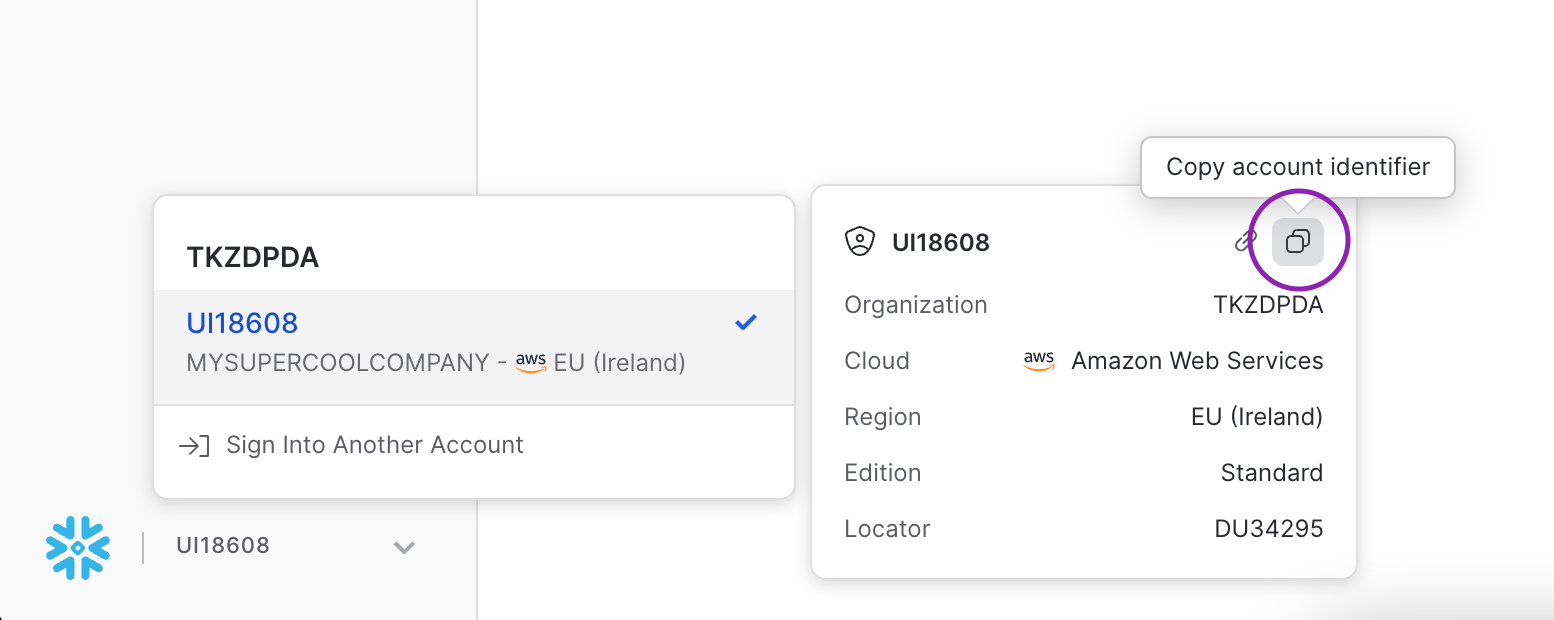
### 1. Gather your Snowflake account details
Before configuring the integration, collect the following information from your Snowflake account:
* **Snowflake Host**: Your account URL in the format `.snowflakecomputing.com`
* **Database name**: The database where OneSignal will write event data
* **Schema name**: The schema within the database for OneSignal tables (this will be auto created by OneSignal)
* **Warehouse name**: The warehouse to use for data loading operations
 ### 2. Run setup script in Snowflake
Execute the following SQL script in your Snowflake warehouse to create the necessary role, user, warehouse, and database for OneSignal:
```sql theme={null}
begin;
-- create variables for user / role / warehouse / database (needs to be uppercase for objects)
set role_name = 'ONESIGNAL_ROLE';
set user_name = 'ONESIGNAL_USER';
set warehouse_name = 'ONESIGNAL_WAREHOUSE';
set database_name = 'ONESIGNAL';
-- change role to securityadmin for user / role steps
use role securityadmin;
-- create role for onesignal
create role if not exists identifier($role_name);
grant role identifier($role_name) to role SYSADMIN;
-- create a user for onesignal
create user if not exists identifier($user_name)
default_role = $role_name
default_warehouse = $warehouse_name;
grant role identifier($role_name) to user identifier($user_name);
-- set binary_input_format to BASE64
ALTER USER identifier($user_name) SET BINARY_INPUT_FORMAT = 'BASE64';
-- set timestamp_input_format to AUTO for the user
ALTER USER identifier($user_name) SET TIMESTAMP_INPUT_FORMAT = 'AUTO';
-- change role to sysadmin for warehouse / database steps
use role sysadmin;
-- create a warehouse for onesignal
create warehouse if not exists identifier($warehouse_name)
warehouse_size = xsmall
warehouse_type = standard
auto_suspend = 60
auto_resume = true
initially_suspended = true;
-- create database for onesignal
create database if not exists identifier($database_name);
-- grant onesignal role access to warehouse
grant USAGE
on warehouse identifier($warehouse_name)
to role identifier($role_name);
-- grant onesignal access to database
grant CREATE SCHEMA, MONITOR, USAGE
on database identifier($database_name)
to role identifier($role_name);
commit;
```
You can customize the variable values at the top of the script to match your naming conventions. If you're using an existing warehouse or database, modify the script accordingly.
### 3. Generate key pair for authentication
OneSignal requires key-pair authentication for secure access to your Snowflake account. Follow these steps to generate and configure the keys:
Run one of the following commands to generate a private key:
**Unencrypted private key** (simpler, but less secure):
```bash theme={null}
openssl genrsa 2048 | openssl pkcs8 -topk8 -inform PEM -out rsa_key.p8 -nocrypt
```
**Encrypted private key** (recommended for production):
```bash theme={null}
openssl genrsa 2048 | openssl pkcs8 -topk8 -v2 aes256 -inform PEM -out rsa_key.p8
```
If using an encrypted key, you'll be prompted to create a passphrase. Save this passphrase securely—you'll need it when configuring OneSignal.
Generate the public key from your private key:
```bash theme={null}
openssl rsa -in rsa_key.p8 -pubout -out rsa_key.pub
```
Copy the contents of the public key file (excluding the header and footer lines), then run this SQL command in Snowflake:
```sql theme={null}
ALTER USER ONESIGNAL_USER SET RSA_PUBLIC_KEY='';
```
Replace `` with the key content (without `-----BEGIN PUBLIC KEY-----` and `-----END PUBLIC KEY-----` lines).
Store your private key file securely. You'll need to provide it to OneSignal in the next step. Never share your private key publicly or commit it to version control.
### 4. Connect OneSignal
In OneSignal, navigate to **Data > Integrations > Snowflake**.
* Host: `.snowflakecomputing.com`
* Port: Optional, defaults to `443`
* Database: e.g. `ONESIGNAL`
* Role: Optional, uses the user's default role if omitted
* User: e.g. `ONESIGNAL_USER`
* Private Key: Paste the contents of your private key file (`rsa_key.p8`)
* Private Key Passphrase: Optional, only if your private key is encrypted
* Data processing location: Where data is processed before before sending it to Snowflake
* **Sync Frequency:** as often as every 15 minutes
* **Schema/Table Names:** pre-set as `onesignal_events_` and `message_events` (editable)
* **Event Types:** choose which to sync—select all or just what you need
Select the events you care to receive in your Snowflake warehouse.
Click **Save** and wait for the success confirmation
Initial data sync can take 15–30 minutes to appear in Snowflake.
While you wait, send messages via push, email, in-app, or SMS to trigger the events selected.
### 5. View data in Snowflake
Once the initial sync completes, query your OneSignal event data:
```sql theme={null}
-- View recent message events
SELECT *
FROM ..message_events
ORDER BY _CREATED DESC
LIMIT 100;
```
If you run into issues like missing schemas, permission errors, or malformed events, contact `support@onesignal.com`.
## Message events and properties
### Message event kinds
**Property:** `event_kind`
**Type:** `String`
The kind of message and event (e.g. `message.push.received`, `message.push.sent`).
| Message Event (OneSignal) | `event_kind` | Description |
| :-----------------------: | :------------------------------: | -------------------------------------------------------------------------- |
| Push Sent | `message.push.sent` | Push notification successfully sent. |
| Push Received | `message.push.received` | Delivered push (see [Confirmed receipt](/docs/en/confirmed-delivery)). |
| Push Clicked | `message.push.clicked` | User clicked the push. |
| Push Failed | `message.push.failed` | Delivery failure. See message reports. |
| Push Unsubscribed | `message.push.unsubscribed` | User unsubscribed from push. |
| In-App Impression | `message.iam.impression` | In-App message shown. |
| In-App Clicked | `message.iam.clicked` | In-App message clicked. |
| In-App Page Viewed | `message.iam.page_displayed` | In-App page shown. |
| Email Sent | `message.email.sent` | Email delivered. |
| Email Received | `message.email.received` | Email accepted by recipient's mail server. |
| Email Opened | `message.email.opened` | Email opened. See [Email Reports](/docs/en/email-message-reports). |
| Email Link Clicked | `message.email.clicked` | Link in email clicked. |
| Email Unsubscribed | `message.email.unsubscribed` | Recipient unsubscribed. |
| Email Reported As Spam | `message.email.reported_as_spam` | Marked as spam. See [Email Deliverability](/docs/en/email-deliverability). |
| Email Bounced | `message.email.bounced` | Bounce due to permanent delivery failure. |
| Email Failed | `message.email.failed` | Delivery failed. |
| Email Suppressed | `message.email.suppressed` | Suppressed due to suppression list. |
| SMS Sent | `message.sms.sent` | SMS sent. |
| SMS Delivered | `message.sms.delivered` | SMS successfully delivered. |
| SMS Failed | `message.sms.failed` | SMS failed to deliver. |
| SMS Undelivered | `message.sms.undelivered` | SMS rejected or unreachable. |
### Event data schema
For each message event generated by a user, the following metadata will be attached to the record.
| Column Name | Type | Description |
| :---------------------------------------------: | :------------: | ------------------------------------------------------------ |
| `event_id` | UUID | Unique identifier for the event |
| `event_timestamp` | Timestamp | Time of event occurrence |
| `event_kind` | String | The [Event Kind](#message-event-kinds) |
| `subscription_device_type` | String | Device type (e.g., iOS, Android, Web, Email, SMS) |
| `language` | String | Subscription language code |
| `version` | String | Integration version |
| `device_os` | String | Device operating system version |
| `device_type` | Number | Numeric device type |
| `token` | String | Push token, phone number, or email |
| `subscription_id` | UUID | Subscription ID |
| `subscribed` | Boolean | Subscription status |
| `onesignal_id` | UUID | OneSignal user ID |
| `last_active` | String | Last active timestamp |
| `sdk` | String | OneSignal SDK version |
| `external_id` | String | External user ID that should match the integration user ID |
| `app_id` | UUID | App ID from OneSignal |
| `template_id` | UUID | Template ID (if applicable) |
| `message_id` | UUID | Message batch/request ID |
| `message_name` | String | Name of the message |
| `message_title` | String | Message title (English only) |
| `message_contents` | String | Truncated message body (English only) |
| `failure_reason` | String | Reason for failure (for push failed and email failed events) |
| `_created`, `_id`, `_index`, `_fivetran_synced` | *Internal use* | Fivetran sync metadata |
### Notes
* Syncs after saving/activating may take an additional 15-30 minutes to complete.
* Deactivating may still result in one final sync after deactivation.
* To ensure efficient data synchronization, our system automatically creates and manages staging datasets. These datasets, named with a pattern like `fivetran_{two random words}_staging`, temporarily store data during processing before it's integrated into your main schema. These staging datasets are essential for maintaining a streamlined workflow and should not be deleted, as they will be automatically recreated.
***
## Migrating from legacy
If you're currently using the [legacy Snowflake integration](./snowflake-legacy), this section covers the key differences and how to migrate your queries.
### Key differences
| Feature | Legacy | New |
| ------------------- | ------------------------------- | ------------------------------------------ |
| **Sync frequency** | 24 hours | As often as 15 minutes |
| **Data ownership** | Read-only access to shared data | Written directly to your Snowflake account |
| **Data retention** | 30 days | You control retention |
| **Event selection** | All events | Choose specific event types |
If you copied events from the legacy integration (a data share with 30-day retention) into your own tables,
be aware that your legacy events table likely uses a different schema.
The new integration uses renamed columns and automatic type inference, so pointing a new setup at a backup
table may produce errors or unexpected results.
We recommend creating a new table and using the combined view below if you need to merge historical
events with new events.
### Schema changes
The new integration creates columns on-demand. If no events contain data for a particular field, that column won't exist in your table. When data appears for that field, the column is created automatically.
#### Column renames
| Legacy column | New column |
| ---------------------------- | ------------------ |
| `EVENT_IMPRESSION_TIMESTAMP` | `EVENT_TIMESTAMP` |
| `SUBSCRIPTION_LANGUAGE` | `LANGUAGE` |
| `MESSAGE_BODY` | `MESSAGE_CONTENTS` |
### Type inference
The new integration uses automatic type inference. If all values in a column are numeric (e.g., all your `EXTERNAL_ID` values are numbers), the column may be typed as `NUMBER`. If a non-numeric value appears later, the column type is promoted to `VARCHAR`.
Use explicit casting if needed:
```sql theme={null}
WHERE EXTERNAL_ID = '12345'::VARCHAR
```
### Migrating queries
To migrate existing queries:
1. Update references to the legacy database to point to your new Snowflake database
2. Account for the column renames listed above
3. Add explicit type casting where needed
Optionally, create a combined view that unions the new integration table with your legacy backup table and deduplicates on `EVENT_ID`:
```sql theme={null}
CREATE VIEW your_schema.message_events_combined AS
SELECT * FROM (
SELECT
EVENT_ID,
EVENT_KIND,
EVENT_TIMESTAMP,
SUBSCRIPTION_ID,
LANGUAGE,
SUBSCRIPTION_TIMEZONE,
SUBSCRIPTION_DEVICE_TYPE,
ONESIGNAL_ID,
EXTERNAL_ID,
MESSAGE_ID,
MESSAGE_NAME,
MESSAGE_TITLE,
MESSAGE_CONTENTS,
ROW_NUMBER() OVER (PARTITION BY EVENT_ID ORDER BY EVENT_TIMESTAMP DESC) AS row_num
FROM (
-- New integration data
SELECT
EVENT_ID,
EVENT_KIND,
EVENT_TIMESTAMP,
SUBSCRIPTION_ID,
LANGUAGE,
SUBSCRIPTION_TIMEZONE,
SUBSCRIPTION_DEVICE_TYPE,
ONESIGNAL_ID,
EXTERNAL_ID,
MESSAGE_ID,
MESSAGE_NAME,
MESSAGE_TITLE,
MESSAGE_CONTENTS
FROM ..MESSAGE_EVENTS
UNION ALL
-- Legacy backup data (aliased to match new column names)
SELECT
EVENT_ID,
EVENT_KIND,
EVENT_IMPRESSION_TIMESTAMP AS EVENT_TIMESTAMP,
SUBSCRIPTION_ID,
SUBSCRIPTION_LANGUAGE AS LANGUAGE,
SUBSCRIPTION_TIMEZONE,
SUBSCRIPTION_DEVICE_TYPE,
ONESIGNAL_ID,
EXTERNAL_ID,
MESSAGE_ID,
MESSAGE_NAME,
MESSAGE_TITLE,
MESSAGE_BODY AS MESSAGE_CONTENTS
FROM ..MESSAGE_EVENTS
)
)
WHERE row_num = 1;
```
Replace `.` with your new integration's database and schema.
Replace `.` with wherever you backed up your legacy shared data.
This view merges historical + new data and deduplicates on `EVENT_ID`, so events that
appear in both sources are only counted once. This is especially important if you run
both integrations simultaneously during migration.
To disconnect your legacy data share, contact [snowflake-data-sharing@onesignal.com](mailto:snowflake-data-sharing@onesignal.com).
***
## Inbound setup
Import behavioral event data from Snowflake to OneSignal to:
* Trigger Journeys based on user activity
* Personalize messaging based on behavioral data
**Requirements**
* Access to [Event Streams](/docs/en/event-streams) for outbound message events (Plan limitations and overages apply)
* Access to [Custom Events](/docs/en/custom-events) for inbound event syncing (Plan limitations and overages apply)
* [Updated Account Plan](https://onesignal.com/pricing) (not available on free apps)
- **Snowflake account** with warehouse access
- **Event data** stored in Snowflake tables or views
- **Network connectivity** from OneSignal to your Snowflake instance
- **User credentials** with appropriate permissions
Create a role hierarchy following Snowflake best practices:
```sql theme={null}
-- Create a role for the census user
CREATE ROLE CENSUS_ROLE;
-- Ensure the sysadmin role inherits any privileges the census role is granted
GRANT ROLE CENSUS_ROLE TO ROLE SYSADMIN;
```
Create a cost-optimized warehouse for OneSignal operations:
```sql theme={null}
-- Create a warehouse for the census role, optimizing for cost over performance
CREATE WAREHOUSE CENSUS_WAREHOUSE WITH
WAREHOUSE_SIZE = XSMALL
AUTO_SUSPEND = 60
AUTO_RESUME = TRUE
INITIALLY_SUSPENDED = FALSE;
GRANT USAGE ON WAREHOUSE CENSUS_WAREHOUSE TO ROLE CENSUS_ROLE;
GRANT OPERATE ON WAREHOUSE CENSUS_WAREHOUSE TO ROLE CENSUS_ROLE;
GRANT MONITOR ON WAREHOUSE CENSUS_WAREHOUSE TO ROLE CENSUS_ROLE;
```
Create the OneSignal user and grant access to your event data:
```sql theme={null}
-- Create the census user
CREATE USER CENSUS WITH
DEFAULT_ROLE = CENSUS_ROLE
DEFAULT_WAREHOUSE = CENSUS_WAREHOUSE
PASSWORD = '';
GRANT ROLE CENSUS_ROLE TO USER CENSUS;
-- Grant access to your event data (replace with your actual database/schema)
GRANT USAGE ON DATABASE "" TO ROLE CENSUS_ROLE;
GRANT USAGE ON SCHEMA ""."" TO ROLE CENSUS_ROLE;
GRANT SELECT ON ALL TABLES IN SCHEMA ""."" TO ROLE CENSUS_ROLE;
GRANT SELECT ON FUTURE TABLES IN SCHEMA ""."" TO ROLE CENSUS_ROLE;
GRANT SELECT ON ALL VIEWS IN SCHEMA ""."" TO ROLE CENSUS_ROLE;
GRANT SELECT ON FUTURE VIEWS IN SCHEMA ""."" TO ROLE CENSUS_ROLE;
```
Create a private database for OneSignal's sync state management:
```sql theme={null}
-- Create a private bookkeeping database
CREATE DATABASE "CENSUS";
GRANT ALL PRIVILEGES ON DATABASE "CENSUS" TO ROLE CENSUS_ROLE;
CREATE SCHEMA "CENSUS"."CENSUS";
GRANT ALL PRIVILEGES ON SCHEMA "CENSUS"."CENSUS" TO ROLE CENSUS_ROLE;
GRANT CREATE STAGE ON SCHEMA "CENSUS"."CENSUS" TO ROLE CENSUS_ROLE;
```
Skip this step if using Basic Sync Engine or read-only mode.
Set up key-pair authentication (recommended) for enhanced security:
1. Generate a public/private key pair following [Snowflake's documentation](https://docs.snowflake.com/en/user-guide/key-pair-auth)
2. Configure the public key on your Snowflake user
3. Use the private key in OneSignal's connection settings
Alternatively, you can use password authentication (deprecated - will be blocked November 2025).
In OneSignal, go to **Data > Integrations** and click **Add Integration**.
Select **Snowflake** and provide the following connection details:
* **Account Name:** Your Snowflake account identifier (e.g., `abc123.us-east-1`)
* **Warehouse:** `CENSUS_WAREHOUSE`
* **User:** `CENSUS`
* **Database:** Your event data database name
* **Schema:** Your event data schema name
* **Authentication:** Key-pair (provide private key and optional passphrase)
***
### Event data mapping
Map your {PLATFORM_0} {DATA_TYPE_0} to OneSignal's custom events format:
| OneSignal Field | {COLUMN_HEADER_0} | Description | Required |
| --------------- | ----------------- | -------------------------- | -------- |
| `name` | `event_name` | Event identifier | Yes |
| `external_id` | `user_id` | User identifier | Yes |
| `timestamp` | `event_timestamp` | When event occurred | No |
| `properties` | `event_data` | {PROPERTIES_DESCRIPTION_0} | No |
#### Example Event Table Schema
```sql theme={null}
-- Example Snowflake event table
CREATE TABLE analytics.user_events (
event_id STRING,
event_name STRING NOT NULL,
user_id STRING NOT NULL,
event_timestamp TIMESTAMP_TZ DEFAULT CURRENT_TIMESTAMP(),
event_properties VARIANT,
session_id STRING,
device_type STRING
);
```
#### SQL Query Mode
Write custom SQL queries to transform your event data:
```sql theme={null}
-- Example: Recent high-value events
SELECT
event_name,
user_id,
event_timestamp,
event_properties
FROM analytics.user_events
WHERE event_timestamp >= DATEADD(day, -7, CURRENT_TIMESTAMP())
AND event_properties:value::NUMBER > 100
ORDER BY event_timestamp DESC;
```
### Advanced configuration
#### Managing Warehouse Costs
* Use X-Small warehouse size for cost optimization
* Configure auto-suspend (60 seconds) and auto-resume
* Schedule syncs during off-peak hours
* Consider sharing warehouse with other batch processing systems
#### Live Syncs Support
For real-time event processing, enable change tracking on your event tables:
```sql theme={null}
ALTER TABLE "analytics"."user_events" SET CHANGE_TRACKING = TRUE;
```
#### Network Security
If you use Snowflake's Allowed IPs network policy, add the relevant IP ranges to your allowlist. The OneSignal Snowflake integration is powered by Fivetran, so traffic to your Snowflake account originates from Fivetran's Google Cloud Platform (GCP) IP ranges.
The ranges you need depend on the **Data processing location** you select on the integration settings page. See Fivetran's [Google Cloud Platform IP addresses](https://fivetran.com/docs/security-and-privacy/ips#googlecloudplatform) page for the complete, current list of ranges per location.
If you select the **US** data processing location, allowlist the ranges for the **default** US region.
***
## Limitations
* Complex analytical queries may impact warehouse performance and costs
* User/Password authentication will be deprecated November 2025
* The CENSUS database is reserved for OneSignal operations only
***
## FAQ
### Which authentication method should I use?
Use **Key-pair authentication** (recommended). User/Password authentication will be blocked by Snowflake starting November 2025.
### Can I use an existing warehouse?
Yes, you can share a warehouse with other batch processing systems like dbt or Fivetran to optimize costs. Ensure the warehouse has sufficient capacity for your event processing needs.
### How can I optimize costs?
* Use X-Small warehouse size
* Configure aggressive auto-suspend (60 seconds)
* Schedule syncs during off-peak hours
* Use hourly/daily syncs instead of continuous syncing
***
### 2. Run setup script in Snowflake
Execute the following SQL script in your Snowflake warehouse to create the necessary role, user, warehouse, and database for OneSignal:
```sql theme={null}
begin;
-- create variables for user / role / warehouse / database (needs to be uppercase for objects)
set role_name = 'ONESIGNAL_ROLE';
set user_name = 'ONESIGNAL_USER';
set warehouse_name = 'ONESIGNAL_WAREHOUSE';
set database_name = 'ONESIGNAL';
-- change role to securityadmin for user / role steps
use role securityadmin;
-- create role for onesignal
create role if not exists identifier($role_name);
grant role identifier($role_name) to role SYSADMIN;
-- create a user for onesignal
create user if not exists identifier($user_name)
default_role = $role_name
default_warehouse = $warehouse_name;
grant role identifier($role_name) to user identifier($user_name);
-- set binary_input_format to BASE64
ALTER USER identifier($user_name) SET BINARY_INPUT_FORMAT = 'BASE64';
-- set timestamp_input_format to AUTO for the user
ALTER USER identifier($user_name) SET TIMESTAMP_INPUT_FORMAT = 'AUTO';
-- change role to sysadmin for warehouse / database steps
use role sysadmin;
-- create a warehouse for onesignal
create warehouse if not exists identifier($warehouse_name)
warehouse_size = xsmall
warehouse_type = standard
auto_suspend = 60
auto_resume = true
initially_suspended = true;
-- create database for onesignal
create database if not exists identifier($database_name);
-- grant onesignal role access to warehouse
grant USAGE
on warehouse identifier($warehouse_name)
to role identifier($role_name);
-- grant onesignal access to database
grant CREATE SCHEMA, MONITOR, USAGE
on database identifier($database_name)
to role identifier($role_name);
commit;
```
You can customize the variable values at the top of the script to match your naming conventions. If you're using an existing warehouse or database, modify the script accordingly.
### 3. Generate key pair for authentication
OneSignal requires key-pair authentication for secure access to your Snowflake account. Follow these steps to generate and configure the keys:
Run one of the following commands to generate a private key:
**Unencrypted private key** (simpler, but less secure):
```bash theme={null}
openssl genrsa 2048 | openssl pkcs8 -topk8 -inform PEM -out rsa_key.p8 -nocrypt
```
**Encrypted private key** (recommended for production):
```bash theme={null}
openssl genrsa 2048 | openssl pkcs8 -topk8 -v2 aes256 -inform PEM -out rsa_key.p8
```
If using an encrypted key, you'll be prompted to create a passphrase. Save this passphrase securely—you'll need it when configuring OneSignal.
Generate the public key from your private key:
```bash theme={null}
openssl rsa -in rsa_key.p8 -pubout -out rsa_key.pub
```
Copy the contents of the public key file (excluding the header and footer lines), then run this SQL command in Snowflake:
```sql theme={null}
ALTER USER ONESIGNAL_USER SET RSA_PUBLIC_KEY='';
```
Replace `` with the key content (without `-----BEGIN PUBLIC KEY-----` and `-----END PUBLIC KEY-----` lines).
Store your private key file securely. You'll need to provide it to OneSignal in the next step. Never share your private key publicly or commit it to version control.
### 4. Connect OneSignal
In OneSignal, navigate to **Data > Integrations > Snowflake**.
* Host: `.snowflakecomputing.com`
* Port: Optional, defaults to `443`
* Database: e.g. `ONESIGNAL`
* Role: Optional, uses the user's default role if omitted
* User: e.g. `ONESIGNAL_USER`
* Private Key: Paste the contents of your private key file (`rsa_key.p8`)
* Private Key Passphrase: Optional, only if your private key is encrypted
* Data processing location: Where data is processed before before sending it to Snowflake
* **Sync Frequency:** as often as every 15 minutes
* **Schema/Table Names:** pre-set as `onesignal_events_` and `message_events` (editable)
* **Event Types:** choose which to sync—select all or just what you need
Select the events you care to receive in your Snowflake warehouse.
Click **Save** and wait for the success confirmation
Initial data sync can take 15–30 minutes to appear in Snowflake.
While you wait, send messages via push, email, in-app, or SMS to trigger the events selected.
### 5. View data in Snowflake
Once the initial sync completes, query your OneSignal event data:
```sql theme={null}
-- View recent message events
SELECT *
FROM ..message_events
ORDER BY _CREATED DESC
LIMIT 100;
```
If you run into issues like missing schemas, permission errors, or malformed events, contact `support@onesignal.com`.
## Message events and properties
### Message event kinds
**Property:** `event_kind`
**Type:** `String`
The kind of message and event (e.g. `message.push.received`, `message.push.sent`).
| Message Event (OneSignal) | `event_kind` | Description |
| :-----------------------: | :------------------------------: | -------------------------------------------------------------------------- |
| Push Sent | `message.push.sent` | Push notification successfully sent. |
| Push Received | `message.push.received` | Delivered push (see [Confirmed receipt](/docs/en/confirmed-delivery)). |
| Push Clicked | `message.push.clicked` | User clicked the push. |
| Push Failed | `message.push.failed` | Delivery failure. See message reports. |
| Push Unsubscribed | `message.push.unsubscribed` | User unsubscribed from push. |
| In-App Impression | `message.iam.impression` | In-App message shown. |
| In-App Clicked | `message.iam.clicked` | In-App message clicked. |
| In-App Page Viewed | `message.iam.page_displayed` | In-App page shown. |
| Email Sent | `message.email.sent` | Email delivered. |
| Email Received | `message.email.received` | Email accepted by recipient's mail server. |
| Email Opened | `message.email.opened` | Email opened. See [Email Reports](/docs/en/email-message-reports). |
| Email Link Clicked | `message.email.clicked` | Link in email clicked. |
| Email Unsubscribed | `message.email.unsubscribed` | Recipient unsubscribed. |
| Email Reported As Spam | `message.email.reported_as_spam` | Marked as spam. See [Email Deliverability](/docs/en/email-deliverability). |
| Email Bounced | `message.email.bounced` | Bounce due to permanent delivery failure. |
| Email Failed | `message.email.failed` | Delivery failed. |
| Email Suppressed | `message.email.suppressed` | Suppressed due to suppression list. |
| SMS Sent | `message.sms.sent` | SMS sent. |
| SMS Delivered | `message.sms.delivered` | SMS successfully delivered. |
| SMS Failed | `message.sms.failed` | SMS failed to deliver. |
| SMS Undelivered | `message.sms.undelivered` | SMS rejected or unreachable. |
### Event data schema
For each message event generated by a user, the following metadata will be attached to the record.
| Column Name | Type | Description |
| :---------------------------------------------: | :------------: | ------------------------------------------------------------ |
| `event_id` | UUID | Unique identifier for the event |
| `event_timestamp` | Timestamp | Time of event occurrence |
| `event_kind` | String | The [Event Kind](#message-event-kinds) |
| `subscription_device_type` | String | Device type (e.g., iOS, Android, Web, Email, SMS) |
| `language` | String | Subscription language code |
| `version` | String | Integration version |
| `device_os` | String | Device operating system version |
| `device_type` | Number | Numeric device type |
| `token` | String | Push token, phone number, or email |
| `subscription_id` | UUID | Subscription ID |
| `subscribed` | Boolean | Subscription status |
| `onesignal_id` | UUID | OneSignal user ID |
| `last_active` | String | Last active timestamp |
| `sdk` | String | OneSignal SDK version |
| `external_id` | String | External user ID that should match the integration user ID |
| `app_id` | UUID | App ID from OneSignal |
| `template_id` | UUID | Template ID (if applicable) |
| `message_id` | UUID | Message batch/request ID |
| `message_name` | String | Name of the message |
| `message_title` | String | Message title (English only) |
| `message_contents` | String | Truncated message body (English only) |
| `failure_reason` | String | Reason for failure (for push failed and email failed events) |
| `_created`, `_id`, `_index`, `_fivetran_synced` | *Internal use* | Fivetran sync metadata |
### Notes
* Syncs after saving/activating may take an additional 15-30 minutes to complete.
* Deactivating may still result in one final sync after deactivation.
* To ensure efficient data synchronization, our system automatically creates and manages staging datasets. These datasets, named with a pattern like `fivetran_{two random words}_staging`, temporarily store data during processing before it's integrated into your main schema. These staging datasets are essential for maintaining a streamlined workflow and should not be deleted, as they will be automatically recreated.
***
## Migrating from legacy
If you're currently using the [legacy Snowflake integration](./snowflake-legacy), this section covers the key differences and how to migrate your queries.
### Key differences
| Feature | Legacy | New |
| ------------------- | ------------------------------- | ------------------------------------------ |
| **Sync frequency** | 24 hours | As often as 15 minutes |
| **Data ownership** | Read-only access to shared data | Written directly to your Snowflake account |
| **Data retention** | 30 days | You control retention |
| **Event selection** | All events | Choose specific event types |
If you copied events from the legacy integration (a data share with 30-day retention) into your own tables,
be aware that your legacy events table likely uses a different schema.
The new integration uses renamed columns and automatic type inference, so pointing a new setup at a backup
table may produce errors or unexpected results.
We recommend creating a new table and using the combined view below if you need to merge historical
events with new events.
### Schema changes
The new integration creates columns on-demand. If no events contain data for a particular field, that column won't exist in your table. When data appears for that field, the column is created automatically.
#### Column renames
| Legacy column | New column |
| ---------------------------- | ------------------ |
| `EVENT_IMPRESSION_TIMESTAMP` | `EVENT_TIMESTAMP` |
| `SUBSCRIPTION_LANGUAGE` | `LANGUAGE` |
| `MESSAGE_BODY` | `MESSAGE_CONTENTS` |
### Type inference
The new integration uses automatic type inference. If all values in a column are numeric (e.g., all your `EXTERNAL_ID` values are numbers), the column may be typed as `NUMBER`. If a non-numeric value appears later, the column type is promoted to `VARCHAR`.
Use explicit casting if needed:
```sql theme={null}
WHERE EXTERNAL_ID = '12345'::VARCHAR
```
### Migrating queries
To migrate existing queries:
1. Update references to the legacy database to point to your new Snowflake database
2. Account for the column renames listed above
3. Add explicit type casting where needed
Optionally, create a combined view that unions the new integration table with your legacy backup table and deduplicates on `EVENT_ID`:
```sql theme={null}
CREATE VIEW your_schema.message_events_combined AS
SELECT * FROM (
SELECT
EVENT_ID,
EVENT_KIND,
EVENT_TIMESTAMP,
SUBSCRIPTION_ID,
LANGUAGE,
SUBSCRIPTION_TIMEZONE,
SUBSCRIPTION_DEVICE_TYPE,
ONESIGNAL_ID,
EXTERNAL_ID,
MESSAGE_ID,
MESSAGE_NAME,
MESSAGE_TITLE,
MESSAGE_CONTENTS,
ROW_NUMBER() OVER (PARTITION BY EVENT_ID ORDER BY EVENT_TIMESTAMP DESC) AS row_num
FROM (
-- New integration data
SELECT
EVENT_ID,
EVENT_KIND,
EVENT_TIMESTAMP,
SUBSCRIPTION_ID,
LANGUAGE,
SUBSCRIPTION_TIMEZONE,
SUBSCRIPTION_DEVICE_TYPE,
ONESIGNAL_ID,
EXTERNAL_ID,
MESSAGE_ID,
MESSAGE_NAME,
MESSAGE_TITLE,
MESSAGE_CONTENTS
FROM ..MESSAGE_EVENTS
UNION ALL
-- Legacy backup data (aliased to match new column names)
SELECT
EVENT_ID,
EVENT_KIND,
EVENT_IMPRESSION_TIMESTAMP AS EVENT_TIMESTAMP,
SUBSCRIPTION_ID,
SUBSCRIPTION_LANGUAGE AS LANGUAGE,
SUBSCRIPTION_TIMEZONE,
SUBSCRIPTION_DEVICE_TYPE,
ONESIGNAL_ID,
EXTERNAL_ID,
MESSAGE_ID,
MESSAGE_NAME,
MESSAGE_TITLE,
MESSAGE_BODY AS MESSAGE_CONTENTS
FROM ..MESSAGE_EVENTS
)
)
WHERE row_num = 1;
```
Replace `.` with your new integration's database and schema.
Replace `.` with wherever you backed up your legacy shared data.
This view merges historical + new data and deduplicates on `EVENT_ID`, so events that
appear in both sources are only counted once. This is especially important if you run
both integrations simultaneously during migration.
To disconnect your legacy data share, contact [snowflake-data-sharing@onesignal.com](mailto:snowflake-data-sharing@onesignal.com).
***
## Inbound setup
Import behavioral event data from Snowflake to OneSignal to:
* Trigger Journeys based on user activity
* Personalize messaging based on behavioral data
**Requirements**
* Access to [Event Streams](/docs/en/event-streams) for outbound message events (Plan limitations and overages apply)
* Access to [Custom Events](/docs/en/custom-events) for inbound event syncing (Plan limitations and overages apply)
* [Updated Account Plan](https://onesignal.com/pricing) (not available on free apps)
- **Snowflake account** with warehouse access
- **Event data** stored in Snowflake tables or views
- **Network connectivity** from OneSignal to your Snowflake instance
- **User credentials** with appropriate permissions
Create a role hierarchy following Snowflake best practices:
```sql theme={null}
-- Create a role for the census user
CREATE ROLE CENSUS_ROLE;
-- Ensure the sysadmin role inherits any privileges the census role is granted
GRANT ROLE CENSUS_ROLE TO ROLE SYSADMIN;
```
Create a cost-optimized warehouse for OneSignal operations:
```sql theme={null}
-- Create a warehouse for the census role, optimizing for cost over performance
CREATE WAREHOUSE CENSUS_WAREHOUSE WITH
WAREHOUSE_SIZE = XSMALL
AUTO_SUSPEND = 60
AUTO_RESUME = TRUE
INITIALLY_SUSPENDED = FALSE;
GRANT USAGE ON WAREHOUSE CENSUS_WAREHOUSE TO ROLE CENSUS_ROLE;
GRANT OPERATE ON WAREHOUSE CENSUS_WAREHOUSE TO ROLE CENSUS_ROLE;
GRANT MONITOR ON WAREHOUSE CENSUS_WAREHOUSE TO ROLE CENSUS_ROLE;
```
Create the OneSignal user and grant access to your event data:
```sql theme={null}
-- Create the census user
CREATE USER CENSUS WITH
DEFAULT_ROLE = CENSUS_ROLE
DEFAULT_WAREHOUSE = CENSUS_WAREHOUSE
PASSWORD = '';
GRANT ROLE CENSUS_ROLE TO USER CENSUS;
-- Grant access to your event data (replace with your actual database/schema)
GRANT USAGE ON DATABASE "" TO ROLE CENSUS_ROLE;
GRANT USAGE ON SCHEMA ""."" TO ROLE CENSUS_ROLE;
GRANT SELECT ON ALL TABLES IN SCHEMA ""."" TO ROLE CENSUS_ROLE;
GRANT SELECT ON FUTURE TABLES IN SCHEMA ""."" TO ROLE CENSUS_ROLE;
GRANT SELECT ON ALL VIEWS IN SCHEMA ""."" TO ROLE CENSUS_ROLE;
GRANT SELECT ON FUTURE VIEWS IN SCHEMA ""."" TO ROLE CENSUS_ROLE;
```
Create a private database for OneSignal's sync state management:
```sql theme={null}
-- Create a private bookkeeping database
CREATE DATABASE "CENSUS";
GRANT ALL PRIVILEGES ON DATABASE "CENSUS" TO ROLE CENSUS_ROLE;
CREATE SCHEMA "CENSUS"."CENSUS";
GRANT ALL PRIVILEGES ON SCHEMA "CENSUS"."CENSUS" TO ROLE CENSUS_ROLE;
GRANT CREATE STAGE ON SCHEMA "CENSUS"."CENSUS" TO ROLE CENSUS_ROLE;
```
Skip this step if using Basic Sync Engine or read-only mode.
Set up key-pair authentication (recommended) for enhanced security:
1. Generate a public/private key pair following [Snowflake's documentation](https://docs.snowflake.com/en/user-guide/key-pair-auth)
2. Configure the public key on your Snowflake user
3. Use the private key in OneSignal's connection settings
Alternatively, you can use password authentication (deprecated - will be blocked November 2025).
In OneSignal, go to **Data > Integrations** and click **Add Integration**.
Select **Snowflake** and provide the following connection details:
* **Account Name:** Your Snowflake account identifier (e.g., `abc123.us-east-1`)
* **Warehouse:** `CENSUS_WAREHOUSE`
* **User:** `CENSUS`
* **Database:** Your event data database name
* **Schema:** Your event data schema name
* **Authentication:** Key-pair (provide private key and optional passphrase)
***
### Event data mapping
Map your {PLATFORM_0} {DATA_TYPE_0} to OneSignal's custom events format:
| OneSignal Field | {COLUMN_HEADER_0} | Description | Required |
| --------------- | ----------------- | -------------------------- | -------- |
| `name` | `event_name` | Event identifier | Yes |
| `external_id` | `user_id` | User identifier | Yes |
| `timestamp` | `event_timestamp` | When event occurred | No |
| `properties` | `event_data` | {PROPERTIES_DESCRIPTION_0} | No |
#### Example Event Table Schema
```sql theme={null}
-- Example Snowflake event table
CREATE TABLE analytics.user_events (
event_id STRING,
event_name STRING NOT NULL,
user_id STRING NOT NULL,
event_timestamp TIMESTAMP_TZ DEFAULT CURRENT_TIMESTAMP(),
event_properties VARIANT,
session_id STRING,
device_type STRING
);
```
#### SQL Query Mode
Write custom SQL queries to transform your event data:
```sql theme={null}
-- Example: Recent high-value events
SELECT
event_name,
user_id,
event_timestamp,
event_properties
FROM analytics.user_events
WHERE event_timestamp >= DATEADD(day, -7, CURRENT_TIMESTAMP())
AND event_properties:value::NUMBER > 100
ORDER BY event_timestamp DESC;
```
### Advanced configuration
#### Managing Warehouse Costs
* Use X-Small warehouse size for cost optimization
* Configure auto-suspend (60 seconds) and auto-resume
* Schedule syncs during off-peak hours
* Consider sharing warehouse with other batch processing systems
#### Live Syncs Support
For real-time event processing, enable change tracking on your event tables:
```sql theme={null}
ALTER TABLE "analytics"."user_events" SET CHANGE_TRACKING = TRUE;
```
#### Network Security
If you use Snowflake's Allowed IPs network policy, add the relevant IP ranges to your allowlist. The OneSignal Snowflake integration is powered by Fivetran, so traffic to your Snowflake account originates from Fivetran's Google Cloud Platform (GCP) IP ranges.
The ranges you need depend on the **Data processing location** you select on the integration settings page. See Fivetran's [Google Cloud Platform IP addresses](https://fivetran.com/docs/security-and-privacy/ips#googlecloudplatform) page for the complete, current list of ranges per location.
If you select the **US** data processing location, allowlist the ranges for the **default** US region.
***
## Limitations
* Complex analytical queries may impact warehouse performance and costs
* User/Password authentication will be deprecated November 2025
* The CENSUS database is reserved for OneSignal operations only
***
## FAQ
### Which authentication method should I use?
Use **Key-pair authentication** (recommended). User/Password authentication will be blocked by Snowflake starting November 2025.
### Can I use an existing warehouse?
Yes, you can share a warehouse with other batch processing systems like dbt or Fivetran to optimize costs. Ensure the warehouse has sufficient capacity for your event processing needs.
### How can I optimize costs?
* Use X-Small warehouse size
* Configure aggressive auto-suspend (60 seconds)
* Schedule syncs during off-peak hours
* Use hourly/daily syncs instead of continuous syncing
***