> ## Documentation Index
> Fetch the complete documentation index at: https://documentation.onesignal.com/llms.txt
> Use this file to discover all available pages before exploring further.
# Single Sign-On (SSO)
> Configure SSO (SAML 2.0 or OIDC) for your OneSignal organization so team members authenticate through your identity provider.
SSO is available on Enterprise plans or with the Legal & Security package upgrade. Contact your account manager or `support@onesignal.com` to get started. Having a product owner for SSO on setup calls helps streamline the process.
## What is SSO?
Single Sign-On lets team members log in to OneSignal using your organization's identity provider (IdP) instead of a separate username and password. After authenticating once through your IdP, the user receives a token that grants access to OneSignal and your other SaaS applications without additional sign-in prompts.
## Supported identity providers
OneSignal supports **SAML 2.0** and **OpenID Connect (OIDC)**. Use whichever your IdP supports. The SSO experience is the same.
| | | |
| ------------------------------------------------------------------------------------------------------------------- | ---------------------------------------------------------------------------------------------------------------------------------------------------------- | ---------------------------------------------------------------------------------------------------------------------------------------------- |
| [ADP](https://marketplace.adp.com/downloads/setting-up-sso.pdf) | [Duo](https://duo.com/docs/sso) | [OneLogin](https://www.onelogin.com/blog/saml-configuration) |
| [Auth0](https://auth0.com/docs/get-started/applications/enable-sso-for-applications) | [Google Workspace](https://support.google.com/a/answer/12032922?hl=en) | [Oracle](https://docs.oracle.com/en/cloud/paas/content-cloud/administer/enable-single-sign-sso.html#GUID-8C87B98B-362E-4AD4-8AB9-BD7057935AFE) |
| [Microsoft Entra ID (Azure AD)](https://learn.microsoft.com/en-us/entra/identity/hybrid/connect/how-to-connect-sso) | [JumpCloud](https://support.jumpcloud.com/support/s/article/getting-started-applications-saml-sso2) | PingFederate |
| CAS | Keycloak | PingOne |
| ClassLink | [LastPass](https://support.lastpass.com/s/document-item?language=en_US\&bundleId=lastpass\&topicId=LastPass/c_lastpass_admins_toolkit_sso.html&_LANG=enus) | [Rippling](https://developer.rippling.com/docs/rippling-api/dii48ovix1887-saml-sso-guide) |
| [Cloudflare](https://developers.cloudflare.com/cloudflare-one/identity/idp-integration/) | [Microsoft ADFS](https://learn.microsoft.com/en-us/microsoft-365/troubleshoot/active-directory/set-up-adfs-for-single-sign-on) | [Salesforce](https://help.salesforce.com/s/articleView?id=sf.sso_about.htm\&type=5) |
| Custom OpenID Connect | miniOrange | Shibboleth |
| Custom SAML | NetIQ | Shibboleth Unsolicited |
| [CyberArk](https://docs.cyberark.com/Idaptive/Latest/en/Content/Applications/AppsOvw/ConfigSSO.htm) | [Okta](https://developer.okta.com/docs/guides/build-sso-integration/openidconnect/main/) | SimpleSAMLphp |
| | | [VMware](https://docs.vmware.com/en/VMware-vSphere/6.7/com.vmware.psc.doc/GUID-75D4E587-3F9B-4B50-96DA-D6DB6D1781D7.html) |
If your IdP is not listed, contact `support@onesignal.com` to request it.
***
## Setup
* **Eligibility**: Enterprise plans and the Legal & Security package.
* **Who sets it up**: The person configuring SSO, who must also be a OneSignal org admin.
### Steps
Email `support@onesignal.com` with the following:
* Your OneSignal org name and org ID.
* The email domains to enable for SSO. Domains must match exactly (`onesignal.com` won't cover `onesignal.net`). You can register multiple domains.
* Email addresses of any pilot users to test with first. They must already be members of your organization.
Support will send you a setup link once everything is confirmed.
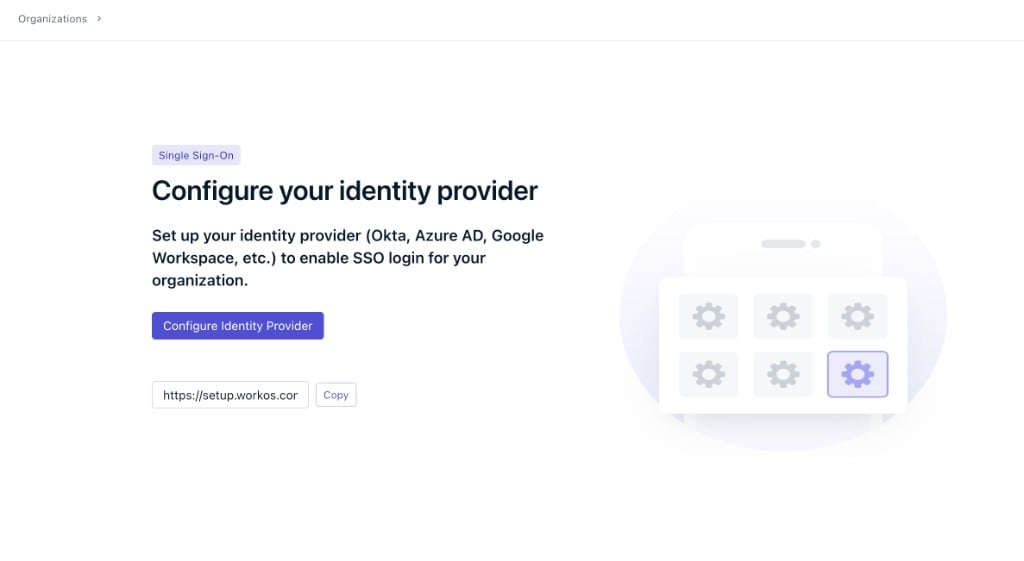
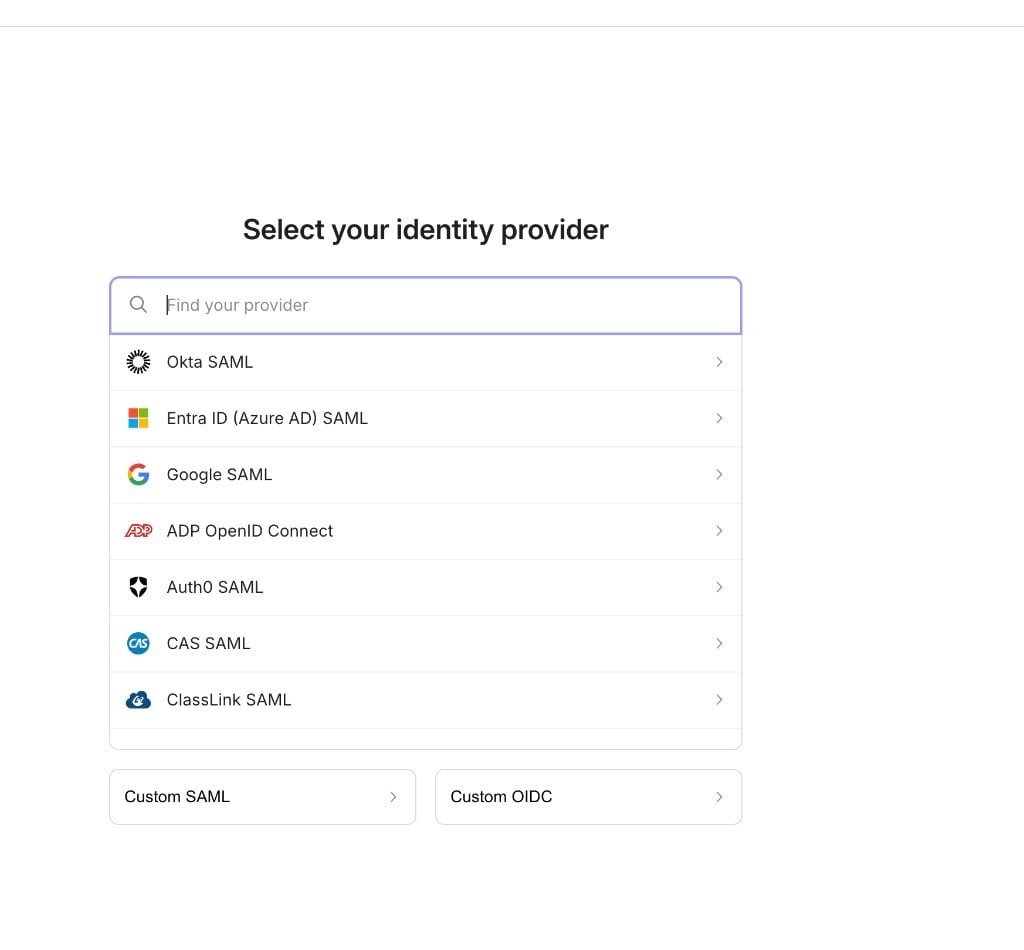
Open the setup link in your browser. Click **Configure Identity Provider**, select your provider from the list, and follow the on-screen instructions.
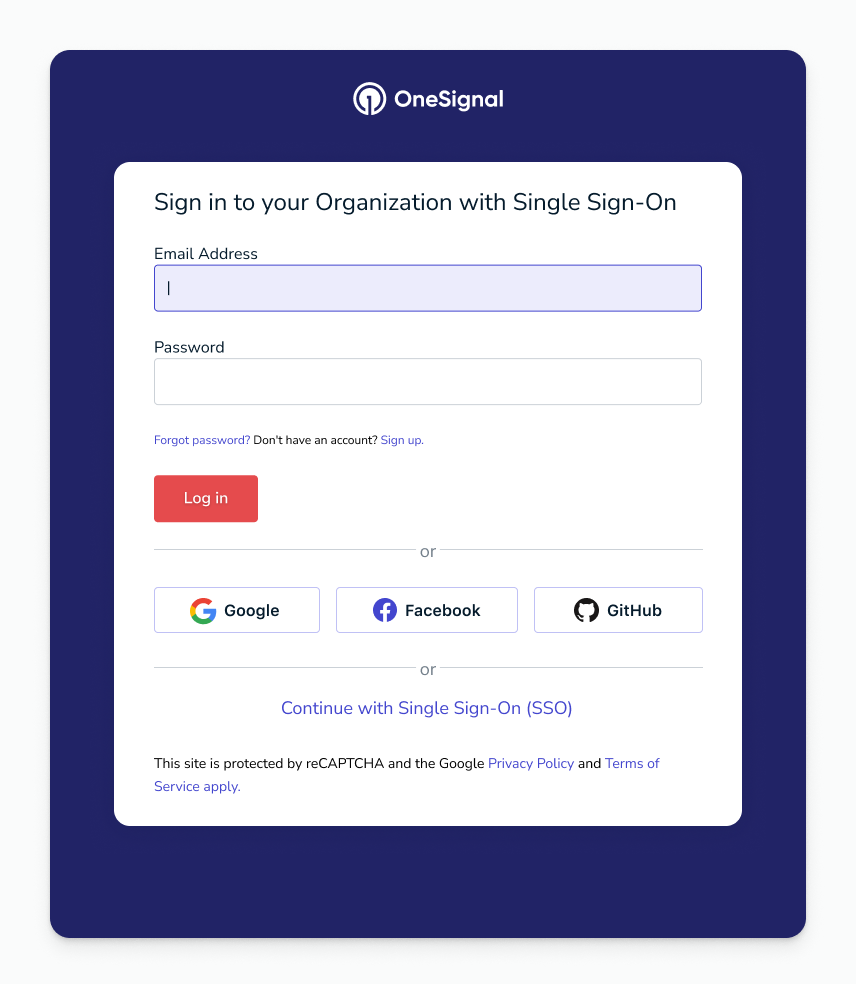
 Pilot users can sign in using the **Continue with Single Sign-On** option on the login page. Username and password login stays active for everyone else during this period.
 When you are ready, let support know. You can go live immediately or set a future date. Once SSO is live, all users sign in through your identity provider and username and password login is disabled.
***
## Add users to your SSO organization
Once SSO is live, you add new team members by inviting them from the OneSignal dashboard. An org admin sends the invite, the user accepts it, and then they sign in through your identity provider. There's no limit on the number of users in an SSO organization.
The user's email domain must be one of the domains registered for your SSO organization. See [Domain requirements](#domain-requirements) below.
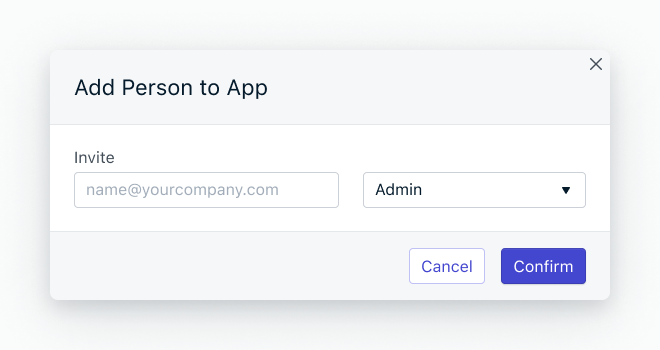
Go to **Team Members**, click **Invite to Organization**, enter the user's email address, and assign their role. See [Team Members](./manage-team-members) for role options and permissions.
When you are ready, let support know. You can go live immediately or set a future date. Once SSO is live, all users sign in through your identity provider and username and password login is disabled.
***
## Add users to your SSO organization
Once SSO is live, you add new team members by inviting them from the OneSignal dashboard. An org admin sends the invite, the user accepts it, and then they sign in through your identity provider. There's no limit on the number of users in an SSO organization.
The user's email domain must be one of the domains registered for your SSO organization. See [Domain requirements](#domain-requirements) below.
Go to **Team Members**, click **Invite to Organization**, enter the user's email address, and assign their role. See [Team Members](./manage-team-members) for role options and permissions.
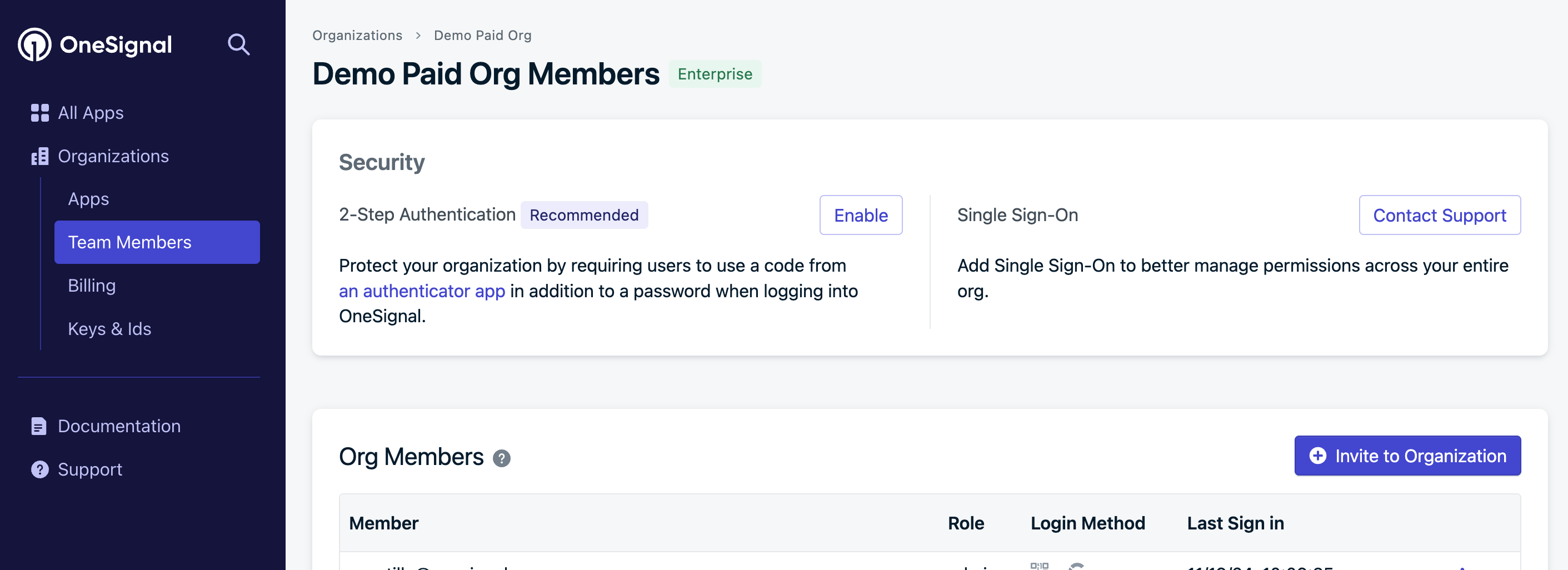
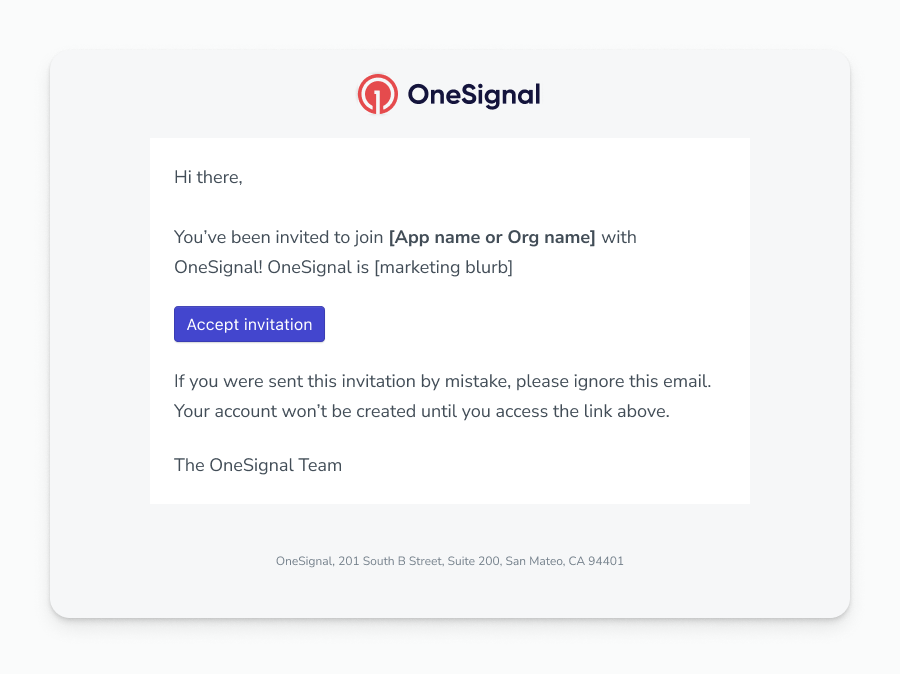
 The user receives an email with an **Accept invitation** link and clicks it.
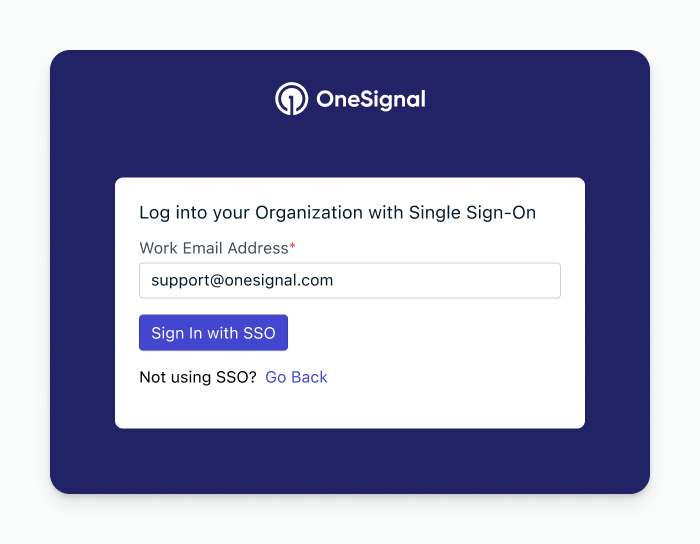
 After accepting, the user signs in through your organization's identity provider. They now have access to OneSignal.
 ### Domain requirements
SSO maps email domains to your organization. For example, `onesignal.com` covers every `@onesignal.com` address. An organization can register multiple domains, so you can cover several email domains under the same SSO setup.
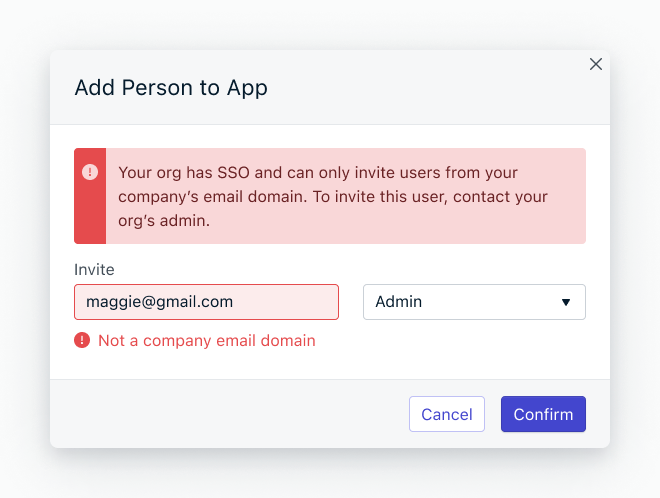
The user's email domain must be registered under your SSO organization. If you invite someone whose domain is not registered, the invite fails with an error. To add a new domain, contact `support@onesignal.com`.
### Domain requirements
SSO maps email domains to your organization. For example, `onesignal.com` covers every `@onesignal.com` address. An organization can register multiple domains, so you can cover several email domains under the same SSO setup.
The user's email domain must be registered under your SSO organization. If you invite someone whose domain is not registered, the invite fails with an error. To add a new domain, contact `support@onesignal.com`.
 ***
## FAQ
### How do I add or remove users?
Add and remove users from the [Team Members](./manage-team-members) page in the OneSignal dashboard. Provisioning and de-provisioning directly through your IdP is not currently supported.
### Can I limit who can sign in with SSO?
Yes. Access is controlled at two levels, and both must grant access:
1. **Identity provider**: Most IdPs (Okta, Google Workspace, Microsoft Entra ID, etc.) let you assign the OneSignal app to specific users, groups, or organizational units.
2. **OneSignal invite**: Users must also be [invited to your organization](./manage-team-members). Authenticating through your IdP alone is not enough.
### Can I use SSO and password login at the same time?
Mixed mode isn't officially supported. SSO is meant to be the primary login method. As a workaround, you can split apps into two organizations (one with SSO, one without). Since organizations also affect billing, contact support to plan this.
### What happens if my IdP goes down?
Users with an active session can keep working. Users who need to sign in can't until the IdP is restored.
### Can I connect more than one IdP?
No. Each organization supports one IdP.
***
Invite users, assign roles, and manage permissions across your organization.
Compare plans and see which features are included at each tier.
***
## FAQ
### How do I add or remove users?
Add and remove users from the [Team Members](./manage-team-members) page in the OneSignal dashboard. Provisioning and de-provisioning directly through your IdP is not currently supported.
### Can I limit who can sign in with SSO?
Yes. Access is controlled at two levels, and both must grant access:
1. **Identity provider**: Most IdPs (Okta, Google Workspace, Microsoft Entra ID, etc.) let you assign the OneSignal app to specific users, groups, or organizational units.
2. **OneSignal invite**: Users must also be [invited to your organization](./manage-team-members). Authenticating through your IdP alone is not enough.
### Can I use SSO and password login at the same time?
Mixed mode isn't officially supported. SSO is meant to be the primary login method. As a workaround, you can split apps into two organizations (one with SSO, one without). Since organizations also affect billing, contact support to plan this.
### What happens if my IdP goes down?
Users with an active session can keep working. Users who need to sign in can't until the IdP is restored.
### Can I connect more than one IdP?
No. Each organization supports one IdP.
***
Invite users, assign roles, and manage permissions across your organization.
Compare plans and see which features are included at each tier.