> ## Documentation Index
> Fetch the complete documentation index at: https://documentation.onesignal.com/llms.txt
> Use this file to discover all available pages before exploring further.
# Templates
> Create, send, and track reusable templates for push notifications, email, and SMS in OneSignal with Liquid personalization and aggregate performance metrics.
Use templates to send consistent push notifications, emails, and SMS/RCS messages. Templates are reusable blueprints that centralize performance metrics across sends. They are especially useful for **frequently sent**, **event-driven**, or **transactional** messages.
***
## Create templates
Templates can be created in multiple ways:
Go to **Messages > Templates** and click **New Template**.
No-code way to forward a copy of an email template from another platform or OneSignal app.
Create templates programmatically using the Create Template API.
Copy templates between OneSignal apps (one-time copy, not a live sync).
### Design guidelines
Templates support [Liquid syntax](./using-liquid-syntax) for [advanced personalization](./message-personalization), letting you insert dynamic, user-specific content.
For channel-specific best practices, see:
Push notification design, features, and platform options.
SMS/RCS design, features, and compliance requirements.
Build emails with full HTML and CSS control.
Build emails visually with the drag-and-drop editor.
***
## Send messages using templates
You can send a template in multiple ways:
* **New Message flow:** When composing in the dashboard, choose to start from a template.
* **Templates page:** Go to **Messages > Templates**, then select **Options (3-dot menu) > New Message**.
* **API:** Include the `template_id` in a [Create message](/reference/create-message) request.
For SMS/RCS templates, the editor shown depends on the sender you select: the RCS editor for senders with an RCS resource, the SMS editor otherwise. Selecting a sender with an approved RCS resource also makes OneSignal prefer RCS for existing automations using that sender. See [Upgrading existing automations to RCS](./sms-composing-messages#upgrading-existing-automations-to-rcs) for how SMS content maps to RCS.
### Template ID
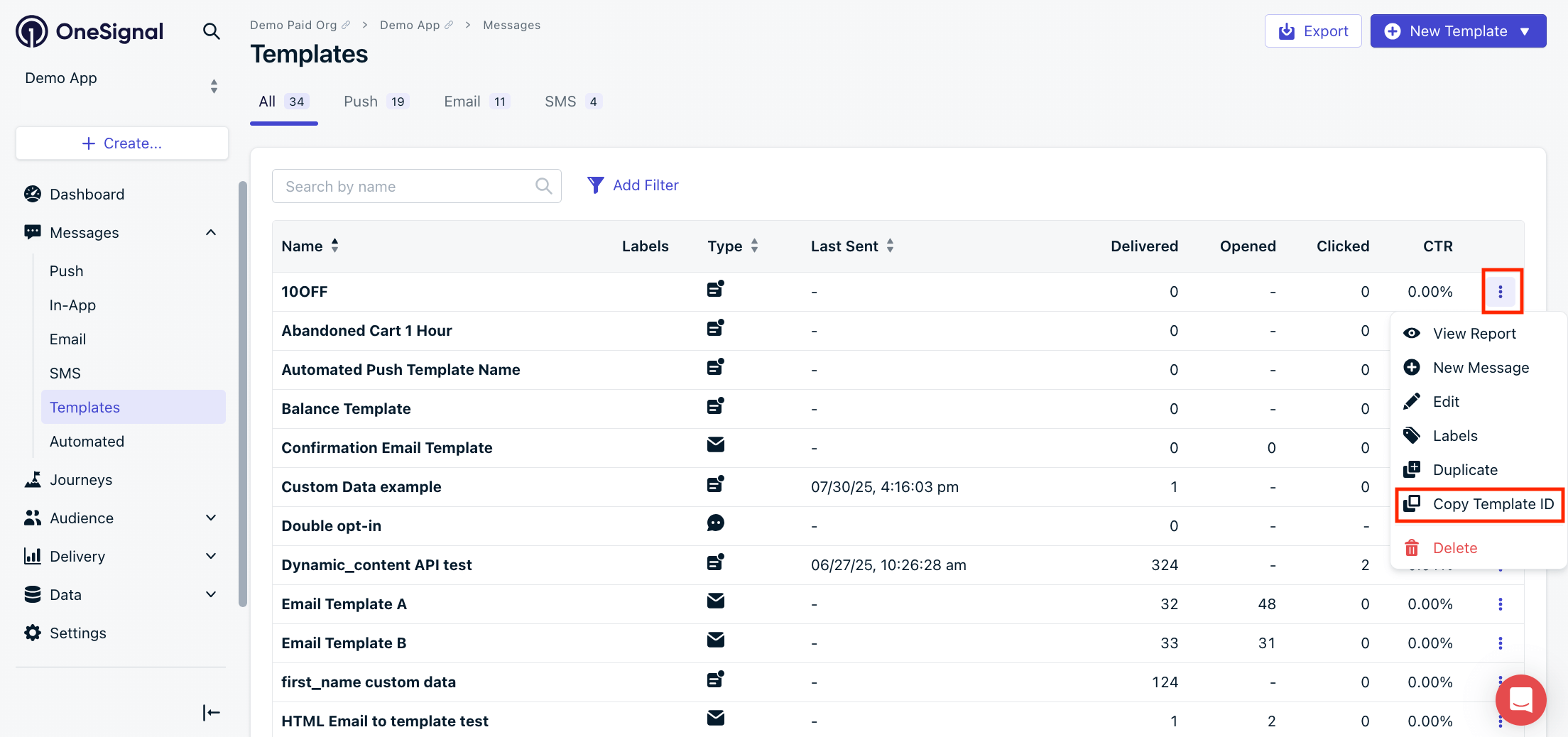
Each template has a unique OneSignal-generated `template_id` (UUID v4). You can find it:
* Using the [View Templates API](/reference/view-templates)
* In the OneSignal Dashboard under **Messages > Templates > Options > Copy Template ID**
 ***
## Track performance
The **Templates** page shows aggregate lifetime performance across all sends using the template.
| Column | Description |
| ------------- | -------------------------------------------------------------------------------------------------------- |
| **Name** | The template's name. |
| **Labels** | [Labels](./labels) used to group and filter templates. |
| **Type** | Push, Email, or SMS. |
| **Last Sent** | Date and time the template was last used in a sent message. |
| **Delivered** | Total successful deliveries (to push servers, recipient inboxes, or SMS carriers, depending on channel). |
| **Opened** | Total email opens (including repeat opens). Not applicable for push or SMS. |
| **Clicked** | Total clicks on the notification or links within the email/SMS. |
| **CTR** | (Clicked ÷ Delivered) × 100%. |
For per-send delivery stats, engagement breakdowns, and audience activity:
Detailed per-template reports with channel-specific metrics and exportable audience data.
***
## Update templates
You can update templates via:
* **Dashboard:** Go to **Messages > Templates > Options > Edit**.
* **API:** Use the [Update Template API](/reference/update-template).
Updating a template does not reset its performance metrics. Engagement on the updated content accumulates into the same lifetime totals.
Template fields can be overridden per message. Use a template as a starting point and update content before sending.
***
## Delete templates
You can delete templates via:
* **Dashboard:** Go to **Messages > Templates > Options > Delete**.
* **API:** Use the [Delete Template API](/reference/delete-template).
Once the template is deleted, all data associated with it is deleted and cannot be recovered.
You cannot delete templates used within a Journey. Either delete the Journey or remove the template from the Journey.
***
## FAQ
### How long is template data stored?
Template content is stored for the lifetime of the template, until you delete it. Aggregate analytics on the **Templates** page are also lifetime. Individual send-level analytics follow your plan's retention policy. See [Template analytics](./template-analytics) for details.
### Can I duplicate templates across apps?
Yes. Use the [Copy Template to Another App API](/reference/copy-template-to-another-app) for any template type. For email specifically, you can also use [Email Template Forwarding](./email-template-forwarding).
### Does updating a template affect past messages?
No. Past messages retain the content they were sent with. Only future sends use the updated template. Performance metrics are not reset.
### Can I use the same template for multiple channels?
No. Each template is tied to a single channel: push, email, or SMS. Create separate templates for each channel.
### Can I override template content when sending via API?
Yes. Include fields like `contents`, `headings`, or `email_body` in your [Create message](/reference/create-message) request alongside the `template_id`. The API fields override the corresponding template fields for that send only.
***
## Related pages
Personalize templates with tags, Liquid syntax, and custom event properties.
Full reference for Liquid templating in OneSignal messages.
Use templates in automated multichannel messaging flows.
Organize and filter templates with custom labels.
***
## Track performance
The **Templates** page shows aggregate lifetime performance across all sends using the template.
| Column | Description |
| ------------- | -------------------------------------------------------------------------------------------------------- |
| **Name** | The template's name. |
| **Labels** | [Labels](./labels) used to group and filter templates. |
| **Type** | Push, Email, or SMS. |
| **Last Sent** | Date and time the template was last used in a sent message. |
| **Delivered** | Total successful deliveries (to push servers, recipient inboxes, or SMS carriers, depending on channel). |
| **Opened** | Total email opens (including repeat opens). Not applicable for push or SMS. |
| **Clicked** | Total clicks on the notification or links within the email/SMS. |
| **CTR** | (Clicked ÷ Delivered) × 100%. |
For per-send delivery stats, engagement breakdowns, and audience activity:
Detailed per-template reports with channel-specific metrics and exportable audience data.
***
## Update templates
You can update templates via:
* **Dashboard:** Go to **Messages > Templates > Options > Edit**.
* **API:** Use the [Update Template API](/reference/update-template).
Updating a template does not reset its performance metrics. Engagement on the updated content accumulates into the same lifetime totals.
Template fields can be overridden per message. Use a template as a starting point and update content before sending.
***
## Delete templates
You can delete templates via:
* **Dashboard:** Go to **Messages > Templates > Options > Delete**.
* **API:** Use the [Delete Template API](/reference/delete-template).
Once the template is deleted, all data associated with it is deleted and cannot be recovered.
You cannot delete templates used within a Journey. Either delete the Journey or remove the template from the Journey.
***
## FAQ
### How long is template data stored?
Template content is stored for the lifetime of the template, until you delete it. Aggregate analytics on the **Templates** page are also lifetime. Individual send-level analytics follow your plan's retention policy. See [Template analytics](./template-analytics) for details.
### Can I duplicate templates across apps?
Yes. Use the [Copy Template to Another App API](/reference/copy-template-to-another-app) for any template type. For email specifically, you can also use [Email Template Forwarding](./email-template-forwarding).
### Does updating a template affect past messages?
No. Past messages retain the content they were sent with. Only future sends use the updated template. Performance metrics are not reset.
### Can I use the same template for multiple channels?
No. Each template is tied to a single channel: push, email, or SMS. Create separate templates for each channel.
### Can I override template content when sending via API?
Yes. Include fields like `contents`, `headings`, or `email_body` in your [Create message](/reference/create-message) request alongside the `template_id`. The API fields override the corresponding template fields for that send only.
***
## Related pages
Personalize templates with tags, Liquid syntax, and custom event properties.
Full reference for Liquid templating in OneSignal messages.
Use templates in automated multichannel messaging flows.
Organize and filter templates with custom labels.