> ## Documentation Index
> Fetch the complete documentation index at: https://documentation.onesignal.com/llms.txt
> Use this file to discover all available pages before exploring further.
# Push throttling
> Push throttling controls how fast OneSignal delivers push notifications, helping you manage server load and avoid performance issues during high-volume sends.
## Overview
Push throttling controls the rate at which OneSignal delivers push notifications. Use throttling to distribute delivery over time — preventing server overload, avoiding performance degradation during mass sends, and maintaining a consistent user experience across devices.
***
## Why push sends impact your servers
Sending a push notification to a large audience can generate a sudden spike in traffic to your own servers — even if your click-through rate is low. This happens because delivery itself (not just clicks) triggers multiple types of requests back to your infrastructure. Understanding these sources helps you choose the right mitigation strategy.
### Self-hosted images and media
When a push notification includes an image (such as a `big_picture` or `chrome_web_image`), every device that receives the notification downloads that image immediately upon delivery. If the image is hosted on your own servers rather than a CDN, this creates one HTTP request per delivered notification — potentially tens of thousands of requests within seconds.
**Recommendations:**
* Host notification images on a CDN (e.g., CloudFront, Cloudflare, Fastly) instead of your application servers.
* Use [push throttling](#configuration-options) to spread delivery over time if you must self-host media.
### Simultaneous app opens
Push delivery prompts many users to open your app at the same time. Each app open typically generates multiple requests to your backend: session initialization, content fetches, API calls, and analytics events. Even a modest open rate can translate to a significant traffic spike if thousands of notifications are delivered simultaneously.
**Recommendations:**
* Use [push throttling](#configuration-options) to stagger delivery and spread app opens across a wider time window.
* Ensure your backend can handle burst traffic from high-volume sends, or use auto-scaling infrastructure.
### Event Streams
If you have [Event Streams](./event-streams) configured with a webhook destination, OneSignal sends an HTTP request to your endpoint for each event (e.g., `message.sent`, `message.delivered`, `message.clicked`) in real time. During a large push send, this can produce a burst of webhook requests proportional to your audience size.
OneSignal does not rate-limit outbound Event Stream webhook traffic. Your endpoint must be able to handle the volume of events generated by your message sends.
**Recommendations:**
* Ensure your webhook endpoint can handle throughput proportional to your audience size.
* Use an intermediary queue or buffer (e.g., Amazon Kinesis, Google Pub/Sub) instead of a direct webhook to absorb bursts. Event Streams supports these as destinations natively.
* Use [push throttling](#configuration-options) to reduce the peak rate of events hitting your endpoint.
### Journey webhooks
[Journey webhooks](./journeys-webhook) send HTTP requests to your servers as users reach specific steps in a Journey. While Journeys naturally pace delivery based on user behavior, high-traffic Journeys can still generate significant webhook volume. Slow or overloaded endpoints may trigger automatic disabling of the webhook.
**Recommendations:**
* Design your webhook endpoint to respond quickly (return `200 OK`) and defer heavy processing to a background job.
* Monitor for `429` responses from your endpoint, which can trigger OneSignal to disable the webhook.
* Review the [performance guidance](./journeys-webhook#performance-guidance) in the Journey webhooks documentation.
### Service Worker fetches (web push)
For web push, browsers periodically re-fetch the [OneSignal Service Worker](./onesignal-service-worker) file from your server (typically when the cache expires, up to every 24 hours). When a push notification is delivered, the browser may check for an updated Service Worker file — generating one request per web push subscription back to your hosting server.
**Recommendations:**
* Serve the `OneSignalSDKWorker.js` file from a CDN or ensure your hosting server can handle the request volume.
* Set appropriate cache headers to reduce re-fetch frequency.
* See the [OneSignal Service Worker](./onesignal-service-worker) documentation for more details.
### Choosing the right approach
| Traffic source | Affected by throttling? | Alternative mitigation |
| ------------------------ | -------------------------------------------------- | -------------------------------------------------------- |
| Self-hosted images | Yes — slower delivery = fewer concurrent downloads | Host on a CDN |
| Simultaneous app opens | Yes — staggered delivery spreads user sessions | Auto-scaling infrastructure |
| Event Streams (webhooks) | Yes — slower delivery = slower event rate | Use a queue-based destination (Kinesis, Pub/Sub, etc.) |
| Journey webhooks | No — Journeys don't support throttling | Optimize endpoint performance; use background processing |
| Service Worker fetches | Yes — slower delivery = fewer concurrent fetches | CDN hosting; cache headers |
***
## Configuration options
Throttling must be enabled at the global settings level to be available for use.
### Global throttling settings
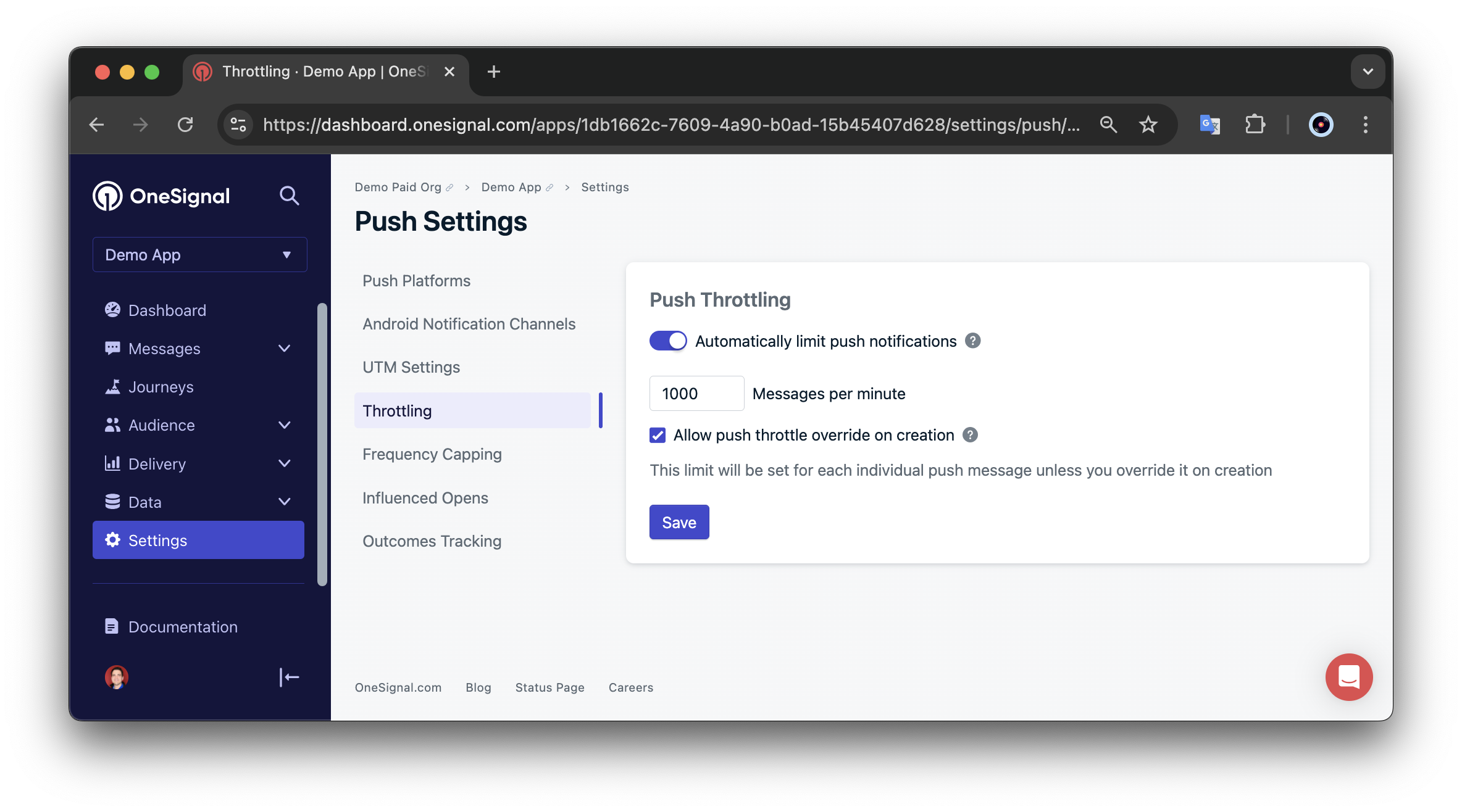
Enable throttling for all push messages under **Settings > Push & In-App > Throttling**. Once enabled, this setting applies to all push notifications by default, but can be overridden for individual messages.
 ### Per-message throttling override
You can override global throttling settings on individual messages.
1. During notification creation, check the "Override throttling setting" box
2. Set your desired messages-per-minute rate
3. To disable throttling for a specific message, enter "0" in the messages-per-minute field
For API-sent notifications, use the [`throttle_rate_per_minute`](/reference/create-message) property.
***
## How throttling works
### Rate conversion process
OneSignal converts your per-minute setting to a per-second rate to optimize delivery:
1. The system divides your throttle rate by 60 (seconds per minute)
2. The result is rounded down to the nearest whole number (OneSignal can't send partial messages)
3. This per-second rate is then applied throughout the delivery process
**Example:** You set a throttle rate of 1,019 messages per minute.
1. OneSignal divides by 60: 1,019 ÷ 60 = 16.98 messages per second
2. Rounds down to 16 messages per second
3. Actual delivery rate: 16 × 60 = **960 messages per minute** (59 fewer than the set rate)
This conversion ensures more efficient processing by eliminating delays between batches.
***
## Limitations and considerations
### 24-hour delivery window
All throttled notifications must complete delivery within 24 hours of being sent. If your throttling rate would cause delivery to exceed 24 hours, OneSignal automatically adjusts the rate to ensure completion within this timeframe.
**Example:** You set a throttle rate of 10 messages per minute for 20,000 users — delivery would take approximately 33 hours. OneSignal automatically adjusts the rate to around 14 messages per minute to complete delivery within 24 hours.
***
## Compatibility and availability
Throttling is only available for push notifications sent via the [Create notification](/reference/create-message) API or the **Messages > New Push** dashboard interface. It is not supported for Journeys (see the [summary table](#choosing-the-right-approach) above).
### Timezone and Intelligent Delivery
Throttling takes precedence over Timezone and Intelligent Delivery. When throttling is enabled, OneSignal ignores these features for that notification.
**To use Timezone or Intelligent Delivery:**
* Disable throttling for that specific notification under Delivery Schedule
* Set "Override throttling setting" to "0"
* For API notifications, set `throttle_rate_per_minute: 0`
***
## FAQ
### Does throttling work with Intelligent Delivery or Timezone delivery?
No. Throttling takes precedence over both Intelligent Delivery and Timezone delivery. When throttling is enabled for a notification, OneSignal ignores these scheduling features.
To use Intelligent Delivery or Timezone delivery, disable throttling for that specific notification using the per-message override.
In the dashboard, uncheck "Override throttling setting" or set the rate to `0`. Via the API, pass `throttle_rate_per_minute: 0` in your [Create notification](/reference/create-message) request. This tells OneSignal to skip throttling for that notification and respect the delivery schedule you've configured.
### What happens if my throttle rate would take longer than 24 hours?
OneSignal automatically increases the throttle rate so delivery completes within 24 hours. For example, sending to 20,000 users at 10 messages per minute would take \~33 hours, so OneSignal adjusts the rate to \~14 messages per minute.
### Can I throttle Journeys?
No. Throttling only applies to push notifications sent via the dashboard (**Messages > New Push**) or the [Create notification](/reference/create-message) API. Journeys deliver dynamically as users qualify, which naturally distributes delivery over time.
### Why is my actual delivery rate lower than what I set?
OneSignal converts your per-minute rate to a per-second rate and rounds down. For example, 1,019 messages per minute becomes 16 messages per second (1,019 ÷ 60 = 16.98, rounded down), resulting in an actual rate of 960 messages per minute.
***
## Related pages
Send and manage mobile and web push notifications with OneSignal.
API reference for creating and sending notifications, including the `throttle_rate_per_minute` property.
Stream delivery and engagement events to webhooks, Kinesis, or Pub/Sub.
Configure the Service Worker file for web push notifications.
Build multi-step messaging workflows that respond to user actions.
### Per-message throttling override
You can override global throttling settings on individual messages.
1. During notification creation, check the "Override throttling setting" box
2. Set your desired messages-per-minute rate
3. To disable throttling for a specific message, enter "0" in the messages-per-minute field
For API-sent notifications, use the [`throttle_rate_per_minute`](/reference/create-message) property.
***
## How throttling works
### Rate conversion process
OneSignal converts your per-minute setting to a per-second rate to optimize delivery:
1. The system divides your throttle rate by 60 (seconds per minute)
2. The result is rounded down to the nearest whole number (OneSignal can't send partial messages)
3. This per-second rate is then applied throughout the delivery process
**Example:** You set a throttle rate of 1,019 messages per minute.
1. OneSignal divides by 60: 1,019 ÷ 60 = 16.98 messages per second
2. Rounds down to 16 messages per second
3. Actual delivery rate: 16 × 60 = **960 messages per minute** (59 fewer than the set rate)
This conversion ensures more efficient processing by eliminating delays between batches.
***
## Limitations and considerations
### 24-hour delivery window
All throttled notifications must complete delivery within 24 hours of being sent. If your throttling rate would cause delivery to exceed 24 hours, OneSignal automatically adjusts the rate to ensure completion within this timeframe.
**Example:** You set a throttle rate of 10 messages per minute for 20,000 users — delivery would take approximately 33 hours. OneSignal automatically adjusts the rate to around 14 messages per minute to complete delivery within 24 hours.
***
## Compatibility and availability
Throttling is only available for push notifications sent via the [Create notification](/reference/create-message) API or the **Messages > New Push** dashboard interface. It is not supported for Journeys (see the [summary table](#choosing-the-right-approach) above).
### Timezone and Intelligent Delivery
Throttling takes precedence over Timezone and Intelligent Delivery. When throttling is enabled, OneSignal ignores these features for that notification.
**To use Timezone or Intelligent Delivery:**
* Disable throttling for that specific notification under Delivery Schedule
* Set "Override throttling setting" to "0"
* For API notifications, set `throttle_rate_per_minute: 0`
***
## FAQ
### Does throttling work with Intelligent Delivery or Timezone delivery?
No. Throttling takes precedence over both Intelligent Delivery and Timezone delivery. When throttling is enabled for a notification, OneSignal ignores these scheduling features.
To use Intelligent Delivery or Timezone delivery, disable throttling for that specific notification using the per-message override.
In the dashboard, uncheck "Override throttling setting" or set the rate to `0`. Via the API, pass `throttle_rate_per_minute: 0` in your [Create notification](/reference/create-message) request. This tells OneSignal to skip throttling for that notification and respect the delivery schedule you've configured.
### What happens if my throttle rate would take longer than 24 hours?
OneSignal automatically increases the throttle rate so delivery completes within 24 hours. For example, sending to 20,000 users at 10 messages per minute would take \~33 hours, so OneSignal adjusts the rate to \~14 messages per minute.
### Can I throttle Journeys?
No. Throttling only applies to push notifications sent via the dashboard (**Messages > New Push**) or the [Create notification](/reference/create-message) API. Journeys deliver dynamically as users qualify, which naturally distributes delivery over time.
### Why is my actual delivery rate lower than what I set?
OneSignal converts your per-minute rate to a per-second rate and rounds down. For example, 1,019 messages per minute becomes 16 messages per second (1,019 ÷ 60 = 16.98, rounded down), resulting in an actual rate of 960 messages per minute.
***
## Related pages
Send and manage mobile and web push notifications with OneSignal.
API reference for creating and sending notifications, including the `throttle_rate_per_minute` property.
Stream delivery and engagement events to webhooks, Kinesis, or Pub/Sub.
Configure the Service Worker file for web push notifications.
Build multi-step messaging workflows that respond to user actions.