> ## Documentation Index
> Fetch the complete documentation index at: https://documentation.onesignal.com/llms.txt
> Use this file to discover all available pages before exploring further.
# Tags: Time Operators
> Automate time-based messages using Time Elapsed operators with Tags that store Unix timestamps in seconds.
## Overview
Time Operators let you send messages relative to a specific moment in time—such as **after an action happens** or **before an upcoming date**.
You store that moment as a **Unix timestamp (in seconds)** on the user using a **Tag**. OneSignal then compares the current time to that timestamp and lets you target users based on how much time has passed (or how much time remains).
This makes it easy to automate messages like reminders, follow-ups, and deadlines without scheduling messages manually.
**Common use cases:**
* **[Abandoned cart](./abandoned-cart)**: Remind users who haven't checked out after a certain time
* **Event reminders**: Message users before a scheduled appointment or renewal date
* **Milestones**: Follow up when users haven't completed an action by a deadline
* **Birthdays**: Send messages on (or around) a user's birthday
Time Operators are only available on paid plans. Free plans can still use
default time-based segment filters like First Session and Last Session.
### When should I use this?
Use Time Operators when you want to:
* Send messages **relative to an event**, not at a fixed calendar time
* Create **moving time windows** (for example, “24–48 hours after”)
* Reuse the same logic for many users with different dates
* Continuously evaluate eligibility as time passes
If you need to trigger messaging immediately when an event occurs, consider using **[Custom Events](./custom-events)** instead.
### Tags vs Custom Events
You can solve many "reminder" use cases with either **Tags** or **Custom Events**. The best option depends on what you need to store and how you want to trigger automation.
* Use **Tags** when you want to store the **latest known timestamp** on the user (for example, `cart_updated_at` or `subscription_expires_at`) and segment off that value over time.
* Use **Custom Events** when you want to record **each event occurrence** (with properties) and trigger Journeys based on real-time behavior.
In practice, many implementations can use both: Custom Events for real-time tracking and Tags for user state you want to segment on later.
[Tags](/docs/en/add-user-data-tags) and [Custom Events](/docs/en/custom-events) are both ways to add data to your users. However, there are some key differences:
| Feature | Tags | Custom Events |
| -------------- | :--------------------------------------: | :--------------------------------------------------------------------------------------------: |
| Data usage | Segmentation and personalization | Trigger Journeys without a Segment, Wait Until steps, personalization directly within Journeys |
| Data retention | Lifetime | 30+ days ([lifetime storage is available](/docs/en/billing-faq#streaming-events)) |
| Data format | Key-value strings or numbers | JSON |
| Data source | OneSignal SDK, API, or CSV import | OneSignal SDK, API, or integrations |
| Data access | Segmentation and message personalization | Journeys and Journey-message-template personalization, Segmentation (Coming soon) |
The key distinction between Tags and Custom Events is in their depth and use cases. Tags are properties of a user, such as Name, Account Status, or Location. Events are thing that the user has done, such as Purchasing an Item, Completing a Level, or Inviting a Friend. Both tags and events can be used for segmentation and personalization.
In practice, you will likely use both:
* Tags for user properties that are static and don't change often
* Custom Events for real-time scenarios, complex segmentation, and more sophisticated journey workflows
***
## Quick reference
1. Convert the event date into a Unix timestamp in **seconds**.
2. Set a [Tag](./add-user-data-tags) where the key is the event name and the value is the timestamp as a **string** (e.g., `'event_date': '1739145600'`).
3. Create a segment using the **Time Elapsed Greater Than** operator:
* After a past date using **Time Elapsed Greater Than** operator with a positive value
* Before a future date using **Time Elapsed Greater Than** operator with a negative value
A common mistake is setting timestamps in **milliseconds** (13 digits) instead
of **seconds** (10 digits). Time Operators require **seconds**.
***
## Send messages after a past event
Use this pattern when you want to message users **after a certain amount of time has passed** since something happened.
**Example: Abandoned cart reminder 24 hours after the user updated their cart**
When the user updates their cart, save the current time as a Unix timestamp (in seconds):
```javascript theme={null}
// SDK example
const timestampSeconds = String(Math.floor(Date.now() / 1000));
OneSignal.User.addTag("current_time", timestampSeconds);
```
Use seconds (10 digits), not milliseconds (13 digits).
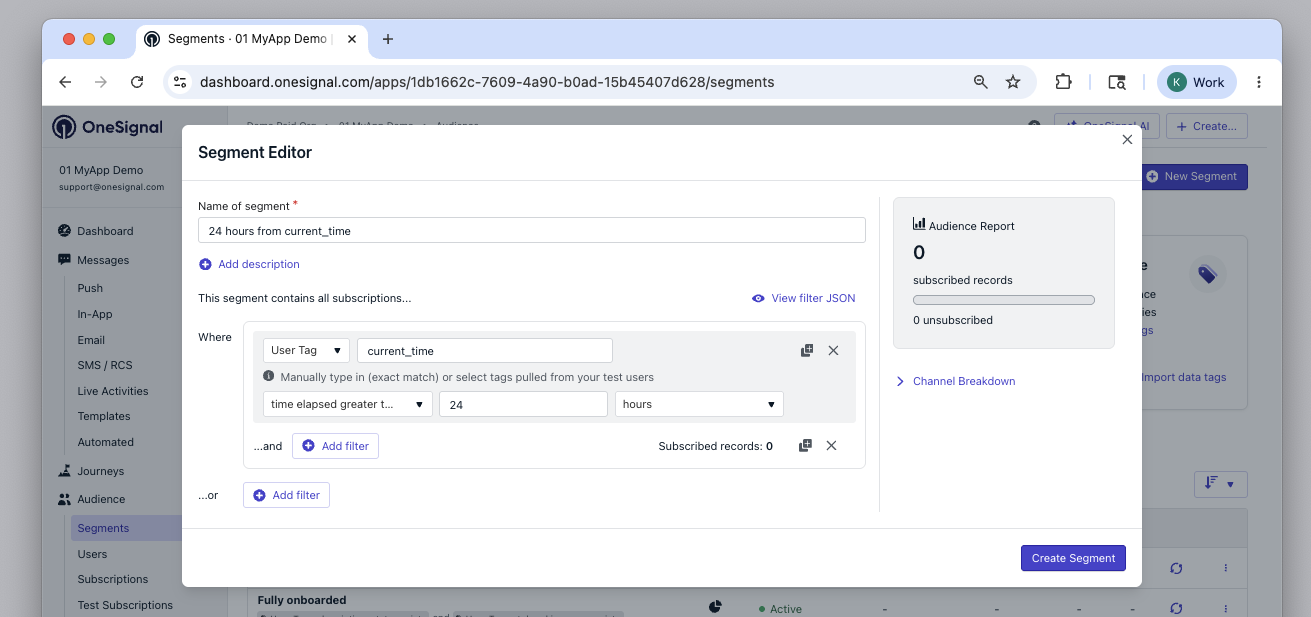
1. Go to **Audience** > **Segments**
2. Add a **User Tag** filter
3. Set **Key** to `current_time`
4. Choose **Time Elapsed Greater Than**
5. Set **Value** to `1` day (or `24` hours or `86400` seconds)
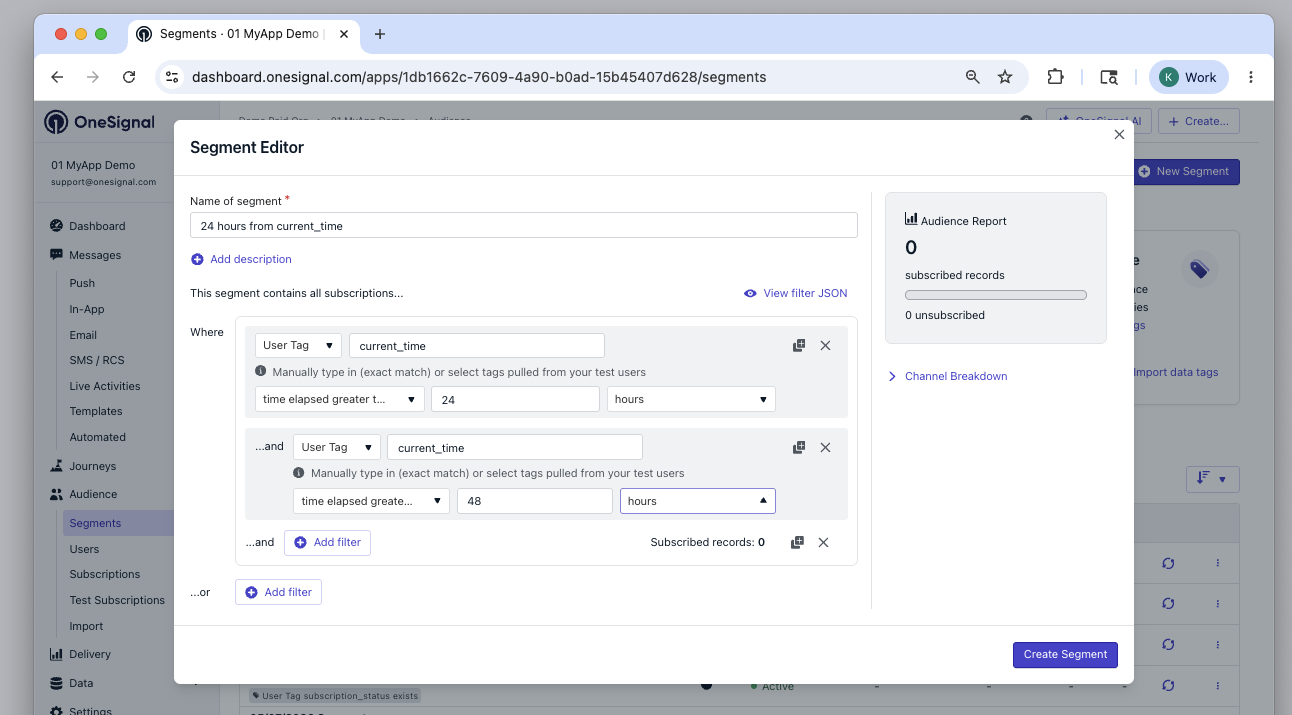
 Without an upper limit, users stay in the segment forever. Add a second filter to create a window:
* **Time Elapsed Greater Than** `24` hours
* **Time Elapsed Less Than** `48` hours
Now users are only in the segment between 24-48 hours after the event.
Without an upper limit, users stay in the segment forever. Add a second filter to create a window:
* **Time Elapsed Greater Than** `24` hours
* **Time Elapsed Less Than** `48` hours
Now users are only in the segment between 24-48 hours after the event.
 Create a [Journey](./journeys-overview) that targets your segment to automate the messaging.
***
## Send messages before a future event
Use this pattern to message users **leading up to a future date**, such as an appointment or renewal.
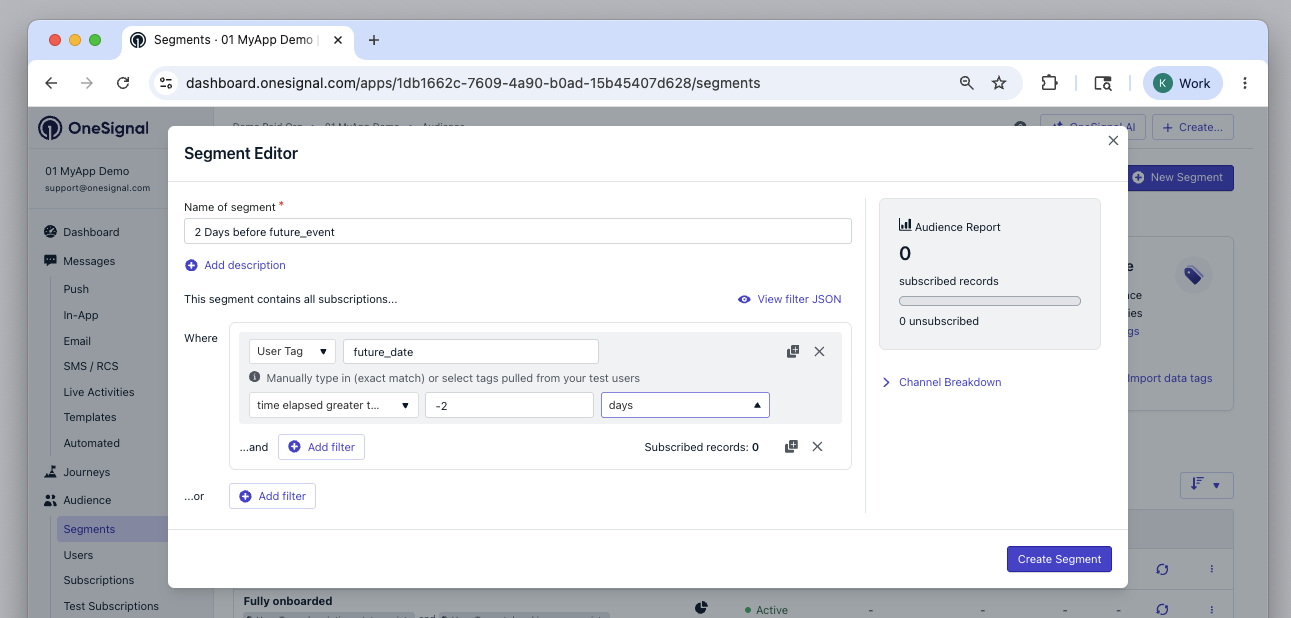
1. Store the future date as a Unix timestamp tag (e.g., `'future_date': '1739145600'`)
2. Create a segment with **Time Elapsed Greater Than** and your desired entry time as a negative value
* Example: `-2` days (or `-172800` seconds)
Create a [Journey](./journeys-overview) that targets your segment to automate the messaging.
***
## Send messages before a future event
Use this pattern to message users **leading up to a future date**, such as an appointment or renewal.
1. Store the future date as a Unix timestamp tag (e.g., `'future_date': '1739145600'`)
2. Create a segment with **Time Elapsed Greater Than** and your desired entry time as a negative value
* Example: `-2` days (or `-172800` seconds)
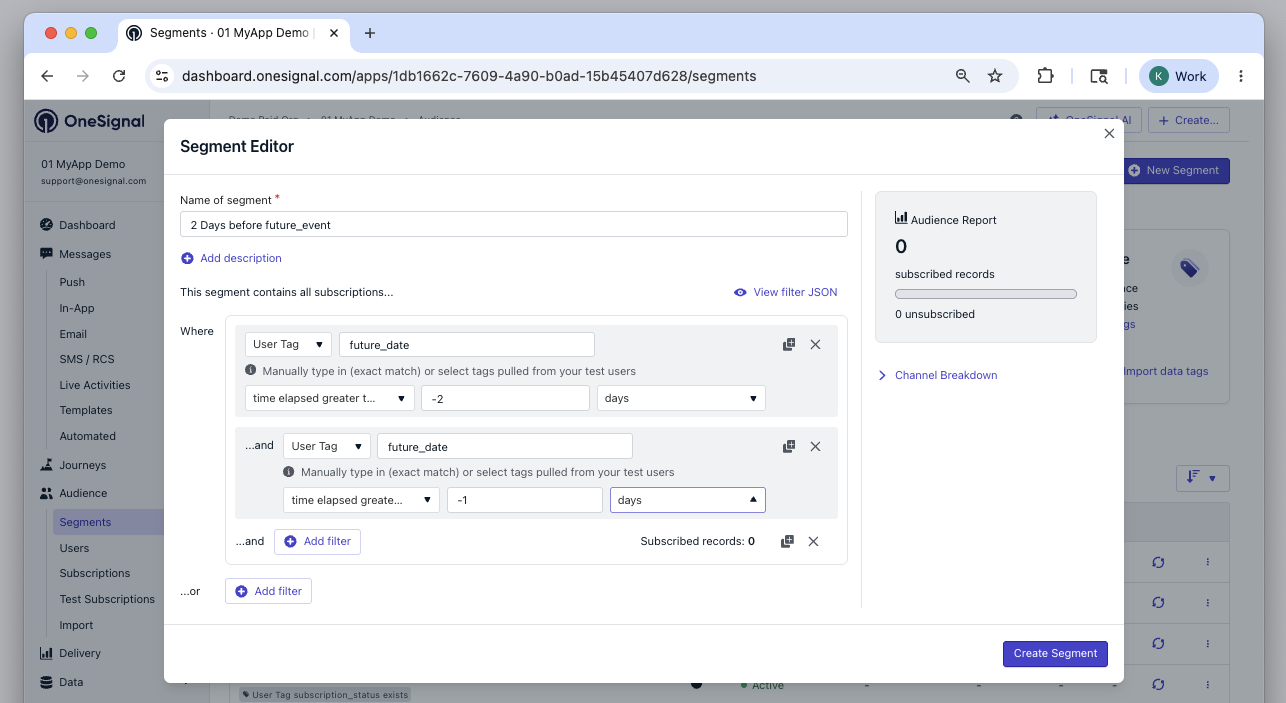
 3. Add an upper limit using the same **Time Elapsed Greater Than** operator with a negative value of a closer time
* Example: `-1` day (or `-86400` seconds)
3. Add an upper limit using the same **Time Elapsed Greater Than** operator with a negative value of a closer time
* Example: `-1` day (or `-86400` seconds)
 ### Example: Birthday messages
Send birthday messages by storing each user’s **next upcoming birthday** as a timestamp.
Calculate and store the user's next upcoming birthday:
```javascript theme={null}
function getNextBirthday(month, day) {
// month: 0-11 (Jan=0), day: 1-31
const now = new Date();
let birthday = new Date(now.getFullYear(), month, day);
if (birthday <= now) {
birthday = new Date(now.getFullYear() + 1, month, day);
}
return String(Math.floor(birthday.getTime() / 1000));
}
// Example: January 15th birthday
OneSignal.User.addTag("birthday", getNextBirthday(0, 15));
```
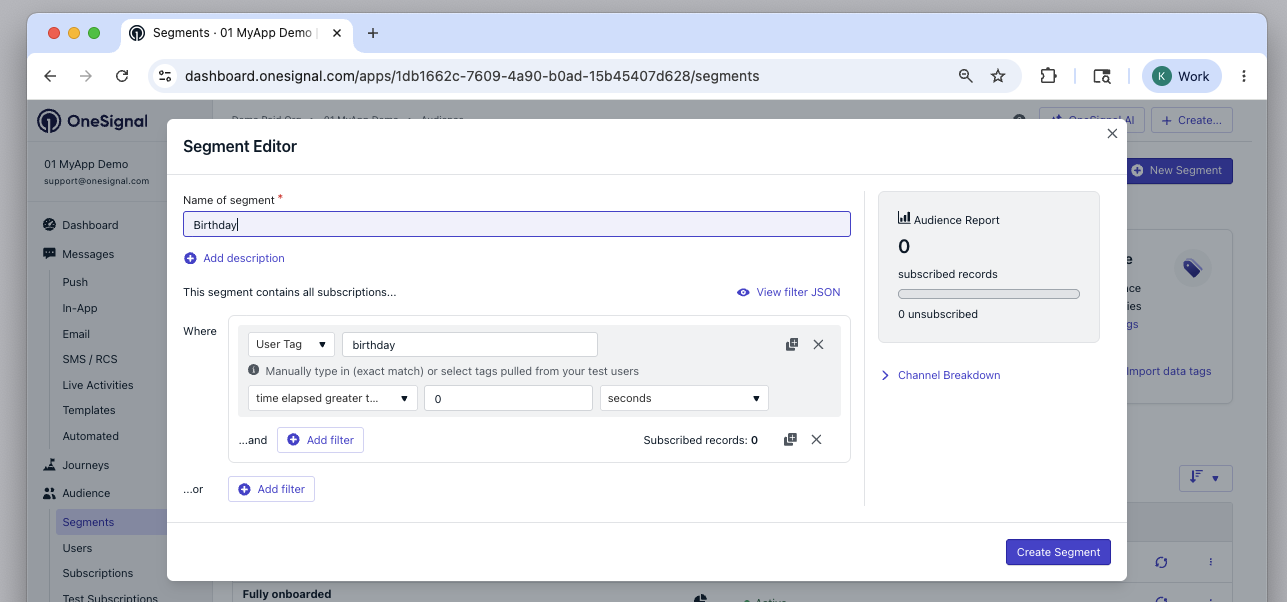
* **User Tag**: `birthday`
* **Time Elapsed Greater Than**: `0 seconds`
Users enter the segment once their birthday timestamp passes.
### Example: Birthday messages
Send birthday messages by storing each user’s **next upcoming birthday** as a timestamp.
Calculate and store the user's next upcoming birthday:
```javascript theme={null}
function getNextBirthday(month, day) {
// month: 0-11 (Jan=0), day: 1-31
const now = new Date();
let birthday = new Date(now.getFullYear(), month, day);
if (birthday <= now) {
birthday = new Date(now.getFullYear() + 1, month, day);
}
return String(Math.floor(birthday.getTime() / 1000));
}
// Example: January 15th birthday
OneSignal.User.addTag("birthday", getNextBirthday(0, 15));
```
* **User Tag**: `birthday`
* **Time Elapsed Greater Than**: `0 seconds`
Users enter the segment once their birthday timestamp passes.
 1. Create a [Journey](./journeys-overview) targeting your birthday segment
2. Set re-entry to **52 weeks** so users can re-enter next year
3. Update the `birthday` tag to next year's date after sending (in your backend or Journey)
Calculate birthday timestamps using the user’s local timezone when possible.
Using server time only may cause messages to send earlier or later than
expected.
If you want messages to stay accurate year-over-year, update the user's
`birthday` tag to the next upcoming birthday after you send the message (for
example, in your backend or in a Journey step). Keep in mind, if you do this,
it may be easier to use [Custom Events](./custom-events) instead.
Birthday messages will be sent to users around their `birthday` tag date.
***
## FAQ
### How does the math work? (technical details)
Time Operators exist to let you create **relative, moving windows** instead of fixed dates.
OneSignal calculates elapsed time using this formula:
```
time_elapsed = current_time - tag_timestamp
```
* **Past timestamps** → positive values
* **Future timestamps** → negative values
**Operators:**
* `Time Elapsed Greater Than X`: matches when `elapsed > X`
* `Time Elapsed Less Than X`: matches when `elapsed < X`
**Why future timestamps match immediately with `Less Than`:**
Any negative number is less than any positive number. So `time_elapsed_lt 2 days` (172,800 seconds) will match a timestamp 30 days in the future because:
```
-2,592,000 < 172,800 → true (matches)
```
Because future timestamps always produce negative elapsed time, **you must use negative values** to define when users should enter and exit segments before an upcoming event. Positive values cannot represent time *before* a future date.
### How can I test?
1. Find your user via the External ID, Subscription ID, Email or Phone number. See [Find and set Test Users](./test-users) for details on finding your user.
2. Get a timestamp in seconds of the current date and a future date (5 minutes from now).
3. Set two tags with the keys 'current\_time' and 'future\_time' and the values as the timestamps in seconds.
4. Create a `current_time` segment with the following filters:
* **User Tag**: `current_time` **Time Elapsed Greater Than**: `2` minutes
* AND **User Tag**: `current_time` **Time Elapsed Less Than**: `5` minutes
5. Create a `future_time` segment with the following filters:
* **User Tag**: `future_time` **Time Elapsed Greater Than**: `-5` minutes
* AND **User Tag**: `future_time` **Time Elapsed Less Than**: `-2` minutes
You should see your user:
* Enter the `current_time` segment 2 minutes after the current time date and exit the segment 5 minutes after the current time date.
* Enter the `future_time` segment 5 minutes before the future time date and exit the segment 2 minutes before the future time date.
***
1. Create a [Journey](./journeys-overview) targeting your birthday segment
2. Set re-entry to **52 weeks** so users can re-enter next year
3. Update the `birthday` tag to next year's date after sending (in your backend or Journey)
Calculate birthday timestamps using the user’s local timezone when possible.
Using server time only may cause messages to send earlier or later than
expected.
If you want messages to stay accurate year-over-year, update the user's
`birthday` tag to the next upcoming birthday after you send the message (for
example, in your backend or in a Journey step). Keep in mind, if you do this,
it may be easier to use [Custom Events](./custom-events) instead.
Birthday messages will be sent to users around their `birthday` tag date.
***
## FAQ
### How does the math work? (technical details)
Time Operators exist to let you create **relative, moving windows** instead of fixed dates.
OneSignal calculates elapsed time using this formula:
```
time_elapsed = current_time - tag_timestamp
```
* **Past timestamps** → positive values
* **Future timestamps** → negative values
**Operators:**
* `Time Elapsed Greater Than X`: matches when `elapsed > X`
* `Time Elapsed Less Than X`: matches when `elapsed < X`
**Why future timestamps match immediately with `Less Than`:**
Any negative number is less than any positive number. So `time_elapsed_lt 2 days` (172,800 seconds) will match a timestamp 30 days in the future because:
```
-2,592,000 < 172,800 → true (matches)
```
Because future timestamps always produce negative elapsed time, **you must use negative values** to define when users should enter and exit segments before an upcoming event. Positive values cannot represent time *before* a future date.
### How can I test?
1. Find your user via the External ID, Subscription ID, Email or Phone number. See [Find and set Test Users](./test-users) for details on finding your user.
2. Get a timestamp in seconds of the current date and a future date (5 minutes from now).
3. Set two tags with the keys 'current\_time' and 'future\_time' and the values as the timestamps in seconds.
4. Create a `current_time` segment with the following filters:
* **User Tag**: `current_time` **Time Elapsed Greater Than**: `2` minutes
* AND **User Tag**: `current_time` **Time Elapsed Less Than**: `5` minutes
5. Create a `future_time` segment with the following filters:
* **User Tag**: `future_time` **Time Elapsed Greater Than**: `-5` minutes
* AND **User Tag**: `future_time` **Time Elapsed Less Than**: `-2` minutes
You should see your user:
* Enter the `current_time` segment 2 minutes after the current time date and exit the segment 5 minutes after the current time date.
* Enter the `future_time` segment 5 minutes before the future time date and exit the segment 2 minutes before the future time date.
***