> ## Documentation Index
> Fetch the complete documentation index at: https://documentation.onesignal.com/llms.txt
> Use this file to discover all available pages before exploring further.
# Web SDK troubleshooting
> Troubleshoot OneSignal Web Push issues including service worker errors, origin mismatches, MIME types, and notifications not showing.
## Overview
This guide walks you through troubleshooting your OneSignal Web SDK setup. Before continuing, review the [Web SDK setup](./web-sdk-setup) to ensure you've completed all steps.
The most common reasons web push appears to not be working are related to your browser and device's notification settings:
### Browser compatibility
Users may see [web permission prompts](/docs/en/permission-requests) but cannot subscribe to push notifications in incognito, private, or guest browser modes.
| Browser | Windows | macOS | Android | iOS |
| -------------------------------------------------------------------------------- | ------- | ----- | ------- | --- |
| [Chrome](https://en.wikipedia.org/wiki/Google_Chrome) | ✅ | ✅ | ✅ | ✅ ¹ |
| [Firefox](https://en.wikipedia.org/wiki/Firefox) | ✅ | ✅ | ✅ | ✅ ¹ |
| [Safari 10+](https://en.wikipedia.org/wiki/Safari_\(web_browser\)) | ❌ | ✅ | ❌ | ✅ ¹ |
| [Microsoft Edge](https://en.wikipedia.org/wiki/Microsoft_Edge) | ✅ | ✅ | ✅ | ✅ ¹ |
| [Opera](https://en.wikipedia.org/wiki/Opera_\(web_browser\)) ² | ✅ | ✅ | ✅ | ✅ ¹ |
| [Samsung Internet](https://en.wikipedia.org/wiki/Samsung_Internet_for_Android) ² | ❌ | ❌ | ✅ | ✅ ¹ |
| [Yandex](https://en.wikipedia.org/wiki/Yandex_Browser) ² | ✅ | ✅ | ✅ | ✅ ¹ |
| [UC Browser](https://en.wikipedia.org/wiki/UC_Browser) ² | ✅ | ❌ | ✅ | ✅ ¹ |
| [Internet Explorer](https://en.wikipedia.org/wiki/Internet_Explorer) | ❌ | ❌ | ❌ | ❌ |
| [DuckDuckGo](https://en.wikipedia.org/wiki/DuckDuckGo) | ❌ | ❌ | ❌ | ❌ |
¹ iOS requires web app installation (see [iOS web push setup](/docs/en/web-push-for-ios))
² Chromium-based browsers appear as "Chrome" in OneSignal analytics
### Device notification settings
Device Notification Settings are the **most common cause** of web push not appearing on a device. Check the following settings including Focus modes (Do Not Disturb, Low Battery, etc.) before looking elsewhere.
Select the correct operating system from the tabs below. You should see Windows, macOS, Android, and iOS.
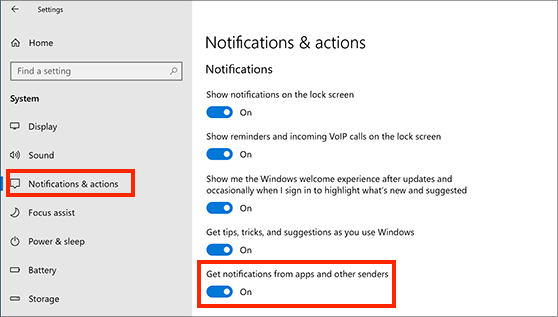
1. Select **Start > Settings > Notifications & Actions > Get notifications from apps and other senders**
2. **Make sure your site and browser are also enabled.**
 **Windows 11 Notification Settings:**
1. Select **Start > Settings > System > Notifications**
**Windows 11 Notification Settings:**
1. Select **Start > Settings > System > Notifications**
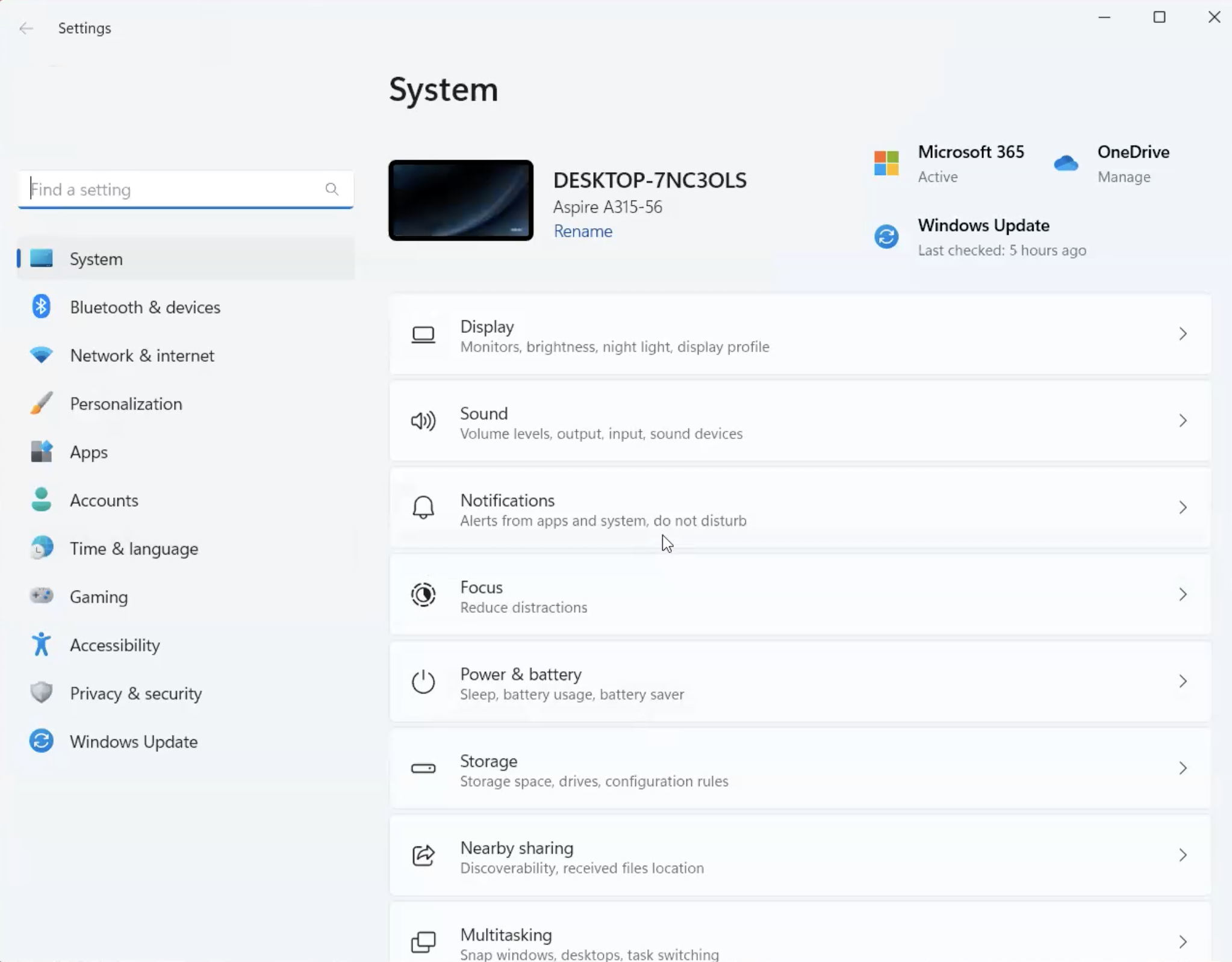 2. Turn On **Notifications**
3. Turn Off **Do not disturb** (while testing, push will show when this is disabled)
4. Scroll down to **Notifications from apps and other senders**
2. Turn On **Notifications**
3. Turn Off **Do not disturb** (while testing, push will show when this is disabled)
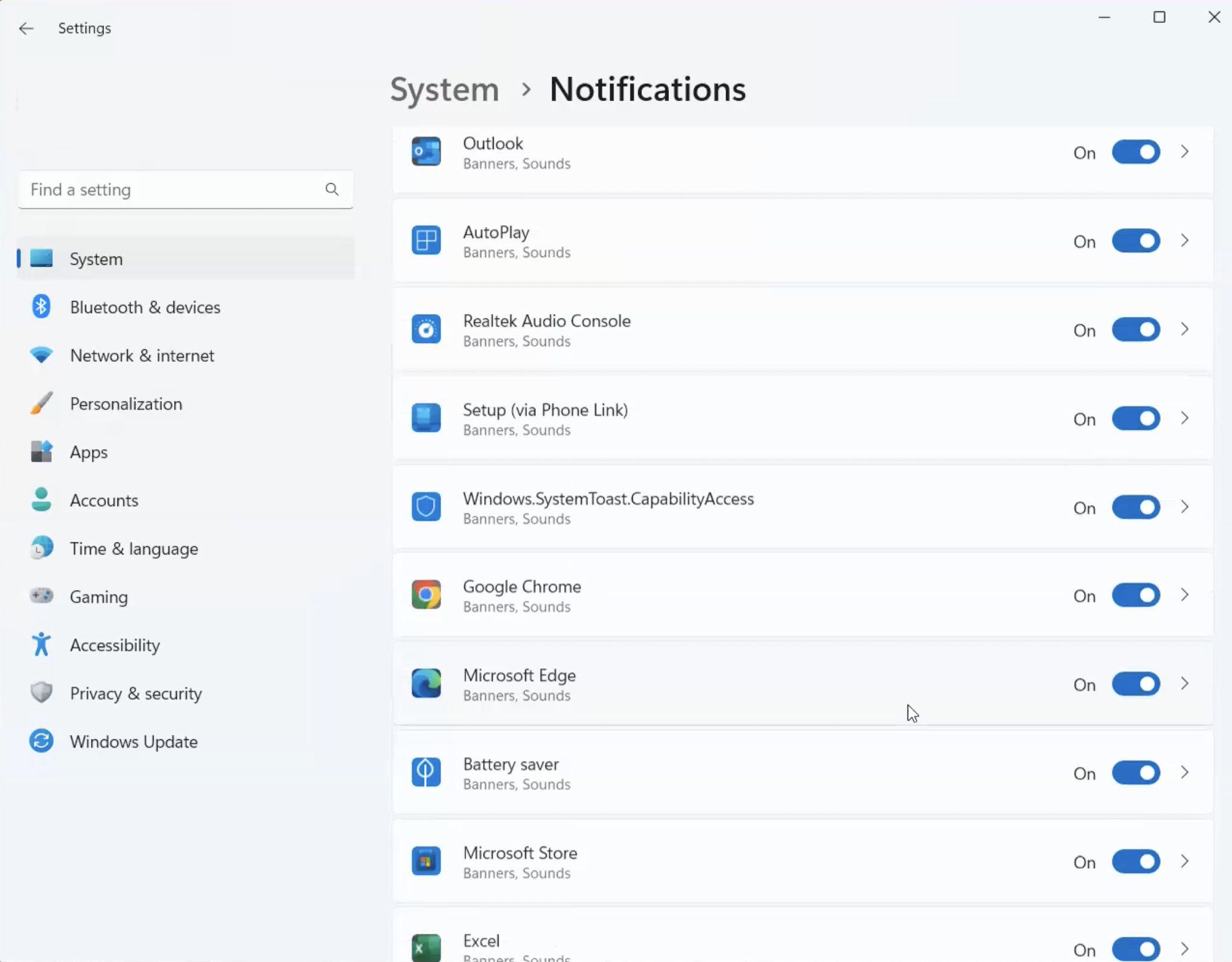
4. Scroll down to **Notifications from apps and other senders**
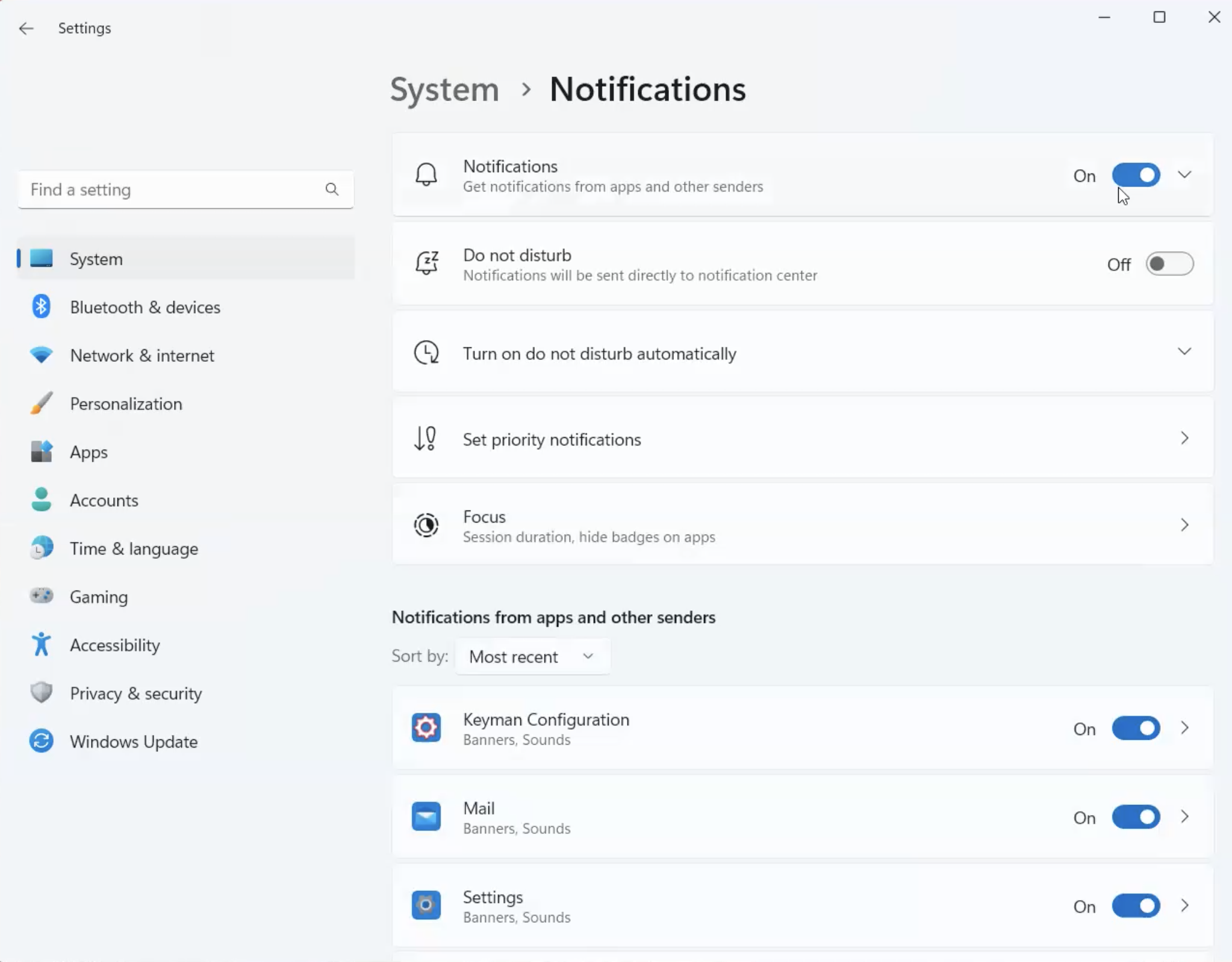 5. Make sure your browsers are turned **On**.
 1. Navigate to **System Settings > Notifications**
2. Make sure **Notifications** is enabled in Notification Center.
You may need to select **Allow notifications when mirroring or sharing the display**.
1. Navigate to **System Settings > Notifications**
2. Make sure **Notifications** is enabled in Notification Center.
You may need to select **Allow notifications when mirroring or sharing the display**.
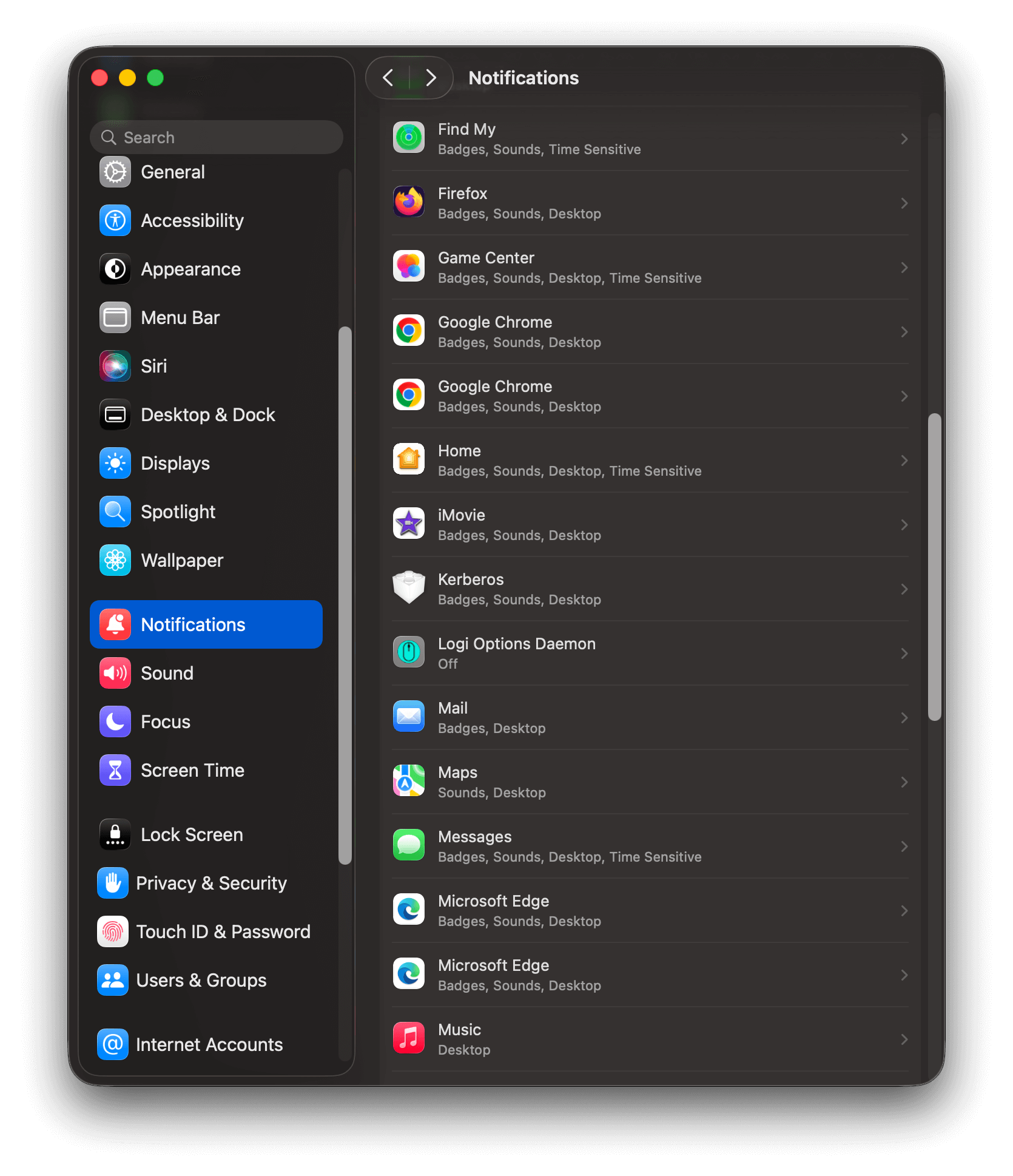
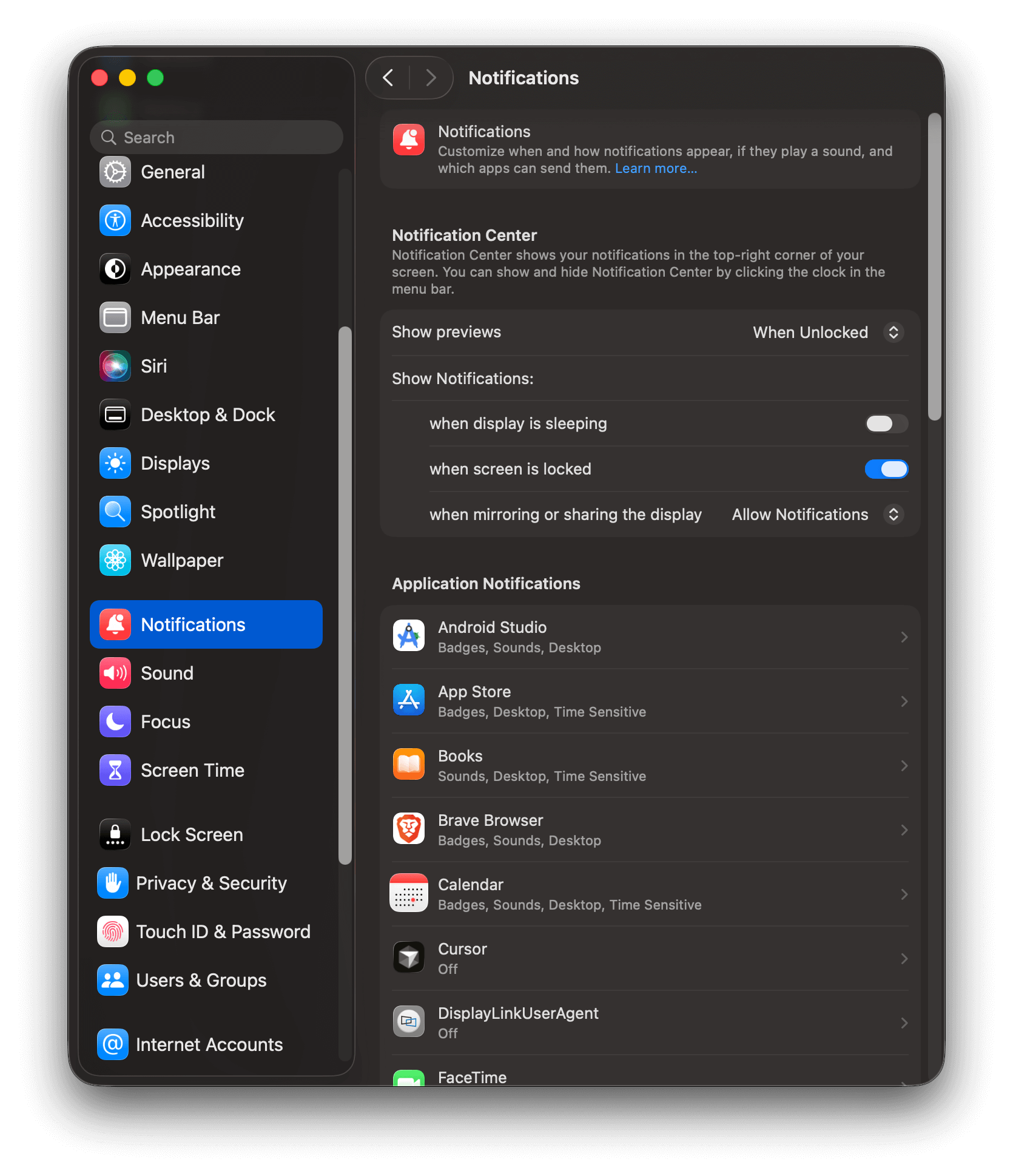 3. Scroll down to **Application Notifications** list and make sure your browser is turned on.
Some browsers like Chrome and Edge show 2 different application entries.
1. Standard web push notifications
2. Internal alerts e.g Google calendar
Make sure both are enabled.
3. Scroll down to **Application Notifications** list and make sure your browser is turned on.
Some browsers like Chrome and Edge show 2 different application entries.
1. Standard web push notifications
2. Internal alerts e.g Google calendar
Make sure both are enabled.
 4. Select the Application and toggle on the settings. Select how you want notifications to be displayed.
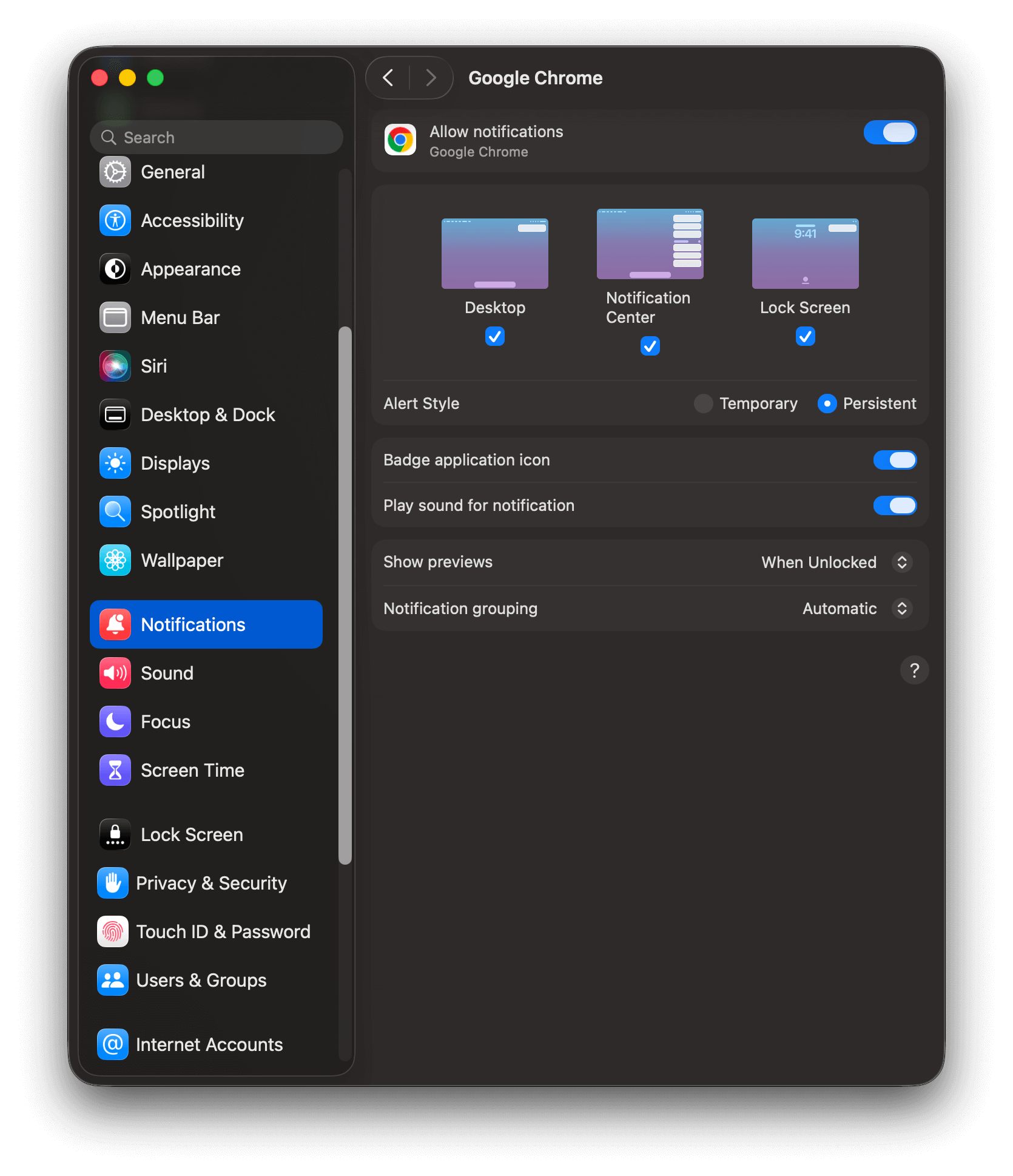 Some older versions of Safari may show the website in your Application Notifications list. Make sure to check the website is turned on in this case.
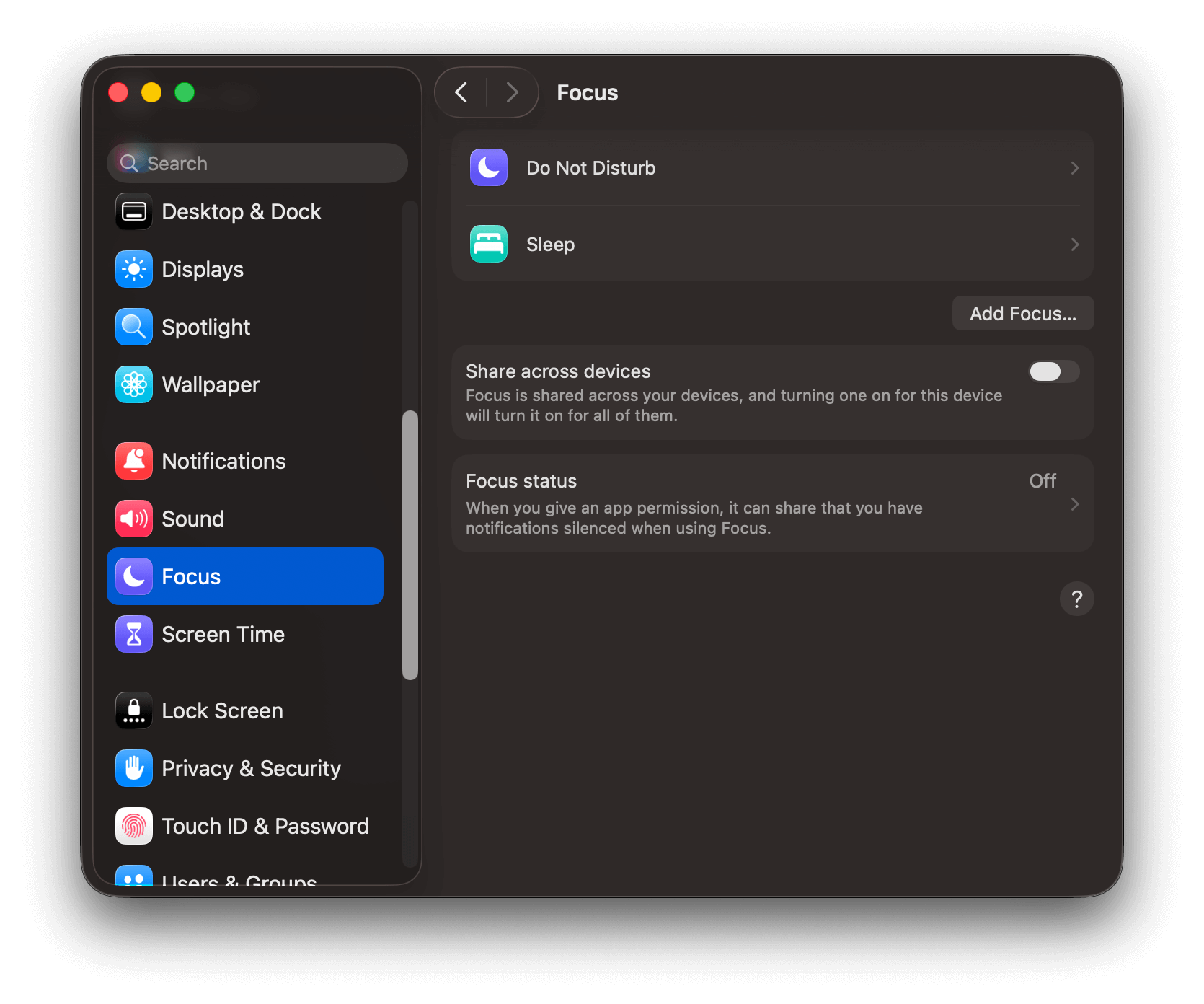
5. Navigate to **System Settings > Focus** and make sure no Focus modes are active while testing.
Some older versions of Safari may show the website in your Application Notifications list. Make sure to check the website is turned on in this case.
5. Navigate to **System Settings > Focus** and make sure no Focus modes are active while testing.
 1. Navigate to **Settings > Notifications > your browser of choice**.
2. Make sure **"Show notifications"** and your website are checked.
1. Navigate to **Settings > Notifications > your browser of choice**.
2. Make sure **"Show notifications"** and your website are checked.
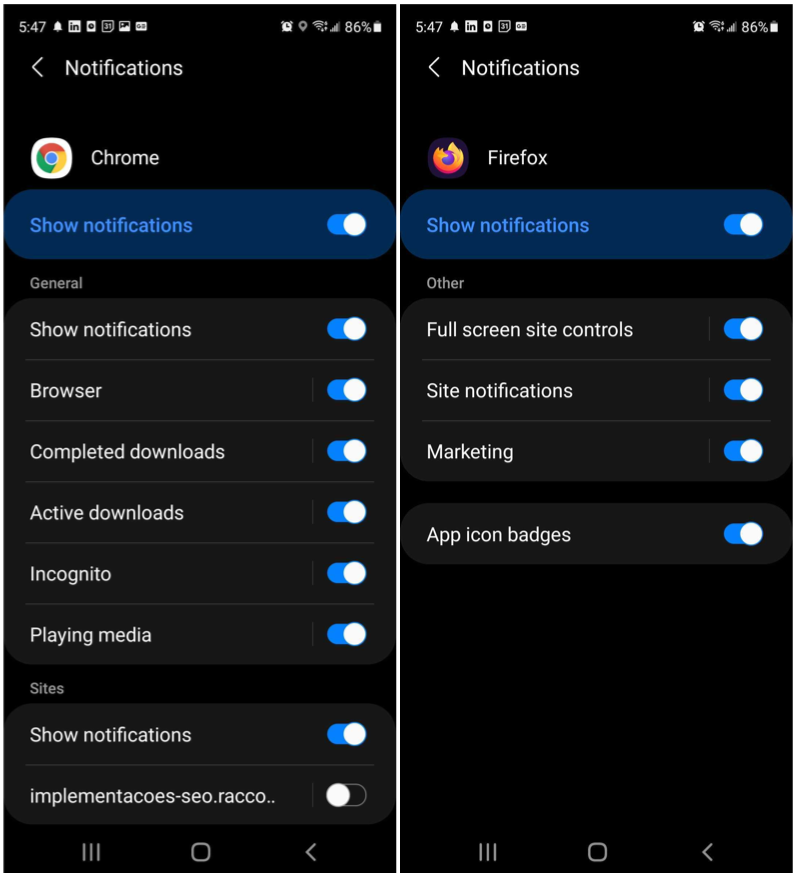 Android uses per-app notification channels. If your browser's notification channel is set to silent or turned off, push notifications won't appear even if the top-level toggle is on. In Settings, tap the browser entry and check that each notification channel is enabled and set to a visible alert style.
iOS requires you to add your site to the Home Screen before subscribers can receive push notifications on iPhones and iPads. Complete the [iOS web push setup](/docs/en/web-push-for-ios) before troubleshooting.
1. Click the browser's **Share** button and select **Add to Home Screen**.
2. Open your site from the Home Screen and allow notifications when the permission prompt appears.
3. Go to device's **Settings > Notifications > your site** and make sure **Allow Notifications** is toggled on.
### Prompt display issues
The following are common reasons why the web push notification prompt may not display as expected.
Review your [Web permission prompt](/docs/en/permission-requests) setup to ensure you have configured a prompt and understand the different browser behaviors.
For instance, some browsers like Safari require a user gesture (clicking a button) before the native prompt can appear. Details for each browser can be found in our [Web permission prompt > Native permission prompt](/docs/en/permission-requests#native-permission-prompt) section.
Browsers do not allow users to subscribe to notifications in these modes. This is why the Slide Prompt may show but the native Permission Prompt will not display.
Make sure you are [using a browser and device that supports web push](/docs/en/troubleshooting-web-push#browser-compatibility).
Navigate to your browser's settings and check the "Notifications" permission setting. Chrome example: `chrome://settings/content/notifications`
Android uses per-app notification channels. If your browser's notification channel is set to silent or turned off, push notifications won't appear even if the top-level toggle is on. In Settings, tap the browser entry and check that each notification channel is enabled and set to a visible alert style.
iOS requires you to add your site to the Home Screen before subscribers can receive push notifications on iPhones and iPads. Complete the [iOS web push setup](/docs/en/web-push-for-ios) before troubleshooting.
1. Click the browser's **Share** button and select **Add to Home Screen**.
2. Open your site from the Home Screen and allow notifications when the permission prompt appears.
3. Go to device's **Settings > Notifications > your site** and make sure **Allow Notifications** is toggled on.
### Prompt display issues
The following are common reasons why the web push notification prompt may not display as expected.
Review your [Web permission prompt](/docs/en/permission-requests) setup to ensure you have configured a prompt and understand the different browser behaviors.
For instance, some browsers like Safari require a user gesture (clicking a button) before the native prompt can appear. Details for each browser can be found in our [Web permission prompt > Native permission prompt](/docs/en/permission-requests#native-permission-prompt) section.
Browsers do not allow users to subscribe to notifications in these modes. This is why the Slide Prompt may show but the native Permission Prompt will not display.
Make sure you are [using a browser and device that supports web push](/docs/en/troubleshooting-web-push#browser-compatibility).
Navigate to your browser's settings and check the "Notifications" permission setting. Chrome example: `chrome://settings/content/notifications`
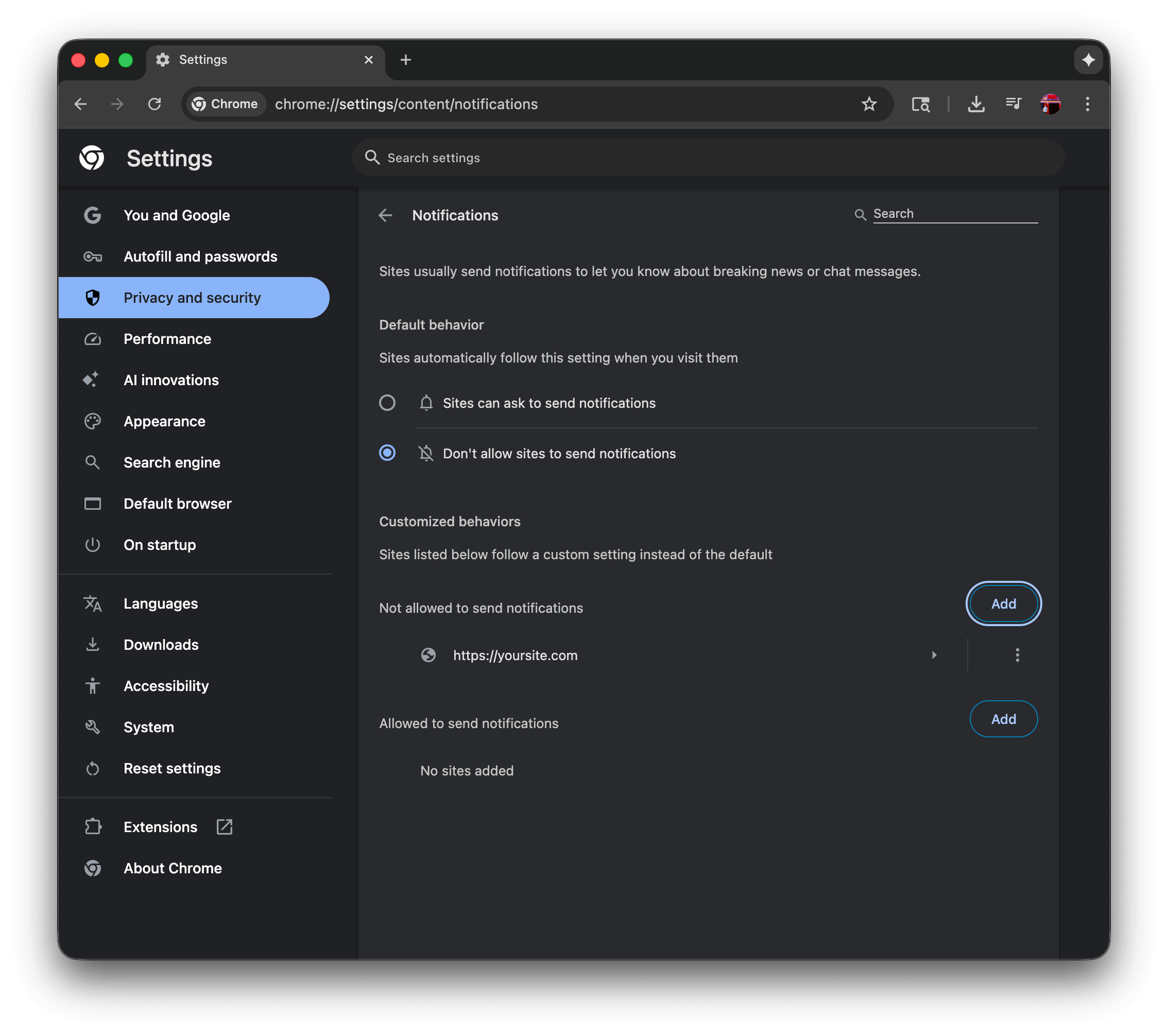 In this example:
* The user has selected "Don't allow sites to send notifications" which will prevent the native permission prompt from showing. This must show "Sites can ask to send notifications" to allow the native permission prompt to show.
* The user has added `https://yoursite.com` to the "Not allowed to send notifications" list, which will prevent the native permission prompt from showing. This must be removed from the list to allow the native permission prompt to show.
**Browser specific documentation:**
* [Chrome](https://support.google.com/chrome/answer/3220216) - This page explains how to manage notifications in Chrome by going to Settings > Privacy and security > Site Settings > Notifications, where you can control default behavior and manage permissions for individual websites.
* [Firefox](https://support.mozilla.org/en-US/kb/push-notifications-firefox) - This guide covers Firefox's Web Push notifications, explaining how to manage notification permissions through Settings > Privacy & Security > Notifications, and how to control permissions for specific sites through the address bar's site information icon.
* [Safari](https://support.apple.com/guide/safari/customize-website-notifications-sfri40734/mac) - This Apple guide explains how to customize Safari notifications on Mac through Safari > Preferences > Websites > Notifications, where you can manage which sites can send notifications and control notification behavior through System Preferences.
* [Edge](https://support.microsoft.com/en-us/microsoft-edge/manage-website-notifications-in-microsoft-edge-0c555609-5bf2-479d-a59d-fb30a0b80b2b) - This article details how to manage Edge notifications by navigating to Settings > Privacy, search, and services > Site permissions > Notifications, or by clicking the site information icon in the address bar.
For iOS, there are some additional requirements to prompt users for their subscription. More information can be seen in the [Mobile Web Push for iOS/iPadOS](/docs/en/web-push-for-ios) guide.
***
## Troubleshooting steps
After checking the above, follow these steps to troubleshoot your OneSignal Web SDK setup.
The browser's developer tools let you interact with the OneSignal Web SDK and enable logging to check for errors.
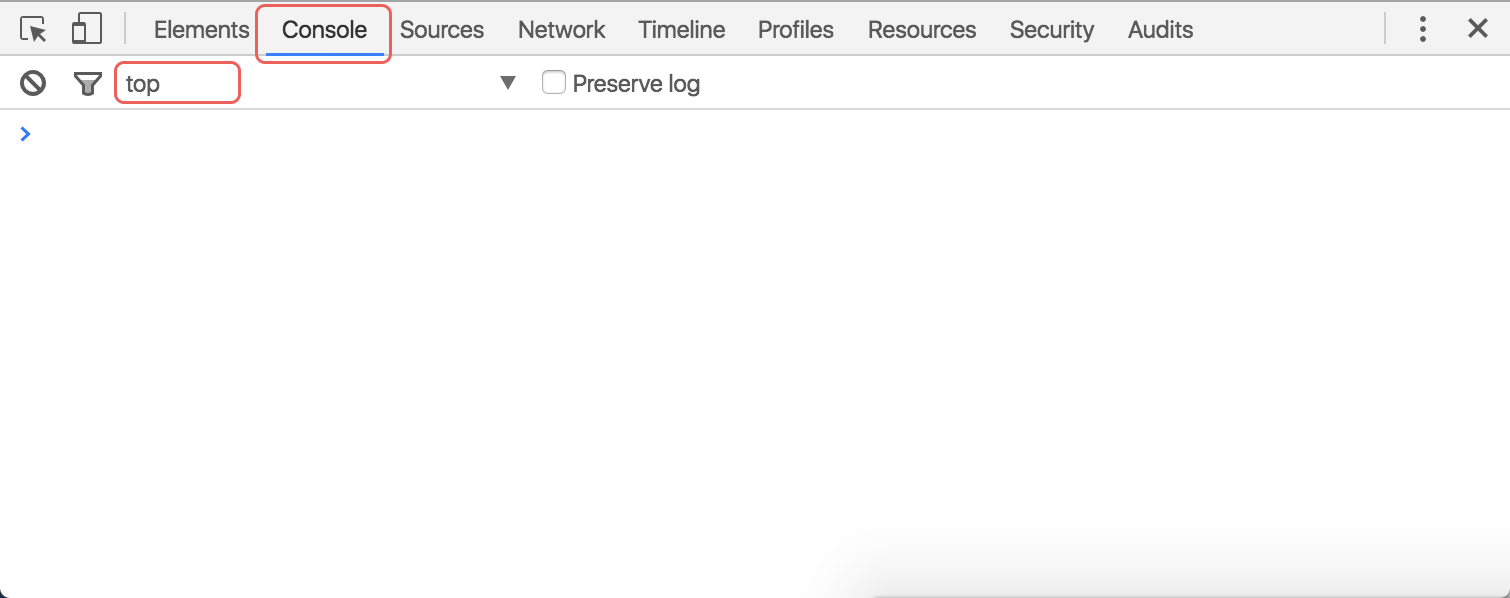
* **Chrome**: Right click on the page, click *Inspect*, and click the *Console* tab of the popup window that opens up.
* **Firefox**: Right click on the page, click *Inspect element*, and click the *Console* tab of the popup window that opens up.
* **Safari**: Go to **Safari → Preferences → Advanced** and make sure *Show Develop menu in menu bar* is checked. Then, on your webpage, right click, click *Inspect element*, and click the *Console* tab of the popup window that opens up.
In this example:
* The user has selected "Don't allow sites to send notifications" which will prevent the native permission prompt from showing. This must show "Sites can ask to send notifications" to allow the native permission prompt to show.
* The user has added `https://yoursite.com` to the "Not allowed to send notifications" list, which will prevent the native permission prompt from showing. This must be removed from the list to allow the native permission prompt to show.
**Browser specific documentation:**
* [Chrome](https://support.google.com/chrome/answer/3220216) - This page explains how to manage notifications in Chrome by going to Settings > Privacy and security > Site Settings > Notifications, where you can control default behavior and manage permissions for individual websites.
* [Firefox](https://support.mozilla.org/en-US/kb/push-notifications-firefox) - This guide covers Firefox's Web Push notifications, explaining how to manage notification permissions through Settings > Privacy & Security > Notifications, and how to control permissions for specific sites through the address bar's site information icon.
* [Safari](https://support.apple.com/guide/safari/customize-website-notifications-sfri40734/mac) - This Apple guide explains how to customize Safari notifications on Mac through Safari > Preferences > Websites > Notifications, where you can manage which sites can send notifications and control notification behavior through System Preferences.
* [Edge](https://support.microsoft.com/en-us/microsoft-edge/manage-website-notifications-in-microsoft-edge-0c555609-5bf2-479d-a59d-fb30a0b80b2b) - This article details how to manage Edge notifications by navigating to Settings > Privacy, search, and services > Site permissions > Notifications, or by clicking the site information icon in the address bar.
For iOS, there are some additional requirements to prompt users for their subscription. More information can be seen in the [Mobile Web Push for iOS/iPadOS](/docs/en/web-push-for-ios) guide.
***
## Troubleshooting steps
After checking the above, follow these steps to troubleshoot your OneSignal Web SDK setup.
The browser's developer tools let you interact with the OneSignal Web SDK and enable logging to check for errors.
* **Chrome**: Right click on the page, click *Inspect*, and click the *Console* tab of the popup window that opens up.
* **Firefox**: Right click on the page, click *Inspect element*, and click the *Console* tab of the popup window that opens up.
* **Safari**: Go to **Safari → Preferences → Advanced** and make sure *Show Develop menu in menu bar* is checked. Then, on your webpage, right click, click *Inspect element*, and click the *Console* tab of the popup window that opens up.
 * **Chrome on Android**: [Enable USB Debugging](https://developer.chrome.com/docs/devtools/remote-debugging/), connect your device into your computer and access the Dev Tools with `chrome://inspect#devices` in your Desktop Chrome browser.
* **Firefox on Android**: [Enable USB Debugging](https://developer.mozilla.org/en-US/docs/Tools/about:debugging), connect your device into your computer and access the Dev Tools with `about:debugging` in your Desktop Firefox browser.
1. [Enable the web inspector on iOS](https://developer.apple.com/library/archive/documentation/AppleApplications/Conceptual/Safari_Developer_Guide/GettingStarted/GettingStarted.html).
2. Open the Safari browser on your mac and select **Develop > your device > your site**.
Run the following command in the developer tools Console:
```javascript theme={null}
OneSignal.Debug.setLogLevel('trace');
```
* You should see `undefined` as the result.
* Close the tab and open a new one to the same page. Refreshing alone won't trigger all SDK initialization events.
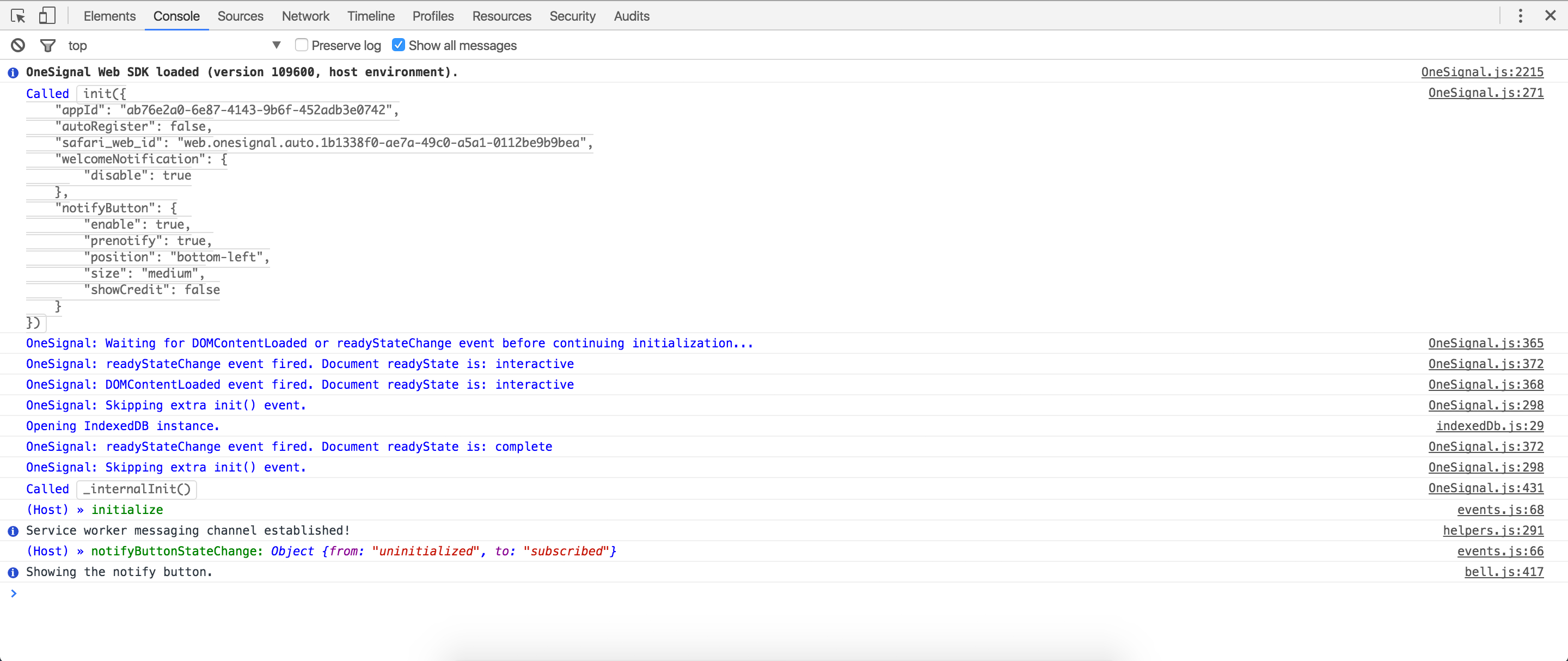
* You will start to see OneSignal SDK logs in the Console.
* **Chrome on Android**: [Enable USB Debugging](https://developer.chrome.com/docs/devtools/remote-debugging/), connect your device into your computer and access the Dev Tools with `chrome://inspect#devices` in your Desktop Chrome browser.
* **Firefox on Android**: [Enable USB Debugging](https://developer.mozilla.org/en-US/docs/Tools/about:debugging), connect your device into your computer and access the Dev Tools with `about:debugging` in your Desktop Firefox browser.
1. [Enable the web inspector on iOS](https://developer.apple.com/library/archive/documentation/AppleApplications/Conceptual/Safari_Developer_Guide/GettingStarted/GettingStarted.html).
2. Open the Safari browser on your mac and select **Develop > your device > your site**.
Run the following command in the developer tools Console:
```javascript theme={null}
OneSignal.Debug.setLogLevel('trace');
```
* You should see `undefined` as the result.
* Close the tab and open a new one to the same page. Refreshing alone won't trigger all SDK initialization events.
* You will start to see OneSignal SDK logs in the Console.
 ### Configuration errors
You may encounter the following errors after OneSignal initializes:
Error: SDK already initialized
### Configuration errors
You may encounter the following errors after OneSignal initializes:
Error: SDK already initialized
 **What this means:** The OneSignal Web SDK `init` code is being called more than once, often caused by combining WordPress plugin or Shopify integration setup with manual code or accidentally adding the OneSignal `init` code multiple times.
**How to fix:** Remove any duplicate `init` calls. If using the WordPress plugin or Shopify integration, remove any manual OneSignal code from your files.
Error: Can only be used on: (URL Set in OneSignal Dashboard)
**What this means:** The OneSignal Web SDK `init` code is being called more than once, often caused by combining WordPress plugin or Shopify integration setup with manual code or accidentally adding the OneSignal `init` code multiple times.
**How to fix:** Remove any duplicate `init` calls. If using the WordPress plugin or Shopify integration, remove any manual OneSignal code from your files.
Error: Can only be used on: (URL Set in OneSignal Dashboard)
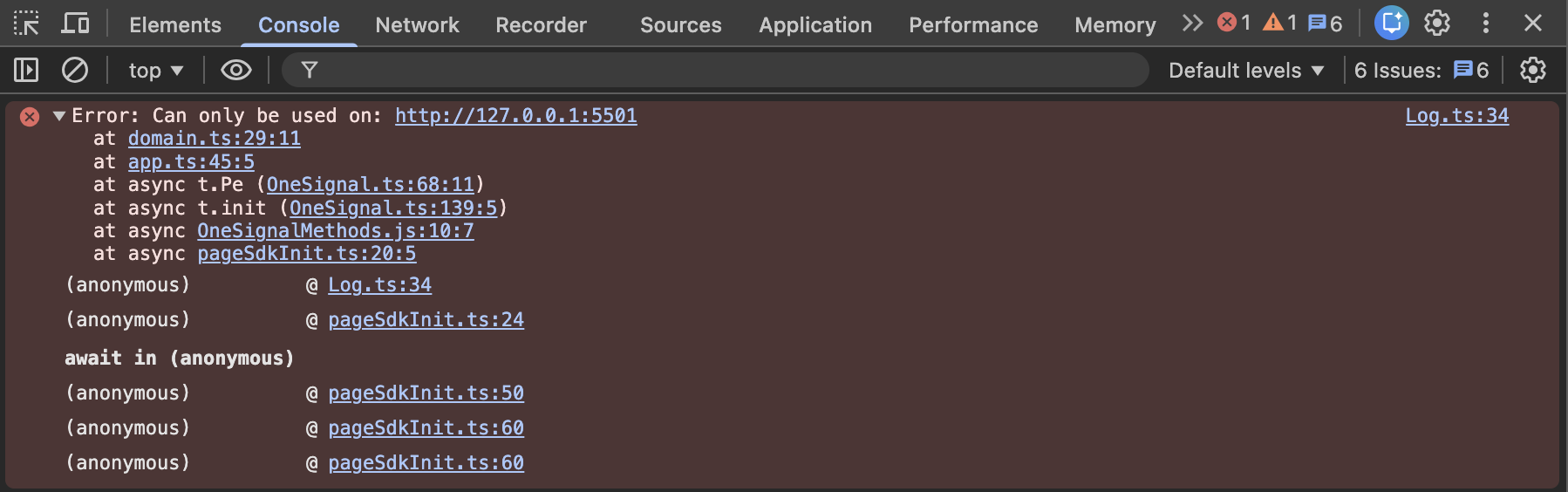 **What this means:** The domain you are currently visiting doesn't match the site URL configured in your OneSignal dashboard.
**How to fix:** Copy the site URL in your browser and paste it into your OneSignal dashboard **Settings > Push & In-app > Web > Site URL** configuration. Make sure it is the site origin using the following format:
* **Protocol:** Must be `https://` (for local testing, see [Localhost configuration](./web-sdk-setup#local-testing))
* **Domain:** `example.com` vs `www.example.com`
* **Subdomain:** `app.example.com` vs `example.com`
All three components must match between your actual site URL and your dashboard configuration.
Error: OneSignalSDK: The "My site is not fully HTTPS" option is no longer supported starting with version 16 (User Model) of the OneSignal SDK.
**What this means:** The domain you are currently visiting doesn't match the site URL configured in your OneSignal dashboard.
**How to fix:** Copy the site URL in your browser and paste it into your OneSignal dashboard **Settings > Push & In-app > Web > Site URL** configuration. Make sure it is the site origin using the following format:
* **Protocol:** Must be `https://` (for local testing, see [Localhost configuration](./web-sdk-setup#local-testing))
* **Domain:** `example.com` vs `www.example.com`
* **Subdomain:** `app.example.com` vs `example.com`
All three components must match between your actual site URL and your dashboard configuration.
Error: OneSignalSDK: The "My site is not fully HTTPS" option is no longer supported starting with version 16 (User Model) of the OneSignal SDK.
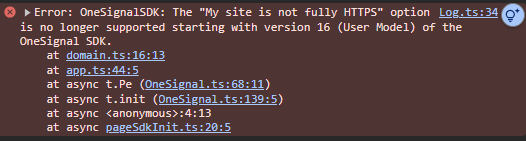 **What this means:** Your OneSignal dashboard is configured to use an HTTP site and you likely updated to use HTTPS.
Users who subscribed while using HTTP or the "My site is not fully HTTPS" option are actually subscribed to a subdomain in the format `https://your-label.os.tc`, not your actual site origin. Web push is not supported on HTTP sites or websites that cannot host service workers.
**How to fix:** Both options require your users to resubscribe because they are subscribed to the `os.tc` subdomain, not your site.
1. **Create a new OneSignal App** and set the new App ID in your init code. This lets you continue sending push from the old app to notify users.
Send notifications letting users know the site has been updated and they should resubscribe. Offering a discount or incentive helps. Set the "Launch URL" to a landing page with a resubscription prompt (Bell, Custom Link, or Category Slide). See [Permission prompts](./permission-requests) for details.
2. **Keep the same App ID** by using the [Update an App](/reference/update-an-app) API to update `chrome_web_origin` and `safari_site_origin` to your HTTPS origin.
Because users subscribed to the `os.tc` subdomain, their browser does not have push permissions for your actual domain. They will be prompted again, and if they resubscribe, they will have two web push Subscriptions on the same browser — causing duplicate notifications.
To prevent duplicates, [delete all current web push subscribers](./delete-users) before updating. Send a few notifications first letting users know they should resubscribe. See [Permission prompts](./permission-requests) for prompt options.
### Service worker installation errors
If you are presented with the [Native permission prompt](./permission-requests) and click "Allow", you may encounter the following service worker installation errors:
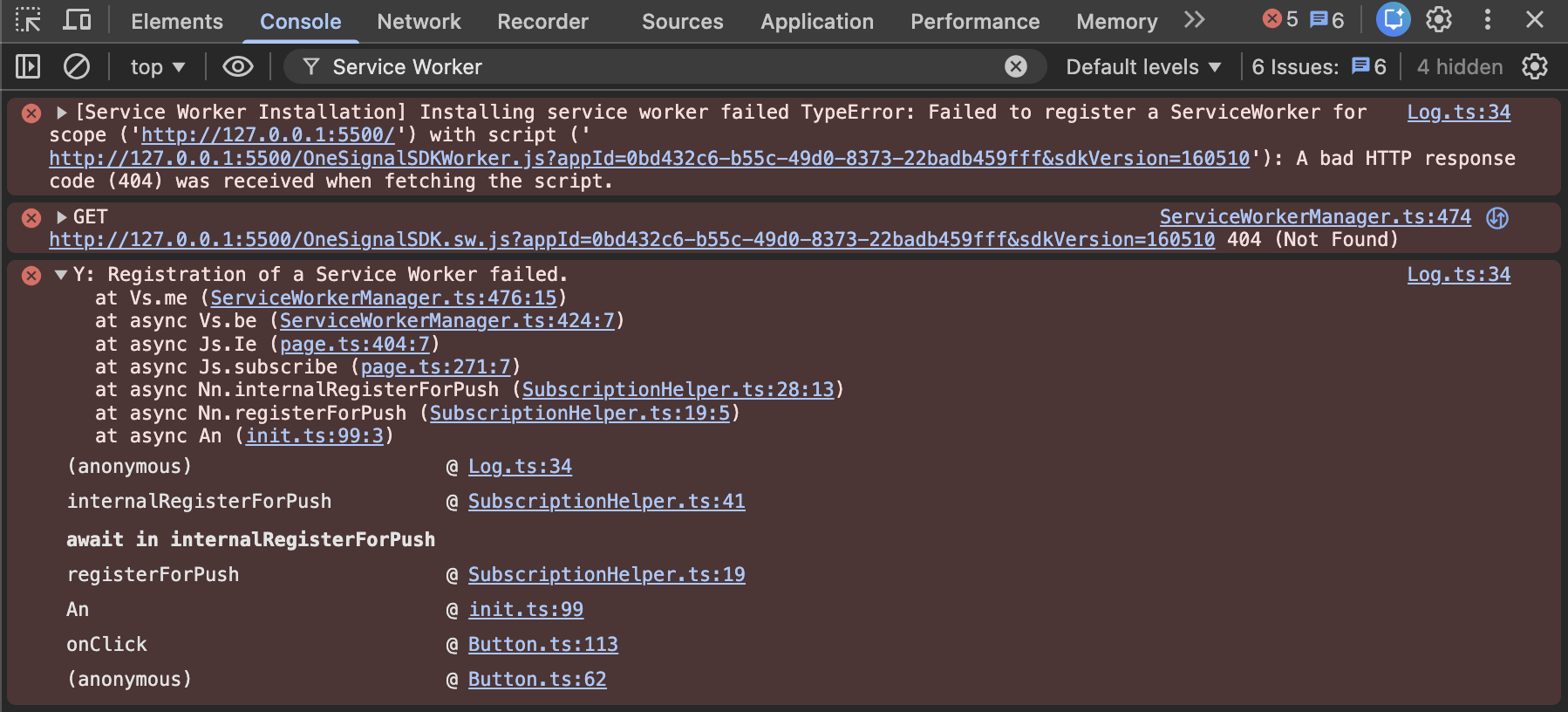
Y: Registration of a Service Worker failed.
\[Service Worker Installation] Installing service worker failed TypeError: Failed to register a ServiceWorker for scope ('`https://your-site.com/`') with script ('`https://your-site.com/...`'): A bad HTTP response code (404) was received when fetching the script.
\[Service Worker Installation] Installing service worker failed TypeError: Failed to register a ServiceWorker for scope ('`https://www.yoursite.com/`') with script ('`https://www.yoursite.com/...`'): A bad HTTP response code (403) was received when fetching the script.
**What this means:** Your OneSignal dashboard is configured to use an HTTP site and you likely updated to use HTTPS.
Users who subscribed while using HTTP or the "My site is not fully HTTPS" option are actually subscribed to a subdomain in the format `https://your-label.os.tc`, not your actual site origin. Web push is not supported on HTTP sites or websites that cannot host service workers.
**How to fix:** Both options require your users to resubscribe because they are subscribed to the `os.tc` subdomain, not your site.
1. **Create a new OneSignal App** and set the new App ID in your init code. This lets you continue sending push from the old app to notify users.
Send notifications letting users know the site has been updated and they should resubscribe. Offering a discount or incentive helps. Set the "Launch URL" to a landing page with a resubscription prompt (Bell, Custom Link, or Category Slide). See [Permission prompts](./permission-requests) for details.
2. **Keep the same App ID** by using the [Update an App](/reference/update-an-app) API to update `chrome_web_origin` and `safari_site_origin` to your HTTPS origin.
Because users subscribed to the `os.tc` subdomain, their browser does not have push permissions for your actual domain. They will be prompted again, and if they resubscribe, they will have two web push Subscriptions on the same browser — causing duplicate notifications.
To prevent duplicates, [delete all current web push subscribers](./delete-users) before updating. Send a few notifications first letting users know they should resubscribe. See [Permission prompts](./permission-requests) for prompt options.
### Service worker installation errors
If you are presented with the [Native permission prompt](./permission-requests) and click "Allow", you may encounter the following service worker installation errors:
Y: Registration of a Service Worker failed.
\[Service Worker Installation] Installing service worker failed TypeError: Failed to register a ServiceWorker for scope ('`https://your-site.com/`') with script ('`https://your-site.com/...`'): A bad HTTP response code (404) was received when fetching the script.
\[Service Worker Installation] Installing service worker failed TypeError: Failed to register a ServiceWorker for scope ('`https://www.yoursite.com/`') with script ('`https://www.yoursite.com/...`'): A bad HTTP response code (403) was received when fetching the script.
 The script has an unsupported MIME type ('current MIME type').
\[Service Worker Installation] Installing service worker failed SecurityError: Failed to register a ServiceWorker for scope ('[https://your-site.com/](https://your-site.com/)') with script ('[https://your-site.com/](https://your-site.com/)...'): The script has an unsupported MIME type ('current MIME type').
The script has an unsupported MIME type ('current MIME type').
\[Service Worker Installation] Installing service worker failed SecurityError: Failed to register a ServiceWorker for scope ('[https://your-site.com/](https://your-site.com/)') with script ('[https://your-site.com/](https://your-site.com/)...'): The script has an unsupported MIME type ('current MIME type').
 \[Service Worker Installation] Installing service worker failed SecurityError: Failed to register a ServiceWorker for scope ('[https://your-site.com/](https://your-site.com/)') with script ('[https://your-site.com/](https://your-site.com/)...'): The script resource is behind a redirect, which is disallowed.
 **What this means:** Your service worker file is configured incorrectly.
**How to fix:**
The SDK looks for the `OneSignalSDKWorker.js` service worker file in the root directory of your site unless you specify a custom filename or location as described in the [Service Worker setup guide](./onesignal-service-worker).
Make sure you have configured the correct filename, location, and scope for the SDK to find the service worker file.
Based on your configuration, open the file directly in your browser.
* If you did not configure a custom location, then you should see the JavaScript code for the service worker file in your site's root: `https://yoursite.com/OneSignalSDKWorker.js`
* If using WordPress, you should see it here: `https://yoursite.com/wp-content/plugins/onesignal-free-web-push-notifications/sdk_files/OneSignalSDKWorker.js`
* If using a custom location, you should see it here: `https://yoursite.com/your-custom-location/OneSignalSDKWorker.js`
File names are case-sensitive. Make sure you use `OneSignalSDKWorker.js` or the filename you configured.
Some servers will automatically lowercase the filename. Take this into consideration if you cannot find the file.
* You should see the following JavaScript code:
```javascript JavaScript theme={null}
importScripts("https://cdn.onesignal.com/sdks/web/v16/OneSignalSDK.sw.js");
```
* This file must be served with a `content-type` of `application/javascript`.
* There can be no redirects to this file. Files must be hosted on the same domain as your site (no CDN or proxy domains).
See the [Service Worker setup guide](./onesignal-service-worker) for more detailed setup instructions.
### Notifications not shown
This section assumes:
1. You have reviewed the [Notifications not shown: Web Push](./notifications-not-shown-web-push) guide for common reasons why notifications may not be showing up on your device.
2. You were shown the [Native permission prompt](./permission-requests) and clicked "Allow". See [Prompt display issues](#prompt-display-issues) above if you did not subscribe via the Native permission prompt.
If the above are true, follow these steps to check your Subscription ID and send yourself a push notification:
Run the following code in the browser developer tools console:
```javascript JavaScript theme={null}
function getUserInfo() {
console.log('getUserInfo()');
Promise.all([
OneSignal.Notifications.isPushSupported(),
OneSignal.Notifications.permission,
OneSignal.User.PushSubscription.optedIn,
OneSignal.User.PushSubscription.id
]).then(([
isPushSupported,
isSubscribed,
isOptedIn,
subscriptionId
]) => {
console.log('The current URL of this page: ', location.href);
console.log('Push is supported on this browser: ', isPushSupported);
console.log('You are subscribed to notifications in the browser: ', isSubscribed);
console.log('You are opted-in with OneSignal: ' , isOptedIn);
console.log('Your OneSignal Subscription ID: ', subscriptionId);
}).catch(e => {
console.error('Error getting user info:', e);
});
}
getUserInfo();
```
This will tell you:
* The URL of the page you are on if there is any confusion.
* If the current browser supports push notifications.
* `true` means the browser supports push notifications.
* `false` means the browser does not support push notifications.
* If you are subscribed to notifications in the browser.
* `true` means you allowed push permissions for this URL.
* `false` means you did not allow or denied push permissions for this URL.
* If you are opted-in with OneSignal.
* `true` means your Subscription is subscribed to push notifications in OneSignal.
* `false` means your Subscription is not subscribed to push notifications in OneSignal. Check if the [`optOut()` method](./web-sdk-reference) is being called on your site.
* Your OneSignal Subscription ID.
* Save this for the next step. This is the ID you will use to send yourself a push notification.
**What this means:** Your service worker file is configured incorrectly.
**How to fix:**
The SDK looks for the `OneSignalSDKWorker.js` service worker file in the root directory of your site unless you specify a custom filename or location as described in the [Service Worker setup guide](./onesignal-service-worker).
Make sure you have configured the correct filename, location, and scope for the SDK to find the service worker file.
Based on your configuration, open the file directly in your browser.
* If you did not configure a custom location, then you should see the JavaScript code for the service worker file in your site's root: `https://yoursite.com/OneSignalSDKWorker.js`
* If using WordPress, you should see it here: `https://yoursite.com/wp-content/plugins/onesignal-free-web-push-notifications/sdk_files/OneSignalSDKWorker.js`
* If using a custom location, you should see it here: `https://yoursite.com/your-custom-location/OneSignalSDKWorker.js`
File names are case-sensitive. Make sure you use `OneSignalSDKWorker.js` or the filename you configured.
Some servers will automatically lowercase the filename. Take this into consideration if you cannot find the file.
* You should see the following JavaScript code:
```javascript JavaScript theme={null}
importScripts("https://cdn.onesignal.com/sdks/web/v16/OneSignalSDK.sw.js");
```
* This file must be served with a `content-type` of `application/javascript`.
* There can be no redirects to this file. Files must be hosted on the same domain as your site (no CDN or proxy domains).
See the [Service Worker setup guide](./onesignal-service-worker) for more detailed setup instructions.
### Notifications not shown
This section assumes:
1. You have reviewed the [Notifications not shown: Web Push](./notifications-not-shown-web-push) guide for common reasons why notifications may not be showing up on your device.
2. You were shown the [Native permission prompt](./permission-requests) and clicked "Allow". See [Prompt display issues](#prompt-display-issues) above if you did not subscribe via the Native permission prompt.
If the above are true, follow these steps to check your Subscription ID and send yourself a push notification:
Run the following code in the browser developer tools console:
```javascript JavaScript theme={null}
function getUserInfo() {
console.log('getUserInfo()');
Promise.all([
OneSignal.Notifications.isPushSupported(),
OneSignal.Notifications.permission,
OneSignal.User.PushSubscription.optedIn,
OneSignal.User.PushSubscription.id
]).then(([
isPushSupported,
isSubscribed,
isOptedIn,
subscriptionId
]) => {
console.log('The current URL of this page: ', location.href);
console.log('Push is supported on this browser: ', isPushSupported);
console.log('You are subscribed to notifications in the browser: ', isSubscribed);
console.log('You are opted-in with OneSignal: ' , isOptedIn);
console.log('Your OneSignal Subscription ID: ', subscriptionId);
}).catch(e => {
console.error('Error getting user info:', e);
});
}
getUserInfo();
```
This will tell you:
* The URL of the page you are on if there is any confusion.
* If the current browser supports push notifications.
* `true` means the browser supports push notifications.
* `false` means the browser does not support push notifications.
* If you are subscribed to notifications in the browser.
* `true` means you allowed push permissions for this URL.
* `false` means you did not allow or denied push permissions for this URL.
* If you are opted-in with OneSignal.
* `true` means your Subscription is subscribed to push notifications in OneSignal.
* `false` means your Subscription is not subscribed to push notifications in OneSignal. Check if the [`optOut()` method](./web-sdk-reference) is being called on your site.
* Your OneSignal Subscription ID.
* Save this for the next step. This is the ID you will use to send yourself a push notification.
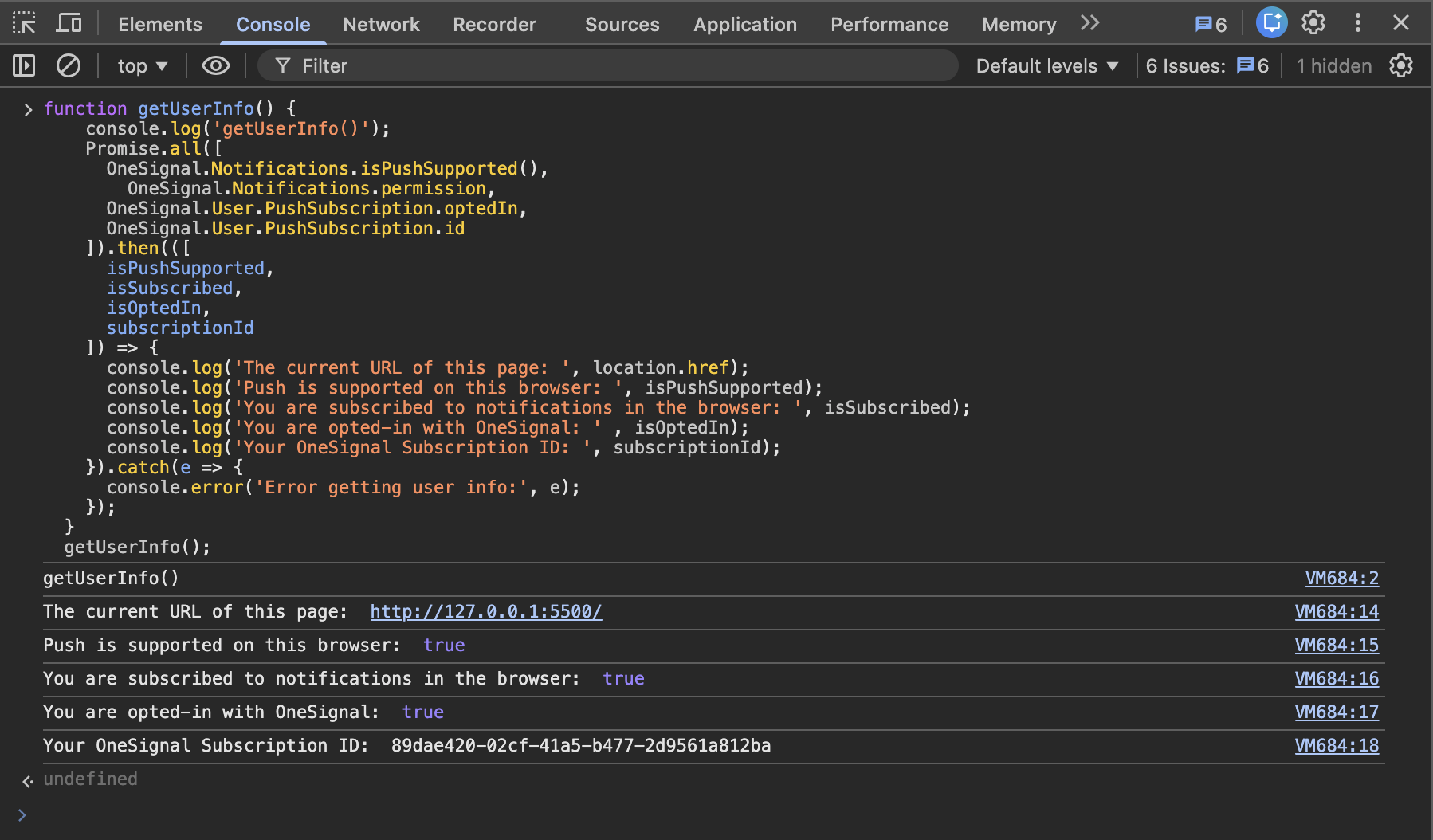 Save this console data to a text file and share with OneSignal Support if you need further assistance.
If you are subscribed to notifications, opted-in with OneSignal, and have a Subscription ID, you can send yourself a notification.
Follow the steps in [Test Users](./test-users) to set yourself as a tester and send yourself a notification.
If you are not getting notifications in Chrome, use these Chrome-specific diagnostic tools to identify the issue.
1. In a new tab, open `chrome://gcm-internals`.
2. Click the "Start Recording" button on the top left. Making sure you see "Connection State: CONNECTED".
3. Leave this open and send yourself another push notification to your Chrome web push Subscription.
4. You should see something in the "Receive Message Log" if you got it.
Save this console data to a text file and share with OneSignal Support if you need further assistance.
If you are subscribed to notifications, opted-in with OneSignal, and have a Subscription ID, you can send yourself a notification.
Follow the steps in [Test Users](./test-users) to set yourself as a tester and send yourself a notification.
If you are not getting notifications in Chrome, use these Chrome-specific diagnostic tools to identify the issue.
1. In a new tab, open `chrome://gcm-internals`.
2. Click the "Start Recording" button on the top left. Making sure you see "Connection State: CONNECTED".
3. Leave this open and send yourself another push notification to your Chrome web push Subscription.
4. You should see something in the "Receive Message Log" if you got it.
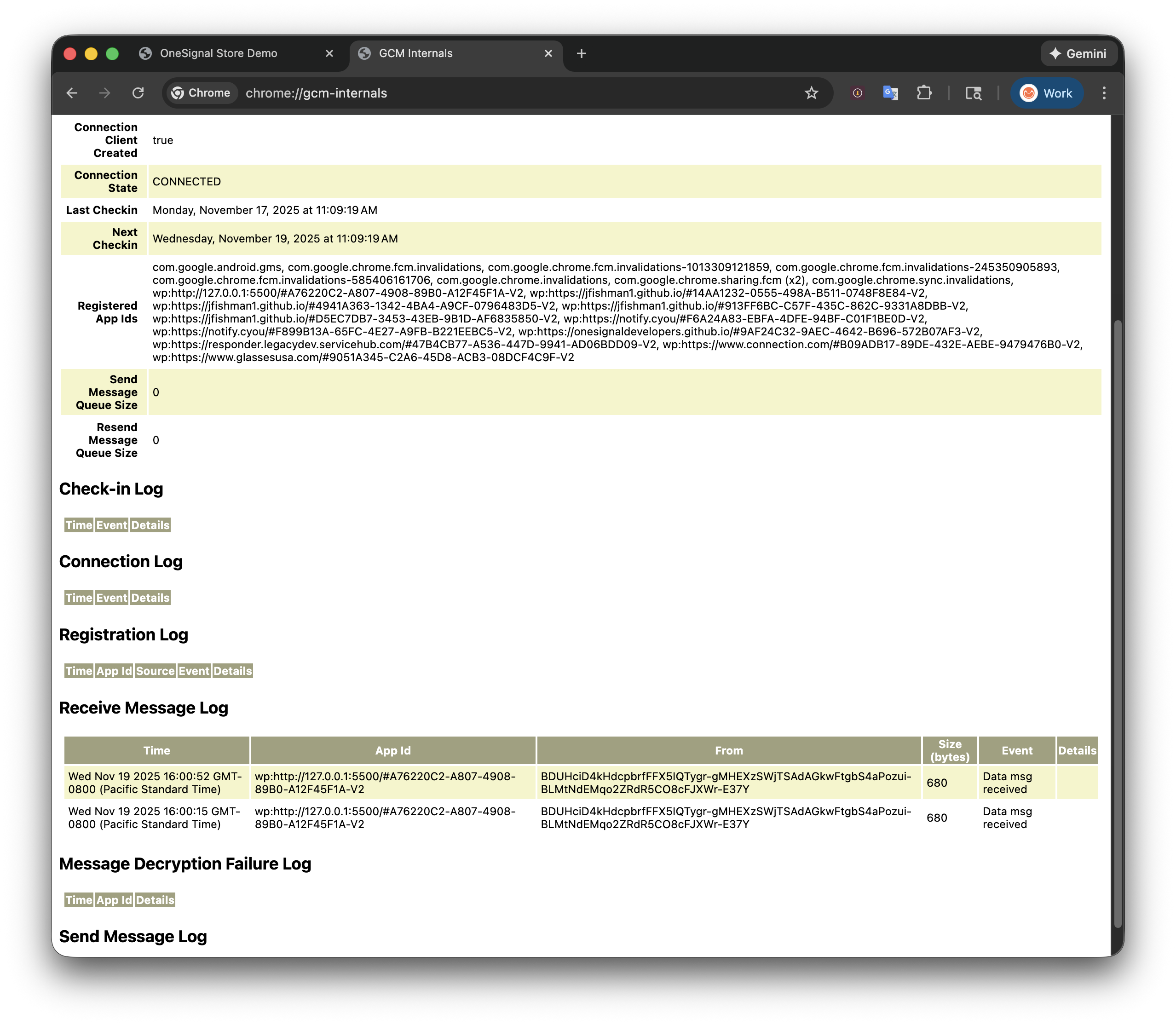 * If you don't see a "Data msg received", then your Chrome browser is not receiving the notification at all. Contact OneSignal Support with the GCM internals logs.
* If you see "Data msg received" but you still didn't receive a notification, continue to the next step.
5. Open a new tab to `chrome://serviceworker-internals`
6. Search for `Scope: https://your-site.com` (replace `your-site.com` with your actual site domain).
7. Click **Inspect**, or **Start -> Inspect**. A Chrome Developer Tools popup will appear.
* If you don't see a "Data msg received", then your Chrome browser is not receiving the notification at all. Contact OneSignal Support with the GCM internals logs.
* If you see "Data msg received" but you still didn't receive a notification, continue to the next step.
5. Open a new tab to `chrome://serviceworker-internals`
6. Search for `Scope: https://your-site.com` (replace `your-site.com` with your actual site domain).
7. Click **Inspect**, or **Start -> Inspect**. A Chrome Developer Tools popup will appear.
 8. On the Chrome Developer Tools popup to our service worker, click the **Console** tab, and run `OneSignalWorker.log.trace();`. It should return `undefined`. Any messages from our service worker should now appear in this popup.
Need help?
Chat with our Support team or email `support@onesignal.com`
Please include:
* Details of the issue you're experiencing and steps to reproduce if available
* Your OneSignal App ID
* The External ID or Subscription ID if applicable
* The URL to the message you tested in the OneSignal Dashboard if applicable
* Any relevant [logs or error messages](/docs/en/capturing-a-debug-log)
We're happy to help!
***
## FAQ
### Why do I see "SDK already initialized"?
The OneSignal Web SDK `init` code is being called more than once on the page. This commonly happens when combining the WordPress plugin with manual code, or when the init tag is included in multiple page templates. Remove duplicate `init` calls to resolve it.
### Can I use web push on HTTP sites?
No. Web push requires HTTPS because service workers — which handle push delivery — only work on secure origins. If you previously used the "My site is not fully HTTPS" option, you must migrate to HTTPS. See [Configuration errors](#configuration-errors) for migration steps.
### How do I test web push on localhost?
You can test on `localhost` during development. See [Localhost configuration](./web-sdk-setup#local-testing) for setup instructions. Note that `localhost` testing only works in Chromium-based browsers.
***
## Related pages
Complete the initial OneSignal Web SDK installation and configuration.
Configure the OneSignal service worker file for your site.
Configure how and when to prompt visitors for web push permission.
Common reasons why web push notifications may not appear on your device.
8. On the Chrome Developer Tools popup to our service worker, click the **Console** tab, and run `OneSignalWorker.log.trace();`. It should return `undefined`. Any messages from our service worker should now appear in this popup.
Need help?
Chat with our Support team or email `support@onesignal.com`
Please include:
* Details of the issue you're experiencing and steps to reproduce if available
* Your OneSignal App ID
* The External ID or Subscription ID if applicable
* The URL to the message you tested in the OneSignal Dashboard if applicable
* Any relevant [logs or error messages](/docs/en/capturing-a-debug-log)
We're happy to help!
***
## FAQ
### Why do I see "SDK already initialized"?
The OneSignal Web SDK `init` code is being called more than once on the page. This commonly happens when combining the WordPress plugin with manual code, or when the init tag is included in multiple page templates. Remove duplicate `init` calls to resolve it.
### Can I use web push on HTTP sites?
No. Web push requires HTTPS because service workers — which handle push delivery — only work on secure origins. If you previously used the "My site is not fully HTTPS" option, you must migrate to HTTPS. See [Configuration errors](#configuration-errors) for migration steps.
### How do I test web push on localhost?
You can test on `localhost` during development. See [Localhost configuration](./web-sdk-setup#local-testing) for setup instructions. Note that `localhost` testing only works in Chromium-based browsers.
***
## Related pages
Complete the initial OneSignal Web SDK installation and configuration.
Configure the OneSignal service worker file for your site.
Configure how and when to prompt visitors for web push permission.
Common reasons why web push notifications may not appear on your device.