> ## Documentation Index
> Fetch the complete documentation index at: https://documentation.onesignal.com/llms.txt
> Use this file to discover all available pages before exploring further.
# Web SDK - Custom Code Setup
> Complete guide for setting up OneSignal Web Push notifications using custom code integration. Configure JavaScript SDK, service workers, and Safari certificates for Chrome, Firefox, Safari, and other web browsers.
export const SdkReleasesIframe = ({sdkFilter = undefined, viewMode = undefined, height, ...frameProps}) => {
const baseUrl = 'https://onesignal.github.io/sdk-releases';
const buildUrl = (theme, sdkFilter, viewMode) => {
const url = new URL(baseUrl);
const params = new URLSearchParams();
if (theme) {
params.set('theme', theme);
}
if (sdkFilter) {
params.set('sdk', sdkFilter);
}
if (viewMode) {
params.set('viewMode', viewMode);
}
if (params.toString()) {
url.search = params.toString();
}
return url.toString();
};
const detectTheme = () => {
if (document.documentElement.classList.contains('dark')) {
return 'dark';
}
return 'light';
};
const [theme, setTheme] = useState('light');
const [iframeSrc, setIframeSrc] = useState(() => {
const initialTheme = detectTheme();
return buildUrl(initialTheme, sdkFilter, viewMode);
});
useEffect(() => {
const currentTheme = detectTheme();
setTheme(currentTheme);
setIframeSrc(buildUrl(currentTheme, sdkFilter, viewMode));
const mediaQuery = window.matchMedia('(prefers-color-scheme: dark)');
const handleThemeChange = () => {
const newTheme = detectTheme();
setTheme(newTheme);
setIframeSrc(buildUrl(newTheme, sdkFilter, viewMode));
};
if (mediaQuery.addEventListener) {
mediaQuery.addEventListener('change', handleThemeChange);
} else {
mediaQuery.addListener(handleThemeChange);
}
window.addEventListener('storage', handleThemeChange);
const observer = new MutationObserver(handleThemeChange);
observer.observe(document.documentElement, {
attributes: true,
attributeFilter: ['class', 'data-theme']
});
return () => {
if (mediaQuery.removeEventListener) {
mediaQuery.removeEventListener('change', handleThemeChange);
} else {
mediaQuery.removeListener(handleThemeChange);
}
window.removeEventListener('storage', handleThemeChange);
observer.disconnect();
};
}, [sdkFilter, viewMode]);
const getIframeHeight = () => {
if (viewMode === 'table') {
return '450';
}
if (viewMode === 'mini') {
return '170';
}
return '800';
};
const iframeHeight = height || getIframeHeight();
return
;
};
Only use this Custom Code setup if you need advanced configuration or programmatic control. For most users, we recommend the:
* [Typical web push setup](./web-push-setup)
* [WordPress setup](./wordpress)
* [Shopify setup](./shopify)
If you're using a JavaScript framework, follow these specialized guides:
* [Angular setup](./angular-setup)
* [React JS setup](./react-js-setup)
* [Vue JS setup](./vue-js-setup)
## Requirements
* HTTPS website: Web push does not work on HTTP or in incognito/private modes.
* Server access: You’ll need to upload a service worker file to your site.
* Single origin: Web push follows the [Same-origin policy](https://developer.mozilla.org/en-US/docs/Web/Security/Same-origin_policy). If you have multiple origins (domains/subdomains), you will need multiple OneSignal apps (one per origin). To comply with this browser limitation, you can either:
* Redirect traffic to a single origin for subscriptions.
* Create multiple OneSignal apps—one per origin.
***
## Configure your OneSignal app and platform
In the OneSignal dashboard:
* Go to **Settings > Push & In-App > Web**.
* Select the **Custom Code** integration type.
### Site setup
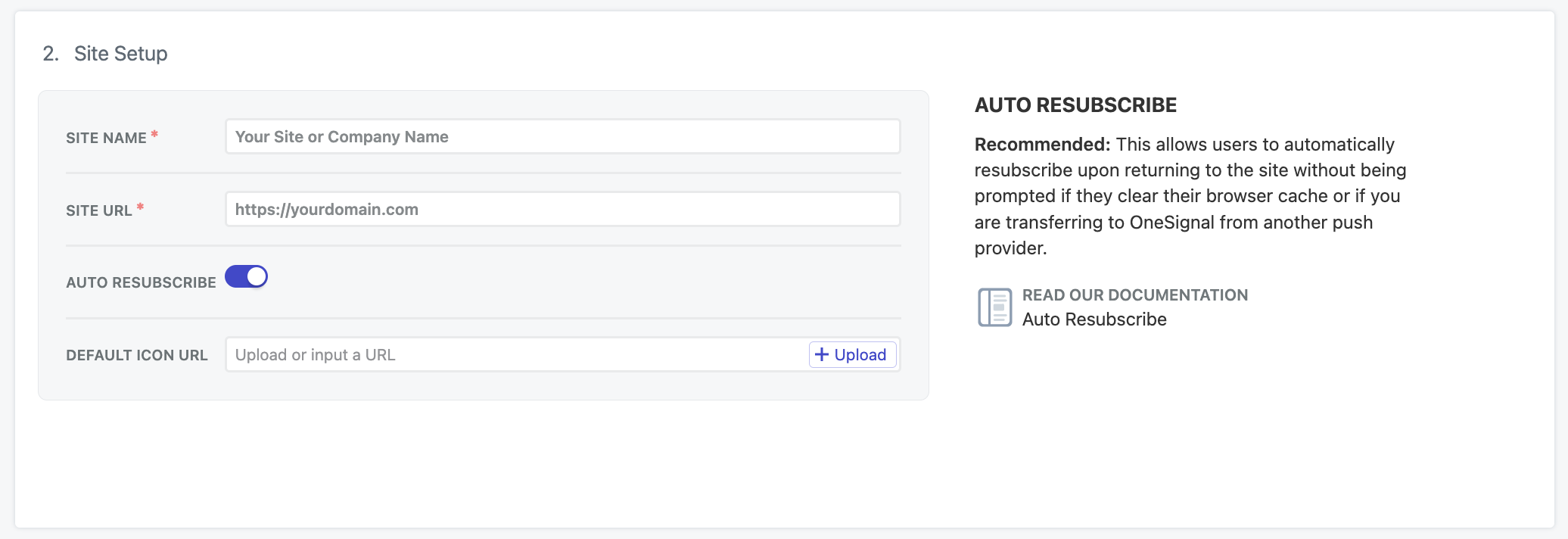
Add the site details:
* **Site Name**: The name of your site and default notification title.
* **Site URL**: The exact [origin](https://developer.mozilla.org/en-US/docs/Web/Security/Same-origin_policy) of your site, e.g., `https://yourdomain.com`. Avoid using `www.` if your site isn’t configured that way. See [Requirements](#requirements) if you have multiple origins.
* **Auto Resubscribe**: Enable this to automatically resubscribe users who clear their browser data when they return to your site (no new permission prompt required).
* **Default Icon URL**: Upload a square `256x256px` PNG or JPG image that appears in notifications and prompts. If not set, a bell icon is used as the default.
 #### Local testing
To test on localhost, use a separate OneSignal app from your production app and add `allowLocalhostAsSecureOrigin: true` to your `init` options.
If you're testing localhost on HTTPS with a self-signed certificate, you may need to tell Chrome to ignore invalid certificates with `--allow-insecure-localhost`. Firefox and Safari provide built-in mechanisms to add exceptions for security certificates.
```html theme={null}
```
### Safari web push certificate (optional)
OneSignal provides Safari certificates automatically at no cost. Only enable this if you have existing Safari Web Push certificates you need to use.
#### Local testing
To test on localhost, use a separate OneSignal app from your production app and add `allowLocalhostAsSecureOrigin: true` to your `init` options.
If you're testing localhost on HTTPS with a self-signed certificate, you may need to tell Chrome to ignore invalid certificates with `--allow-insecure-localhost`. Firefox and Safari provide built-in mechanisms to add exceptions for security certificates.
```html theme={null}
```
### Safari web push certificate (optional)
OneSignal provides Safari certificates automatically at no cost. Only enable this if you have existing Safari Web Push certificates you need to use.
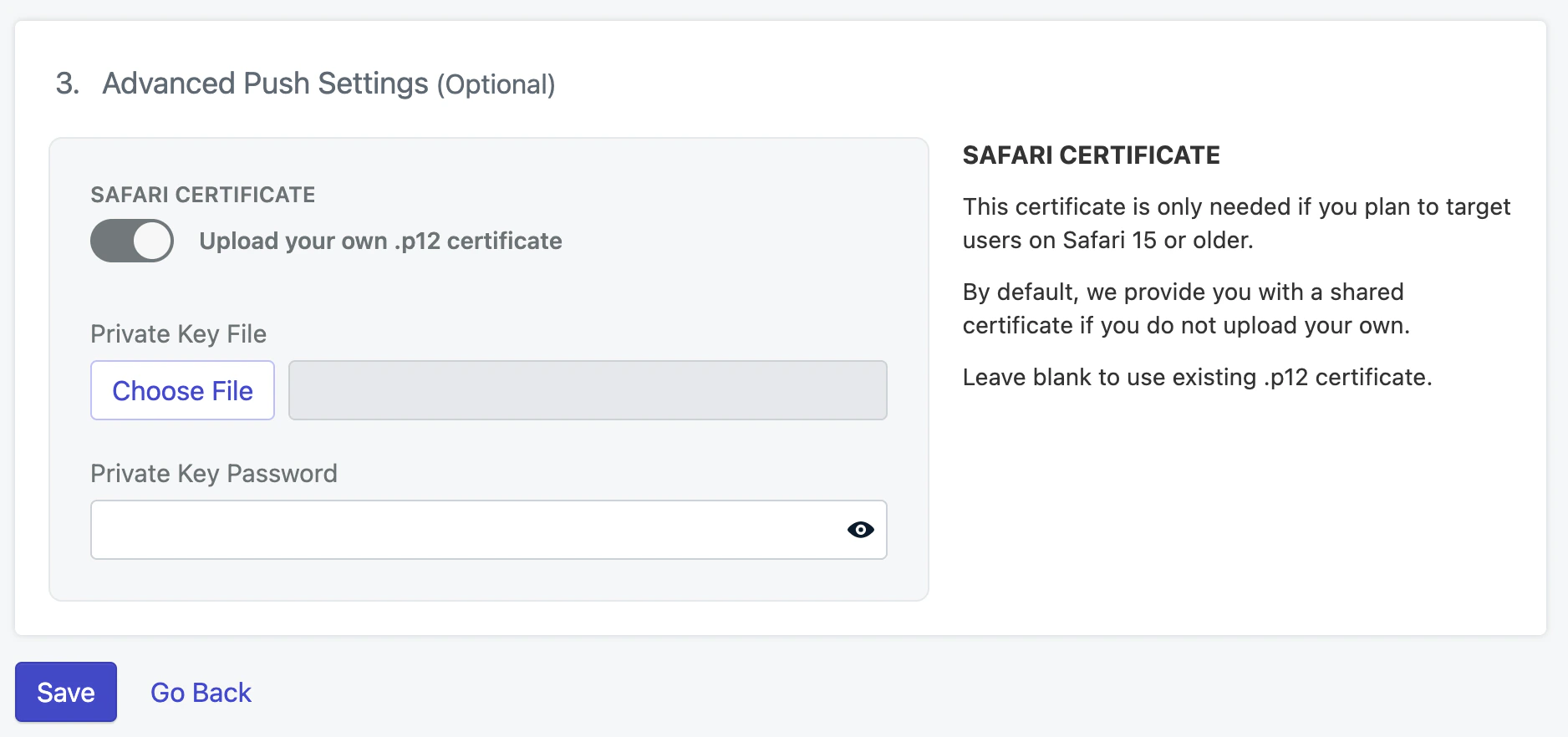 If enabled, upload your `Safari Web .p12 Push Certificate` and enter the password.
Click **Save** to continue.
### Upload service worker files
On the next page of web push configuration, you will be provided the `OneSignalSDKWorker.js` service worker file.
The web SDK looks for this file in the root of your site by default, e.g., `https://yourdomain.com/OneSignalSDKWorker.js`. You can change the file location, name, and scope in code.
Advanced service worker configuration, custom integration, and migration from other providers.
### Add code to site
Add this code to your website's `` section. Replace:
* `YOUR_ONESIGNAL_APP_ID` with your actual App ID from the OneSignal dashboard
* `YOUR_SAFARI_WEB_ID` with your actual Safari Web ID from the OneSignal dashboard
```html HTML theme={null}
```
### iOS web push support
Apple started supporting web push notifications on iPhones and iPads running iOS 16.4+. Unlike Android devices where web push just "works" as long as visited on a supported browser, Apple added a few more requirements such as a `manifest.json` file and a user action to add your site to their home screen.
Add the required `manifest.json` file and guide users to add your site to their home screen.
***
## Testing the OneSignal SDK integration
This guide helps you verify that your OneSignal SDK integration is working correctly by testing push notifications and subscription registration.
### Check web push subscriptions
* Use Chrome, Firefox, Edge, or Safari while testing.
* **Do not use Incognito or private browsing mode.** Users cannot subscribe to push notifications in these modes.
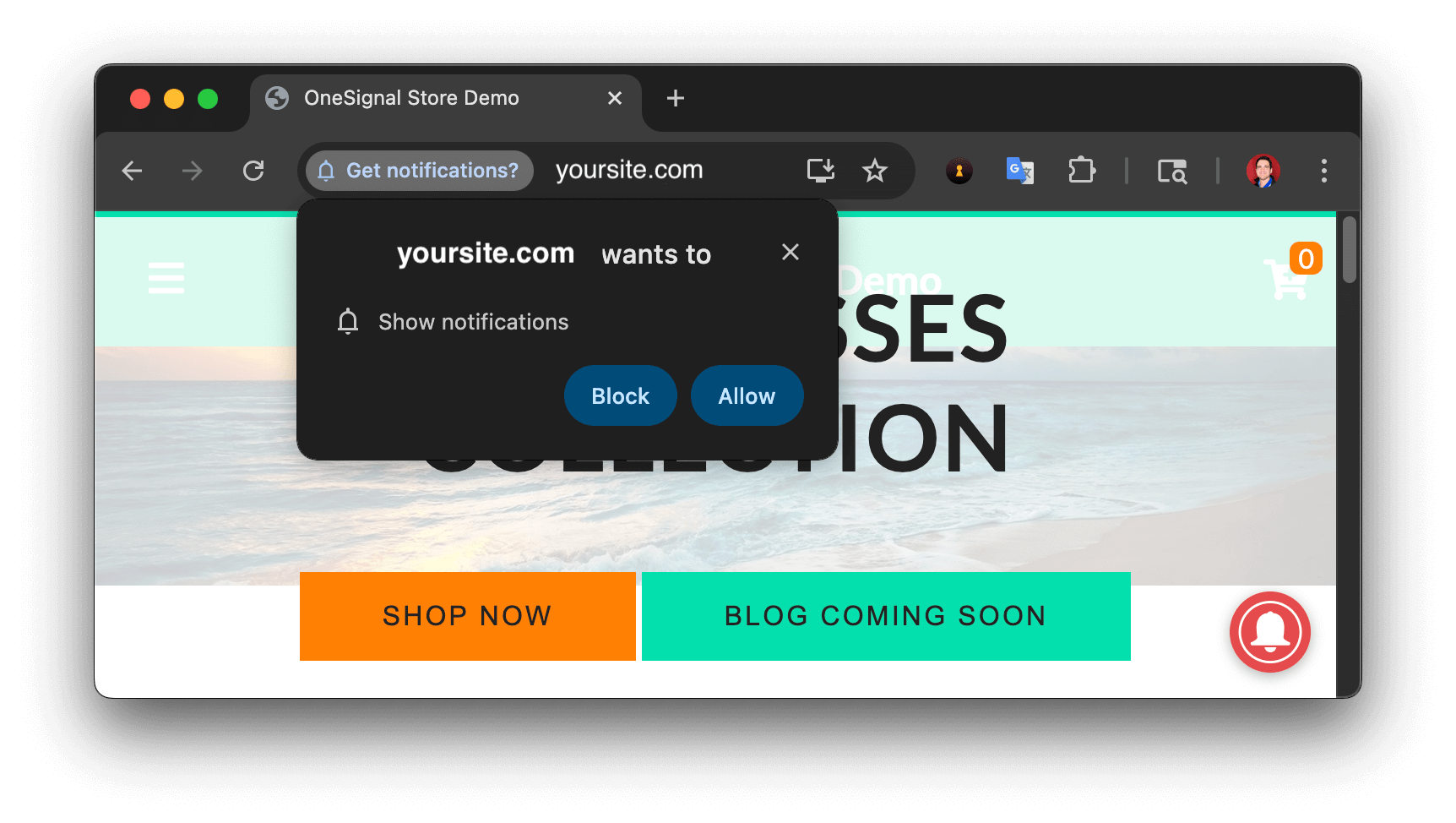
* The prompts should appear based on your [permission prompts](/docs/en/permission-requests) configuration.
* Click **Allow** on the native prompt to subscribe to push notifications.
If enabled, upload your `Safari Web .p12 Push Certificate` and enter the password.
Click **Save** to continue.
### Upload service worker files
On the next page of web push configuration, you will be provided the `OneSignalSDKWorker.js` service worker file.
The web SDK looks for this file in the root of your site by default, e.g., `https://yourdomain.com/OneSignalSDKWorker.js`. You can change the file location, name, and scope in code.
Advanced service worker configuration, custom integration, and migration from other providers.
### Add code to site
Add this code to your website's `` section. Replace:
* `YOUR_ONESIGNAL_APP_ID` with your actual App ID from the OneSignal dashboard
* `YOUR_SAFARI_WEB_ID` with your actual Safari Web ID from the OneSignal dashboard
```html HTML theme={null}
```
### iOS web push support
Apple started supporting web push notifications on iPhones and iPads running iOS 16.4+. Unlike Android devices where web push just "works" as long as visited on a supported browser, Apple added a few more requirements such as a `manifest.json` file and a user action to add your site to their home screen.
Add the required `manifest.json` file and guide users to add your site to their home screen.
***
## Testing the OneSignal SDK integration
This guide helps you verify that your OneSignal SDK integration is working correctly by testing push notifications and subscription registration.
### Check web push subscriptions
* Use Chrome, Firefox, Edge, or Safari while testing.
* **Do not use Incognito or private browsing mode.** Users cannot subscribe to push notifications in these modes.
* The prompts should appear based on your [permission prompts](/docs/en/permission-requests) configuration.
* Click **Allow** on the native prompt to subscribe to push notifications.
 * Go to **Audience > Subscriptions**.
* You should see a new entry with the status **Subscribed**.
* Go to **Audience > Subscriptions**.
* You should see a new entry with the status **Subscribed**.
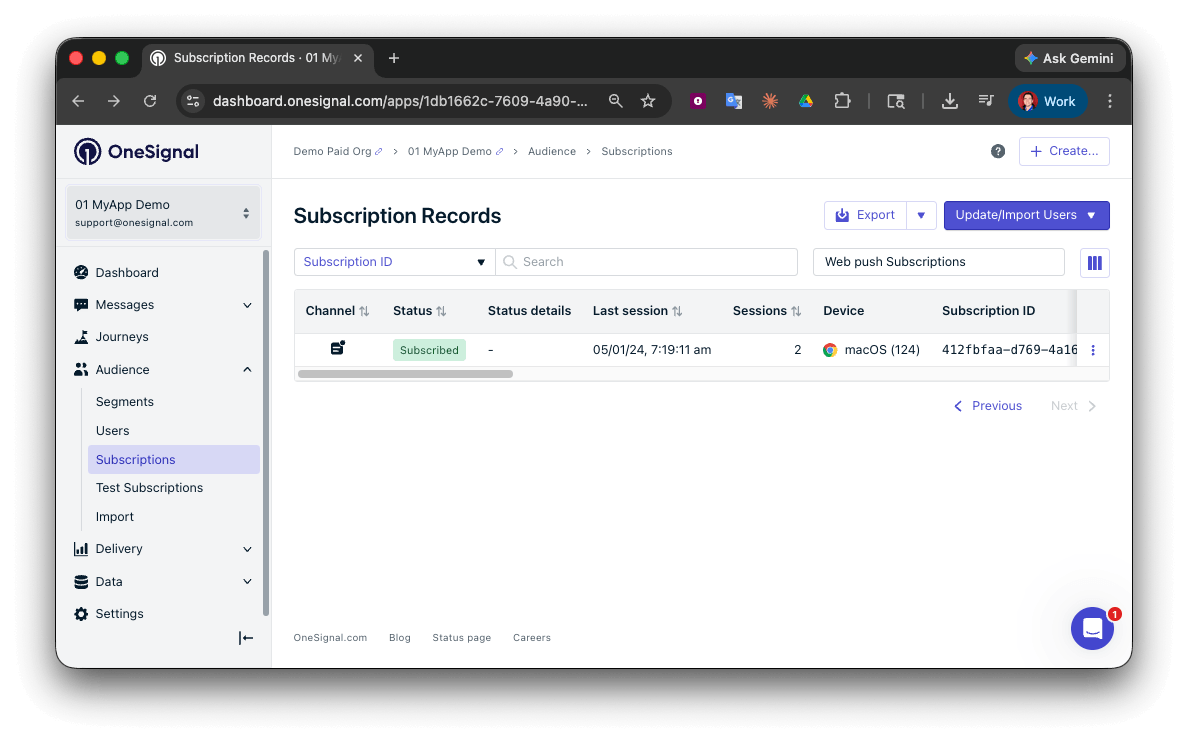 You have successfully created a [web push subscription](/docs/en/subscriptions).
Web push subscriptions are created when users first subscribe to push notifications on your site.
### Set up test users
test users are helpful for testing a push notification before sending a message.
In the dashboard, next to the subscription, click the **Options (three dots)** button and select **Add to Test Users**.
You have successfully created a [web push subscription](/docs/en/subscriptions).
Web push subscriptions are created when users first subscribe to push notifications on your site.
### Set up test users
test users are helpful for testing a push notification before sending a message.
In the dashboard, next to the subscription, click the **Options (three dots)** button and select **Add to Test Users**.
 Name the subscription so you can easily identify your device later in the **test users tab**.
Go to **Audience > Segments > New Segment**.
Name the segment `Test Users` (the name is important because it will be used later).
Name the subscription so you can easily identify your device later in the **test users tab**.
Go to **Audience > Segments > New Segment**.
Name the segment `Test Users` (the name is important because it will be used later).
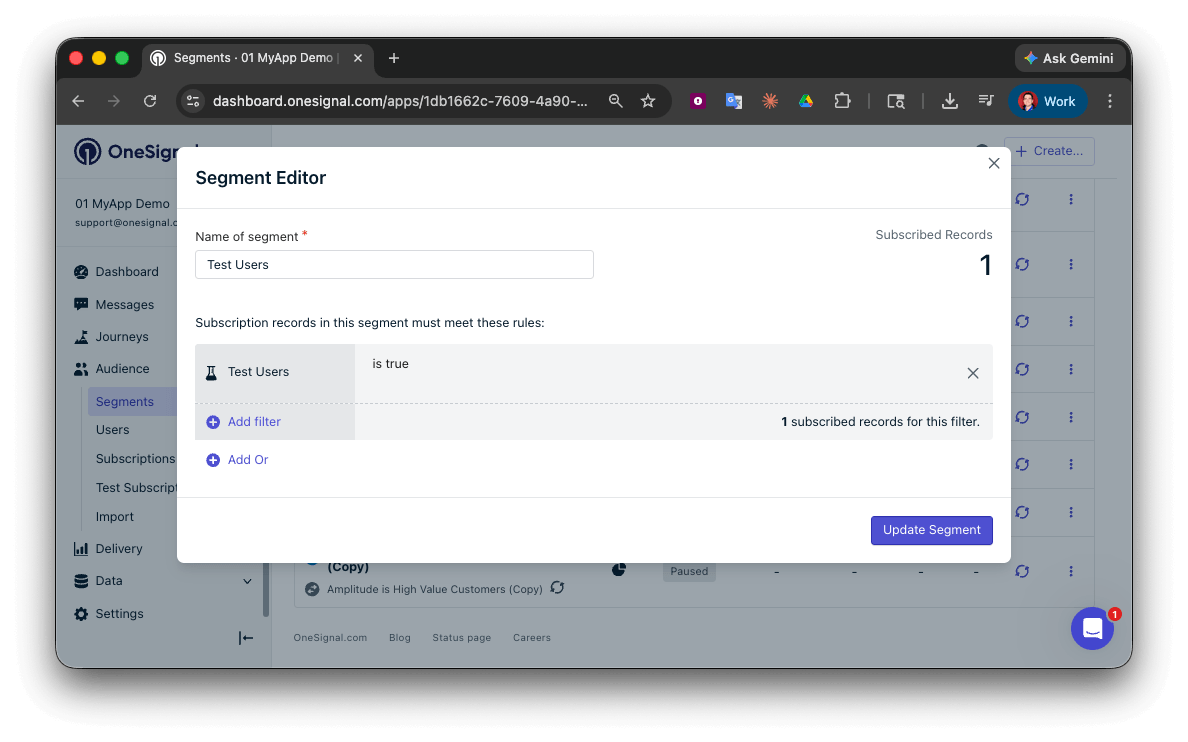 You have successfully created a segment of test users.
You can now test sending messages to this individual device and groups of test users.
### Send test push via API
In your OneSignal dashboard, go to **Settings > [Keys & IDs](/docs/en/keys-and-ids)**.
Replace `YOUR_APP_API_KEY` and `YOUR_APP_ID` in the code below with your actual keys. This code uses the `Test Users` segment created earlier.
```curl theme={null}
curl -X POST --url 'https://api.onesignal.com/notifications' \
--header 'content-type: application/json; charset=utf-8' \
--header 'authorization: Key YOUR_APP_API_KEY' \
--data '{
"app_id": "YOUR_APP_ID",
"target_channel": "push",
"name": "Testing basic setup",
"headings": {
"en": "👋"
},
"contents": {
"en": "Hello world!"
},
"included_segments": [
"Test Users"
],
"chrome_web_image": "https://avatars.githubusercontent.com/u/11823027?s=200&v=4"
}'
```
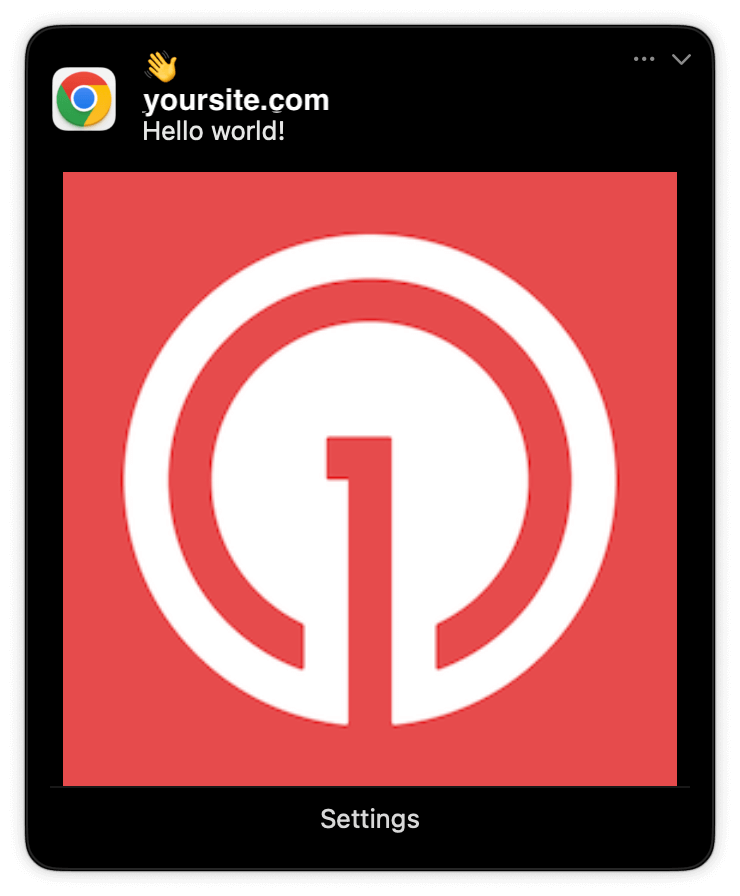
Run the code in your terminal.
If all setup steps were completed successfully, the test users should receive a notification.
Only Chrome supports images. Images will appear small in the collapsed notification view. Expand the notification to see the full image.
You have successfully created a segment of test users.
You can now test sending messages to this individual device and groups of test users.
### Send test push via API
In your OneSignal dashboard, go to **Settings > [Keys & IDs](/docs/en/keys-and-ids)**.
Replace `YOUR_APP_API_KEY` and `YOUR_APP_ID` in the code below with your actual keys. This code uses the `Test Users` segment created earlier.
```curl theme={null}
curl -X POST --url 'https://api.onesignal.com/notifications' \
--header 'content-type: application/json; charset=utf-8' \
--header 'authorization: Key YOUR_APP_API_KEY' \
--data '{
"app_id": "YOUR_APP_ID",
"target_channel": "push",
"name": "Testing basic setup",
"headings": {
"en": "👋"
},
"contents": {
"en": "Hello world!"
},
"included_segments": [
"Test Users"
],
"chrome_web_image": "https://avatars.githubusercontent.com/u/11823027?s=200&v=4"
}'
```
Run the code in your terminal.
If all setup steps were completed successfully, the test users should receive a notification.
Only Chrome supports images. Images will appear small in the collapsed notification view. Expand the notification to see the full image.
 In your dashboard, go to **Delivery > Sent Messages**, then click the message to view stats. You should see the **confirmed** stat, meaning the device received the push.
Safari does not support confirmed receipt.
View delivery, click, and conversion stats for your push notifications.
You have successfully sent a notification via the API to a segment.
If notifications are not arriving, contact `support@onesignal.com` with the following:
* The API request and response (copy-paste into a `.txt` file)
* Your Subscription ID
* Your website URL with the OneSignal code
***
## User identification
The previous section covered creating web push [Subscriptions](/docs/en/subscriptions). This section expands to identifying [Users](/docs/en/users) across all their subscriptions (including push, email, and SMS) using the OneSignal SDK. It covers External IDs, tags, multi-channel subscriptions, privacy, and event tracking to help you unify and engage users across platforms.
### Assign External ID
Use an External ID to identify users consistently across devices, email addresses, and phone numbers using your backend's user identifier. This ensures your messaging stays unified across channels and 3rd party systems (especially important for [Integrations](/docs/en/integrations)).
Set the External ID with the SDK's [`login` method](/docs/en/web-sdk-reference#login-external-id) each time a user is identified by your app.
OneSignal generates unique read-only IDs for subscriptions (Subscription ID) and users (OneSignal ID).
As users download your app on different devices, subscribe to your website, and/or provide you email addresses and phone numbers outside of your app, new subscriptions will be created.
Setting the External ID via the SDK is highly recommended to identify users across all their subscriptions, regardless of how they are created.
### Add Tags
[Tags](/docs/en/add-user-data-tags) are key-value pairs of string data you can use to store user properties (like `username`, `role`, or preferences) and events (like `purchase_date`, `game_level`, or user interactions). Tags power advanced [Message Personalization](/docs/en/message-personalization) and [Segmentation](/docs/en/segmentation) allowing for more advanced use cases.
Set tags with the SDK's [`addTag` and `addTags` methods](/docs/en/web-sdk-reference#addtag-%2C-addtags) as events occur in your app.
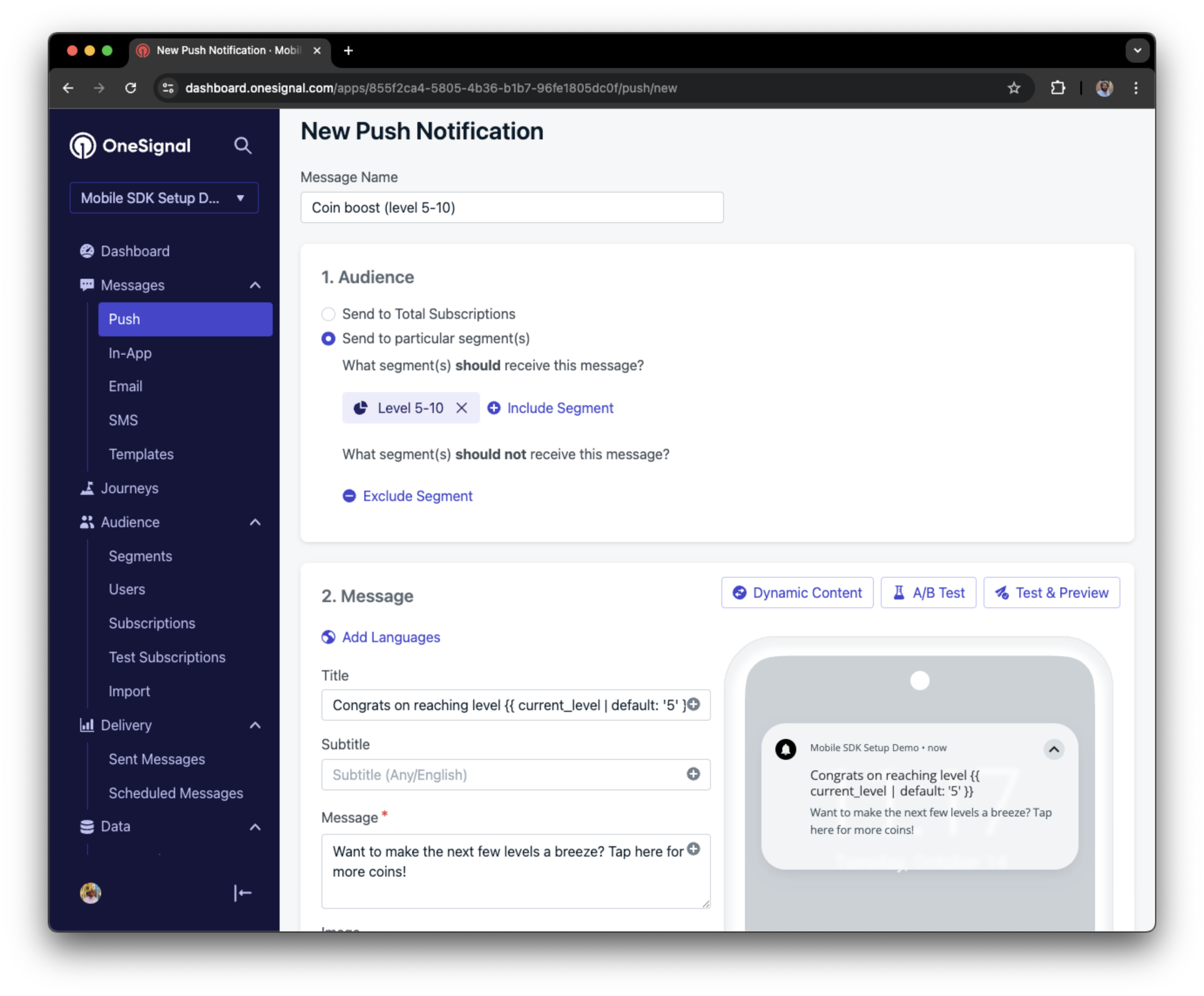
In this example, the user reached level 6 identifiable by the tag called `current_level` set to a value of `6`.
In your dashboard, go to **Delivery > Sent Messages**, then click the message to view stats. You should see the **confirmed** stat, meaning the device received the push.
Safari does not support confirmed receipt.
View delivery, click, and conversion stats for your push notifications.
You have successfully sent a notification via the API to a segment.
If notifications are not arriving, contact `support@onesignal.com` with the following:
* The API request and response (copy-paste into a `.txt` file)
* Your Subscription ID
* Your website URL with the OneSignal code
***
## User identification
The previous section covered creating web push [Subscriptions](/docs/en/subscriptions). This section expands to identifying [Users](/docs/en/users) across all their subscriptions (including push, email, and SMS) using the OneSignal SDK. It covers External IDs, tags, multi-channel subscriptions, privacy, and event tracking to help you unify and engage users across platforms.
### Assign External ID
Use an External ID to identify users consistently across devices, email addresses, and phone numbers using your backend's user identifier. This ensures your messaging stays unified across channels and 3rd party systems (especially important for [Integrations](/docs/en/integrations)).
Set the External ID with the SDK's [`login` method](/docs/en/web-sdk-reference#login-external-id) each time a user is identified by your app.
OneSignal generates unique read-only IDs for subscriptions (Subscription ID) and users (OneSignal ID).
As users download your app on different devices, subscribe to your website, and/or provide you email addresses and phone numbers outside of your app, new subscriptions will be created.
Setting the External ID via the SDK is highly recommended to identify users across all their subscriptions, regardless of how they are created.
### Add Tags
[Tags](/docs/en/add-user-data-tags) are key-value pairs of string data you can use to store user properties (like `username`, `role`, or preferences) and events (like `purchase_date`, `game_level`, or user interactions). Tags power advanced [Message Personalization](/docs/en/message-personalization) and [Segmentation](/docs/en/segmentation) allowing for more advanced use cases.
Set tags with the SDK's [`addTag` and `addTags` methods](/docs/en/web-sdk-reference#addtag-%2C-addtags) as events occur in your app.
In this example, the user reached level 6 identifiable by the tag called `current_level` set to a value of `6`.
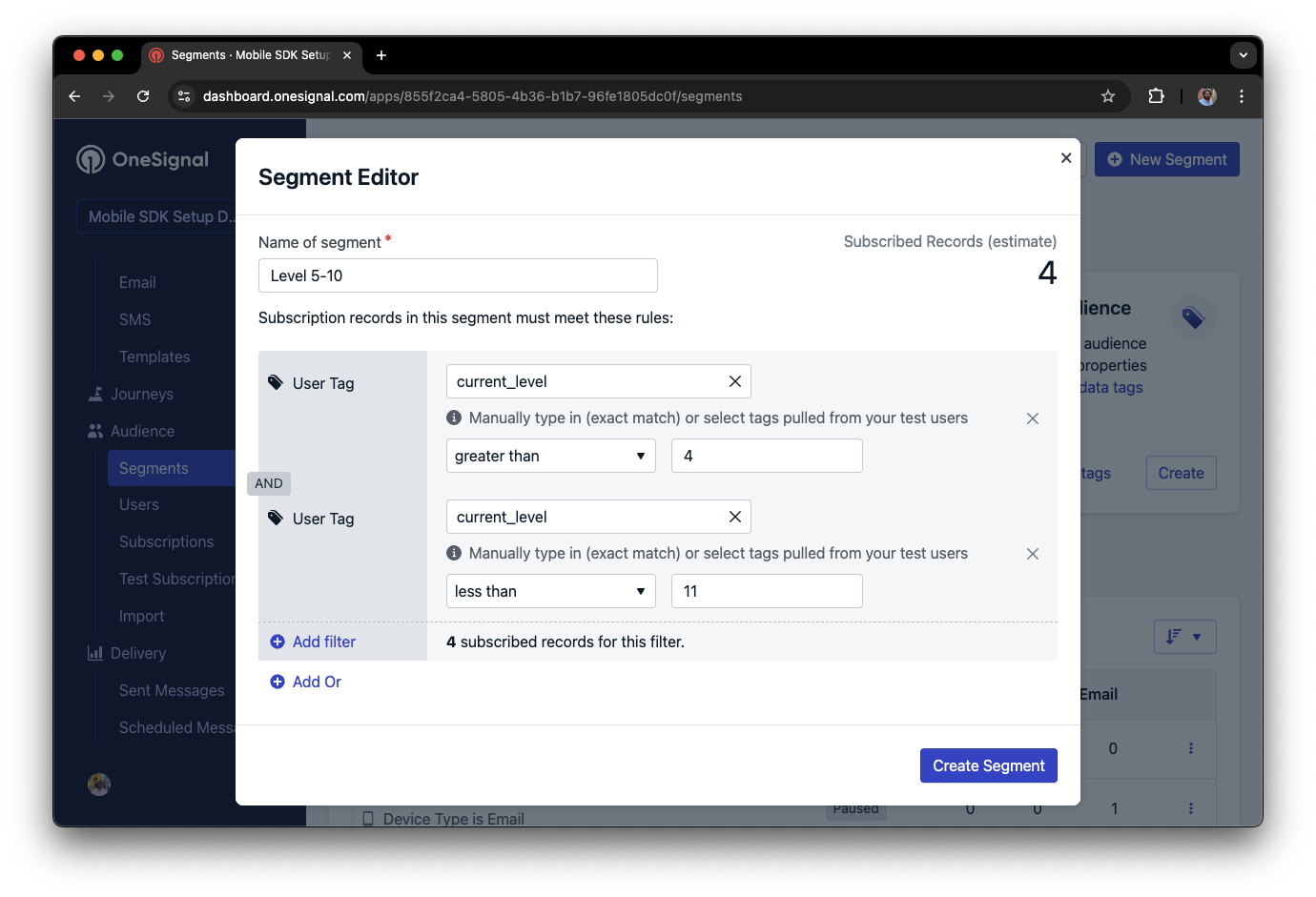
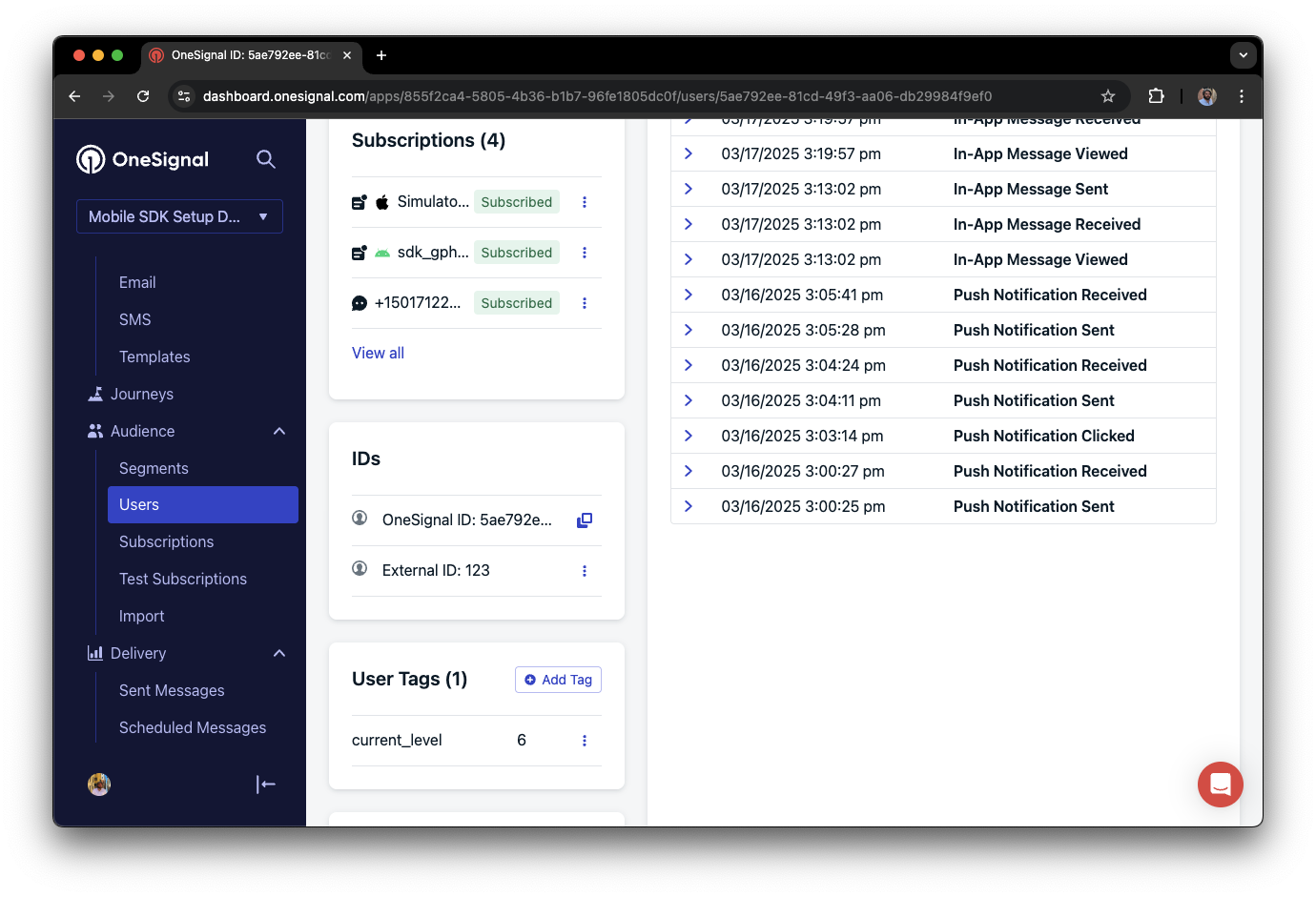 You can create a segment of users with a level between 5 and 10, then use that segment to send targeted and personalized messages:
 ### Add email and/or SMS subscriptions
The OneSignal SDK creates web push subscriptions automatically when users opt in. You can also reach users through email and SMS channels by creating the corresponding subscriptions.
* Use the [`addEmail` method](/docs/en/web-sdk-reference#addemail-%2C-removeemail) to create email subscriptions.
* Use the [`addSms` method](/docs/en/web-sdk-reference#addsms-%2C-removesms) to create SMS subscriptions.
If the email address or phone number already exists in the OneSignal app, the SDK adds it to the existing user. It does not create duplicates.
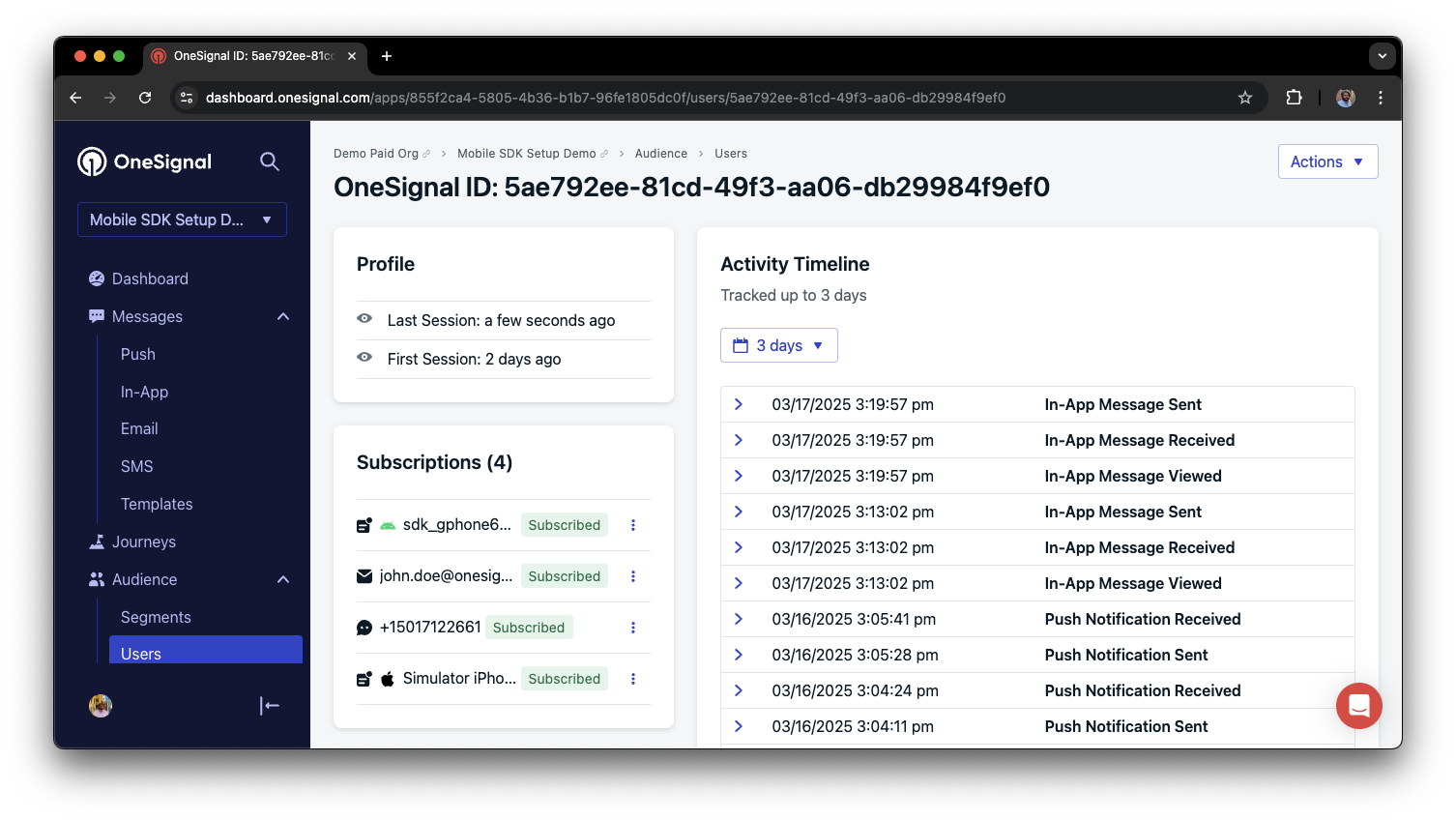
You can view unified users via **Audience > Users** in the dashboard or with the [View user API](/reference/view-user).
### Add email and/or SMS subscriptions
The OneSignal SDK creates web push subscriptions automatically when users opt in. You can also reach users through email and SMS channels by creating the corresponding subscriptions.
* Use the [`addEmail` method](/docs/en/web-sdk-reference#addemail-%2C-removeemail) to create email subscriptions.
* Use the [`addSms` method](/docs/en/web-sdk-reference#addsms-%2C-removesms) to create SMS subscriptions.
If the email address or phone number already exists in the OneSignal app, the SDK adds it to the existing user. It does not create duplicates.
You can view unified users via **Audience > Users** in the dashboard or with the [View user API](/reference/view-user).
 Best practices for multi-channel communication
* Obtain explicit consent before adding email or SMS subscriptions.
* Explain the benefits of each communication channel to users.
* Provide channel preferences so users can select which channels they prefer.
***
### Privacy & user consent
To control when OneSignal collects user data, use the SDK's consent gating methods:
* [`setConsentRequired(true)`](/docs/en/web-sdk-reference#setconsentrequired): Prevents data collection until consent is given.
* [`setConsentGiven(true)`](/docs/en/web-sdk-reference#setconsentgiven): Enables data collection once consent is granted.
For more on privacy and security:
Review what data the OneSignal SDK collects from users.
Manage and protect user data in compliance with privacy regulations.
***
## Listen to push, user, and in-app events
Use SDK listeners to react to user actions and state changes.
The SDK provides several event listeners you can hook into. See the [SDK reference guide](/docs/en/web-sdk-reference) for more details.
### Push notification events
* [Click event listener](/docs/en/web-sdk-reference#click): Detect when a notification is tapped.
* [Foreground lifecycle listener](/docs/en/web-sdk-reference#foregroundwilldisplay): Control how notifications behave in foreground.
### User state changes
* [User state change event listener](/docs/en/web-sdk-reference#addeventlistener-user-state): Detect when the External ID is set.
* [Permission observer](/docs/en/web-sdk-reference#permissionchange): Track the user's specific interaction with the native push permission prompt.
* [Push subscription change observer](/docs/en/web-sdk-reference#addeventlistener-push-subscription-changes): Track when the push subscription status changes.
***
## Advanced setup & capabilities
Explore more capabilities to enhance your integration:
Move from another push provider to OneSignal.
Connect OneSignal with third-party tools and platforms.
Add interactive buttons to push notifications.
Send localized messages to users in their preferred language.
Secure your SDK integration with server-side identity verification.
Track custom conversion events tied to your messages.
### Web SDK setup & reference
Enable all key web push features for your integration.
Full details on available methods and configuration options.
Congratulations! You've successfully completed the Web SDK setup guide.
***
***
## FAQ
### Do I need HTTPS for web push notifications?
Yes. All modern browsers require HTTPS for push notification support. If your site uses HTTP, you must migrate to HTTPS before setting up web push.
### Can I use this setup with a single-page application (SPA)?
Yes. The Custom Code setup is the recommended approach for SPAs built with frameworks like React, Angular, or Vue. See the framework-specific guides at the [top of this page](#) for [Angular](./angular-setup), [React](./react-js-setup), and [Vue](./vue-js-setup).
### What happens if a user clears their browser data?
The user's push subscription is removed. If **Auto Resubscribe** is enabled, they are automatically resubscribed the next time they visit your site.
***
## Related pages
Configure when and how users are prompted to subscribe.
Full API reference for the OneSignal Web SDK.
Best practices for multi-channel communication
* Obtain explicit consent before adding email or SMS subscriptions.
* Explain the benefits of each communication channel to users.
* Provide channel preferences so users can select which channels they prefer.
***
### Privacy & user consent
To control when OneSignal collects user data, use the SDK's consent gating methods:
* [`setConsentRequired(true)`](/docs/en/web-sdk-reference#setconsentrequired): Prevents data collection until consent is given.
* [`setConsentGiven(true)`](/docs/en/web-sdk-reference#setconsentgiven): Enables data collection once consent is granted.
For more on privacy and security:
Review what data the OneSignal SDK collects from users.
Manage and protect user data in compliance with privacy regulations.
***
## Listen to push, user, and in-app events
Use SDK listeners to react to user actions and state changes.
The SDK provides several event listeners you can hook into. See the [SDK reference guide](/docs/en/web-sdk-reference) for more details.
### Push notification events
* [Click event listener](/docs/en/web-sdk-reference#click): Detect when a notification is tapped.
* [Foreground lifecycle listener](/docs/en/web-sdk-reference#foregroundwilldisplay): Control how notifications behave in foreground.
### User state changes
* [User state change event listener](/docs/en/web-sdk-reference#addeventlistener-user-state): Detect when the External ID is set.
* [Permission observer](/docs/en/web-sdk-reference#permissionchange): Track the user's specific interaction with the native push permission prompt.
* [Push subscription change observer](/docs/en/web-sdk-reference#addeventlistener-push-subscription-changes): Track when the push subscription status changes.
***
## Advanced setup & capabilities
Explore more capabilities to enhance your integration:
Move from another push provider to OneSignal.
Connect OneSignal with third-party tools and platforms.
Add interactive buttons to push notifications.
Send localized messages to users in their preferred language.
Secure your SDK integration with server-side identity verification.
Track custom conversion events tied to your messages.
### Web SDK setup & reference
Enable all key web push features for your integration.
Full details on available methods and configuration options.
Congratulations! You've successfully completed the Web SDK setup guide.
***
***
## FAQ
### Do I need HTTPS for web push notifications?
Yes. All modern browsers require HTTPS for push notification support. If your site uses HTTP, you must migrate to HTTPS before setting up web push.
### Can I use this setup with a single-page application (SPA)?
Yes. The Custom Code setup is the recommended approach for SPAs built with frameworks like React, Angular, or Vue. See the framework-specific guides at the [top of this page](#) for [Angular](./angular-setup), [React](./react-js-setup), and [Vue](./vue-js-setup).
### What happens if a user clears their browser data?
The user's push subscription is removed. If **Auto Resubscribe** is enabled, they are automatically resubscribed the next time they visit your site.
***
## Related pages
Configure when and how users are prompted to subscribe.
Full API reference for the OneSignal Web SDK.