> ## Documentation Index
> Fetch the complete documentation index at: https://documentation.onesignal.com/llms.txt
> Use this file to discover all available pages before exploring further.
# Web SDK setup
> Add OneSignal web push notifications to your website with the JavaScript SDK, service worker setup, and dashboard configuration.
export const SdkReleasesIframe = ({sdkFilter = undefined, viewMode = undefined, height, ...frameProps}) => {
const baseUrl = 'https://onesignal.github.io/sdk-releases';
const buildUrl = (theme, sdkFilter, viewMode) => {
const url = new URL(baseUrl);
const params = new URLSearchParams();
if (theme) {
params.set('theme', theme);
}
if (sdkFilter) {
params.set('sdk', sdkFilter);
}
if (viewMode) {
params.set('viewMode', viewMode);
}
if (params.toString()) {
url.search = params.toString();
}
return url.toString();
};
const detectTheme = () => {
if (document.documentElement.classList.contains('dark')) {
return 'dark';
}
return 'light';
};
const [theme, setTheme] = useState('light');
const [iframeSrc, setIframeSrc] = useState(() => {
const initialTheme = detectTheme();
return buildUrl(initialTheme, sdkFilter, viewMode);
});
useEffect(() => {
const currentTheme = detectTheme();
setTheme(currentTheme);
setIframeSrc(buildUrl(currentTheme, sdkFilter, viewMode));
const mediaQuery = window.matchMedia('(prefers-color-scheme: dark)');
const handleThemeChange = () => {
const newTheme = detectTheme();
setTheme(newTheme);
setIframeSrc(buildUrl(newTheme, sdkFilter, viewMode));
};
if (mediaQuery.addEventListener) {
mediaQuery.addEventListener('change', handleThemeChange);
} else {
mediaQuery.addListener(handleThemeChange);
}
window.addEventListener('storage', handleThemeChange);
const observer = new MutationObserver(handleThemeChange);
observer.observe(document.documentElement, {
attributes: true,
attributeFilter: ['class', 'data-theme']
});
return () => {
if (mediaQuery.removeEventListener) {
mediaQuery.removeEventListener('change', handleThemeChange);
} else {
mediaQuery.removeListener(handleThemeChange);
}
window.removeEventListener('storage', handleThemeChange);
observer.disconnect();
};
}, [sdkFilter, viewMode]);
const getIframeHeight = () => {
if (viewMode === 'table') {
return '450';
}
if (viewMode === 'mini') {
return '170';
}
return '800';
};
const iframeHeight = height || getIframeHeight();
return
;
};
## Overview
This guide walks you through adding OneSignal web push notifications to your site — from dashboard configuration to SDK installation. OneSignal supports Chrome, Firefox, Edge, Safari, and [other major browsers](./web-push-setup-faq).
If you use the WordPress or Shopify integration, skip this guide and return to [WordPress setup](./wordpress) or [Shopify setup](./shopify).
***
## Requirements
* HTTPS website: Web push does not work on HTTP or in incognito/private modes.
* Server access: You’ll need to upload a service worker file to your site.
* Single origin: Web push follows the [Same-origin policy](https://developer.mozilla.org/en-US/docs/Web/Security/Same-origin_policy). If you have multiple origins (domains/subdomains), you will need multiple OneSignal apps (one per origin). To comply with this browser limitation, you can either:
* Redirect traffic to a single origin for subscriptions.
* Create multiple OneSignal apps—one per origin.
If your team already created an account with OneSignal, [ask to be invited as an admin role](./manage-team-members) so you can set up the app. Otherwise, sign up for a free account at [onesignal.com](https://onesignal.com) to get started.
***
## Configure your OneSignal app and platform
In the OneSignal dashboard:
* Go to **Settings > Push & In-App > Web**.
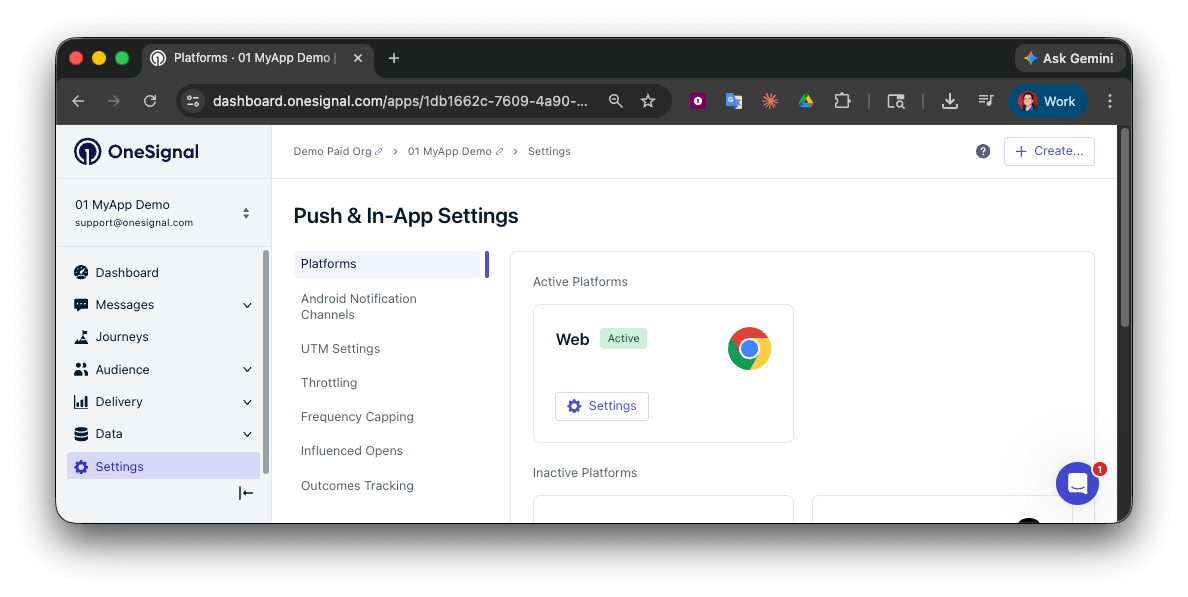 Select integration type:
Manage prompts and settings directly through the OneSignal dashboard without additional coding.
Required if using WordPress with our official plugin.
For developers who need full control over prompts and SDK configuration.
### Site setup
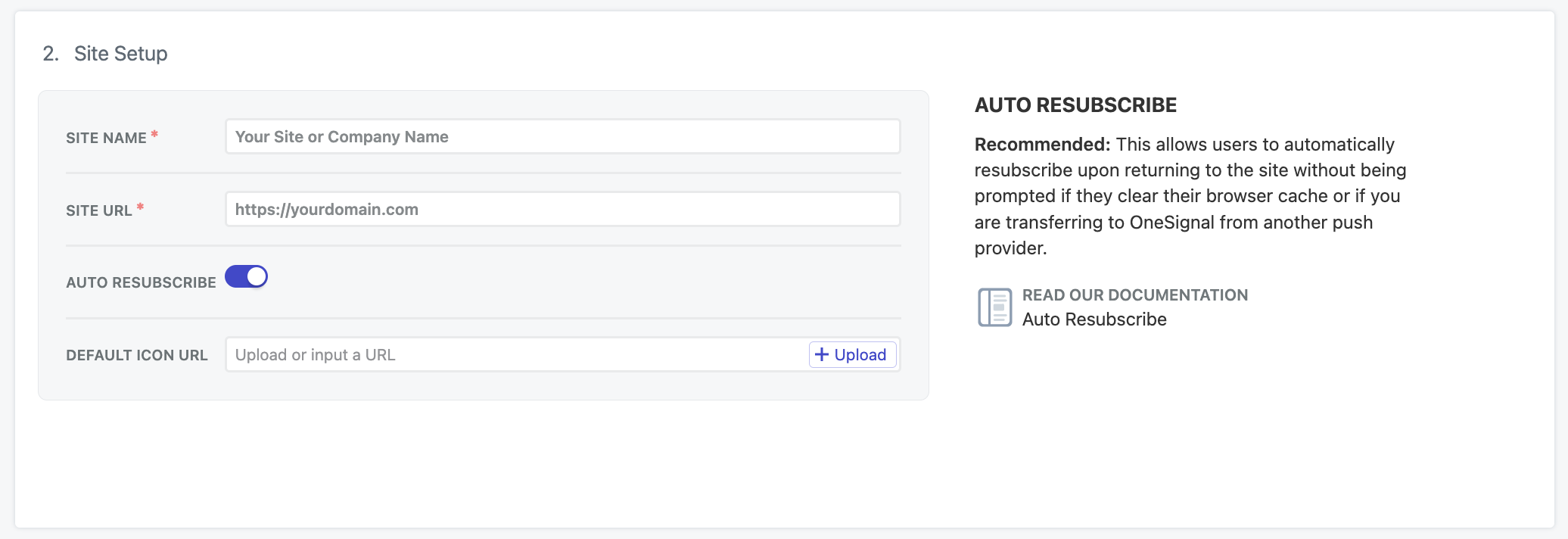
Add the site details:
* **Site Name**: The name of your site and default notification title.
* **Site URL**: The URL of your site. See [Site URL](#site-url) for more details.
* **Auto Resubscribe**: Enable this to automatically resubscribe users who clear their browser data when they return to your site (no new permission prompt required).
* **Default Icon URL**: Upload a square 256x256px PNG or JPG image that appears in notifications and prompts. If not set, a bell icon is used as the default.
Select integration type:
Manage prompts and settings directly through the OneSignal dashboard without additional coding.
Required if using WordPress with our official plugin.
For developers who need full control over prompts and SDK configuration.
### Site setup
Add the site details:
* **Site Name**: The name of your site and default notification title.
* **Site URL**: The URL of your site. See [Site URL](#site-url) for more details.
* **Auto Resubscribe**: Enable this to automatically resubscribe users who clear their browser data when they return to your site (no new permission prompt required).
* **Default Icon URL**: Upload a square 256x256px PNG or JPG image that appears in notifications and prompts. If not set, a bell icon is used as the default.
 #### Site URL
Enter the exact [origin](https://developer.mozilla.org/en-US/docs/Web/Security/Same-origin_policy) of your site, e.g., `https://yourdomain.com`. Avoid using `www.` if your site isn’t configured that way.
If you have multiple origins:
* Redirect to a single origin.
* Or set up one OneSignal app per origin.
#### Local testing
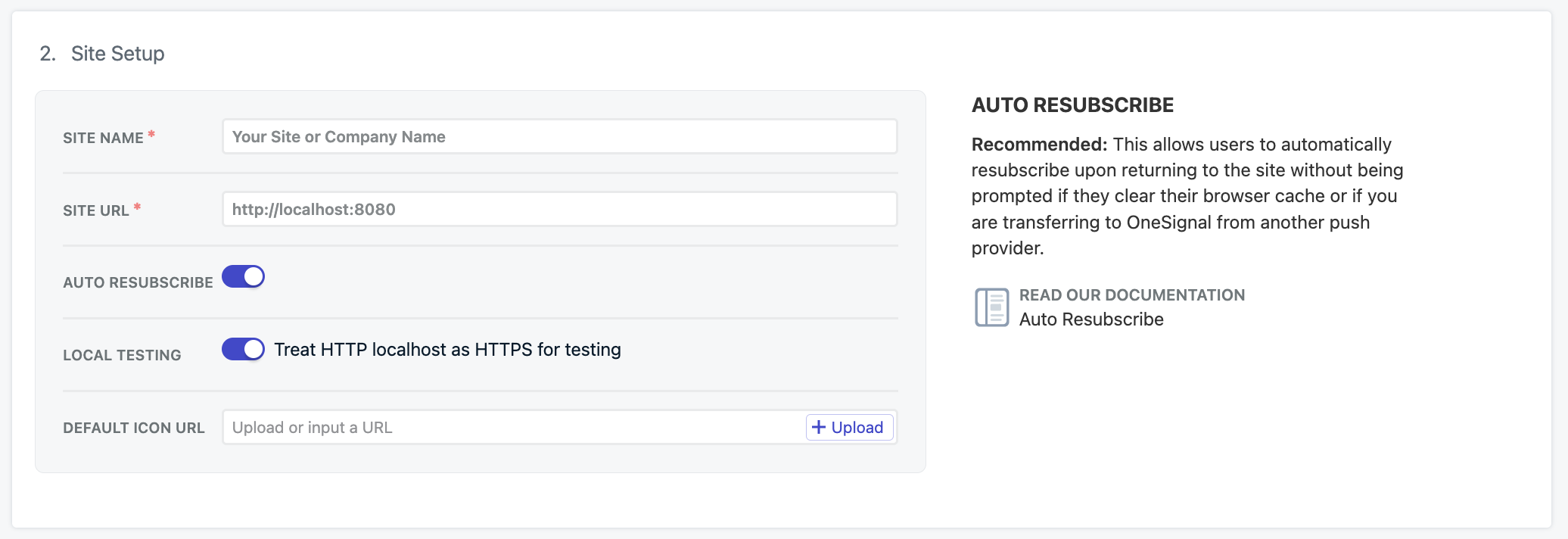
The web SDK can be tested on localhost environments. If you are testing on localhost, use a separate OneSignal app from your production app.
Set the **SITE URL** to exactly match your localhost environment URL. The URL must match one of these common localhost formats:
* `http://localhost`
* `https://localhost:3000`
* `http://127.0.0.1`
* `https://127.0.0.1:5000`
If your localhost is using HTTP, select **Treat HTTP localhost as HTTPS for testing**.
Google Chrome treats `http://localhost` and `http://127.0.0.1` as secure origins, allowing HTTPS integrations even on HTTP. This is why you cannot test other non-standard origins on HTTPS localhost.
#### Site URL
Enter the exact [origin](https://developer.mozilla.org/en-US/docs/Web/Security/Same-origin_policy) of your site, e.g., `https://yourdomain.com`. Avoid using `www.` if your site isn’t configured that way.
If you have multiple origins:
* Redirect to a single origin.
* Or set up one OneSignal app per origin.
#### Local testing
The web SDK can be tested on localhost environments. If you are testing on localhost, use a separate OneSignal app from your production app.
Set the **SITE URL** to exactly match your localhost environment URL. The URL must match one of these common localhost formats:
* `http://localhost`
* `https://localhost:3000`
* `http://127.0.0.1`
* `https://127.0.0.1:5000`
If your localhost is using HTTP, select **Treat HTTP localhost as HTTPS for testing**.
Google Chrome treats `http://localhost` and `http://127.0.0.1` as secure origins, allowing HTTPS integrations even on HTTP. This is why you cannot test other non-standard origins on HTTPS localhost.
 #### Add `allowLocalhostAsSecureOrigin` to your OneSignal `init` options
When initializing OneSignal on your localhost site, add `allowLocalhostAsSecureOrigin: true,` to your OneSignal `init` options.
Additionally, if you're testing localhost on HTTPS with a self-signed certificate, you may have to ask Chrome to ignore invalid certificates for testing with: `--allow-insecure-localhost`. Firefox and Safari provide built-in mechanisms to add exceptions for security certificates.
```html HTML theme={null}
```
### Permissions prompt
Typical site setup allows you or your team members to add, remove, and update permission prompts through the OneSignal dashboard anytime.
Configure when and how the browser permission dialog appears to your users.
### Welcome notification (optional)
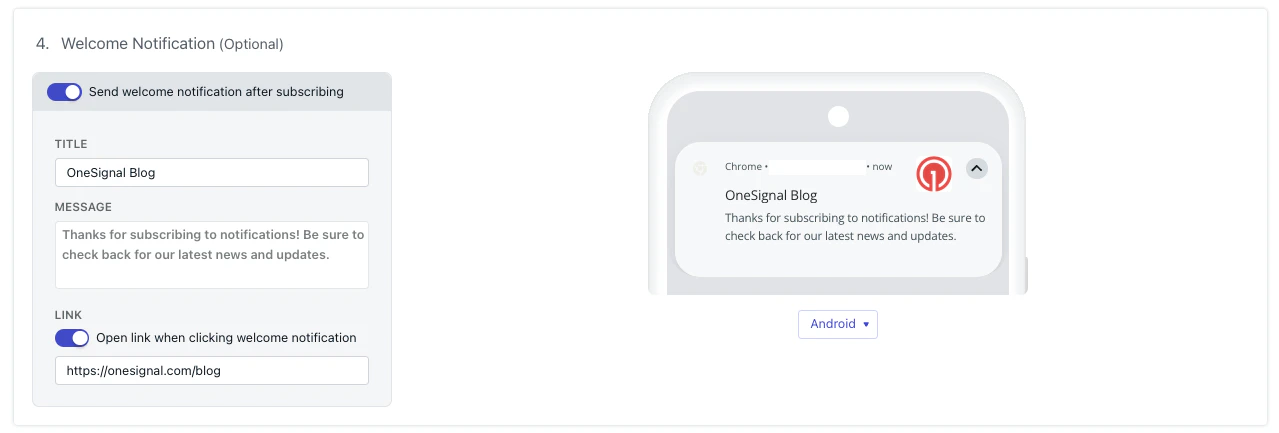
You can also set a welcome notification to be sent to users when they subscribe to push notifications.
To set this go to **Settings → Push & In-app → Web**:
#### Add `allowLocalhostAsSecureOrigin` to your OneSignal `init` options
When initializing OneSignal on your localhost site, add `allowLocalhostAsSecureOrigin: true,` to your OneSignal `init` options.
Additionally, if you're testing localhost on HTTPS with a self-signed certificate, you may have to ask Chrome to ignore invalid certificates for testing with: `--allow-insecure-localhost`. Firefox and Safari provide built-in mechanisms to add exceptions for security certificates.
```html HTML theme={null}
```
### Permissions prompt
Typical site setup allows you or your team members to add, remove, and update permission prompts through the OneSignal dashboard anytime.
Configure when and how the browser permission dialog appears to your users.
### Welcome notification (optional)
You can also set a welcome notification to be sent to users when they subscribe to push notifications.
To set this go to **Settings → Push & In-app → Web**:
 For custom code setups, please see our [SDK reference guide](./web-sdk-reference#welcomenotification-parameters).
### Advanced settings
The following features are configurable in the OneSignal dashboard.
#### Webhooks
The web SDK can `POST` certain web push events to a URL of your choosing.
Web Push Webhooks are a separate implementation from [Event Webhooks](./event-streams) and cannot be used interchangeably.
Send web push events to your server via POST requests.
#### Service workers
On the next page of web push configuration, you will be provided the `OneSignalSDKWorker.js` service worker file.
The web SDK looks for this file in the root of your site by default. You can change the file location, name, and scope in the settings below.
* **Path to service worker files** is the path to the directory where you will host the service worker file.
* **Main and Updater service worker filenames** defaults to `OneSignalSDKWorker.js`. You can rename this file, but it must use a `.js` extension.
* **Service worker registration scope** controls which pages the service worker can operate on. For push notifications this has no effect. Set it to the same path as your service worker file location.
For custom code setups, please see our [SDK reference guide](./web-sdk-reference#welcomenotification-parameters).
### Advanced settings
The following features are configurable in the OneSignal dashboard.
#### Webhooks
The web SDK can `POST` certain web push events to a URL of your choosing.
Web Push Webhooks are a separate implementation from [Event Webhooks](./event-streams) and cannot be used interchangeably.
Send web push events to your server via POST requests.
#### Service workers
On the next page of web push configuration, you will be provided the `OneSignalSDKWorker.js` service worker file.
The web SDK looks for this file in the root of your site by default. You can change the file location, name, and scope in the settings below.
* **Path to service worker files** is the path to the directory where you will host the service worker file.
* **Main and Updater service worker filenames** defaults to `OneSignalSDKWorker.js`. You can rename this file, but it must use a `.js` extension.
* **Service worker registration scope** controls which pages the service worker can operate on. For push notifications this has no effect. Set it to the same path as your service worker file location.
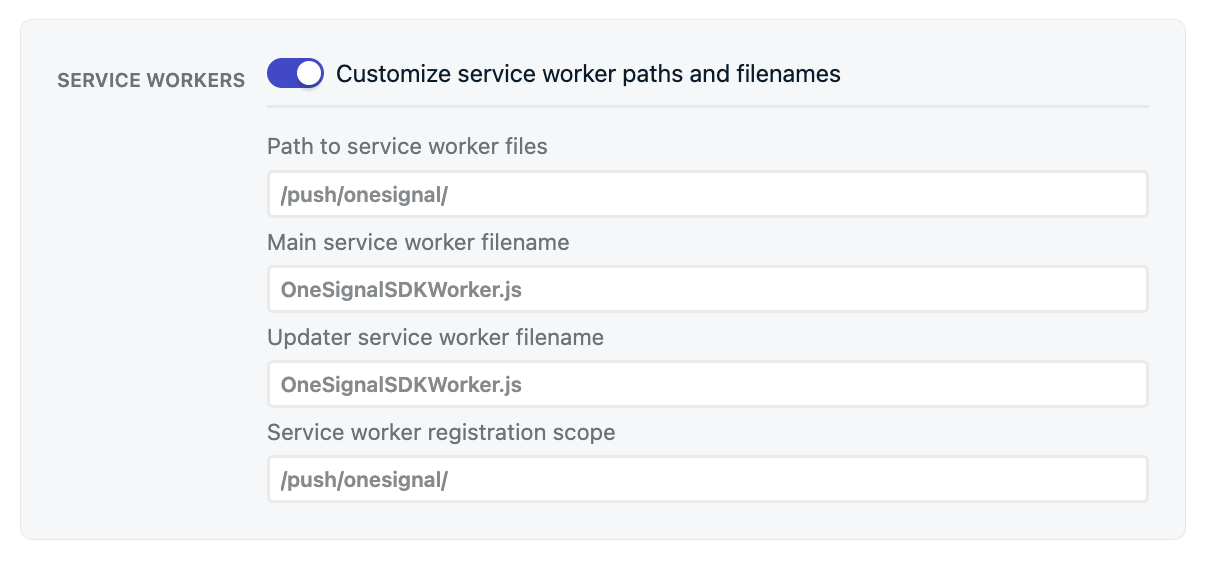 With this example, you should see the file's code publicly accessible at `https://yourdomain.com/push/onesignal/OneSignalSDKWorker.js`
Advanced service worker configuration, custom integration, and migration from other providers.
#### Click behavior
Control how users navigate to the [URL](./links) you set when they click the notification.
If the user does not have your site open in any tab, the browser opens a new tab and navigates to the notification URL. If the user already has your site open, the behavior depends on the setting you choose:
| Setting | Matches on | Action |
| ---------------------------- | -------------------------------------- | ----------------------------------------------------- |
| **Exact Navigate** (default) | Exact URL (e.g. `example.com/product`) | Navigates to the notification URL in the matching tab |
| **Origin Navigate** | Origin (e.g. `example.com`) | Navigates to the notification URL in the matching tab |
| **Exact Focus** | Exact URL | Focuses the matching tab without refreshing |
| **Origin Focus** | Origin | Focuses the matching tab without refreshing |
#### Persistence
By default, web push notifications appear on the device for roughly 5 seconds before moving to the Notification Center, where they remain for about 1 week before the operating system removes them.
Some devices and versions of Chrome and Edge allow you to persist notifications on screen until the user interacts with them. **This can annoy users and is not recommended.** Enabling persistence may also reduce character count and affect how images and buttons display.
Changes to persistence settings only take effect for subscribers who visit your site after the update. If you do not see the change, wait for subscribers to revisit your site or ask them to clear their browser data.
#### Safari certificate (Optional)
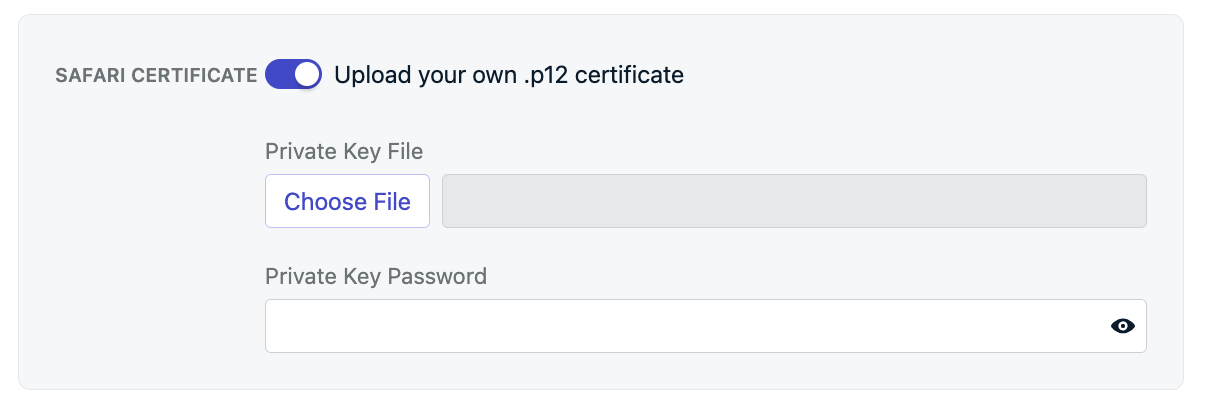
OneSignal automatically provides the necessary certificates to work with Safari browsers at no additional cost. If you already have your own Safari Web Push Certificates, toggle on this option to upload your `Safari Web .p12 Push Certificate` and password.
With this example, you should see the file's code publicly accessible at `https://yourdomain.com/push/onesignal/OneSignalSDKWorker.js`
Advanced service worker configuration, custom integration, and migration from other providers.
#### Click behavior
Control how users navigate to the [URL](./links) you set when they click the notification.
If the user does not have your site open in any tab, the browser opens a new tab and navigates to the notification URL. If the user already has your site open, the behavior depends on the setting you choose:
| Setting | Matches on | Action |
| ---------------------------- | -------------------------------------- | ----------------------------------------------------- |
| **Exact Navigate** (default) | Exact URL (e.g. `example.com/product`) | Navigates to the notification URL in the matching tab |
| **Origin Navigate** | Origin (e.g. `example.com`) | Navigates to the notification URL in the matching tab |
| **Exact Focus** | Exact URL | Focuses the matching tab without refreshing |
| **Origin Focus** | Origin | Focuses the matching tab without refreshing |
#### Persistence
By default, web push notifications appear on the device for roughly 5 seconds before moving to the Notification Center, where they remain for about 1 week before the operating system removes them.
Some devices and versions of Chrome and Edge allow you to persist notifications on screen until the user interacts with them. **This can annoy users and is not recommended.** Enabling persistence may also reduce character count and affect how images and buttons display.
Changes to persistence settings only take effect for subscribers who visit your site after the update. If you do not see the change, wait for subscribers to revisit your site or ask them to clear their browser data.
#### Safari certificate (Optional)
OneSignal automatically provides the necessary certificates to work with Safari browsers at no additional cost. If you already have your own Safari Web Push Certificates, toggle on this option to upload your `Safari Web .p12 Push Certificate` and password.
 ***
## Upload service worker file
Add the `OneSignalSDKWorker.js` service worker file to your site.
Download it from the OneSignal dashboard or [from GitHub](https://github.com/OneSignal/OneSignal-Website-SDK/files/11480764/OneSignalSDK-v16-ServiceWorker.zip).
***
## Upload service worker file
Add the `OneSignalSDKWorker.js` service worker file to your site.
Download it from the OneSignal dashboard or [from GitHub](https://github.com/OneSignal/OneSignal-Website-SDK/files/11480764/OneSignalSDK-v16-ServiceWorker.zip).
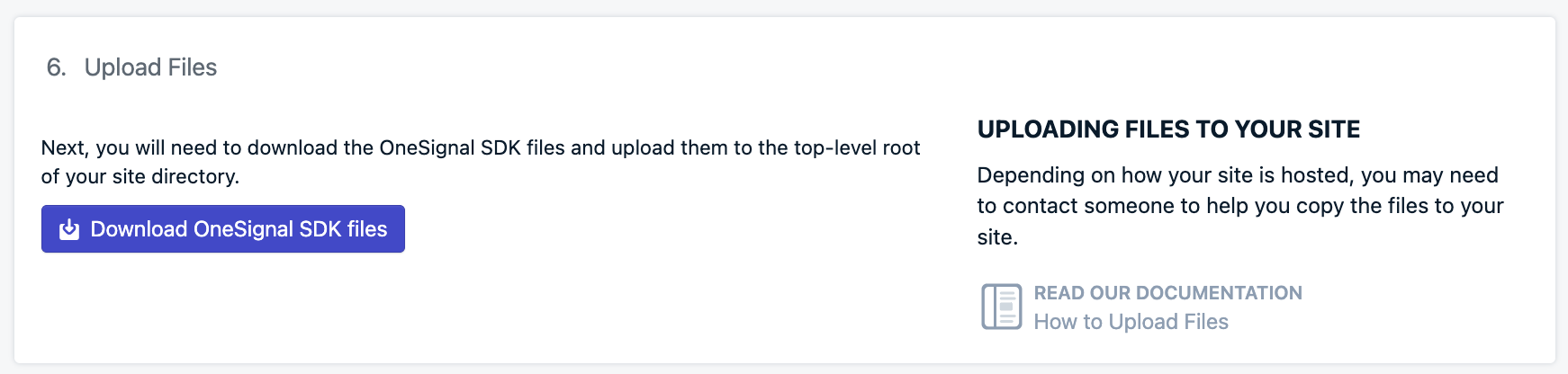 Either put this file in your site's root directory or in a subdirectory. If you put it in a subdirectory, you will need to set the **Path to service worker files** in the [Advanced settings > Service workers](#service-workers) section.
Once the file is on your server, check the following to make sure it works:
Make sure the file is located in the same **Path to service worker files** as set in [Advanced settings > Service workers](#service-workers). If you did not update these settings, then you should have put the file in your root. For example:
* `https://yourdomain.com/OneSignalSDKWorker.js`
* `https://yourdomain.com/some-subdirectory/OneSignalSDKWorker.js`
The `OneSignalSDKWorker.js` file must be publicly accessible and available on your origin. It cannot be hosted via a CDN or placed on a different origin with redirect.
When you visit the URL to the file, you should see the code.
This is a JavaScript file and must be served as such. It cannot have a content-type of text/html.
Advanced configuration and migration from other web push providers.
## Add code to your site
The JavaScript SDK code below works on any site. If your site is built with [Angular](./angular-setup), [React JS](./react-js-setup), or [Vue JS](./vue-js-setup) then follow these links.
To initialize OneSignal on your site with our JavaScript SDK, copy/paste the provided code into your website's `` tags. The OneSignal dashboard provides this same snippet pre-filled with your [app ID](./keys-and-ids).
```html HTML theme={null}
```
### iOS web push support
Apple started supporting web push notifications on iPhones and iPads running iOS 16.4+. Unlike Android devices where web push just "works" as long as visited on a supported browser, Apple added a few more requirements such as a `manifest.json` file and a user action to add your site to their home screen.
Add the required `manifest.json` file and guide users to add your site to their home screen.
***
## Testing the OneSignal SDK integration
This guide helps you verify that your OneSignal SDK integration is working correctly by testing push notifications and subscription registration.
### Check web push subscriptions
* Use Chrome, Firefox, Edge, or Safari while testing.
* **Do not use Incognito or private browsing mode.** Users cannot subscribe to push notifications in these modes.
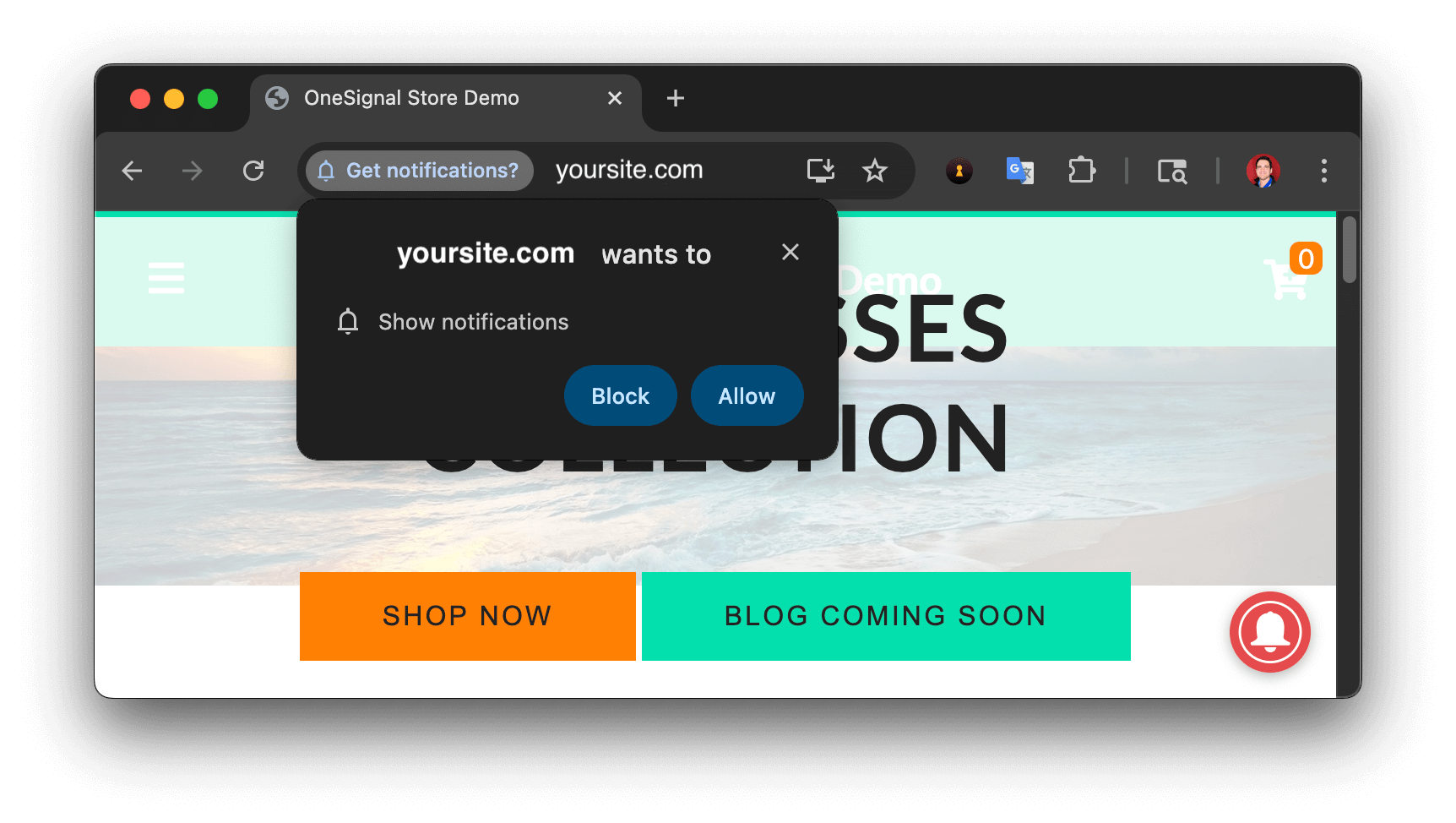
* The prompts should appear based on your [permission prompts](/docs/en/permission-requests) configuration.
* Click **Allow** on the native prompt to subscribe to push notifications.
Either put this file in your site's root directory or in a subdirectory. If you put it in a subdirectory, you will need to set the **Path to service worker files** in the [Advanced settings > Service workers](#service-workers) section.
Once the file is on your server, check the following to make sure it works:
Make sure the file is located in the same **Path to service worker files** as set in [Advanced settings > Service workers](#service-workers). If you did not update these settings, then you should have put the file in your root. For example:
* `https://yourdomain.com/OneSignalSDKWorker.js`
* `https://yourdomain.com/some-subdirectory/OneSignalSDKWorker.js`
The `OneSignalSDKWorker.js` file must be publicly accessible and available on your origin. It cannot be hosted via a CDN or placed on a different origin with redirect.
When you visit the URL to the file, you should see the code.
This is a JavaScript file and must be served as such. It cannot have a content-type of text/html.
Advanced configuration and migration from other web push providers.
## Add code to your site
The JavaScript SDK code below works on any site. If your site is built with [Angular](./angular-setup), [React JS](./react-js-setup), or [Vue JS](./vue-js-setup) then follow these links.
To initialize OneSignal on your site with our JavaScript SDK, copy/paste the provided code into your website's `` tags. The OneSignal dashboard provides this same snippet pre-filled with your [app ID](./keys-and-ids).
```html HTML theme={null}
```
### iOS web push support
Apple started supporting web push notifications on iPhones and iPads running iOS 16.4+. Unlike Android devices where web push just "works" as long as visited on a supported browser, Apple added a few more requirements such as a `manifest.json` file and a user action to add your site to their home screen.
Add the required `manifest.json` file and guide users to add your site to their home screen.
***
## Testing the OneSignal SDK integration
This guide helps you verify that your OneSignal SDK integration is working correctly by testing push notifications and subscription registration.
### Check web push subscriptions
* Use Chrome, Firefox, Edge, or Safari while testing.
* **Do not use Incognito or private browsing mode.** Users cannot subscribe to push notifications in these modes.
* The prompts should appear based on your [permission prompts](/docs/en/permission-requests) configuration.
* Click **Allow** on the native prompt to subscribe to push notifications.
 * Go to **Audience > Subscriptions**.
* You should see a new entry with the status **Subscribed**.
* Go to **Audience > Subscriptions**.
* You should see a new entry with the status **Subscribed**.
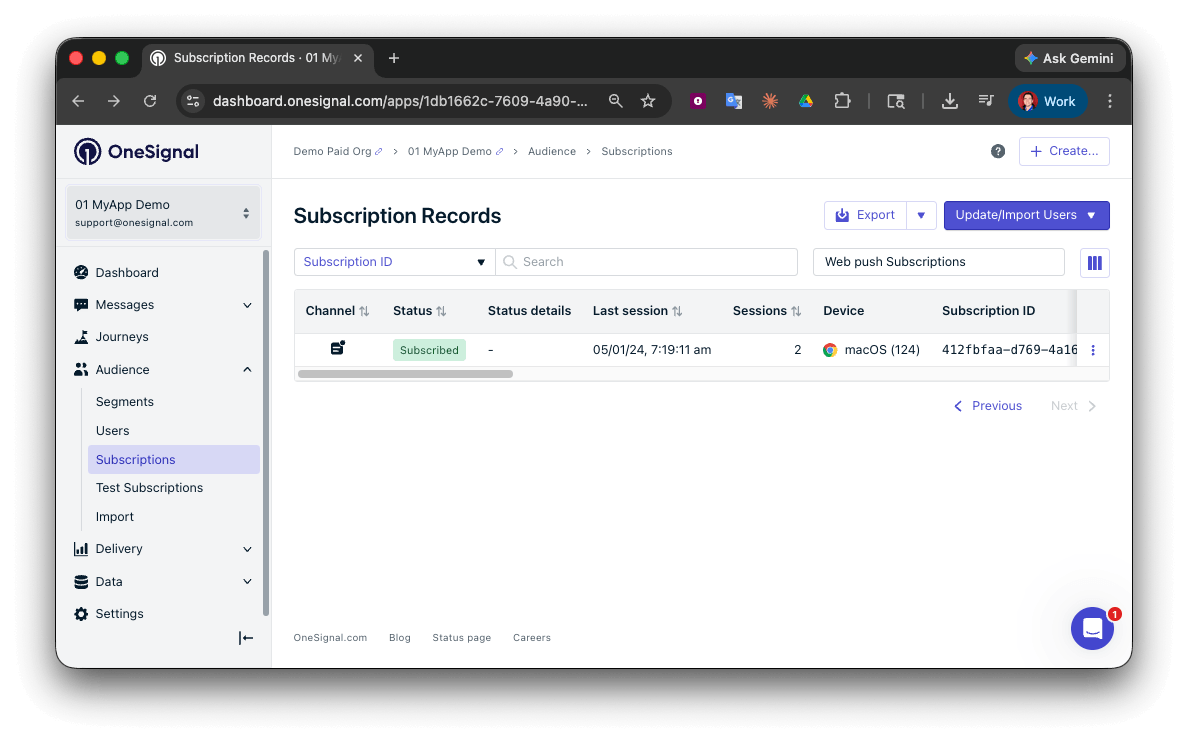 You have successfully created a [web push subscription](/docs/en/subscriptions).
Web push subscriptions are created when users first subscribe to push notifications on your site.
### Set up test users
test users are helpful for testing a push notification before sending a message.
In the dashboard, next to the subscription, click the **Options (three dots)** button and select **Add to Test Users**.
You have successfully created a [web push subscription](/docs/en/subscriptions).
Web push subscriptions are created when users first subscribe to push notifications on your site.
### Set up test users
test users are helpful for testing a push notification before sending a message.
In the dashboard, next to the subscription, click the **Options (three dots)** button and select **Add to Test Users**.
 Name the subscription so you can easily identify your device later in the **test users tab**.
Go to **Audience > Segments > New Segment**.
Name the segment `Test Users` (the name is important because it will be used later).
Name the subscription so you can easily identify your device later in the **test users tab**.
Go to **Audience > Segments > New Segment**.
Name the segment `Test Users` (the name is important because it will be used later).
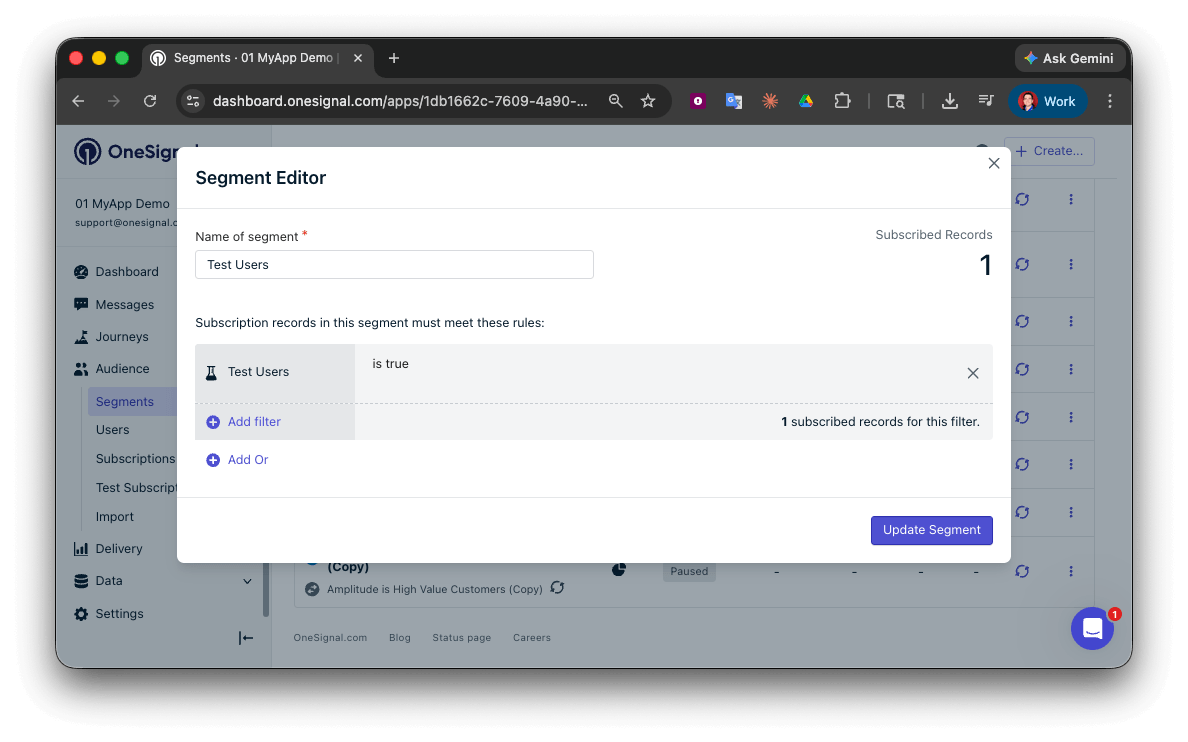 You have successfully created a segment of test users.
You can now test sending messages to this individual device and groups of test users.
### Send test push via API
In your OneSignal dashboard, go to **Settings > [Keys & IDs](/docs/en/keys-and-ids)**.
Replace `YOUR_APP_API_KEY` and `YOUR_APP_ID` in the code below with your actual keys. This code uses the `Test Users` segment created earlier.
```curl theme={null}
curl -X POST --url 'https://api.onesignal.com/notifications' \
--header 'content-type: application/json; charset=utf-8' \
--header 'authorization: Key YOUR_APP_API_KEY' \
--data '{
"app_id": "YOUR_APP_ID",
"target_channel": "push",
"name": "Testing basic setup",
"headings": {
"en": "👋"
},
"contents": {
"en": "Hello world!"
},
"included_segments": [
"Test Users"
],
"chrome_web_image": "https://avatars.githubusercontent.com/u/11823027?s=200&v=4"
}'
```
Run the code in your terminal.
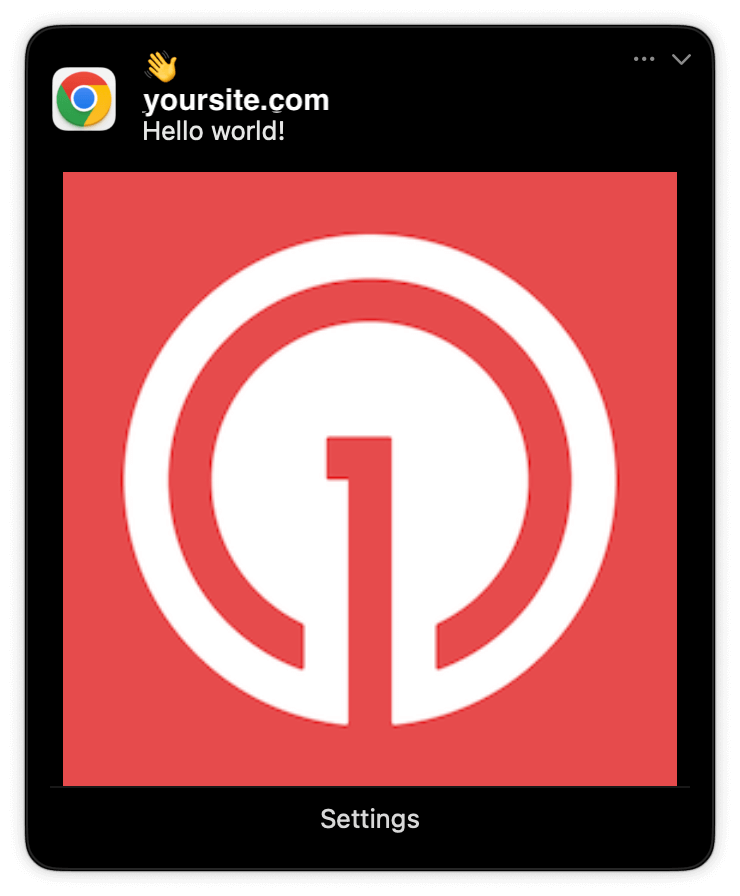
If all setup steps were completed successfully, the test users should receive a notification.
Only Chrome supports images. Images will appear small in the collapsed notification view. Expand the notification to see the full image.
You have successfully created a segment of test users.
You can now test sending messages to this individual device and groups of test users.
### Send test push via API
In your OneSignal dashboard, go to **Settings > [Keys & IDs](/docs/en/keys-and-ids)**.
Replace `YOUR_APP_API_KEY` and `YOUR_APP_ID` in the code below with your actual keys. This code uses the `Test Users` segment created earlier.
```curl theme={null}
curl -X POST --url 'https://api.onesignal.com/notifications' \
--header 'content-type: application/json; charset=utf-8' \
--header 'authorization: Key YOUR_APP_API_KEY' \
--data '{
"app_id": "YOUR_APP_ID",
"target_channel": "push",
"name": "Testing basic setup",
"headings": {
"en": "👋"
},
"contents": {
"en": "Hello world!"
},
"included_segments": [
"Test Users"
],
"chrome_web_image": "https://avatars.githubusercontent.com/u/11823027?s=200&v=4"
}'
```
Run the code in your terminal.
If all setup steps were completed successfully, the test users should receive a notification.
Only Chrome supports images. Images will appear small in the collapsed notification view. Expand the notification to see the full image.
 In your dashboard, go to **Delivery > Sent Messages**, then click the message to view stats. You should see the **confirmed** stat, meaning the device received the push.
Safari does not support confirmed receipt.
View delivery, click, and conversion stats for your push notifications.
You have successfully sent a notification via the API to a segment.
If notifications are not arriving, contact `support@onesignal.com` with the following:
* The API request and response (copy-paste into a `.txt` file)
* Your Subscription ID
* Your website URL with the OneSignal code
***
## User identification
The previous section covered creating web push [Subscriptions](/docs/en/subscriptions). This section expands to identifying [Users](/docs/en/users) across all their subscriptions (including push, email, and SMS) using the OneSignal SDK. It covers External IDs, tags, multi-channel subscriptions, privacy, and event tracking to help you unify and engage users across platforms.
### Assign External ID
Use an External ID to identify users consistently across devices, email addresses, and phone numbers using your backend's user identifier. This ensures your messaging stays unified across channels and 3rd party systems (especially important for [Integrations](/docs/en/integrations)).
Set the External ID with the SDK's [`login` method](/docs/en/web-sdk-reference#login-external-id) each time a user is identified by your app.
OneSignal generates unique read-only IDs for subscriptions (Subscription ID) and users (OneSignal ID).
As users download your app on different devices, subscribe to your website, and/or provide you email addresses and phone numbers outside of your app, new subscriptions will be created.
Setting the External ID via the SDK is highly recommended to identify users across all their subscriptions, regardless of how they are created.
### Add Tags
[Tags](/docs/en/add-user-data-tags) are key-value pairs of string data you can use to store user properties (like `username`, `role`, or preferences) and events (like `purchase_date`, `game_level`, or user interactions). Tags power advanced [Message Personalization](/docs/en/message-personalization) and [Segmentation](/docs/en/segmentation) allowing for more advanced use cases.
Set tags with the SDK's [`addTag` and `addTags` methods](/docs/en/web-sdk-reference#addtag-%2C-addtags) as events occur in your app.
In this example, the user reached level 6 identifiable by the tag called `current_level` set to a value of `6`.
In your dashboard, go to **Delivery > Sent Messages**, then click the message to view stats. You should see the **confirmed** stat, meaning the device received the push.
Safari does not support confirmed receipt.
View delivery, click, and conversion stats for your push notifications.
You have successfully sent a notification via the API to a segment.
If notifications are not arriving, contact `support@onesignal.com` with the following:
* The API request and response (copy-paste into a `.txt` file)
* Your Subscription ID
* Your website URL with the OneSignal code
***
## User identification
The previous section covered creating web push [Subscriptions](/docs/en/subscriptions). This section expands to identifying [Users](/docs/en/users) across all their subscriptions (including push, email, and SMS) using the OneSignal SDK. It covers External IDs, tags, multi-channel subscriptions, privacy, and event tracking to help you unify and engage users across platforms.
### Assign External ID
Use an External ID to identify users consistently across devices, email addresses, and phone numbers using your backend's user identifier. This ensures your messaging stays unified across channels and 3rd party systems (especially important for [Integrations](/docs/en/integrations)).
Set the External ID with the SDK's [`login` method](/docs/en/web-sdk-reference#login-external-id) each time a user is identified by your app.
OneSignal generates unique read-only IDs for subscriptions (Subscription ID) and users (OneSignal ID).
As users download your app on different devices, subscribe to your website, and/or provide you email addresses and phone numbers outside of your app, new subscriptions will be created.
Setting the External ID via the SDK is highly recommended to identify users across all their subscriptions, regardless of how they are created.
### Add Tags
[Tags](/docs/en/add-user-data-tags) are key-value pairs of string data you can use to store user properties (like `username`, `role`, or preferences) and events (like `purchase_date`, `game_level`, or user interactions). Tags power advanced [Message Personalization](/docs/en/message-personalization) and [Segmentation](/docs/en/segmentation) allowing for more advanced use cases.
Set tags with the SDK's [`addTag` and `addTags` methods](/docs/en/web-sdk-reference#addtag-%2C-addtags) as events occur in your app.
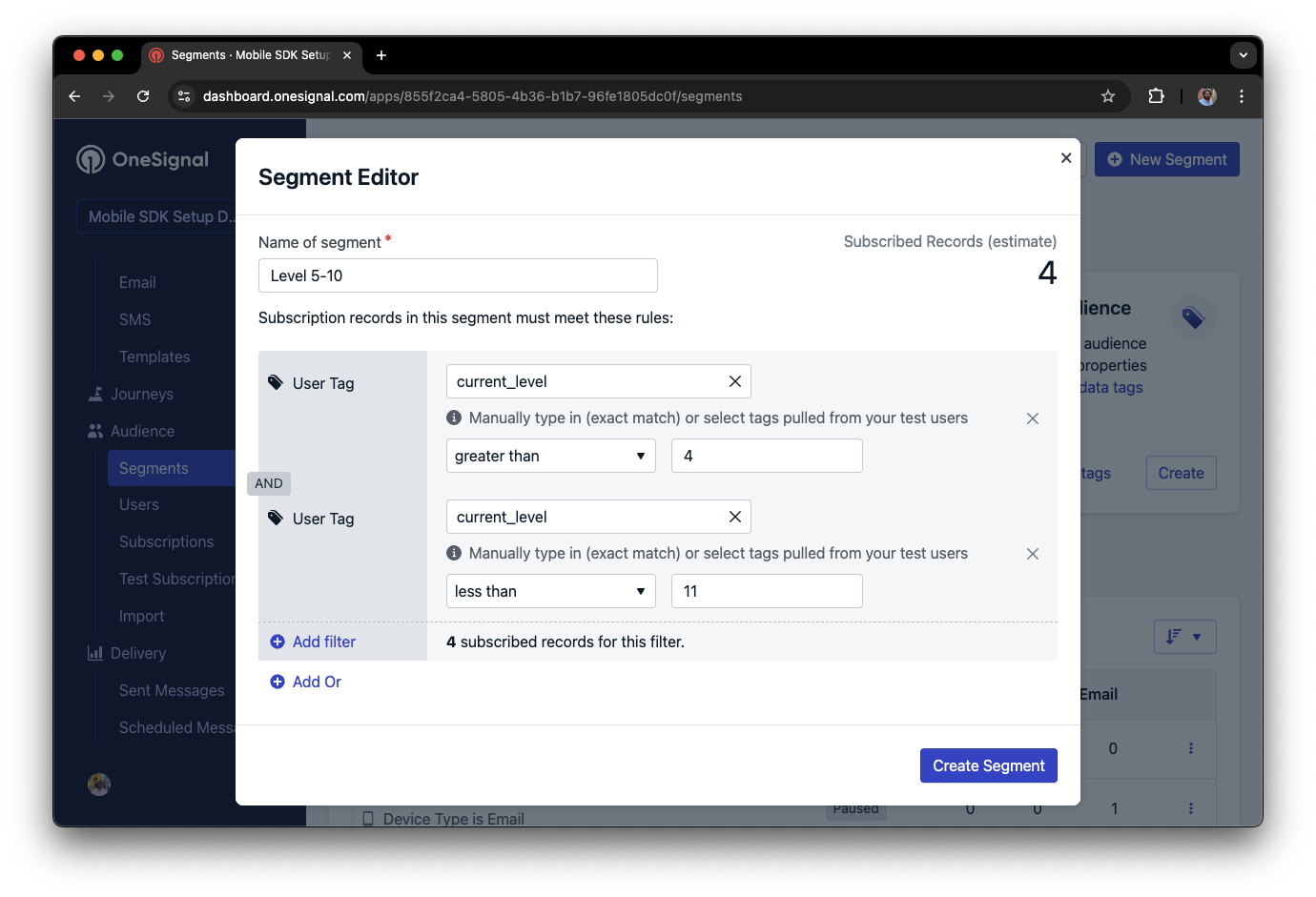
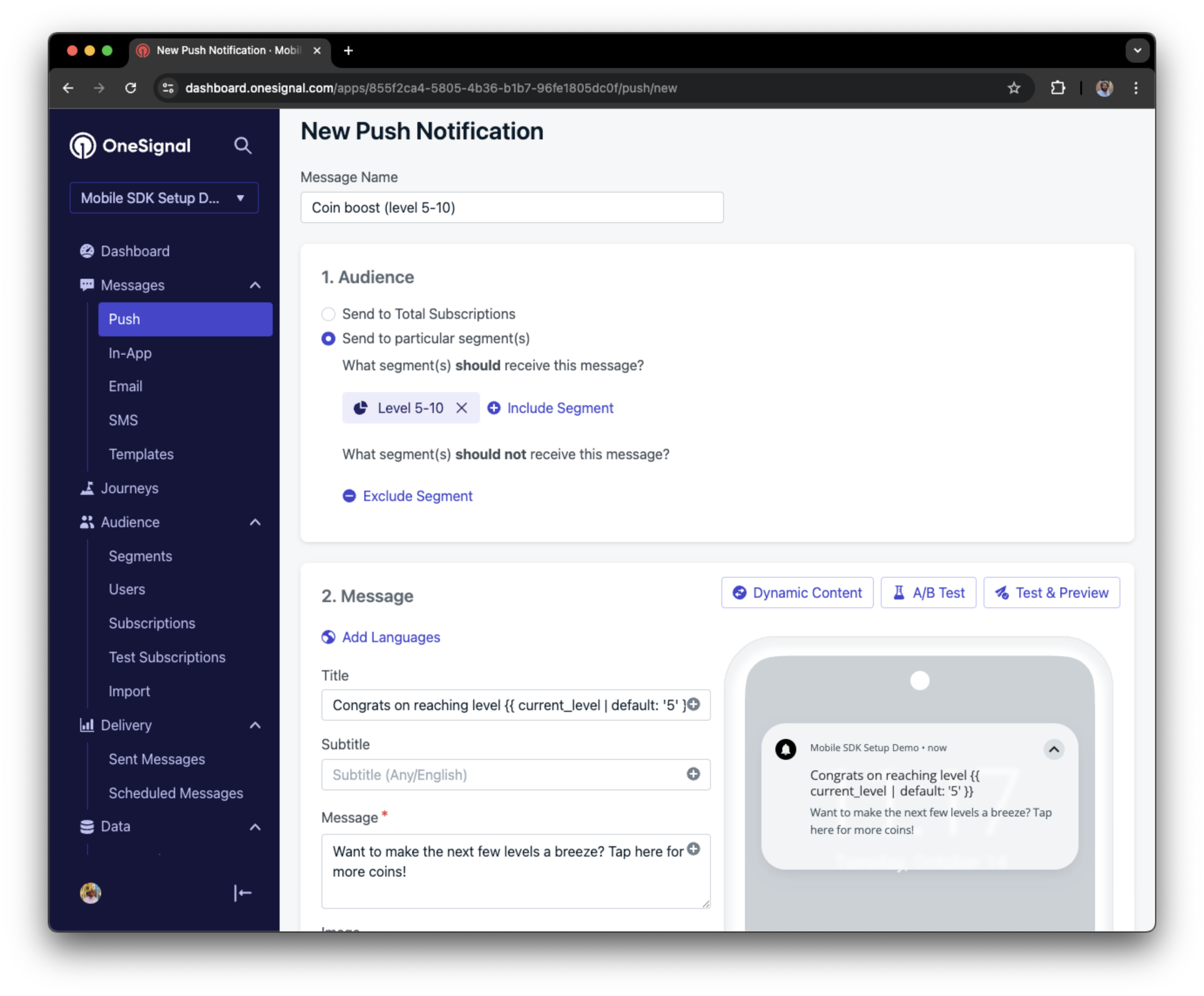
In this example, the user reached level 6 identifiable by the tag called `current_level` set to a value of `6`.
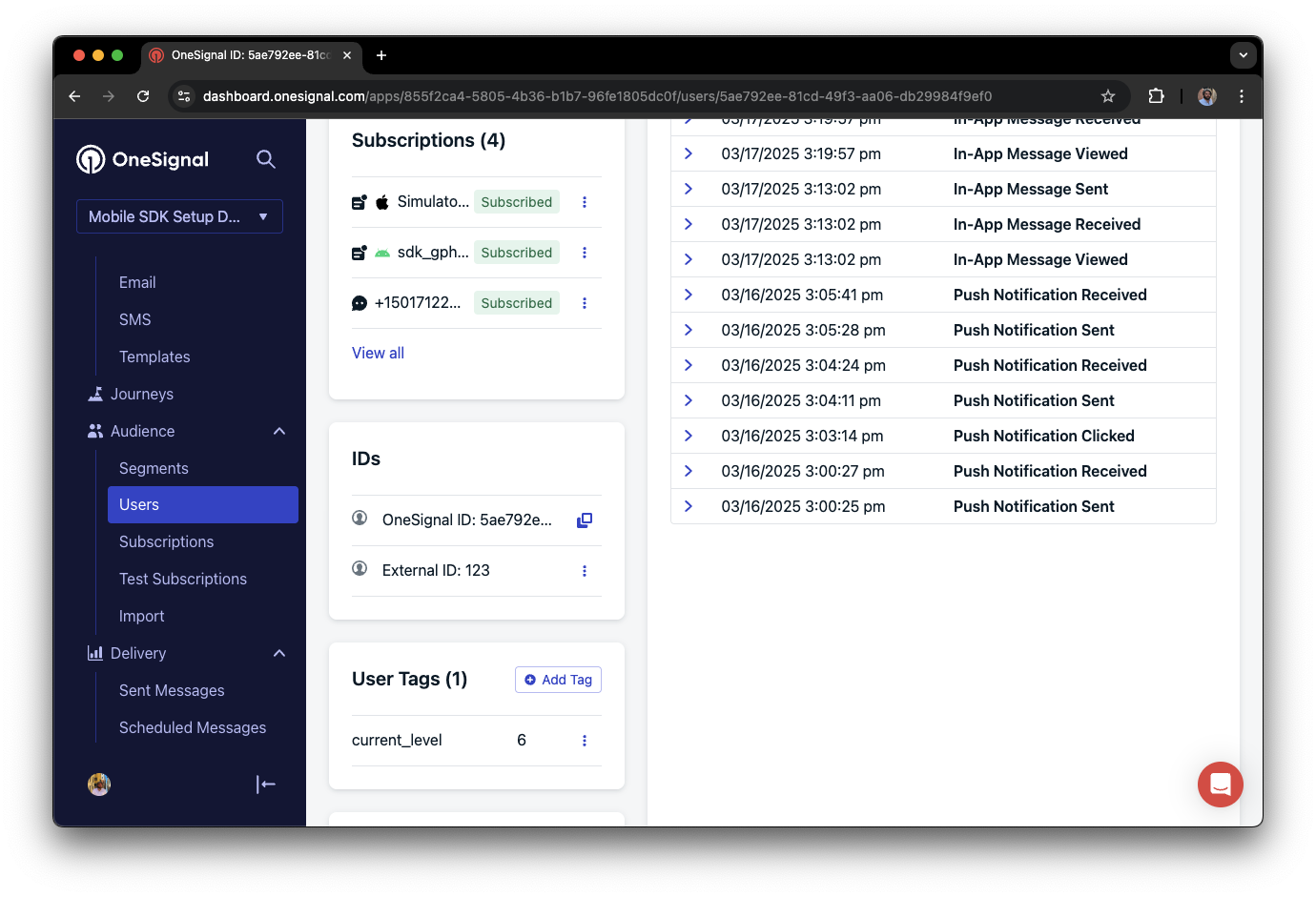 You can create a segment of users with a level between 5 and 10, then use that segment to send targeted and personalized messages:
 ### Add email and/or SMS subscriptions
The OneSignal SDK creates web push subscriptions automatically when users opt in. You can also reach users through email and SMS channels by creating the corresponding subscriptions.
* Use the [`addEmail` method](/docs/en/web-sdk-reference#addemail-%2C-removeemail) to create email subscriptions.
* Use the [`addSms` method](/docs/en/web-sdk-reference#addsms-%2C-removesms) to create SMS subscriptions.
If the email address or phone number already exists in the OneSignal app, the SDK adds it to the existing user. It does not create duplicates.
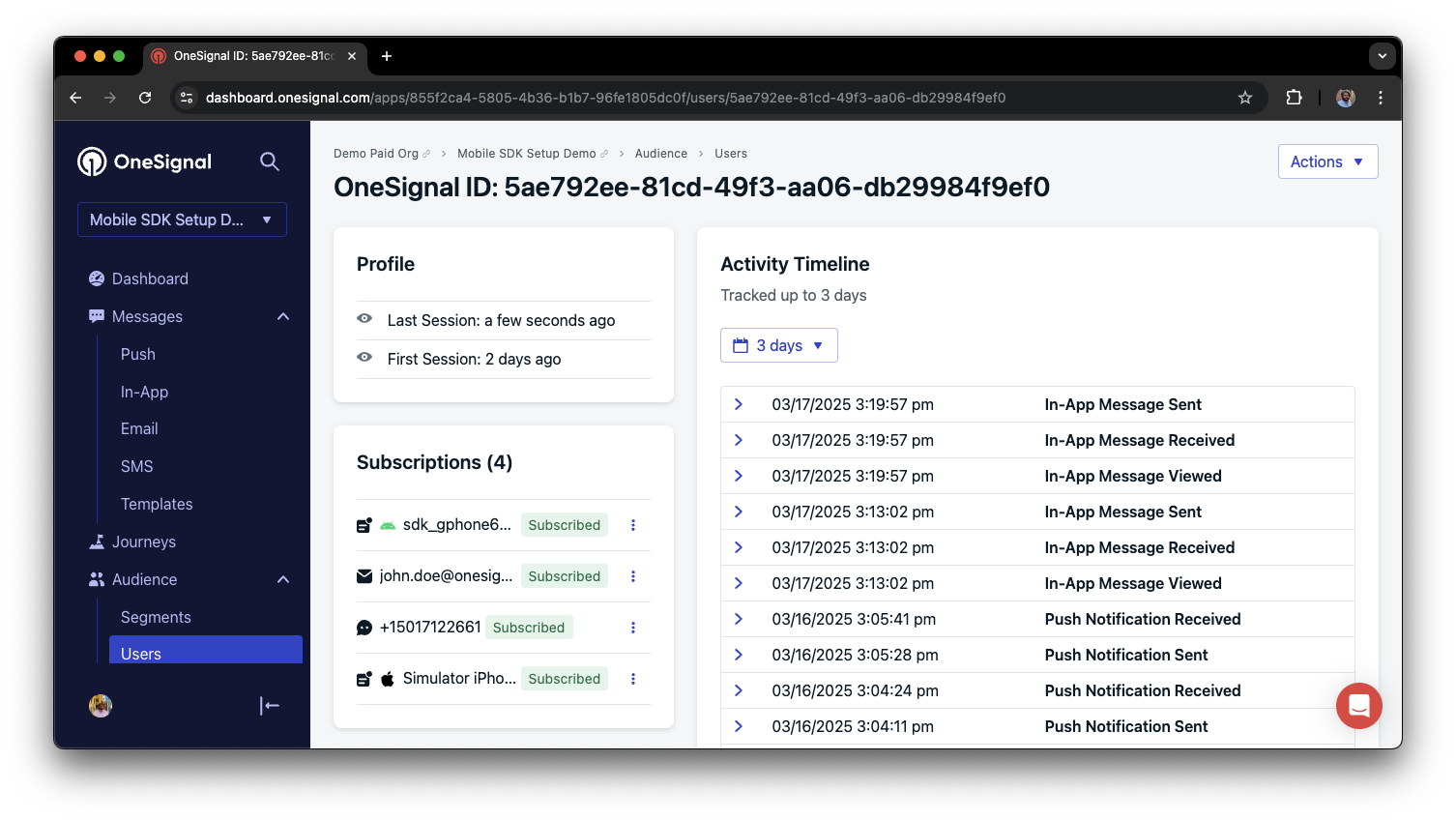
You can view unified users via **Audience > Users** in the dashboard or with the [View user API](/reference/view-user).
### Add email and/or SMS subscriptions
The OneSignal SDK creates web push subscriptions automatically when users opt in. You can also reach users through email and SMS channels by creating the corresponding subscriptions.
* Use the [`addEmail` method](/docs/en/web-sdk-reference#addemail-%2C-removeemail) to create email subscriptions.
* Use the [`addSms` method](/docs/en/web-sdk-reference#addsms-%2C-removesms) to create SMS subscriptions.
If the email address or phone number already exists in the OneSignal app, the SDK adds it to the existing user. It does not create duplicates.
You can view unified users via **Audience > Users** in the dashboard or with the [View user API](/reference/view-user).
 Best practices for multi-channel communication
* Obtain explicit consent before adding email or SMS subscriptions.
* Explain the benefits of each communication channel to users.
* Provide channel preferences so users can select which channels they prefer.
***
### Privacy & user consent
To control when OneSignal collects user data, use the SDK's consent gating methods:
* [`setConsentRequired(true)`](/docs/en/web-sdk-reference#setconsentrequired): Prevents data collection until consent is given.
* [`setConsentGiven(true)`](/docs/en/web-sdk-reference#setconsentgiven): Enables data collection once consent is granted.
For more on privacy and security:
Review what data the OneSignal SDK collects from users.
Manage and protect user data in compliance with privacy regulations.
***
## Listen to push, user, and in-app events
Use SDK listeners to react to user actions and state changes.
The SDK provides several event listeners you can hook into. See the [SDK reference guide](/docs/en/web-sdk-reference) for more details.
### Push notification events
* [Click event listener](/docs/en/web-sdk-reference#click): Detect when a notification is tapped.
* [Foreground lifecycle listener](/docs/en/web-sdk-reference#foregroundwilldisplay): Control how notifications behave in foreground.
### User state changes
* [User state change event listener](/docs/en/web-sdk-reference#addeventlistener-user-state): Detect when the External ID is set.
* [Permission observer](/docs/en/web-sdk-reference#permissionchange): Track the user's specific interaction with the native push permission prompt.
* [Push subscription change observer](/docs/en/web-sdk-reference#addeventlistener-push-subscription-changes): Track when the push subscription status changes.
***
## Advanced setup & capabilities
Explore more capabilities to enhance your integration:
Move from another push provider to OneSignal.
Connect OneSignal with third-party tools and platforms.
Add interactive buttons to push notifications.
Send localized messages to users in their preferred language.
Secure your SDK integration with server-side identity verification.
Track custom conversion events tied to your messages.
### Web SDK setup & reference
Enable all key web push features for your integration.
Full details on available methods and configuration options.
Congratulations! You've successfully completed the Web SDK setup guide.
***
***
## FAQ
### Does web push work on HTTP sites?
No. Web push requires HTTPS. Browsers enforce this as a security requirement. The only exception is `localhost` and `127.0.0.1`, which browsers treat as secure origins for development purposes.
### Why do I need a service worker file?
The service worker runs in the background and handles incoming push notifications even when the user does not have your site open. Without it, the browser cannot display notifications. The `OneSignalSDKWorker.js` file must be publicly accessible on your origin.
### Can I use web push on iOS (iPhone/iPad)?
Yes, starting with iOS 16.4+. However, Apple requires a `manifest.json` file and the user must add your site to their home screen first. See [iOS web push setup](./web-push-for-ios) for the full requirements.
### Why are my notifications not showing?
Common causes include an incorrectly placed service worker file, a mismatched Site URL in the dashboard, or the user having notifications blocked in their browser settings. See [Notifications not shown or delayed](./notifications-show-successful-but-are-not-being-shown) for a full troubleshooting checklist.
***
Need help?
Chat with our Support team or email `support@onesignal.com`
Please include:
* Details of the issue you're experiencing and steps to reproduce if available
* Your OneSignal App ID
* The External ID or Subscription ID if applicable
* The URL to the message you tested in the OneSignal Dashboard if applicable
* Any relevant [logs or error messages](/docs/en/capturing-a-debug-log)
We're happy to help!
***
Best practices for multi-channel communication
* Obtain explicit consent before adding email or SMS subscriptions.
* Explain the benefits of each communication channel to users.
* Provide channel preferences so users can select which channels they prefer.
***
### Privacy & user consent
To control when OneSignal collects user data, use the SDK's consent gating methods:
* [`setConsentRequired(true)`](/docs/en/web-sdk-reference#setconsentrequired): Prevents data collection until consent is given.
* [`setConsentGiven(true)`](/docs/en/web-sdk-reference#setconsentgiven): Enables data collection once consent is granted.
For more on privacy and security:
Review what data the OneSignal SDK collects from users.
Manage and protect user data in compliance with privacy regulations.
***
## Listen to push, user, and in-app events
Use SDK listeners to react to user actions and state changes.
The SDK provides several event listeners you can hook into. See the [SDK reference guide](/docs/en/web-sdk-reference) for more details.
### Push notification events
* [Click event listener](/docs/en/web-sdk-reference#click): Detect when a notification is tapped.
* [Foreground lifecycle listener](/docs/en/web-sdk-reference#foregroundwilldisplay): Control how notifications behave in foreground.
### User state changes
* [User state change event listener](/docs/en/web-sdk-reference#addeventlistener-user-state): Detect when the External ID is set.
* [Permission observer](/docs/en/web-sdk-reference#permissionchange): Track the user's specific interaction with the native push permission prompt.
* [Push subscription change observer](/docs/en/web-sdk-reference#addeventlistener-push-subscription-changes): Track when the push subscription status changes.
***
## Advanced setup & capabilities
Explore more capabilities to enhance your integration:
Move from another push provider to OneSignal.
Connect OneSignal with third-party tools and platforms.
Add interactive buttons to push notifications.
Send localized messages to users in their preferred language.
Secure your SDK integration with server-side identity verification.
Track custom conversion events tied to your messages.
### Web SDK setup & reference
Enable all key web push features for your integration.
Full details on available methods and configuration options.
Congratulations! You've successfully completed the Web SDK setup guide.
***
***
## FAQ
### Does web push work on HTTP sites?
No. Web push requires HTTPS. Browsers enforce this as a security requirement. The only exception is `localhost` and `127.0.0.1`, which browsers treat as secure origins for development purposes.
### Why do I need a service worker file?
The service worker runs in the background and handles incoming push notifications even when the user does not have your site open. Without it, the browser cannot display notifications. The `OneSignalSDKWorker.js` file must be publicly accessible on your origin.
### Can I use web push on iOS (iPhone/iPad)?
Yes, starting with iOS 16.4+. However, Apple requires a `manifest.json` file and the user must add your site to their home screen first. See [iOS web push setup](./web-push-for-ios) for the full requirements.
### Why are my notifications not showing?
Common causes include an incorrectly placed service worker file, a mismatched Site URL in the dashboard, or the user having notifications blocked in their browser settings. See [Notifications not shown or delayed](./notifications-show-successful-but-are-not-being-shown) for a full troubleshooting checklist.
***
Need help?
Chat with our Support team or email `support@onesignal.com`
Please include:
* Details of the issue you're experiencing and steps to reproduce if available
* Your OneSignal App ID
* The External ID or Subscription ID if applicable
* The URL to the message you tested in the OneSignal Dashboard if applicable
* Any relevant [logs or error messages](/docs/en/capturing-a-debug-log)
We're happy to help!
***