> ## Documentation Index
> Fetch the complete documentation index at: https://documentation.onesignal.com/llms.txt
> Use this file to discover all available pages before exploring further.
# Web push webhooks
> Set up HTTP webhooks to receive real-time notifications when users display, click, or dismiss web push notifications. Complete guide with examples for Chrome, Firefox, and Safari browser support.
## Overview
Web Push Webhooks allow you to receive real-time HTTP POST notifications whenever users interact with your push notifications. When a notification is displayed, clicked, or dismissed, OneSignal automatically sends the notification data and any custom parameters to your specified webhook URL.
For Journey webhooks, see our [Journey webhooks](./journeys-webhook) page.
**Key Benefits:**
* Track notification engagement in real-time
* Trigger automated workflows based on user interactions
* Sync notification data with your analytics platform
* Implement custom business logic for notification events
## Browser Support
| Browser | Platform Support | Webhook Events Available |
| ------- | ----------------------- | ------------------------------------ |
| Chrome | macOS, Windows, Android | All events (display, click, dismiss) |
| Firefox | macOS, Windows, Android | Display and click events |
| Safari | Not supported | None |
## Available Webhook Events
### notification.willDisplay
Triggered immediately after a notification appears on the user's screen.
**Use cases:** Track delivery rates, log impression data, trigger follow-up campaigns
### notification.clicked
Triggered when a user clicks on the notification body or any action button.
**Use cases:** Track engagement rates, trigger conversion events, redirect users to specific content
### notification.dismissed
Triggered when a user actively dismisses a notification or when it expires automatically.
**Browser support:** Chrome only
**Use cases:** Track dismissal rates, optimize notification timing, A/B test notification content
**Important:** Clicking the notification body or action buttons does NOT trigger the dismissed webhook.
## Setup Methods
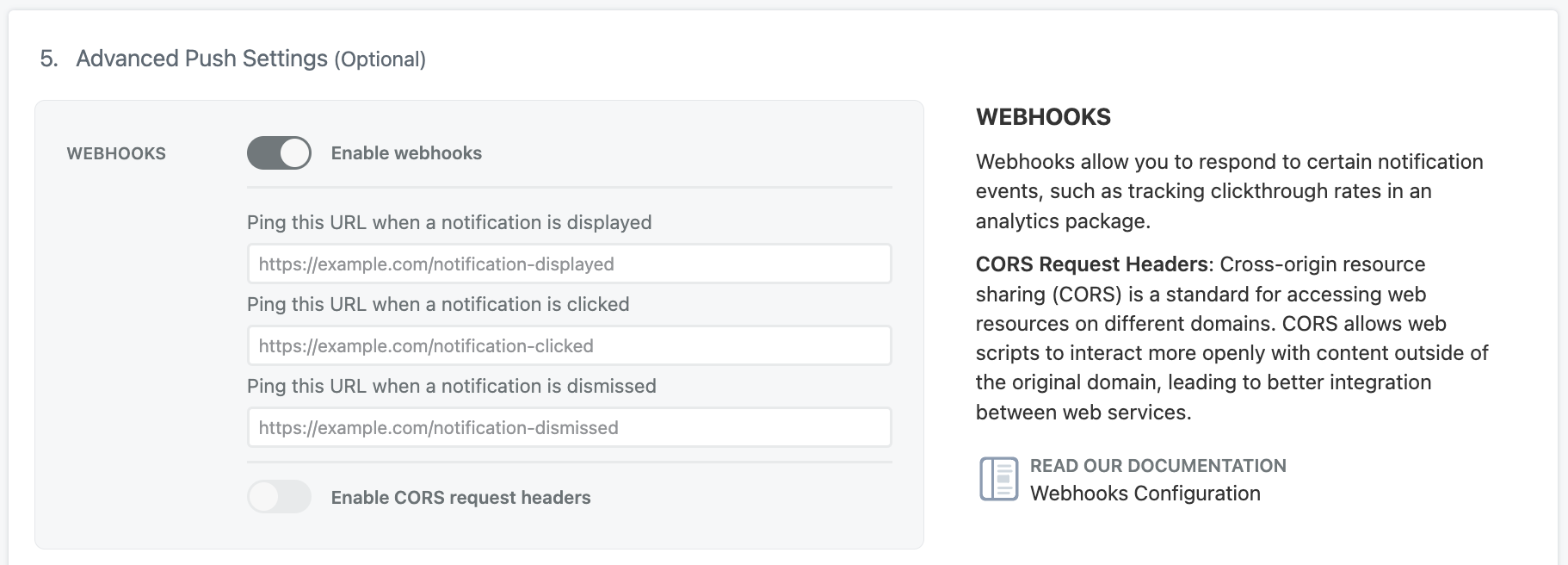
Navigate to **Settings > Web** in your OneSignal dashboard
Enable the "Enable webhooks" toggle
Enter your webhook URLs for each event you want to track
 Add webhook configuration to your existing `OneSignal.init()` method:
```javascript theme={null}
// Add to your existing OneSignal initialization - do NOT call init twice
OneSignal.init({
// Your other existing settings here
webhooks: {
cors: false, // Recommended: leave as false unless you need custom headers
'notification.willDisplay': 'https://yoursite.com/webhook/display',
'notification.clicked': 'https://yoursite.com/webhook/click',
'notification.dismissed': 'https://yoursite.com/webhook/dismiss' // Chrome only
}
});
```
Make sure your webhook URLs are HTTPS (required by Chrome's security policies).
## CORS Configuration
The `cors` setting determines what headers and data your webhook endpoint receives:
* **`cors: false` (Recommended):** Simpler setup, no CORS configuration needed on your server
* **`cors: true`:** Provides additional headers but requires CORS support on your server
**When to use `cors: true`:**
* You need the `Content-Type: application/json` header
* You want the `X-OneSignal-Event` header for easier event identification
* Your server already supports CORS for non-simple requests
## Webhook Request Format
### Standard Request (cors: false)
Your webhook endpoint receives a POST request with this payload structure:
```json theme={null}
{
"event": "notification.clicked",
"notificationId": "ed46884e-0e3f-4373-9e11-e28f27746d3d",
"heading": "Your notification title",
"content": "Your notification message",
"additionalData": {
"userId": "12345",
"campaignId": "summer-sale",
"customField": "customValue"
},
"actionId": "buy-now-button",
"url": "https://yoursite.com/product/123"
}
```
### Enhanced Request (cors: true)
Same payload as above, plus these additional headers:
```http theme={null}
Content-Type: application/json
X-OneSignal-Event: notification.clicked
```
## Payload Field Reference
| Field | Type | Description | Always Present |
| ---------------- | ------ | ---------------------------------------------------------------------- | ----------------- |
| `event` | string | Event type that triggered the webhook | ✅ |
| `notificationId` | string | Unique OneSignal notification identifier | ✅ |
| `heading` | string | Notification title | Only if provided |
| `content` | string | Notification message body | Only if provided |
| `additionalData` | object | Custom data sent with notification | Only if provided |
| `actionId` | string | ID of clicked action button (empty string = notification body clicked) | Click events only |
| `url` | string | Launch URL for the notification | Only if provided |
| `subscriptionId` | string | OneSignal user/subscription ID | CORS enabled only |
## Implementation Best Practices
### Webhook Endpoint Requirements
**Security:**
* Use HTTPS URLs only (HTTP URLs will be blocked by Chrome)
* Implement proper authentication/validation for your webhook endpoints
* Consider rate limiting to handle high-volume notifications
**Response Requirements:**
* Return HTTP 200 status for successful processing
* Respond within 10 seconds to avoid timeouts
* Handle duplicate webhook calls gracefully (implement idempotency)
### Error Handling
```javascript theme={null}
// Example webhook endpoint (Node.js/Express)
app.post('/webhook/notification', (req, res) => {
try {
const { event, notificationId, additionalData } = req.body;
// Validate required fields
if (!event || !notificationId) {
return res.status(400).json({ error: 'Missing required fields' });
}
// Process the webhook data
processNotificationEvent(req.body);
// Always respond with 200 OK
res.status(200).json({ success: true });
} catch (error) {
console.error('Webhook processing error:', error);
res.status(500).json({ error: 'Internal server error' });
}
});
```
## Common Issues and Solutions
### Webhooks Not Firing
**Possible causes:**
* Webhook code not present on all pages with OneSignal initialization
* User hasn't visited a page with webhook code after it was added
* HTTPS requirement not met
* Server returning non-200 status codes
**Solution:** Ensure webhook configuration is included in your OneSignal init code on all pages where notifications are active.
### Missing Data in Webhooks
**Cause:** Webhooks only track events for users who visit pages with the webhook configuration active.
**Solution:** Deploy webhook code to all pages with OneSignal, not just specific landing pages.
### Duplicate Webhook Calls
**Cause:** Network issues or browser behavior may cause duplicate requests.
**Solution:** Implement idempotency using the `notificationId` field to deduplicate events.
## Webhook Limitations
* **One webhook URL per event:** You cannot set multiple webhook URLs for the same event type
* **HTTPS only:** HTTP URLs will not work due to browser security restrictions
* **Chrome-only dismissal tracking:** The `notification.dismissed` event only works in Chrome
* **Page dependency:** Users must visit pages with webhook code active for tracking to work
## Testing Your Webhooks
1. **Send a test notification** through your OneSignal dashboard
2. **Monitor your webhook endpoint** for incoming requests
3. **Verify payload structure** matches your expectations
4. **Test different scenarios:**
* Notification display
* Clicking notification body
* Clicking action buttons (if configured)
* Dismissing notifications (Chrome only)
## Next Steps
After setting up webhooks, consider:
* **Analytics Integration:** Forward webhook data to your analytics platform
* **User Segmentation:** Use webhook events to create user segments based on engagement
* **Automated Workflows:** Trigger email campaigns or app notifications based on push notification interactions
* **A/B Testing:** Use webhook data to measure the effectiveness of different notification strategies
Add webhook configuration to your existing `OneSignal.init()` method:
```javascript theme={null}
// Add to your existing OneSignal initialization - do NOT call init twice
OneSignal.init({
// Your other existing settings here
webhooks: {
cors: false, // Recommended: leave as false unless you need custom headers
'notification.willDisplay': 'https://yoursite.com/webhook/display',
'notification.clicked': 'https://yoursite.com/webhook/click',
'notification.dismissed': 'https://yoursite.com/webhook/dismiss' // Chrome only
}
});
```
Make sure your webhook URLs are HTTPS (required by Chrome's security policies).
## CORS Configuration
The `cors` setting determines what headers and data your webhook endpoint receives:
* **`cors: false` (Recommended):** Simpler setup, no CORS configuration needed on your server
* **`cors: true`:** Provides additional headers but requires CORS support on your server
**When to use `cors: true`:**
* You need the `Content-Type: application/json` header
* You want the `X-OneSignal-Event` header for easier event identification
* Your server already supports CORS for non-simple requests
## Webhook Request Format
### Standard Request (cors: false)
Your webhook endpoint receives a POST request with this payload structure:
```json theme={null}
{
"event": "notification.clicked",
"notificationId": "ed46884e-0e3f-4373-9e11-e28f27746d3d",
"heading": "Your notification title",
"content": "Your notification message",
"additionalData": {
"userId": "12345",
"campaignId": "summer-sale",
"customField": "customValue"
},
"actionId": "buy-now-button",
"url": "https://yoursite.com/product/123"
}
```
### Enhanced Request (cors: true)
Same payload as above, plus these additional headers:
```http theme={null}
Content-Type: application/json
X-OneSignal-Event: notification.clicked
```
## Payload Field Reference
| Field | Type | Description | Always Present |
| ---------------- | ------ | ---------------------------------------------------------------------- | ----------------- |
| `event` | string | Event type that triggered the webhook | ✅ |
| `notificationId` | string | Unique OneSignal notification identifier | ✅ |
| `heading` | string | Notification title | Only if provided |
| `content` | string | Notification message body | Only if provided |
| `additionalData` | object | Custom data sent with notification | Only if provided |
| `actionId` | string | ID of clicked action button (empty string = notification body clicked) | Click events only |
| `url` | string | Launch URL for the notification | Only if provided |
| `subscriptionId` | string | OneSignal user/subscription ID | CORS enabled only |
## Implementation Best Practices
### Webhook Endpoint Requirements
**Security:**
* Use HTTPS URLs only (HTTP URLs will be blocked by Chrome)
* Implement proper authentication/validation for your webhook endpoints
* Consider rate limiting to handle high-volume notifications
**Response Requirements:**
* Return HTTP 200 status for successful processing
* Respond within 10 seconds to avoid timeouts
* Handle duplicate webhook calls gracefully (implement idempotency)
### Error Handling
```javascript theme={null}
// Example webhook endpoint (Node.js/Express)
app.post('/webhook/notification', (req, res) => {
try {
const { event, notificationId, additionalData } = req.body;
// Validate required fields
if (!event || !notificationId) {
return res.status(400).json({ error: 'Missing required fields' });
}
// Process the webhook data
processNotificationEvent(req.body);
// Always respond with 200 OK
res.status(200).json({ success: true });
} catch (error) {
console.error('Webhook processing error:', error);
res.status(500).json({ error: 'Internal server error' });
}
});
```
## Common Issues and Solutions
### Webhooks Not Firing
**Possible causes:**
* Webhook code not present on all pages with OneSignal initialization
* User hasn't visited a page with webhook code after it was added
* HTTPS requirement not met
* Server returning non-200 status codes
**Solution:** Ensure webhook configuration is included in your OneSignal init code on all pages where notifications are active.
### Missing Data in Webhooks
**Cause:** Webhooks only track events for users who visit pages with the webhook configuration active.
**Solution:** Deploy webhook code to all pages with OneSignal, not just specific landing pages.
### Duplicate Webhook Calls
**Cause:** Network issues or browser behavior may cause duplicate requests.
**Solution:** Implement idempotency using the `notificationId` field to deduplicate events.
## Webhook Limitations
* **One webhook URL per event:** You cannot set multiple webhook URLs for the same event type
* **HTTPS only:** HTTP URLs will not work due to browser security restrictions
* **Chrome-only dismissal tracking:** The `notification.dismissed` event only works in Chrome
* **Page dependency:** Users must visit pages with webhook code active for tracking to work
## Testing Your Webhooks
1. **Send a test notification** through your OneSignal dashboard
2. **Monitor your webhook endpoint** for incoming requests
3. **Verify payload structure** matches your expectations
4. **Test different scenarios:**
* Notification display
* Clicking notification body
* Clicking action buttons (if configured)
* Dismissing notifications (Chrome only)
## Next Steps
After setting up webhooks, consider:
* **Analytics Integration:** Forward webhook data to your analytics platform
* **User Segmentation:** Use webhook events to create user segments based on engagement
* **Automated Workflows:** Trigger email campaigns or app notifications based on push notification interactions
* **A/B Testing:** Use webhook data to measure the effectiveness of different notification strategies