> ## Documentation Index
> Fetch the complete documentation index at: https://documentation.onesignal.com/llms.txt
> Use this file to discover all available pages before exploring further.
# Windows app setup
> Complete guide for integrating OneSignal push notifications into your Universal Windows Platform (UWP) app using Windows Push Notification Service (WNS) and OneSignal's REST API
# Windows App Setup
## Requirements
Before setting up OneSignal for your Windows app, ensure you have:
* **Universal Windows Platform (UWP) App** - OneSignal currently supports UWP apps only
* **Microsoft Store App Registration** - Required for obtaining Package SID and Secret Key
* **OneSignal Account** - Free account with configured app and platform settings
OneSignal does not currently support Windows App SDK (WinUI 3). If your app uses Windows App SDK instead of UWP, please contact `support@onesignal.com` for guidance on [migration options](https://learn.microsoft.com/en-us/windows/apps/windows-app-sdk/migrate-to-windows-app-sdk/guides/notifications).
## Configure Your OneSignal App and Platform
### Step 1: Set Up Your OneSignal Account
If your team already has a OneSignal account, [request admin access](./manage-team-members) to configure platform settings. Otherwise, [create a free account](https://onesignal.com) to get started.
### Step 2: Create or Configure Your OneSignal App
OneSignal allows you to configure multiple platforms (iOS, Android, Huawei, Amazon, Windows) within a single app for cross-platform messaging.
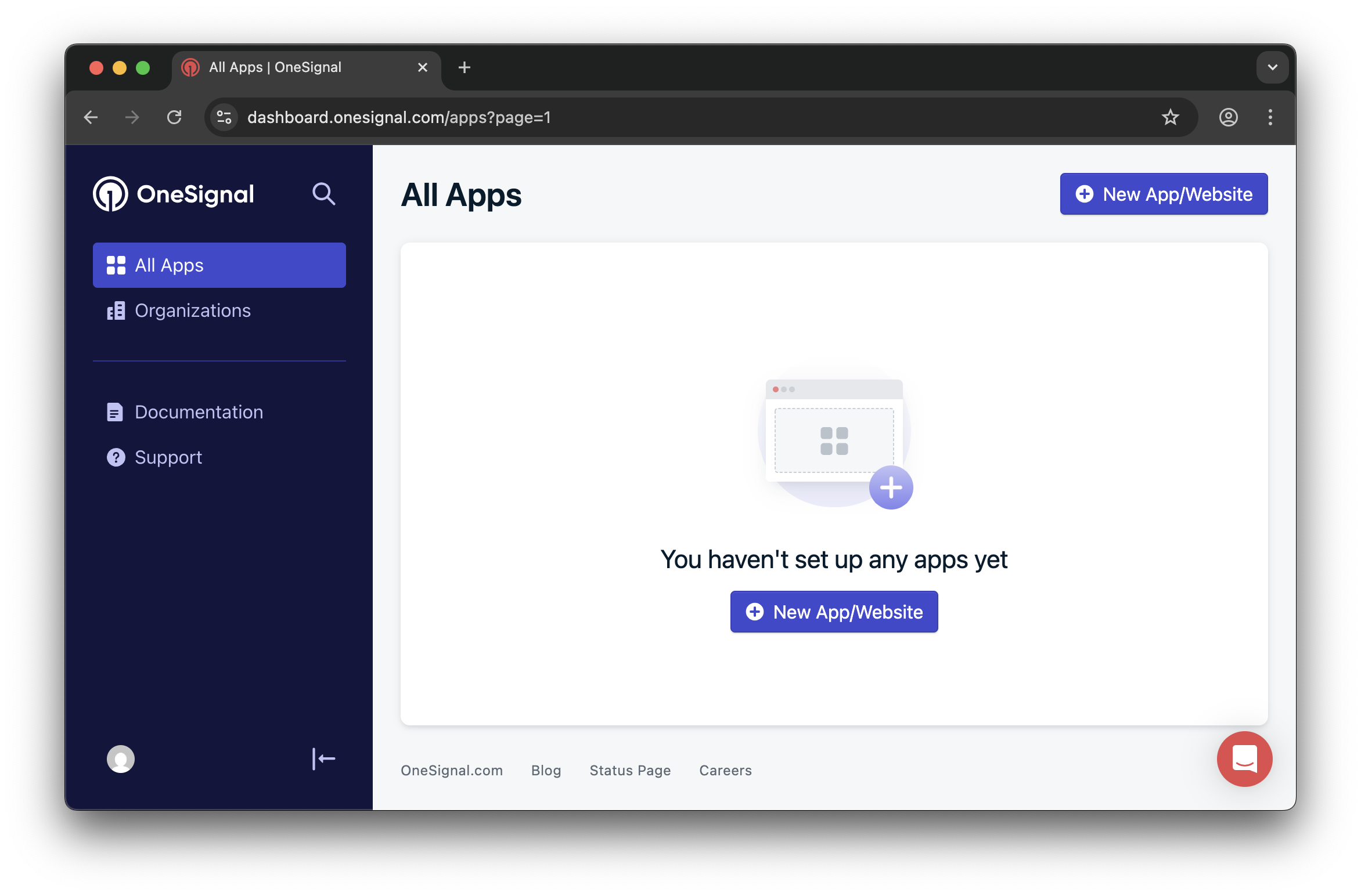
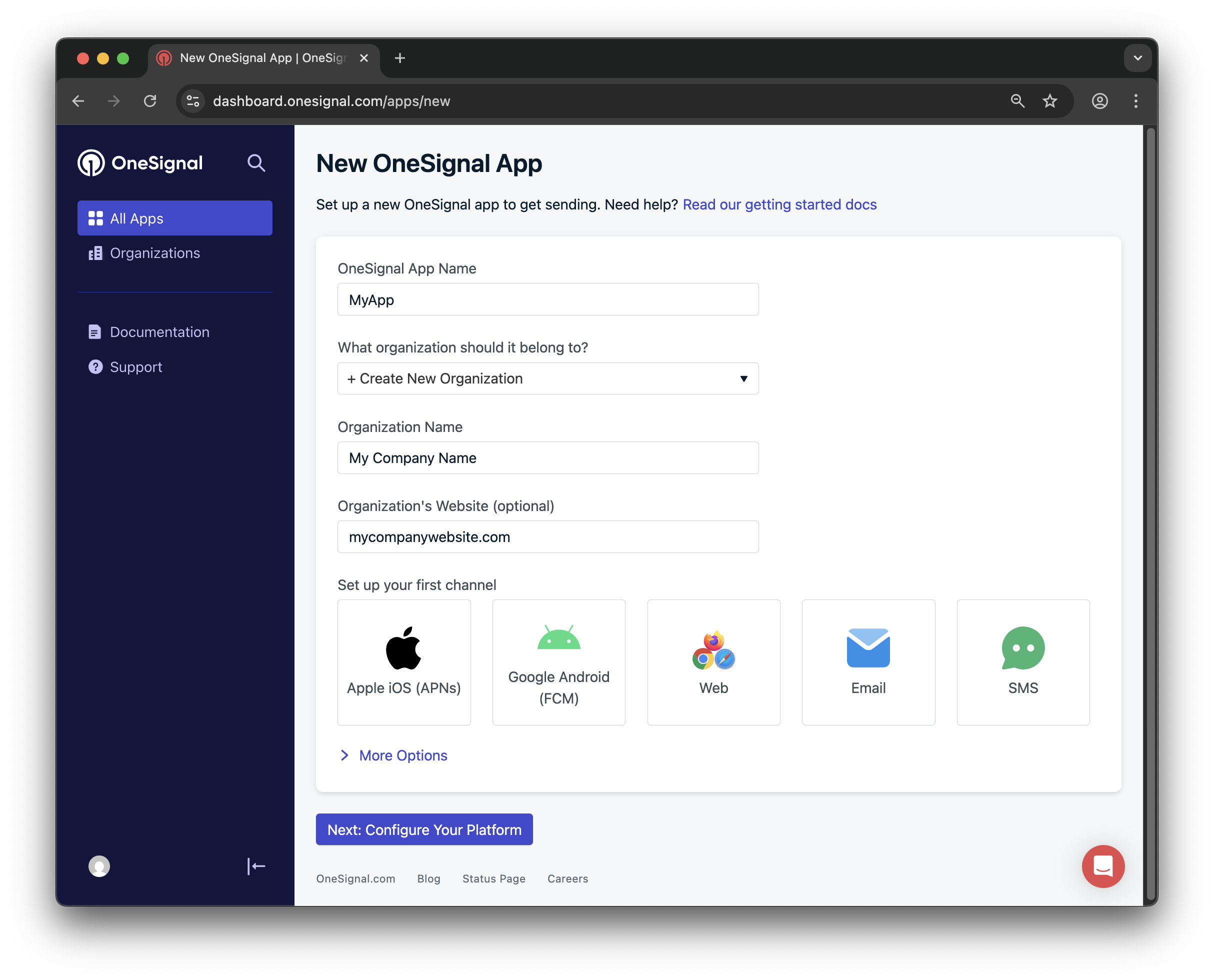
#### Create New App
1. Click **New App/Website** from your dashboard
2. Choose a recognizable app name and organization name
3. Select **Windows (UWP)** as your platform
4. Click **Next: Configure Your Platform**
 #### Add Platform to Existing App
1. Select your existing app
2. Navigate to **Settings > Push & In-App**
3. Click **Add Platform** and select **Windows (UWP)**
#### Add Platform to Existing App
1. Select your existing app
2. Navigate to **Settings > Push & In-App**
3. Click **Add Platform** and select **Windows (UWP)**
 ### Step 3: Configure Additional Platforms (Optional)
If you're building a cross-platform app, configure additional platforms now:
* **Android**: [Set up Firebase Credentials](./android-firebase-credentials)
* **iOS**: [p8 Token (Recommended)](./ios-p8-token-based-connection-to-apns) or [p12 Certificate](./ios-p12-generate-certificates)
* **Amazon**: [Generate API Key](./generate-an-amazon-api-key)
* **Huawei**: [Authorize OneSignal](./authorize-onesignal-to-send-huawei-push)
Click **Save & Continue** after entering credentials for each platform.
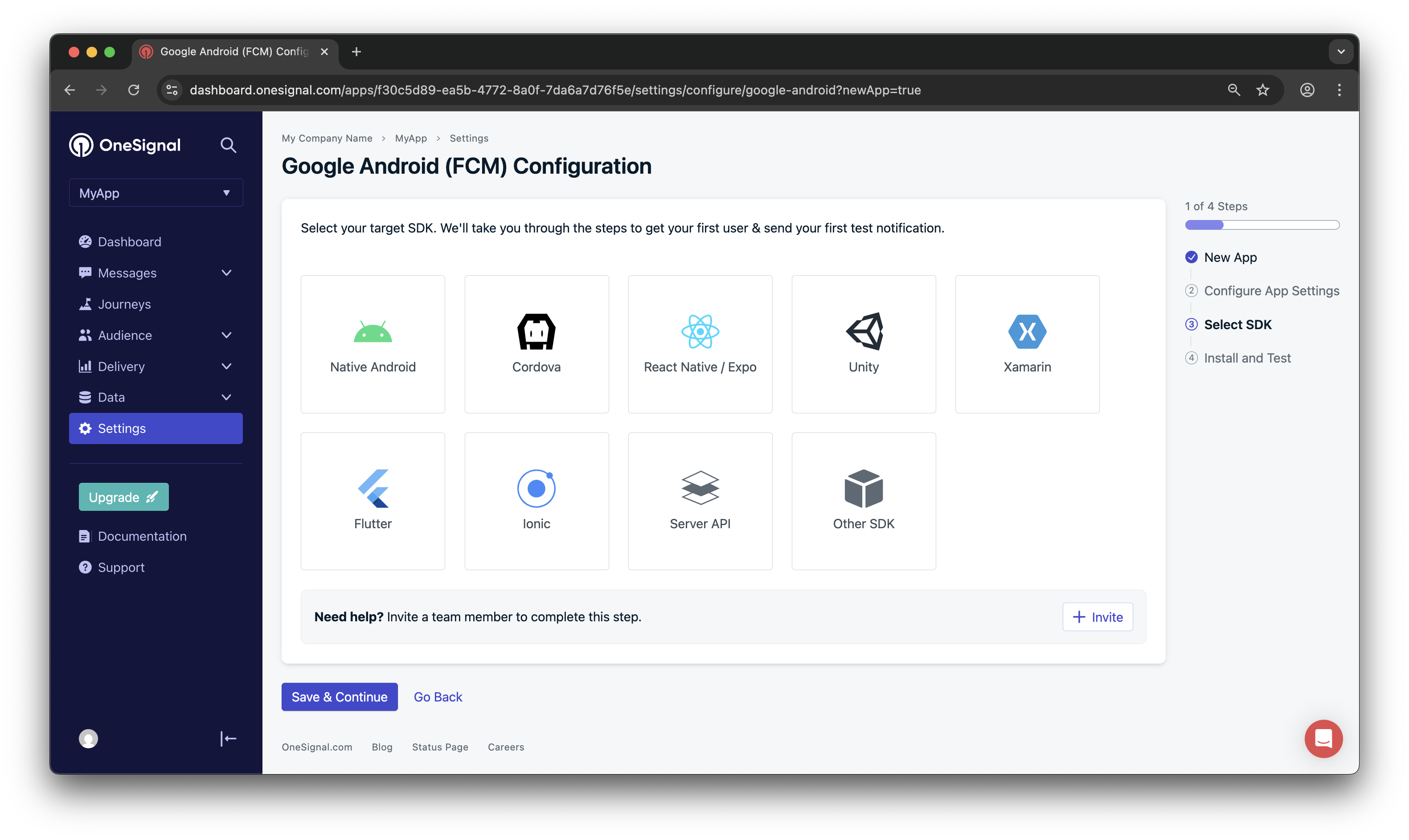
### Step 4: Select Target SDK
Choose **Windows UWP** as your target SDK and click **Save & Continue**.
### Step 3: Configure Additional Platforms (Optional)
If you're building a cross-platform app, configure additional platforms now:
* **Android**: [Set up Firebase Credentials](./android-firebase-credentials)
* **iOS**: [p8 Token (Recommended)](./ios-p8-token-based-connection-to-apns) or [p12 Certificate](./ios-p12-generate-certificates)
* **Amazon**: [Generate API Key](./generate-an-amazon-api-key)
* **Huawei**: [Authorize OneSignal](./authorize-onesignal-to-send-huawei-push)
Click **Save & Continue** after entering credentials for each platform.
### Step 4: Select Target SDK
Choose **Windows UWP** as your target SDK and click **Save & Continue**.
 ### Step 5: Save Your App ID
**Critical:** Copy and securely store your OneSignal App ID - you'll need this for API calls and user registration.
### Step 5: Save Your App ID
**Critical:** Copy and securely store your OneSignal App ID - you'll need this for API calls and user registration.
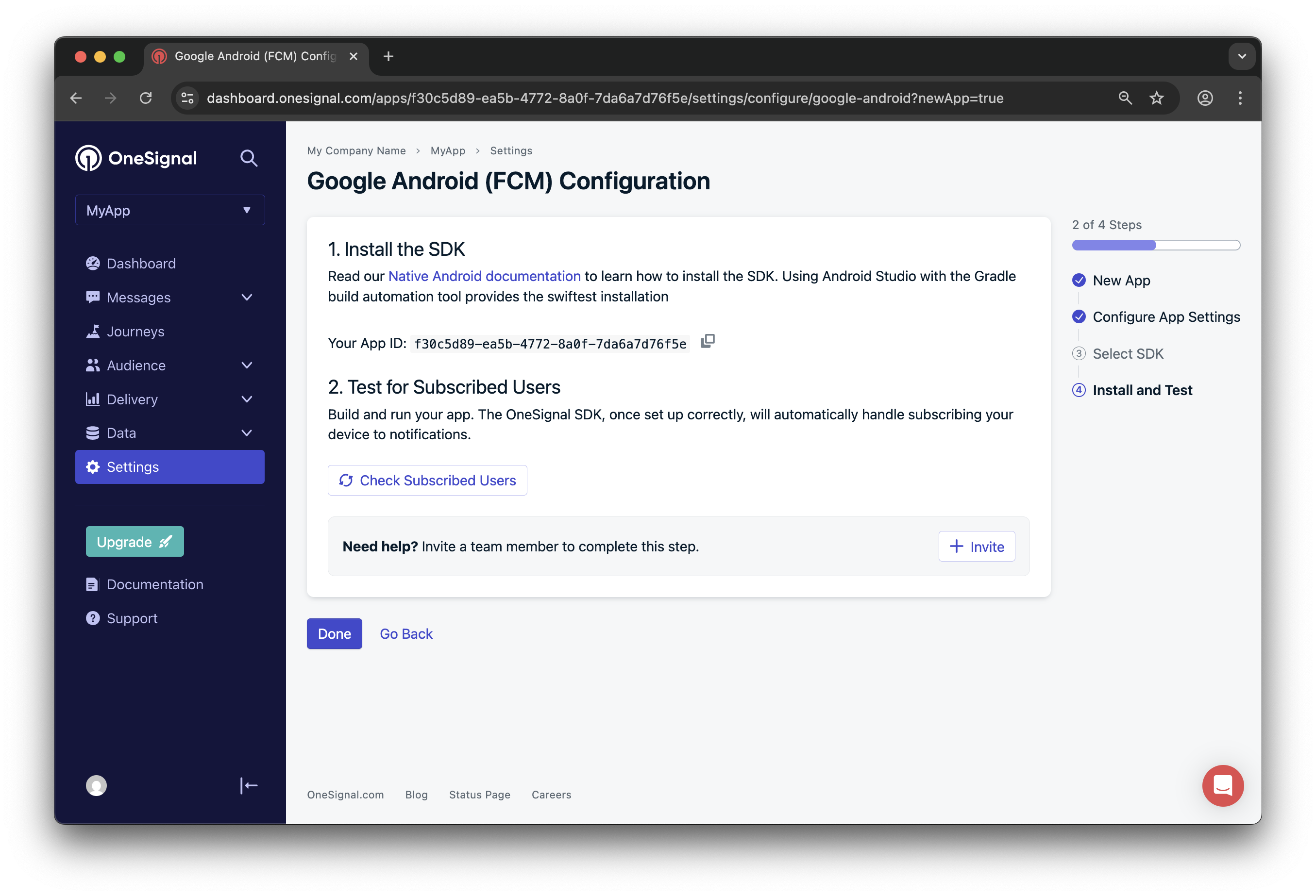 Optionally, invite team members by clicking **Invite**, then click **Done** to continue.
## Windows Platform Configuration
### Get Microsoft Store Credentials
Since OneSignal uses Windows Push Notification Service (WNS), you'll need credentials from the Microsoft Store:
1. **Publish to Microsoft Store** - Your app must be registered in the Microsoft Store (even if not publicly available)
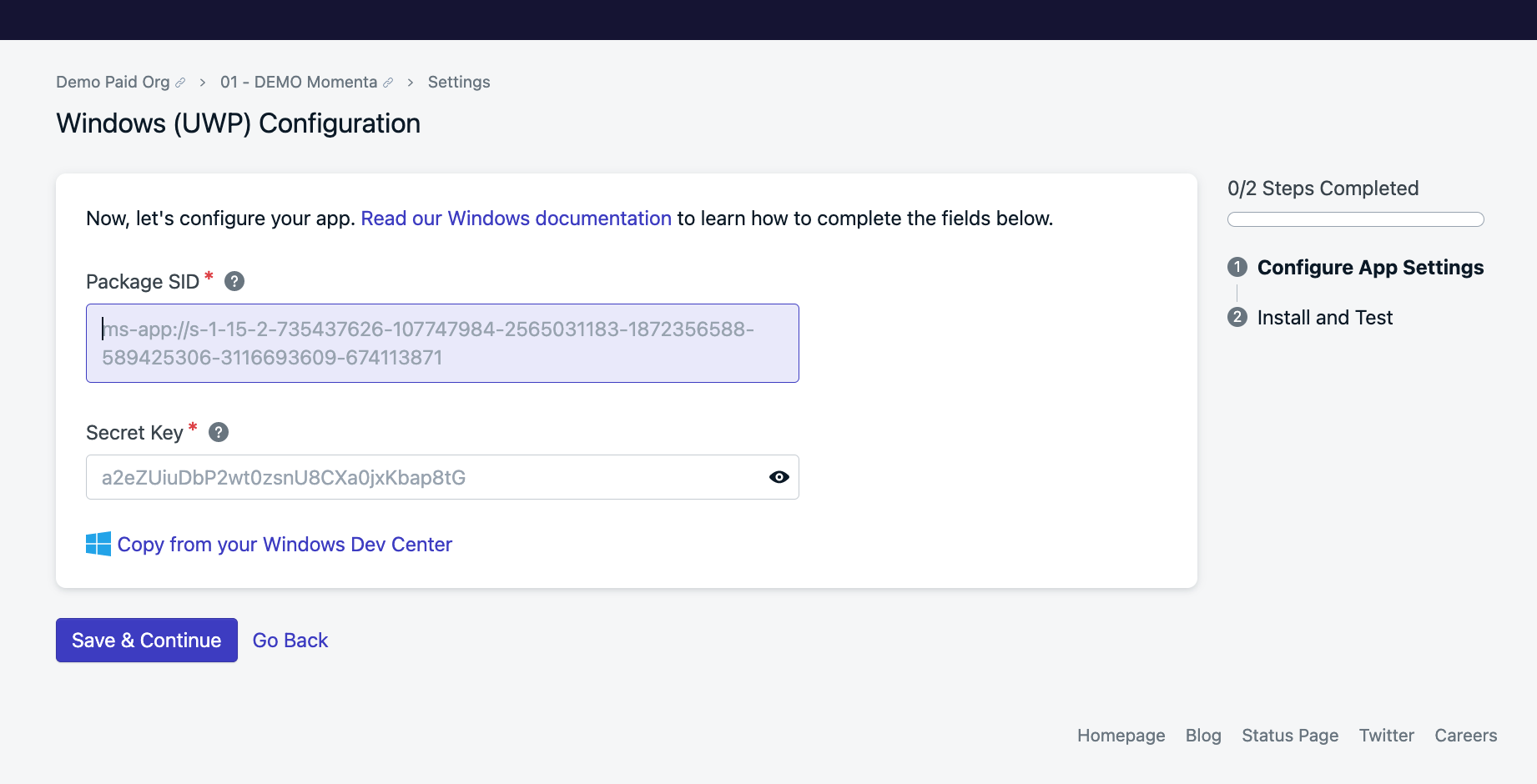
2. **Obtain Package SID and Secret Key** - Follow [Microsoft's detailed guide](https://learn.microsoft.com/en-us/azure/notification-hubs/notification-hubs-windows-store-dotnet-get-started-wns-push-notification#create-an-app-in-windows-store) to retrieve these credentials
3. **Configure OneSignal Platform**:
* Navigate to **Settings > Windows (UWP)** in your OneSignal dashboard
* Paste your Package SID and Secret Key
* Click **Save** to activate the platform
Optionally, invite team members by clicking **Invite**, then click **Done** to continue.
## Windows Platform Configuration
### Get Microsoft Store Credentials
Since OneSignal uses Windows Push Notification Service (WNS), you'll need credentials from the Microsoft Store:
1. **Publish to Microsoft Store** - Your app must be registered in the Microsoft Store (even if not publicly available)
2. **Obtain Package SID and Secret Key** - Follow [Microsoft's detailed guide](https://learn.microsoft.com/en-us/azure/notification-hubs/notification-hubs-windows-store-dotnet-get-started-wns-push-notification#create-an-app-in-windows-store) to retrieve these credentials
3. **Configure OneSignal Platform**:
* Navigate to **Settings > Windows (UWP)** in your OneSignal dashboard
* Paste your Package SID and Secret Key
* Click **Save** to activate the platform
 > **Gotcha:** Package SID and Secret Key are only available after your app is registered with the Microsoft Store. You cannot test push notifications locally without these credentials.
## SDK Integration
### Understanding the Architecture
OneSignal doesn't provide a dedicated UWP SDK. Instead, you'll integrate using:
1. **Windows Push Notification Service (WNS)** - Microsoft's native push service
2. **OneSignal REST API** - For user management and message sending
3. **Notification Channel URI** - Acts as the device token for push notifications
For comprehensive understanding of WNS, review [Microsoft's WNS documentation](https://docs.microsoft.com/en-us/windows/uwp/design/shell/tiles-and-notifications/windows-push-notification-services--wns--overview).
### Register Users for Push Notifications
#### Step 1: Request Notification Channel
Follow Microsoft's guide to [create a notification channel](https://learn.microsoft.com/en-us/windows/apps/design/shell/tiles-and-notifications/request-create-save-notification-channel). The channel URI returned by WNS serves as your device token.
```csharp theme={null}
// Example: Getting notification channel URI
var channel = await PushNotificationChannelManager.CreatePushNotificationChannelForApplicationAsync();
string channelUri = channel.Uri; // This is your token for OneSignal
```
#### Step 2: Create OneSignal User Record
Call OneSignal's [Create user](/reference/create-user) API to register the device:
**Required Parameters:**
* `subscription.type`: `"WindowsPush"`
* `subscription.token`: The channel URI from Step 1
**Recommended Parameters:**
* `identity.external_id`: Unique identifier for the user (e.g., user ID from your system)
* `properties`: Any custom user properties for targeting
```json theme={null}
{
"identity": {
"external_id": "your-user-id-123"
},
"subscriptions": [
{
"type": "WindowsPush",
"token": "https://cloud.notify.windows.com/?token=..."
}
],
"properties": {
"tags": {
"user_type": "premium",
"app_version": "1.2.0"
}
}
}
```
> **Gotcha:** Channel URIs can expire and change. Implement logic to refresh the channel URI periodically and update the OneSignal user record when it changes.
### Handle Channel URI Changes
WNS channel URIs can expire. Implement the `PushNotificationReceived` event to detect when you need to refresh:
```csharp theme={null}
channel.PushNotificationReceived += OnPushNotificationReceived;
// Check if channel URI has changed
if (channel.Uri != storedChannelUri) {
// Update OneSignal user record with new URI
await UpdateOneSignalUser(channel.Uri);
}
```
## Sending Push Notifications
### Using OneSignal Dashboard
1. Navigate to **Messages > Push** in your OneSignal dashboard
2. Create a new push notification
3. Select your Windows platform
4. Configure your message content and targeting
5. Send immediately or schedule for later
### Using OneSignal API
Send notifications programmatically using the [Create notification](/reference/create-message) API:
```json theme={null}
{
"app_id": "your-onesignal-app-id",
"contents": {"en": "Your notification message"},
"headings": {"en": "Notification Title"},
"include_external_user_ids": ["your-user-id-123"],
"channel_for_external_user_ids": "push"
}
```
For detailed messaging options and advanced targeting, see [Sending Push Messages](./push).
## Next Steps and Best Practices
### Testing Your Integration
1. **Test Notification Channel Creation** - Ensure your app successfully creates and maintains a WNS channel
2. **Verify User Registration** - Confirm users are properly registered in your OneSignal dashboard
3. **Send Test Notifications** - Use the OneSignal dashboard to send test messages
4. **Handle Notification Events** - Implement proper handling for notification received, opened, and dismissed events
### Common Issues and Solutions
**Channel URI Not Working**
* Verify your Package SID and Secret Key are correctly configured
* Ensure your app is properly registered with the Microsoft Store
* Check that the channel URI hasn't expired
**Users Not Receiving Notifications**
* Confirm the OneSignal user record was created successfully
* Verify the Windows platform is properly configured in OneSignal
* Check that notifications aren't being blocked by Windows notification settings
**API Integration Issues**
* Validate your OneSignal App ID is correct
* Ensure you're using the correct API endpoints and authentication
* Review API response codes and error messages for troubleshooting
### Production Considerations
* Implement proper error handling for all OneSignal API calls
* Set up monitoring for channel URI refresh failures
* Consider implementing offline queueing for API calls during network issues
* Plan for scaling user registration during peak app usage periods
For additional support and advanced implementation guidance, contact OneSignal support or explore our comprehensive [API documentation](/reference/rest-api-overview).
> **Gotcha:** Package SID and Secret Key are only available after your app is registered with the Microsoft Store. You cannot test push notifications locally without these credentials.
## SDK Integration
### Understanding the Architecture
OneSignal doesn't provide a dedicated UWP SDK. Instead, you'll integrate using:
1. **Windows Push Notification Service (WNS)** - Microsoft's native push service
2. **OneSignal REST API** - For user management and message sending
3. **Notification Channel URI** - Acts as the device token for push notifications
For comprehensive understanding of WNS, review [Microsoft's WNS documentation](https://docs.microsoft.com/en-us/windows/uwp/design/shell/tiles-and-notifications/windows-push-notification-services--wns--overview).
### Register Users for Push Notifications
#### Step 1: Request Notification Channel
Follow Microsoft's guide to [create a notification channel](https://learn.microsoft.com/en-us/windows/apps/design/shell/tiles-and-notifications/request-create-save-notification-channel). The channel URI returned by WNS serves as your device token.
```csharp theme={null}
// Example: Getting notification channel URI
var channel = await PushNotificationChannelManager.CreatePushNotificationChannelForApplicationAsync();
string channelUri = channel.Uri; // This is your token for OneSignal
```
#### Step 2: Create OneSignal User Record
Call OneSignal's [Create user](/reference/create-user) API to register the device:
**Required Parameters:**
* `subscription.type`: `"WindowsPush"`
* `subscription.token`: The channel URI from Step 1
**Recommended Parameters:**
* `identity.external_id`: Unique identifier for the user (e.g., user ID from your system)
* `properties`: Any custom user properties for targeting
```json theme={null}
{
"identity": {
"external_id": "your-user-id-123"
},
"subscriptions": [
{
"type": "WindowsPush",
"token": "https://cloud.notify.windows.com/?token=..."
}
],
"properties": {
"tags": {
"user_type": "premium",
"app_version": "1.2.0"
}
}
}
```
> **Gotcha:** Channel URIs can expire and change. Implement logic to refresh the channel URI periodically and update the OneSignal user record when it changes.
### Handle Channel URI Changes
WNS channel URIs can expire. Implement the `PushNotificationReceived` event to detect when you need to refresh:
```csharp theme={null}
channel.PushNotificationReceived += OnPushNotificationReceived;
// Check if channel URI has changed
if (channel.Uri != storedChannelUri) {
// Update OneSignal user record with new URI
await UpdateOneSignalUser(channel.Uri);
}
```
## Sending Push Notifications
### Using OneSignal Dashboard
1. Navigate to **Messages > Push** in your OneSignal dashboard
2. Create a new push notification
3. Select your Windows platform
4. Configure your message content and targeting
5. Send immediately or schedule for later
### Using OneSignal API
Send notifications programmatically using the [Create notification](/reference/create-message) API:
```json theme={null}
{
"app_id": "your-onesignal-app-id",
"contents": {"en": "Your notification message"},
"headings": {"en": "Notification Title"},
"include_external_user_ids": ["your-user-id-123"],
"channel_for_external_user_ids": "push"
}
```
For detailed messaging options and advanced targeting, see [Sending Push Messages](./push).
## Next Steps and Best Practices
### Testing Your Integration
1. **Test Notification Channel Creation** - Ensure your app successfully creates and maintains a WNS channel
2. **Verify User Registration** - Confirm users are properly registered in your OneSignal dashboard
3. **Send Test Notifications** - Use the OneSignal dashboard to send test messages
4. **Handle Notification Events** - Implement proper handling for notification received, opened, and dismissed events
### Common Issues and Solutions
**Channel URI Not Working**
* Verify your Package SID and Secret Key are correctly configured
* Ensure your app is properly registered with the Microsoft Store
* Check that the channel URI hasn't expired
**Users Not Receiving Notifications**
* Confirm the OneSignal user record was created successfully
* Verify the Windows platform is properly configured in OneSignal
* Check that notifications aren't being blocked by Windows notification settings
**API Integration Issues**
* Validate your OneSignal App ID is correct
* Ensure you're using the correct API endpoints and authentication
* Review API response codes and error messages for troubleshooting
### Production Considerations
* Implement proper error handling for all OneSignal API calls
* Set up monitoring for channel URI refresh failures
* Consider implementing offline queueing for API calls during network issues
* Plan for scaling user registration during peak app usage periods
For additional support and advanced implementation guidance, contact OneSignal support or explore our comprehensive [API documentation](/reference/rest-api-overview).