> ## Documentation Index
> Fetch the complete documentation index at: https://documentation.onesignal.com/llms.txt
> Use this file to discover all available pages before exploring further.
# iOS SDK setup
> How to add push notifications and in-app messages to your iOS app with OneSignal.
export const SdkReleasesIframe = ({sdkFilter = undefined, viewMode = undefined, height, ...frameProps}) => {
const baseUrl = 'https://onesignal.github.io/sdk-releases';
const buildUrl = (theme, sdkFilter, viewMode) => {
const url = new URL(baseUrl);
const params = new URLSearchParams();
if (theme) {
params.set('theme', theme);
}
if (sdkFilter) {
params.set('sdk', sdkFilter);
}
if (viewMode) {
params.set('viewMode', viewMode);
}
if (params.toString()) {
url.search = params.toString();
}
return url.toString();
};
const detectTheme = () => {
if (document.documentElement.classList.contains('dark')) {
return 'dark';
}
return 'light';
};
const [theme, setTheme] = useState('light');
const [iframeSrc, setIframeSrc] = useState(() => {
const initialTheme = detectTheme();
return buildUrl(initialTheme, sdkFilter, viewMode);
});
useEffect(() => {
const currentTheme = detectTheme();
setTheme(currentTheme);
setIframeSrc(buildUrl(currentTheme, sdkFilter, viewMode));
const mediaQuery = window.matchMedia('(prefers-color-scheme: dark)');
const handleThemeChange = () => {
const newTheme = detectTheme();
setTheme(newTheme);
setIframeSrc(buildUrl(newTheme, sdkFilter, viewMode));
};
if (mediaQuery.addEventListener) {
mediaQuery.addEventListener('change', handleThemeChange);
} else {
mediaQuery.addListener(handleThemeChange);
}
window.addEventListener('storage', handleThemeChange);
const observer = new MutationObserver(handleThemeChange);
observer.observe(document.documentElement, {
attributes: true,
attributeFilter: ['class', 'data-theme']
});
return () => {
if (mediaQuery.removeEventListener) {
mediaQuery.removeEventListener('change', handleThemeChange);
} else {
mediaQuery.removeListener(handleThemeChange);
}
window.removeEventListener('storage', handleThemeChange);
observer.disconnect();
};
}, [sdkFilter, viewMode]);
const getIframeHeight = () => {
if (viewMode === 'table') {
return '450';
}
if (viewMode === 'mini') {
return '170';
}
return '800';
};
const iframeHeight = height || getIframeHeight();
return
;
};
## Overview
iOS push notifications are essential for driving sustained user engagement and retention in your iOS app. They empower you to deliver real-time updates, reminders, and personalized messages directly to your users, improving the overall user experience and stickiness of your app. By integrating OneSignal’s SDK with your app, you can take advantage of Apple Push Notification Service (APNS) to ensure your notifications are delivered seamlessly across iOS devices. This guide will walk you through integrating our SDK into your iOS app.
***
## Requirements
* macOS with Xcode 14+ (setup instructions use Xcode 16.2)
* Device with iOS 12+, iPadOS 12+, or Xcode simulator running iOS 16.2+
* Configured OneSignal app and platform
### Configure your OneSignal app and platform
Configure your OneSignal app with the platforms you support — Apple (APNs), Google (FCM), Huawei (HMS), and/or Amazon (ADM).
If your organization already has a OneSignal account, [ask to be invited](/docs/en/manage-team-members) to the Organization. Otherwise, [sign up for a free account](https://onesignal.com) to get started.
Create a new app by clicking **New App/Website**, or add a platform to an existing app in **Settings > Push & In-App**. Select the platform(s) you want to configure and click **Next: Configure Your Platform**.
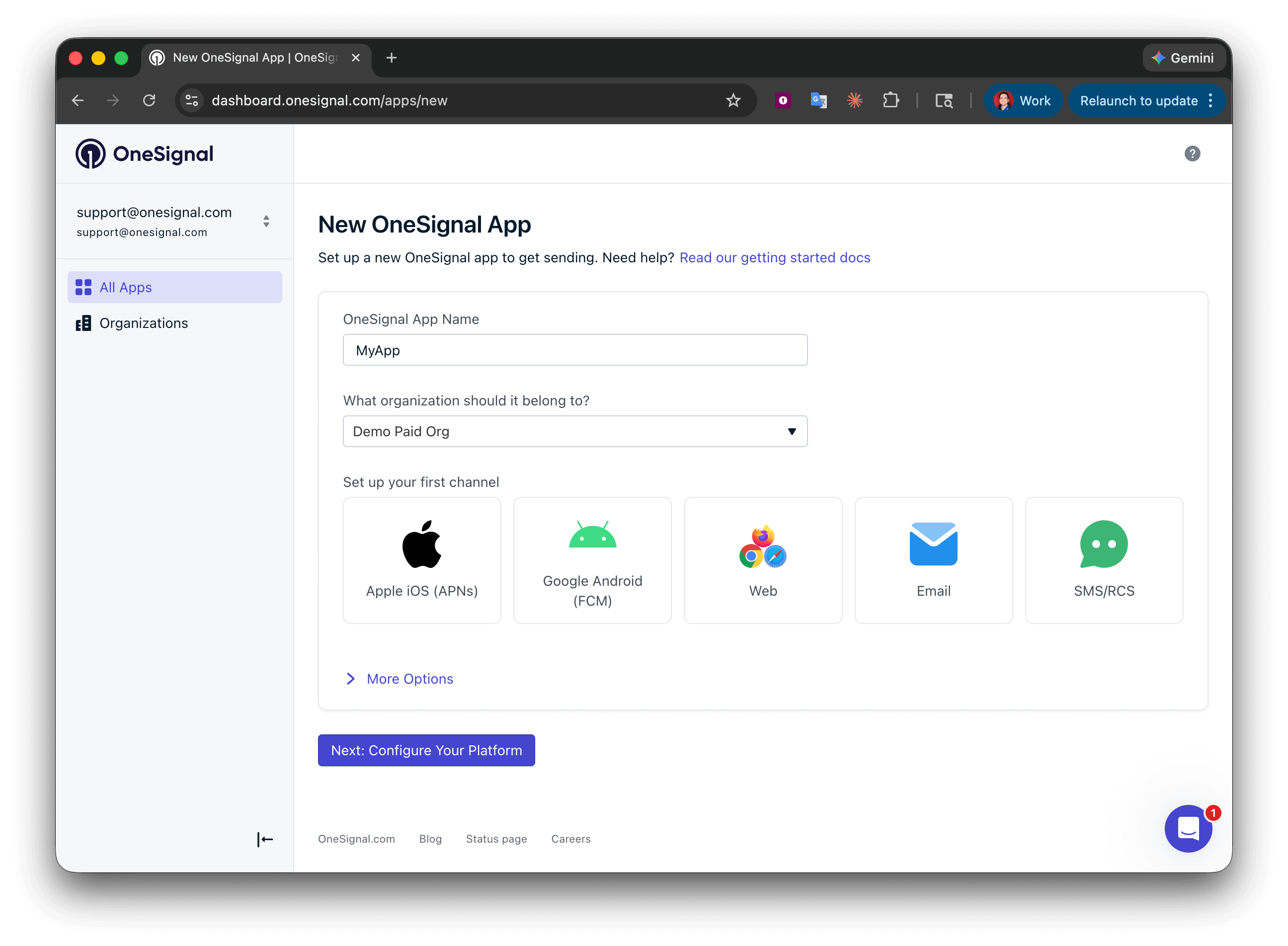 Enter the credentials for your platform:
* **Android**: [Set up Firebase credentials](/docs/en/android-firebase-credentials)
* **iOS**: [p8 token (recommended)](/docs/en/ios-p8-token-based-connection-to-apns) or [p12 certificate](/docs/en/ios-p12-generate-certificates)
* **Amazon**: [Generate API key](/docs/en/generate-an-amazon-api-key)
* **Huawei**: [Authorize OneSignal](/docs/en/authorize-onesignal-to-send-huawei-push)
Click **Save & Continue** after entering your credentials.
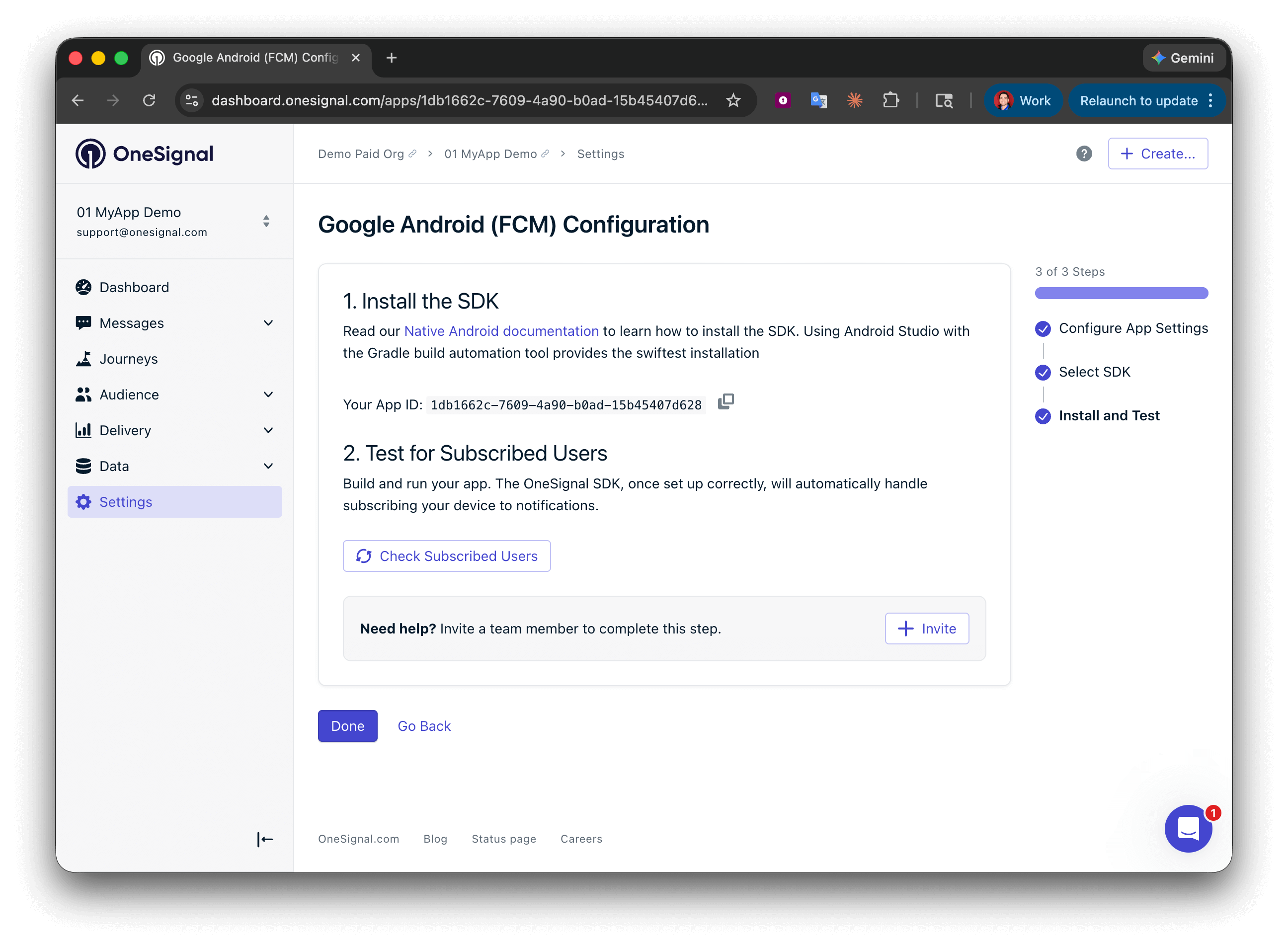
Your **App ID** is displayed on the final screen. Copy and save it — you need it when initializing the SDK. Select your SDK platform, then follow the setup guide.
Enter the credentials for your platform:
* **Android**: [Set up Firebase credentials](/docs/en/android-firebase-credentials)
* **iOS**: [p8 token (recommended)](/docs/en/ios-p8-token-based-connection-to-apns) or [p12 certificate](/docs/en/ios-p12-generate-certificates)
* **Amazon**: [Generate API key](/docs/en/generate-an-amazon-api-key)
* **Huawei**: [Authorize OneSignal](/docs/en/authorize-onesignal-to-send-huawei-push)
Click **Save & Continue** after entering your credentials.
Your **App ID** is displayed on the final screen. Copy and save it — you need it when initializing the SDK. Select your SDK platform, then follow the setup guide.
 ***
## iOS setup
Follow these steps to add push notifications to your iOS app, including support for [Badges](./badges), [Confirmed receipt](./confirmed-delivery), and images.
### 1. Add Push Notifications capability to app target
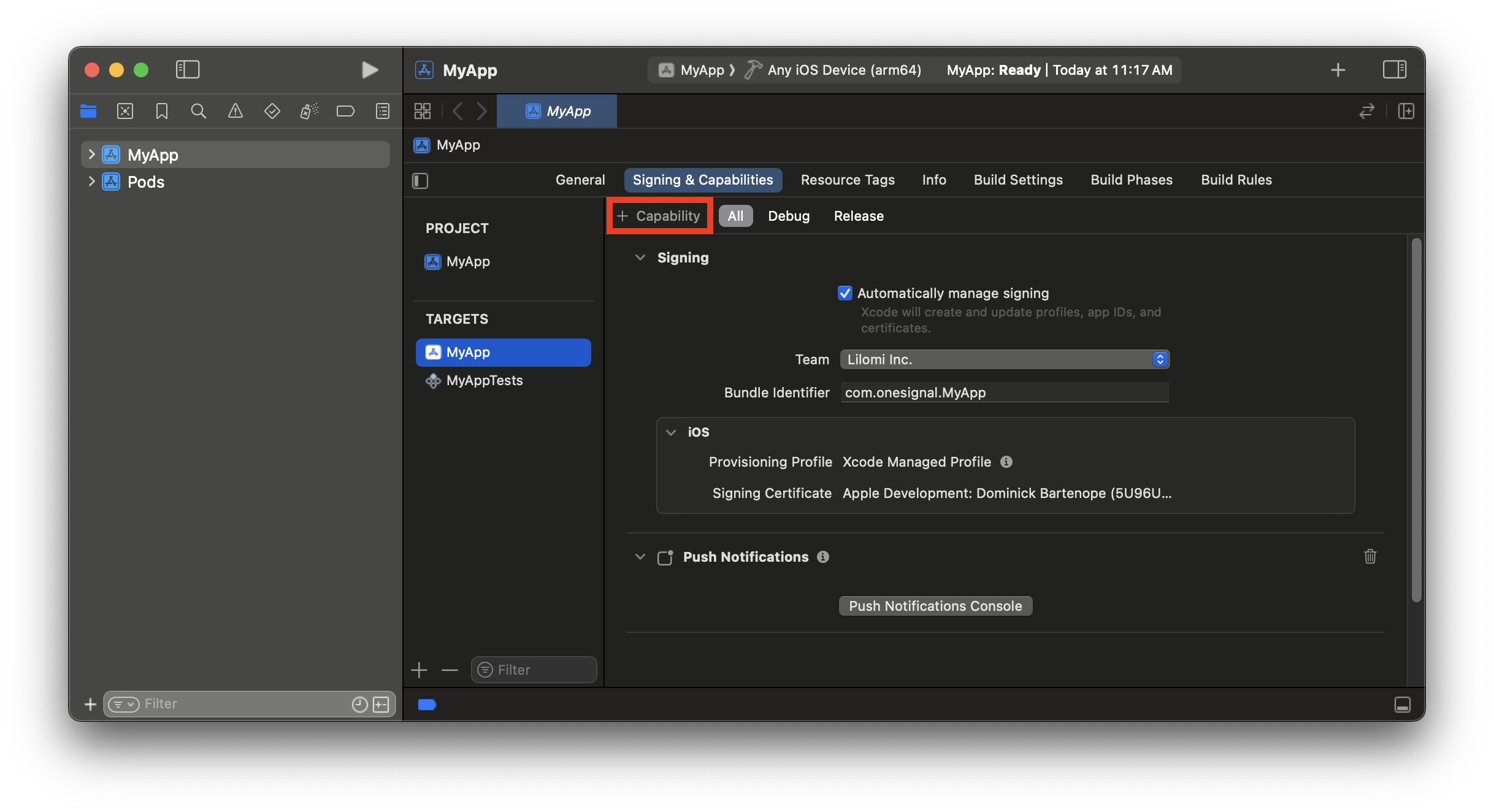
The [Push Notifications capability](https://developer.apple.com/documentation/UserNotifications/registering-your-app-with-apns#Enable-the-push-notifications-capability) allows your app to register a push token and receive notifications.
1. Open your app’s `.xcworkspace` file in Xcode.
2. Select **your app target > Signing & Capabilities**
3. Click **+ Capability** and add **Push Notifications** capability
***
## iOS setup
Follow these steps to add push notifications to your iOS app, including support for [Badges](./badges), [Confirmed receipt](./confirmed-delivery), and images.
### 1. Add Push Notifications capability to app target
The [Push Notifications capability](https://developer.apple.com/documentation/UserNotifications/registering-your-app-with-apns#Enable-the-push-notifications-capability) allows your app to register a push token and receive notifications.
1. Open your app’s `.xcworkspace` file in Xcode.
2. Select **your app target > Signing & Capabilities**
3. Click **+ Capability** and add **Push Notifications** capability
 ### 2. Add Background Modes capability to app target
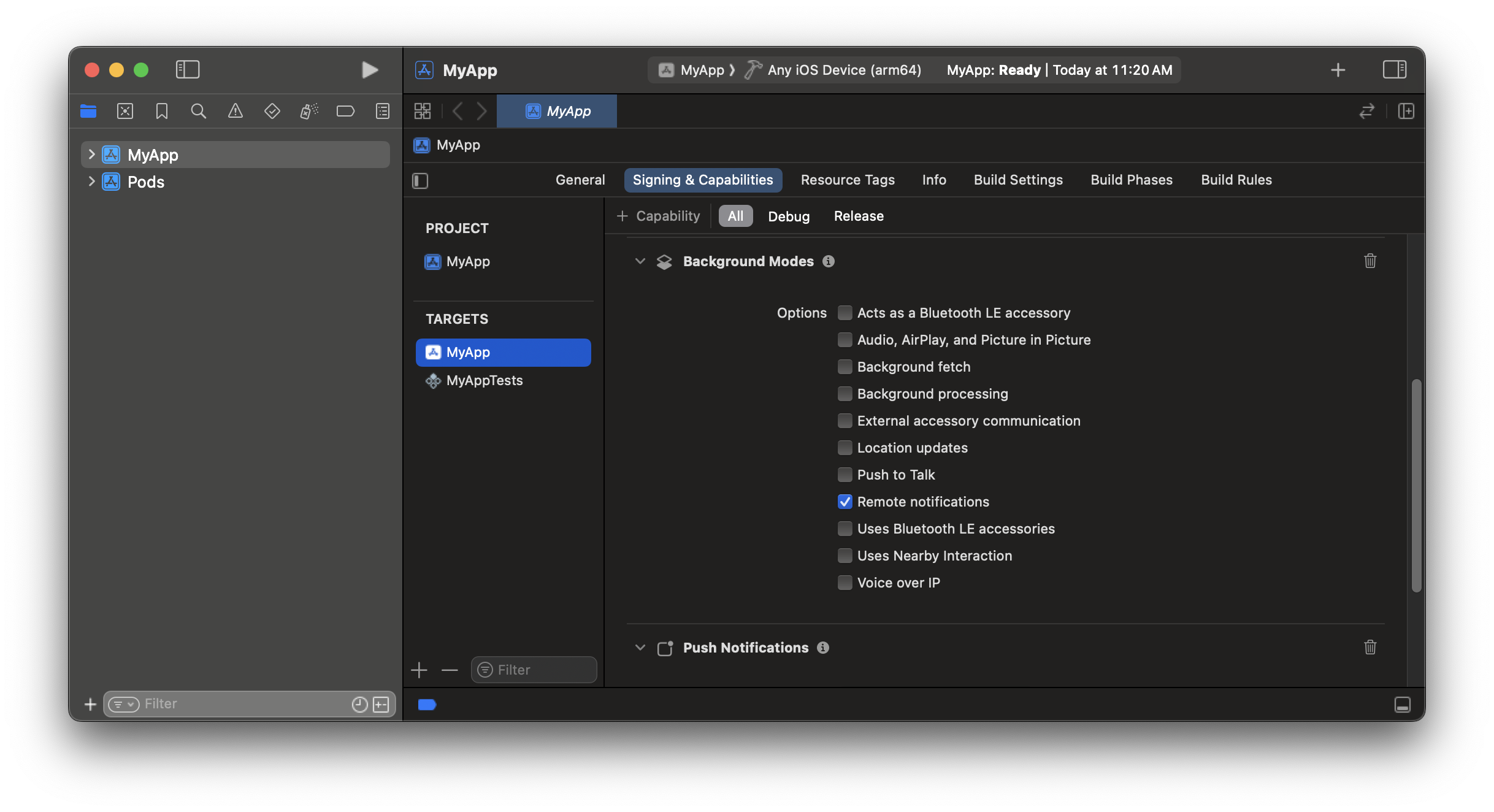
This enables your app to wake in the background when push notifications arrive.
1. Add [Background Modes](https://developer.apple.com/documentation/usernotifications/pushing-background-updates-to-your-app) capability
2. Enable **Remote notifications**
### 2. Add Background Modes capability to app target
This enables your app to wake in the background when push notifications arrive.
1. Add [Background Modes](https://developer.apple.com/documentation/usernotifications/pushing-background-updates-to-your-app) capability
2. Enable **Remote notifications**
 ### 3. Add app target to App Group
[App Groups](https://developer.apple.com/documentation/xcode/configuring-app-groups/#Create-App-Groups-for-all-other-platforms) allow data sharing between your app and the Notification Service Extension. Required for confirmed receipt and Badges.
1. Add **App Groups** capability
2. In the App Groups capability click **+**
3. Add a new container ID in format: `group.your_bundle_id.onesignal`
* Keep **group.** and **.onesignal** prefix and suffix. Replace **`your_bundle_id`** with your app's bundle identifier.
* For example, bundle identifier `com.onesignal.MyApp`, will have the container name `group.com.onesignal.MyApp.onesignal`.
### 3. Add app target to App Group
[App Groups](https://developer.apple.com/documentation/xcode/configuring-app-groups/#Create-App-Groups-for-all-other-platforms) allow data sharing between your app and the Notification Service Extension. Required for confirmed receipt and Badges.
1. Add **App Groups** capability
2. In the App Groups capability click **+**
3. Add a new container ID in format: `group.your_bundle_id.onesignal`
* Keep **group.** and **.onesignal** prefix and suffix. Replace **`your_bundle_id`** with your app's bundle identifier.
* For example, bundle identifier `com.onesignal.MyApp`, will have the container name `group.com.onesignal.MyApp.onesignal`.
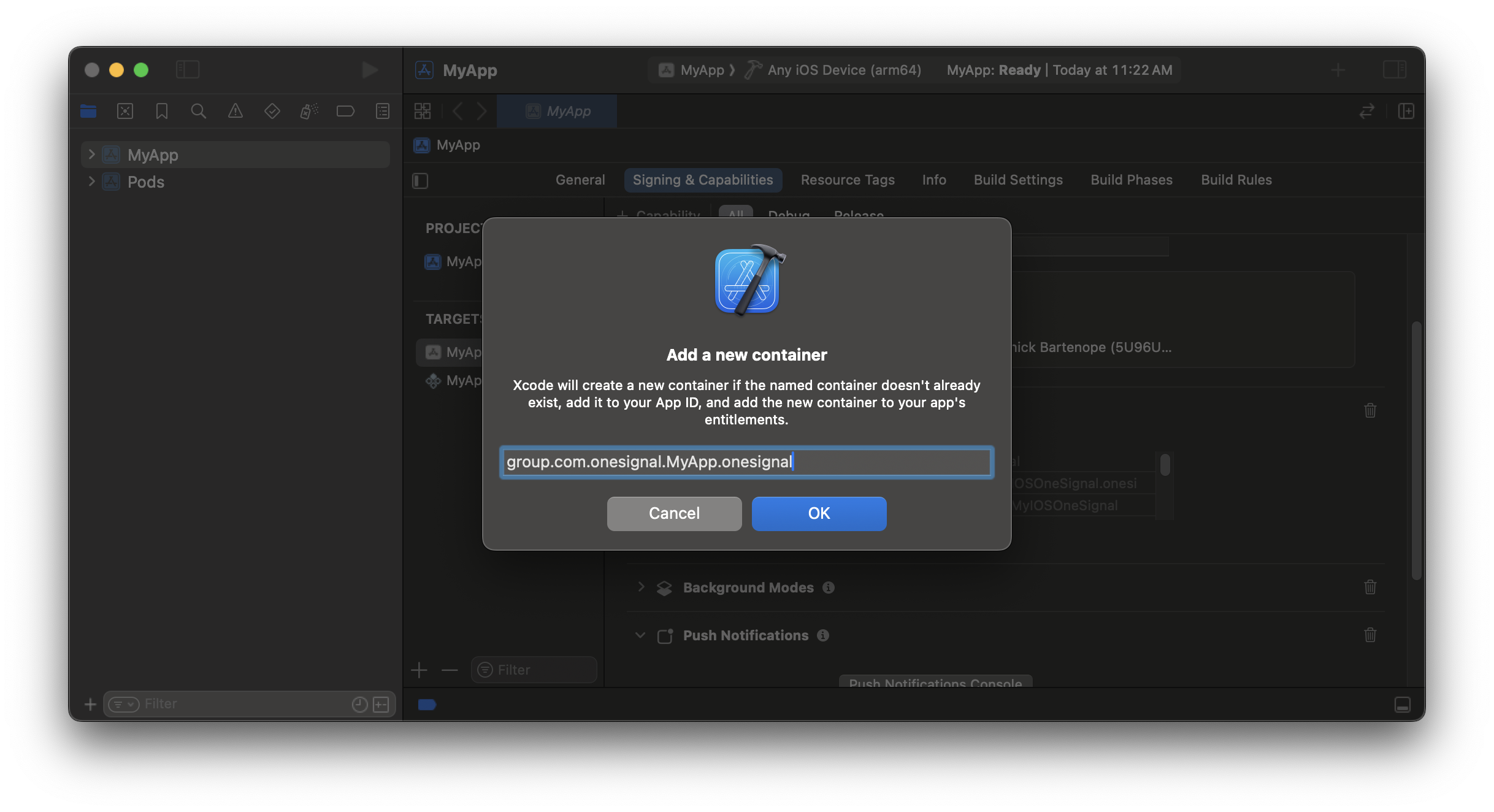 Your App Group name must exactly match your bundle ID’s spelling and capitalization across all targets.
1. Open your **App Target** and **OneSignalNotificationServiceExtension Target's** `Info.plist`
2. Add a new property to the `Info.plist` for both targets:
* **Key:** `OneSignal_app_groups_key`
* **Value:** Your existing App Group name (e.g., `group.your-custom-group-id`)
```xml XML theme={null}
OneSignal_app_groups_key
group.your-custom-group-id
```
Your App Group name must exactly match your bundle ID’s spelling and capitalization across all targets.
1. Open your **App Target** and **OneSignalNotificationServiceExtension Target's** `Info.plist`
2. Add a new property to the `Info.plist` for both targets:
* **Key:** `OneSignal_app_groups_key`
* **Value:** Your existing App Group name (e.g., `group.your-custom-group-id`)
```xml XML theme={null}
OneSignal_app_groups_key
group.your-custom-group-id
```
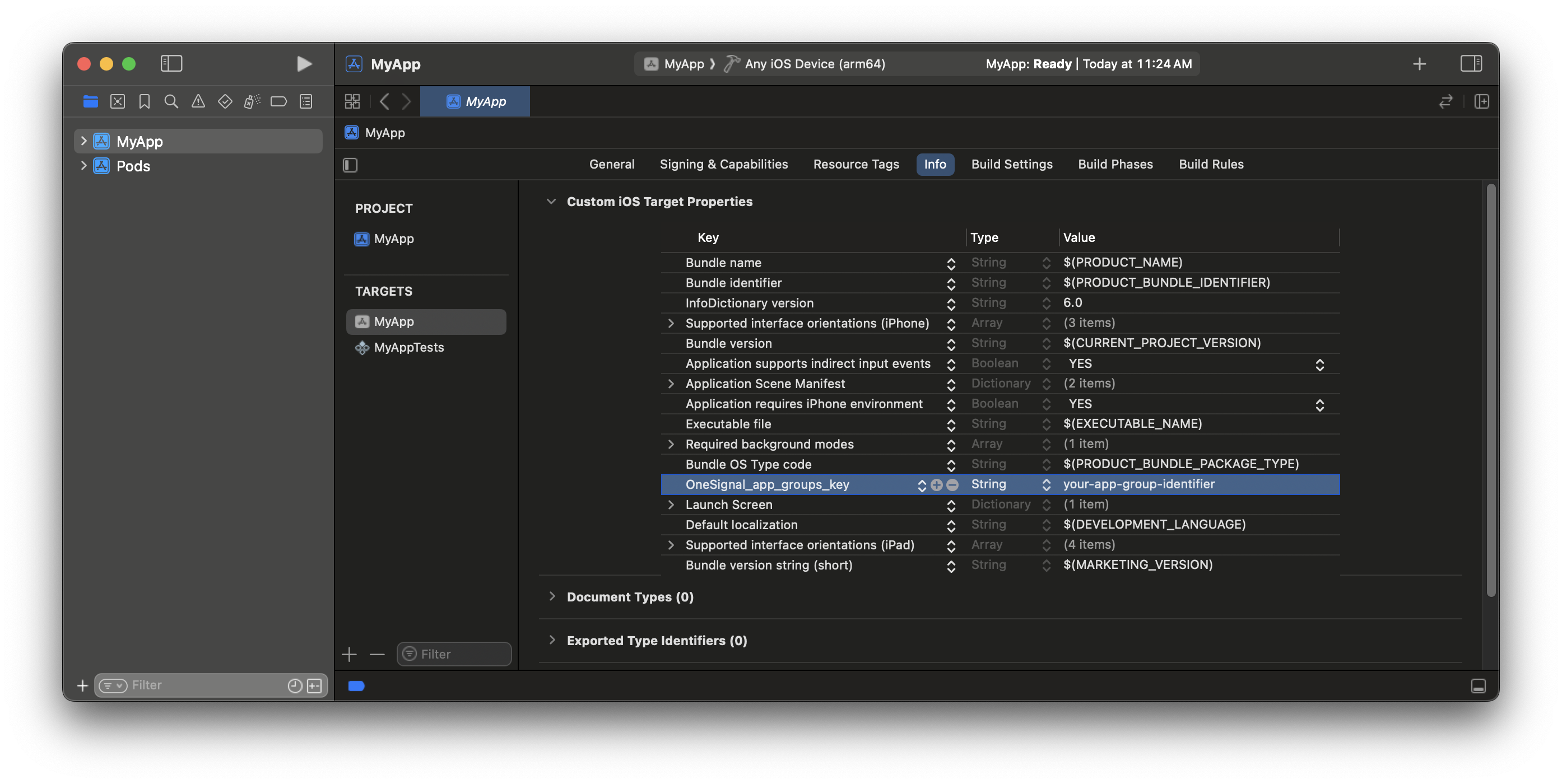 Make sure to update the `OneSignal_app_groups_key` in **both** the App Target **and** OneSignalNotificationServiceExtension Target's `Info.plist`!
### 4. Add Notification Service Extension
The [Notification Service Extension (NSE)](https://developer.apple.com/documentation/usernotifications/modifying-content-in-newly-delivered-notifications) enables rich notifications and confirmed receipt analytics.
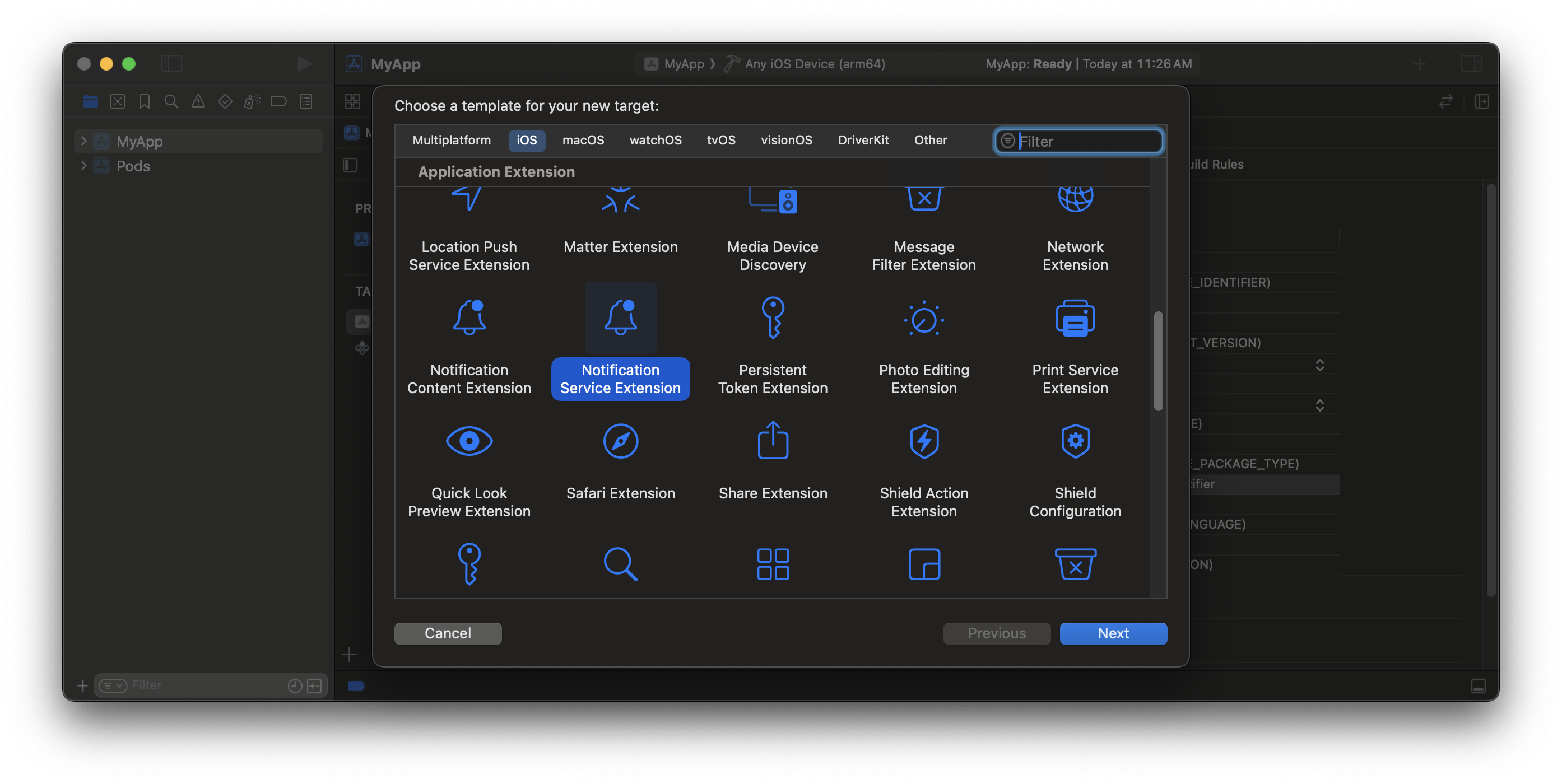
1. In Xcode: **File > New > Target...**
2. Select **Notification Service Extension**, then **Next**.
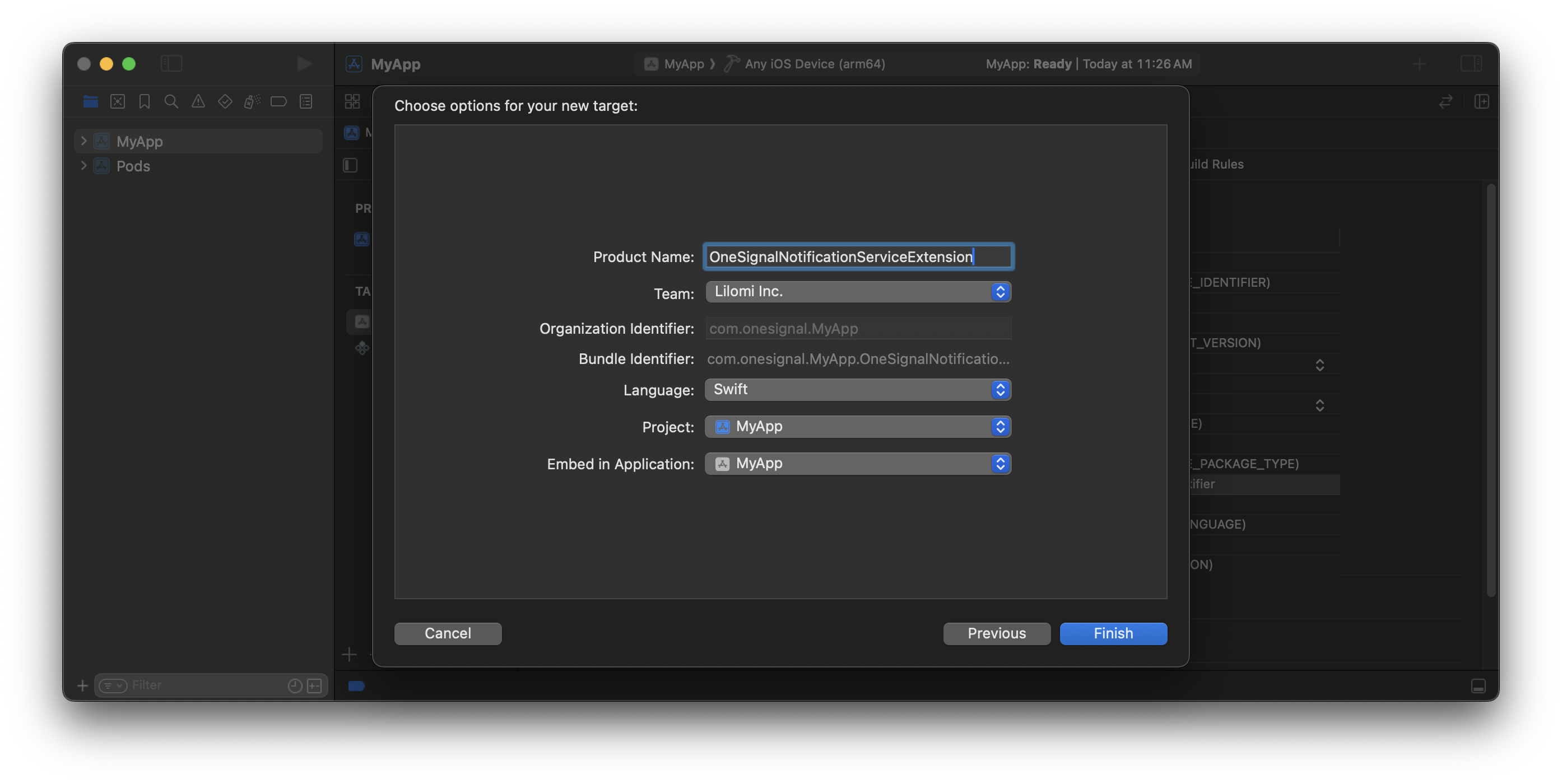
3. Set the product name to `OneSignalNotificationServiceExtension` and press **Finish**.
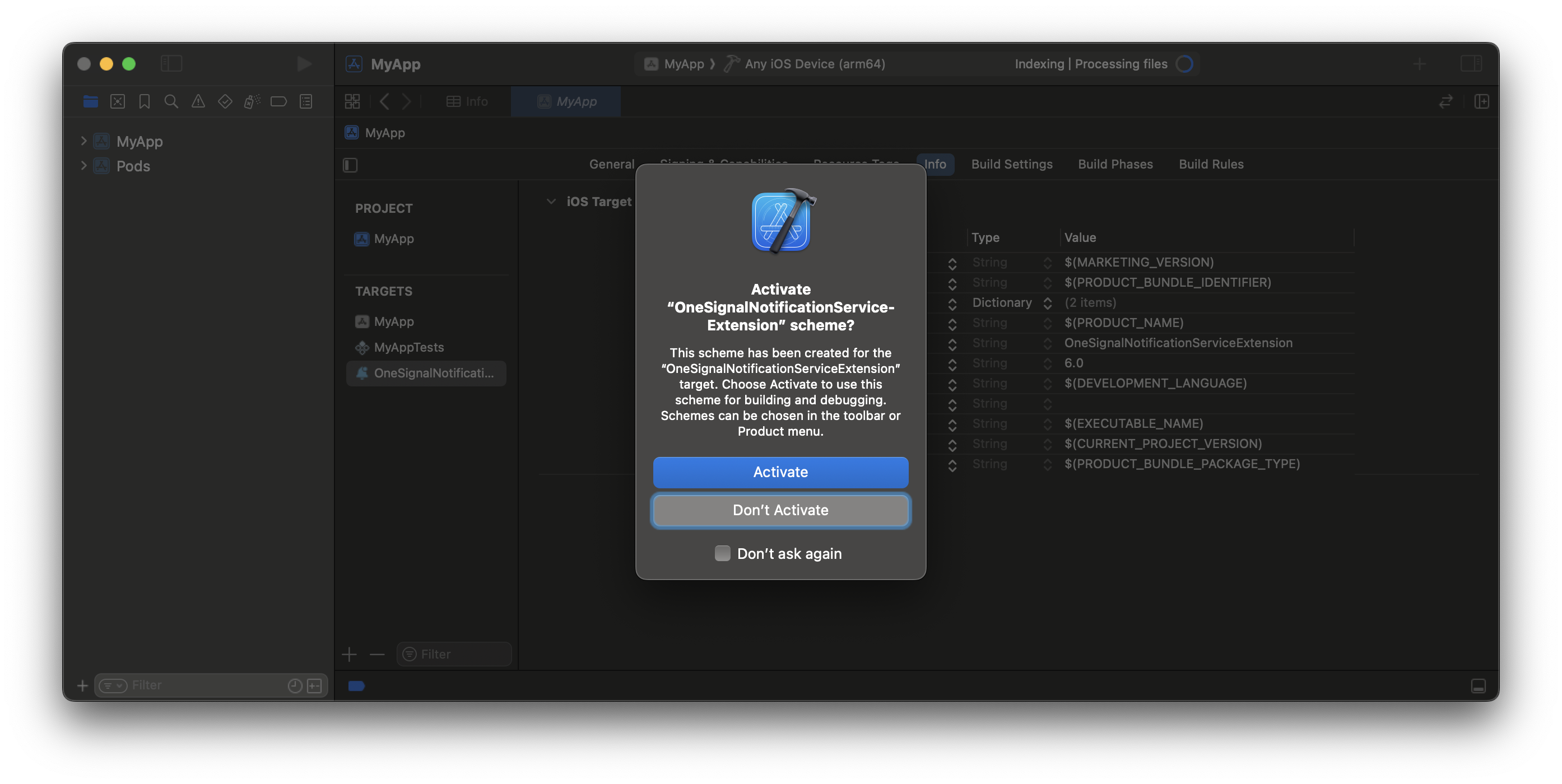
4. Press **Don't Activate** on the Activate scheme prompt.
Make sure to update the `OneSignal_app_groups_key` in **both** the App Target **and** OneSignalNotificationServiceExtension Target's `Info.plist`!
### 4. Add Notification Service Extension
The [Notification Service Extension (NSE)](https://developer.apple.com/documentation/usernotifications/modifying-content-in-newly-delivered-notifications) enables rich notifications and confirmed receipt analytics.
1. In Xcode: **File > New > Target...**
2. Select **Notification Service Extension**, then **Next**.
3. Set the product name to `OneSignalNotificationServiceExtension` and press **Finish**.
4. Press **Don't Activate** on the Activate scheme prompt.
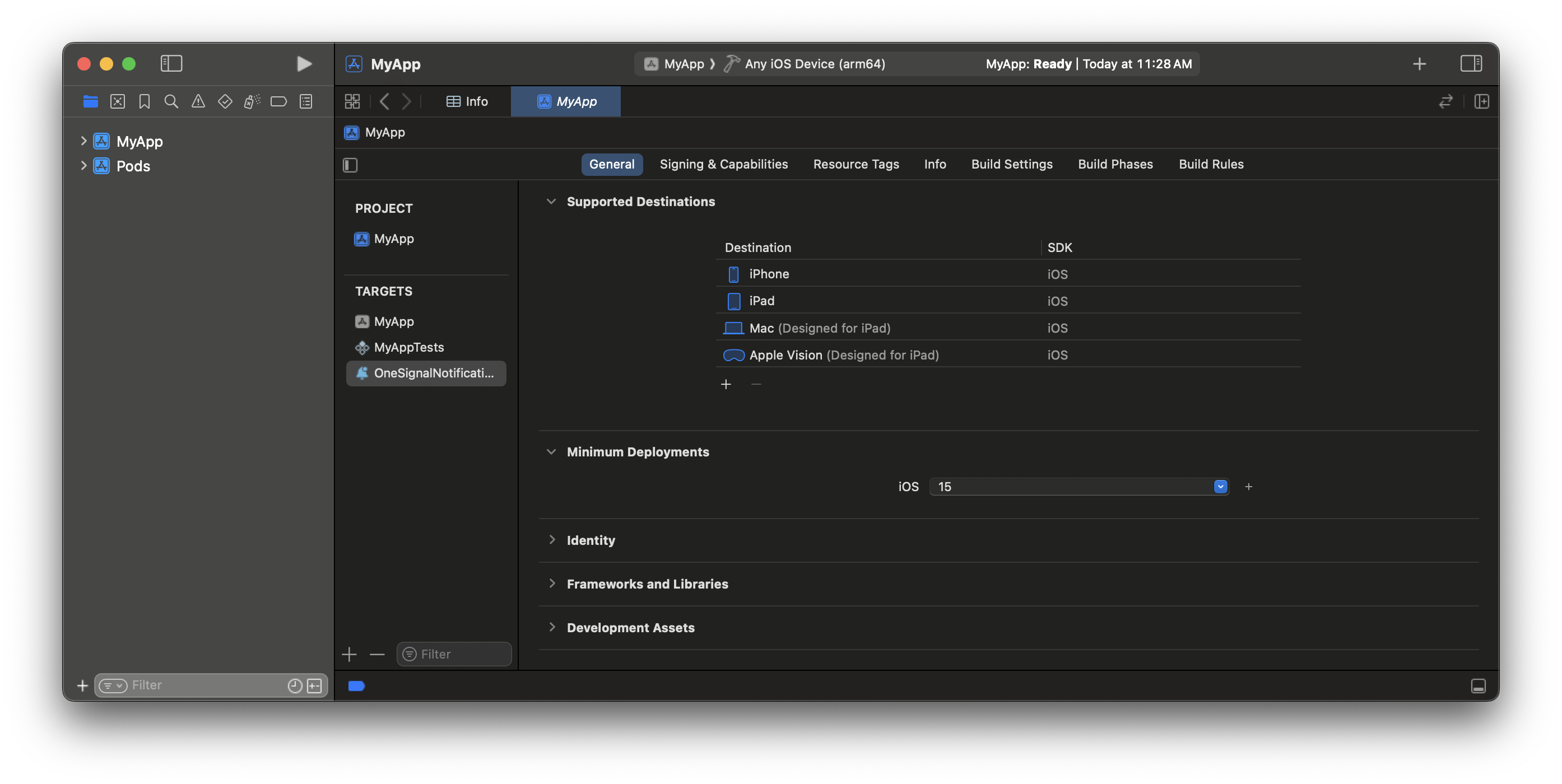
 Set the OneSignalNotificationServiceExtension **Minimum Deployment Target** to match your main app (iOS 15+ recommended).
If you're using CocoaPods, set the deployment version in your Podfile as well.
Set the OneSignalNotificationServiceExtension **Minimum Deployment Target** to match your main app (iOS 15+ recommended).
If you're using CocoaPods, set the deployment version in your Podfile as well.
 ### 5. Add NSE target to app group
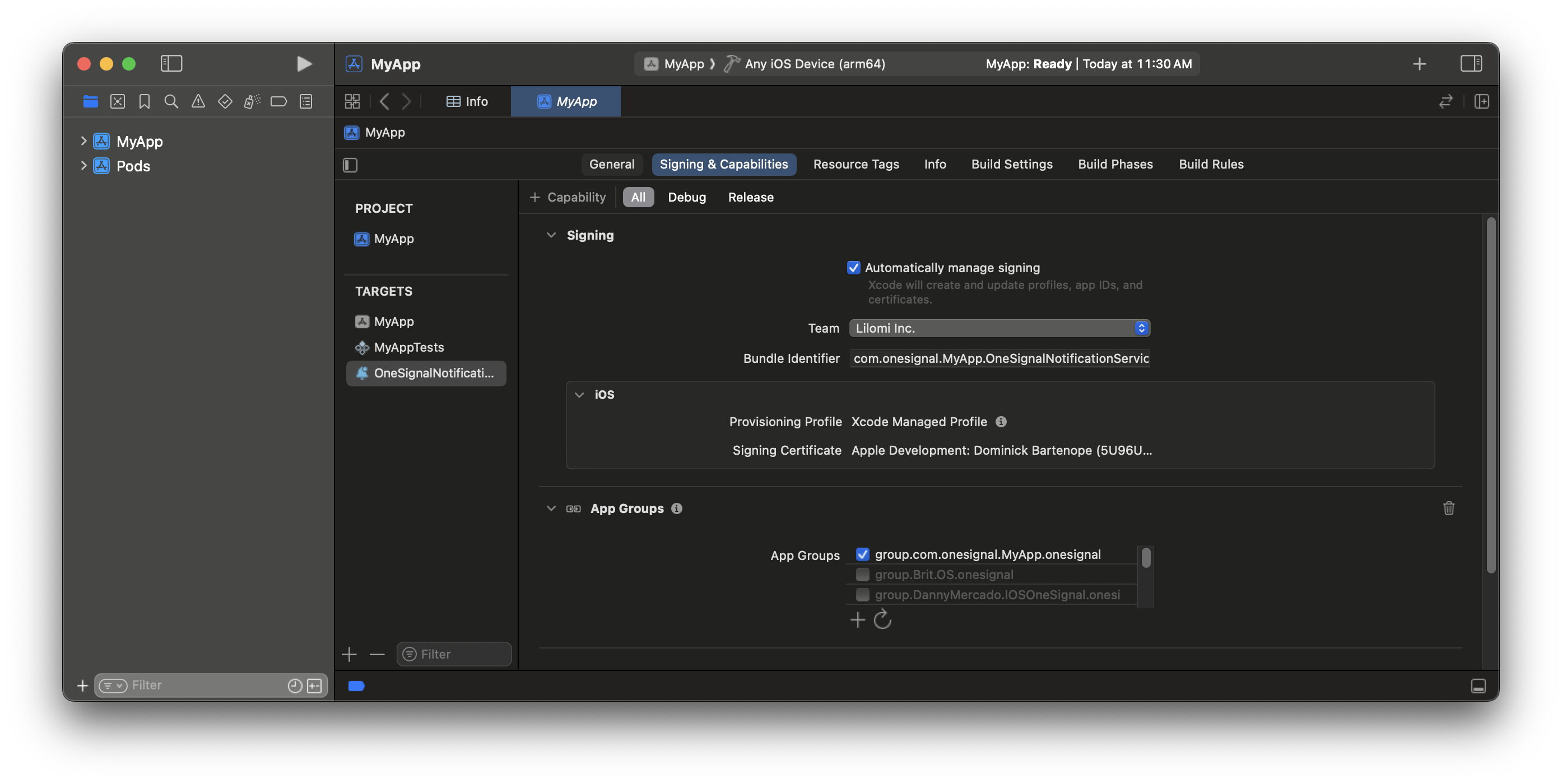
Use the same App Group ID you added in step 3.
1. Go to **OneSignalNotificationServiceExtension > Signing & Capabilities**
2. Add **App Groups**
3. Add the exact same group ID
If you are using a custom App Group name and not `group.your_bundle_id.onesignal` then make sure to add your App Group ID to both the App Target and OneSignalNotificationServiceExtension Target's `Info.plist`! See [step 3](#3-add-app-target-to-app-group) for more information.
### 5. Add NSE target to app group
Use the same App Group ID you added in step 3.
1. Go to **OneSignalNotificationServiceExtension > Signing & Capabilities**
2. Add **App Groups**
3. Add the exact same group ID
If you are using a custom App Group name and not `group.your_bundle_id.onesignal` then make sure to add your App Group ID to both the App Target and OneSignalNotificationServiceExtension Target's `Info.plist`! See [step 3](#3-add-app-target-to-app-group) for more information.
 ### 6. Update NSE code
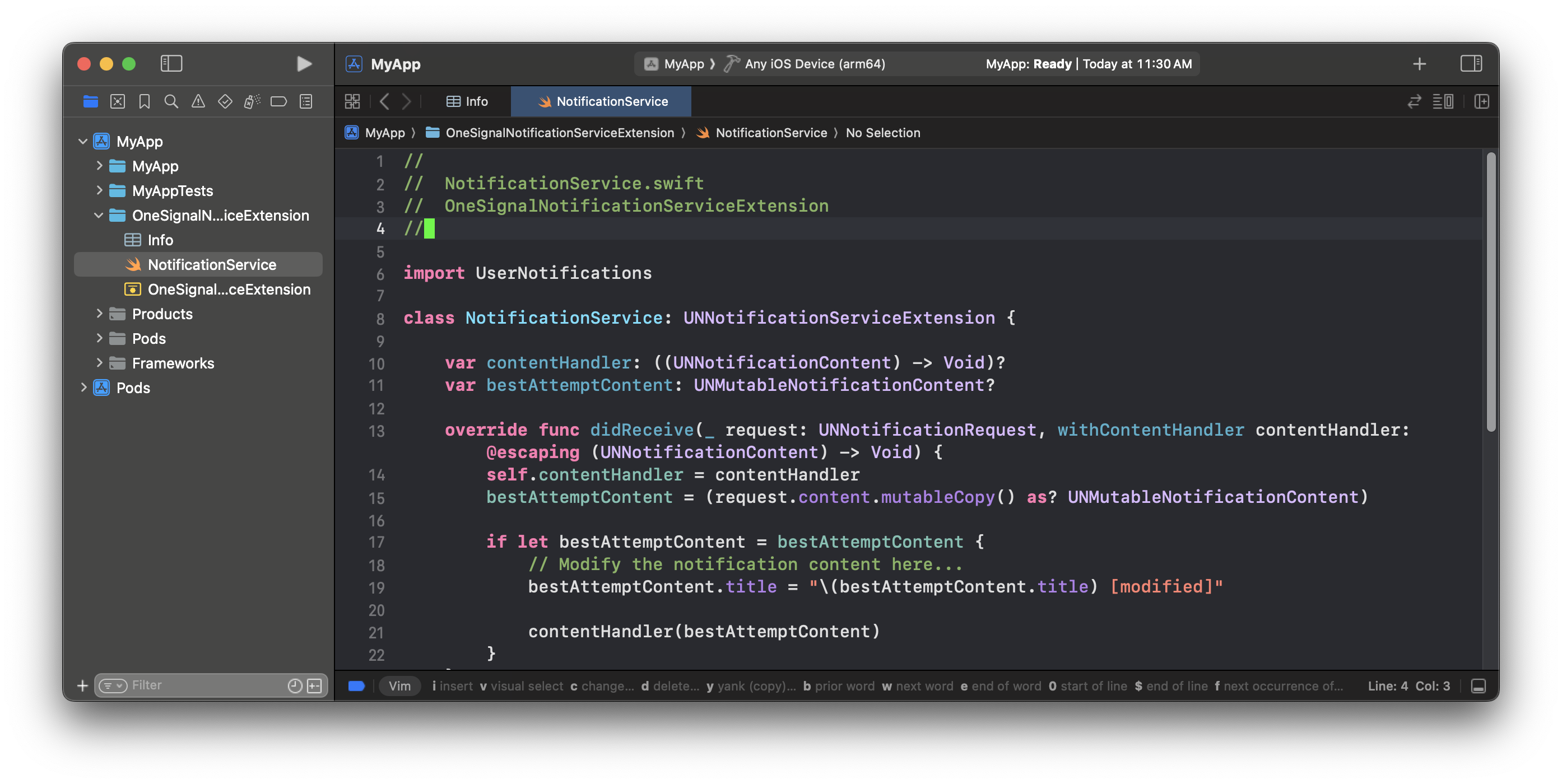
1. Navigate to the **OneSignalNotificationServiceExtension** folder
2. Replace the contents of the `NotificationService.swift` or `NotificationService.m` file with the following:
### 6. Update NSE code
1. Navigate to the **OneSignalNotificationServiceExtension** folder
2. Replace the contents of the `NotificationService.swift` or `NotificationService.m` file with the following:
 ```swift Swift theme={null}
import UserNotifications
import OneSignalExtension
class NotificationService: UNNotificationServiceExtension {
var contentHandler: ((UNNotificationContent) -> Void)?
var receivedRequest: UNNotificationRequest!
var bestAttemptContent: UNMutableNotificationContent?
// Note this extension only runs when `mutable_content` is set
// Setting an attachment or action buttons automatically sets the property to true
override func didReceive(_ request: UNNotificationRequest, withContentHandler contentHandler: @escaping (UNNotificationContent) -> Void) {
self.receivedRequest = request
self.contentHandler = contentHandler
self.bestAttemptContent = (request.content.mutableCopy() as? UNMutableNotificationContent)
if let bestAttemptContent = bestAttemptContent {
// DEBUGGING: Uncomment the 2 lines below to check this extension is executing
// print("Running NotificationServiceExtension")
// bestAttemptContent.body = "[Modified] " + bestAttemptContent.body
OneSignalExtension.didReceiveNotificationExtensionRequest(self.receivedRequest, with: bestAttemptContent, withContentHandler: self.contentHandler)
}
}
override func serviceExtensionTimeWillExpire() {
// Use this as an opportunity to deliver your "best attempt" at modified content, otherwise the original push payload will be used.
if let contentHandler = contentHandler, let bestAttemptContent = bestAttemptContent {
OneSignalExtension.serviceExtensionTimeWillExpireRequest(self.receivedRequest, with: self.bestAttemptContent)
contentHandler(bestAttemptContent)
}
}
}
```
```objc Objective-C theme={null}
#import
#import "NotificationService.h"
@interface NotificationService ()
@property (nonatomic, strong) void (^contentHandler)(UNNotificationContent *contentToDeliver);
@property (nonatomic, strong) UNNotificationRequest *receivedRequest;
@property (nonatomic, strong) UNMutableNotificationContent *bestAttemptContent;
@end
@implementation NotificationService
// Note, this extension only runs when mutable-content is set
// Setting an attachment or action buttons automatically adds this
- (void)didReceiveNotificationRequest:(UNNotificationRequest *)request withContentHandler:(void (^)(UNNotificationContent * _Nonnull))contentHandler {
self.receivedRequest = request;
self.contentHandler = contentHandler;
self.bestAttemptContent = [request.content mutableCopy];
// DEBUGGING: Uncomment the 2 lines below and comment out the one above to ensure this extension is executing
// NSLog(@"Running NotificationServiceExtension");
// self.bestAttemptContent.body = [@"[Modified] " stringByAppendingString:self.bestAttemptContent.body];
[OneSignalExtension didReceiveNotificationExtensionRequest:self.receivedRequest
withMutableNotificationContent:self.bestAttemptContent
withContentHandler:self.contentHandler];
}
- (void)serviceExtensionTimeWillExpire {
// Use this as an opportunity to deliver your "best attempt" at modified content, otherwise the original push payload will be used.
[OneSignalExtension serviceExtensionTimeWillExpireRequest:self.receivedRequest withMutableNotificationContent:self.bestAttemptContent];
self.contentHandler(self.bestAttemptContent);
}
@end
```
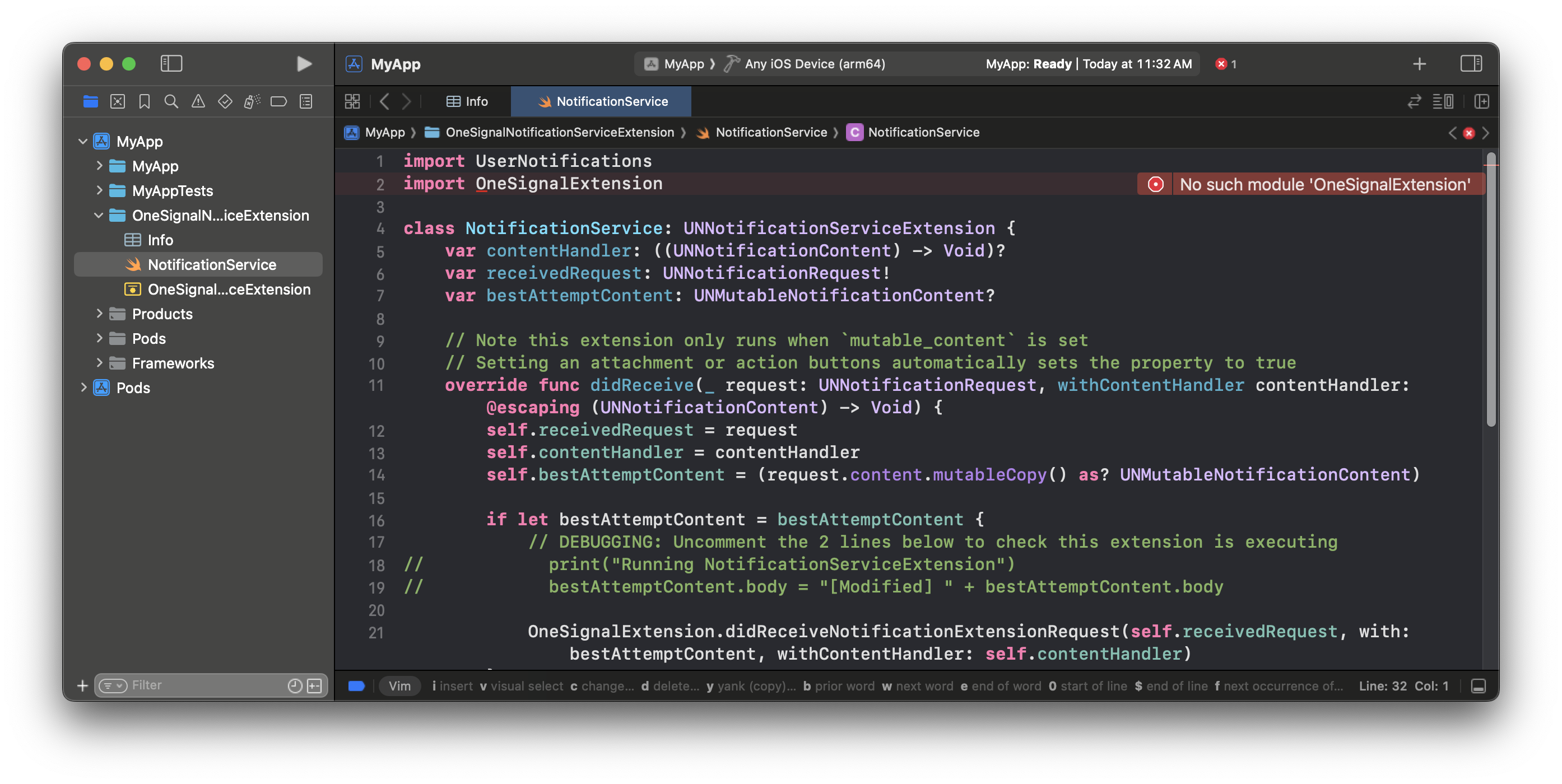
You should see an error because the OneSignal package is not installed. This will be resolved in the next step.
```swift Swift theme={null}
import UserNotifications
import OneSignalExtension
class NotificationService: UNNotificationServiceExtension {
var contentHandler: ((UNNotificationContent) -> Void)?
var receivedRequest: UNNotificationRequest!
var bestAttemptContent: UNMutableNotificationContent?
// Note this extension only runs when `mutable_content` is set
// Setting an attachment or action buttons automatically sets the property to true
override func didReceive(_ request: UNNotificationRequest, withContentHandler contentHandler: @escaping (UNNotificationContent) -> Void) {
self.receivedRequest = request
self.contentHandler = contentHandler
self.bestAttemptContent = (request.content.mutableCopy() as? UNMutableNotificationContent)
if let bestAttemptContent = bestAttemptContent {
// DEBUGGING: Uncomment the 2 lines below to check this extension is executing
// print("Running NotificationServiceExtension")
// bestAttemptContent.body = "[Modified] " + bestAttemptContent.body
OneSignalExtension.didReceiveNotificationExtensionRequest(self.receivedRequest, with: bestAttemptContent, withContentHandler: self.contentHandler)
}
}
override func serviceExtensionTimeWillExpire() {
// Use this as an opportunity to deliver your "best attempt" at modified content, otherwise the original push payload will be used.
if let contentHandler = contentHandler, let bestAttemptContent = bestAttemptContent {
OneSignalExtension.serviceExtensionTimeWillExpireRequest(self.receivedRequest, with: self.bestAttemptContent)
contentHandler(bestAttemptContent)
}
}
}
```
```objc Objective-C theme={null}
#import
#import "NotificationService.h"
@interface NotificationService ()
@property (nonatomic, strong) void (^contentHandler)(UNNotificationContent *contentToDeliver);
@property (nonatomic, strong) UNNotificationRequest *receivedRequest;
@property (nonatomic, strong) UNMutableNotificationContent *bestAttemptContent;
@end
@implementation NotificationService
// Note, this extension only runs when mutable-content is set
// Setting an attachment or action buttons automatically adds this
- (void)didReceiveNotificationRequest:(UNNotificationRequest *)request withContentHandler:(void (^)(UNNotificationContent * _Nonnull))contentHandler {
self.receivedRequest = request;
self.contentHandler = contentHandler;
self.bestAttemptContent = [request.content mutableCopy];
// DEBUGGING: Uncomment the 2 lines below and comment out the one above to ensure this extension is executing
// NSLog(@"Running NotificationServiceExtension");
// self.bestAttemptContent.body = [@"[Modified] " stringByAppendingString:self.bestAttemptContent.body];
[OneSignalExtension didReceiveNotificationExtensionRequest:self.receivedRequest
withMutableNotificationContent:self.bestAttemptContent
withContentHandler:self.contentHandler];
}
- (void)serviceExtensionTimeWillExpire {
// Use this as an opportunity to deliver your "best attempt" at modified content, otherwise the original push payload will be used.
[OneSignalExtension serviceExtensionTimeWillExpireRequest:self.receivedRequest withMutableNotificationContent:self.bestAttemptContent];
self.contentHandler(self.bestAttemptContent);
}
@end
```
You should see an error because the OneSignal package is not installed. This will be resolved in the next step.
 ***
## SDK setup
This section will guide you through integrating OneSignal's core features. By the end of this section, you will have a basic integration with our SDK enabling you to trigger in-app messages and receive push notifications.
### 1. Add SDK
Add our SDK using Xcode Package Dependencies Manager (Swift Package Manager) or CocoaPods. There are 4 available libraries. If you do not want [In-app messages](./in-app-messages-setup) and/or Location tracking, you can omit these packages.
| Library | Target | Required |
| -------------------------- | :-----------------------------------: | :---------: |
| **OneSignalExtension** | OneSignalNotificationServiceExtension | ✅ |
| **OneSignalFramework** | App | ✅ |
| **OneSignalInAppMessages** | App | Recommended |
| **OneSignalLocation** | App | Optional |
Navigate to **File > Add Package Dependencies...** and enter the URL to the OneSignal SDK repository:
`https://github.com/OneSignal/OneSignal-XCFramework`
Select the **onesignal-xcframework** package and click **Add Package**.
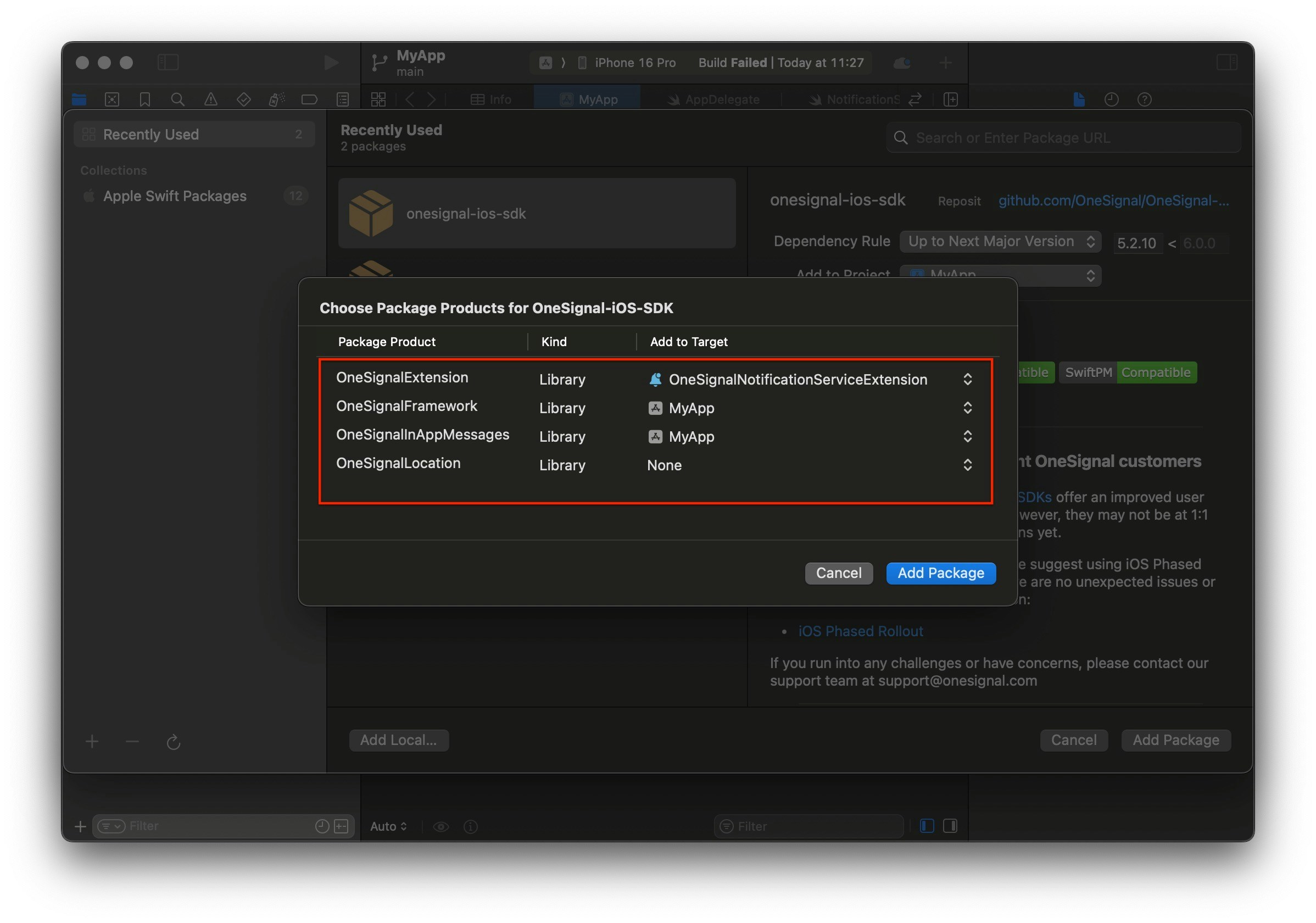
Choose Package Products for OneSignal-XCFramework.
* **Important**: Add the **OneSignalExtension** to the OneSignalNotificationServiceExtension Target.
* Add the **OneSignalFramework** to your App Target.
* If you plan on using in-app messages (recommended) and/or location tracking, then add those packages to your App Target as well.
***
## SDK setup
This section will guide you through integrating OneSignal's core features. By the end of this section, you will have a basic integration with our SDK enabling you to trigger in-app messages and receive push notifications.
### 1. Add SDK
Add our SDK using Xcode Package Dependencies Manager (Swift Package Manager) or CocoaPods. There are 4 available libraries. If you do not want [In-app messages](./in-app-messages-setup) and/or Location tracking, you can omit these packages.
| Library | Target | Required |
| -------------------------- | :-----------------------------------: | :---------: |
| **OneSignalExtension** | OneSignalNotificationServiceExtension | ✅ |
| **OneSignalFramework** | App | ✅ |
| **OneSignalInAppMessages** | App | Recommended |
| **OneSignalLocation** | App | Optional |
Navigate to **File > Add Package Dependencies...** and enter the URL to the OneSignal SDK repository:
`https://github.com/OneSignal/OneSignal-XCFramework`
Select the **onesignal-xcframework** package and click **Add Package**.
Choose Package Products for OneSignal-XCFramework.
* **Important**: Add the **OneSignalExtension** to the OneSignalNotificationServiceExtension Target.
* Add the **OneSignalFramework** to your App Target.
* If you plan on using in-app messages (recommended) and/or location tracking, then add those packages to your App Target as well.
 For more details, see [Apple's Adding package dependencies doc](https://developer.apple.com/documentation/xcode/adding-package-dependencies-to-your-app#Add-a-package-dependency).
**Requirements**: CocoaPods 1.16.2+ (Setup instructions use CocoaPods 1.16.2).
Open your `Podfile` and add the following:
```ruby Podfile theme={null}
# If platform is uncommented, set to the same value as your minimum deployment target in Xcode
# platform :ios, '15.0'
target 'your_project_name' do
pod 'OneSignal/OneSignal', '>= 5.2.9', '< 6.0'
# If your app does not use In-App messages, you can remove this:
pod 'OneSignal/OneSignalInAppMessages', '>= 5.2.9', '< 6.0'
# If your app does not use CoreLocation, you can remove this:
pod 'OneSignal/OneSignalLocation', '>= 5.2.9', '< 6.0'
# Your other pods here
end
target 'OneSignalNotificationServiceExtension' do
pod 'OneSignal/OneSignal', '>= 5.2.9', '< 6.0'
end
```
Add the dependencies to your main app target and OneSignalNotificationServiceExtension target. If `platform` is uncommented, make sure it is the same value as the minimum deployment target in Xcode.
Run the following command to pull down the OneSignal iOS SDK pod and add it to your project:
`pod repo update && pod install`
Once the installation is complete, make sure to open the *XCWorkspace* file named after your project (e.g., `.xcworkspace`)
When using the OneSignal iOS SDK pod, you must exclusively use the `.xcworkspace` file to open the project.
You may run into the following errors, here is how you can resolve them.
CocoaPods relies on the `xcodeproj` Ruby gem to read your Xcode project files. As of now, the latest `xcodeproj` release does not recognize object version 70, which was introduced by Xcode 16. So when CocoaPods tries to open your `.xcodeproj` file, it crashes with this error.
1. Close Xcode.
2. Navigate to your project's `ios/.xcodeproj/project.pbxproj` file.
3. Change this line: `objectVersion = 70;`
4. Replace it with: `objectVersion = 55;`
5. Save, close, and rerun `cd ios pod install cd ..`
### 2. Initialize SDK
Depending on your Xcode interface setup, initialize OneSignal following these options.
If using SwiftUI interface, navigate to your `App.swift` file and initialize OneSignal with the provided methods.
Replace `YOUR_APP_ID` with your OneSignal App ID found in your OneSignal dashboard **Settings > [Keys & IDs](./keys-and-ids)**. If you don't have access to the OneSignal app, ask your [Team Members](./manage-team-members) to invite you.
```swift Swift theme={null}
import SwiftUI
import OneSignalFramework
@main
struct YOURAPP_NAME: App {
//Connect the SwiftUI app to the UIKit app delegate
@UIApplicationDelegateAdaptor(AppDelegate.self) var appDelegate
var body: some Scene {
WindowGroup {
ContentView()
}
}
}
class AppDelegate: NSObject, UIApplicationDelegate {
func application(_ application: UIApplication, didFinishLaunchingWithOptions launchOptions: [UIApplication.LaunchOptionsKey : Any]? = nil) -> Bool {
// Enable verbose logging for debugging (remove in production)
OneSignal.Debug.setLogLevel(.LL_VERBOSE)
// Initialize with your OneSignal App ID
OneSignal.initialize("YOUR_APP_ID", withLaunchOptions: launchOptions)
// Use this method to prompt for push notifications.
// We recommend removing this method after testing and instead use In-App Messages to prompt for notification permission.
OneSignal.Notifications.requestPermission({ accepted in
print("User accepted notifications: \(accepted)")
}, fallbackToSettings: false)
return true
}
}
```
If using Storyboard interface, navigate to your AppDelegate file and initialize OneSignal with the provided methods.
Replace `YOUR_APP_ID` with your OneSignal App ID found in your OneSignal dashboard **Settings > [Keys & IDs](./keys-and-ids)**. If you don't have access to the OneSignal app, ask your [Team Members](./manage-team-members) to invite you.
```swift Swift theme={null}
//AppDelegate.swift
import UIKit
import OneSignalFramework
@UIApplicationMain
class AppDelegate: UIResponder, UIApplicationDelegate {
func application(_ application: UIApplication, didFinishLaunchingWithOptions launchOptions:
[UIApplication.LaunchOptionsKey: Any]?) -> Bool {
// Enable verbose logging for debugging (remove in production)
OneSignal.Debug.setLogLevel(.LL_VERBOSE)
// Initialize with your OneSignal App ID
OneSignal.initialize("YOUR_APP_ID", withLaunchOptions: launchOptions)
// Use this method to prompt for push notifications.
// We recommend removing this method after testing and instead use In-App Messages to prompt for notification permission.
OneSignal.Notifications.requestPermission({ accepted in
print("User accepted notifications: \(accepted)")
}, fallbackToSettings: false)
return true
}
// Remaining contents of your AppDelegate Class...
}
```
```objc Objective-C theme={null}
#import
@implementation AppDelegate
- (BOOL)application:(UIApplication *)application didFinishLaunchingWithOptions:(NSDictionary *)launchOptions {
// Enable verbose logging for debugging (remove in production)
[OneSignal.Debug setLogLevel:ONE_S_LL_VERBOSE];
// Initialize with your OneSignal App ID
[OneSignal initialize:@"YOUR_APP_ID" withLaunchOptions:launchOptions];
// Use this method to prompt for push notifications.
// We recommend removing this method after testing and instead use In-App Messages to prompt for notification permission.
[OneSignal.Notifications requestPermission:^(BOOL accepted) {
NSLog(@"User accepted notifications: %d", accepted);
} fallbackToSettings:false];
// Login your customer with externalId
// [OneSignal login:@"EXTERNAL_ID"];
return YES;
}
```
***
## Testing the OneSignal SDK integration
This guide helps you verify that your OneSignal SDK integration is working correctly by testing push notifications, subscription registration, and in-app messaging.
### Check mobile subscriptions
The native push permission prompt should appear automatically if you added the `requestPermission` method during initialization.
For more details, see [Apple's Adding package dependencies doc](https://developer.apple.com/documentation/xcode/adding-package-dependencies-to-your-app#Add-a-package-dependency).
**Requirements**: CocoaPods 1.16.2+ (Setup instructions use CocoaPods 1.16.2).
Open your `Podfile` and add the following:
```ruby Podfile theme={null}
# If platform is uncommented, set to the same value as your minimum deployment target in Xcode
# platform :ios, '15.0'
target 'your_project_name' do
pod 'OneSignal/OneSignal', '>= 5.2.9', '< 6.0'
# If your app does not use In-App messages, you can remove this:
pod 'OneSignal/OneSignalInAppMessages', '>= 5.2.9', '< 6.0'
# If your app does not use CoreLocation, you can remove this:
pod 'OneSignal/OneSignalLocation', '>= 5.2.9', '< 6.0'
# Your other pods here
end
target 'OneSignalNotificationServiceExtension' do
pod 'OneSignal/OneSignal', '>= 5.2.9', '< 6.0'
end
```
Add the dependencies to your main app target and OneSignalNotificationServiceExtension target. If `platform` is uncommented, make sure it is the same value as the minimum deployment target in Xcode.
Run the following command to pull down the OneSignal iOS SDK pod and add it to your project:
`pod repo update && pod install`
Once the installation is complete, make sure to open the *XCWorkspace* file named after your project (e.g., `.xcworkspace`)
When using the OneSignal iOS SDK pod, you must exclusively use the `.xcworkspace` file to open the project.
You may run into the following errors, here is how you can resolve them.
CocoaPods relies on the `xcodeproj` Ruby gem to read your Xcode project files. As of now, the latest `xcodeproj` release does not recognize object version 70, which was introduced by Xcode 16. So when CocoaPods tries to open your `.xcodeproj` file, it crashes with this error.
1. Close Xcode.
2. Navigate to your project's `ios/.xcodeproj/project.pbxproj` file.
3. Change this line: `objectVersion = 70;`
4. Replace it with: `objectVersion = 55;`
5. Save, close, and rerun `cd ios pod install cd ..`
### 2. Initialize SDK
Depending on your Xcode interface setup, initialize OneSignal following these options.
If using SwiftUI interface, navigate to your `App.swift` file and initialize OneSignal with the provided methods.
Replace `YOUR_APP_ID` with your OneSignal App ID found in your OneSignal dashboard **Settings > [Keys & IDs](./keys-and-ids)**. If you don't have access to the OneSignal app, ask your [Team Members](./manage-team-members) to invite you.
```swift Swift theme={null}
import SwiftUI
import OneSignalFramework
@main
struct YOURAPP_NAME: App {
//Connect the SwiftUI app to the UIKit app delegate
@UIApplicationDelegateAdaptor(AppDelegate.self) var appDelegate
var body: some Scene {
WindowGroup {
ContentView()
}
}
}
class AppDelegate: NSObject, UIApplicationDelegate {
func application(_ application: UIApplication, didFinishLaunchingWithOptions launchOptions: [UIApplication.LaunchOptionsKey : Any]? = nil) -> Bool {
// Enable verbose logging for debugging (remove in production)
OneSignal.Debug.setLogLevel(.LL_VERBOSE)
// Initialize with your OneSignal App ID
OneSignal.initialize("YOUR_APP_ID", withLaunchOptions: launchOptions)
// Use this method to prompt for push notifications.
// We recommend removing this method after testing and instead use In-App Messages to prompt for notification permission.
OneSignal.Notifications.requestPermission({ accepted in
print("User accepted notifications: \(accepted)")
}, fallbackToSettings: false)
return true
}
}
```
If using Storyboard interface, navigate to your AppDelegate file and initialize OneSignal with the provided methods.
Replace `YOUR_APP_ID` with your OneSignal App ID found in your OneSignal dashboard **Settings > [Keys & IDs](./keys-and-ids)**. If you don't have access to the OneSignal app, ask your [Team Members](./manage-team-members) to invite you.
```swift Swift theme={null}
//AppDelegate.swift
import UIKit
import OneSignalFramework
@UIApplicationMain
class AppDelegate: UIResponder, UIApplicationDelegate {
func application(_ application: UIApplication, didFinishLaunchingWithOptions launchOptions:
[UIApplication.LaunchOptionsKey: Any]?) -> Bool {
// Enable verbose logging for debugging (remove in production)
OneSignal.Debug.setLogLevel(.LL_VERBOSE)
// Initialize with your OneSignal App ID
OneSignal.initialize("YOUR_APP_ID", withLaunchOptions: launchOptions)
// Use this method to prompt for push notifications.
// We recommend removing this method after testing and instead use In-App Messages to prompt for notification permission.
OneSignal.Notifications.requestPermission({ accepted in
print("User accepted notifications: \(accepted)")
}, fallbackToSettings: false)
return true
}
// Remaining contents of your AppDelegate Class...
}
```
```objc Objective-C theme={null}
#import
@implementation AppDelegate
- (BOOL)application:(UIApplication *)application didFinishLaunchingWithOptions:(NSDictionary *)launchOptions {
// Enable verbose logging for debugging (remove in production)
[OneSignal.Debug setLogLevel:ONE_S_LL_VERBOSE];
// Initialize with your OneSignal App ID
[OneSignal initialize:@"YOUR_APP_ID" withLaunchOptions:launchOptions];
// Use this method to prompt for push notifications.
// We recommend removing this method after testing and instead use In-App Messages to prompt for notification permission.
[OneSignal.Notifications requestPermission:^(BOOL accepted) {
NSLog(@"User accepted notifications: %d", accepted);
} fallbackToSettings:false];
// Login your customer with externalId
// [OneSignal login:@"EXTERNAL_ID"];
return YES;
}
```
***
## Testing the OneSignal SDK integration
This guide helps you verify that your OneSignal SDK integration is working correctly by testing push notifications, subscription registration, and in-app messaging.
### Check mobile subscriptions
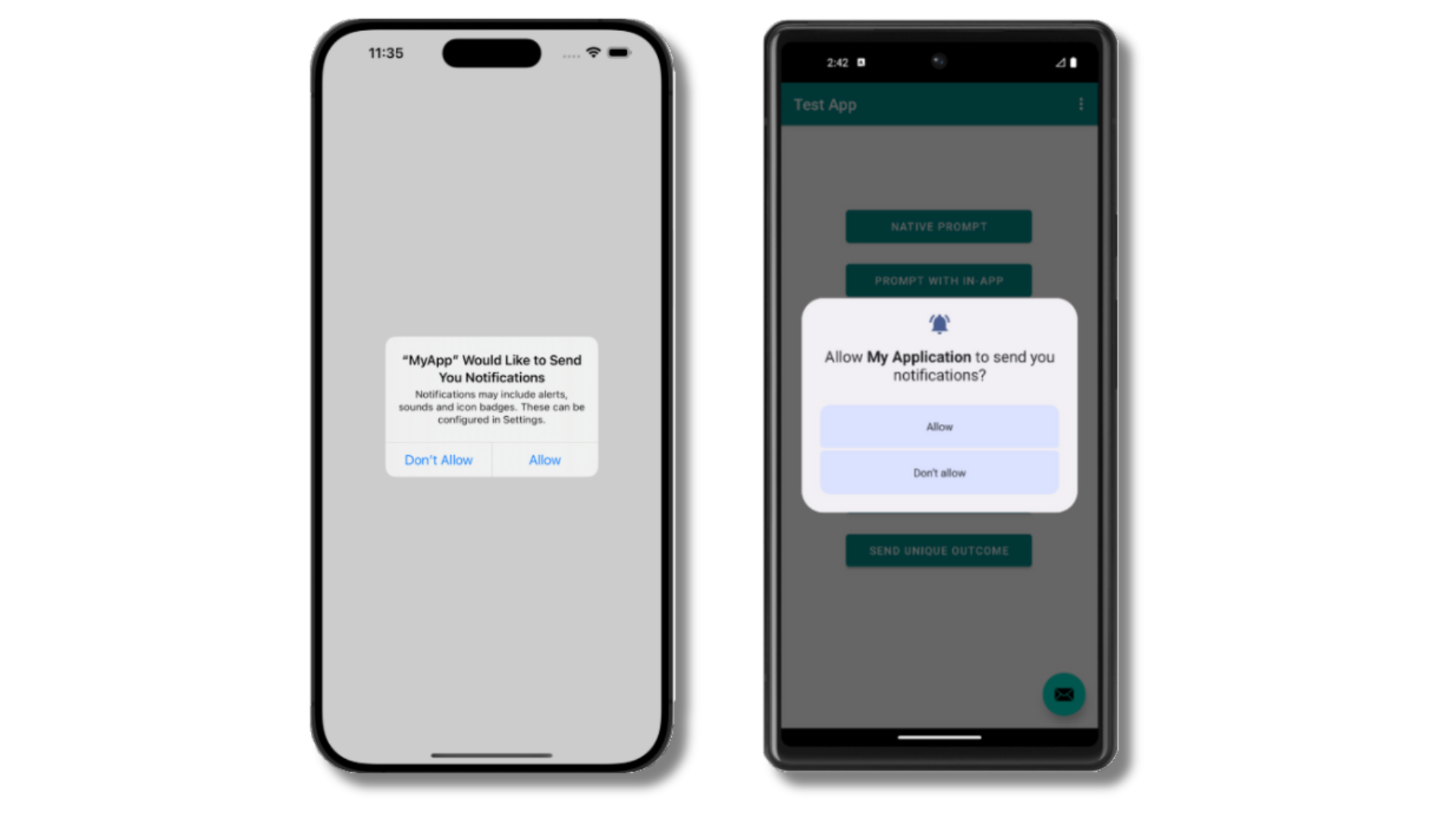
The native push permission prompt should appear automatically if you added the `requestPermission` method during initialization.
 Before accepting the prompt, check the OneSignal dashboard:
* Go to **Audience > Subscriptions**.
* You should see a new entry with the status "Never Subscribed".
Before accepting the prompt, check the OneSignal dashboard:
* Go to **Audience > Subscriptions**.
* You should see a new entry with the status "Never Subscribed".
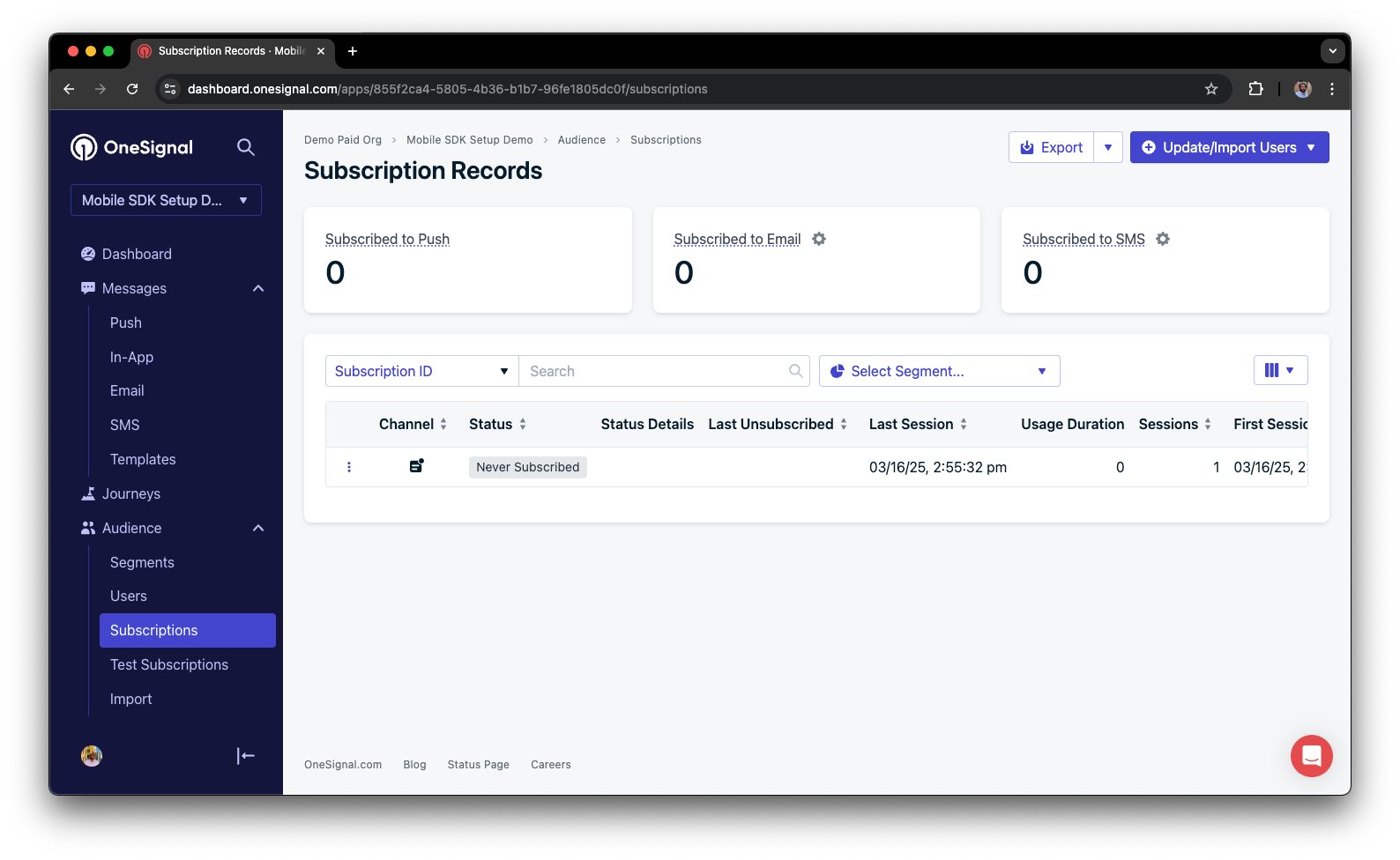 The subscription's status should now show **Subscribed**.
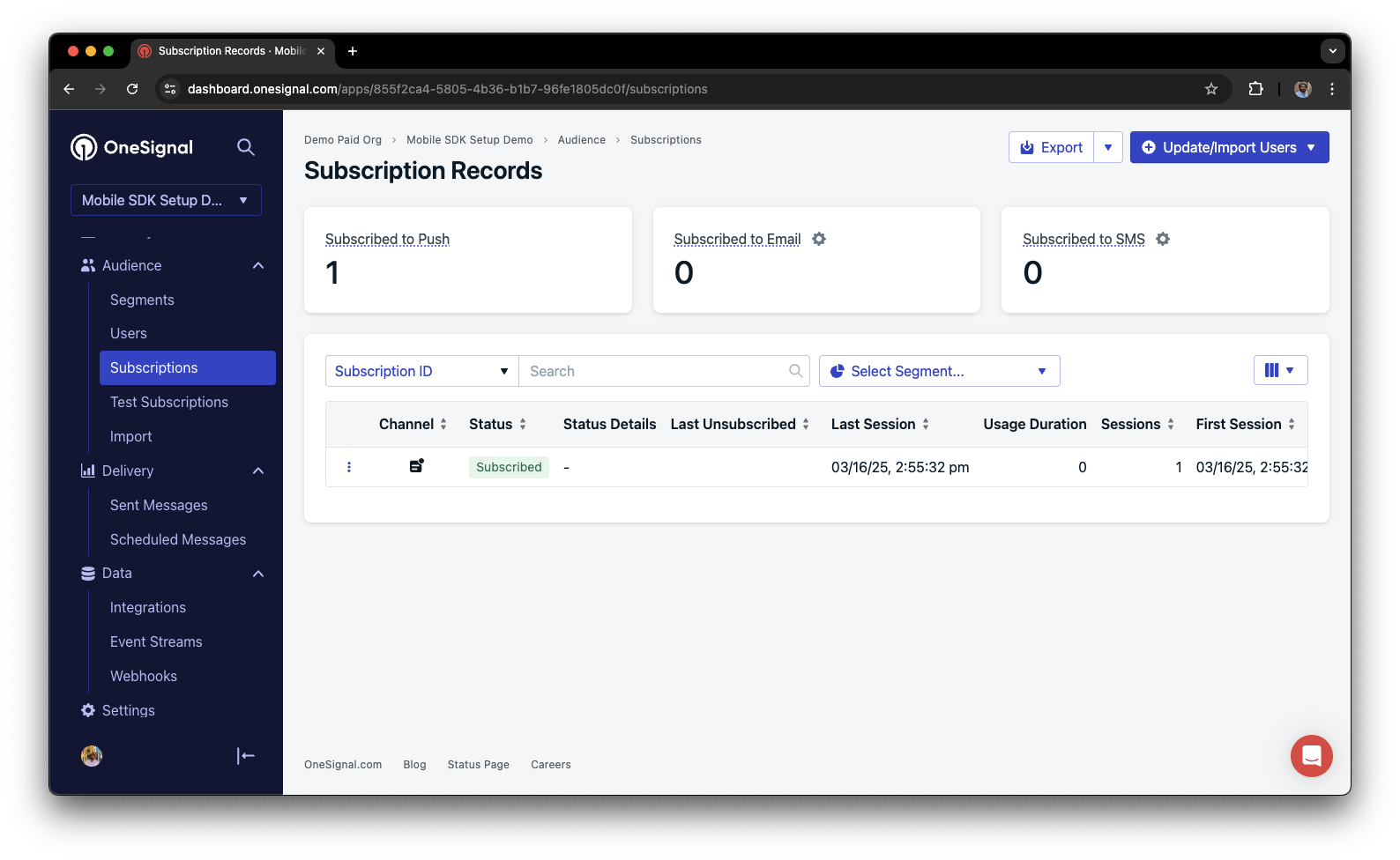 You have successfully created a [mobile subscription](/docs/en/subscriptions).
Mobile subscriptions are created when users first open your app on a device or if they uninstall and reinstall your app on the same device.
### Set up test users
test users are helpful for testing a push notification before sending a message.
In the dashboard, next to the subscription, click the **Options (three dots)** button and select **Add to Test Users**.
You have successfully created a [mobile subscription](/docs/en/subscriptions).
Mobile subscriptions are created when users first open your app on a device or if they uninstall and reinstall your app on the same device.
### Set up test users
test users are helpful for testing a push notification before sending a message.
In the dashboard, next to the subscription, click the **Options (three dots)** button and select **Add to Test Users**.
 Name the subscription so you can easily identify your device later in the **test users tab**.
Go to **Audience > Segments > New Segment**.
Name the segment `Test Users` (the name is important because it will be used later).
Name the subscription so you can easily identify your device later in the **test users tab**.
Go to **Audience > Segments > New Segment**.
Name the segment `Test Users` (the name is important because it will be used later).
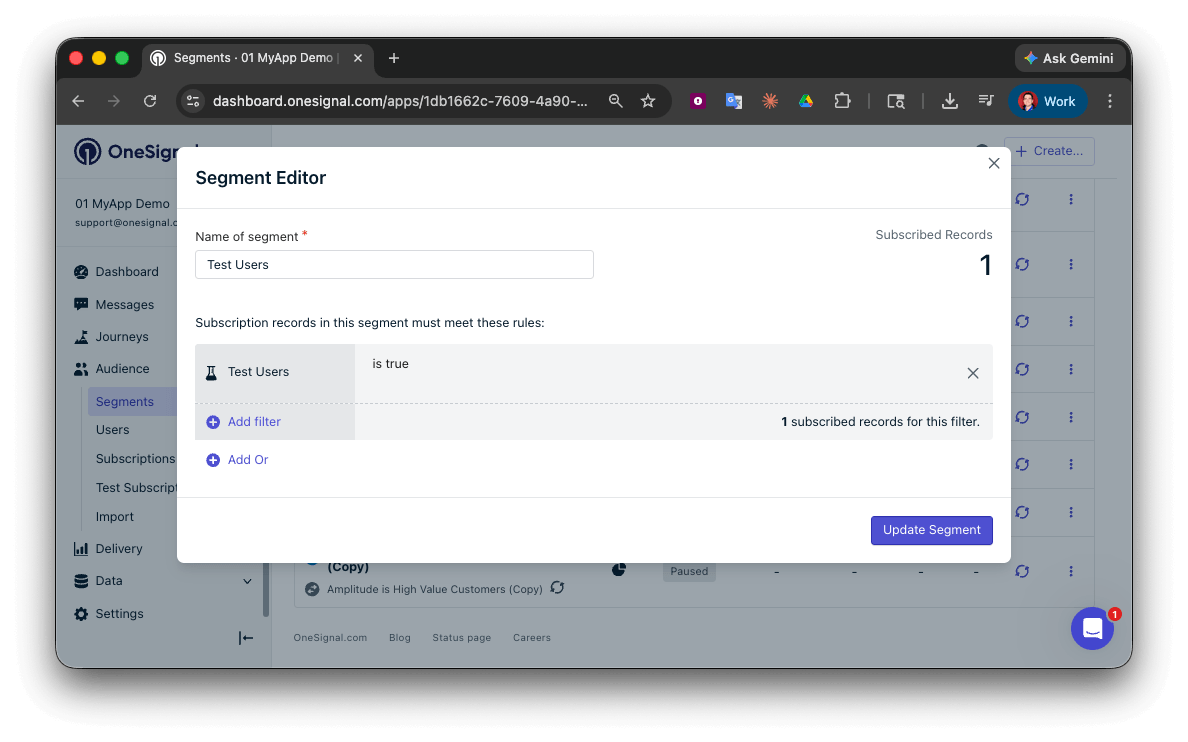 You have successfully created a segment of test users.
We can now test sending messages to this individual device and groups of test users.
### Send test push via API
In your OneSignal dashboard, go to **Settings > [Keys & IDs](/docs/en/keys-and-ids)**.
Replace `YOUR_APP_API_KEY` and `YOUR_APP_ID` in the code below with your actual keys. This code uses the `Test Users` segment we created earlier.
```curl theme={null}
curl -X \
POST --url 'https://api.onesignal.com/notifications' \
--header 'content-type: application/json; charset=utf-8' \
--header 'authorization: Key YOUR_APP_API_KEY' \
--data \
'{
"app_id": "YOUR_APP_ID",
"target_channel": "push",
"name": "Testing basic setup",
"headings": {
"en": "👋"
},
"contents": {
"en": "Hello world!"
},
"included_segments": [
"Test Users"
],
"ios_attachments": {
"onesignal_logo": "https://avatars.githubusercontent.com/u/11823027?s=200&v=4"
},
"big_picture": "https://avatars.githubusercontent.com/u/11823027?s=200&v=4"
}'
```
Run the code in your terminal.
If all setup steps were completed successfully, the test users should receive a notification with an image included:
You have successfully created a segment of test users.
We can now test sending messages to this individual device and groups of test users.
### Send test push via API
In your OneSignal dashboard, go to **Settings > [Keys & IDs](/docs/en/keys-and-ids)**.
Replace `YOUR_APP_API_KEY` and `YOUR_APP_ID` in the code below with your actual keys. This code uses the `Test Users` segment we created earlier.
```curl theme={null}
curl -X \
POST --url 'https://api.onesignal.com/notifications' \
--header 'content-type: application/json; charset=utf-8' \
--header 'authorization: Key YOUR_APP_API_KEY' \
--data \
'{
"app_id": "YOUR_APP_ID",
"target_channel": "push",
"name": "Testing basic setup",
"headings": {
"en": "👋"
},
"contents": {
"en": "Hello world!"
},
"included_segments": [
"Test Users"
],
"ios_attachments": {
"onesignal_logo": "https://avatars.githubusercontent.com/u/11823027?s=200&v=4"
},
"big_picture": "https://avatars.githubusercontent.com/u/11823027?s=200&v=4"
}'
```
Run the code in your terminal.
If all setup steps were completed successfully, the test users should receive a notification with an image included:
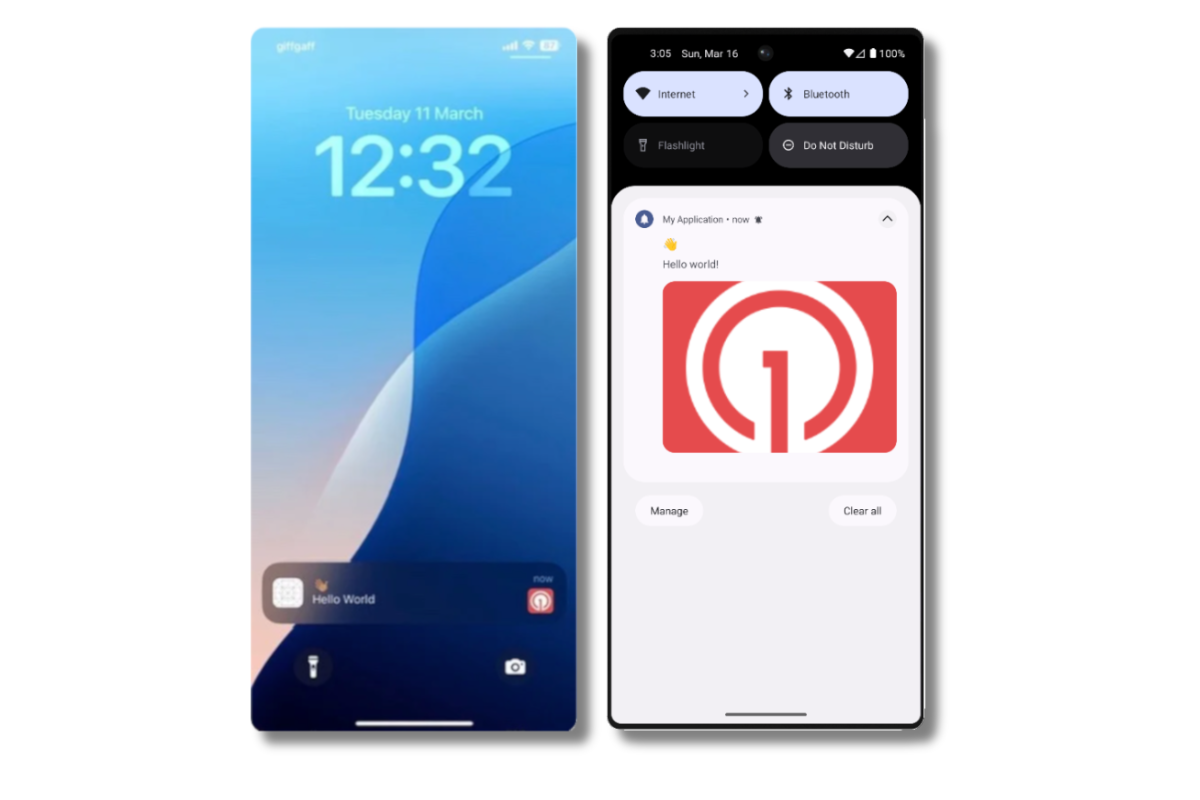 Images will appear small in the collapsed notification view. Expand the notification to see the full image.
In your dashboard, go to **Delivery > Sent Messages**, then click the message to view stats.
You should see the **confirmed** stat, meaning the device received the push.
You have successfully sent a notification via our API to a segment.
* No image received? Your [Notification Service Extension](#ios-setup) might be missing.
* No confirmed receipt? Review the troubleshooting guide [here](/docs/en/confirmed-delivery#troubleshooting-confirmed-delivery).
* Having issues? Copy-paste the api request and a log from start to finish of app launch into a `.txt` file. Then share both with `support@onesignal.com`.
### Send an in-app message
[In-app messages](/docs/en/in-app-messages-setup) let you communicate with users while they are using your app.
This is because users must meet the in-app audience criteria *before* a new session starts. In OneSignal, a new session starts when the user opens your app after it has been in the background or closed for at least 30 seconds. For more details, see our guide on [how in-app messages are displayed](/docs/en/in-app-messages-setup#how-are-iams-displayed%3F).
* In your OneSignal dashboard, navigate to **Messages > In-App > New In-App**.
* Find and select the **Welcome** message.
* Set your Audience as the **Test Users** segment we used previously.
Images will appear small in the collapsed notification view. Expand the notification to see the full image.
In your dashboard, go to **Delivery > Sent Messages**, then click the message to view stats.
You should see the **confirmed** stat, meaning the device received the push.
You have successfully sent a notification via our API to a segment.
* No image received? Your [Notification Service Extension](#ios-setup) might be missing.
* No confirmed receipt? Review the troubleshooting guide [here](/docs/en/confirmed-delivery#troubleshooting-confirmed-delivery).
* Having issues? Copy-paste the api request and a log from start to finish of app launch into a `.txt` file. Then share both with `support@onesignal.com`.
### Send an in-app message
[In-app messages](/docs/en/in-app-messages-setup) let you communicate with users while they are using your app.
This is because users must meet the in-app audience criteria *before* a new session starts. In OneSignal, a new session starts when the user opens your app after it has been in the background or closed for at least 30 seconds. For more details, see our guide on [how in-app messages are displayed](/docs/en/in-app-messages-setup#how-are-iams-displayed%3F).
* In your OneSignal dashboard, navigate to **Messages > In-App > New In-App**.
* Find and select the **Welcome** message.
* Set your Audience as the **Test Users** segment we used previously.
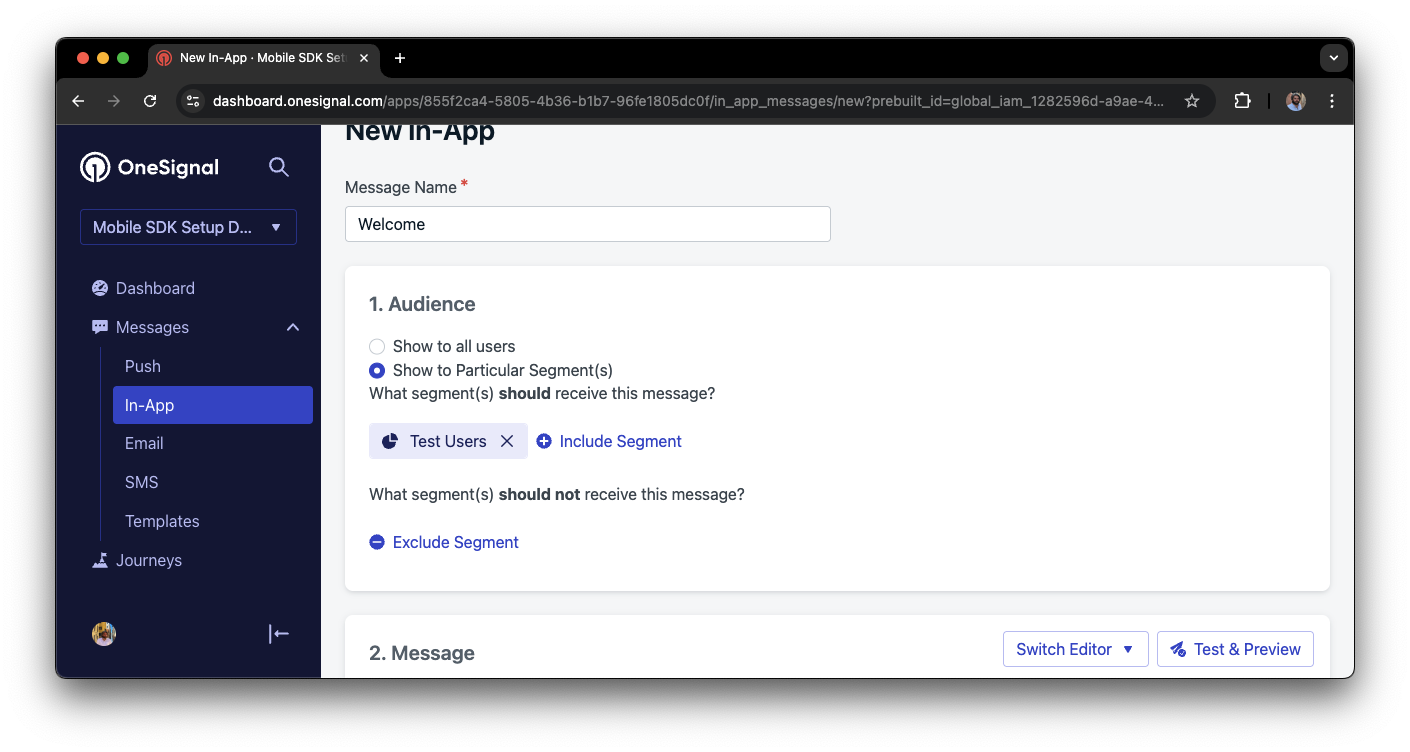
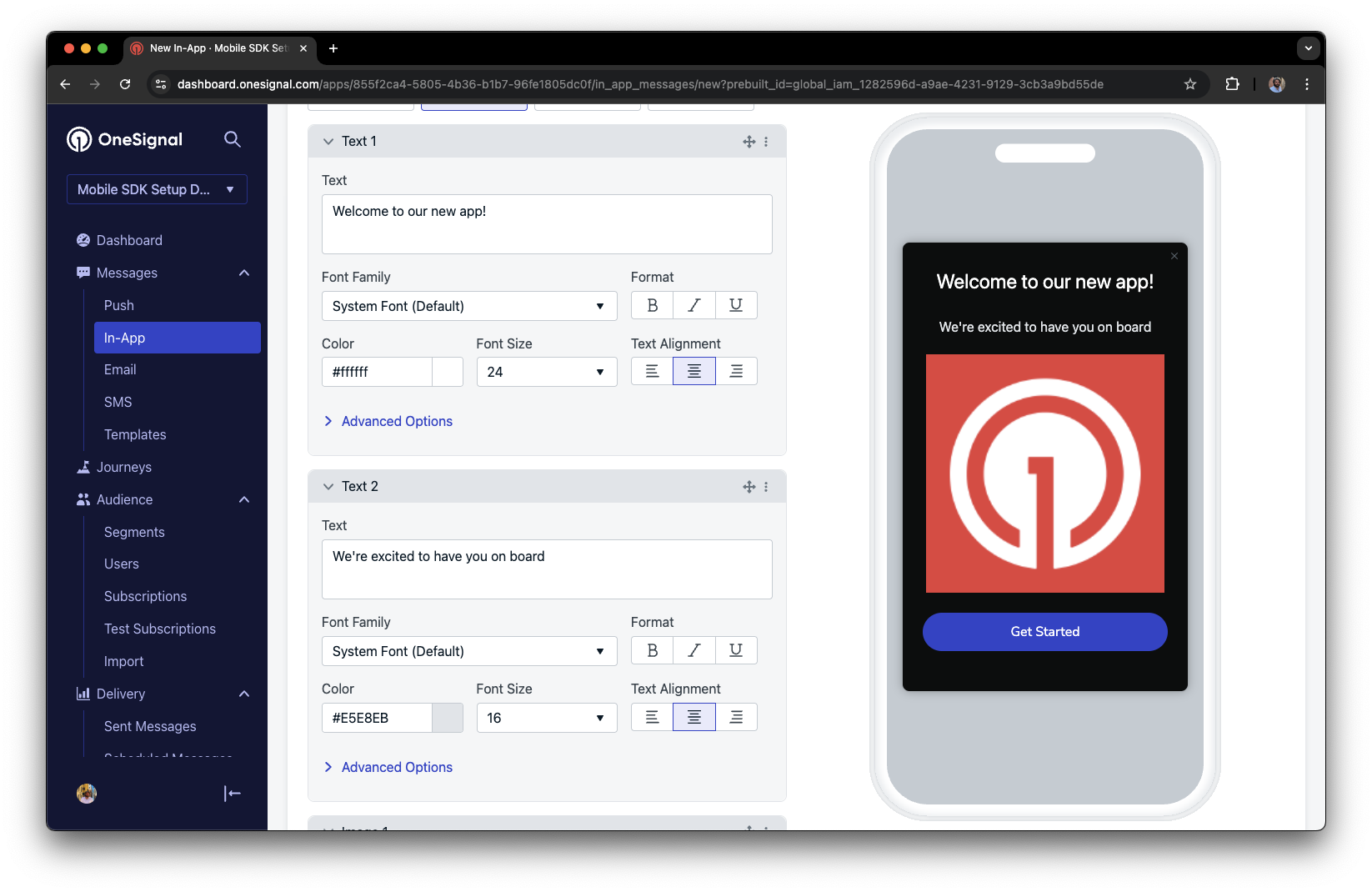 Under **Schedule > How often do you want to show this message?** select **Every time trigger conditions are satisfied**.
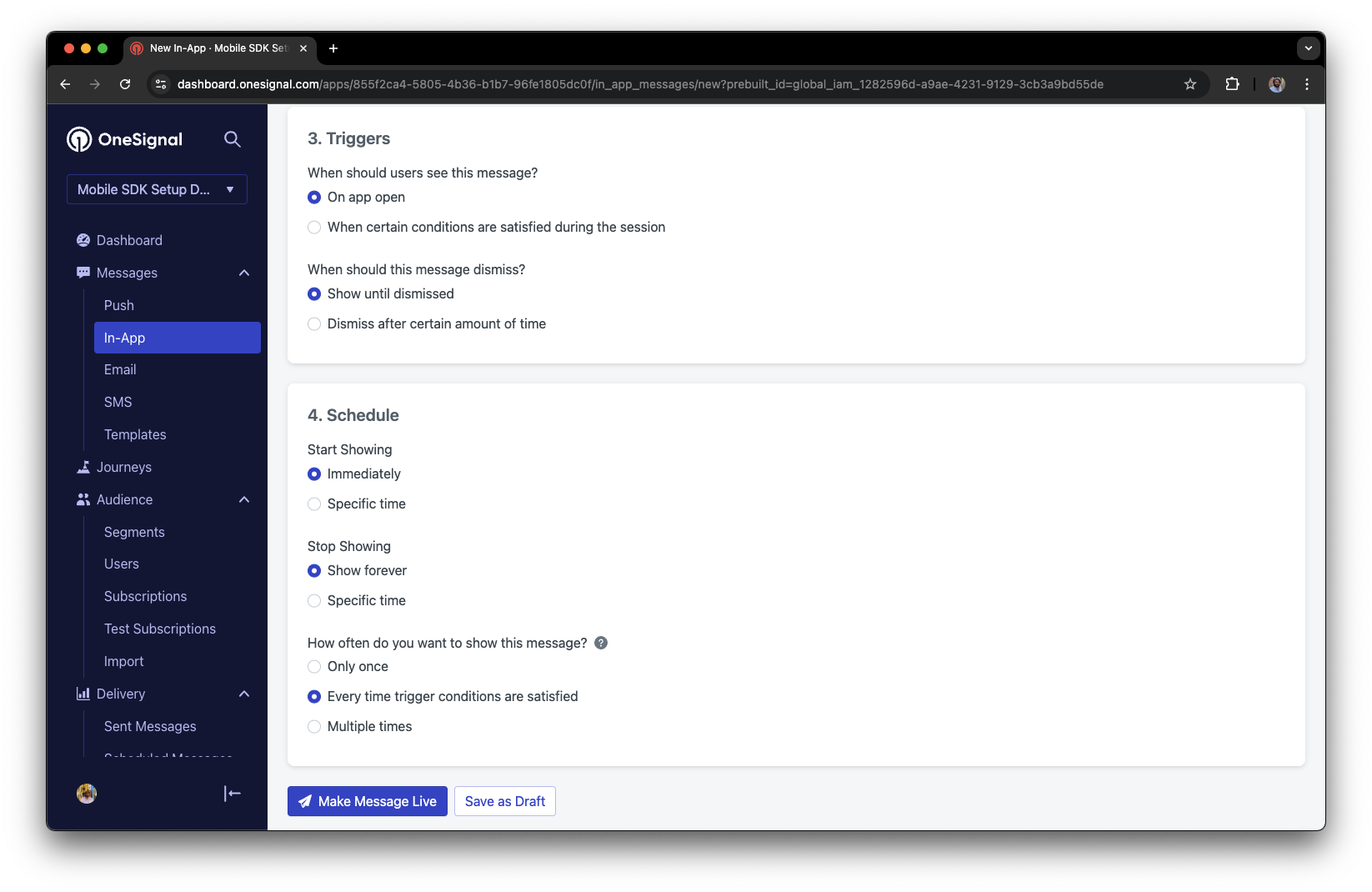 Click **Make Message Live** so it is available to your Test Users each time they open the app.
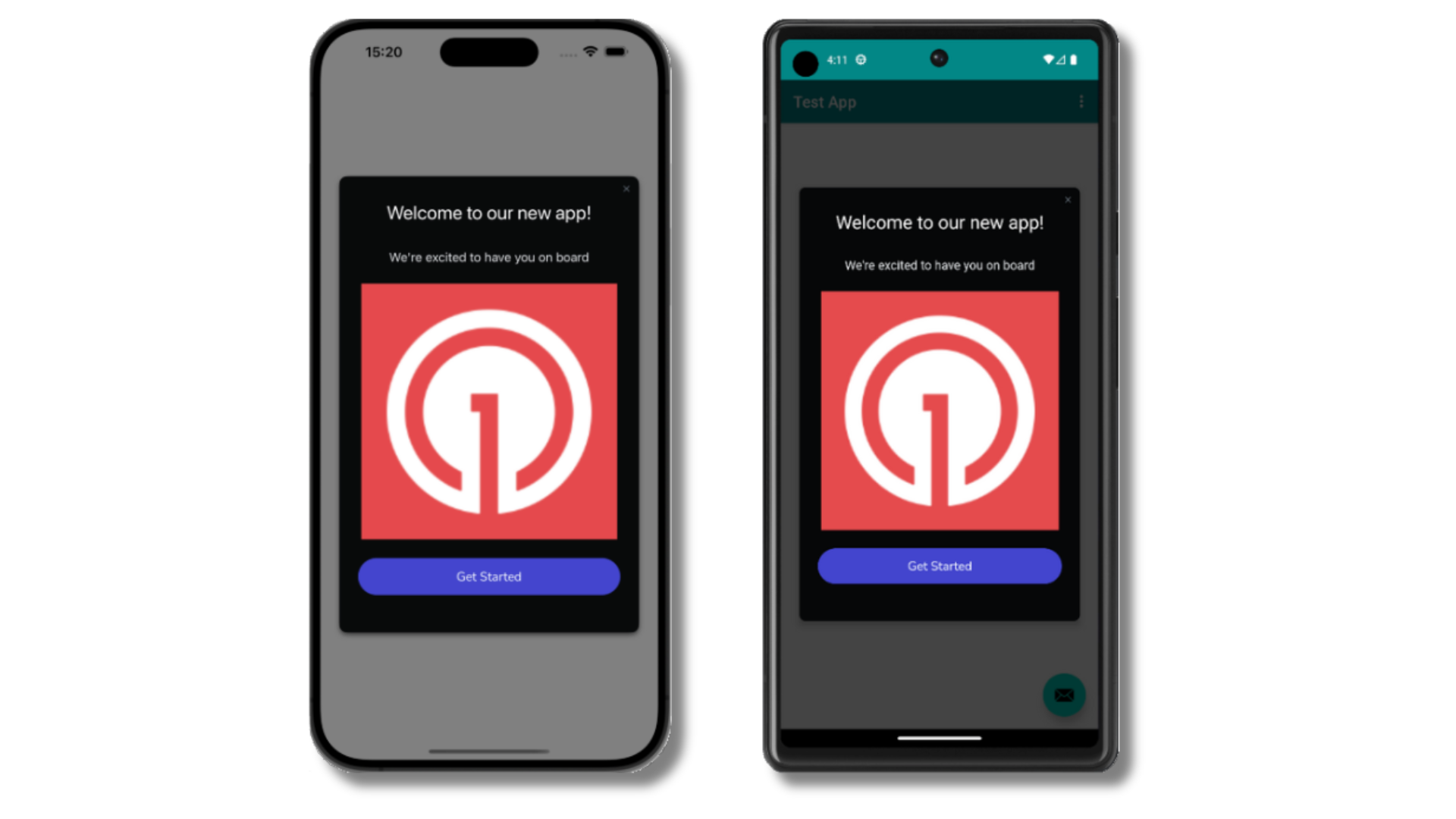
After the in-app message is live, open your app. You should see it display:
Click **Make Message Live** so it is available to your Test Users each time they open the app.
After the in-app message is live, open your app. You should see it display:
 Not seeing the message?
* Start a new session
* You must close or background the app for at least 30 seconds before reopening. This ensures a new session is started.
* For more, see [how in-app messages are displayed](/docs/en/in-app-messages-setup#how-are-iams-displayed%3F).
* Still in the `Test Users` segment?
* If you reinstalled or switched devices, re-add the device to [Test Users](#set-up-test-users) and confirm it's part of the Test Users segment.
* Having issues?
* Follow [Getting a Debug Log](/docs/en/capturing-a-debug-log) while reproducing the steps above. This will generate additional logging that you can share with `support@onesignal.com` and we will help investigate what's going on.
You have successfully setup the OneSignal SDK and learned important concepts like:
* Gathering [Subscriptions](/docs/en/subscriptions), setting [Test Users](/docs/en/find-set-test-subscriptions), and creating [Segments](/docs/en/segmentation).
* Sending [Push](/docs/en/push) with images and [Confirmed receipt](/docs/en/confirmed-delivery) using Segments and our [Create message](/reference/create-message) API.
* Sending [In-app messages](/docs/en/in-app-messages-setup).
Continue with this guide to identify users in your app and setup additional features.
***
## User identification
Previously, we demonstrated how to create mobile [Subscriptions](/docs/en/subscriptions). Now we'll expand to identifying [Users](/docs/en/users) across all their subscriptions (including push, email, and SMS) using the OneSignal SDK. We'll cover External IDs, tags, multi-channel subscriptions, privacy, and event tracking to help you unify and engage users across platforms.
### Assign External ID
Use an External ID to identify users consistently across devices, email addresses, and phone numbers using your backend's user identifier. This ensures your messaging stays unified across channels and 3rd party systems (especially important for [Integrations](/docs/en/integrations)).
Set the External ID with our SDK's [`login` method](/docs/en/mobile-sdk-reference#login-external-id) each time they are identified by your app.
OneSignal generates unique read-only IDs for subscriptions (Subscription ID) and users (OneSignal ID).
As users download your app on different devices, subscribe to your website, and/or provide you email addresses and phone numbers outside of your app, new subscriptions will be created.
Setting the External ID via our SDK is highly recommended to identify users across all their subscriptions, regardless of how they are created.
### Add Tags
[Tags](/docs/en/add-user-data-tags) are key-value pairs of string data you can use to store user properties (like `username`, `role`, or preferences) and events (like `purchase_date`, `game_level`, or user interactions). Tags power advanced [Message Personalization](/docs/en/message-personalization) and [Segmentation](/docs/en/segmentation) allowing for more advanced use cases.
Set tags with our SDK [`addTag` and `addTags` methods](/docs/en/mobile-sdk-reference#data-tags) as events occur in your app.
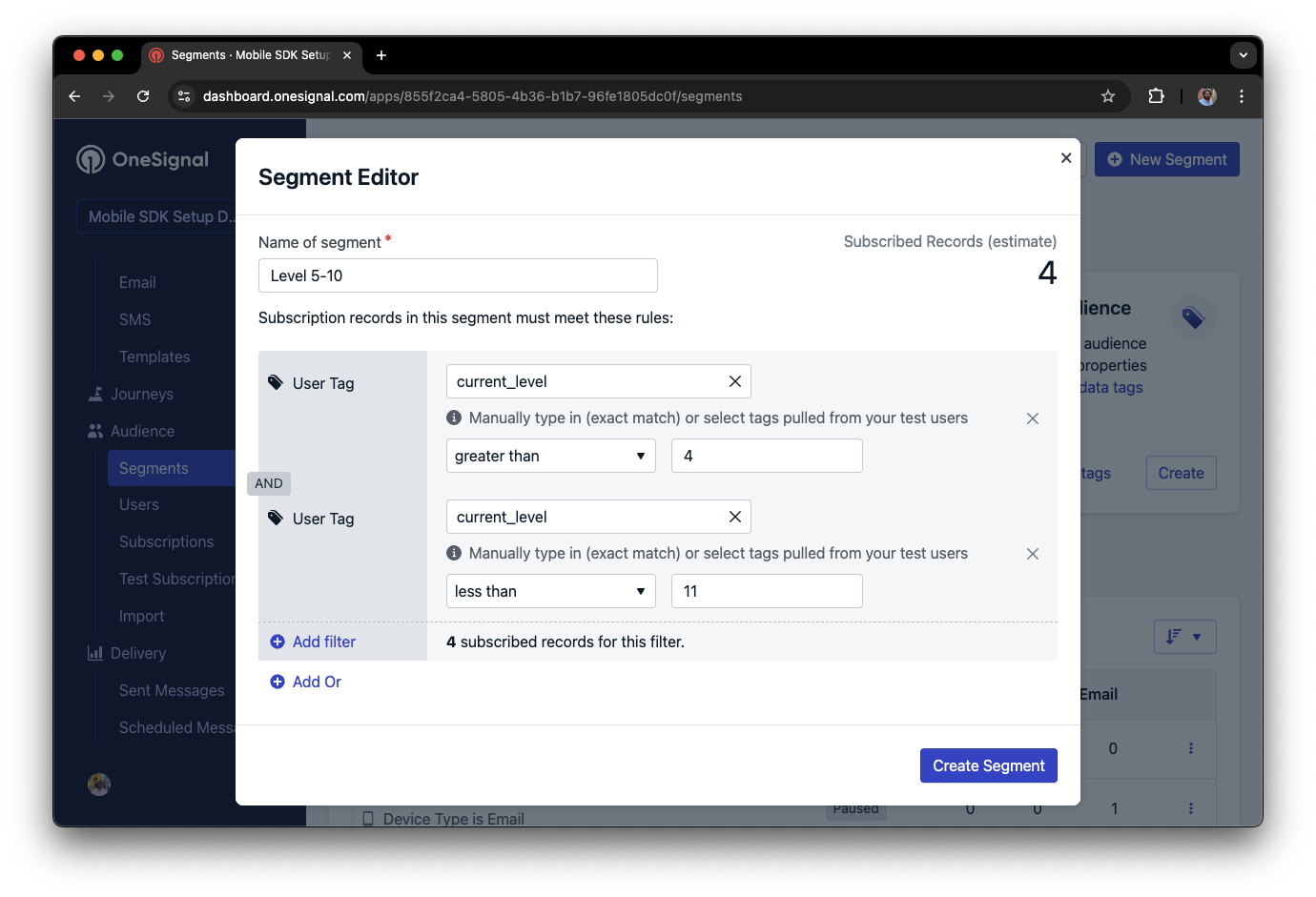
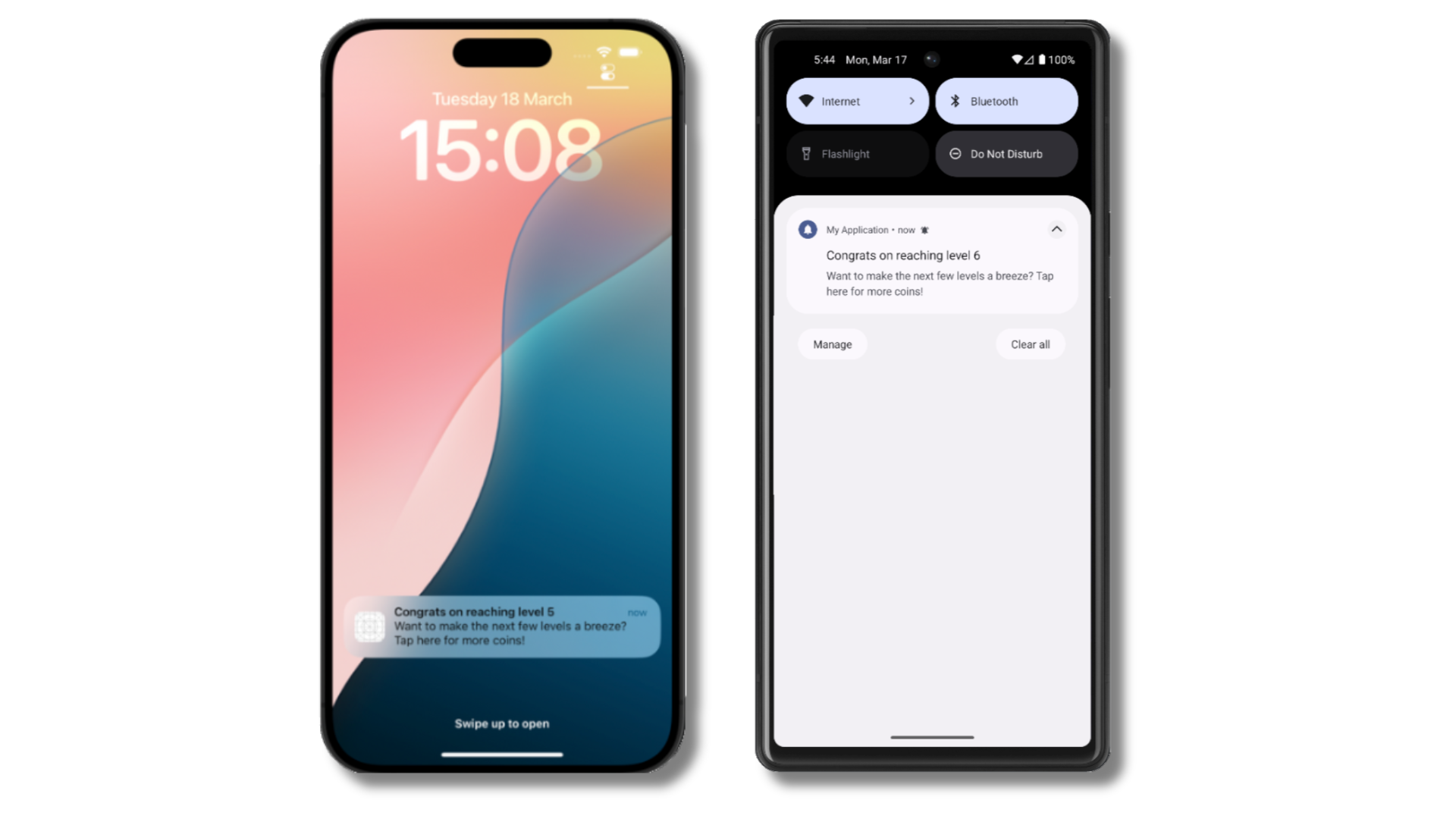
In this example, the user reached level 6 identifiable by the tag called `current_level` set to a value of `6`.
Not seeing the message?
* Start a new session
* You must close or background the app for at least 30 seconds before reopening. This ensures a new session is started.
* For more, see [how in-app messages are displayed](/docs/en/in-app-messages-setup#how-are-iams-displayed%3F).
* Still in the `Test Users` segment?
* If you reinstalled or switched devices, re-add the device to [Test Users](#set-up-test-users) and confirm it's part of the Test Users segment.
* Having issues?
* Follow [Getting a Debug Log](/docs/en/capturing-a-debug-log) while reproducing the steps above. This will generate additional logging that you can share with `support@onesignal.com` and we will help investigate what's going on.
You have successfully setup the OneSignal SDK and learned important concepts like:
* Gathering [Subscriptions](/docs/en/subscriptions), setting [Test Users](/docs/en/find-set-test-subscriptions), and creating [Segments](/docs/en/segmentation).
* Sending [Push](/docs/en/push) with images and [Confirmed receipt](/docs/en/confirmed-delivery) using Segments and our [Create message](/reference/create-message) API.
* Sending [In-app messages](/docs/en/in-app-messages-setup).
Continue with this guide to identify users in your app and setup additional features.
***
## User identification
Previously, we demonstrated how to create mobile [Subscriptions](/docs/en/subscriptions). Now we'll expand to identifying [Users](/docs/en/users) across all their subscriptions (including push, email, and SMS) using the OneSignal SDK. We'll cover External IDs, tags, multi-channel subscriptions, privacy, and event tracking to help you unify and engage users across platforms.
### Assign External ID
Use an External ID to identify users consistently across devices, email addresses, and phone numbers using your backend's user identifier. This ensures your messaging stays unified across channels and 3rd party systems (especially important for [Integrations](/docs/en/integrations)).
Set the External ID with our SDK's [`login` method](/docs/en/mobile-sdk-reference#login-external-id) each time they are identified by your app.
OneSignal generates unique read-only IDs for subscriptions (Subscription ID) and users (OneSignal ID).
As users download your app on different devices, subscribe to your website, and/or provide you email addresses and phone numbers outside of your app, new subscriptions will be created.
Setting the External ID via our SDK is highly recommended to identify users across all their subscriptions, regardless of how they are created.
### Add Tags
[Tags](/docs/en/add-user-data-tags) are key-value pairs of string data you can use to store user properties (like `username`, `role`, or preferences) and events (like `purchase_date`, `game_level`, or user interactions). Tags power advanced [Message Personalization](/docs/en/message-personalization) and [Segmentation](/docs/en/segmentation) allowing for more advanced use cases.
Set tags with our SDK [`addTag` and `addTags` methods](/docs/en/mobile-sdk-reference#data-tags) as events occur in your app.
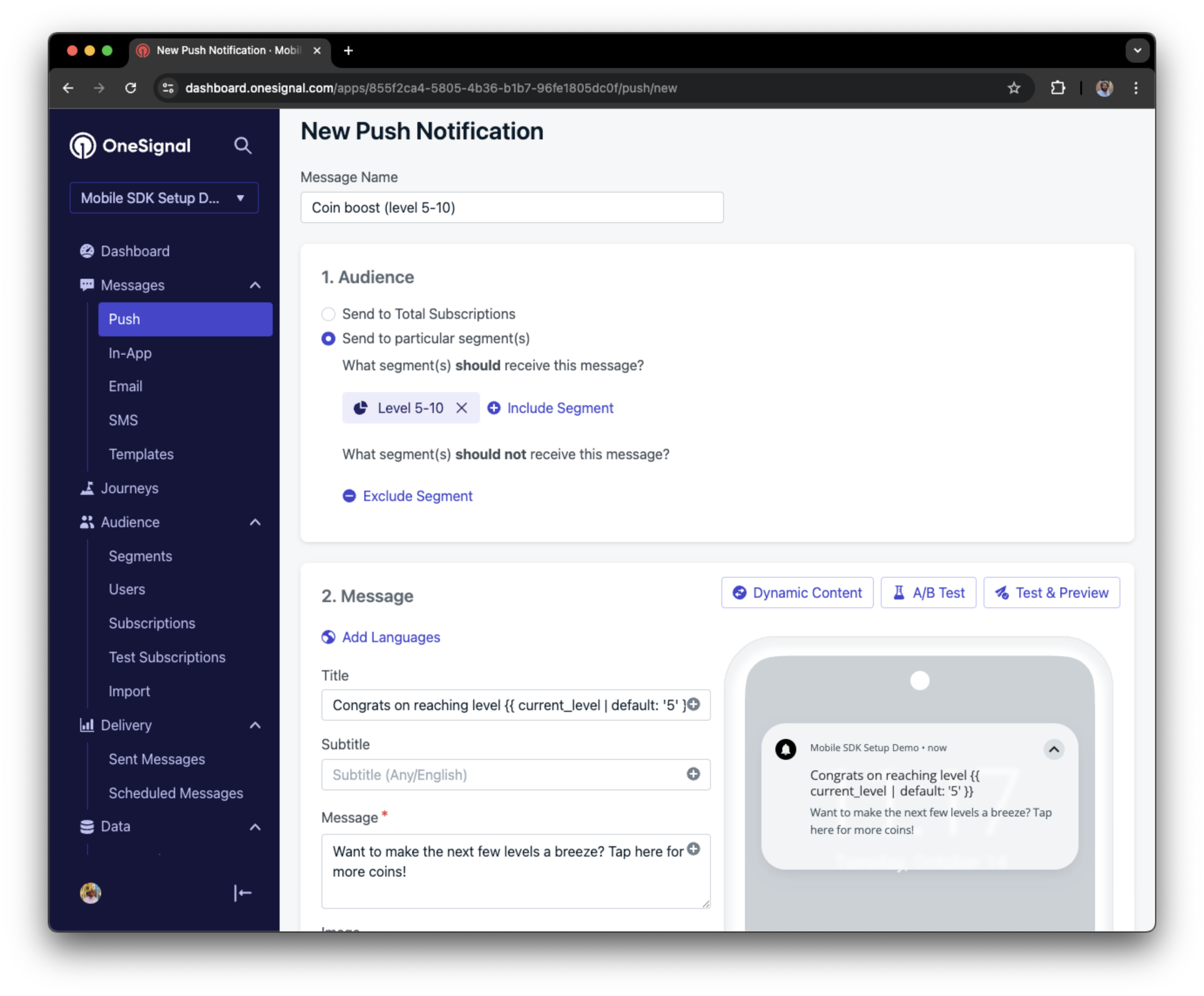
In this example, the user reached level 6 identifiable by the tag called `current_level` set to a value of `6`.
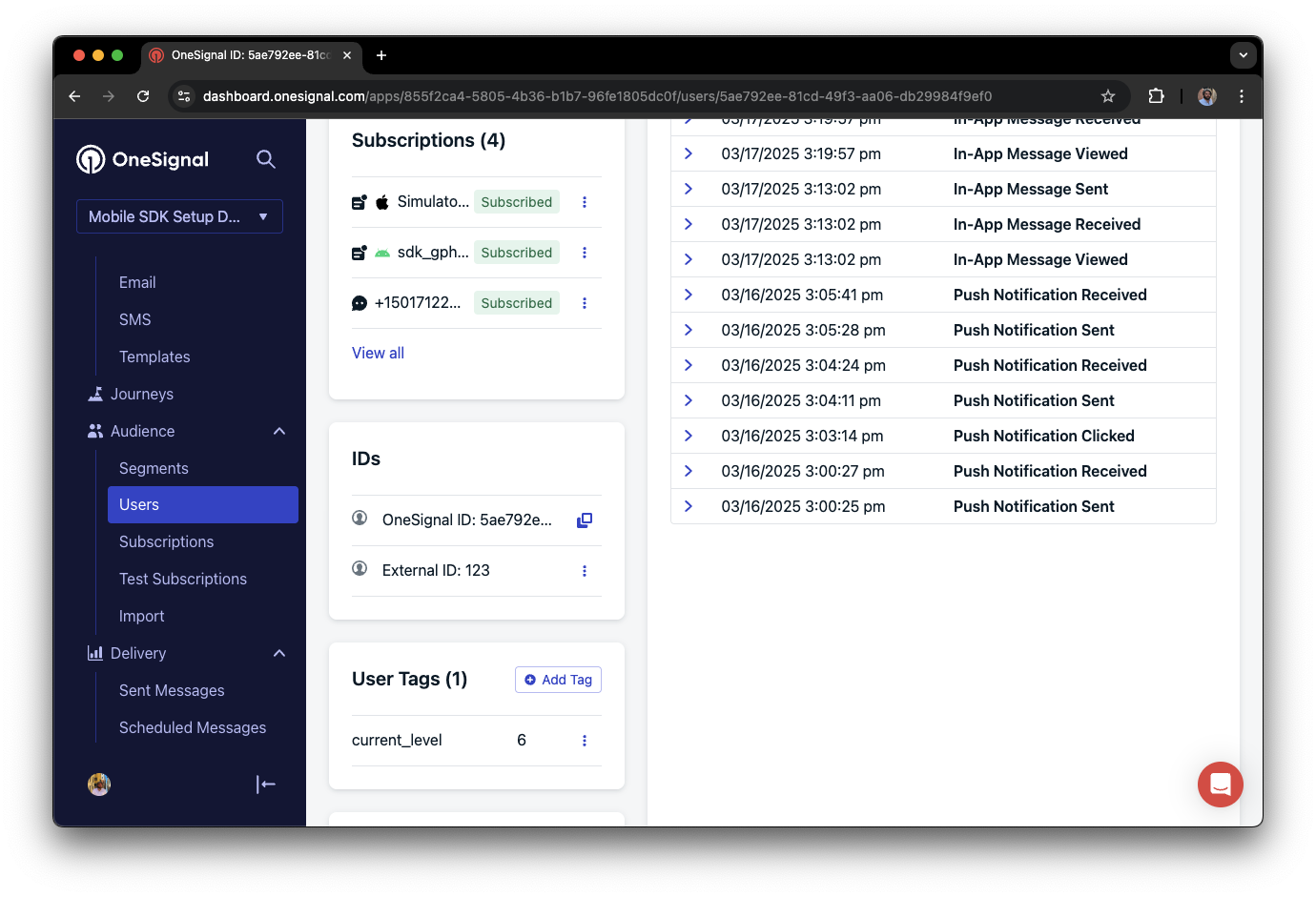 We can create a segment of users that have a level of between 5 and 10, and use that to send targeted and personalized messages:
 ### Add email and/or SMS subscriptions
Earlier we saw how our SDK creates mobile subscriptions to send push and in-app messages. You can also reach users through emails and SMS channels by creating the corresponding subscriptions.
* Use the [`addEmail` method](/docs/en/mobile-sdk-reference#addemail-%2C-removeemail) to create email subscriptions.
* Use the [`addSms` method](/docs/en/mobile-sdk-reference#addsms-%2C-removesms) to create SMS subscriptions.
If the email address and/or phone number already exist in the OneSignal app, the SDK will add it to the existing user, it will not create duplicates.
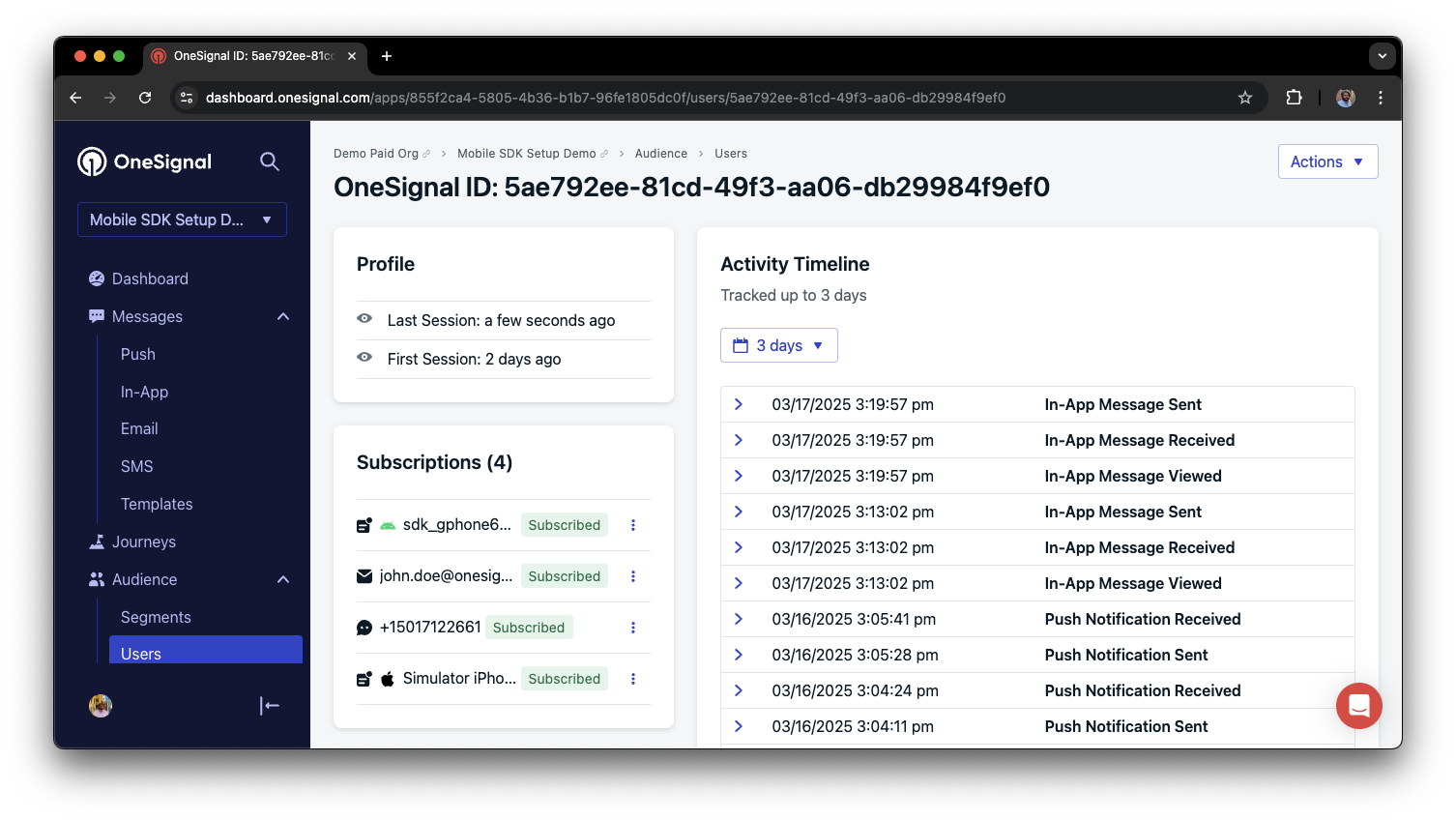
You can view unified users via **Audience > Users** in the dashboard or with the [View user API](/reference/view-user).
### Add email and/or SMS subscriptions
Earlier we saw how our SDK creates mobile subscriptions to send push and in-app messages. You can also reach users through emails and SMS channels by creating the corresponding subscriptions.
* Use the [`addEmail` method](/docs/en/mobile-sdk-reference#addemail-%2C-removeemail) to create email subscriptions.
* Use the [`addSms` method](/docs/en/mobile-sdk-reference#addsms-%2C-removesms) to create SMS subscriptions.
If the email address and/or phone number already exist in the OneSignal app, the SDK will add it to the existing user, it will not create duplicates.
You can view unified users via **Audience > Users** in the dashboard or with the [View user API](/reference/view-user).
 Best practices for multi-channel communication
* Obtain explicit consent before adding email or SMS subscriptions.
* Explain the benefits of each communication channel to users.
* Provide channel preferences so users can select which channels they prefer.
***
### Privacy & user consent
To control when OneSignal collects user data, use the SDK's consent gating methods:
* [`setConsentRequired(true)`](/docs/en/mobile-sdk-reference#setconsentrequired): Prevents data collection until consent is given.
* [`setConsentGiven(true)`](/docs/en/mobile-sdk-reference#setconsentgiven): Enables data collection once consent is granted.
See our Privacy & security docs for more on:
* [Data collected by the SDK](/docs/en/data-collected-by-the-onesignal-sdk)
* [Handling personal data](/docs/en/handling-personal-data)
***
## Prompt for push permissions
Instead of calling `requestPermission()` immediately on app open, take a more strategic approach. Use an in-app message to explain the value of push notifications before requesting permission.
For best practices and implementation details, see our [Prompt for push permissions](/docs/en/prompt-for-push-permissions) guide.
***
## Listen to push, user, and in-app events
Use SDK listeners to react to user actions and state changes.
The SDK provides several event listeners for you to hook into. See our [SDK reference guide](/docs/en/mobile-sdk-reference) for more details.
### Push notification events
* [`addClickListener()`](/docs/en/mobile-sdk-reference#addclicklistener-push): Detect when a notification is tapped. Helpful for [Deep Linking](/docs/en/deep-linking).
* [`addForegroundLifecycleListener()`](/docs/en/mobile-sdk-reference#addforegroundlifecyclelistener-push): Control how notifications behave in foreground.
For full customization, see [Mobile Service Extensions](/docs/en/service-extensions).
### User state changes
* [`addObserver()` for user state](/docs/en/mobile-sdk-reference#addobserver-user-state): Detect when the External ID is set.
* [`addPermissionObserver()`](/docs/en/mobile-sdk-reference#addpermissionobserver-push): Track the user's specific interaction with the native push permission prompt.
* [`addObserver()` for push subscription](/docs/en/mobile-sdk-reference#addobserver-push-subscription-changes): Track when the push subscription status changes.
### In-app message events
* [`addClickListener()`](/docs/en/mobile-sdk-reference#addclicklistener-in-app): Handle in-app click actions. Ideal for deep linking or tracking events.
* [`addLifecycleListener()`](/docs/en/mobile-sdk-reference#addclicklistener-in-app): Track full lifecycle of in-app messages (shown, clicked, dismissed, etc.).
***
## Deshabilitar method swizzling (opcional)
Por defecto, el SDK de OneSignal usa method swizzling para manejar automáticamente los métodos delegados de notificaciones push. Si tu app necesita deshabilitar el swizzling (por ejemplo, para evitar conflictos con otros SDKs o para mantener control total sobre los métodos delegados de notificación), puedes desactivarlo mediante `Info.plist`.
Cuando el swizzling está deshabilitado, debes reenviar manualmente los métodos delegados de notificación al SDK de OneSignal. El resto de funciones del SDK (listeners, observers, mensajes in-app, outcomes, etc.) siguen funcionando normalmente.
### Paso 1. Añadir el flag en Info.plist
Añade lo siguiente al `Info.plist` de tu app:
```xml theme={null}
OneSignal_disable_swizzling
```
Cuando el SDK detecta este flag, omite todo el method swizzling al iniciar y registra una advertencia recordándote implementar el reenvío manual.
### Paso 2. Configurar el delegado de UNUserNotificationCenter
Establece tu `AppDelegate` como delegado de `UNUserNotificationCenter` **antes** de llamar a `OneSignal.initialize`. Sin esto, la visualización de notificaciones en primer plano y el manejo de toques en notificaciones no funcionarán.
```swift Swift theme={null}
// In application(_:didFinishLaunchingWithOptions:), BEFORE OneSignal.initialize()
UNUserNotificationCenter.current().delegate = self
```
```objc Objective-C theme={null}
// In application:didFinishLaunchingWithOptions:, BEFORE [OneSignal initialize:]
[UNUserNotificationCenter currentNotificationCenter].delegate = self;
```
### Paso 3. Reenviar métodos delegados de notificación
Implementa los siguientes métodos en tu `AppDelegate`. Todos los métodos se enrutan a través de `OneSignal.Notifications`.
**Registro de token:**
```swift Swift theme={null}
func application(_ application: UIApplication,
didRegisterForRemoteNotificationsWithDeviceToken deviceToken: Data) {
OneSignal.Notifications.didRegisterForRemoteNotifications(application, deviceToken: deviceToken)
}
func application(_ application: UIApplication,
didFailToRegisterForRemoteNotificationsWithError error: Error) {
OneSignal.Notifications.handleDidFailRegisterForRemoteNotification(error as NSError)
}
```
```objc Objective-C theme={null}
- (void)application:(UIApplication *)application
didRegisterForRemoteNotificationsWithDeviceToken:(NSData *)deviceToken {
[OneSignal.Notifications didRegisterForRemoteNotifications:application deviceToken:deviceToken];
}
- (void)application:(UIApplication *)application
didFailToRegisterForRemoteNotificationsWithError:(NSError *)error {
[OneSignal.Notifications handleDidFailRegisterForRemoteNotification:error];
}
```
**Notificaciones en segundo plano / silenciosas:**
```swift Swift theme={null}
func application(_ application: UIApplication,
didReceiveRemoteNotification userInfo: [AnyHashable: Any],
fetchCompletionHandler completionHandler: @escaping (UIBackgroundFetchResult) -> Void) {
OneSignal.Notifications.receiveRemoteNotification(application,
userInfo: userInfo,
completionHandler: completionHandler)
}
```
```objc Objective-C theme={null}
- (void)application:(UIApplication *)application
didReceiveRemoteNotification:(NSDictionary *)userInfo
fetchCompletionHandler:(void (^)(UIBackgroundFetchResult))completionHandler {
[OneSignal.Notifications receiveRemoteNotification:application
UserInfo:userInfo
completionHandler:completionHandler];
}
```
**Visualización de notificaciones en primer plano:**
El SDK llama a tu completion block con un objeto `OSNotification`. Si no es nil, el SDK quiere que se muestre la notificación — pasa tus opciones de presentación preferidas. Si es nil (p.ej., una vista previa de IAM), no pases opciones de presentación.
```swift Swift theme={null}
func userNotificationCenter(_ center: UNUserNotificationCenter,
willPresent notification: UNNotification,
withCompletionHandler completionHandler: @escaping (UNNotificationPresentationOptions) -> Void) {
OneSignal.Notifications.handleWillPresentNotificationInForeground(
withPayload: notification.request.content.userInfo
) { notif in
if notif != nil {
if #available(iOS 14.0, *) {
completionHandler([.banner, .list, .sound])
} else {
completionHandler([.alert, .sound])
}
} else {
completionHandler([])
}
}
}
```
```objc Objective-C theme={null}
- (void)userNotificationCenter:(UNUserNotificationCenter *)center
willPresentNotification:(UNNotification *)notification
withCompletionHandler:(void (^)(UNNotificationPresentationOptions))completionHandler {
[OneSignal.Notifications
handleWillPresentNotificationInForegroundWithPayload:notification.request.content.userInfo
withCompletion:^(OSNotification *notif) {
if (notif) {
if (@available(iOS 14.0, *)) {
completionHandler(UNNotificationPresentationOptionBanner |
UNNotificationPresentationOptionList |
UNNotificationPresentationOptionSound);
} else {
completionHandler(UNNotificationPresentationOptionAlert |
UNNotificationPresentationOptionSound);
}
} else {
completionHandler(UNNotificationPresentationOptionNone);
}
}];
}
```
El listener de ciclo de vida `onWillDisplayNotification` y las APIs `preventDefault` / `display` siguen funcionando con el reenvío manual. El SDK invoca tus listeners desde dentro de `handleWillPresentNotificationInForegroundWithPayload`.
**Toque / acción en notificación:**
```swift Swift theme={null}
func userNotificationCenter(_ center: UNUserNotificationCenter,
didReceive response: UNNotificationResponse,
withCompletionHandler completionHandler: @escaping () -> Void) {
OneSignal.Notifications.handleNotificationResponse(response)
completionHandler()
}
```
```objc Objective-C theme={null}
- (void)userNotificationCenter:(UNUserNotificationCenter *)center
didReceiveNotificationResponse:(UNNotificationResponse *)response
withCompletionHandler:(void (^)(void))completionHandler {
[OneSignal.Notifications handleNotificationResponse:response];
completionHandler();
}
```
### Opcional: Configurar el contador de badges
Cuando el swizzling está deshabilitado, el SDK no puede interceptar los cambios de badge. Usa este método para establecer el contador de badges y mantener el caché interno de badges de OneSignal sincronizado:
```swift Swift theme={null}
OneSignal.Notifications.setBadgeCount(5)
```
```objc Objective-C theme={null}
[OneSignal.Notifications setBadgeCount:5];
```
### Apps SwiftUI
Las apps SwiftUI no tienen un `AppDelegate` por defecto. Usa `@UIApplicationDelegateAdaptor` para añadir uno, luego implementa todos los métodos de reenvío mostrados anteriormente:
```swift Swift theme={null}
@main
struct YourApp: App {
@UIApplicationDelegateAdaptor(AppDelegate.self) var appDelegate
var body: some Scene {
WindowGroup {
ContentView()
}
}
}
class AppDelegate: NSObject, UIApplicationDelegate, UNUserNotificationCenterDelegate {
func application(_ application: UIApplication,
didFinishLaunchingWithOptions launchOptions: [UIApplication.LaunchOptionsKey: Any]? = nil) -> Bool {
UNUserNotificationCenter.current().delegate = self
OneSignal.initialize("YOUR_APP_ID", withLaunchOptions: launchOptions)
return true
}
// Implement all the forwarding methods shown above
}
```
### Referencia de API
| Método | Propósito |
| ------------------------------------------------------------------------- | ------------------------------------------------------------------- |
| `didRegisterForRemoteNotifications(_:deviceToken:)` | Reenviar el token de dispositivo APNs a OneSignal |
| `handleDidFailRegisterForRemoteNotification(_:)` | Reenviar el fallo de registro de APNs |
| `receiveRemoteNotification(_:userInfo:completionHandler:)` | Reenviar notificaciones en segundo plano/silenciosas |
| `handleWillPresentNotificationInForegroundWithPayload(_:withCompletion:)` | Reenviar notificación en primer plano para procesamiento del SDK |
| `handleNotificationResponse(_:)` | Reenviar toque/acción de notificación al SDK |
| `setBadgeCount(_:)` | Establecer el contador de badges y sincronizar con el caché del SDK |
***
## Advanced setup & capabilities
Explore more capabilities to enhance your integration:
* [🔁 Migrating to OneSignal from another service](/docs/en/migrating-to-onesignal)
* [🌍 Location tracking](/docs/en/mobile-sdk-reference#location)
* [🔗 Deep Linking](/docs/en/deep-linking)
* [🔌 Integrations](/docs/en/integrations)
* [🧩 Mobile Service Extensions](/docs/en/service-extensions)
* [🛎️ Action buttons](/docs/en/action-buttons)
* [🌐 Multi-language messaging](/docs/en/multi-language-messaging)
* [🛡️ Identity Verification](/docs/en/identity-verification)
* [📊 Custom Outcomes](/docs/en/custom-outcomes)
* [📲 Live Activities](/docs/en/live-activities)
### Mobile SDK setup & reference
Make sure you've enabled all key features by reviewing the [Mobile push setup](/docs/en/mobile-push-setup) guide.
For full details on available methods and configuration options, visit the [Mobile SDK reference](/docs/en/mobile-sdk-reference).
Congratulations! You've successfully completed the Mobile SDK setup guide.
***
Need help?
Chat with our Support team or email `support@onesignal.com`
Please include:
* Details of the issue you're experiencing and steps to reproduce if available
* Your OneSignal App ID
* The External ID or Subscription ID if applicable
* The URL to the message you tested in the OneSignal Dashboard if applicable
* Any relevant [logs or error messages](/docs/en/capturing-a-debug-log)
We're happy to help!
***
Best practices for multi-channel communication
* Obtain explicit consent before adding email or SMS subscriptions.
* Explain the benefits of each communication channel to users.
* Provide channel preferences so users can select which channels they prefer.
***
### Privacy & user consent
To control when OneSignal collects user data, use the SDK's consent gating methods:
* [`setConsentRequired(true)`](/docs/en/mobile-sdk-reference#setconsentrequired): Prevents data collection until consent is given.
* [`setConsentGiven(true)`](/docs/en/mobile-sdk-reference#setconsentgiven): Enables data collection once consent is granted.
See our Privacy & security docs for more on:
* [Data collected by the SDK](/docs/en/data-collected-by-the-onesignal-sdk)
* [Handling personal data](/docs/en/handling-personal-data)
***
## Prompt for push permissions
Instead of calling `requestPermission()` immediately on app open, take a more strategic approach. Use an in-app message to explain the value of push notifications before requesting permission.
For best practices and implementation details, see our [Prompt for push permissions](/docs/en/prompt-for-push-permissions) guide.
***
## Listen to push, user, and in-app events
Use SDK listeners to react to user actions and state changes.
The SDK provides several event listeners for you to hook into. See our [SDK reference guide](/docs/en/mobile-sdk-reference) for more details.
### Push notification events
* [`addClickListener()`](/docs/en/mobile-sdk-reference#addclicklistener-push): Detect when a notification is tapped. Helpful for [Deep Linking](/docs/en/deep-linking).
* [`addForegroundLifecycleListener()`](/docs/en/mobile-sdk-reference#addforegroundlifecyclelistener-push): Control how notifications behave in foreground.
For full customization, see [Mobile Service Extensions](/docs/en/service-extensions).
### User state changes
* [`addObserver()` for user state](/docs/en/mobile-sdk-reference#addobserver-user-state): Detect when the External ID is set.
* [`addPermissionObserver()`](/docs/en/mobile-sdk-reference#addpermissionobserver-push): Track the user's specific interaction with the native push permission prompt.
* [`addObserver()` for push subscription](/docs/en/mobile-sdk-reference#addobserver-push-subscription-changes): Track when the push subscription status changes.
### In-app message events
* [`addClickListener()`](/docs/en/mobile-sdk-reference#addclicklistener-in-app): Handle in-app click actions. Ideal for deep linking or tracking events.
* [`addLifecycleListener()`](/docs/en/mobile-sdk-reference#addclicklistener-in-app): Track full lifecycle of in-app messages (shown, clicked, dismissed, etc.).
***
## Deshabilitar method swizzling (opcional)
Por defecto, el SDK de OneSignal usa method swizzling para manejar automáticamente los métodos delegados de notificaciones push. Si tu app necesita deshabilitar el swizzling (por ejemplo, para evitar conflictos con otros SDKs o para mantener control total sobre los métodos delegados de notificación), puedes desactivarlo mediante `Info.plist`.
Cuando el swizzling está deshabilitado, debes reenviar manualmente los métodos delegados de notificación al SDK de OneSignal. El resto de funciones del SDK (listeners, observers, mensajes in-app, outcomes, etc.) siguen funcionando normalmente.
### Paso 1. Añadir el flag en Info.plist
Añade lo siguiente al `Info.plist` de tu app:
```xml theme={null}
OneSignal_disable_swizzling
```
Cuando el SDK detecta este flag, omite todo el method swizzling al iniciar y registra una advertencia recordándote implementar el reenvío manual.
### Paso 2. Configurar el delegado de UNUserNotificationCenter
Establece tu `AppDelegate` como delegado de `UNUserNotificationCenter` **antes** de llamar a `OneSignal.initialize`. Sin esto, la visualización de notificaciones en primer plano y el manejo de toques en notificaciones no funcionarán.
```swift Swift theme={null}
// In application(_:didFinishLaunchingWithOptions:), BEFORE OneSignal.initialize()
UNUserNotificationCenter.current().delegate = self
```
```objc Objective-C theme={null}
// In application:didFinishLaunchingWithOptions:, BEFORE [OneSignal initialize:]
[UNUserNotificationCenter currentNotificationCenter].delegate = self;
```
### Paso 3. Reenviar métodos delegados de notificación
Implementa los siguientes métodos en tu `AppDelegate`. Todos los métodos se enrutan a través de `OneSignal.Notifications`.
**Registro de token:**
```swift Swift theme={null}
func application(_ application: UIApplication,
didRegisterForRemoteNotificationsWithDeviceToken deviceToken: Data) {
OneSignal.Notifications.didRegisterForRemoteNotifications(application, deviceToken: deviceToken)
}
func application(_ application: UIApplication,
didFailToRegisterForRemoteNotificationsWithError error: Error) {
OneSignal.Notifications.handleDidFailRegisterForRemoteNotification(error as NSError)
}
```
```objc Objective-C theme={null}
- (void)application:(UIApplication *)application
didRegisterForRemoteNotificationsWithDeviceToken:(NSData *)deviceToken {
[OneSignal.Notifications didRegisterForRemoteNotifications:application deviceToken:deviceToken];
}
- (void)application:(UIApplication *)application
didFailToRegisterForRemoteNotificationsWithError:(NSError *)error {
[OneSignal.Notifications handleDidFailRegisterForRemoteNotification:error];
}
```
**Notificaciones en segundo plano / silenciosas:**
```swift Swift theme={null}
func application(_ application: UIApplication,
didReceiveRemoteNotification userInfo: [AnyHashable: Any],
fetchCompletionHandler completionHandler: @escaping (UIBackgroundFetchResult) -> Void) {
OneSignal.Notifications.receiveRemoteNotification(application,
userInfo: userInfo,
completionHandler: completionHandler)
}
```
```objc Objective-C theme={null}
- (void)application:(UIApplication *)application
didReceiveRemoteNotification:(NSDictionary *)userInfo
fetchCompletionHandler:(void (^)(UIBackgroundFetchResult))completionHandler {
[OneSignal.Notifications receiveRemoteNotification:application
UserInfo:userInfo
completionHandler:completionHandler];
}
```
**Visualización de notificaciones en primer plano:**
El SDK llama a tu completion block con un objeto `OSNotification`. Si no es nil, el SDK quiere que se muestre la notificación — pasa tus opciones de presentación preferidas. Si es nil (p.ej., una vista previa de IAM), no pases opciones de presentación.
```swift Swift theme={null}
func userNotificationCenter(_ center: UNUserNotificationCenter,
willPresent notification: UNNotification,
withCompletionHandler completionHandler: @escaping (UNNotificationPresentationOptions) -> Void) {
OneSignal.Notifications.handleWillPresentNotificationInForeground(
withPayload: notification.request.content.userInfo
) { notif in
if notif != nil {
if #available(iOS 14.0, *) {
completionHandler([.banner, .list, .sound])
} else {
completionHandler([.alert, .sound])
}
} else {
completionHandler([])
}
}
}
```
```objc Objective-C theme={null}
- (void)userNotificationCenter:(UNUserNotificationCenter *)center
willPresentNotification:(UNNotification *)notification
withCompletionHandler:(void (^)(UNNotificationPresentationOptions))completionHandler {
[OneSignal.Notifications
handleWillPresentNotificationInForegroundWithPayload:notification.request.content.userInfo
withCompletion:^(OSNotification *notif) {
if (notif) {
if (@available(iOS 14.0, *)) {
completionHandler(UNNotificationPresentationOptionBanner |
UNNotificationPresentationOptionList |
UNNotificationPresentationOptionSound);
} else {
completionHandler(UNNotificationPresentationOptionAlert |
UNNotificationPresentationOptionSound);
}
} else {
completionHandler(UNNotificationPresentationOptionNone);
}
}];
}
```
El listener de ciclo de vida `onWillDisplayNotification` y las APIs `preventDefault` / `display` siguen funcionando con el reenvío manual. El SDK invoca tus listeners desde dentro de `handleWillPresentNotificationInForegroundWithPayload`.
**Toque / acción en notificación:**
```swift Swift theme={null}
func userNotificationCenter(_ center: UNUserNotificationCenter,
didReceive response: UNNotificationResponse,
withCompletionHandler completionHandler: @escaping () -> Void) {
OneSignal.Notifications.handleNotificationResponse(response)
completionHandler()
}
```
```objc Objective-C theme={null}
- (void)userNotificationCenter:(UNUserNotificationCenter *)center
didReceiveNotificationResponse:(UNNotificationResponse *)response
withCompletionHandler:(void (^)(void))completionHandler {
[OneSignal.Notifications handleNotificationResponse:response];
completionHandler();
}
```
### Opcional: Configurar el contador de badges
Cuando el swizzling está deshabilitado, el SDK no puede interceptar los cambios de badge. Usa este método para establecer el contador de badges y mantener el caché interno de badges de OneSignal sincronizado:
```swift Swift theme={null}
OneSignal.Notifications.setBadgeCount(5)
```
```objc Objective-C theme={null}
[OneSignal.Notifications setBadgeCount:5];
```
### Apps SwiftUI
Las apps SwiftUI no tienen un `AppDelegate` por defecto. Usa `@UIApplicationDelegateAdaptor` para añadir uno, luego implementa todos los métodos de reenvío mostrados anteriormente:
```swift Swift theme={null}
@main
struct YourApp: App {
@UIApplicationDelegateAdaptor(AppDelegate.self) var appDelegate
var body: some Scene {
WindowGroup {
ContentView()
}
}
}
class AppDelegate: NSObject, UIApplicationDelegate, UNUserNotificationCenterDelegate {
func application(_ application: UIApplication,
didFinishLaunchingWithOptions launchOptions: [UIApplication.LaunchOptionsKey: Any]? = nil) -> Bool {
UNUserNotificationCenter.current().delegate = self
OneSignal.initialize("YOUR_APP_ID", withLaunchOptions: launchOptions)
return true
}
// Implement all the forwarding methods shown above
}
```
### Referencia de API
| Método | Propósito |
| ------------------------------------------------------------------------- | ------------------------------------------------------------------- |
| `didRegisterForRemoteNotifications(_:deviceToken:)` | Reenviar el token de dispositivo APNs a OneSignal |
| `handleDidFailRegisterForRemoteNotification(_:)` | Reenviar el fallo de registro de APNs |
| `receiveRemoteNotification(_:userInfo:completionHandler:)` | Reenviar notificaciones en segundo plano/silenciosas |
| `handleWillPresentNotificationInForegroundWithPayload(_:withCompletion:)` | Reenviar notificación en primer plano para procesamiento del SDK |
| `handleNotificationResponse(_:)` | Reenviar toque/acción de notificación al SDK |
| `setBadgeCount(_:)` | Establecer el contador de badges y sincronizar con el caché del SDK |
***
## Advanced setup & capabilities
Explore more capabilities to enhance your integration:
* [🔁 Migrating to OneSignal from another service](/docs/en/migrating-to-onesignal)
* [🌍 Location tracking](/docs/en/mobile-sdk-reference#location)
* [🔗 Deep Linking](/docs/en/deep-linking)
* [🔌 Integrations](/docs/en/integrations)
* [🧩 Mobile Service Extensions](/docs/en/service-extensions)
* [🛎️ Action buttons](/docs/en/action-buttons)
* [🌐 Multi-language messaging](/docs/en/multi-language-messaging)
* [🛡️ Identity Verification](/docs/en/identity-verification)
* [📊 Custom Outcomes](/docs/en/custom-outcomes)
* [📲 Live Activities](/docs/en/live-activities)
### Mobile SDK setup & reference
Make sure you've enabled all key features by reviewing the [Mobile push setup](/docs/en/mobile-push-setup) guide.
For full details on available methods and configuration options, visit the [Mobile SDK reference](/docs/en/mobile-sdk-reference).
Congratulations! You've successfully completed the Mobile SDK setup guide.
***
Need help?
Chat with our Support team or email `support@onesignal.com`
Please include:
* Details of the issue you're experiencing and steps to reproduce if available
* Your OneSignal App ID
* The External ID or Subscription ID if applicable
* The URL to the message you tested in the OneSignal Dashboard if applicable
* Any relevant [logs or error messages](/docs/en/capturing-a-debug-log)
We're happy to help!
***