> ## Documentation Index
> Fetch the complete documentation index at: https://documentation.onesignal.com/llms.txt
> Use this file to discover all available pages before exploring further.
# Live Activities developer setup
> Configura Live Activities de iOS con OneSignal para mostrar actualizaciones en tiempo real en la pantalla de bloqueo y Dynamic Island.
Live Activities let your iOS app show real-time updates directly on the lock screen and Dynamic Island. Ideal for delivery tracking, sports scores, or time-sensitive transactional updates, they keep users informed without opening the app.
Android has a similar feature called [Android Live Notifications](./android-live-notifications).
## Requirements
* Follow the [iOS SDK setup](./ios-sdk-setup) if using native iOS (Swift/Objective-C).
* If using a wrapper SDK (React Native, Flutter, Unity, etc.) follow [Mobile SDK setup](./mobile-sdk-setup) and then [Cross-platform Live Activity SDK Setup](./cross-platform-live-activity-setup).
* OneSignal iOS SDK versión 5.2.0+ para soporte de **push-to-start** ([ver notas de versión](https://github.com/OneSignal/OneSignal-iOS-SDK/releases/tag/5.2.0)).
* OneSignal iOS SDK versión 5.2.15+ para **seguimiento de clics** y **Entrega Confirmada**
* iOS 16.1+ y iPadOS 17+
* Use a [.p8 APNs key](./ios-p8-token-based-connection-to-apns). Apple doesn't support p12 certificates with Live Activities.
* Xcode 14 or higher
***
## Setup
These steps walk you through setting up Live Activities quickly. For more details and design customizations, see [Apple's Live Activities Developer docs](https://developer.apple.com/design/human-interface-guidelines/live-activities).
### 1. Add a Widget Extension
In Xcode, go to **File > New > Target... > Widget Extension**.
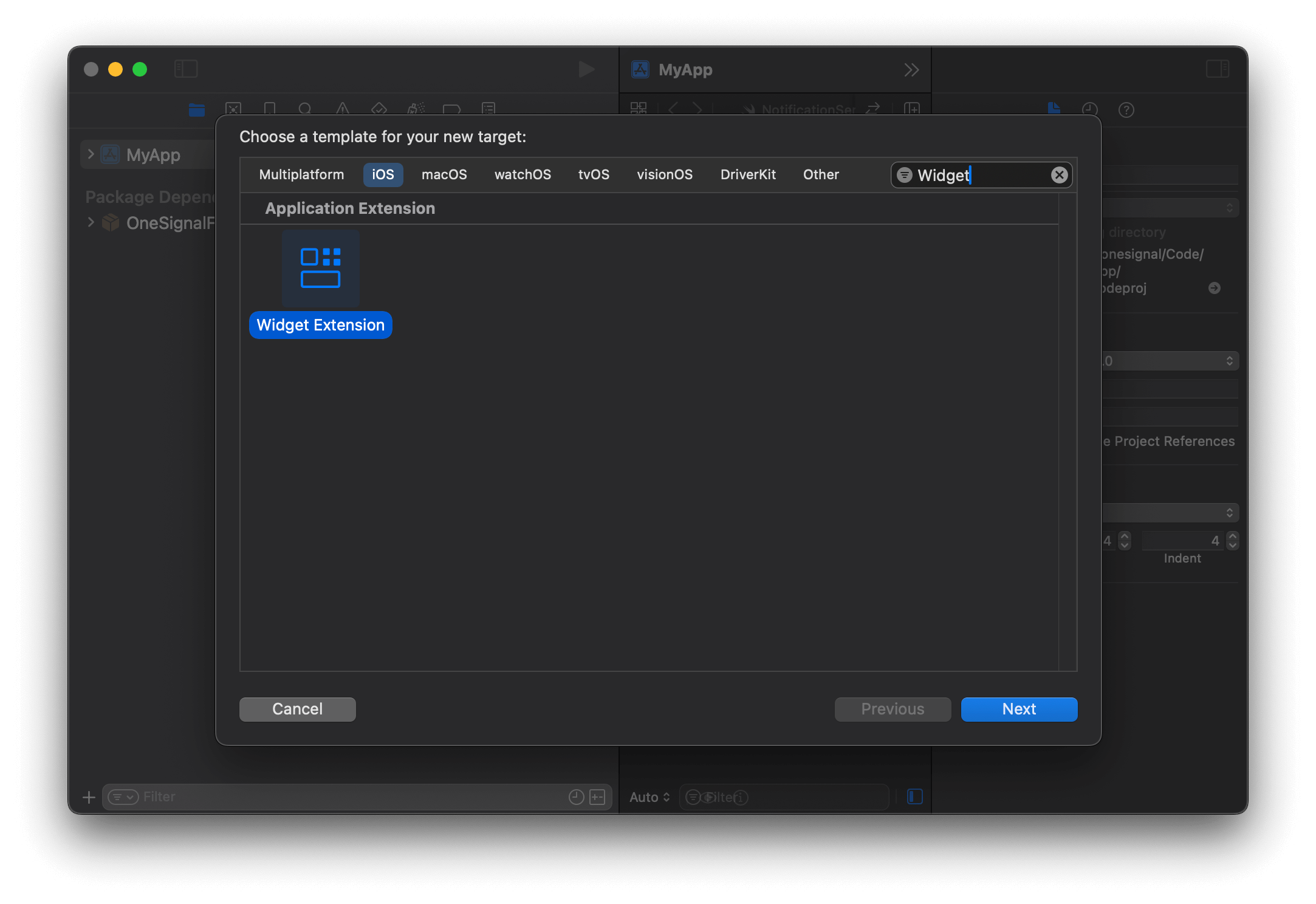 Select and press **Next**.
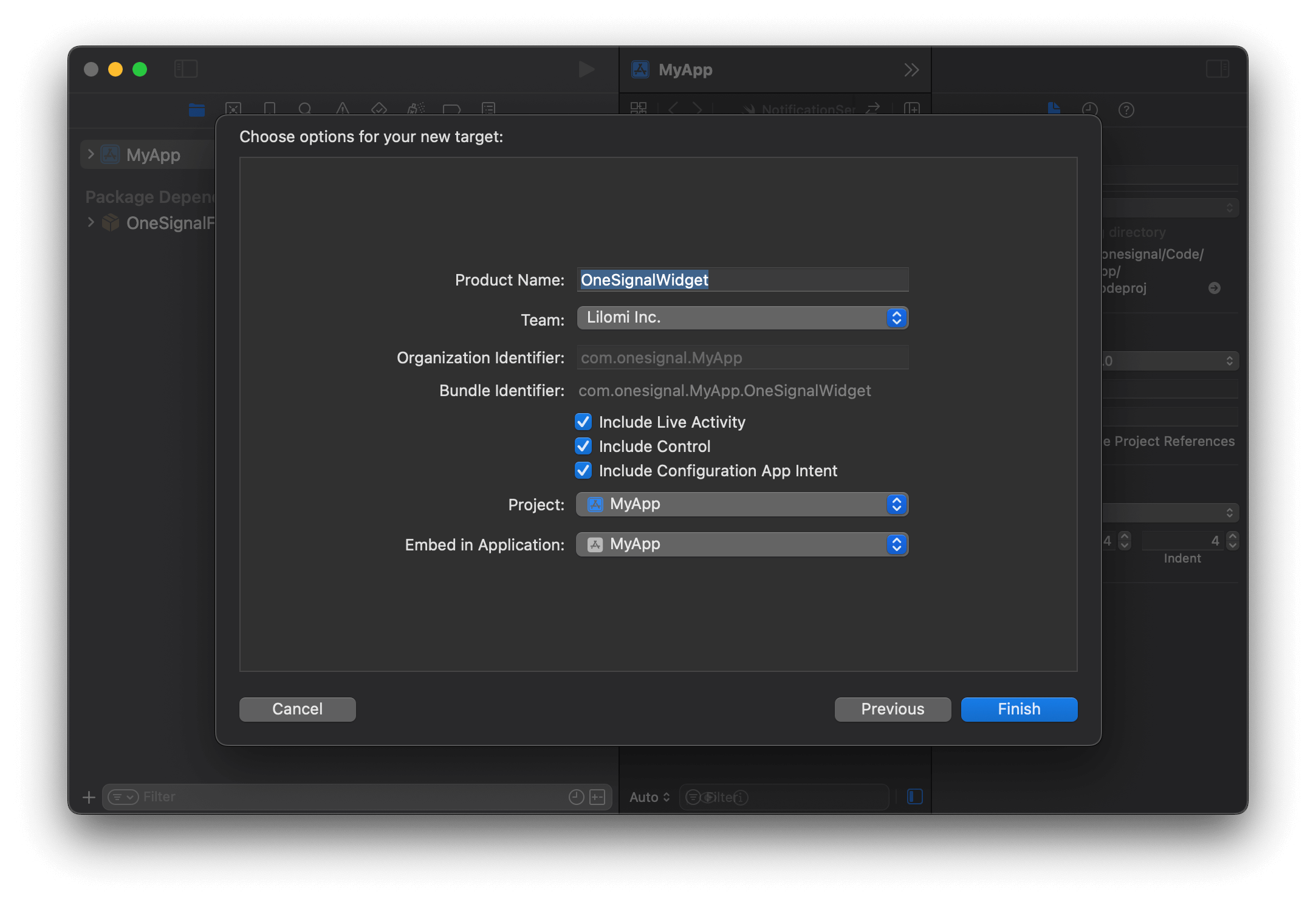
Configure the Widget Extension by providing a name (example: `OneSignalWidget`) and ensure **Include Live Activity** is selected. Then click **Finish**.
Select and press **Next**.
Configure the Widget Extension by providing a name (example: `OneSignalWidget`) and ensure **Include Live Activity** is selected. Then click **Finish**.
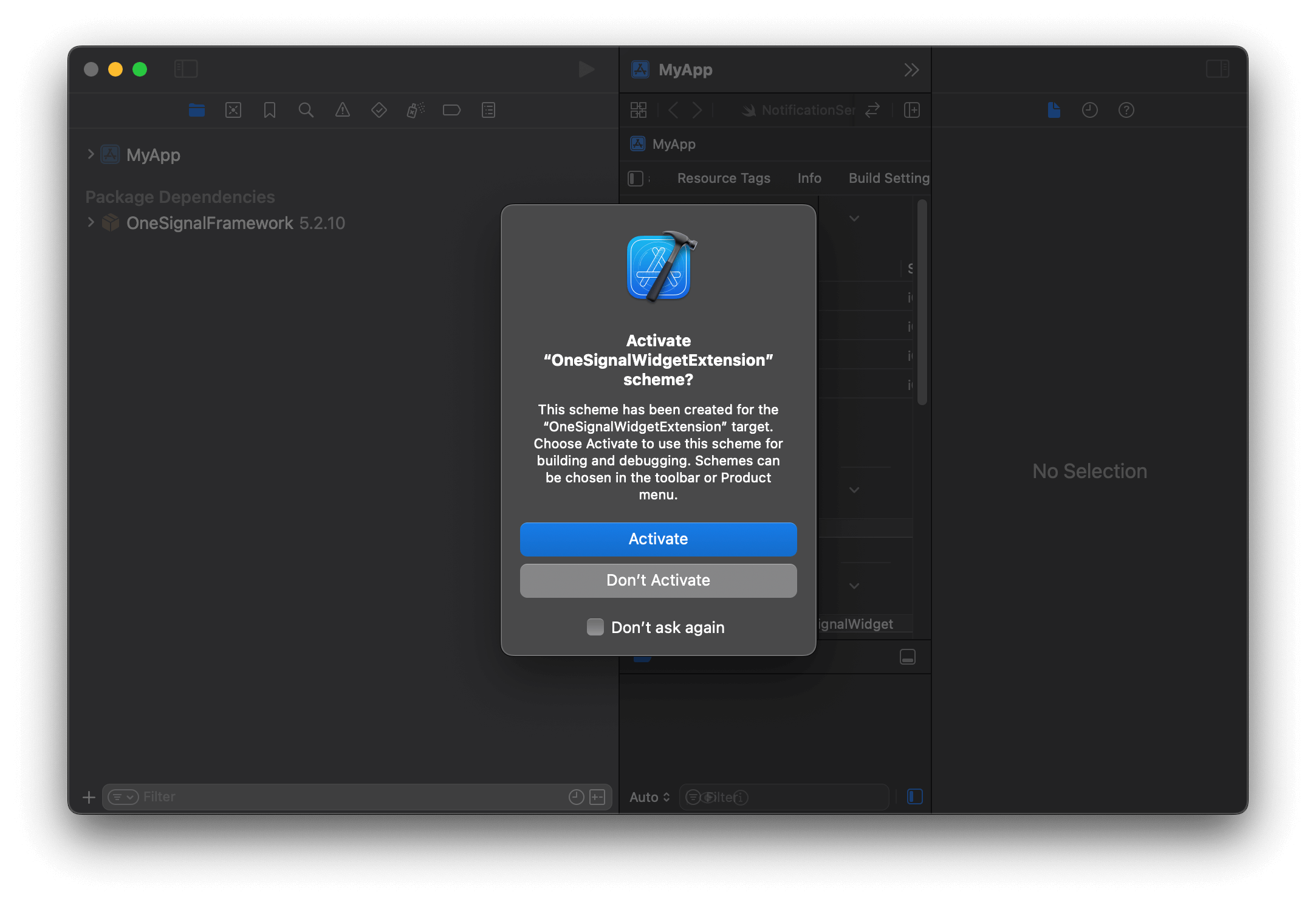
 Click **Don't Activate** if prompted to activate the scheme.
 ### 2. Update `Info.plist`
In your main target’s `Info.plist`, add the key `Supports Live Activities` as **Boolean**, and set it to `YES`.
### 2. Update `Info.plist`
In your main target’s `Info.plist`, add the key `Supports Live Activities` as **Boolean**, and set it to `YES`.
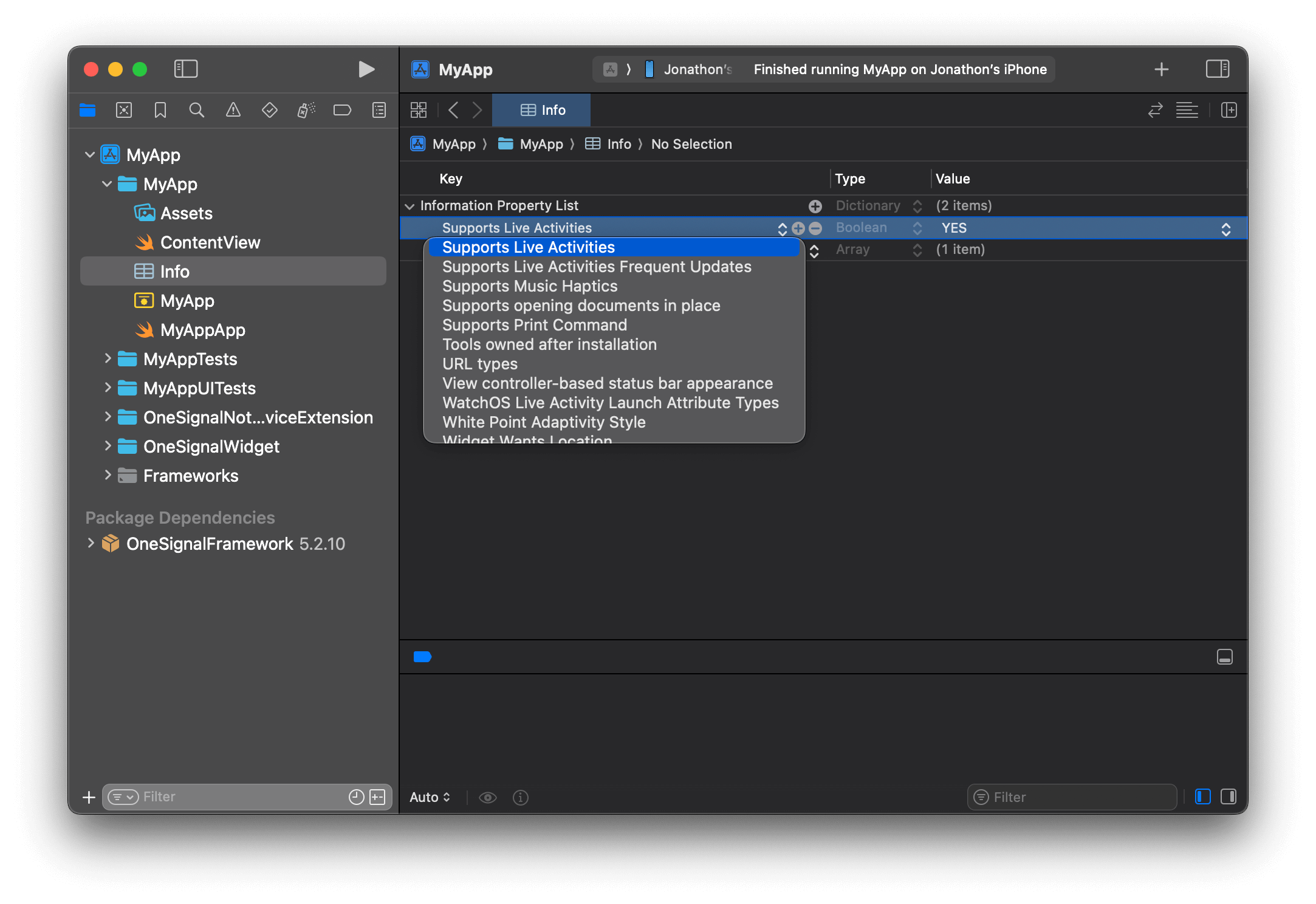 If you set it programmatically, it should look like this:
```xml info.plist theme={null}
NSSupportsLiveActivities
```
When updating Live Activities, you have the option to set a "priority" which Apple uses to determine how urgent the update is. Apple has internal thresholds in which they will throttle requests that use the high priority flag too frequently.
If your use cases for Live Activities relies on more frequent high priority updates, you can add the key `NSSupportsLiveActivitiesFrequentUpdates` to your Info.plist as a Boolean type set to YES as directed in [Apple's Developer Docs](https://developer.apple.com/documentation/activitykit/starting-and-updating-live-activities-with-activitykit-push-notifications#Determine-the-update-frequency). Users will be presented with a dialog when the Live Activity exceeds its push budget, and if they allow the Live Activity to continue, the budget will automatically be increased for a seamless user experience.
### 3. Add SDK
Si estás usando un SDK wrapper (por ejemplo, **Flutter**) con SPM habilitado, puedes omitir este paso. El paquete OneSignal ya está resuelto y disponible para todos los destinos.
In your Widget Extension target, add the `OneSignalFramework` under **General > Frameworks, Libraries and Embedded Content**:
If you set it programmatically, it should look like this:
```xml info.plist theme={null}
NSSupportsLiveActivities
```
When updating Live Activities, you have the option to set a "priority" which Apple uses to determine how urgent the update is. Apple has internal thresholds in which they will throttle requests that use the high priority flag too frequently.
If your use cases for Live Activities relies on more frequent high priority updates, you can add the key `NSSupportsLiveActivitiesFrequentUpdates` to your Info.plist as a Boolean type set to YES as directed in [Apple's Developer Docs](https://developer.apple.com/documentation/activitykit/starting-and-updating-live-activities-with-activitykit-push-notifications#Determine-the-update-frequency). Users will be presented with a dialog when the Live Activity exceeds its push budget, and if they allow the Live Activity to continue, the budget will automatically be increased for a seamless user experience.
### 3. Add SDK
Si estás usando un SDK wrapper (por ejemplo, **Flutter**) con SPM habilitado, puedes omitir este paso. El paquete OneSignal ya está resuelto y disponible para todos los destinos.
In your Widget Extension target, add the `OneSignalFramework` under **General > Frameworks, Libraries and Embedded Content**:
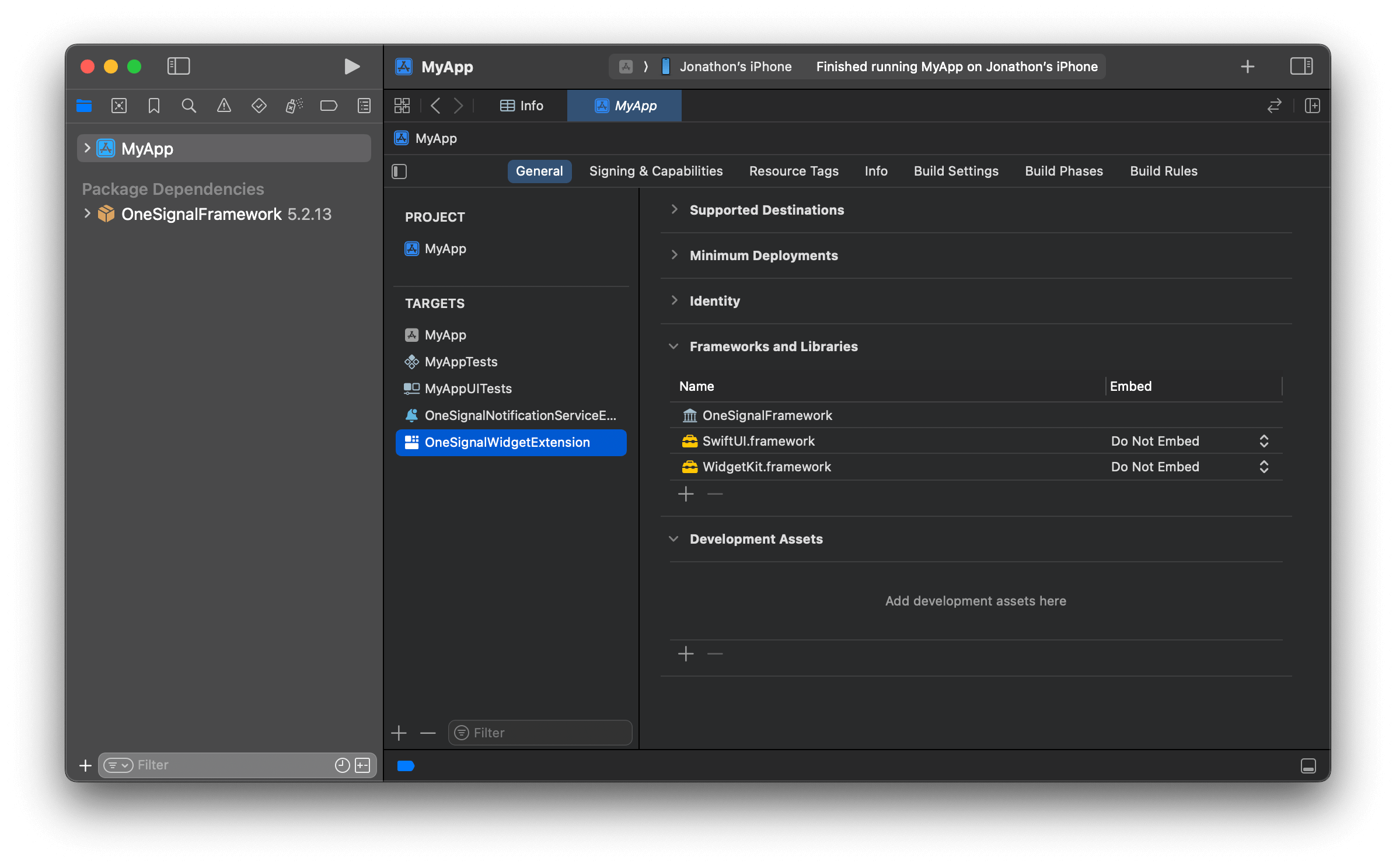 Find the name of your widget extension target in your project's Targets list. Example's name is `OneSignalWidgetExtension`.
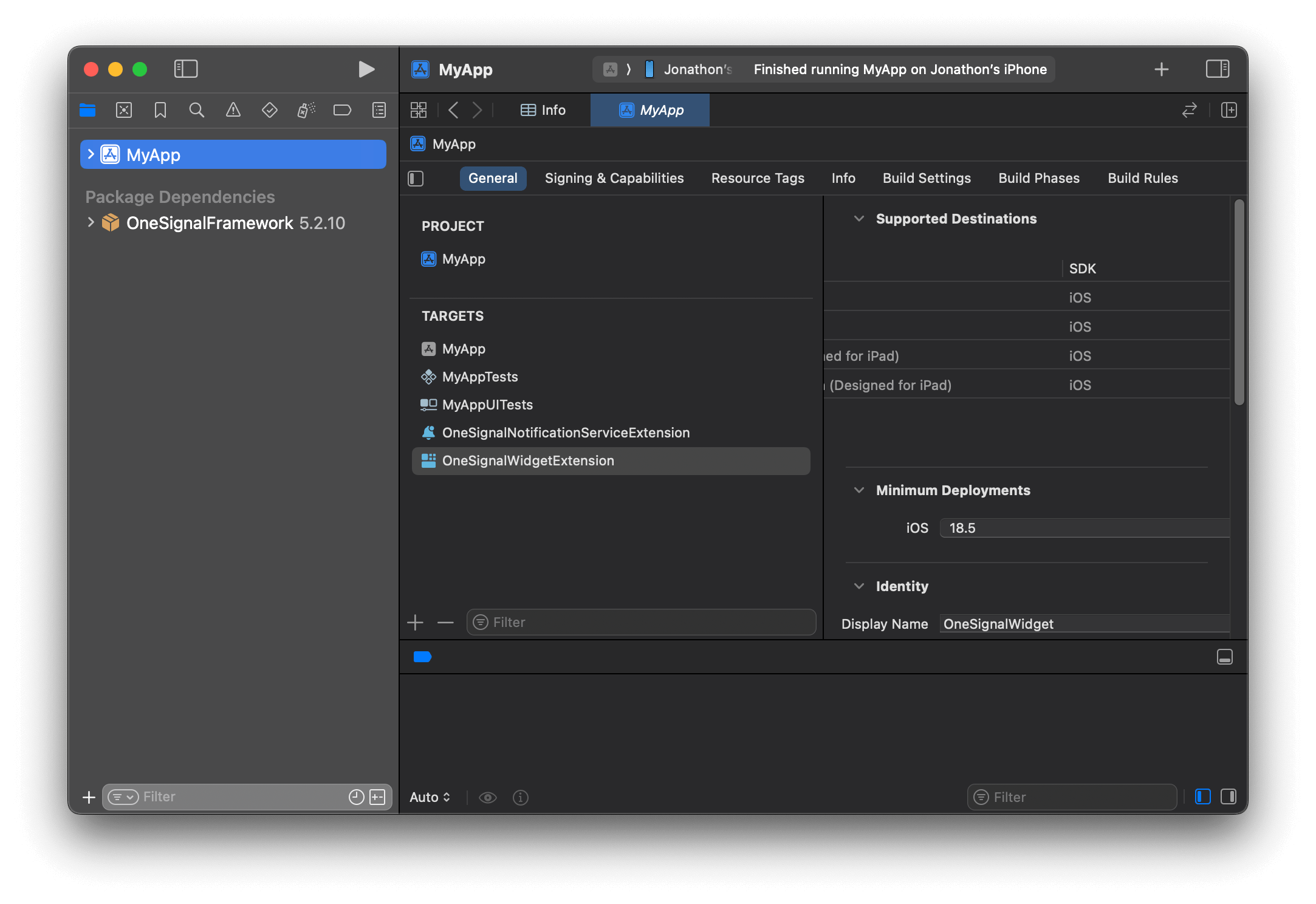 Open your `Podfile` and add the following code. Replace `OneSignalWidgetExtension` with the name of your widget extension target.
```ruby Podfile theme={null}
target 'OneSignalWidgetExtension' do
use_frameworks!
pod 'OneSignal/OneSignal', '>= 5.0.0', '< 6.0'
end
```
```ruby Full Podfile example theme={null}
# Uncomment the next line to define a global platform for your project
# platform :ios, '9.0'
target 'Demo Momenta' do
# Comment the next line if you don't want to use dynamic frameworks
use_frameworks!
pod 'OneSignal/OneSignal', '>= 5.0.0', '< 6.0'
pod 'OneSignal/OneSignalInAppMessages', '>= 5.0.0', '< 6.0'
end
target 'OneSignalNotificationServiceExtension' do
use_frameworks!
pod 'OneSignal/OneSignal', '>= 5.0.0', '< 6.0'
end
target 'OneSignalWidgetExtension' do
use_frameworks!
pod 'OneSignal/OneSignal', '>= 5.0.0', '< 6.0'
end
```
Close Xcode and run `pod repo update && pod install` to install the `OneSignalLiveActivities` pod.
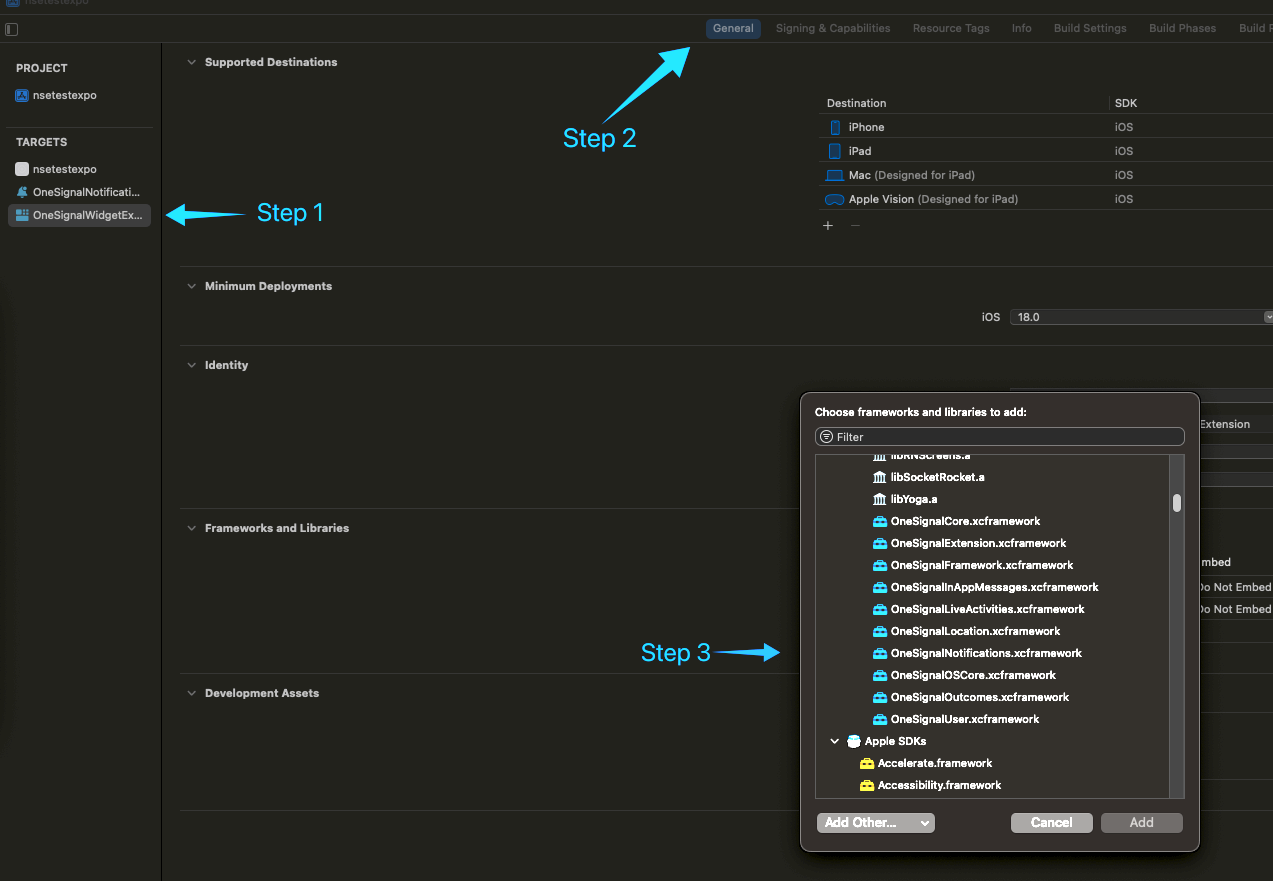
If you continue to see the error "No such module 'OneSignalLiveActivities'" after doing this, you can add the dependency manually by going to your **"Widget Extension Target" > General > Frameworks and Libraries > + icon**. Select the `OneSignalLiveActivities` framework:
Open your `Podfile` and add the following code. Replace `OneSignalWidgetExtension` with the name of your widget extension target.
```ruby Podfile theme={null}
target 'OneSignalWidgetExtension' do
use_frameworks!
pod 'OneSignal/OneSignal', '>= 5.0.0', '< 6.0'
end
```
```ruby Full Podfile example theme={null}
# Uncomment the next line to define a global platform for your project
# platform :ios, '9.0'
target 'Demo Momenta' do
# Comment the next line if you don't want to use dynamic frameworks
use_frameworks!
pod 'OneSignal/OneSignal', '>= 5.0.0', '< 6.0'
pod 'OneSignal/OneSignalInAppMessages', '>= 5.0.0', '< 6.0'
end
target 'OneSignalNotificationServiceExtension' do
use_frameworks!
pod 'OneSignal/OneSignal', '>= 5.0.0', '< 6.0'
end
target 'OneSignalWidgetExtension' do
use_frameworks!
pod 'OneSignal/OneSignal', '>= 5.0.0', '< 6.0'
end
```
Close Xcode and run `pod repo update && pod install` to install the `OneSignalLiveActivities` pod.
If you continue to see the error "No such module 'OneSignalLiveActivities'" after doing this, you can add the dependency manually by going to your **"Widget Extension Target" > General > Frameworks and Libraries > + icon**. Select the `OneSignalLiveActivities` framework:
 ### 4. Define widget attributes and UI
Open the `your-nameLiveActivity.swift` file (example: `OneSignalWidgetLiveActivity.swift`) to define the properties of the struct and to make changes to the widget UI.
* `your-nameAttributes` describes the static content of your Live Activity.
* `ContentState` describes the dynamic content of your Live Activity.
If you are following the example, copy-paste the code below into your `OneSignalWidgetLiveActivity.swift` file.
```swift your-nameLiveActivity.swift theme={null}
import ActivityKit
import WidgetKit
import SwiftUI
// Import the OneSignalLiveActivities module
// If you get an error about the module not being found, return to step 3 and ensure you have added the OneSignalLiveActivities pod correctly.
import OneSignalLiveActivities
// Update to inherit from OneSignalLiveActivityAttributes
// This will be used in your API requests to start a Live Activity
struct OneSignalWidgetAttributes: OneSignalLiveActivityAttributes {
// Update to inherit from OneSignalLiveActivityContentState
public struct ContentState: OneSignalLiveActivityContentState {
// Dynamic stateful properties about your activity go here!
var emoji: String
// Add a reference to OneSignalLiveActivityContentStateData?
var onesignal: OneSignalLiveActivityContentStateData?
}
// Fixed non-changing properties about your activity go here!
var name: String
// Add a reference to OneSignalLiveActivityAttributeData
var onesignal: OneSignalLiveActivityAttributeData
}
struct OneSignalWidgetLiveActivity: Widget {
var body: some WidgetConfiguration {
// Update to use `for: the-name-of-your-attributes-struct`
// This will be used in your API requests to start a Live Activity
ActivityConfiguration(for: OneSignalWidgetAttributes.self) { context in
// Lock screen/banner UI goes here
// Update to show the attributes sent via the payload
VStack {
Text("Hello \(context.attributes.name) \(context.state.emoji)")
}
.activityBackgroundTint(Color.cyan)
.activitySystemActionForegroundColor(Color.black)
} dynamicIsland: { context in
DynamicIsland {
// Expanded UI goes here. Compose the expanded UI through
// various regions, like leading/trailing/center/bottom
DynamicIslandExpandedRegion(.leading) {
Text("Leading")
}
DynamicIslandExpandedRegion(.trailing) {
Text("Trailing")
}
DynamicIslandExpandedRegion(.bottom) {
Text("Bottom \(context.state.emoji)")
// more content
}
} compactLeading: {
Text("L")
} compactTrailing: {
Text("T \(context.state.emoji)")
} minimal: {
Text(context.state.emoji)
}
.widgetURL(URL(string: "http://www.apple.com"))
.keylineTint(Color.red)
}
}
}
```
### 5. Allow main target membership
Este paso solo es necesario cuando se usan atributos personalizados (por ejemplo, `OneSignalWidgetAttributes`). Si estás usando `DefaultLiveActivityAttributes`, omite este paso — el tipo es proporcionado por el SDK de OneSignal y ya es accesible desde el destino principal de tu aplicación.
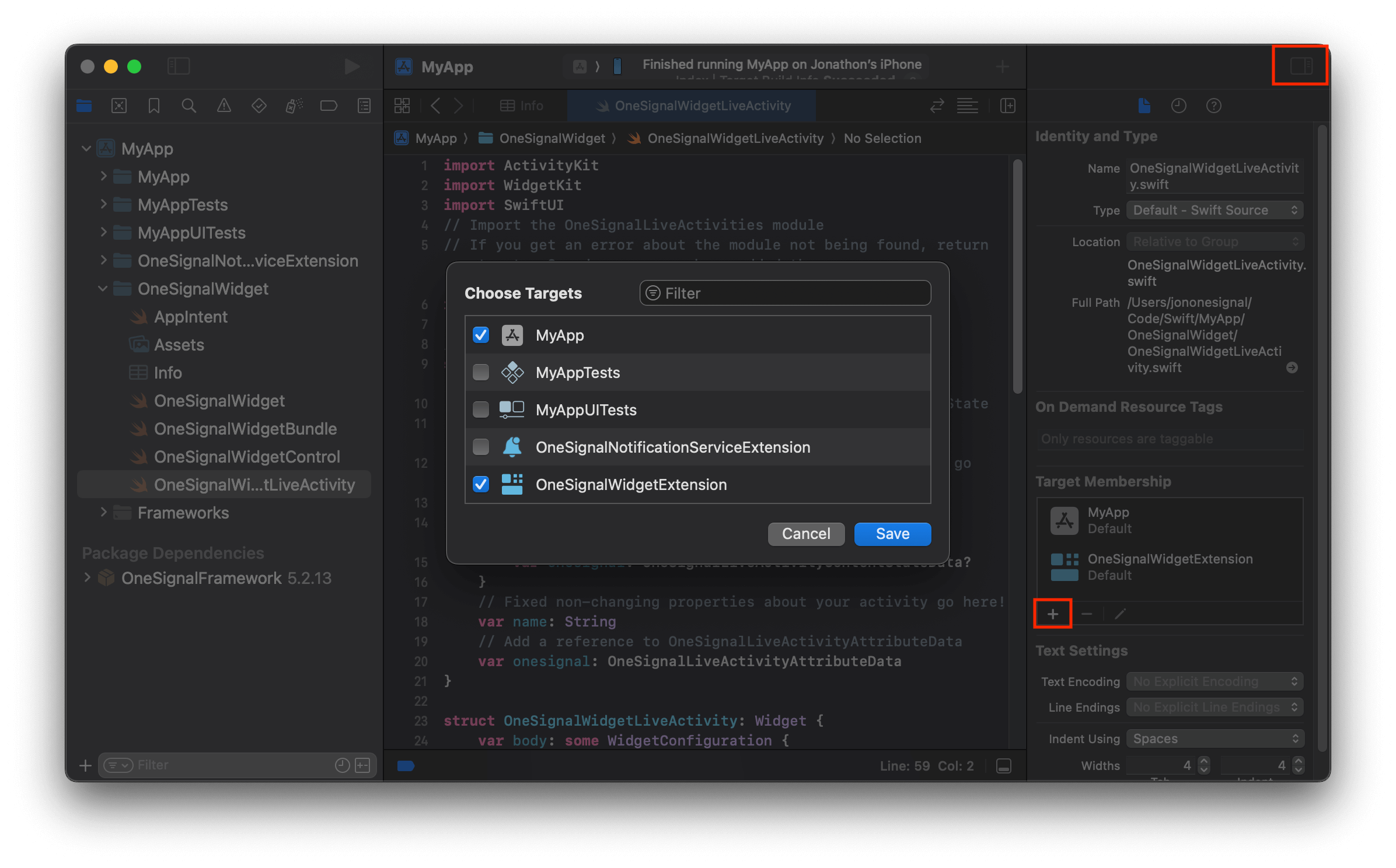
Add your main app target to the **Target Membership** list in the `your-nameLiveActivity.swift` file. This is necessary so the main app target can reference your custom attributes struct in the setup call (Step 6).
In Xcode, open the Inspector panel on the right side of the screen. Within **Target Membership**, click the **+** button and select your main app target containing the `ContentView` and your OneSignal initialization code.
### 4. Define widget attributes and UI
Open the `your-nameLiveActivity.swift` file (example: `OneSignalWidgetLiveActivity.swift`) to define the properties of the struct and to make changes to the widget UI.
* `your-nameAttributes` describes the static content of your Live Activity.
* `ContentState` describes the dynamic content of your Live Activity.
If you are following the example, copy-paste the code below into your `OneSignalWidgetLiveActivity.swift` file.
```swift your-nameLiveActivity.swift theme={null}
import ActivityKit
import WidgetKit
import SwiftUI
// Import the OneSignalLiveActivities module
// If you get an error about the module not being found, return to step 3 and ensure you have added the OneSignalLiveActivities pod correctly.
import OneSignalLiveActivities
// Update to inherit from OneSignalLiveActivityAttributes
// This will be used in your API requests to start a Live Activity
struct OneSignalWidgetAttributes: OneSignalLiveActivityAttributes {
// Update to inherit from OneSignalLiveActivityContentState
public struct ContentState: OneSignalLiveActivityContentState {
// Dynamic stateful properties about your activity go here!
var emoji: String
// Add a reference to OneSignalLiveActivityContentStateData?
var onesignal: OneSignalLiveActivityContentStateData?
}
// Fixed non-changing properties about your activity go here!
var name: String
// Add a reference to OneSignalLiveActivityAttributeData
var onesignal: OneSignalLiveActivityAttributeData
}
struct OneSignalWidgetLiveActivity: Widget {
var body: some WidgetConfiguration {
// Update to use `for: the-name-of-your-attributes-struct`
// This will be used in your API requests to start a Live Activity
ActivityConfiguration(for: OneSignalWidgetAttributes.self) { context in
// Lock screen/banner UI goes here
// Update to show the attributes sent via the payload
VStack {
Text("Hello \(context.attributes.name) \(context.state.emoji)")
}
.activityBackgroundTint(Color.cyan)
.activitySystemActionForegroundColor(Color.black)
} dynamicIsland: { context in
DynamicIsland {
// Expanded UI goes here. Compose the expanded UI through
// various regions, like leading/trailing/center/bottom
DynamicIslandExpandedRegion(.leading) {
Text("Leading")
}
DynamicIslandExpandedRegion(.trailing) {
Text("Trailing")
}
DynamicIslandExpandedRegion(.bottom) {
Text("Bottom \(context.state.emoji)")
// more content
}
} compactLeading: {
Text("L")
} compactTrailing: {
Text("T \(context.state.emoji)")
} minimal: {
Text(context.state.emoji)
}
.widgetURL(URL(string: "http://www.apple.com"))
.keylineTint(Color.red)
}
}
}
```
### 5. Allow main target membership
Este paso solo es necesario cuando se usan atributos personalizados (por ejemplo, `OneSignalWidgetAttributes`). Si estás usando `DefaultLiveActivityAttributes`, omite este paso — el tipo es proporcionado por el SDK de OneSignal y ya es accesible desde el destino principal de tu aplicación.
Add your main app target to the **Target Membership** list in the `your-nameLiveActivity.swift` file. This is necessary so the main app target can reference your custom attributes struct in the setup call (Step 6).
In Xcode, open the Inspector panel on the right side of the screen. Within **Target Membership**, click the **+** button and select your main app target containing the `ContentView` and your OneSignal initialization code.
 ### 6. Add the setup method to your AppDelegate
Call `OneSignal.LiveActivities.setup` in your `AppDelegate`, after OneSignal SDK initialization.
Replace `OneSignalWidgetAttributes` with the name of your Live Activity attributes struct.
```swift AppDelegate theme={null}
// Import the OneSignalLiveActivities module
import OneSignalLiveActivities
// This should be added after initializing the OneSignal SDK
if #available(iOS 16.1, *) {
OneSignal.LiveActivities.setup(OneSignalWidgetAttributes.self)
// If you have multiple Live Activities, you can add them here with the setup method
// OneSignal.LiveActivities.setup(LiveActivityWidgetAttributes-2.self)
}
```
This manages and reports updates using ActivityKit async sequences.
If you also consume any of the following sequences directly in your app, it may interfere with OneSignal Live Activity behavior:
* activityStateUpdates
* pushTokenUpdates
* pushToStartTokenUpdates
* activityUpdates
***
## Starting a Live Activity
There are 2 options to start a Live Activity on a device:
Send a [Push To Start API request](/reference/start-live-activity). Be sure all names and IDs match your widget’s configuration exactly (parameters are case-sensitive). If anything is missing or incorrectly added, you may encounter issues when trying to launch the widget.
Here is an example request that will work for the example above.
Replace:
* `YOUR_APP_ID` with your OneSignal App ID.
* `YOUR_APP_API_KEY` with your OneSignal API key.
* `OneSignalWidgetAttributes` with the name of your Widget Attributes struct.
```curl curl theme={null}
curl --location 'https://api.onesignal.com/apps/YOUR_APP_ID/activities/activity/OneSignalWidgetAttributes' \
--header 'Authorization: key YOUR_APP_API_KEY' \
--header 'Content-Type: application/json' \
--data '{
"event": "start",
"activity_id": "push-to-start",
"included_segments": [
"Subscribed Users"
],
"event_attributes": {
"name": "World"
},
"event_updates": {
"emoji":"🤩"
},
"name": "Live Activities Test",
"contents": {
"en": "A push started this Live Activity"
},
"headings": {
"en": "Live Activity Started"
}
}'
```
If you are following the example code provided, you should see the Live Activity on your device's lock screen.
### 6. Add the setup method to your AppDelegate
Call `OneSignal.LiveActivities.setup` in your `AppDelegate`, after OneSignal SDK initialization.
Replace `OneSignalWidgetAttributes` with the name of your Live Activity attributes struct.
```swift AppDelegate theme={null}
// Import the OneSignalLiveActivities module
import OneSignalLiveActivities
// This should be added after initializing the OneSignal SDK
if #available(iOS 16.1, *) {
OneSignal.LiveActivities.setup(OneSignalWidgetAttributes.self)
// If you have multiple Live Activities, you can add them here with the setup method
// OneSignal.LiveActivities.setup(LiveActivityWidgetAttributes-2.self)
}
```
This manages and reports updates using ActivityKit async sequences.
If you also consume any of the following sequences directly in your app, it may interfere with OneSignal Live Activity behavior:
* activityStateUpdates
* pushTokenUpdates
* pushToStartTokenUpdates
* activityUpdates
***
## Starting a Live Activity
There are 2 options to start a Live Activity on a device:
Send a [Push To Start API request](/reference/start-live-activity). Be sure all names and IDs match your widget’s configuration exactly (parameters are case-sensitive). If anything is missing or incorrectly added, you may encounter issues when trying to launch the widget.
Here is an example request that will work for the example above.
Replace:
* `YOUR_APP_ID` with your OneSignal App ID.
* `YOUR_APP_API_KEY` with your OneSignal API key.
* `OneSignalWidgetAttributes` with the name of your Widget Attributes struct.
```curl curl theme={null}
curl --location 'https://api.onesignal.com/apps/YOUR_APP_ID/activities/activity/OneSignalWidgetAttributes' \
--header 'Authorization: key YOUR_APP_API_KEY' \
--header 'Content-Type: application/json' \
--data '{
"event": "start",
"activity_id": "push-to-start",
"included_segments": [
"Subscribed Users"
],
"event_attributes": {
"name": "World"
},
"event_updates": {
"emoji":"🤩"
},
"name": "Live Activities Test",
"contents": {
"en": "A push started this Live Activity"
},
"headings": {
"en": "Live Activity Started"
}
}'
```
If you are following the example code provided, you should see the Live Activity on your device's lock screen.
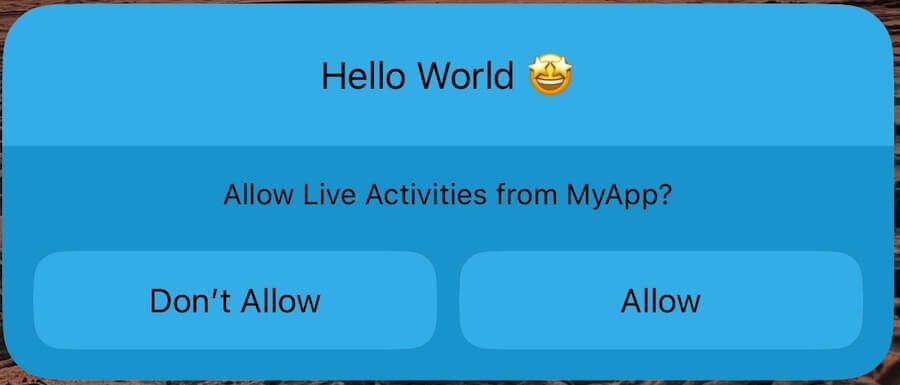 You successfully started a Live Activity with push-to-start!
Users will need to select "Allow" to continue getting updates.
You can have a user trigger a Live Activity while interacting with your app.
For example, when a user has an active event going on (they placed an order, a game is in progress, an event is about to start, etc.) and opens your app, you can display a Live Activity automatically.
In this example we will use a button to start the Live Activity manually.
```swift theme={null}
import SwiftUI
import ActivityKit
import OneSignalFramework
import OneSignalLiveActivities
struct ContentView: View {
@StateObject private var viewModel = LiveActivityViewModel()
var body: some View {
VStack {
Button("Start Live Activity") {
viewModel.startLiveActivity()
}
}
}
}
class LiveActivityViewModel: ObservableObject {
func startLiveActivity() {
let osAttributes = OneSignalLiveActivityAttributeData.create(activityId: "click-to-start")
let attributes = OneSignalWidgetAttributes(name: "OneSignal", onesignal: osAttributes)
let contentState = OneSignalWidgetAttributes.ContentState(emoji:"🤩", onesignal: nil)
do {
let activity = try Activity.request(
attributes: attributes,
contentState: contentState,
pushType: .token)
} catch {
print(error.localizedDescription)
}
}
}
```
Upon clicking the button it will launch the Live Activity.
***
## Seguimiento de clics en Live Activity
Rastrea cuándo los usuarios tocan tus Live Activities y Dynamic Islands implementando el seguimiento de clics de OneSignal. Esto te permite medir el engagement y opcionalmente hacer deep link a los usuarios hacia contenido específico en tu app.
### Paso 1: Añadir seguimiento de clics a tu widget
Añade el modificador `.onesignalWidgetURL()` a cualquier componente de UI en tu widget de Live Activity del que quieras rastrear los clics:
```swift theme={null}
import OneSignalLiveActivities
struct ExampleAppFirstWidget: Widget {
var body: some WidgetConfiguration {
ActivityConfiguration(for: ExampleAppFirstWidgetAttributes.self) { context in
VStack {
Spacer()
Text("Sample Text " + context.attributes.title).font(.headline)
// Other UI code
}
.onesignalWidgetURL(URL(string: "myapp://settings"), context: context)
// Pass nil if you don't need deep linking: .onesignalWidgetURL(nil, context: context)
} dynamicIsland: { context in
DynamicIsland {
DynamicIslandExpandedRegion(.leading) {
Text("Leading")
}
// Other Dynamic Island regions
} compactLeading: {
Text("L")
} compactTrailing: {
Text("T")
} minimal: {
Text("Min")
}
.onesignalWidgetURL(URL(string: "myapp://settings"), context: context)
// Optional: Track Dynamic Island clicks separately
}
}
}
```
**Consideraciones importantes:**
* Puedes pasar una URL para deep linking o `nil` si solo quieres seguimiento de clics sin navegación
* La jerarquía de vistas **no puede incluir** el modificador `.widgetURL()` de Apple si usas `.onesignalWidgetURL()`
* Aplica el modificador tanto a la vista principal de Live Activity como a Dynamic Island si quieres rastrear los clics en ambos
### Paso 2: Gestionar URLs en tu app
Añade gestión de URLs en tu app para rastrear clics y dirigir a los usuarios adecuadamente:
```swift theme={null}
import OneSignalLiveActivities
// AppDelegate example:
func application(_ app: UIApplication, open url: URL, options: [UIApplication.OpenURLOptionsKey : Any] = [:]) -> Bool {
let originalURL = OneSignal.LiveActivities.trackClickAndReturnOriginal(url)
// Handle the original URL and navigate user
if let url = originalURL {
// Your custom URL routing logic
return handleDeepLink(url)
}
return false
}
// SceneDelegate example:
func scene(_ scene: UIScene, openURLContexts URLContexts: Set) {
guard let url = URLContexts.first?.url else { return }
let originalURL = OneSignal.LiveActivities.trackClickAndReturnOriginal(url)
if let url = originalURL {
// Your custom URL routing logic
handleDeepLink(url)
}
}
// SwiftUI example:
.onOpenURL { url in
let originalURL = OneSignal.LiveActivities.trackClickAndReturnOriginal(url)
if let url = originalURL {
// Your custom URL routing logic
handleDeepLink(url)
}
}
```
El método `trackClickAndReturnOriginal()` rastrea automáticamente el clic con OneSignal y devuelve la URL original que especificaste en el widget para que tu app la gestione.
***
## Updating a Live Activity
Use the [Update Live Activity API](/reference/update-live-activity-api) to update active widgets.
Match the `activity_id` used when starting the activity.
This example request will update the push-to-start widget because it has the `activity_id` titled `push-to-start` that we defined.
To update the click-to-start widget, update the request path to use `click-to-start` instead of `push-to-start`.
```curl curl theme={null}
curl --location 'https://api.onesignal.com/apps/YOUR_APP_ID/live_activities/push-to-start/notifications' \
--header 'Content-Type: application/json' \
--header 'Accept: application/json' \
--header 'Authorization: key YOUR_API_KEY' \
--data '{
"event": "update",
"event_updates": {
"emoji": "😎"
},
"contents": {
"en": "A push updated this Live Activity"
},
"name": "Live Activity Updated"
}'
```
You successfully started a Live Activity with push-to-start!
Users will need to select "Allow" to continue getting updates.
You can have a user trigger a Live Activity while interacting with your app.
For example, when a user has an active event going on (they placed an order, a game is in progress, an event is about to start, etc.) and opens your app, you can display a Live Activity automatically.
In this example we will use a button to start the Live Activity manually.
```swift theme={null}
import SwiftUI
import ActivityKit
import OneSignalFramework
import OneSignalLiveActivities
struct ContentView: View {
@StateObject private var viewModel = LiveActivityViewModel()
var body: some View {
VStack {
Button("Start Live Activity") {
viewModel.startLiveActivity()
}
}
}
}
class LiveActivityViewModel: ObservableObject {
func startLiveActivity() {
let osAttributes = OneSignalLiveActivityAttributeData.create(activityId: "click-to-start")
let attributes = OneSignalWidgetAttributes(name: "OneSignal", onesignal: osAttributes)
let contentState = OneSignalWidgetAttributes.ContentState(emoji:"🤩", onesignal: nil)
do {
let activity = try Activity.request(
attributes: attributes,
contentState: contentState,
pushType: .token)
} catch {
print(error.localizedDescription)
}
}
}
```
Upon clicking the button it will launch the Live Activity.
***
## Seguimiento de clics en Live Activity
Rastrea cuándo los usuarios tocan tus Live Activities y Dynamic Islands implementando el seguimiento de clics de OneSignal. Esto te permite medir el engagement y opcionalmente hacer deep link a los usuarios hacia contenido específico en tu app.
### Paso 1: Añadir seguimiento de clics a tu widget
Añade el modificador `.onesignalWidgetURL()` a cualquier componente de UI en tu widget de Live Activity del que quieras rastrear los clics:
```swift theme={null}
import OneSignalLiveActivities
struct ExampleAppFirstWidget: Widget {
var body: some WidgetConfiguration {
ActivityConfiguration(for: ExampleAppFirstWidgetAttributes.self) { context in
VStack {
Spacer()
Text("Sample Text " + context.attributes.title).font(.headline)
// Other UI code
}
.onesignalWidgetURL(URL(string: "myapp://settings"), context: context)
// Pass nil if you don't need deep linking: .onesignalWidgetURL(nil, context: context)
} dynamicIsland: { context in
DynamicIsland {
DynamicIslandExpandedRegion(.leading) {
Text("Leading")
}
// Other Dynamic Island regions
} compactLeading: {
Text("L")
} compactTrailing: {
Text("T")
} minimal: {
Text("Min")
}
.onesignalWidgetURL(URL(string: "myapp://settings"), context: context)
// Optional: Track Dynamic Island clicks separately
}
}
}
```
**Consideraciones importantes:**
* Puedes pasar una URL para deep linking o `nil` si solo quieres seguimiento de clics sin navegación
* La jerarquía de vistas **no puede incluir** el modificador `.widgetURL()` de Apple si usas `.onesignalWidgetURL()`
* Aplica el modificador tanto a la vista principal de Live Activity como a Dynamic Island si quieres rastrear los clics en ambos
### Paso 2: Gestionar URLs en tu app
Añade gestión de URLs en tu app para rastrear clics y dirigir a los usuarios adecuadamente:
```swift theme={null}
import OneSignalLiveActivities
// AppDelegate example:
func application(_ app: UIApplication, open url: URL, options: [UIApplication.OpenURLOptionsKey : Any] = [:]) -> Bool {
let originalURL = OneSignal.LiveActivities.trackClickAndReturnOriginal(url)
// Handle the original URL and navigate user
if let url = originalURL {
// Your custom URL routing logic
return handleDeepLink(url)
}
return false
}
// SceneDelegate example:
func scene(_ scene: UIScene, openURLContexts URLContexts: Set) {
guard let url = URLContexts.first?.url else { return }
let originalURL = OneSignal.LiveActivities.trackClickAndReturnOriginal(url)
if let url = originalURL {
// Your custom URL routing logic
handleDeepLink(url)
}
}
// SwiftUI example:
.onOpenURL { url in
let originalURL = OneSignal.LiveActivities.trackClickAndReturnOriginal(url)
if let url = originalURL {
// Your custom URL routing logic
handleDeepLink(url)
}
}
```
El método `trackClickAndReturnOriginal()` rastrea automáticamente el clic con OneSignal y devuelve la URL original que especificaste en el widget para que tu app la gestione.
***
## Updating a Live Activity
Use the [Update Live Activity API](/reference/update-live-activity-api) to update active widgets.
Match the `activity_id` used when starting the activity.
This example request will update the push-to-start widget because it has the `activity_id` titled `push-to-start` that we defined.
To update the click-to-start widget, update the request path to use `click-to-start` instead of `push-to-start`.
```curl curl theme={null}
curl --location 'https://api.onesignal.com/apps/YOUR_APP_ID/live_activities/push-to-start/notifications' \
--header 'Content-Type: application/json' \
--header 'Accept: application/json' \
--header 'Authorization: key YOUR_API_KEY' \
--data '{
"event": "update",
"event_updates": {
"emoji": "😎"
},
"contents": {
"en": "A push updated this Live Activity"
},
"name": "Live Activity Updated"
}'
```
 You successfully updated a Live Activity!
Checkout the [Update Live Activity API](/reference/update-live-activity-api) for more information on updating a Live Activity.
***
## Ending a Live Activity
Using the same [Update Live Activity API](/reference/update-live-activity-api), we can end a Live Activity by setting `"event": "end"`.
```curl curl theme={null}
curl --location 'https://api.onesignal.com/apps/YOUR_APP_ID/live_activities/my_activity_id/notifications' \
--header 'Content-Type: application/json' \
--header 'Accept: application/json' \
--header 'Authorization: key YOUR_API_KEY' \
--data '{
"event": "end",
"event_updates": {
"emoji": "👋"
},
"contents": {
"en": "A push ended this Live Activity"
},
"name": "Live Activity Ended"
}'
```
Other ways a Live Activity can end:
* Use our SDK [`exit()` method](./mobile-sdk-reference#exit).
* User manually swipes the Live Activity away.
* User revokes permission for Live Activities in their iOS Settings.
You successfully updated a Live Activity!
Checkout the [Update Live Activity API](/reference/update-live-activity-api) for more information on updating a Live Activity.
***
## Ending a Live Activity
Using the same [Update Live Activity API](/reference/update-live-activity-api), we can end a Live Activity by setting `"event": "end"`.
```curl curl theme={null}
curl --location 'https://api.onesignal.com/apps/YOUR_APP_ID/live_activities/my_activity_id/notifications' \
--header 'Content-Type: application/json' \
--header 'Accept: application/json' \
--header 'Authorization: key YOUR_API_KEY' \
--data '{
"event": "end",
"event_updates": {
"emoji": "👋"
},
"contents": {
"en": "A push ended this Live Activity"
},
"name": "Live Activity Ended"
}'
```
Other ways a Live Activity can end:
* Use our SDK [`exit()` method](./mobile-sdk-reference#exit).
* User manually swipes the Live Activity away.
* User revokes permission for Live Activities in their iOS Settings.
 You successfully ended the Live Activity and completed the example!
***
## Best practices & recommendations
### Design considerations
* Follow Apple's [Live Activities Human Interface Guidelines](https://developer.apple.com/design/human-interface-guidelines/live-activities).
* Prioritize important information to make it easy to understand at a quick glance.
* Don’t add elements to your app that draw attention to the Dynamic Island.
* Use margins and maintain space between elements.
* Use a bold color for the background. Design for both Light and Dark mode.
### Functionality
* Apple requires each [Live Activity presentation](https://developer.apple.com/documentation/activitykit/displaying-live-data-with-live-activities#Review-Live-Activity-presentations) to be supported.
* [Compact](https://developer.apple.com/design/human-interface-guidelines/live-activities#Compact-presentation)
* [Minimal](https://developer.apple.com/design/human-interface-guidelines/live-activities#Minimal-presentation)
* [Expanded](https://developer.apple.com/design/human-interface-guidelines/live-activities#Expanded-presentation)
* [Lock Screen](https://developer.apple.com/design/human-interface-guidelines/live-activities#The-Lock-Screen)
* Test your [deep links](https://developer.apple.com/design/human-interface-guidelines/live-activities#Offering-interactivity).
* Review Apple's guide on [Displaying Live Data with Live Activities](https://developer.apple.com/documentation/activitykit/displaying-live-data-with-live-activities).
* Avoid displaying sensitive information in a Live Activity.
### Configurar un mensaje de respaldo
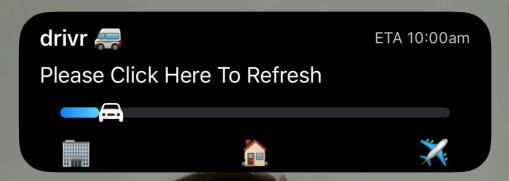
Si un usuario no puede recibir una actualización después de que haya comenzado una Live Activity, abrir la app debería actualizar la actividad. Establece la [stale date](/reference/start-live-activity#body-stale-date) en un punto en el futuro después de que esperes haber enviado la primera actualización. A los usuarios que no hayan recibido la actualización se les mostrará el mensaje de respaldo.
Puedes escuchar el estado "stale" en tu widget UI para mostrar un mensaje de respaldo:
You successfully ended the Live Activity and completed the example!
***
## Best practices & recommendations
### Design considerations
* Follow Apple's [Live Activities Human Interface Guidelines](https://developer.apple.com/design/human-interface-guidelines/live-activities).
* Prioritize important information to make it easy to understand at a quick glance.
* Don’t add elements to your app that draw attention to the Dynamic Island.
* Use margins and maintain space between elements.
* Use a bold color for the background. Design for both Light and Dark mode.
### Functionality
* Apple requires each [Live Activity presentation](https://developer.apple.com/documentation/activitykit/displaying-live-data-with-live-activities#Review-Live-Activity-presentations) to be supported.
* [Compact](https://developer.apple.com/design/human-interface-guidelines/live-activities#Compact-presentation)
* [Minimal](https://developer.apple.com/design/human-interface-guidelines/live-activities#Minimal-presentation)
* [Expanded](https://developer.apple.com/design/human-interface-guidelines/live-activities#Expanded-presentation)
* [Lock Screen](https://developer.apple.com/design/human-interface-guidelines/live-activities#The-Lock-Screen)
* Test your [deep links](https://developer.apple.com/design/human-interface-guidelines/live-activities#Offering-interactivity).
* Review Apple's guide on [Displaying Live Data with Live Activities](https://developer.apple.com/documentation/activitykit/displaying-live-data-with-live-activities).
* Avoid displaying sensitive information in a Live Activity.
### Configurar un mensaje de respaldo
Si un usuario no puede recibir una actualización después de que haya comenzado una Live Activity, abrir la app debería actualizar la actividad. Establece la [stale date](/reference/start-live-activity#body-stale-date) en un punto en el futuro después de que esperes haber enviado la primera actualización. A los usuarios que no hayan recibido la actualización se les mostrará el mensaje de respaldo.
Puedes escuchar el estado "stale" en tu widget UI para mostrar un mensaje de respaldo:
 ```swift theme={null}
struct ptsLiveActivity: Widget {
var body: some WidgetConfiguration {
ActivityConfiguration(for: ptsAttributes.self) { context in
//This will flip to true after the stale date
let isStale = context.isStale
if !isStale{
VStack {
Text("\(context.attributes.name) \(context.state.emoji)")
.activityBackgroundTint(Color.cyan)
.activitySystemActionForegroundColor(Color.black)
}
} else {
//If the message is stale, we request the user clicks the widget to open the app
VStack {
Text("Something went wrong, please click to refresh")
}
}
// ... Rest of the widget UI
}
}
}
```
***
## FAQ
### What is the budget for high-priority updates?
Apple does not provide a fixed limit for high-priority (`priority: 10`) updates, but they do enforce a dynamic system-level budget. Sending too many high-priority updates in a short period may result in throttling, where updates are delayed or dropped.
To reduce the risk of throttling:
* Use a mix of priority levels: Apple recommends using both `priority: 5` (standard) and `priority: 10` (high) for balance.
* Reserve `priority: 10` for time-sensitive or critical updates only (e.g., order status changes, game scores).
If your use case requires frequent updates:
* Add the key `NSSupportsLiveActivitiesFrequentUpdates` to your app’s `Info.plist` file, set as a Boolean `YES`.
* When this budget is exceeded, iOS may prompt the user to allow additional updates. If the user agrees, Apple will automatically expand the allowed update limit to maintain a seamless experience.
For more details, refer to [Apple's Developer Docs](https://developer.apple.com/documentation/activitykit/starting-and-updating-live-activities-with-activitykit-push-notifications#Determine-the-update-frequency).
### Can I read Live Activity updates from the main app?
Yes. You can observe updates for debugging or UI sync:
```swift theme={null}
Task {
for await content in activity.contentUpdates {
print("LA activity id: \(activity.id), content update: \(content.state)")
}
}
// Example output:
// LA activity id: EFE6D54D-F7E1-45EF-9514-4C2598F8DED2, content update: ContentState(message: "My message from payload")
```
Track lifecycle changes:
```swift theme={null}
Task {
for await state in activity.activityStateUpdates {
print("LA state update: \(state)")
//If you wanted to do something based on the state, you would use this:
if state != ActivityState.active {
//Do something here
}
}
}
// Example output 1 - LA ended, but still visible
// LA state update: active
/* State can be equal to 4 possible values on the ActivityState enum
active, dismissed, ended, and stale
*/
```
### The API returned a 400 with an error message stating I'm over the subscriber limit. What do I do?
If your push subscriber count is greater than the Push Subscribers for your plan, please upgrade your account to the next plan, or reach out to `support@onesignal.com`. For the latest plan details, [please see here](https://onesignal.com/pricing).
### How do I avoid sending both push and Live Activities?
Your application may already send a series of Push Notifications, where your designed Live Activity replaces the need for these Push Notifications. For example, if you send score updates via Push, you could replace this through a Live Activity.
In order to ensure your users are not getting too many messages, we recommend as your user opts in for a Live Activity, to add a data tag. By adding this data tag, you can exclude users with this data tag from push messages that may contain the same or similar content. Read more on [Tags](./add-user-data-tags) and [Segments](./segmentation).
***
## Troubleshooting
### No recipients
In order for your users to be found when trying to start or update a Live Activity, you must ensure that the activity type, widget, and cURL request all have matching values.
1. Check the path parameters in your request to ensure that you are sending a correctly formatted request to the server. The App ID must match your App ID used in the `OneSignal.Initialize` method and the activity type must match that of the type you've defined in your Live Activity file.
2. In the body of the [Push To Start API request](/reference/start-live-activity), you should have the following parameters:
* `event`: `"start"`
* `event_updates`: The dynamic data you have defined in your struct under activity type and that is used in your widget. Ensure the letter casing and variables all match between the request, the type, and the widget.
* `event_attributes`: Static data follows the same logic as Event Updates and must include all variables in use, and must match across all parts of the live activity and the request
* `activity_id`: This will assign an ID to the widget and is what will be used to update the activity after it has been launched on the user's device.
* `name`: The Live Activity Name.
* `contents`: The message content required for sending push.
* `headings`: The message heading required for sending push.
* A targeting parameter like `included_segments`. [Available options](/reference/create-message).
### Activity sent, but not received
1. Ensure that the request is formatted correctly. If any fields that are used in the Widget are omitted, the activity may not launch or update as expected.
2. In your API request, determine the `priority` level you are setting. If you are setting this to `10` (highest priority), try lowering it to `5` and test again. Apple will throttle requests being sent out too frequently per their own internal rate limits.
If your use case relies on more frequent updates, add the key `NSSupportsLiveActivitiesFrequentUpdates` to your Info.plist as a Boolean type set to YES as directed in [Apple's Developer Docs](https://developer.apple.com/documentation/activitykit/starting-and-updating-live-activities-with-activitykit-push-notifications#Determine-the-update-frequency). User will be presented with a dialog when the Live Activity exceeds its push budget, and if they allow the Live Activity to continue, the budget will automatically be increased for a seamless user experience.
Need help?
Chat with our Support team or email `support@onesignal.com`
Please include:
* Details of the issue you're experiencing and steps to reproduce if available
* Your OneSignal App ID
* The External ID or Subscription ID if applicable
* The URL to the message you tested in the OneSignal Dashboard if applicable
* Any relevant [logs or error messages](/docs/en/capturing-a-debug-log)
We're happy to help!
***
```swift theme={null}
struct ptsLiveActivity: Widget {
var body: some WidgetConfiguration {
ActivityConfiguration(for: ptsAttributes.self) { context in
//This will flip to true after the stale date
let isStale = context.isStale
if !isStale{
VStack {
Text("\(context.attributes.name) \(context.state.emoji)")
.activityBackgroundTint(Color.cyan)
.activitySystemActionForegroundColor(Color.black)
}
} else {
//If the message is stale, we request the user clicks the widget to open the app
VStack {
Text("Something went wrong, please click to refresh")
}
}
// ... Rest of the widget UI
}
}
}
```
***
## FAQ
### What is the budget for high-priority updates?
Apple does not provide a fixed limit for high-priority (`priority: 10`) updates, but they do enforce a dynamic system-level budget. Sending too many high-priority updates in a short period may result in throttling, where updates are delayed or dropped.
To reduce the risk of throttling:
* Use a mix of priority levels: Apple recommends using both `priority: 5` (standard) and `priority: 10` (high) for balance.
* Reserve `priority: 10` for time-sensitive or critical updates only (e.g., order status changes, game scores).
If your use case requires frequent updates:
* Add the key `NSSupportsLiveActivitiesFrequentUpdates` to your app’s `Info.plist` file, set as a Boolean `YES`.
* When this budget is exceeded, iOS may prompt the user to allow additional updates. If the user agrees, Apple will automatically expand the allowed update limit to maintain a seamless experience.
For more details, refer to [Apple's Developer Docs](https://developer.apple.com/documentation/activitykit/starting-and-updating-live-activities-with-activitykit-push-notifications#Determine-the-update-frequency).
### Can I read Live Activity updates from the main app?
Yes. You can observe updates for debugging or UI sync:
```swift theme={null}
Task {
for await content in activity.contentUpdates {
print("LA activity id: \(activity.id), content update: \(content.state)")
}
}
// Example output:
// LA activity id: EFE6D54D-F7E1-45EF-9514-4C2598F8DED2, content update: ContentState(message: "My message from payload")
```
Track lifecycle changes:
```swift theme={null}
Task {
for await state in activity.activityStateUpdates {
print("LA state update: \(state)")
//If you wanted to do something based on the state, you would use this:
if state != ActivityState.active {
//Do something here
}
}
}
// Example output 1 - LA ended, but still visible
// LA state update: active
/* State can be equal to 4 possible values on the ActivityState enum
active, dismissed, ended, and stale
*/
```
### The API returned a 400 with an error message stating I'm over the subscriber limit. What do I do?
If your push subscriber count is greater than the Push Subscribers for your plan, please upgrade your account to the next plan, or reach out to `support@onesignal.com`. For the latest plan details, [please see here](https://onesignal.com/pricing).
### How do I avoid sending both push and Live Activities?
Your application may already send a series of Push Notifications, where your designed Live Activity replaces the need for these Push Notifications. For example, if you send score updates via Push, you could replace this through a Live Activity.
In order to ensure your users are not getting too many messages, we recommend as your user opts in for a Live Activity, to add a data tag. By adding this data tag, you can exclude users with this data tag from push messages that may contain the same or similar content. Read more on [Tags](./add-user-data-tags) and [Segments](./segmentation).
***
## Troubleshooting
### No recipients
In order for your users to be found when trying to start or update a Live Activity, you must ensure that the activity type, widget, and cURL request all have matching values.
1. Check the path parameters in your request to ensure that you are sending a correctly formatted request to the server. The App ID must match your App ID used in the `OneSignal.Initialize` method and the activity type must match that of the type you've defined in your Live Activity file.
2. In the body of the [Push To Start API request](/reference/start-live-activity), you should have the following parameters:
* `event`: `"start"`
* `event_updates`: The dynamic data you have defined in your struct under activity type and that is used in your widget. Ensure the letter casing and variables all match between the request, the type, and the widget.
* `event_attributes`: Static data follows the same logic as Event Updates and must include all variables in use, and must match across all parts of the live activity and the request
* `activity_id`: This will assign an ID to the widget and is what will be used to update the activity after it has been launched on the user's device.
* `name`: The Live Activity Name.
* `contents`: The message content required for sending push.
* `headings`: The message heading required for sending push.
* A targeting parameter like `included_segments`. [Available options](/reference/create-message).
### Activity sent, but not received
1. Ensure that the request is formatted correctly. If any fields that are used in the Widget are omitted, the activity may not launch or update as expected.
2. In your API request, determine the `priority` level you are setting. If you are setting this to `10` (highest priority), try lowering it to `5` and test again. Apple will throttle requests being sent out too frequently per their own internal rate limits.
If your use case relies on more frequent updates, add the key `NSSupportsLiveActivitiesFrequentUpdates` to your Info.plist as a Boolean type set to YES as directed in [Apple's Developer Docs](https://developer.apple.com/documentation/activitykit/starting-and-updating-live-activities-with-activitykit-push-notifications#Determine-the-update-frequency). User will be presented with a dialog when the Live Activity exceeds its push budget, and if they allow the Live Activity to continue, the budget will automatically be increased for a seamless user experience.
Need help?
Chat with our Support team or email `support@onesignal.com`
Please include:
* Details of the issue you're experiencing and steps to reproduce if available
* Your OneSignal App ID
* The External ID or Subscription ID if applicable
* The URL to the message you tested in the OneSignal Dashboard if applicable
* Any relevant [logs or error messages](/docs/en/capturing-a-debug-log)
We're happy to help!
***