> ## Documentation Index
> Fetch the complete documentation index at: https://documentation.onesignal.com/llms.txt
> Use this file to discover all available pages before exploring further.
# Configuración del SDK Expo
> Guía paso a paso para integrar el SDK React Native y Expo de OneSignal en tus apps iOS, Android y derivadas como Amazon usando Expo SDK 53+ y EAS Build.
export const SdkReleasesIframe = ({sdkFilter = undefined, viewMode = undefined, height, ...frameProps}) => {
const baseUrl = 'https://onesignal.github.io/sdk-releases';
const buildUrl = (theme, sdkFilter, viewMode) => {
const url = new URL(baseUrl);
const params = new URLSearchParams();
if (theme) {
params.set('theme', theme);
}
if (sdkFilter) {
params.set('sdk', sdkFilter);
}
if (viewMode) {
params.set('viewMode', viewMode);
}
if (params.toString()) {
url.search = params.toString();
}
return url.toString();
};
const detectTheme = () => {
if (document.documentElement.classList.contains('dark')) {
return 'dark';
}
return 'light';
};
const [theme, setTheme] = useState('light');
const [iframeSrc, setIframeSrc] = useState(() => {
const initialTheme = detectTheme();
return buildUrl(initialTheme, sdkFilter, viewMode);
});
useEffect(() => {
const currentTheme = detectTheme();
setTheme(currentTheme);
setIframeSrc(buildUrl(currentTheme, sdkFilter, viewMode));
const mediaQuery = window.matchMedia('(prefers-color-scheme: dark)');
const handleThemeChange = () => {
const newTheme = detectTheme();
setTheme(newTheme);
setIframeSrc(buildUrl(newTheme, sdkFilter, viewMode));
};
if (mediaQuery.addEventListener) {
mediaQuery.addEventListener('change', handleThemeChange);
} else {
mediaQuery.addListener(handleThemeChange);
}
window.addEventListener('storage', handleThemeChange);
const observer = new MutationObserver(handleThemeChange);
observer.observe(document.documentElement, {
attributes: true,
attributeFilter: ['class', 'data-theme']
});
return () => {
if (mediaQuery.removeEventListener) {
mediaQuery.removeEventListener('change', handleThemeChange);
} else {
mediaQuery.removeListener(handleThemeChange);
}
window.removeEventListener('storage', handleThemeChange);
observer.disconnect();
};
}, [sdkFilter, viewMode]);
const getIframeHeight = () => {
if (viewMode === 'table') {
return '450';
}
if (viewMode === 'mini') {
return '170';
}
return '800';
};
const iframeHeight = height || getIframeHeight();
return
;
};
## Descripción general
Esta es una guía paso a paso para integrar el SDK React Native y Expo de OneSignal en tus apps iOS y Android. Al final de esta guía, podrás enviar notificaciones push y mensajes in-app con OneSignal.
## Requisitos
* Una app Expo administrada. Para apps React Native simples, consulta [Configuración del SDK React Native](./react-native-sdk-setup).
* Expo [development build](https://docs.expo.dev/develop/development-builds/introduction/)
* Expo SDK 53+ (React Native 0.79+) con [Nueva Arquitectura](https://reactnative.dev/docs/new-architecture-intro) habilitada
* EAS CLI ([documentación EAS Build](https://docs.expo.dev/build/introduction/))
* App y plataforma de OneSignal configuradas
**Requisitos iOS**
* macOS con Xcode 14+ (las instrucciones de configuración usan Xcode 16.2)
* Dispositivo con iOS 12+, iPadOS 12+ o simulador Xcode ejecutando iOS 16.2+
* CocoaPods 1.16.2+
**Requisitos Android**
* Dispositivo o emulador Android 7.0+ con Google Play Store (Services) instalado
### Configure your OneSignal app and platform
Configure your OneSignal app with the platforms you support — Apple (APNs), Google (FCM), Huawei (HMS), and/or Amazon (ADM).
If your organization already has a OneSignal account, [ask to be invited](/docs/en/manage-team-members) to the Organization. Otherwise, [sign up for a free account](https://onesignal.com) to get started.
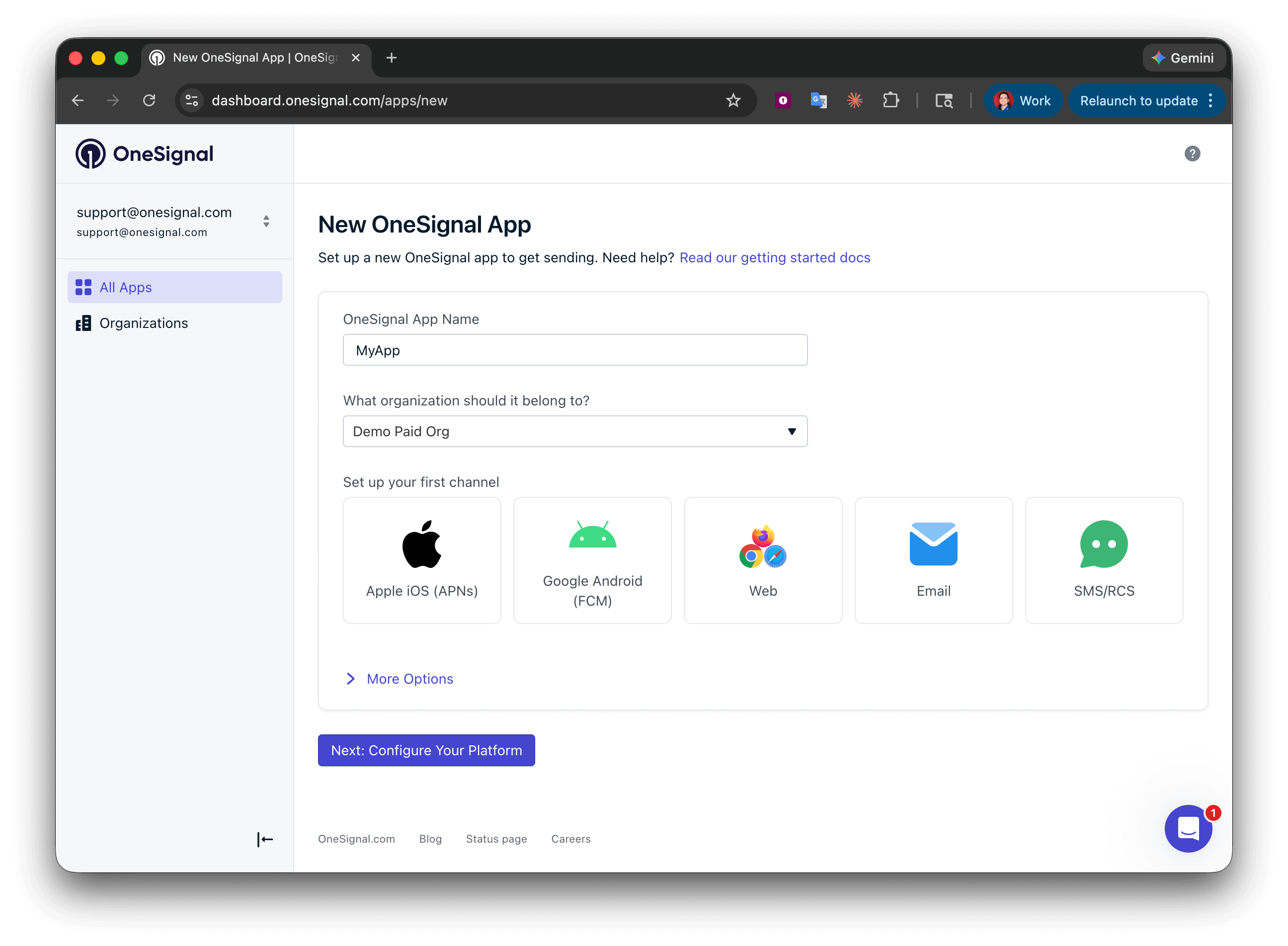
Create a new app by clicking **New App/Website**, or add a platform to an existing app in **Settings > Push & In-App**. Select the platform(s) you want to configure and click **Next: Configure Your Platform**.
 Enter the credentials for your platform:
* **Android**: [Set up Firebase credentials](/docs/en/android-firebase-credentials)
* **iOS**: [p8 token (recommended)](/docs/en/ios-p8-token-based-connection-to-apns) or [p12 certificate](/docs/en/ios-p12-generate-certificates)
* **Amazon**: [Generate API key](/docs/en/generate-an-amazon-api-key)
* **Huawei**: [Authorize OneSignal](/docs/en/authorize-onesignal-to-send-huawei-push)
Click **Save & Continue** after entering your credentials.
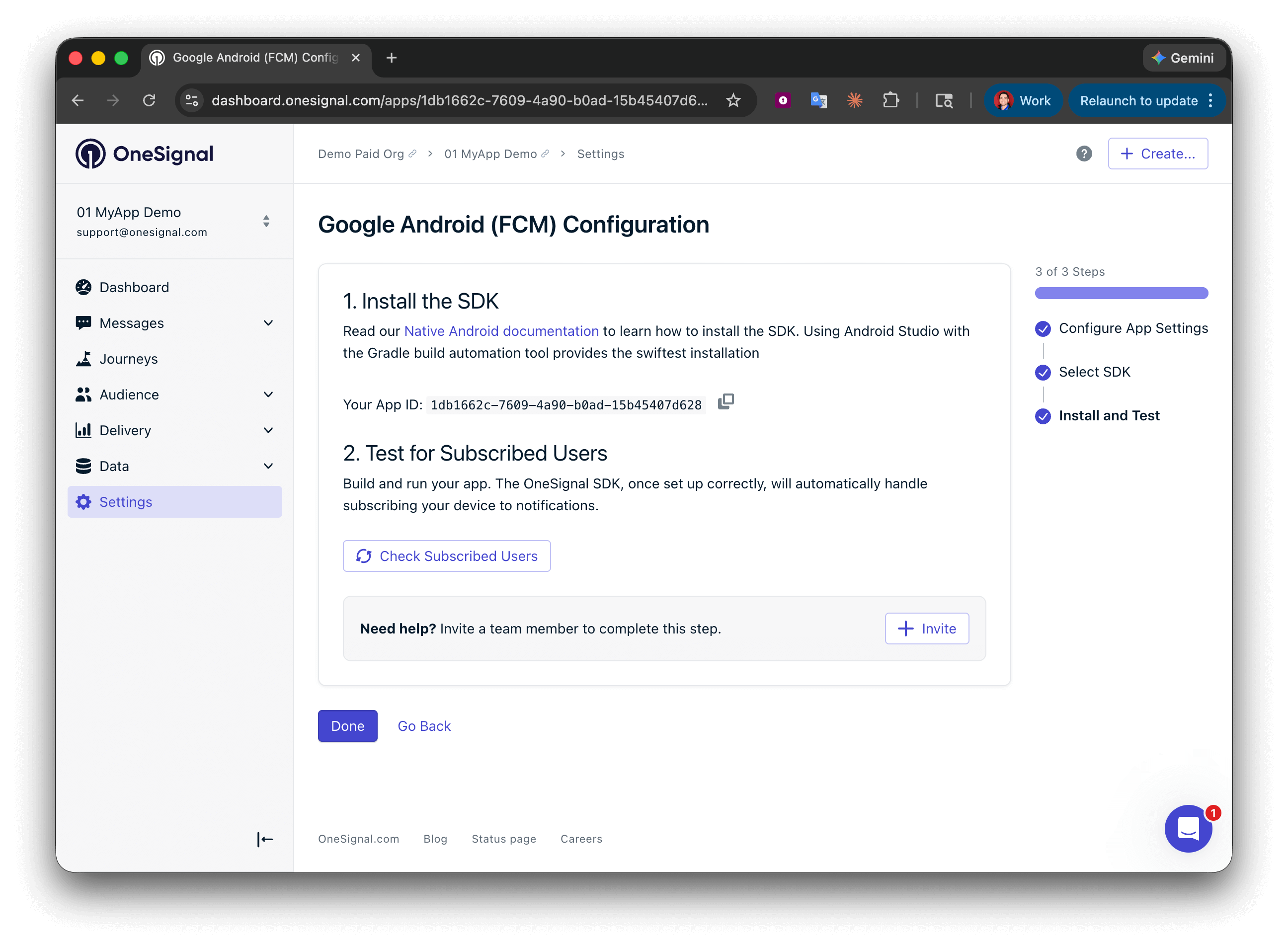
Your **App ID** is displayed on the final screen. Copy and save it — you need it when initializing the SDK. Select your SDK platform, then follow the setup guide.
Enter the credentials for your platform:
* **Android**: [Set up Firebase credentials](/docs/en/android-firebase-credentials)
* **iOS**: [p8 token (recommended)](/docs/en/ios-p8-token-based-connection-to-apns) or [p12 certificate](/docs/en/ios-p12-generate-certificates)
* **Amazon**: [Generate API key](/docs/en/generate-an-amazon-api-key)
* **Huawei**: [Authorize OneSignal](/docs/en/authorize-onesignal-to-send-huawei-push)
Click **Save & Continue** after entering your credentials.
Your **App ID** is displayed on the final screen. Copy and save it — you need it when initializing the SDK. Select your SDK platform, then follow the setup guide.
 ***
## Configuración del SDK
### 1. Agregar SDK
Instala el plugin Expo de OneSignal usando la CLI de Expo.
```shell npm theme={null}
npx expo install onesignal-expo-plugin
```
Agrega el paquete `react-native-onesignal` a tu proyecto.
```shell npm theme={null}
npm install --save react-native-onesignal
```
```shell Yarn theme={null}
yarn add react-native-onesignal
```
### 2. Configurar el plugin
Abre tu `app.json` (o `app.config.js` / `app.config.ts`). Debes incluir las siguientes configuraciones.
**Configuraciones requeridas**
* `"bundleIdentifier"`: El identificador de paquete de tu app que coincide con la autenticación p8 o p12 que estás usando en tu app de OneSignal.
* `"infoPlist"`: Requiere que la clave `UIBackgroundModes` esté establecida en `["remote-notification"]`.
* `"entitlements"`
* Requiere que la clave `aps-environment` esté establecida en `"development"` para pruebas y `"production"` para compilaciones Testflight y App Store.
* Requiere que la clave `com.apple.security.application-groups` esté establecida en `["group.${ios.bundleIdentifier}.onesignal"]`.
* `"android"`: Requiere que la clave `package` esté establecida en el nombre de paquete de tu app.
* `"plugins"`: El array `plugins` de tu app. Se requiere agregar el plugin `[onesignal-expo-plugin]` al inicio del array de plugins. También requiere que la clave `mode` esté establecida en `"development"` para pruebas y `"production"` para compilaciones Testflight y App Store.
Asegúrate de agregar el plugin `[onesignal-expo-plugin]` al frente del array de plugins. Debe ser el primer plugin en el array. Hacerlo evitará el error `OneSignal/OneSignal.h file not found`.
| Prop | Requerido | Descripción |
| :----------------------: | :-------: | ---------------------------------------------------------------------------------------------------------------------------------------------------------------------------------------------------------------------------------------------------------------- |
| `mode` | ✅ | Configura el derecho [entorno APNs](https://developer.apple.com/documentation/bundleresources/entitlements/aps-environment). Usa `"development"` o `"production"` — `"development"` para pruebas y `"production"` para compilaciones TestFlight y App Store. |
| `devTeam` | Obsoleto | **Obsoleto.** Prefiere [`ios.appleTeamId`](https://docs.expo.dev/versions/latest/config/app/#appleteamid) en la configuración de Expo. El plugin usa `devTeam` como respaldo si `appleTeamId` no está definido (p. ej., `"91SW8A37CR"`). |
| `iPhoneDeploymentTarget` | ❌ | `IPHONEOS_DEPLOYMENT_TARGET` utilizado al añadir la [extensión de servicio de notificaciones de iOS](./service-extensions). Debe coincidir con la versión mínima de iOS en tu Podfile (p. ej., `"15.0"`). |
| `smallIcons` | ❌ | Array de rutas locales a [iconos pequeños de notificación](./notification-icons) de Android (blanco, transparente, 96×96px). Las imágenes se escalan automáticamente a las carpetas de recursos correctas. Ejemplo: `["./assets/ic_stat_onesignal_default.png"]` |
| `largeIcons` | ❌ | Array de rutas locales a [iconos grandes de notificación](./notification-icons) de Android (blanco, transparente, 256×256px). Ejemplo: `["./assets/ic_onesignal_large_icon_default.png"]` |
| `smallIconAccentColor` | ❌ | Color hexadecimal del acento del icono de notificación en Android (p. ej., `"#FF0000"`). |
| `iosNSEFilePath` | ❌ | Ruta local a una Notification Service Extension personalizada en Objective-C. Ejemplo: `"./assets/NotificationService.m"` |
| `appGroupName` | ❌ | Nombre personalizado de [App Group](./ios-sdk-setup) de iOS. Si se omite, el valor predeterminado es `"group.{ios.bundleIdentifier}.onesignal"` (p. ej., `"group.com.example.myapp.onesignal2"`). |
| `nseBundleIdentifier` | ❌ | Sufijo del identificador de paquete del NSE. El identificador completo es `{ios.bundleIdentifier}.{nseBundleIdentifier}`. Si se omite, el valor predeterminado es `OneSignalNotificationServiceExtension`. |
| `disableNSE` | ❌ | Si es `true`, no se añade el NSE de iOS. El NSE es necesario para insignias, confirmación de entrega, adjuntos multimedia y botones de acción — desactívalo solo si solo necesitas push básico. |
| `disableLocation` | ❌ | Si es `true`, el módulo de ubicación nativo de OneSignal se excluye de las compilaciones de iOS y Android. Úsalo solo si tu app no llama a `OneSignal.Location`. |
| `sounds` | ❌ | Array de rutas locales a sonidos personalizados (solo `.wav`, ≤30 s). Se copian en el bundle de la app en iOS y en `res/raw/` en Android. Ejemplo: `["./assets/notification_sound.wav"]`. Consulta [Sonidos de notificación](./notification-sounds). |
#### Opcional: Deshabilitar el módulo de ubicación
Si tu app no usa `OneSignal.Location`, establece `disableLocation` en `true` en las props del plugin Expo de OneSignal. Esta opción requiere `react-native-onesignal` 5.5.1 o posterior. El plugin configura la resolución de dependencias nativas para que `react-native-onesignal` excluya el módulo de ubicación. En iOS, el plugin escribe la configuración de entorno del Podfile que se usa durante la resolución de CocoaPods. En Android, el plugin escribe `onesignal.disableLocation=true` en las propiedades Gradle generadas.
```ts app.config.ts theme={null}
plugins: [
withOneSignal({
mode: 'development',
disableLocation: true,
}),
],
```
```json app.json theme={null}
"plugins": [
[
"onesignal-expo-plugin",
{
"mode": "development",
"disableLocation": true
}
]
]
```
A partir de `onesignal-expo-plugin` 2.6.0, puedes importar `withOneSignal` para obtener soporte completo de TypeScript y autocompletado en las props del plugin.
```ts app.config.ts theme={null}
import { ConfigContext, ExpoConfig } from '@expo/config';
import withOneSignal from 'onesignal-expo-plugin/plugin';
export default ({ config }: ConfigContext): ExpoConfig => ({
...config,
ios: {
bundleIdentifier: 'com.yourcompany.yourapp',
infoPlist: {
UIBackgroundModes: ['remote-notification'],
},
entitlements: {
'aps-environment': 'development',
},
},
android: {
package: 'com.yourcompany.yourapp',
},
plugins: [
withOneSignal({
mode: 'development',
}),
],
});
```
```json app.json theme={null}
{
"expo": {
"ios": {
"bundleIdentifier": "com.yourcompany.yourapp",
"infoPlist": {
"UIBackgroundModes": ["remote-notification"]
},
"entitlements": {
"aps-environment": "development"
}
},
"android": {
"package": "com.yourcompany.yourapp"
},
"plugins": [
[
"onesignal-expo-plugin",
{
"mode": "development"
}
]
]
}
}
```
### 3. Inicializar SDK
Dependiendo de tu estructura Expo (entrada de App tradicional o Expo Router), inicializa OneSignal siguiendo estas opciones.
En tu archivo `App.tsx` o `App.js` inicializa OneSignal con los métodos proporcionados.
Reemplaza `YOUR_APP_ID` con tu ID de App de OneSignal que se encuentra en tu dashboard de OneSignal **Settings > [Keys & IDs](./keys-and-ids)**.
Si no tienes acceso a la app de OneSignal, pide a tus [Miembros del Equipo](./manage-team-members) que te inviten.
```javascript App.tsx theme={null}
import React, { useEffect } from 'react';
// Incluye el paquete OneSignal
import { OneSignal, LogLevel } from 'react-native-onesignal';
export default function App() {
useEffect(() => {
// Habilita el registro detallado para depuración (elimínalo en producción)
OneSignal.Debug.setLogLevel(LogLevel.Verbose);
// Reemplaza con tu OneSignal App ID desde Dashboard > Settings > Keys & IDs
OneSignal.initialize('YOUR_APP_ID');
// Solicita permiso para notificaciones push en el primer arranque.
// En producción, considera usar un mensaje in-app para obtener mejores tasas de aceptación.
OneSignal.Notifications.requestPermission(false);
// Define los listeners una sola vez para usar la misma referencia al agregarlos y quitarlos.
const clickListener = (event) => {
console.log('OneSignal: notification clicked:', event);
};
// En v5, las notificaciones en primer plano se muestran automáticamente.
// Llama a event.preventDefault() para suprimirlas y luego
// a event.getNotification().display() para mostrarlas después de un trabajo asíncrono.
const foregroundListener = (event) => {
console.log('OneSignal: foreground will display:', event);
};
OneSignal.Notifications.addEventListener('click', clickListener);
OneSignal.Notifications.addEventListener('foregroundWillDisplay', foregroundListener);
// Limpia los listeners cuando el componente se desmonte para evitar fugas de memoria.
// Debes pasar aquí la misma referencia que pasaste a addEventListener.
return () => {
OneSignal.Notifications.removeEventListener('click', clickListener);
OneSignal.Notifications.removeEventListener('foregroundWillDisplay', foregroundListener);
};
}, []);
}
```
En tu archivo `app/_layout.tsx` o `app/_layout.js` inicializa OneSignal con los métodos proporcionados.
Reemplaza `YOUR_APP_ID` con tu ID de App de OneSignal que se encuentra en tu dashboard de OneSignal **Settings > [Keys & IDs](./keys-and-ids)**.
Si no tienes acceso a la app de OneSignal, pide a tus [Miembros del Equipo](./manage-team-members) que te inviten.
El ejemplo siguiente usa `App` como nombre de función — Expo Router acepta cualquier componente con exportación por defecto, por lo que renombrarlo a `RootLayout` es opcional pero convencional.
```javascript App.tsx theme={null}
import React, { useEffect } from 'react';
// Incluye el paquete OneSignal
import { OneSignal, LogLevel } from 'react-native-onesignal';
export default function App() {
useEffect(() => {
// Habilita el registro detallado para depuración (elimínalo en producción)
OneSignal.Debug.setLogLevel(LogLevel.Verbose);
// Reemplaza con tu OneSignal App ID desde Dashboard > Settings > Keys & IDs
OneSignal.initialize('YOUR_APP_ID');
// Solicita permiso para notificaciones push en el primer arranque.
// En producción, considera usar un mensaje in-app para obtener mejores tasas de aceptación.
OneSignal.Notifications.requestPermission(false);
// Define los listeners una sola vez para usar la misma referencia al agregarlos y quitarlos.
const clickListener = (event) => {
console.log('OneSignal: notification clicked:', event);
};
// En v5, las notificaciones en primer plano se muestran automáticamente.
// Llama a event.preventDefault() para suprimirlas y luego
// a event.getNotification().display() para mostrarlas después de un trabajo asíncrono.
const foregroundListener = (event) => {
console.log('OneSignal: foreground will display:', event);
};
OneSignal.Notifications.addEventListener('click', clickListener);
OneSignal.Notifications.addEventListener('foregroundWillDisplay', foregroundListener);
// Limpia los listeners cuando el componente se desmonte para evitar fugas de memoria.
// Debes pasar aquí la misma referencia que pasaste a addEventListener.
return () => {
OneSignal.Notifications.removeEventListener('click', clickListener);
OneSignal.Notifications.removeEventListener('foregroundWillDisplay', foregroundListener);
};
}, []);
}
```
**Listeners reutilizables con `useCallback`**
Si tu listener necesita acceder a props o state, defínelo fuera de `useEffect` con `useCallback` para que la misma referencia se use al agregar y quitar el listener. Pasar referencias de función diferentes a `addEventListener` y `removeEventListener` no tiene efecto — el listener no se elimina y puede dispararse después de que el componente se desmonte.
```javascript theme={null}
import React, { useCallback, useEffect } from 'react';
import { OneSignal } from 'react-native-onesignal';
export default function App() {
const clickListener = useCallback((event) => {
console.log('OneSignal: notification clicked:', event);
// tus dependencias pueden variar
}, []);
useEffect(() => {
OneSignal.Notifications.addEventListener('click', clickListener);
return () => {
OneSignal.Notifications.removeEventListener('click', clickListener);
};
}, [clickListener]);
}
```
Revisa nuestro [repositorio GitHub del Plugin Expo de OneSignal](https://github.com/OneSignal/onesignal-expo-plugin) para opciones de configuración adicionales, instrucciones de configuración más complejas o abre un issue. ¡Nuestros SDKs son de código abierto y damos la bienvenida a PRs!
***
## Android setup
Make sure your OneSignal app is configured for the Android platform using your [Firebase credentials](/docs/en/android-firebase-credentials).
Set up your [notification icons](/docs/en/notification-icons) to match your app’s branding. If this step is skipped, a default bell icon will display for your push notifications.
**Build for Android**
At this point, you should be able to build and run your app on a physical Android device or emulator without issues.
After confirming that your Android build works:
* Continue with the [iOS setup](#ios-setup), if applicable.
* Or jump ahead to [Testing the OneSignal SDK integration](#testing-the-onesignal-sdk-integration).
***
## Configuración iOS
Asegúrate de que tu app de OneSignal esté configurada para la plataforma iOS usando ya sea el [Token p8 (Recomendado)](./ios-p8-token-based-connection-to-apns) o [Certificado p12](./ios-p12-generate-certificates).
Esto debe usar las mismas credenciales configuradas en tu configuración EAS.
### Compilar para iOS
Ahora deberías poder compilar y ejecutar tu app en un dispositivo iOS real o simulador iOS (16.2+).
#### Errores comunes de compilación iOS
Puedes ver este error al compilar con Xcode 15+, debido a un cambio de configuración predeterminado que afecta sistemas multiplataforma.
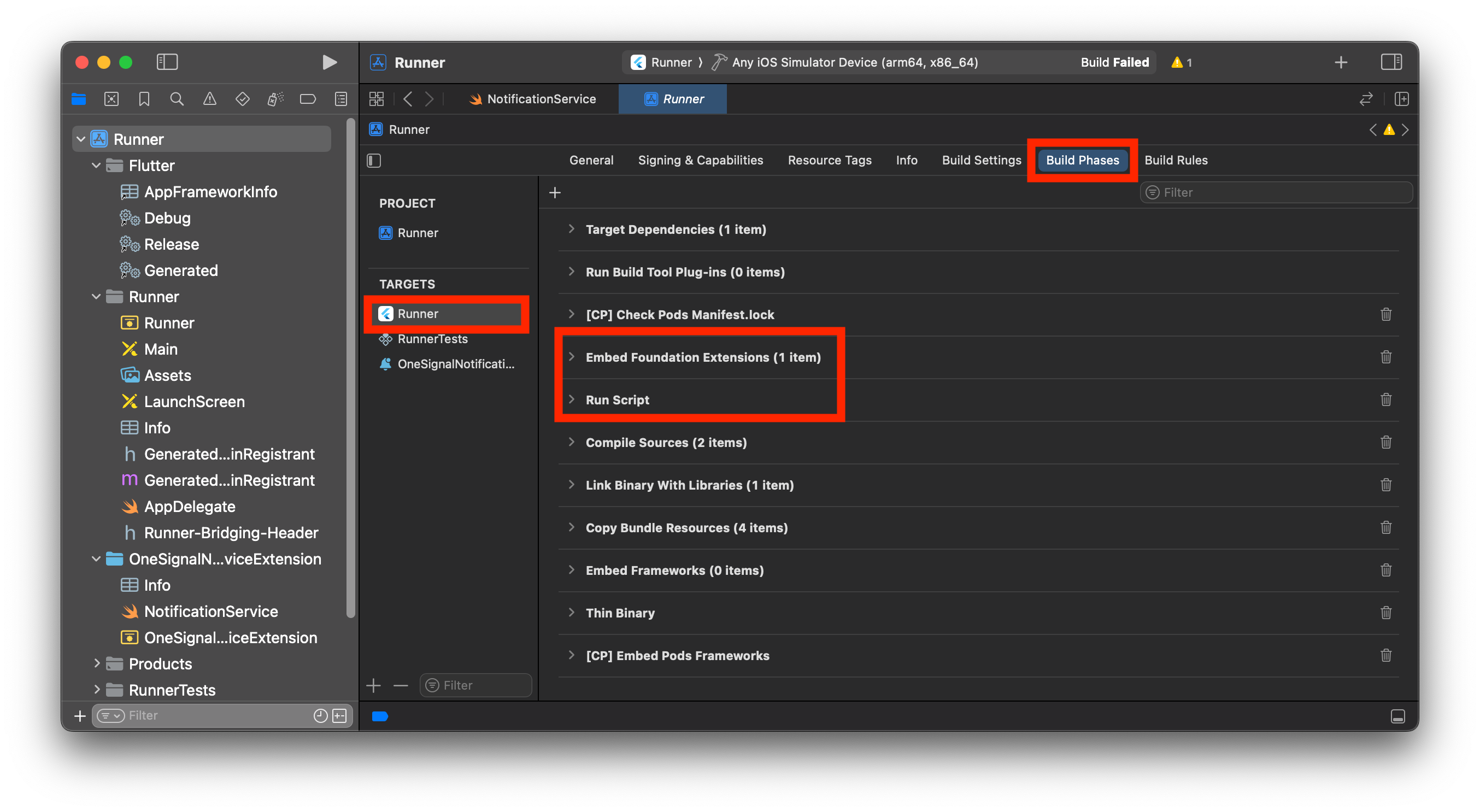
1. Abre tu carpeta `.xcworkspace` en Xcode y navega a **tu objetivo de app > Build Phases**.
2. Deberías tener una fase llamada **"Embed Foundation Extensions"** o **"Embed App Extensions"**.
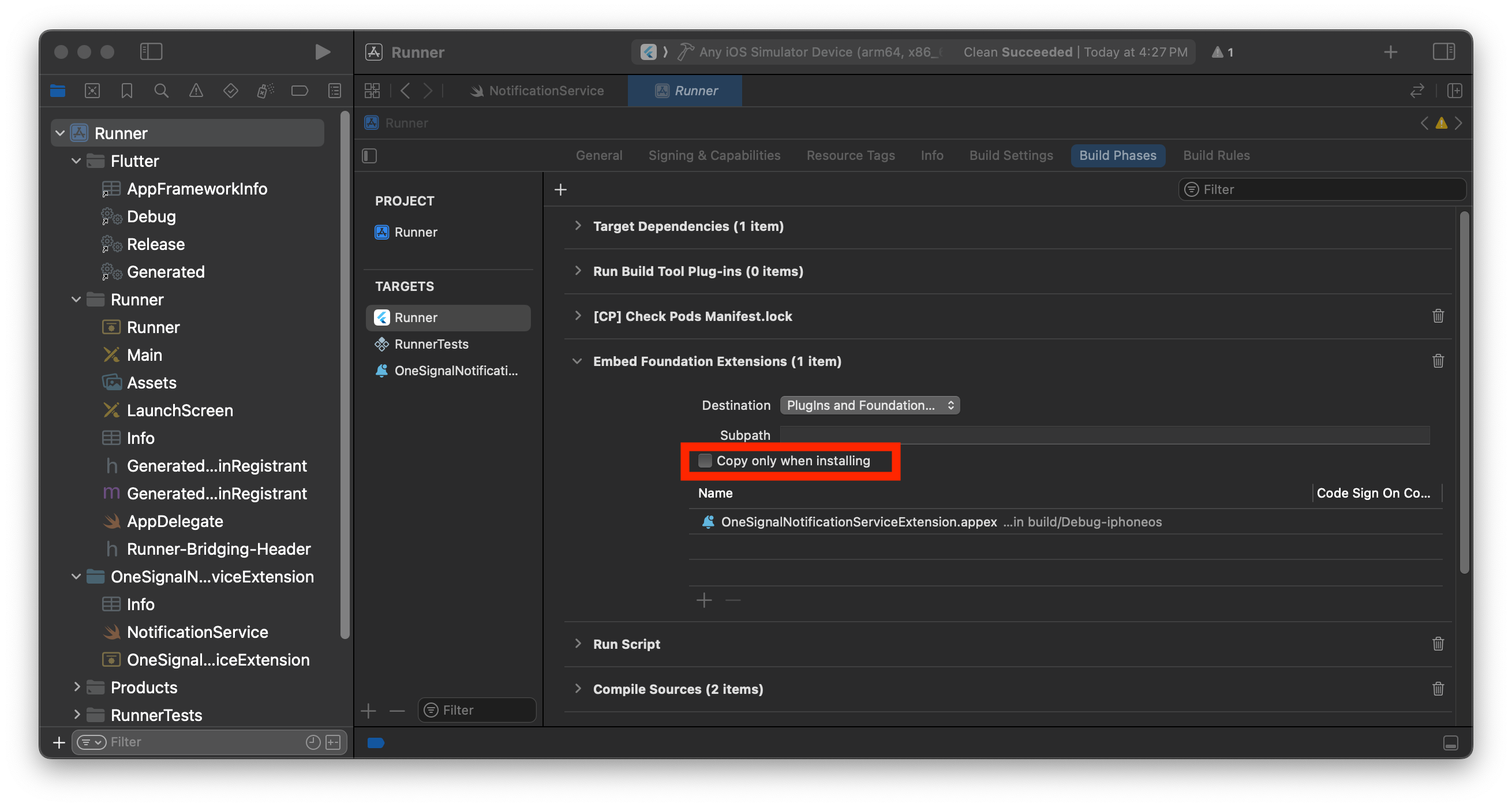
3. Arrastra y mueve esta fase de compilación a *arriba de* **"Run Script"**.
4. Compila y ejecuta tu app. El error debería estar resuelto.
***
## Configuración del SDK
### 1. Agregar SDK
Instala el plugin Expo de OneSignal usando la CLI de Expo.
```shell npm theme={null}
npx expo install onesignal-expo-plugin
```
Agrega el paquete `react-native-onesignal` a tu proyecto.
```shell npm theme={null}
npm install --save react-native-onesignal
```
```shell Yarn theme={null}
yarn add react-native-onesignal
```
### 2. Configurar el plugin
Abre tu `app.json` (o `app.config.js` / `app.config.ts`). Debes incluir las siguientes configuraciones.
**Configuraciones requeridas**
* `"bundleIdentifier"`: El identificador de paquete de tu app que coincide con la autenticación p8 o p12 que estás usando en tu app de OneSignal.
* `"infoPlist"`: Requiere que la clave `UIBackgroundModes` esté establecida en `["remote-notification"]`.
* `"entitlements"`
* Requiere que la clave `aps-environment` esté establecida en `"development"` para pruebas y `"production"` para compilaciones Testflight y App Store.
* Requiere que la clave `com.apple.security.application-groups` esté establecida en `["group.${ios.bundleIdentifier}.onesignal"]`.
* `"android"`: Requiere que la clave `package` esté establecida en el nombre de paquete de tu app.
* `"plugins"`: El array `plugins` de tu app. Se requiere agregar el plugin `[onesignal-expo-plugin]` al inicio del array de plugins. También requiere que la clave `mode` esté establecida en `"development"` para pruebas y `"production"` para compilaciones Testflight y App Store.
Asegúrate de agregar el plugin `[onesignal-expo-plugin]` al frente del array de plugins. Debe ser el primer plugin en el array. Hacerlo evitará el error `OneSignal/OneSignal.h file not found`.
| Prop | Requerido | Descripción |
| :----------------------: | :-------: | ---------------------------------------------------------------------------------------------------------------------------------------------------------------------------------------------------------------------------------------------------------------- |
| `mode` | ✅ | Configura el derecho [entorno APNs](https://developer.apple.com/documentation/bundleresources/entitlements/aps-environment). Usa `"development"` o `"production"` — `"development"` para pruebas y `"production"` para compilaciones TestFlight y App Store. |
| `devTeam` | Obsoleto | **Obsoleto.** Prefiere [`ios.appleTeamId`](https://docs.expo.dev/versions/latest/config/app/#appleteamid) en la configuración de Expo. El plugin usa `devTeam` como respaldo si `appleTeamId` no está definido (p. ej., `"91SW8A37CR"`). |
| `iPhoneDeploymentTarget` | ❌ | `IPHONEOS_DEPLOYMENT_TARGET` utilizado al añadir la [extensión de servicio de notificaciones de iOS](./service-extensions). Debe coincidir con la versión mínima de iOS en tu Podfile (p. ej., `"15.0"`). |
| `smallIcons` | ❌ | Array de rutas locales a [iconos pequeños de notificación](./notification-icons) de Android (blanco, transparente, 96×96px). Las imágenes se escalan automáticamente a las carpetas de recursos correctas. Ejemplo: `["./assets/ic_stat_onesignal_default.png"]` |
| `largeIcons` | ❌ | Array de rutas locales a [iconos grandes de notificación](./notification-icons) de Android (blanco, transparente, 256×256px). Ejemplo: `["./assets/ic_onesignal_large_icon_default.png"]` |
| `smallIconAccentColor` | ❌ | Color hexadecimal del acento del icono de notificación en Android (p. ej., `"#FF0000"`). |
| `iosNSEFilePath` | ❌ | Ruta local a una Notification Service Extension personalizada en Objective-C. Ejemplo: `"./assets/NotificationService.m"` |
| `appGroupName` | ❌ | Nombre personalizado de [App Group](./ios-sdk-setup) de iOS. Si se omite, el valor predeterminado es `"group.{ios.bundleIdentifier}.onesignal"` (p. ej., `"group.com.example.myapp.onesignal2"`). |
| `nseBundleIdentifier` | ❌ | Sufijo del identificador de paquete del NSE. El identificador completo es `{ios.bundleIdentifier}.{nseBundleIdentifier}`. Si se omite, el valor predeterminado es `OneSignalNotificationServiceExtension`. |
| `disableNSE` | ❌ | Si es `true`, no se añade el NSE de iOS. El NSE es necesario para insignias, confirmación de entrega, adjuntos multimedia y botones de acción — desactívalo solo si solo necesitas push básico. |
| `disableLocation` | ❌ | Si es `true`, el módulo de ubicación nativo de OneSignal se excluye de las compilaciones de iOS y Android. Úsalo solo si tu app no llama a `OneSignal.Location`. |
| `sounds` | ❌ | Array de rutas locales a sonidos personalizados (solo `.wav`, ≤30 s). Se copian en el bundle de la app en iOS y en `res/raw/` en Android. Ejemplo: `["./assets/notification_sound.wav"]`. Consulta [Sonidos de notificación](./notification-sounds). |
#### Opcional: Deshabilitar el módulo de ubicación
Si tu app no usa `OneSignal.Location`, establece `disableLocation` en `true` en las props del plugin Expo de OneSignal. Esta opción requiere `react-native-onesignal` 5.5.1 o posterior. El plugin configura la resolución de dependencias nativas para que `react-native-onesignal` excluya el módulo de ubicación. En iOS, el plugin escribe la configuración de entorno del Podfile que se usa durante la resolución de CocoaPods. En Android, el plugin escribe `onesignal.disableLocation=true` en las propiedades Gradle generadas.
```ts app.config.ts theme={null}
plugins: [
withOneSignal({
mode: 'development',
disableLocation: true,
}),
],
```
```json app.json theme={null}
"plugins": [
[
"onesignal-expo-plugin",
{
"mode": "development",
"disableLocation": true
}
]
]
```
A partir de `onesignal-expo-plugin` 2.6.0, puedes importar `withOneSignal` para obtener soporte completo de TypeScript y autocompletado en las props del plugin.
```ts app.config.ts theme={null}
import { ConfigContext, ExpoConfig } from '@expo/config';
import withOneSignal from 'onesignal-expo-plugin/plugin';
export default ({ config }: ConfigContext): ExpoConfig => ({
...config,
ios: {
bundleIdentifier: 'com.yourcompany.yourapp',
infoPlist: {
UIBackgroundModes: ['remote-notification'],
},
entitlements: {
'aps-environment': 'development',
},
},
android: {
package: 'com.yourcompany.yourapp',
},
plugins: [
withOneSignal({
mode: 'development',
}),
],
});
```
```json app.json theme={null}
{
"expo": {
"ios": {
"bundleIdentifier": "com.yourcompany.yourapp",
"infoPlist": {
"UIBackgroundModes": ["remote-notification"]
},
"entitlements": {
"aps-environment": "development"
}
},
"android": {
"package": "com.yourcompany.yourapp"
},
"plugins": [
[
"onesignal-expo-plugin",
{
"mode": "development"
}
]
]
}
}
```
### 3. Inicializar SDK
Dependiendo de tu estructura Expo (entrada de App tradicional o Expo Router), inicializa OneSignal siguiendo estas opciones.
En tu archivo `App.tsx` o `App.js` inicializa OneSignal con los métodos proporcionados.
Reemplaza `YOUR_APP_ID` con tu ID de App de OneSignal que se encuentra en tu dashboard de OneSignal **Settings > [Keys & IDs](./keys-and-ids)**.
Si no tienes acceso a la app de OneSignal, pide a tus [Miembros del Equipo](./manage-team-members) que te inviten.
```javascript App.tsx theme={null}
import React, { useEffect } from 'react';
// Incluye el paquete OneSignal
import { OneSignal, LogLevel } from 'react-native-onesignal';
export default function App() {
useEffect(() => {
// Habilita el registro detallado para depuración (elimínalo en producción)
OneSignal.Debug.setLogLevel(LogLevel.Verbose);
// Reemplaza con tu OneSignal App ID desde Dashboard > Settings > Keys & IDs
OneSignal.initialize('YOUR_APP_ID');
// Solicita permiso para notificaciones push en el primer arranque.
// En producción, considera usar un mensaje in-app para obtener mejores tasas de aceptación.
OneSignal.Notifications.requestPermission(false);
// Define los listeners una sola vez para usar la misma referencia al agregarlos y quitarlos.
const clickListener = (event) => {
console.log('OneSignal: notification clicked:', event);
};
// En v5, las notificaciones en primer plano se muestran automáticamente.
// Llama a event.preventDefault() para suprimirlas y luego
// a event.getNotification().display() para mostrarlas después de un trabajo asíncrono.
const foregroundListener = (event) => {
console.log('OneSignal: foreground will display:', event);
};
OneSignal.Notifications.addEventListener('click', clickListener);
OneSignal.Notifications.addEventListener('foregroundWillDisplay', foregroundListener);
// Limpia los listeners cuando el componente se desmonte para evitar fugas de memoria.
// Debes pasar aquí la misma referencia que pasaste a addEventListener.
return () => {
OneSignal.Notifications.removeEventListener('click', clickListener);
OneSignal.Notifications.removeEventListener('foregroundWillDisplay', foregroundListener);
};
}, []);
}
```
En tu archivo `app/_layout.tsx` o `app/_layout.js` inicializa OneSignal con los métodos proporcionados.
Reemplaza `YOUR_APP_ID` con tu ID de App de OneSignal que se encuentra en tu dashboard de OneSignal **Settings > [Keys & IDs](./keys-and-ids)**.
Si no tienes acceso a la app de OneSignal, pide a tus [Miembros del Equipo](./manage-team-members) que te inviten.
El ejemplo siguiente usa `App` como nombre de función — Expo Router acepta cualquier componente con exportación por defecto, por lo que renombrarlo a `RootLayout` es opcional pero convencional.
```javascript App.tsx theme={null}
import React, { useEffect } from 'react';
// Incluye el paquete OneSignal
import { OneSignal, LogLevel } from 'react-native-onesignal';
export default function App() {
useEffect(() => {
// Habilita el registro detallado para depuración (elimínalo en producción)
OneSignal.Debug.setLogLevel(LogLevel.Verbose);
// Reemplaza con tu OneSignal App ID desde Dashboard > Settings > Keys & IDs
OneSignal.initialize('YOUR_APP_ID');
// Solicita permiso para notificaciones push en el primer arranque.
// En producción, considera usar un mensaje in-app para obtener mejores tasas de aceptación.
OneSignal.Notifications.requestPermission(false);
// Define los listeners una sola vez para usar la misma referencia al agregarlos y quitarlos.
const clickListener = (event) => {
console.log('OneSignal: notification clicked:', event);
};
// En v5, las notificaciones en primer plano se muestran automáticamente.
// Llama a event.preventDefault() para suprimirlas y luego
// a event.getNotification().display() para mostrarlas después de un trabajo asíncrono.
const foregroundListener = (event) => {
console.log('OneSignal: foreground will display:', event);
};
OneSignal.Notifications.addEventListener('click', clickListener);
OneSignal.Notifications.addEventListener('foregroundWillDisplay', foregroundListener);
// Limpia los listeners cuando el componente se desmonte para evitar fugas de memoria.
// Debes pasar aquí la misma referencia que pasaste a addEventListener.
return () => {
OneSignal.Notifications.removeEventListener('click', clickListener);
OneSignal.Notifications.removeEventListener('foregroundWillDisplay', foregroundListener);
};
}, []);
}
```
**Listeners reutilizables con `useCallback`**
Si tu listener necesita acceder a props o state, defínelo fuera de `useEffect` con `useCallback` para que la misma referencia se use al agregar y quitar el listener. Pasar referencias de función diferentes a `addEventListener` y `removeEventListener` no tiene efecto — el listener no se elimina y puede dispararse después de que el componente se desmonte.
```javascript theme={null}
import React, { useCallback, useEffect } from 'react';
import { OneSignal } from 'react-native-onesignal';
export default function App() {
const clickListener = useCallback((event) => {
console.log('OneSignal: notification clicked:', event);
// tus dependencias pueden variar
}, []);
useEffect(() => {
OneSignal.Notifications.addEventListener('click', clickListener);
return () => {
OneSignal.Notifications.removeEventListener('click', clickListener);
};
}, [clickListener]);
}
```
Revisa nuestro [repositorio GitHub del Plugin Expo de OneSignal](https://github.com/OneSignal/onesignal-expo-plugin) para opciones de configuración adicionales, instrucciones de configuración más complejas o abre un issue. ¡Nuestros SDKs son de código abierto y damos la bienvenida a PRs!
***
## Android setup
Make sure your OneSignal app is configured for the Android platform using your [Firebase credentials](/docs/en/android-firebase-credentials).
Set up your [notification icons](/docs/en/notification-icons) to match your app’s branding. If this step is skipped, a default bell icon will display for your push notifications.
**Build for Android**
At this point, you should be able to build and run your app on a physical Android device or emulator without issues.
After confirming that your Android build works:
* Continue with the [iOS setup](#ios-setup), if applicable.
* Or jump ahead to [Testing the OneSignal SDK integration](#testing-the-onesignal-sdk-integration).
***
## Configuración iOS
Asegúrate de que tu app de OneSignal esté configurada para la plataforma iOS usando ya sea el [Token p8 (Recomendado)](./ios-p8-token-based-connection-to-apns) o [Certificado p12](./ios-p12-generate-certificates).
Esto debe usar las mismas credenciales configuradas en tu configuración EAS.
### Compilar para iOS
Ahora deberías poder compilar y ejecutar tu app en un dispositivo iOS real o simulador iOS (16.2+).
#### Errores comunes de compilación iOS
Puedes ver este error al compilar con Xcode 15+, debido a un cambio de configuración predeterminado que afecta sistemas multiplataforma.
1. Abre tu carpeta `.xcworkspace` en Xcode y navega a **tu objetivo de app > Build Phases**.
2. Deberías tener una fase llamada **"Embed Foundation Extensions"** o **"Embed App Extensions"**.
3. Arrastra y mueve esta fase de compilación a *arriba de* **"Run Script"**.
4. Compila y ejecuta tu app. El error debería estar resuelto.
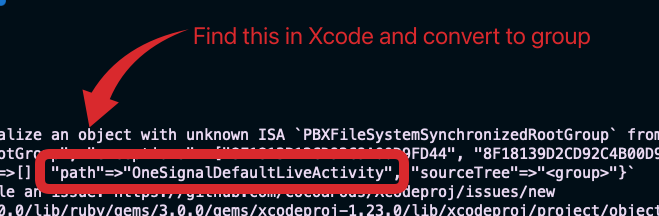
 RuntimeError - `PBXGroup` intentó inicializar un objeto con ISA desconocido `PBXFileSystemSynchronizedRootGroup` desde atributos: `{"isa"=>"...", "exceptions"=>["//", "..."], "explicitFileTypes"=>{}, "explicitFolders"=>[], "path"=>"OneSignalNotificationServiceExtension", "sourceTree"=>""}`
Solución:
1. Encuentra la carpeta listada bajo "path" en el error
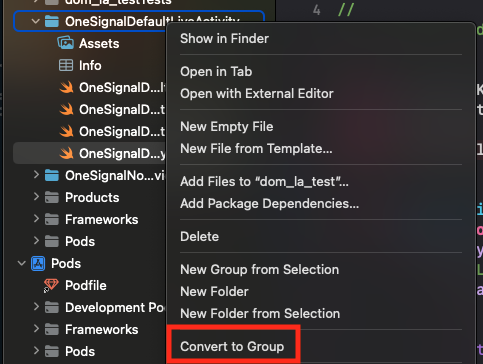
2. En la barra lateral del proyecto Xcode, haz clic derecho en la carpeta
3. Selecciona **Convert to Group**
RuntimeError - `PBXGroup` intentó inicializar un objeto con ISA desconocido `PBXFileSystemSynchronizedRootGroup` desde atributos: `{"isa"=>"...", "exceptions"=>["//", "..."], "explicitFileTypes"=>{}, "explicitFolders"=>[], "path"=>"OneSignalNotificationServiceExtension", "sourceTree"=>""}`
Solución:
1. Encuentra la carpeta listada bajo "path" en el error
2. En la barra lateral del proyecto Xcode, haz clic derecho en la carpeta
3. Selecciona **Convert to Group**
 Después de confirmar que tu compilación iOS funciona, continúa con [Probar la integración del SDK de OneSignal](#testing-the-onesignal-sdk-integration).
***
## Testing the OneSignal SDK integration
This guide helps you verify that your OneSignal SDK integration is working correctly by testing push notifications, subscription registration, and in-app messaging.
If you are testing with an Android emulator, it should start with a cold boot.
1. Go to **Device Manager** in Android Studio.
2. Select your emulator device and click **Edit**.
3. Go to **Additional Settings** or **More**.
4. Set the **Boot option** to **Cold Boot**.
5. Save changes and restart the emulator.
### Check mobile subscriptions
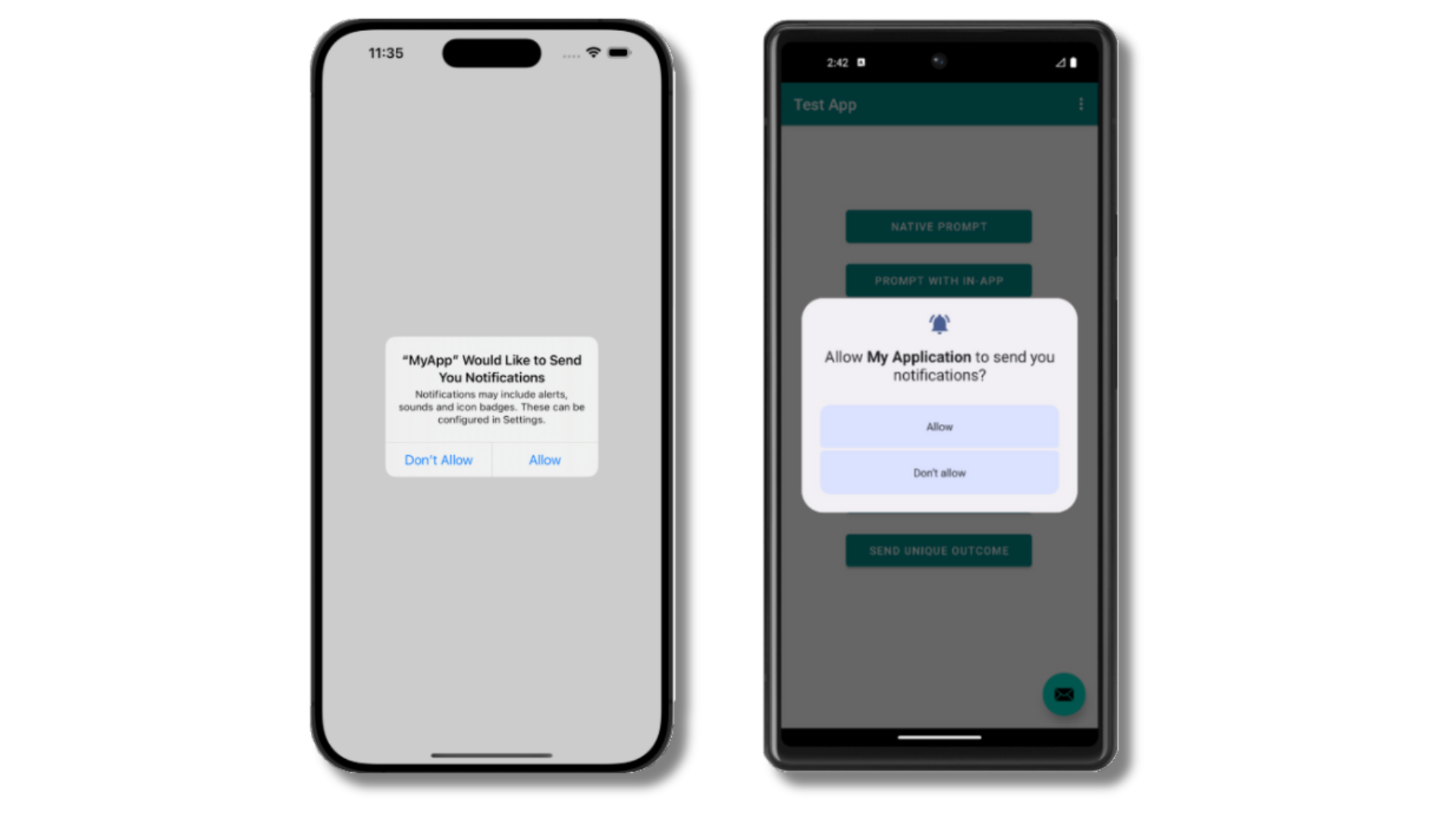
The native push permission prompt should appear automatically if you added the `requestPermission` method during initialization.
Después de confirmar que tu compilación iOS funciona, continúa con [Probar la integración del SDK de OneSignal](#testing-the-onesignal-sdk-integration).
***
## Testing the OneSignal SDK integration
This guide helps you verify that your OneSignal SDK integration is working correctly by testing push notifications, subscription registration, and in-app messaging.
If you are testing with an Android emulator, it should start with a cold boot.
1. Go to **Device Manager** in Android Studio.
2. Select your emulator device and click **Edit**.
3. Go to **Additional Settings** or **More**.
4. Set the **Boot option** to **Cold Boot**.
5. Save changes and restart the emulator.
### Check mobile subscriptions
The native push permission prompt should appear automatically if you added the `requestPermission` method during initialization.
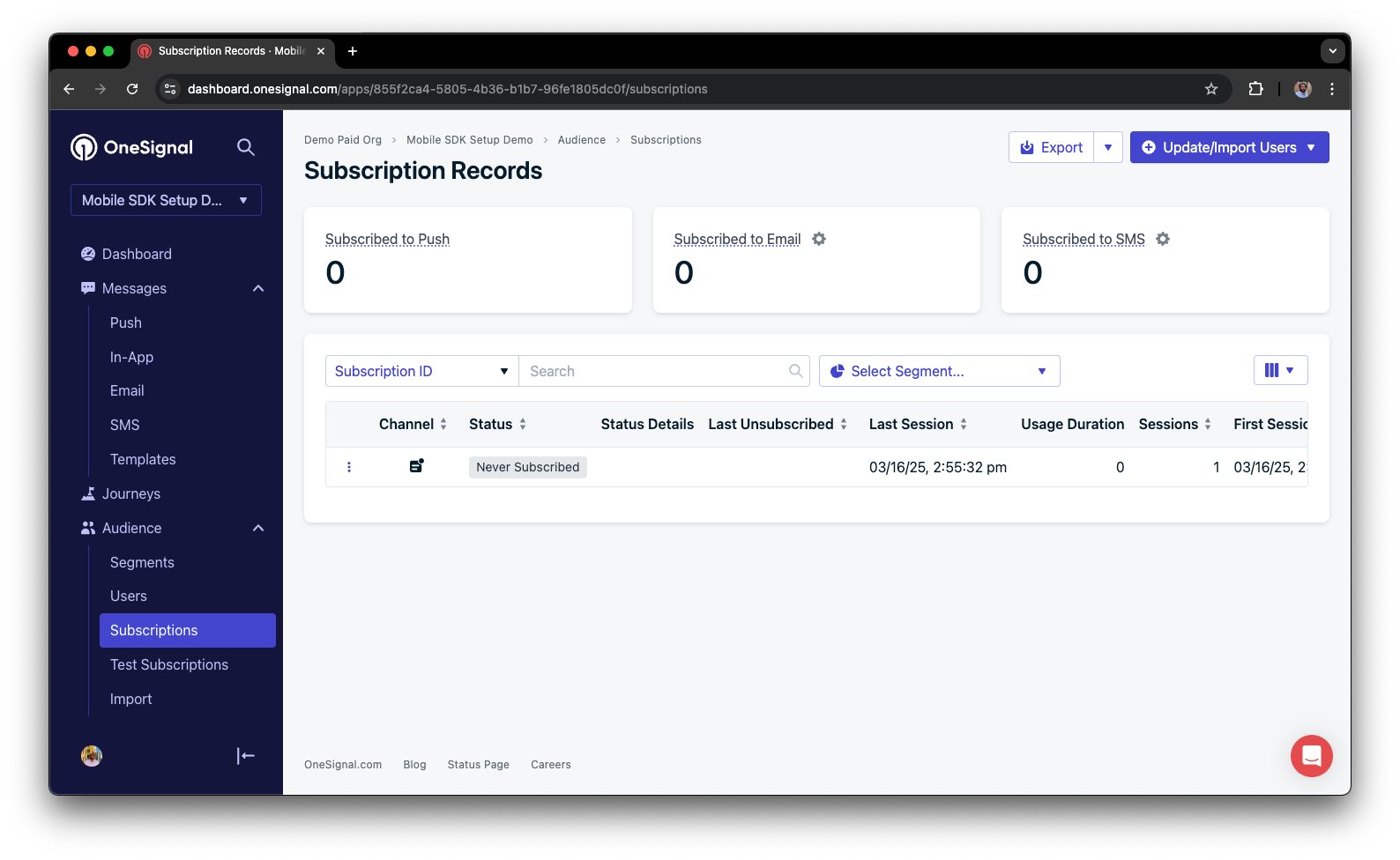
 Before accepting the prompt, check the OneSignal dashboard:
* Go to **Audience > Subscriptions**.
* You should see a new entry with the status "Never Subscribed".
Before accepting the prompt, check the OneSignal dashboard:
* Go to **Audience > Subscriptions**.
* You should see a new entry with the status "Never Subscribed".
 The subscription's status should now show **Subscribed**.
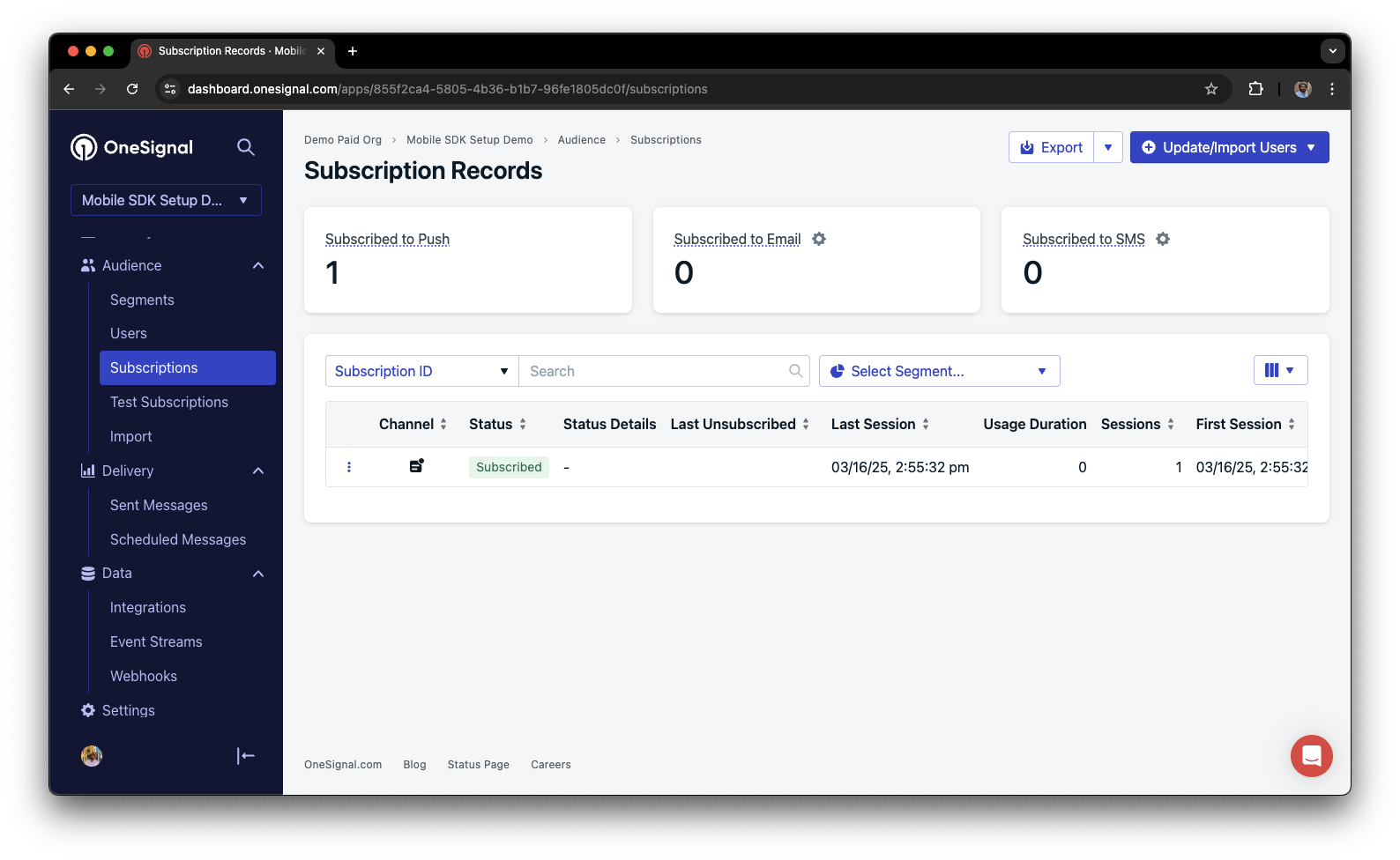 You have successfully created a [mobile subscription](/docs/en/subscriptions).
Mobile subscriptions are created when users first open your app on a device or if they uninstall and reinstall your app on the same device.
### Set up test users
test users are helpful for testing a push notification before sending a message.
In the dashboard, next to the subscription, click the **Options (three dots)** button and select **Add to Test Users**.
You have successfully created a [mobile subscription](/docs/en/subscriptions).
Mobile subscriptions are created when users first open your app on a device or if they uninstall and reinstall your app on the same device.
### Set up test users
test users are helpful for testing a push notification before sending a message.
In the dashboard, next to the subscription, click the **Options (three dots)** button and select **Add to Test Users**.
 Name the subscription so you can easily identify your device later in the **test users tab**.
Go to **Audience > Segments > New Segment**.
Name the segment `Test Users` (the name is important because it will be used later).
Name the subscription so you can easily identify your device later in the **test users tab**.
Go to **Audience > Segments > New Segment**.
Name the segment `Test Users` (the name is important because it will be used later).
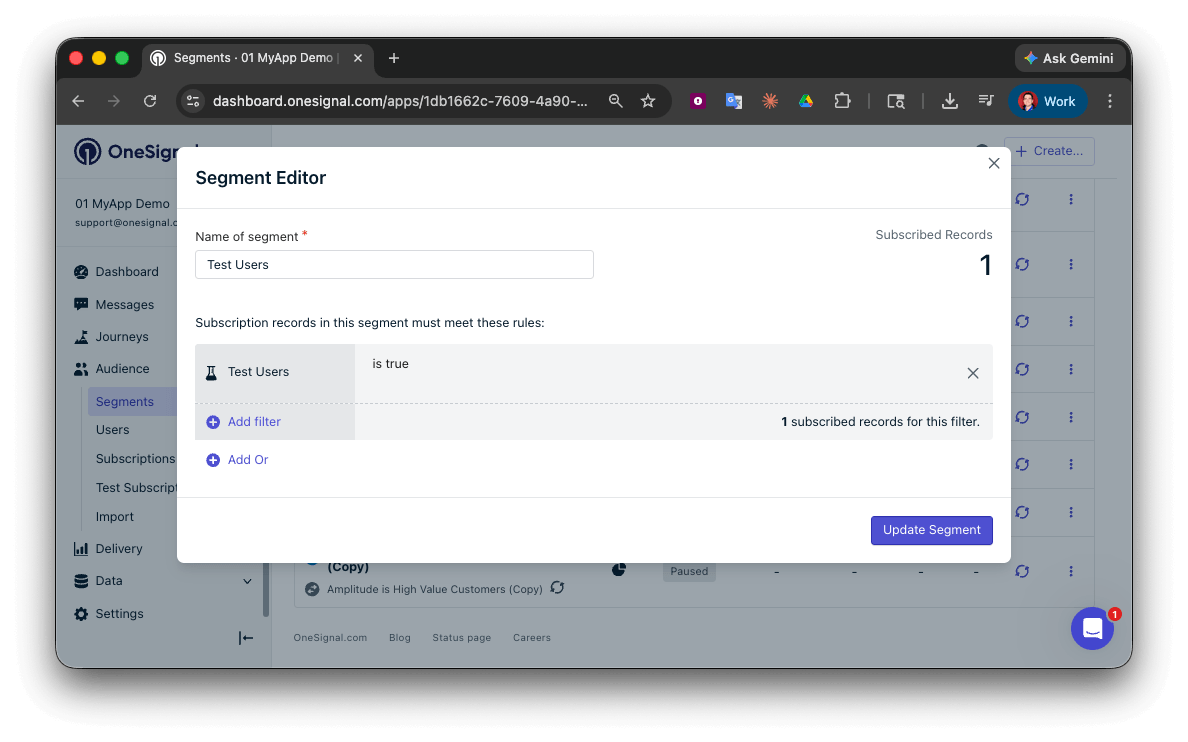 You have successfully created a segment of test users.
We can now test sending messages to this individual device and groups of test users.
### Send test push via API
In your OneSignal dashboard, go to **Settings > [Keys & IDs](/docs/en/keys-and-ids)**.
Replace `YOUR_APP_API_KEY` and `YOUR_APP_ID` in the code below with your actual keys. This code uses the `Test Users` segment we created earlier.
```curl theme={null}
curl -X \
POST --url 'https://api.onesignal.com/notifications' \
--header 'content-type: application/json; charset=utf-8' \
--header 'authorization: Key YOUR_APP_API_KEY' \
--data \
'{
"app_id": "YOUR_APP_ID",
"target_channel": "push",
"name": "Testing basic setup",
"headings": {
"en": "👋"
},
"contents": {
"en": "Hello world!"
},
"included_segments": [
"Test Users"
],
"ios_attachments": {
"onesignal_logo": "https://avatars.githubusercontent.com/u/11823027?s=200&v=4"
},
"big_picture": "https://avatars.githubusercontent.com/u/11823027?s=200&v=4"
}'
```
Run the code in your terminal.
If all setup steps were completed successfully, the test users should receive a notification with an image included:
You have successfully created a segment of test users.
We can now test sending messages to this individual device and groups of test users.
### Send test push via API
In your OneSignal dashboard, go to **Settings > [Keys & IDs](/docs/en/keys-and-ids)**.
Replace `YOUR_APP_API_KEY` and `YOUR_APP_ID` in the code below with your actual keys. This code uses the `Test Users` segment we created earlier.
```curl theme={null}
curl -X \
POST --url 'https://api.onesignal.com/notifications' \
--header 'content-type: application/json; charset=utf-8' \
--header 'authorization: Key YOUR_APP_API_KEY' \
--data \
'{
"app_id": "YOUR_APP_ID",
"target_channel": "push",
"name": "Testing basic setup",
"headings": {
"en": "👋"
},
"contents": {
"en": "Hello world!"
},
"included_segments": [
"Test Users"
],
"ios_attachments": {
"onesignal_logo": "https://avatars.githubusercontent.com/u/11823027?s=200&v=4"
},
"big_picture": "https://avatars.githubusercontent.com/u/11823027?s=200&v=4"
}'
```
Run the code in your terminal.
If all setup steps were completed successfully, the test users should receive a notification with an image included:
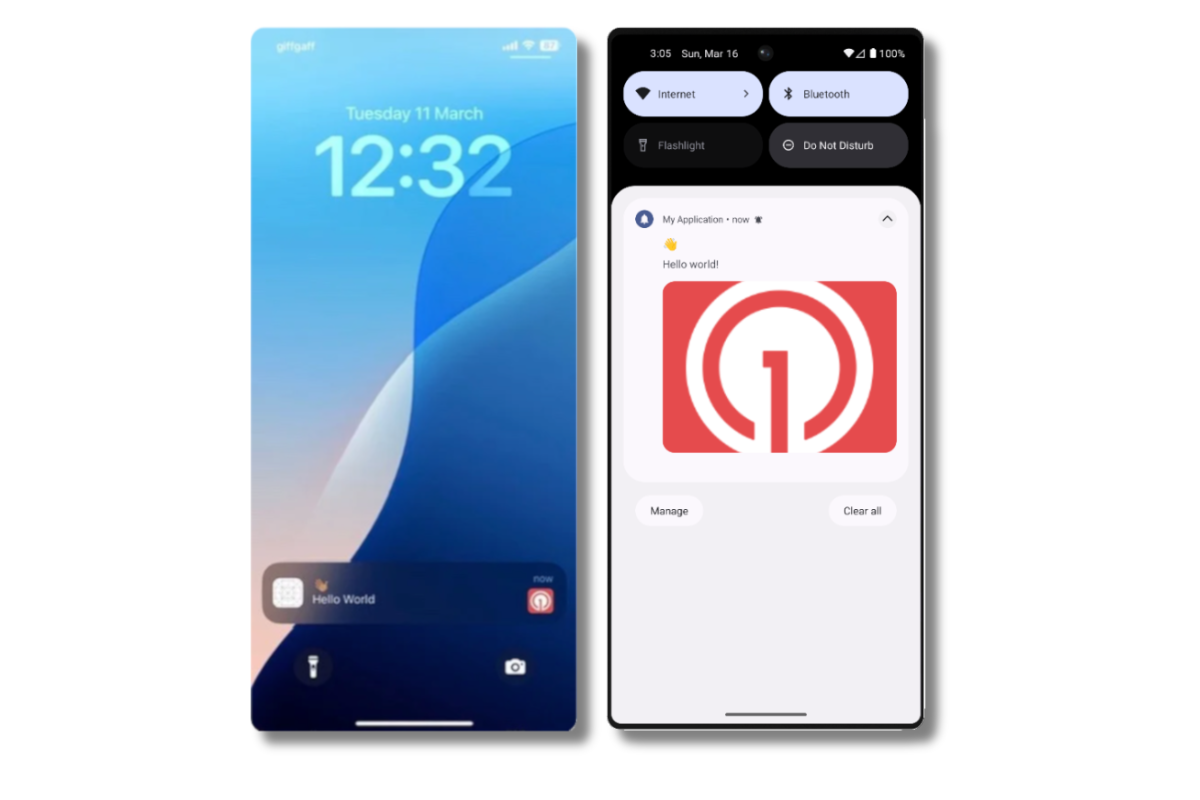 Images will appear small in the collapsed notification view. Expand the notification to see the full image.
In your dashboard, go to **Delivery > Sent Messages**, then click the message to view stats.
You should see the **confirmed** stat, meaning the device received the push.
You have successfully sent a notification via our API to a segment.
* No image received? Your [Notification Service Extension](#ios-setup) might be missing.
* No confirmed receipt? Review the troubleshooting guide [here](/docs/en/confirmed-delivery#troubleshooting-confirmed-delivery).
* Having issues? Copy-paste the api request and a log from start to finish of app launch into a `.txt` file. Then share both with `support@onesignal.com`.
### Send an in-app message
[In-app messages](/docs/en/in-app-messages-setup) let you communicate with users while they are using your app.
This is because users must meet the in-app audience criteria *before* a new session starts. In OneSignal, a new session starts when the user opens your app after it has been in the background or closed for at least 30 seconds. For more details, see our guide on [how in-app messages are displayed](/docs/en/in-app-messages-setup#how-are-iams-displayed%3F).
* In your OneSignal dashboard, navigate to **Messages > In-App > New In-App**.
* Find and select the **Welcome** message.
* Set your Audience as the **Test Users** segment we used previously.
Images will appear small in the collapsed notification view. Expand the notification to see the full image.
In your dashboard, go to **Delivery > Sent Messages**, then click the message to view stats.
You should see the **confirmed** stat, meaning the device received the push.
You have successfully sent a notification via our API to a segment.
* No image received? Your [Notification Service Extension](#ios-setup) might be missing.
* No confirmed receipt? Review the troubleshooting guide [here](/docs/en/confirmed-delivery#troubleshooting-confirmed-delivery).
* Having issues? Copy-paste the api request and a log from start to finish of app launch into a `.txt` file. Then share both with `support@onesignal.com`.
### Send an in-app message
[In-app messages](/docs/en/in-app-messages-setup) let you communicate with users while they are using your app.
This is because users must meet the in-app audience criteria *before* a new session starts. In OneSignal, a new session starts when the user opens your app after it has been in the background or closed for at least 30 seconds. For more details, see our guide on [how in-app messages are displayed](/docs/en/in-app-messages-setup#how-are-iams-displayed%3F).
* In your OneSignal dashboard, navigate to **Messages > In-App > New In-App**.
* Find and select the **Welcome** message.
* Set your Audience as the **Test Users** segment we used previously.
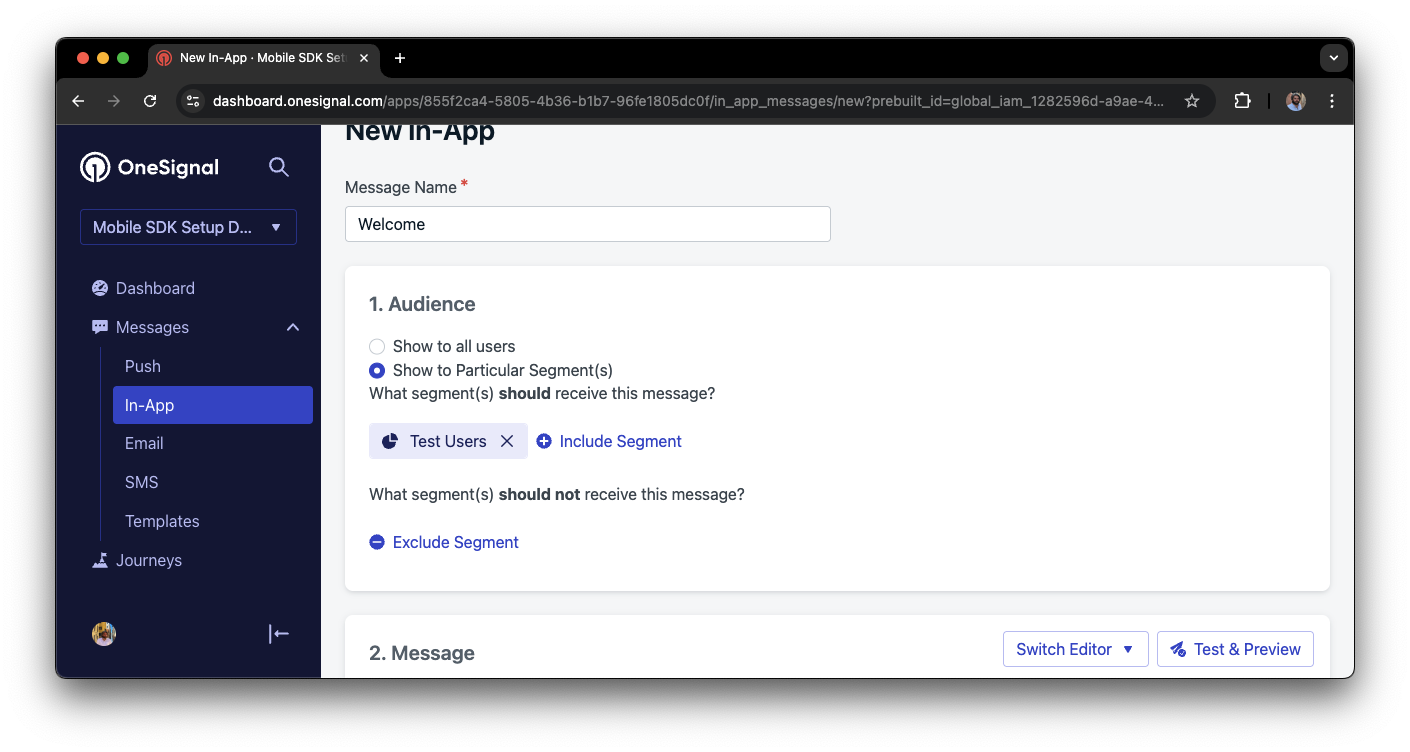
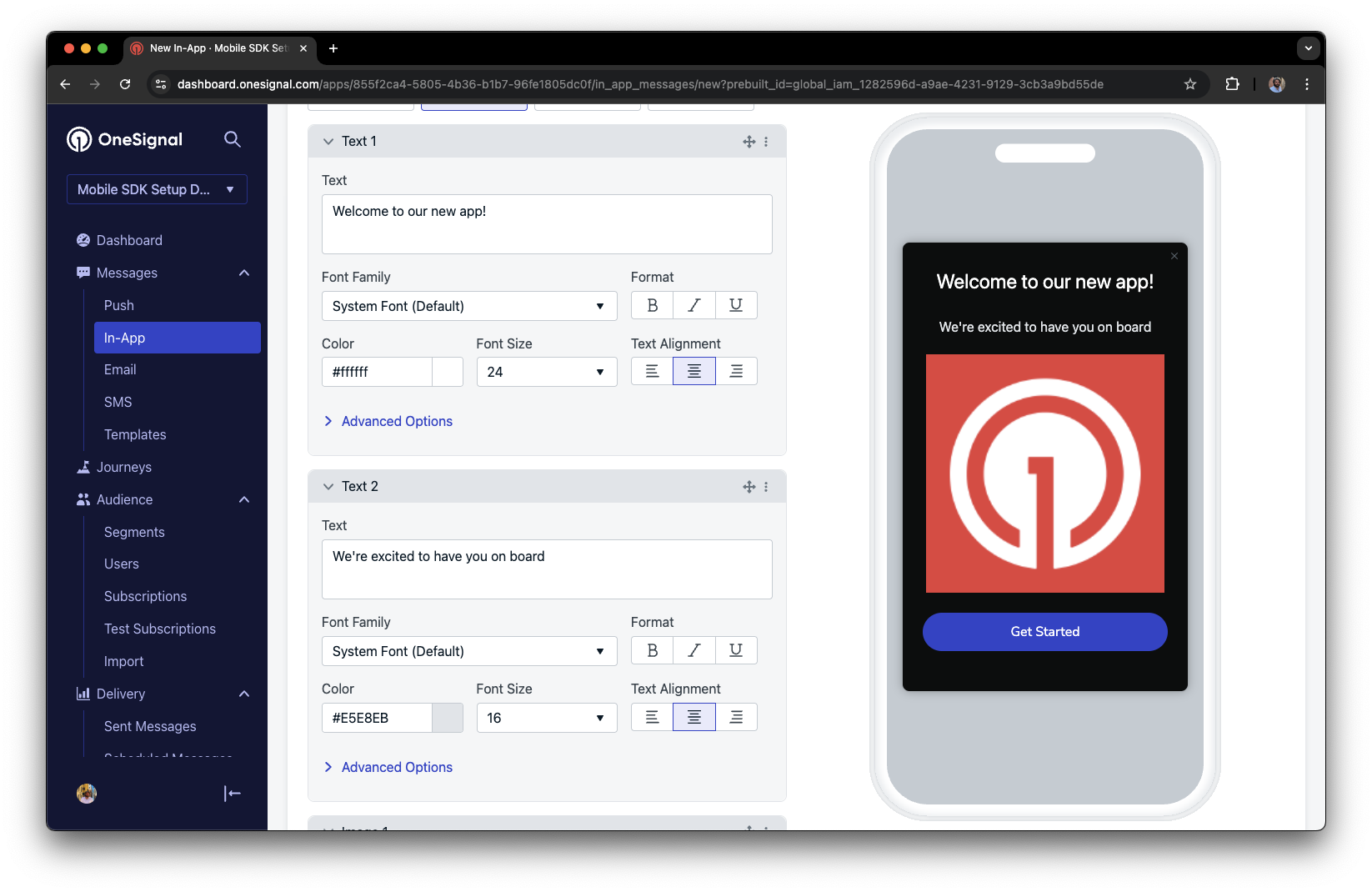 Under **Schedule > How often do you want to show this message?** select **Every time trigger conditions are satisfied**.
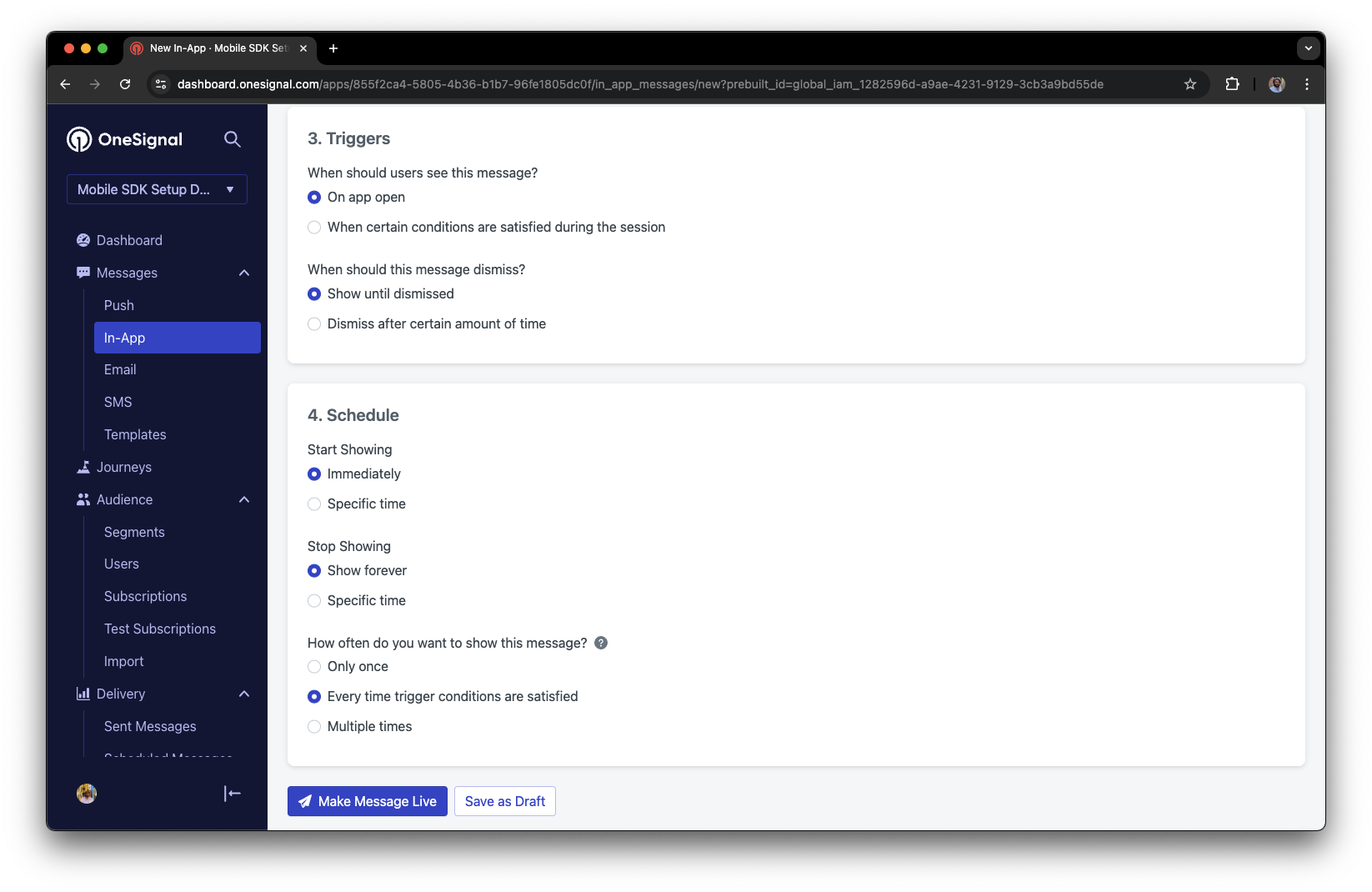 Click **Make Message Live** so it is available to your Test Users each time they open the app.
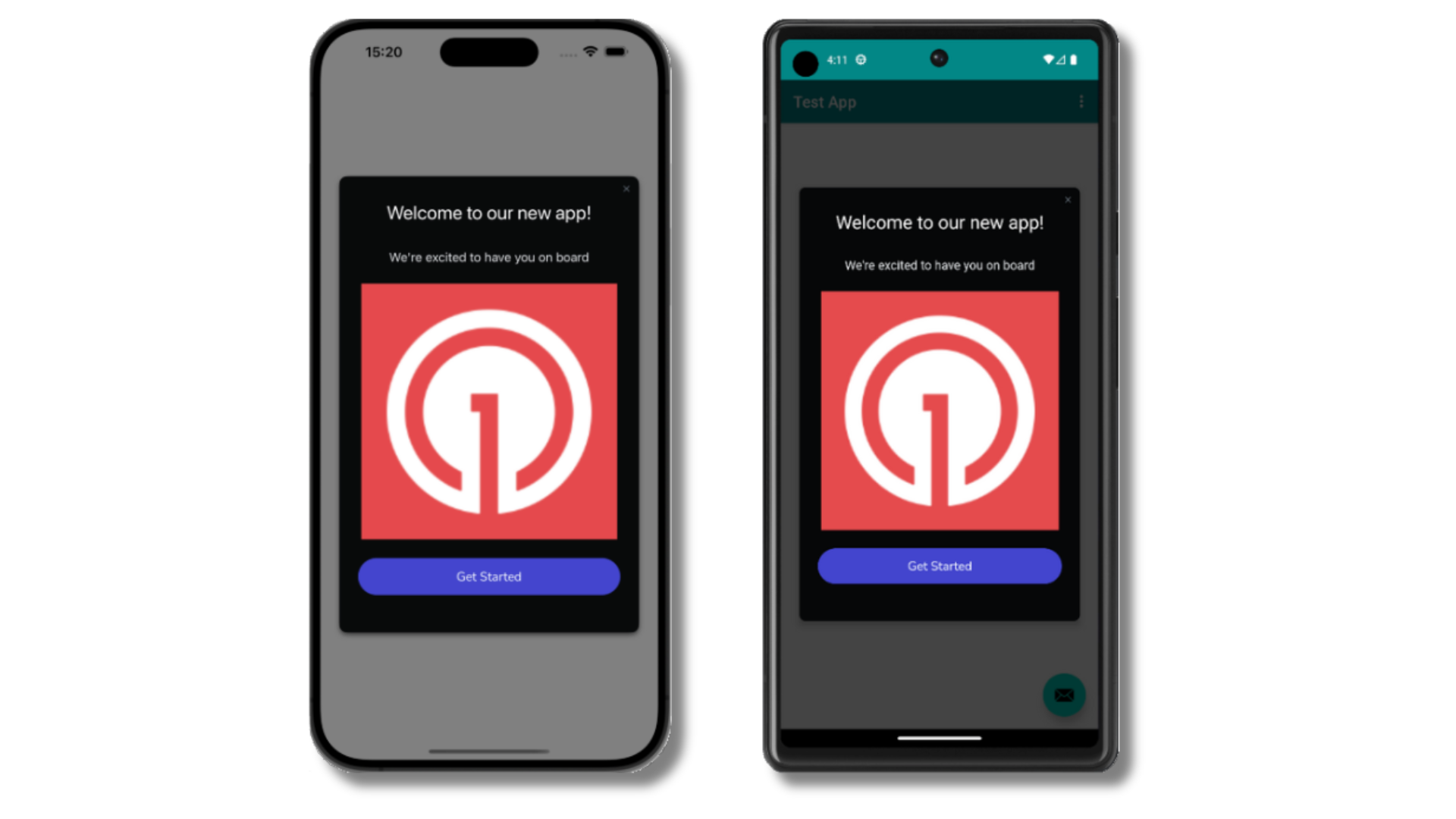
After the in-app message is live, open your app. You should see it display:
Click **Make Message Live** so it is available to your Test Users each time they open the app.
After the in-app message is live, open your app. You should see it display:
 Not seeing the message?
* Start a new session
* You must close or background the app for at least 30 seconds before reopening. This ensures a new session is started.
* For more, see [how in-app messages are displayed](/docs/en/in-app-messages-setup#how-are-iams-displayed%3F).
* Still in the `Test Users` segment?
* If you reinstalled or switched devices, re-add the device to [Test Users](#set-up-test-users) and confirm it's part of the Test Users segment.
* Having issues?
* Follow [Getting a Debug Log](/docs/en/capturing-a-debug-log) while reproducing the steps above. This will generate additional logging that you can share with `support@onesignal.com` and we will help investigate what's going on.
You have successfully setup the OneSignal SDK and learned important concepts like:
* Gathering [Subscriptions](/docs/en/subscriptions), setting [Test Users](/docs/en/find-set-test-subscriptions), and creating [Segments](/docs/en/segmentation).
* Sending [Push](/docs/en/push) with images and [Confirmed receipt](/docs/en/confirmed-delivery) using Segments and our [Create message](/reference/create-message) API.
* Sending [In-app messages](/docs/en/in-app-messages-setup).
Continue with this guide to identify users in your app and setup additional features.
***
## User identification
Previously, we demonstrated how to create mobile [Subscriptions](/docs/en/subscriptions). Now we'll expand to identifying [Users](/docs/en/users) across all their subscriptions (including push, email, and SMS) using the OneSignal SDK. We'll cover External IDs, tags, multi-channel subscriptions, privacy, and event tracking to help you unify and engage users across platforms.
### Assign External ID
Use an External ID to identify users consistently across devices, email addresses, and phone numbers using your backend's user identifier. This ensures your messaging stays unified across channels and 3rd party systems (especially important for [Integrations](/docs/en/integrations)).
Set the External ID with our SDK's [`login` method](/docs/en/mobile-sdk-reference#login-external-id) each time they are identified by your app.
OneSignal generates unique read-only IDs for subscriptions (Subscription ID) and users (OneSignal ID).
As users download your app on different devices, subscribe to your website, and/or provide you email addresses and phone numbers outside of your app, new subscriptions will be created.
Setting the External ID via our SDK is highly recommended to identify users across all their subscriptions, regardless of how they are created.
### Add Tags
[Tags](/docs/en/add-user-data-tags) are key-value pairs of string data you can use to store user properties (like `username`, `role`, or preferences) and events (like `purchase_date`, `game_level`, or user interactions). Tags power advanced [Message Personalization](/docs/en/message-personalization) and [Segmentation](/docs/en/segmentation) allowing for more advanced use cases.
Set tags with our SDK [`addTag` and `addTags` methods](/docs/en/mobile-sdk-reference#data-tags) as events occur in your app.
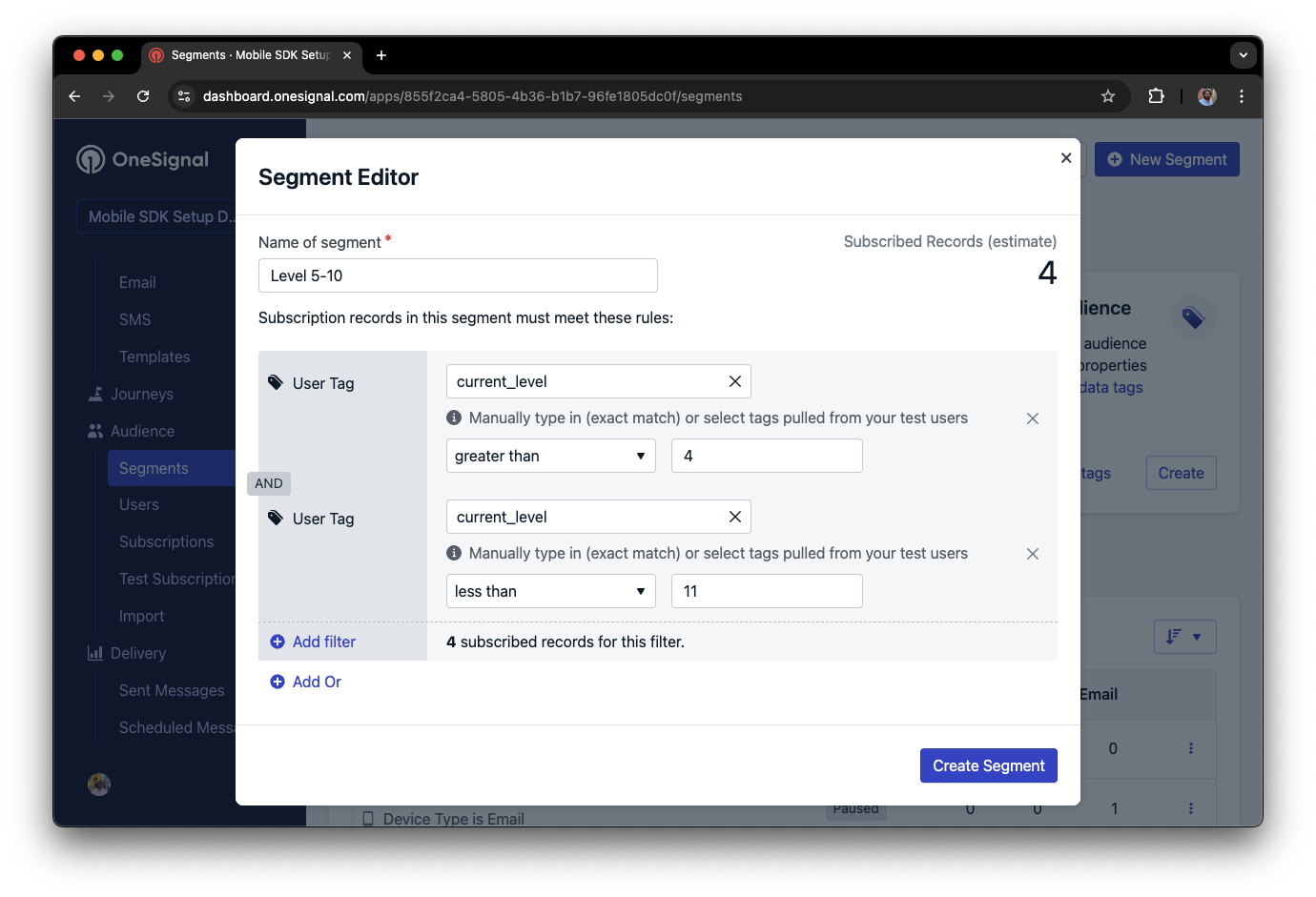
In this example, the user reached level 6 identifiable by the tag called `current_level` set to a value of `6`.
Not seeing the message?
* Start a new session
* You must close or background the app for at least 30 seconds before reopening. This ensures a new session is started.
* For more, see [how in-app messages are displayed](/docs/en/in-app-messages-setup#how-are-iams-displayed%3F).
* Still in the `Test Users` segment?
* If you reinstalled or switched devices, re-add the device to [Test Users](#set-up-test-users) and confirm it's part of the Test Users segment.
* Having issues?
* Follow [Getting a Debug Log](/docs/en/capturing-a-debug-log) while reproducing the steps above. This will generate additional logging that you can share with `support@onesignal.com` and we will help investigate what's going on.
You have successfully setup the OneSignal SDK and learned important concepts like:
* Gathering [Subscriptions](/docs/en/subscriptions), setting [Test Users](/docs/en/find-set-test-subscriptions), and creating [Segments](/docs/en/segmentation).
* Sending [Push](/docs/en/push) with images and [Confirmed receipt](/docs/en/confirmed-delivery) using Segments and our [Create message](/reference/create-message) API.
* Sending [In-app messages](/docs/en/in-app-messages-setup).
Continue with this guide to identify users in your app and setup additional features.
***
## User identification
Previously, we demonstrated how to create mobile [Subscriptions](/docs/en/subscriptions). Now we'll expand to identifying [Users](/docs/en/users) across all their subscriptions (including push, email, and SMS) using the OneSignal SDK. We'll cover External IDs, tags, multi-channel subscriptions, privacy, and event tracking to help you unify and engage users across platforms.
### Assign External ID
Use an External ID to identify users consistently across devices, email addresses, and phone numbers using your backend's user identifier. This ensures your messaging stays unified across channels and 3rd party systems (especially important for [Integrations](/docs/en/integrations)).
Set the External ID with our SDK's [`login` method](/docs/en/mobile-sdk-reference#login-external-id) each time they are identified by your app.
OneSignal generates unique read-only IDs for subscriptions (Subscription ID) and users (OneSignal ID).
As users download your app on different devices, subscribe to your website, and/or provide you email addresses and phone numbers outside of your app, new subscriptions will be created.
Setting the External ID via our SDK is highly recommended to identify users across all their subscriptions, regardless of how they are created.
### Add Tags
[Tags](/docs/en/add-user-data-tags) are key-value pairs of string data you can use to store user properties (like `username`, `role`, or preferences) and events (like `purchase_date`, `game_level`, or user interactions). Tags power advanced [Message Personalization](/docs/en/message-personalization) and [Segmentation](/docs/en/segmentation) allowing for more advanced use cases.
Set tags with our SDK [`addTag` and `addTags` methods](/docs/en/mobile-sdk-reference#data-tags) as events occur in your app.
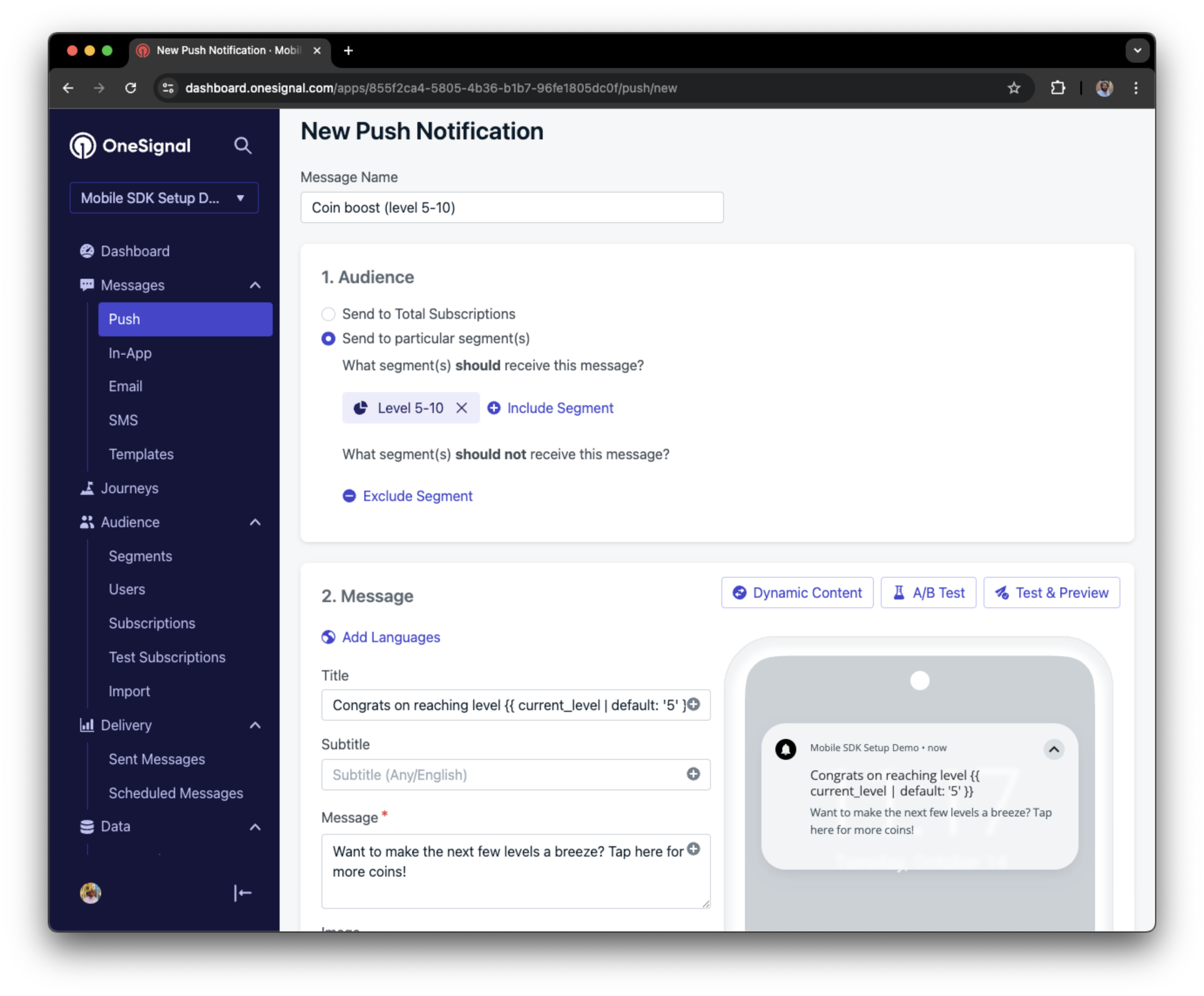
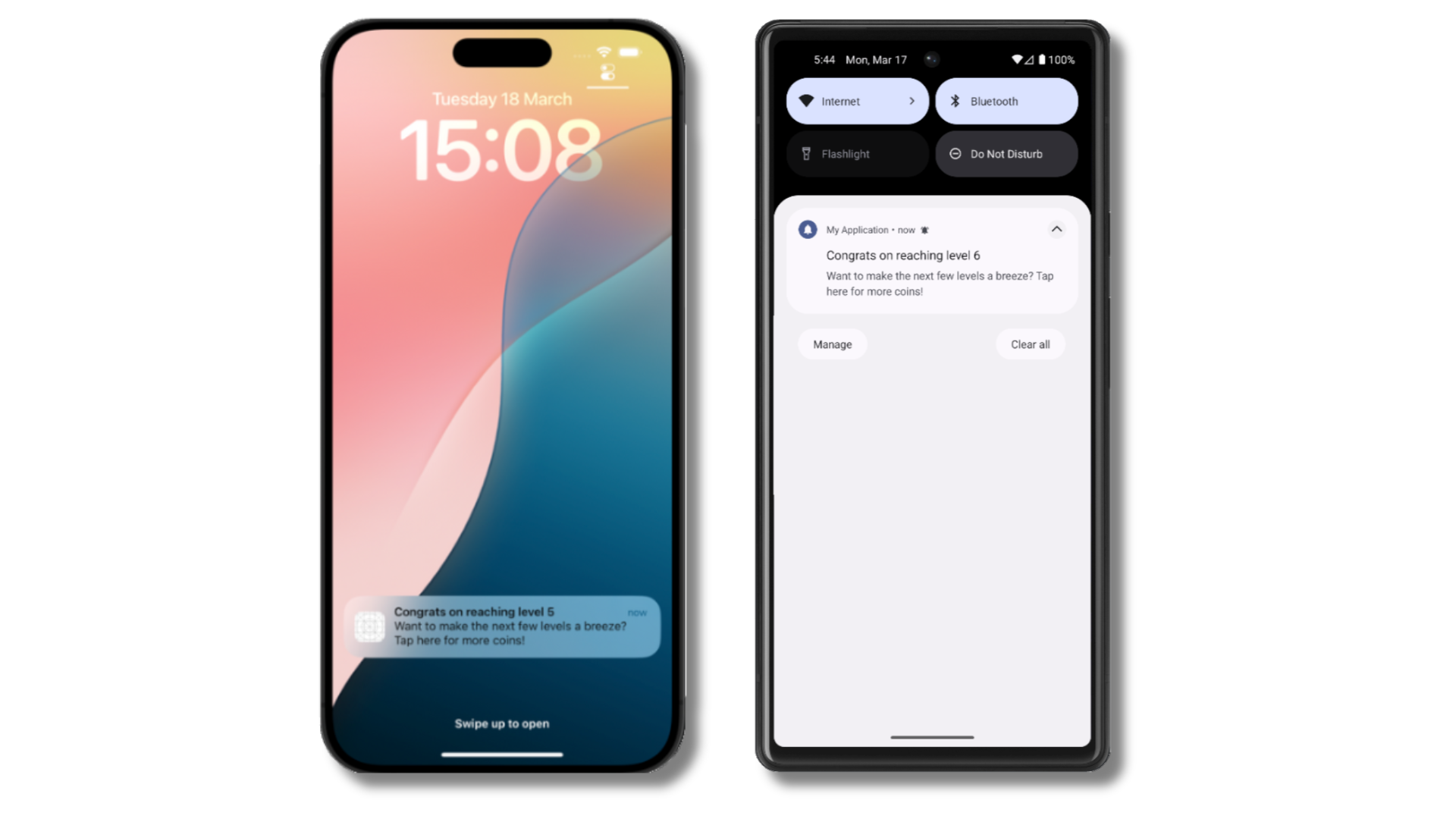
In this example, the user reached level 6 identifiable by the tag called `current_level` set to a value of `6`.
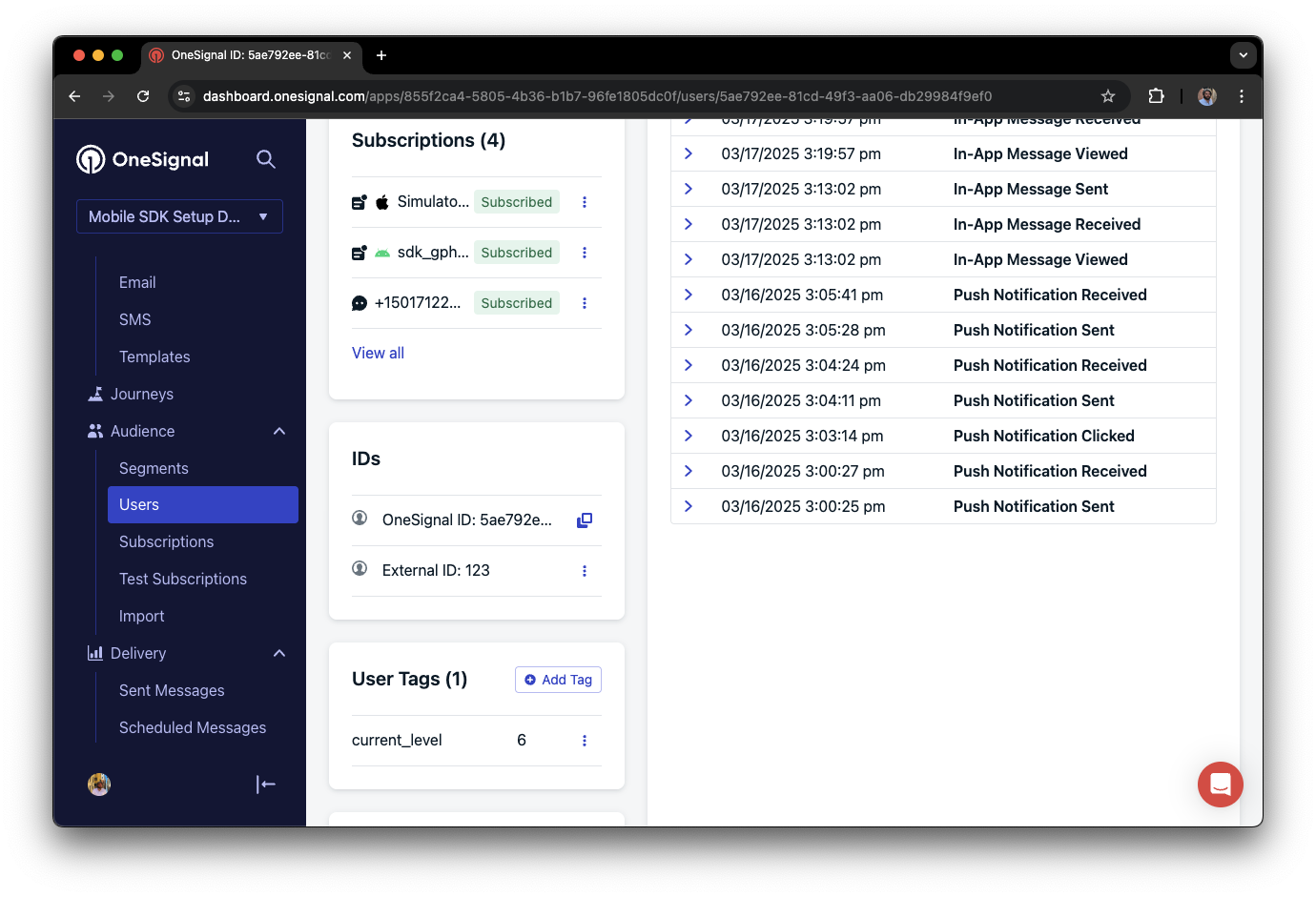 We can create a segment of users that have a level of between 5 and 10, and use that to send targeted and personalized messages:
 ### Add email and/or SMS subscriptions
Earlier we saw how our SDK creates mobile subscriptions to send push and in-app messages. You can also reach users through emails and SMS channels by creating the corresponding subscriptions.
* Use the [`addEmail` method](/docs/en/mobile-sdk-reference#addemail-%2C-removeemail) to create email subscriptions.
* Use the [`addSms` method](/docs/en/mobile-sdk-reference#addsms-%2C-removesms) to create SMS subscriptions.
If the email address and/or phone number already exist in the OneSignal app, the SDK will add it to the existing user, it will not create duplicates.
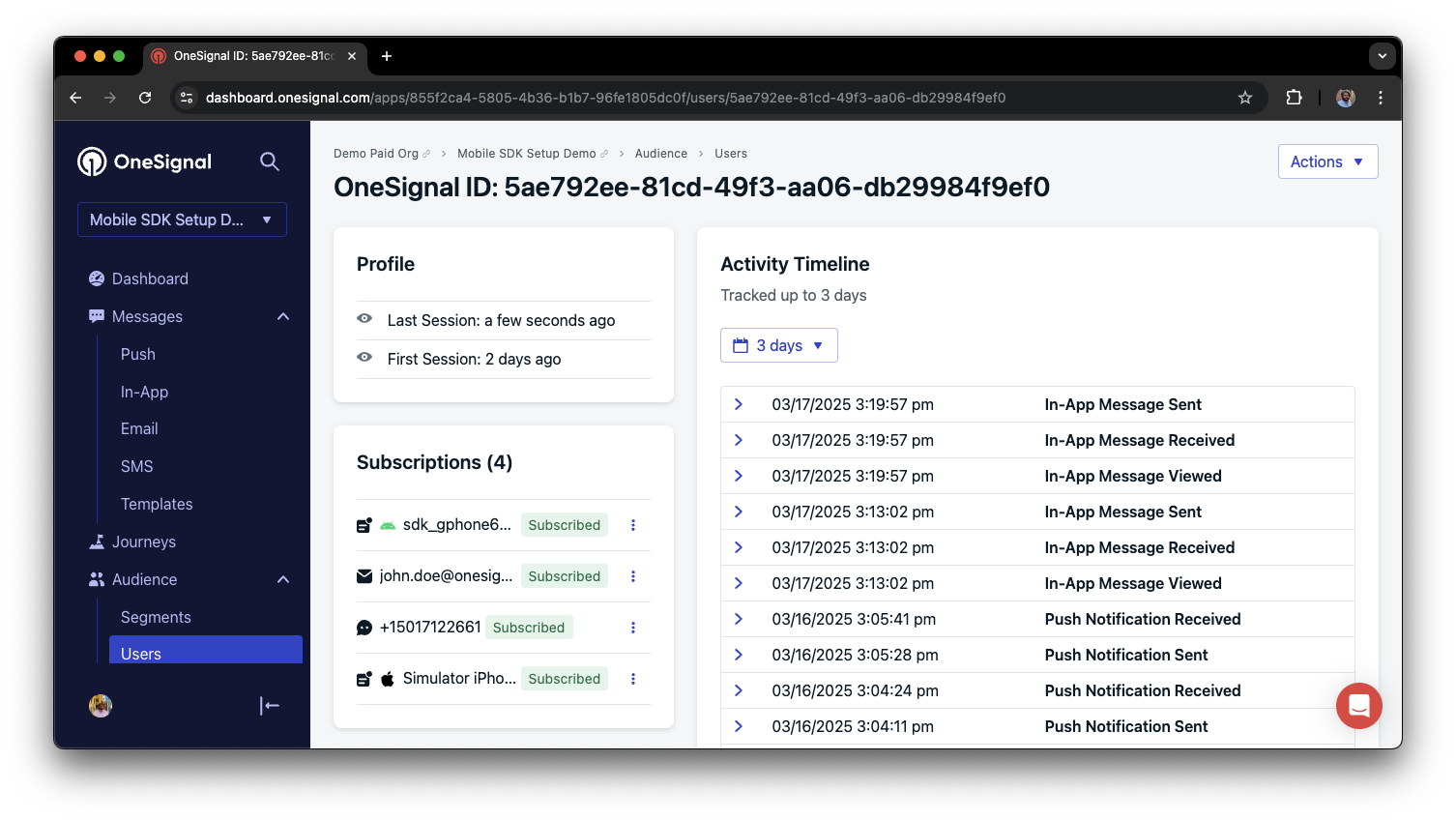
You can view unified users via **Audience > Users** in the dashboard or with the [View user API](/reference/view-user).
### Add email and/or SMS subscriptions
Earlier we saw how our SDK creates mobile subscriptions to send push and in-app messages. You can also reach users through emails and SMS channels by creating the corresponding subscriptions.
* Use the [`addEmail` method](/docs/en/mobile-sdk-reference#addemail-%2C-removeemail) to create email subscriptions.
* Use the [`addSms` method](/docs/en/mobile-sdk-reference#addsms-%2C-removesms) to create SMS subscriptions.
If the email address and/or phone number already exist in the OneSignal app, the SDK will add it to the existing user, it will not create duplicates.
You can view unified users via **Audience > Users** in the dashboard or with the [View user API](/reference/view-user).
 Best practices for multi-channel communication
* Obtain explicit consent before adding email or SMS subscriptions.
* Explain the benefits of each communication channel to users.
* Provide channel preferences so users can select which channels they prefer.
***
### Privacy & user consent
To control when OneSignal collects user data, use the SDK's consent gating methods:
* [`setConsentRequired(true)`](/docs/en/mobile-sdk-reference#setconsentrequired): Prevents data collection until consent is given.
* [`setConsentGiven(true)`](/docs/en/mobile-sdk-reference#setconsentgiven): Enables data collection once consent is granted.
See our Privacy & security docs for more on:
* [Data collected by the SDK](/docs/en/data-collected-by-the-onesignal-sdk)
* [Handling personal data](/docs/en/handling-personal-data)
***
## Prompt for push permissions
Instead of calling `requestPermission()` immediately on app open, take a more strategic approach. Use an in-app message to explain the value of push notifications before requesting permission.
For best practices and implementation details, see our [Prompt for push permissions](/docs/en/prompt-for-push-permissions) guide.
***
## Listen to push, user, and in-app events
Use SDK listeners to react to user actions and state changes.
The SDK provides several event listeners for you to hook into. See our [SDK reference guide](/docs/en/mobile-sdk-reference) for more details.
### Push notification events
* [`addClickListener()`](/docs/en/mobile-sdk-reference#addclicklistener-push): Detect when a notification is tapped. Helpful for [Deep Linking](/docs/en/deep-linking).
* [`addForegroundLifecycleListener()`](/docs/en/mobile-sdk-reference#addforegroundlifecyclelistener-push): Control how notifications behave in foreground.
For full customization, see [Mobile Service Extensions](/docs/en/service-extensions).
### User state changes
* [`addObserver()` for user state](/docs/en/mobile-sdk-reference#addobserver-user-state): Detect when the External ID is set.
* [`addPermissionObserver()`](/docs/en/mobile-sdk-reference#addpermissionobserver-push): Track the user's specific interaction with the native push permission prompt.
* [`addObserver()` for push subscription](/docs/en/mobile-sdk-reference#addobserver-push-subscription-changes): Track when the push subscription status changes.
### In-app message events
* [`addClickListener()`](/docs/en/mobile-sdk-reference#addclicklistener-in-app): Handle in-app click actions. Ideal for deep linking or tracking events.
* [`addLifecycleListener()`](/docs/en/mobile-sdk-reference#addclicklistener-in-app): Track full lifecycle of in-app messages (shown, clicked, dismissed, etc.).
***
## Advanced setup & capabilities
Explore more capabilities to enhance your integration:
* [🔁 Migrating to OneSignal from another service](/docs/en/migrating-to-onesignal)
* [🌍 Location tracking](/docs/en/mobile-sdk-reference#location)
* [🔗 Deep Linking](/docs/en/deep-linking)
* [🔌 Integrations](/docs/en/integrations)
* [🧩 Mobile Service Extensions](/docs/en/service-extensions)
* [🛎️ Action buttons](/docs/en/action-buttons)
* [🌐 Multi-language messaging](/docs/en/multi-language-messaging)
* [🛡️ Identity Verification](/docs/en/identity-verification)
* [📊 Custom Outcomes](/docs/en/custom-outcomes)
* [📲 Live Activities](/docs/en/live-activities)
### Mobile SDK setup & reference
Make sure you've enabled all key features by reviewing the [Mobile push setup](/docs/en/mobile-push-setup) guide.
For full details on available methods and configuration options, visit the [Mobile SDK reference](/docs/en/mobile-sdk-reference).
Congratulations! You've successfully completed the Mobile SDK setup guide.
***
Need help?
Chat with our Support team or email `support@onesignal.com`
Please include:
* Details of the issue you're experiencing and steps to reproduce if available
* Your OneSignal App ID
* The External ID or Subscription ID if applicable
* The URL to the message you tested in the OneSignal Dashboard if applicable
* Any relevant [logs or error messages](/docs/en/capturing-a-debug-log)
We're happy to help!
***
Best practices for multi-channel communication
* Obtain explicit consent before adding email or SMS subscriptions.
* Explain the benefits of each communication channel to users.
* Provide channel preferences so users can select which channels they prefer.
***
### Privacy & user consent
To control when OneSignal collects user data, use the SDK's consent gating methods:
* [`setConsentRequired(true)`](/docs/en/mobile-sdk-reference#setconsentrequired): Prevents data collection until consent is given.
* [`setConsentGiven(true)`](/docs/en/mobile-sdk-reference#setconsentgiven): Enables data collection once consent is granted.
See our Privacy & security docs for more on:
* [Data collected by the SDK](/docs/en/data-collected-by-the-onesignal-sdk)
* [Handling personal data](/docs/en/handling-personal-data)
***
## Prompt for push permissions
Instead of calling `requestPermission()` immediately on app open, take a more strategic approach. Use an in-app message to explain the value of push notifications before requesting permission.
For best practices and implementation details, see our [Prompt for push permissions](/docs/en/prompt-for-push-permissions) guide.
***
## Listen to push, user, and in-app events
Use SDK listeners to react to user actions and state changes.
The SDK provides several event listeners for you to hook into. See our [SDK reference guide](/docs/en/mobile-sdk-reference) for more details.
### Push notification events
* [`addClickListener()`](/docs/en/mobile-sdk-reference#addclicklistener-push): Detect when a notification is tapped. Helpful for [Deep Linking](/docs/en/deep-linking).
* [`addForegroundLifecycleListener()`](/docs/en/mobile-sdk-reference#addforegroundlifecyclelistener-push): Control how notifications behave in foreground.
For full customization, see [Mobile Service Extensions](/docs/en/service-extensions).
### User state changes
* [`addObserver()` for user state](/docs/en/mobile-sdk-reference#addobserver-user-state): Detect when the External ID is set.
* [`addPermissionObserver()`](/docs/en/mobile-sdk-reference#addpermissionobserver-push): Track the user's specific interaction with the native push permission prompt.
* [`addObserver()` for push subscription](/docs/en/mobile-sdk-reference#addobserver-push-subscription-changes): Track when the push subscription status changes.
### In-app message events
* [`addClickListener()`](/docs/en/mobile-sdk-reference#addclicklistener-in-app): Handle in-app click actions. Ideal for deep linking or tracking events.
* [`addLifecycleListener()`](/docs/en/mobile-sdk-reference#addclicklistener-in-app): Track full lifecycle of in-app messages (shown, clicked, dismissed, etc.).
***
## Advanced setup & capabilities
Explore more capabilities to enhance your integration:
* [🔁 Migrating to OneSignal from another service](/docs/en/migrating-to-onesignal)
* [🌍 Location tracking](/docs/en/mobile-sdk-reference#location)
* [🔗 Deep Linking](/docs/en/deep-linking)
* [🔌 Integrations](/docs/en/integrations)
* [🧩 Mobile Service Extensions](/docs/en/service-extensions)
* [🛎️ Action buttons](/docs/en/action-buttons)
* [🌐 Multi-language messaging](/docs/en/multi-language-messaging)
* [🛡️ Identity Verification](/docs/en/identity-verification)
* [📊 Custom Outcomes](/docs/en/custom-outcomes)
* [📲 Live Activities](/docs/en/live-activities)
### Mobile SDK setup & reference
Make sure you've enabled all key features by reviewing the [Mobile push setup](/docs/en/mobile-push-setup) guide.
For full details on available methods and configuration options, visit the [Mobile SDK reference](/docs/en/mobile-sdk-reference).
Congratulations! You've successfully completed the Mobile SDK setup guide.
***
Need help?
Chat with our Support team or email `support@onesignal.com`
Please include:
* Details of the issue you're experiencing and steps to reproduce if available
* Your OneSignal App ID
* The External ID or Subscription ID if applicable
* The URL to the message you tested in the OneSignal Dashboard if applicable
* Any relevant [logs or error messages](/docs/en/capturing-a-debug-log)
We're happy to help!
***