> ## Documentation Index
> Fetch the complete documentation index at: https://documentation.onesignal.com/llms.txt
> Use this file to discover all available pages before exploring further.
# Configuración SDK Web
> Agrega notificaciones web push de OneSignal a tu sitio web con el SDK de JavaScript, configuración de service worker y configuración del dashboard.
export const SdkReleasesIframe = ({sdkFilter = undefined, viewMode = undefined, height, ...frameProps}) => {
const baseUrl = 'https://onesignal.github.io/sdk-releases';
const buildUrl = (theme, sdkFilter, viewMode) => {
const url = new URL(baseUrl);
const params = new URLSearchParams();
if (theme) {
params.set('theme', theme);
}
if (sdkFilter) {
params.set('sdk', sdkFilter);
}
if (viewMode) {
params.set('viewMode', viewMode);
}
if (params.toString()) {
url.search = params.toString();
}
return url.toString();
};
const detectTheme = () => {
if (document.documentElement.classList.contains('dark')) {
return 'dark';
}
return 'light';
};
const [theme, setTheme] = useState('light');
const [iframeSrc, setIframeSrc] = useState(() => {
const initialTheme = detectTheme();
return buildUrl(initialTheme, sdkFilter, viewMode);
});
useEffect(() => {
const currentTheme = detectTheme();
setTheme(currentTheme);
setIframeSrc(buildUrl(currentTheme, sdkFilter, viewMode));
const mediaQuery = window.matchMedia('(prefers-color-scheme: dark)');
const handleThemeChange = () => {
const newTheme = detectTheme();
setTheme(newTheme);
setIframeSrc(buildUrl(newTheme, sdkFilter, viewMode));
};
if (mediaQuery.addEventListener) {
mediaQuery.addEventListener('change', handleThemeChange);
} else {
mediaQuery.addListener(handleThemeChange);
}
window.addEventListener('storage', handleThemeChange);
const observer = new MutationObserver(handleThemeChange);
observer.observe(document.documentElement, {
attributes: true,
attributeFilter: ['class', 'data-theme']
});
return () => {
if (mediaQuery.removeEventListener) {
mediaQuery.removeEventListener('change', handleThemeChange);
} else {
mediaQuery.removeListener(handleThemeChange);
}
window.removeEventListener('storage', handleThemeChange);
observer.disconnect();
};
}, [sdkFilter, viewMode]);
const getIframeHeight = () => {
if (viewMode === 'table') {
return '450';
}
if (viewMode === 'mini') {
return '170';
}
return '800';
};
const iframeHeight = height || getIframeHeight();
return
;
};
## Descripción general
Esta guía te muestra cómo agregar notificaciones web push de OneSignal a tu sitio — desde la configuración del dashboard hasta la instalación del SDK. OneSignal soporta Chrome, Firefox, Edge, Safari y [otros navegadores principales](./web-push-setup-faq).
***
## Requisitos
* Sitio web HTTPS: Web push no funciona en HTTP o en modos incógnito/privado.
* Acceso al servidor: Necesitarás subir un archivo service worker a tu sitio.
* Origen único: Web push sigue la [política de mismo origen](https://developer.mozilla.org/en-US/docs/Web/Security/Same-origin_policy). Si tienes múltiples orígenes (dominios/subdominios), necesitarás múltiples apps OneSignal (una por origen). Para cumplir con esta limitación del navegador, puedes:
* Redirigir tráfico a un único origen para suscripciones.
* Crear múltiples apps OneSignal—una por origen.
Si tu equipo ya creó una cuenta con OneSignal, [solicita ser invitado como rol admin](./manage-team-members) para que puedas configurar la app. De lo contrario, regístrate para una cuenta gratuita en [onesignal.com](https://onesignal.com) para comenzar!
***
## Configurar tu app OneSignal y plataforma
En el dashboard de OneSignal:
* Ve a **Settings > Push & In-App > Web**.
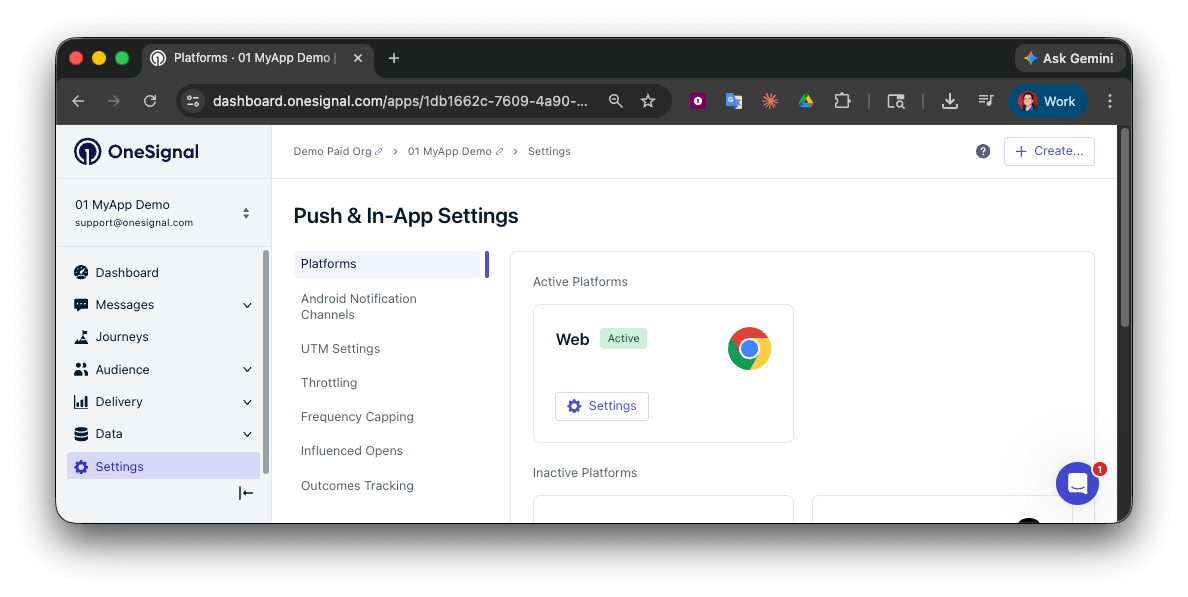 Selecciona el tipo de integración:
Gestiona prompts y configuraciones directamente a través del dashboard de OneSignal sin codificación adicional.
Requerido si usas WordPress con nuestro plugin oficial.
Para desarrolladores que necesitan control completo sobre prompts y configuración del SDK.
### Configuración del sitio
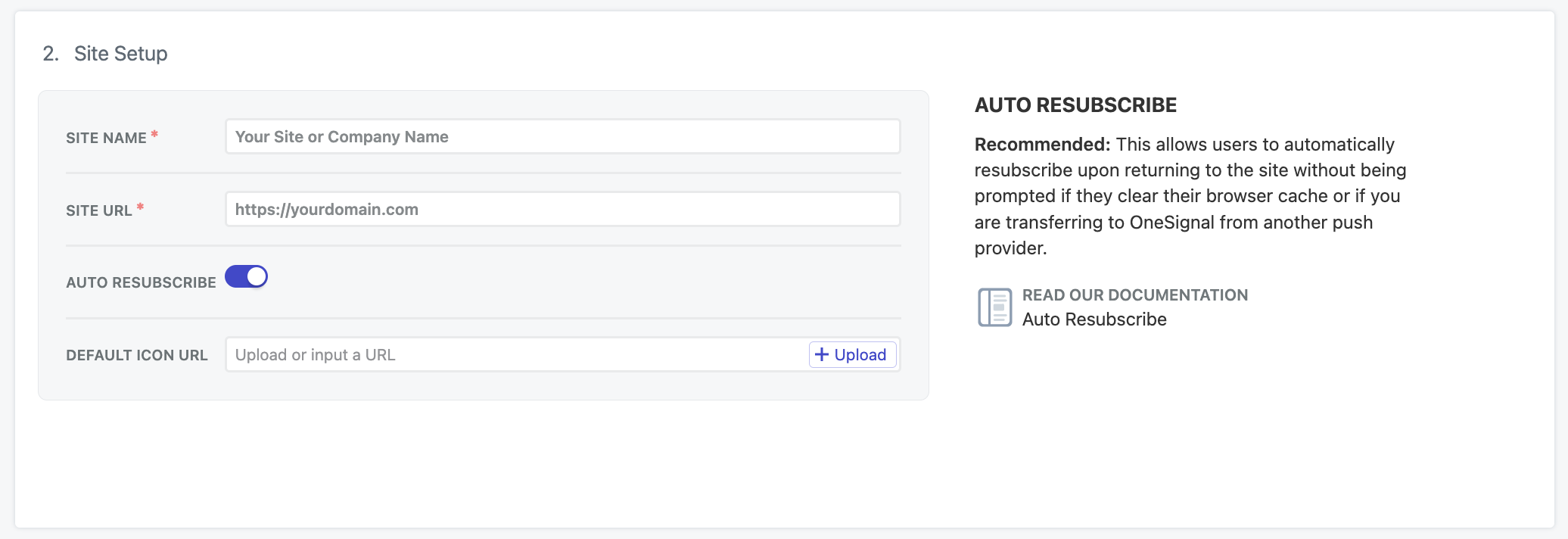
Agrega los detalles del sitio:
* **Nombre del sitio**: El nombre de tu sitio y título de notificación predeterminado.
* **URL del sitio**: La URL de tu sitio. Ver [URL del sitio](#site-url) para más detalles.
* **Resuscripción automática**: Habilita esto para resuscribir automáticamente a usuarios que limpian sus datos del navegador cuando regresan a tu sitio (sin nuevo prompt de permiso requerido)
* **URL de icono predeterminado**: Sube una imagen PNG o JPG cuadrada de 256x256px que aparece en notificaciones y prompts. Si no se establece, usamos una campana para el icono predeterminado.
Selecciona el tipo de integración:
Gestiona prompts y configuraciones directamente a través del dashboard de OneSignal sin codificación adicional.
Requerido si usas WordPress con nuestro plugin oficial.
Para desarrolladores que necesitan control completo sobre prompts y configuración del SDK.
### Configuración del sitio
Agrega los detalles del sitio:
* **Nombre del sitio**: El nombre de tu sitio y título de notificación predeterminado.
* **URL del sitio**: La URL de tu sitio. Ver [URL del sitio](#site-url) para más detalles.
* **Resuscripción automática**: Habilita esto para resuscribir automáticamente a usuarios que limpian sus datos del navegador cuando regresan a tu sitio (sin nuevo prompt de permiso requerido)
* **URL de icono predeterminado**: Sube una imagen PNG o JPG cuadrada de 256x256px que aparece en notificaciones y prompts. Si no se establece, usamos una campana para el icono predeterminado.
 #### URL del sitio
Ingresa el [origen](https://developer.mozilla.org/en-US/docs/Web/Security/Same-origin_policy) exacto de tu sitio, ej., `https://yourdomain.com`. Evita usar `www.` si tu sitio no está configurado de esa manera.
Si tienes múltiples orígenes:
* Redirige a un único origen.
* O configura una app OneSignal por origen.
#### Pruebas locales
Nuestro SDK web puede probarse en entornos localhost. Si estás probando en localhost, recomendamos configurar una app OneSignal diferente de tu app de producción.
Establece la **URL DEL SITIO** para que coincida exactamente con la URL de tu entorno localhost. Debe ser una URL localhost común, ejemplos:
* `http://localhost`
* `https://localhost:3000`
* `http://127.0.0.1`
* `https://127.0.0.1:5000`
Si tu localhost está usando HTTP, selecciona **Tratar HTTP localhost como HTTPS para pruebas**.
Google Chrome trata `http://localhost` y `http://127.0.0.1` como orígenes seguros, permitiendo integraciones HTTPS incluso en HTTP. Por esto no puedes probar otros orígenes no estándar en HTTPS localhost.
#### URL del sitio
Ingresa el [origen](https://developer.mozilla.org/en-US/docs/Web/Security/Same-origin_policy) exacto de tu sitio, ej., `https://yourdomain.com`. Evita usar `www.` si tu sitio no está configurado de esa manera.
Si tienes múltiples orígenes:
* Redirige a un único origen.
* O configura una app OneSignal por origen.
#### Pruebas locales
Nuestro SDK web puede probarse en entornos localhost. Si estás probando en localhost, recomendamos configurar una app OneSignal diferente de tu app de producción.
Establece la **URL DEL SITIO** para que coincida exactamente con la URL de tu entorno localhost. Debe ser una URL localhost común, ejemplos:
* `http://localhost`
* `https://localhost:3000`
* `http://127.0.0.1`
* `https://127.0.0.1:5000`
Si tu localhost está usando HTTP, selecciona **Tratar HTTP localhost como HTTPS para pruebas**.
Google Chrome trata `http://localhost` y `http://127.0.0.1` como orígenes seguros, permitiendo integraciones HTTPS incluso en HTTP. Por esto no puedes probar otros orígenes no estándar en HTTPS localhost.
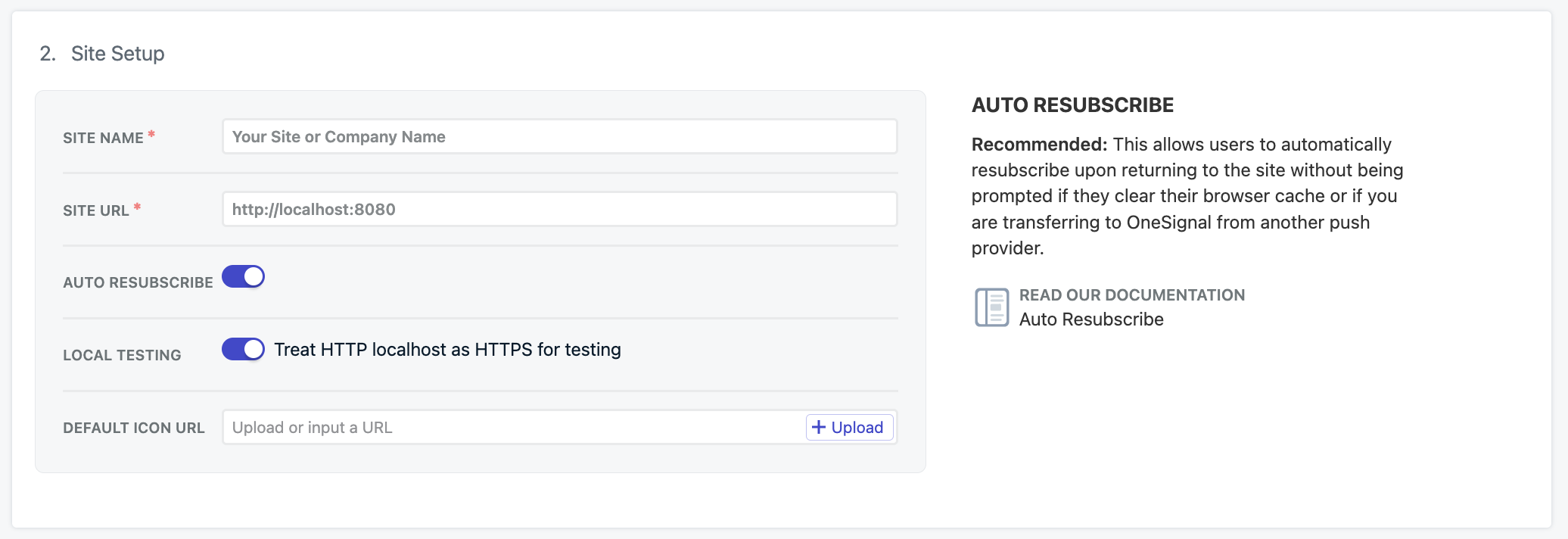 #### Agregar `allowLocalhostAsSecureOrigin` a tus opciones `init` de OneSignal
Al inicializar OneSignal en tu sitio localhost, agrega `allowLocalhostAsSecureOrigin: true,` a tus opciones `init` de OneSignal.
Adicionalmente, si estás probando localhost en HTTPS con un certificado autofirmado, puede que tengas que pedir a Chrome que ignore certificados inválidos para pruebas con: ` --allow-insecure-localhost`. Firefox y Safari proporcionan mecanismos integrados para agregar excepciones para certificados de seguridad.
```html theme={null}
```
### Prompt de permisos
La configuración de sitio típico permite a ti o a los miembros de tu equipo agregar, eliminar y actualizar prompts de permiso a través del dashboard de OneSignal en cualquier momento.
Configura cuándo y cómo aparece el diálogo de permisos del navegador a tus usuarios.
### Notificación de bienvenida (opcional)
También puedes establecer una notificación de bienvenida para ser enviada a los usuarios cuando se suscriban a notificaciones push.
### Configuraciones avanzadas
Características adicionales configurables en el dashboard de OneSignal.
#### Webhooks
Nuestro SDK web proporciona la habilidad de hacer `POST` de ciertos eventos web push a una URL de tu elección.
Los Webhooks Web Push son una implementación separada de los [Webhooks de eventos](./event-streams) y no pueden usarse de manera intercambiable.
Envía eventos web push a tu servidor mediante solicitudes POST.
#### Service workers
En la siguiente página de configuración web push, se te proporcionará el archivo service worker `OneSignalSDKWorker.js`.
Nuestro SDK web por defecto busca este archivo en la raíz de tu sitio. Si quieres cambiar la ubicación, nombre y/o alcance del archivo service worker, aquí es donde puedes actualizar esas configuraciones.
* **Ruta a archivos service worker** es la ruta al directorio donde pondrás estos archivos.
* **Nombres de archivo service worker principal y actualizador** pueden ser simplemente `OneSignalSDKWorker.js` o si quieres renombrar este archivo. Debe usar extensión de archivo `.js`.
* **Alcance de registro de service worker** son las páginas en las que este archivo puede funcionar. Para notificaciones push, esto no importa y fue diseñado originalmente para casos donde quieres agregar más funcionalidad al archivo service worker. Deberías establecer esto como la misma ruta que tu ubicación.
#### Agregar `allowLocalhostAsSecureOrigin` a tus opciones `init` de OneSignal
Al inicializar OneSignal en tu sitio localhost, agrega `allowLocalhostAsSecureOrigin: true,` a tus opciones `init` de OneSignal.
Adicionalmente, si estás probando localhost en HTTPS con un certificado autofirmado, puede que tengas que pedir a Chrome que ignore certificados inválidos para pruebas con: ` --allow-insecure-localhost`. Firefox y Safari proporcionan mecanismos integrados para agregar excepciones para certificados de seguridad.
```html theme={null}
```
### Prompt de permisos
La configuración de sitio típico permite a ti o a los miembros de tu equipo agregar, eliminar y actualizar prompts de permiso a través del dashboard de OneSignal en cualquier momento.
Configura cuándo y cómo aparece el diálogo de permisos del navegador a tus usuarios.
### Notificación de bienvenida (opcional)
También puedes establecer una notificación de bienvenida para ser enviada a los usuarios cuando se suscriban a notificaciones push.
### Configuraciones avanzadas
Características adicionales configurables en el dashboard de OneSignal.
#### Webhooks
Nuestro SDK web proporciona la habilidad de hacer `POST` de ciertos eventos web push a una URL de tu elección.
Los Webhooks Web Push son una implementación separada de los [Webhooks de eventos](./event-streams) y no pueden usarse de manera intercambiable.
Envía eventos web push a tu servidor mediante solicitudes POST.
#### Service workers
En la siguiente página de configuración web push, se te proporcionará el archivo service worker `OneSignalSDKWorker.js`.
Nuestro SDK web por defecto busca este archivo en la raíz de tu sitio. Si quieres cambiar la ubicación, nombre y/o alcance del archivo service worker, aquí es donde puedes actualizar esas configuraciones.
* **Ruta a archivos service worker** es la ruta al directorio donde pondrás estos archivos.
* **Nombres de archivo service worker principal y actualizador** pueden ser simplemente `OneSignalSDKWorker.js` o si quieres renombrar este archivo. Debe usar extensión de archivo `.js`.
* **Alcance de registro de service worker** son las páginas en las que este archivo puede funcionar. Para notificaciones push, esto no importa y fue diseñado originalmente para casos donde quieres agregar más funcionalidad al archivo service worker. Deberías establecer esto como la misma ruta que tu ubicación.
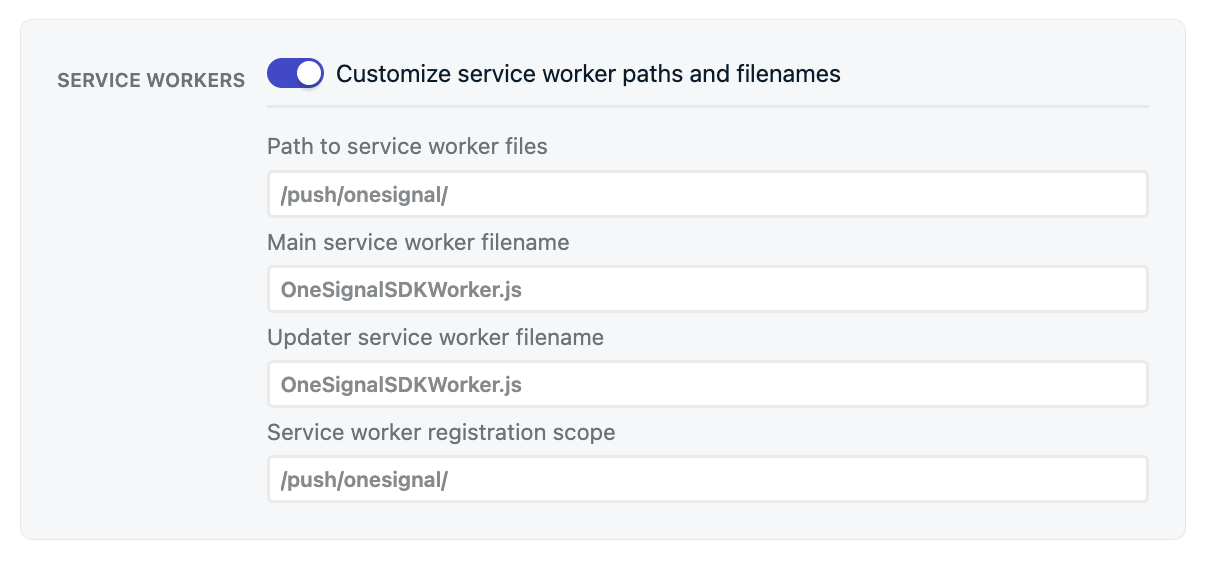 Con este ejemplo, deberías ver el código del archivo públicamente accesible en `https://yourdomain.com/push/onesignal/OneSignalSDKWorker.js`
Configuración avanzada del service worker, integración personalizada y migración desde otros proveedores.
#### Comportamiento de clic
Controla cómo los usuarios navegan a la [URL](./links) que estableces cuando hacen clic en la notificación.
Si el usuario no tiene tu sitio abierto en ninguna pestaña, el navegador abre una nueva pestaña y navega a la URL de la notificación. Si el usuario ya tiene tu sitio abierto, el comportamiento depende de la configuración que elijas:
| Configuración | Coincide en | Acción |
| ----------------------------------- | -------------------------------------- | ---------------------------------------------------------------- |
| **Exact Navigate** (predeterminado) | URL exacta (ej. `example.com/product`) | Navega a la URL de la notificación en la pestaña correspondiente |
| **Origin Navigate** | Origen (ej. `example.com`) | Navega a la URL de la notificación en la pestaña correspondiente |
| **Exact Focus** | URL exacta | Enfoca la pestaña correspondiente sin recargar |
| **Origin Focus** | Origen | Enfoca la pestaña correspondiente sin recargar |
#### Persistencia
El comportamiento web push predeterminado es que aparecen en el dispositivo durante aproximadamente 5 segundos antes de moverse al Centro de notificaciones donde se mantienen durante aproximadamente 1 semana antes de ser eliminadas por el sistema operativo.
Algunos dispositivos y versiones de Chrome y Edge te permiten persistir notificaciones por más tiempo en la pantalla. Esto significa que la notificación permanecerá en la pantalla hasta que el usuario interactúe con ella. **Esto puede molestar a tus usuarios y no se recomienda.** Además, si habilitas la persistencia afectará cómo aparecen las notificaciones a los suscriptores reduciendo el conteo de caracteres y puede afectar cómo se muestran las imágenes y botones.
Al cambiarlos, entrarán en efecto solo para suscriptores que visiten el sitio con las configuraciones actualizadas. Si no ves estos cambios de opciones, necesitarás esperar
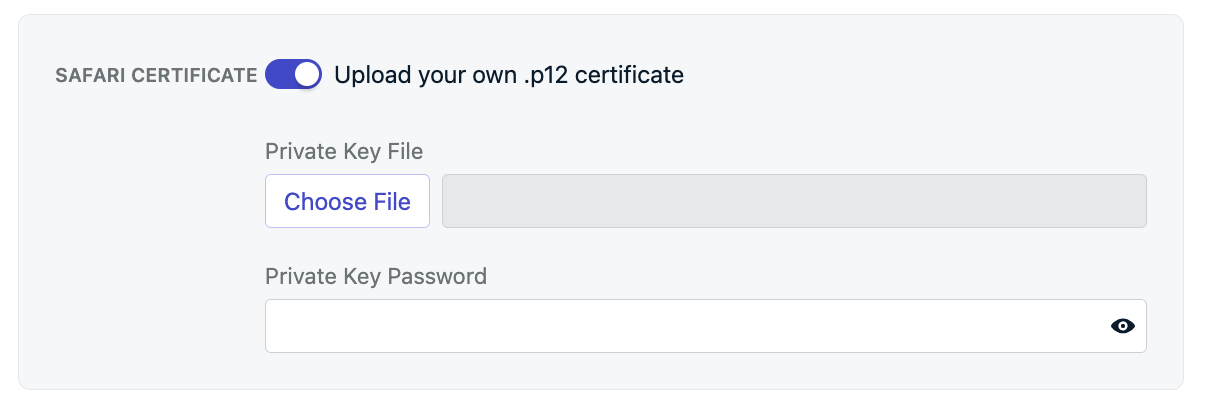
#### Certificado Safari (Opcional)
OneSignal proporciona automáticamente los certificados necesarios para funcionar con navegadores Safari sin costo adicional. Si ya tienes tus propios Certificados Safari Web Push, activa esta opción para subir tu `Safari Web .p12 Push Certificate` y contraseña.
Con este ejemplo, deberías ver el código del archivo públicamente accesible en `https://yourdomain.com/push/onesignal/OneSignalSDKWorker.js`
Configuración avanzada del service worker, integración personalizada y migración desde otros proveedores.
#### Comportamiento de clic
Controla cómo los usuarios navegan a la [URL](./links) que estableces cuando hacen clic en la notificación.
Si el usuario no tiene tu sitio abierto en ninguna pestaña, el navegador abre una nueva pestaña y navega a la URL de la notificación. Si el usuario ya tiene tu sitio abierto, el comportamiento depende de la configuración que elijas:
| Configuración | Coincide en | Acción |
| ----------------------------------- | -------------------------------------- | ---------------------------------------------------------------- |
| **Exact Navigate** (predeterminado) | URL exacta (ej. `example.com/product`) | Navega a la URL de la notificación en la pestaña correspondiente |
| **Origin Navigate** | Origen (ej. `example.com`) | Navega a la URL de la notificación en la pestaña correspondiente |
| **Exact Focus** | URL exacta | Enfoca la pestaña correspondiente sin recargar |
| **Origin Focus** | Origen | Enfoca la pestaña correspondiente sin recargar |
#### Persistencia
El comportamiento web push predeterminado es que aparecen en el dispositivo durante aproximadamente 5 segundos antes de moverse al Centro de notificaciones donde se mantienen durante aproximadamente 1 semana antes de ser eliminadas por el sistema operativo.
Algunos dispositivos y versiones de Chrome y Edge te permiten persistir notificaciones por más tiempo en la pantalla. Esto significa que la notificación permanecerá en la pantalla hasta que el usuario interactúe con ella. **Esto puede molestar a tus usuarios y no se recomienda.** Además, si habilitas la persistencia afectará cómo aparecen las notificaciones a los suscriptores reduciendo el conteo de caracteres y puede afectar cómo se muestran las imágenes y botones.
Al cambiarlos, entrarán en efecto solo para suscriptores que visiten el sitio con las configuraciones actualizadas. Si no ves estos cambios de opciones, necesitarás esperar
#### Certificado Safari (Opcional)
OneSignal proporciona automáticamente los certificados necesarios para funcionar con navegadores Safari sin costo adicional. Si ya tienes tus propios Certificados Safari Web Push, activa esta opción para subir tu `Safari Web .p12 Push Certificate` y contraseña.
 ***
## Subir archivo service worker
Agrega el archivo service worker `OneSignalSDKWorker.js` a tu sitio. Descárgalo desde el dashboard de OneSignal o [desde GitHub](https://github.com/OneSignal/OneSignal-Website-SDK/files/11480764/OneSignalSDK-v16-ServiceWorker.zip).
***
## Subir archivo service worker
Agrega el archivo service worker `OneSignalSDKWorker.js` a tu sitio. Descárgalo desde el dashboard de OneSignal o [desde GitHub](https://github.com/OneSignal/OneSignal-Website-SDK/files/11480764/OneSignalSDK-v16-ServiceWorker.zip).
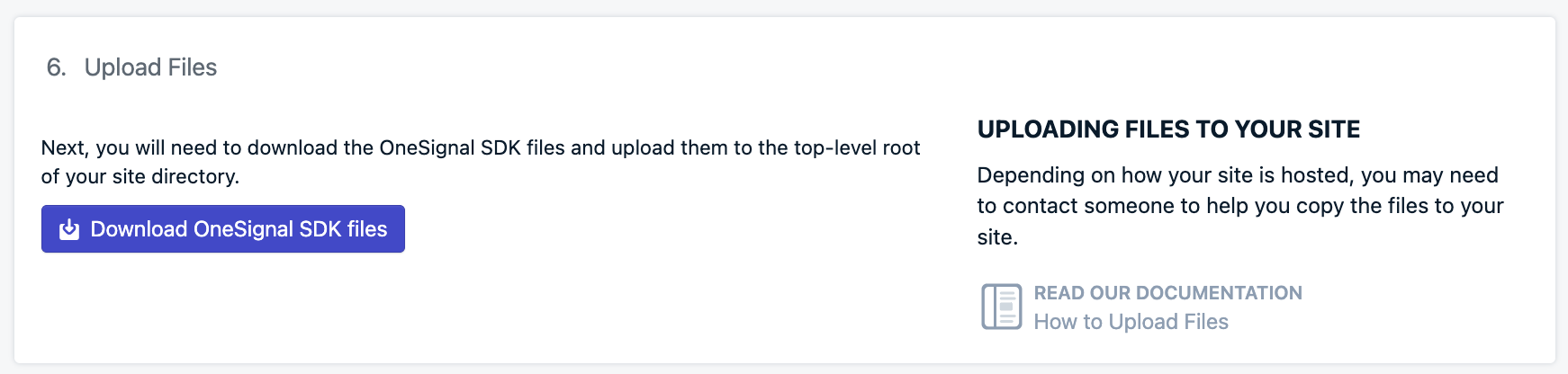 Coloca este archivo en el directorio raíz de tu sitio o en un subdirectorio. Si lo colocas en un subdirectorio, deberás establecer la **Ruta a archivos service worker** en la sección [Configuraciones avanzadas > Service workers](#service-workers).
Una vez que el archivo esté en tu servidor, verifica lo siguiente para asegurarte de que funciona:
Asegúrate de que el archivo esté ubicado en la misma **Ruta a archivos service worker** como se estableció en [Configuraciones avanzadas > Service workers](#service-workers). Si no actualizaste estas configuraciones, entonces deberías haber puesto el archivo en tu raíz. Por ejemplo:
* `https://yourdomain.com/OneSignalSDKWorker.js`
* `https://yourdomain.com/some-subdirectory/OneSignalSDKWorker.js`
El archivo `OneSignalSDKWorker.js` debe ser públicamente accesible y disponible en tu origen. No puede alojarse a través de un CDN o colocarse en un origen diferente con redirección.
Cuando visites la URL del archivo, deberías ver el código.
Este es un archivo javascript y necesita servirse como tal. No puede tener un content-type de text/html.
Configuración avanzada y migración desde otros proveedores de web push.
## Agregar código a tu sitio
El código JavaScript SDK que proporcionamos funciona en cualquier sitio. Si tu sitio está configurado usando [Angular](./angular-setup), [React JS](./react-js-setup) o [Vue JS](./vue-js-setup) entonces sigue estos enlaces.
Para inicializar OneSignal en tu sitio con nuestro JavaScript SDK, copia/pega el código proporcionado en las etiquetas `` de tu sitio web. El dashboard de OneSignal proporciona este mismo fragmento de código prellenado con tu [app ID](./keys-and-ids).
```javascript theme={null}
```
### Soporte iOS web push
Apple comenzó a soportar notificaciones web push en iPhones e iPads ejecutando iOS 16.4+. A diferencia de dispositivos Android donde web push simplemente "funciona" siempre que se visite en un navegador soportado, Apple agregó algunos requisitos más como un archivo `manifest.json` y una acción del usuario para agregar tu sitio a su pantalla de inicio.
Agrega el archivo `manifest.json` requerido y guía a los usuarios para agregar tu sitio a su pantalla de inicio.
***
## Testing the OneSignal SDK integration
This guide helps you verify that your OneSignal SDK integration is working correctly by testing push notifications and subscription registration.
### Check web push subscriptions
* Use Chrome, Firefox, Edge, or Safari while testing.
* **Do not use Incognito or private browsing mode.** Users cannot subscribe to push notifications in these modes.
* The prompts should appear based on your [permission prompts](/docs/en/permission-requests) configuration.
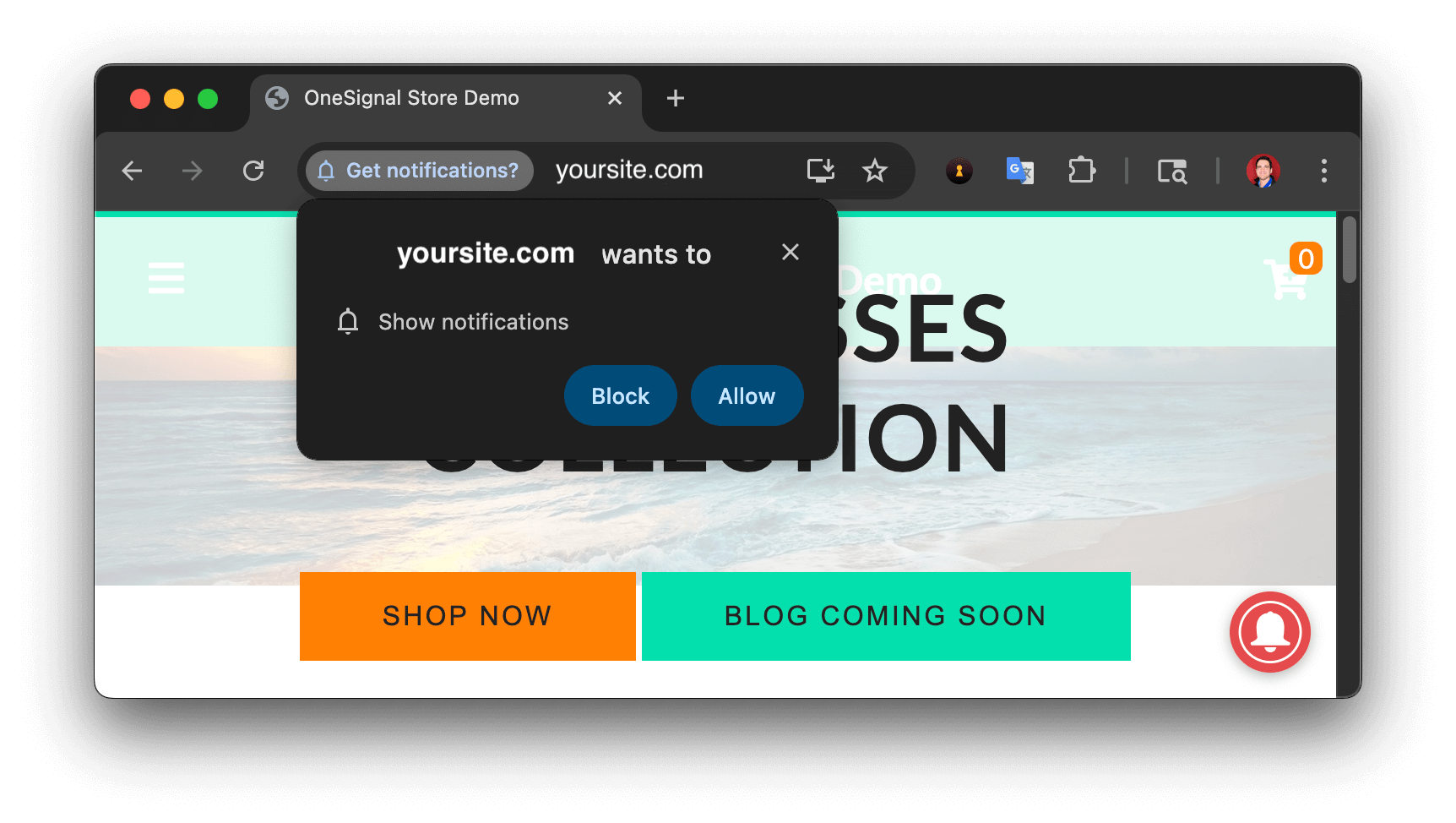
* Click **Allow** on the native prompt to subscribe to push notifications.
Coloca este archivo en el directorio raíz de tu sitio o en un subdirectorio. Si lo colocas en un subdirectorio, deberás establecer la **Ruta a archivos service worker** en la sección [Configuraciones avanzadas > Service workers](#service-workers).
Una vez que el archivo esté en tu servidor, verifica lo siguiente para asegurarte de que funciona:
Asegúrate de que el archivo esté ubicado en la misma **Ruta a archivos service worker** como se estableció en [Configuraciones avanzadas > Service workers](#service-workers). Si no actualizaste estas configuraciones, entonces deberías haber puesto el archivo en tu raíz. Por ejemplo:
* `https://yourdomain.com/OneSignalSDKWorker.js`
* `https://yourdomain.com/some-subdirectory/OneSignalSDKWorker.js`
El archivo `OneSignalSDKWorker.js` debe ser públicamente accesible y disponible en tu origen. No puede alojarse a través de un CDN o colocarse en un origen diferente con redirección.
Cuando visites la URL del archivo, deberías ver el código.
Este es un archivo javascript y necesita servirse como tal. No puede tener un content-type de text/html.
Configuración avanzada y migración desde otros proveedores de web push.
## Agregar código a tu sitio
El código JavaScript SDK que proporcionamos funciona en cualquier sitio. Si tu sitio está configurado usando [Angular](./angular-setup), [React JS](./react-js-setup) o [Vue JS](./vue-js-setup) entonces sigue estos enlaces.
Para inicializar OneSignal en tu sitio con nuestro JavaScript SDK, copia/pega el código proporcionado en las etiquetas `` de tu sitio web. El dashboard de OneSignal proporciona este mismo fragmento de código prellenado con tu [app ID](./keys-and-ids).
```javascript theme={null}
```
### Soporte iOS web push
Apple comenzó a soportar notificaciones web push en iPhones e iPads ejecutando iOS 16.4+. A diferencia de dispositivos Android donde web push simplemente "funciona" siempre que se visite en un navegador soportado, Apple agregó algunos requisitos más como un archivo `manifest.json` y una acción del usuario para agregar tu sitio a su pantalla de inicio.
Agrega el archivo `manifest.json` requerido y guía a los usuarios para agregar tu sitio a su pantalla de inicio.
***
## Testing the OneSignal SDK integration
This guide helps you verify that your OneSignal SDK integration is working correctly by testing push notifications and subscription registration.
### Check web push subscriptions
* Use Chrome, Firefox, Edge, or Safari while testing.
* **Do not use Incognito or private browsing mode.** Users cannot subscribe to push notifications in these modes.
* The prompts should appear based on your [permission prompts](/docs/en/permission-requests) configuration.
* Click **Allow** on the native prompt to subscribe to push notifications.
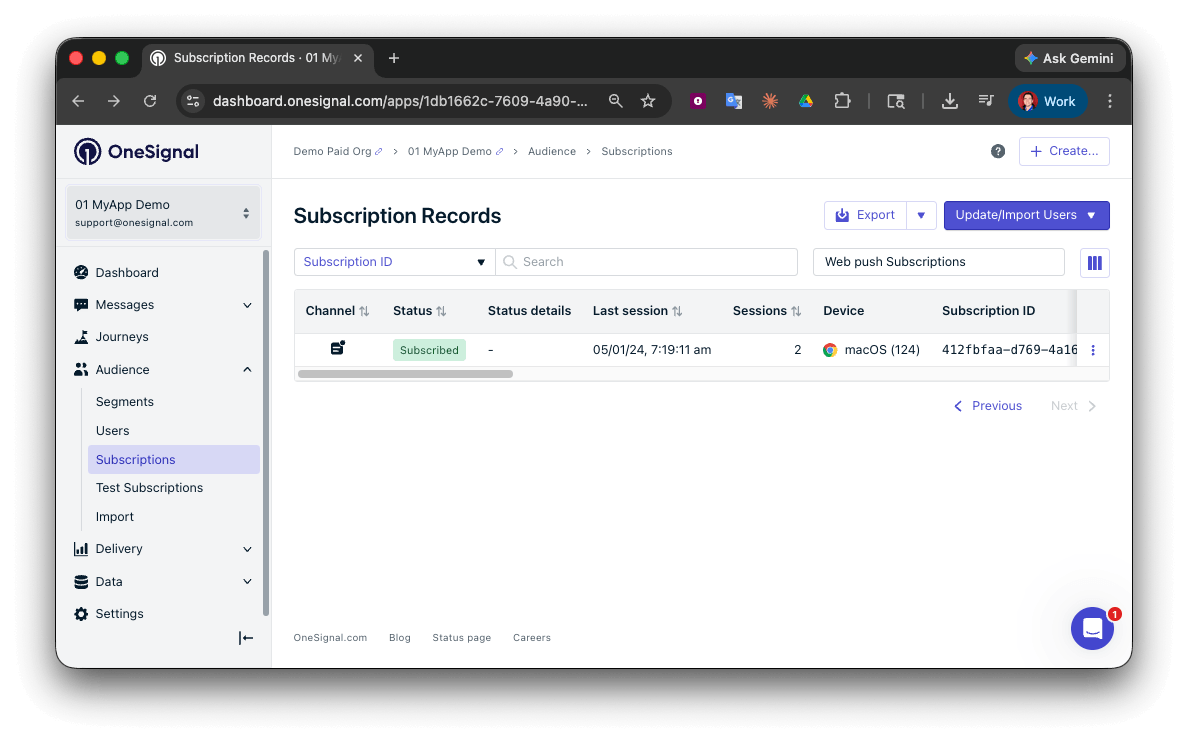
 * Go to **Audience > Subscriptions**.
* You should see a new entry with the status **Subscribed**.
* Go to **Audience > Subscriptions**.
* You should see a new entry with the status **Subscribed**.
 You have successfully created a [web push subscription](/docs/en/subscriptions).
Web push subscriptions are created when users first subscribe to push notifications on your site.
### Set up test users
test users are helpful for testing a push notification before sending a message.
In the dashboard, next to the subscription, click the **Options (three dots)** button and select **Add to Test Users**.
You have successfully created a [web push subscription](/docs/en/subscriptions).
Web push subscriptions are created when users first subscribe to push notifications on your site.
### Set up test users
test users are helpful for testing a push notification before sending a message.
In the dashboard, next to the subscription, click the **Options (three dots)** button and select **Add to Test Users**.
 Name the subscription so you can easily identify your device later in the **test users tab**.
Go to **Audience > Segments > New Segment**.
Name the segment `Test Users` (the name is important because it will be used later).
Name the subscription so you can easily identify your device later in the **test users tab**.
Go to **Audience > Segments > New Segment**.
Name the segment `Test Users` (the name is important because it will be used later).
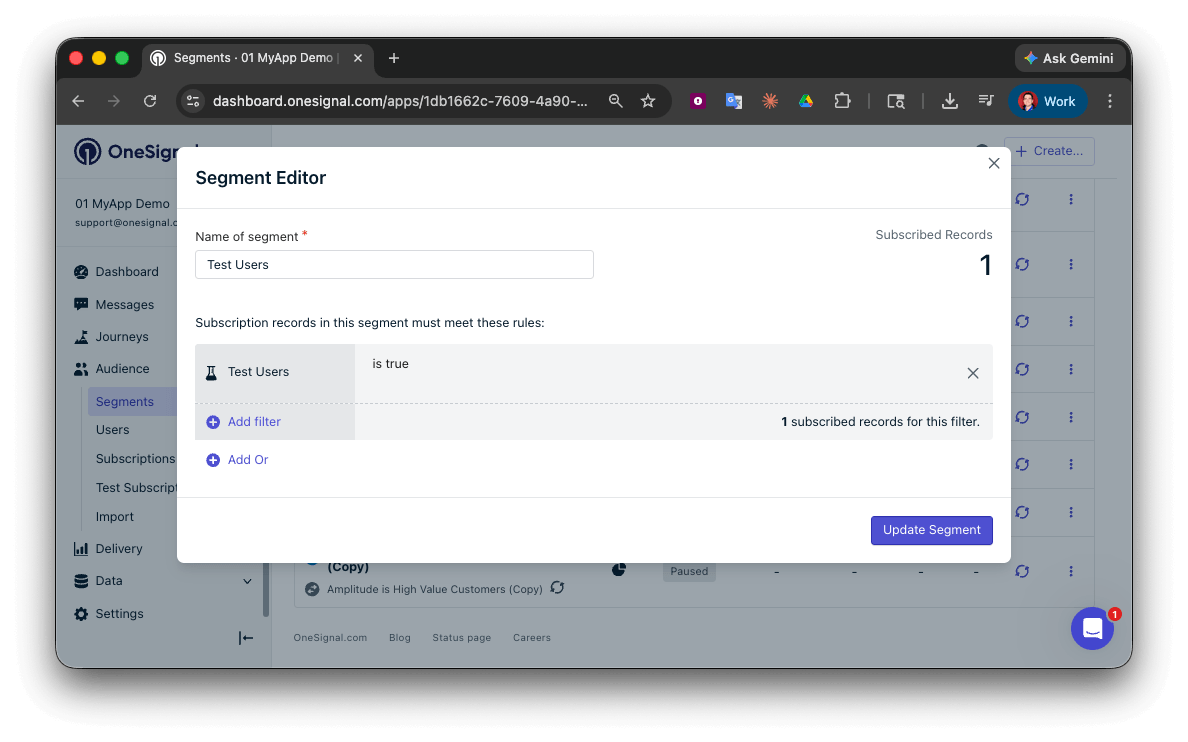 You have successfully created a segment of test users.
You can now test sending messages to this individual device and groups of test users.
### Send test push via API
In your OneSignal dashboard, go to **Settings > [Keys & IDs](/docs/en/keys-and-ids)**.
Replace `YOUR_APP_API_KEY` and `YOUR_APP_ID` in the code below with your actual keys. This code uses the `Test Users` segment created earlier.
```curl theme={null}
curl -X POST --url 'https://api.onesignal.com/notifications' \
--header 'content-type: application/json; charset=utf-8' \
--header 'authorization: Key YOUR_APP_API_KEY' \
--data '{
"app_id": "YOUR_APP_ID",
"target_channel": "push",
"name": "Testing basic setup",
"headings": {
"en": "👋"
},
"contents": {
"en": "Hello world!"
},
"included_segments": [
"Test Users"
],
"chrome_web_image": "https://avatars.githubusercontent.com/u/11823027?s=200&v=4"
}'
```
Run the code in your terminal.
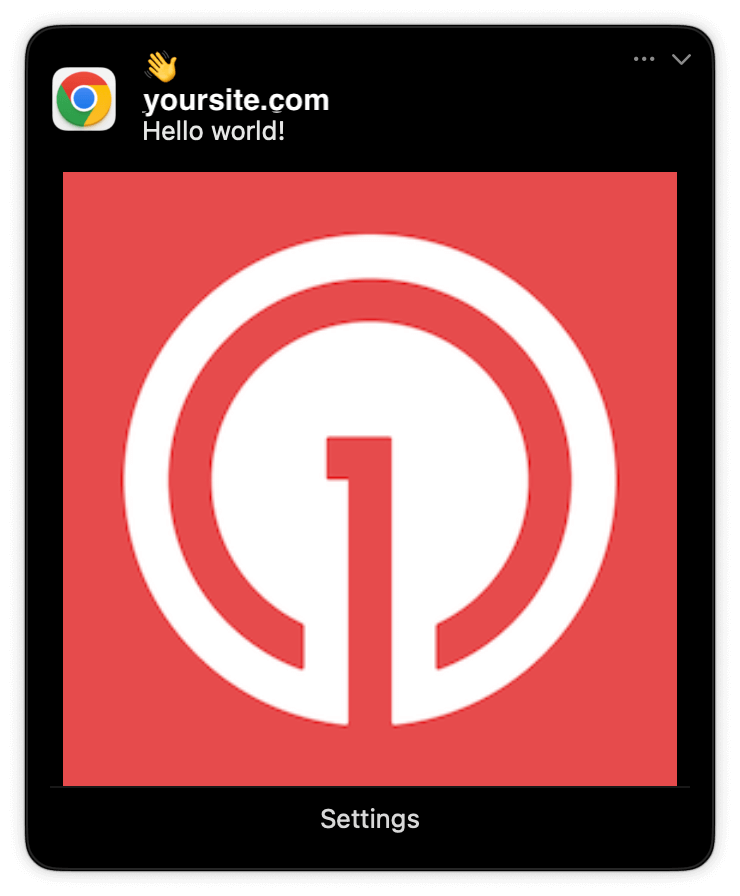
If all setup steps were completed successfully, the test users should receive a notification.
Only Chrome supports images. Images will appear small in the collapsed notification view. Expand the notification to see the full image.
You have successfully created a segment of test users.
You can now test sending messages to this individual device and groups of test users.
### Send test push via API
In your OneSignal dashboard, go to **Settings > [Keys & IDs](/docs/en/keys-and-ids)**.
Replace `YOUR_APP_API_KEY` and `YOUR_APP_ID` in the code below with your actual keys. This code uses the `Test Users` segment created earlier.
```curl theme={null}
curl -X POST --url 'https://api.onesignal.com/notifications' \
--header 'content-type: application/json; charset=utf-8' \
--header 'authorization: Key YOUR_APP_API_KEY' \
--data '{
"app_id": "YOUR_APP_ID",
"target_channel": "push",
"name": "Testing basic setup",
"headings": {
"en": "👋"
},
"contents": {
"en": "Hello world!"
},
"included_segments": [
"Test Users"
],
"chrome_web_image": "https://avatars.githubusercontent.com/u/11823027?s=200&v=4"
}'
```
Run the code in your terminal.
If all setup steps were completed successfully, the test users should receive a notification.
Only Chrome supports images. Images will appear small in the collapsed notification view. Expand the notification to see the full image.
 In your dashboard, go to **Delivery > Sent Messages**, then click the message to view stats. You should see the **confirmed** stat, meaning the device received the push.
Safari does not support confirmed receipt.
View delivery, click, and conversion stats for your push notifications.
You have successfully sent a notification via the API to a segment.
If notifications are not arriving, contact `support@onesignal.com` with the following:
* The API request and response (copy-paste into a `.txt` file)
* Your Subscription ID
* Your website URL with the OneSignal code
***
## User identification
The previous section covered creating web push [Subscriptions](/docs/en/subscriptions). This section expands to identifying [Users](/docs/en/users) across all their subscriptions (including push, email, and SMS) using the OneSignal SDK. It covers External IDs, tags, multi-channel subscriptions, privacy, and event tracking to help you unify and engage users across platforms.
### Assign External ID
Use an External ID to identify users consistently across devices, email addresses, and phone numbers using your backend's user identifier. This ensures your messaging stays unified across channels and 3rd party systems (especially important for [Integrations](/docs/en/integrations)).
Set the External ID with the SDK's [`login` method](/docs/en/web-sdk-reference#login-external-id) each time a user is identified by your app.
OneSignal generates unique read-only IDs for subscriptions (Subscription ID) and users (OneSignal ID).
As users download your app on different devices, subscribe to your website, and/or provide you email addresses and phone numbers outside of your app, new subscriptions will be created.
Setting the External ID via the SDK is highly recommended to identify users across all their subscriptions, regardless of how they are created.
### Add Tags
[Tags](/docs/en/add-user-data-tags) are key-value pairs of string data you can use to store user properties (like `username`, `role`, or preferences) and events (like `purchase_date`, `game_level`, or user interactions). Tags power advanced [Message Personalization](/docs/en/message-personalization) and [Segmentation](/docs/en/segmentation) allowing for more advanced use cases.
Set tags with the SDK's [`addTag` and `addTags` methods](/docs/en/web-sdk-reference#addtag-%2C-addtags) as events occur in your app.
In this example, the user reached level 6 identifiable by the tag called `current_level` set to a value of `6`.
In your dashboard, go to **Delivery > Sent Messages**, then click the message to view stats. You should see the **confirmed** stat, meaning the device received the push.
Safari does not support confirmed receipt.
View delivery, click, and conversion stats for your push notifications.
You have successfully sent a notification via the API to a segment.
If notifications are not arriving, contact `support@onesignal.com` with the following:
* The API request and response (copy-paste into a `.txt` file)
* Your Subscription ID
* Your website URL with the OneSignal code
***
## User identification
The previous section covered creating web push [Subscriptions](/docs/en/subscriptions). This section expands to identifying [Users](/docs/en/users) across all their subscriptions (including push, email, and SMS) using the OneSignal SDK. It covers External IDs, tags, multi-channel subscriptions, privacy, and event tracking to help you unify and engage users across platforms.
### Assign External ID
Use an External ID to identify users consistently across devices, email addresses, and phone numbers using your backend's user identifier. This ensures your messaging stays unified across channels and 3rd party systems (especially important for [Integrations](/docs/en/integrations)).
Set the External ID with the SDK's [`login` method](/docs/en/web-sdk-reference#login-external-id) each time a user is identified by your app.
OneSignal generates unique read-only IDs for subscriptions (Subscription ID) and users (OneSignal ID).
As users download your app on different devices, subscribe to your website, and/or provide you email addresses and phone numbers outside of your app, new subscriptions will be created.
Setting the External ID via the SDK is highly recommended to identify users across all their subscriptions, regardless of how they are created.
### Add Tags
[Tags](/docs/en/add-user-data-tags) are key-value pairs of string data you can use to store user properties (like `username`, `role`, or preferences) and events (like `purchase_date`, `game_level`, or user interactions). Tags power advanced [Message Personalization](/docs/en/message-personalization) and [Segmentation](/docs/en/segmentation) allowing for more advanced use cases.
Set tags with the SDK's [`addTag` and `addTags` methods](/docs/en/web-sdk-reference#addtag-%2C-addtags) as events occur in your app.
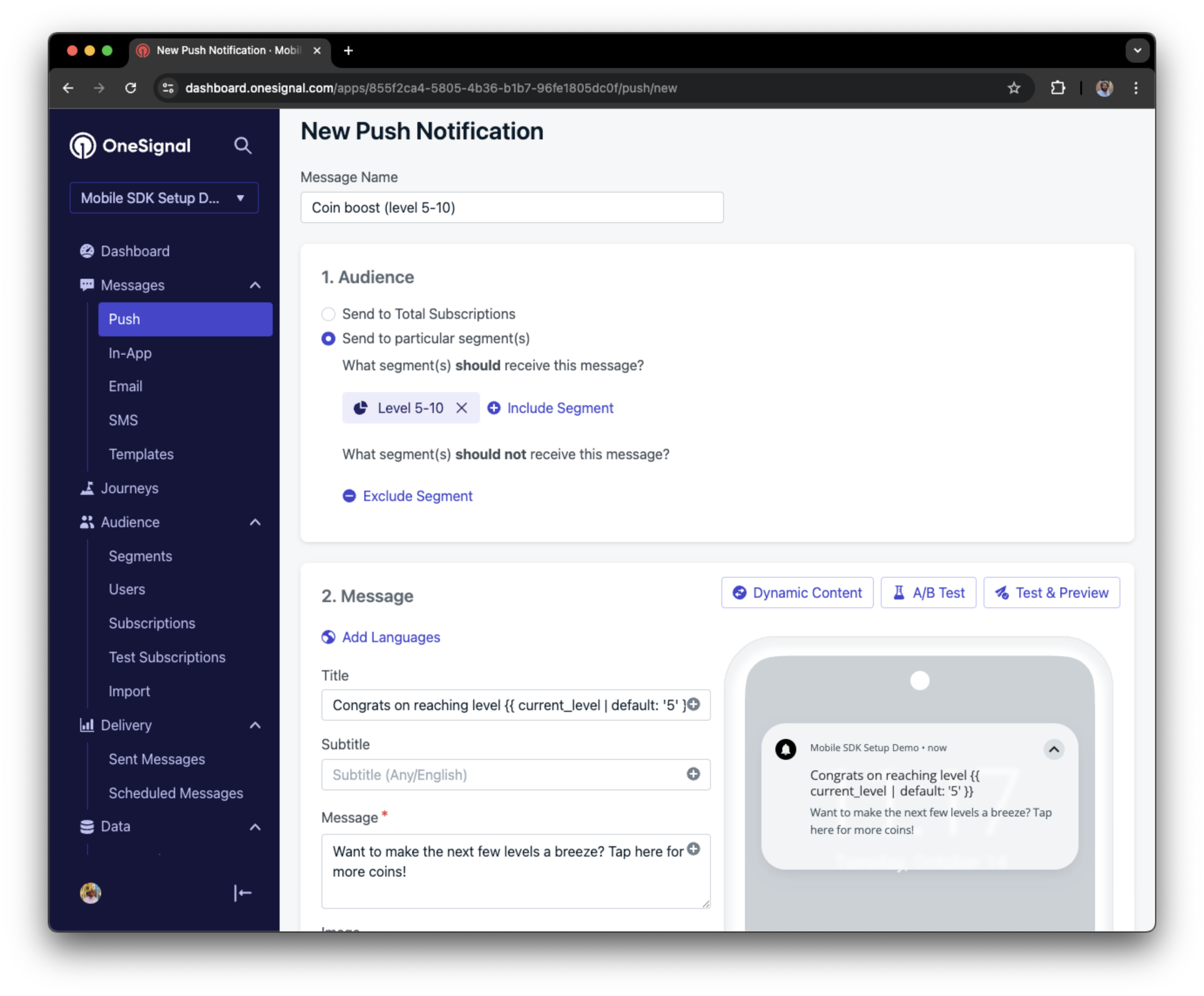
In this example, the user reached level 6 identifiable by the tag called `current_level` set to a value of `6`.
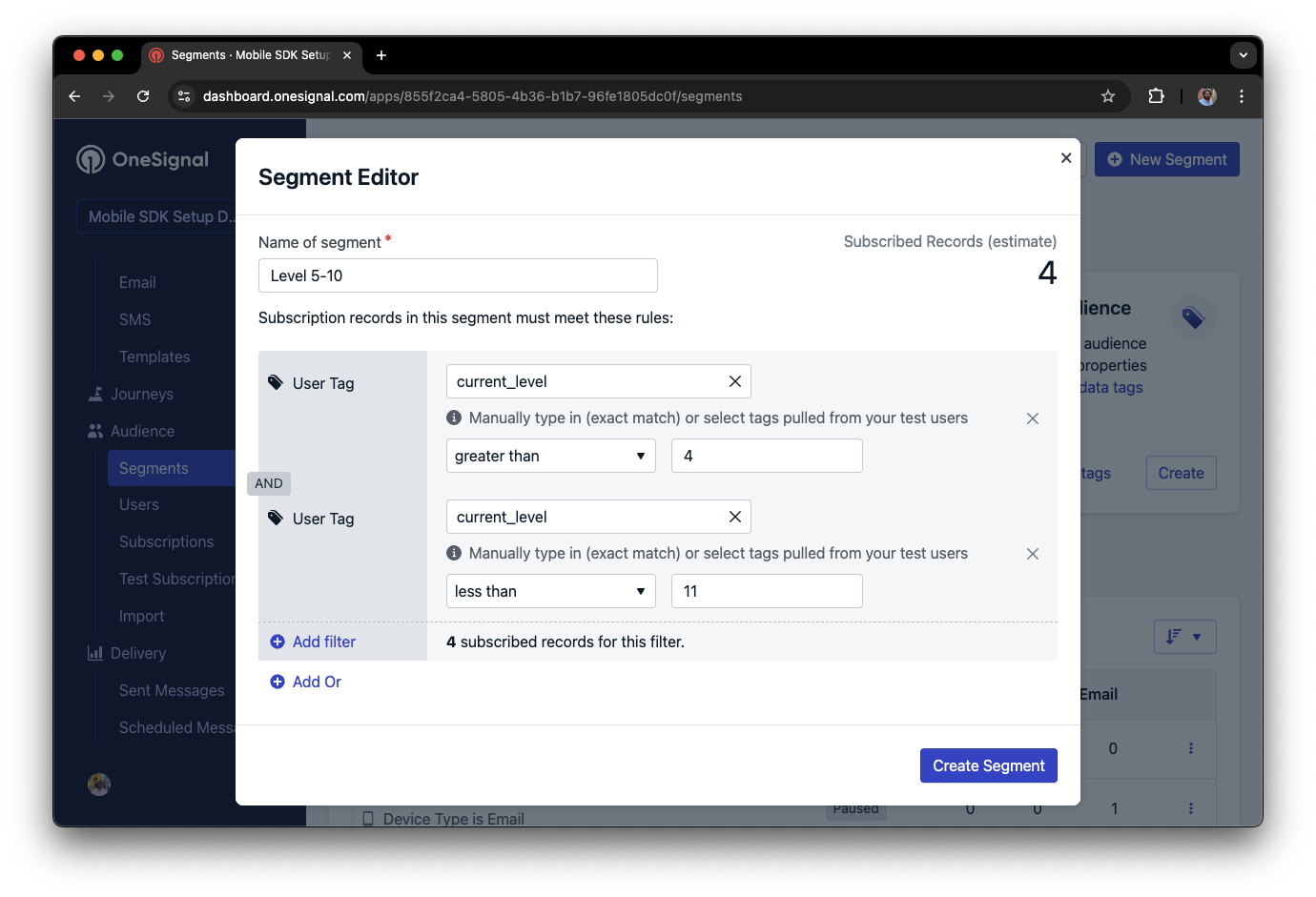
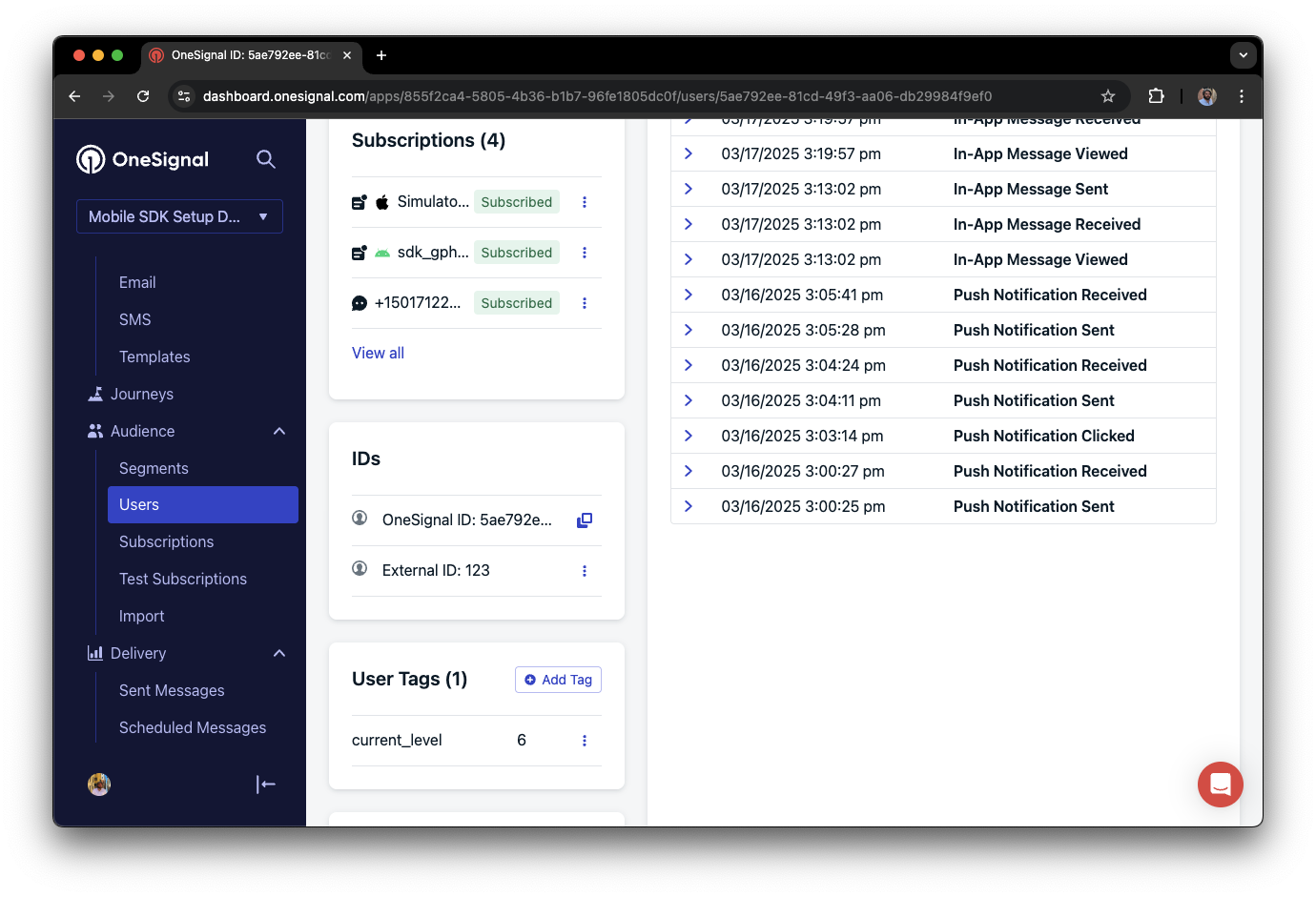 You can create a segment of users with a level between 5 and 10, then use that segment to send targeted and personalized messages:
 ### Add email and/or SMS subscriptions
The OneSignal SDK creates web push subscriptions automatically when users opt in. You can also reach users through email and SMS channels by creating the corresponding subscriptions.
* Use the [`addEmail` method](/docs/en/web-sdk-reference#addemail-%2C-removeemail) to create email subscriptions.
* Use the [`addSms` method](/docs/en/web-sdk-reference#addsms-%2C-removesms) to create SMS subscriptions.
If the email address or phone number already exists in the OneSignal app, the SDK adds it to the existing user. It does not create duplicates.
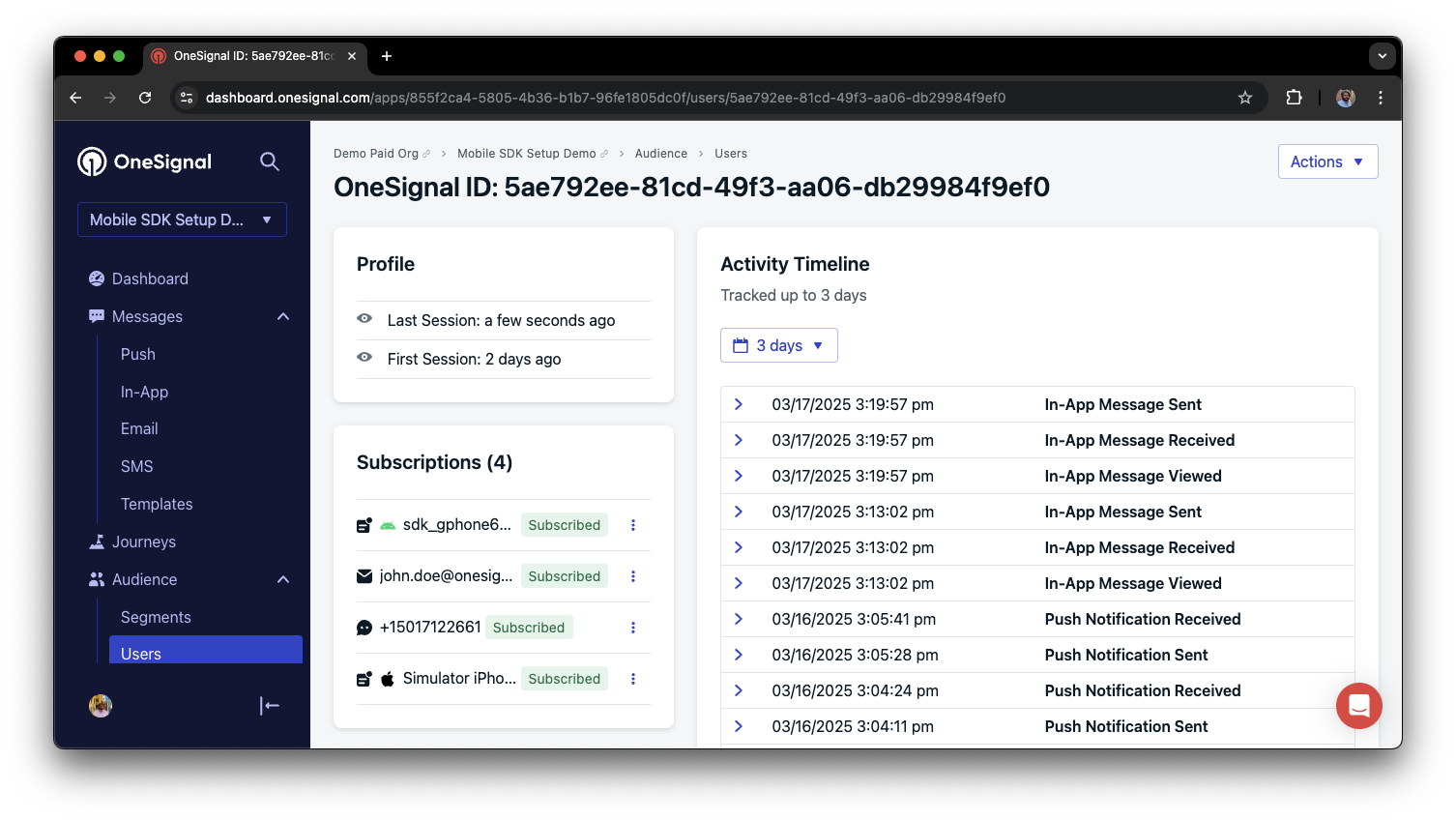
You can view unified users via **Audience > Users** in the dashboard or with the [View user API](/reference/view-user).
### Add email and/or SMS subscriptions
The OneSignal SDK creates web push subscriptions automatically when users opt in. You can also reach users through email and SMS channels by creating the corresponding subscriptions.
* Use the [`addEmail` method](/docs/en/web-sdk-reference#addemail-%2C-removeemail) to create email subscriptions.
* Use the [`addSms` method](/docs/en/web-sdk-reference#addsms-%2C-removesms) to create SMS subscriptions.
If the email address or phone number already exists in the OneSignal app, the SDK adds it to the existing user. It does not create duplicates.
You can view unified users via **Audience > Users** in the dashboard or with the [View user API](/reference/view-user).
 Best practices for multi-channel communication
* Obtain explicit consent before adding email or SMS subscriptions.
* Explain the benefits of each communication channel to users.
* Provide channel preferences so users can select which channels they prefer.
***
### Privacy & user consent
To control when OneSignal collects user data, use the SDK's consent gating methods:
* [`setConsentRequired(true)`](/docs/en/web-sdk-reference#setconsentrequired): Prevents data collection until consent is given.
* [`setConsentGiven(true)`](/docs/en/web-sdk-reference#setconsentgiven): Enables data collection once consent is granted.
For more on privacy and security:
Review what data the OneSignal SDK collects from users.
Manage and protect user data in compliance with privacy regulations.
***
## Listen to push, user, and in-app events
Use SDK listeners to react to user actions and state changes.
The SDK provides several event listeners you can hook into. See the [SDK reference guide](/docs/en/web-sdk-reference) for more details.
### Push notification events
* [Click event listener](/docs/en/web-sdk-reference#click): Detect when a notification is tapped.
* [Foreground lifecycle listener](/docs/en/web-sdk-reference#foregroundwilldisplay): Control how notifications behave in foreground.
### User state changes
* [User state change event listener](/docs/en/web-sdk-reference#addeventlistener-user-state): Detect when the External ID is set.
* [Permission observer](/docs/en/web-sdk-reference#permissionchange): Track the user's specific interaction with the native push permission prompt.
* [Push subscription change observer](/docs/en/web-sdk-reference#addeventlistener-push-subscription-changes): Track when the push subscription status changes.
***
## Advanced setup & capabilities
Explore more capabilities to enhance your integration:
Move from another push provider to OneSignal.
Connect OneSignal with third-party tools and platforms.
Add interactive buttons to push notifications.
Send localized messages to users in their preferred language.
Secure your SDK integration with server-side identity verification.
Track custom conversion events tied to your messages.
### Web SDK setup & reference
Enable all key web push features for your integration.
Full details on available methods and configuration options.
Congratulations! You've successfully completed the Web SDK setup guide.
***
***
## Preguntas frecuentes
### ¿Funciona web push en sitios HTTP?
No. Web push requiere HTTPS. Los navegadores aplican esto como un requisito de seguridad. La única excepción es `localhost` y `127.0.0.1`, que los navegadores tratan como orígenes seguros para fines de desarrollo.
### ¿Por qué necesito un archivo service worker?
El service worker se ejecuta en segundo plano y gestiona las notificaciones push entrantes incluso cuando el usuario no tiene tu sitio abierto. Sin él, el navegador no puede mostrar notificaciones. El archivo `OneSignalSDKWorker.js` debe ser públicamente accesible en tu origen.
### ¿Puedo usar web push en iOS (iPhone/iPad)?
Sí, a partir de iOS 16.4+. Sin embargo, Apple requiere un archivo `manifest.json` y el usuario debe agregar tu sitio a su pantalla de inicio primero. Consulta [Configuración iOS web push](./web-push-for-ios) para conocer todos los requisitos.
### ¿Por qué no se muestran mis notificaciones?
Las causas comunes incluyen un archivo service worker colocado incorrectamente, una URL del sitio que no coincide en el dashboard, o el usuario tiene las notificaciones bloqueadas en la configuración de su navegador. Consulta [Notificaciones que se muestran correctamente pero no aparecen](./notifications-show-successful-but-are-not-being-shown) para obtener una lista completa de solución de problemas.
***
Need help?
Chat with our Support team or email `support@onesignal.com`
Please include:
* Details of the issue you're experiencing and steps to reproduce if available
* Your OneSignal App ID
* The External ID or Subscription ID if applicable
* The URL to the message you tested in the OneSignal Dashboard if applicable
* Any relevant [logs or error messages](/docs/en/capturing-a-debug-log)
We're happy to help!
***
Best practices for multi-channel communication
* Obtain explicit consent before adding email or SMS subscriptions.
* Explain the benefits of each communication channel to users.
* Provide channel preferences so users can select which channels they prefer.
***
### Privacy & user consent
To control when OneSignal collects user data, use the SDK's consent gating methods:
* [`setConsentRequired(true)`](/docs/en/web-sdk-reference#setconsentrequired): Prevents data collection until consent is given.
* [`setConsentGiven(true)`](/docs/en/web-sdk-reference#setconsentgiven): Enables data collection once consent is granted.
For more on privacy and security:
Review what data the OneSignal SDK collects from users.
Manage and protect user data in compliance with privacy regulations.
***
## Listen to push, user, and in-app events
Use SDK listeners to react to user actions and state changes.
The SDK provides several event listeners you can hook into. See the [SDK reference guide](/docs/en/web-sdk-reference) for more details.
### Push notification events
* [Click event listener](/docs/en/web-sdk-reference#click): Detect when a notification is tapped.
* [Foreground lifecycle listener](/docs/en/web-sdk-reference#foregroundwilldisplay): Control how notifications behave in foreground.
### User state changes
* [User state change event listener](/docs/en/web-sdk-reference#addeventlistener-user-state): Detect when the External ID is set.
* [Permission observer](/docs/en/web-sdk-reference#permissionchange): Track the user's specific interaction with the native push permission prompt.
* [Push subscription change observer](/docs/en/web-sdk-reference#addeventlistener-push-subscription-changes): Track when the push subscription status changes.
***
## Advanced setup & capabilities
Explore more capabilities to enhance your integration:
Move from another push provider to OneSignal.
Connect OneSignal with third-party tools and platforms.
Add interactive buttons to push notifications.
Send localized messages to users in their preferred language.
Secure your SDK integration with server-side identity verification.
Track custom conversion events tied to your messages.
### Web SDK setup & reference
Enable all key web push features for your integration.
Full details on available methods and configuration options.
Congratulations! You've successfully completed the Web SDK setup guide.
***
***
## Preguntas frecuentes
### ¿Funciona web push en sitios HTTP?
No. Web push requiere HTTPS. Los navegadores aplican esto como un requisito de seguridad. La única excepción es `localhost` y `127.0.0.1`, que los navegadores tratan como orígenes seguros para fines de desarrollo.
### ¿Por qué necesito un archivo service worker?
El service worker se ejecuta en segundo plano y gestiona las notificaciones push entrantes incluso cuando el usuario no tiene tu sitio abierto. Sin él, el navegador no puede mostrar notificaciones. El archivo `OneSignalSDKWorker.js` debe ser públicamente accesible en tu origen.
### ¿Puedo usar web push en iOS (iPhone/iPad)?
Sí, a partir de iOS 16.4+. Sin embargo, Apple requiere un archivo `manifest.json` y el usuario debe agregar tu sitio a su pantalla de inicio primero. Consulta [Configuración iOS web push](./web-push-for-ios) para conocer todos los requisitos.
### ¿Por qué no se muestran mis notificaciones?
Las causas comunes incluyen un archivo service worker colocado incorrectamente, una URL del sitio que no coincide en el dashboard, o el usuario tiene las notificaciones bloqueadas en la configuración de su navegador. Consulta [Notificaciones que se muestran correctamente pero no aparecen](./notifications-show-successful-but-are-not-being-shown) para obtener una lista completa de solución de problemas.
***
Need help?
Chat with our Support team or email `support@onesignal.com`
Please include:
* Details of the issue you're experiencing and steps to reproduce if available
* Your OneSignal App ID
* The External ID or Subscription ID if applicable
* The URL to the message you tested in the OneSignal Dashboard if applicable
* Any relevant [logs or error messages](/docs/en/capturing-a-debug-log)
We're happy to help!
***