> ## Documentation Index
> Fetch the complete documentation index at: https://documentation.onesignal.com/llms.txt
> Use this file to discover all available pages before exploring further.
# WordPress Legacy Setup
> Complete guide to setting up and customizing OneSignal Web Push notifications on WordPress sites using plugin versions 2.x.x, including advanced customizations, prompts, and troubleshooting
This comprehensive guide walks you through setting up and customizing web push notifications using OneSignal WordPress plugin versions 2.x.x. If you're using version 3 or higher, see our [WordPress v3+ guide](./wordpress).
This guide is specifically for OneSignal WordPress plugin version 2.x.x. For version 3+, please refer to our updated [WordPress documentation](./wordpress).
## Prerequisites
* WordPress website with admin access
* HTTPS enabled (required for web push notifications)
* OneSignal account (free at onesignal.com)
***
## Step 1: Choose Integration
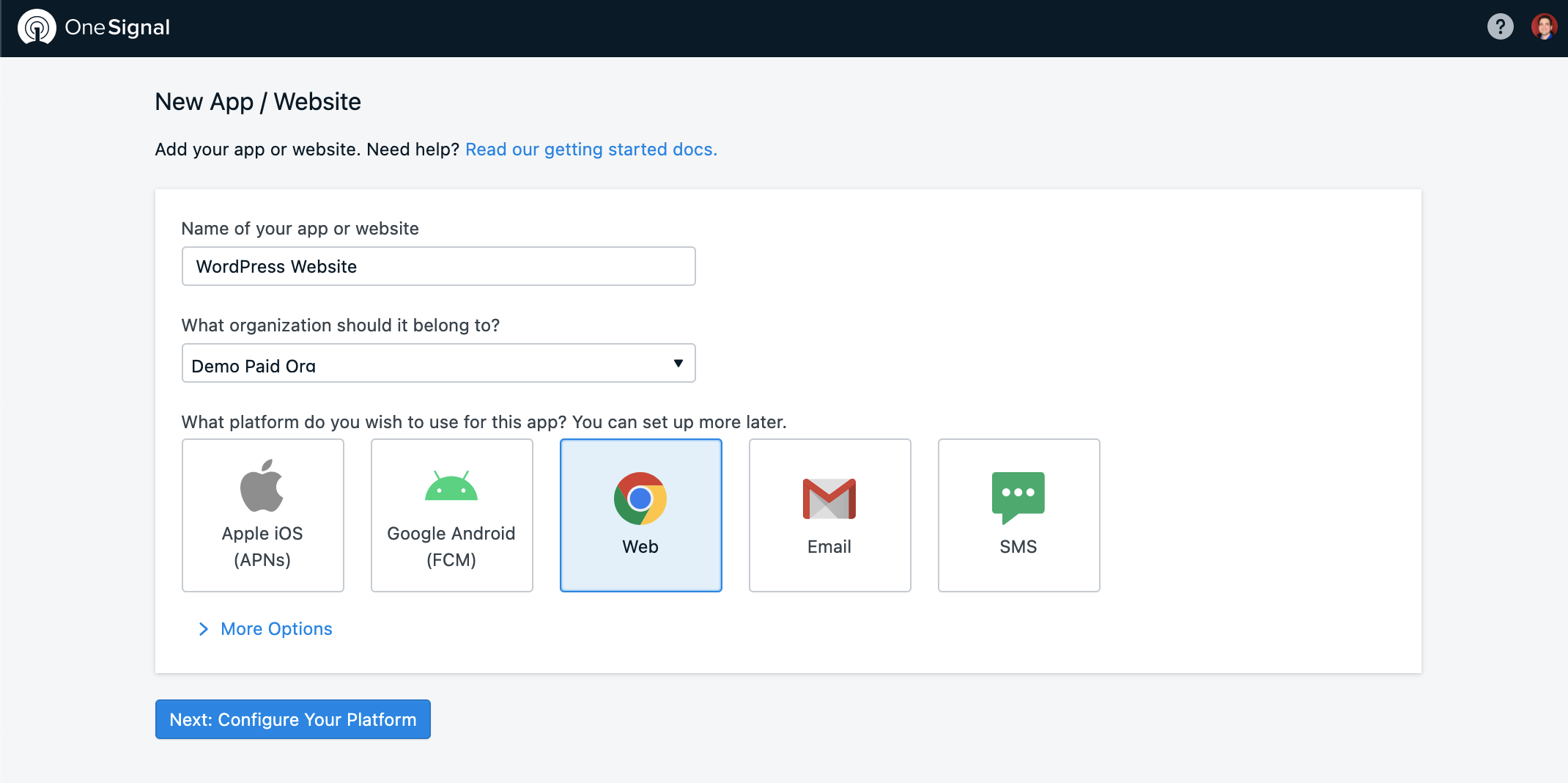
Create your OneSignal account at onesignal.com. If this isn't your first app, select **New App/Website**, name your app, select **Web**, and click "Next".
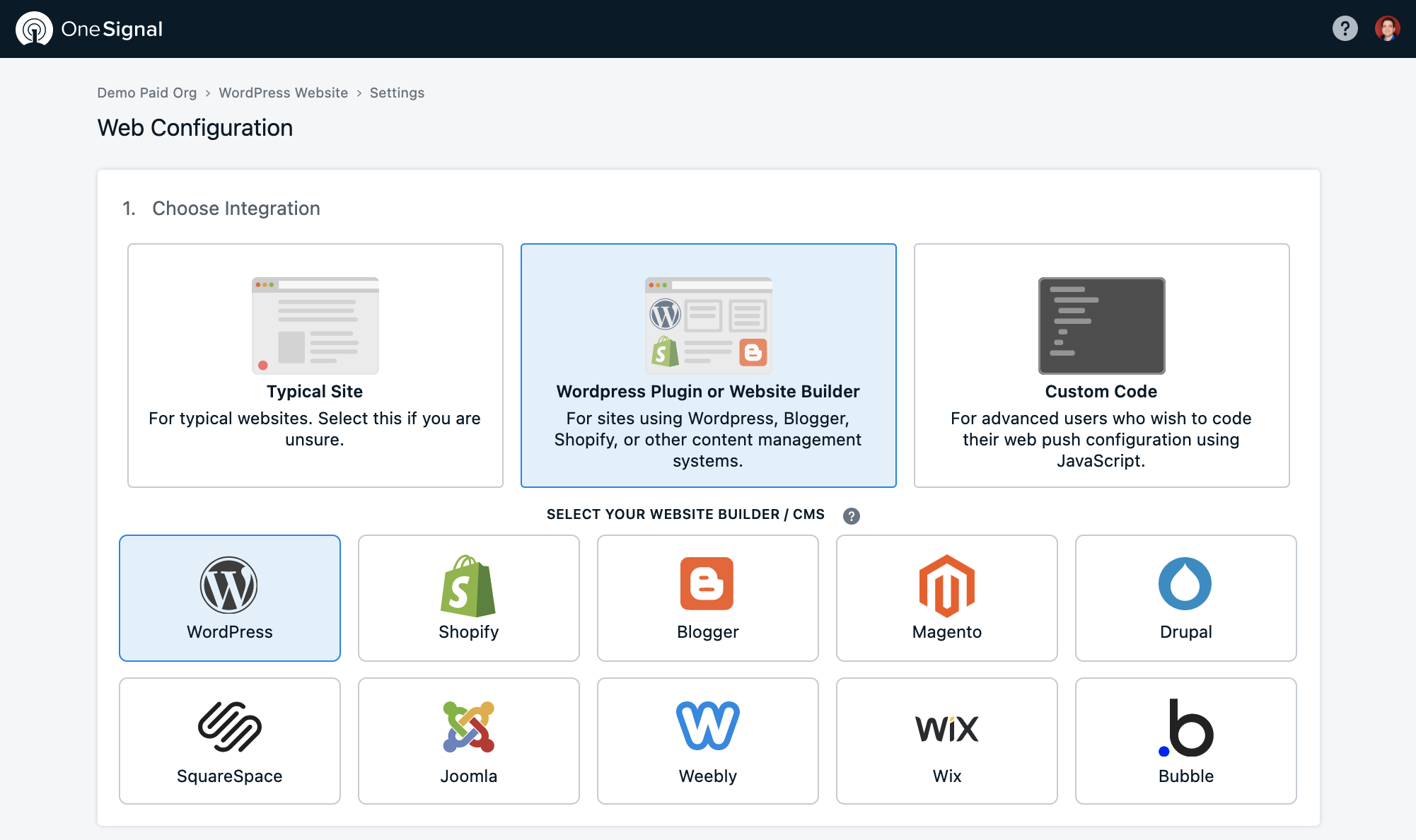
 Select **WordPress Plugin or Website Builder** to continue:
 ## Step 2: Site Setup
Configure your site information carefully as these settings affect all notifications:
## Step 2: Site Setup
Configure your site information carefully as these settings affect all notifications:
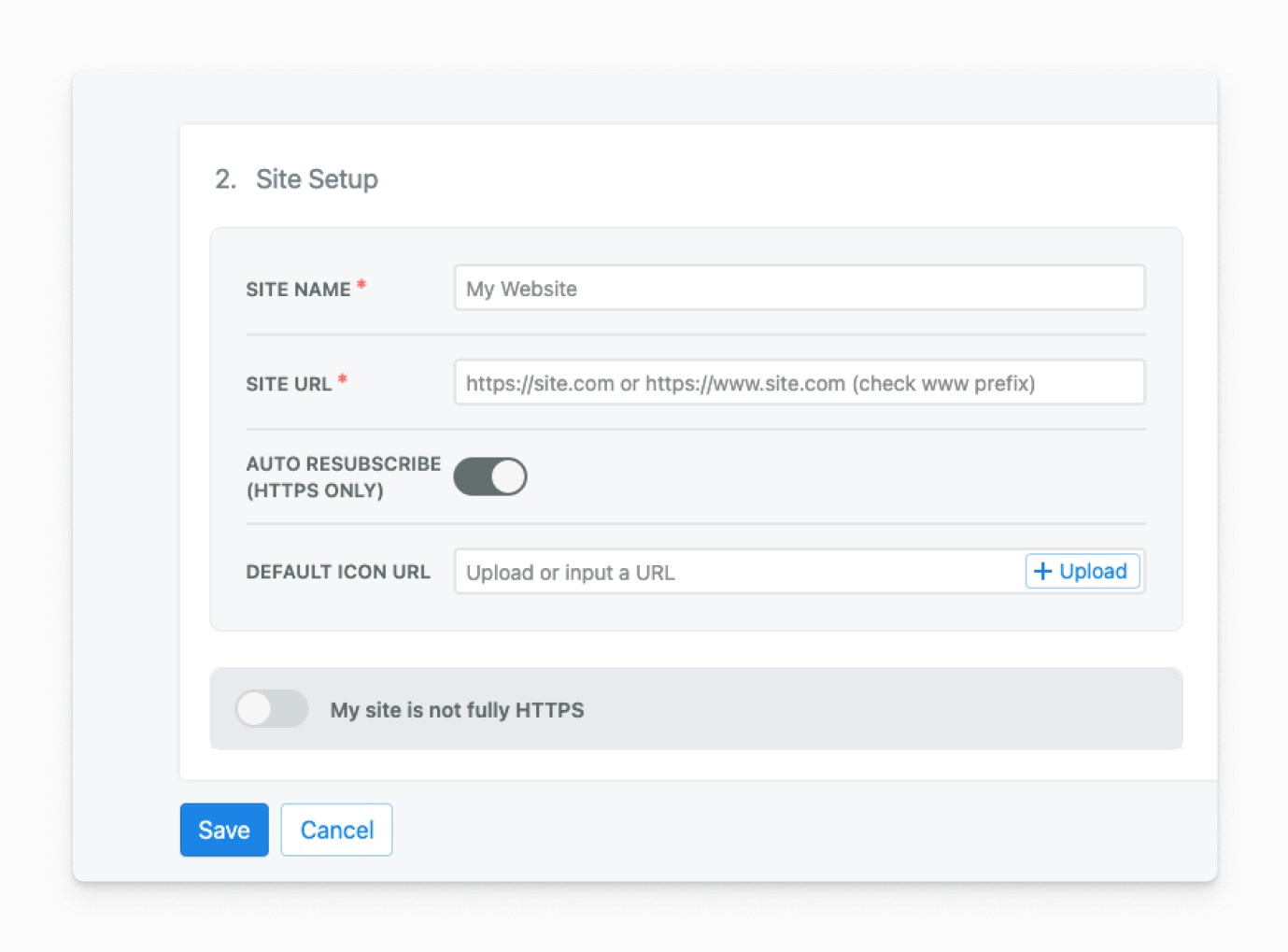 | Field | Description | Requirements |
| -------------------- | ------------------------------------------------------- | --------------------------------------------------------------------- |
| **Site Name** | Default name displayed in push notifications | Keep concise for better display |
| **Site URL** | Your complete website URL | Must include `http://` or `https://` and match your actual URL format |
| **Auto Resubscribe** | Automatically resubscribes returning users (HTTPS only) | **Recommended** - Reduces friction for users who cleared browser data |
| **Default Icon URL** | Icon for prompts and notifications | Must be HTTPS, square 256x256 pixels, PNG/JPG/GIF format |
**URL Format Important:** Ensure your Site URL exactly matches how users access your site. Mismatched URLs (www vs non-www, http vs https) can cause subscription issues.
## Step 3: Advanced Push Settings (Optional)
OneSignal provides Safari Web Push certificates at no cost. Only upload custom certificates if you have specific requirements.
| Field | Description | Requirements |
| -------------------- | ------------------------------------------------------- | --------------------------------------------------------------------- |
| **Site Name** | Default name displayed in push notifications | Keep concise for better display |
| **Site URL** | Your complete website URL | Must include `http://` or `https://` and match your actual URL format |
| **Auto Resubscribe** | Automatically resubscribes returning users (HTTPS only) | **Recommended** - Reduces friction for users who cleared browser data |
| **Default Icon URL** | Icon for prompts and notifications | Must be HTTPS, square 256x256 pixels, PNG/JPG/GIF format |
**URL Format Important:** Ensure your Site URL exactly matches how users access your site. Mismatched URLs (www vs non-www, http vs https) can cause subscription issues.
## Step 3: Advanced Push Settings (Optional)
OneSignal provides Safari Web Push certificates at no cost. Only upload custom certificates if you have specific requirements.
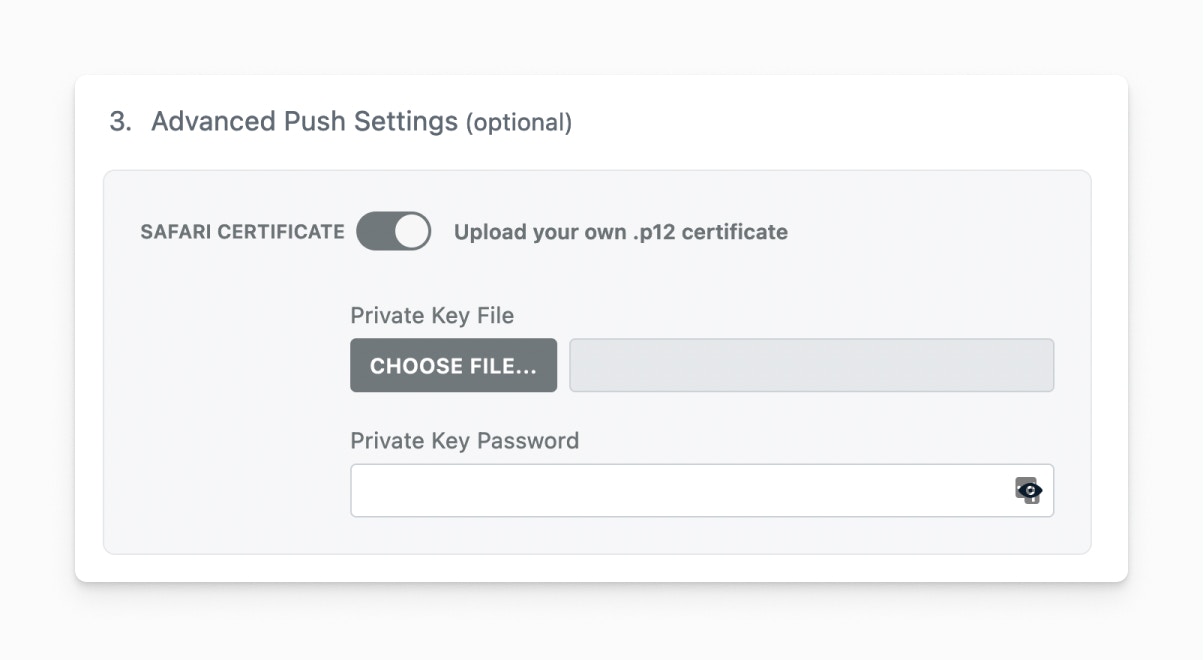 **When to Use Custom Certificates:**
* You have existing Safari certificates
* Your organization requires specific certificate management
* You need custom certificate branding
## Step 4: Configure WordPress Plugin
### Install the Plugin
Add the [OneSignal WordPress Plugin](https://wordpress.org/plugins/onesignal-free-web-push-notifications/) from your WordPress admin or by searching "OneSignal" in the plugin directory.
### Configure API Keys
Copy your App ID and API Key from the OneSignal dashboard:
**When to Use Custom Certificates:**
* You have existing Safari certificates
* Your organization requires specific certificate management
* You need custom certificate branding
## Step 4: Configure WordPress Plugin
### Install the Plugin
Add the [OneSignal WordPress Plugin](https://wordpress.org/plugins/onesignal-free-web-push-notifications/) from your WordPress admin or by searching "OneSignal" in the plugin directory.
### Configure API Keys
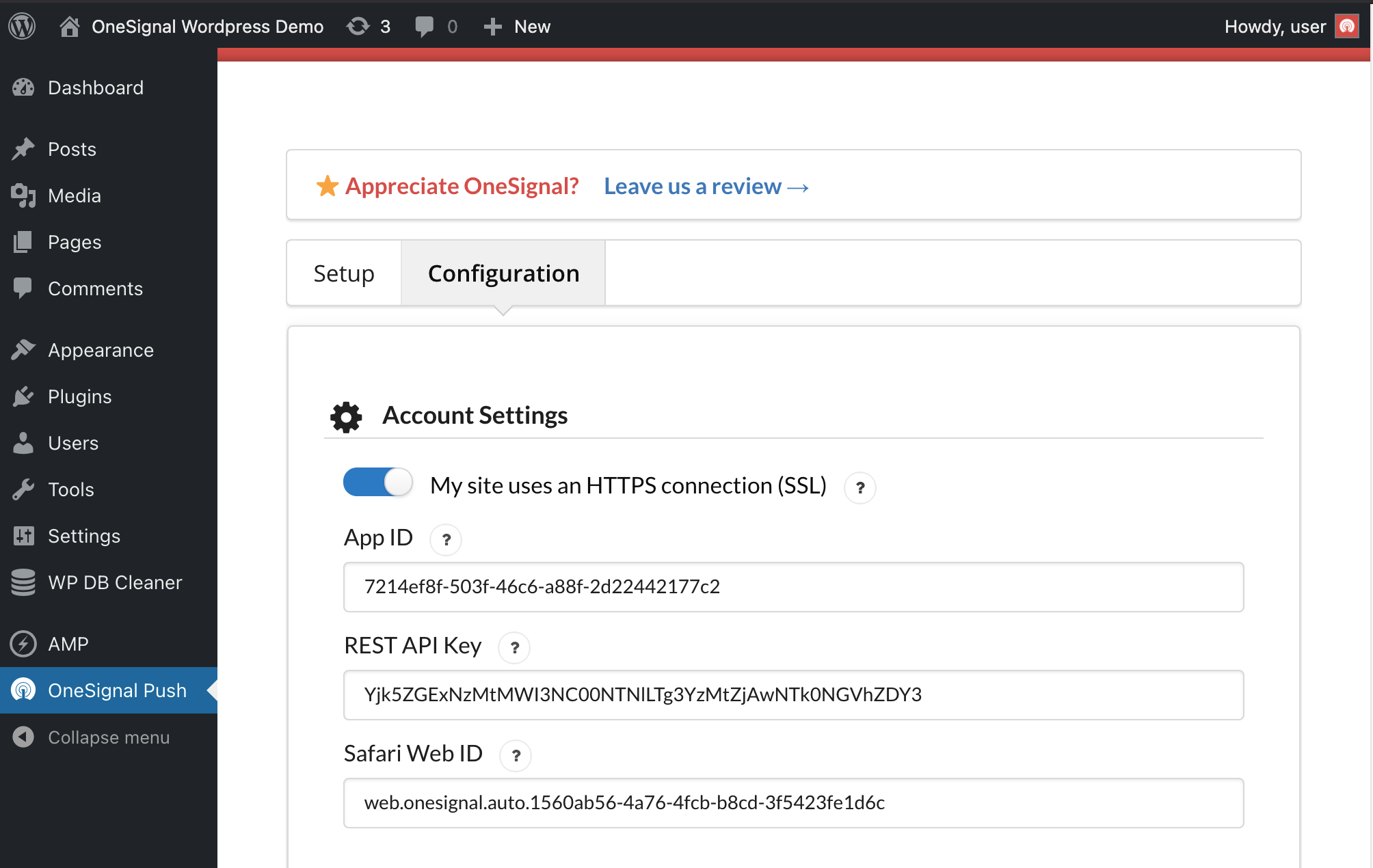
Copy your App ID and API Key from the OneSignal dashboard:
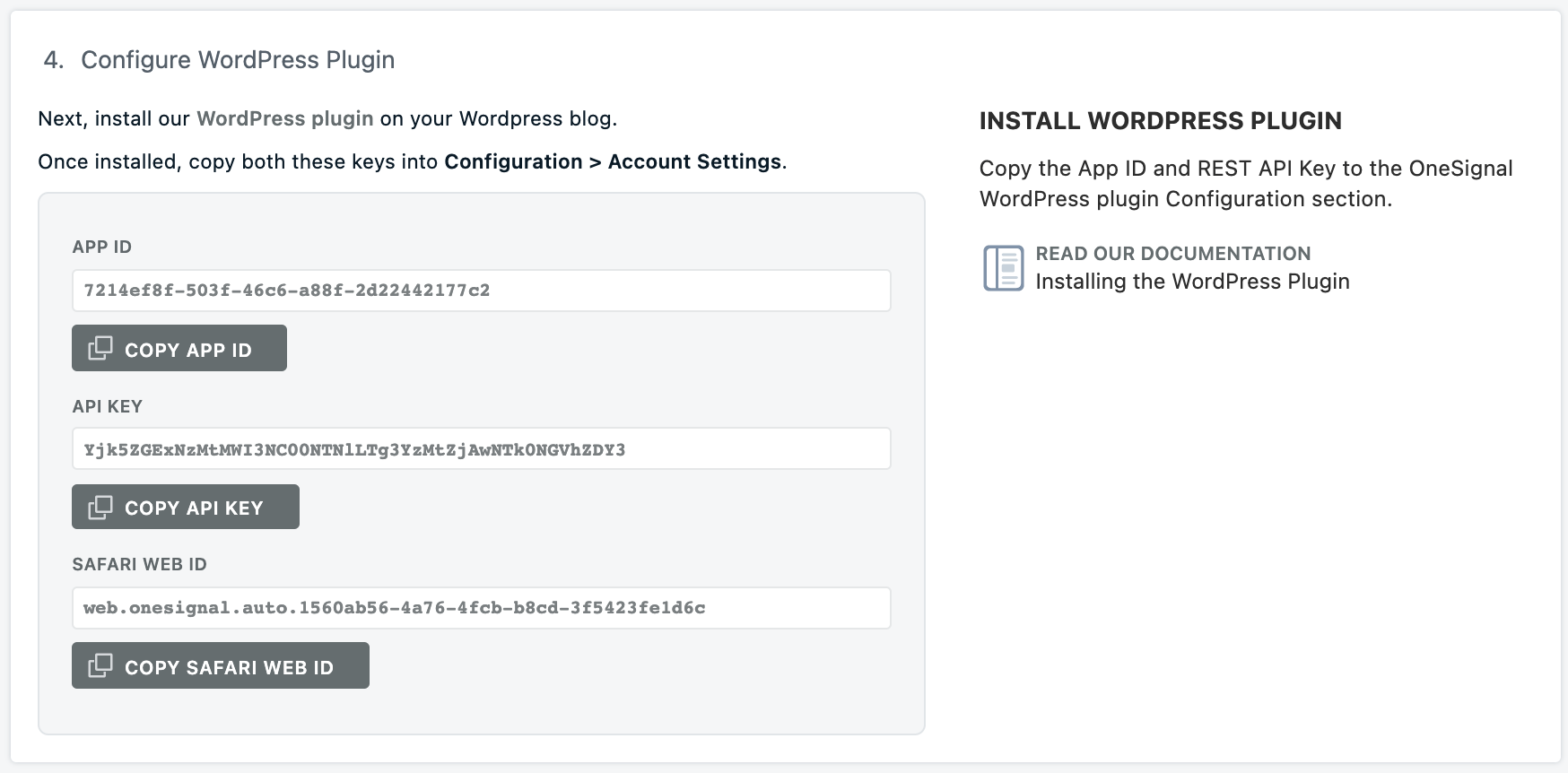 Navigate to your WordPress admin → **OneSignal Push** → **Configure** tab and paste the keys:
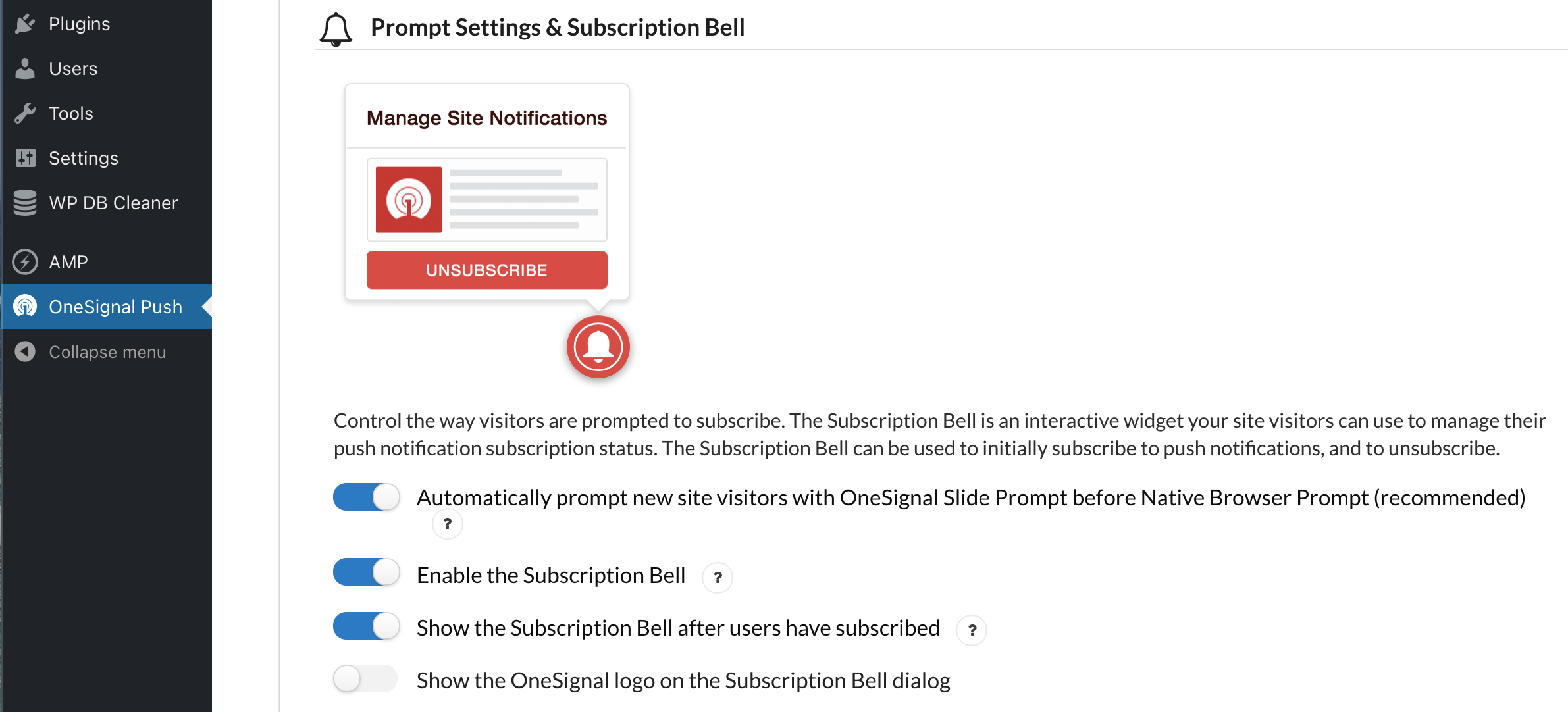
 ### Enable Push Prompts
Activate the Slide Prompt and Subscription Bell to request permission from visitors:
### Enable Push Prompts
Activate the Slide Prompt and Subscription Bell to request permission from visitors:
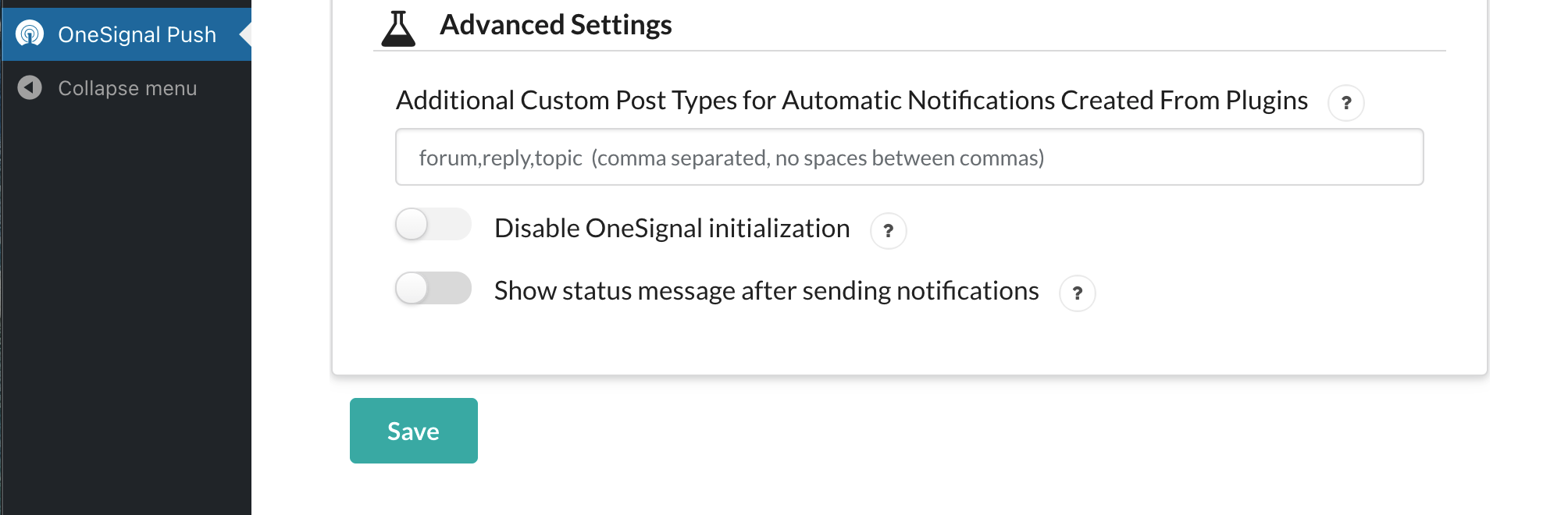
 **Save your configuration** - this is critical for the plugin to function properly.
 ## Step 5: Test Your Setup
### Verify Installation
1. Visit your website (you may need to clear cache plugins)
2. Look for the OneSignal Slide Prompt and Subscription Bell
3. Subscribe to test the flow
4. Check **OneSignal Dashboard → Audience → Users** to confirm your subscription
### Send Test Notification
Navigate to **OneSignal Dashboard → Messages → New Push** to send your first notification and verify everything works.
**Troubleshooting:** If prompts don't appear, check that [push notifications are enabled in your device settings](./notifications-not-shown-web-push#notifications-are-blocked-in-settings) and try clearing your browser cache.
## Step 6: Configure Notification Prompts
Set up how and when users see subscription prompts in the **Configure** section:
### Subscription Bell
A persistent icon (usually in the corner) that users can click anytime to manage their subscription status.
### Slide Prompt
A modal dialog that appears based on your timing settings to request permission.
**Next Steps:** Users typically want to customize prompt timing and appearance. See the [Advanced Customizations](#advanced-customizations) section below.
## Step 7: Automatic Post Notifications
### Basic Setup
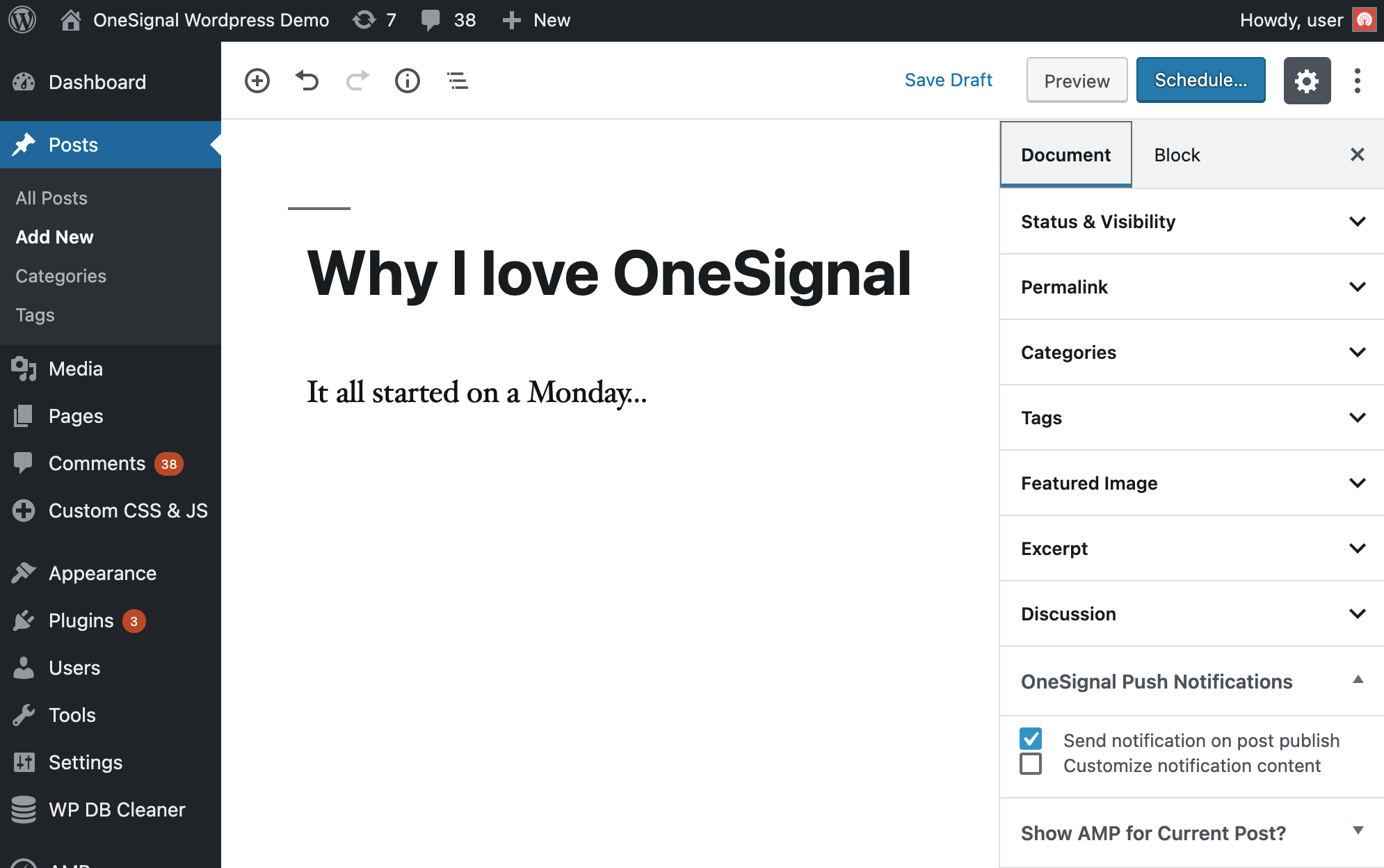
When creating posts, you'll see a OneSignal section. Check **Send notification on post publish** to notify subscribers:
## Step 5: Test Your Setup
### Verify Installation
1. Visit your website (you may need to clear cache plugins)
2. Look for the OneSignal Slide Prompt and Subscription Bell
3. Subscribe to test the flow
4. Check **OneSignal Dashboard → Audience → Users** to confirm your subscription
### Send Test Notification
Navigate to **OneSignal Dashboard → Messages → New Push** to send your first notification and verify everything works.
**Troubleshooting:** If prompts don't appear, check that [push notifications are enabled in your device settings](./notifications-not-shown-web-push#notifications-are-blocked-in-settings) and try clearing your browser cache.
## Step 6: Configure Notification Prompts
Set up how and when users see subscription prompts in the **Configure** section:
### Subscription Bell
A persistent icon (usually in the corner) that users can click anytime to manage their subscription status.
### Slide Prompt
A modal dialog that appears based on your timing settings to request permission.
**Next Steps:** Users typically want to customize prompt timing and appearance. See the [Advanced Customizations](#advanced-customizations) section below.
## Step 7: Automatic Post Notifications
### Basic Setup
When creating posts, you'll see a OneSignal section. Check **Send notification on post publish** to notify subscribers:
 ### Auto-Enable Notifications
To automatically check this box for all new posts:
1. Go to **OneSignal Push** → **Automatic Notification Settings**
2. Enable **Automatically send a push notification when I create a post**
3. Save settings
### Auto-Enable Notifications
To automatically check this box for all new posts:
1. Go to **OneSignal Push** → **Automatic Notification Settings**
2. Enable **Automatically send a push notification when I create a post**
3. Save settings
 ### Welcome Notifications
Configure optional welcome messages sent immediately after users subscribe. Edit or disable these in the **Configure** section of your plugin.
**Rate Limiting:** Multiple notifications for the same post are limited to one per minute to prevent spam.
***
## Advanced Customizations
The OneSignal WordPress plugin loads our Web Push SDK with your configured options. You can use any [Web Push SDK JavaScript APIs](./web-sdk-reference) to customize the experience further.
**Developer Note:** This section requires JavaScript and PHP knowledge. If you need help adding code to your site, consider using plugins like [Insert Headers and Footers](https://wordpress.org/plugins/insert-headers-and-footers/) or [Custom CSS & JS](https://wordpress.org/plugins/custom-css-js/).
### Customizing Subscription Prompts
#### Advanced Prompt Setup
For sophisticated prompt customization including delays, categories, and email collection:
##### Step 1: Disable Default Prompts
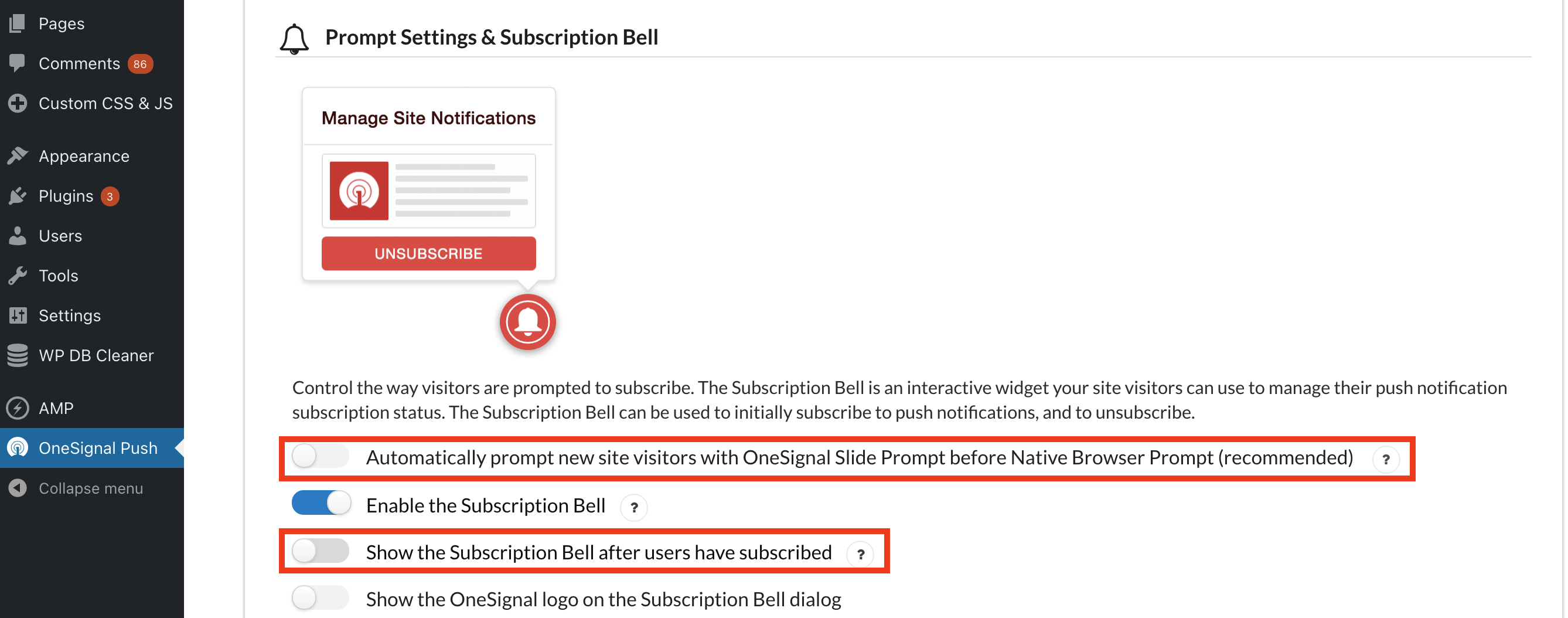
In **OneSignal WordPress Plugin → Prompt Settings**, turn OFF the Slide and Native Prompt (you can keep the Bell enabled).
### Welcome Notifications
Configure optional welcome messages sent immediately after users subscribe. Edit or disable these in the **Configure** section of your plugin.
**Rate Limiting:** Multiple notifications for the same post are limited to one per minute to prevent spam.
***
## Advanced Customizations
The OneSignal WordPress plugin loads our Web Push SDK with your configured options. You can use any [Web Push SDK JavaScript APIs](./web-sdk-reference) to customize the experience further.
**Developer Note:** This section requires JavaScript and PHP knowledge. If you need help adding code to your site, consider using plugins like [Insert Headers and Footers](https://wordpress.org/plugins/insert-headers-and-footers/) or [Custom CSS & JS](https://wordpress.org/plugins/custom-css-js/).
### Customizing Subscription Prompts
#### Advanced Prompt Setup
For sophisticated prompt customization including delays, categories, and email collection:
##### Step 1: Disable Default Prompts
In **OneSignal WordPress Plugin → Prompt Settings**, turn OFF the Slide and Native Prompt (you can keep the Bell enabled).
 ##### Step 2: Enable Manual Initialization
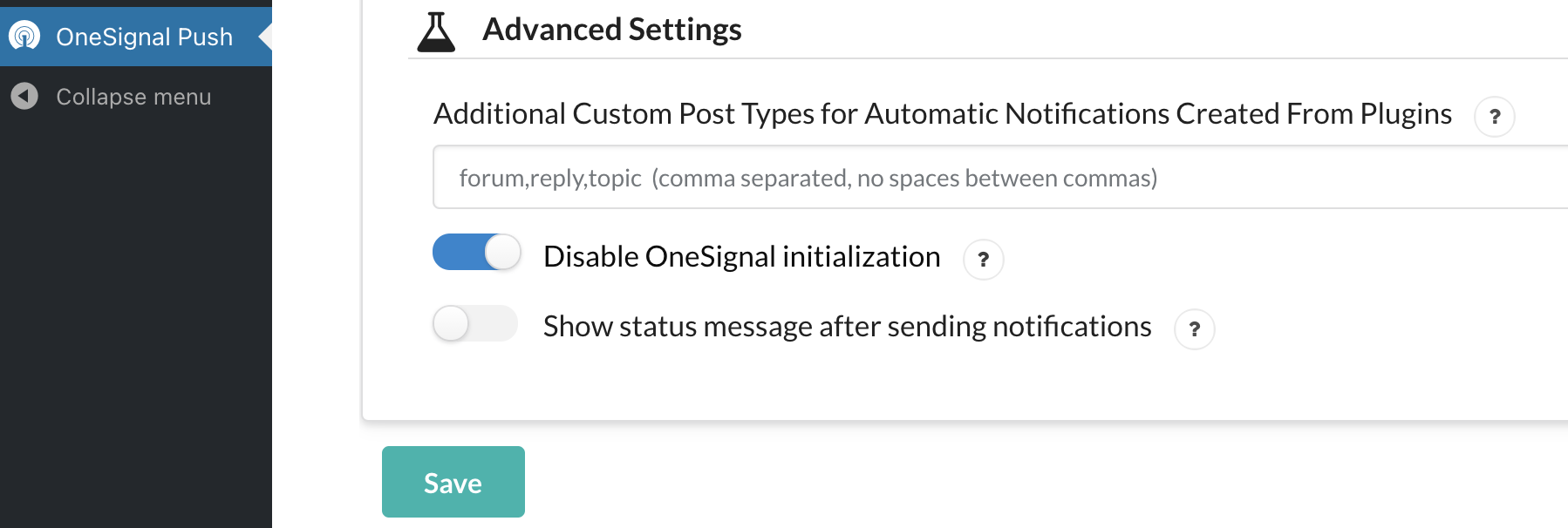
Scroll to **Advanced Settings** and toggle ON "Disable OneSignal initialization", then **Save**.
##### Step 2: Enable Manual Initialization
Scroll to **Advanced Settings** and toggle ON "Disable OneSignal initialization", then **Save**.
 ##### Step 3: Add Custom JavaScript
Add this code to your site (after the 3-second delay shown in examples):
```javascript theme={null}
// Basic Delayed Prompt
setTimeout(function(){
window._oneSignalInitOptions.promptOptions = {
slidedown: {
prompts: [
{
type: "push",
autoPrompt: true,
text: {
actionMessage: "Get notified of new posts and updates!",
acceptButton: "Yes",
cancelButton: "No thanks",
},
delay: {
timeDelay: 10, // Wait 10 seconds
pageViews: 2, // Show after 2 page views
}
}
]
}
}
window.OneSignal = window.OneSignal || [];
window.OneSignal.push(function() {
window.OneSignal.init(window._oneSignalInitOptions);
});
}, 3000);
```
```javascript theme={null}
// Category-Based Prompt
setTimeout(function(){
window._oneSignalInitOptions.promptOptions = {
slidedown: {
prompts: [
{
type: "category",
autoPrompt: true,
text: {
actionMessage: "Choose what notifications you'd like to receive:",
acceptButtonText: "Subscribe",
cancelButtonText: "Not now",
positiveUpdateButton: "Save Preferences",
negativeUpdateButton: "Cancel",
updateMessage: "Update your notification preferences.",
},
categories: [
{
tag: "news",
label: "Breaking News",
},
{
tag: "sports",
label: "Sports Updates",
},
{
tag: "tech",
label: "Technology News",
}
]
}
]
}
}
window.OneSignal = window.OneSignal || [];
window.OneSignal.push(function() {
window.OneSignal.init(window._oneSignalInitOptions);
});
}, 3000);
```
#### Page-Specific Prompts
##### Server-Side PHP Method
Use the [`onesignal_initialize_sdk` filter](#onesignal_initialize_sdk-filter) to control initialization based on page properties.
##### Client-Side JavaScript Method
Enable "Disable OneSignal initialization" and add conditional JavaScript to initialize OneSignal only on specific pages.
#### Multi-Language Prompts
For single language sites, simply translate the text in the prompt configuration.
For multi-language sites, use the manual initialization method above and detect the page language to display appropriate text.
### User Segmentation and Targeting
#### Tagging Users
Categorize users with [Tags](./add-user-data-tags) to send targeted notifications:
```javascript theme={null}
// Tag users based on their interests
OneSignal.push(function() {
OneSignal.sendTag("interest", "technology");
OneSignal.sendTag("location", "california");
});
```
#### Targeting Segments
Create [Segments](./segmentation) in your OneSignal dashboard using **User Tag** filters, then target them with the `onesignal_send_notification` filter:
```php theme={null}
##### Step 3: Add Custom JavaScript
Add this code to your site (after the 3-second delay shown in examples):
```javascript theme={null}
// Basic Delayed Prompt
setTimeout(function(){
window._oneSignalInitOptions.promptOptions = {
slidedown: {
prompts: [
{
type: "push",
autoPrompt: true,
text: {
actionMessage: "Get notified of new posts and updates!",
acceptButton: "Yes",
cancelButton: "No thanks",
},
delay: {
timeDelay: 10, // Wait 10 seconds
pageViews: 2, // Show after 2 page views
}
}
]
}
}
window.OneSignal = window.OneSignal || [];
window.OneSignal.push(function() {
window.OneSignal.init(window._oneSignalInitOptions);
});
}, 3000);
```
```javascript theme={null}
// Category-Based Prompt
setTimeout(function(){
window._oneSignalInitOptions.promptOptions = {
slidedown: {
prompts: [
{
type: "category",
autoPrompt: true,
text: {
actionMessage: "Choose what notifications you'd like to receive:",
acceptButtonText: "Subscribe",
cancelButtonText: "Not now",
positiveUpdateButton: "Save Preferences",
negativeUpdateButton: "Cancel",
updateMessage: "Update your notification preferences.",
},
categories: [
{
tag: "news",
label: "Breaking News",
},
{
tag: "sports",
label: "Sports Updates",
},
{
tag: "tech",
label: "Technology News",
}
]
}
]
}
}
window.OneSignal = window.OneSignal || [];
window.OneSignal.push(function() {
window.OneSignal.init(window._oneSignalInitOptions);
});
}, 3000);
```
#### Page-Specific Prompts
##### Server-Side PHP Method
Use the [`onesignal_initialize_sdk` filter](#onesignal_initialize_sdk-filter) to control initialization based on page properties.
##### Client-Side JavaScript Method
Enable "Disable OneSignal initialization" and add conditional JavaScript to initialize OneSignal only on specific pages.
#### Multi-Language Prompts
For single language sites, simply translate the text in the prompt configuration.
For multi-language sites, use the manual initialization method above and detect the page language to display appropriate text.
### User Segmentation and Targeting
#### Tagging Users
Categorize users with [Tags](./add-user-data-tags) to send targeted notifications:
```javascript theme={null}
// Tag users based on their interests
OneSignal.push(function() {
OneSignal.sendTag("interest", "technology");
OneSignal.sendTag("location", "california");
});
```
#### Targeting Segments
Create [Segments](./segmentation) in your OneSignal dashboard using **User Tag** filters, then target them with the `onesignal_send_notification` filter:
```php theme={null}
 ### Third-Party Plugin Integration
#### Standard Post Types
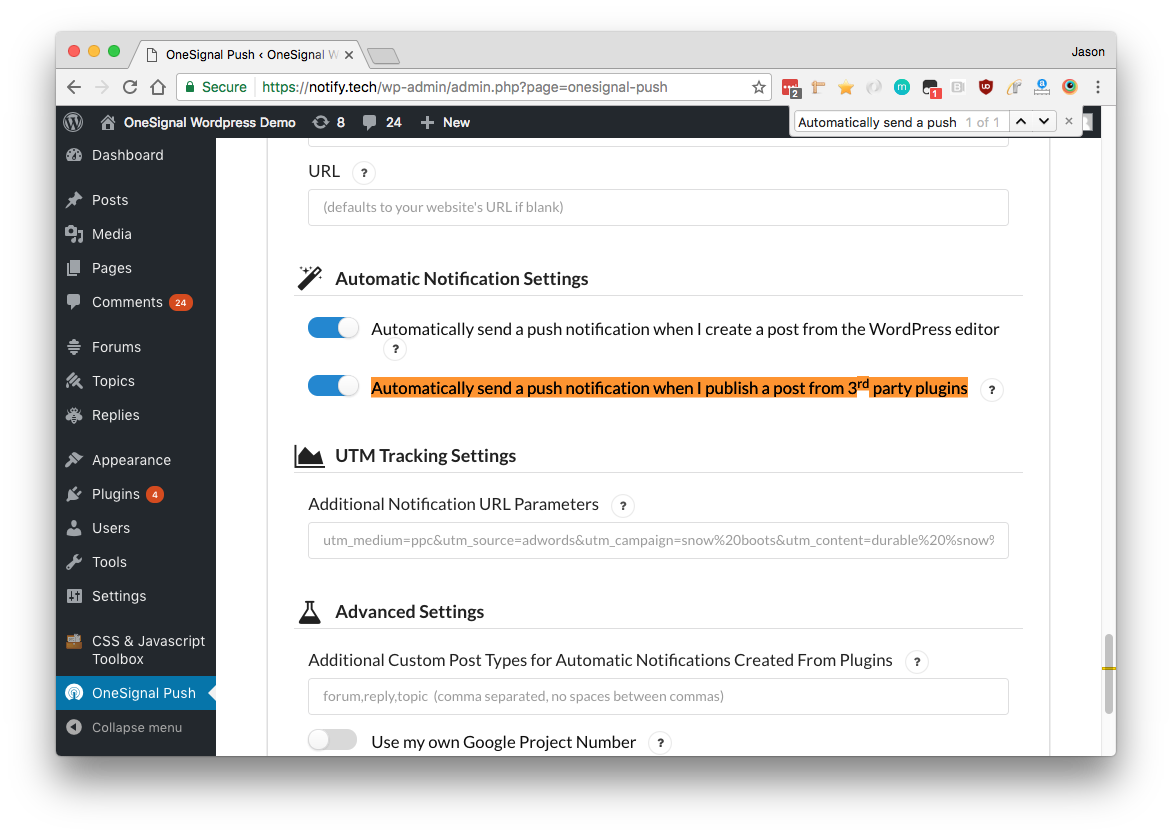
Enable **Automatically send a push notification when I publish a post from 3rd party plugins** for standard post types.
### Third-Party Plugin Integration
#### Standard Post Types
Enable **Automatically send a push notification when I publish a post from 3rd party plugins** for standard post types.
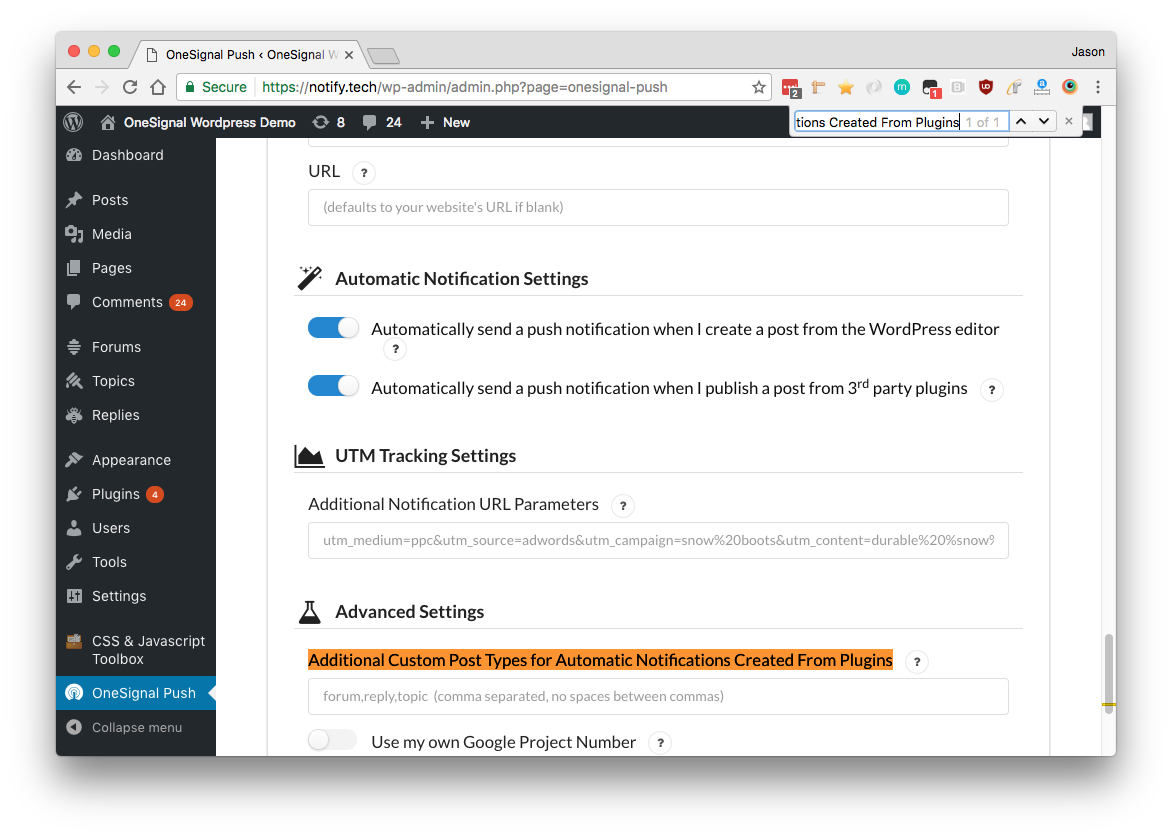
 #### Custom Post Types
Add custom post types (comma-separated) to the Additional Custom Post Types field:
#### Custom Post Types
Add custom post types (comma-separated) to the Additional Custom Post Types field:
 **Finding Custom Post Types:**
Look at your browser's URL when creating the custom post type:
`https://yoursite.com/wp-admin/post-new.php?post_type=your_custom_type`
The `post_type` parameter shows the name to add.
### Mobile App Integration
#### Method 1: Simple Web Browser Opening
Enable **Send notifications additionally to iOS & Android platforms** in your WordPress plugin settings.
**Finding Custom Post Types:**
Look at your browser's URL when creating the custom post type:
`https://yoursite.com/wp-admin/post-new.php?post_type=your_custom_type`
The `post_type` parameter shows the name to add.
### Mobile App Integration
#### Method 1: Simple Web Browser Opening
Enable **Send notifications additionally to iOS & Android platforms** in your WordPress plugin settings.
 #### Method 2: Deep Linking
For custom mobile app behavior, disable the above setting and use this PHP code:
```php theme={null}
$fields['url']);
$fields['web_url'] = $fields['url'];
unset($fields['url']); // Prevents browser opening on mobile
return $fields;
}
```
### WordPress Plugin Hooks and Filters
#### Code Placement
Place custom PHP code in `wp-content/mu-plugins/` to prevent it from being overwritten by updates.
Create `wp-content/mu-plugins/onesignal-custom.php` with your custom code.
#### onesignal\_send\_notification
Modify notification parameters before sending:
```php theme={null}
"Breaking News!");
$fields['contents'] = array("en" => "Check out our latest post");
// Schedule for later
$fields['send_after'] = "2024-12-25 09:00:00 GMT-0800";
// Add action buttons
$fields['web_buttons'] = array(
array(
"id" => "read-more",
"text" => "Read More",
"url" => get_permalink($post->ID)
)
);
return $fields;
}
```
#### onesignal\_initialize\_sdk
Control when OneSignal initializes:
```php theme={null}
post_type == "page" && $new_status == "publish") {
return true;
}
return false;
}
```
#### onesignal\_meta\_box\_send\_notification\_checkbox\_state
Control the default state of the notification checkbox:
```php theme={null}
```
***
## Troubleshooting
### Common Issues
#### "No Recipients" Error
* **Cause:** Trying to send multiple notifications for the same post too quickly
* **Solution:** Wait at least one minute between notifications for the same post
#### Prompts Not Appearing
* **Cause:** Cache plugins, browser settings, or initialization issues
* **Solutions:**
* Clear all cache plugins
* Check browser notification permissions
* Verify HTTPS is enabled
* Confirm plugin configuration is saved
#### "Couldn't load wp.data" Warning
* **WordPress 5+ with Gutenberg:** May indicate setup issues - contact support
* **WordPress 4.x:** Safe to ignore - this warning doesn't affect functionality
#### Custom Post Types Not Working
* **Cause:** Missing required meta data
* **Solution:** Use the `onesignal_include_post` filter to explicitly include your post type
#### Notifications Not Scheduling
* **Cause:** WordPress cron or theme conflicts
* **Solutions:**
1. Use OneSignal Dashboard or API for scheduling
2. Implement custom scheduling with `onesignal_send_notification` filter
3. Use [Zapier integration](./zapier) for automation
## Database Entries
OneSignal creates these entries in your `wp_postmeta` table:
| Entry | Description |
| ----------------------------- | ----------------------------------------------------- |
| `onesignal_meta_box_present` | Confirms OneSignal was active when post was published |
| `onesignal_send_notification` | Tracks notification sending |
| `status` | HTTP status of notification (200 = success) |
| `response_body` | API response with notification ID and recipient count |
| `recipients` | Number of users who received the notification |
## Getting Help
* **Plugin Issues:** Check [Troubleshooting WordPress Web Push](./troubleshooting-wordpress-web-push)
* **General Support:** Contact `support@onesignal.com`
* **Plugin Source:** Available on [GitHub](https://github.com/OneSignal/OneSignal-WordPress-Plugin)
***
## Next Steps
After completing this setup:
1. **Monitor Performance:** Check your OneSignal dashboard regularly for subscriber growth and engagement metrics
2. **Optimize Prompts:** Experiment with different prompt timing and messaging
3. **Segment Users:** Implement tagging to send more targeted notifications
4. **Test Thoroughly:** Send test notifications to different devices and browsers
5. **Plan Content Strategy:** Develop a notification strategy that adds value without overwhelming users
For advanced features like A/B testing, advanced segmentation, and detailed analytics, consider upgrading to a paid OneSignal plan.
#### Method 2: Deep Linking
For custom mobile app behavior, disable the above setting and use this PHP code:
```php theme={null}
$fields['url']);
$fields['web_url'] = $fields['url'];
unset($fields['url']); // Prevents browser opening on mobile
return $fields;
}
```
### WordPress Plugin Hooks and Filters
#### Code Placement
Place custom PHP code in `wp-content/mu-plugins/` to prevent it from being overwritten by updates.
Create `wp-content/mu-plugins/onesignal-custom.php` with your custom code.
#### onesignal\_send\_notification
Modify notification parameters before sending:
```php theme={null}
"Breaking News!");
$fields['contents'] = array("en" => "Check out our latest post");
// Schedule for later
$fields['send_after'] = "2024-12-25 09:00:00 GMT-0800";
// Add action buttons
$fields['web_buttons'] = array(
array(
"id" => "read-more",
"text" => "Read More",
"url" => get_permalink($post->ID)
)
);
return $fields;
}
```
#### onesignal\_initialize\_sdk
Control when OneSignal initializes:
```php theme={null}
post_type == "page" && $new_status == "publish") {
return true;
}
return false;
}
```
#### onesignal\_meta\_box\_send\_notification\_checkbox\_state
Control the default state of the notification checkbox:
```php theme={null}
```
***
## Troubleshooting
### Common Issues
#### "No Recipients" Error
* **Cause:** Trying to send multiple notifications for the same post too quickly
* **Solution:** Wait at least one minute between notifications for the same post
#### Prompts Not Appearing
* **Cause:** Cache plugins, browser settings, or initialization issues
* **Solutions:**
* Clear all cache plugins
* Check browser notification permissions
* Verify HTTPS is enabled
* Confirm plugin configuration is saved
#### "Couldn't load wp.data" Warning
* **WordPress 5+ with Gutenberg:** May indicate setup issues - contact support
* **WordPress 4.x:** Safe to ignore - this warning doesn't affect functionality
#### Custom Post Types Not Working
* **Cause:** Missing required meta data
* **Solution:** Use the `onesignal_include_post` filter to explicitly include your post type
#### Notifications Not Scheduling
* **Cause:** WordPress cron or theme conflicts
* **Solutions:**
1. Use OneSignal Dashboard or API for scheduling
2. Implement custom scheduling with `onesignal_send_notification` filter
3. Use [Zapier integration](./zapier) for automation
## Database Entries
OneSignal creates these entries in your `wp_postmeta` table:
| Entry | Description |
| ----------------------------- | ----------------------------------------------------- |
| `onesignal_meta_box_present` | Confirms OneSignal was active when post was published |
| `onesignal_send_notification` | Tracks notification sending |
| `status` | HTTP status of notification (200 = success) |
| `response_body` | API response with notification ID and recipient count |
| `recipients` | Number of users who received the notification |
## Getting Help
* **Plugin Issues:** Check [Troubleshooting WordPress Web Push](./troubleshooting-wordpress-web-push)
* **General Support:** Contact `support@onesignal.com`
* **Plugin Source:** Available on [GitHub](https://github.com/OneSignal/OneSignal-WordPress-Plugin)
***
## Next Steps
After completing this setup:
1. **Monitor Performance:** Check your OneSignal dashboard regularly for subscriber growth and engagement metrics
2. **Optimize Prompts:** Experiment with different prompt timing and messaging
3. **Segment Users:** Implement tagging to send more targeted notifications
4. **Test Thoroughly:** Send test notifications to different devices and browsers
5. **Plan Content Strategy:** Develop a notification strategy that adds value without overwhelming users
For advanced features like A/B testing, advanced segmentation, and detailed analytics, consider upgrading to a paid OneSignal plan.