> ## Documentation Index
> Fetch the complete documentation index at: https://documentation.onesignal.com/llms.txt
> Use this file to discover all available pages before exploring further.
# Live Activities
> Apprenez à utiliser les Live Activities iOS avec OneSignal pour livrer des mises à jour en temps réel directement sur l'écran de verrouillage et Dynamic Island. Activez le suivi transparent pour des événements comme les scores sportifs, les livraisons et plus encore.
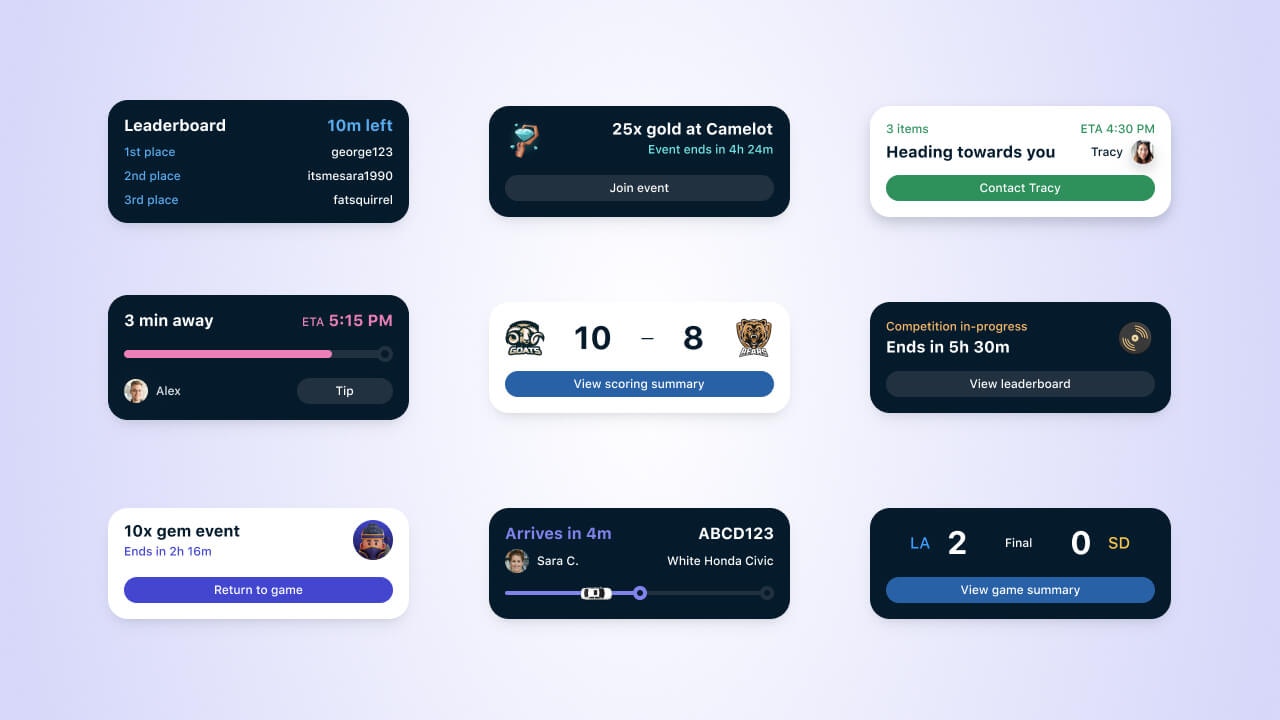
Les Live Activities permettent à vos applications iOS et iPadOS de livrer des mises à jour en temps réel sur l'écran de verrouillage et Dynamic Island, tenant les utilisateurs informés sans avoir besoin d'ouvrir l'application. Introduites dans iOS 16.1 et étendues à iOS 17, les Live Activities sont parfaites pour les informations urgentes comme le suivi de livraison, les scores de jeu ou les mises à jour de transport.
Live Activities are an iOS feature, but you can achieve similar capabilities with [Android Live Notifications](./android-live-notifications).
 ***
## Pourquoi utiliser les Live Activities ?
Live Activities are great for real-time, transactional, or time-bound updates.
* Visible for up to 8 hours
* Provisional — no permission is required to show the first Live Activity
* Highly engaging and visible on premium device surfaces like the Lock Screen and Dynamic Island
[Learn more about use cases in our blog →](https://onesignal.com/blog/new-live-activities-support-to-help-you-drive-loyalty-faster)
***
## Why use OneSignal?
OneSignal simplifies Live Activities by handling:
* Temporary push token management
* Scaling to millions of devices with a single API call
* Real-time analytics and performance insights
* Cross-channel orchestration with Push, Email, SMS, and In-App Messages
Live Activities are available on all plans except Free plans with more than 10,000 opted-in subscribers. [See pricing](https://onesignal.com/pricing) or contact `support@onesignal.com` for assistance.
***
## Getting started with Live Activities
### Exigences
* iOS 16.1+ ou iPadOS 17+
* OneSignal [Mobile SDK intégré](./mobile-sdk-setup)
* Configuration terminée selon notre [Guide développeur Live Activities](./live-activities-developer-setup)
* Le suivi des clics et la Livraison confirmée nécessitent iOS SDK version **5.2.15 ou supérieure**
### How Live Activities work
* **Visible Duration**: Active for up to 8 hours (can be removed using the `dismissal_date` parameter in the [Update Live Activity API](/reference/update-live-activity-api)).
* **No Permission Needed**: First activity is provisional; future ones depend on user settings.
* **Limit**: Max 5 Live Activities per app simultaneously.
* **Remote Start**: Supported from iOS 17.2+ via push.
* **Non-promo Use**: Must provide user value—not designed for ads.
### Creating & Updating a Live Activity
Live Activities can be started in 2 ways:
1. Using our [Start Live Activity API](/reference/start-live-activity) aka "push-to-start".
2. Triggering it in-app ([Live Activities Developer Setup](./live-activities-developer-setup)).
Use the [Update Live Activity API](/reference/update-live-activity-api) and pass the `activity_id` to update all associated devices.
Live Activities can end in the following ways:
* Sends a request to OneSignal's server to stop sending updates for the given `activityId`.
* **Does not** remove the Live Activity from the screen. It will be removed automatically after 4 hours or via user action.
Use the `event: end` field to stop further updates and include a `dismissal_date` to remove the Live Activity from the screen:
* The Live Activity will be removed from the screen automatically after 4 hours or via user action.
* Set a **future** `dismissal_date` time within the next 4 hours to remove it sooner.
* Set a **past** `dismissal_date` time to remove it immediately from the user’s screen. User must have clicked "Allow" for the Live Activity to be removed programmatically.
* User manually dismisses the Live Activity, like swiping it away.
* User revokes Live Activity permission in iOS Settings.
The SDK method does *not* dismiss the Live Activity visually.
* Developers must use the API with `dismissal_date` or native iOS methods (e.g., `activity.end(dismissalPolicy: .immediate)`).
* User must have clicked "Allow" for the Live Activity to be removed programmatically.
***
## Analyses et rapports
OneSignal fournit des analyses complètes pour vous aider à mesurer et optimiser les performances de vos Live Activities. Suivez les métriques clés comme les taux de livraison, les clics, les échecs et les changements d'abonnement.
**Métriques clés disponibles :**
* **Envoyé** : Live Activities envoyées depuis OneSignal vers le service de notification push d'Apple (APNs)
* **Livraison confirmée** : Live Activities confirmées comme livrées aux appareils (nécessite iOS SDK 5.2.15+)
* **Échoué** : Live Activities qui ont échoué à la livraison
* **Désabonné** : Abonnements marqués comme désabonnés quand les utilisateurs rejettent ou désactivent les Live Activities
* **Cliqué** : Total des clics sur toutes les Live Activities
Pour des informations détaillées sur les rapports de messages, l'activité de l'audience, l'export de données et l'analyse des performances, consultez notre [guide d'analyses Live Activities](./live-activities-analytics).
***
## Best practices & guidelines
### Functionality
* Use Live Activities for transactional or contextual updates (e.g., ETA, score, timer).
* Instead of users constantly going into your app to check for statuses or changes, they can get updates at a glance of their phone.
* Events or tasks with a defined beginning and an end. Do not use a Live Activity to display ads or serve purely promotional purposes. What value are you providing?
* Avoid excessive updates to preserve device battery.
* Ensure a Live Activity is for an event or task that is no longer than 8 hours, and that it is only showing for as long as it is useful to the user.
### UI/UX
* Support all Live Activity presentations: Compact, Minimal, Expanded, Lock Screen.
* Use branding, spacing, and dark/light themes correctly.
* Prioritize clarity and tap targets. Don't try to draw attention to the Dynamic Island.
* Avoid displaying sensitive information in a Live Activity.
Refer to Apple's [Live Activities Human Interface Guidelines](https://developer.apple.com/design/human-interface-guidelines/live-activities) for more information on best practices for Live Activities.
### Targeting & sending at scale
Ensure that a Live Activity appears when expected, usually when a user takes an action (e.g. to follow an event) or opens the app to check for updates (e.g. updated delivery time).
* Target segments of users for events like sports games, concerts, or other live events.
* Target individual users for personal or transactional events.
Details on how to target users can be found in our [Sending messages with the OneSignal API docs](reference/create-message).
When updating Live Activities, you have the option to set a "priority" which Apple uses to determine how urgent the update is. Apple has internal thresholds in which they will throttle requests that use the high priority flag too frequently. Due to this internal threshold, Apple recommends choosing a mix of normal and high priority to prevent throttling. Details on how to set priority can be found in our [Update Live Activity API reference](/reference/update-live-activity-api).
If your use case relies on more frequent high priority updates, you can add the key `NSSupportsLiveActivitiesFrequentUpdates` to your Info.plist as a Boolean type set to YES as directed in [Apple's Developer Docs](https://developer.apple.com/documentation/activitykit/starting-and-updating-live-activities-with-activitykit-push-notifications#Determine-the-update-frequency). Users will be presented with a dialog when the Live Activity exceeds its push budget, and if they allow the Live Activity to continue, the budget will automatically be increased for a seamless user experience.
***
## FAQ
### Do I have access to Live Activities in my plan?
Live Activities are available on all plans except for Free plans with more than 10,000 opted-in subscribers. If you have more than 10,000 opted-in subscribers on a Free Plan, you can upgrade to use Live Activities. [See pricing](https://onesignal.com/pricing) or contact `support@onesignal.com` for assistance.
### What is the budget for high-priority updates?
Apple does not provide a fixed limit for high-priority (`priority: 10`) updates, but they do enforce a dynamic system-level budget. Sending too many high-priority updates in a short period may result in throttling, where updates are delayed or dropped.
To reduce the risk of throttling:
* Use a mix of priority levels: Apple recommends using both `priority: 5` (standard) and `priority: 10` (high) for balance.
* Reserve `priority: 10` for time-sensitive or critical updates only (e.g., order status changes, game scores).
If your use case requires frequent updates:
* Add the key `NSSupportsLiveActivitiesFrequentUpdates` to your app’s `Info.plist` file, set as a Boolean `YES`.
* When this budget is exceeded, iOS may prompt the user to allow additional updates. If the user agrees, Apple will automatically expand the allowed update limit to maintain a seamless experience.
For more details, refer to [Apple's Developer Docs](https://developer.apple.com/documentation/activitykit/starting-and-updating-live-activities-with-activitykit-push-notifications#Determine-the-update-frequency).
### Where can I see Live Activities in the OneSignal Dashboard?
Live Activities can only be sent via our Live Activities APIs. However, you can view historically sent Live Activities (up to 30 days) in the dashboard in Sent Messages, after filtering for Live Activities. Here you will be able to see which Live Activities were sent, what updated information was sent, and the audience size that received the update.
### What devices work with Live Activities?
Apple keeps an updated compatibility guide with all devices that work with [iOS 16+](https://support.apple.com/guide/iphone/supported-models-iphe3fa5df43/16.0/ios/16.0) and [iPadOS 17+](https://support.apple.com/guide/ipad/ipad-models-compatible-with-ipados-17-ipad213a25b2/ipados).
***
You should now be equipped with everything you need to know about Live Activities.
Start setting up your Live Activities by following our [Live Activities Developer Docs](./live-activities-developer-setup).
***
***
## Pourquoi utiliser les Live Activities ?
Live Activities are great for real-time, transactional, or time-bound updates.
* Visible for up to 8 hours
* Provisional — no permission is required to show the first Live Activity
* Highly engaging and visible on premium device surfaces like the Lock Screen and Dynamic Island
[Learn more about use cases in our blog →](https://onesignal.com/blog/new-live-activities-support-to-help-you-drive-loyalty-faster)
***
## Why use OneSignal?
OneSignal simplifies Live Activities by handling:
* Temporary push token management
* Scaling to millions of devices with a single API call
* Real-time analytics and performance insights
* Cross-channel orchestration with Push, Email, SMS, and In-App Messages
Live Activities are available on all plans except Free plans with more than 10,000 opted-in subscribers. [See pricing](https://onesignal.com/pricing) or contact `support@onesignal.com` for assistance.
***
## Getting started with Live Activities
### Exigences
* iOS 16.1+ ou iPadOS 17+
* OneSignal [Mobile SDK intégré](./mobile-sdk-setup)
* Configuration terminée selon notre [Guide développeur Live Activities](./live-activities-developer-setup)
* Le suivi des clics et la Livraison confirmée nécessitent iOS SDK version **5.2.15 ou supérieure**
### How Live Activities work
* **Visible Duration**: Active for up to 8 hours (can be removed using the `dismissal_date` parameter in the [Update Live Activity API](/reference/update-live-activity-api)).
* **No Permission Needed**: First activity is provisional; future ones depend on user settings.
* **Limit**: Max 5 Live Activities per app simultaneously.
* **Remote Start**: Supported from iOS 17.2+ via push.
* **Non-promo Use**: Must provide user value—not designed for ads.
### Creating & Updating a Live Activity
Live Activities can be started in 2 ways:
1. Using our [Start Live Activity API](/reference/start-live-activity) aka "push-to-start".
2. Triggering it in-app ([Live Activities Developer Setup](./live-activities-developer-setup)).
Use the [Update Live Activity API](/reference/update-live-activity-api) and pass the `activity_id` to update all associated devices.
Live Activities can end in the following ways:
* Sends a request to OneSignal's server to stop sending updates for the given `activityId`.
* **Does not** remove the Live Activity from the screen. It will be removed automatically after 4 hours or via user action.
Use the `event: end` field to stop further updates and include a `dismissal_date` to remove the Live Activity from the screen:
* The Live Activity will be removed from the screen automatically after 4 hours or via user action.
* Set a **future** `dismissal_date` time within the next 4 hours to remove it sooner.
* Set a **past** `dismissal_date` time to remove it immediately from the user’s screen. User must have clicked "Allow" for the Live Activity to be removed programmatically.
* User manually dismisses the Live Activity, like swiping it away.
* User revokes Live Activity permission in iOS Settings.
The SDK method does *not* dismiss the Live Activity visually.
* Developers must use the API with `dismissal_date` or native iOS methods (e.g., `activity.end(dismissalPolicy: .immediate)`).
* User must have clicked "Allow" for the Live Activity to be removed programmatically.
***
## Analyses et rapports
OneSignal fournit des analyses complètes pour vous aider à mesurer et optimiser les performances de vos Live Activities. Suivez les métriques clés comme les taux de livraison, les clics, les échecs et les changements d'abonnement.
**Métriques clés disponibles :**
* **Envoyé** : Live Activities envoyées depuis OneSignal vers le service de notification push d'Apple (APNs)
* **Livraison confirmée** : Live Activities confirmées comme livrées aux appareils (nécessite iOS SDK 5.2.15+)
* **Échoué** : Live Activities qui ont échoué à la livraison
* **Désabonné** : Abonnements marqués comme désabonnés quand les utilisateurs rejettent ou désactivent les Live Activities
* **Cliqué** : Total des clics sur toutes les Live Activities
Pour des informations détaillées sur les rapports de messages, l'activité de l'audience, l'export de données et l'analyse des performances, consultez notre [guide d'analyses Live Activities](./live-activities-analytics).
***
## Best practices & guidelines
### Functionality
* Use Live Activities for transactional or contextual updates (e.g., ETA, score, timer).
* Instead of users constantly going into your app to check for statuses or changes, they can get updates at a glance of their phone.
* Events or tasks with a defined beginning and an end. Do not use a Live Activity to display ads or serve purely promotional purposes. What value are you providing?
* Avoid excessive updates to preserve device battery.
* Ensure a Live Activity is for an event or task that is no longer than 8 hours, and that it is only showing for as long as it is useful to the user.
### UI/UX
* Support all Live Activity presentations: Compact, Minimal, Expanded, Lock Screen.
* Use branding, spacing, and dark/light themes correctly.
* Prioritize clarity and tap targets. Don't try to draw attention to the Dynamic Island.
* Avoid displaying sensitive information in a Live Activity.
Refer to Apple's [Live Activities Human Interface Guidelines](https://developer.apple.com/design/human-interface-guidelines/live-activities) for more information on best practices for Live Activities.
### Targeting & sending at scale
Ensure that a Live Activity appears when expected, usually when a user takes an action (e.g. to follow an event) or opens the app to check for updates (e.g. updated delivery time).
* Target segments of users for events like sports games, concerts, or other live events.
* Target individual users for personal or transactional events.
Details on how to target users can be found in our [Sending messages with the OneSignal API docs](reference/create-message).
When updating Live Activities, you have the option to set a "priority" which Apple uses to determine how urgent the update is. Apple has internal thresholds in which they will throttle requests that use the high priority flag too frequently. Due to this internal threshold, Apple recommends choosing a mix of normal and high priority to prevent throttling. Details on how to set priority can be found in our [Update Live Activity API reference](/reference/update-live-activity-api).
If your use case relies on more frequent high priority updates, you can add the key `NSSupportsLiveActivitiesFrequentUpdates` to your Info.plist as a Boolean type set to YES as directed in [Apple's Developer Docs](https://developer.apple.com/documentation/activitykit/starting-and-updating-live-activities-with-activitykit-push-notifications#Determine-the-update-frequency). Users will be presented with a dialog when the Live Activity exceeds its push budget, and if they allow the Live Activity to continue, the budget will automatically be increased for a seamless user experience.
***
## FAQ
### Do I have access to Live Activities in my plan?
Live Activities are available on all plans except for Free plans with more than 10,000 opted-in subscribers. If you have more than 10,000 opted-in subscribers on a Free Plan, you can upgrade to use Live Activities. [See pricing](https://onesignal.com/pricing) or contact `support@onesignal.com` for assistance.
### What is the budget for high-priority updates?
Apple does not provide a fixed limit for high-priority (`priority: 10`) updates, but they do enforce a dynamic system-level budget. Sending too many high-priority updates in a short period may result in throttling, where updates are delayed or dropped.
To reduce the risk of throttling:
* Use a mix of priority levels: Apple recommends using both `priority: 5` (standard) and `priority: 10` (high) for balance.
* Reserve `priority: 10` for time-sensitive or critical updates only (e.g., order status changes, game scores).
If your use case requires frequent updates:
* Add the key `NSSupportsLiveActivitiesFrequentUpdates` to your app’s `Info.plist` file, set as a Boolean `YES`.
* When this budget is exceeded, iOS may prompt the user to allow additional updates. If the user agrees, Apple will automatically expand the allowed update limit to maintain a seamless experience.
For more details, refer to [Apple's Developer Docs](https://developer.apple.com/documentation/activitykit/starting-and-updating-live-activities-with-activitykit-push-notifications#Determine-the-update-frequency).
### Where can I see Live Activities in the OneSignal Dashboard?
Live Activities can only be sent via our Live Activities APIs. However, you can view historically sent Live Activities (up to 30 days) in the dashboard in Sent Messages, after filtering for Live Activities. Here you will be able to see which Live Activities were sent, what updated information was sent, and the audience size that received the update.
### What devices work with Live Activities?
Apple keeps an updated compatibility guide with all devices that work with [iOS 16+](https://support.apple.com/guide/iphone/supported-models-iphe3fa5df43/16.0/ios/16.0) and [iPadOS 17+](https://support.apple.com/guide/ipad/ipad-models-compatible-with-ipados-17-ipad213a25b2/ipados).
***
You should now be equipped with everything you need to know about Live Activities.
Start setting up your Live Activities by following our [Live Activities Developer Docs](./live-activities-developer-setup).
***