> ## Documentation Index
> Fetch the complete documentation index at: https://documentation.onesignal.com/llms.txt
> Use this file to discover all available pages before exploring further.
# Event StreamsとGoogle Sheetsの統合
> このガイドでは、OneSignalのEvent WebhooksとカスタムGoogle Sheetsドキュメント間の接続をセットアップして、OneSignalによって生成されたメッセージイベントを分析するために必要な手順を説明します。
## Event Streamsを有効にする
OneSignalアプリケーションの有料プランのアドオン機能である[Event Streams](./event-streams)を有効にします。この機能へのアクセス権がない場合は、Success ManagerまたはAccount Executiveにお気軽にお問い合わせください。
## Apps Scriptデプロイメントを作成する
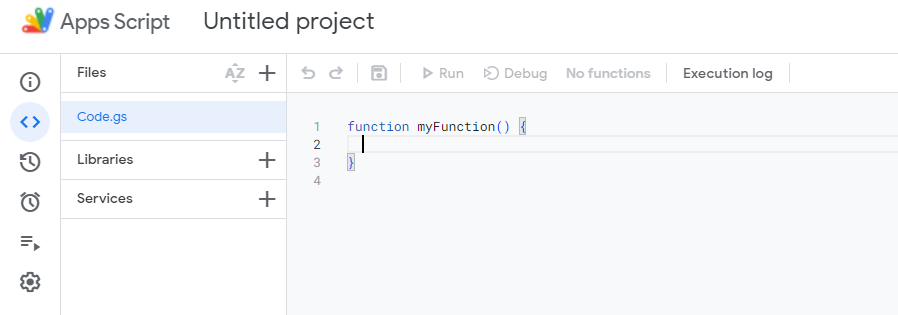
OneSignalメッセージイベントを追加したいGoogle Sheetで、**拡張機能 > Apps Script**に移動します。次に、コードエディタ内で既存のコードを次のコードに置き換えます:
 ```javascript javascript theme={null}
function doPost(e) {
// Log the full request for debugging purposes
Logger.log("Request received: " + JSON.stringify(e));
const sheet = SpreadsheetApp.getActiveSpreadsheet().getActiveSheet();
let jsonData;
try {
// Log the postData.contents before parsing
Logger.log("Post Data Contents: " + e.postData.contents);
// Attempt to parse the JSON data
jsonData = JSON.parse(e.postData.contents);
} catch (error) {
// Log the error and return an error response
Logger.log("Failed to parse JSON: " + error);
return ContentService.createTextOutput(
JSON.stringify({ status: "error", message: "Invalid JSON" }),
).setMimeType(ContentService.MimeType.JSON);
}
// Check if the sheet is empty and set headers if necessary
if (sheet.getLastRow() === 0) {
sheet.appendRow([
"User ID",
"Event ID",
"Event",
"Message ID",
"Message Name",
"Message Title",
"Message Contents",
"Template ID",
"Subscription ID",
"Subscription Device Type",
"Source",
"Original Timestamp",
]);
}
// Prepare the row data from the JSON object
const row = [
jsonData.user_id || "",
jsonData.event_id || "",
jsonData.event || "",
jsonData.properties ? jsonData.properties.message_id || "" : "",
jsonData.properties ? jsonData.properties.message_name || "" : "",
jsonData.properties ? jsonData.properties.message_title || "" : "",
jsonData.properties ? jsonData.properties.message_contents || "" : "",
jsonData.properties ? jsonData.properties.template_id || "" : "",
jsonData.properties ? jsonData.properties.subscription_id || "" : "",
jsonData.properties
? jsonData.properties.subscription_device_type || ""
: "",
jsonData.properties ? jsonData.properties.source || "" : "",
jsonData.originalTimestamp || "",
];
try {
// Append the new row to the sheet
sheet.appendRow(row);
} catch (error) {
// Log the error if appending the row fails
Logger.log("Failed to append row: " + error);
return ContentService.createTextOutput(
JSON.stringify({ status: "error", message: "Failed to append row" }),
).setMimeType(ContentService.MimeType.JSON);
}
// Return a success response
return ContentService.createTextOutput(
JSON.stringify({ status: "success" }),
).setMimeType(ContentService.MimeType.JSON);
}
```
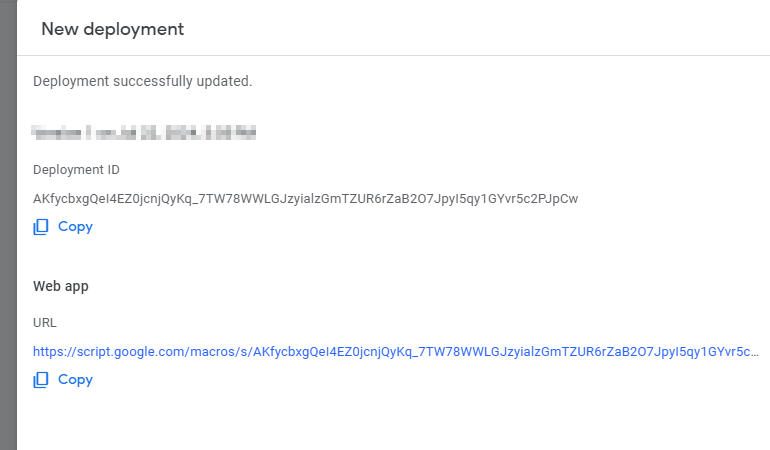
次に、プロジェクトをデプロイします。右上の「デプロイ」をクリックし、デプロイタイプとして「Web App」を選択します。説明を入力し、プロジェクトにアクセスできるユーザーを選択します。次のステップで必要なURLを生成するために「Anyone」を選択します。
```javascript javascript theme={null}
function doPost(e) {
// Log the full request for debugging purposes
Logger.log("Request received: " + JSON.stringify(e));
const sheet = SpreadsheetApp.getActiveSpreadsheet().getActiveSheet();
let jsonData;
try {
// Log the postData.contents before parsing
Logger.log("Post Data Contents: " + e.postData.contents);
// Attempt to parse the JSON data
jsonData = JSON.parse(e.postData.contents);
} catch (error) {
// Log the error and return an error response
Logger.log("Failed to parse JSON: " + error);
return ContentService.createTextOutput(
JSON.stringify({ status: "error", message: "Invalid JSON" }),
).setMimeType(ContentService.MimeType.JSON);
}
// Check if the sheet is empty and set headers if necessary
if (sheet.getLastRow() === 0) {
sheet.appendRow([
"User ID",
"Event ID",
"Event",
"Message ID",
"Message Name",
"Message Title",
"Message Contents",
"Template ID",
"Subscription ID",
"Subscription Device Type",
"Source",
"Original Timestamp",
]);
}
// Prepare the row data from the JSON object
const row = [
jsonData.user_id || "",
jsonData.event_id || "",
jsonData.event || "",
jsonData.properties ? jsonData.properties.message_id || "" : "",
jsonData.properties ? jsonData.properties.message_name || "" : "",
jsonData.properties ? jsonData.properties.message_title || "" : "",
jsonData.properties ? jsonData.properties.message_contents || "" : "",
jsonData.properties ? jsonData.properties.template_id || "" : "",
jsonData.properties ? jsonData.properties.subscription_id || "" : "",
jsonData.properties
? jsonData.properties.subscription_device_type || ""
: "",
jsonData.properties ? jsonData.properties.source || "" : "",
jsonData.originalTimestamp || "",
];
try {
// Append the new row to the sheet
sheet.appendRow(row);
} catch (error) {
// Log the error if appending the row fails
Logger.log("Failed to append row: " + error);
return ContentService.createTextOutput(
JSON.stringify({ status: "error", message: "Failed to append row" }),
).setMimeType(ContentService.MimeType.JSON);
}
// Return a success response
return ContentService.createTextOutput(
JSON.stringify({ status: "success" }),
).setMimeType(ContentService.MimeType.JSON);
}
```
次に、プロジェクトをデプロイします。右上の「デプロイ」をクリックし、デプロイタイプとして「Web App」を選択します。説明を入力し、プロジェクトにアクセスできるユーザーを選択します。次のステップで必要なURLを生成するために「Anyone」を選択します。
 ## Event Streamを作成する
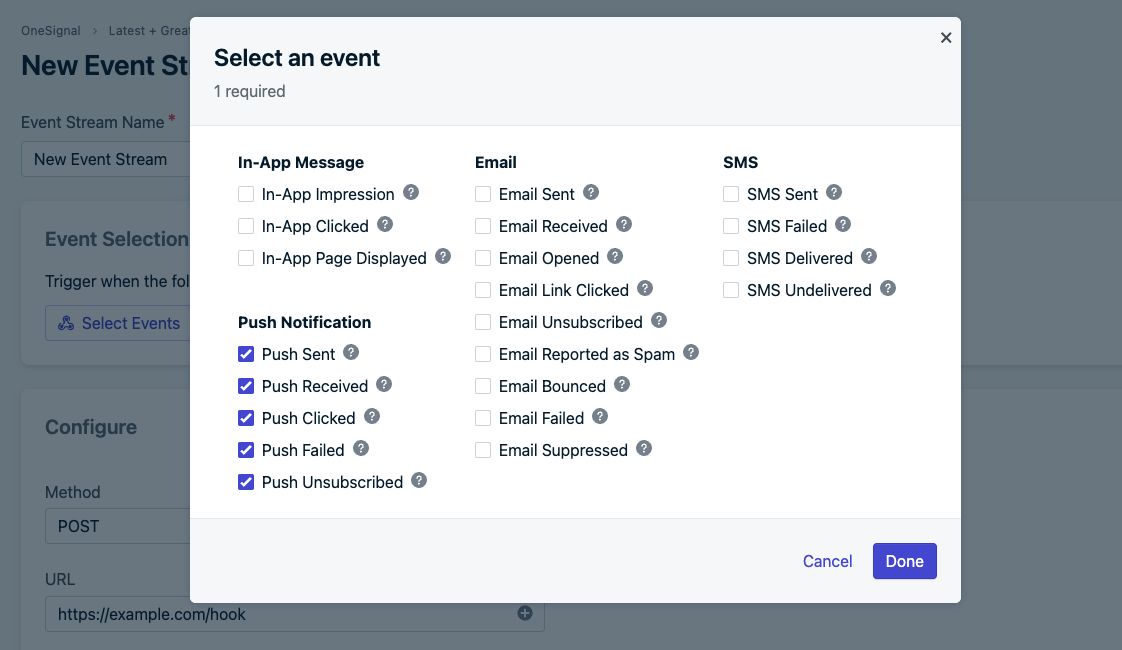
OneSignalダッシュボードから、\*\*設定 > Event Streams(アドオン機能の対象)\*\*に移動します。そこから、新しいEvent Streamを作成し、「次のいずれかのイベントが発生したときにトリガー」を選択します。Google Sheetsと同期したいメッセージイベントをポップアップで選択します。以下の例では、すべてのプッシュ通知イベントをキャプチャしています。
## Event Streamを作成する
OneSignalダッシュボードから、\*\*設定 > Event Streams(アドオン機能の対象)\*\*に移動します。そこから、新しいEvent Streamを作成し、「次のいずれかのイベントが発生したときにトリガー」を選択します。Google Sheetsと同期したいメッセージイベントをポップアップで選択します。以下の例では、すべてのプッシュ通知イベントをキャプチャしています。
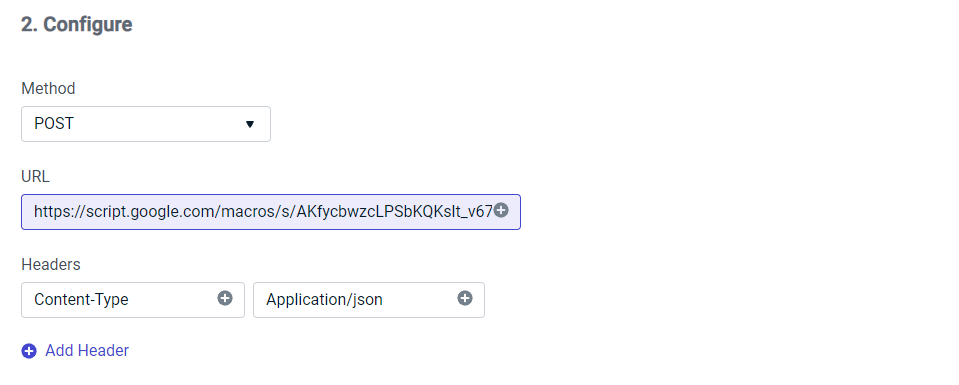
 次に、構成ステップでPOSTを選択し、前のステップのURLを貼り付け、JSONを受け入れるヘッダーを作成します。
 その後、ステップ3のドロップダウンで「Custom Body」を選択し、次のコードをコピー/貼り付けします。以下の例に示すように、同期したいプロパティとイベントを変更できます。Event Streamのイベントプロパティの詳細については、[ドキュメント](./event-streams#personalization)をご覧ください
```json json theme={null}
{
"user_id": "{{ event.external_user_id }}",
"event_id": "{{ event.id }}",
"event": "{{ event.kind }}",
"properties": {
"message_id": "{{ message.id }}",
"message_name": "{{ message.name }}",
"message_title": "{{ message.title.en }}",
"message_contents": "{{ message.contents.en }}",
"template_id": "{{ message.template_id }}",
"subscription_id": "{{ event.subscription_id }}",
"subscription_device_type": "{{ event.subscription_device_type }}",
"source": "onesignal"
},
"originalTimestamp": "{{ event.datetime }}"
}
```
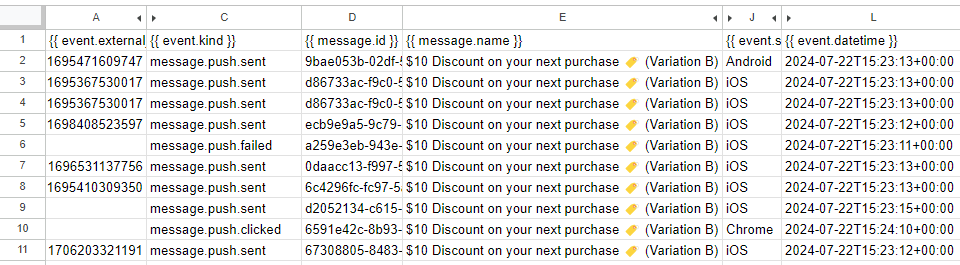
最後に、「保存してアクティブ化」を選択して、選択したメッセージイベントをGoogle Sheetに同期します。以下は、上記のサンプルコードがどのようにレンダリングされるかの例です:
その後、ステップ3のドロップダウンで「Custom Body」を選択し、次のコードをコピー/貼り付けします。以下の例に示すように、同期したいプロパティとイベントを変更できます。Event Streamのイベントプロパティの詳細については、[ドキュメント](./event-streams#personalization)をご覧ください
```json json theme={null}
{
"user_id": "{{ event.external_user_id }}",
"event_id": "{{ event.id }}",
"event": "{{ event.kind }}",
"properties": {
"message_id": "{{ message.id }}",
"message_name": "{{ message.name }}",
"message_title": "{{ message.title.en }}",
"message_contents": "{{ message.contents.en }}",
"template_id": "{{ message.template_id }}",
"subscription_id": "{{ event.subscription_id }}",
"subscription_device_type": "{{ event.subscription_device_type }}",
"source": "onesignal"
},
"originalTimestamp": "{{ event.datetime }}"
}
```
最後に、「保存してアクティブ化」を選択して、選択したメッセージイベントをGoogle Sheetに同期します。以下は、上記のサンプルコードがどのようにレンダリングされるかの例です:
 ***
***