> ## Documentation Index
> Fetch the complete documentation index at: https://documentation.onesignal.com/llms.txt
> Use this file to discover all available pages before exploring further.
# Integração do Google Sheets com Event Streams
> Este guia ilustra os passos necessários para configurar uma conexão entre os Event Webhooks do OneSignal e um documento personalizado do Google Sheets para analisar eventos de mensagens gerados pelo OneSignal.
## Ativar event streams
Habilite [Event streams](./event-streams), um recurso adicional para planos pagos, para sua aplicação OneSignal. Se você não tem acesso a este recurso, não hesite em contatar seu Gerente de Sucesso ou Executivo de Conta para mais informações.
## Criar uma implantação de apps script
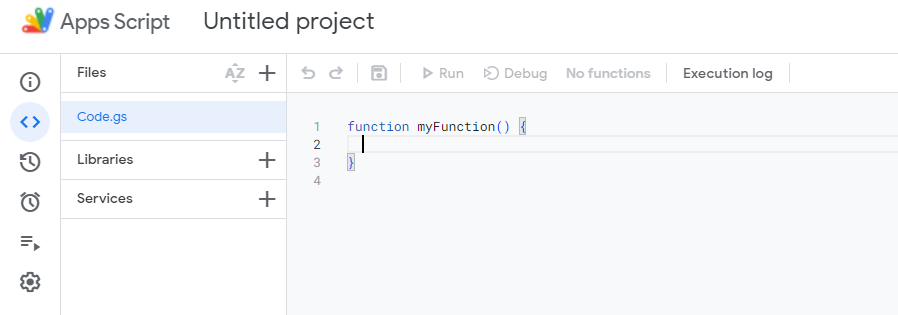
Navegue até **Extensions > Apps Script** no Google Sheet ao qual você deseja adicionar eventos de mensagens do OneSignal. Em seguida, dentro do editor de código, substitua o código existente pelo seguinte:
 ```javascript javascript theme={null}
function doPost(e) {
// Log the full request for debugging purposes
Logger.log("Request received: " + JSON.stringify(e));
const sheet = SpreadsheetApp.getActiveSpreadsheet().getActiveSheet();
let jsonData;
try {
// Log the postData.contents before parsing
Logger.log("Post Data Contents: " + e.postData.contents);
// Attempt to parse the JSON data
jsonData = JSON.parse(e.postData.contents);
} catch (error) {
// Log the error and return an error response
Logger.log("Failed to parse JSON: " + error);
return ContentService.createTextOutput(
JSON.stringify({ status: "error", message: "Invalid JSON" }),
).setMimeType(ContentService.MimeType.JSON);
}
// Check if the sheet is empty and set headers if necessary
if (sheet.getLastRow() === 0) {
sheet.appendRow([
"User ID",
"Event ID",
"Event",
"Message ID",
"Message Name",
"Message Title",
"Message Contents",
"Template ID",
"Subscription ID",
"Subscription Device Type",
"Source",
"Original Timestamp",
]);
}
// Prepare the row data from the JSON object
const row = [
jsonData.user_id || "",
jsonData.event_id || "",
jsonData.event || "",
jsonData.properties ? jsonData.properties.message_id || "" : "",
jsonData.properties ? jsonData.properties.message_name || "" : "",
jsonData.properties ? jsonData.properties.message_title || "" : "",
jsonData.properties ? jsonData.properties.message_contents || "" : "",
jsonData.properties ? jsonData.properties.template_id || "" : "",
jsonData.properties ? jsonData.properties.subscription_id || "" : "",
jsonData.properties
? jsonData.properties.subscription_device_type || ""
: "",
jsonData.properties ? jsonData.properties.source || "" : "",
jsonData.originalTimestamp || "",
];
try {
// Append the new row to the sheet
sheet.appendRow(row);
} catch (error) {
// Log the error if appending the row fails
Logger.log("Failed to append row: " + error);
return ContentService.createTextOutput(
JSON.stringify({ status: "error", message: "Failed to append row" }),
).setMimeType(ContentService.MimeType.JSON);
}
// Return a success response
return ContentService.createTextOutput(
JSON.stringify({ status: "success" }),
).setMimeType(ContentService.MimeType.JSON);
}
```
Em seguida, implante seu projeto. Clique em Deploy no canto superior direito e selecione "Web App" como tipo de implantação. Forneça uma descrição e escolha quem pode acessar o projeto; selecionaremos "Anyone" para gerar a URL necessária na próxima etapa.
```javascript javascript theme={null}
function doPost(e) {
// Log the full request for debugging purposes
Logger.log("Request received: " + JSON.stringify(e));
const sheet = SpreadsheetApp.getActiveSpreadsheet().getActiveSheet();
let jsonData;
try {
// Log the postData.contents before parsing
Logger.log("Post Data Contents: " + e.postData.contents);
// Attempt to parse the JSON data
jsonData = JSON.parse(e.postData.contents);
} catch (error) {
// Log the error and return an error response
Logger.log("Failed to parse JSON: " + error);
return ContentService.createTextOutput(
JSON.stringify({ status: "error", message: "Invalid JSON" }),
).setMimeType(ContentService.MimeType.JSON);
}
// Check if the sheet is empty and set headers if necessary
if (sheet.getLastRow() === 0) {
sheet.appendRow([
"User ID",
"Event ID",
"Event",
"Message ID",
"Message Name",
"Message Title",
"Message Contents",
"Template ID",
"Subscription ID",
"Subscription Device Type",
"Source",
"Original Timestamp",
]);
}
// Prepare the row data from the JSON object
const row = [
jsonData.user_id || "",
jsonData.event_id || "",
jsonData.event || "",
jsonData.properties ? jsonData.properties.message_id || "" : "",
jsonData.properties ? jsonData.properties.message_name || "" : "",
jsonData.properties ? jsonData.properties.message_title || "" : "",
jsonData.properties ? jsonData.properties.message_contents || "" : "",
jsonData.properties ? jsonData.properties.template_id || "" : "",
jsonData.properties ? jsonData.properties.subscription_id || "" : "",
jsonData.properties
? jsonData.properties.subscription_device_type || ""
: "",
jsonData.properties ? jsonData.properties.source || "" : "",
jsonData.originalTimestamp || "",
];
try {
// Append the new row to the sheet
sheet.appendRow(row);
} catch (error) {
// Log the error if appending the row fails
Logger.log("Failed to append row: " + error);
return ContentService.createTextOutput(
JSON.stringify({ status: "error", message: "Failed to append row" }),
).setMimeType(ContentService.MimeType.JSON);
}
// Return a success response
return ContentService.createTextOutput(
JSON.stringify({ status: "success" }),
).setMimeType(ContentService.MimeType.JSON);
}
```
Em seguida, implante seu projeto. Clique em Deploy no canto superior direito e selecione "Web App" como tipo de implantação. Forneça uma descrição e escolha quem pode acessar o projeto; selecionaremos "Anyone" para gerar a URL necessária na próxima etapa.
 ## Criar o event stream
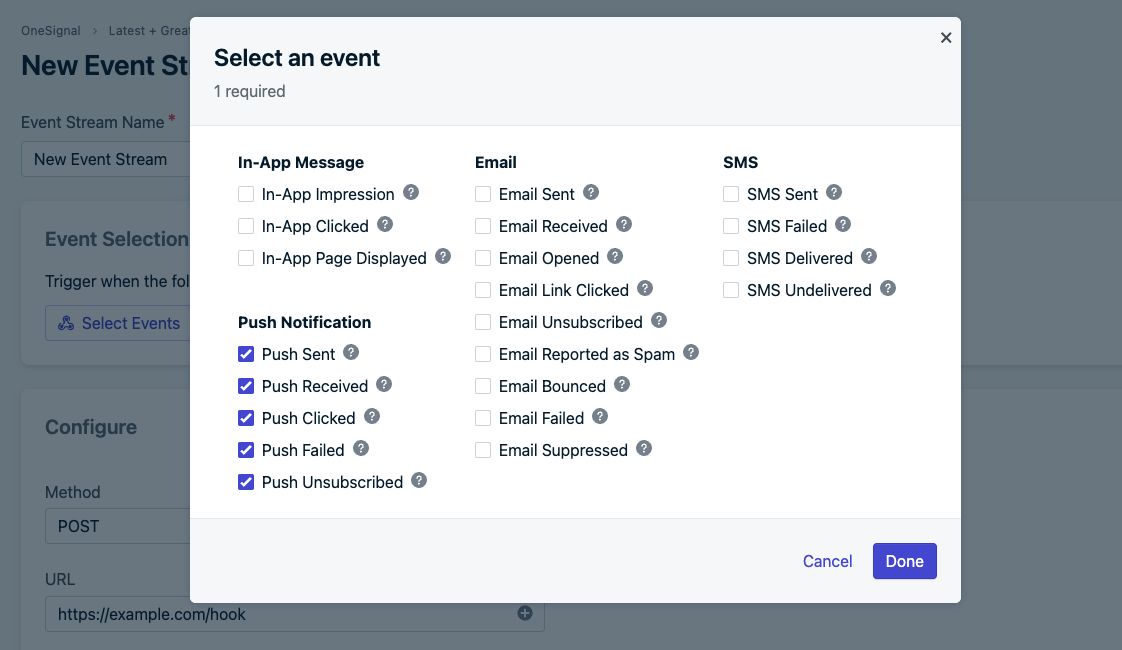
No painel do OneSignal, navegue até **Settings > Event Streams (sujeito a recurso adicional)**. A partir daí, crie um novo event stream e selecione "Trigger when any of the following events occur". Escolha os eventos de mensagem que você deseja sincronizar no pop-up com o Google Sheets. No exemplo abaixo, capturamos todos os eventos de notificação push.
## Criar o event stream
No painel do OneSignal, navegue até **Settings > Event Streams (sujeito a recurso adicional)**. A partir daí, crie um novo event stream e selecione "Trigger when any of the following events occur". Escolha os eventos de mensagem que você deseja sincronizar no pop-up com o Google Sheets. No exemplo abaixo, capturamos todos os eventos de notificação push.
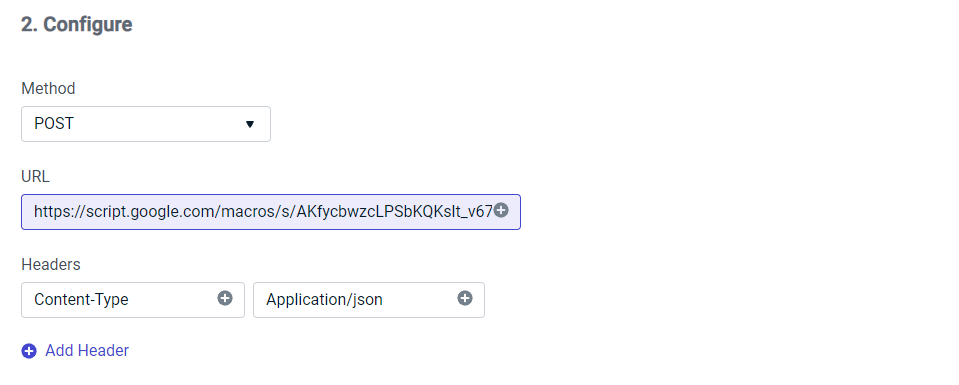
 Em seguida, na etapa de configuração, escolha POST, cole a URL da etapa anterior e crie um cabeçalho para aceitar o JSON.
 Após isso, selecione "Custom Body" no dropdown da Etapa 3 e copie/cole o seguinte código. Você pode alterar as propriedades e eventos que deseja sincronizar, conforme mostrado no exemplo abaixo. Para mais informações sobre propriedades de eventos do event stream, visite nossa [documentação](./event-streams#personalization)
```json json theme={null}
{
"user_id": "{{ event.external_user_id }}",
"event_id": "{{ event.id }}",
"event": "{{ event.kind }}",
"properties": {
"message_id": "{{ message.id }}",
"message_name": "{{ message.name }}",
"message_title": "{{ message.title.en }}",
"message_contents": "{{ message.contents.en }}",
"template_id": "{{ message.template_id }}",
"subscription_id": "{{ event.subscription_id }}",
"subscription_device_type": "{{ event.subscription_device_type }}",
"source": "onesignal"
},
"originalTimestamp": "{{ event.datetime }}"
}
```
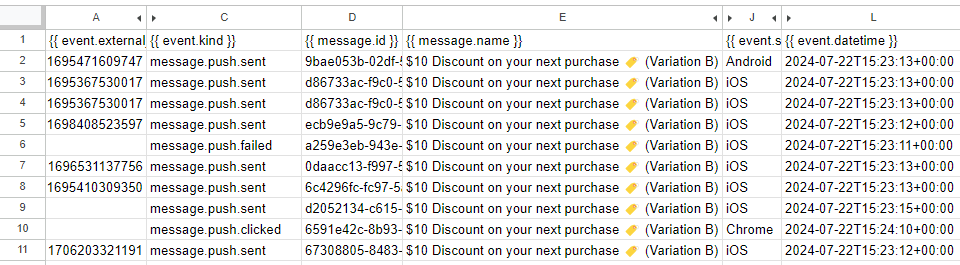
Por fim, selecione "Save & Activate" para sincronizar os eventos de mensagem escolhidos com o Google Sheet. Abaixo está um exemplo de como o código de exemplo acima é renderizado:
Após isso, selecione "Custom Body" no dropdown da Etapa 3 e copie/cole o seguinte código. Você pode alterar as propriedades e eventos que deseja sincronizar, conforme mostrado no exemplo abaixo. Para mais informações sobre propriedades de eventos do event stream, visite nossa [documentação](./event-streams#personalization)
```json json theme={null}
{
"user_id": "{{ event.external_user_id }}",
"event_id": "{{ event.id }}",
"event": "{{ event.kind }}",
"properties": {
"message_id": "{{ message.id }}",
"message_name": "{{ message.name }}",
"message_title": "{{ message.title.en }}",
"message_contents": "{{ message.contents.en }}",
"template_id": "{{ message.template_id }}",
"subscription_id": "{{ event.subscription_id }}",
"subscription_device_type": "{{ event.subscription_device_type }}",
"source": "onesignal"
},
"originalTimestamp": "{{ event.datetime }}"
}
```
Por fim, selecione "Save & Activate" para sincronizar os eventos de mensagem escolhidos com o Google Sheet. Abaixo está um exemplo de como o código de exemplo acima é renderizado:
 ***
***