> ## Documentation Index
> Fetch the complete documentation index at: https://documentation.onesignal.com/llms.txt
> Use this file to discover all available pages before exploring further.
# Event Streams ile Google Sheets entegrasyonu
> Bu kılavuz, OneSignal tarafından oluşturulan mesaj olaylarını analiz etmek için OneSignal'in Event Webhook'ları ile özel bir Google Sheets belgesi arasında bağlantı kurmak için gereken adımları gösterir.
## Event streams'i etkinleştirin
OneSignal uygulamanız için ücretli bir plana ek bir özellik olan [Event streams](./event-streams)'i etkinleştirin. Bu özelliğe erişiminiz yoksa, daha fazla bilgi için Başarı Yöneticiniz veya Hesap Yöneticiniz ile iletişime geçmekten çekinmeyin.
## Apps script dağıtımı oluşturun
OneSignal mesaj olaylarını eklemek istediğiniz Google Sheet'te **Extensions > Apps Script**'e gidin. Ardından, kod düzenleyicisinde mevcut kodu aşağıdakilerle değiştirin:
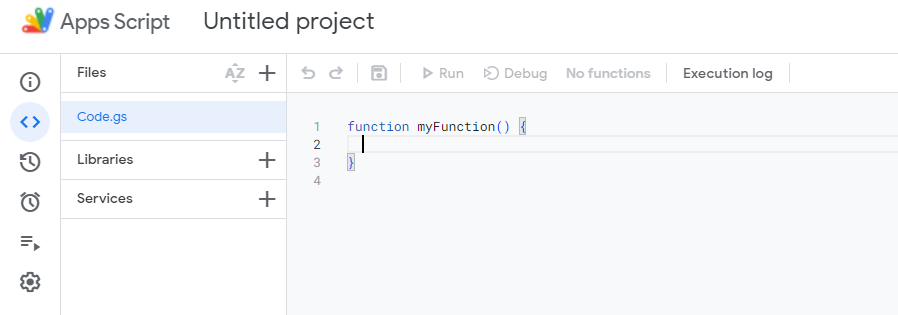 ```javascript javascript theme={null}
function doPost(e) {
// Log the full request for debugging purposes
Logger.log("Request received: " + JSON.stringify(e));
const sheet = SpreadsheetApp.getActiveSpreadsheet().getActiveSheet();
let jsonData;
try {
// Log the postData.contents before parsing
Logger.log("Post Data Contents: " + e.postData.contents);
// Attempt to parse the JSON data
jsonData = JSON.parse(e.postData.contents);
} catch (error) {
// Log the error and return an error response
Logger.log("Failed to parse JSON: " + error);
return ContentService.createTextOutput(
JSON.stringify({ status: "error", message: "Invalid JSON" }),
).setMimeType(ContentService.MimeType.JSON);
}
// Check if the sheet is empty and set headers if necessary
if (sheet.getLastRow() === 0) {
sheet.appendRow([
"User ID",
"Event ID",
"Event",
"Message ID",
"Message Name",
"Message Title",
"Message Contents",
"Template ID",
"Subscription ID",
"Subscription Device Type",
"Source",
"Original Timestamp",
]);
}
// Prepare the row data from the JSON object
const row = [
jsonData.user_id || "",
jsonData.event_id || "",
jsonData.event || "",
jsonData.properties ? jsonData.properties.message_id || "" : "",
jsonData.properties ? jsonData.properties.message_name || "" : "",
jsonData.properties ? jsonData.properties.message_title || "" : "",
jsonData.properties ? jsonData.properties.message_contents || "" : "",
jsonData.properties ? jsonData.properties.template_id || "" : "",
jsonData.properties ? jsonData.properties.subscription_id || "" : "",
jsonData.properties
? jsonData.properties.subscription_device_type || ""
: "",
jsonData.properties ? jsonData.properties.source || "" : "",
jsonData.originalTimestamp || "",
];
try {
// Append the new row to the sheet
sheet.appendRow(row);
} catch (error) {
// Log the error if appending the row fails
Logger.log("Failed to append row: " + error);
return ContentService.createTextOutput(
JSON.stringify({ status: "error", message: "Failed to append row" }),
).setMimeType(ContentService.MimeType.JSON);
}
// Return a success response
return ContentService.createTextOutput(
JSON.stringify({ status: "success" }),
).setMimeType(ContentService.MimeType.JSON);
}
```
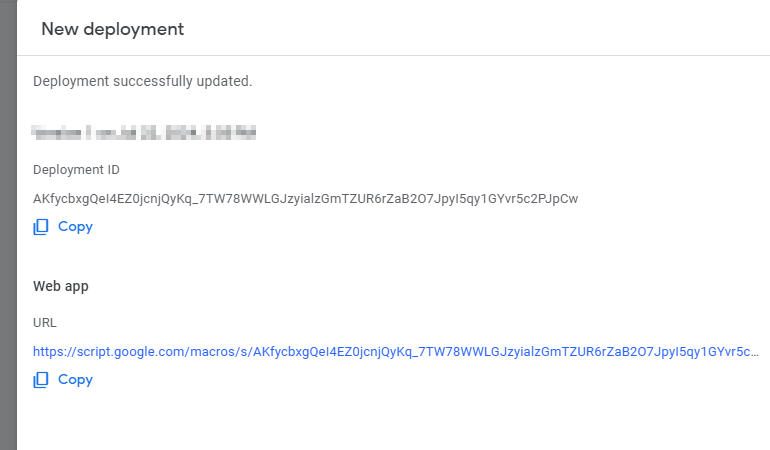
Ardından, projenizi dağıtın. Sağ üstteki Deploy'a tıklayın ve dağıtım türü olarak "Web App"'i seçin. Bir açıklama sağlayın ve projeye kimlerin erişebileceğini seçin; bir sonraki adımda gereken URL'yi oluşturmak için "Anyone"'ı seçeceğiz.
```javascript javascript theme={null}
function doPost(e) {
// Log the full request for debugging purposes
Logger.log("Request received: " + JSON.stringify(e));
const sheet = SpreadsheetApp.getActiveSpreadsheet().getActiveSheet();
let jsonData;
try {
// Log the postData.contents before parsing
Logger.log("Post Data Contents: " + e.postData.contents);
// Attempt to parse the JSON data
jsonData = JSON.parse(e.postData.contents);
} catch (error) {
// Log the error and return an error response
Logger.log("Failed to parse JSON: " + error);
return ContentService.createTextOutput(
JSON.stringify({ status: "error", message: "Invalid JSON" }),
).setMimeType(ContentService.MimeType.JSON);
}
// Check if the sheet is empty and set headers if necessary
if (sheet.getLastRow() === 0) {
sheet.appendRow([
"User ID",
"Event ID",
"Event",
"Message ID",
"Message Name",
"Message Title",
"Message Contents",
"Template ID",
"Subscription ID",
"Subscription Device Type",
"Source",
"Original Timestamp",
]);
}
// Prepare the row data from the JSON object
const row = [
jsonData.user_id || "",
jsonData.event_id || "",
jsonData.event || "",
jsonData.properties ? jsonData.properties.message_id || "" : "",
jsonData.properties ? jsonData.properties.message_name || "" : "",
jsonData.properties ? jsonData.properties.message_title || "" : "",
jsonData.properties ? jsonData.properties.message_contents || "" : "",
jsonData.properties ? jsonData.properties.template_id || "" : "",
jsonData.properties ? jsonData.properties.subscription_id || "" : "",
jsonData.properties
? jsonData.properties.subscription_device_type || ""
: "",
jsonData.properties ? jsonData.properties.source || "" : "",
jsonData.originalTimestamp || "",
];
try {
// Append the new row to the sheet
sheet.appendRow(row);
} catch (error) {
// Log the error if appending the row fails
Logger.log("Failed to append row: " + error);
return ContentService.createTextOutput(
JSON.stringify({ status: "error", message: "Failed to append row" }),
).setMimeType(ContentService.MimeType.JSON);
}
// Return a success response
return ContentService.createTextOutput(
JSON.stringify({ status: "success" }),
).setMimeType(ContentService.MimeType.JSON);
}
```
Ardından, projenizi dağıtın. Sağ üstteki Deploy'a tıklayın ve dağıtım türü olarak "Web App"'i seçin. Bir açıklama sağlayın ve projeye kimlerin erişebileceğini seçin; bir sonraki adımda gereken URL'yi oluşturmak için "Anyone"'ı seçeceğiz.
 ## Event stream oluşturun
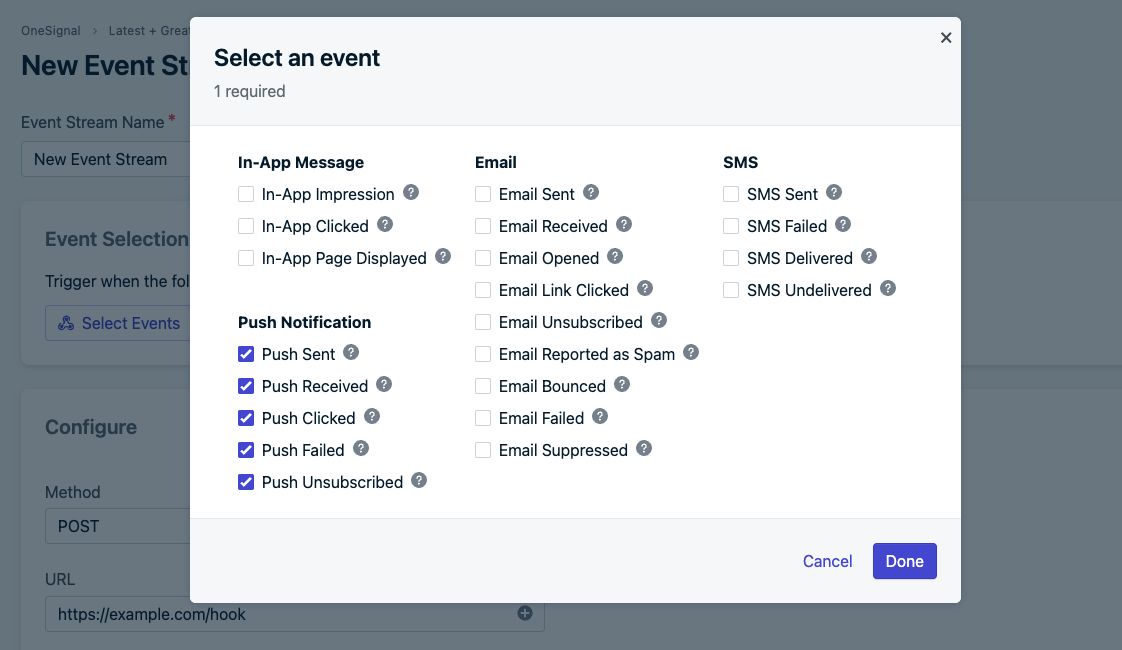
OneSignal panosundan **Settings > Event Streams (ek özelliğe tabi)**'e gidin. Oradan yeni bir event stream oluşturun ve "Trigger when any of the following events occur" seçeneğini seçin. Google Sheets ile senkronize etmek istediğiniz mesaj olaylarını açılır pencerede seçin. Aşağıdaki örnekte, tüm Push Notification olaylarını yakalıyoruz.
## Event stream oluşturun
OneSignal panosundan **Settings > Event Streams (ek özelliğe tabi)**'e gidin. Oradan yeni bir event stream oluşturun ve "Trigger when any of the following events occur" seçeneğini seçin. Google Sheets ile senkronize etmek istediğiniz mesaj olaylarını açılır pencerede seçin. Aşağıdaki örnekte, tüm Push Notification olaylarını yakalıyoruz.
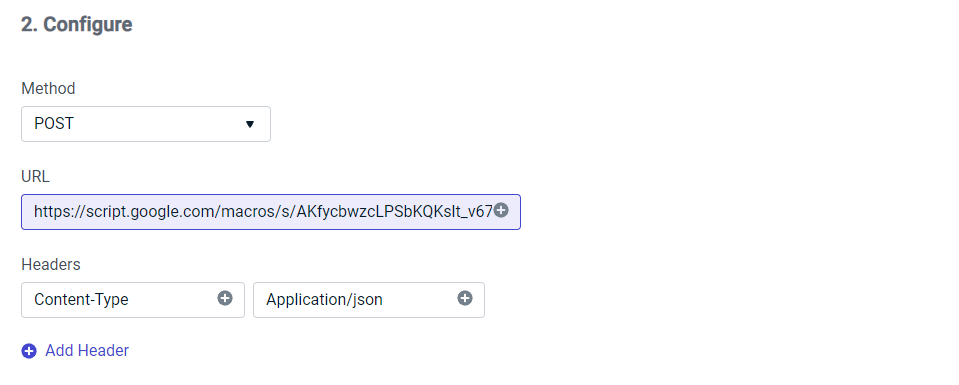
 Ardından, yapılandırma adımında POST'u seçin, önceki adımın URL'sini yapıştırın ve JSON'u kabul etmek için bir başlık oluşturun.
 Bundan sonra, Step 3 Dropdown'da "Custom Body"yi seçin ve aşağıdaki kodu kopyalayıp yapıştırın. Aşağıdaki örnekte gösterildiği gibi, senkronize etmek istediğiniz özellikleri ve olayları değiştirebilirsiniz. Event stream olay özellikleri hakkında daha fazla bilgi için [belgelerimizi](./event-streams#personalization) ziyaret edin
```json json theme={null}
{
"user_id": "{{ event.external_user_id }}",
"event_id": "{{ event.id }}",
"event": "{{ event.kind }}",
"properties": {
"message_id": "{{ message.id }}",
"message_name": "{{ message.name }}",
"message_title": "{{ message.title.en }}",
"message_contents": "{{ message.contents.en }}",
"template_id": "{{ message.template_id }}",
"subscription_id": "{{ event.subscription_id }}",
"subscription_device_type": "{{ event.subscription_device_type }}",
"source": "onesignal"
},
"originalTimestamp": "{{ event.datetime }}"
}
```
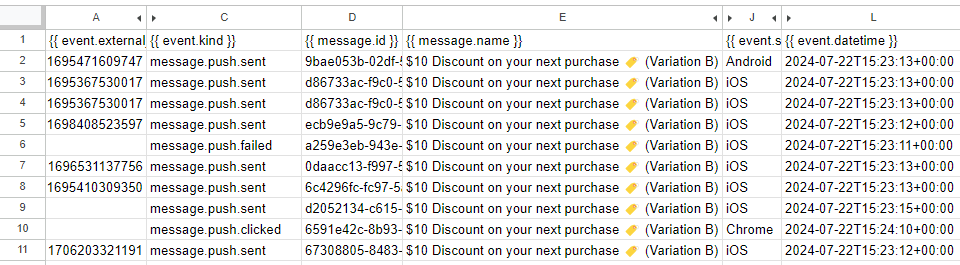
Son olarak, seçilen mesaj olaylarını Google Sheet'e senkronize etmek için "Save & Activate"i seçin. Aşağıda, yukarıdaki örnek kodun nasıl göründüğüne dair bir örnek bulunmaktadır:
Bundan sonra, Step 3 Dropdown'da "Custom Body"yi seçin ve aşağıdaki kodu kopyalayıp yapıştırın. Aşağıdaki örnekte gösterildiği gibi, senkronize etmek istediğiniz özellikleri ve olayları değiştirebilirsiniz. Event stream olay özellikleri hakkında daha fazla bilgi için [belgelerimizi](./event-streams#personalization) ziyaret edin
```json json theme={null}
{
"user_id": "{{ event.external_user_id }}",
"event_id": "{{ event.id }}",
"event": "{{ event.kind }}",
"properties": {
"message_id": "{{ message.id }}",
"message_name": "{{ message.name }}",
"message_title": "{{ message.title.en }}",
"message_contents": "{{ message.contents.en }}",
"template_id": "{{ message.template_id }}",
"subscription_id": "{{ event.subscription_id }}",
"subscription_device_type": "{{ event.subscription_device_type }}",
"source": "onesignal"
},
"originalTimestamp": "{{ event.datetime }}"
}
```
Son olarak, seçilen mesaj olaylarını Google Sheet'e senkronize etmek için "Save & Activate"i seçin. Aşağıda, yukarıdaki örnek kodun nasıl göründüğüne dair bir örnek bulunmaktadır:
 ***
***