> ## Documentation Index
> Fetch the complete documentation index at: https://documentation.onesignal.com/llms.txt
> Use this file to discover all available pages before exploring further.
# v3-4 SDK Capturing a Debug Log
> How to check what OneSignal is doing in your app.
The methods below require the OneSignal SDK versions 3 & 4.
It is recommended to upgrade to our latest version 5 SDKs for User Model APIs.
See [Update to User Model](/docs/en/user-model-migration-guide) for migration steps.
When something isn't working as expected, the best way to see what’s occurring under the hood without sharing the source code, is to capture a debug log. With this log, you can further analyze your app or share it with our Support Team for further assistance.
# Requirements
* A device able to reproduce the issue
* Access to the mobile app's dev tools.
# Step 1. Add Verbose Logging To Your App
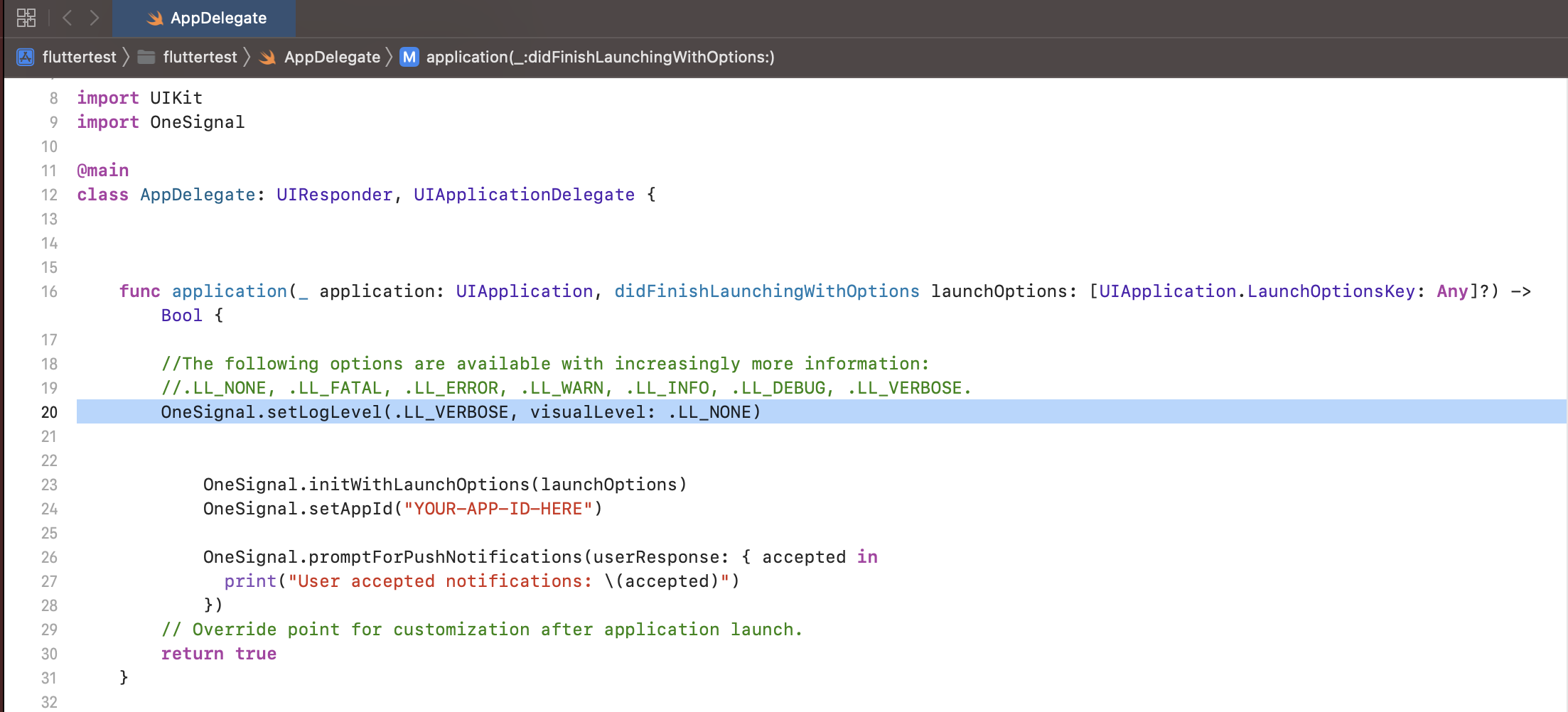
`OneSignal.setLogLevel` allows you to get extra logging related to OneSignal's API requests. Call this method with the `verbose` option before `OneSignal.init`.
```java java theme={null}
//The following options are available with increasingly more information:
//NONE, FATAL, ERROR, WARN, INFO, DEBUG, VERBOSE
OneSignal.setLogLevel(OneSignal.LOG_LEVEL.VERBOSE, OneSignal.LOG_LEVEL.NONE);
```
```swift Swift theme={null}
//The following options are available with increasingly more information:
//.LL_NONE, .LL_FATAL, .LL_ERROR, .LL_WARN, .LL_INFO, .LL_DEBUG, .LL_VERBOSE.
OneSignal.setLogLevel(.LL_VERBOSE, visualLevel: .LL_NONE)
```
```objectivec objectivec theme={null}
////The following options are available with increasingly more information:
//ONE_S_LL_NONE, ONE_S_LL_FATAL, ONE_S_LL_ERROR, ONE_S_LL_WARN, ONE_S_LL_INFO, ONE_S_LL_DEBUG, ONE_S_LL_VERBOSE.
[OneSignal setLogLevel:ONE_S_LL_VERBOSE visualLevel:ONE_S_LL_NONE];
```
```csharp Unity (C#) theme={null}
//The following options are available with increasingly more information:
//None, Fatal, Error, Warn, Info, Debug, Verbose
OneSignal.Default.LogLevel = LogLevel.Info;
OneSignal.Default.AlertLevel = LogLevel.Error;
```
```javascript React Native theme={null}
//The following options are available with increasingly more information:
//0 = NONE, 1 = FATAL, 2 = ERROR, 3 = WARN, 4 = INFO, 5 = DEBUG, 6 = VERBOSE
OneSignal.setLogLevel(6, 0);
```
```javascript Flutter theme={null}
//The following options are available with increasingly more information:
//none, fatal, error, warn, info, debug, verbose
OneSignal.shared.setLogLevel(OSLogLevel.verbose, OSLogLevel.none);
```
```javascript Cordova/Ionic theme={null}
//The following options are available with increasingly more information:
//0 = NONE, 1 = FATAL, 2 = ERROR, 3 = WARN, 4 = INFO, 5 = DEBUG, 6 = VERBOSE
// Ionic 5 Capacitor may need to use (window as any).plugins.OneSignal
window.plugins.OneSignal.setLogLevel({logLevel: 6, visualLevel: 0});
```
```csharp Xamarin theme={null}
//The following options are available with increasingly more information:
//NONE, FATAL, ERROR, WARN, INFO, DEBUG, VERBOSE
// Needs: using Com.OneSignal.Abstractions;
OneSignal.Current.SetLogLevel(LOG_LEVEL.VERBOSE, LOG_LEVEL.NONE);
```
```lua Corona theme={null}
-- The following options are available with increasingly more information:
--0 = NONE, 1 = FATAL, 2 = ERROR, 3 = WARN, 4 = INFO, 5 = DEBUG, 6 = VERBOSE
OneSignal.SetLogLevel(6, 0)
```
# Step 2. Reproduce the Issue
Plug the device into your dev tools and reproduce the issue while capturing the log. This will help trace any events and will likely help uncover any errors that might be happening.
 # Step 3. Share
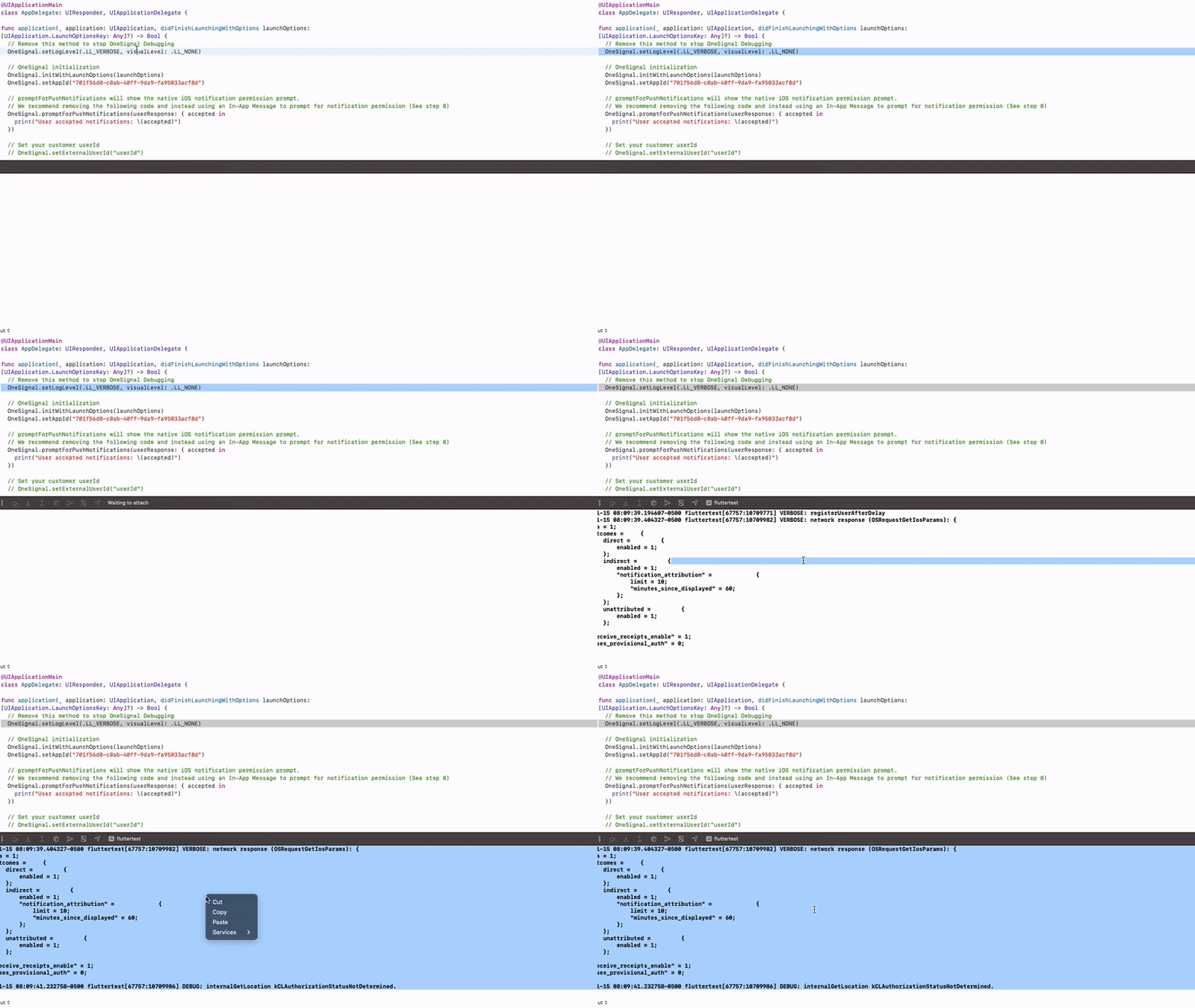
If the log didn't help solve the issue and you need further assistance, please share the entire log from app start to end of reproduction as a .txt file.
## Android Studio
1. Select Run from the bottom of the window. ------If you don't see this select it from View > Tool Windows > Run
# Step 3. Share
If the log didn't help solve the issue and you need further assistance, please share the entire log from app start to end of reproduction as a .txt file.

## Android Studio
1. Select Run from the bottom of the window. ------If you don't see this select it from View > Tool Windows > Run
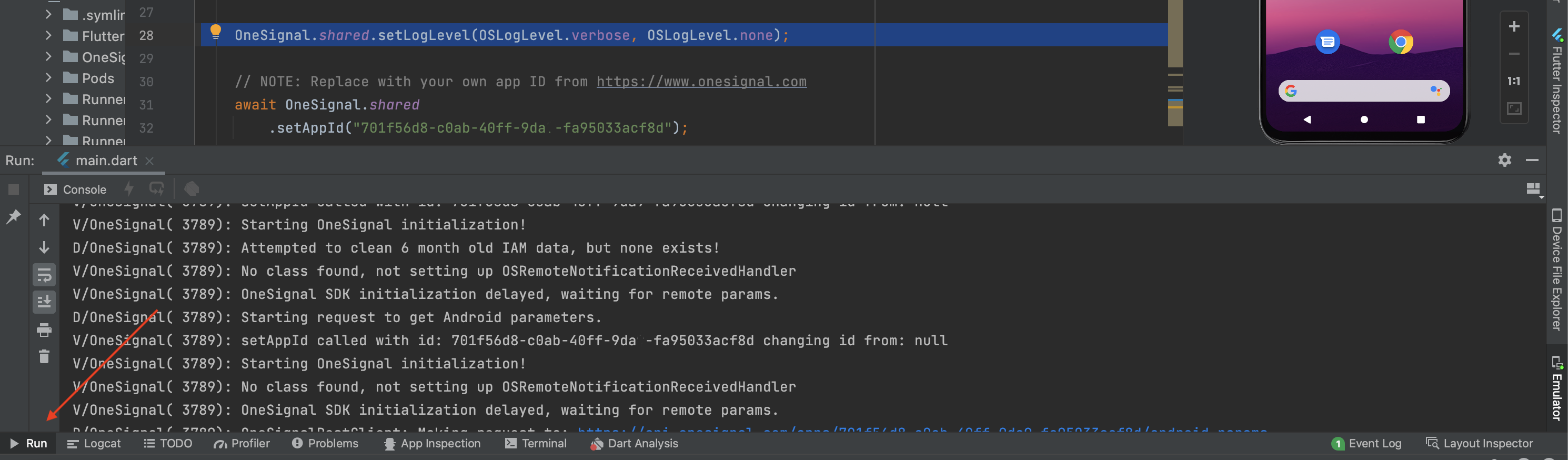 2. Run your application on your emulator or device
3. Select all lines in the log that appear within your Run console by pressing Control + A and then copy them.
4. Paste them into a .txt file and send this to support.
Here's a sample log for reference: [https://drive.google.com/file/d/1XphR4u4CRtUO37X6VZzzeyLUhq5pRMYw/view?usp=sharing](https://drive.google.com/file/d/1XphR4u4CRtUO37X6VZzzeyLUhq5pRMYw/view?usp=sharing)
## Xcode
**NOTE:** For your crash to show in the following steps the crash must happen when your device is not connected to your Mac. Connect it after you reproduce the crash.
1. In Xcode go to `Window` > `Devices & Simulators`.
2. Select your device on the left and press the "Open Console" button.
3. Select "All Messages" (top left)
4. Reproduce issue with the connected device.
5. Press `Command + A` to select all, then `Command + C` to copy log
6. Send it to OneSignal support along with details on reproducing the crash.
2. Run your application on your emulator or device
3. Select all lines in the log that appear within your Run console by pressing Control + A and then copy them.
4. Paste them into a .txt file and send this to support.
Here's a sample log for reference: [https://drive.google.com/file/d/1XphR4u4CRtUO37X6VZzzeyLUhq5pRMYw/view?usp=sharing](https://drive.google.com/file/d/1XphR4u4CRtUO37X6VZzzeyLUhq5pRMYw/view?usp=sharing)
## Xcode
**NOTE:** For your crash to show in the following steps the crash must happen when your device is not connected to your Mac. Connect it after you reproduce the crash.
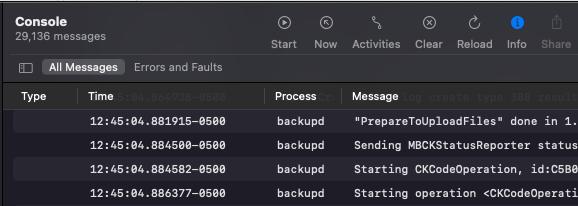
1. In Xcode go to `Window` > `Devices & Simulators`.
2. Select your device on the left and press the "Open Console" button.
3. Select "All Messages" (top left)
4. Reproduce issue with the connected device.
5. Press `Command + A` to select all, then `Command + C` to copy log
6. Send it to OneSignal support along with details on reproducing the crash.
 ***
***