

Requirements
- Mailchimp Account
- Mailchimp Transactional Email Plan (formerly Mandrill)
- OneSignal Account
- Access to your domain and DNS provider
Setup
1. Configure your domain for email
Go to the Mailchimp Transactional Email Domains page and add your domain if it hasn’t been added already.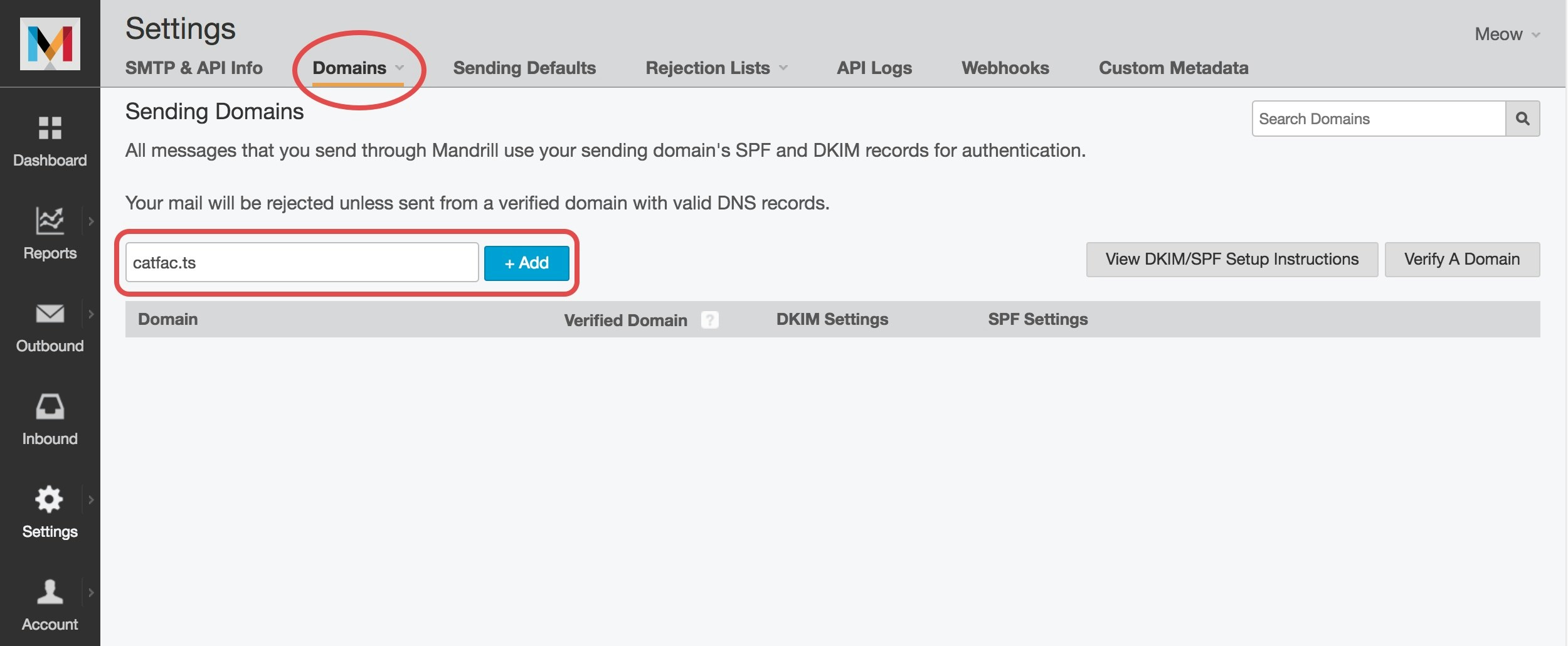
Add domain
- Click View DKIM/SPF Setup Instructions to get your DNS records.
- Optionally verify ownership via email under View details.
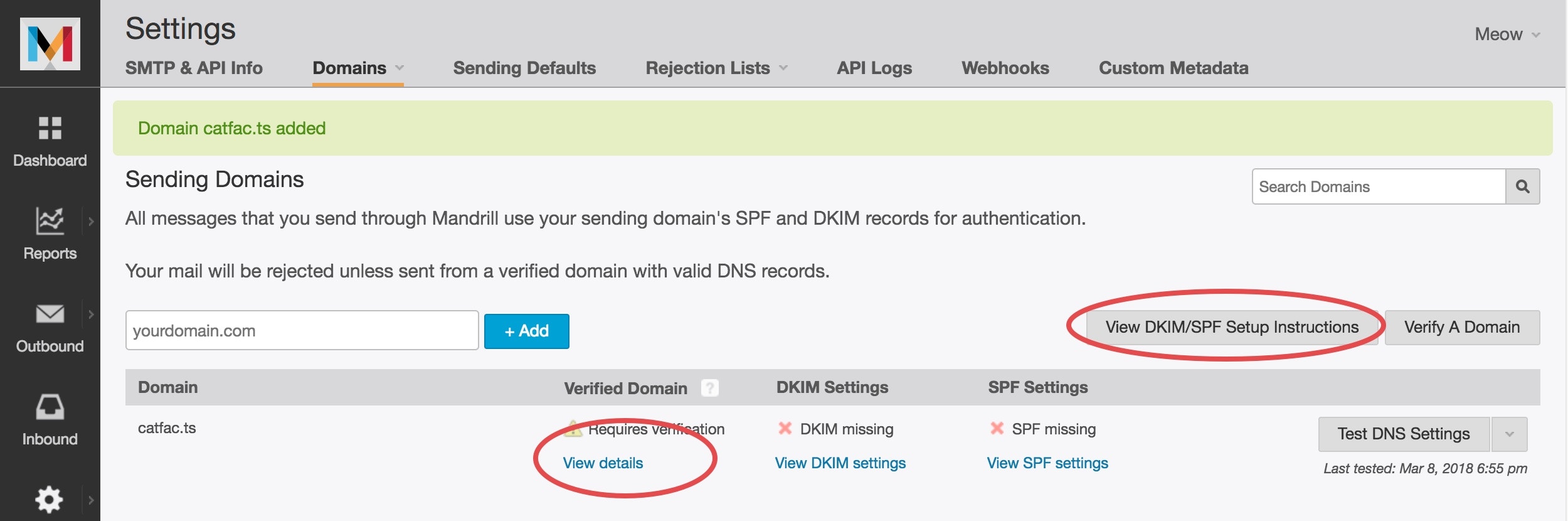
View DKIM/SPF Setup Instructions
2. Create API Key
In the Transactional Email Settings, click + New API Key.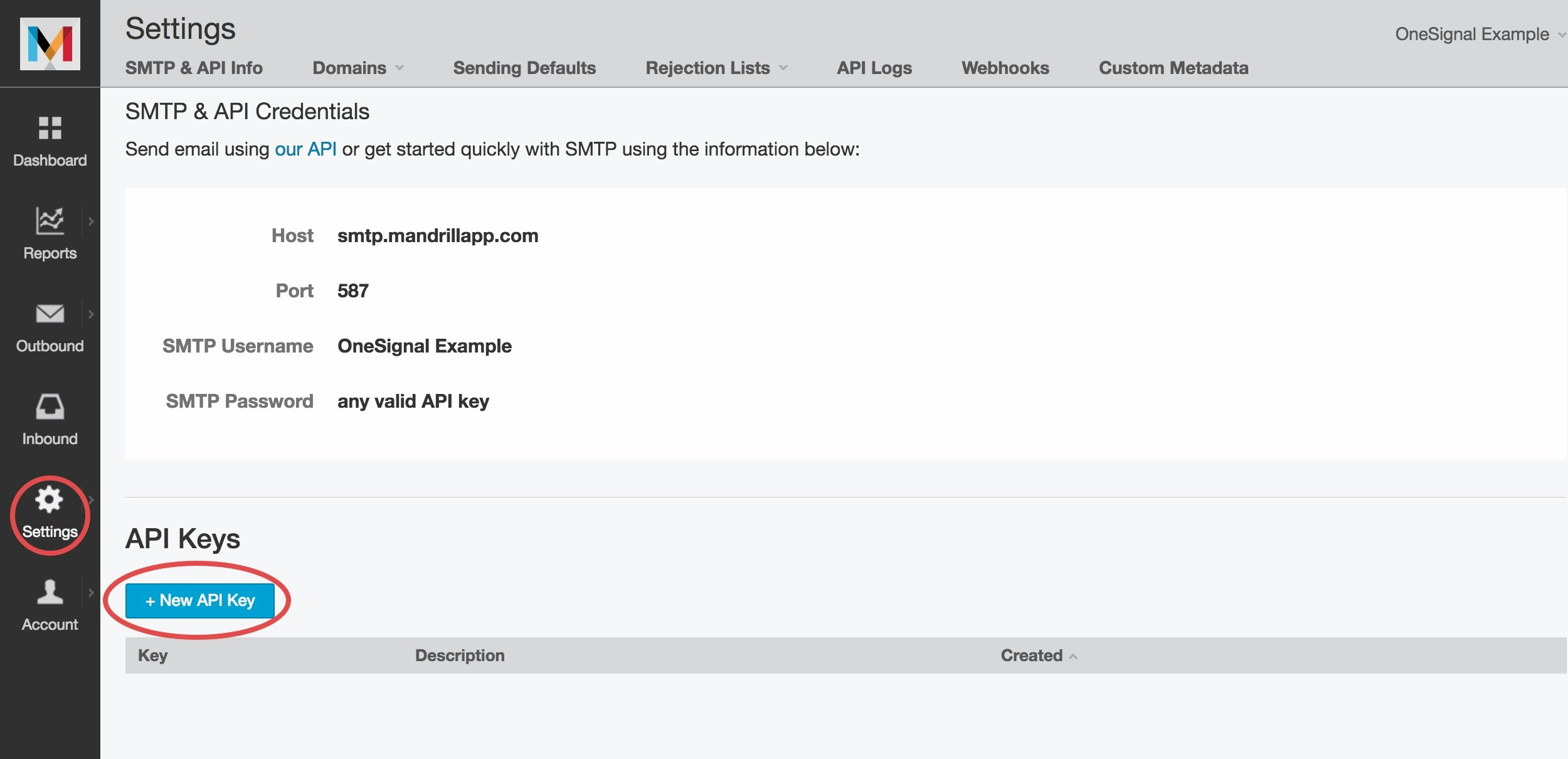
Create API Key
OneSignal API Key.
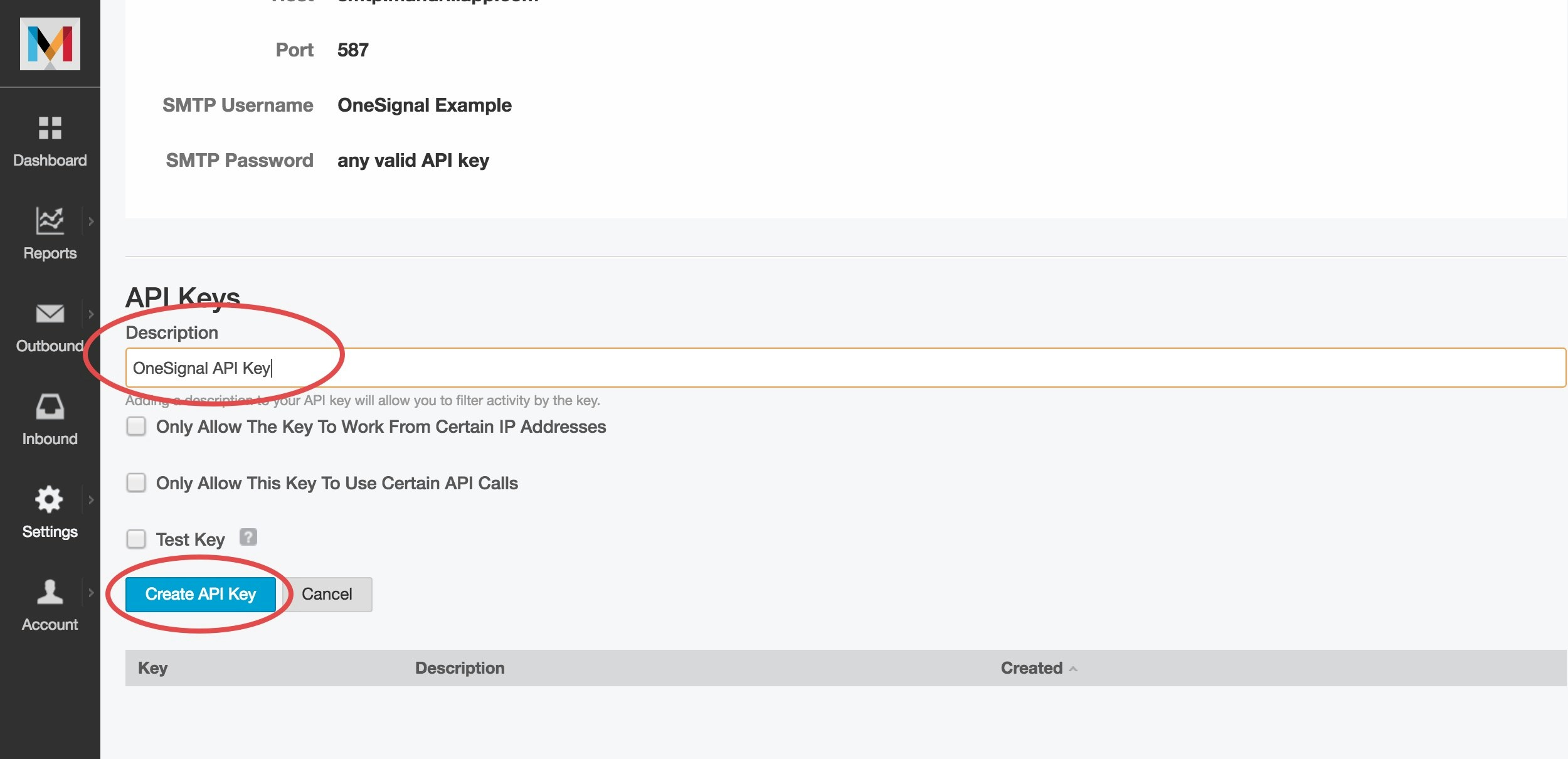
Name the API Key
- Copy the API key securely
- Note your SMTP Username
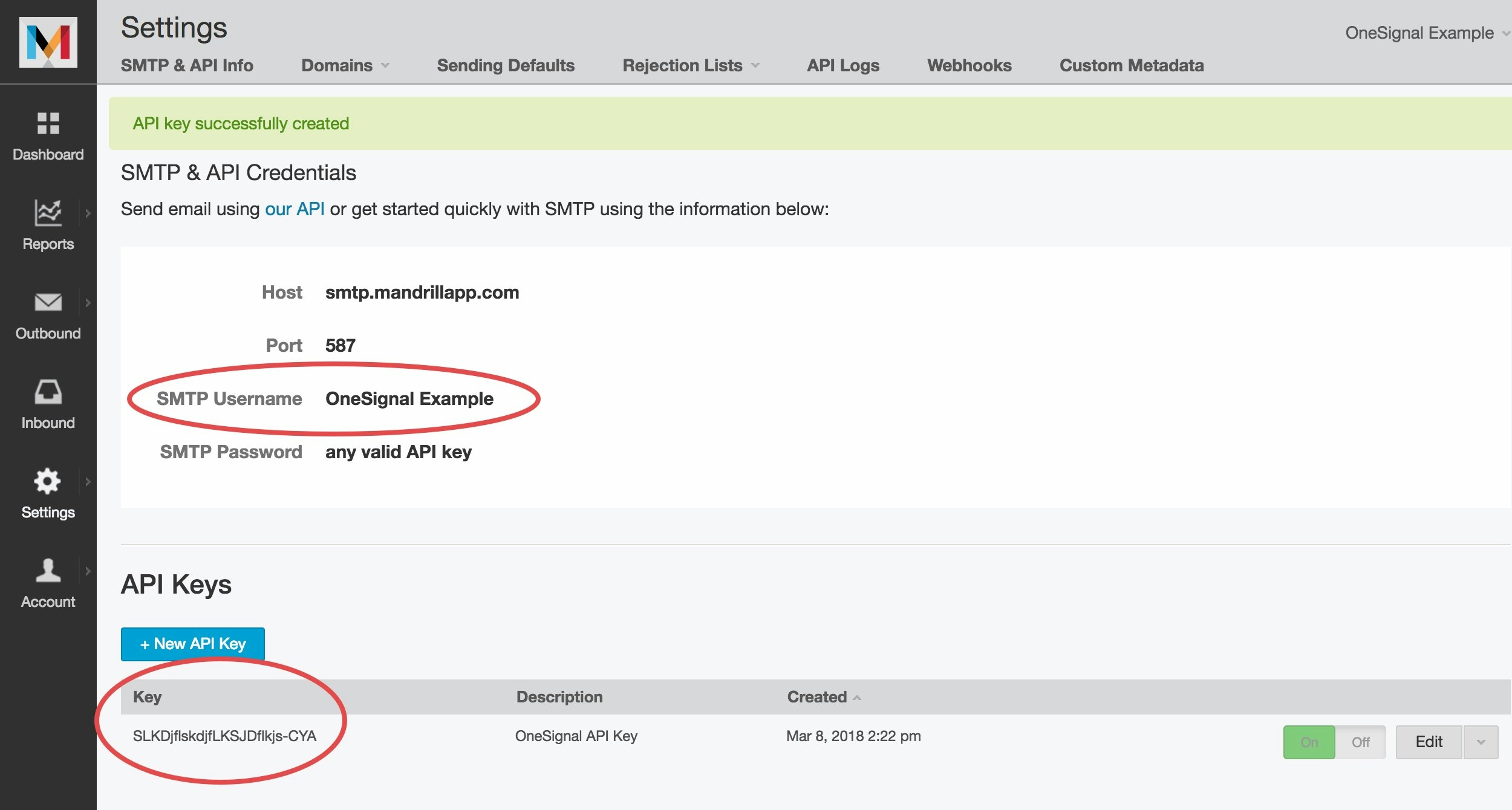
Copy the API key and SMTP Username
Recommended API Key Permissions
Enable the following permissions to ensure compatibility with OneSignal: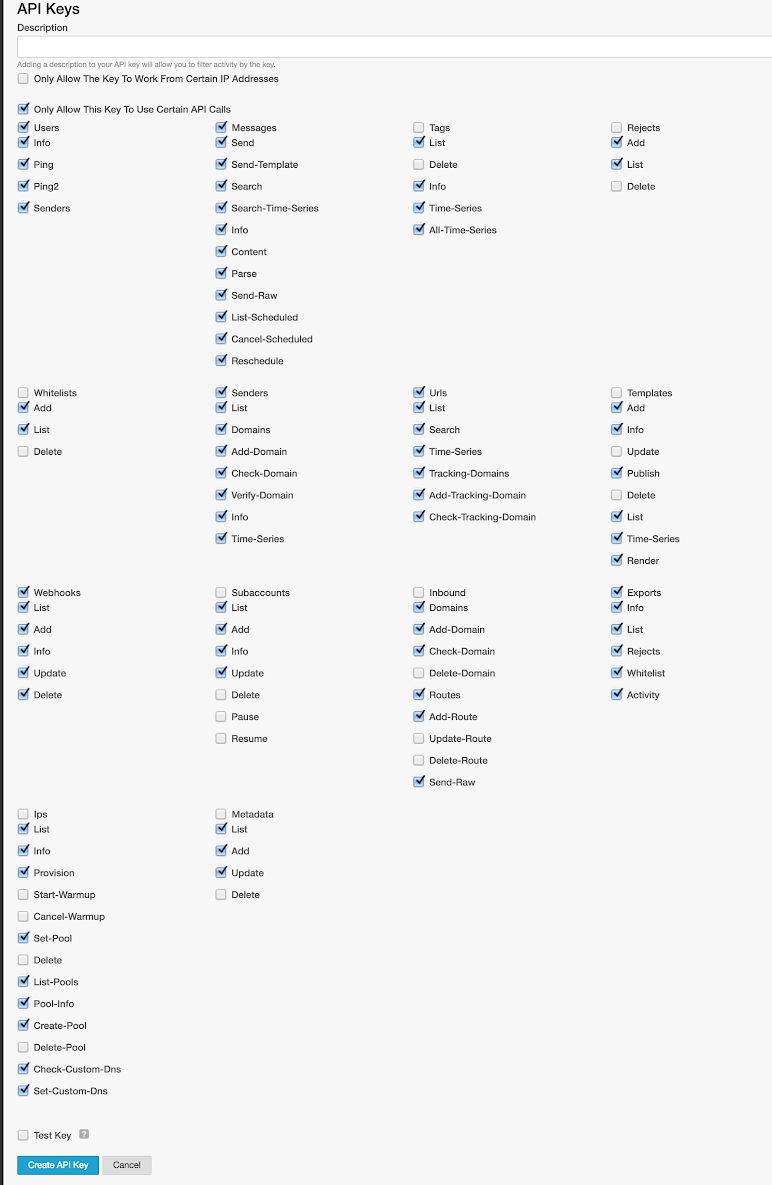
API Key Permissions
3. Enable email messaging in OneSignal
- In your OneSignal dashboard, go to Settings > Platforms > Email.
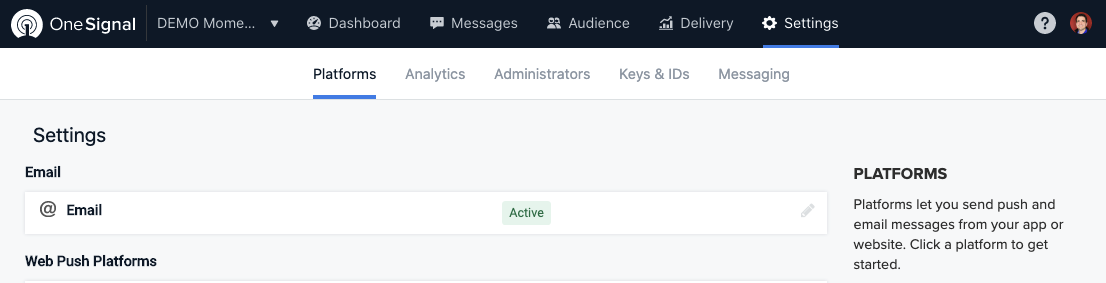
Enable Email Messaging
- Select Mailchimp as your provider and enter the API key and SMTP username.
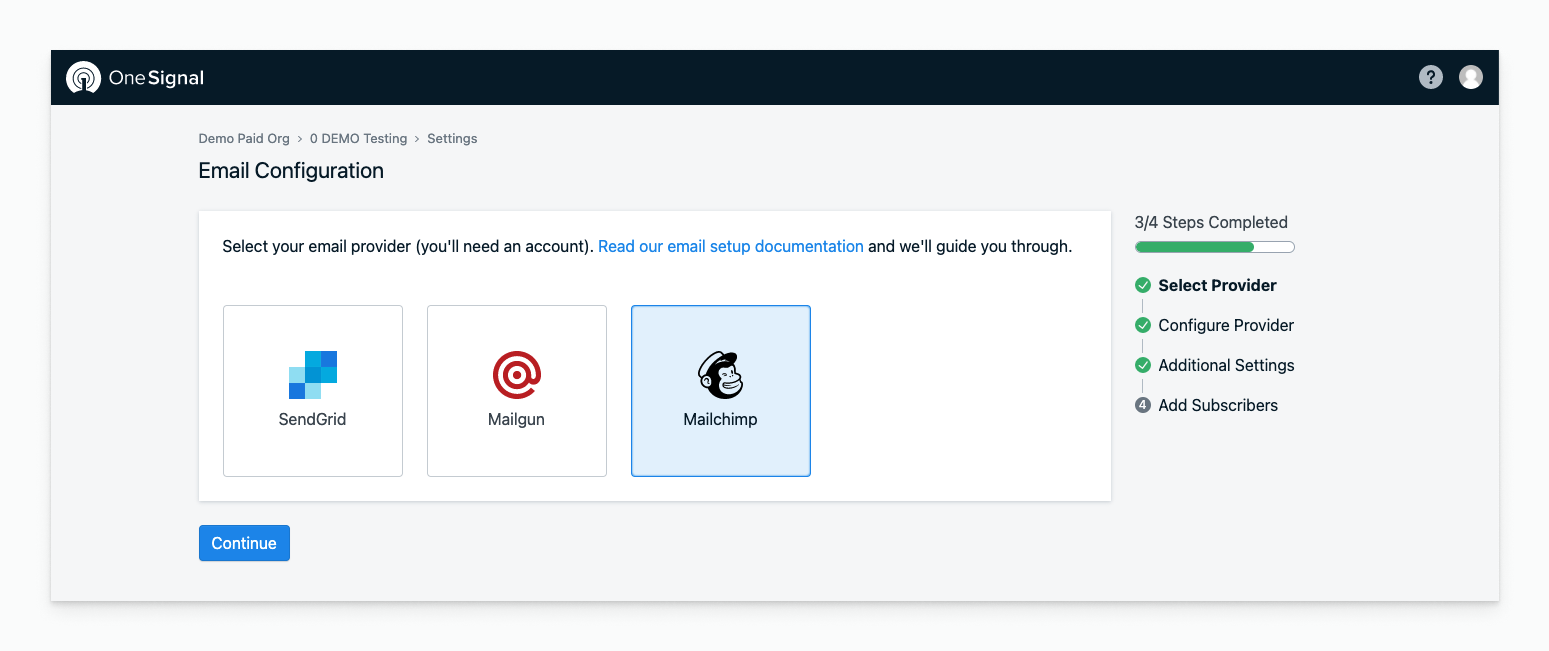
Select Mailchimp and enter credentials
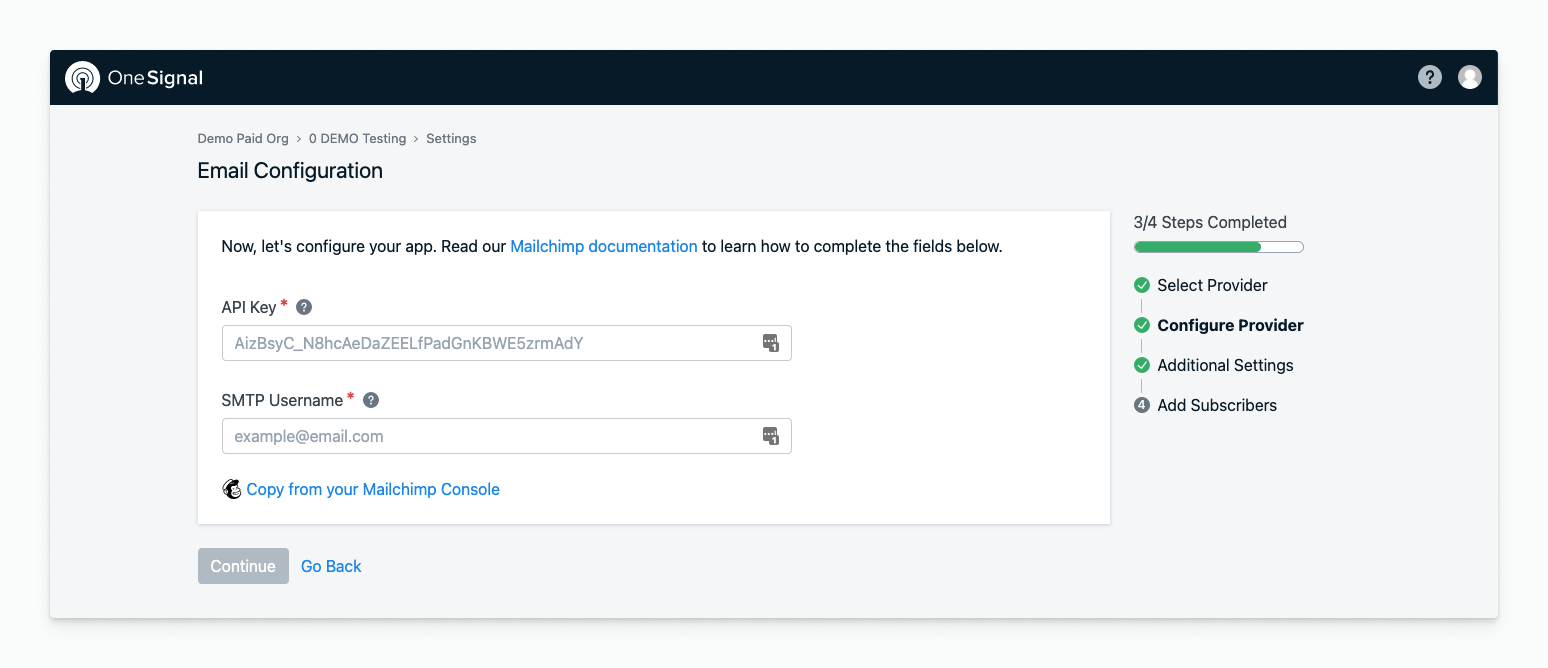
Configure Mailchimp email settings
- Set your default sender name and email address.
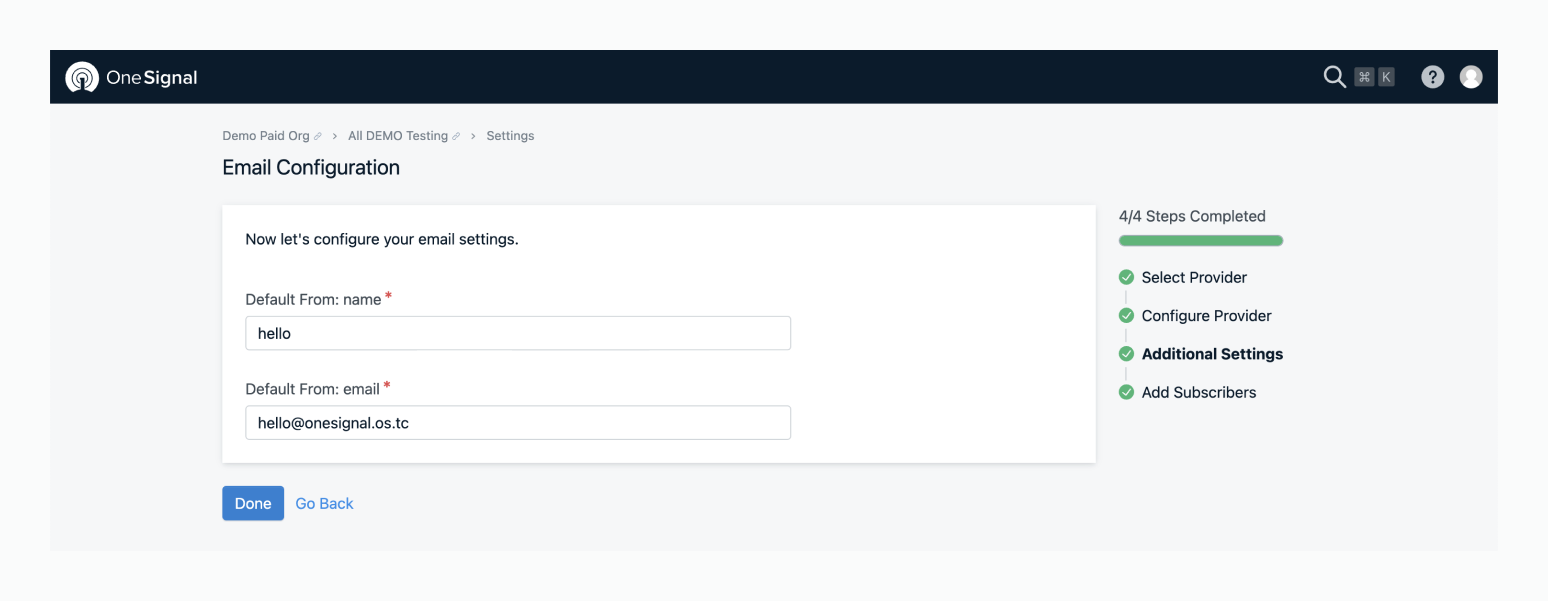
Configure default sender info
4. Send a test email
Go to OneSignal > Messages > Email and click New Email.- Add a subject line
- Click Send Test Email
- Enter your email address and click Send Test Message
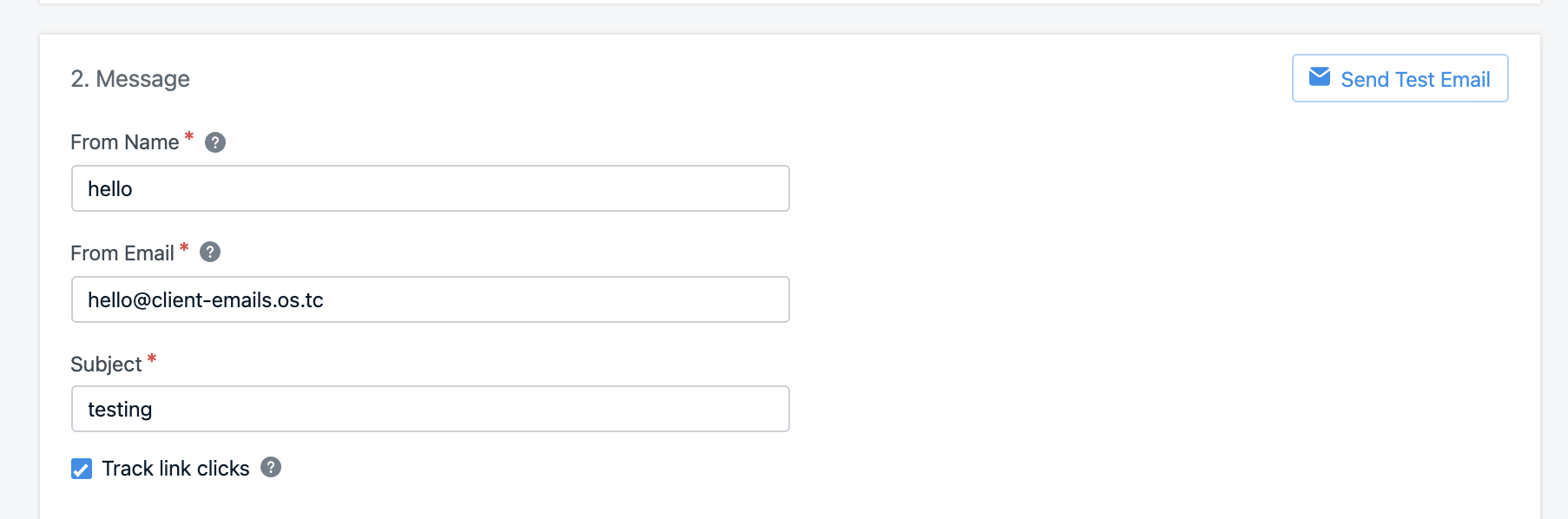
Send Test Email
Having issues? Check the Email FAQ or email
support@onesignal.com.For faster assistance, include:- Your OneSignal App ID
- Detailed issue description, logs, and screenshots
- Steps to reproduce
Optional: Generate API key from Mailchimp Dashboard
If you are generating an API key from the main Mailchimp account dashboard:- Click your avatar in the top-right corner.
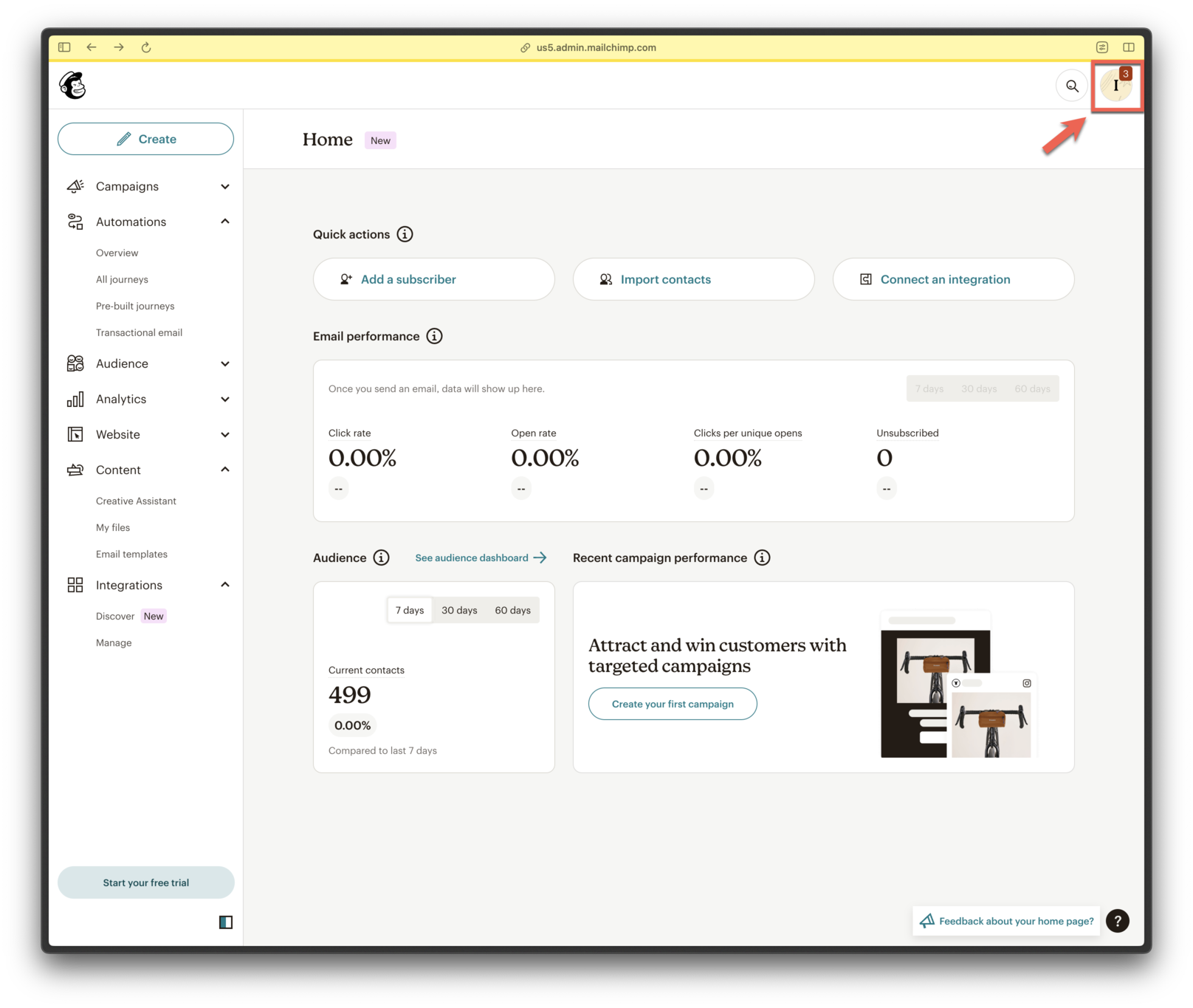
Open profile menu
- Go to Account & Billing.
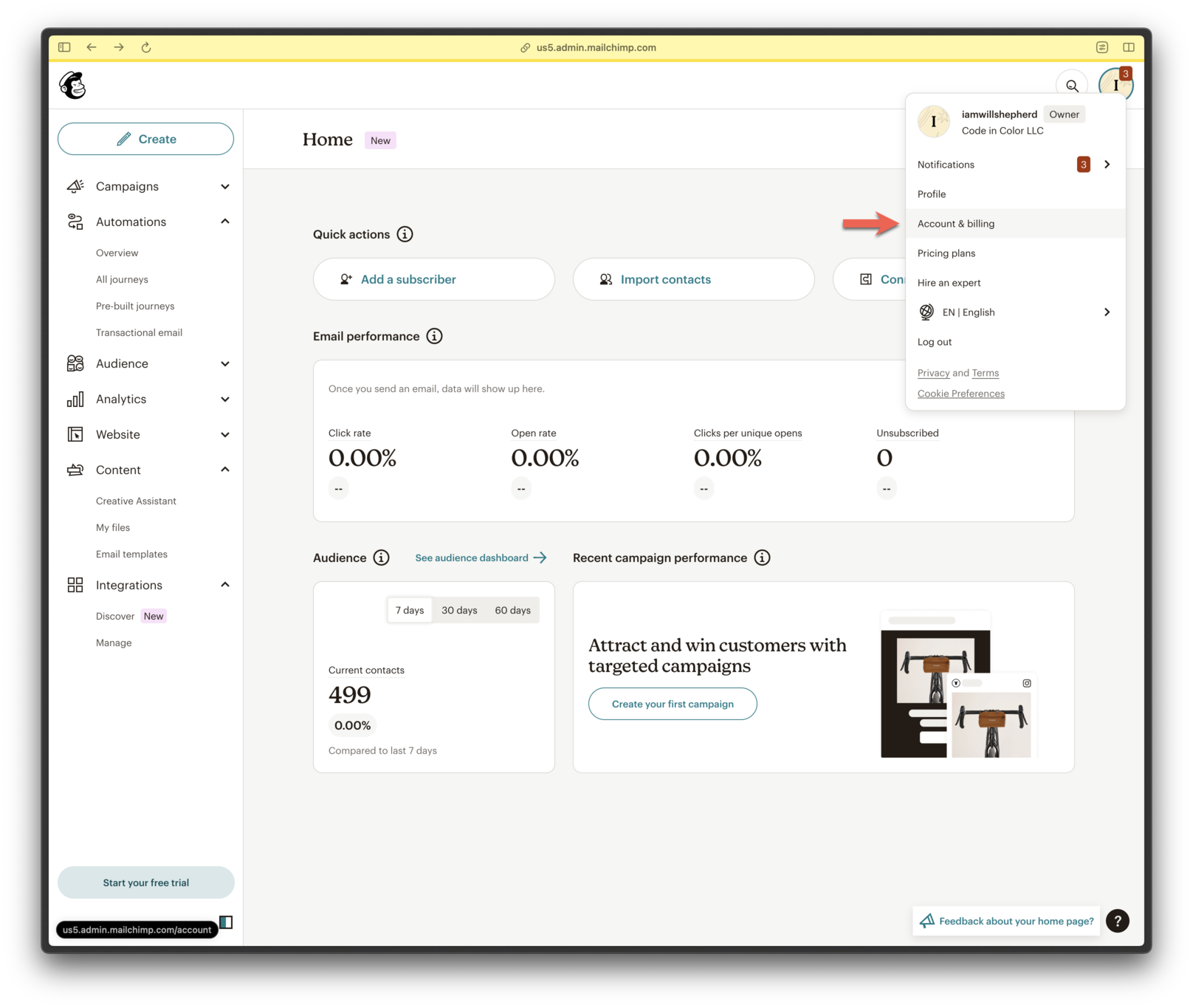
Navigate to Account & Billing
- Click Extras > API Keys.
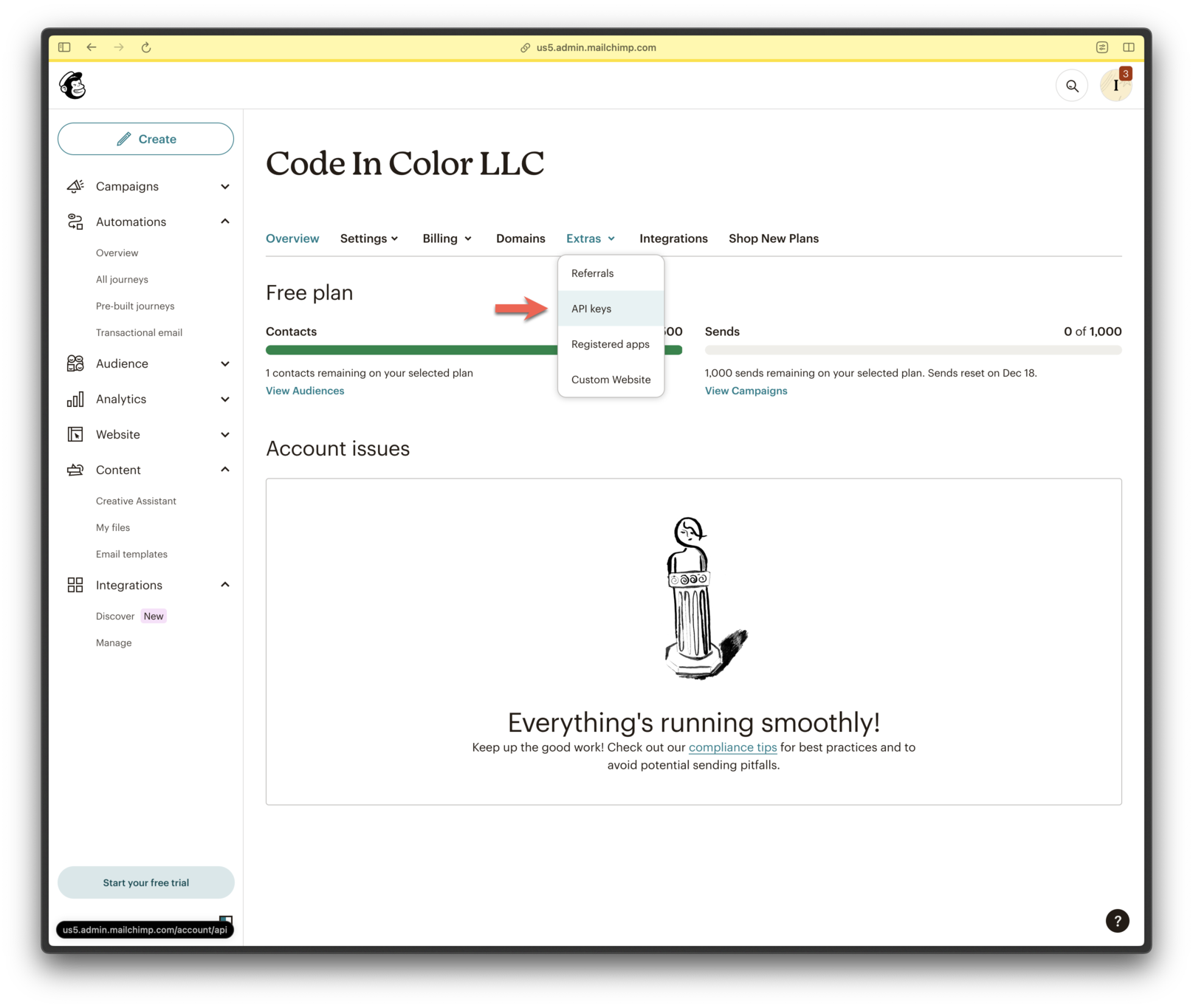
Access API Key section
- Click Create A Key.
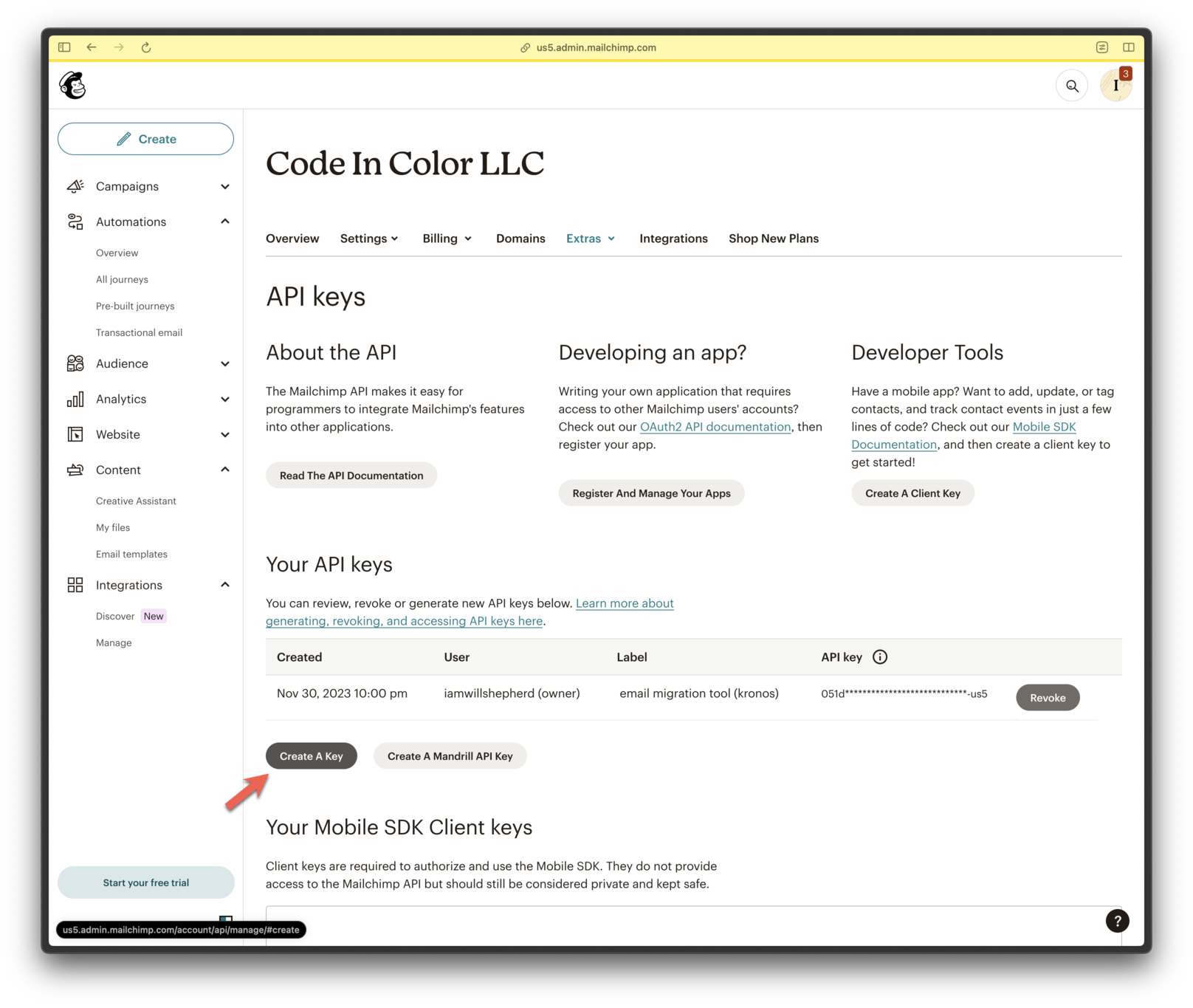
Create a new API key
- Name your key and click Generate Key.
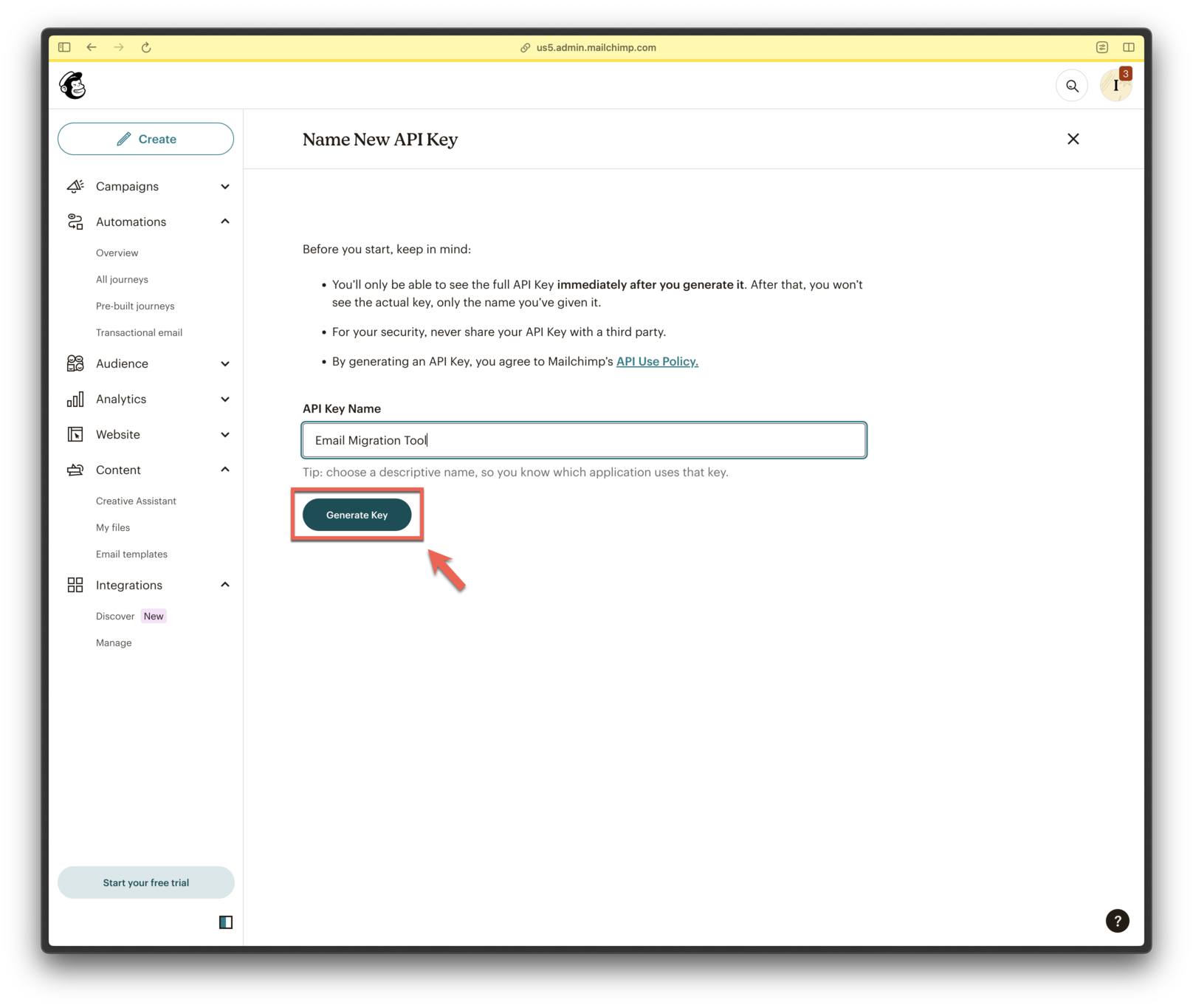
Generate key
- Copy the API key securely.
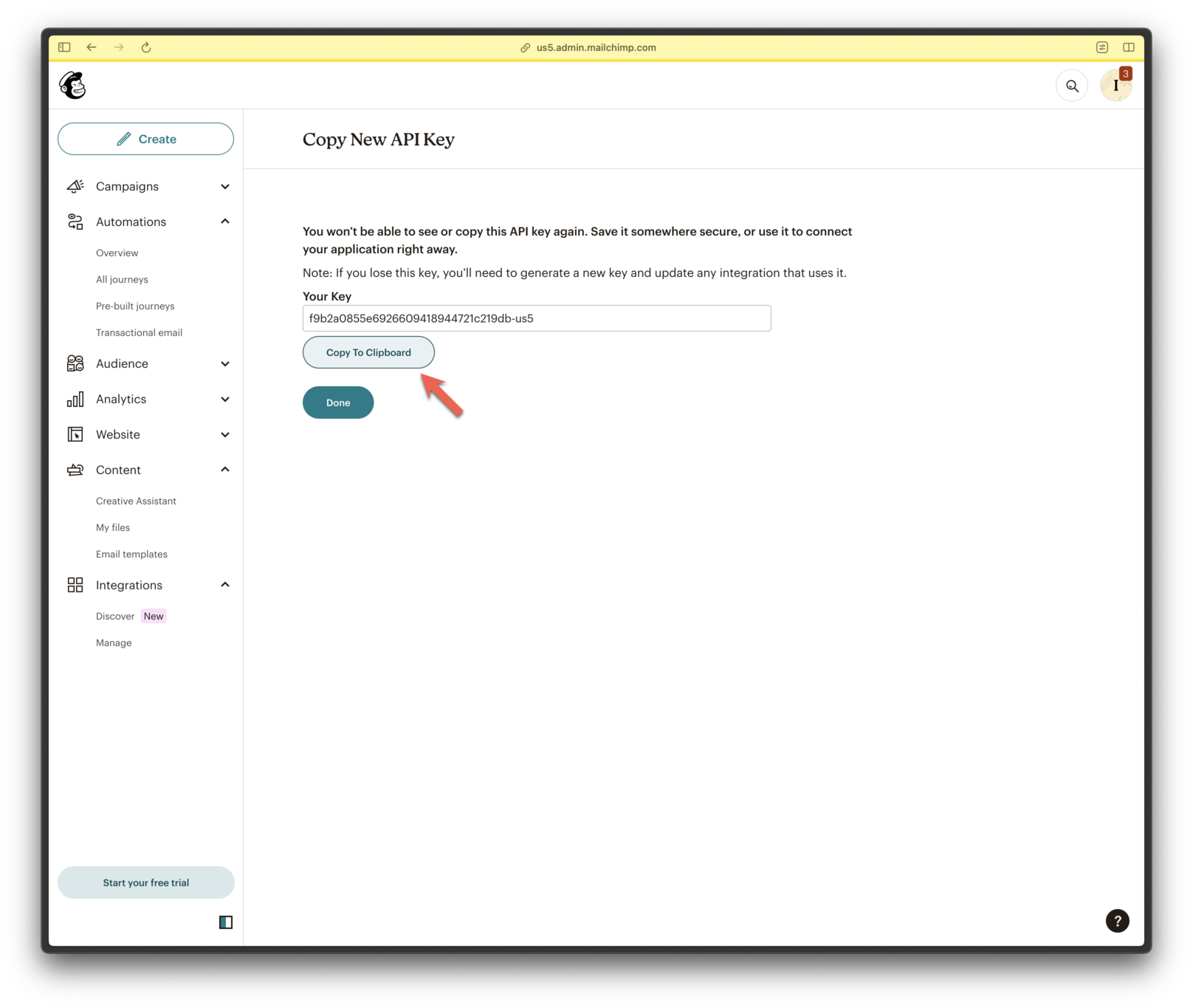
Copy key to clipboard
✅ Email setup complete!Next steps:
- Return to the Email Setup guide to explore more OneSignal Email features.