

Overview
The HTML Editor lets you send fully custom, branded emails using your own HTML. You should use the HTML Editor when you:- Need complete control over layout, spacing, and styling
- Already have production-ready HTML email templates
- Are comfortable working within email client limitations
HTML emails are not the same as web pages. Many HTML and CSS features are unsupported or inconsistently rendered across email clients.
Prerequisites
Before using the HTML Editor, make sure you:- Have experience building responsive HTML emails
- Host all images on publicly accessible URLs (your site, CDN, S3, etc.)
Expected outcome
After setup, your email:- Renders consistently across major clients (Gmail, Outlook, Apple Mail)
- Tracks link clicks correctly
- Includes a working unsubscribe mechanism
- Passes spam and deliverability checks
Import your own templates
If you already have HTML email templates, you can add them to OneSignal in any of the following ways:- Use Email Template forwarding
- Create templates programmatically using the Create Template API
- Copy-paste your HTML into the HTML Editor
Design in Figma and export to OneSignal
If your email designs live in Figma, there are two ways to get them into OneSignal as HTML:- Email Love: A Figma plugin that converts your design into production-ready HTML email and uploads it directly to your OneSignal templates. Enter your OneSignal App ID and API key in the plugin’s export panel and click upload.
- Figma MCP server: Connect Figma to an AI coding tool via the MCP server. Point it at your email design frame and ask it to generate HTML email code, then paste the output into the HTML Editor.
Use the HTML Editor
When creating an email message, select HTML Editor as the editor type.- Paste or write your HTML in the editor.
- Use Send Test Email to preview rendering across clients and devices.
- Fix layout issues before scheduling or sending.
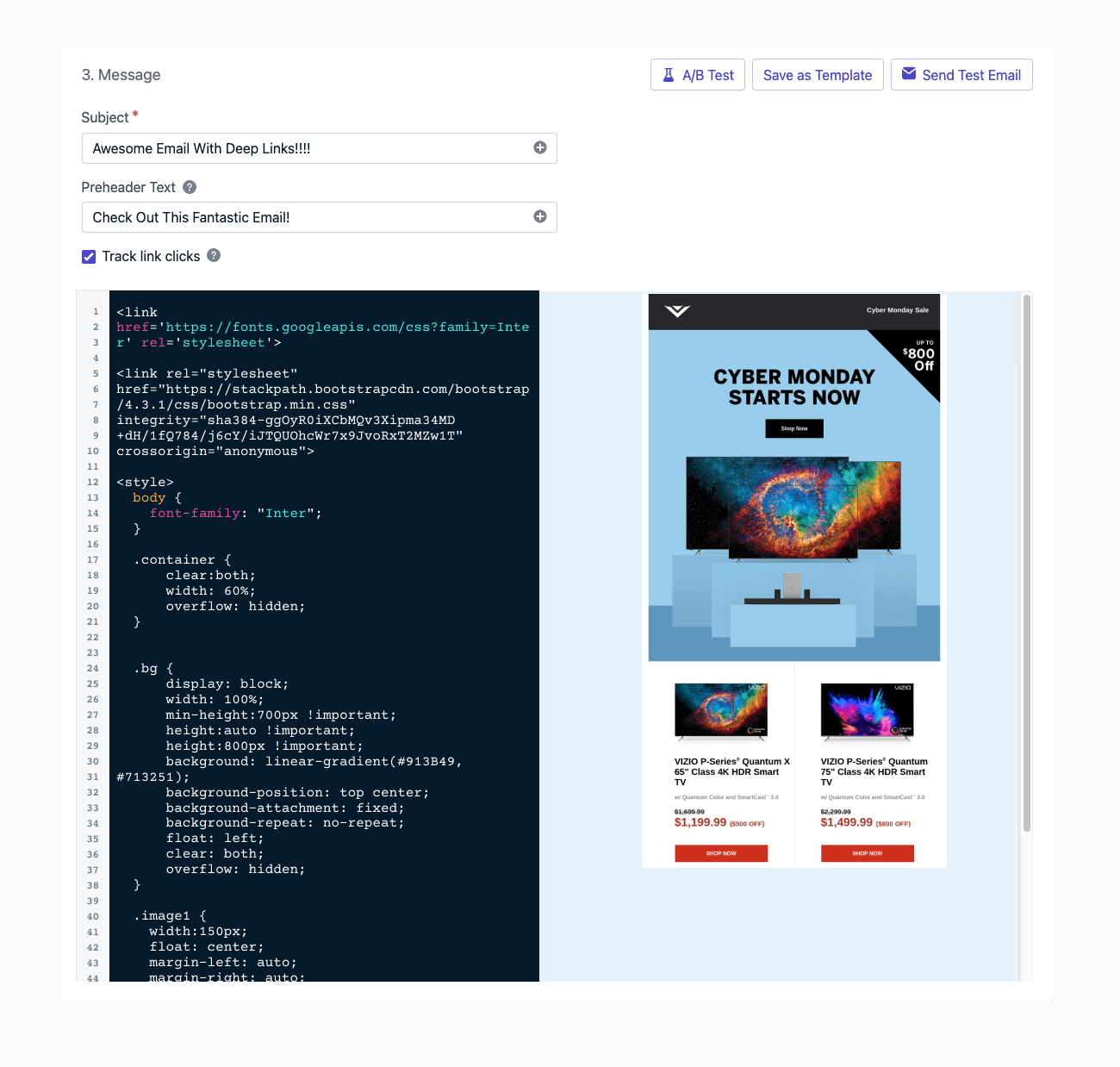
HTML editor with code input and live preview
Links & tracking
Link tracking is enabled by default for HTML emails. Multi-link tracking is supported, and clicks appear in message reports.Links
Configure link tracking, multi-link tracking, and click analytics for email.
Deep linking
Route recipients to specific screens in your app from email links.
Unsubscribe links
All marketing emails must include an unsubscribe link. Emails without a valid unsubscribe option are more likely to:- Be marked as spam
- Hurt sender reputation
- Be blocked by inbox providers
- OneSignal's default unsubscribe link
- Use a custom unsubscribe page (optional)
Include the following placeholder anywhere in your HTML (usually in the footer):When clicked, this link unsubscribes the recipient’s email Subscription in OneSignal.
HTML
HTML email best practices
Always use inline CSS
Most email clients strip<style> blocks and external stylesheets.
Try this tool: Responsive Email CSS Inliner
Dark mode styling
Many email clients apply automatic color inversion when dark mode is enabled. This can cause unpredictable results: buttons may appear with a black background and black text, or logos may disappear. Explicitly define how your email should look in both light and dark modes to prevent these issues.How email clients handle dark mode
Best practices
- Define base styles inline. Always set background and text colors directly on elements instead of relying on defaults or transparency.
- Use media queries for dark mode. Clients that support
@media (prefers-color-scheme: dark)(Apple Mail, Outlook Mac/iOS) allow you to override styles for dark mode. - Apply
!importantsparingly. Adding!importantto dark mode overrides helps prevent inboxes from stacking inversion rules on top of your custom styles. - Signal theme support. Include the following meta tags in your HTML
<head>to reduce auto-inversion:
- Avoid pure white and pure black. Use off-whites and dark grays to reduce the impact of full-inversion clients.
- Use transparent PNGs with care. Dark logos on transparent backgrounds become invisible on dark backgrounds. Add a light outline or use a version with a built-in background.
For a step-by-step walkthrough of adding dark mode CSS using the Drag and Drop Editor, see Dark mode styling with drag-and-drop.
Image sizes for email
Aspect ratios
Aspect ratios
- Header/Banner images:
3:1or4:1(e.g.,600×200or600×150) - Hero images:
16:9or2:1(e.g.,600×338or600×300) - Square images:
1:1(e.g.,300×300); good for product grids - Thumbnails:
1:1or4:3 - Max width:
600–700pxis standard (most email clients) - Design at
2xfor retina displays (e.g.,1200pxwide, displayed at600px)
File size
File size
- Keep individual images under
100–200 KB - Total email size (including images) under
1 MB - Smaller images mean faster load times and better deliverability
File formats
File formats
- JPG: best for photos
- PNG: best for graphics, logos, and images with transparency
- GIF: for simple animations (keep file size small)
- WebP: not widely supported in email yet; avoid
General tips
General tips
- Always include alt text for accessibility and for when images do not load
- Use inline CSS for styling (many clients strip
<style>tags) - Avoid background images (inconsistent client support)
- Test across clients, as Gmail, Outlook, and Apple Mail all render differently
- Outlook often ignores image dimensions, so set both
widthandheightattributes in HTML
Add alt text to images
Alt text improves accessibility and ensures information is conveyed even when images are blocked or fail to load. Most major email clients display and style alt text:Use supported HTML only
Email clients do not support:- JavaScript
<iframe>- HTML forms
- Embedded audio or video
- CSS positioning or layering tricks
Validate before sending
Before sending, check the following:- All links work (broken links hurt deliverability and can trigger spam filters)
- Unsubscribe link functions correctly
- Test emails render in Gmail, Outlook, and Apple Mail
- Dark mode rendering is acceptable
- HTML uses semantic tags and proper indentation for accessibility and maintainability
If your email renders correctly in major clients and unsubscribe works, it is ready to send.
Personalization
Use Liquid templating to insert subscriber-specific content like names, tags, or fallback values directly in your HTML. Example:{{ first_name | default: "there" }}
Message personalization
Available personalization variables and how to use them.
Using Liquid syntax
Conditionals, filters, loops, and advanced Liquid patterns.
FAQ
Can I reuse my existing email templates?
Yes. Forward them to OneSignal via Email Template forwarding, upload them with the Create Template API, or copy-paste the HTML directly into the editor.Can I use custom fonts?
Yes, but support varies. Declare custom fonts with@font-face and always include system font fallbacks. Outlook on Windows ignores web fonts entirely and falls back to system defaults.
Why does my email look different in dark mode?
Each email client applies dark mode differently. Some fully invert colors, some partially invert, and Gmail web does not apply dark mode at all. See the client behavior table above for specifics. Define explicit light and dark mode styles to control rendering.What HTML and CSS features are not supported in email?
JavaScript,<iframe>, HTML forms, embedded audio/video, and CSS positioning are not supported. Use inline CSS for all styling, as most clients strip <style> blocks and external stylesheets.
Can I add a “view in browser” link to my emails?
OneSignal does not generate a hosted web version of your email. To provide a “view in browser” experience, host the email content on your own website and add a standard HTML link pointing to that hosted page.What is the maximum email size?
Keep total email size (HTML + images) under 1 MB. Emails over 102 KB of HTML are clipped by Gmail, which hides content below the fold behind a “View entire message” link.Related pages
Design emails with drag-and-drop
Visual email builder for designing emails without writing full HTML.
Email overview
End-to-end guide to sending email with OneSignal.
Email templates
Save and reuse email designs across campaigns.
Unsubscribe links
Add default or custom unsubscribe links for compliance.
Message personalization
Personalize emails with tags, Liquid syntax, and dynamic content.
Email template forwarding
Import existing HTML email templates into OneSignal.