

What are Custom Events?
A Custom Event is a named user action (or inaction) that you send to OneSignal. You send events from your app, website, or external systems so you can trigger automation, control Journey flow, and personalize user experiences in real time. Examples include:- Completed onboarding
- Made a purchase
- Abandoned a cart
- Canceled a subscription
- Reached a new game level
- Start a Journey
- Continue a Journey with a Wait Until step
- Exit users from a Journey
- Personalize messages using event properties
- Measure conversions and attribute them to the messages that drove them
- Segment users by behavior
When should you use Custom Events?
Use Custom Events when:- Messaging should respond to real-time user behavior
- The data represents something that happened (not permanent state)
- You need event properties for personalization or Journey logic
- You want to store long-term user attributes (use Tags instead)
Custom Event structure
Custom Events include the following fields:string
required
The event name. Maximum
512 bytes. Names are measured in bytes, so a name made of multi-byte characters reaches the limit sooner than its character count suggests.object
Optional parameters that describe the event (for example: plan name, product ID, or price). These can be used for personalization and Journey flow control.
string
The user’s External ID. A user identifier is required when using the Create Custom Events API. Either
external_id or onesignal_id must be provided.string
The time the event occurred (or will occur), formatted as an ISO 8601 string. See Create Custom Events API.
string
A unique UUID used to prevent duplicate event processing. See Create Custom Events API.
Event name limits
Each app can send up to 1,000 unique Custom Event names. Events sent under a name your app already uses are always accepted, so reaching the limit never interrupts the events you’re already sending. Once an app reaches 1,000 names, events sent under a new name are rejected. OneSignal rejects the individual event, not the request, so other events in the same batch are processed normally. The API returns HTTP202 with an errors array, and each rejected event carries the error code too many event names.
A rejected event is not stored, is not billed, and cannot trigger a Journey, personalize a message, or be used in a Segment. It does appear in Data > Events & conversions, marked as failed with the reason “This app has reached its limit of unique event names”, so you can see which names were rejected.
To make room, delete a Custom Event name you no longer use. Deleting a name frees its slot and permanently deletes the events stored under it.
The Custom Events page warns you once your app passes 900 unique event names, before any event is rejected.
Name events so you don’t reach the limit
The event name says what happened. Everything that varies belongs in properties. Putting an ID, a price, or any other variable value in the name creates a new unique name on every send and burns through the 1,000 limit quickly.Delete an event name to free a slot
Deleting a Custom Event name frees its slot and permanently deletes the events stored under that name. This cannot be undone.
1
Find events you no longer use
Go to Data > Events & conversions and open the Event List tab. Select an event to open its detail view. The Usage panel shows every Journey and Segment that references it, and the last occurrence timestamp shows whether it is still arriving.
2
Remove the event from anything still using it
An event listed under Usage is live. Update or remove those Journeys and Segments first, otherwise deleting the name impacts their behavior.
3
Delete the name
Open the row menu next to the event name and select Delete, then confirm. You need permission to delete Custom Events. If the option is missing, ask someone on your account with a role that grants it.
4
Refresh the page
Deletion runs in the background and can take a few minutes. The page does not update on its own, so select Refresh List to confirm the name is gone and the slot is free.
Send Custom Events to OneSignal
All events are treated the same for billing purposes, regardless of source.
API and SDKs
Create Custom Events API
Send events from your backend.
Mobile/Web SDKs
Track events client-side.
JSON
Integrations
OneSignal connects to 25+ external data sources to import custom events, including data warehouses, databases, and streaming platforms, with no custom code required.Twilio Segment
Route events and audiences between Segment and OneSignal.
Amplitude
Sync cohorts and import custom events from Amplitude.
Snowflake
Import custom events from your Snowflake warehouse.
Google BigQuery
Import custom events from BigQuery datasets.
Apache Kafka
Stream custom events from Kafka topics.
Browse all custom event sources
See the full list of databases, warehouses, and streaming platforms that import custom events into OneSignal.
Verify events are received
After sending events, confirm they are reaching OneSignal in Data > Events & conversions.Event List tab
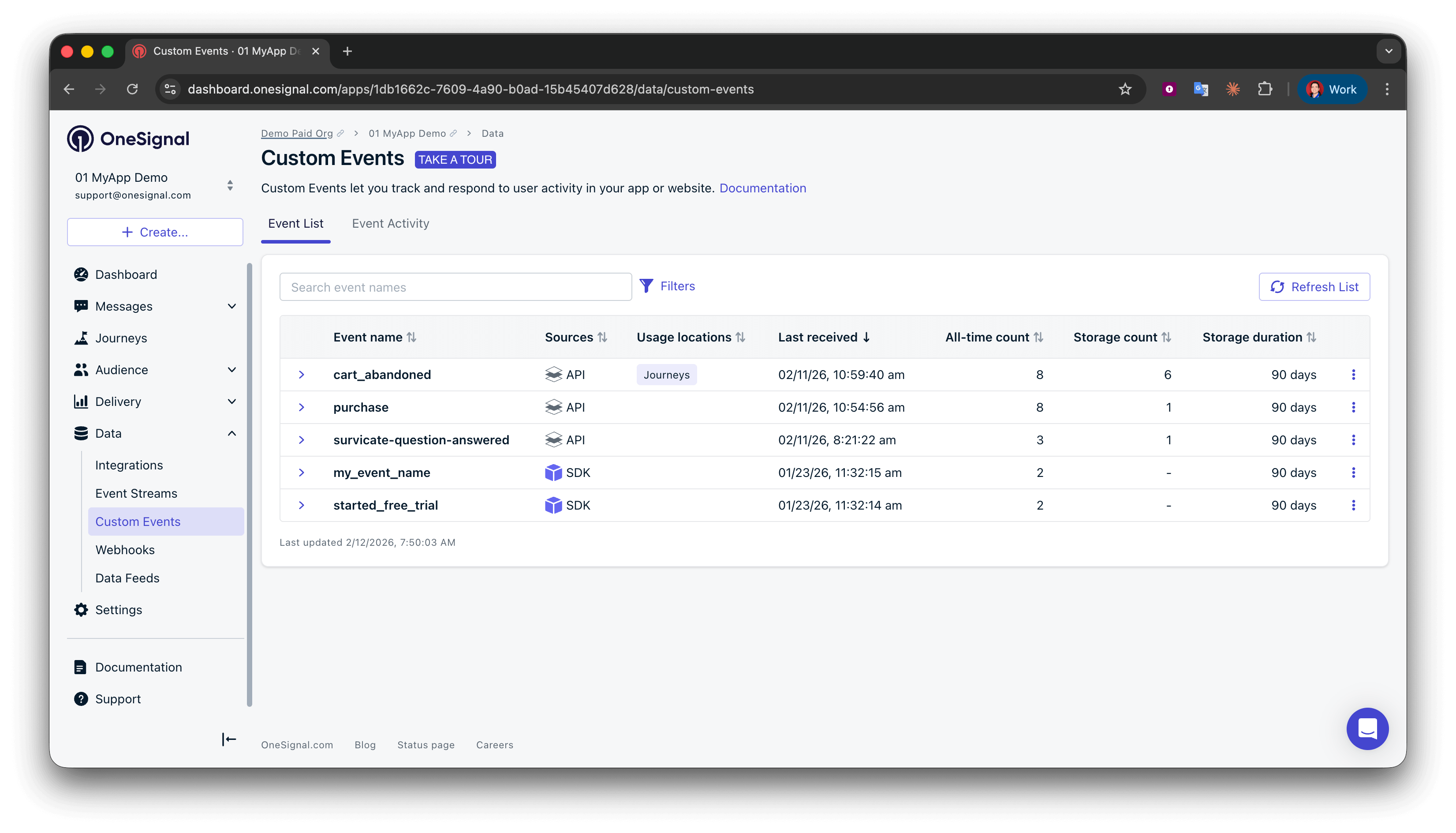
Event List tab in OneSignal dashboard Data > Events & Conversions
- Total events ingested
- Most recent event (with full JSON payload and properties)
- Event source (SDK, API, or integration)
- Last occurrence timestamp
- Source Breakdown: Number of events ingested by source. Expand to view the latest event schema and the timestamp of the most recent event.
- Activities: The 10 most recent events, including source and timestamp. Expand any entry to inspect the full JSON payload.
- Usage: Where the event is currently used (Journeys or segments). Click directly into the associated Journey or segment to modify its settings.
Event Activity tab
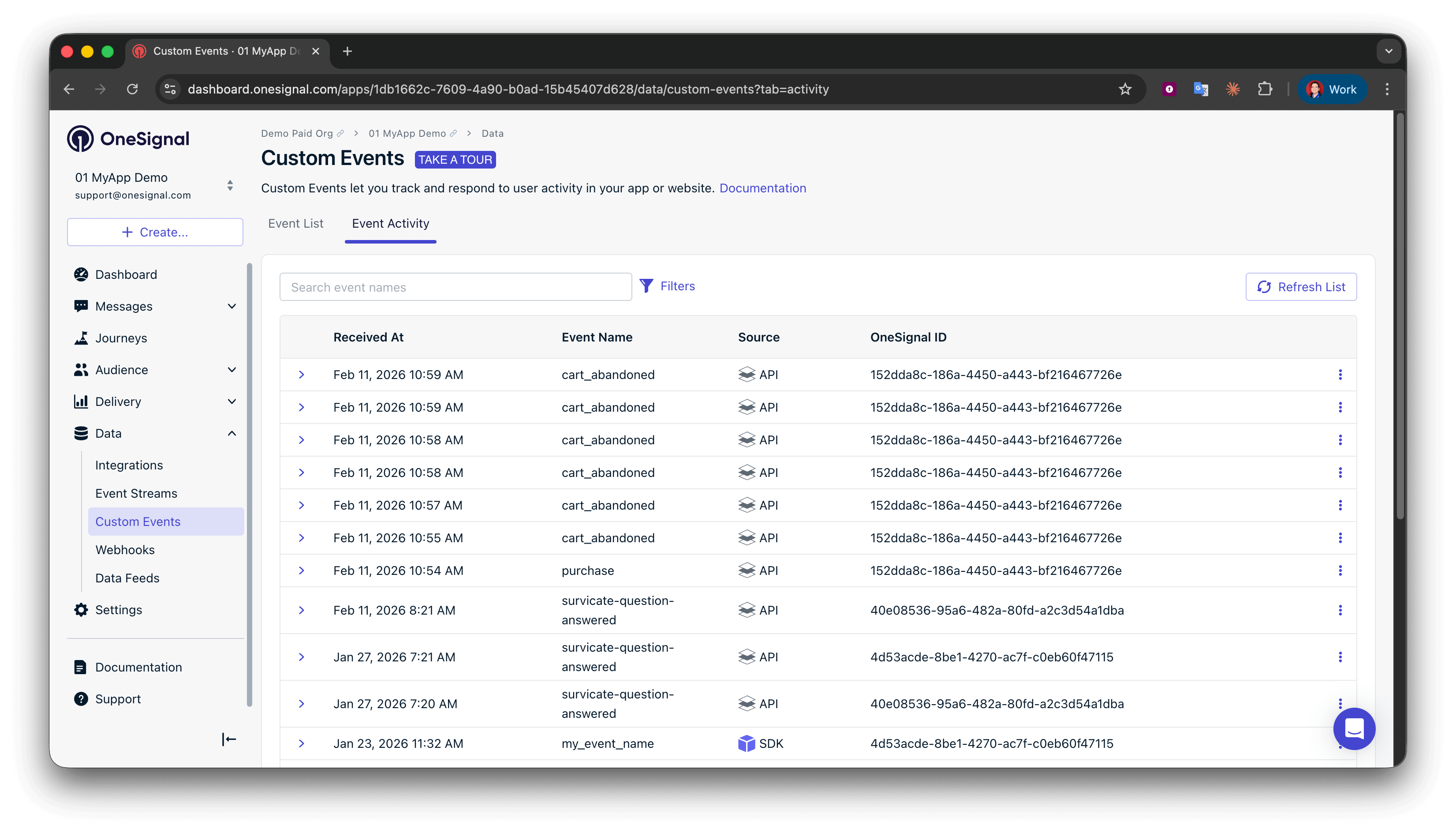
Event List tab in OneSignal dashboard Data > Events & Conversions
- Filter by event name, source, or external ID
- Inspect full JSON payloads
- Debug integration issues
Custom events appear on the Custom Events page instantly. However, it can take up to 5 minutes for events to appear in a user’s profile under Activity Timeline > Custom Events. This is because the Custom Events page reflects recent ingestion, while the user profile is powered by long-term storage.
Use Custom Events in OneSignal
After events are flowing into OneSignal, you can use them in the following ways:Trigger Journey entry and exit rules
Set a Custom Event as a Journey entry or exit rule to immediately add or remove users when the event occurs. Example:signup_completed→ Start onboarding or remove from a trial-encouragement Journeypurchase→ Send confirmation and cross-sell or remove from abandoned cart Journey
Journey settings
Enter users into Journeys with Custom Events.
Control Journey flow (Wait Until)
Use a Wait Until step to hold users until a Custom Event occurs. Example:- Wait until
purchaseafteradded_to_cart
You can define an expiration window. If the user does not trigger the event in time, you can send a fallback message or exit the Journey.
Journey Wait Until step
Hold users until a Custom Event occurs.
Personalize Journeys with event properties
Reference event properties using Liquid in your Journey templates. Example:Liquid
Custom Event personalization
Complete guide to using event properties to personalize Journeys.
Measure conversions
Define a Custom Event as a Conversion Metric to measure the business impact of your messaging. OneSignal credits conversions back to the push, email, SMS, in-app, and RCS messages that drove them using a cross-channel last-touch attribution model. Set this up in Data > Events & conversions > Conversion Metrics. Every metric counts how often the event occurred (for example, 15 purchases). To also total a numeric event property (for example, $1,250 in revenue from aprice property), check Track a value for each event when you create the metric.
Conversions appear on the global conversions dashboard and on message, template, and Journey reports.
Whether an event counts as a conversion is independent of its retention setting. An event can count toward a Conversion Metric even when retention is set so the event is not stored.
Conversion metrics
Attribution windows, the attribution model, and setup instructions.
Segment users with Custom Events
Create a Segment based on your customers’ behavior using Custom Events. You can add other filter types to the same Segment, including message events, tags, and session filters. Segments read from stored events. If an event isn’t reflected in a Segment, see Hourly storage limit. Time-based filters (“has happened in the last X days”) use the event’stimestamp. If you don’t send one, OneSignal uses the time it received the event.
Segmentation
Complete guide to segmentation.
Custom event best practices
Shape event properties and see how one event can trigger, target, and measure at the same time.
Plan availability and retention costs
Custom Events are available on all paid plans. Sending events is free. OneSignal bills only for the events you store, which is what Segments and user profiles need.Custom event storage and retention
Turn on storage, set retention per event, and manage your stored events.
Billing FAQ
How event storage appears on your invoice.
Tags vs Custom Events
Tags and Custom Events are both ways to add data to your users. However, there are some key differences:
The key distinction between Tags and Custom Events is in their depth and use cases. Tags are properties of a user, such as Name, Account Status, or Location. Events are thing that the user has done, such as Purchasing an Item, Completing a Level, or Inviting a Friend. Both tags and events can be used for segmentation and personalization.
In practice, you will likely use both:
- Tags for user properties that are static and don’t change often
- Custom Events for real-time scenarios, complex segmentation, and more sophisticated journey workflows