

- No banner displayed
- No sound played
- No lock-screen alert
- Delivered directly to the Notification Center
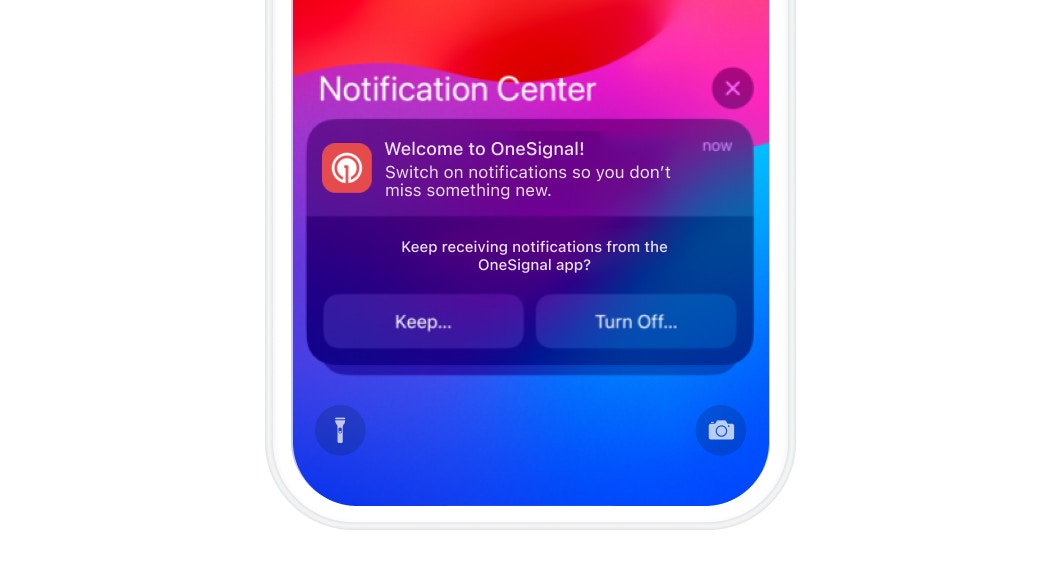
Provisional notification prompting the user to keep or turn off notifications
How users interact with provisional notifications
When a user receives a provisional notification, they can select Keep… to see these options:- Deliver Quietly — Keeps notifications silent and only visible in the Notification Center. This also removes the “Keep…” and “Turn Off…” prompts from future notifications.
- Turn Off — Unsubscribes the user from all notifications from your app.
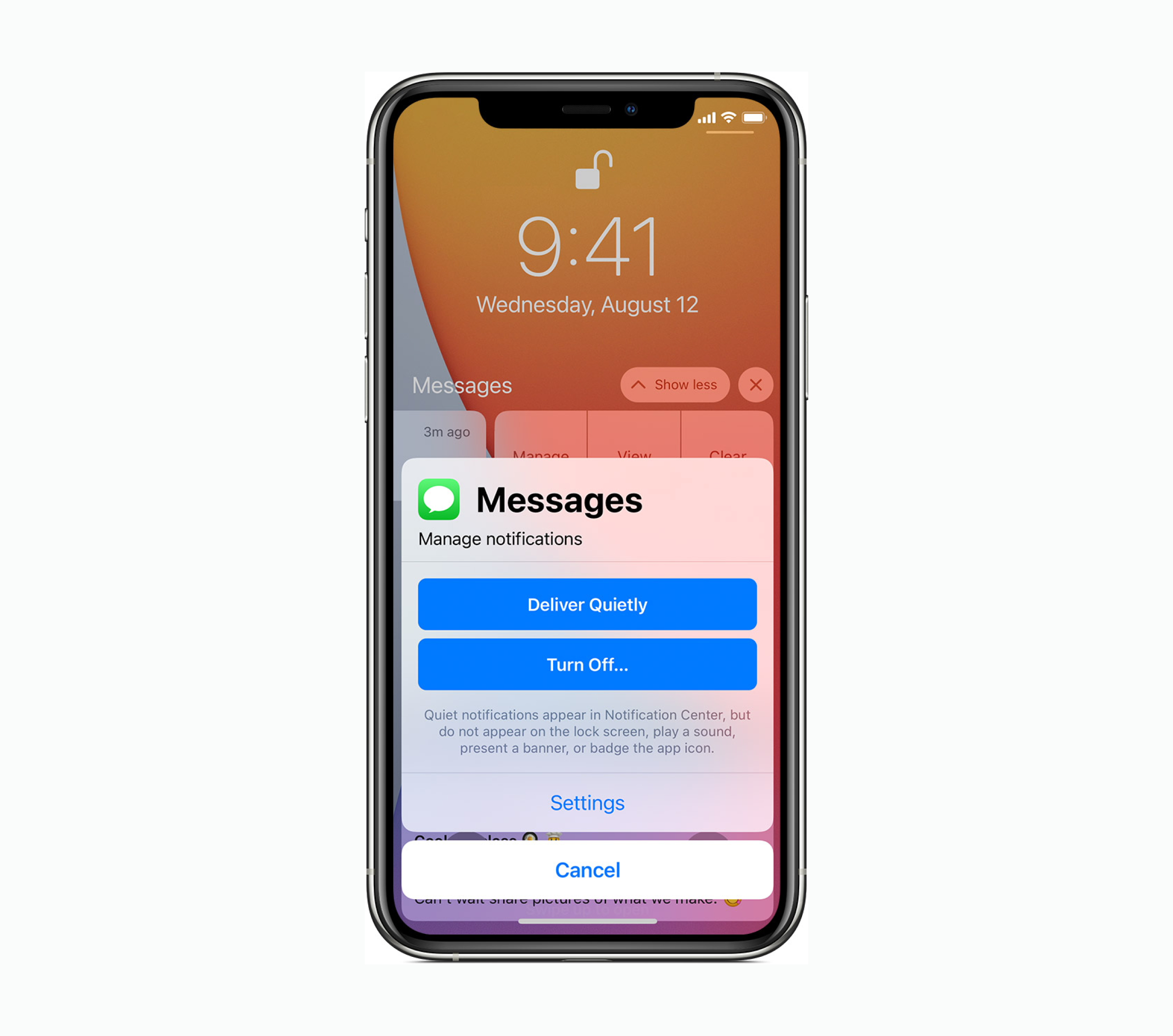
Options shown when a user taps Keep on a provisional notification
Enable or disable provisional authorization
To toggle provisional authorization, go to your OneSignal dashboard: Settings > Apple iOS > Advanced Configuration and check or uncheck the Enable iOS 12 direct to history option. This is unchecked by default.Provisional authorization requires OneSignal SDK 2.9.0 or newer.
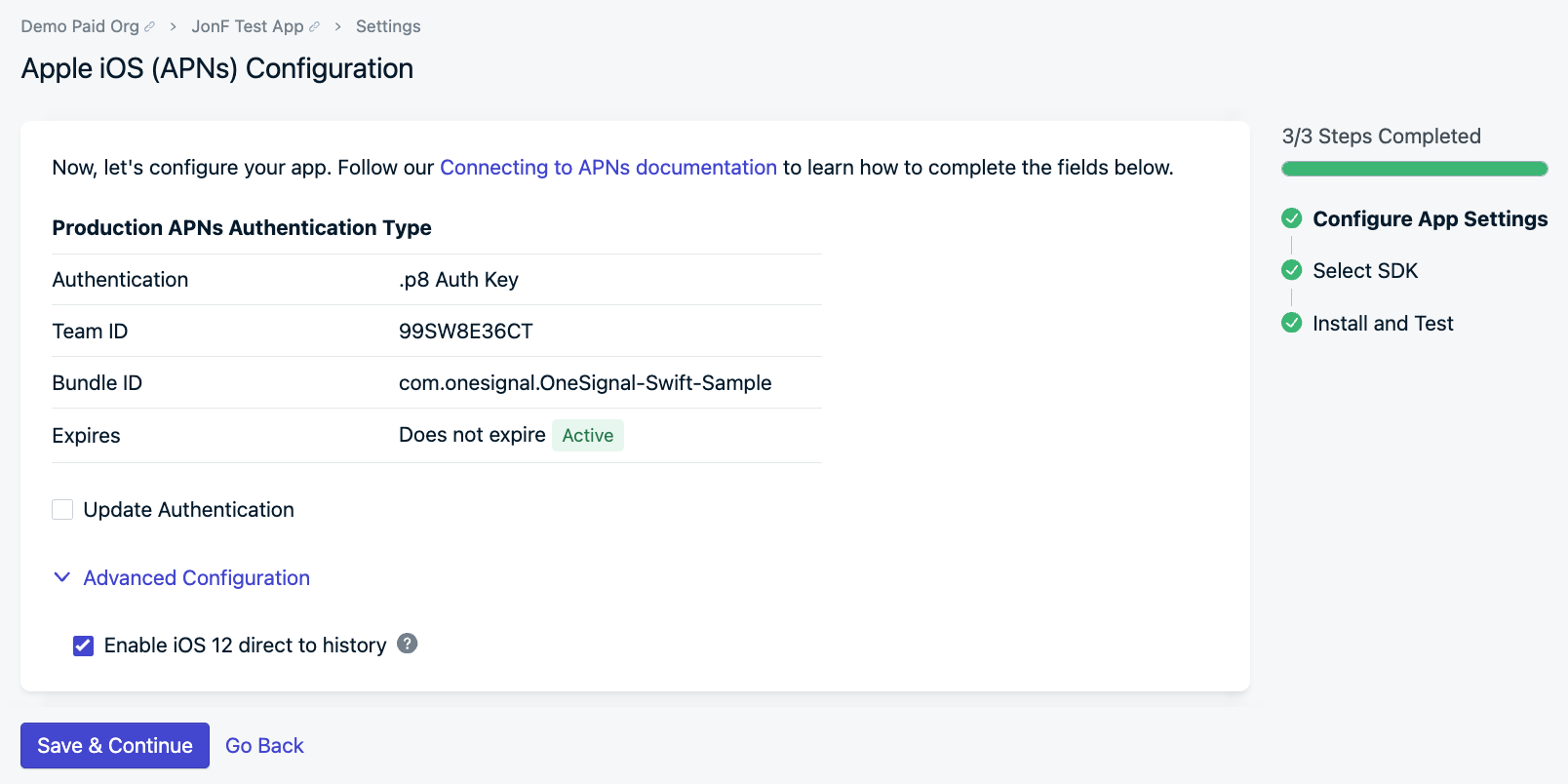
OneSignal dashboard setting for iOS 12 provisional push authorization
FAQ
What is the difference between provisional and normal authorization?
With provisional authorization enabled, iOS 12+ subscribers automatically receive push notification permissions the next time they open your app — no permission prompt is shown. Your app can still request standard push permissions separately, which displays the native iOS permission prompt. If the user denies that standard prompt, provisional notifications are also turned off. For details on configuring your permission prompting flow, see Prompt for push permissions.What happens if a user denies the regular push prompt?
Denying the standard iOS push permission prompt turns off all push notifications for your app, including provisional notifications. The user would need to re-enable notifications manually through iOS Settings.Prompt for push permissions
Configure when and how your app requests standard push notification permissions from users.