

Device settings
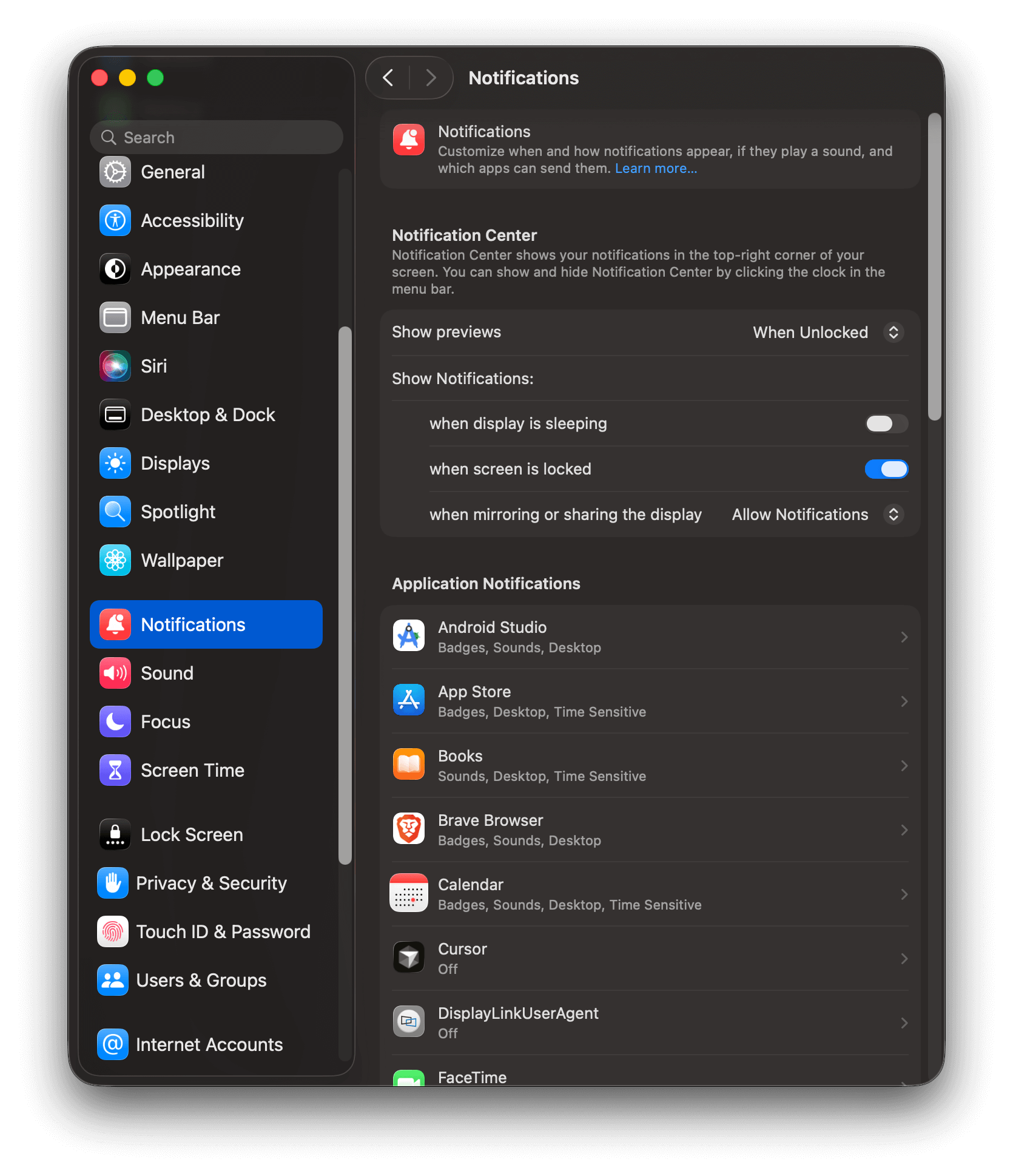
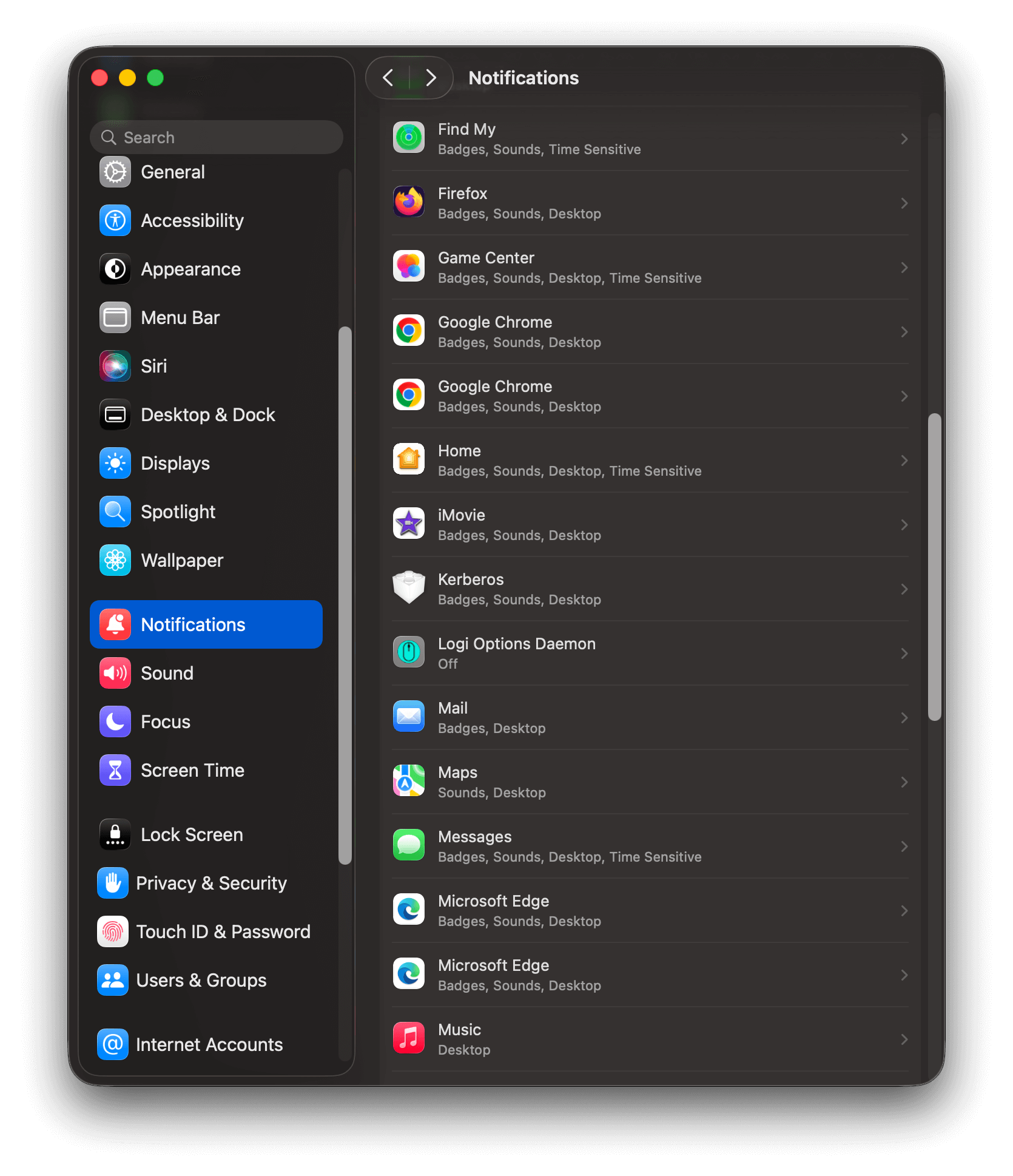
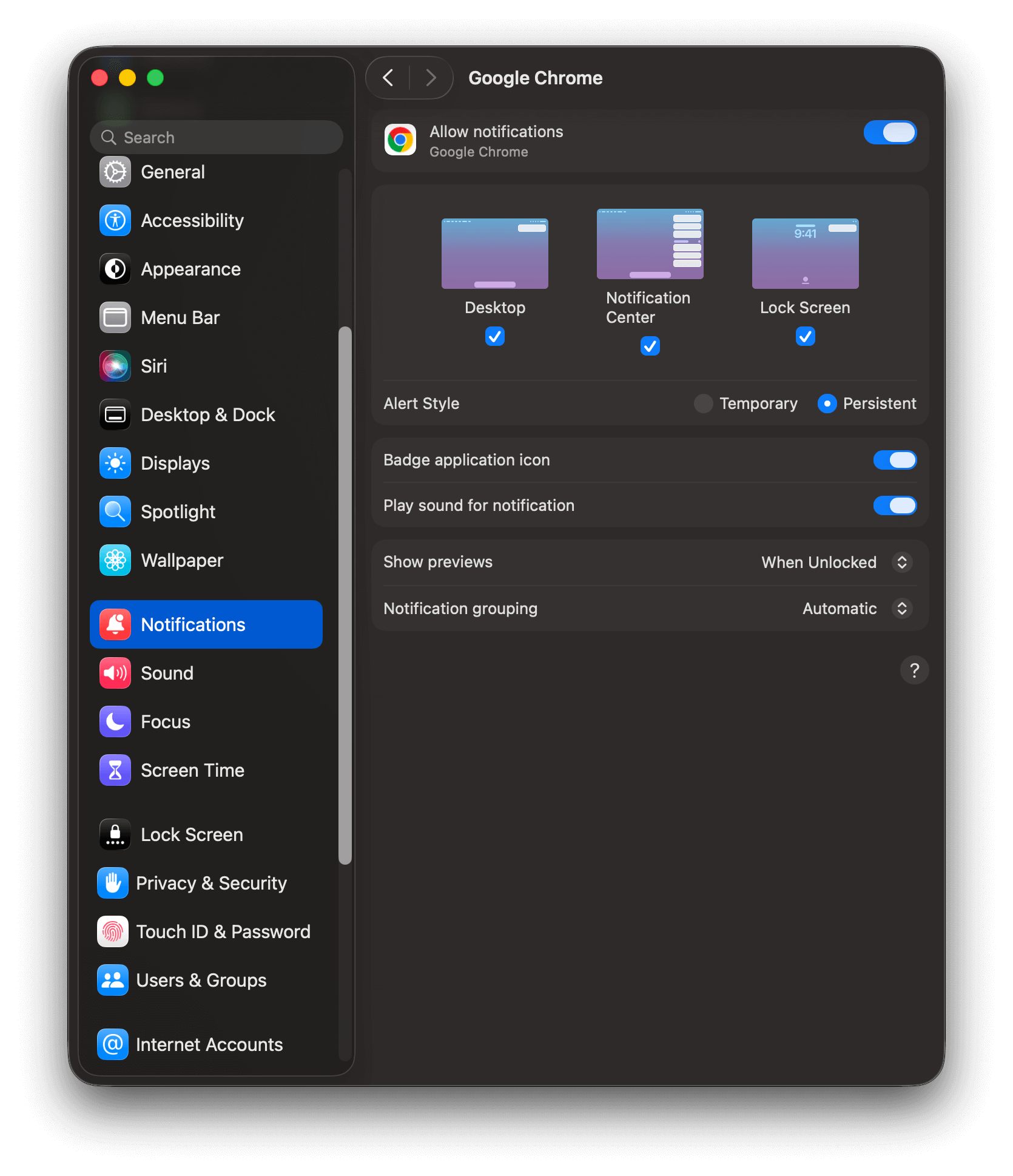
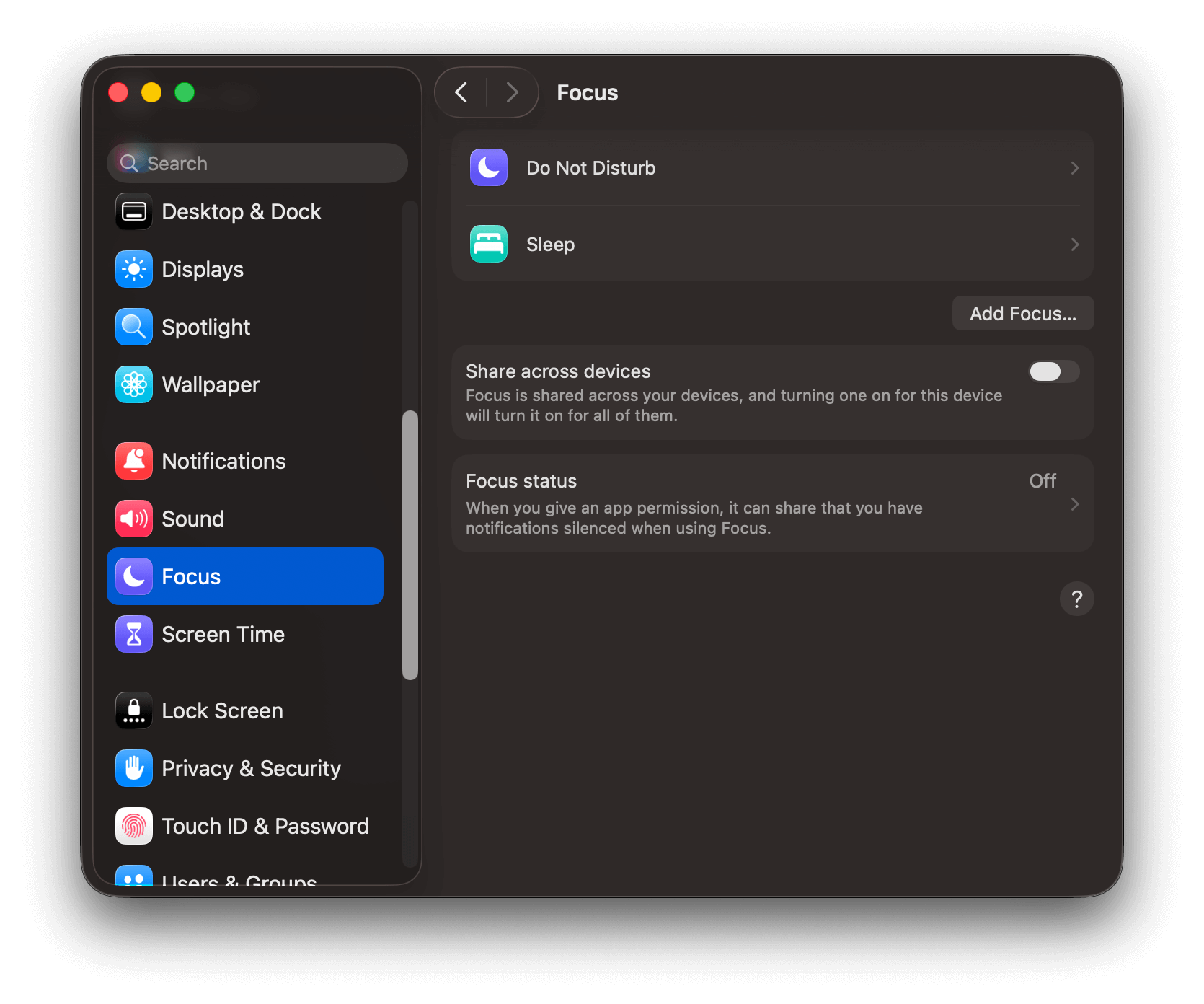
Device Notification Settings are the most common cause of web push not appearing on a device. Check the following settings including Focus modes (Do Not Disturb, Low Battery, etc.) before looking elsewhere.- Windows
- macOS
- Android
- iOS
Windows 10 Notification Settings
Windows 10 Notification Settings
- Select Start > Settings > Notifications & Actions > Get notifications from apps and other senders
- Make sure your site and browser are also enabled.
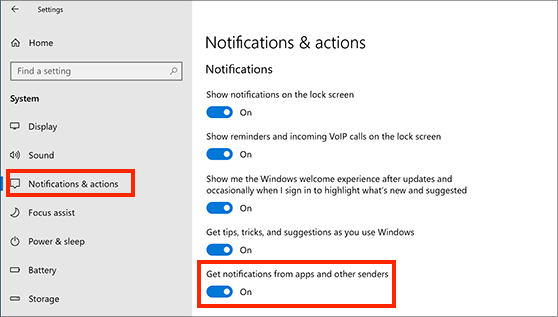
Windows 10 Notification Settings
- Select Start > Settings > System > Notifications
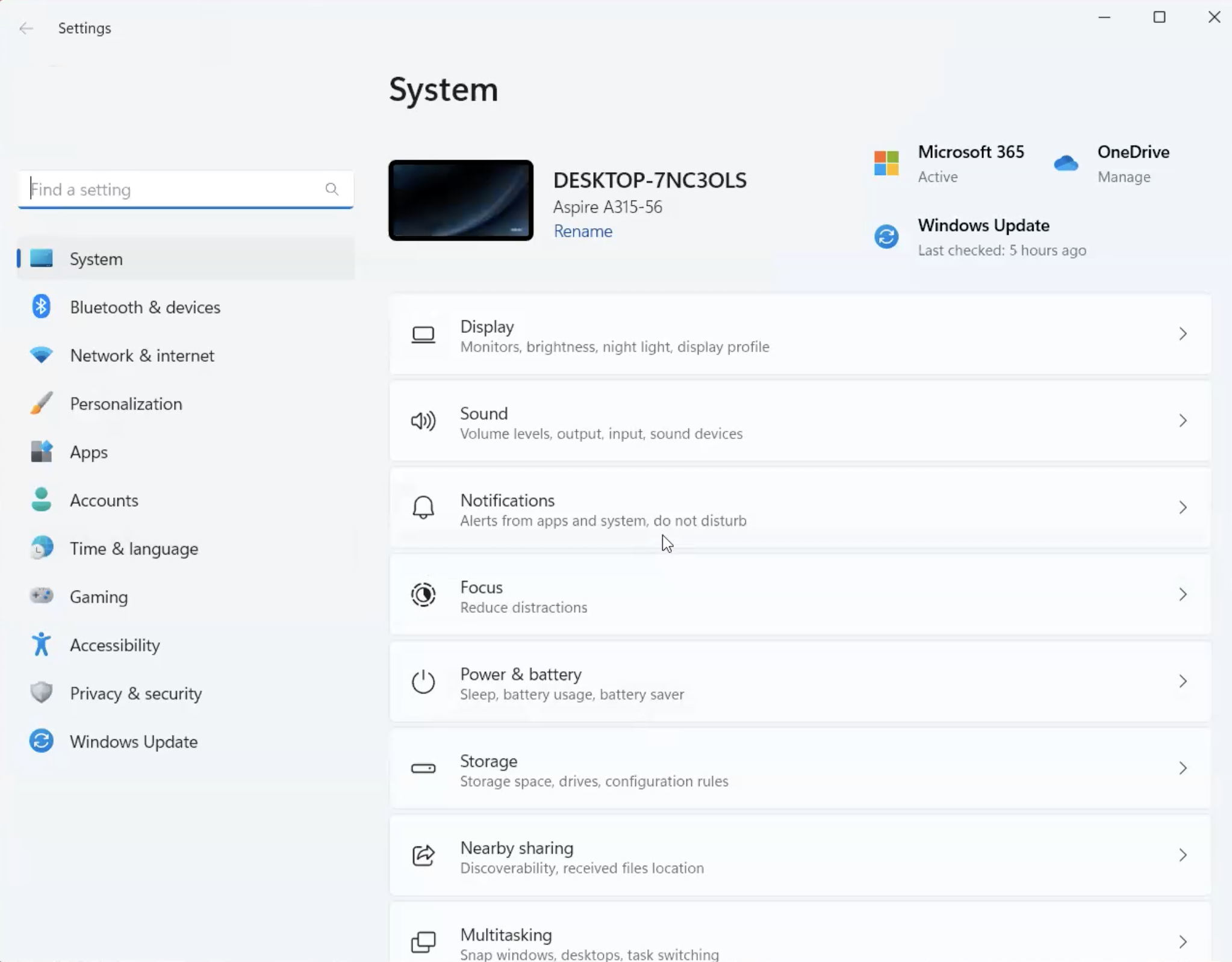
Windows 11 Notification Settings
- Turn On Notifications
- Turn Off Do not disturb (while testing, push will show when this is disabled)
- Scroll down to Notifications from apps and other senders
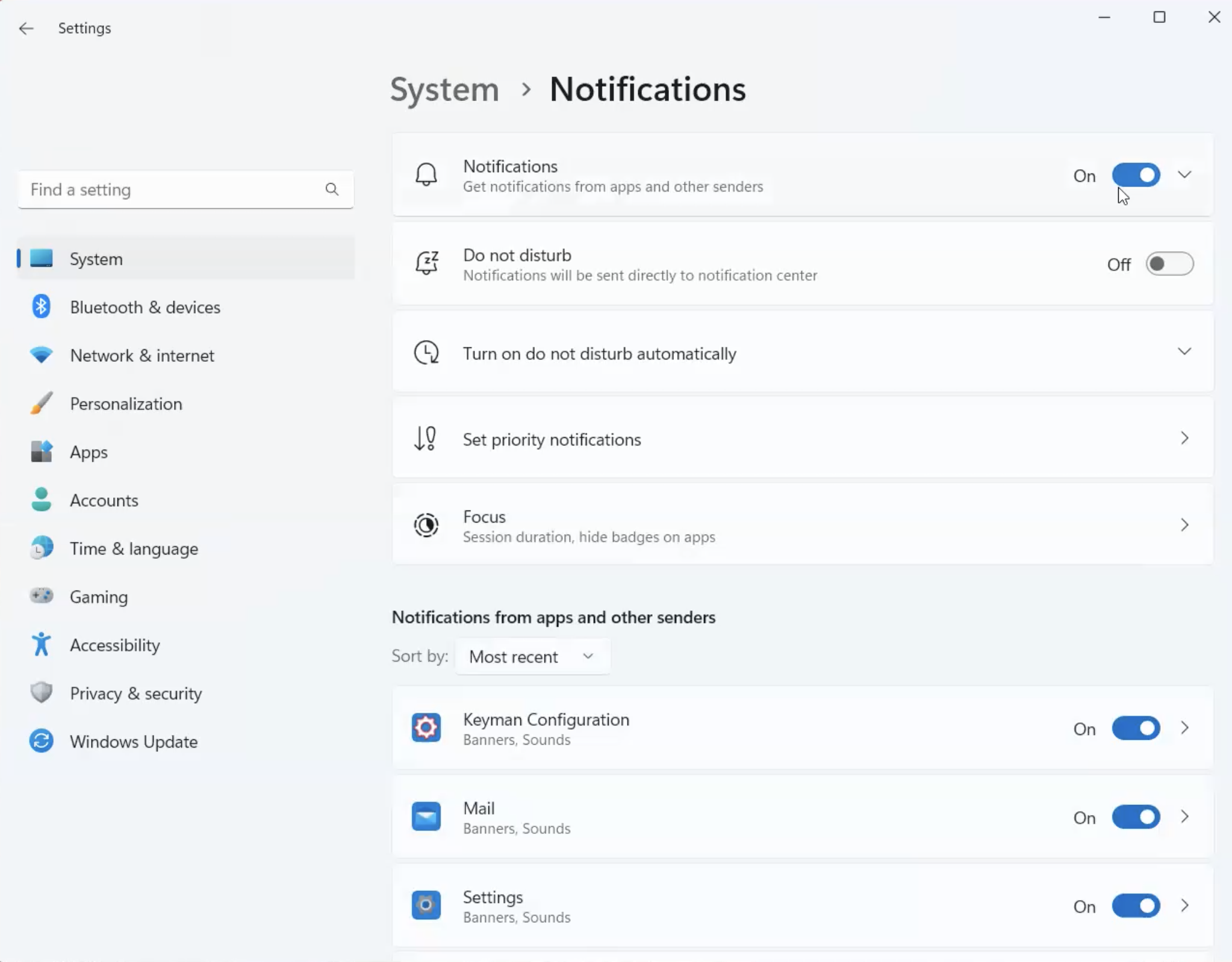
Windows 11 Notifications from apps and other senders
- Make sure your browsers are turned On.
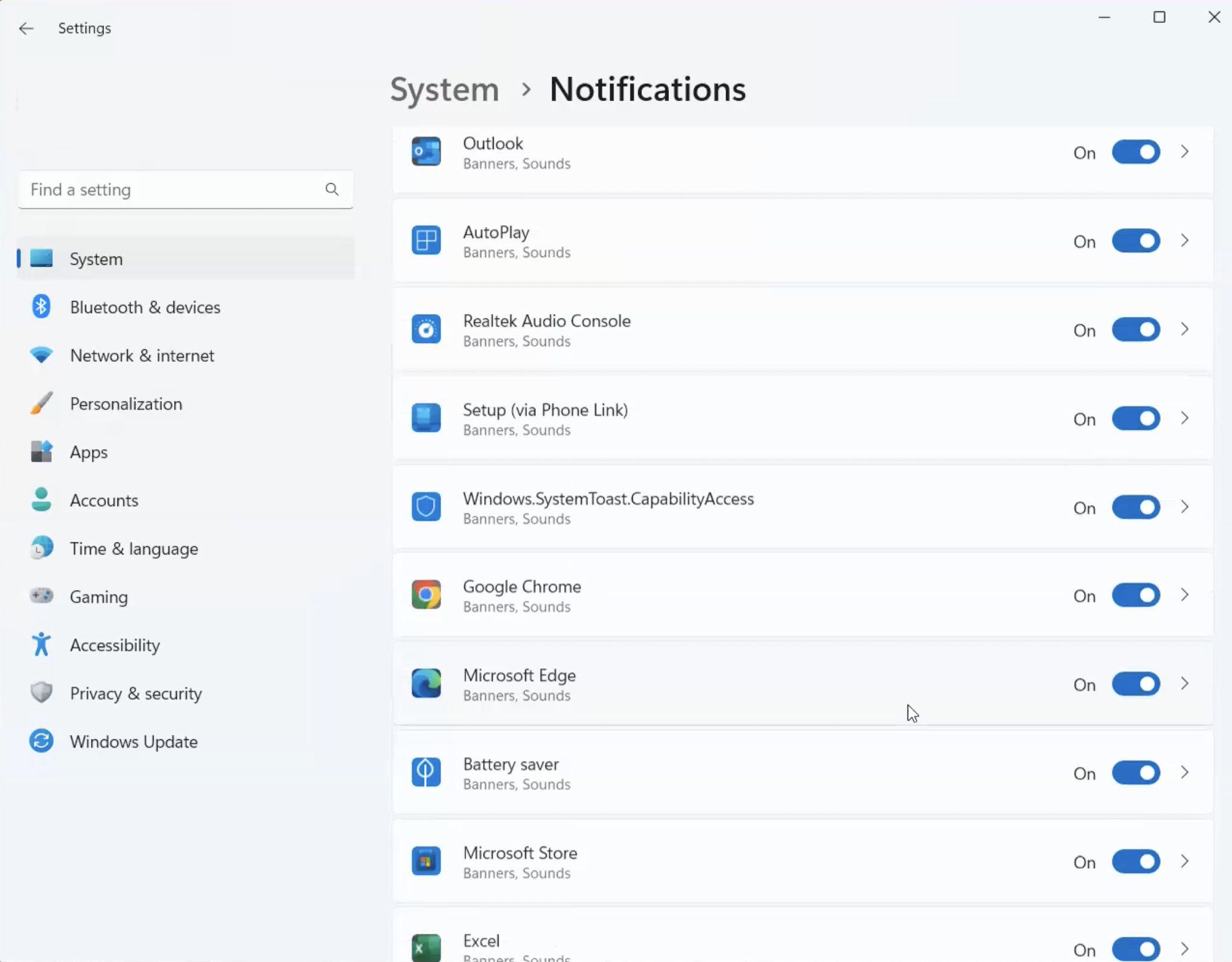
Windows 11 Notification Settings Browser List
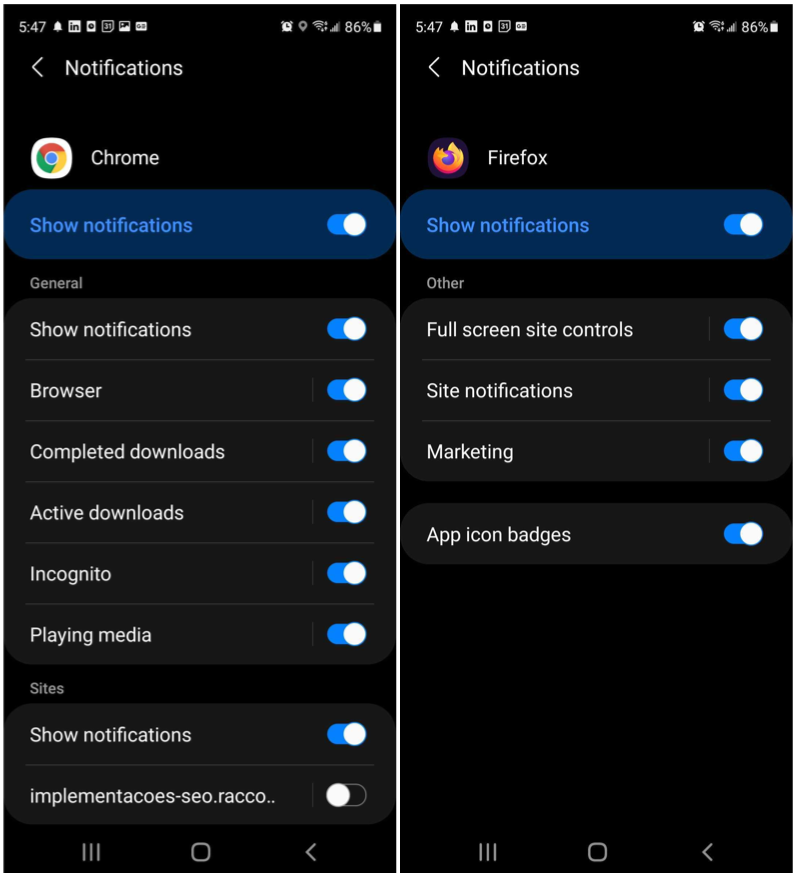
Network issues - no internet
Devices must be online to receive push notifications. If the device is turned off, in airplane mode, has unstable or no internet connection, the push will not show until a proper connection is made. You can set the timeframe FCM and APNs will wait for a connection with the Time To Live (TTL) Parameter (the default is 3 days). If the device is on a WiFi network with a firewall or VPN, that network may be blocking the connection to Apple or Google servers. Test by switching to cellular data. If you are managing network traffic through a firewall, configure it to allow the following:- FCM (Chrome, Android): outbound TCP ports 5228, 5229, and 5230. See FCM documentation for full requirements.
- APNs (Safari, iOS): outbound TCP port 5223 and TCP port 443 or 2197. See Apple’s documentation for full requirements.
Browser settings
Your browser has its own notification permission settings separate from your OS settings. A site can be blocked at the browser level even if OS notifications are enabled for the browser.- Chrome: Go to
chrome://settings/content/notificationsand confirm your site is listed under “Allowed to send notifications”, not “Not allowed to send notifications”. - Firefox: Go to
about:preferences#privacy, scroll to Permissions > Notifications, and click Settings to check your site’s status. - Edge: Go to
edge://settings/content/notificationsand verify your site is allowed. - Safari: Go to Safari > Settings > Websites > Notifications and check that your site is set to Allow.
Browser is closed
Browsers won’t show push notifications unless they are running. If you open the browser before the Time to live (TTL) expires on a sent notification, it will pop up.Unsupported browser
Users must subscribe to notifications on their desktop or mobile device to receive notifications and it must be a browser that supports push notifications. Please see Web Push FAQ for Supported Web Platforms.Mobile browser app data full
If your mobile browser app has reached its data limit or its data is full, you will need to clear the data on the app. If your mobile browser app has many unread push notifications and/or many tabs open, this can cause notifications to not show.User subscription
Make sure your device is still subscribed and targeted for push notifications.Subscription eligibility
Check the message audience to verify that your web push Subscription is included:- Segments: Verify your Subscription meets all audience filter conditions.
- Direct send: Confirm the ID you are targeting is correct:
- The Subscription is still subscribed to push.
- It has a recent last session date — you may be sending to an old or inactive Subscription.
Website codebase
Unregistering service worker or adding pwa
Check your site’s codebase for the.unregister() method. Calling this method will delete Service Workers. See this guide for details on this method.
If you have another service worker like for your PWA you will need to follow our Service Worker guide on integrating multiple service workers.
Troubleshooting web push notifications
Follow these steps to get a clean web push Subscription and confirm web push is working end-to-end.Open your site in browser
Mobile device debugging
Mobile device debugging
- Chrome: Open
chrome://inspect/#deviceson desktop, then follow the steps below on your mobile device. - Firefox: See about:debugging.
- On your iPhone or iPad, go to Settings > Safari > Advanced and enable Web Inspector.
- Connect your device to your Mac with a USB cable.
- Open Safari on your Mac, then go to Develop > [your device name] > [your site’s page].
- Follow the steps below using your mobile device.
Reset browser permissions and clear site data
- Click the site information icon next to your URL.
- If you see Notifications, select Reset permission (you want to see “Can ask to send notifications”).
- Click Cookies and site data.
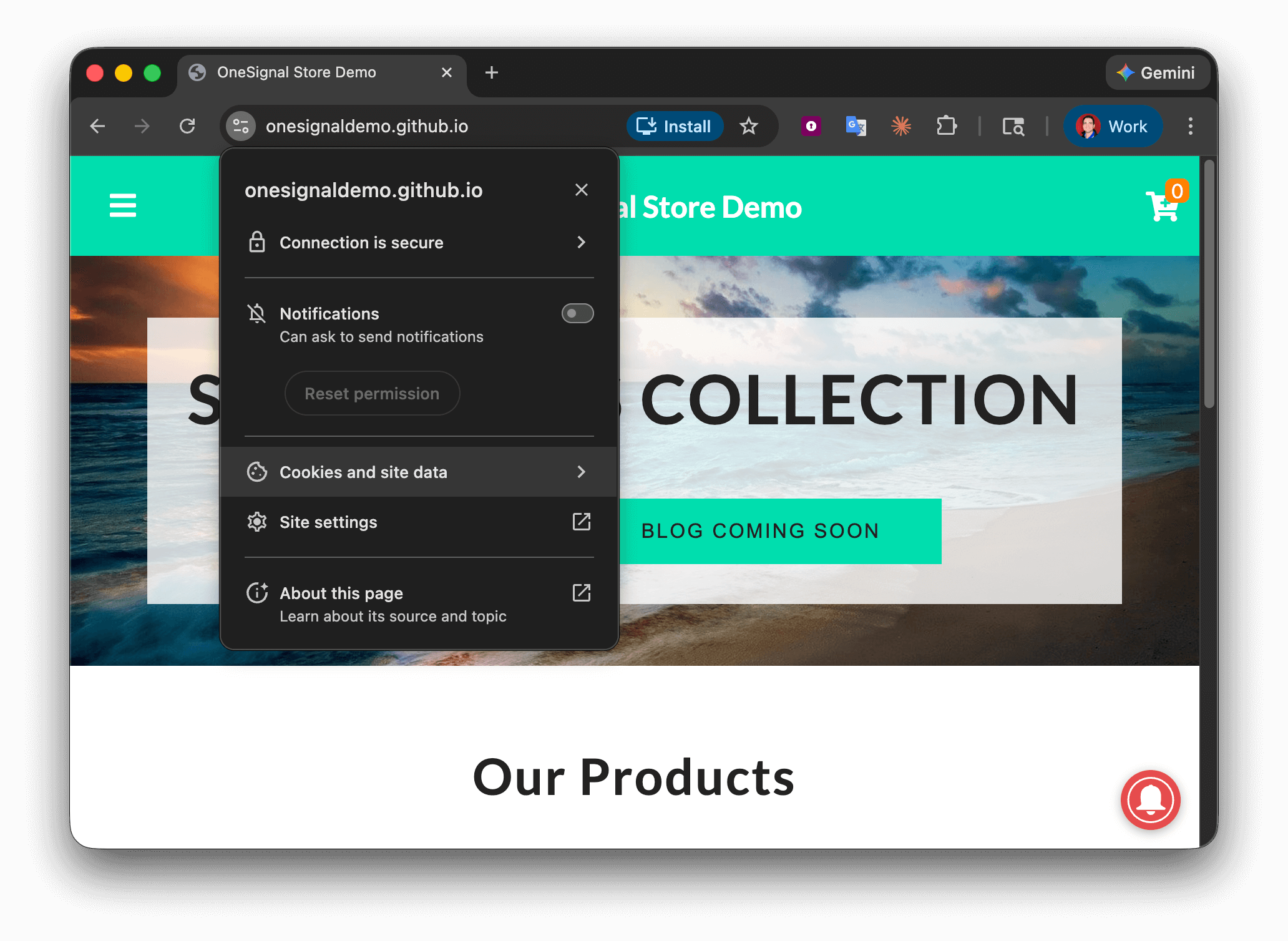
Chrome site settings panel showing Notifications reset permission and Cookies options
- Click Manage on-device site data.
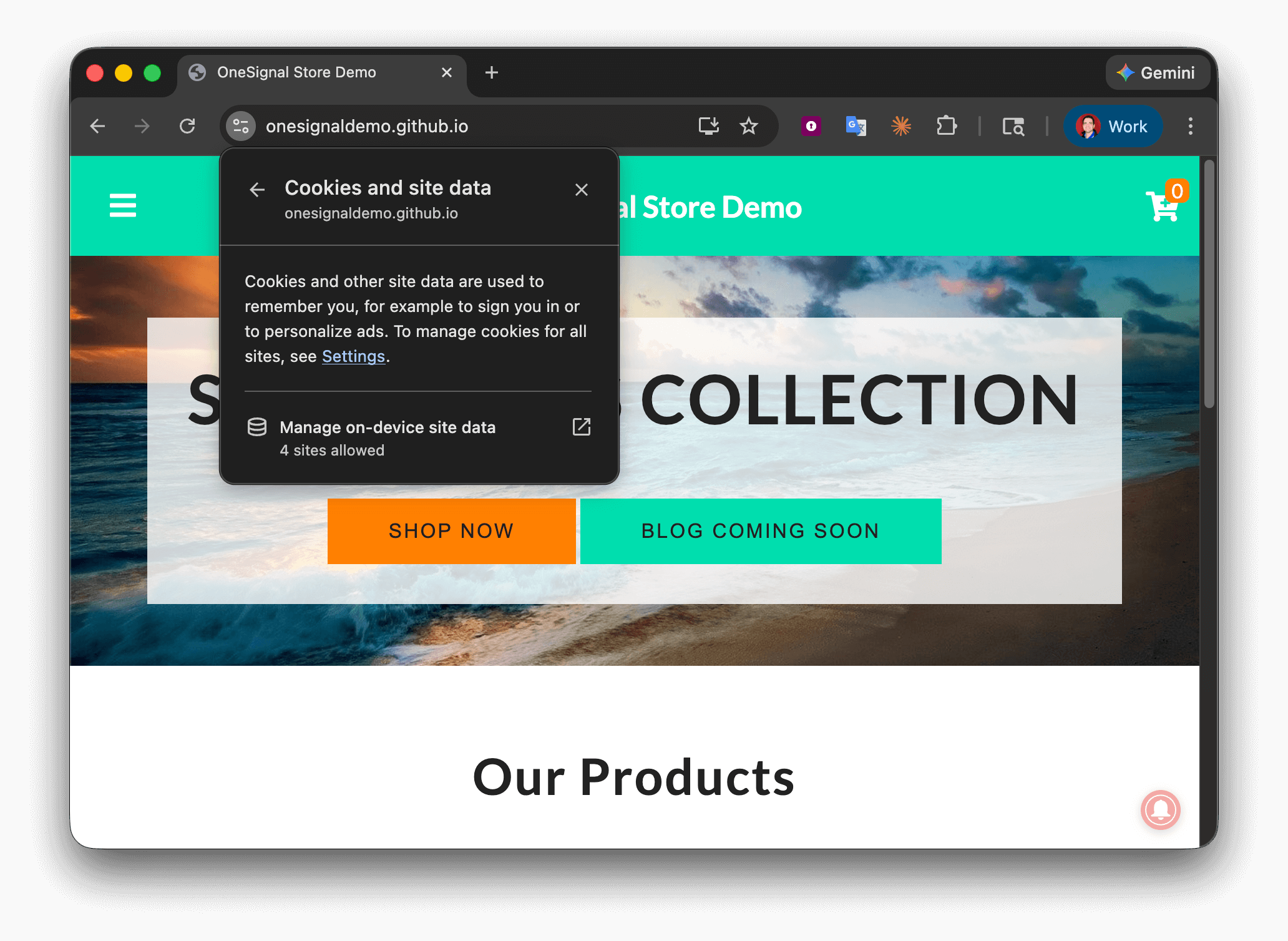
Chrome Cookies and site data panel with Manage cookies and site data button
- Click the Trash Icon next to:
- Your site URL
onesignal.com
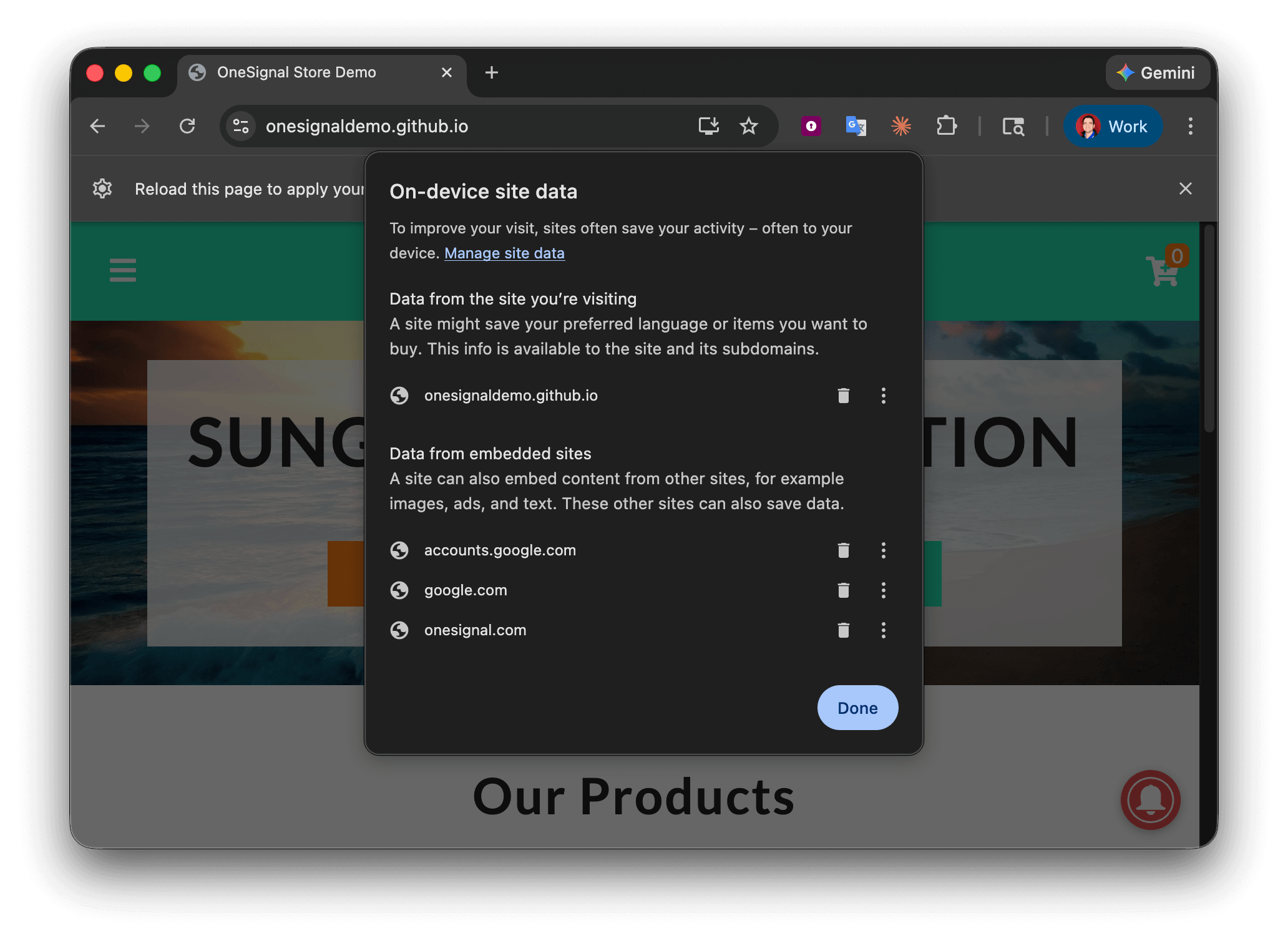
Chrome cookies list with trash icon to remove site data
- Close the tab and open your site again in a new tab.
Open the Console and subscribe to push notifications
- When you return to your site in a new tab, right click the page and select Inspect to open the Console.
- Follow the steps you set up to trigger the native browser permission prompt and allow notifications. See Web permission prompts for more details.
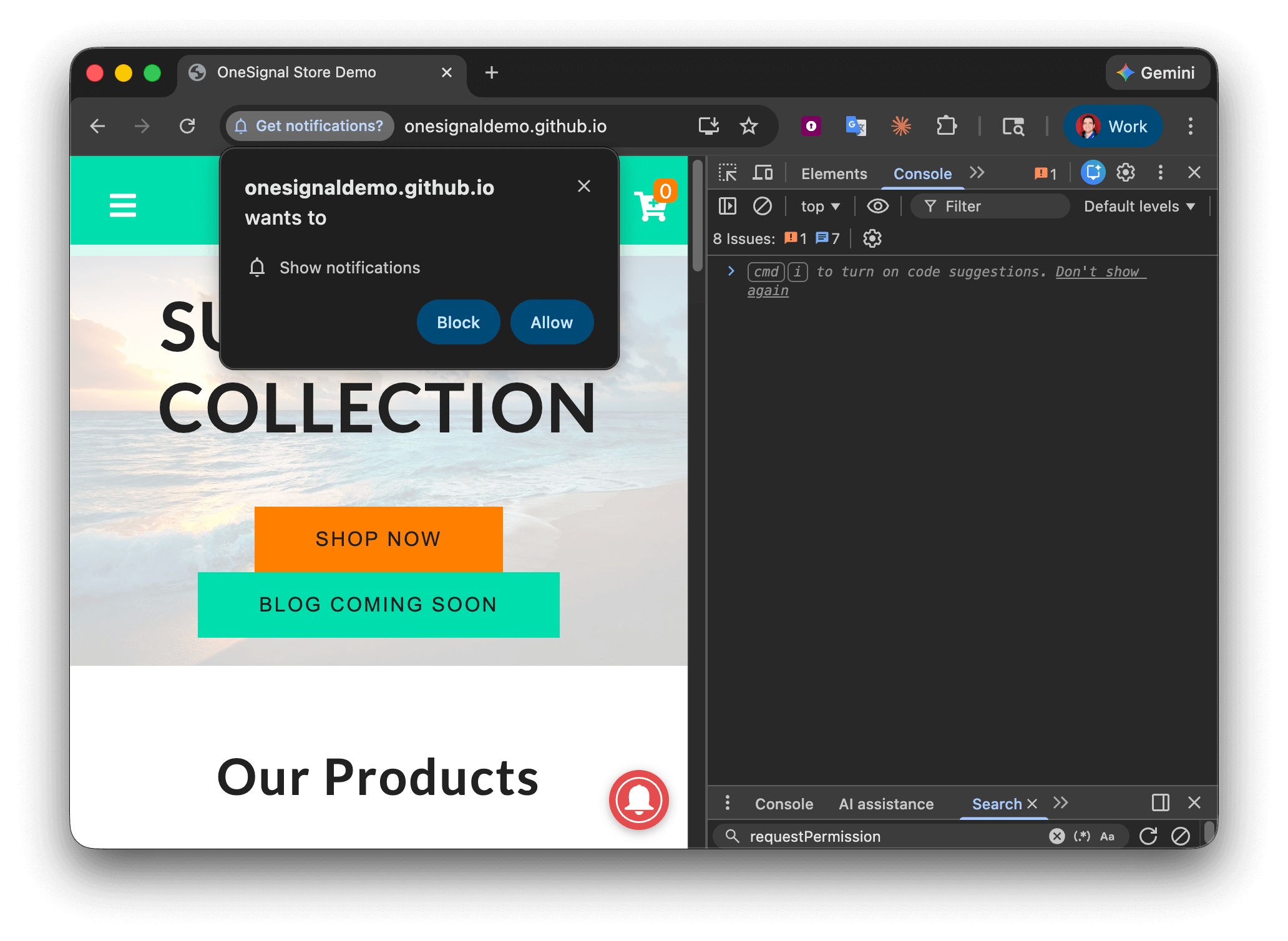
Browser notification permission prompt asking to allow or block notifications
- Click Allow to subscribe to push notifications.
- Check the Console for any errors. If you see anything in red related to OneSignal, see our Web SDK troubleshooting docs.
Get your Subscription ID and set as a test user
- In the Console, run the following code to get your Subscription ID:
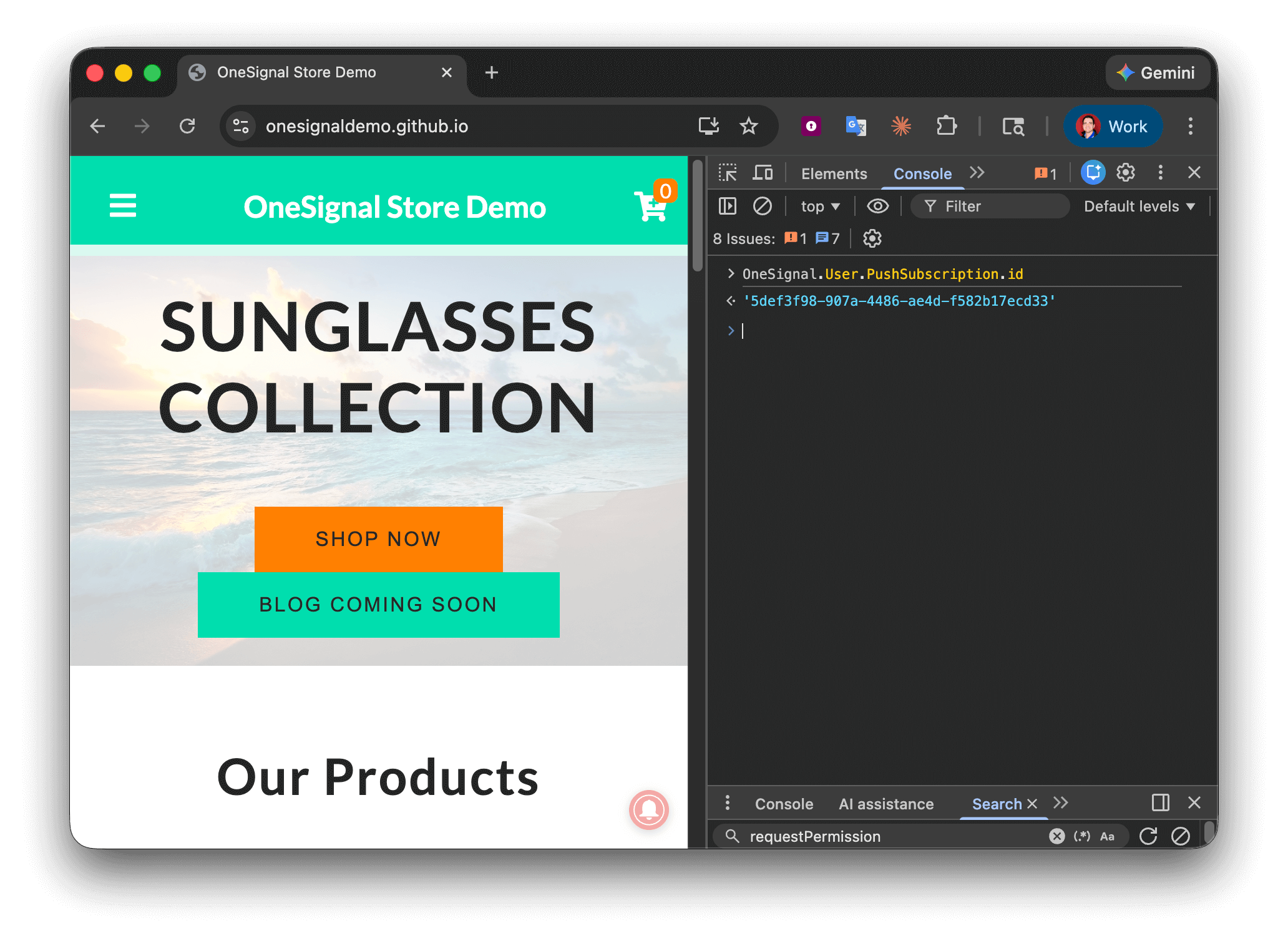
JavaScript Console showing OneSignal.User.PushSubscription.id returning a subscription ID
- Copy the ID without quotes.
- In the OneSignal dashboard, navigate to Audience > Users & subscriptions > Subscriptions, paste the Subscription ID (without quotes) in the search bar, click the Options button, and select Add as test user.
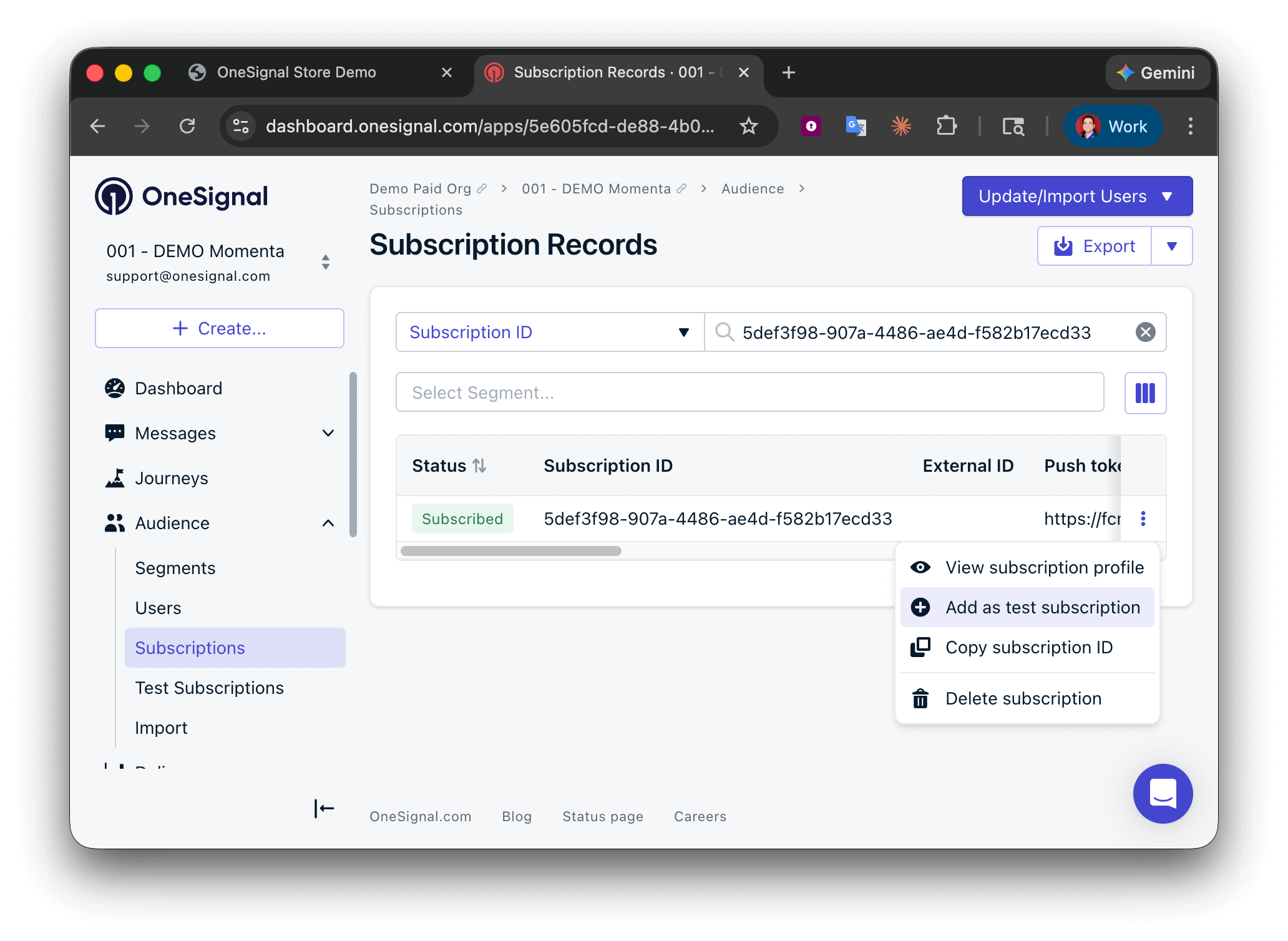
OneSignal dashboard showing Subscriptions search bar with Subscription ID pasted
Send a test message to yourself
- Navigate to Messages > New Push and write a message in the Message field.
- Under Test & Preview, select your test user and send the push to yourself.
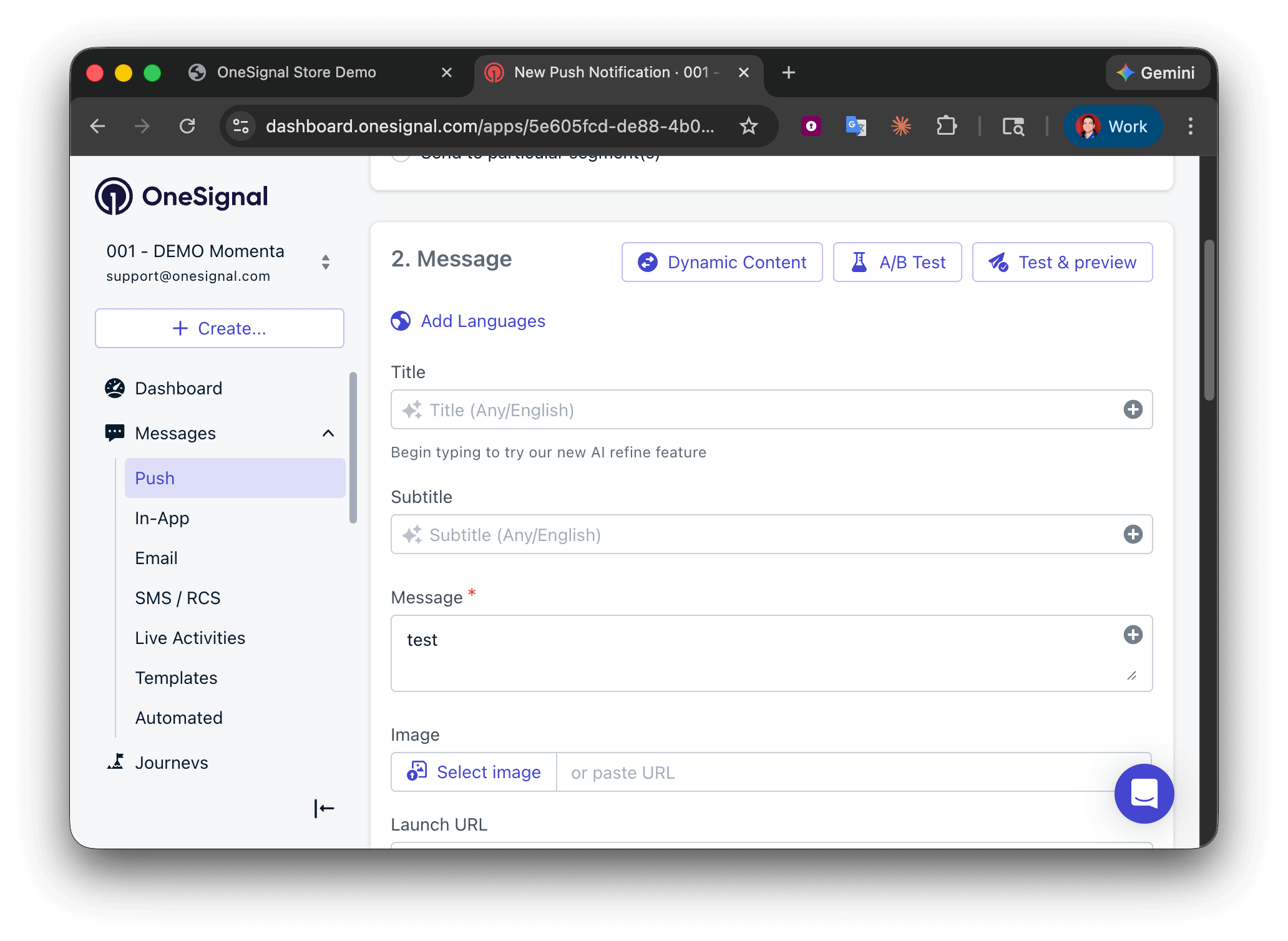
OneSignal dashboard showing New Push message form with test user selected
support@onesignal.comPlease include:- Your OneSignal App ID
- The Subscription ID or External ID
- The URL to the message you tested in the OneSignal Dashboard
- The URL to your site with the OneSignal web SDK code