

Overview
Use triggers to display in-app messages to users within the audience at a time of your choosing. Unlike push, email, and SMS that just send the message at a specific time, in-app messages require a trigger to determine when to show the message to users while in your app.Triggers determine when to display the message. To set how often the message should be displayed, see Schedule and frequency.
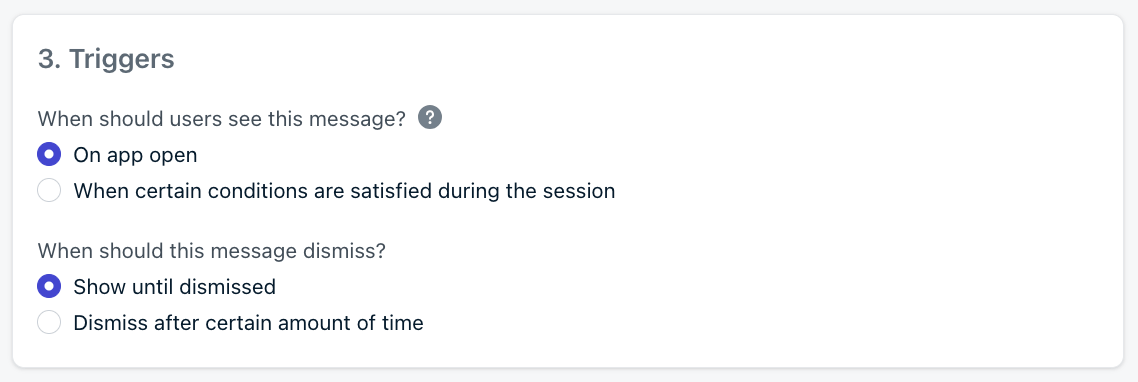
Set a trigger when creating an In-App Message within the OneSignal dashboard
Requirements
- Review the In-app message overview for additional setup and requirements.
- Some triggers (documented below) are programmatic and require code to be added to your app before the message can be displayed.
- Users must be within the audience before a new session starts for the trigger to display the message. A new session starts when the app is out of focus for at least 30 seconds. See How in-app messages are shown and Sessions.
Trigger types
There are four types of triggers. Each can be combined with AND and OR operators to only show under very specific conditions.On app open
No code required. Show message upon next app open. Users within the audience will be eligible to receive the message when they open the app.- For audience segments that require tags or specific actions that a user joins during a session, they will need to start a new session for the message to be displayed on the next app open.
- For audience segments that target all users or app version filters, the message will be displayed when the user opens the app. Even if a brand new user.
In-app trigger
Code required. Show message when user performs certain actions. Requires akey and value to be passed into the addTrigger method within your app.
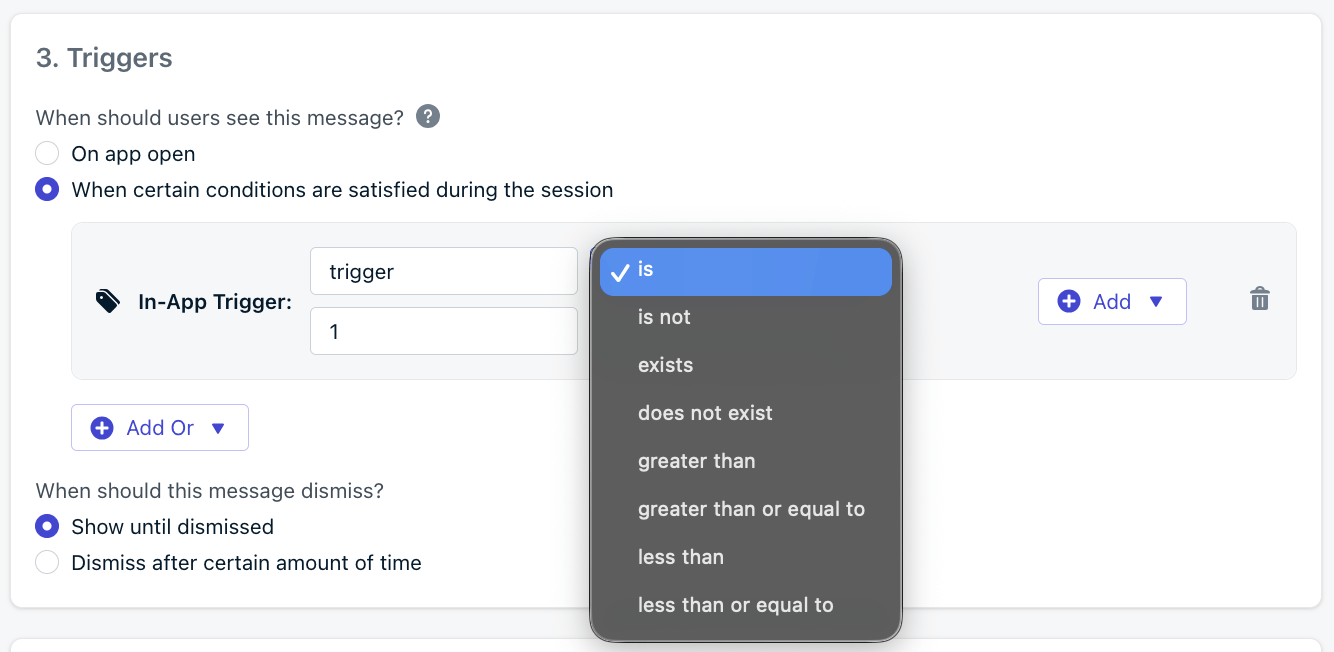
Set a programmatic in-app trigger.
addTrigger('trigger', '1'). Keep in mind the user must be within the audience before a new session starts for the trigger to display the message. See above Requirements for more details.
Important in-app trigger requirements
keysandvaluesare space and case sensitive. Check for accidental spaces or casing when setting the trigger.- You can require multiple
keysandvaluesto be present for the message to display.- Each key-value pair using an
ANDcondition must be satisfied for the trigger to display the message. - Key-value pairs using an
ORcondition will display the message if any of the key-value pairs are satisfied.
- Each key-value pair using an
- When requiring multiple triggers, you can use the
removeTriggermethod to remove a trigger if needed. Greater thanandless thanconditions work for number values even though they are set as strings in the code.- If you want to display a message when a user reaches level 5. You would set the audience as all users, but would set your trigger to be “level is 5”. Each time a user grows a level, you would call
addTrigger("level", "x")where “x” is the level they reached. This continues to increment untiladdTrigger("level", "5");is called, then the In-App Message will show to the user.
- If you want to display a message when a user reaches level 5. You would set the audience as all users, but would set your trigger to be “level is 5”. Each time a user grows a level, you would call
Session duration
No code required. Show message after a specific number of seconds within the current app session. The user must be within the audience before a new session starts for the trigger to display the message. See above Requirements for more details.Duration since last in-app
No code required. Show message after a specific number of seconds since the most recent in-app message. The user must be within the audience before a new session starts for the trigger to display the message. See above Requirements for more details. This is helpful to include in less urgent or lower priority messages so they do not display too closely to more important messages.When should this message dismiss?
This option allows you to control how long the message should stay on the screen.- Show until dismissed: The message will show until physically acted upon. Either a close button is clicked or the message is swiped away.
- Dismiss after certain amount of time: Set the number of seconds in which the message will be displayed before it is automatically removed from screen. This is helpful if the message is informative and doesn’t require user action.
How often do you want to show this message?
While triggers determine when to display the message, this option allows you to control how often the message should be displayed. See Schedule and frequency for more details.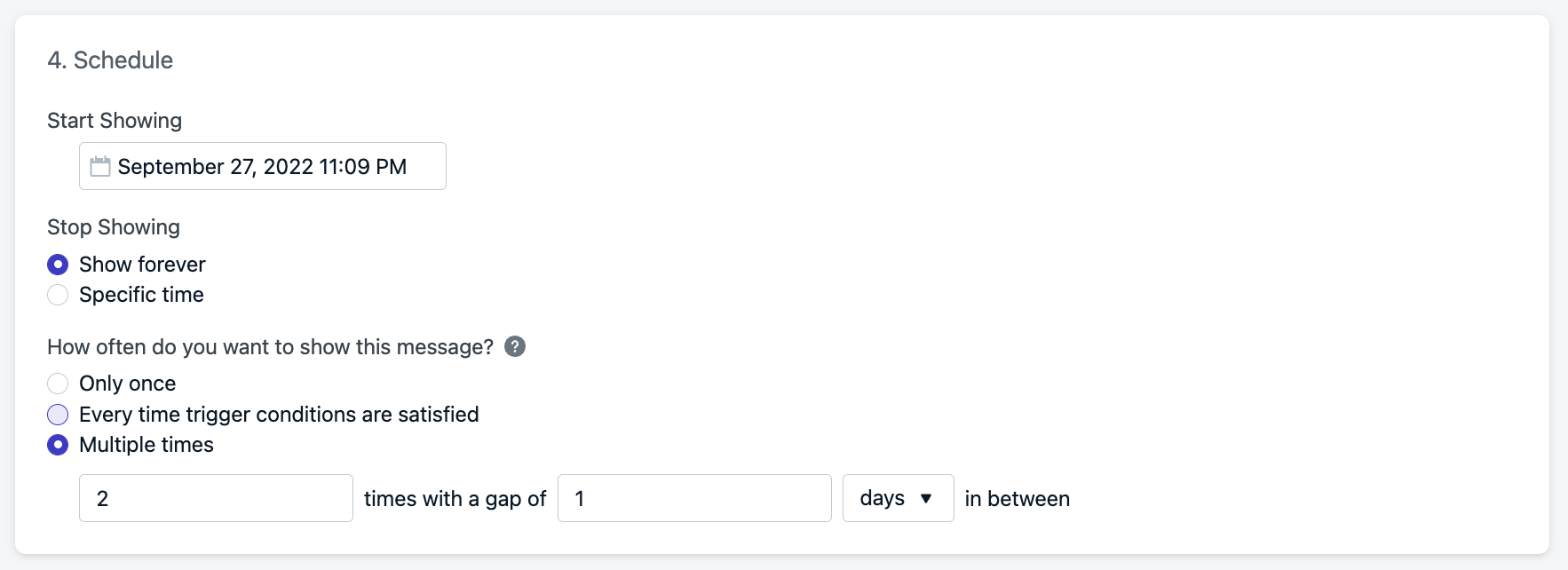
Image showing the ability to schedule an In-App Message
Set when and how many times the message shows
Only once is default. The in-app message will only show 1 time to the Subscription. Every time trigger conditions are satisfied will show this message each time the Trigger conditions are met.- For in-app triggers, this may be multiple times a session. For other triggers, it is only once per session.
- If you set: “
2times with a gap of1hour in between” - The message will be allowed to trigger a total of2times. The first time when the triggers are met, then the 2nd time when the triggers are met and1hour has passed. - If you set “
12times with a gap of30days in between” - The message will show roughly once a month for a year.