

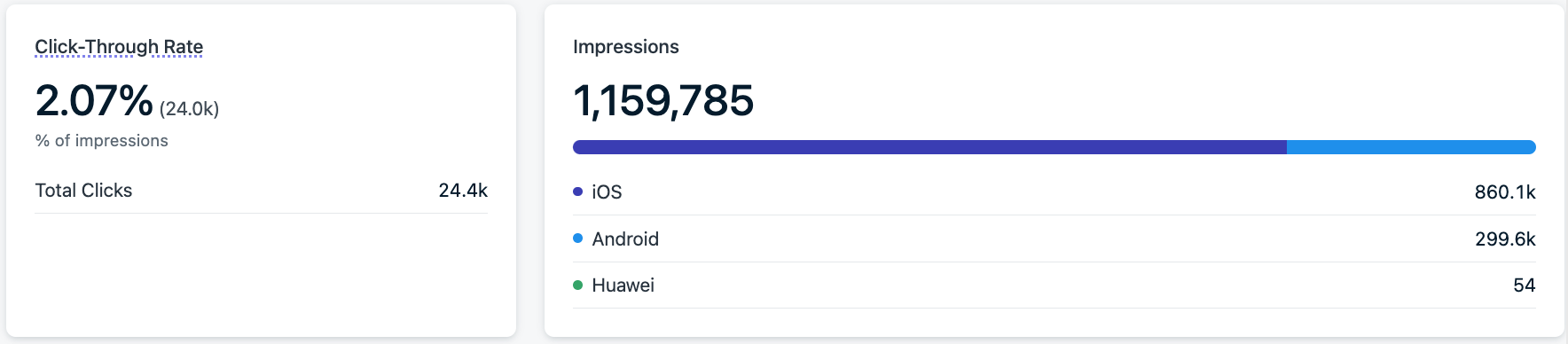
This example shows: (24.0k) unique clicks, 24.4k total clicks.
Message Statistics
A graph of message events by block over a 30 day, 24 hour, or 1 hour period. This can be filtered by platform and exported via the dashboard.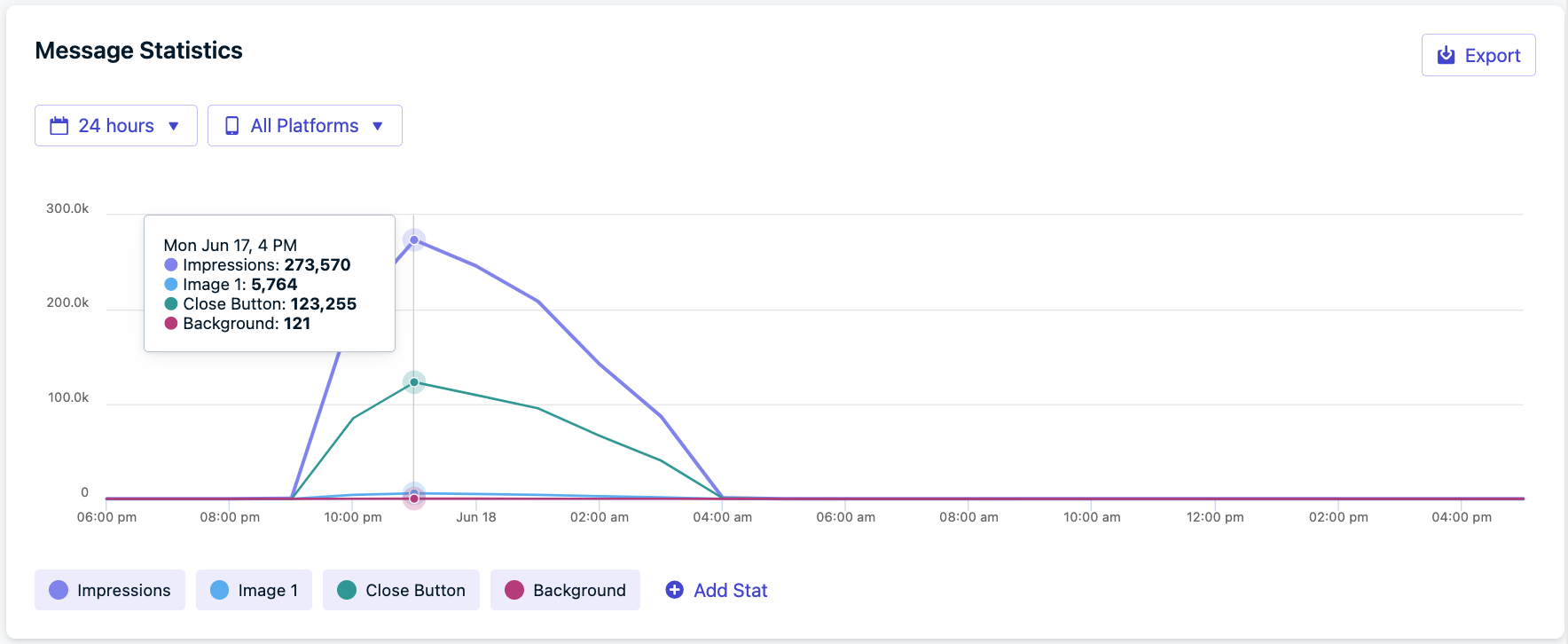
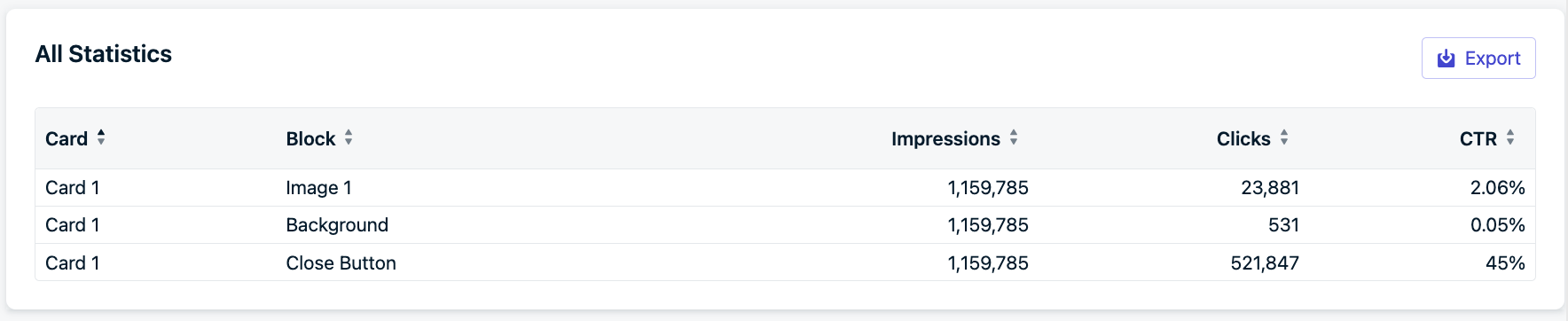
Metric definitions
For detailed metric definitions across all channels, see the Metrics Glossary.
Card
Card is the view or page of the message. Important when using carousels.
Block
Block is the element of the message.
CTR
Click-Through Rate is measured by ((Clicks of all blocks - Close Button)/Impressions) * 100%
Conversions
This report shows the conversions attributed to and influenced by this message. See Conversion metrics for the attribution model and setup instructions.
Audience activity
The Audience activity report shows how each subscription interacted with a specific message. Results are grouped into categories so you can quickly see how recipients engaged.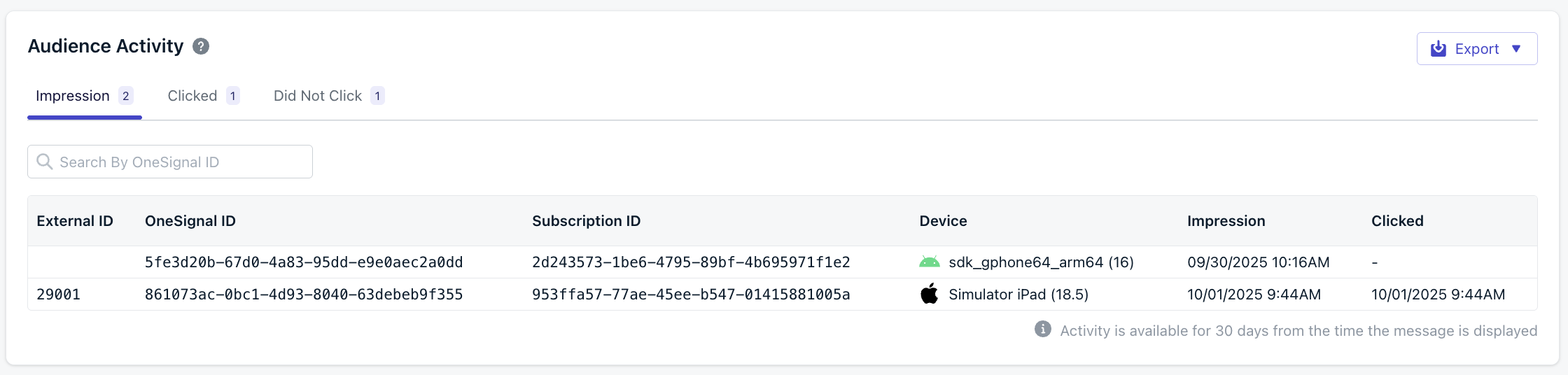
Audience activity tabs and table
- Categories
- Table columns
Each tab displays the number of recipients in that category and lets you drill into the individual subscription records.
Audience activity data is only available for 30 days from the time the message is displayed. Export results if you need to retain them longer.
Why audience activity is helpful
Audience activity helps you go beyond delivery counts by showing which specific users fall into each outcome. Use it to:- Measure engagement by comparing clicks vs. non-clicks.
- Diagnose notification visibility by confirming impressions.
- Segment audiences for retargeting or export.
Exporting results
You can download audience data with the Export menu:- Selected activity – exports only the currently viewed tab (for example, all users who did not click).
- All activities – exports the full report across every category.
FAQ
Why are there fewer clicks than impressions?
- In-App Messages can be “swiped away” or automatically dismissed after a certain amount of time has passed. See Advanced Settings.
Why are there more clicks than impressions?
- Multiple blocks can be clicked on the same impression of an In-App Message.
Why do I see “Deleted” blocks?
- If you add/remove/update a card or block of an In-App Message, it will delete the old blocks and add new ones. The old blocks will be labeled with “Deleted” and keep their current impression and click data.
- For example, a “Deleted body”, “Deleted Element” and/or “Deleted close_button” means a change occurred in the IAMs body/text and close blocks.