

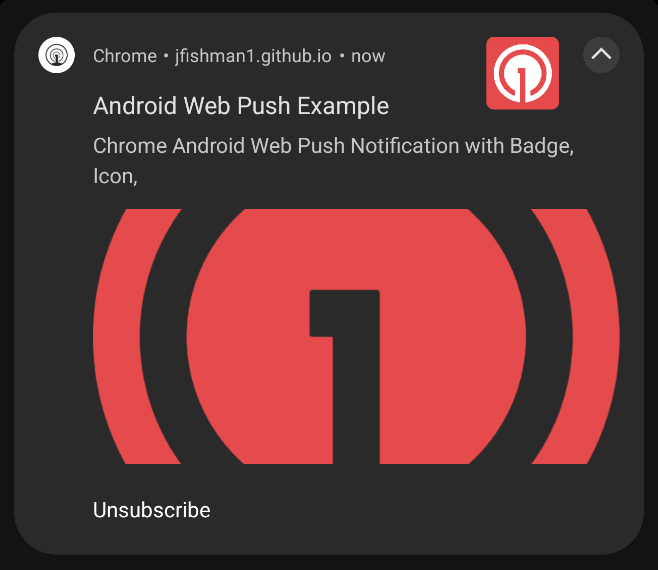
Example of an Android Chrome Web Push notification with small badge icon, large icon, and image.
Android notification icons
Android (including Amazon and Huawei devices) supports small and large notification icons. On Android 8.0+ (API 26+), notification categories and manufacturer UI also affect how the notification looks. Android also supports Conversation Notifications that can show a person’s profile image in place of your icon.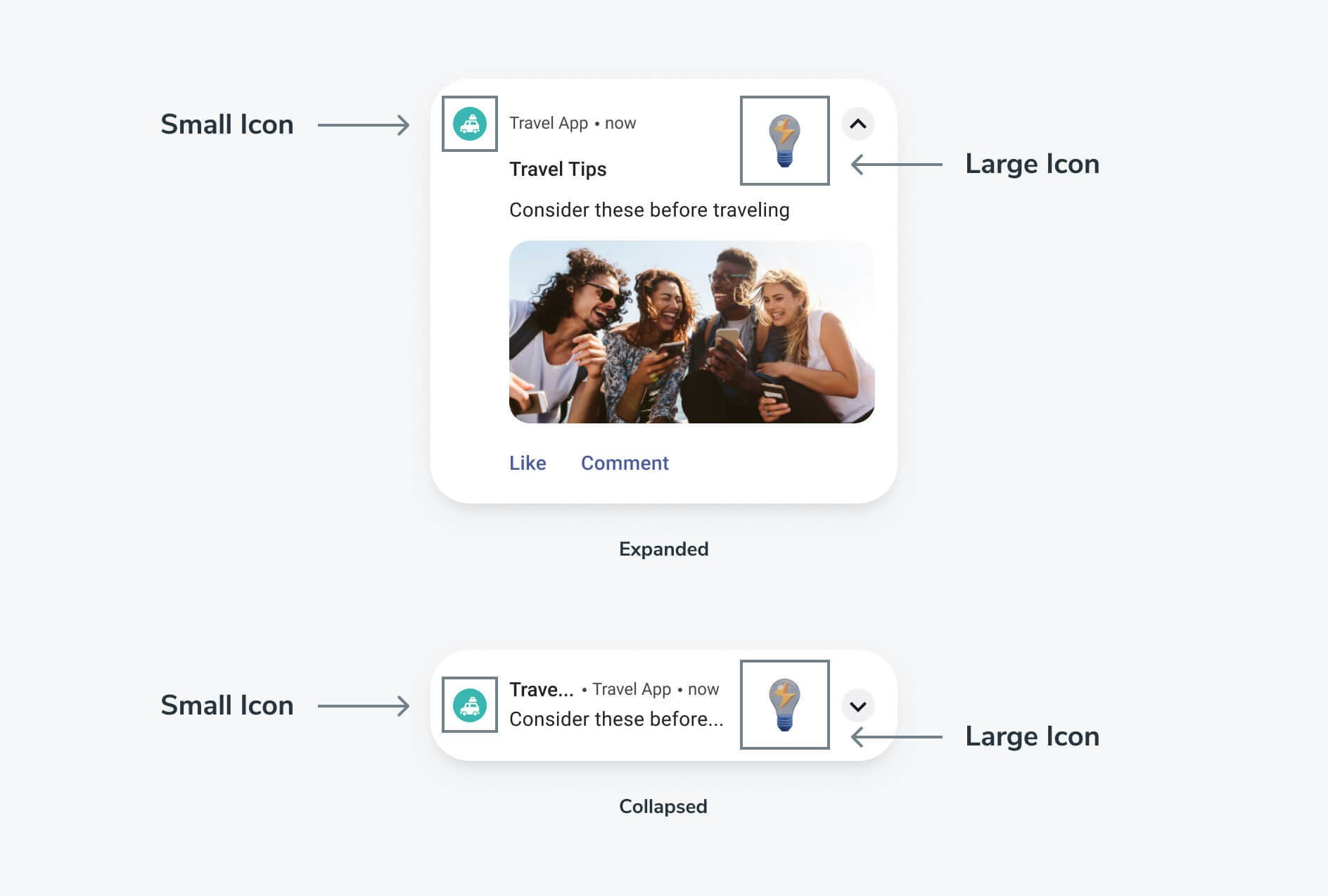
Small notification icons
The small notification icon is required on Android (including Amazon and Huawei devices). It appears in the status bar as a monochrome silhouette. If you do not provide a custom small icon, OneSignal uses a default bell icon. Icon placement on the notification changes in Android 17 (API 37). See Launcher icon on the notification. Android renders small notification icons using the icon’s alpha channel, not its color data. Starting in Android 12 (API 31), the system tints that silhouette from the notification accent color you set. If you do not set a color, it uses the system theme color. See Android notification design. Requirements:- Use a monochrome silhouette icon on a transparent background
- Design the icon so the shape is defined by transparency, not color
- Avoid gradients, shadows, or multi-color artwork
- Keep the design simple and recognizable at very small sizes
Launcher icon on the notification (Android 17)
Starting with Android 17 (API 37), Android shows your app’s launcher icon on the notification instead of the small icon. The small icon still appears in the status bar. This is Android system behavior that applies to all notifications, and exact appearance may vary by device manufacturer. To show the small icon on the notification instead, set Android’sEXTRA_PREFER_SMALL_ICON extra. The OneSignal SDK does not set this extra by default. Add it in your notification service extension. Annotate the class with @Keep and register it in the manifest as shown on that page.
compileSdk version. Android 16 (API 36) and below ignore the extra, so it is safe to set unconditionally.
Small icon accent color
You can set the notification accent color that Android 12 (API 31) and newer uses to tint the small icon. This maps to Android’sNotification.color (setColor). It is not the same as colorizing the notification background (setColorized), which Android reserves for high-priority ongoing tasks.
Accent color is a per-notification property, not a channel property. Android notification categories control sound, importance, vibration, LED color, and badges. Categories have no accent color setting, and your accent color applies regardless of which category the notification displays on.
On Android 17 (API 37) and newer, accent color may not appear on the notification when the launcher icon is showing. The status-bar small icon still tints.
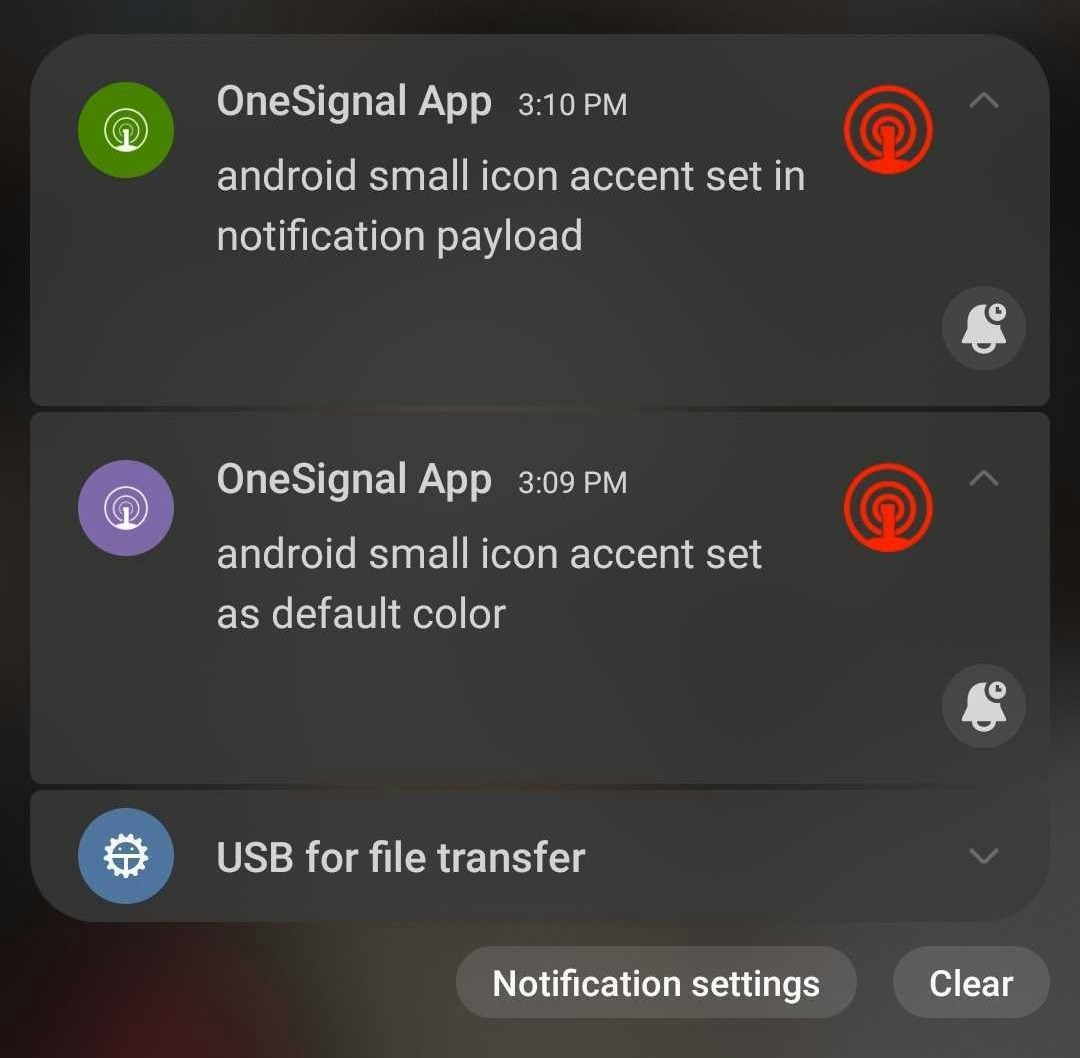
- Per message: the
android_accent_color(Google Android) orhuawei_accent_color(Huawei) parameter in the Create message API, or the Accent color field under Messages > Push > New Push > Platform Settings > Google Android Options. - App default via resources: the
onesignal_notification_accent_colorstring resource. - App default via manifest: the
com.onesignal.NotificationAccentColor.DEFAULTmeta-data entry inAndroidManifest.xml.
# (for example, FF00FF00). You can preview colors in Android Asset Studio.
To set a default color with resources, add the following line to your res/values/strings.xml file. For a different color in dark mode, add the same key to res/values-night/strings.xml.
<application> tag:
notification.setExtender with builder.setColor(). The extender runs after the SDK applies the values above, so it overrides all of them.
Large notification icons
The large icon is optional. It appears on the right side of the notification. Android’s design guidance is to use it only when the image reinforces the notification content, such as a sender photo, a third-party source logo, or a meaningful symbol. Do not use the large icon as a second app icon or for branding. See The large icon.- Recommended size: 256×256 pixels
- Format: PNG or JPG
- Color is allowed. Alpha-only is not required.
How to add Android default icons
Configure default icons for every Android-based app (Google Play, Amazon, Huawei). Finish Android SDK setup (or your cross-platform setup) first. Add the files to your project’s resource directories (or a plugin config for Expo), rebuild, and release. Missing or incorrectly named files are the most common cause of broken rendering. Default icons ship in the app binary. They are not uploaded to the OneSignal dashboard. After you ship, wait until most users update before sending notifications that depend on a new icon name.1
Generate the small notification icon
Generate a silhouette on a transparent background using Android Asset Studio – Notification Icons. Follow the small icon requirements.Name the icon:
ic_stat_onesignal_default2
Create required small icon sizes
Include all density variants for the small icon. Missing any size can cause Android to fall back to a system default icon. These sizes are 24dp at each density, which is Android’s status bar icon size.
3
Generate the large notification icon (optional)
Use a 256×256 PNG or JPG. Color is allowed. Only one size is needed.Required file name:
ic_onesignal_large_icon_default.png4
Place icons in the correct project paths
Create any missing folders. Place every small-icon density in its drawable folder. Place the large icon in
drawable-xxxhdpi/ next to the XXXHDPI small icon. The two files share a folder and use different names.- Android Native
- Unity
- React Native / Expo
- Flutter
- Cordova
- Capacitor
- .NET MAUI
Small icons (
ic_stat_onesignal_default):res/drawable-mdpi/(24×24)res/drawable-hdpi/(36×36)res/drawable-xhdpi/(48×48)res/drawable-xxhdpi/(72×72)res/drawable-xxxhdpi/(96×96)
ic_onesignal_large_icon_default.png, 256×256):res/drawable-xxxhdpi/
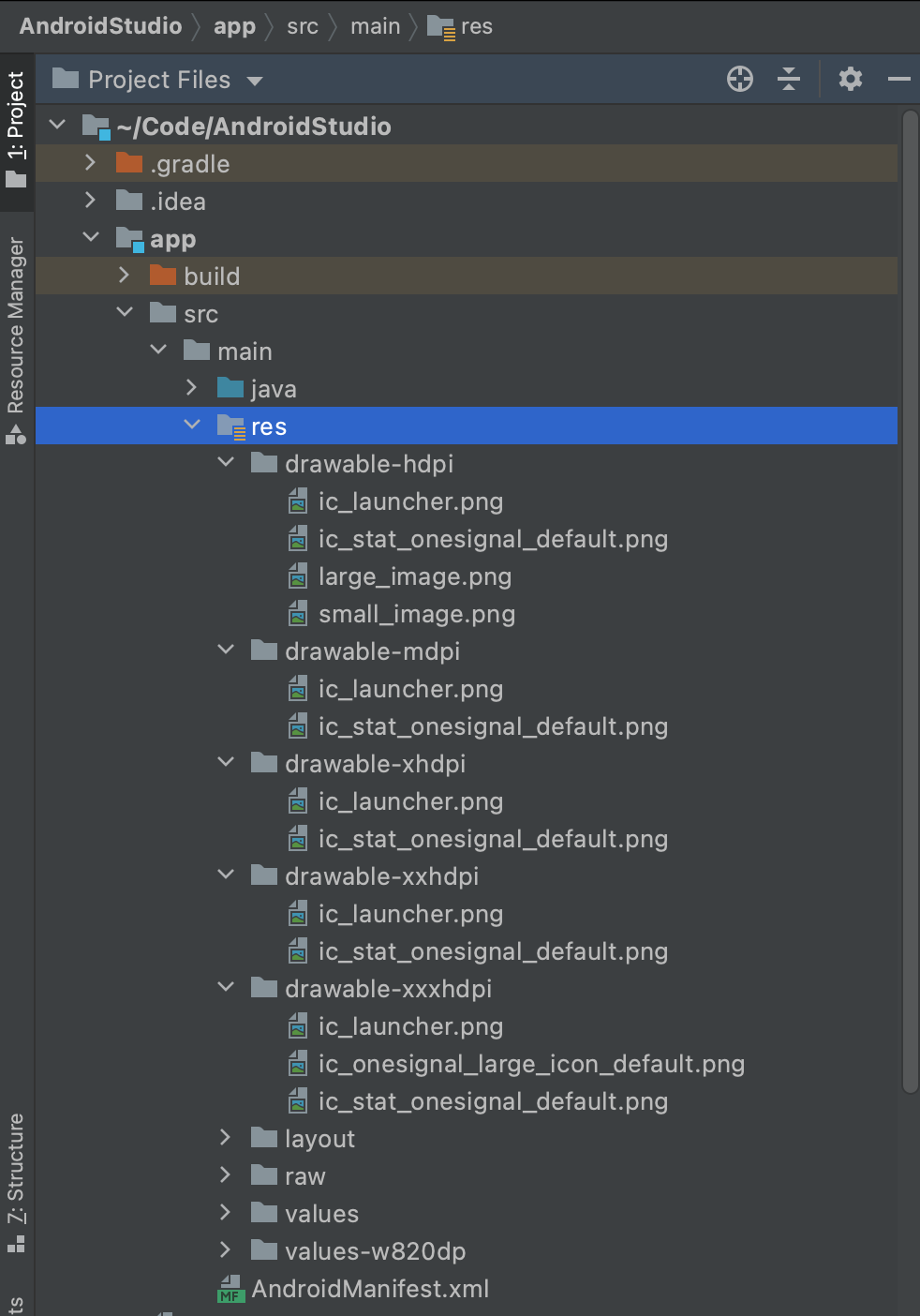
Android Native project with icon files in drawable folders
Your Android app is now configured with default notification icons. If you see a solid square or the OneSignal bell, see the FAQ.
iOS notification icons
iOS notifications always use your app icon. The system displays a large version of that icon at the leading edge of each notification and scales it from your app icon asset. You cannot change it per message. To change it, update the app icon and ship a new app version. See Human Interface Guidelines: Notifications.The APNs payload has
alert, badge, and sound. It has no field for a custom notification icon. Apple ignores custom keys inside the aps dictionary. This applies to standard push notifications and Critical Alerts. Live Activity UI can show its own images through ActivityKit. That is not a replacement for the notification icon.Communication notifications
On iOS 15 and newer, Apple supports Communication Notifications for messaging and calling apps. After you donate anINSendMessageIntent or INStartCallIntent, the system can show the sender or caller avatar (INImage) in place of the large app icon. The app icon still appears as a small badge on that avatar.
This requires the Communication Notifications capability, SiriKit intents, and a Notification Service Extension to update the notification content. It is not available for general-purpose notifications.
Web notification icons
In Chrome, Firefox, and Edge web push notifications display an icon provided at send time or set as the default in your site settings. Safari does not display this icon. See Safari web push icons.- Supported formats: PNG, JPG, GIF (non-animated)
- Icon must be square. Recommended size is
256×256pixels. web.dev cites 64dp on Android, so192×192or larger is the usual minimum.256×256is the most consistent size across Chrome, Firefox, and Edge. - Browsers and operating systems crop and scale the icon differently. Chrome and Firefox use the platform notification UI where one exists.
Safari web push icons
Safari does not support the Notifications APIicon option. It ignores the Default Icon URL and any per-message icon (chrome_web_icon, firefox_icon). You cannot set a custom icon for Safari web push notifications.
- macOS: Safari shows your website’s icon. Ship a high-resolution favicon and
apple-touch-iconon your site. - iOS and iPadOS: Notifications use the icon of the Home Screen web app. Set it with the
iconsin your web app manifest and anapple-touch-icon. See Web push for iOS.
Native permission prompt icon
The browser’s native permission prompt does not show your icon in any browser. Browsers control its appearance and show your site’s origin, not a custom image. To show your branding before the native prompt, use a OneSignal soft prompt such as the Slidedown, which displays your Default Icon URL. Set Default Icon URL in Settings > Push & In-App > Web. See Web SDK setup. You can also override the icon per notification using the dashboard or REST API. See Send notifications with non-default icons.Android web push badge icon
On Android, Chrome web push can show a smaller badge icon in the status bar when there is not enough room for the full notification. OneSignal sends this withchrome_web_badge, which maps to the Notifications API badge option. Chrome on Android uses this badge. If you do not set one, Chrome uses the browser icon. Other browsers typically show the browser icon. See Notification: badge.
This is not an app-icon badge (dot or number). For those, see Badges.
Treat the badge as a monochrome icon. MDN states that Android automatically masks the image. Use a square PNG silhouette on a transparent background (same rules as the Android small icon). Avoid text, fine detail, and full-color artwork.
MDN recommends about 96×96 pixels so the image holds up at 4x. 72×72 is the usual minimum (24dp at 3x). Larger images are downscaled.
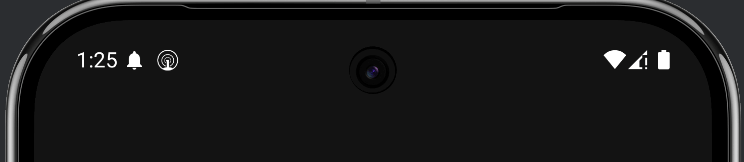
Example of how the badge icon is displayed in the Android status bar.
Send notifications with non-default icons
When you send push from the OneSignal dashboard or REST API, you can override the default icons for Android, Amazon, Huawei, and Web Push. You cannot override the icon for iOS notifications or Safari web push notifications.REST API parameters
Android, Amazon, and Huawei:string
Icon resource name without the file extension. The image must exist in the same project folders as the default small icon. Remote URLs are not supported. See How to add Android default icons.For Amazon use
adm_small_icon. For Huawei use huawei_small_icon.Example: "small_icon": "my_custom_icon"string
Icon resource name without the file extension, or a remote URL. If you use a resource name, the image must exist in the same project folders as the default large icon. See How to add Android default icons.For Amazon use
adm_large_icon. For Huawei use huawei_large_icon.Example: "large_icon": "my_custom_icon"string
Direct URL to the image resource.For Firefox use
firefox_icon.Example: "chrome_web_icon": "https://example.com/my_custom_icon.png"string
Direct URL to the image resource used as the Android status-bar badge for Chrome web notifications.Example:
"chrome_web_badge": "https://example.com/badge.png"Dashboard
In Messages > Push > New Push or Templates, open the platform-specific options. For Android, Amazon, and Huawei, if the file exists in the same project path as the default icon, set the icon names without the file extension. For large notification icons, you can also supply a direct URL.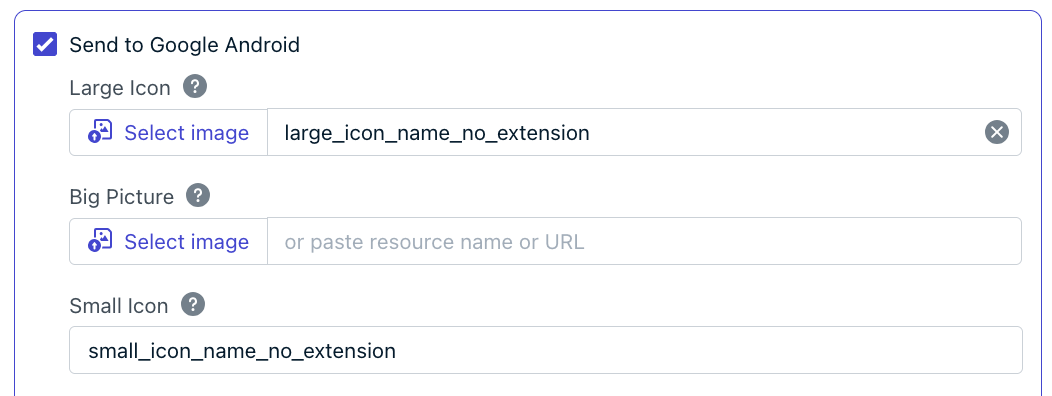
OneSignal dashboard, where to override the default icons.
FAQ
Why does my Android small icon show as a white or grey square?
The image does not have proper transparency. Android renders small notification icons using the alpha channel only. Fully opaque pixels with a solid background appear as a filled square. Regenerate the icon as a monochrome silhouette on a transparent background using Android Asset Studio.Why does the OneSignal bell icon appear instead of my custom icon?
One or more required density variants of the small icon are missing, placed in the wrong drawable directory, or named incorrectly. Include all five sizes (MDPI through XXXHDPI) with the exact file nameic_stat_onesignal_default. See How to add Android default icons for the correct paths.
Why do notifications show my app icon instead of my small icon?
Starting with Android 17 (API 37), Android displays the app’s launcher icon on the notification by default. The small icon still appears in the status bar. To show the small icon on the notification, set theEXTRA_PREFER_SMALL_ICON extra in a notification service extension. See Launcher icon on the notification.
Can I change the iOS notification icon per message?
No. iOS always uses your app icon for push notifications. The APNs payload has no icon field. Changing the icon requires updating your app icon asset and releasing a new app version. Messaging and calling apps can show a sender avatar only by adopting Communication Notifications.What size should my web push icon be?
Use a square PNG, JPG, or non-animated GIF at256×256 pixels. Different browsers and operating systems may crop or scale the icon, but 256×256 is the most consistent size across Chrome, Firefox, and Edge. Safari does not use this icon.
Why doesn’t my icon show on Safari web push notifications?
Safari ignores custom notification icons. On macOS it shows your website’s icon, and on iOS and iPadOS it shows the Home Screen web app icon. See Safari web push icons.Can I add my icon to the browser’s native permission prompt?
No. No browser lets websites customize the native permission prompt. Use a OneSignal soft prompt to show your icon before the native prompt.Can I use a URL for the Android small icon?
No. The Android small icon must be a local resource file bundled with your app. Only the large icon supports remote URLs.How do I add notification icons in Expo?
Use theonesignal-expo-plugin with a 96×96 small-icon PNG and a 256×256 large-icon PNG in app.json or app.config.js. The plugin generates density variants at build time. See the Expo tab for the config.
Do I upload default icons to the OneSignal dashboard?
No. Default notification icons are bundled inside your app binary, not uploaded to OneSignal. You add them to your project’s resource directories (or plugin config for Expo), and the OneSignal SDK uses them automatically. The OneSignal dashboard only lets you override icons on a per-message basis for Android and Web Push (except Safari).Related
Images & rich media
Attach large images, GIFs, and videos to push notifications.
Android SDK setup
Install the Android SDK, then add default notification icons in your drawable folders.
React Native / Expo SDK setup
Configure
smallIcons and largeIcons in the OneSignal Expo plugin.Android notification categories
Create and manage Android notification channels for sound, vibration, and importance.
Web SDK setup
Set Default Icon URL in Settings > Push & In-App > Web.
Create message API
Send push notifications with custom icons using the REST API.