

This is the legacy Snowflake integration. For the new integration with faster sync times and direct data ownership, see Snowflake. See the migration section for migration steps.
OneSignal Snowflake integration overview
Overview
The OneSignal + Snowflake integration supports two powerful data pipelines:- Export: Automatically send messaging event data (push, email, SMS, in-app) from OneSignal to Snowflake for analysis and reporting.
- Import: Sync custom user events from your Snowflake datasets to OneSignal to trigger automated Journeys and personalized messaging.
Export OneSignal events to Snowflake
Send messaging performance and engagement events (e.g., sends, opens, clicks) to Snowflake to:- Build custom dashboards and reports
- Track delivery and engagement trends across channels
- Combine OneSignal data with other business data for analysis
- OneSignal Professional Plan (not available on free apps).
- Snowflake account
- Ensure your Snowflake account has the
IMPORT SHAREandCREATE DATABASEroles.- We recommend using the
ACCOUNTADMINrole for accepting the share.
- We recommend using the
1. Sign up
In order to activate the Snowflake integration, you’ll need to request access via the OneSignal Marketplace listing for Message Events Data. From there we’ll reach out to your team to obtain more information.2. Provide Account Information
Once we connect with your team, you’ll need to provide some details to us so we can share data with you. We will need your Snowflake Account ID and your Snowflake Organization ID. The easiest way to get that info is to click the “Copy account identifier” button (as shown below).You should be in contact with us via the OneSignal Marketplace listing. However, if you have any further questions about providing account information, you can email
snowflake-data-sharing@onesignal.com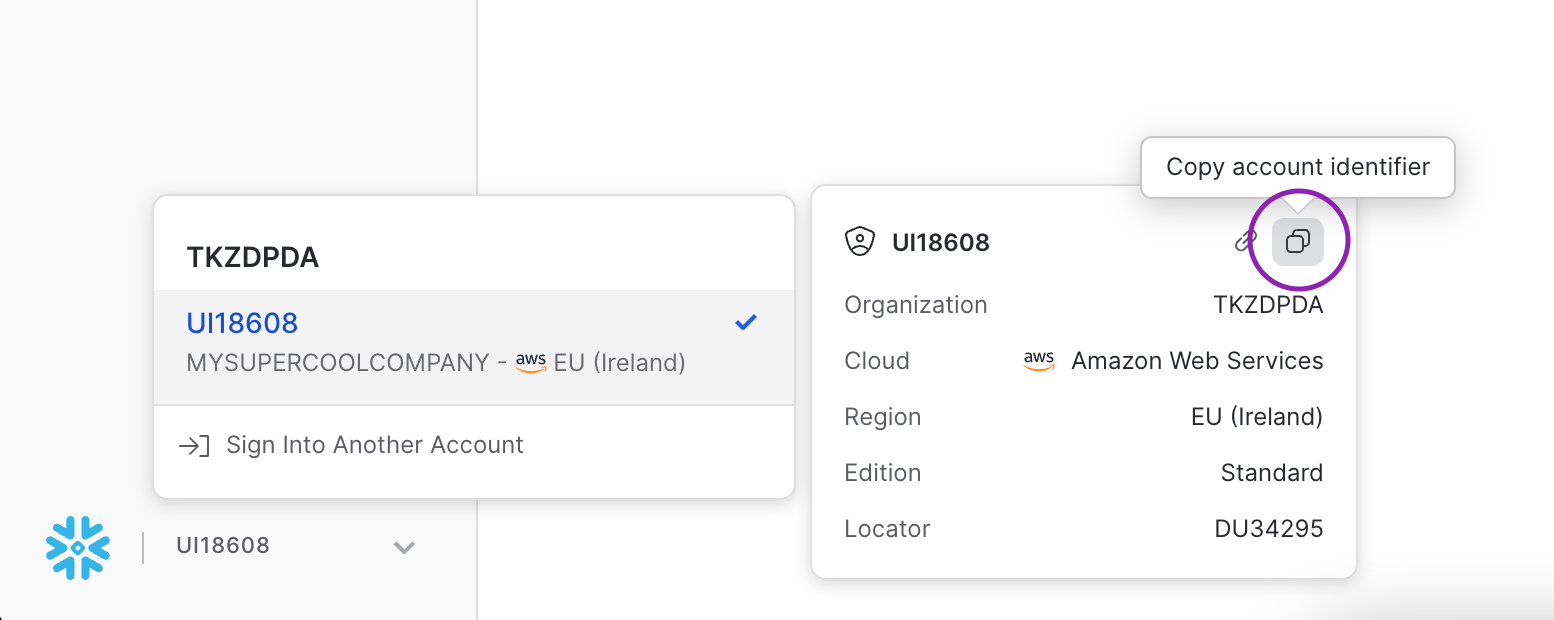
Copying Snowflake account identifier
- Email from OneSignal welcoming you into the program
- Email from Snowflake notifying that the data share is complete
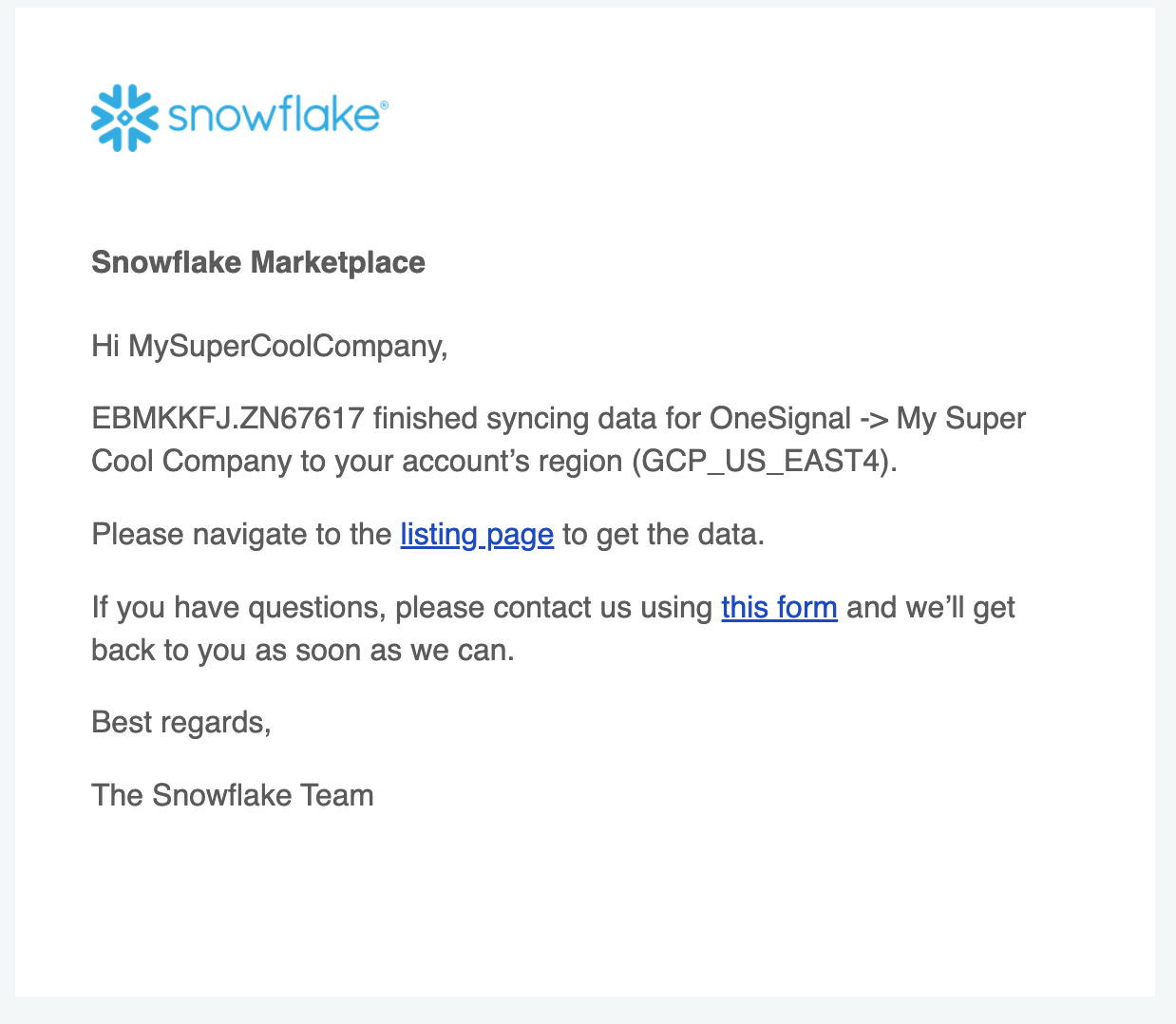
Snowflake data share notification email
3. Accept data share within Snowflake
Once you receive an email from Snowflake notifying you about the data share being complete, you should be able to log into the Snowflake app and accept the data share. Navigate to Data → Private Sharing where you should be able to see a new Privately Shared Listing. Once you click Get, your data will start replicating to your region.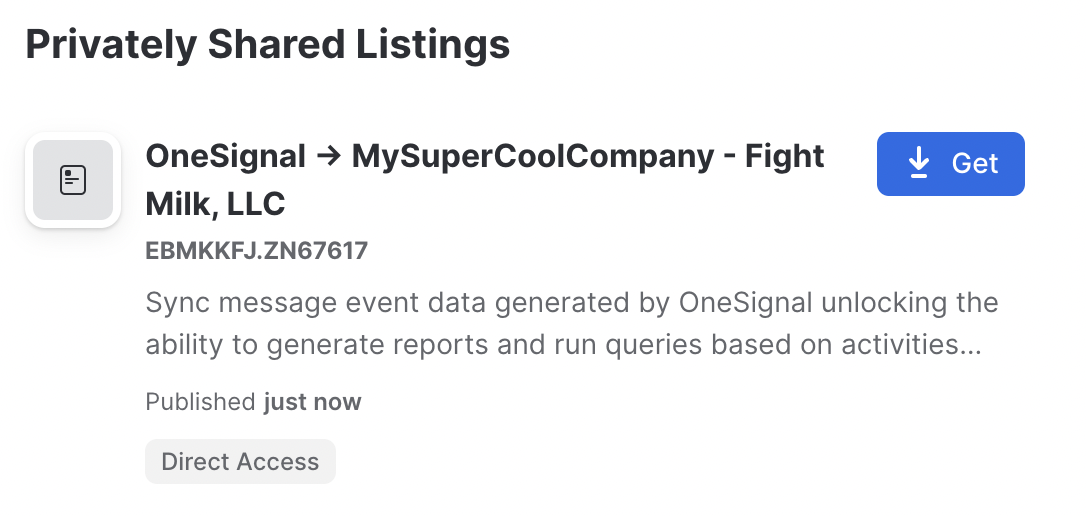
Snowflake private sharing interface
CREATE DATABASE or IMPORT SHARE. We suggest switching to the ACCOUNTADMIN role.
It will take some time for the data to be replicated. Snowflake will follow up with an additional email once the data is available. You should see a dialog that looks like this
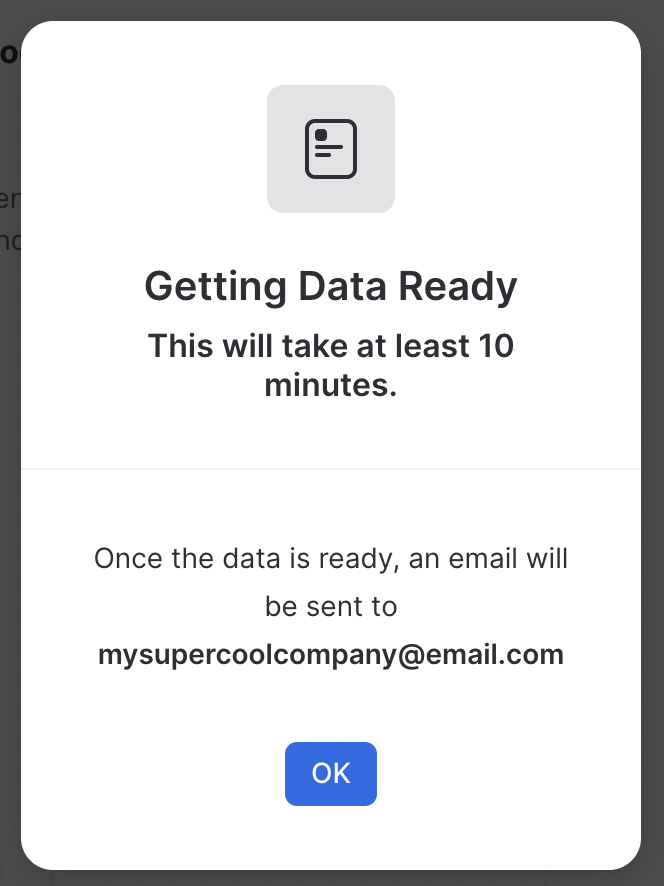
Data replication status dialog
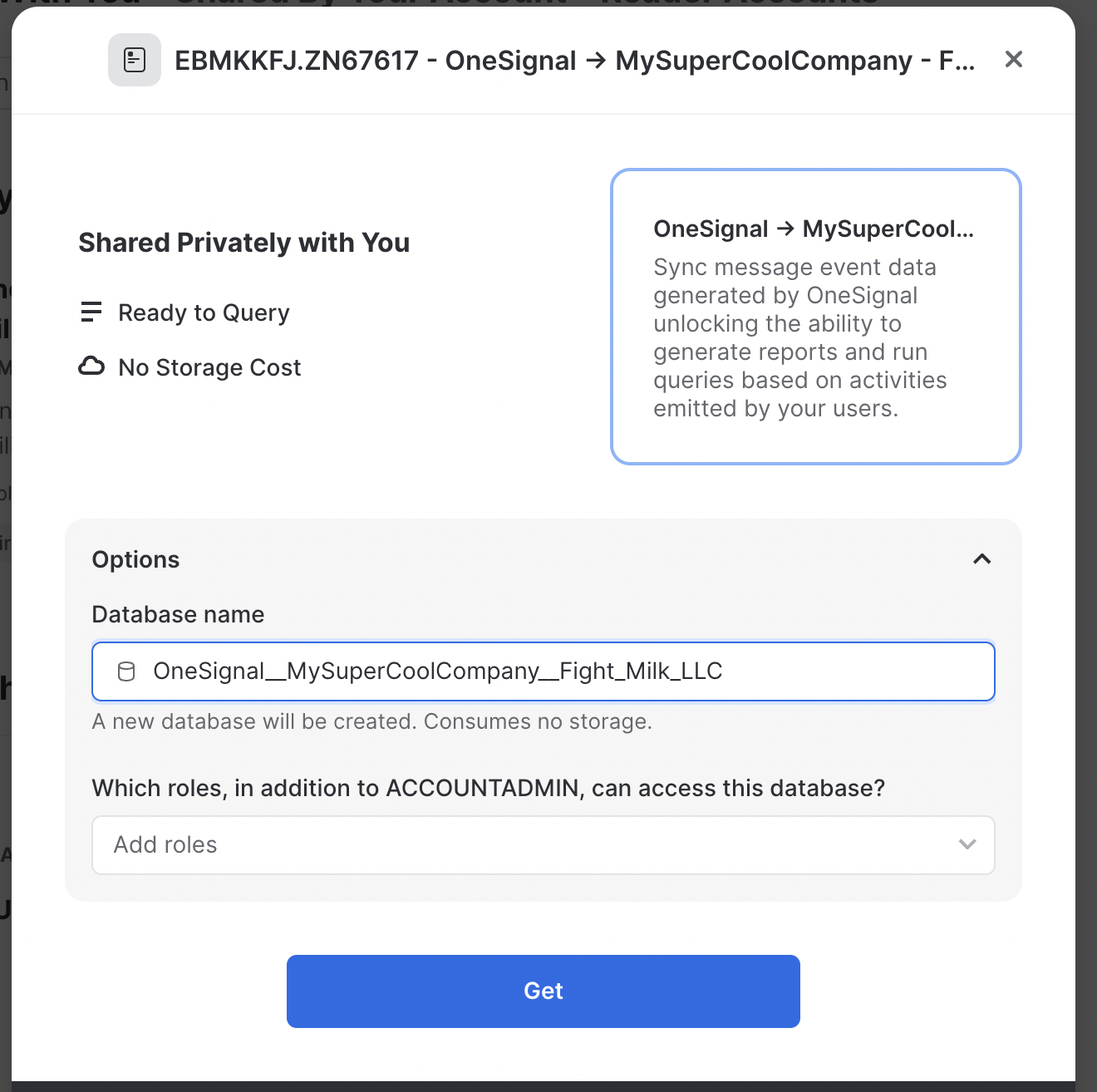
Database configuration dialog
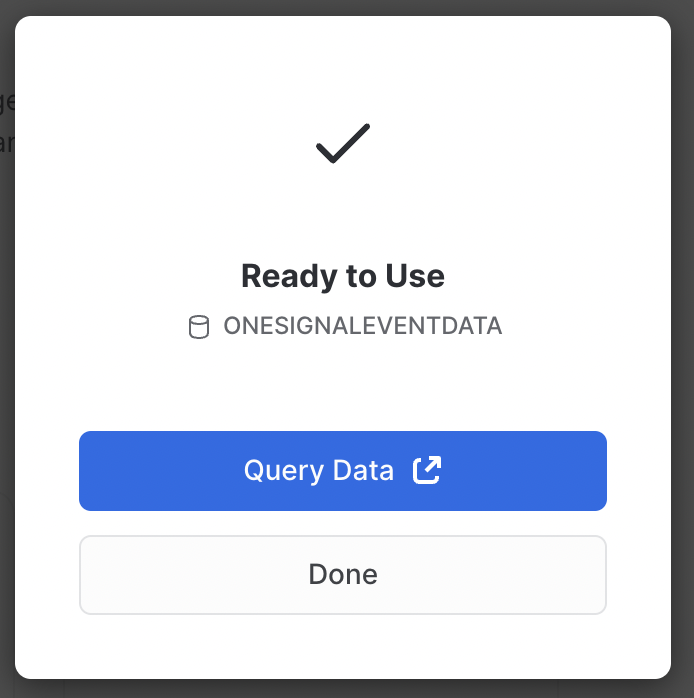
Data share setup completion
That’s it! Data is now being synced from OneSignal to Snowflake. The sync cadence is set to once every 24 hours, so the initial data may not be available until the next day.
Events and Properties
An overview of the data available on Snowflake’s MarketplaceMessage Events Data
See Event Streams for more details. For each message event generated by a user, the following metadata will be attached to the record.Message Event Kinds
See Event Streams for more details. Message Events are the first category of data that we’ll be offering on Snowflake’s Marketplace. Please reach out to us atsnowflake-data-sharing@onesignal.com with any requests for additional categories of data!
Data Retention
Data shared from OneSignal via Snowflake is retained for a period of 30 days. To ensure data preservation beyond this timeframe, we recommend you copy the relevant data to your own tables.Disconnect data share with OneSignal
Please email us atsnowflake-data-sharing@onesignal.com to request to deactivate your data share with OneSignal.
FAQ
How can I optimize costs?
- Use X-Small warehouse size
- Configure aggressive auto-suspend (60 seconds)
- Schedule syncs during off-peak hours
- Use hourly/daily syncs instead of continuous syncing