Overview

Audit Logs provide a read-only record of user actions across your OneSignal organization. Use audit logs to:
  • Investigate security incidents by reviewing login activity, IP addresses, and user sessions.
  • Meet compliance requirements by providing evidence for SOC 2, HIPAA, and internal audits.
  • Maintain accountability by tracking who created, updated, or deleted templates, journeys, and notifications.
Audit logs are immutable. You cannot edit or delete entries, ensuring an accurate and trustworthy audit trail.
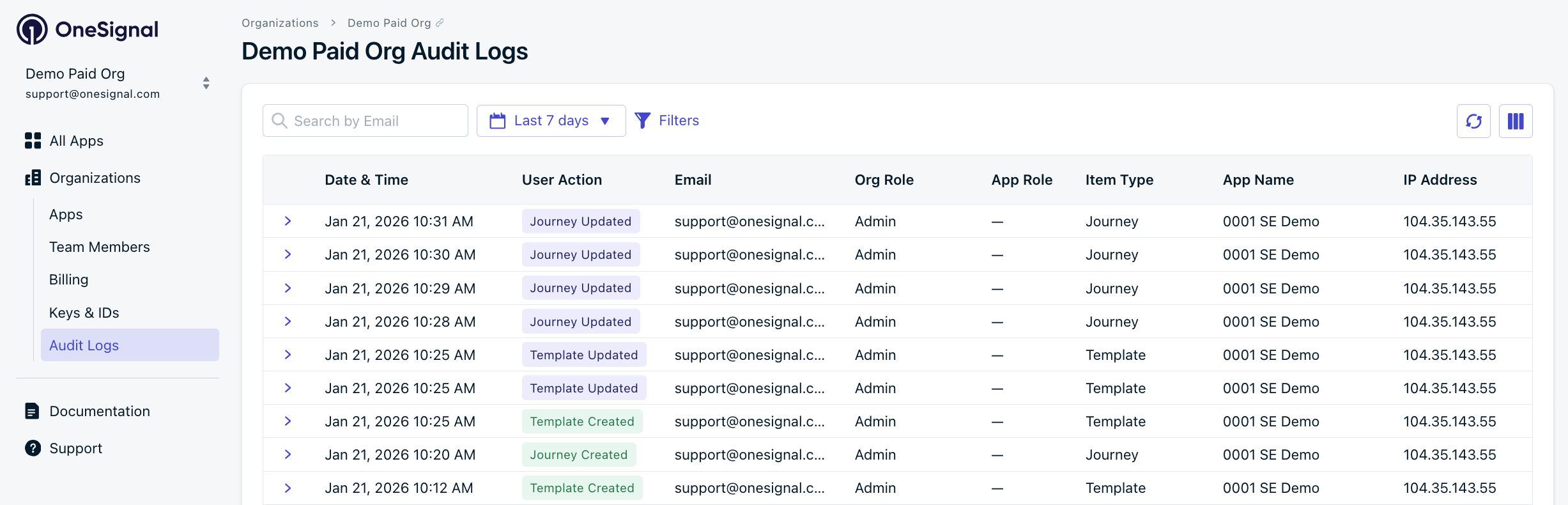
Audit Logs table showing user actions across an organization

Plan availability

Audit log retention varies by plan.
PlanRetention PeriodNotes
Free48 hoursIncluded
Growth48 hoursIncluded
Professional48 hoursUpgrade to 90 days with Legal & Security Package add-on
Enterprise90 daysIncluded
To increase retention or learn more about the Legal & Security Package, contact your Account Manager or our Sales Team.

Accessing Audit Logs

Org Level Audit Logs

Audit logs are available at the Organization level and include activity across all apps in that organization. Requirements: To access audit logs:
  1. Navigate to Organizations
  2. Select your organization
  3. Click Audit Logs

App Level Audit Logs

In addition to organization-level audit logs, you can view audit logs for a specific app:
  1. Navigate to your App
  2. Go to Settings
  3. Click Audit Logs
App-level audit logs show only activity for that specific app, making it easier to investigate app-specific changes. Requirements:
  • You must be an App Admin or Organization Admin

Understanding the Audit Log

Each row represents a single user action. You can customize visible columns using the Columns button in the top-right corner.
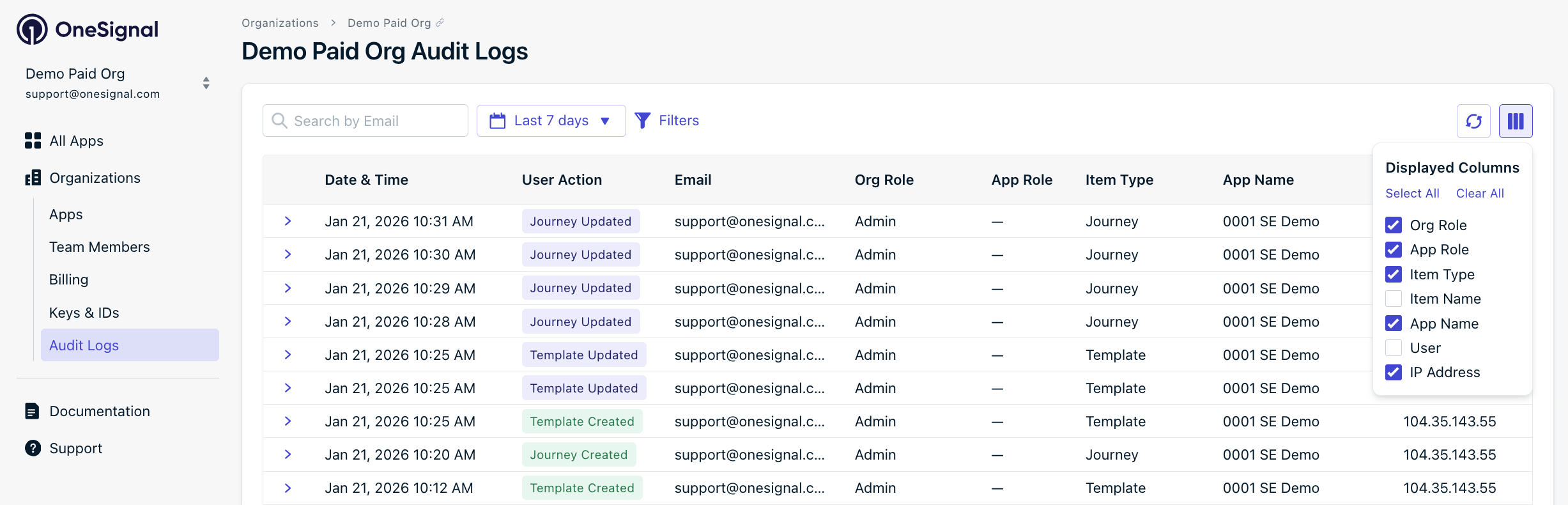
Audit logs columns button showing the available columns
ColumnDescription
Date & TimeWhen the action occurred
User ActionThe type of action performed (e.g., Logged In, Template Updated)
EmailEmail address of the user who performed the action
Org RoleThe user’s organization-level role (Admin, Editor, Viewer)
App RoleThe user’s app-level role, if applicable
Item TypeThe type of object affected (Template, Notification, Journey)
Item NameThe name of the affected object
App NameThe app where the action occurred
UserDisplay name of the user
IP AddressThe IP address from which the action was performed

Tracked events

Audit logs track user actions across your organization, including logins, template changes, notification activity, journey updates, member management, billing events, and more. For a comprehensive list of all tracked events, see the Complete event reference.

Viewing event details

Click the expand arrow (›) next to any event to view additional details:
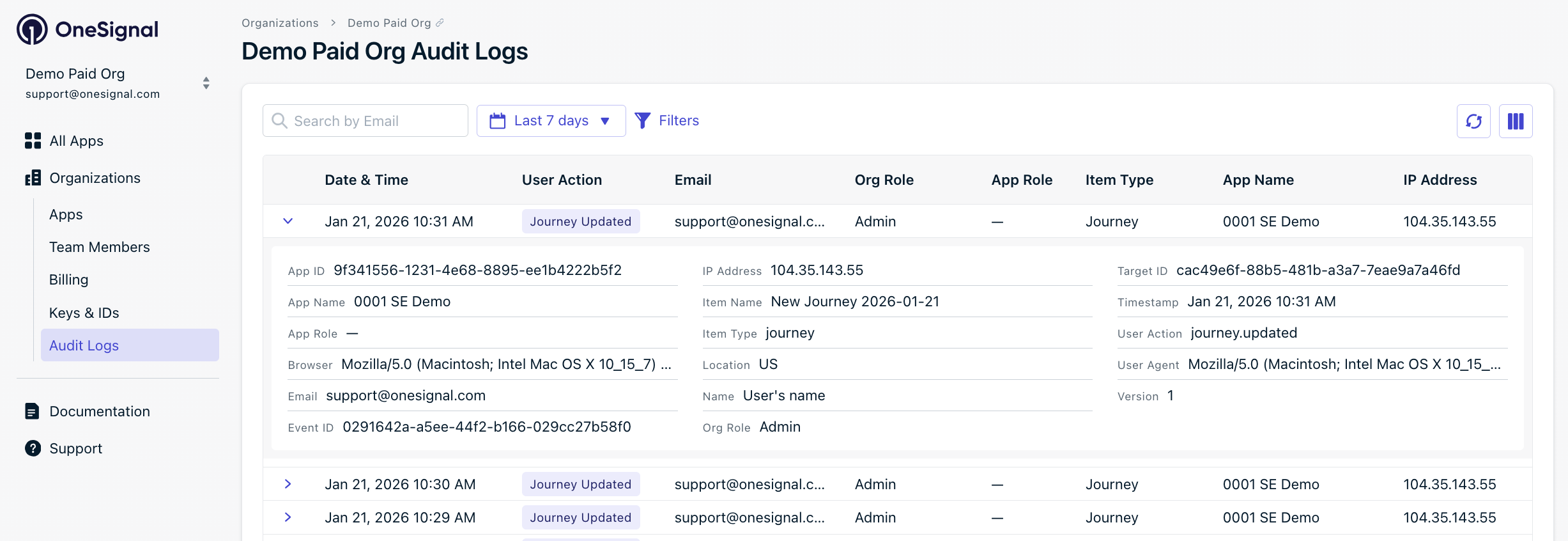
Expanded audit log event showing detailed information including App ID, Browser, Event ID, and IP Address
Expanded details include:
FieldDescription
API VersionAPI version used (when applicable)
App IDUnique identifier for the app
App NameName of the app where the action occurred
App RoleUser’s role within the specific app
BrowserUser agent string (browser and OS information)
ChannelNotification channel (push, email, sms) for notification events
EmailUser’s email address
Event IDUnique identifier for this specific event
IP AddressFull IP address of the user
Item NameName of the affected object
Item TypeType of object (template, notification, etc.)
LocationGeographic location based on IP address
NameDisplay name of the user
Org IDUnique identifier for the organization
Org RoleUser’s organization-level role
Target IDUnique identifier for the affected object
Target RoleRole associated with the target (for member events)
TimestampFormatted date and time of the event
User ActionThe action type (e.g., notification.sent)
User AgentFull browser/client user agent string
VersionEvent schema version

Search and filters

Use the search and filter options to find specific events:

Search by email

Enter an email address in the search bar to find all actions performed by a specific user.

Date range

Select from the following preset date ranges:
  • Last 24 hours
  • Last 48 hours (default)
  • Last 7 days
  • Last 30 days
  • Last 90 days (requires extended retention)
  • Custom - Select specific start and end dates
Date range options beyond your plan’s retention period will display a lock icon. Contact sales for extended audit log history.

Filters

Click Filters to narrow results by:
FilterDescription
User ActionFilter by action type (Logged In, Template Updated, etc.)
App IDFilter by a specific app’s unique identifier
IP AddressFilter by IP address
Item TypeFilter by object type (Template, Notification, Journey)
Target IDFilter by the unique ID of the affected object

Item type values

Filter audit logs by the type of object affected:
Item TypeDescription
A/B TestA/B test experiments
API KeyAPI keys and tokens
AppApplication settings
Data FeedData feed configurations
Dynamic ContentDynamic content blocks
Email DomainEmail sending domains
Email SuppressionEmail suppression list entries
Event StreamEvent stream destinations
ExportData exports
In-App MessageIn-app message campaigns
IntegrationThird-party integrations
JourneyAutomated journey workflows
MemberTeam members
NotificationPush, email, or SMS notifications
OrganizationOrganization settings
SegmentAudience segments
SubscriptionUser subscriptions
TemplateMessage templates
UserEnd users/subscribers
WebhookWebhook configurations

Data retention

Audit log data is retained based on your plan:
  • Free and Growth plans: 48-hour retention
  • Professional plan: 48-hour retention by default, or 90-day retention with the Legal & Security Package add-on
  • Enterprise plan: 90-day retention included
After the retention period, audit log entries are automatically removed and cannot be recovered.
Need longer retention or export capabilities? Contact your Account Manager or our Sales Team to discuss your requirements.

Complete event reference

The following is a comprehensive list of all events tracked in audit logs, organized by category.
ActionDescription
App CreatedA new app was created
App RenamedAn app was renamed
App DeletedAn app was deleted
App Settings UpdatedApp settings were modified
App API Key ResetApp API key was reset
App Auth Token CreatedApp authentication token was created
App Auth Token UpdatedApp authentication token was updated
App Auth Token DeletedApp authentication token was deleted
App Auth Token RotatedApp authentication token was rotated
ActionDescription
Template CreatedA new message template was created
Template UpdatedAn existing template was modified
Template DeletedA template was removed
ActionDescription
Notification CreatedA new notification was created
Notification SentA notification was sent
Notification UpdatedA notification was modified
Notification CanceledA scheduled notification was canceled
Notification DeletedA notification was removed
Notification PreviewedA notification was previewed
ActionDescription
A/B Test CreatedA new A/B test was created
A/B Test UpdatedAn A/B test was modified
A/B Test DeletedAn A/B test was deleted
A/B Test CanceledAn A/B test was canceled
A/B Test Winner SelectedA winner was selected for an A/B test
ActionDescription
Journey CreatedA new journey was created
Journey UpdatedAn existing journey was modified
Journey Set LiveA journey was activated
Journey ArchivedA journey was archived
Journey ResumedA paused journey was resumed
Journey ScheduledA journey was scheduled
Journey DeletedA journey was deleted
ActionDescription
In-App Message CreatedA new in-app message was created
In-App Message UpdatedAn in-app message was modified
In-App Message DeletedAn in-app message was deleted
In-App Message EnabledAn in-app message was enabled
In-App Message DisabledAn in-app message was disabled
ActionDescription
Segment CreatedA new segment was created
Segment UpdatedA segment was modified
Segment DeletedA segment was deleted
Segment PausedA segment was paused
Segment ResumedA segment was resumed
Segment Set as DefaultA segment was set as default
ActionDescription
Member CreatedA new team member was created
Member DeletedA team member was deleted
Member Role Changed in AppA member’s app-level role was changed
Member Role Changed in OrgA member’s organization-level role was changed
Member Added to AppA member was added to an app
Member Removed from AppA member was removed from an app
Member Added to OrgA member was added to the organization
Member Removed from OrgA member was removed from the organization
ActionDescription
Organization CreatedA new organization was created
Organization UpdatedOrganization settings were modified
Organization DeletedAn organization was deleted
Organization DisabledThe organization was disabled
Organization EnabledThe organization was enabled
Logged InA user logged in
Logged OutA user logged out
User Added to OrgA user was added to the organization
User Removed from OrgA user was removed from the organization
User Role ChangedA user’s role was changed
App Added to OrgAn app was added to the organization
App Removed from OrgAn app was removed from the organization
2FA RequiredTwo-factor authentication was made required
2FA Made OptionalTwo-factor authentication was made optional
Auth Token CreatedOrganization auth token was created
Auth Token UpdatedOrganization auth token was updated
Auth Token DeletedOrganization auth token was deleted
Auth Token RotatedOrganization auth token was rotated
ActionDescription
Subscription CreatedA new subscription was created
Subscription UpdatedA subscription was modified
Subscription CanceledA subscription was canceled
Payment Method AddedA payment method was added
Payment Method UpdatedA payment method was updated
ActionDescription
Webhook CreatedA new webhook was created
Webhook UpdatedA webhook was modified
Webhook DeletedA webhook was deleted
Webhook TestedA webhook was tested
Webhook ActivatedA webhook was activated
Webhook DeactivatedA webhook was deactivated
ActionDescription
Event Stream CreatedA new event stream was created
Event Stream UpdatedAn event stream was modified
Event Stream DeletedAn event stream was deleted
Event Stream ActivatedAn event stream was activated
Event Stream DeactivatedAn event stream was deactivated
Event Stream TestedAn event stream was tested
ActionDescription
Data Feed CreatedA new data feed was created
Data Feed UpdatedA data feed was modified
Data Feed DeletedA data feed was deleted
Data Feed ActivatedA data feed was activated
Data Feed DeactivatedA data feed was deactivated
Data Feed TestedA data feed was tested
ActionDescription
Integration ActivatedAn integration was activated
Integration DeactivatedAn integration was deactivated
Integration Settings UpdatedIntegration settings were modified
ActionDescription
Import CreatedA new import was created
Import UpdatedAn import was modified
Import StartedAn import was started
Import FailedAn import failed
ActionDescription
Export CreatedA new export was created
ActionDescription
User CreatedA new user was created
User UpdatedA user was modified
User DeletedA user was deleted
ActionDescription
Subscription CreatedA new subscription was created
Subscription UpdatedA subscription was modified
Subscription DeletedA subscription was deleted
ActionDescription
Custom Event Retention UpdatedCustom event retention settings were modified
ActionDescription
Dynamic Content CreatedA new dynamic content block was created
Dynamic Content UpdatedA dynamic content block was modified
Dynamic Content DeletedA dynamic content block was deleted
ActionDescription
Email Domain CreatedA new email sending domain was added
Email Domain ActivatedAn email domain was activated
Email Domain DeactivatedAn email domain was deactivated
Email Domain DeletedAn email domain was removed
Email Domain Sends CanceledSending was canceled for an email domain
ActionDescription
Suppression CreatedAn email address was added to the suppression list
Suppression DeletedAn email address was removed from the suppression list

FAQ

Who can access audit logs?

Organization-level audit logs: Organization Admins can access audit logs for the entire organization. App-level audit logs: App Admins can access audit logs for apps they administer. Organization Admins can also access app-level audit logs for all apps in their organization. See Manage Team Members to update roles.

Can I view audit logs for a specific app?

Yes. Navigate to your app’s Settings page and select Audit Logs to view activity for that specific app only. This is useful for investigating changes to a particular app without seeing activity from other apps in your organization.

Can I export audit logs?

Exports are not currently available. For compliance needs, contact [email protected] with:
  • Organization ID
  • App ID (if applicable)
  • Desired date range

Can audit logs be deleted?

No. Audit logs are immutable and cannot be deleted by any user.

Are API actions logged?

Not yet. API actions are planned for a future release. Currently, audit logs track actions performed through the OneSignal dashboard.

How do I increase my retention period?

Enterprise customers receive 90-day retention automatically. Professional customers can upgrade to 90-day retention by adding the Legal & Security Package. Contact your Account Manager or our Sales Team to discuss your requirements.