

Understand push permissions
Users must give your website permission to send them push notifications. It is not possible to receive push notifications without explicitly granting the site permission using the system-level permission prompt.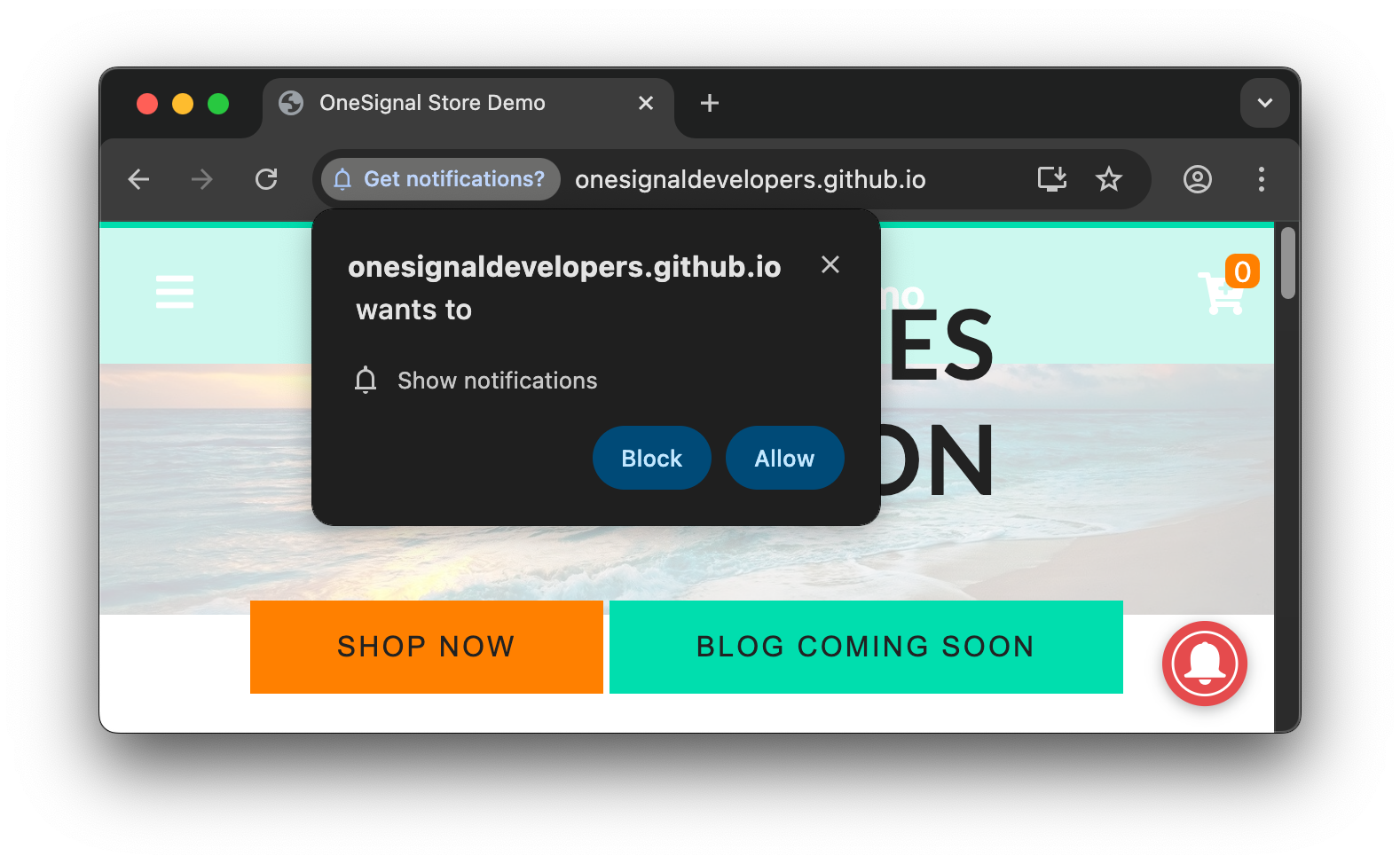
Example of the Chrome required system-level permission prompt that you must click 'Allow' on to receive push notifications for this site.
- Default: permission has not been granted to denied.
- Granted: you allowed the website to send you notifications.
- Denied: you blocked the website to send you notifications. This can be a temporary block if you clicked the x to close the prompt repeatedly or a permanent block if you clicked Block or toggled off permission in the browser settings.
How to unsubscribe from web notifications
You can unsubscribe from web push notifications in three ways:Unsubscribe within browser settings
You can manage or remove notification permissions directly in browser settings. Here are quick-access URLs and official docs to learn more:- Chrome:
chrome://settings/content/notifications(Learn more on Chrome’s docs) - Edge:
edge://settings/content/notifications(Learn more on Microsoft’s docs) - Firefox:
about:preferences#privacyscroll to Permissions > Notifications > Settings (Learn more on Mozilla’s docs) - Safari: Settings > Websites > Notifications (Learn more on Safari’s docs)
Unsubscribe while on the website
Reset permission Most browsers have a “lock” or “settings” icon next to the URL. Clicking it reveals site-specific permissions where users can disable push notifications.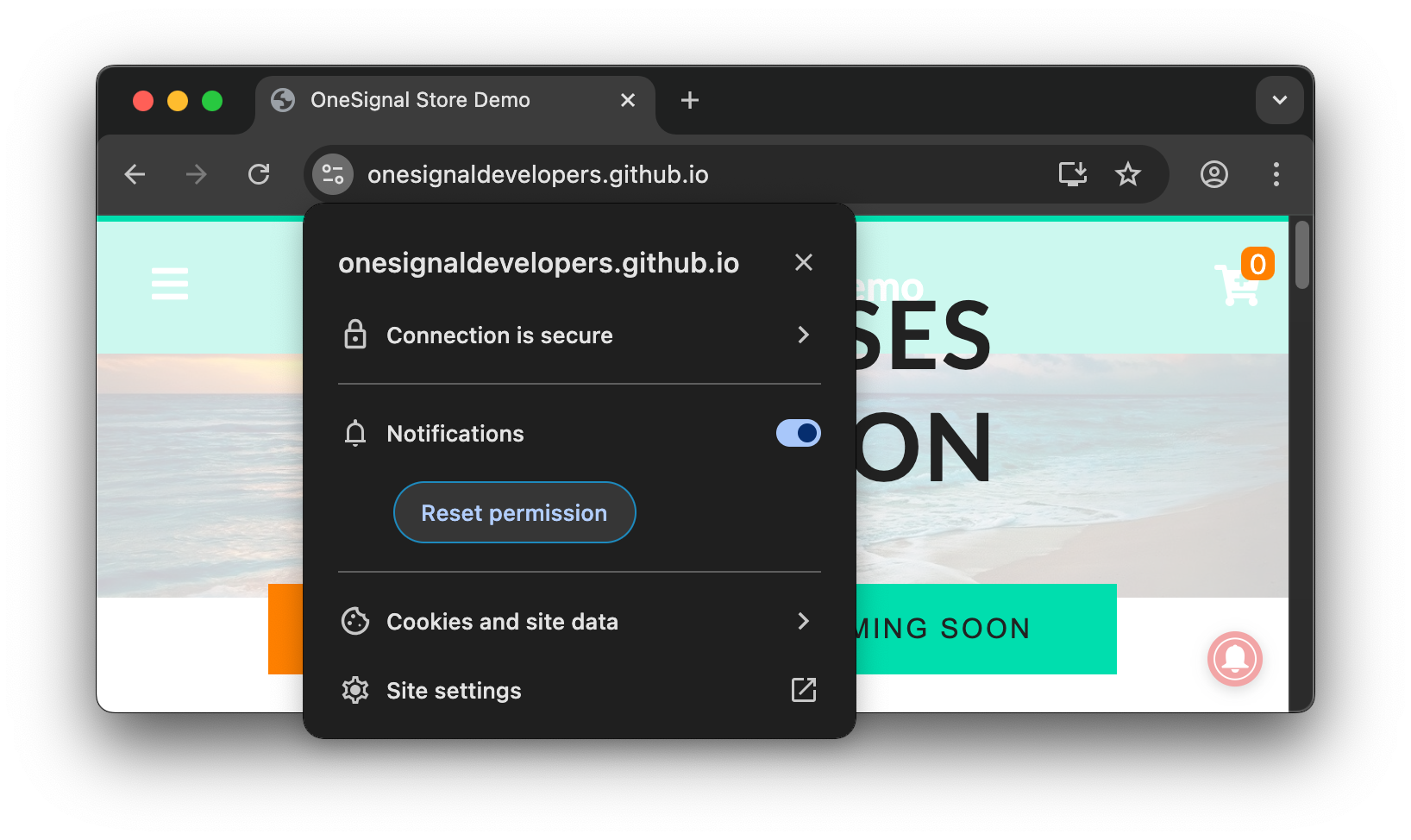
Example shows Chrome browser where you can toggle of push permissions for the site completely or reset permissions which will allow the site to prompt you again.
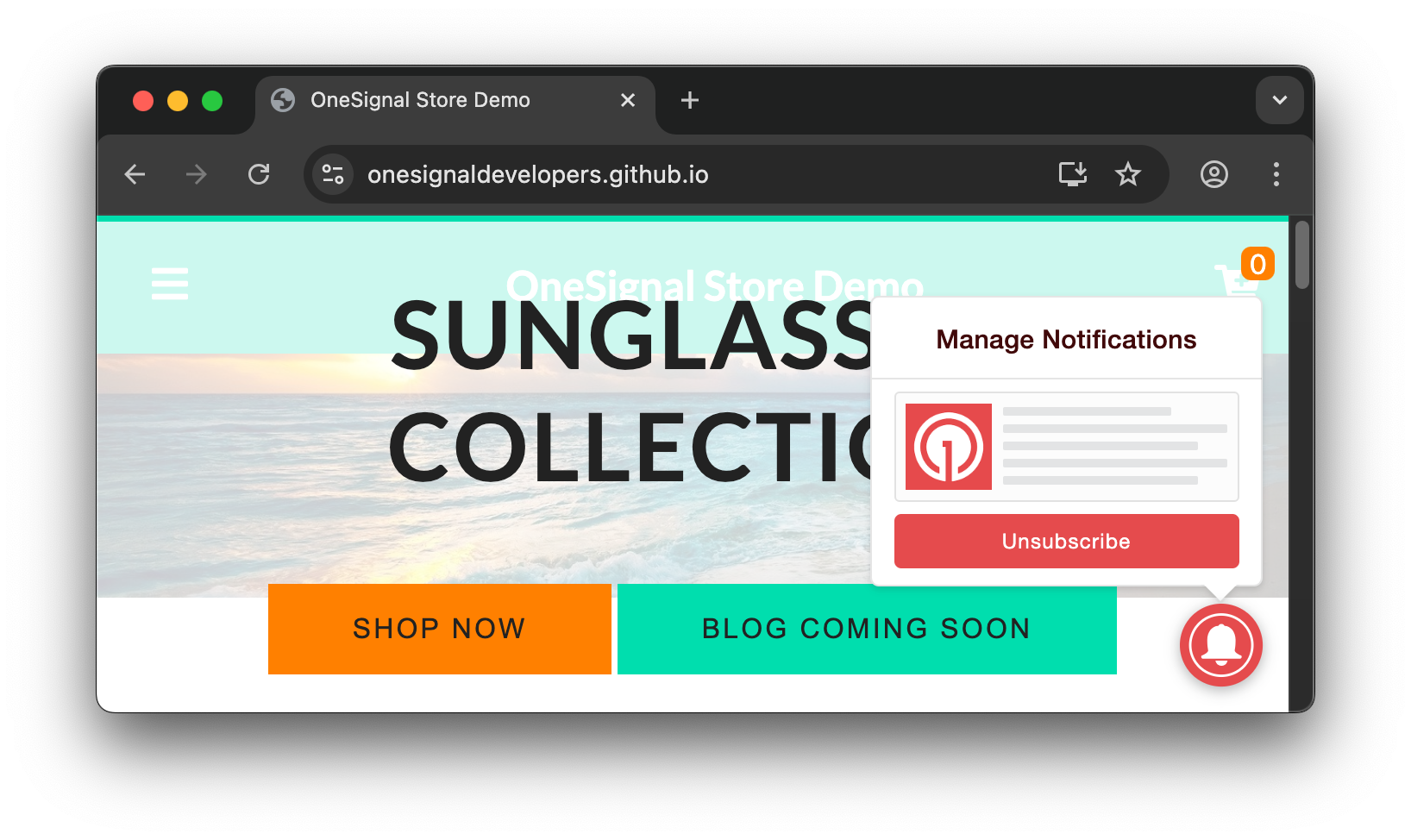
Example shows the OneSignal Bell Prompt.
Deleting browser data, clearing cookies and site data
If you delete history and/or delete your cookies and site data, it will temporarily prevent notifications from showing. However, if you don’t remove push permissions from the site, you may be automatically re-subscribed and start getting notifications again upon returning to the site.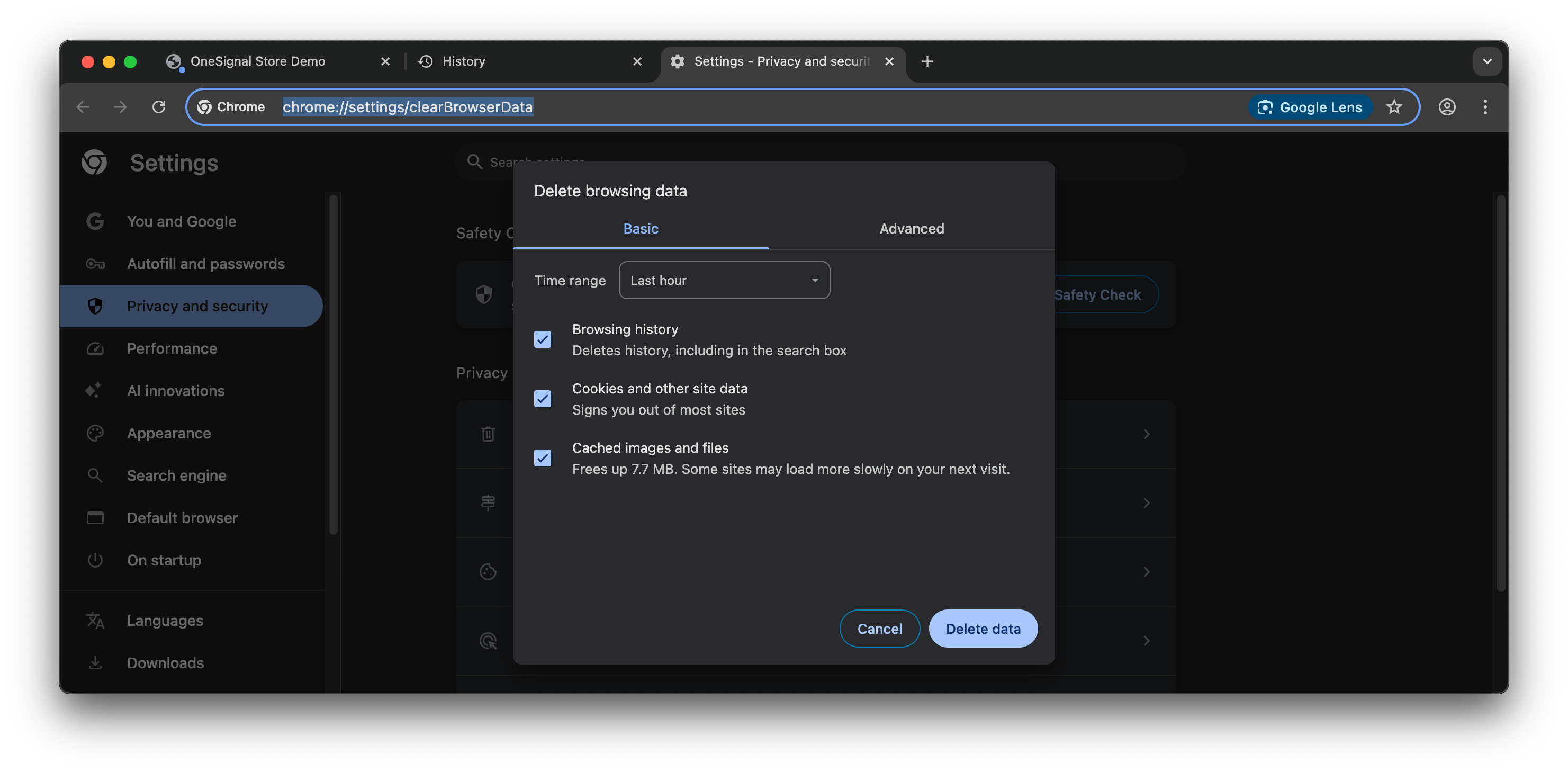
Example shows clearing browser history and site data.
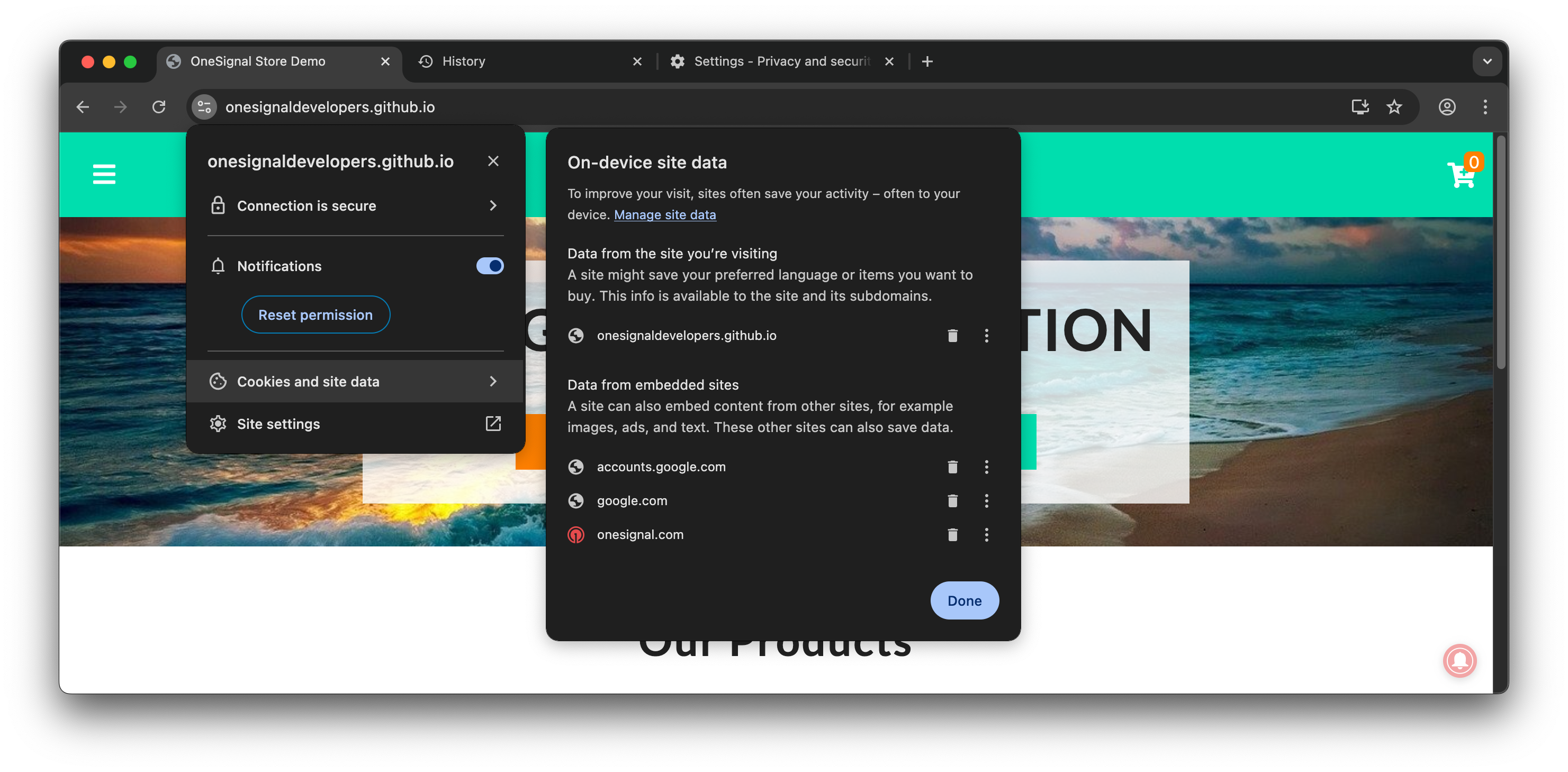
Example shows clearing site data.
How to test your permission prompts
These steps explain how to test your prompt and subscription flow like a first time visitor.Visit your site with the OneSignal SDK setup.
Reset push permissions
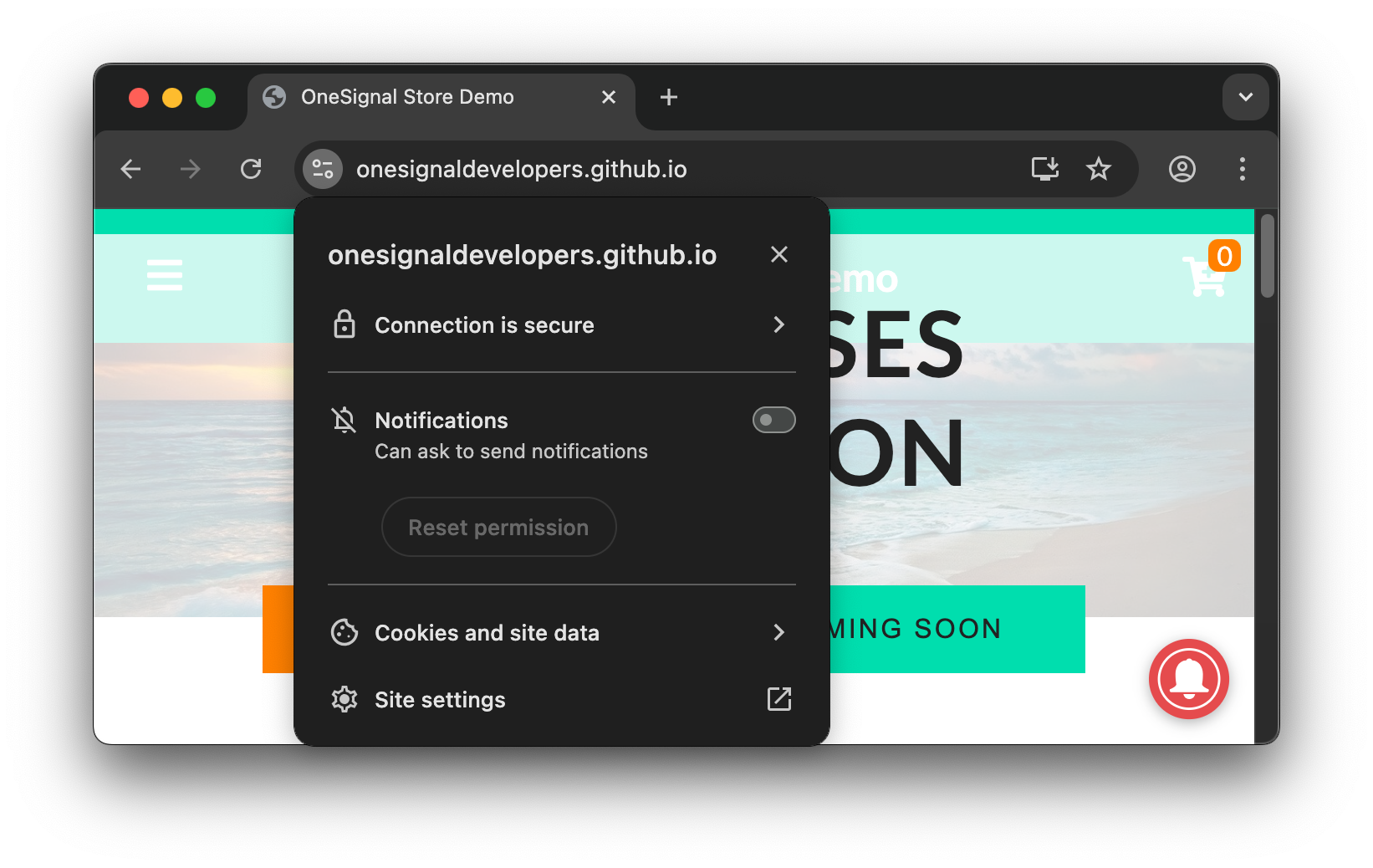
Chrome site settings menu > Resetting permissions for Notifications.
Delete site data.
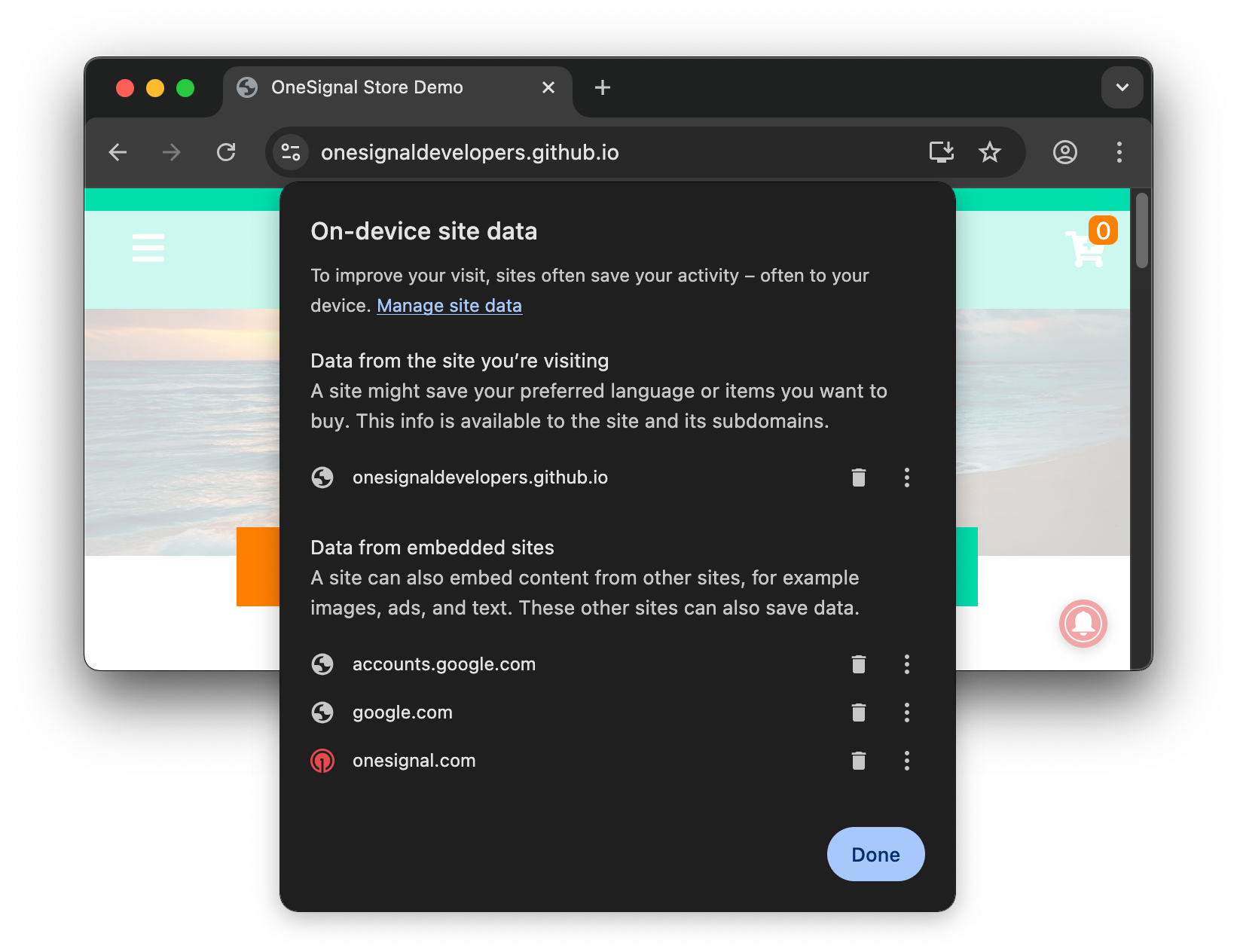
Chrome's On-device site data screen.
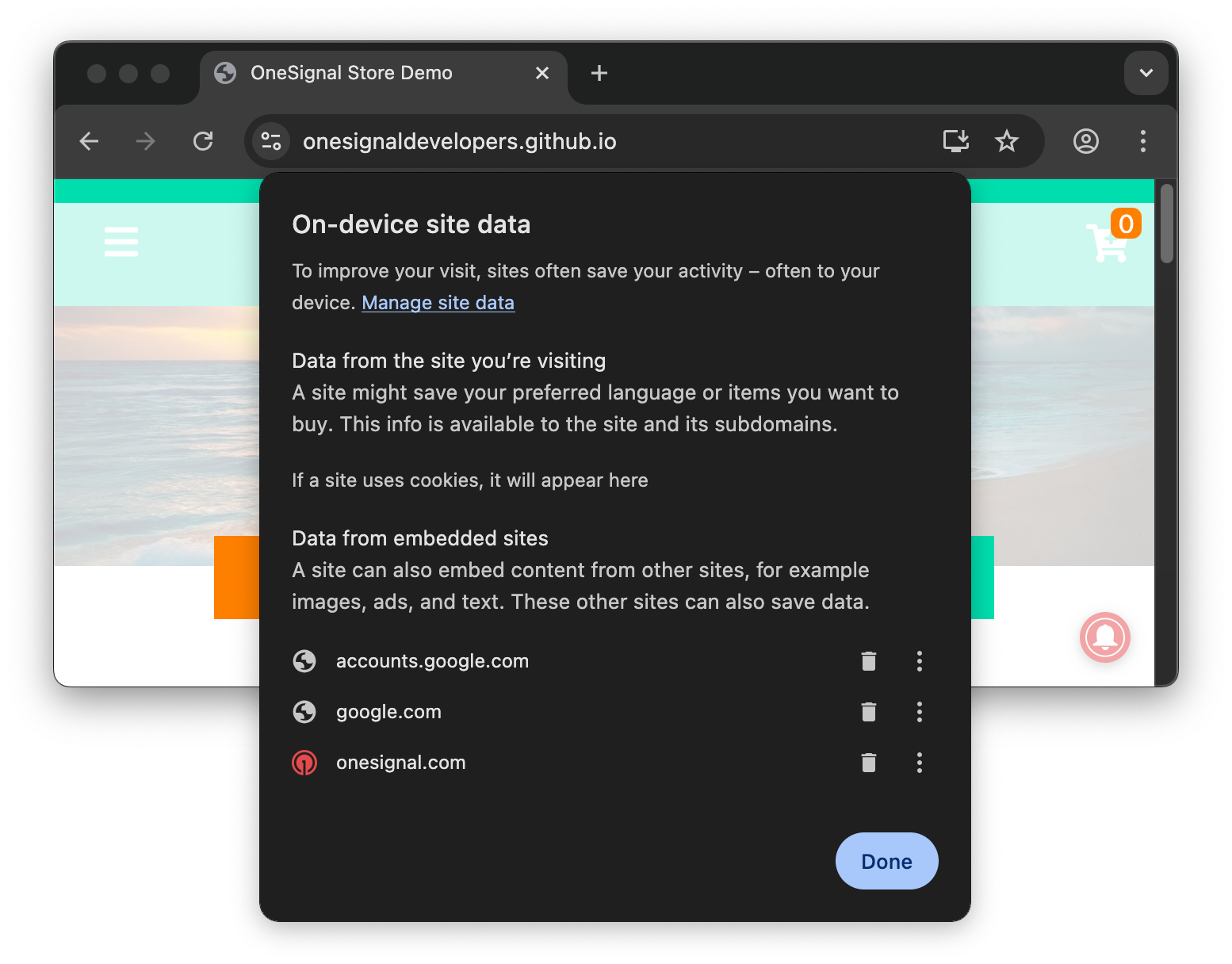
Example shows clearing your site cookies.
Open your developer tools.
Follow the steps needed to prompt for push notifications and on the required system-level permission prompt, select "Allow".
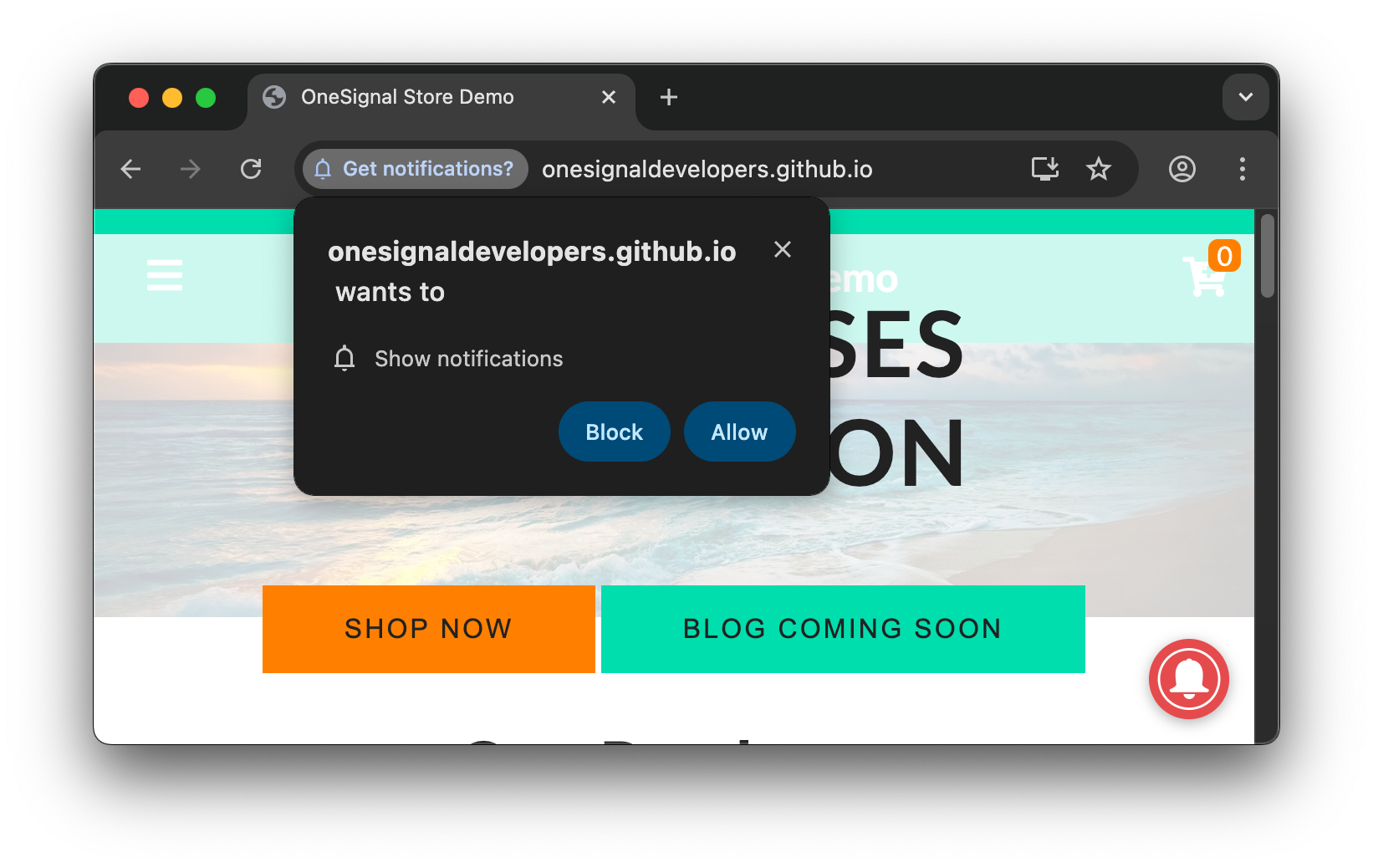
Example shows the Chrome required system-level prompt.
Check the console for any errors.
Get subscription ID
OneSignal.User.PushSubscription.id- This will log your OneSignal subscription ID. Copy-paste this into your OneSignal Dashboard Audience > Users & subscriptions > Subscriptions tab.
- If a subscription ID was not logged in the console, then you are not successfully subscribed. Please see Web SDK troubleshooting for details.
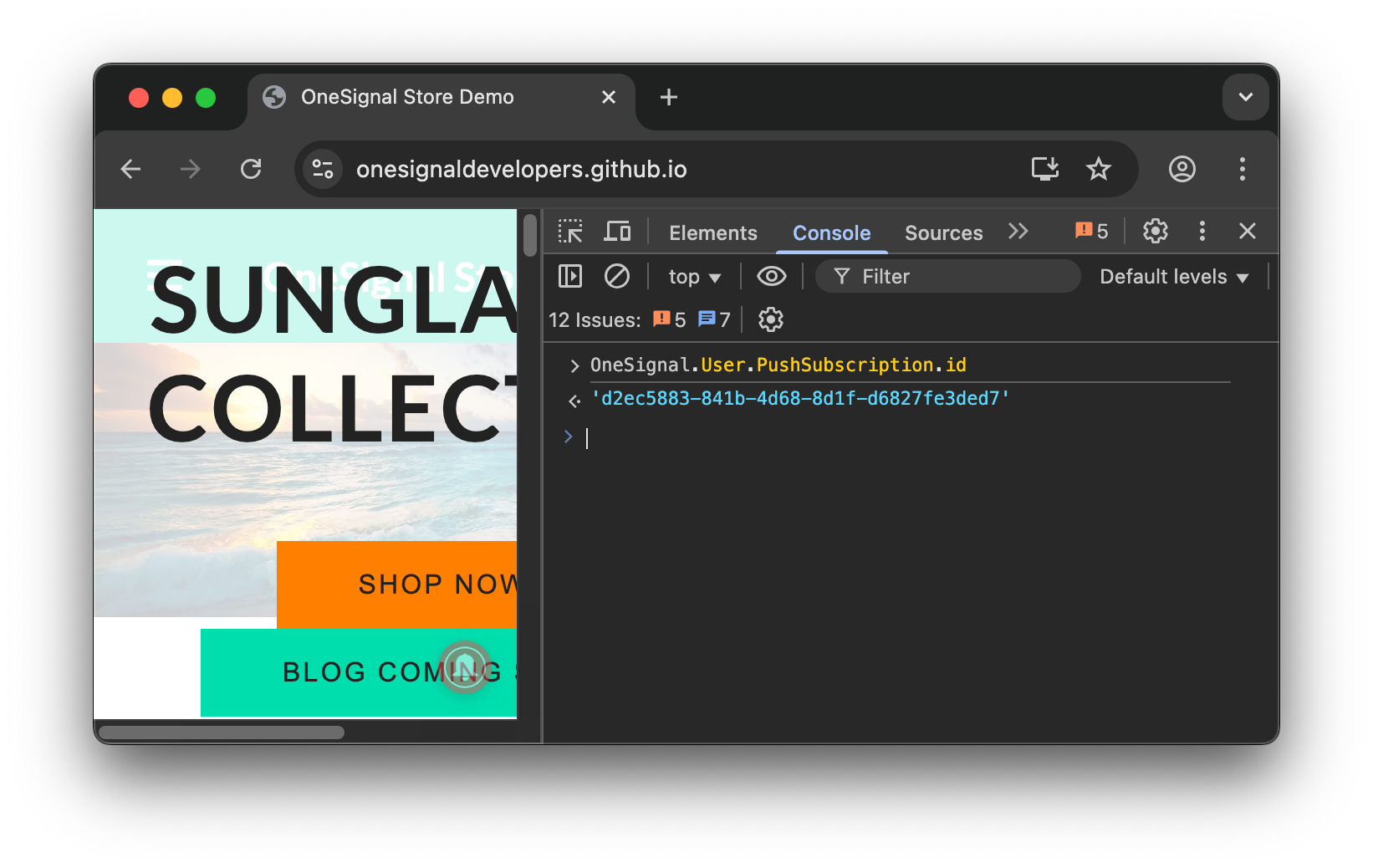
Getting the push subscription ID using the Console.
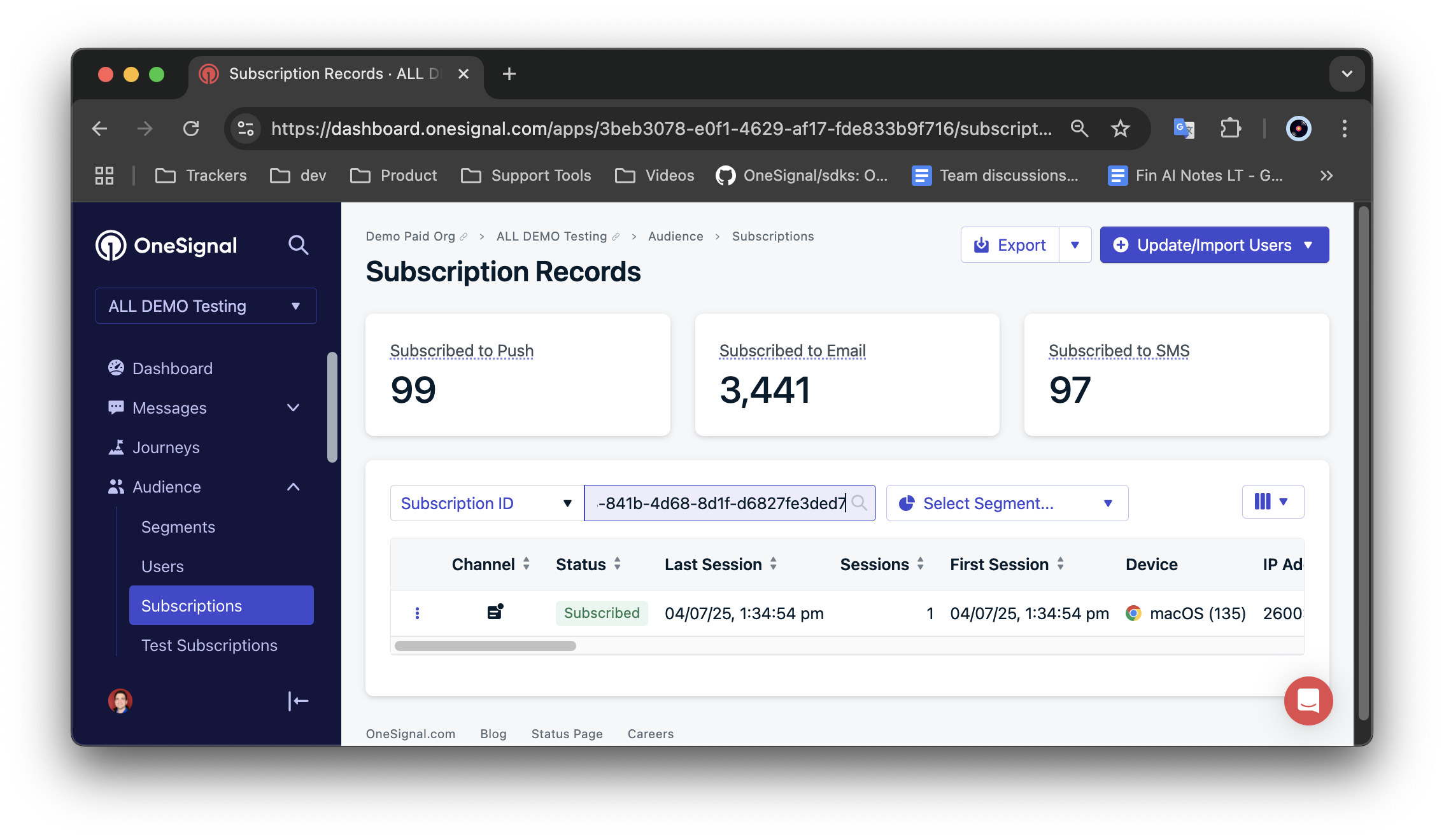
Viewing the subscription ID in the OneSignal dashboard Subscriptions page.
Next to the subscription, select the 3-dot options button and "Add to Test Users". Then name and date the test user so it is recognizable."
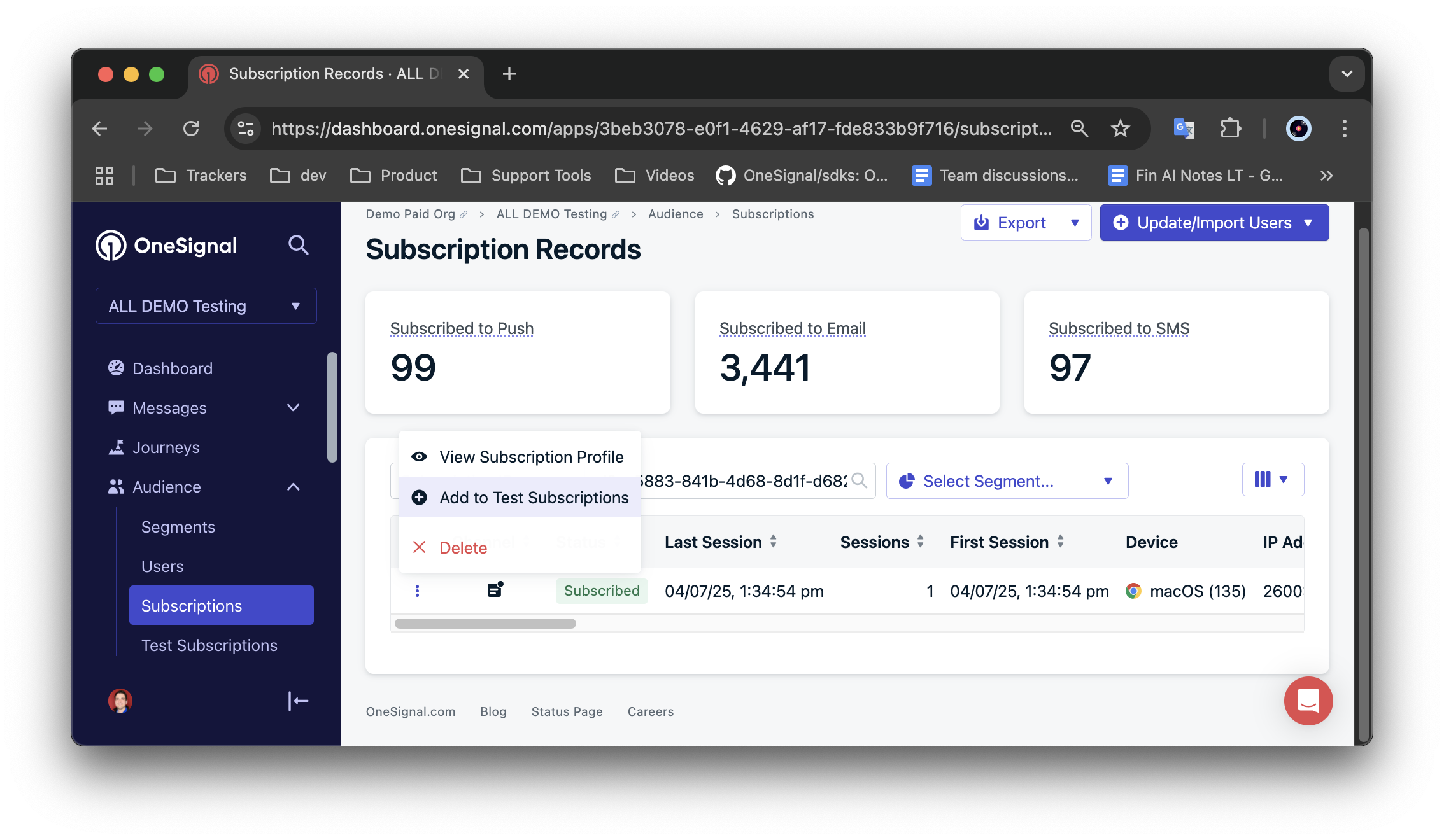
Add your subscription as a test user.
Navigate to Messages > Push > New Message > New Push and on the Push create form add a Message.
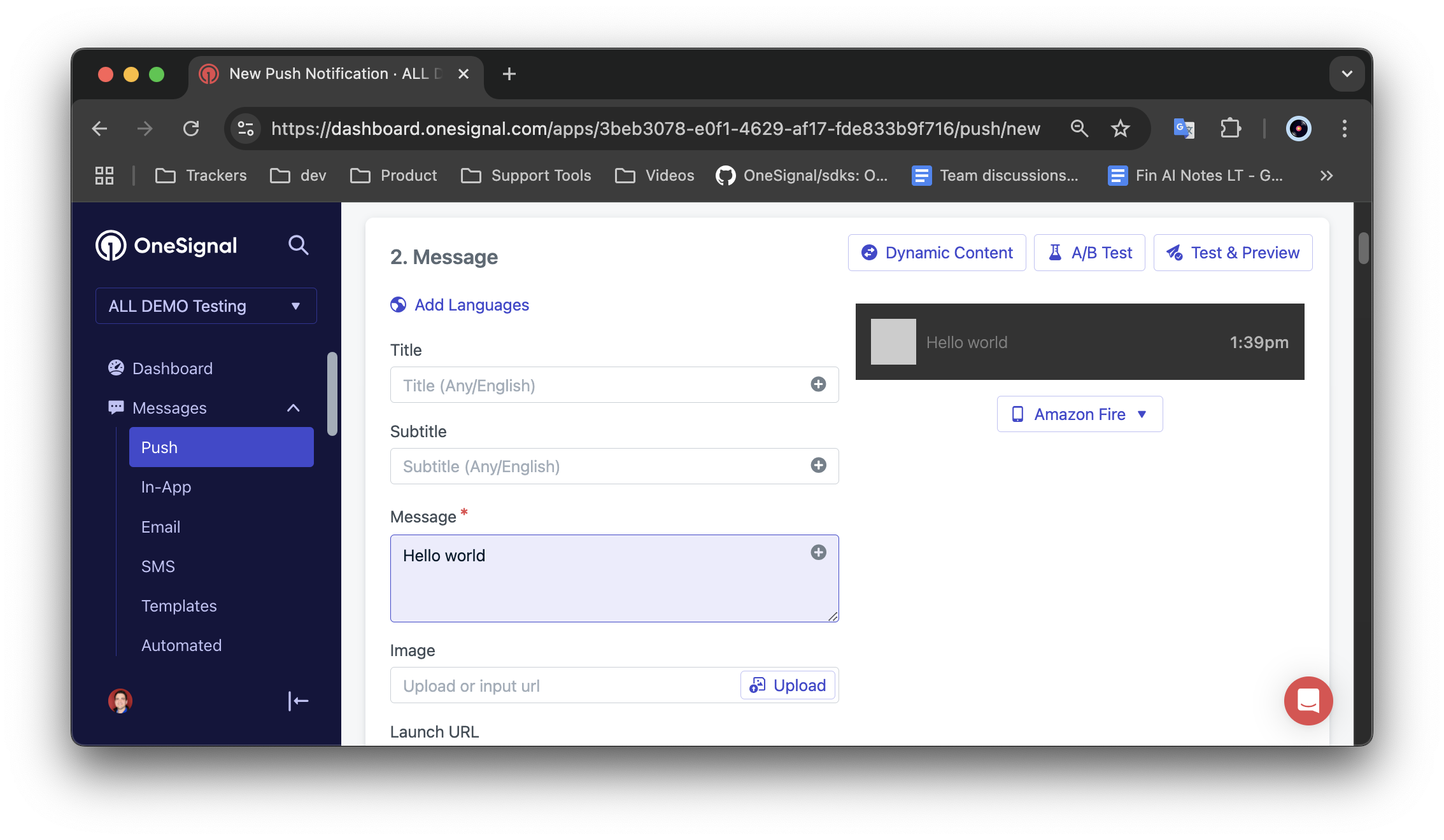
Create a new push to send to your test user.
Select "Test & Preview", find and check your test user, then click "Send Test Push".
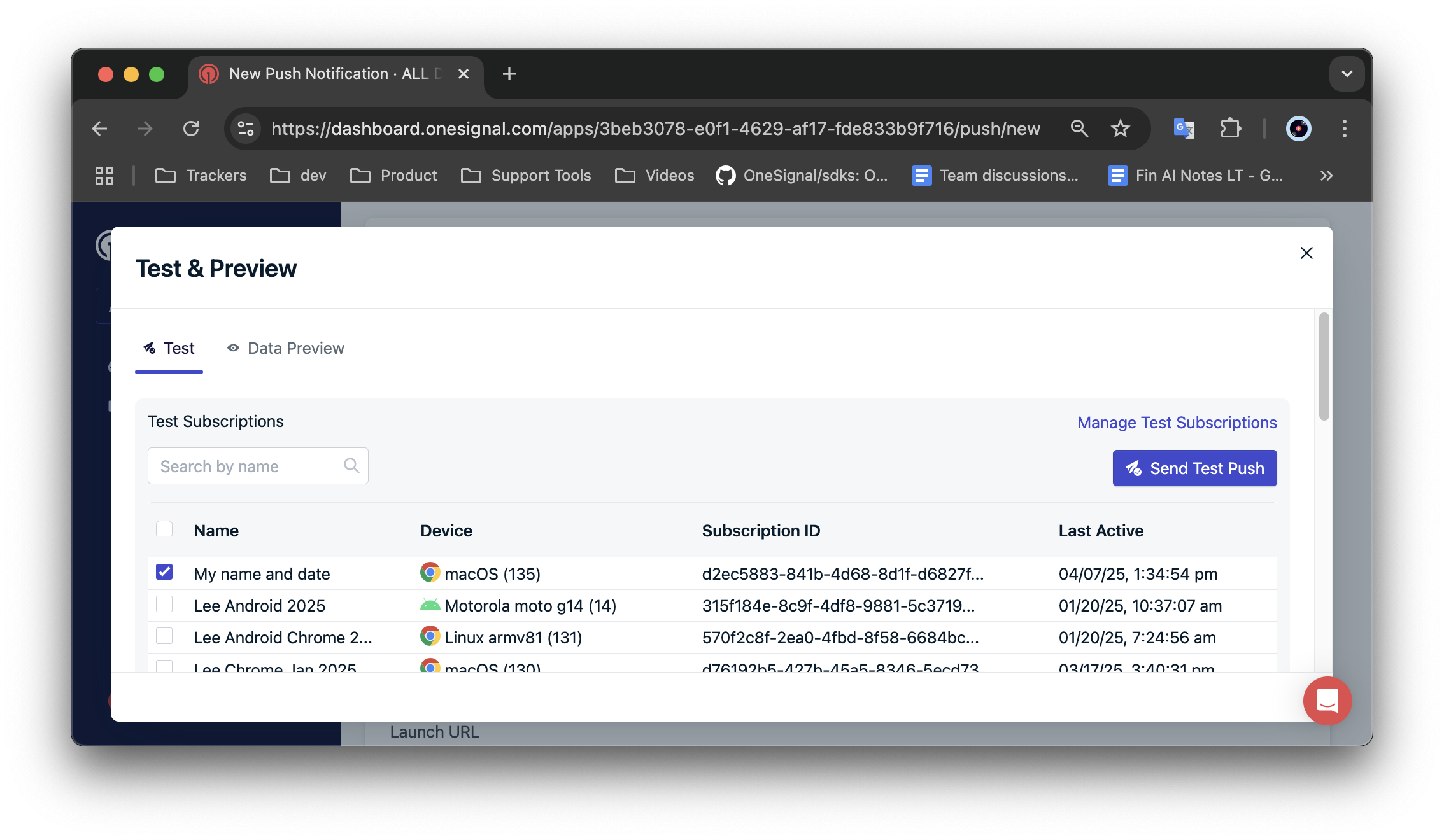
Send yourself a test push.
You should receive the push you tested.
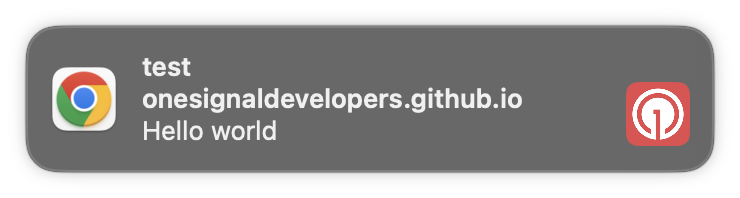
Test push received.
- Web push setup - additional non-developer web setup steps.
- Web SDK setup - developer web SDK setup steps.
- Web SDK troubleshooting - troubleshooting if you see errors in the console or not getting a subscription ID.
- Web push: Notifications not shown - troubleshooting notifications not displaying on your device.