

Overview
This guide covers how to set up and configure OneSignal WordPress Web Push Plugin v3+.What’s New in Version 3+
This release marks a significant upgrade by streamlining the setup and configuration process. With Version 3+, you can handle all your prompt settings in one place—the OneSignal Dashboard.- 🚀 SDK Upgrade: Updates OneSignal Web SDK from version 15 to 16
- 💬 Dashboard Prompts: Configure all permission prompts directly in the OneSignal dashboard—no custom code required
- ⏩ One-Click Publishing: Check “Send notification when post is published” to automatically send push notifications
- 🧑🤝🧑 Audience Targeting: Choose which segments receive notifications for each post
- 📲 Mobile App Integration: Send to mobile app subscribers with optional deep linking
Setup
Before you begin, ensure you have:- OneSignal account (free to create)
- WordPress admin access to install and configure plugins
- HTTPS-enabled website (required for web push notifications)
1. Configure WordPress in OneSignal Dashboard
Navigate to Settings > Push & In-App > Web > WordPress Plugin or Website Builder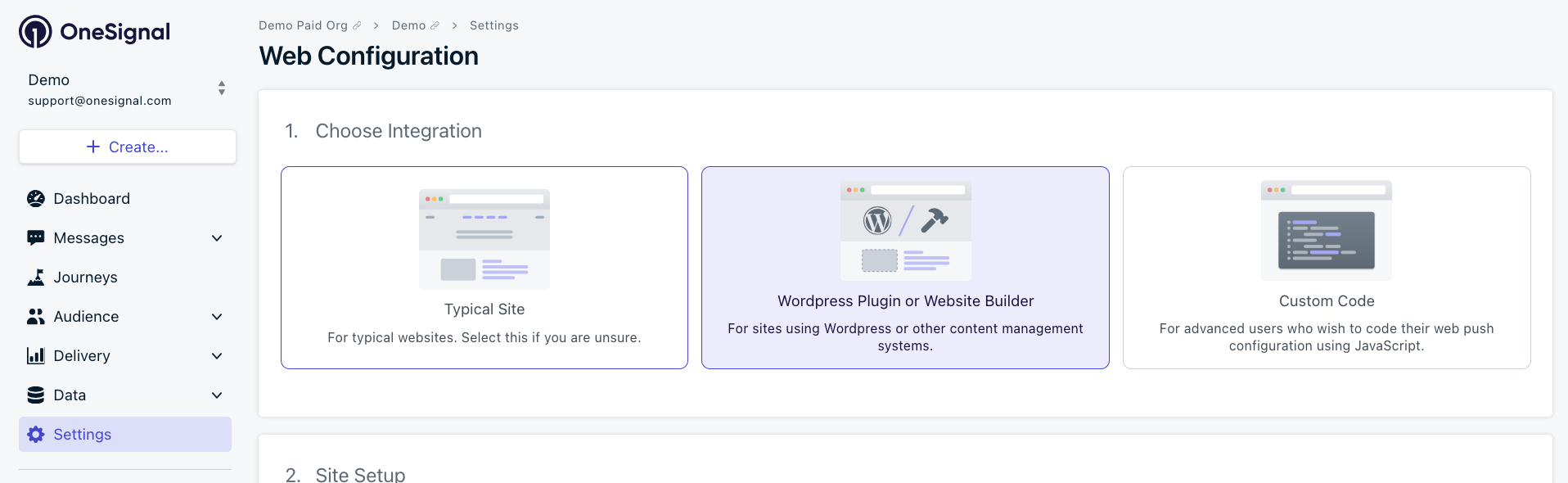
Select WordPress from the Website Builder options in your OneSignal dashboard
Site setup
- Site Name: The name of your site and default notification title.
- Site URL: Must match your WordPress site’s exact URL (follow Same-origin policy)
- Auto Resubscribe: Enable this to automatically resubscribe users who clear their browser data when they return to your site (no new permission prompt required)
- Default Icon URL: Square
256×256PNG, JPG, or non-animated GIF for notifications and prompts. See Notification icons.
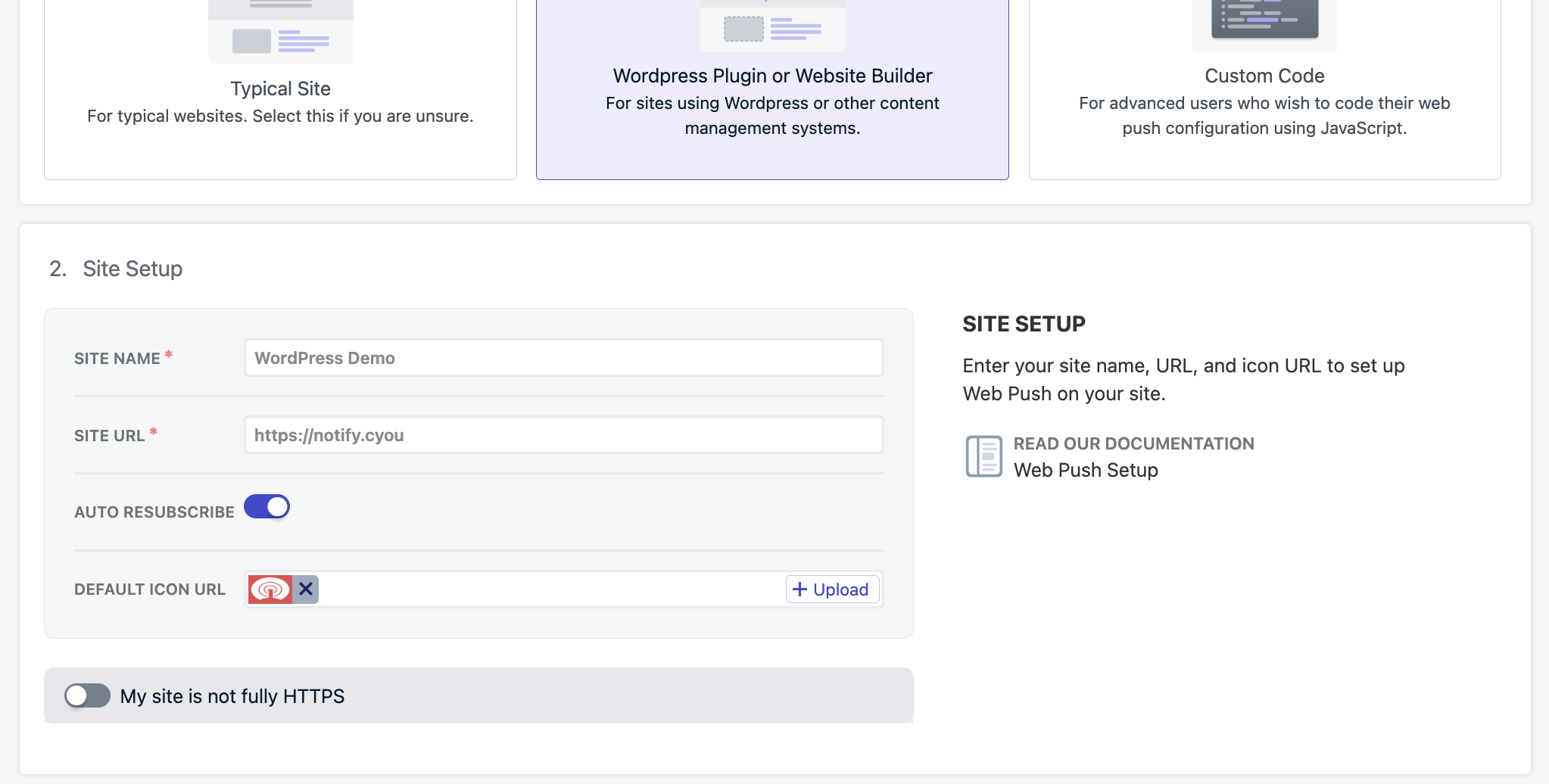
Enter your exact Site URL. https://your-site.com is different from https://www.your-site.com—use only one format consistently
Permission prompts
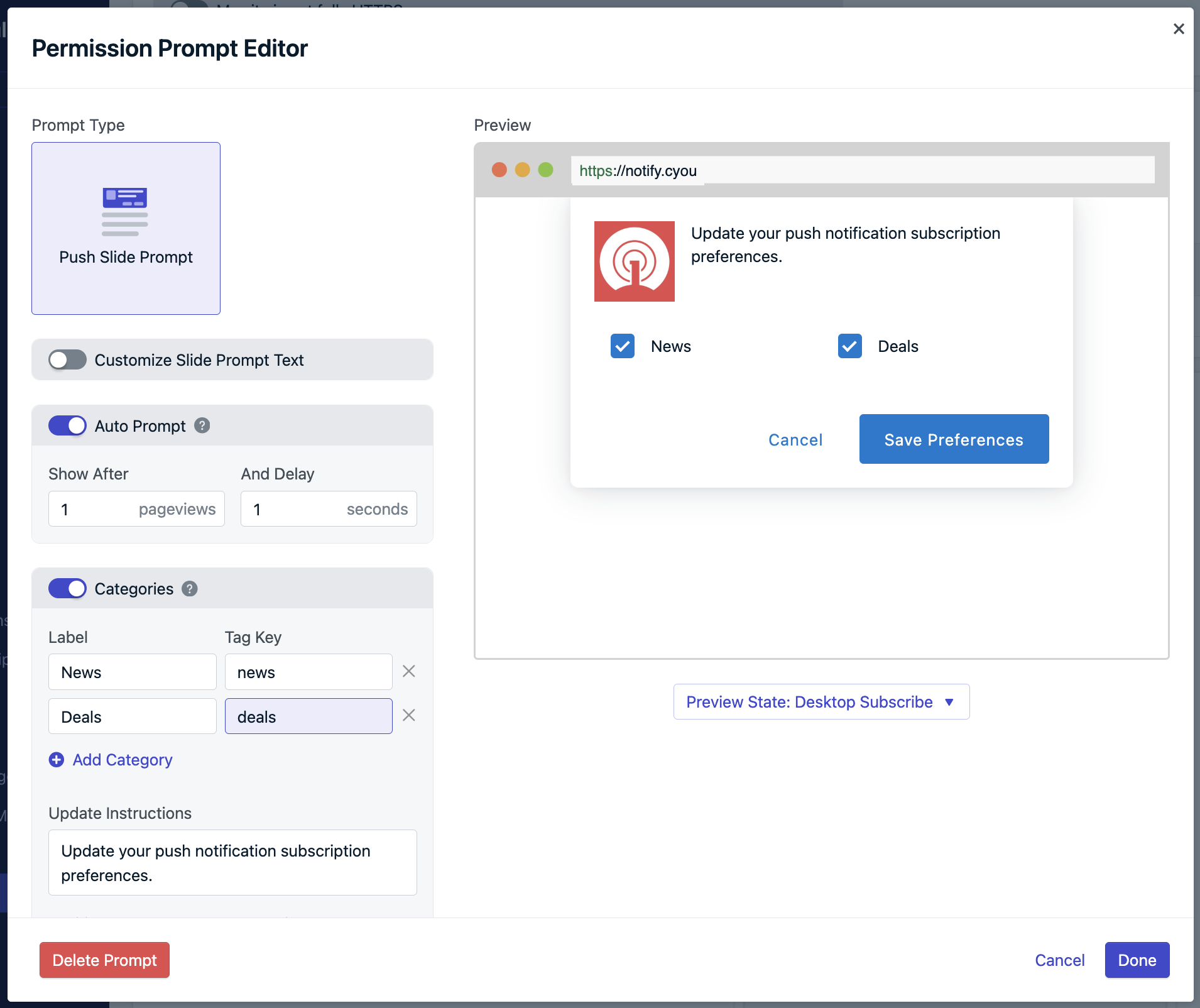
Set up your permission prompts for Push, Email, and/or SMS. The Push Slide Prompt is enabled by default, but you can customize or add additional prompts.- Basic Prompt Setup
- Advanced: Category-Based Segmentation
Click on Push Slide Prompt to customize

Access and customize your push slide prompt settings
Configure timing and text:
- Set Auto Prompt to
1pageview and1second for initial testing- Customize prompt text and appearance
- Adjust timing based on user behavior after launch
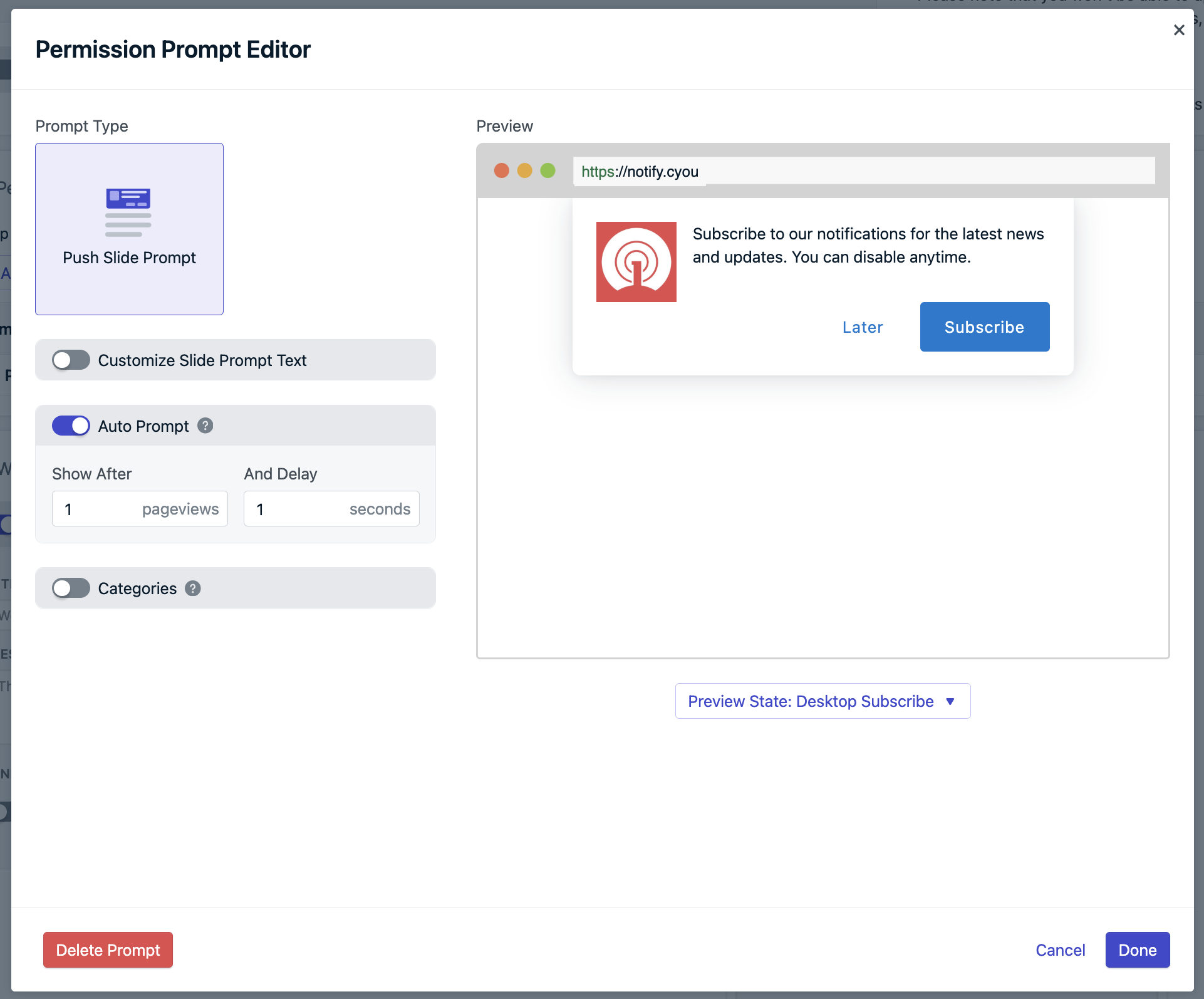
Configure auto-prompt timing and customize prompt appearance
Click Done when you've finished configuring the prompt.
Welcome notification
Set up an immediate notification sent after users first subscribe. This:- Thanks users for subscribing
- Demonstrates how notifications appear
- Increases engagement and reduces unsubscribes
2. Configure WordPress plugin
After saving your dashboard configuration, you’ll see your App ID and API Key (the same REST API key documented in Keys & IDs). Copy these values to your WordPress plugin: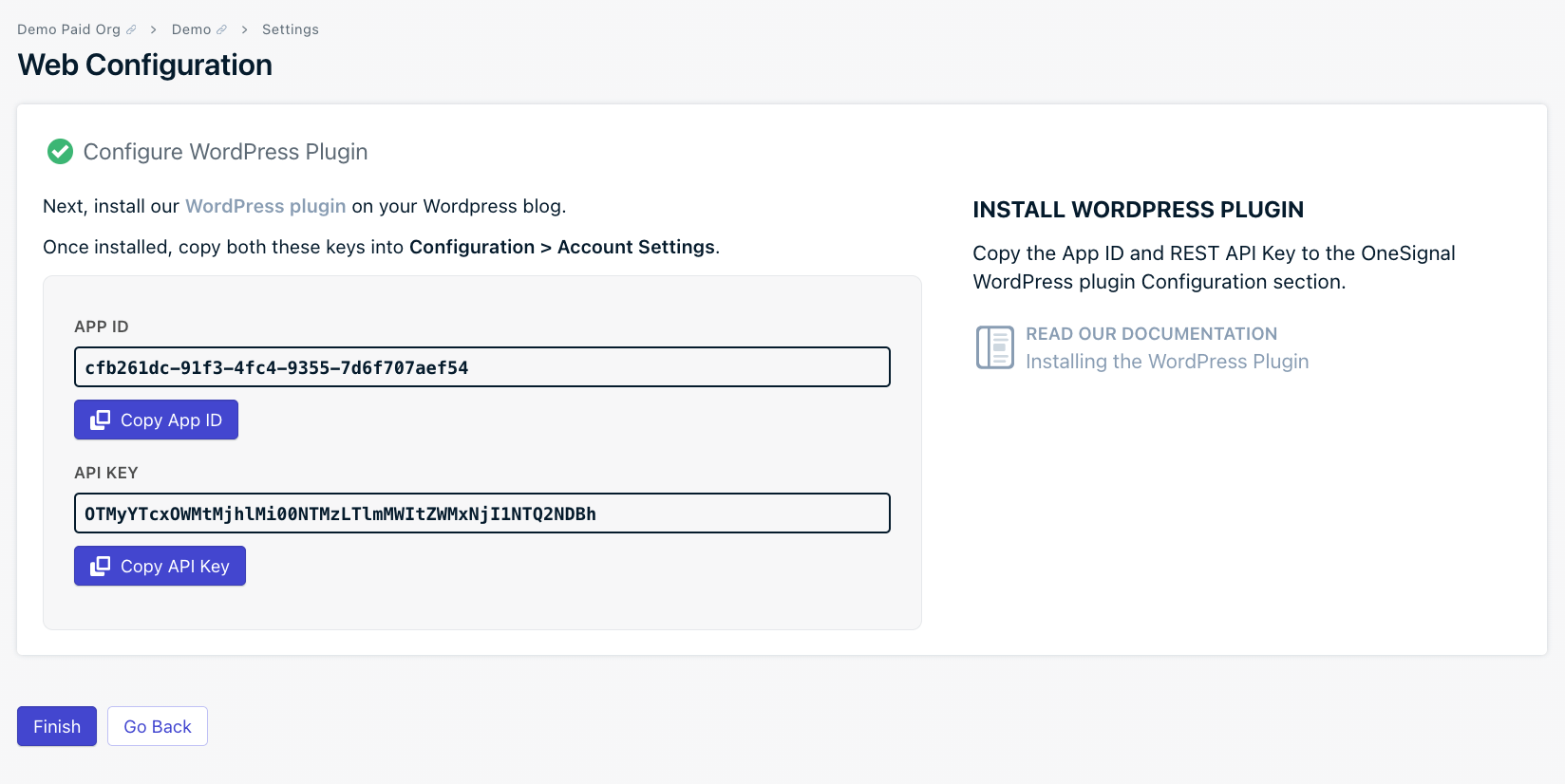
Copy your App ID and API Key from the OneSignal dashboard
In your WordPress admin, navigate to the OneSignal plugin settings
Paste the App ID and REST API Key exactly as shown in your dashboard
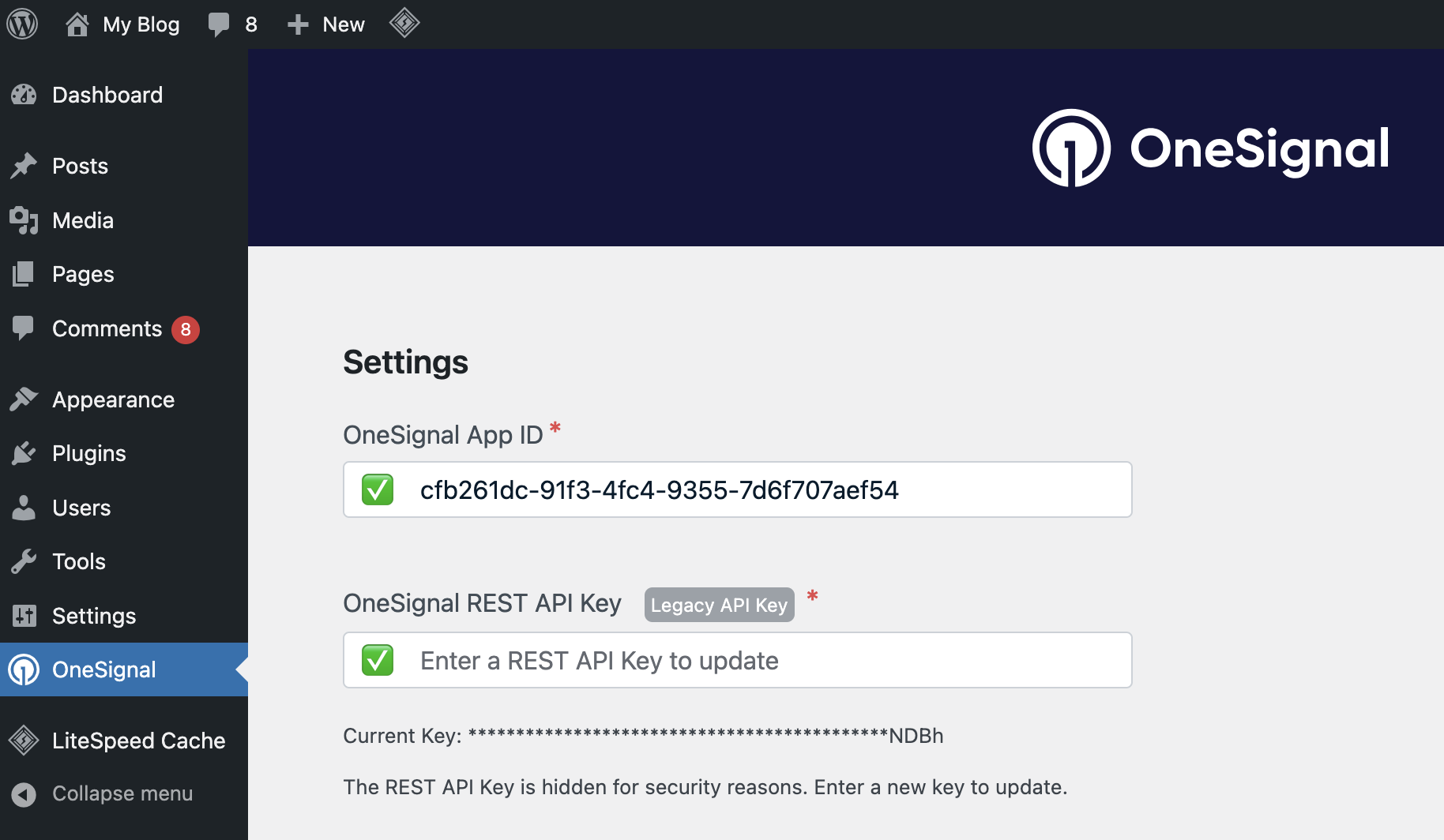
Ensure your WordPress plugin App ID and REST API Key match your OneSignal dashboard exactly
Advanced settings
Configure additional plugin options based on your needs: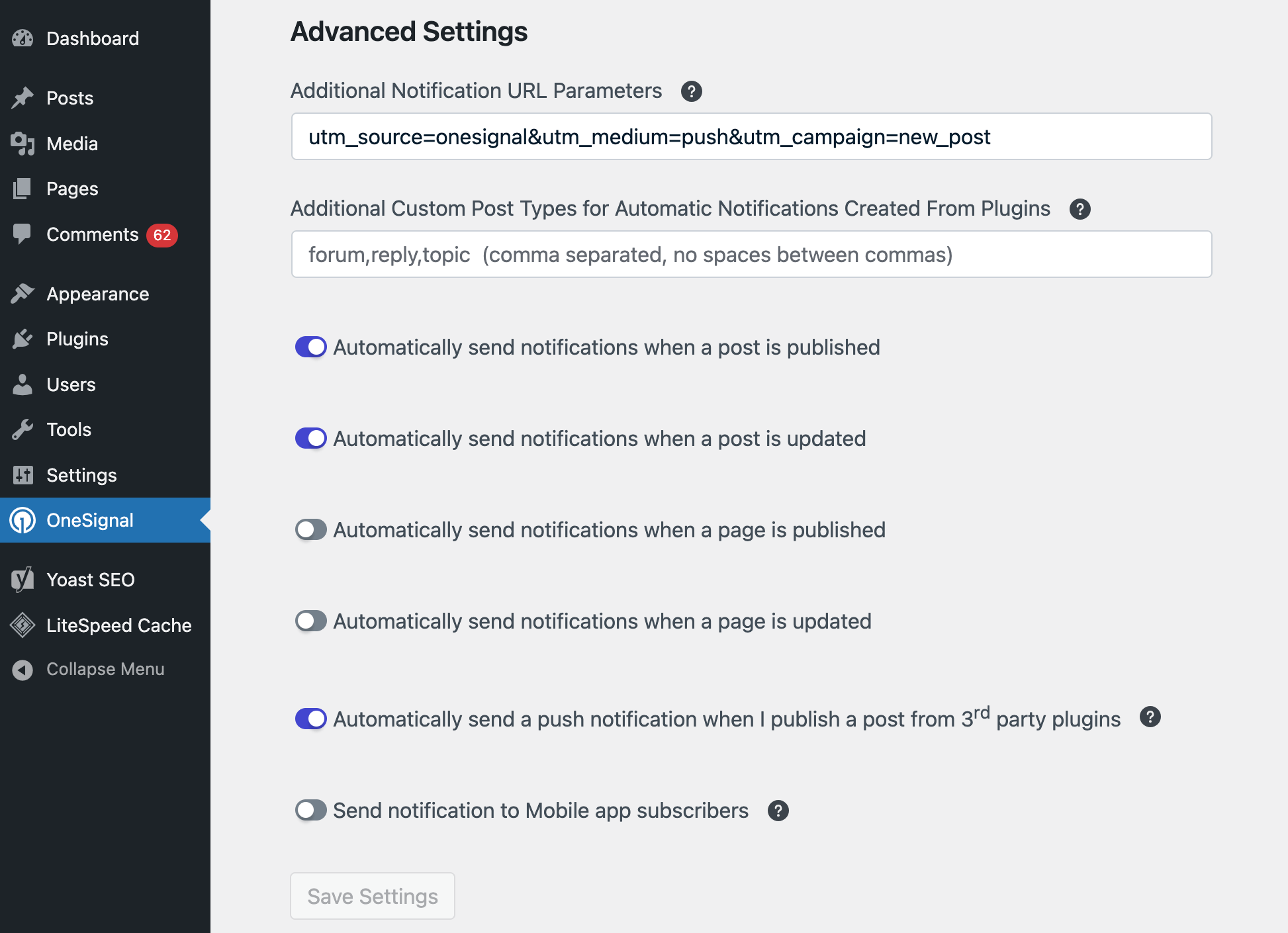
Advanced settings for enhanced functionality and analytics tracking
- Custom Post Types: Add post types from plugins to enable notification options
- Automatically send notifications when a post is published: Automatically checks notification box when publishing posts so notifications are sent without having to check the box manually
- Automatically send notifications when a post is updated: Automatically checks notification box when updating posts so notifications are sent without having to check the box manually
- Automatically send notifications when a page is published: Automatically checks notification box when publishing pages so notifications are sent without having to check the box manually
- Automatically send notifications when a page is updated: Automatically checks notification box when updating pages so notifications are sent without having to check the box manually
- Automatically send a push notification when I publish a post from 3rd party plugins: Auto-send notifications from external publishing plugins
- Mobile App Integration: Send notifications to your mobile app subscribers using the same OneSignal App ID
Service worker
The plugin hosts and registers the service worker for you. You do not uploadOneSignalSDKWorker.js to your site root, and you do not set a custom path in the dashboard or in OneSignal.init().
Version 3+ serves a plain JavaScript file from the plugin’s sdk_files directory. It imports the CDN worker:
onesignal-free-web-push-notifications):
https://your-site.com/wp-content/plugins/onesignal-free-web-push-notifications/sdk_files/OneSignalSDKWorker.js
If you installed from a zip, the plugin folder may differ (for example OneSignal-WordPress-Plugin). Check Plugins in wp-admin or look under wp-content/plugins/, then use that folder name in the path.
Do not follow the OneSignal service worker root-upload or custom-path steps while the plugin is installed. Those instructions are for Typical Site and Custom Code only.
If you need a custom worker location or full init control, that is a switch to Custom Code setup: uninstall the plugin first. It is not a setting inside the WordPress integration.
3. Complete migration (Upgrading Users Only)
After saving your OneSignal dashboard configuration, return to WordPress
Click Migration Completed in the plugin settings
Click Save Settings to finalize the upgrade
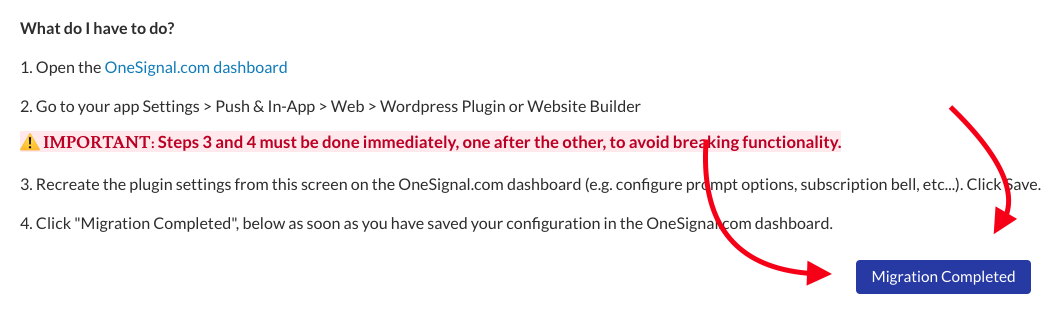
Click Migration Completed to finalize your plugin upgrade
Testing your setup
- Initial Test
- Verify Subscription
- Send Test Message
- Visit your website in a normal (non-incognito) window for the most reliable test. Private browsing may show prompts but subscriptions often do not persist—see WordPress troubleshooting.
-
Look for the slidedown prompt you configured.
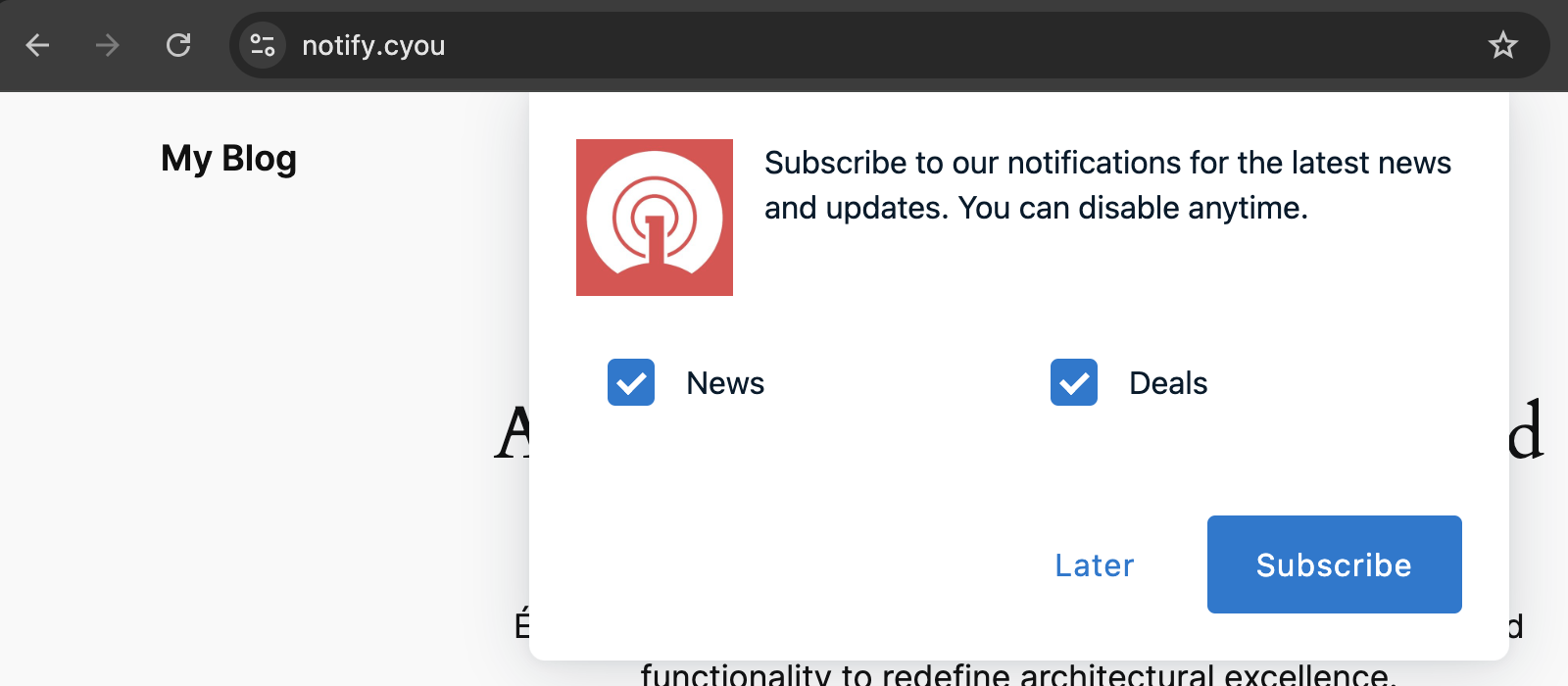
Your configured slidedown prompt should appear based on your timing settings
- Click the subscribe button (labeled as Subscribe in this example).
-
Accept the browser permission when prompted.
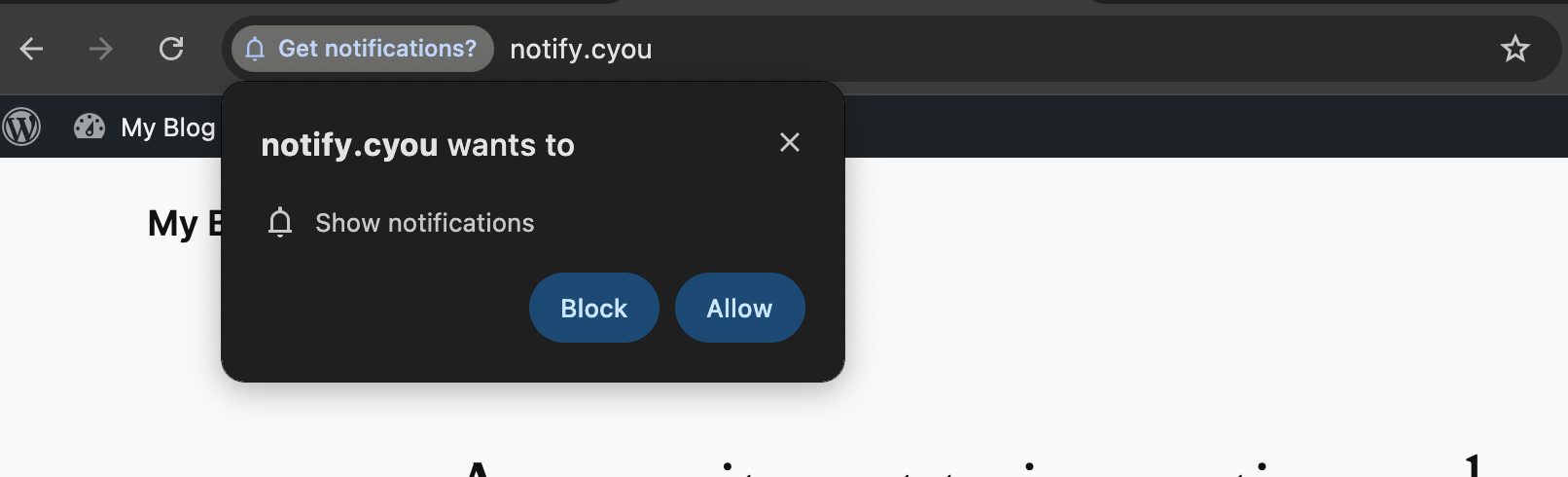
Browser permission prompt (appearance varies by browser) is required for web push notifications
-
Check for welcome notification (if configured).
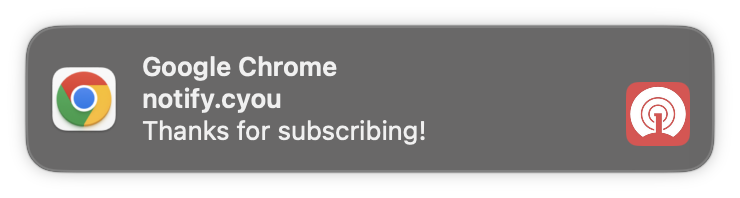
Welcome notification appears immediately after successful subscription
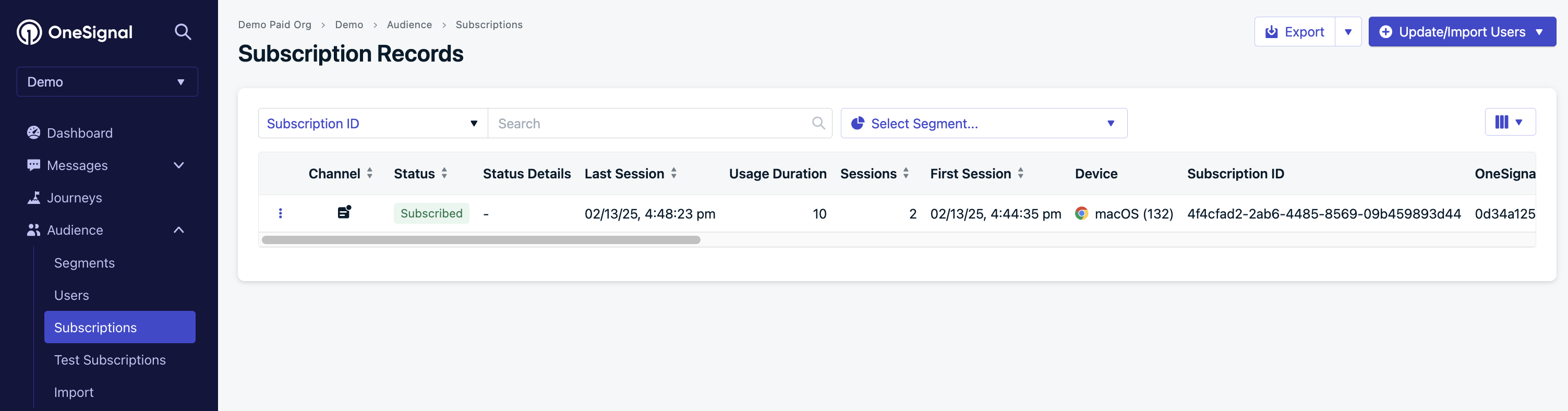
- Review Web permission prompts for advanced customization
- Explore Channel setup for email and SMS integration
- Set up segmentation strategies for targeted messaging
Publishing notifications
When you schedule a post to be published, OneSignal will also schedule a push notification to be sent to your subscribers at the scheduled time. If you reschedule the post, the push notification will be canceled and a new push will be scheduled for the new time. You can view your scheduled and cancelled notifications in the OneSignal dashboard under Messages > All messages, switching the list from Sent to Scheduled. See Push message reports for more details.Basic post notifications
When creating or editing a WordPress post, locate the OneSignal Push Notifications metabox (usually at the bottom or sidebar of the post editor).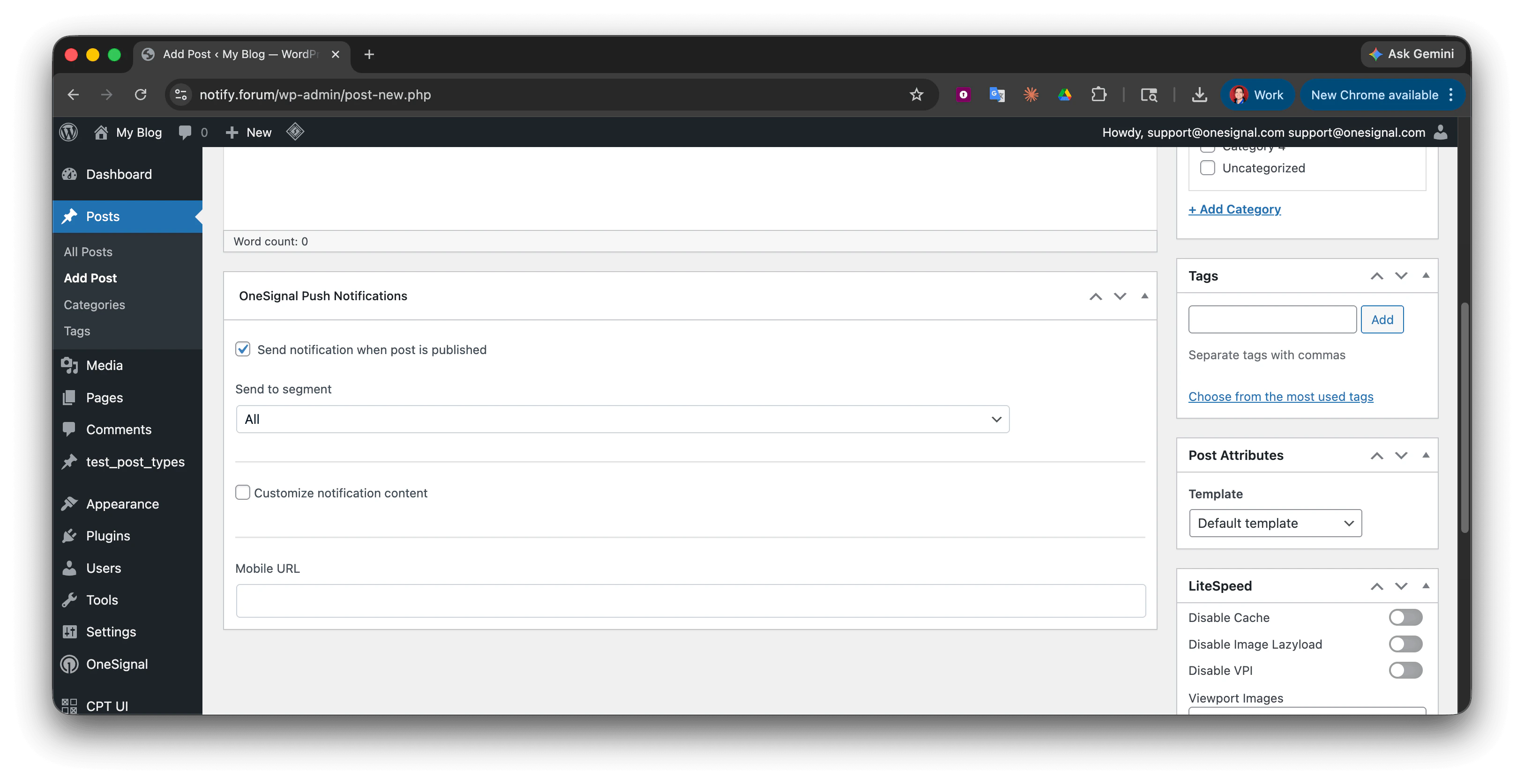
OneSignal Push Notifications metabox—drag to reposition if needed
- Check “Send notification when post is published or updated”
- Uncheck to skip sending a notification for that post
Audience targeting
Send to all subscribers (default)
By default, notifications go to all push subscribers.Send to specific segments
Target specific audiences using segments you create in OneSignal Dashboard > Audience > Segments. If you set up category-based prompts in the dashboard (see Advanced: Category-Based Segmentation under Setup), create corresponding segments:- Go to Audience > Segments in your OneSignal dashboard
- Create segments using your tag keys, eg:
- News Segment: Tag
newsis1 - Deals Segment: Tag
dealsis1
- News Segment: Tag
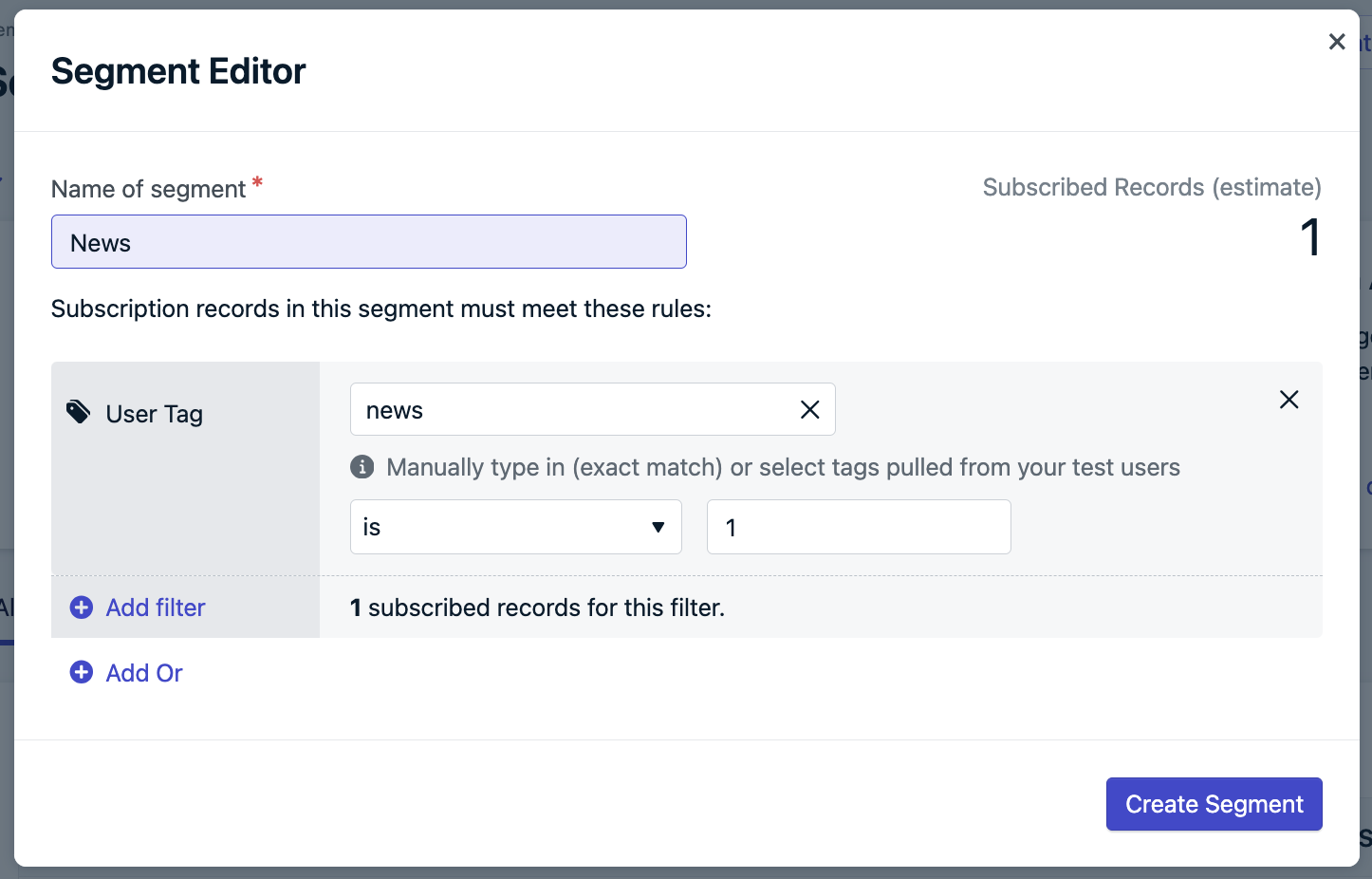
Tags are case-sensitive! 'news' and 'News' are different tags
- After creating segments, refresh your WordPress post editor
- Select your target segment from the dropdown
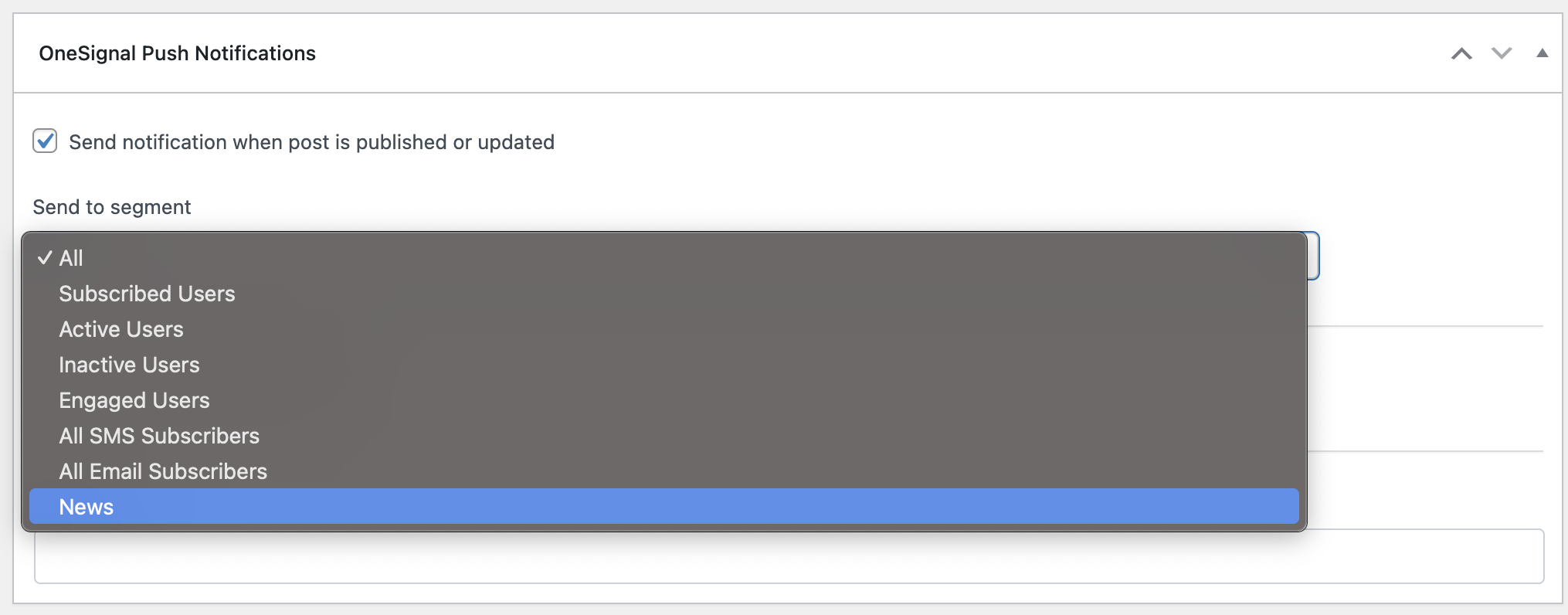
Select specific segments to target relevant user groups
Customizing notification content
Default behavior
- Title: Uses your WordPress site title (Settings > General)
- Message: Uses the post title
- Image: Uses the post’s featured image (if set)
- URL: Links to the published post
Custom content
Check “Customize notification content” to override defaults: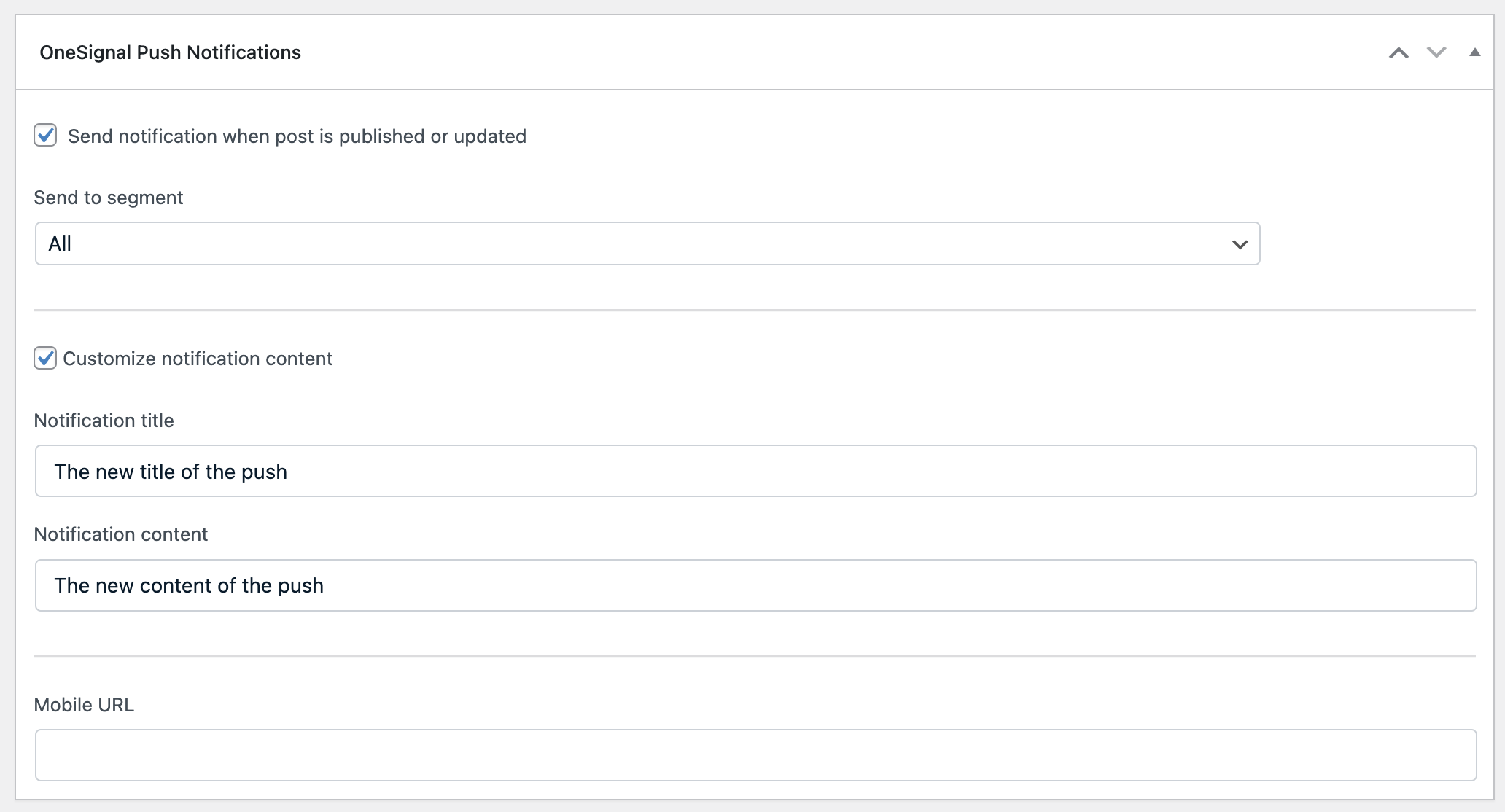
Customize notification title, content, and other elements
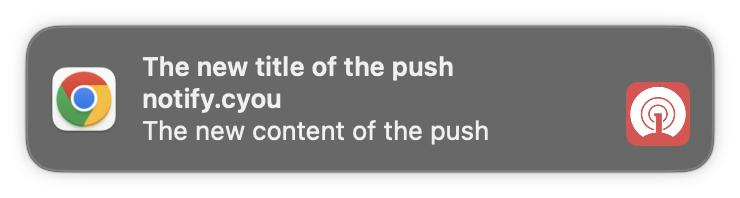
Customized push notification as it appears to users
Add a Custom Post Type to OneSignal WordPress Plugin
Find your custom post type name
Look at your browser’s address bar when creating a new post. The URL will look like:post_type parameter (for example, your_custom_type) is the exact name you’ll need to add in the OneSignal plugin’s settings.
Add to OneSignal settings
- Go to OneSignal > Settings in WordPress admin
- In Advanced Settings, add your custom post type names to the Custom Post Types field
- Save settings
product (WooCommerce), tribe_events (The Events Calendar), portfolio.Mobile app integration
If you have a mobile app using the same OneSignal App ID:- Enable “Send notification to Mobile app subscribers” in plugin settings
- In the post metabox, add a Mobile URL for deep linking
- Mobile users will be directed to your app instead of the web browser
FAQ
Do I need to upload a service worker file?
Do I need to upload a service worker file?
OneSignalSDKWorker.js in its sdk_files directory and configures the path for you. Do not upload the file to your site root or set serviceWorkerPath in code. See Service worker.How do I disable prompts on specific pages?
How do I disable prompts on specific pages?
- In your OneSignal dashboard, go to Settings > Push & In-App > Web Settings
- Select your prompt from the Permission Prompt Setup table
- Uncheck Auto Prompt and click Done
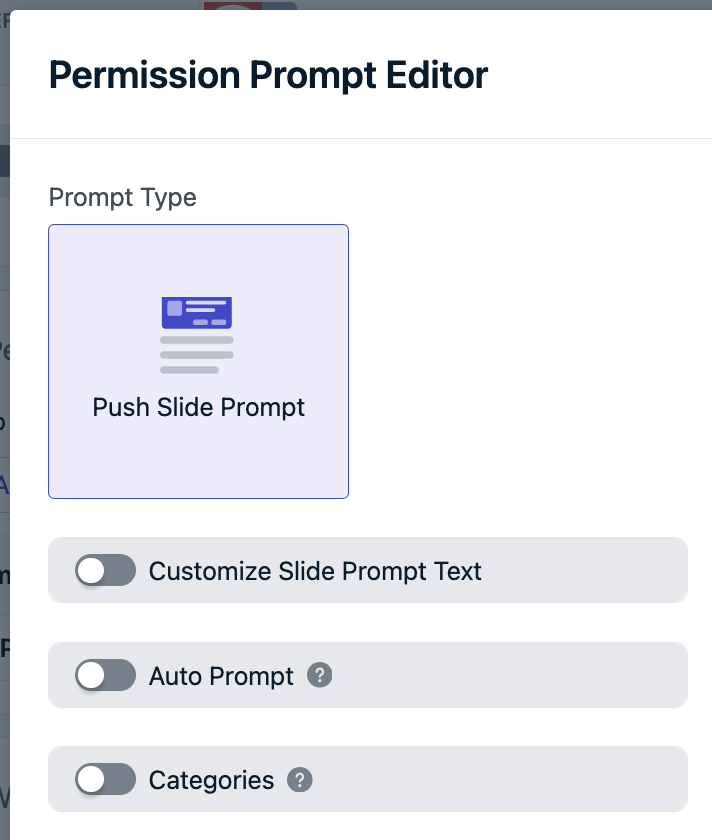
Disable Auto Prompt to manually control when prompts appear
- Scroll down, click Save, then Finish
- Add custom JavaScript code to specific pages where you want prompts to appear
Can I send notifications to mobile app subscribers?
Can I send notifications to mobile app subscribers?
- Enable “Send notification to Mobile app subscribers” in the WordPress plugin settings
- When publishing posts, use the Mobile URL field in the OneSignal metabox to specify deep links
- Without a custom Mobile URL, users will be directed to your website
How do I send email or SMS from WordPress?
How do I send email or SMS from WordPress?
- Email: Follow our Email setup guide, then use Email messaging tools
- SMS: Follow our SMS setup guide, then use SMS messaging tools
Why aren't my prompts working after migration?
Why aren't my prompts working after migration?
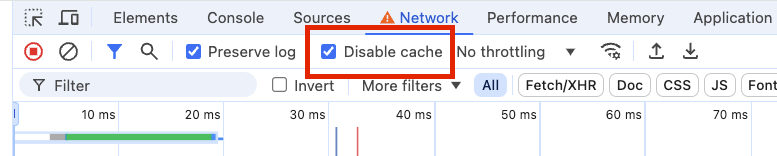
Disable browser cache to force loading updated files after migration
What does A bad HTTP response code (404) error mean?
What does A bad HTTP response code (404) error mean?
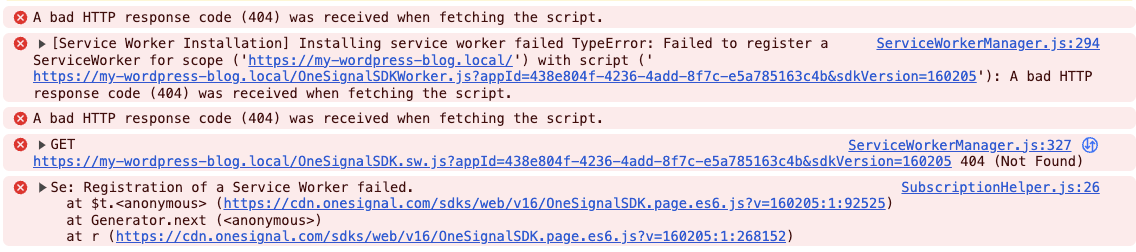
404 error in browser console indicates incomplete migration process
- Ensure you’ve saved your OneSignal dashboard configuration
- In WordPress, click “Migration Completed” in the plugin settings
- Click Save Settings to finalize the upgrade
Can I modify the notification parameters before sending?
Can I modify the notification parameters before sending?
onesignal_send_notification filter.wp-content/mu-plugins/onesignal-custom.php. This
ensures it loads correctly and prevents it from being overwritten by updates.