Requirements
To capture a debug log, make sure you have:- A device that can reproduce the issue
- Access to the app’s developer tools
- OneSignal Mobile SDK version 5.0.0 or higher
Step-by-step instructions
1. Enable verbose logging
Add theVERBOSE log level call to your app before initializing the OneSignal SDK. This ensures detailed diagnostic information is captured for every OneSignal operation.
Set the log level before calling
OneSignal.init to ensure all SDK activity
is logged.2. Reproduce the issue
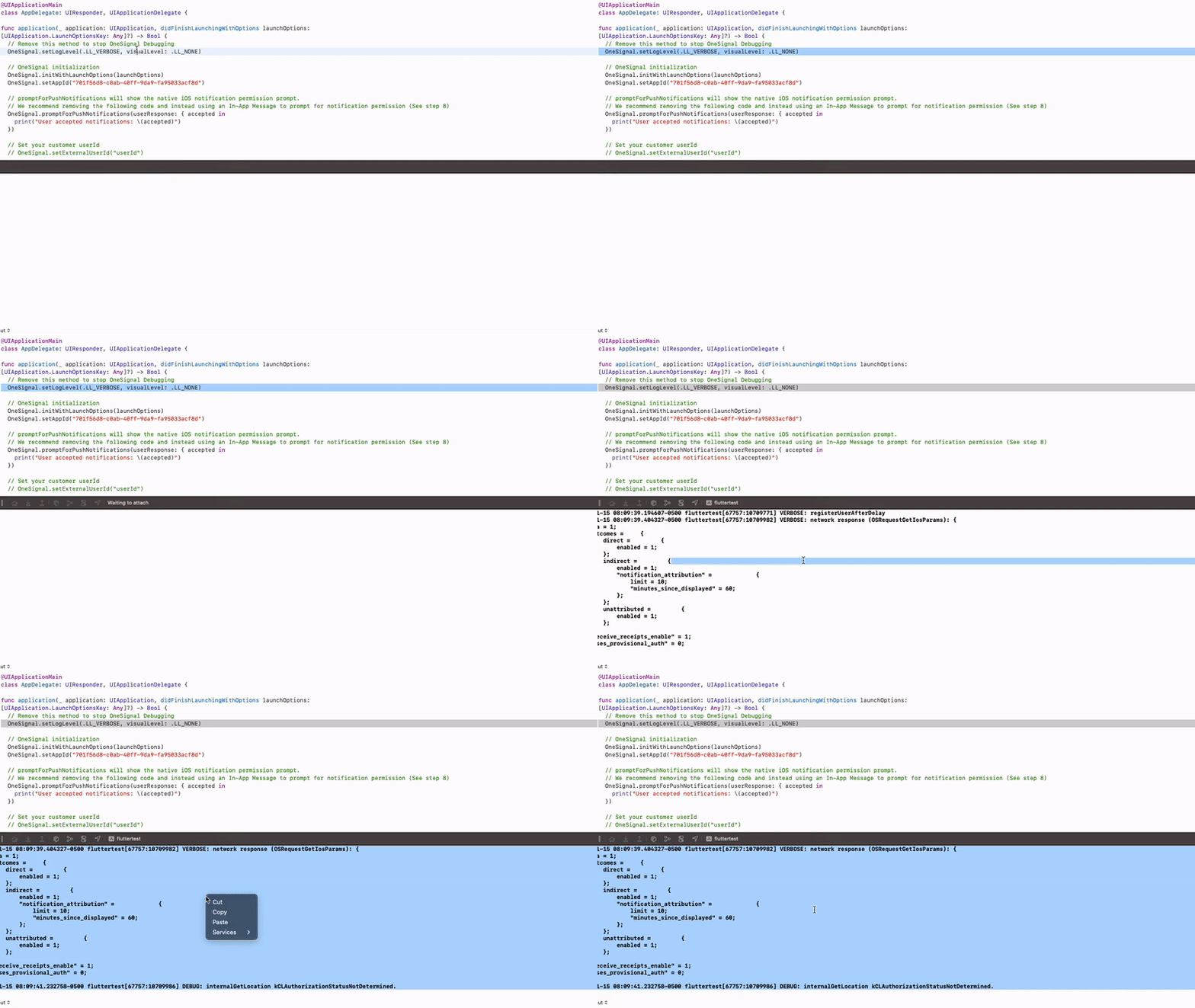
With verbose logging enabled, reproduce the issue on a physical device or emulator connected to Android Studio or Xcode.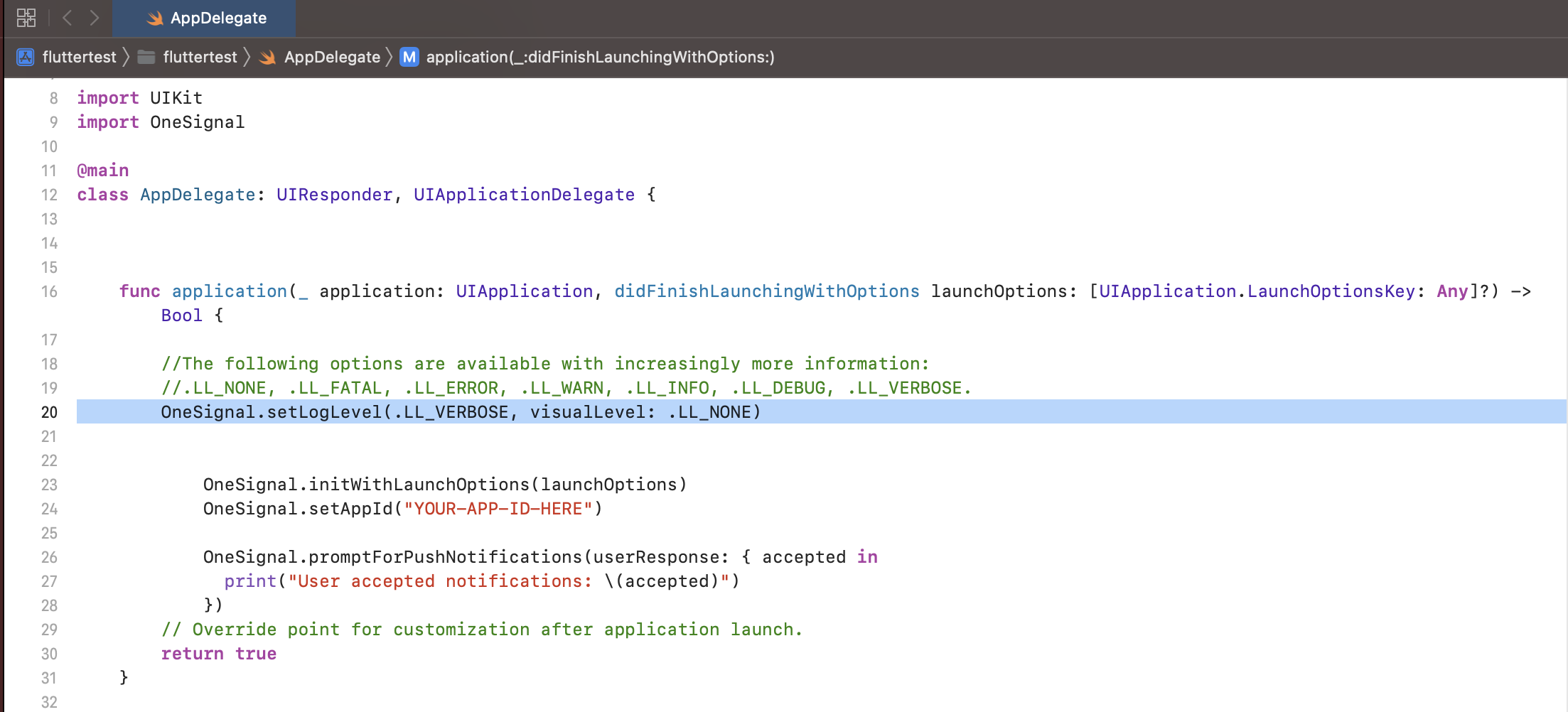
Reproduce the issue
3. Capture and Share the Logs
Once the issue is reproduced, review the logs to see if it helps diagnose the issue. If you need assistance, copy-paste the entire log from start to end and send them to OneSignal Support as a.txt file.
Include all relevant reproduction steps, screenshots, and other details.
Share the log
Platform-specific instructions
- Android Studio
- Xcode
Android Studio
- Open the Run tab in the bottom panel. (If not visible, go to View > Tool Windows > Run)
- Run the app on a connected device or emulator.
- Reproduce the issue.
- Select all log output (
Ctrl + AorCmd + A) and copy it. - Paste it into a
.txtfile. - Send the file to OneSignal Support with steps to reproduce.
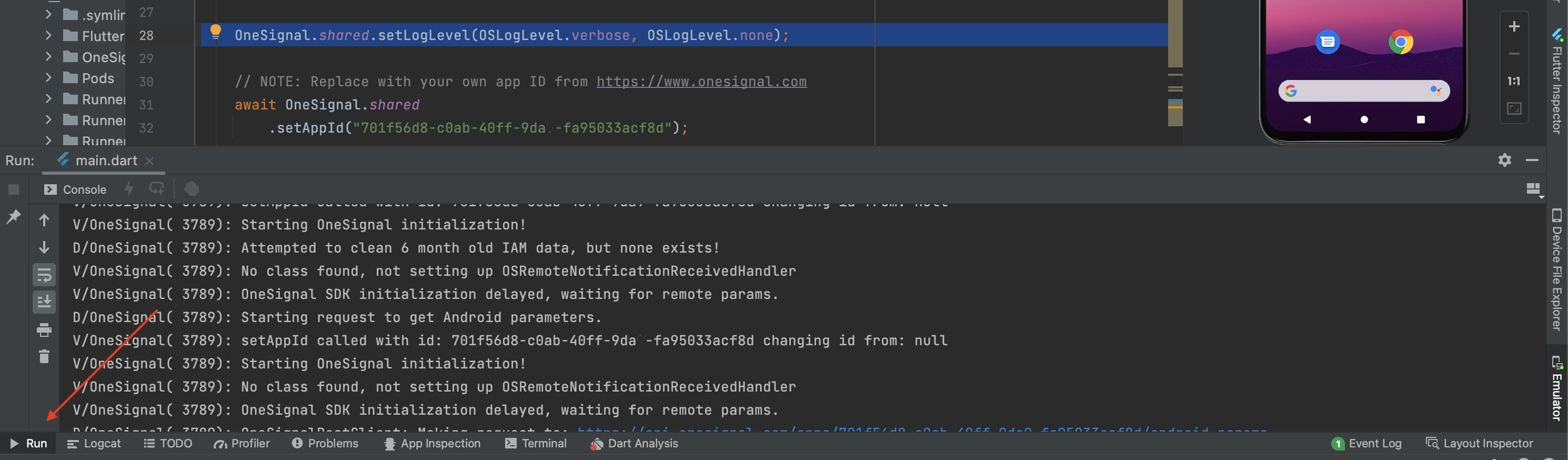
How to run the app in Android Studio.
Advanced use cases
Offline Logging
Offline Logging
If your app encounters issues while running in the background, or if you cannot attach a debugger, you can enable offline logging to capture logs directly on the device.To enable offline logging, add the following code before initializing the OneSignal SDKYou should now have access to the folder where you’ve chosen to download it, and inside of the /Documents folder, you’ll see the “out.log” file containing the logs captured while offline.
1
Run the app on the device with the new code added, ideally just before reproducing the issue to reduce the amount of logged output
2
Plug the device into your computer and open Xcode.
3
Navigate to “Window → Devices and Simulators” and click on the name of the app you added the logging to.
4
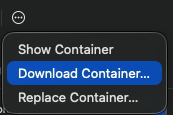
Click the settings icon and select “Download Container”.