Learn how to reset browser push permissions, service workers, and site data across Chrome, Firefox, and Safari to ensure clean test environments and resolve web push notification issues.
Residual data from outdated or misconfigured notification settings can prevent push notifications from working properly—even when your current implementation is correct. Use the instructions below to fully reset your browser’s notification permissions, unregister service workers, and clear site data for a clean testing state.
Chrome desktop
Chrome Android
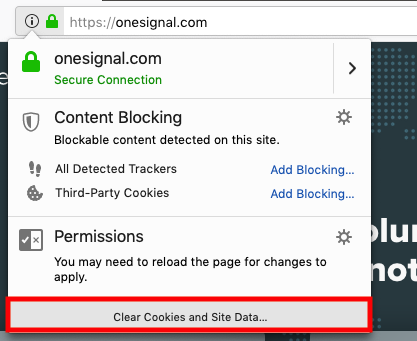
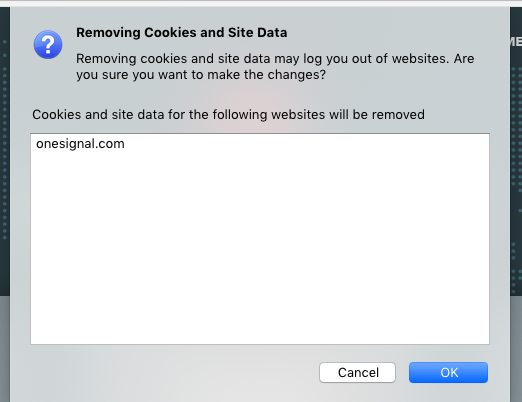
Firefox desktop
Firefox Android
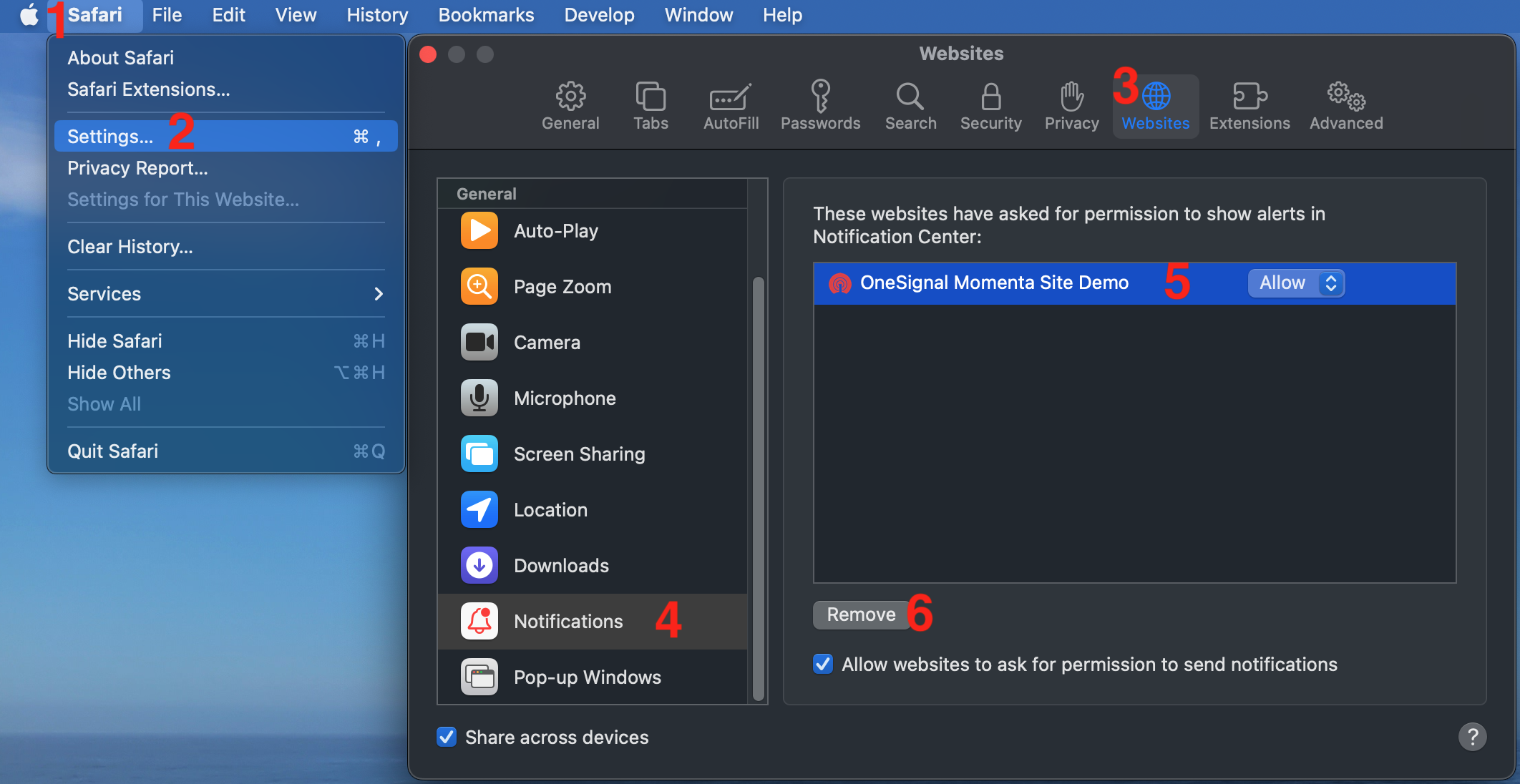
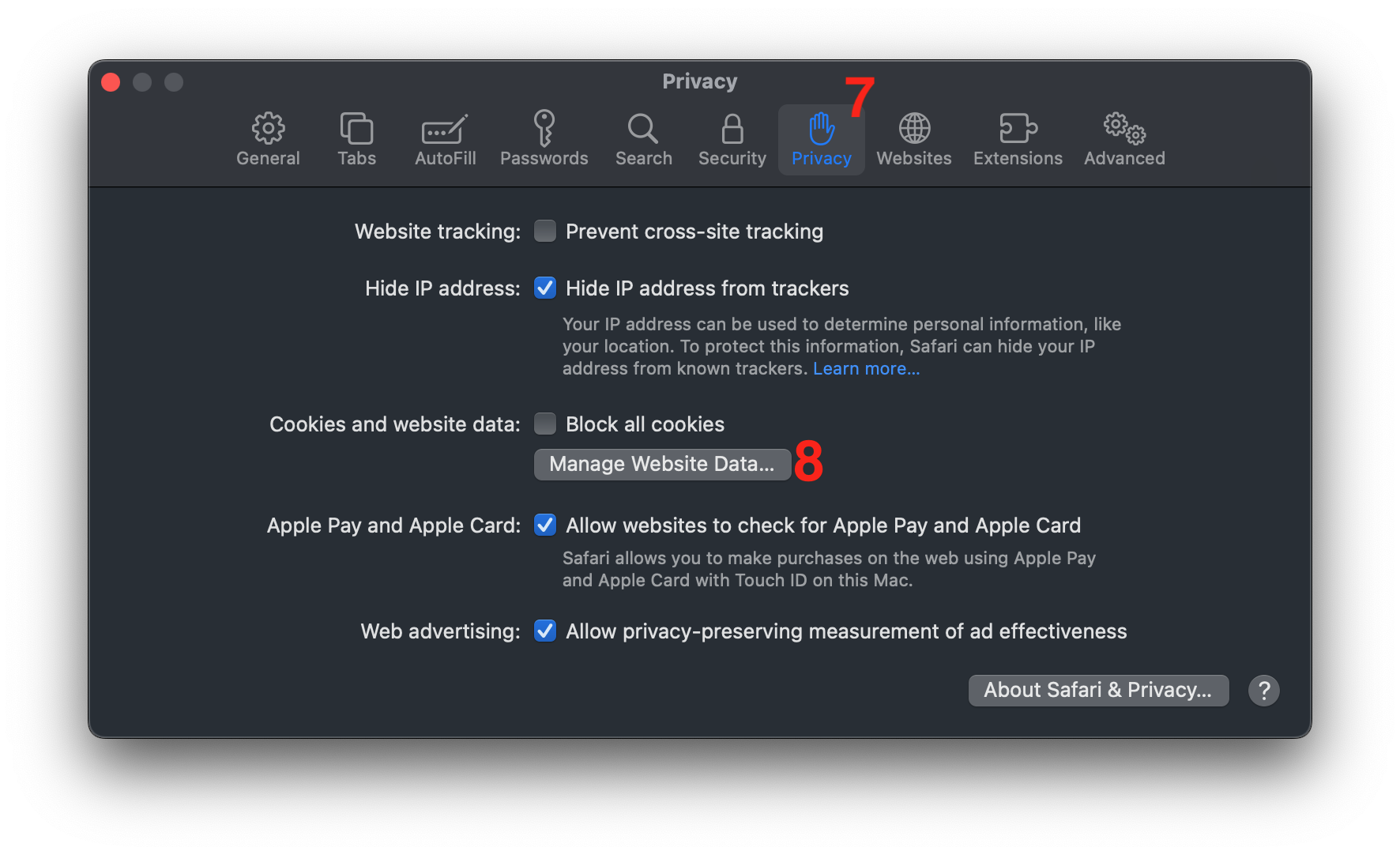
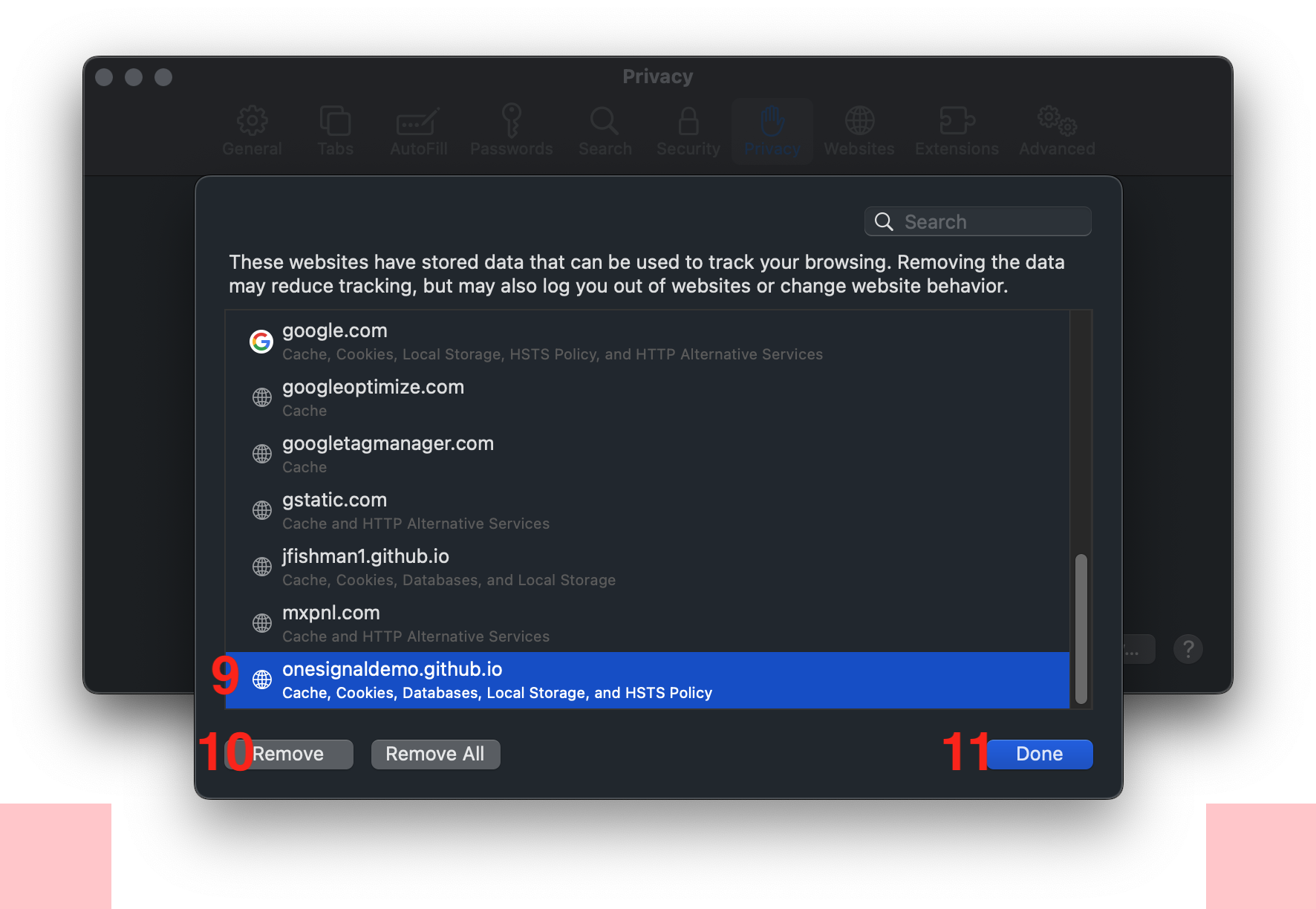
Safari macOS
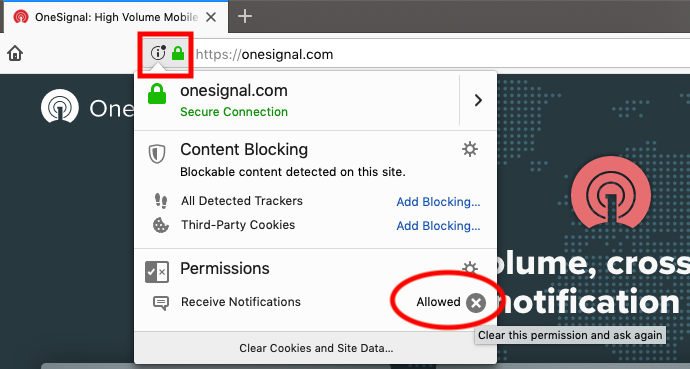
Click the View Site Information (lock or info) icon next to the URL bar.
In the Application tab > Storage, click Clear Site Data.
When prompted, click Reload to refresh the page.
Resetting notification permissions and clearing the site's data on Chrome
If you have Prompting configured, a new permission request should appear. Do not subscribe just yet.Optional:
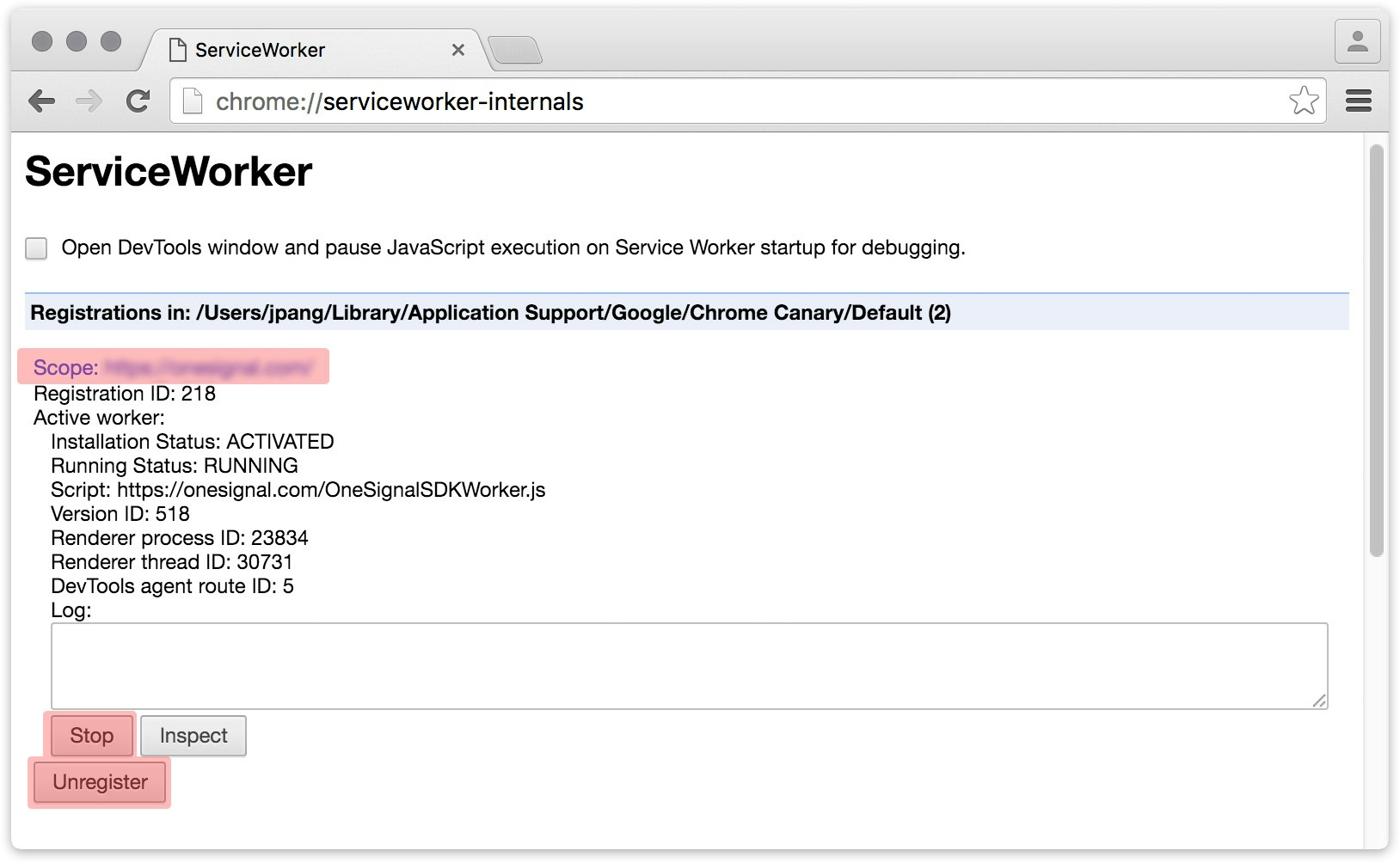
To manually unregister background workers: