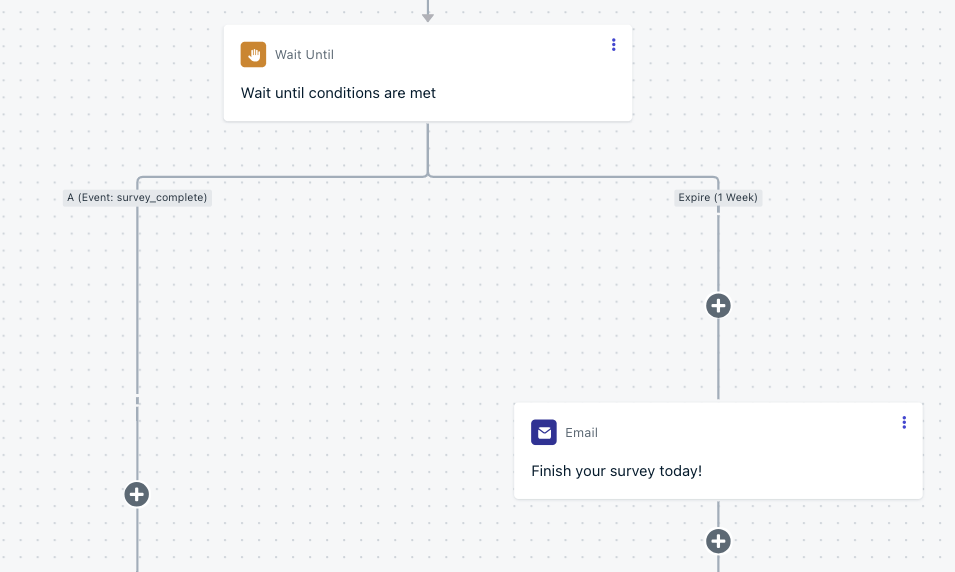
Hold a user at this step until they meet specific conditions:
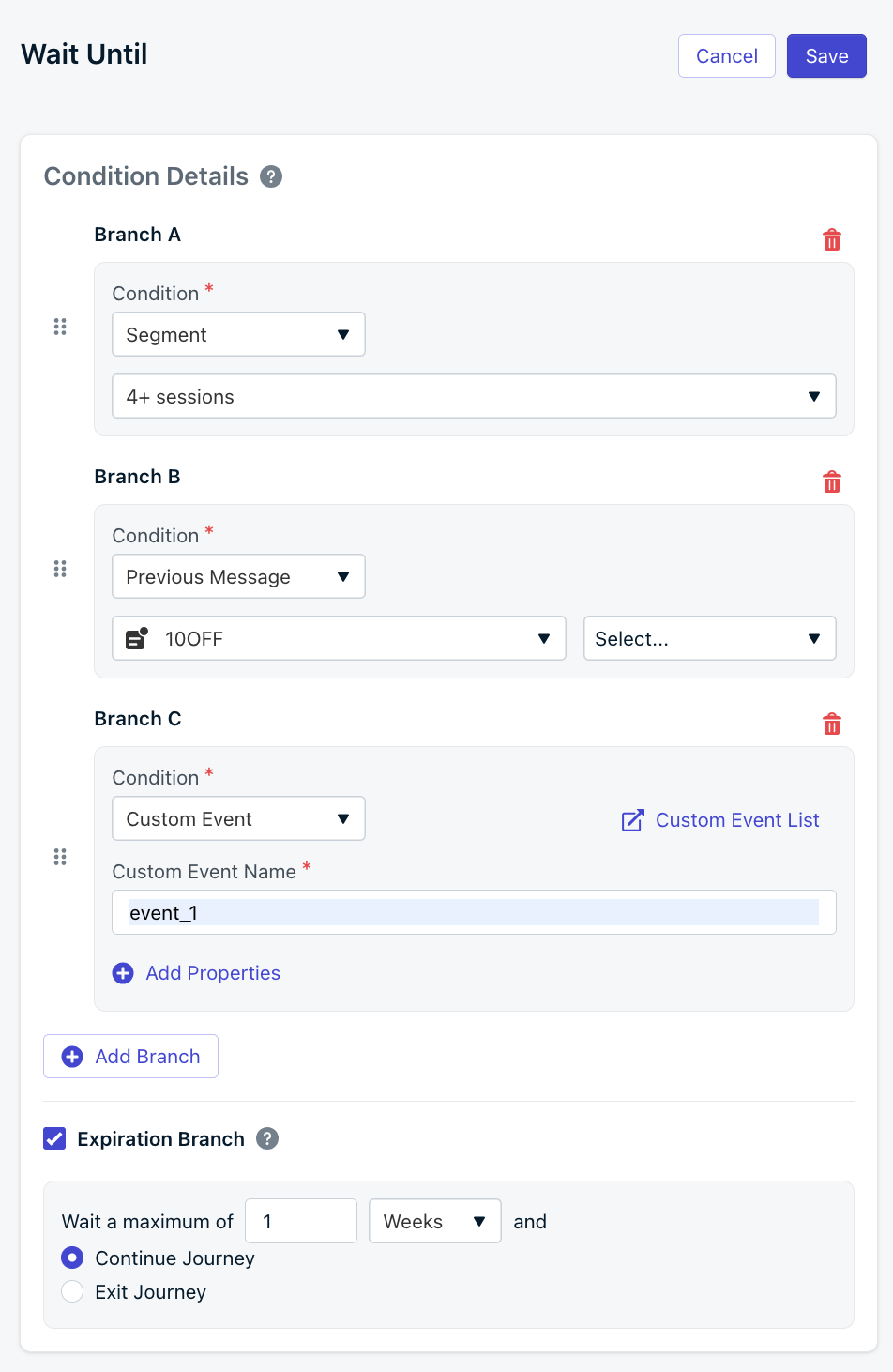
Entering a segment
Triggering a message event (e.g., specific message delivered, opened, or clicked)
Only one message event per wait until step is supported at this time.
Triggering a custom event (e.g., onboarding complete, purchase made)
You can add multiple conditions and branch users based on the first condition they meet. If those conditions are not met in a certain amount of time, you can set an expiration branch to continue users through the Journey or exit them completely.
Always set an expiration on a Wait Until step. Without an expiration branch, a user whose condition is never met will wait at this step indefinitely and can get permanently stuck partway through the Journey. Set an expiration time and decide whether the user should continue through the Journey or exit when it elapses. This is especially important for date- or event-dependent flows where the awaited condition may never occur.
If a user already qualifies for a condition when they reach this step, they’ll move down that branch straight away without waiting. Conditions are evaluated in order (top to bottom / A–Z).
Using the Custom Events entry rule you can also add Event Matching to control which instance of the user to progress through the Journey if you enter them multiple times.
Wait Until user is in a segment or triggers a custom event
When a custom event matches a condition, that event is stored on behalf of the user and may be referenced in Liquid syntax when sending Journey messages.
Using the Custom Events entry rule, you can have users enter a Journey multiple times. With the Wait Until step’s Event Matching setting, you can control which instance of the user to progress through the Journey.Requirements:
Set the Journey Entry Rules to use a custom event.
Include an event property when entering users into the Journey.
For example, you have a “Survey Reminder” Journey. You have multiple surveys which means users can enter the Journey multiple times (once for each survey). You want to send a reminder message if they did not complete the survey or remove them if they did.You can use the Event Matching setting to control which instance of the user to progress through the Journey.Example:
1
Set the Journey Entry Rules and custom event properties
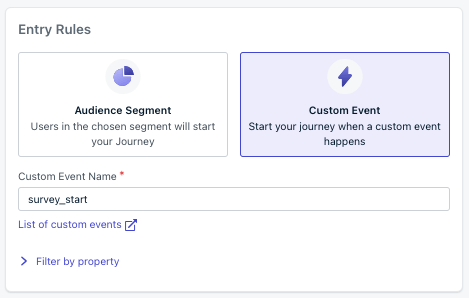
Set the Journey Entry Rules to use a custom event. Example: survey_start
Journey Entry Rules using a custom event
Users will enter the Journey via the Custom Event API.The custom event will have the name set to survey_start and a payload property survey_id with a value of the survey they are taking (e.g., survey_1).
Create a Wait Until step and custom event properties
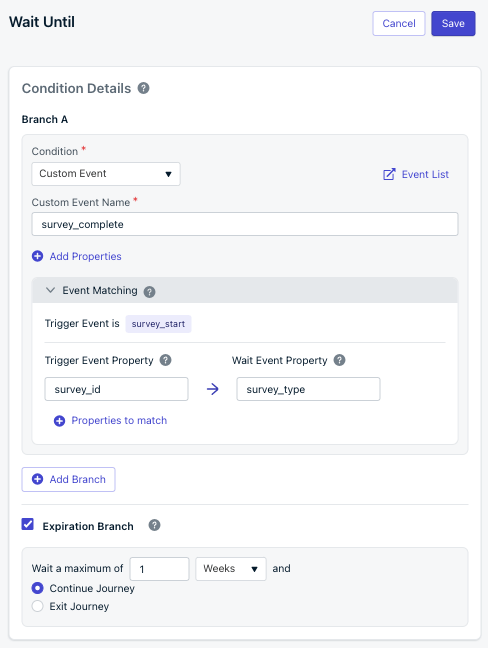
Set the Wait Until condition to use a custom event. Example: survey_completeSet the Event Matching option to specify which instance of the user to progress through the Wait Until step by matching the:
Trigger Event Property: set in the Journey entrance trigger event (e.g., survey_id)
Wait Event Property: set in the Wait Until event (e.g., survey_type)
When the value of survey_id matches the value of survey_type, that instance of the user will progress through the Journey.
You can use the same properties (e.g., survey_id) in both the Trigger Event Property and the Wait Event Property. The example uses different properties (e.g., survey_id and survey_type) to demonstrate the concept.Properties are case-sensitive! survey_1 does not equal Survey_1.
Expiration branch:If the Wait Until event does not occur within the expiration time, the user will progress through the Journey. This example gives the user 1 week to complete the survey.
Wait Until step using a custom event
3
Add a message step
To complete the example, add a message step within the Expiration branch to send the reminder.
Message step within the Expiration branch
4
Test it out!
After following the steps above, you can test it:
Replace the external_id in the Custom Event API with your external ID
Trigger the survey_start event with a survey_id of survey_1
You will see your user enter the Journey and flow into the Wait Until step
Events are not immediate but very quick! You may need to wait a few minutes before the event is processed.Check the Custom Events list to see if the event was processed.
Trigger another survey_start event with a survey_id of survey_2
You will see 2 users enter the Journey and Wait Until step
Trigger the survey_complete event with a survey_type of survey_1
You will see your user progress through the Journey
Trigger another survey_complete event with a survey_type of survey_2
You will see both instances of your user progress through the Journey and exit
You completed the Journey custom event example with Event Matching!
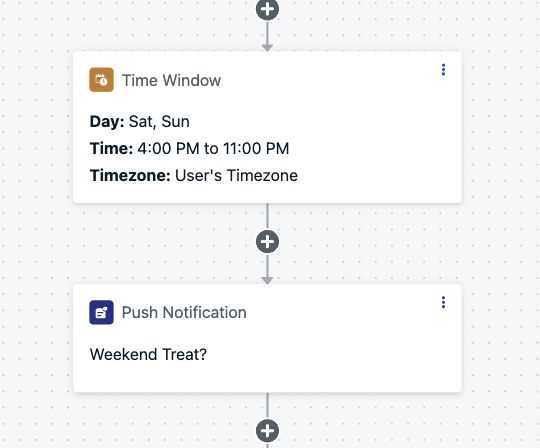
Restrict when users can move to the next step in the Journey based on specific days and times.Example: Only allow users to receive a message on weekends in the evening.
Screenshot showing an example of a time window node
When a user enters this node, OneSignal checks whether the current time falls inside the allowed window:
If the window is currently open, the user continues immediately with no delay.
If the window is in the future (or has already closed for the day), OneSignal delays the user until the next available window. To prevent traffic spikes at the moment a window opens, each user’s release time is randomized between the window start and window start + 15 minutes.
The time window can use the user’s time zone when time zone data is available. If a user does not have time zone data, the app’s default time zone is used.Example:
If your time window is Tuesdays from 1:00 PM to 6:00 PM and a user hits the node on Monday, they continue Tuesday at a random time between 1:00 PM and 1:15 PM. If the user instead hits the node on Tuesday at 3:00 PM, they continue immediately.
Combine a time window node with re-entry rules to send recurring messages on a schedule (daily, weekly, etc.). Place the time window as the first step in the Journey so users wait for the right day and time before receiving the message.When choosing a re-entry duration, set it longer than the time window duration but shorter than the send interval. This prevents double-sends within the same window while ensuring users re-enter early enough to catch the next window.Example — daily send:
Time window: every day, 10 AM – 6 PM (8-hour window)
Re-entry: 12 hours (longer than the 8-hour window, shorter than 24 hours)
Result: users re-enter ~12 hours after exiting, always arrive before the next day’s window closes, and receive one message per day
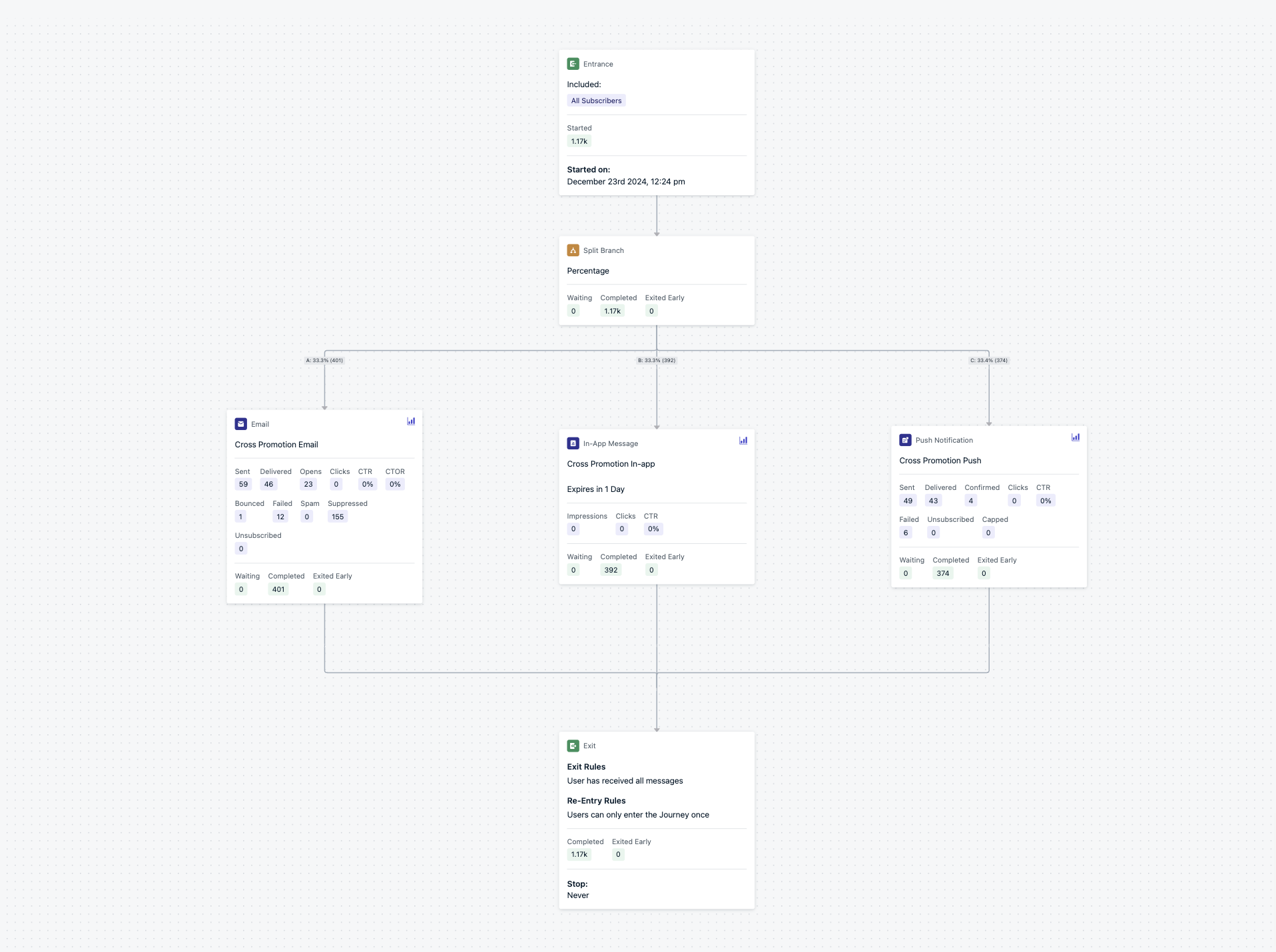
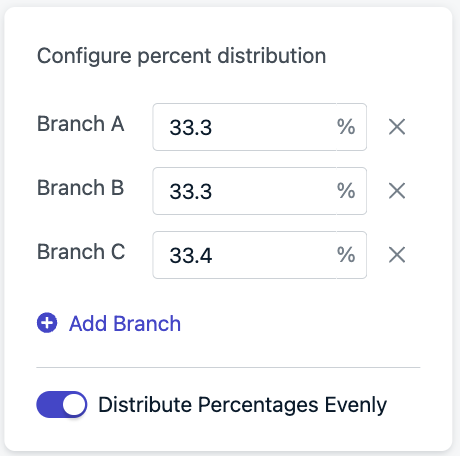
Percentages round to whole numbers (e.g., 3-way split becomes 34/33/33)
Distribution may vary slightly with small sample sizes
Split branch settings
By default, users are re-randomized each time they re-enter a Journey.
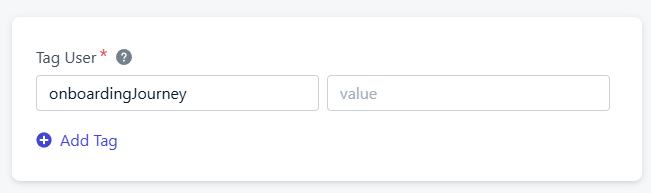
To keep them on the same branch, turn off Randomize on re-entry.Use the Tag User action to track which branch a user followed.
Once a winning variant is identified, update the branch to send 100% of traffic down that path (and 0% down the losing branch).To continue measuring impact over time, consider keeping a small holdout group—a percentage of users who don’t receive the winning message.
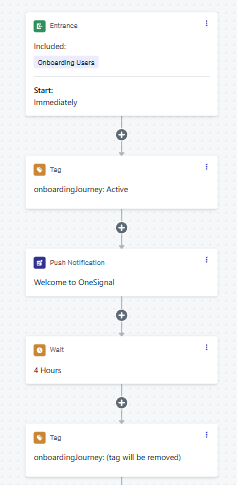
Power in-app messages by tagging users at key moments
Exclude users from other Journeys using active tags
Control which Journeys a user can enter, either keeping test variants mutually exclusive or routing a tagged group into another Journey. See Control Journey membership with tags.
Best practice: Using tags with webhooks or personalization
When you add or remove tags in a Journey, it can take a short time before those changes are ready to use in the next step. To make sure everything works smoothly:
For Webhooks: Add a short wait after setting a tag before sending data with a webhook.
For Personalization: Add a short wait after setting or removing a tag before using it in an email to personalize content.
We recommend adding a 15-minute Wait node between the Tag action and the next step. This ensures the tag is fully ready, so your webhook or email always includes the correct data.
Can I branch a Journey based on which push action button was clicked?
Not with the built-in Yes/No branch alone — the message behavior conditions only detect “Clicked” or “Delivered,” not which specific button was clicked. To branch by button, listen for the click event in your SDK, read the Action ID, and send a Custom Event. Then use a Wait Until step to branch based on which custom event fires first.See Branch a Journey by action button clicked for a full walkthrough with code examples.
Do I need to write code to use Custom Events in a Journey?
Yes. Custom Events are sent to OneSignal from your app or website using the SDK, or from your backend using the REST API. There is no dashboard-only way to fire Custom Events. Once events are flowing into OneSignal, you can use them in Journeys and Segments through the dashboard without additional code.
Was this page helpful?
Assistant
Responses are generated using AI and may contain mistakes.