

Editing a Journey
To edit a Journey, click the Edit button. This activates Edit Mode, allowing you to modify steps, messages, wait durations, and other Journey components. Once done, click Settings > Save. Changes are applied as follows:- Step changes: editing a step’s content or settings takes effect immediately for users already in the flow.
- Settings changes only affect users who enter the Journey after the changes are saved. Existing users in the flow remain unaffected.
Editing wait steps
Changing the duration of a Wait step only affects users who enter the step after the change. Timers already set for existing users are not updated or reset.Editing message steps
- If you update the content/template of an existing message step, existing stats are retained and new metrics accumulate from the time of the change.
- If you replace or remove a message step, the new step starts tracking stats from zero.
Editing branches
Once a Journey is live, branch structure is locked for both Split Branches and Yes/No branches. This includes adding, removing, or restructuring a branch, and moving an existing step into or out of a branch. To make these changes, duplicate the Journey.Editing audience segments
Audience segments on a live Journey with Future additions only enabled are locked and cannot be modified. If you need to change the target audience, you must duplicate or create a new Journey.Viewing and refreshing stats
- Click View Stats to exit Edit Mode and enter Stat Mode. This allows you to analyze message and Journey performance.
- Use Refresh Stats to reload the most recent user interaction data.
Journey management
Click the More Options (⋯) menu to access additional management tools:Stop or archive a Journey
- Stop + Archive halts all user progress through the Journey and marks it as archived.
- Archived Journeys can still be viewed and duplicated, but cannot resume sending.
Duplicate a Journey
- Duplicate creates a new Journey with the same structure and settings.
- Start and end times are not copied. You must set them manually for the new Journey.
- In-App Messages are copied, not referenced. If the original Journey contains IAMs, duplicating it creates independent copies of those IAMs. Edits to the original IAM will not affect the copies.
There is currently no way to share a single IAM across multiple Journeys. When adding an IAM to a Journey step, you can create a new IAM or select an existing one. In both cases, a new independent copy is created. Changes made to the source IAM do not propagate to any copies.
Export a Journey as an image
- Export as Image downloads a PNG of your Journey canvas.
Only steps visible on screen are included in the export. Zoom out or scroll to ensure all steps are visible before exporting.
Delete a Journey
- Delete permanently removes the Journey and all associated data.
Deleting a Journey is irreversible. All stats, message reports, and audience activity data are permanently lost. Duplicate the Journey first if you need to preserve its structure.
Adding team notes
Use Notes to annotate Journey steps with context for your team, such as segmentation logic, testing hypotheses, or what a specific message is intended to achieve.How to add a note
- Enter Edit Mode.
- Select a message or action step.
- Add your note.
- Click Save.
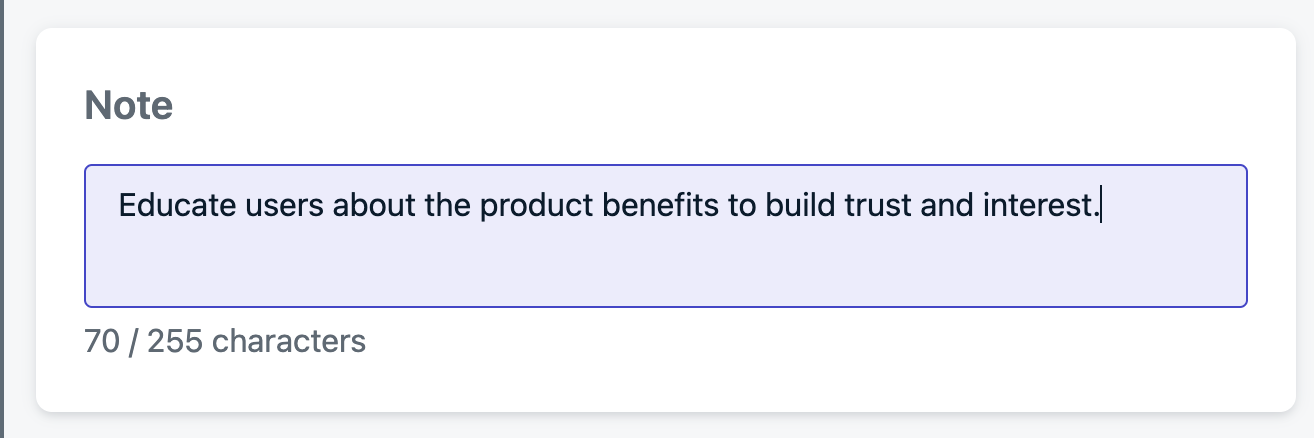
Adding a note to a Journey step
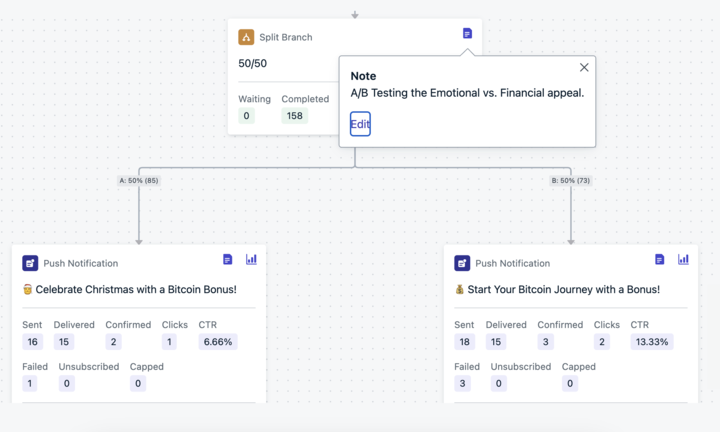
A note added to a Journey step
FAQ
Can I edit a live Journey without pausing it?
Yes. Click Edit to enter Edit Mode on a live Journey. Step changes take effect immediately for active users, while settings changes only affect users who enter after saving. You do not need to pause or stop the Journey.What happens to stats when I update a message step?
If you update the content or template of an existing message step, existing stats are preserved and new metrics accumulate from the time of the change. If you replace or remove the step entirely, the new step starts tracking from zero.Can I undo changes to a Journey?
No. There is no undo or version history for Journey edits. If you need to revert, duplicate the Journey before making changes so you have a copy of the original structure.How do I change the audience on a live Journey with “Future additions only”?
You cannot modify audience segments on a live Journey that uses Future additions only. Duplicate the Journey, update the audience on the new copy, and launch it instead.Can I recover a deleted Journey?
No. Deleting a Journey permanently removes it and all associated data. Duplicate or archive a Journey instead of deleting if you may need it later.Related pages
Journey settings
Configure entry rules, exit rules, re-entry, and scheduling.
Journey analytics
View delivery metrics, engagement stats, and audience activity for each Journey.
Journey actions
Add wait steps, branching logic, time windows, and split paths.
Journey examples
Step-by-step configurations for common Journey patterns.