

Collecting opt-ins
Promotional opt-in collection methods, required disclosure language, and audience validation are covered on the dedicated opt-in and collection page.SMS opt-in and collection
Web sign-up forms, text-to-subscribe, QR codes, checkout opt-ins, disclosure language requirements, and phone number validation.
If you have multiple senders for different use cases (for example, promotional and transactional), collect which use case the subscriber is opting into as a data tag. This ensures you can route subscribers to the correct sender and keep opt-ins scoped to the right program.
Double opt-in
Double opt-in adds a confirmation step after initial sign-up: the subscriber receives a text asking them to reply with a keyword (for example,Y or SUBSCRIBE) to confirm.
- Required for cart abandonment programs in the US.
- Strongly recommended for any high-volume promotional program, as it reduces spam complaints, improves list quality, and provides stronger consent documentation.
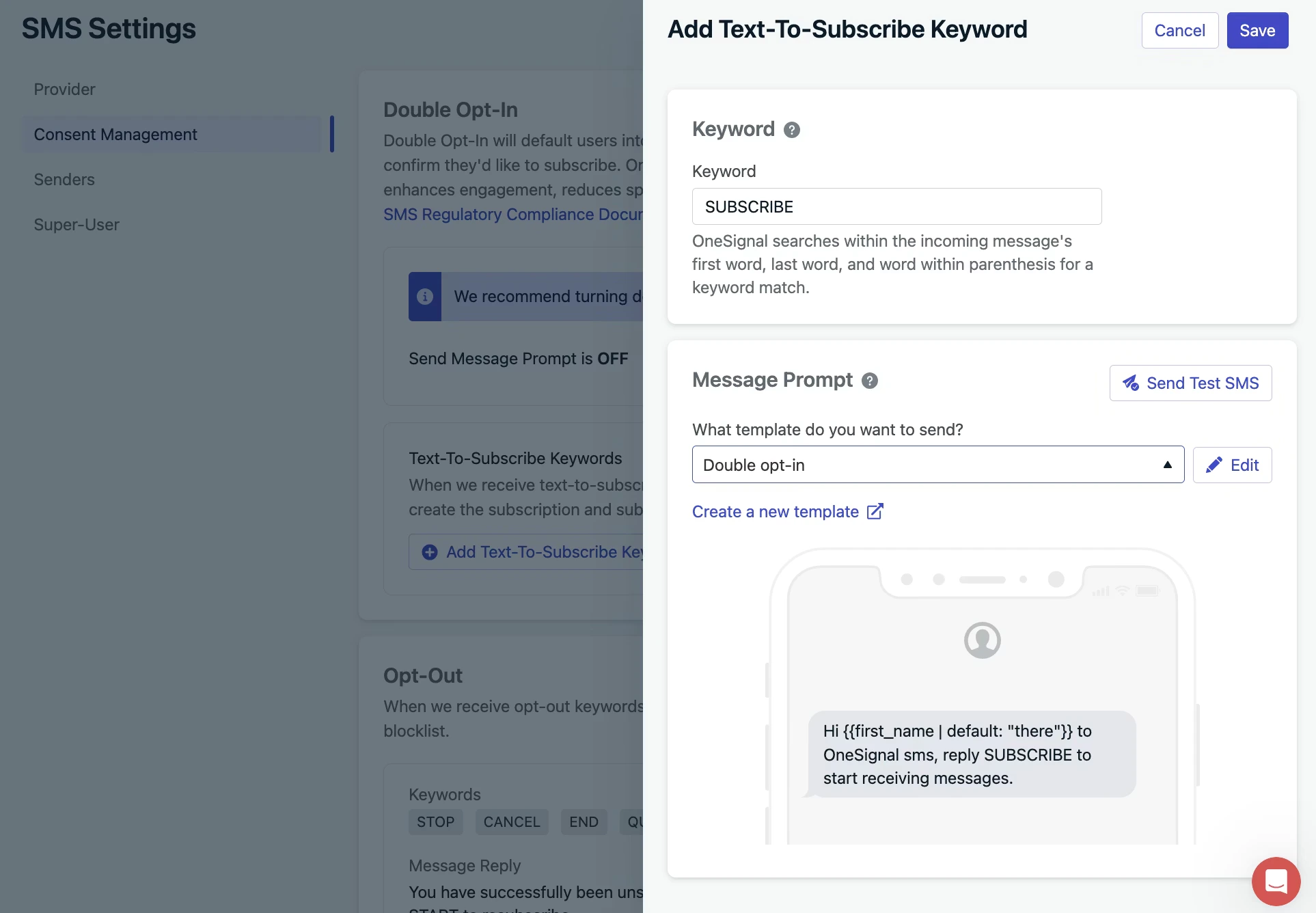
SMS Settings > Consent Management showing double opt-in and text-to-subscribe keyword configuration
1
Go to SMS consent settings
Navigate to Settings > Platforms > SMS Settings > Consent Management.
2
Enable the confirmation prompt
Click Edit next to Double Opt-In and toggle on Send Message Prompt. Select or create an SMS template for the confirmation message (for example, “Reply SUBSCRIBE to start receiving exclusive offers. Msg & data rates may apply. Reply STOP to opt out.”).
3
Create the confirmation keyword
Create a Text to Subscribe keyword (for example,
Y or SUBSCRIBE) that marks the subscriber as active when they reply. Select a template for the reply message (for example, “Brand Name: Thanks for subscribing! Reply STOP to opt out at any time.”).4
Enable reply syncing
Make sure reply syncing is enabled under SMS Settings > Senders > Setup Replies. Without this, OneSignal cannot receive the subscriber’s confirmation and update their status.
Importing existing subscribers
If you have an existing list of subscribers who have already provided consent, from a prior SMS provider, a physical sign-up form, or another system, see Importing subscribers to transfer consent into OneSignal via CSV or API. Re-subscribe behavior: By default, when a user texts START, UNSTOP, or YES, OneSignal re-subscribes the user and replies with: “You have successfully been re-subscribed to messages from this number. Reply HELP for help. Reply STOP to unsubscribe. Msg&Data Rates May Apply.” OneSignal SMS users can update this reply by contacting support.Preference centers
A preference center lets subscribers self-select the types of messages they want to receive. Rather than a single all-or-nothing opt-out, subscribers can opt in or out of specific lists by texting a keyword. Common preference lists include seasonal promotions, product categories, restock alerts, and VIP offers. OneSignal tracks these preferences as data tags on each subscriber’s profile, which you then use to target the right audience at send time.This preferences approach is for managing preferences within a single use case (for example, Fall discounts vs. Spring promotions, all under a marketing program). It is not intended for separating promotional opt-outs from transactional opt-outs. See Consent keyword management for that.
How preference centers work
- A subscriber texts a keyword to your sender (for example,
FALL). - OneSignal applies a data tag to that subscriber’s profile (for example,
fall = true). - When you send a campaign, you filter your audience to subscribers who have that tag.
Set up a preference center
Go to Settings > Platforms > SMS Settings > Keywords and create a keyword pair for each subscription list, one to subscribe and one to unsubscribe.Subscribe keyword
For each list, create a subscribe keyword (for example,FALL):
- Enter the keyword text (for example,
FALL). - Set audience scope to Anyone.
- Select or create a reply template (for example, “You’re subscribed to Fall promotions! Text NOFALL to unsubscribe anytime.”).
- Assign a data tag:
fall = true.
Unsubscribe keyword
Create the matching unsubscribe keyword (for example,NOFALL):
- Enter the keyword text (for example,
NOFALL). - Select or create a reply template (for example, “You’ve been unsubscribed from Fall promotions. Text FALL to resubscribe anytime.”).
- Assign a data tag:
fall = false.
SPRING (spring = true) and NOSPRING (spring = false).
Requirements
- Reply syncing must be enabled. Go to SMS Settings > Senders > Setup Replies.
- Alphanumeric sender IDs cannot receive replies and do not support keywords.
Target subscribers by preference
When building a campaign or Journey, use the User Tag filter in Segments:- Send a Fall promotion to subscribers where
fall = true. - Exclude subscribers where
fall = false.
Promote your preference center
Tell subscribers which keywords are available in your welcome message (for example, “Text FALL for Fall deals, SPRING for Spring deals, or STOP to unsubscribe from all.”). For full keyword setup details, see SMS keywords.Sending
Before you send
- Quiet hours: Promotional messages must respect local quiet hours. Use Journey time windows to ensure messages send within permitted hours. See Regulatory compliance for quiet hours by country.
- Sender name: Include your brand name in the message body so recipients know who is texting them.
- Opt-out instruction: Every promotional message must include a STOP instruction (for example, “Reply STOP to opt out”).
Composing your message
For guidance on composing your message, including character limits, segments, MMS, and trackable links, see Composing messages. If you have an RCS sender, you can also send rich content: branded cards, carousels, and action buttons. See Composing messages for what’s available.Two-way keyword campaigns
Promotional SMS doesn’t have to be one-directional. You can run keyword-based engagement campaigns where subscribers reply to interact, including polls, surveys, preference collection, and content unlocks. Include a CTA in your message asking subscribers to reply with a keyword (for example, “Reply EA for early access”). When OneSignal receives the keyword, it triggers an automated reply and optionally applies a data tag for future segmentation. See SMS keywords for full setup instructions.FAQ
Do I need double opt-in for all promotional programs?
Double opt-in is required for cart abandonment programs in the US. For other promotional programs it is optional, but strongly recommended, as it reduces spam complaints, improves list quality, and provides stronger consent documentation.Can I use the same sender for promotional and transactional messages?
Technically yes, but it is not recommended. If a subscriber texts STOP to a shared sender, they are opted out of all messages from that sender, including order confirmations or account alerts they still want. Use separate senders per program to keep opt-outs cleanly scoped.What disclosure language is required at opt-in?
Every promotional opt-in must include: your brand name, that the subscriber will receive recurring automated marketing messages, approximate message frequency, “Msg & data rates may apply,” how to opt out (STOP), and links to your Terms of Service and Privacy Policy.Can I import subscribers from another provider?
Yes, if they have already provided valid consent. See Importing subscribers for how to transfer existing subscribers via CSV or API.Related pages
SMS opt-in and collection
Collection methods, required disclosure language, and audience validation for all program types.
Consent keyword management
Manage STOP, HELP, START, and custom opt-out keywords after subscribers opt in.
SMS keywords
Full setup details for keyword-triggered replies, tags, and two-way campaigns.
Composing messages
Character limits, MMS, trackable links, and RCS rich content.