Overview

Time-based messaging helps you reach users at the right moment—right after they take an action, or right before a key date happens. With Time Operators (also called Time Elapsed operators), you can:
  • Track an event time by storing a Unix timestamp (seconds) in a user Tag
  • Target users based on how many seconds have passed since that timestamp (past events) or how close they are to that timestamp (future events)
Common use cases:
  • Abandoned Cart Messages: user’s add items to their shopping cart. It is crucial to send them a reminder message if they fail to checkout after a certain amount of time.
  • Future event reminders: send messages minutes/hours/days before a scheduled event.
  • Subscription expiration reminders: notify users before a subscription ends or payment is due and follow up if they don’t renew.
  • Milestones: follow up when a user hasn’t completed an important step by a certain time.
  • Birthday messages: send an automated message around a user’s birthday each year.
“Time Elapsed” operators are only available on paid plans. Free plans can still use default time-based segment filters like First Session and Last Session.

Prerequisites

Before you start, make sure you have:
  • A way to set Tags for a user (SDK or API). See: Tags
  • A timestamp source that you control (your app, backend, or website)
  • A value in Unix timestamp seconds (not milliseconds)
One of the most common mistakes is sending milliseconds (13 digits) instead of seconds (10 digits). Time Operators require seconds.

Tags vs Custom Events

You can solve many “reminder” use cases with either Tags or Custom Events. The best option depends on what you need to store and how you want to trigger automation.
  • Use Tags when you want to store the latest known timestamp on the user (for example, cart_updated_at or subscription_expires_at) and segment off that value over time.
  • Use Custom Events when you want to record each event occurrence (with properties) and trigger Journeys based on real-time behavior.
In practice, many implementations can use both: Custom Events for real-time tracking and Tags for user state you want to segment on later.

How time operators work

Time Operators compare “now” to a user tag value that contains a Unix timestamp in seconds. What you store You store a Tag where:
  • The key is the event name (any string you choose)
  • The value is a Unix timestamp in seconds (stored as a string)
  • Example: 'cart_updated_at' : '1706659200'
What OneSignal evaluates When you build a segment using one of the Time Elapsed filters, OneSignal evaluates: time_elapsed_seconds = current_time_seconds - tag_timestamp_seconds That means:
  • If the timestamp is in the past, time_elapsed_seconds is positive
  • If the timestamp is in the future, time_elapsed_seconds is negative

Time Elapsed operators

OneSignal supports these operators for User Tag segmentation:
  • Time Elapsed Greater Than
  • Time Elapsed Less Than
You’ll typically use them in one of two ways:
  1. After an event (past timestamp)
    • Example: “Send a reminder if it has been more than 1 hour since cart update”
  2. Before an event (future timestamp)
    • Example: “Send a reminder 2 days before an event”

Setup steps & best practices

1

Convert your date to a Unix timestamp in seconds

Convert the date/time you care about into a Unix timestamp in seconds.
Use seconds (10 digits), not milliseconds (13 digits).
Example JavaScript helper (seconds as a string):
function unixSecondsNow() {
  return String(Math.floor(Date.now() / 1000));
}
Example: convert a specific ISO date/time:
function unixSecondsFromISO(isoString) {
  const ms = Date.parse(isoString);
  if (Number.isNaN(ms)) throw new Error(`Invalid ISO date: ${isoString}`);
  return String(Math.floor(ms / 1000));
}

// Example usage:
// unixSecondsFromISO("2026-02-01T00:00:00Z")
2

Set the Tag on the user

Set a tag where the key identifies the event and the value is the Unix timestamp (seconds) as a string.Example (Web SDK):
// Make sure you have initialized the SDK on the page already.
window.OneSignalDeferred = window.OneSignalDeferred || [];
OneSignalDeferred.push(async function (OneSignal) {
  OneSignal.User.addTag("cart_updated_at", unixSecondsNow());
});
Example tag stored on the user:cart_updated_at: "1717228800"
3

Create a Segment using Time Elapsed

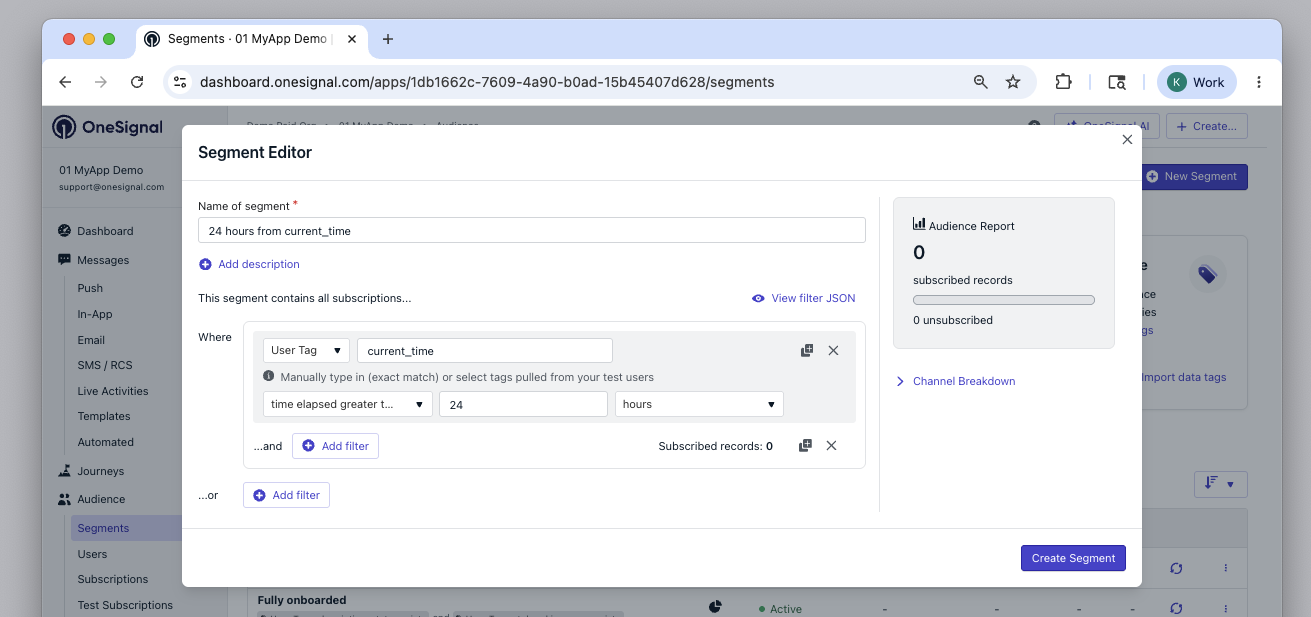
Example: add users to a segment 24 hours after the cart_updated_at timestamp.
  1. In the OneSignal dashboard, go to Audience > Segments.
  2. Create a new segment and add the User Tag filter.
  3. Set KEY to cart_updated_at.
  4. Choose Time Elapsed Greater Than.
  5. Set VALUE to 86400 (24 hours in seconds).
Segment using Time Elapsed Greater Than with a tag key and a value of 86400 seconds
4

Best practice: add an upper limit (a time window)

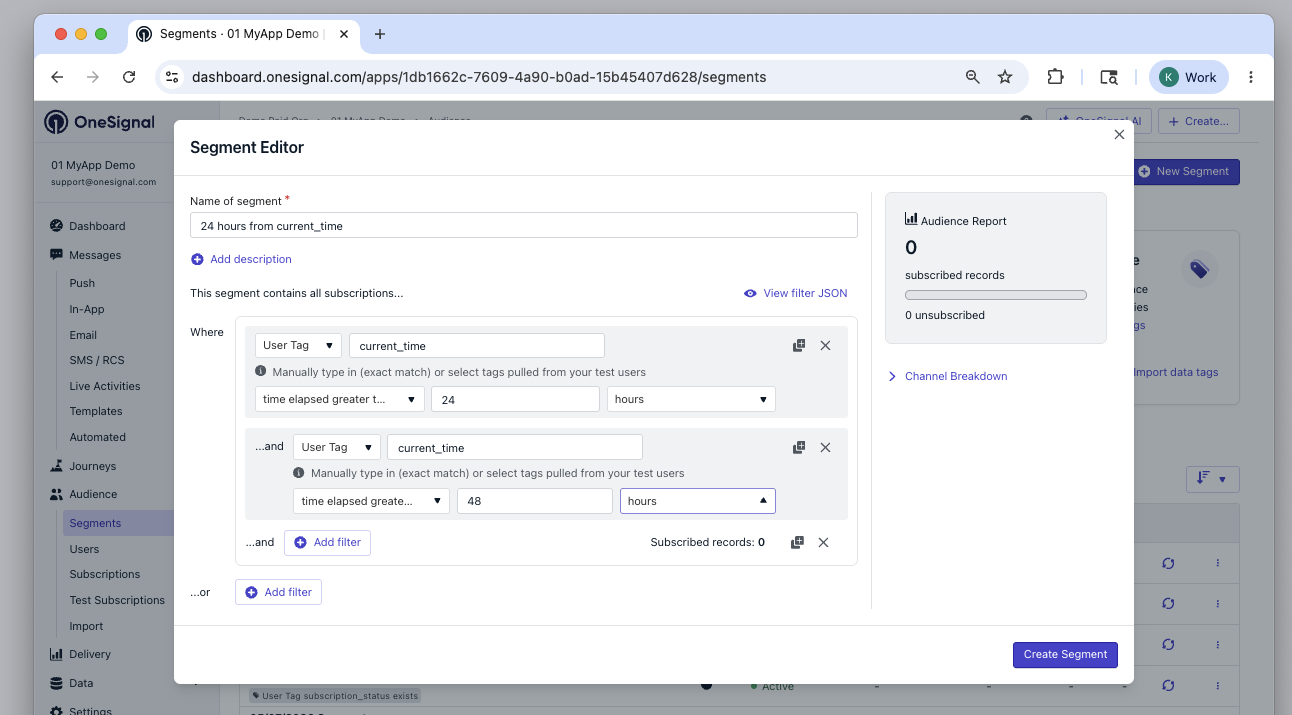
If you only use Time Elapsed Greater Than, users can stay in the segment indefinitely until you update or remove the tag.To limit membership to a window (for example, “between 24 and 48 hours after the event”), add a second filter:
  • Time Elapsed Greater Than 86400 (24 hours)
  • Time Elapsed Less Than 172800 (48 hours)
This is especially useful when the segment powers a Journey and you want to avoid repeated entry or extended eligibility.
Segment using both Time Elapsed Greater Than and Time Elapsed Less Than to define a 24–48 hour window
As users get tagged, they will automatically enter the segment once the Time Elapsed conditions match. Use the segment in a Journey to automate your messaging.

Target users before a specific date

To message users before a future date, you simply need to:
  1. Convert the future date to a Unix timestamp in seconds
  2. Set the tag on the user
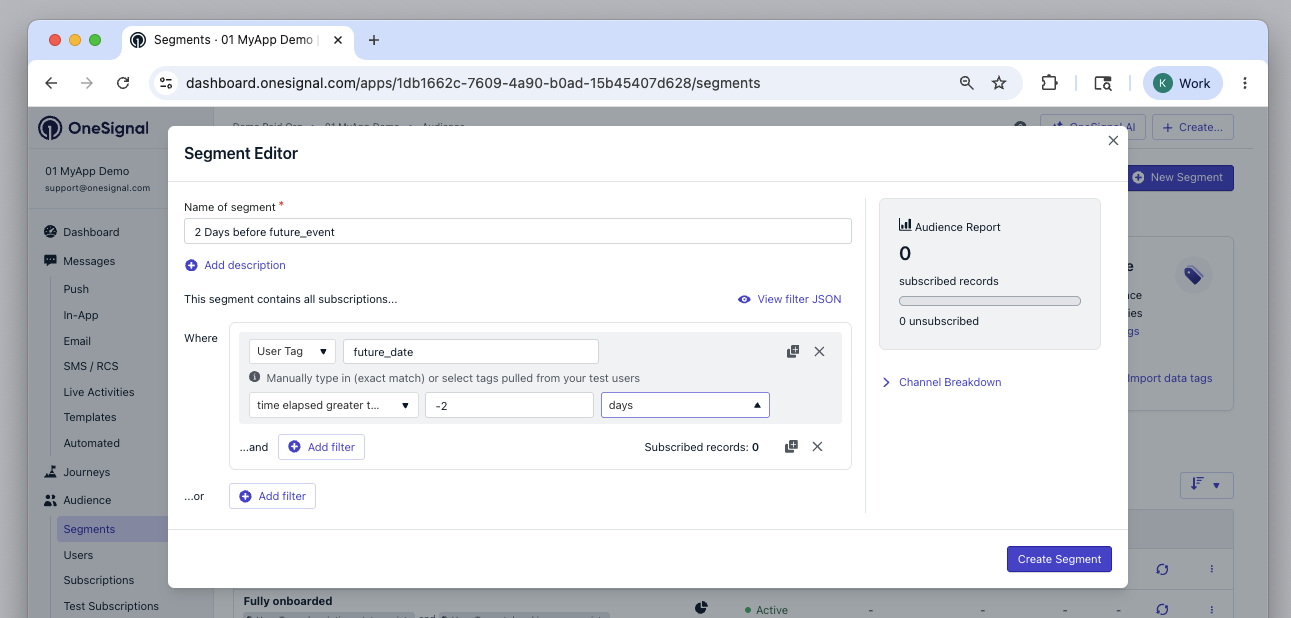
  3. Create a Segment using the time elapsed less than operator and the desired time before the date
Example: Send a reminder 2 days before an event
  1. Event date is February 1st. Convert it to a Unix timestamp in seconds: 1770076800
  2. Set it as a tag: 'event_date' : '1770076800'
  3. Create a Segment using the time elapsed less than operator and the desired time before the date: 2 days
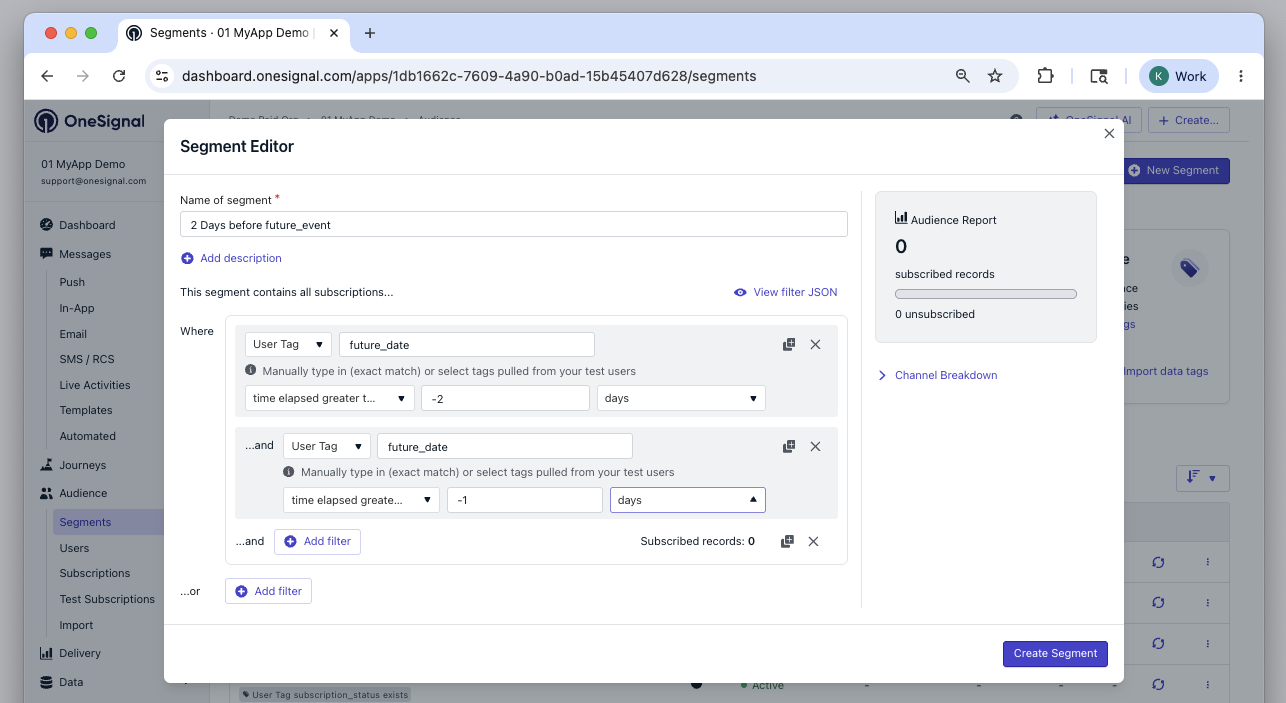
Once the Unix timestamp date is reached, the user will be removed from the segment automatically.You can optionally add another time elapsed less than filter to remove the user from the segment after a certain amount of time.
Segment for targeting users 2 days before an event

Example: Birthday messages

You can automate birthday messages by tagging each user with the Unix timestamp representing their next upcoming birthday, then using a Journey that re-enters annually.
Birthdays are date-based (month/day), but timestamps are time-based. Timezones (and leap years for Feb 29) can introduce small timing differences. Your message will still be close, but it may not trigger at the exact same local time for every user.If you need the message to be sent precisely on the user’s birthday, consider using Custom Events instead.
1

Store the user's next upcoming birthday as a Unix timestamp

This example computes the next birthday based on the current year and then sets the birthday tag.
JavaScript
// Inputs you collect from the user:
// month is 0-indexed: January = 0, December = 11
const birthdayMonth = 0;
const birthdayDay = 29; // 1-31

function nextBirthdayTimestampSeconds(monthIndex, dayOfMonth) {
  const now = new Date();
  const year = now.getFullYear();

  // Candidate in current year (local timezone).
  let candidate = new Date(year, monthIndex, dayOfMonth);

  // Handle invalid dates like Feb 29 on non-leap years (JS will roll into March).
  // If the month changed, clamp to the last day of the intended month.
  if (candidate.getMonth() !== monthIndex) {
    candidate = new Date(year, monthIndex + 1, 0);
  }

  // If already passed (or is "now"), move to next year.
  if (candidate.getTime() <= now.getTime()) {
    let nextYearCandidate = new Date(year + 1, monthIndex, dayOfMonth);
    if (nextYearCandidate.getMonth() !== monthIndex) {
      nextYearCandidate = new Date(year + 1, monthIndex + 1, 0);
    }
    candidate = nextYearCandidate;
  }

  return String(Math.floor(candidate.getTime() / 1000));
}

const nextBirthday = nextBirthdayTimestampSeconds(birthdayMonth, birthdayDay);

// Set the tag (Web SDK example)
window.OneSignalDeferred = window.OneSignalDeferred || [];
OneSignalDeferred.push(async function (OneSignal) {
  OneSignal.User.addTag("birthday", nextBirthday);
});
2

Create a birthday segment

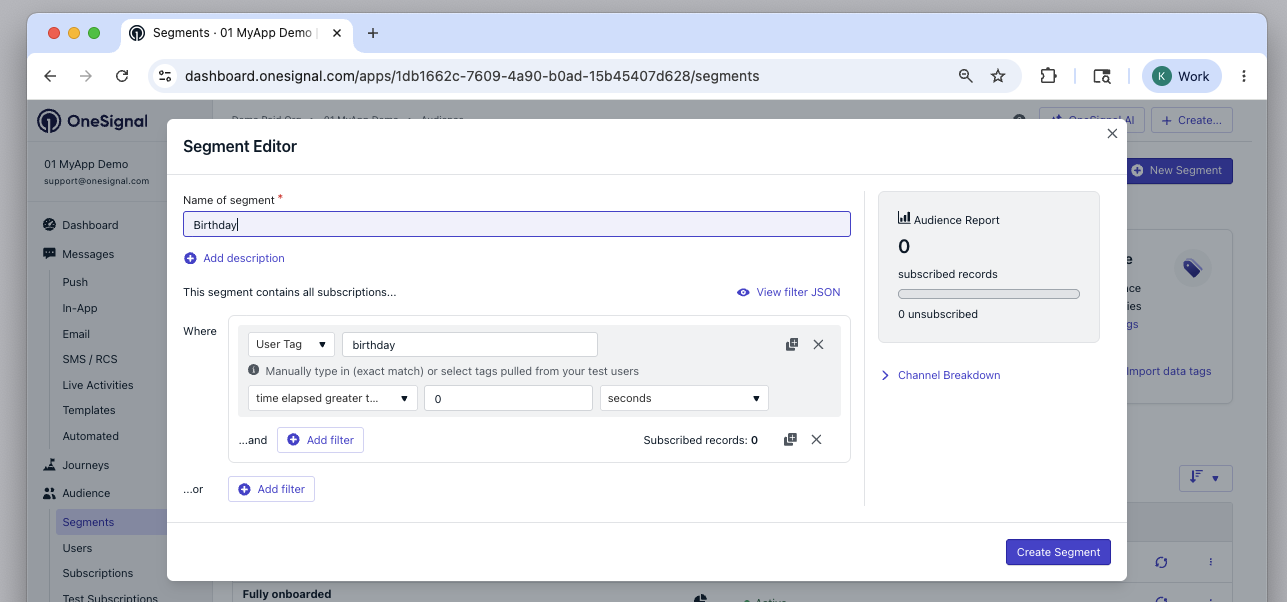
Create a Segment using a birthday tag:
  • User Tag key: birthday
  • Time Elapsed Greater Than 0 seconds
Once the birthday timestamp passes, the user’s elapsed time becomes positive and they will match.
Segment builder showing a User Tag filter for birthday using Time Elapsed Greater Than 0 seconds
3

Send a recurring birthday message

  1. Create your birthday message as a Template.
  2. Build a Journey that targets your birthday segment.
  3. Set the Journey re-entry rule to 52 weeks so the user can re-enter next year after you update their tag again.
If you want messages to stay accurate year-over-year, update the user’s birthday tag to the next upcoming birthday after you send the message (for example, in your backend or in a Journey step). Keep in mind, if you do this, it may be easier to use Custom Events instead.
Birthday messages will be sent to users around their birthday tag date.