Set up Brand Kit in OneSignal to keep AI-generated content on-brand and make your logos, colors, and fonts available across all channel editors without re-uploading.
Use Brand Kit to define your brand identity in one place. Set your voice, tone, logos, colors, and fonts once. OneSignal uses them automatically across all channels. AI-generated content stays on-brand. Your visual assets are available in every channel editor without re-uploading.
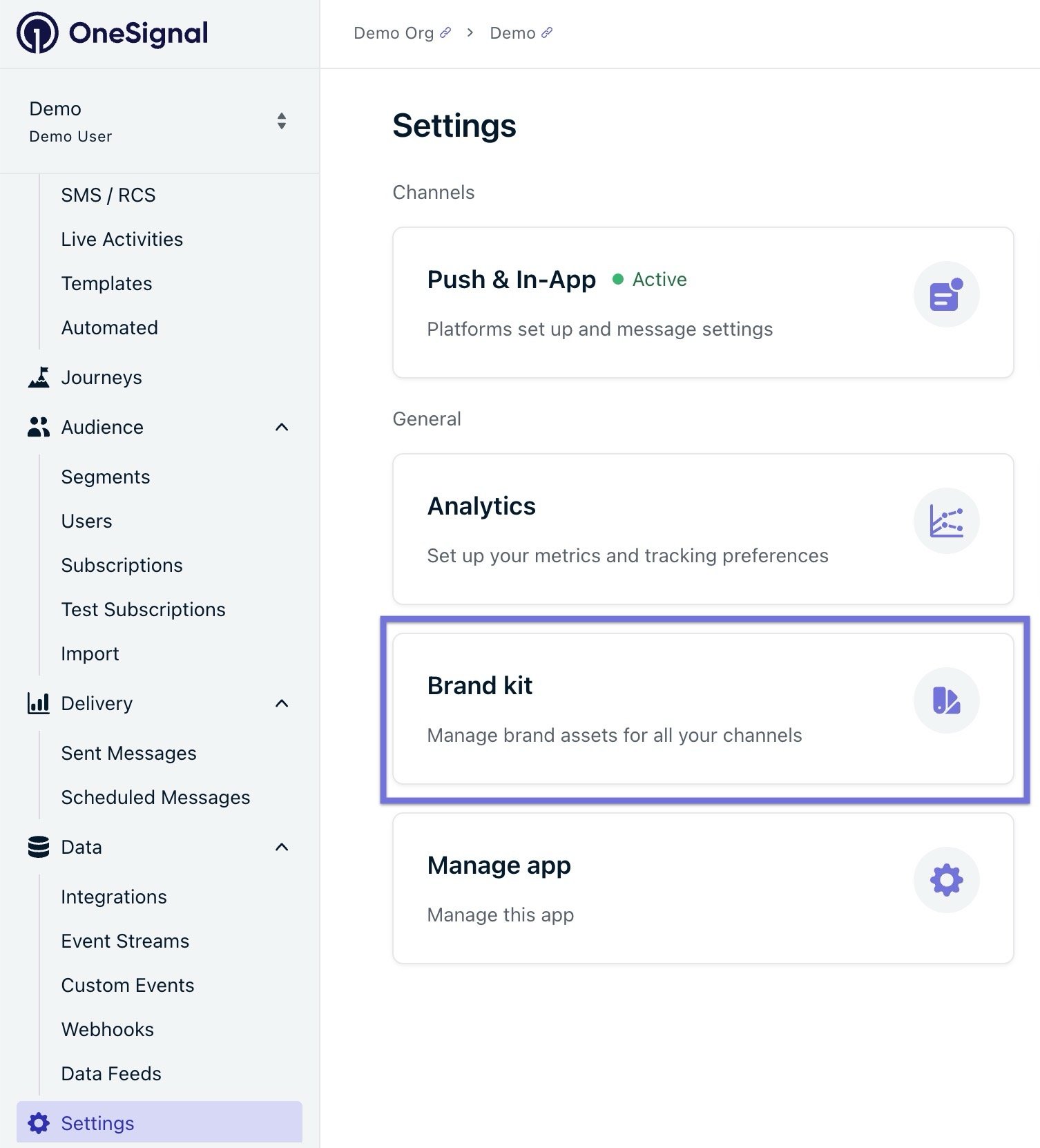
Brand Kit settings page showing the Voice and Tone and Visual Assets tabs.
Populate Brand Kit in two ways: generate values from your website URL, or enter them manually. Most users start with the website generator and refine from there.
OneSignal scrapes your website and extracts your brand colors, fonts, logos, industry, and inferred voice.
1
Click Generate from website
Select Generate from website at the top of the Brand Kit page.
2
Enter your URL and click Analyze
Enter your website URL and click Analyze. This can take up to a minute.
3
Review the suggested values
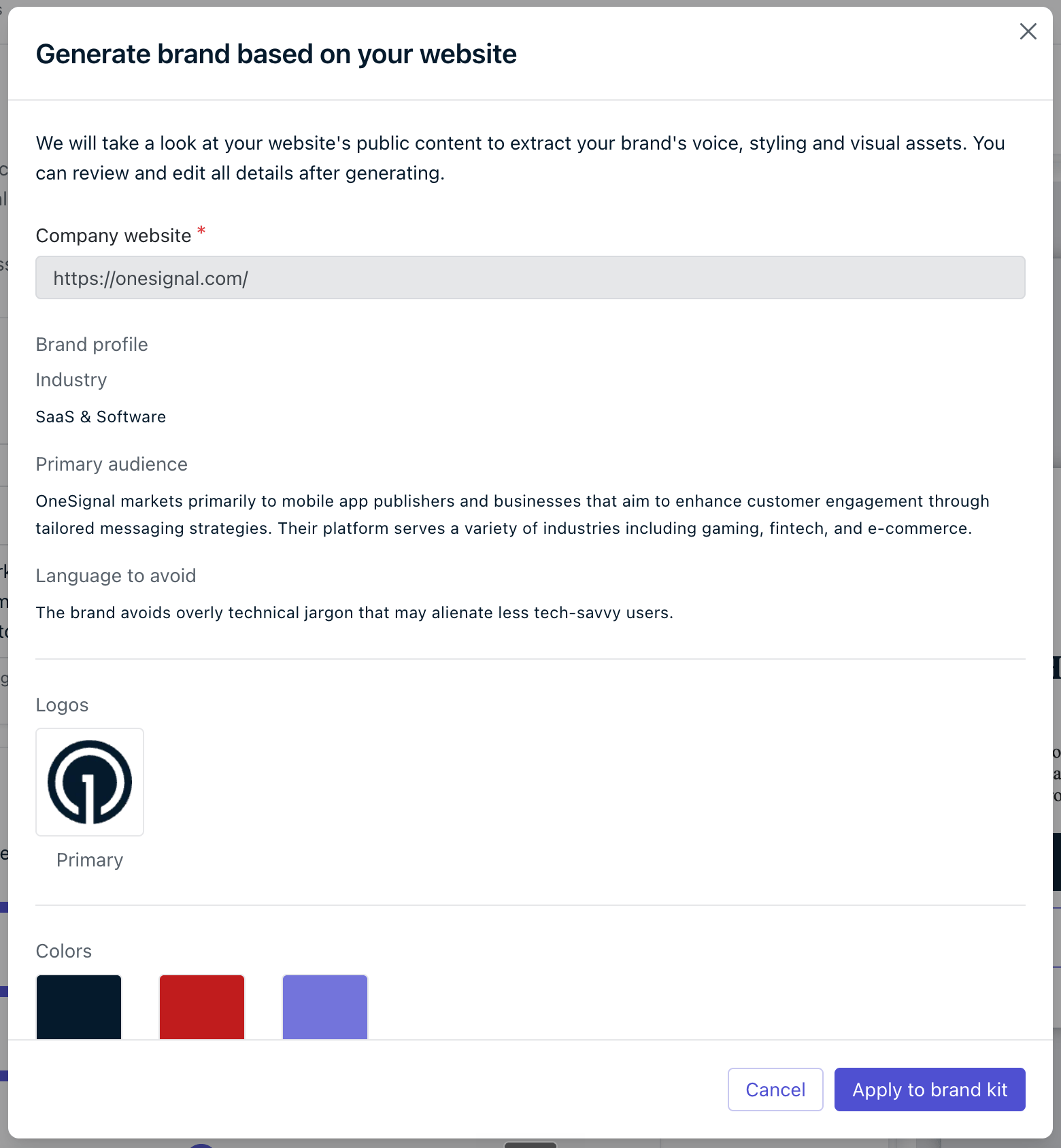
Review the extracted colors, fonts, logos, industry, and tone.
Generate from website modal with extracted brand values ready to apply.
4
Apply and save
Click Apply to populate the form fields. Adjust any values that do not match your brand standards, then click Save.
Website extraction is best-effort. Complex or JavaScript-heavy sites may yield incomplete results. Social media profiles are not scraped. Always review extracted values before saving.
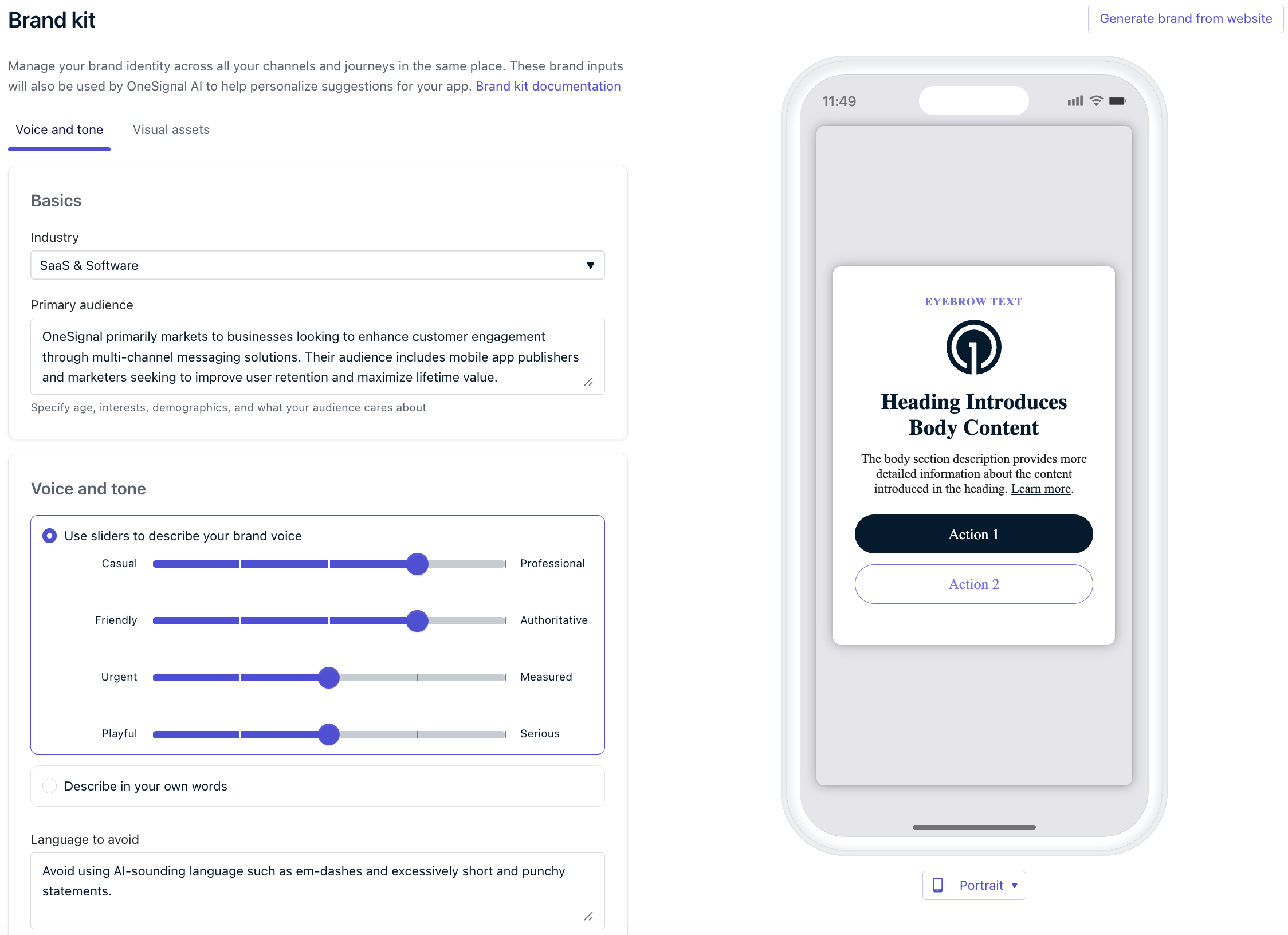
Use the Voice and Tone tab to define how your brand communicates: your industry, target audience, tone, and any language to avoid in AI-generated content.
Brand Kit Voice and Tone tab showing industry, audience, and tone settings.
Select Describe in your own words and enter a free-form description. Use this when your brand voice does not map cleanly onto the available sliders (e.g., “We use dry humor and always keep sentences under 10 words”).
Enter words or phrases you never want to appear in AI-generated messages. OneSignal AI rephrases to avoid them.Example: If you add “cart” to the list and then ask the AI to write a message about abandoned carts, it will substitute alternative phrasing such as “complete your order” or “resume your session.”
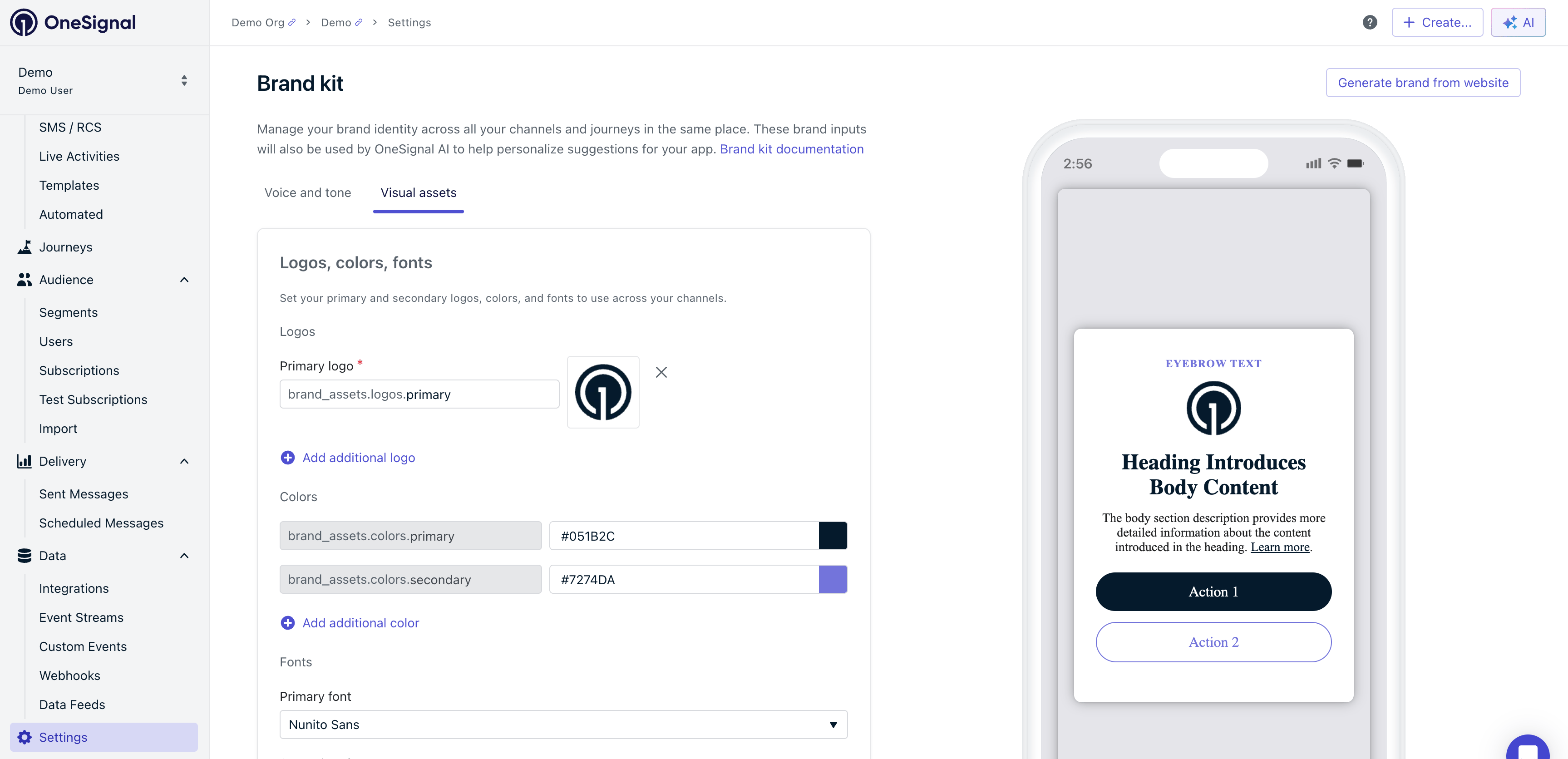
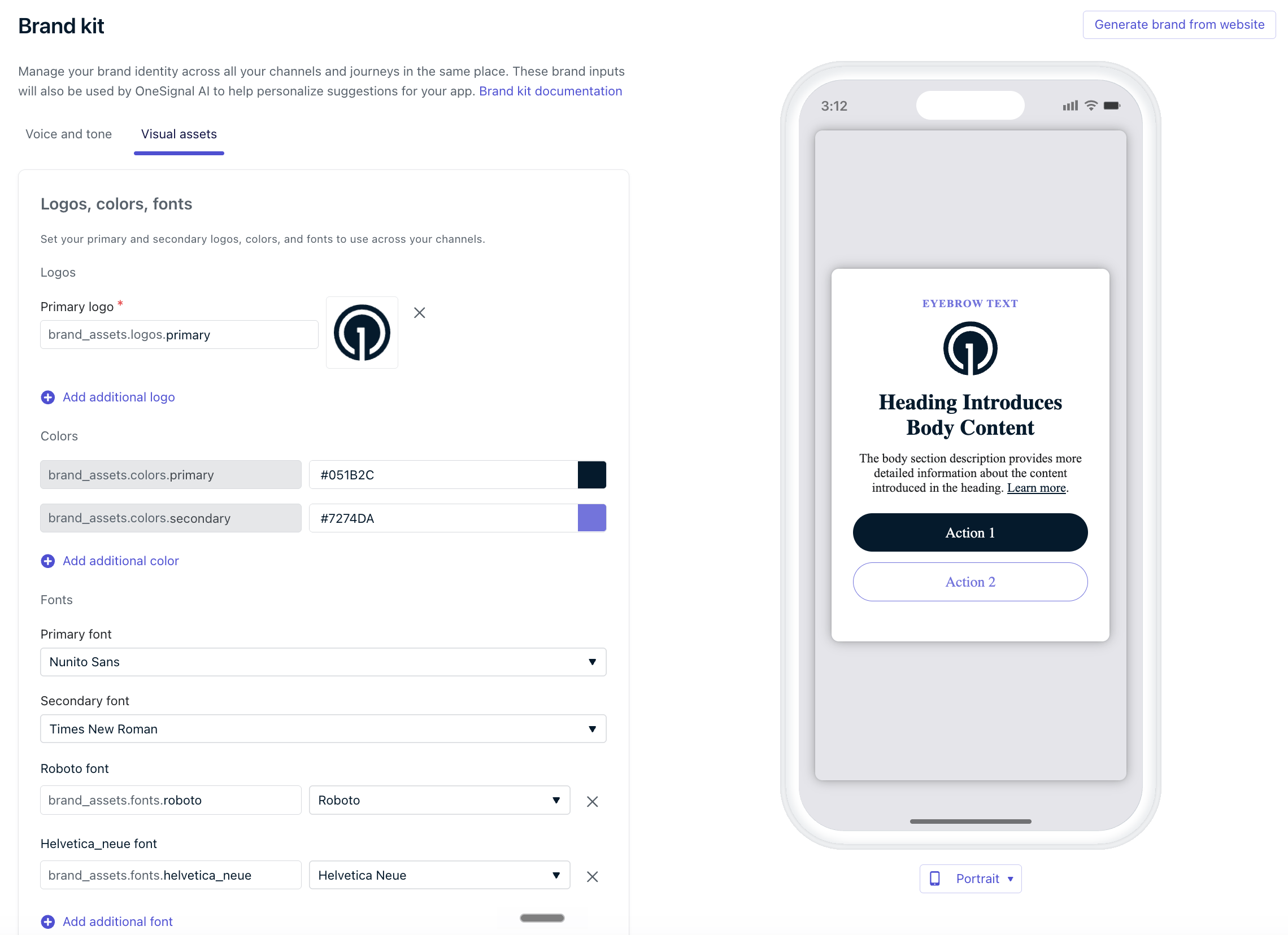
Store your logos, colors, and fonts in the Visual Assets tab. Once saved, these assets are available in all channel editors without re-uploading. They auto-apply as defaults in supported editors.
Brand Kit Visual Assets tab showing logo upload, color swatches, and font selection.
Upload your brand logos. You can store multiple logo variants (e.g., a logomark and a full horizontal lockup).
1
Click Add additional logo
Select Add additional logo in the Logos section.
2
Select your file
Choose an image file from your computer.
3
Name the logo
Give it a descriptive name (e.g., “wide_logo” or “logomark_dark”).
4
Save
Click Save to confirm.
Some channels have image size requirements. Brand logos that exceed a channel’s size limit will not appear in that channel’s image picker. A tooltip explains when an asset is hidden due to size limits.
Define your primary and secondary brand colors, and add as many additional named colors as you need. For each color, enter a name and a hex value.OneSignal applies brand colors automatically when you author messages:
In-app messages: Button background defaults to your primary color.
Email drag-and-drop editor: Button background defaults to your primary color. All brand colors appear as custom swatches in the color picker.
Define your primary and secondary fonts. Add a display name and a URL for any web fonts you want to reference.OneSignal applies brand fonts automatically when you create new messages:
In-app messages: Text font family defaults to your primary brand font.
Email drag-and-drop editor: Default font updates to your primary brand font.
Custom web fonts render reliably in in-app messages but not in email. Gmail and most major email clients fall back to the editor’s system font, so design your emails to look correct in that fallback.
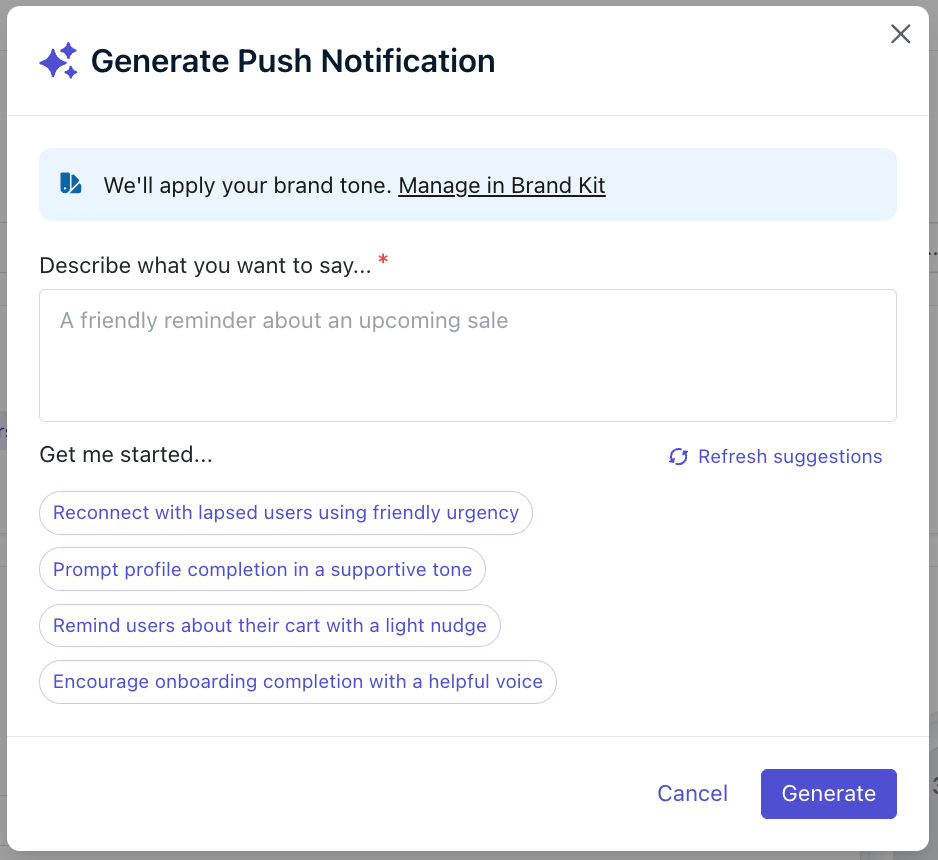
When you use AI Compose in a push notification, your brand tone applies to the generated copy. A note in the compose panel confirms your brand guidelines are active.
AI Compose panel showing brand tone applied to a push notification draft.
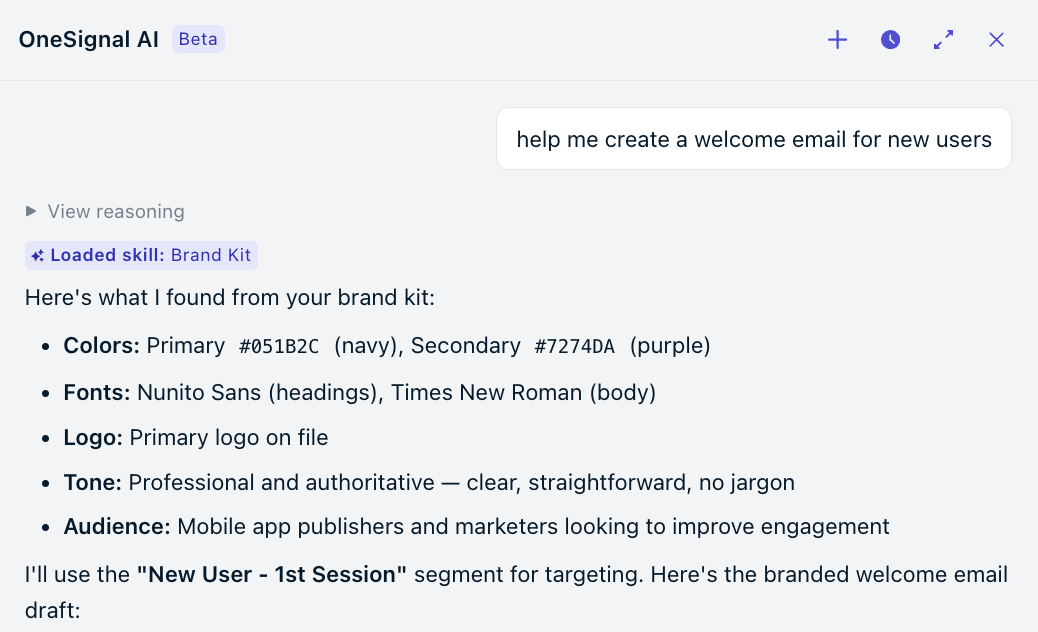
The AI agent reads your Brand Kit settings when generating messages across channels. It respects language-to-avoid rules, applies your voice and tone, and uses your visual assets when creating content.
OneSignal AI agent generating a branded email with brand colors and logo applied.
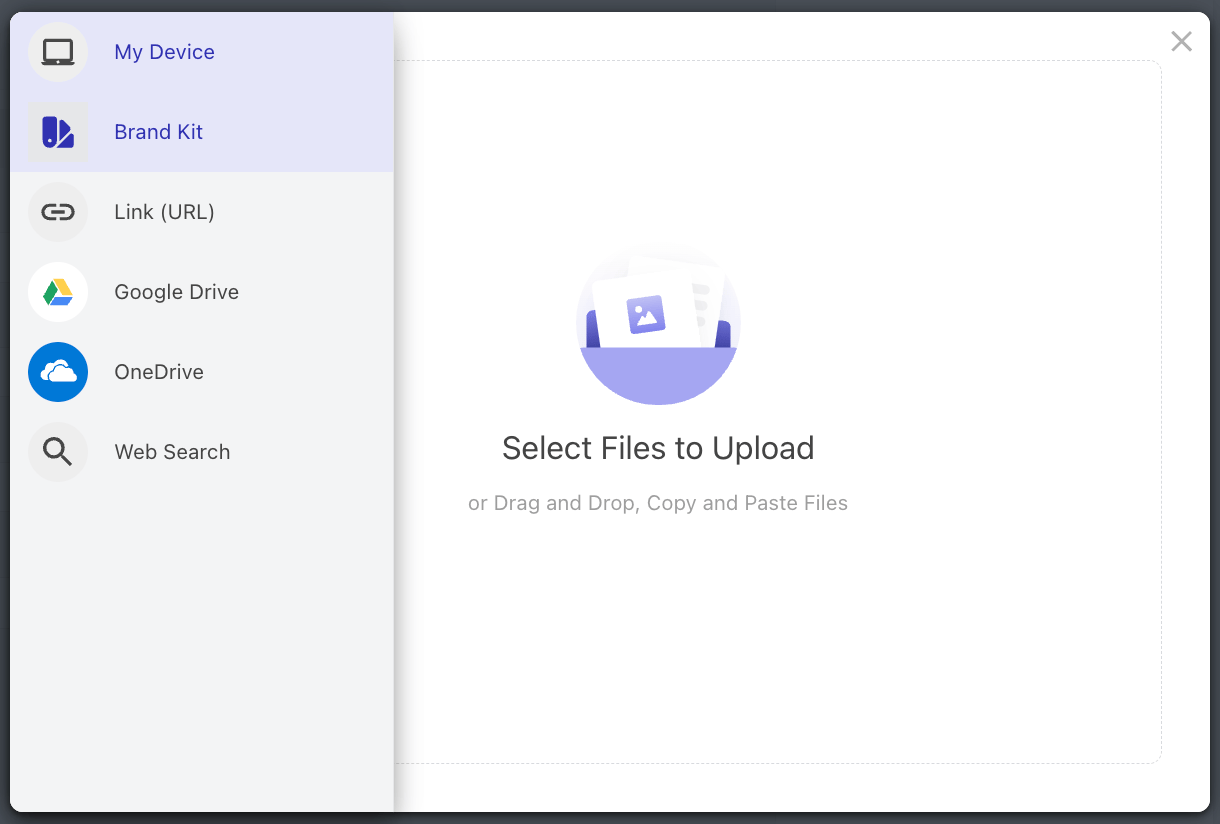
There are two ways to use a Brand Kit asset, and they behave differently when you later change the value in Brand Kit:
Insert directly (static): When you pick a color, font, or logo from a picker and insert it, the message stores a copy of that value at the moment you insert it. Changing the asset in Brand Kit later does not update the message.
Reference with Liquid (dynamic): When you reference an asset with Liquid, for example {{ brand_assets.colors.primary.hex }}, the value is rendered at delivery time. Updating the asset in Brand Kit automatically updates every message that references it.
This distinction matters most for reusable content, such as templates and saved rows in the email editor. If you insert a Brand Kit asset directly into a template or saved row, it freezes the value at the time of insertion. Rebranding later (for example, changing your primary color or swapping a logo) will not update that template or saved row.To keep reusable content in sync with Brand Kit, reference assets with Liquid instead of inserting them directly. Liquid references resolve at delivery time, so every send picks up the current Brand Kit value.
Settings apply to the individual app, not your entire organization. If you manage multiple apps, each has its own Brand Kit.
Web fonts in email
Custom web fonts render in in-app messages but may not render in email. Gmail and most major email clients do not support web fonts. Email falls back to the system font.
Website extraction accuracy
Automatic brand extraction is best-effort. Social profiles, JavaScript-rendered content, and paywalled pages are not scraped. Review extracted values before saving.
Image picker visibility by channel
Channels with image size restrictions may not show all Brand Kit logos. A tooltip explains when assets are hidden due to size limits.
Brand Kit is optional
If Brand Kit is not configured, OneSignal AI still generates content, but output will be more generic and not grounded in your brand.
Does Brand Kit apply to all channels automatically?
Yes. Once saved, Brand Kit is read by OneSignal AI for all message generation. Visual assets (logos, colors, fonts) are applied as defaults in supported editors. You do not need to configure anything per-channel.
What happens if website extraction returns incomplete results?
The generator may return partial results or nothing at all. You can apply only the values you want, skip the generator entirely, and enter everything manually. Fields left blank will not affect channels that have their own defaults.
Can I paste existing brand guidelines or AI prompts into Brand Kit?
Yes. You can paste any text, including existing ChatGPT system prompts or brand guideline copy, directly into the Describe in your own words field under Voice and Tone. File upload (PDF, TXT) is not currently supported.
Gmail and most major email clients do not support custom web fonts, so your brand font falls back to the editor’s system font in email. Brand fonts render reliably in in-app messages. See Fonts for details.
The image picker for some channels has size requirements. Logos that exceed the size limit for that channel are hidden, and a tooltip explains why. Try uploading a smaller or differently sized version of the logo.
Message Personalization
Use Liquid syntax to insert dynamic content into your messages.
AI Message Composer
Generate and refine message copy using OneSignal AI.
Was this page helpful?
Assistant
Responses are generated using AI and may contain mistakes.