

- A push with an image outperforms text-only
- A CTA like “Claim Offer” works better than “Get Started”
- A short subject line gets more opens than a longer one
Plan availability
- Professional and Enterprise plans: up to 10 variants
- Free and Growth plans: 2 variants
How A/B testing works
A/B testing is only available when sending through the dashboard. It is not available with the API.To A/B test push, email, or SMS message content on a Journey step, use Journey message A/B testing directly on the message step. For testing things other than message content in a Journey, like wait durations or structural path differences, use a Journey split branch instead.
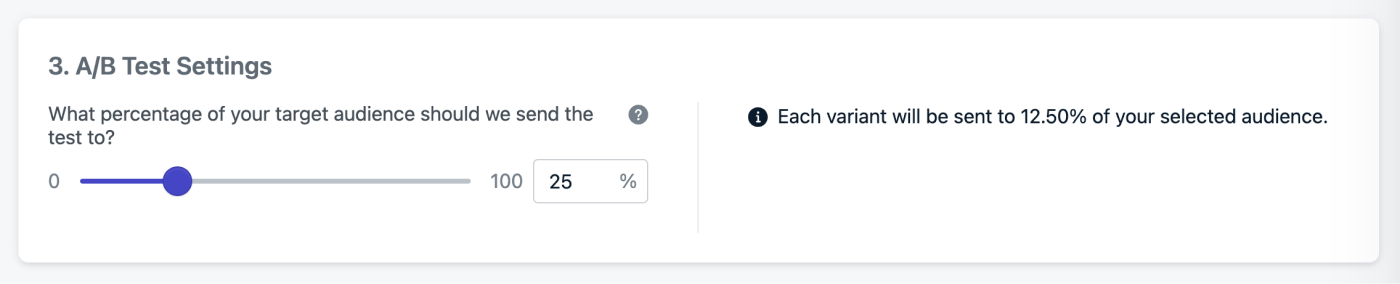
Percentage scaler for variants in the A/B test settings.
Any percentage other than 100% lets you select a winner. At 100%, the audience is fully split across variants, so no users remain to receive the winner.
By default, 25% of your audience receives the A/B test. For valid results, each variant must receive enough users, so the more variants you use, the larger your test group must be.
Select a winner
Messages sent as A/B tests are marked in the Messages tab. Click into a test to see the full report and the variant-specific reports. Each report shows performance statistics for every variant. After you select a winning variant, OneSignal sends that variant to the remaining members of your target audience.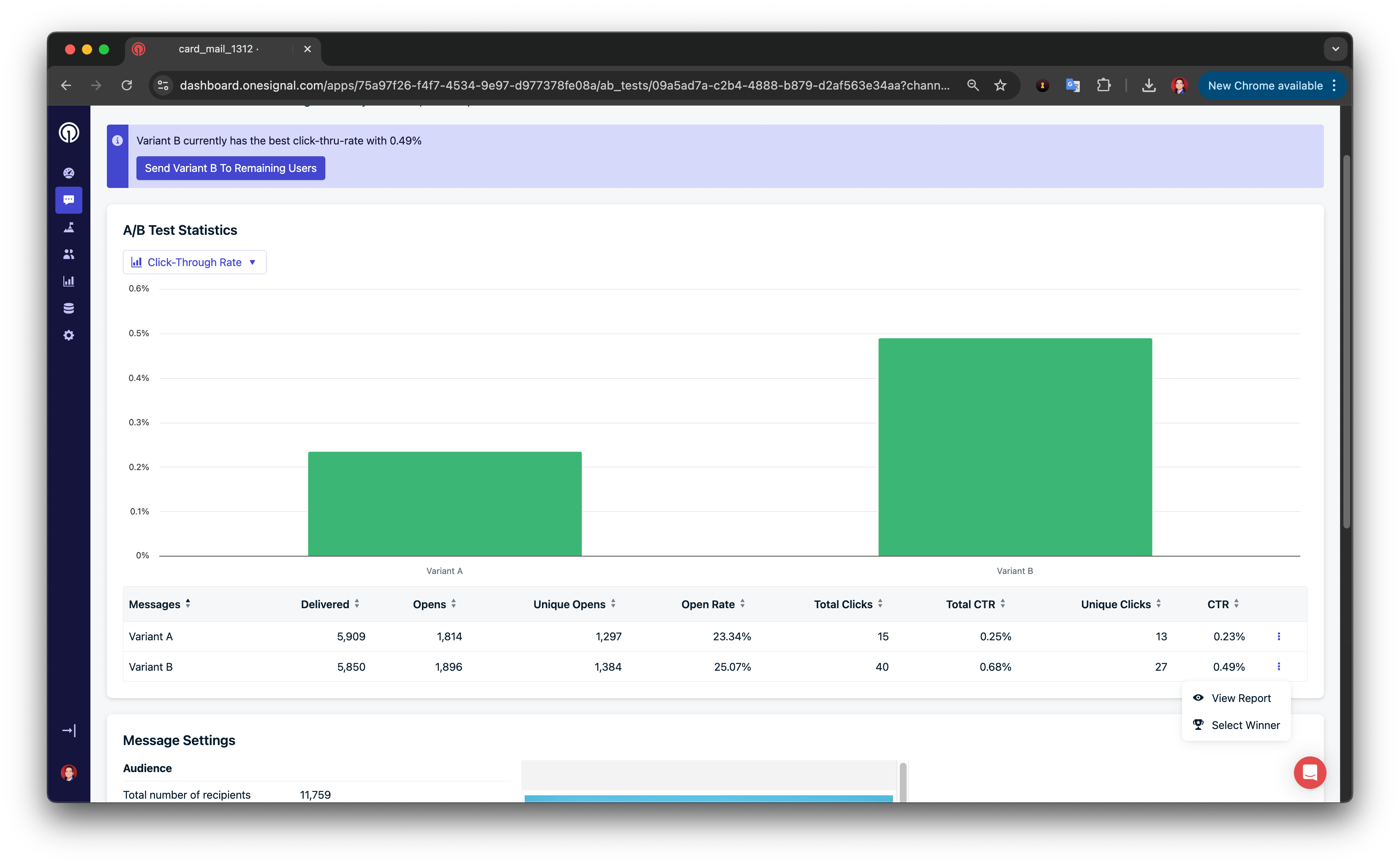
Selecting a winning variant from the A/B test report.
Create an A/B test
- Push
- Email
- Go to Messages > Push > New Push.
- Name your message (for example, “Push AB Test - CTA Button”).
- Select your segment(s).
- Click the A/B Test button.

The A/B Test button on the push composer.
- Add variants. Click Add Variant to duplicate and edit each new version. Change only one variable at a time for meaningful insights.

Adding more variants to a push A/B test.
- Set the percentage of your audience that receives the test. See How A/B testing works for how the split is calculated. Any percentage other than 100% lets you select a winner.
- Review results under Messages > Push > A/B Tests tab. Click any test to view variant-specific reports.
- Select a winner using the performance metrics.

Best practices for A/B testing
Understand benchmarks
Review past performance data so you can evaluate test success meaningfully.Set a goal and hypothesis
Clearly define what you’re testing and what success looks like.Change one variable at a time
Control your experiment by isolating variables like:- Subject lines
- Layouts
- CTA copy
- Length of copy
- Images
- Offers
- Emojis
- Colors
- Fonts
- Icons
- GIFs
Use controls
Include your “usual” version as a baseline for measuring improvements. Create control groups by tagging users randomly and exclude that segment. You can Export user data and create a segment from the CSV import.Test simultaneously
Send all variants at the same time to avoid timing bias.Continue testing
Iterate based on results to continuously optimize message performance.FAQ
Can I A/B test different segments?
Not within the standard message form. However, you can test different segments using Journeys with Split Branches and Yes/No Branches.Can I automatically select a winner?
Not yet. You must manually choose the winning variant or use 100% to send all variants.You’re done! You can now test different variants of your messages and select a winner.
Need help?Chat with our Support team or email
support@onesignal.comPlease include:- Details of the issue you’re experiencing and steps to reproduce if available
- Your OneSignal App ID
- The External ID or Subscription ID if applicable
- The URL to the message you tested in the OneSignal Dashboard if applicable
- Any relevant logs or error messages