Send follow-up push messages in OneSignal based on how Subscriptions interacted with a previous send — clicked, didn’t click, failed delivery, or unsubscribed. Retargeting is available from any push message report within 30 days of the original send.
Retargeting sends a follow-up push message to the Subscriptions that reached a specific outcome on a previous send — for example, Subscriptions that clicked, didn’t click, or failed delivery. Start retargeting from the Audience activity section of any push message report.
Retargeting is available for push messages sent within the last 30 days. Audience activity data is retained for 30 days from the time the original message was sent.
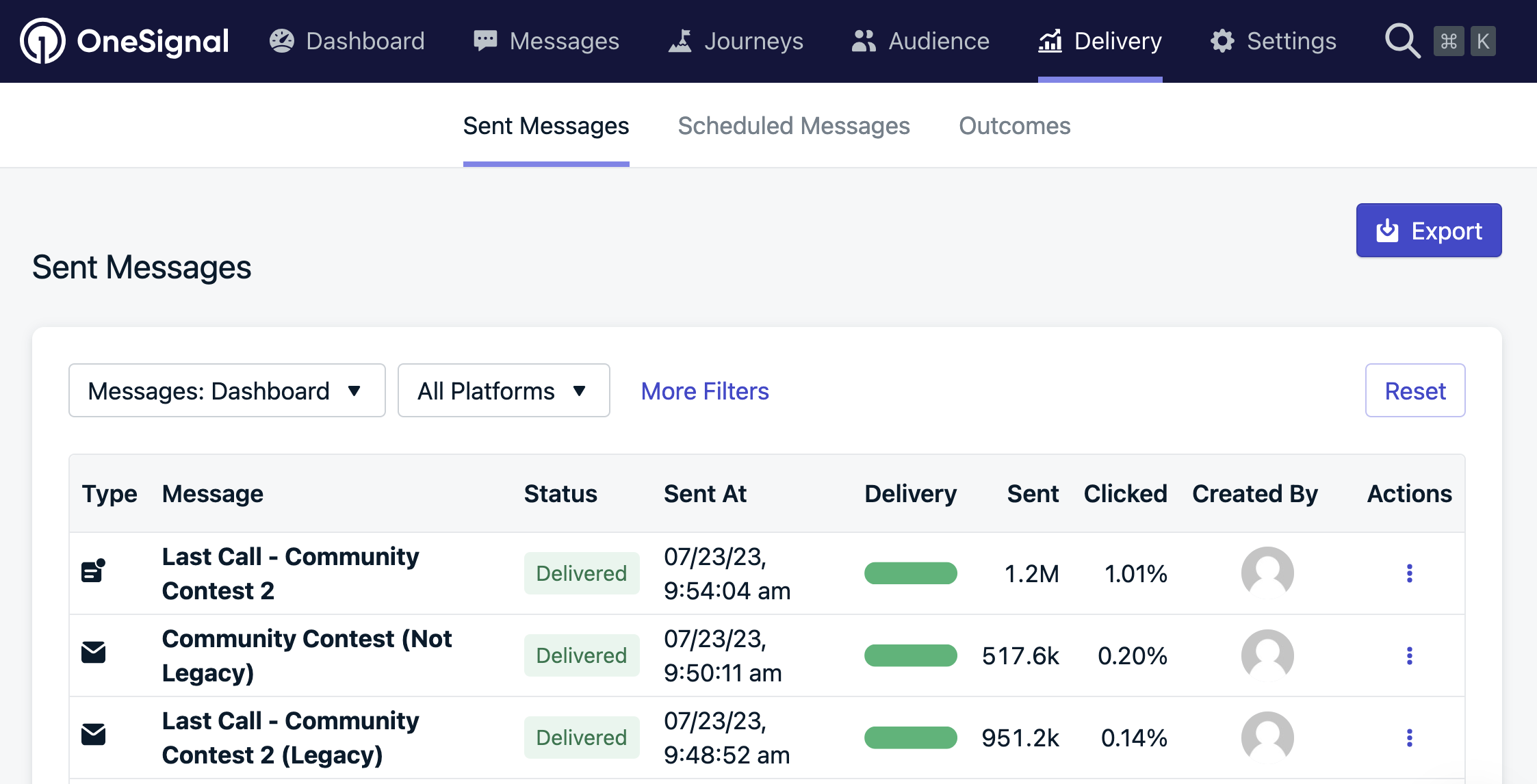
Go to Messages > All messages in the OneSignal dashboard and select the message whose audience you want to retarget.
Select a sent message
2
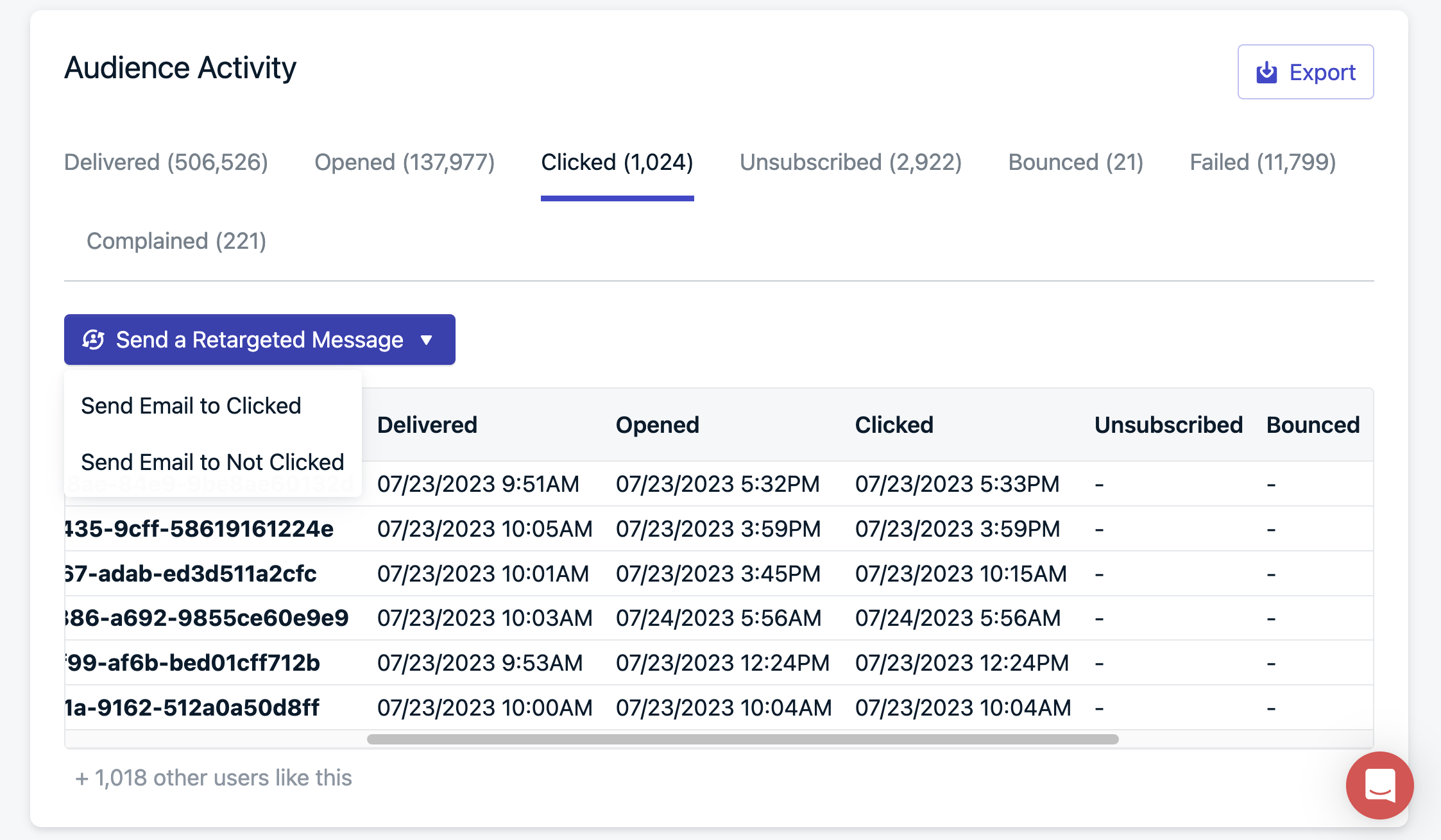
Open Audience activity
Scroll to the Audience activity section of the message report. The available retargeting categories are:
Sent — message was sent to the device.
Confirmed Receipt — delivery was confirmed by the device.
Did Not Confirm Receipt — delivery confirmation was not received.
Clicked — user clicked the notification.
Did Not Click — user did not click the notification.
Failed — delivery failed.
Unsubscribed — Subscriptions that became unreachable (uninstalled, cleared browser data, or opted out) since the original send.
3
Start retargeting
Click Send a Retargeted Message next to the category you want to target.
Send a retargeted message button
4
Compose and send
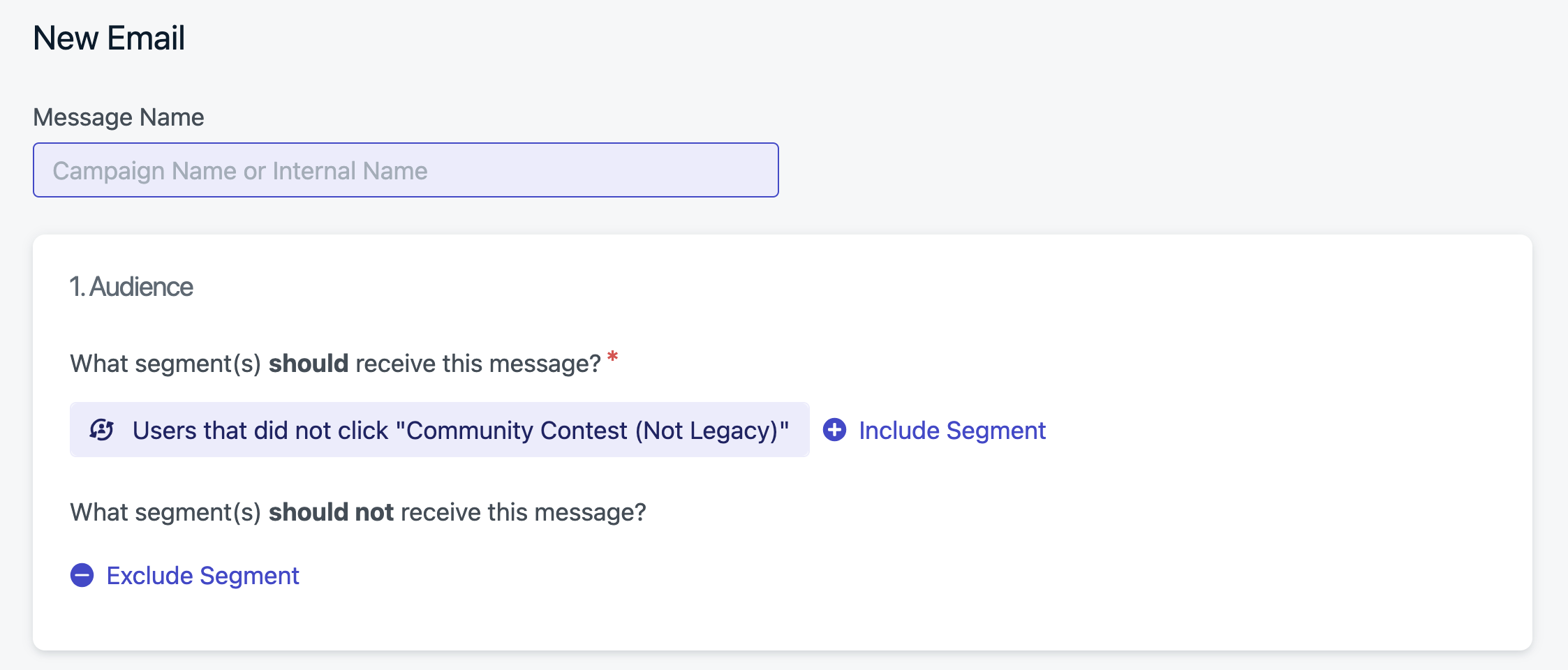
Enter a Message Name so you can find it later. The Audience is pre-filled with the Subscriptions in the category you selected. Compose your follow-up content with the standard message editor and send.
Retargeting message setup
Retargeted messages must be scheduled within 30 days of the original message’s send date. After 30 days, audience activity data is purged and the original message is no longer eligible for retargeting.
Retargeting is available for push messages. It is not currently available for email, SMS, or in-app messages. To build a similar flow for other channels, use Segments and Journeys.
Notifications sent via the API or as Automated Messages are automatically deleted after approximately 30 days. Once deleted, they no longer appear in your message history and cannot be used for retargeting. Dashboard-composed messages follow the same 30-day retention window for audience activity.
Audience activity data is retained for 30 days. After that, the interaction data needed to rebuild the retargeting audience is purged and the original message becomes ineligible.If you recently upgraded to a plan that includes retargeting, messages sent before the upgrade are not retroactively stored. Retargeting data collection begins only after your account gains access to the feature.
Yes. A retargeted send creates a new push message report with its own Audience activity, so you can retarget from it like any other message, as long as you do so within 30 days of that follow-up send.
No. Retargeting is a dashboard feature that builds the audience from the original message’s Audience activity. To reach a similar audience through the API, capture the outcome as a Data Tag or user property on each Subscription, then target a Segment built from that tag in the Create message API.
Need help?Chat with our Support team or email support@onesignal.comPlease include:
Details of the issue you’re experiencing and steps to reproduce if available
Your OneSignal App ID
The External ID or Subscription ID if applicable
The URL to the message you tested in the OneSignal Dashboard if applicable