

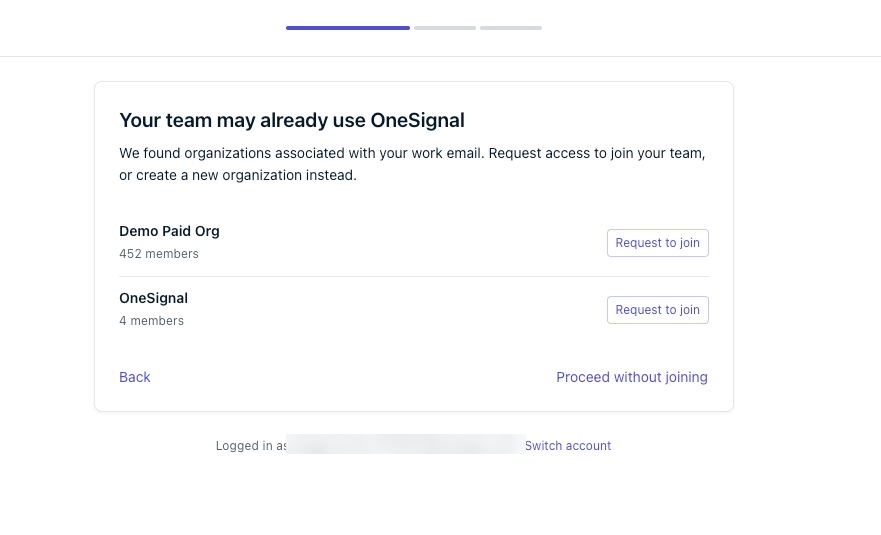
Matching organizations shown during onboarding
How organization discovery works
Each organization has a list of discovery domains: the email domains whose signups can find the organization. When someone signs up with an email address on one of those domains and verifies it, OneSignal shows them the organization during onboarding and lets them request to join.- Discovery runs after email verification. OneSignal checks for matching organizations in the About you onboarding step, which starts only after the new user verifies their email address.
- Matching is exact.
acme.comdoes not matcheu.acme.com. List each domain and subdomain separately. - Signups see only the organization name and member count. Signups never see member names, emails, or any other organization data.
- Every request needs approval. A matching email domain makes someone eligible to request access. It never adds them to the organization automatically.
- Invited users skip discovery. A user who already has an invitation goes straight to the organization that invited them.
- Personal and disposable email domains never match. Signups with addresses like
gmail.comoroutlook.comcreate their own organization as before.
How domains get added
OneSignal adds a discovery domain automatically in two cases, and Organization Admins can add more:- When an organization is created from a company email address, OneSignal adds the creator’s email domain.
- When every confirmed member shares one company email domain and the organization has no discovery domains yet, OneSignal adds that domain. This applies to existing organizations and is checked again when members join or leave.
- An Organization Admin adds a domain from the organization’s security settings. See Manage discovery domains.
Request to join an organization
When you sign up with a company email address that matches an existing organization, OneSignal shows matching organizations after you verify your email and complete the About you step.1
Verify your email address
Sign up, then click the link in the verification email OneSignal sends you. Onboarding starts after your email address is verified.
2
Complete the About you step
Fill in the About you step of onboarding. If your email domain matches one or more organizations, OneSignal shows the Your team may already use OneSignal screen.
3
Choose your team's organization
Find your team’s organization in the list and click Request to join. If more than 5 organizations match, use Search organizations to filter the list.
4
Confirm the request
Review the confirmation and click Request to join. The organization’s Admins see your name and email address when they review your request.
The Your request is pending page lists each organization you asked to join. OneSignal emails you when an Admin responds. You can close the page. When you sign in again after approval, OneSignal takes you to your dashboard.
Request outcomes
Review join requests
Organization Admins review requests on the Pending invites tab. OneSignal emails each Admin when a new request arrives, and the tab shows a count of open requests.1
Open Pending invites
Click the Settings (gear) button in the bottom-left corner of the dashboard sidebar, click Organization settings, click Organization members, then click the Pending invites tab.
2
Choose a role
Each request shows the requester’s name, email address, and when they asked. Choose the requester’s role in the Organization role column. The default is Team Member.
3
Approve, deny, or block
Click Approve, Deny, or Block, then confirm.
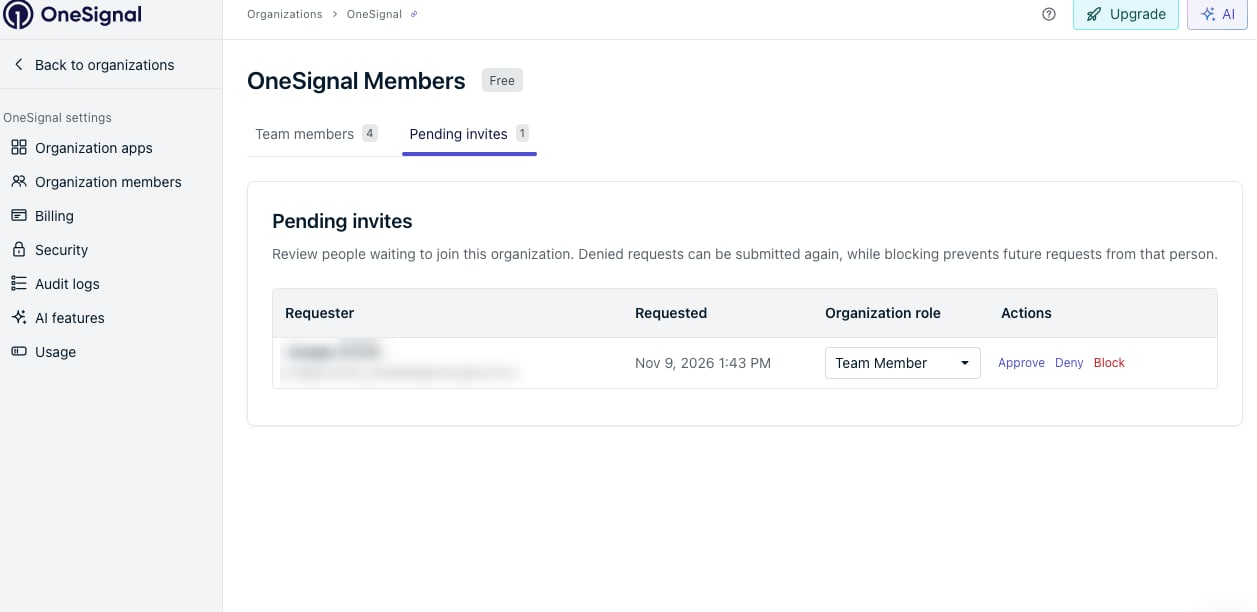
Reviewing a join request on the Pending invites tab
- Approve adds the requester to the organization with the role you chose. An approved member is the same as an invited member. You can change their role later from Team members.
- Deny removes the request. The requester can ask again later.
- Block removes the request and stops that person from requesting to join this organization again. You can block someone whether or not they have an open request.
Manage discovery domains
Organization Admins choose which email domains can find the organization.1
Open Security settings
Click the Settings (gear) button in the bottom-left corner of the dashboard sidebar, click Organization settings, then click Security.
2
Find Organization discovery
The Organization discovery card lists the Email domains that can ask to join.
3
Add or remove a domain
Click Add domain, select a domain, and click Allow domain. To remove a domain, click the trash icon next to it and click Remove domain.
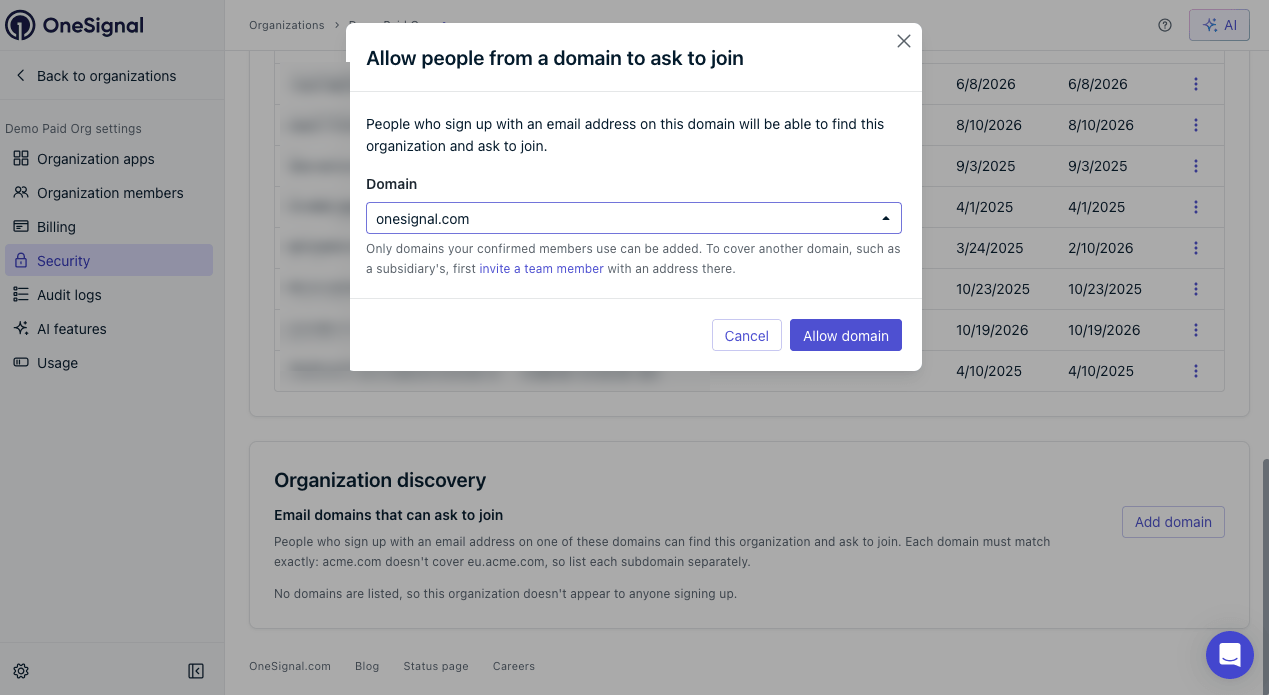
Adding a discovery domain from Security settings
Which domains you can add
You can only add a domain that a confirmed member of your organization already uses for their email address. You choose from those domains. You cannot type in a new one. To cover another domain, such as a subsidiary’s, first invite a team member with an email address on that domain. After they confirm their account, the domain becomes available to add. You cannot add a domain that is:- A personal or disposable email domain, such as
gmail.com. - Managed by single sign-on (SSO). People on an SSO domain sign in through their company’s identity provider. See Single Sign-On (SSO).
- Already listed by 10 organizations. See Limits.
Remove domains or turn off discovery
Removing a domain stops new signups on that domain from finding the organization. Current members keep their access. To turn off organization discovery, remove every domain. OneSignal does not add a domain back on its own, so the organization stays hidden until an Admin adds a domain again.Limits
- Matching organizations shown: a signup sees at most 10 matching organizations. If more than 10 organizations list the signup’s email domain, OneSignal shows no list. Instead, it asks the person to get an invite link from a teammate or to create a new organization.
- Organizations per domain: you cannot add a domain that 10 organizations already list.
- Apps when approving a Team Member: up to 50 apps.
Organizations with single sign-on
An organization whose SSO covers a signup’s email domain is not shown to that signup. People on that domain sign in through SSO instead. See Single Sign-On (SSO).Audit log events
Join requests and discovery domain changes appear in your organization’s audit logs. See Organization discovery events for the full list.FAQ
Why didn’t my teammate see our organization when they signed up?
The most common cause is that their email domain is not in your discovery domain list. Check Organization settings > Security > Organization discovery. Matching is exact, soeu.acme.com must be listed separately from acme.com. Discovery also does not show organizations to people who sign up with a personal email address, who already have an invitation, or whose domain is covered by your organization’s SSO.
Why is our organization discoverable when we never set it up?
OneSignal adds a discovery domain automatically when an organization is created from a company email address, or when all confirmed members share one company email domain. To turn off discovery, remove every domain from the Organization discovery card.Can someone join our organization without approval?
No. Every request must be approved by an Organization Admin. A discovery domain only lets people on that domain ask to join.What can people who sign up see about our organization?
Only the organization name and its member count. They cannot see member names, email addresses, apps, or any other data until an Admin approves them.Who can approve requests and manage discovery domains?
Organization Admins. See Team members for role details.Can I unblock someone?
No. Blocks cannot be undone in the dashboard. To give a blocked person access, invite them from Team members.Why can’t I add a domain?
You can only add a domain that a confirmed member already uses, and the domain cannot be a personal or disposable domain, managed by SSO, or already listed by 10 organizations. To add a subsidiary’s domain, invite someone with an address on it first.Related pages
Team members
Invite team members and choose the right role for each one.
Apps, Organizations, and Accounts
Understand how accounts, apps, and organizations relate.
Single sign-on (SSO)
Configure SSO so team members sign in through your identity provider.
Audit logs
Review join requests and domain changes alongside other organization activity.