

Find your Subscription
Go to Audience > Users & subscriptions > Subscriptions in the OneSignal Dashboard and search by any of these identifiers:- External ID (preferred): the user ID from your database, CRM, or other system of record.
- Email: if you send email addresses to OneSignal.
- Phone number: if you send phone numbers to OneSignal.
- Subscription ID: the ID for a single messaging channel. That’s one install of your app on a device, one browser opted in to web push, one email address, or one phone number. Copy it from the device using the steps below, or ask your developer to pull it from your app logs.
Copy the Subscription ID from a mobile device
Video: Copy the Subscription ID from a mobile device
- Background and foreground the app six times within 30 seconds.
- On the sixth return to the foreground, the OneSignal SDK copies the device’s push Subscription ID to the clipboard.
- Paste the value into the Audience > Users & subscriptions > Subscriptions search box.
os: . Delete that part, including the space, so you’re left with the ID on its own. Example:
- Copied from the device:
os: 4cbe1a4e-8f9e-4a0d-a2b9-3d3d4c7e1f20 - Search for this:
4cbe1a4e-8f9e-4a0d-a2b9-3d3d4c7e1f20
os: no subscription ID yet, the app found no Subscription ID to copy. Open the app with an internet connection, then repeat the steps above.
On iOS, the Subscription ID stays on the clipboard for 5 minutes, so paste it before then. On Android, it stays until something else replaces it.
- iOS
- Android
Add to your app’s
Info.plist:Info.plist
Copy the Subscription ID from a web browser
To find the Subscription ID for a browser without writing any code:- Visit your site with the OneSignal Web SDK installed and subscribe to notifications.
- Open your browser’s developer tools and select the Console tab.
-
Paste this code into the console and press Enter:
- Copy the Subscription ID printed in the console.
- Paste the value into the Audience > Users & subscriptions > Subscriptions search box.
null, the browser doesn’t have a push Subscription yet. Subscribe to notifications on the site, reload the page, then run the code again. For a fuller diagnostic that also reports push support and opt-in state, see Troubleshooting web push.
Find your Subscription by device and IP
If you don’t have any of these identifiers and can’t copy the Subscription ID from a mobile device or browser, find your Subscription by device and IP:- Note your device make and model (for example, “iPhone 17 Pro”).
- Find your IP address. On the device, open a browser and search “What is my IP address?”. Note both the IPv4 and IPv6 values if provided. OneSignal doesn’t record IP addresses in the EU or when you turn IP tracking off.
- Go to Audience > Users & subscriptions > Subscriptions and sort by Last session to see the most recently active Subscriptions.
- Open your app on the device, or visit your site in the browser, then wait a few seconds.
- Refresh the Subscriptions list. Your Subscription matches your device and IP.
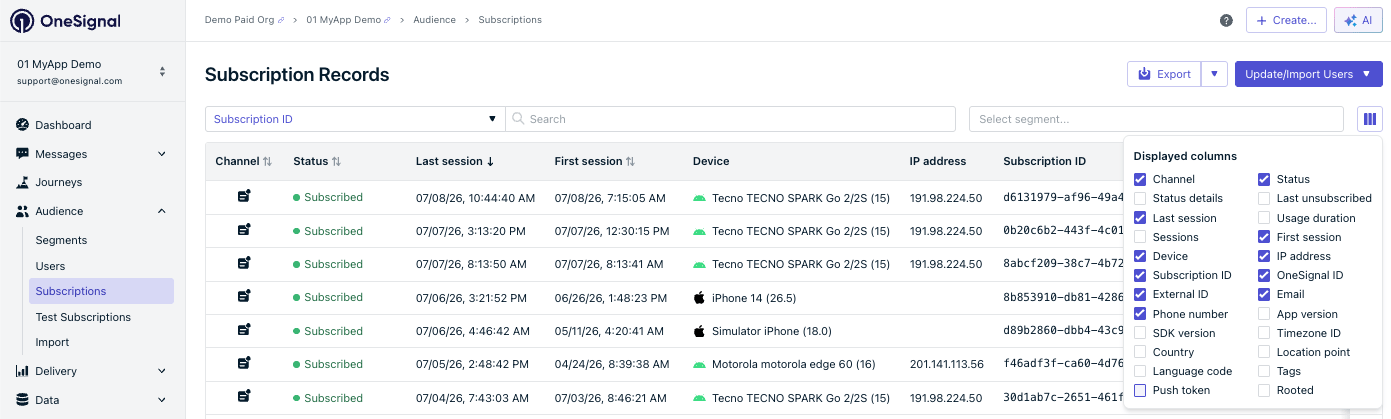
OneSignal Dashboard Audience > Subscriptions page. Shows the Columns button and the Last session, Device, and IP address columns.
Ask your app developer which identifiers your app passes to OneSignal, and have them set an External ID if they aren’t already. Email
support@onesignal.com if you’re still stuck.Mark a User as a test user
From a Subscription
Use this flow when you have your device’s Subscription ID or want to find your device by activity.- Go to Audience > Users & subscriptions > Subscriptions and find the Subscription for the device you want to test with.
- Next to the Subscription, select Options > Add as test user.
- Enter a test user name.
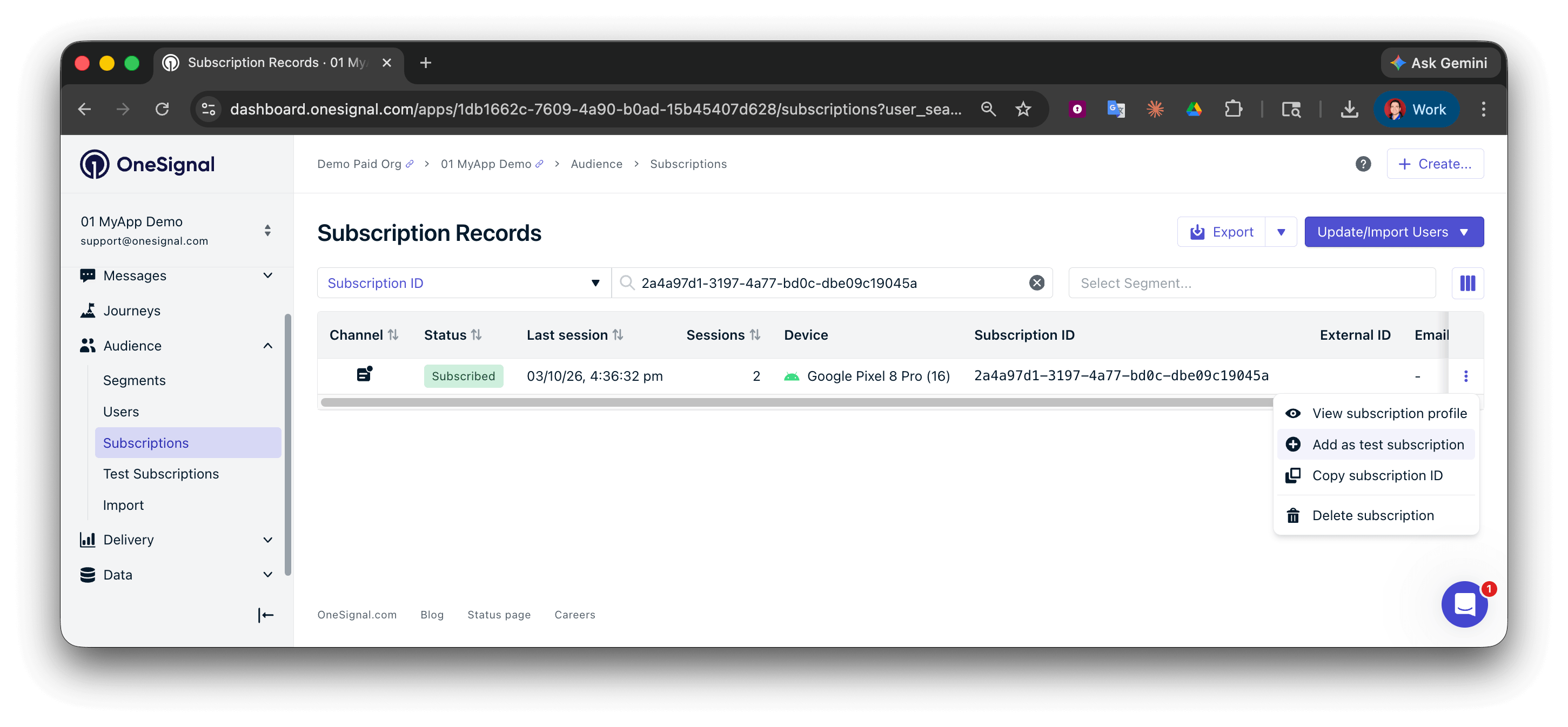
OneSignal Dashboard Audience > Subscriptions page. Shows a Subscription with the Options menu and Add as test user option highlighted.
When manually creating a User
When adding a single User through the dashboard’s New User form, check Add as test user and provide a name. All Subscriptions created for this User are marked as test users under that name.Via the API
Set thetest_user_name property when creating or updating a User with the REST API:
{alias_label} with the alias you’re identifying the User by (for example, external_id) and {alias_id} with that alias’s value. See Aliases.
To clear the test user name, set test_user_name to an empty string ("").
See Create user and Update user for the full API reference.
Send to test users
Once a User is marked as a test user, you can send to them from:- The message composer: open Test & Preview, check the test user you want, then select Send Test Push.
- Journeys: use the Test users filter to scope an entry rule to test users. See Journey settings.
- Webhook tests: validate Journey webhooks against test users before going live. See Journey webhooks.
FAQ
How do I remove a test user?
From the dashboard:- From the User profile: Open the User and select Actions > Remove as test user.
- From the Subscriptions list: Go to Audience > Users & subscriptions > Subscriptions, find any Subscription belonging to the User, then select Options > Remove as test user.
test_user_name to "" on the User.
What’s the difference between a test user and a test subscription?
None. Test status is stored on the User, so marking any one Subscription as a test user marks the underlying User and applies the flag to all of that User’s other Subscriptions.Why does the same person appear multiple times in the Test users filter?
Because OneSignal counts them as separate Users. A new Subscription is created every time someone:- Reinstalls your mobile app.
- Clears their browser data, then returns to your site.
OneSignal.login with the same External ID after each install or sign-in. The new Subscription then joins the existing User instead of becoming a duplicate.
Can I send to test users from the API?
Yes. Use the Create notification API withinclude_subscription_ids to target specific test devices, or with included_segments: ["Test Users"] to target every test user in the app. Before you can use included_segments, create a segment named Test Users with the Test users filter. See Segmentation.
Why didn’t my mobile app copy a Subscription ID to the clipboard?
Check for these causes:- The app didn’t fully go to the background six times within 30 seconds. Opening the notification shade or Control Center may not count.
- The app runs an SDK older than iOS 5.6.2 or Android 5.10.1.
- Your developers turned the feature off with
OneSignal_disable_subscription_id_copyorcom.onesignal.subscriptionIdCopyDisabled. - Your app requires privacy consent and the user has not granted it.
Related pages
Users
The OneSignal user model, aliases, and how Users relate to Subscriptions.
Subscriptions
Manage Subscriptions and find a specific device for testing.
Segmentation
Build segments, including a Test Users segment, to scope sends.
Create message API
Send notifications programmatically to specific Subscription IDs.