

Conversion Metrics is available on all plans. Custom metrics from custom events require a paid plan. See Plan availability.
Overview
Conversion Metrics let you measure the business impact of your OneSignal messaging by tracking real-world outcomes like purchases, sign-ups, trial starts, or anything you need. You define which custom events count as conversions, and OneSignal attributes those conversions to the messages that drove them using a last-touch attribution model across push, email, SMS, in-app, and RCS.Default conversion metrics
OneSignal tracks these Conversion Metrics out of the box. No additional setup or configuration is required.- App Sessions: Counts every qualifying app open as a session; sessions are attributed to a message when one qualifies.
- Clicks: Counts when a user clicks a message.
How App Sessions are counted
A session begins each time a user opens your app or website from a fully closed state, or reopens it after being in the background for at least 30 seconds. Returning within 30 seconds continues the current session instead of starting a new one. Because of this rule, the App Sessions metric may not match session counts from other analytics tools, which may define a session differently (for example, counting any app open that lasts at least a couple of seconds). See Why don’t sessions match other analytics tools? for details.Historical sessions data: App Sessions have been tracked as a Conversion Metric since June 25, 2026. Sessions recorded before that date appear on the outcomes chart in push message reports and follow the legacy outcomes attribution model instead of the Conversion Metrics attribution model described on this page.
Set up custom conversion metrics
Before you can set up custom Conversion Metrics, you need:- Custom events flowing into OneSignal. Custom Conversion Metrics are powered by Custom events. Send events via the SDK, API, or an integration.
- A paid plan if you are creating custom metrics. See Plan availability. Default metrics (Clicks and App Sessions) do not require this.
- A numeric property on the event if you want the metric to total a value for each event, such as revenue. See Custom event best practices for how to shape event properties.
1
Confirm custom events are sending
Verify your custom events are reaching OneSignal by checking Data > Events & conversions in the dashboard. You should see the events you want to use as Conversion Metrics listed there.
2
Go to Data > Events & conversions > Conversion Metrics
In the OneSignal dashboard, open Data > Events & conversions and select the Conversion Metrics tab.
3
Create the metric
Click Create Conversion Metric. Select the Custom Event you want to count, and give the metric a Metric Name. For example, select a
purchase event to track purchases or a signup event to track new registrations.4
Optionally track a value
To total a numeric property, such as revenue or points, check Track a value for each event and choose the Property. This option appears only when the event has a number-typed property, and you can only turn it on when you create the metric.
5
Save the metric
Click Create & Start Tracking.
Attribution windows
An attribution window is the time after a qualifying interaction during which that message is eligible for credit. If the conversion happens after the window closes, that interaction does not count. Eligibility is not the same as attributed credit. An open window means the message can receive attributed or influenced credit, depending on last-touch. See Attribution model. When a qualifying interaction happens (for example, a click on a push), that interaction opens a window for the duration you configured for that channel. If the push window is 15 minutes, the window stays open from the click until 15 minutes later. After it closes, later conversions cannot be credited to that interaction. You can configure attribution windows per channel in Settings > Analytics > Attribution Windows. The windows apply to every Conversion Metric in the app.
Push, SMS, and RCS windows can start on delivery. Email windows start only on open or click, so an email that is delivered but never opened cannot receive credit.
Attribution model
Conversion Metrics use a last-touch attribution model. When a user converts, OneSignal evaluates all qualifying message interactions within their respective attribution windows and classifies the conversion as attributed, influenced, or unattributed.Attributed conversions
The most recent qualifying message interaction across all channels before the conversion receives attributed credit. Only one message gets attribution per conversion.
Looking backward from the conversion, the most recent click, open, or read within its channel window gets attributed credit. SMS attributed credit requires a click on a tracked link. Delivery can still qualify that SMS for influenced credit.
Influenced conversions
Any message that meets the qualifying criteria within its attribution window, except the message that received direct attribution credit, receives influenced credit. Multiple messages can receive influenced credit for a single conversion.
A message can receive influenced credit when:
- It was clicked, opened, or read within its attribution window, but was not the last such interaction before the conversion.
- For push, SMS, and RCS, it was delivered within the attribution window (even if it was not clicked, opened, or read). In-app impressions work the same way. Email delivery does not qualify.
Unattributed conversions
A conversion is unattributed when no message interaction qualifies within any attribution window. The conversion happened organically, without a traceable message interaction.Key rules:
- Any single conversion event can have either 0 or 1 messages with direct attribution credit and any number of messages (including 0) with influenced credit.
- A message receives either attributed or influenced credit for a given conversion, never both.
- Attribution is cross-channel: the last qualifying interaction from any channel wins attributed credit.
Attribution examples
Recency wins when windows are open
In this example, a user interacts with messages across four channels before converting. The Push click is the most recent qualifying interaction and its window is still open, so it receives attributed credit. Email and SMS windows are also open, so those messages receive influenced credit. The In-App window closed before the conversion, so it receives no credit. This conversion was directly attributed to one message (the push notification) and additionally influenced by two messages (the email and the SMS).
Window length can override recency
Attribution windows are configurable per channel, which means an earlier interaction with a longer window can win over a more recent one with a shorter window. Here, the Push click is more recent but its short window closes before the conversion, so it receives no credit. The earlier Email click has a longer window that is still open, so it wins attributed credit.
View conversion metrics
Conversion data appears across several areas of the OneSignal dashboard.Global conversions dashboard
The global conversions dashboard provides a high-level view of all conversion activity. It shows total, attributed, influenced, and unattributed conversions over time. You can switch between a combined view and per-channel breakdowns using the tabs at the top of the chart.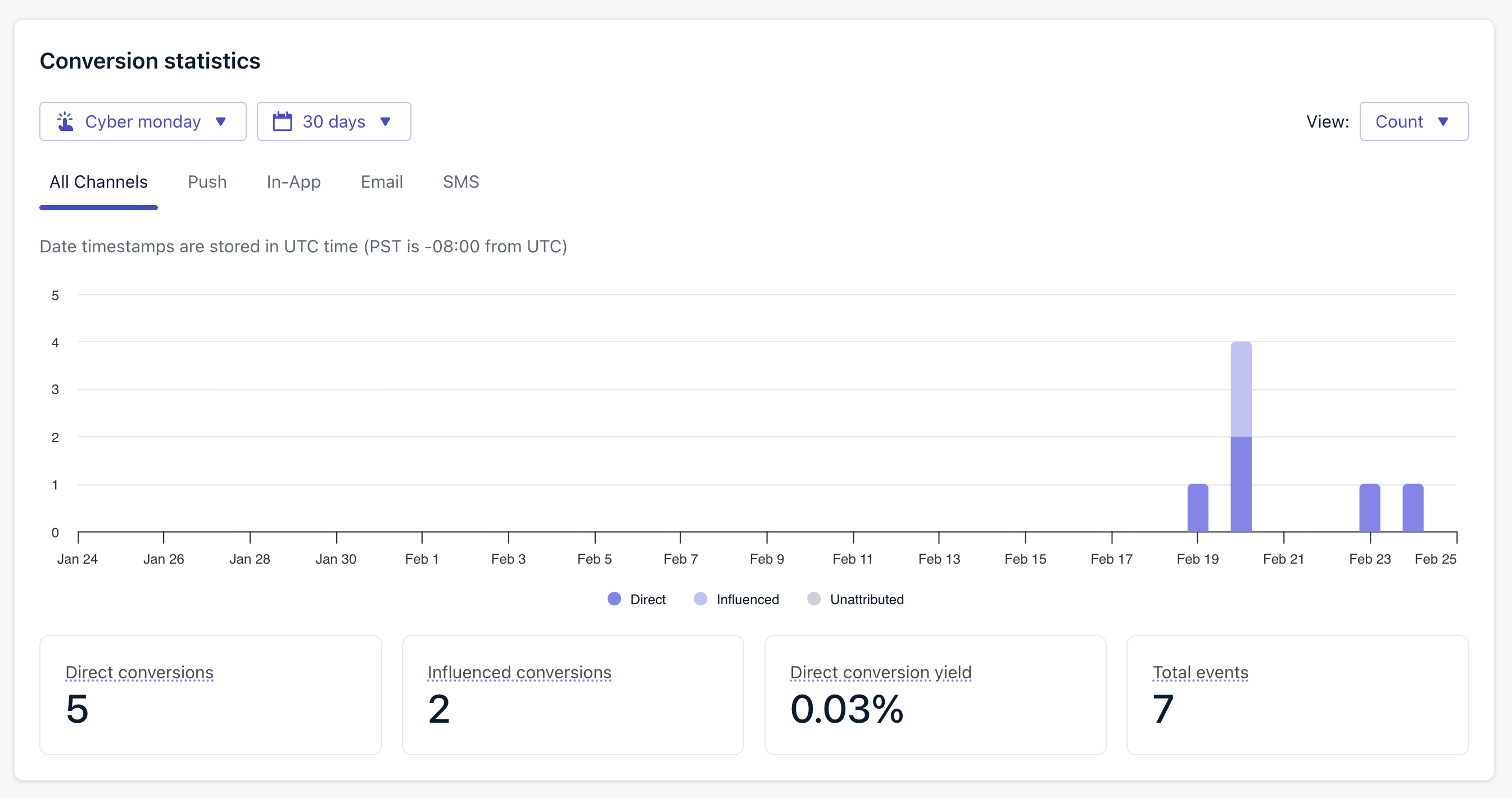
Global conversions dashboard showing total, attributed, influenced, and unattributed conversions
Message, template, and Journey reports
Conversion Metrics appear on all message reports, template reports, and Journey reports. Each single-message report shows the attributed and influenced conversions for that specific message, while template and Journey reports show conversions aggregated across messages. You’ll see different metrics depending on whether you’re viewing Counts or Values.Count metrics
- Direct (attributed) conversions: Conversions that received attributed credit. On the global dashboard, a conversion still counts here if other messages also received influenced credit for the same event. On a message report, this is conversions attributed to that message.
- Influenced conversions: On the global dashboard, conversions that received influenced credit and no attributed credit. On a message report, conversions where that message received influenced credit, including conversions attributed to a different message. Multiple messages can influence one conversion, so message-level influenced counts can add up to more than the global influenced total.
- Conversion yield: Direct conversions divided by total delivered messages.
Value metrics
- Direct conversion value: The sum of the value property for conversions with attributed credit. Same global vs. message-level split as Direct conversions.
- Influenced conversion value: The sum of the value property for influenced conversions. Same global vs. message-level split as Influenced conversions.
- Value per delivery: Direct conversion value divided by total delivered messages.
Cross-channel calculation methodology
Aggregated metrics across channels use this methodology:- Clicks and click-through rate: Click-through rate always uses unique clicks. Push notifications can be clicked (opened) exactly once, so there is no distinction between total and unique clicks for push.
- Delivered messages: The denominator for click-through rate, conversion yield, and value per delivery. It is the sum of delivered push, email, and SMS/RCS messages plus in-app impressions.
Global vs. message-level reporting:On the global dashboard, each channel receives at most 1 influenced credit per conversion, even if multiple messages on that channel influenced it. On individual message reports, each message that received influenced credit shows it.This means the sum of influenced credits across individual message reports may be higher than the channel-level influenced count on the global dashboard.
Plan availability
Conversion Metrics is available on all plans. What you get depends on your plan:
On free plans, App Sessions are reported as unattributed conversions only. Paid plans additionally receive direct and influenced attribution for App Sessions and can create custom Conversion Metrics from their custom events.
Migration from Custom Outcomes
Custom Outcomes is being deprecated and replaced by Conversion Metrics.- Legacy data is preserved. Your existing Custom Outcomes data remains accessible as historical data.
- Separate reporting. Legacy Custom Outcomes will not appear on the new Conversion Metrics charts. They remain in their original location.
- No automatic migration. To track the same metrics with the new attribution model:
- Implement custom events via the SDK, API, or integrations (if you haven’t already).
- Configure those events as Conversion Metrics in Data > Events & conversions > Conversion Metrics.
- Default metrics are migrated. The default OneSignal outcomes (sessions, clicks) are automatically available as default Conversion Metrics.
FAQ
How is this different from Custom Outcomes?
Custom Outcomes only attribute conversions from push notifications and in-app messages. Conversion Metrics use a cross-channel last-touch attribution model that covers push, email, SMS, in-app, and RCS. Conversion Metrics are also powered by custom events instead of SDK outcome methods, and they provide more granular control over attribution windows per channel.What channels support conversion metrics?
Push notifications, email, SMS, in-app messages, and RCS. Journey Message Goals can target Conversion Metrics on Push, Email, SMS, and In-App steps. RCS message steps are not included.Why is my App Sessions count lower than expected?
Older SDK versions may under-report unattributed App Sessions (opens not tied to a delivered or clicked message). This was fixed in Android SDK 5.7.1 and iOS SDK 5.5.1. If your app is using an SDK version that predates these, upgrade to see a more complete count. This affects the App Sessions Conversion Metric only. Thesession_count Subscription property (and MAU billing) has always counted all sessions regardless of attribution.
Can I track revenue with conversion metrics?
Yes. When you create a Conversion Metric, check Track a value for each event and select the numeric property from your custom event that represents the monetary value (for example,price or order_total).
How long is conversion data retained?
Conversion data is retained based on your plan. See Analytics data retention for details.What happens to my existing Custom Outcomes data?
Your existing Custom Outcomes data is preserved and remains accessible as historical data. It will not be migrated to or displayed on the new Conversion Metrics charts. See Migration from Custom Outcomes for details.Does custom event retention affect conversion counting?
No. Whether an event counts as a conversion is independent of its storage retention setting. A custom event can be counted as a conversion even when its retention is set so the event is not stored. Storage retention controls how long individual events are kept for segmentation and the Activity Timeline. It does not control whether an event counts toward a Conversion Metric.Related pages
Custom events
Set up and manage the events that power Conversion Metrics.
Analytics overview
Explore all analytics features available in OneSignal.
Goals
Set Journey Message Goals against Conversion Metrics on Push, Email, SMS, and In-App steps.